How every finance number is worked out — and how to check it
Before you sign something, you should be able to say where the figure came from and prove it in two minutes. For each number: where it lives, the arithmetic behind it, the check that proves it, and what a difference usually means.
Nothing matches that. Try a shorter word.
Invoice total #
Where Receivables → the invoice
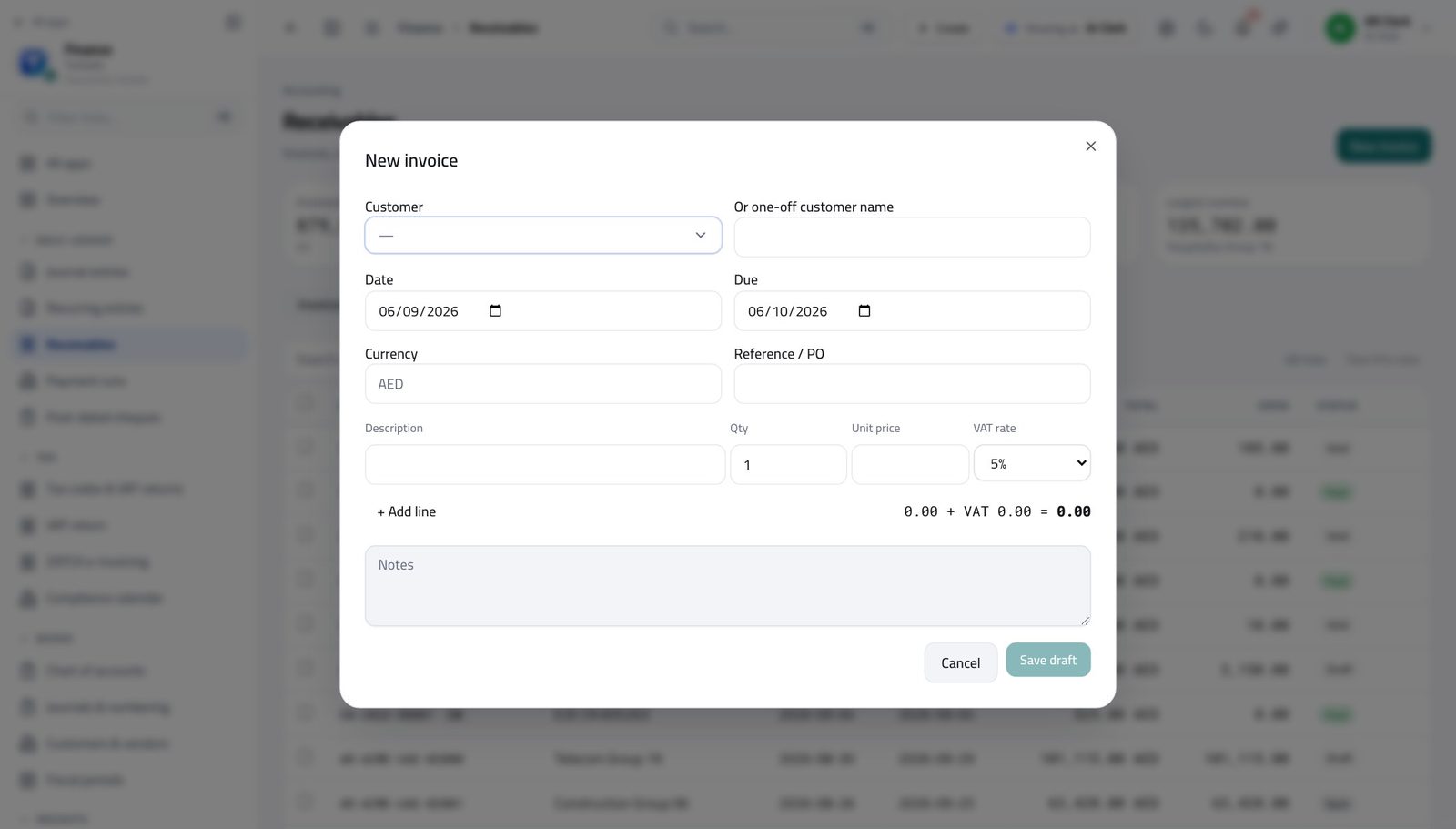
How it is worked out Each line is quantity × unit price. Tax is applied per line from the customer's tax treatment, then the line totals and the tax are added.
Check it like this Add the line amounts on a calculator and apply the rate yourself. If the total differs by a few fils, it is rounding per line — the product rounds each line's tax, which is what the authorities expect.
If it disagrees A total that is out by a whole percentage point is a tax code on one line, not a bug: open the line and look at its rate.
What a customer owes (their balance) #
Where Customers & vendors → the customer → Statement
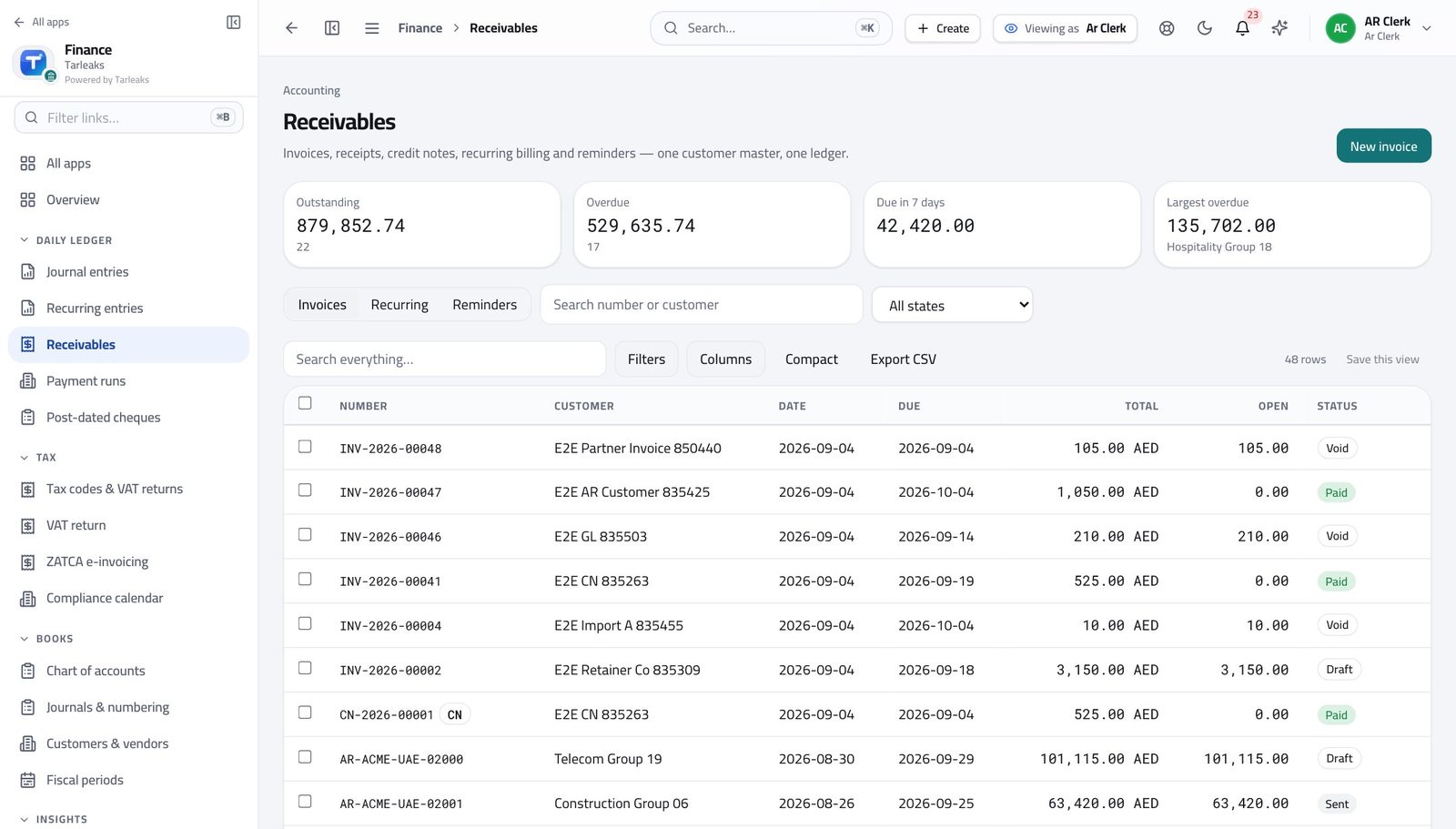
How it is worked out Every posted invoice, less every allocated receipt and credit note.
Check it like this The statement total must equal that customer's row in the receivables ageing. If it does not, a receipt is recorded but unallocated.
If it disagrees Unallocated receipts are the usual cause, and they make a paying customer look overdue.
The ageing buckets #
Where Reports → Ageing
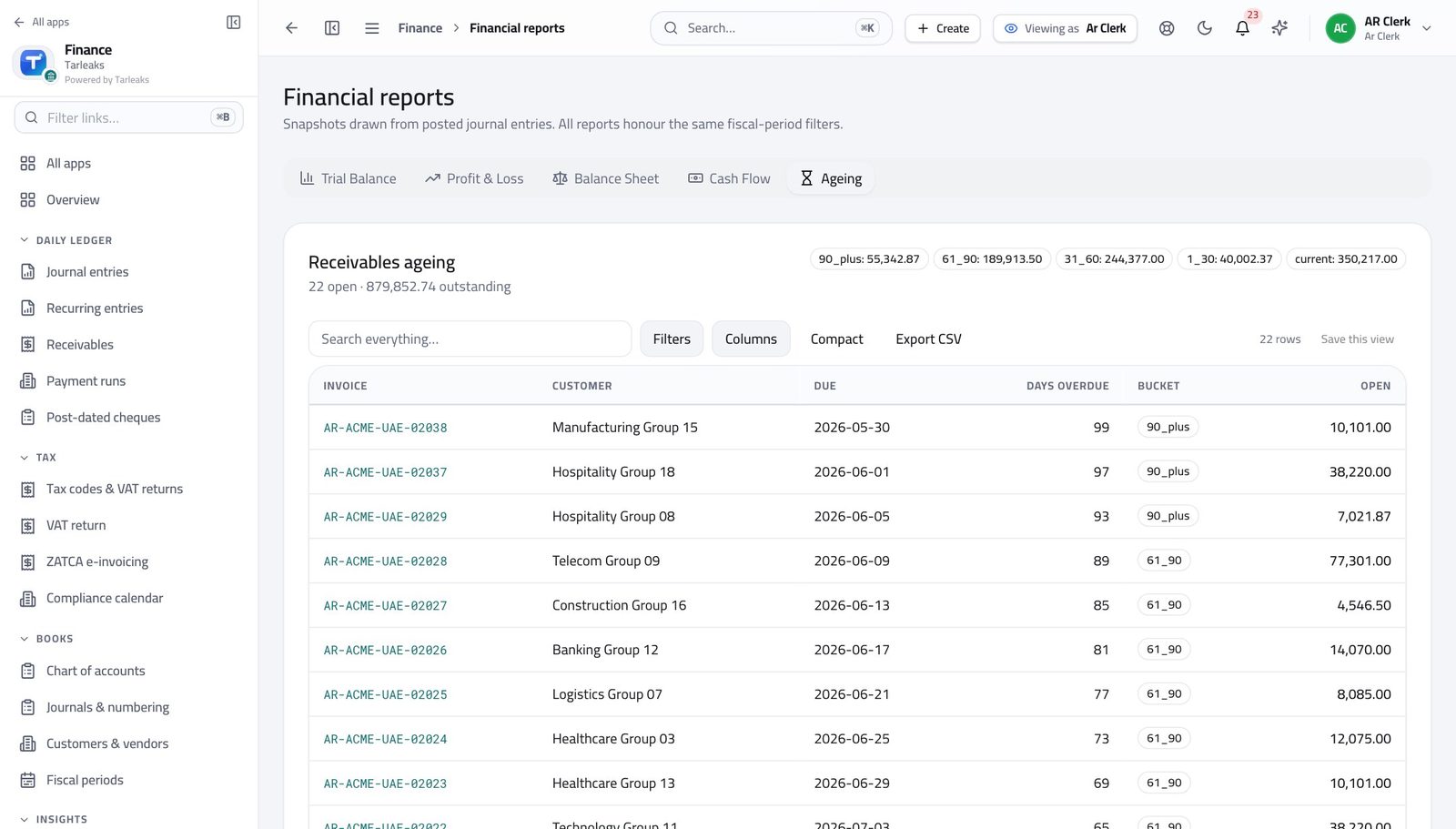
How it is worked out Each open invoice is placed by its DUE date, not its invoice date: not yet due, then 1–30, 31–60, 61–90, over 90 days late.
Check it like this Pick the oldest invoice in the oldest bucket and count the days from its due date to today.
If it disagrees An invoice in the wrong bucket almost always has the wrong due date, which comes from the customer's payment terms.
Trial balance #
Where Reports → Trial Balance
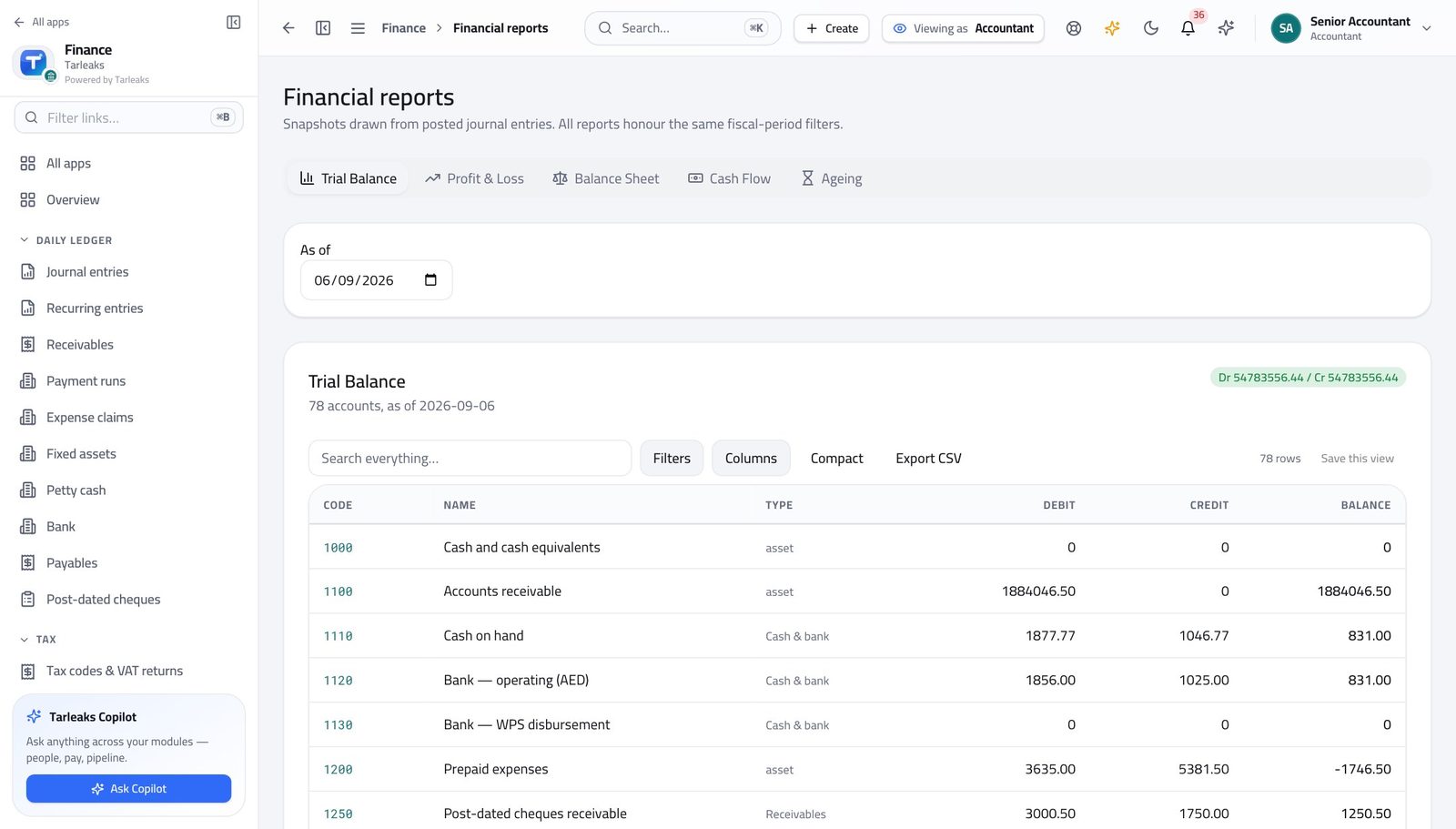
How it is worked out Every posted line in the period, grouped by account: debits in one column, credits in the other.
Check it like this The two totals must be equal. Then check one account against its own entries by opening it.
If it disagrees If the totals differ, look for a foreign-currency revaluation that ran twice, or a date range that splits an entry.
Profit for the period #
Where Reports → Profit & Loss
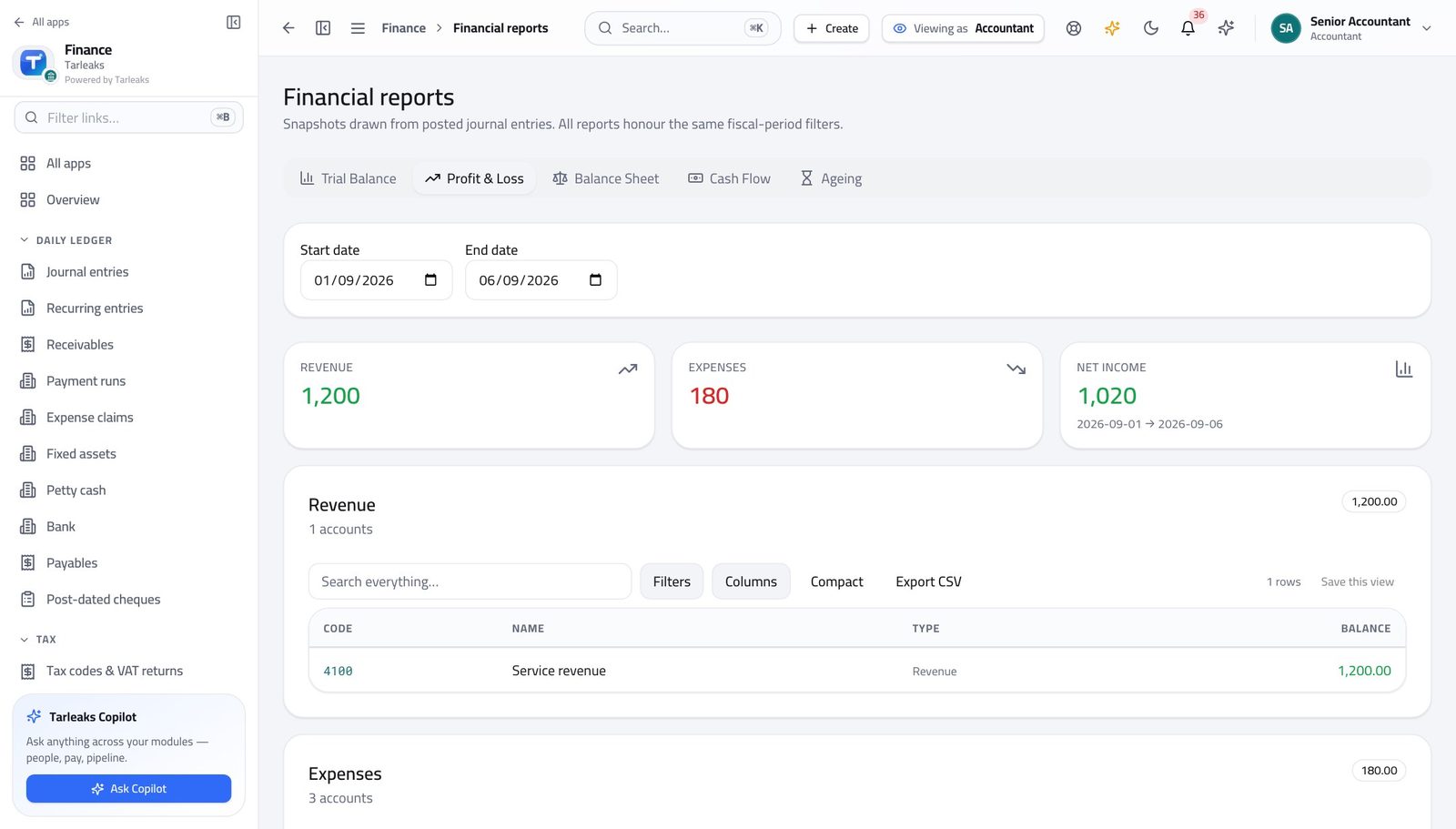
How it is worked out Income accounts less expense accounts for the dates chosen — nothing is typed in.
Check it like this The profit here must equal the movement in retained earnings plus this period's result on the balance sheet for the same dates.
If it disagrees A P&L that disagrees with the balance sheet usually means one of them was run for a different date.
VAT payable for the period #
Where VAT return
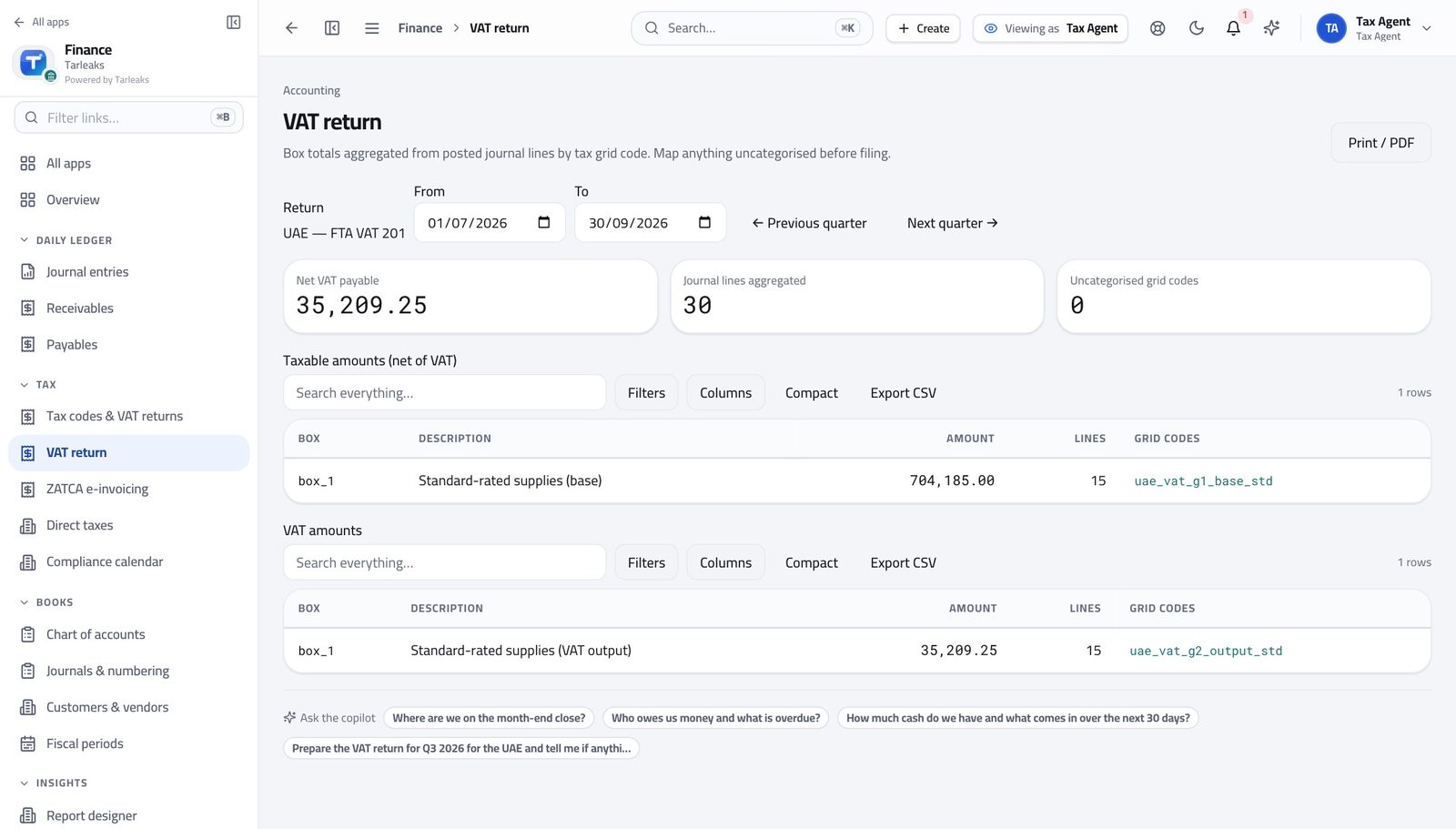
How it is worked out Output tax on sales postings less input tax on purchase postings, each placed in a box by the tax code's group.
Check it like this The net figure should equal the movement on the VAT control account for the same period in the trial balance.
If it disagrees A difference is nearly always the uncategorised bucket: a tax code with no box mapping. The return shows it rather than dropping it.
Depreciation for the month #
Where Fixed assets → the asset → Schedule
How it is worked out Straight line: (cost less residual value) ÷ useful life in months. The schedule shows every month, past and future.
Check it like this Multiply one month's charge by the months elapsed and compare with accumulated depreciation on the register.
If it disagrees A charge that jumps means the asset was revalued or its life changed; the schedule shows where.
Withholding tax on a supplier bill #
Where Payables → the bill
How it is worked out The WHT rate on the bill × the amount before tax. It is deducted from what you pay the supplier and held as a liability until it is remitted.
Check it like this The supplier is paid the total less the withholding; the withholding register should show the same amount.
If it disagrees If the supplier disputes the amount, check whether their rate is set on the bill or defaulted from their residency.
Cash position #
Where Finance overview → cash card
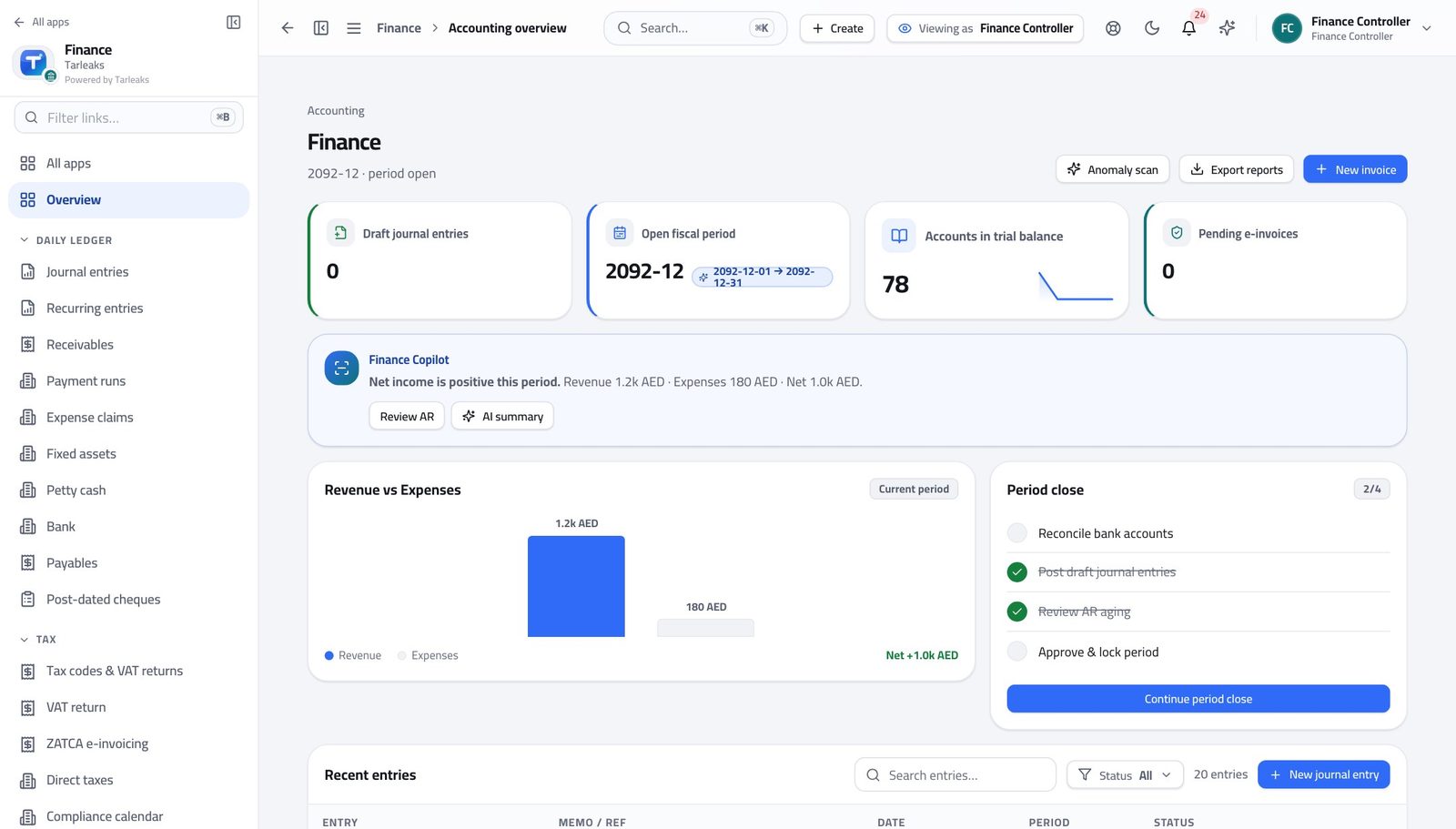
How it is worked out Bank and cash account balances now, plus what is due in and out over the coming weeks from the ageing and the payment runs.
Check it like this Compare the bank line with the actual bank statement, not with the last reconciliation.
If it disagrees A gap between the two is unreconciled bank lines, which is a job rather than an error.
Budget variance #
Where Budgets → variance
How it is worked out Actual postings on the budgeted accounts for the period, against the budget lines for the same period.
Check it like this Open one budget line and the account behind it; the actual figure must match the account's movement.
If it disagrees Variance on an account nobody budgeted looks alarming and means nothing — check the budget covers the account before reacting.
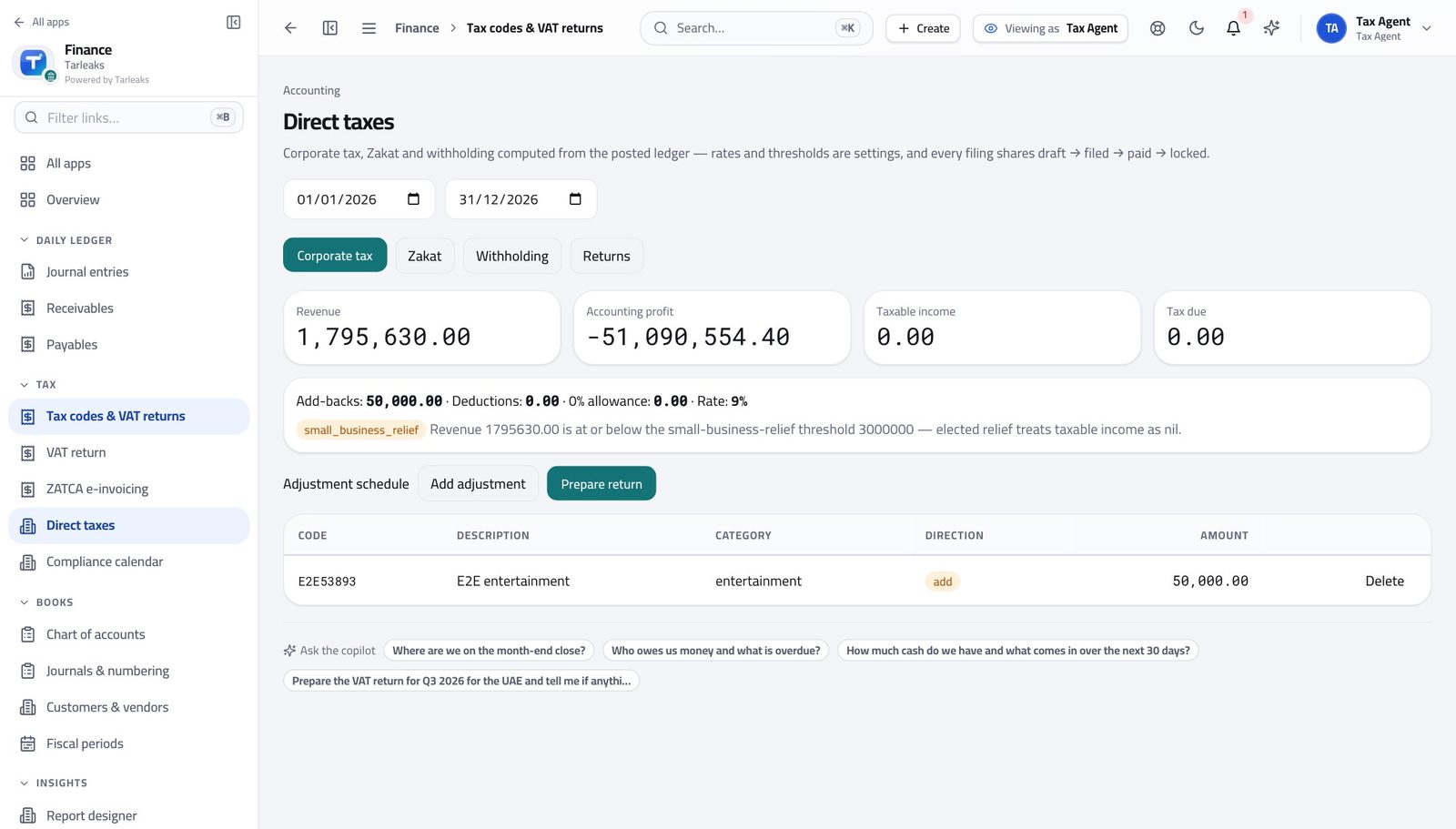
Corporate tax due #
Where Tax → corporate tax computation
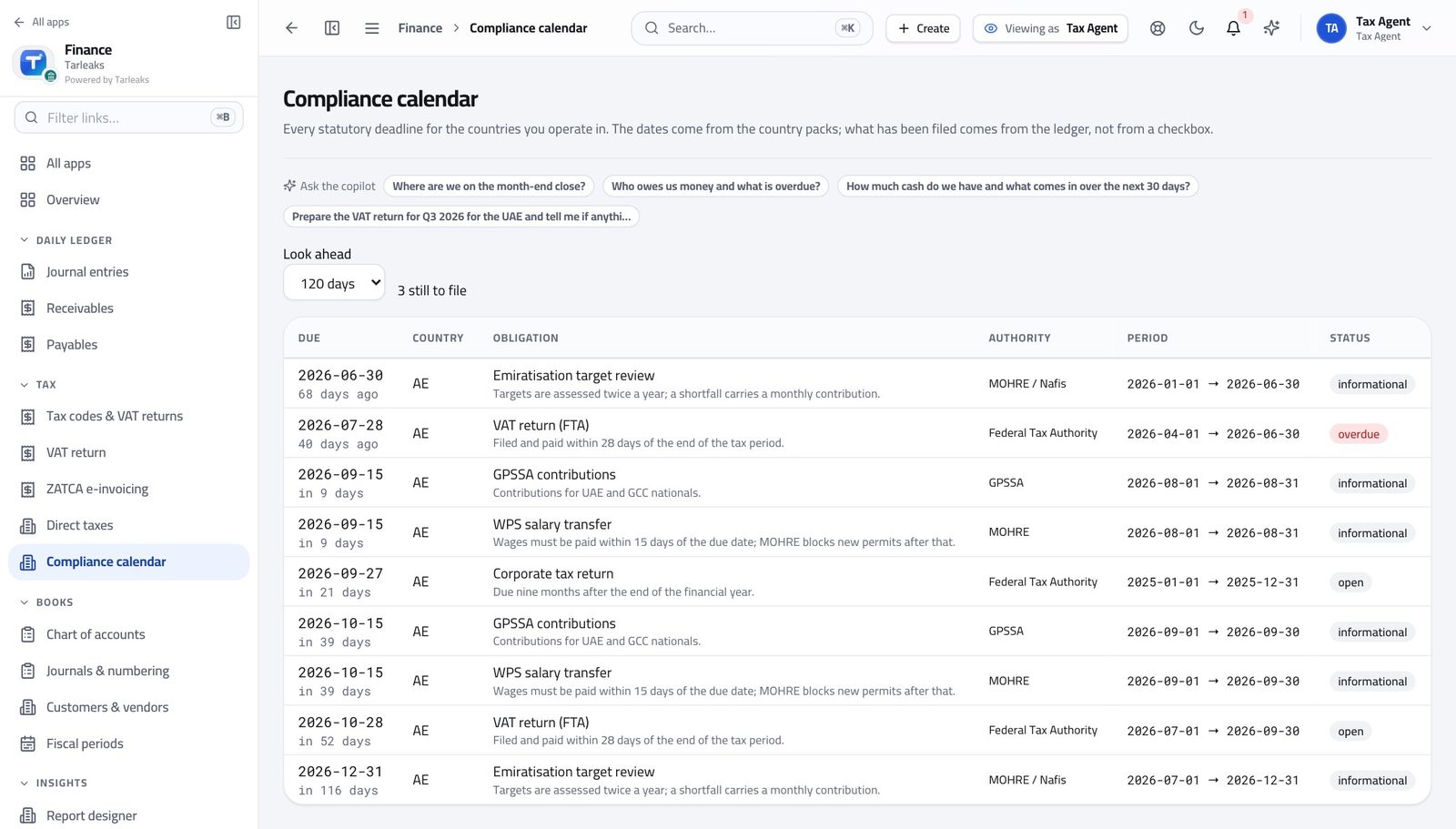
How it is worked out Accounting profit, plus disallowed items and less allowances (the adjustments you record), gives taxable income; the rate is applied to that.
Check it like this The accounting profit at the top must equal the P&L for the same period.
If it disagrees If it does not, entries were posted after the computation was last opened — reopen it.
Petty-cash balance #
Where Petty cash → the float
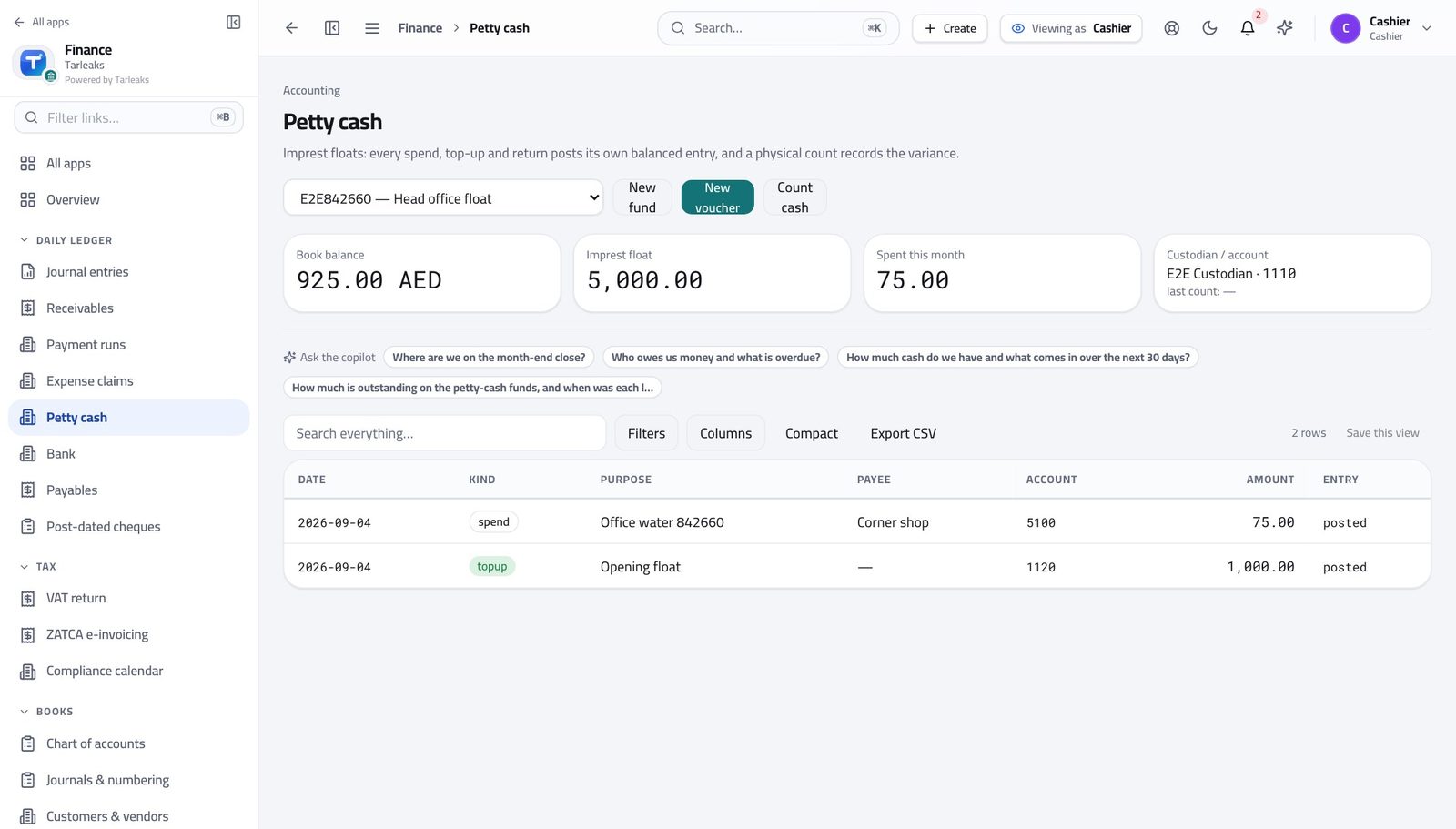
How it is worked out Top-ups less spends, each of which posted its own entry.
Check it like this Count the tin. The two should agree to the fils.
If it disagrees A difference is a missing voucher, a spend not yet recorded, or a genuine shortage — record what you counted either way.
Faster ways to do the same work
| What you want | How |
|---|---|
| Jump to anything without the menu | Press ⌘K (or Ctrl K) and start typing — pages, records and actions are all in the same box. |
| Do the same thing to forty rows | Tick the rows, then use the bar at the bottom. It only offers actions your role can perform, and each row is still checked on its own. |
| Select everything you are looking at | Filter first, then tick the box in the header row. It selects the FILTERED rows, not the whole table. |
| Send a colleague exactly what you are looking at | Copy the address bar. Filters and the open tab are written into the URL, so they see your screen, not the default one. |
| Move between records without going back to the list | The ‹ › arrows at the top of a record walk the list in the same order you came from. ⌘← / ⌘→ do the same from the keyboard. |
| Ask instead of hunting | The copilot strip on each page answers questions about that screen's data — 'who owes us money and what is overdue', 'where are we on the close'. |
| Enter a bill from the supplier's PDF | Payables → New from document. The supplier, dates and amounts are read off the file for you to check rather than typed. |
| Stop re-typing the same entry | Save it as an entry template, or make it a recurring entry with a schedule. |
| Bring in a month of transactions at once | Every list with an Import button validates the whole file first and reports the problems per row, before anything is written. |
| Get the same report every month without asking | Reports → schedule it. It runs and is delivered on the day you choose. |
| See one customer's whole story | Partner 360 on the customer or supplier: invoices, bills, payments, documents and activity in one screen. |
| Find the entry behind a figure | Click through from the report rather than searching. Every report figure traces to the entries that make it up. |
| Work in Arabic | Switch the language in your profile. The interface mirrors right-to-left, and documents print in the language the customer expects. |
| Check a batch before you run it | Ask for a practice run: every row is validated against the real write path, then rolled back. Nothing changes and you see what would have failed. |