Finance role guides — what each role can do, step by step
Step-by-step guides for every finance role — what each person can do, where to click, what each field wants, and how to tell it worked. 66 steps across 9 roles, every one of them carried out in the product before it was published here.
Nothing matches that. Try a shorter word, or pick All roles to search every guide.
Go deeper
Accountant
Keep the books straight — and prove it in three reports.
Keeps the ledger: the chart of accounts, journals and entries, the partner master, and the statutory reports the business is measured on.
What you will be able to do
- Find any account, journal or entry in seconds
- Read the trial balance, profit and loss, and balance sheet
- Tidy the customer and supplier list without deleting history
- Ask one question and get the whole chart checked at once
What this role can and cannot do
| Can | Cannot |
|---|---|
|
|
14 steps, each one carried out in the product on .
Check what your sign-in can do #
Where Your name, top right » Profile
- Open your company's address in the browser — it looks like yourcompany.tarleaks.com.
- Type the e-mail address your administrator set up for you, then your password.
- You land on the app launcher: a grid of the apps your company uses.
- Click your name in the very top-right corner of the screen.
- Choose Profile from the menu that drops down.
- Scroll to the Security and access section.
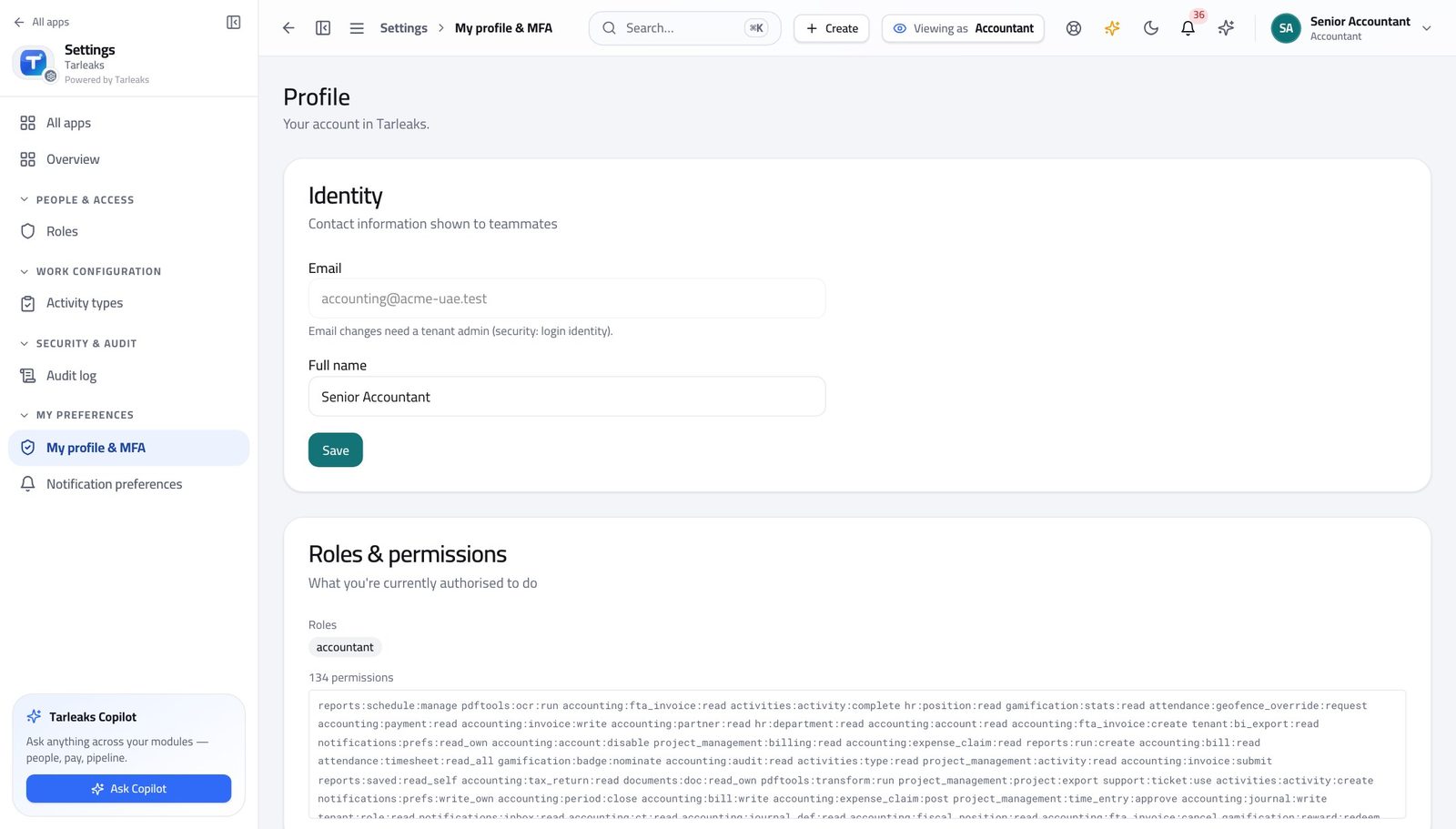
You should see It says Accountant. You can write and post entries and tidy the customer and supplier list — approving supplier bills is somebody else's job.
Watch out Two people can have the same job title and different roles here. If the chip does not say what you expected, ask your administrator before you start entering anything — the buttons you see depend on it.
Worth knowing If the role here is not what you expected, stop and ask your administrator before you start entering anything.
Open the chart of accounts #
Where Finance » Chart of accounts
- From the launcher, click the Finance tile.
- In the left menu, find the BOOKS group.
- Click Chart of accounts.
- Click the small arrow beside any heading row — 1000 Cash and cash equivalents, for example — to open the accounts beneath it.
- Use Expand tree, top right, to open every level at once.
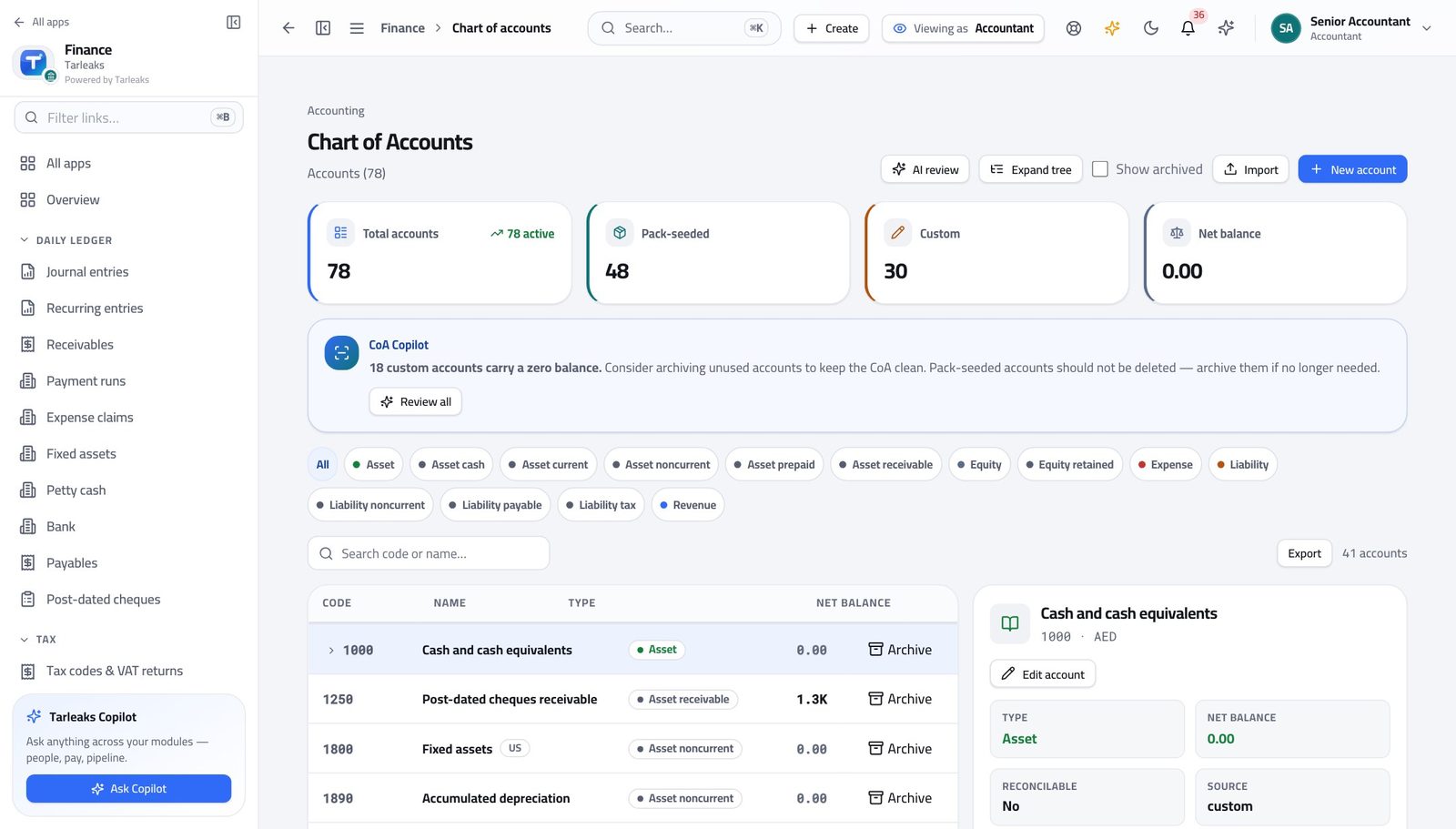
You should see The full account tree for your country is already there — you do not build it from scratch.
Watch out An account with an arrow is a heading, not a place to post. Post to the accounts underneath it.
See the books your entries land in #
Where Finance » Journals
- In the left menu, open the BOOKS group.
- Click Journals & numbering.
- Read the short code beside each journal name.
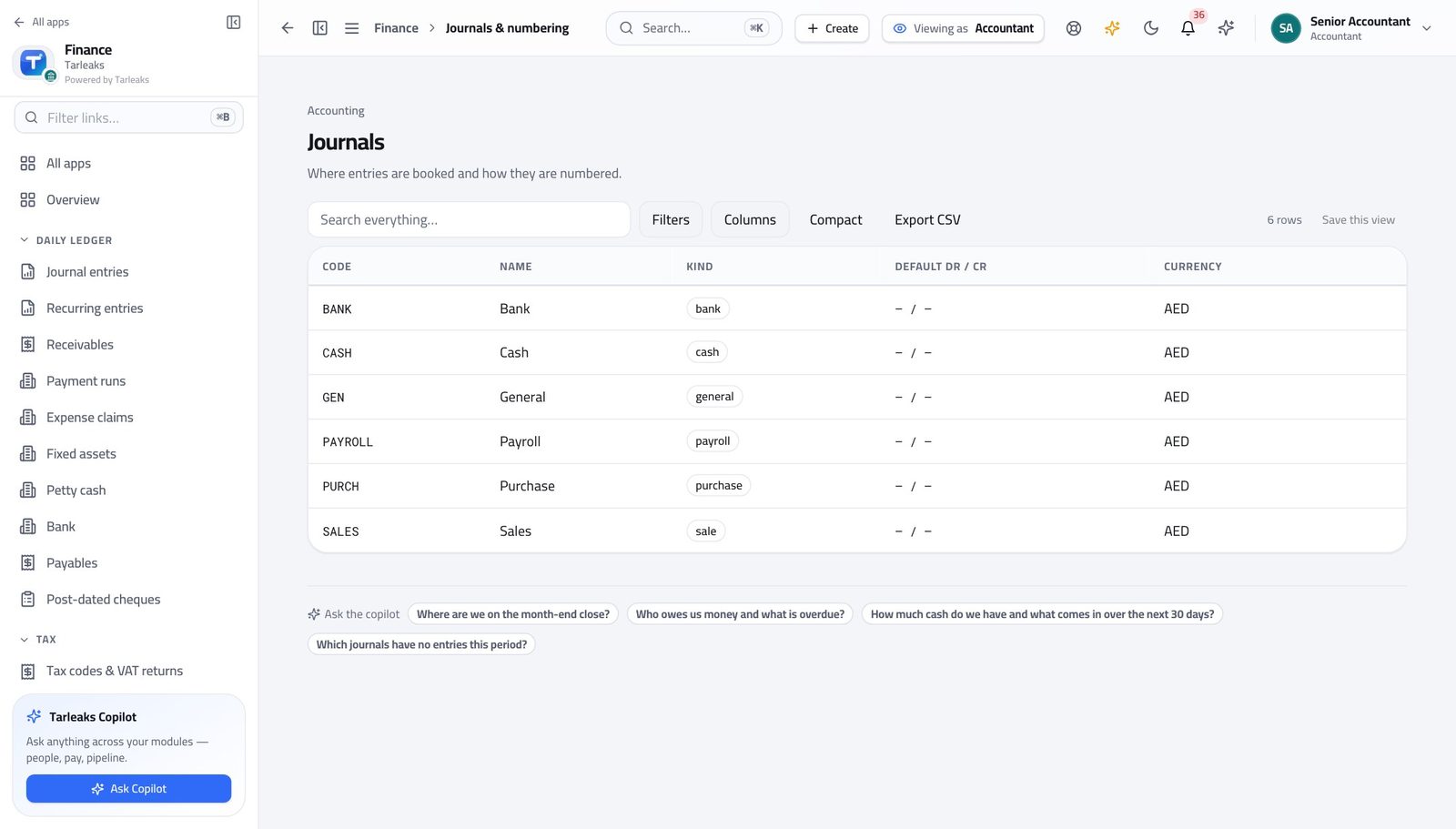
You should see Sales, purchases, bank and general each have their own book and their own numbering.
Watch out Changing a journal's numbering affects every entry made afterwards, not the ones already posted.
Find any entry ever posted #
Where Finance » Journal entries
- In the left menu, under DAILY LEDGER, click Journal entries.
- Click one of the summary boxes across the top — Drafts, for example — to narrow the list to those entries.
- Click the same box again to clear the filter.
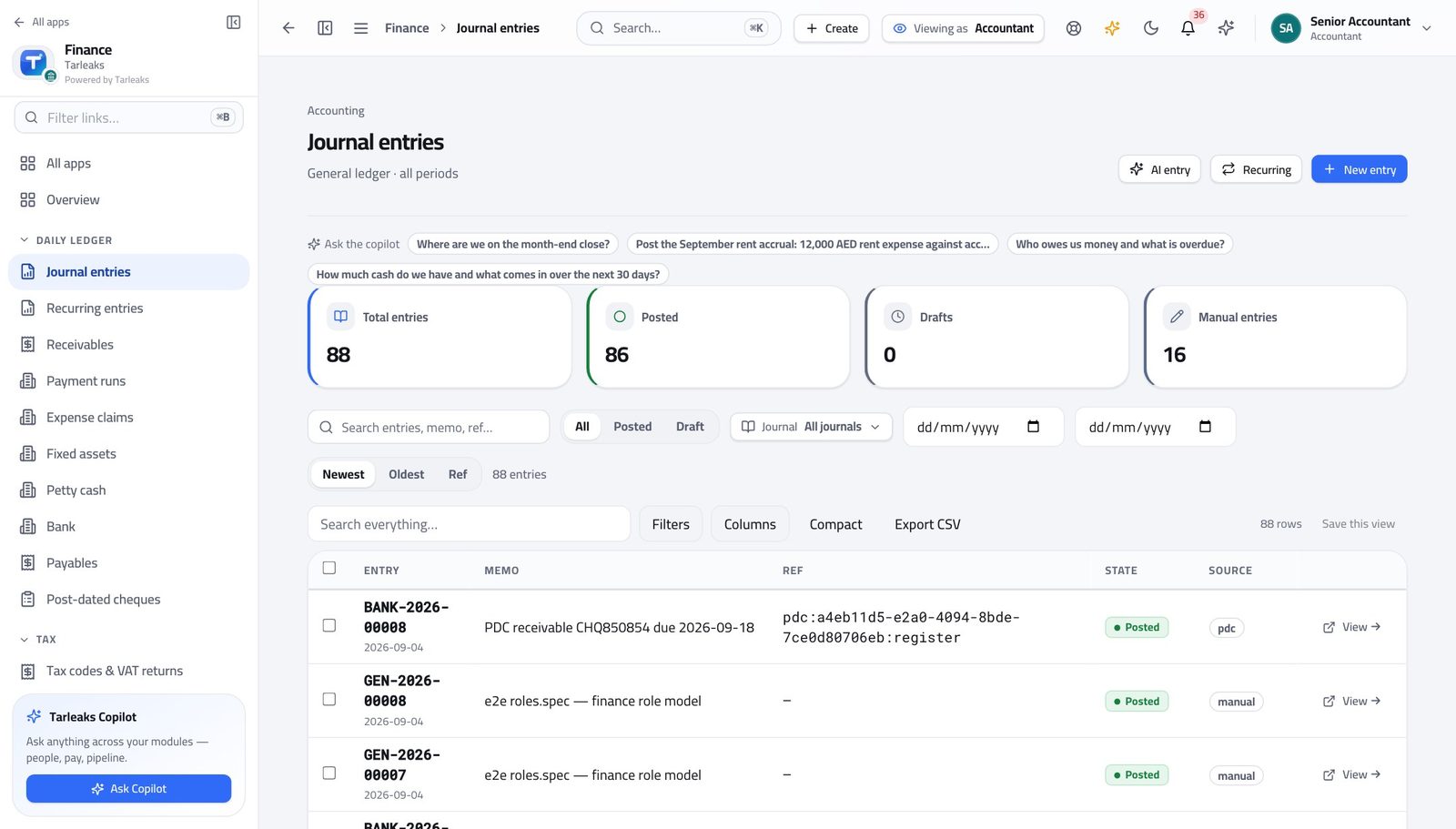
You should see Everything the business posted is in this one list, newest first.
Watch out The filter is written into the web address, so you can bookmark the filtered list or paste it to a colleague and they see the same thing.
Worth knowing The box you click also changes the web address, so you can bookmark the filtered list or send it to a colleague.
Start a new journal entry #
Where Finance » Journal entries » New entry
- On the Journal entries page, click New entry at the top right.
- Fill the header: the date, the journal, and a memo saying what this is.
- In the lines table, choose the account, then type the amount into either Debit or Credit — never both on one line.
- Add a line for the other side of the entry.
- Watch the totals under the table: they turn even when the two sides match.
- Click Save as draft to come back to it, or Post to put it in the books.
| Field | What to put in it |
|---|---|
| Date | The date the transaction belongs to — not today's date, unless they are the same. It must sit inside an open month. |
| Journal | Which book this belongs in. General is the catch-all; use sales, purchases or bank when it obviously belongs there. |
| Memo | One line a colleague could read in a year and understand. 'Reclass Q3 marketing spend' beats 'adjustment'. |
| Account | Start typing the code or the name; the list narrows as you type. |
| Description | Optional per line, useful when one entry covers several things. |
| Debit / Credit | One or the other on each line. The totals at the bottom must be equal before you can post. |
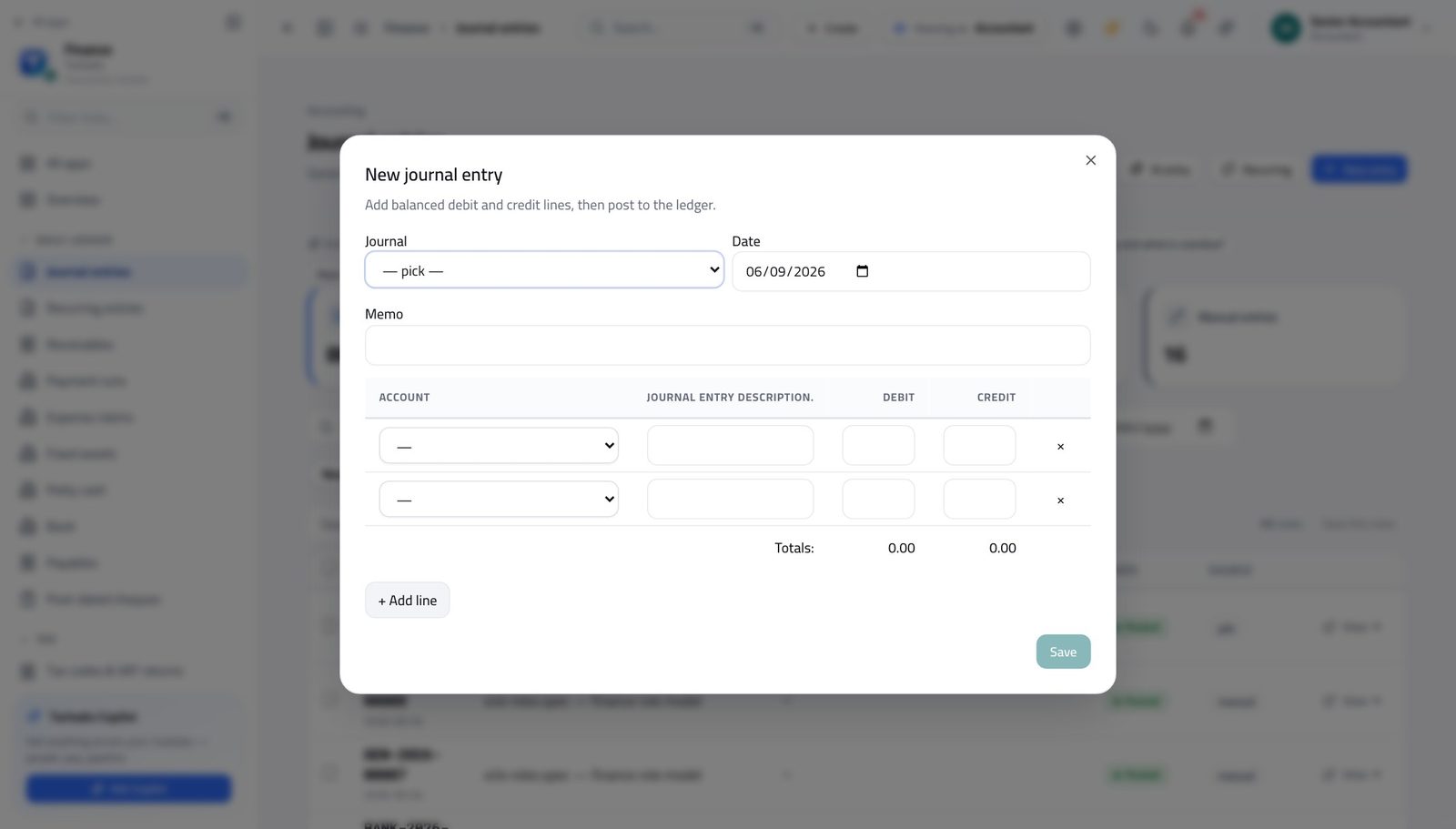
You should see Debits and credits are totalled as you type, and the entry cannot be saved until the two sides agree.
Watch out Saving as a draft changes nothing in the books. Posting does, and a posted entry is corrected by reversing it — never by editing.
Worth knowing Close the form without saving and nothing is created — you can open it just to look.
Check the books balance #
Where Finance » Reports » Trial Balance
- In the left menu, under INSIGHTS, click Reports.
- The page opens on the Trial Balance tab.
- Set As of to the date you want the position for.
- Read the totals row at the very bottom.
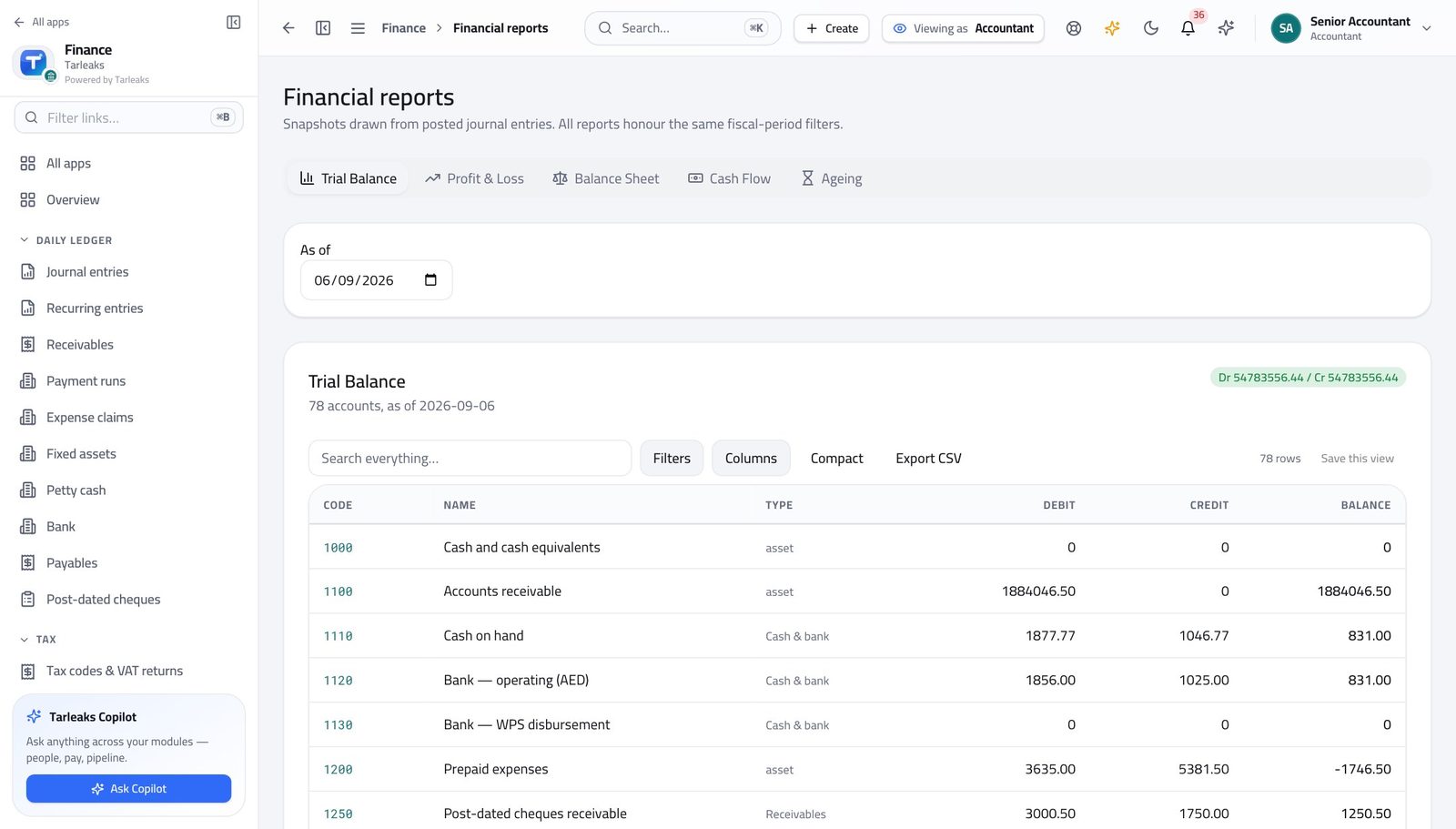
You should see The debit and credit totals match. If they ever do not, something is wrong upstream — not in the report.
Watch out If the two totals differ, do not go looking in this report — the problem is upstream, in an entry, and this is how you found out.
Read the profit and loss #
Where Finance » Reports » Profit & Loss
- Still on Reports, click the Profit & Loss tab.
- Set From and To to the period you are reporting on.
- Click a section heading to open the accounts inside it.
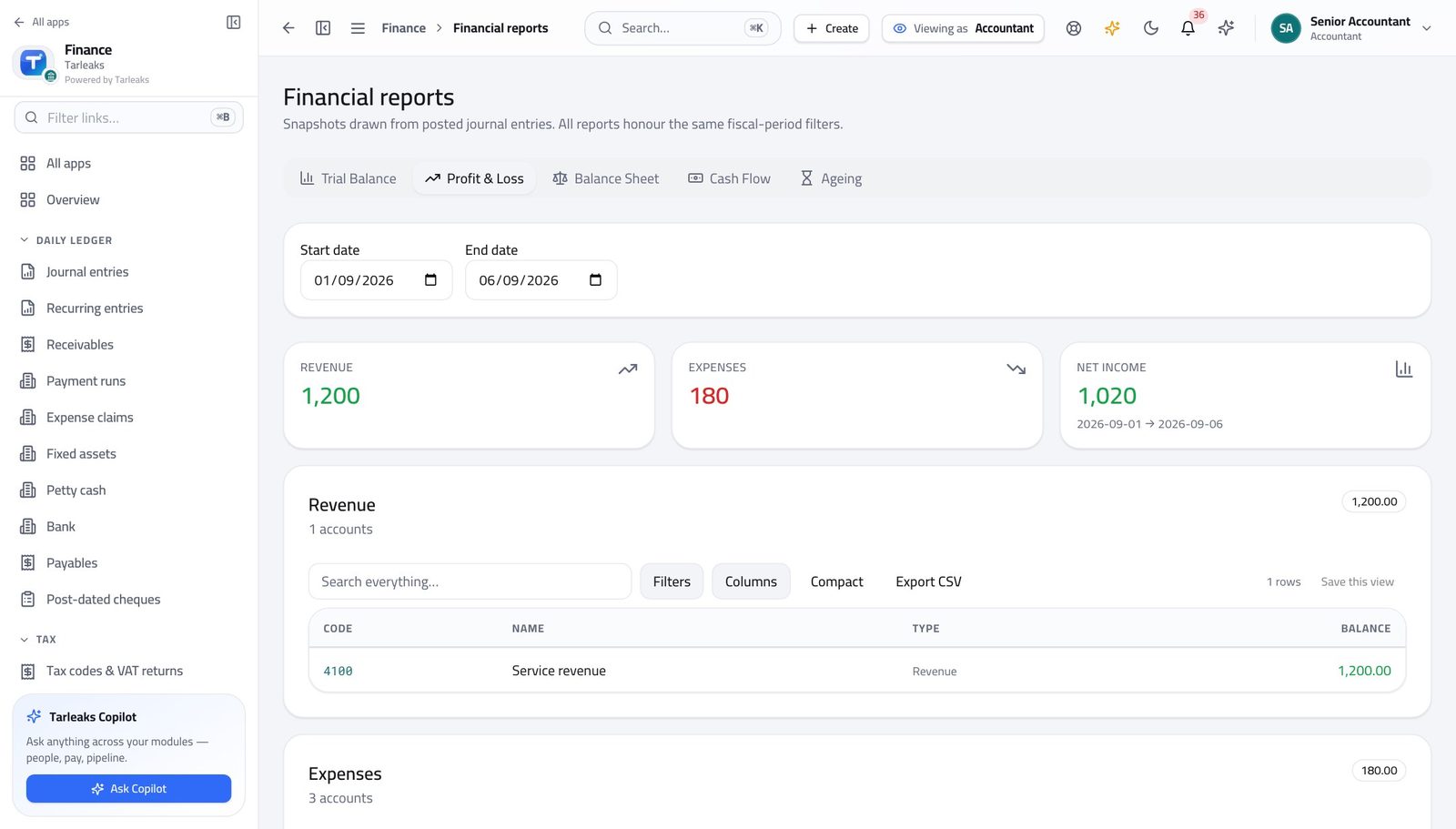
You should see Income, costs and the result for the period — all built from entries already posted.
Watch out This report covers a period between two dates. The balance sheet is a position on one date — that is why their date pickers differ.
Read the balance sheet #
Where Finance » Reports » Balance Sheet
- Click the Balance Sheet tab.
- Set As of to the closing date.
- Compare the two halves: what the business owns against what it owes plus what it is worth.
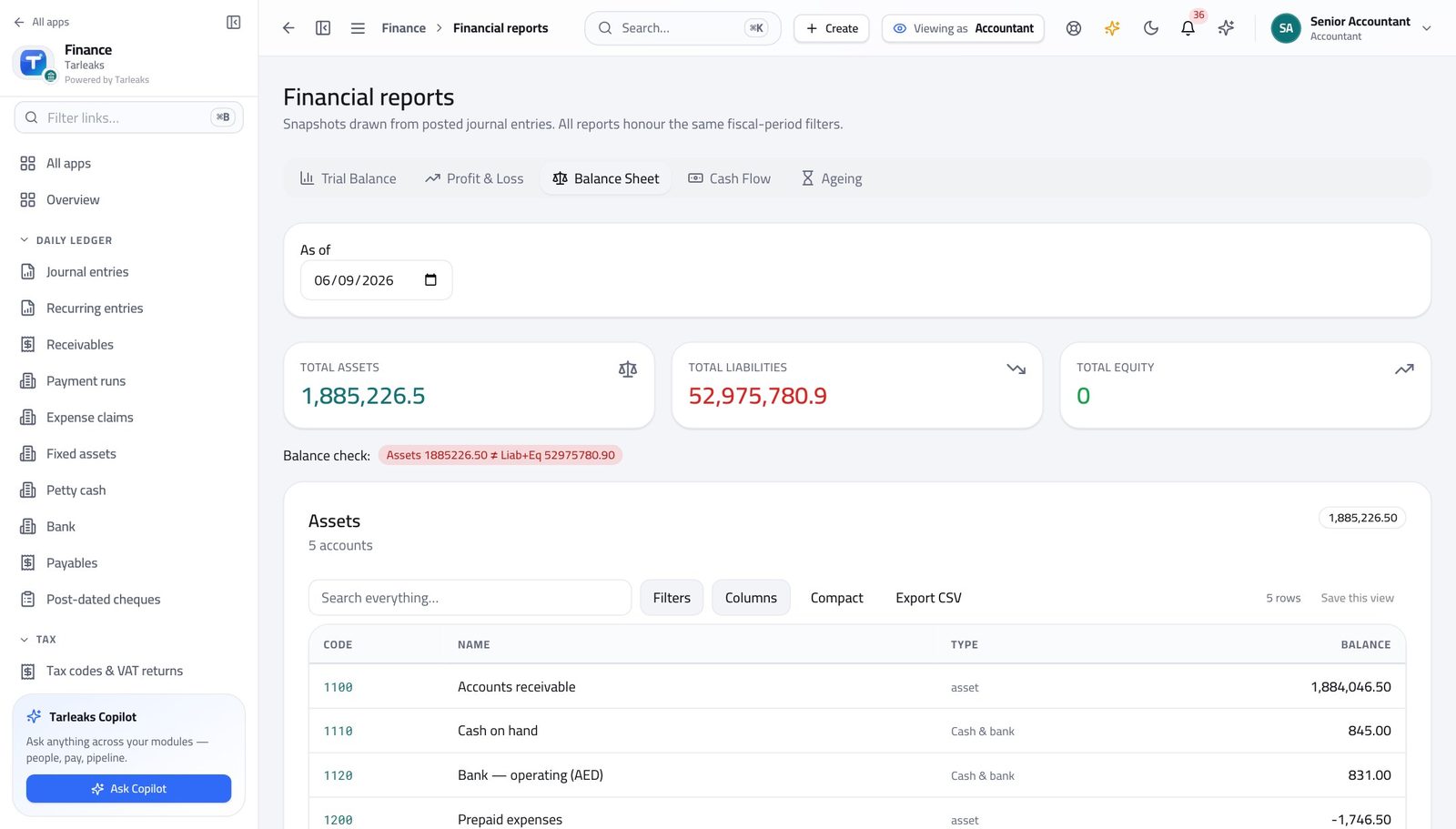
You should see What the business owns, owes and is worth on that date.
Open the customer and supplier list #
Where Finance » Customers & vendors
- In the left menu, under BOOKS, click Customers & vendors.
- Type part of a name, a code or a tax number into the search box.
- Use the All kinds dropdown to show only customers or only suppliers.
- Turn on Show archived to find a record somebody tidied away.
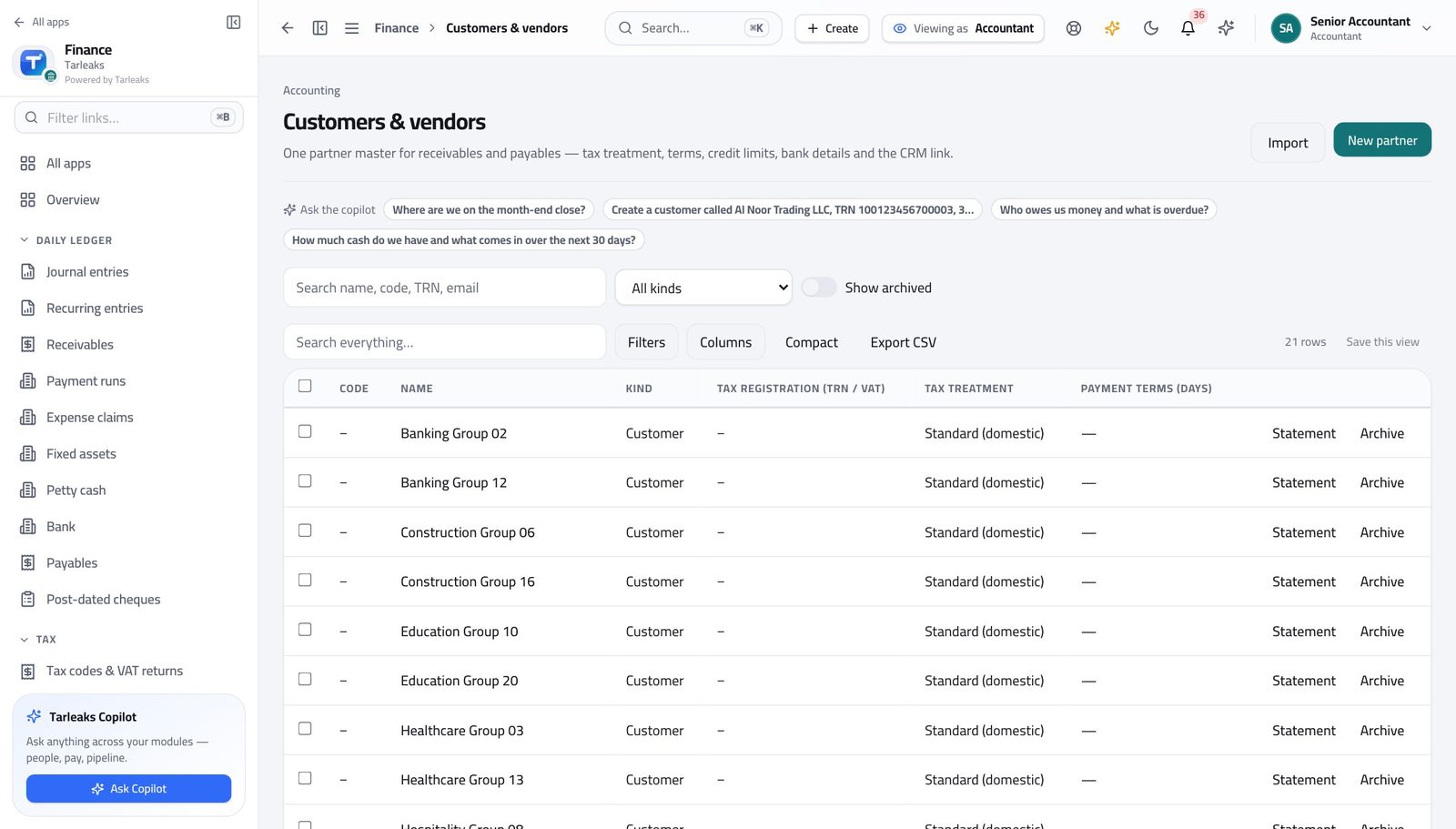
You should see One list for both sides of the business, so a company you buy from and sell to is a single record.
Watch out Search matches the tax registration number too, which is usually the fastest way to find the right company when names are similar.
Add a customer or supplier #
Where Finance » Customers & vendors » New partner
- On Customers & vendors, click New partner at the top right.
- Fill the name and choose the kind.
- Add the tax details if you have them — they drive how tax is applied later.
- Click Save.
| Field | What to put in it |
|---|---|
| Name | The legal name you will see on their invoices. |
| Name (Arabic) | Optional, but printed on Arabic documents when set. |
| Kind | Customer, vendor, or both. Both is normal for a company you buy from and sell to. |
| Code | Your own short reference. Leave blank and one is not required. |
| Tax registration (TRN / VAT) | Their tax number. Needed on tax invoices and checked in the VAT return. |
| Tax treatment | Standard domestic, zero-rated, exempt, export. This decides the tax applied on their invoices. |
| Payment terms (days) | How long they get to pay. This sets the due date automatically on new invoices. |
| Credit limit | Optional ceiling for what they may owe you at once. |
| IBAN | Used when you pay them; leave blank for customers. |
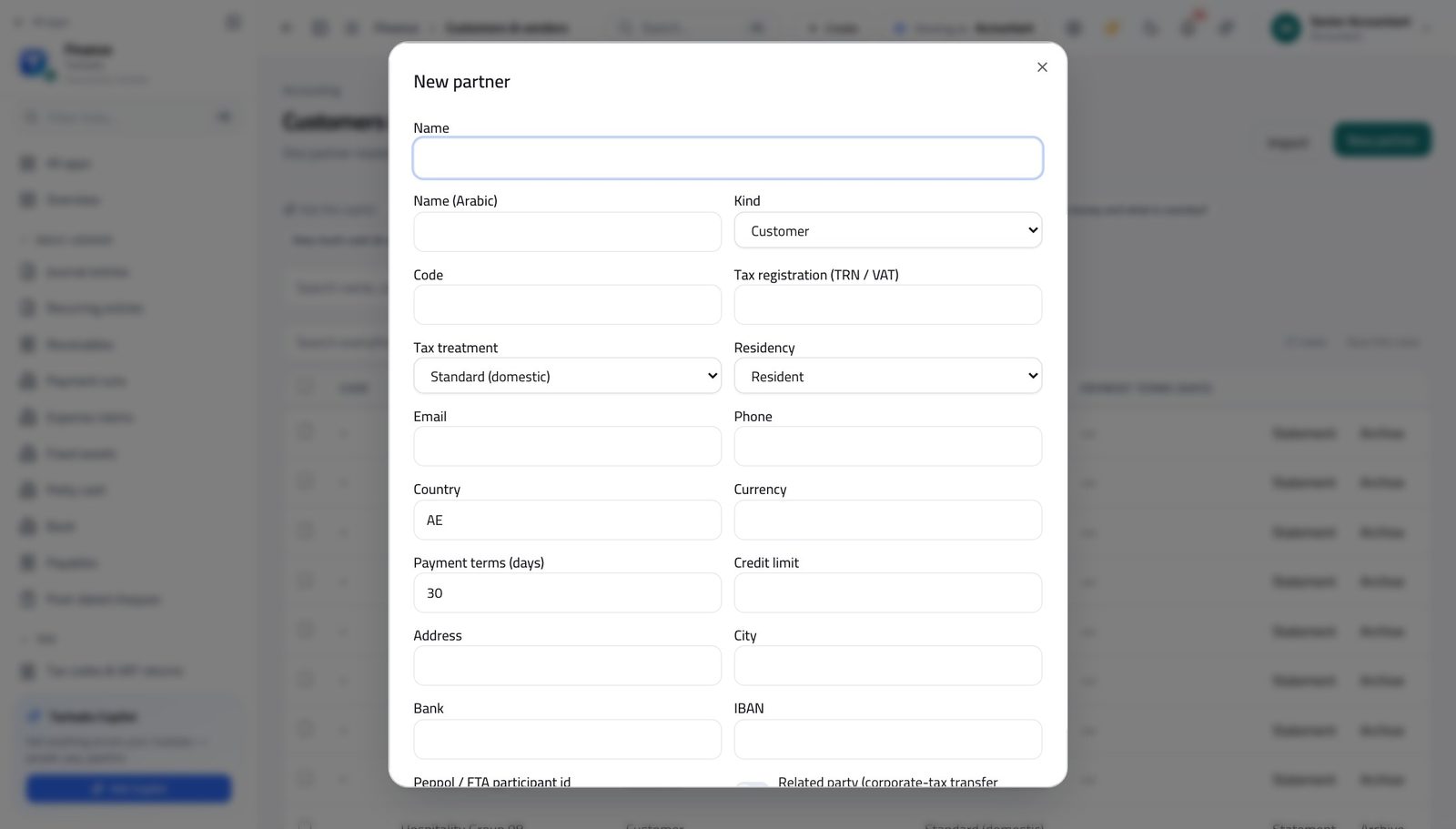
You should see One record serves both sides: if you later buy from a customer, you do not create them twice.
See money in and money out #
Where Finance » Receivables, then Finance » Payables
- In the left menu, click Receivables to see what customers owe.
- Then click Payables to see what the business owes suppliers.
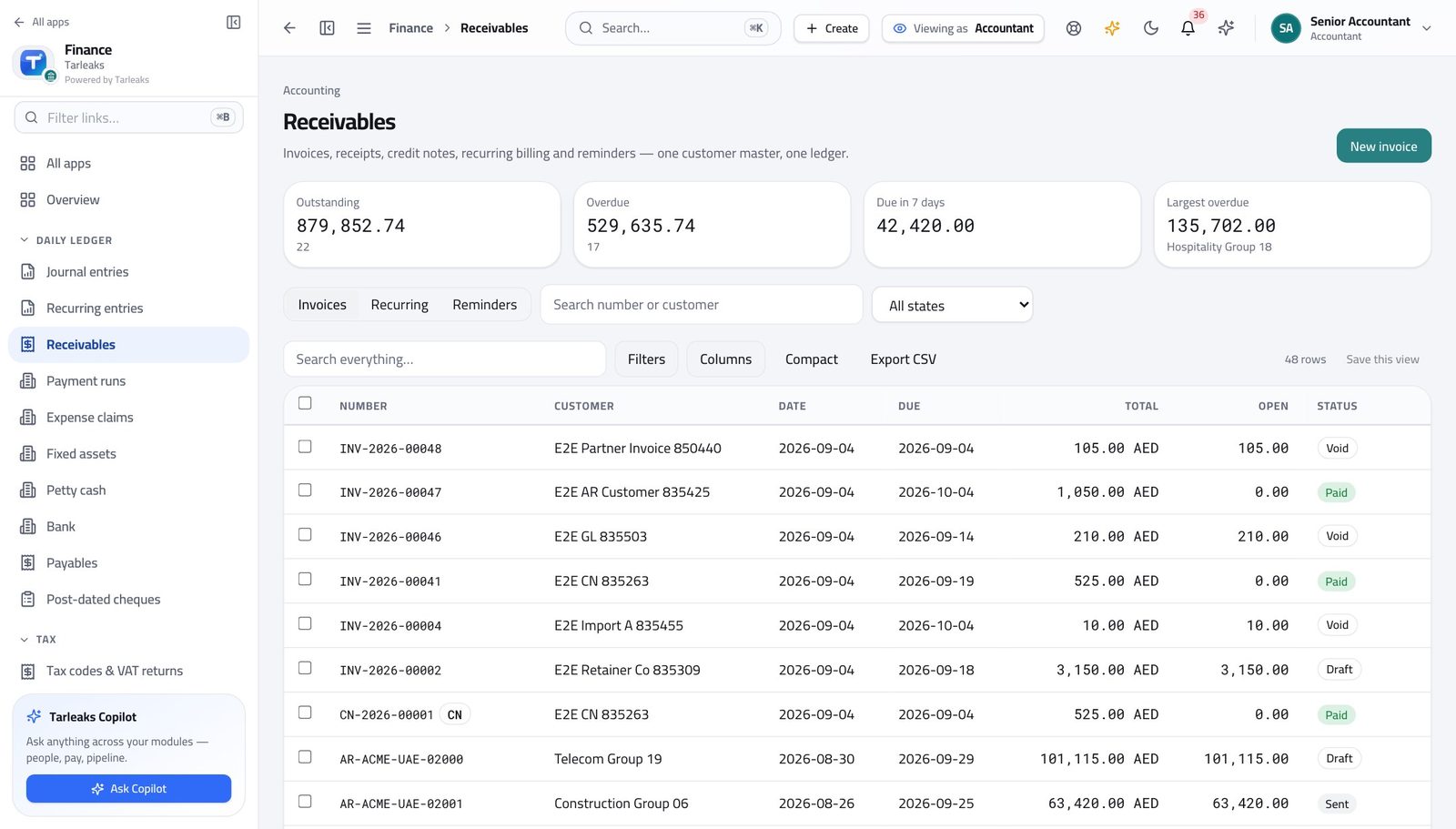
You should see Both lists open for you, so you can reconcile the two sides without asking anyone.
Tidy several records at once #
Where Finance » Customers & vendors » tick rows » Archive
- Open Customers & vendors.
- Tick the checkbox at the left of each row you want to tidy away.
- A bar appears along the bottom saying how many are selected.
- Click Archive in that bar.
- Read the confirmation, then confirm.
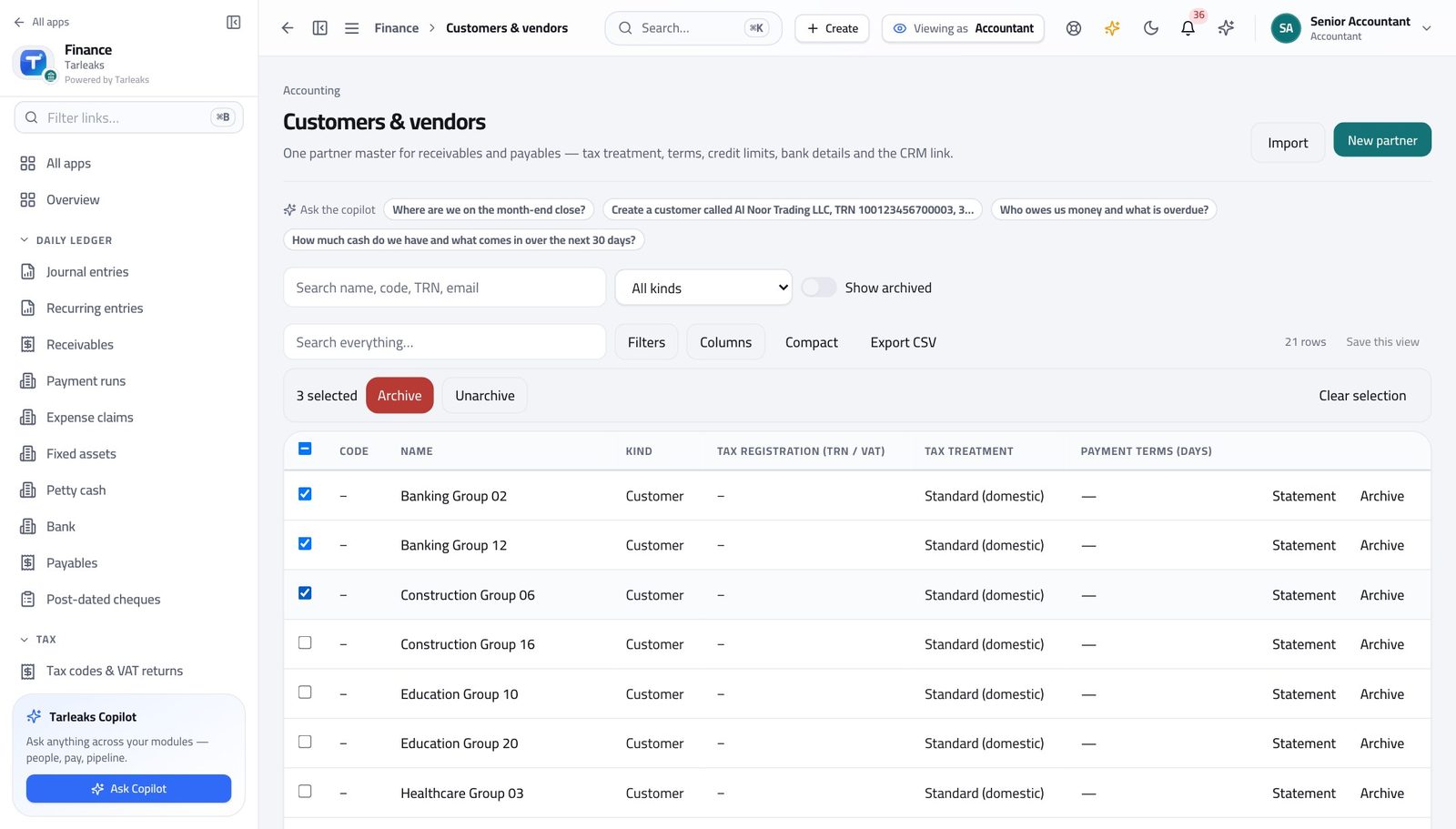
You should see The records leave the everyday list without being deleted. Anything that cannot be archived is named, and the rest still go through.
Watch out Tick the box in the header row and you select everything the current filter shows — not the whole list. Filter first, then select all.
Worth knowing Archiving is reversible. Turn on Show archived to find a record again.
See where your authority stops #
Where Finance » Payables
- Open Payables from the left menu.
- Tick a bill that is waiting for approval.
- Read the bar at the bottom.
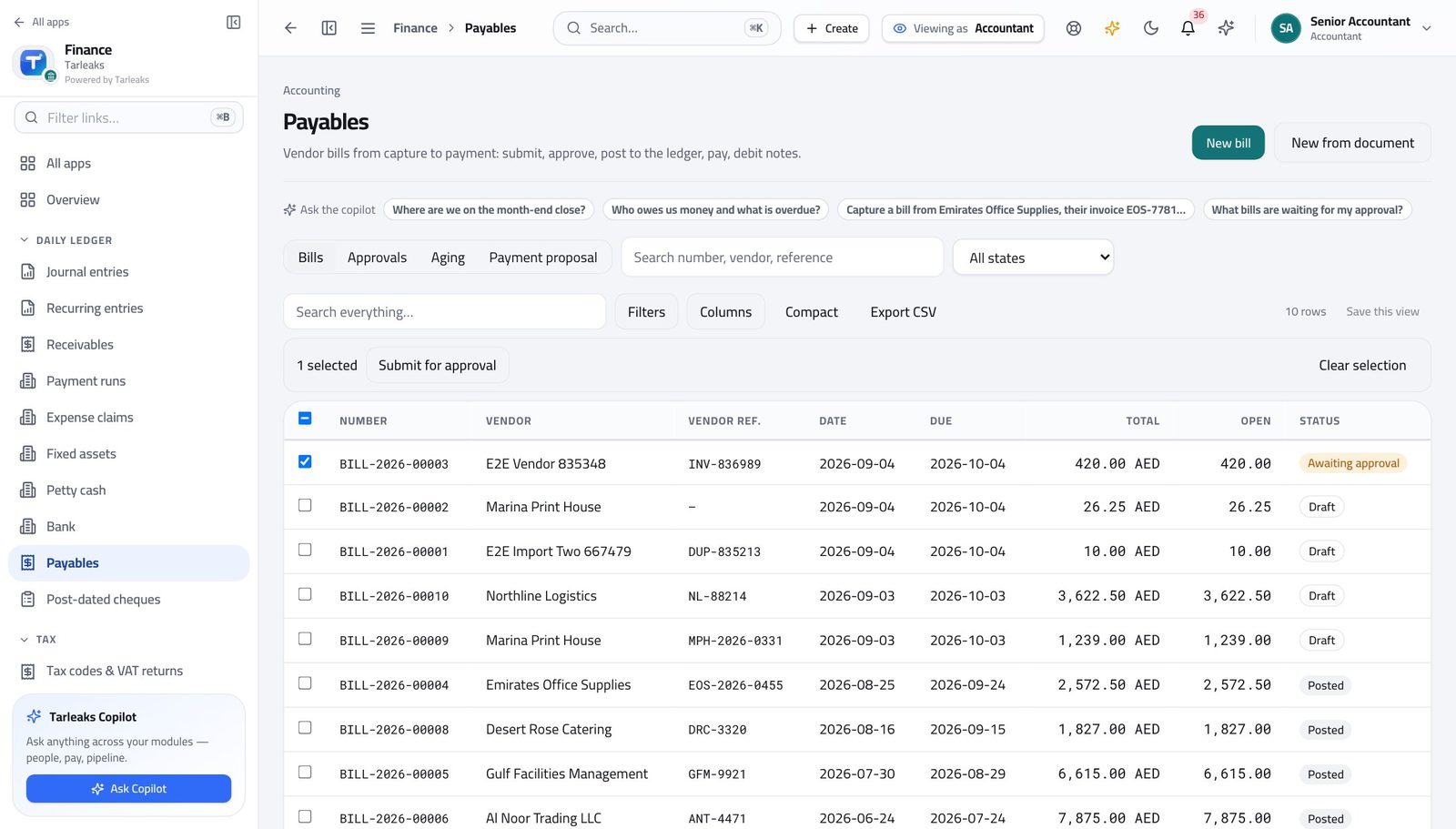
You should see There is no Approve button for you. Approval belongs to the controller, and the system enforces that — it is not just a missing button.
Have the whole chart checked for you #
Where Finance » Chart of accounts » Review
- Open Chart of accounts.
- Click Review at the top right.
- Wait a few seconds while the whole chart is checked.
- Read the findings, grouped by the kind of problem.
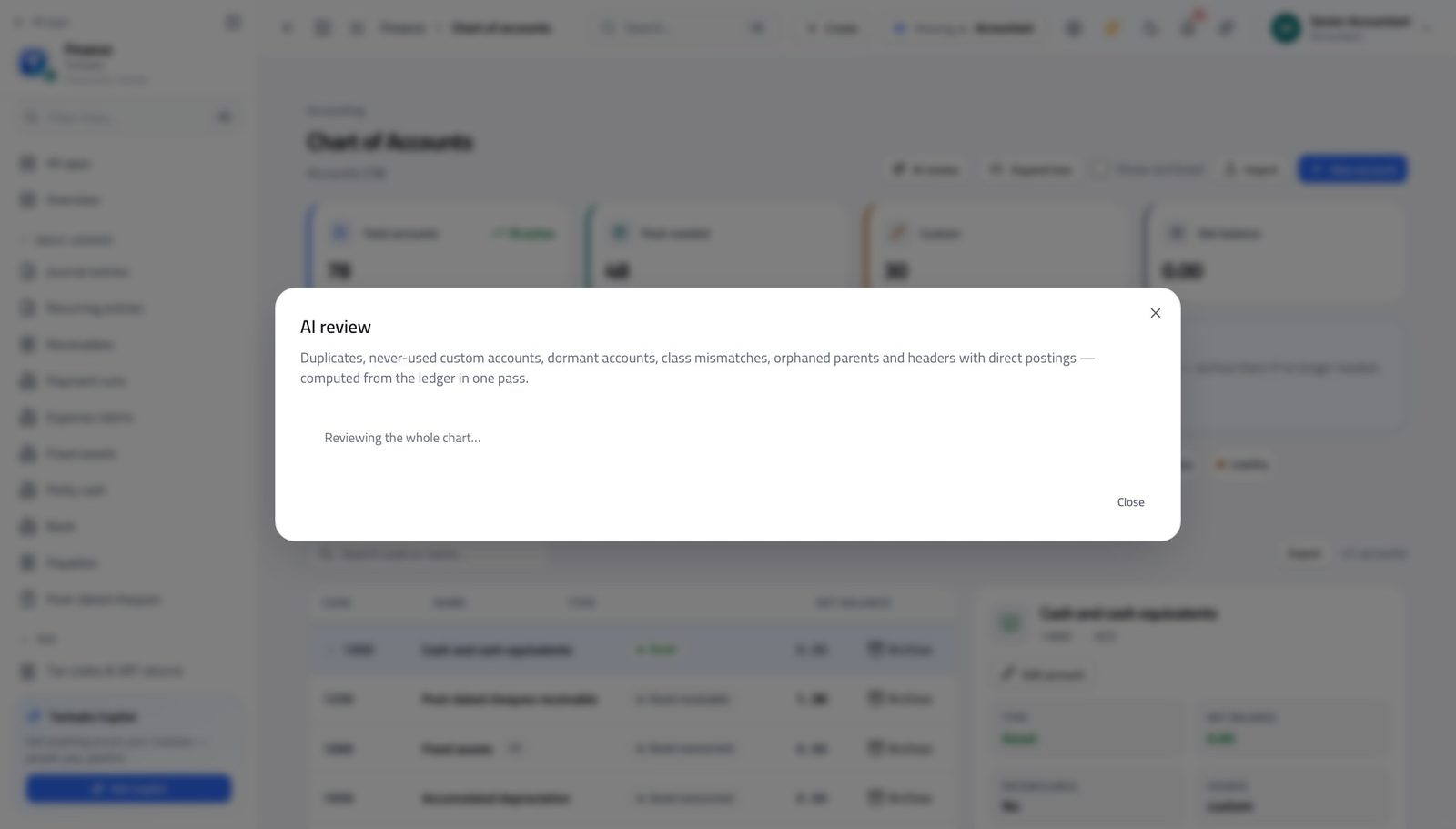
You should see Duplicates, unused accounts and gaps come back in one pass, each finding naming the accounts involved.
Watch out This reads the chart; it changes nothing. Acting on a finding is a separate, deliberate step.
Use cases — the work, step by step
Each one is a sequence somebody actually performs, with the screen behind every step. Every screen here was opened in the product as this role before it was published.
dailyThe morning pass: drafts, bank, oddities #
Fifteen minutes here is what stops month end being a week long.
Open Journal entries and look at the drafts. Each one gets posted or gets a memo saying what it is waiting for.
Finance » Journal entries — verified: 88 row(s) listed Open the bank and work yesterday's imported lines: match what is obvious, leave what is not.
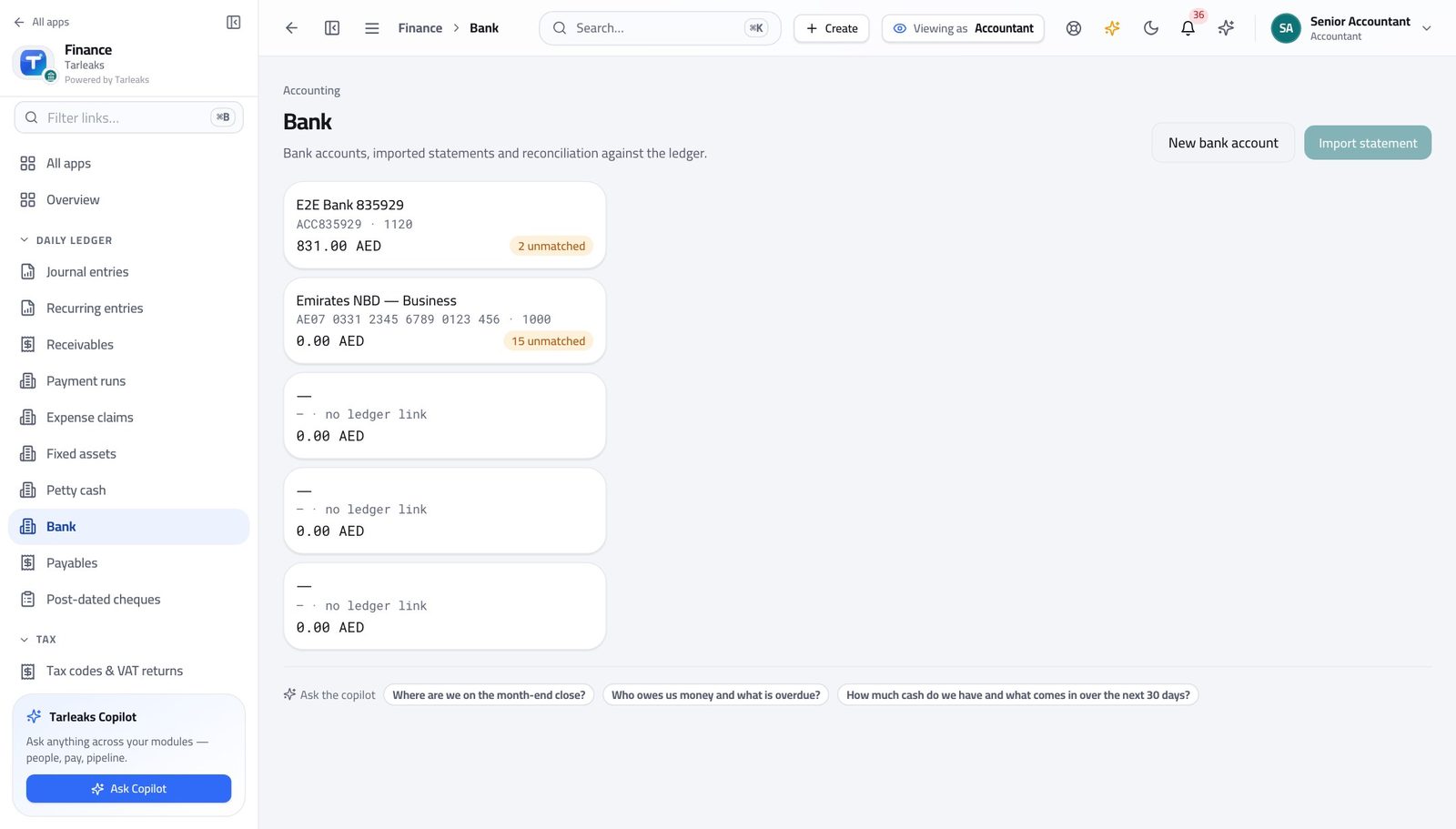
In the product — verified: the page says “statement” Check the chart is still clean — Review reports duplicates, unused accounts and gaps in one pass.
Finance » Chart of accounts » Review — verified: the page says “Review”
weeklyProve the books balance before anyone asks #
If the trial balance ever fails to balance, you want to be the one who found it.
Open Reports. It opens on the trial balance — set the date and read the two totals at the bottom.
Finance » Reports » Trial Balance — verified: the page says “Trial Balance” Switch to the profit and loss for the same period.
Finance » Reports » Profit & Loss — verified: the page says “Profit” Then the balance sheet, as at the same date. The result on one must agree with the movement on the other.
Finance » Reports » Balance Sheet — verified: the page says “Balance Sheet”
monthlyPost an entry, and correct one you got wrong #
A posted entry is corrected by reversal, never by editing. The reversal IS the correction, and it is what an auditor expects.
Open Journal entries and start a new one: date, journal, memo, then a line per account. The Post button stays disabled until the two sides agree.
Finance » Journal entries » New entry — verified: the control is offered To correct a posted entry, find it in the register and use its own reverse action rather than editing it.
Finance » Journal entries — verified: 88 row(s) listed Check the effect where it matters: the trial balance for the period.
Finance » Reports » Trial Balance — verified: the page says “Trial Balance”
monthlyTidy the customer and supplier master #
Duplicates in the partner master are how one company ends up with two balances, neither of them right.
Open Customers & vendors and search for the names you suspect are duplicated — search matches the tax number too.
Finance » Customers & vendors — verified: the page says “Customers & vendors”; 21 row(s) listed Add the missing details on the record that is staying: tax registration, treatment, payment terms.
Finance » Customers & vendors » New partner — verified: the control is offered Tick the ones being retired and archive them together. Archiving keeps the history; deleting is deliberately not offered.
Finance » Customers & vendors » tick rows » Archive — verified: the control is offered; the page says “Archive”
Approving supplier bills and closing the month belong to the finance controller. That is on purpose: the person who writes the books is not the person who signs them off.
Accounts Payable Clerk
Get every supplier bill captured, checked and ready to approve.
Captures what suppliers bill and prepares it for approval — never approves or posts it, which is what keeps payables honest.
What you will be able to do
- See every bill and what state it is in
- Know what is due and how late it is
- Send a whole batch of bills for approval in one go
- Keep supplier details up to date
What this role can and cannot do
| Can | Cannot |
|---|---|
|
|
9 steps, each one carried out in the product on .
Check what your sign-in can do #
Where Your name, top right » Profile
- Open your company's address in the browser — it looks like yourcompany.tarleaks.com.
- Type the e-mail address your administrator set up for you, then your password.
- You land on the app launcher: a grid of the apps your company uses.
- Click your name, top right.
- Choose Profile.
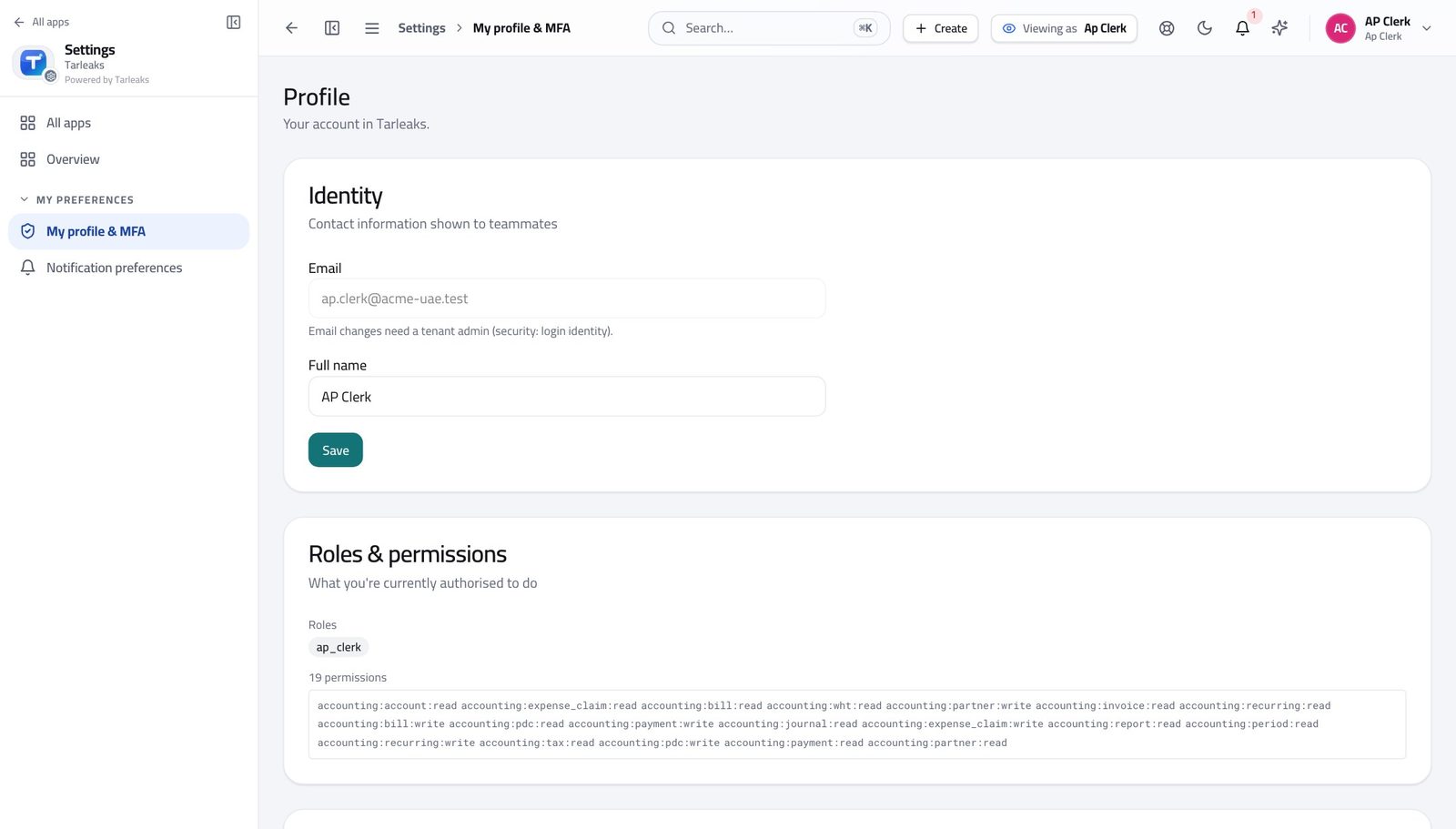
You should see It says AP Clerk. You can enter bills and prepare payments; approving and posting them is somebody else's job.
Open the supplier bills list #
Where Finance » Payables
- From the launcher, open Finance.
- In the left menu, click Payables.
- Use the tabs across the top: Bills, Approvals, Aging, Payment proposal.
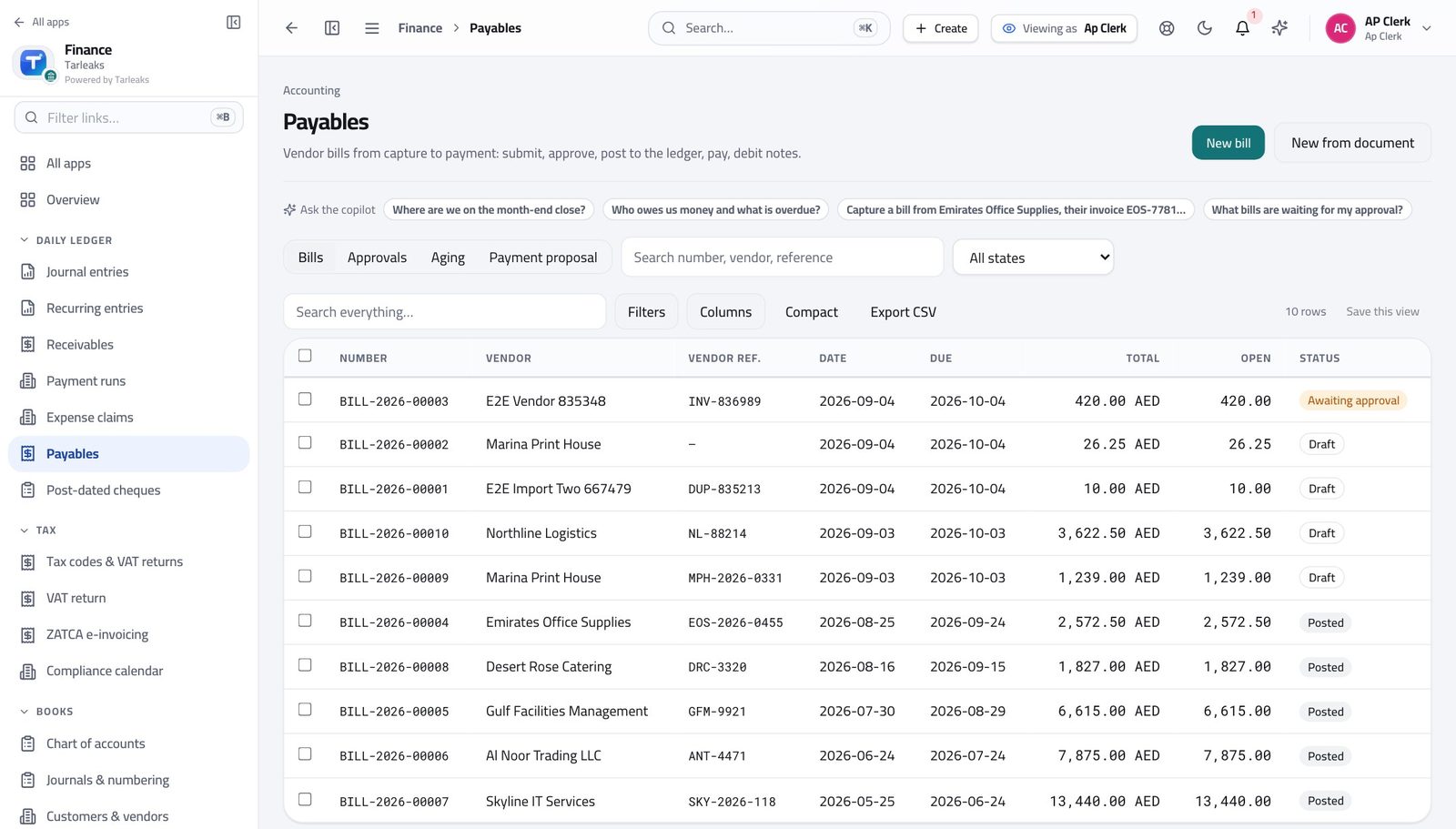
You should see Every bill you have entered is here with its current state.
Enter a supplier bill #
Where Finance » Payables » New bill
- On Payables, click New bill at the top right.
- Choose the supplier, or type a one-off name if they are not in the list.
- Enter the supplier's own invoice number, the bill date and the due date.
- Add one line per charge: description, account, quantity, unit price and tax.
- Check the total against the supplier's document.
- Click Save to keep it as a draft, or Save and submit to send it for approval.
| Field | What to put in it |
|---|---|
| Vendor | Pick from your supplier list. Their payment terms fill the due date for you. |
| Or one-off vendor name | For a supplier you will not use again — no master record is created. |
| Vendor invoice no. | Their reference, exactly as printed. This is what stops the same bill being paid twice. |
| Bill date | The date on the supplier's document. |
| Due | When they expect to be paid. Filled from payment terms; change it if you agreed something else. |
| WHT rate (non-resident) | Only for suppliers where withholding tax applies. Leave empty otherwise. |
| Description | What the charge was for, per line. |
| Account | The expense account this belongs to. Ask your accountant which one if the charge is unusual. |
| Qty / Unit price | Multiply to the line amount. Use quantity 1 and the full amount when it is a single service. |
| Tax | The tax code for the line. The tax amount is worked out for you. |
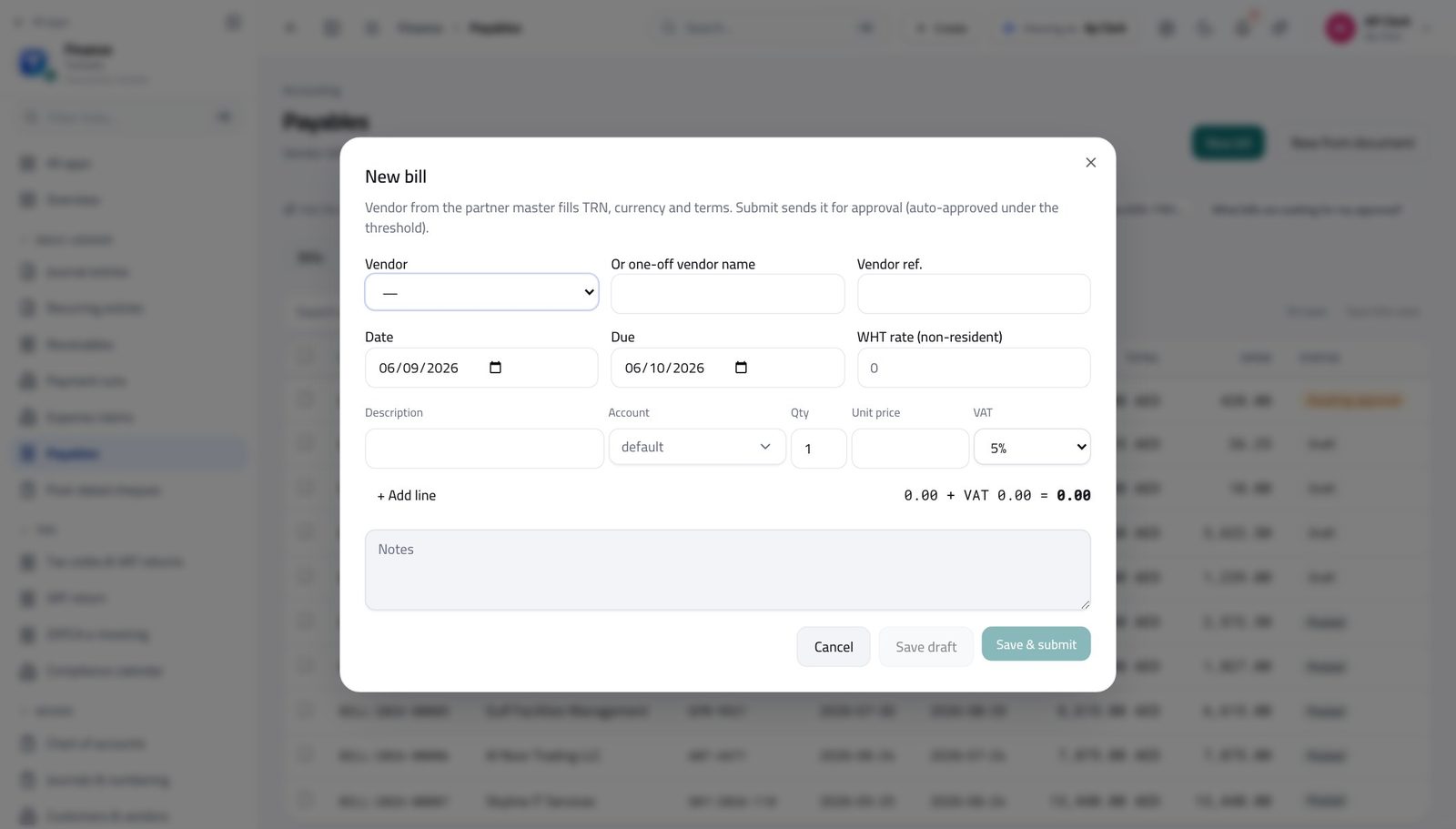
You should see The total, the tax and what is left to pay are worked out for you as you add lines.
Watch out If the total is a few fils out, the tax code on a line is usually the reason — not the prices.
Worth knowing Have the supplier's PDF? Use New from document instead and the details are read off it for you to check.
See what is due and how late #
Where Finance » Payables » Ageing
- On Payables, click the Aging tab.
- Read the Bucket column.
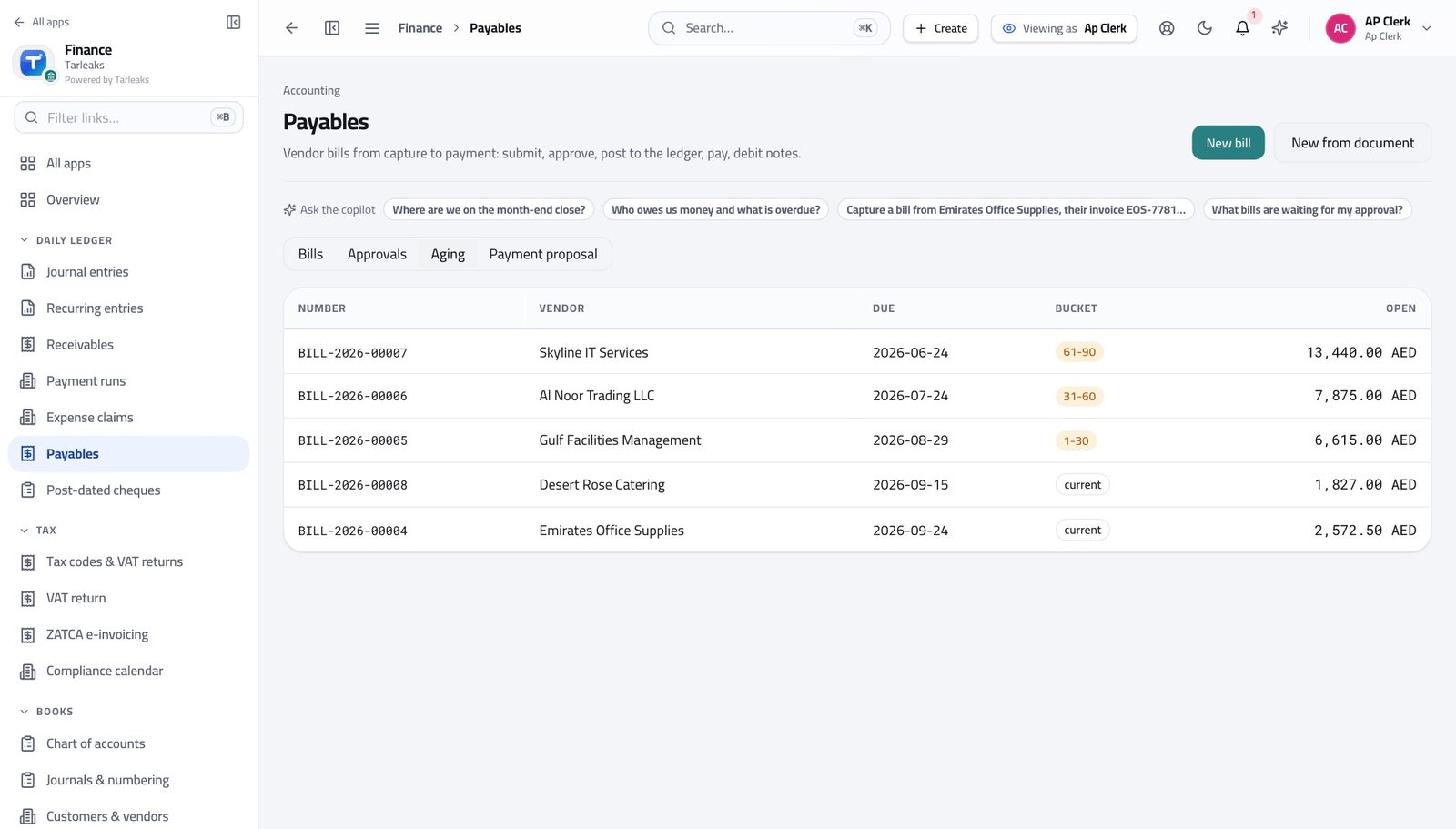
You should see You can tell in one look which suppliers need paying first.
Look at the payment runs #
Where Finance » Payment runs
- In the left menu, click Payment runs.
- Open a run to see which bills it covers.
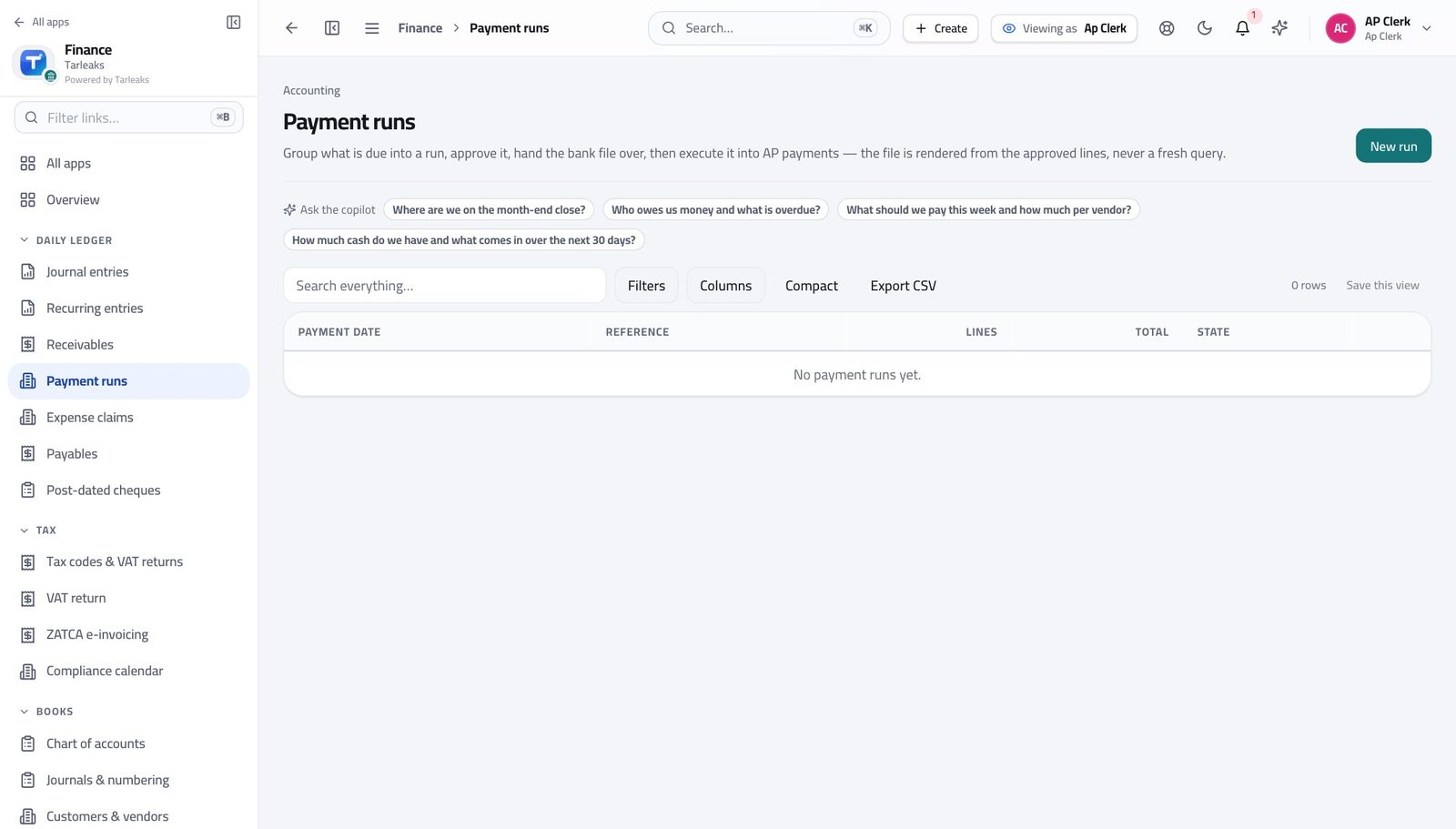
You should see You put the run together; the controller approves it before any money moves.
Send a batch of bills for approval #
Where Finance » Payables » tick rows » Submit
- On Payables, tick each bill you have finished entering.
- In the bar at the bottom, click Submit.
- Confirm.
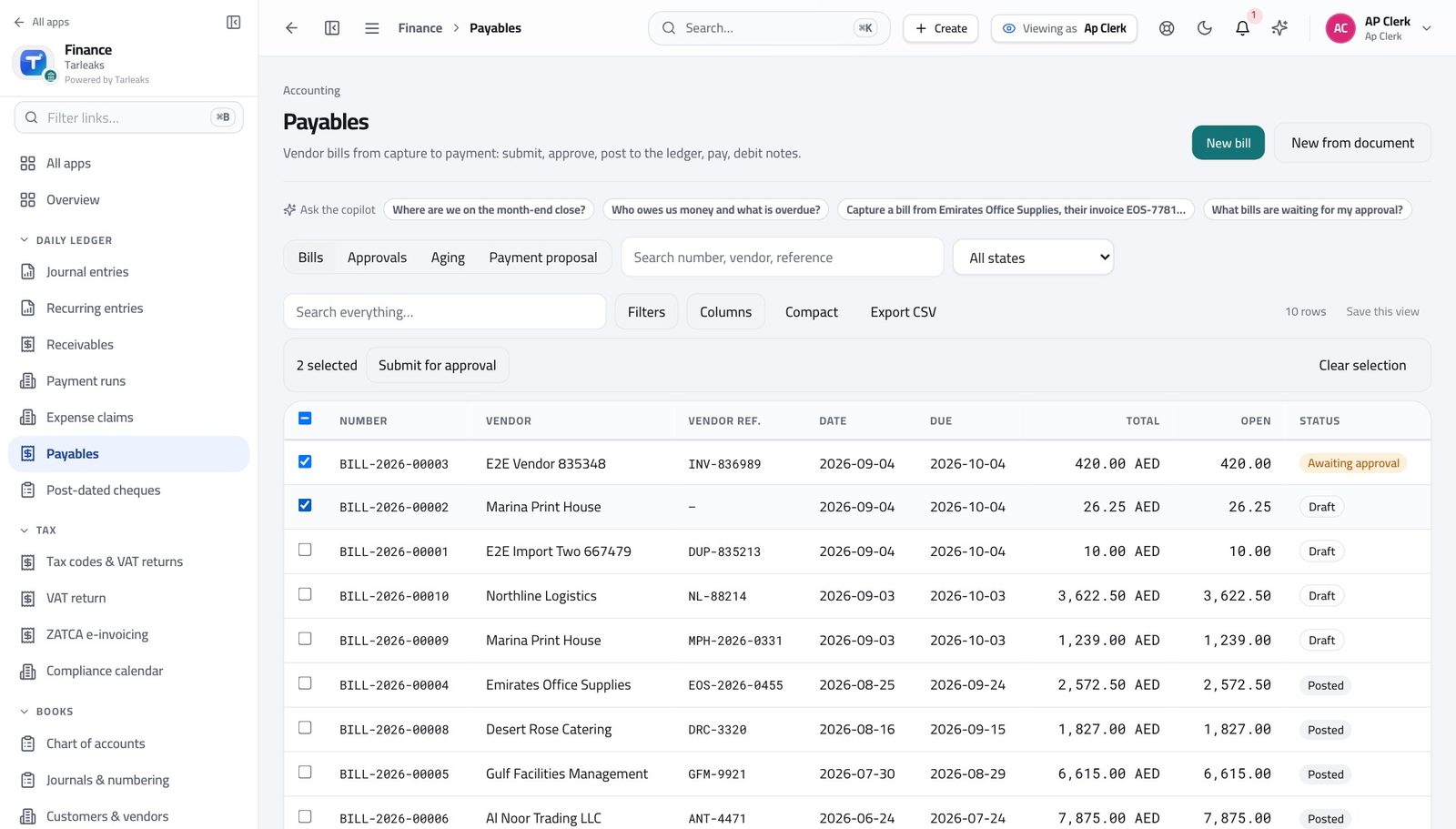
You should see They all go forward in one action, and each bill is still checked on its own — a bill with a problem is named and the others still move.
Watch out A bill that fails its own checks is named in the result and stays where it was — the others still go forward.
Worth knowing Not sure about a batch? Ask for a practice run first — it checks every row and changes nothing.
See where your authority stops #
Where Finance » Payables
- Tick any bill.
- Read the bar at the bottom.
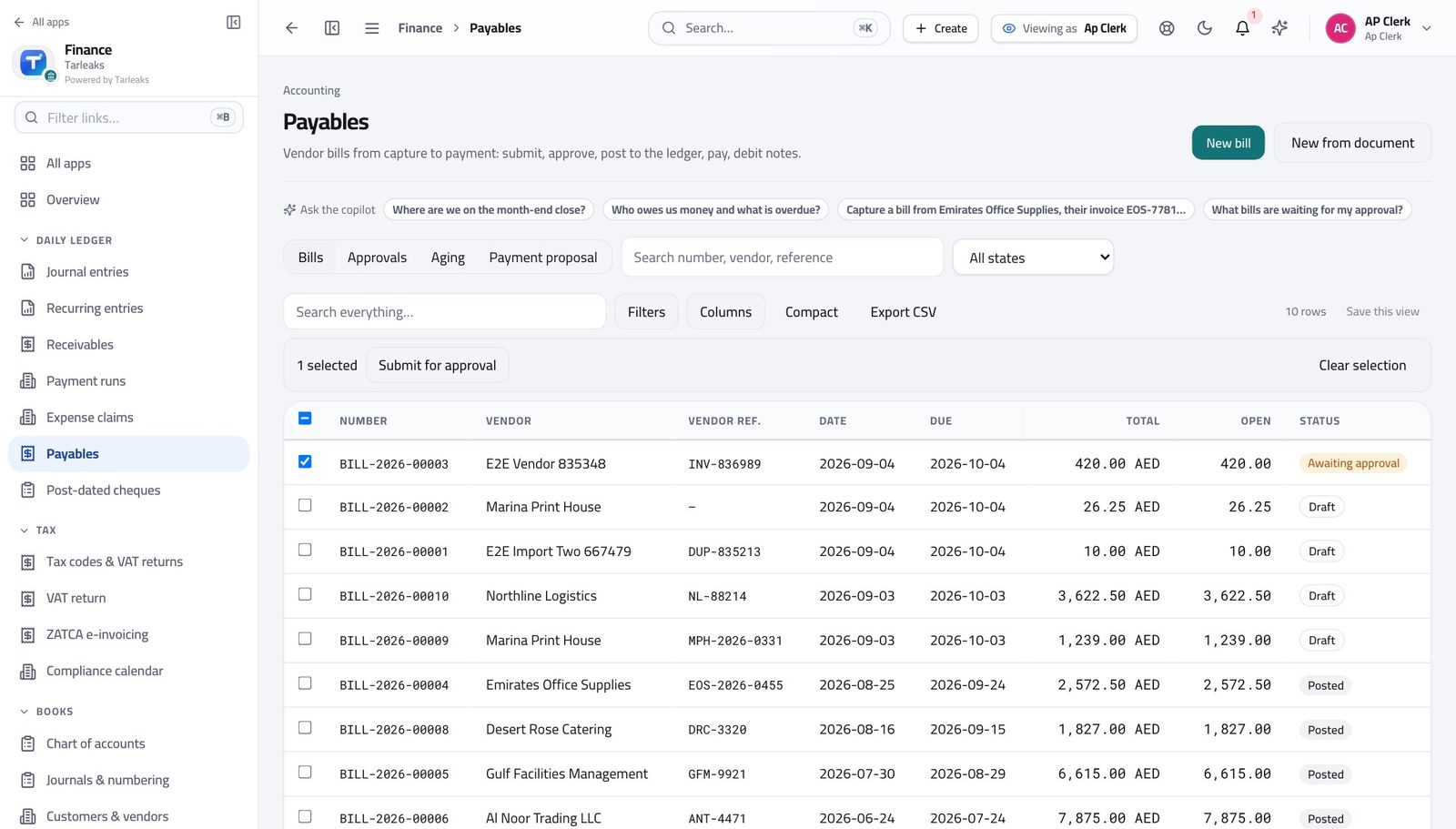
You should see Submit is there; Approve is not. The person who enters a bill never approves it — that is what keeps payables honest.
Edit suppliers, but do not remove them #
Where Finance » Customers & vendors
- Open Customers & vendors.
- Tick a supplier.
- Read the bar.
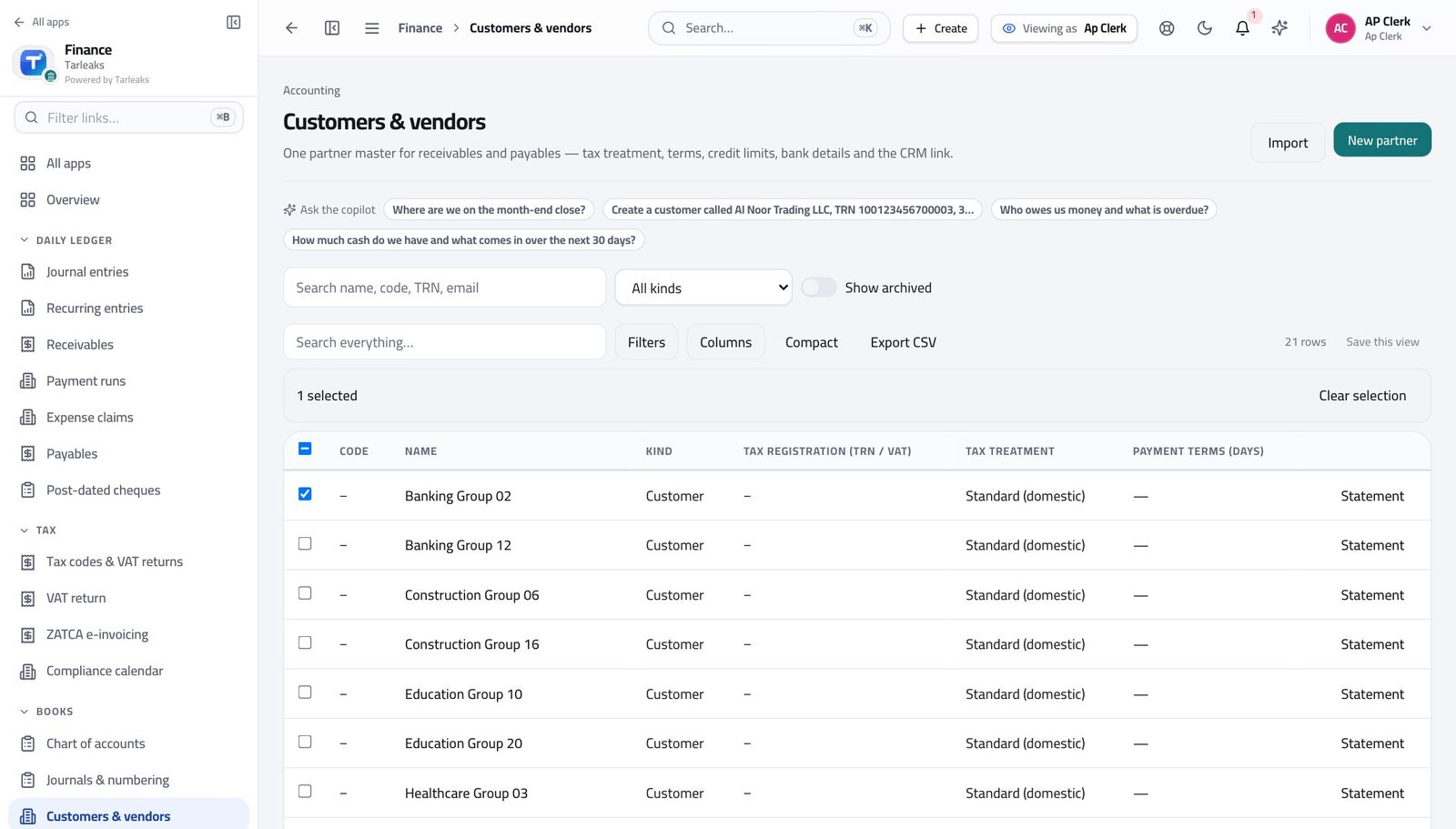
You should see You can correct a supplier's details, but taking one out of the master list is a different authority.
Payroll is not yours to see #
Where The left menu
- Look down the app list in the left rail.
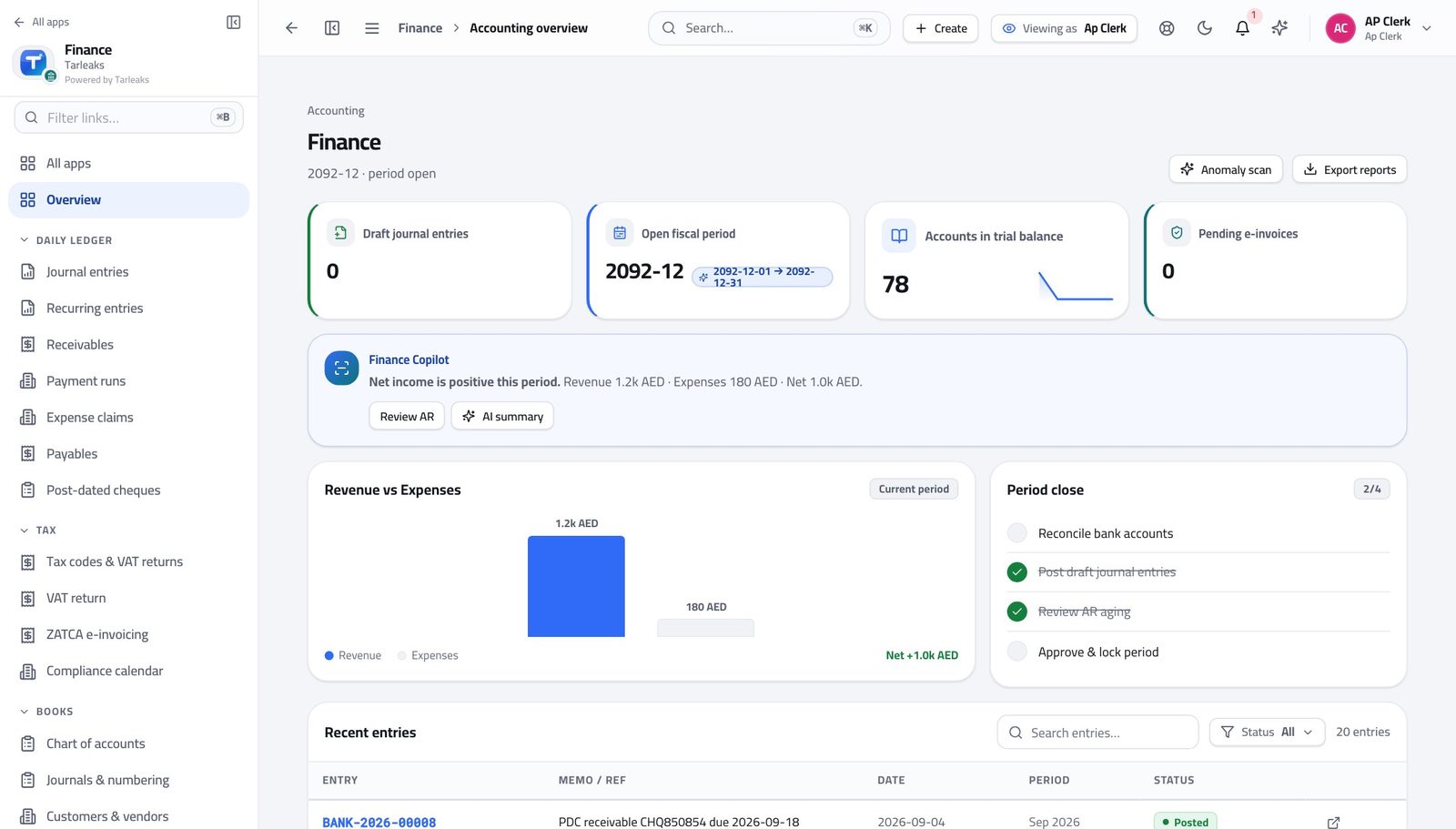
You should see Someone handling supplier invoices has no reason to see salaries, so the whole area is closed — not just hidden.
Use cases — the work, step by step
Each one is a sequence somebody actually performs, with the screen behind every step. Every screen here was opened in the product as this role before it was published.
dailyA day of supplier invoices, entered and sent for approval #
You are the last person who sees the paper. Everything after you depends on what you typed.
Open Payables. The state column tells you whose turn it is on every bill you have entered.
Finance » Payables — verified: 10 row(s) listed Enter each invoice that arrived: supplier, their own invoice number, the dates, then a line per charge. Check the total against the supplier's document to the fils.
Finance » Payables » New bill — verified: the control is offered Tick the bills you finished and submit them together. Each one still runs its own checks, so a problem bill is named and the rest go forward.
Finance » Payables » tick rows » Submit — verified: the control is offered; the control is offered
weeklyWork the week's payables before the payment run #
A supplier at ninety days calls the managing director, not you.
Open the Aging tab and read the Bucket column, oldest first.
Finance » Payables » Ageing — verified: the page says “Bucket”; 5 row(s) listed Look at the payment runs to see what is already scheduled, and what still needs to be added.
Finance » Payment runs — verified: the page says “Payment” Chase your own approvals: anything sitting in submitted is yours to escalate.
Finance » Payables — verified: the control is offered; the action is not offered to this role
urgentA supplier says they were never paid #
Nine times out of ten the answer is on the screen before the call ends: it was never approved, or it was paid and they missed it.
Open Payables and find their bills — search by the supplier's own invoice number, which is exactly what they will quote.
Finance » Payables — verified: 10 row(s) listed Read the state. Submitted means nobody approved it; approved means it is waiting for a payment run.
Finance » Payables — verified: the control is offered; the action is not offered to this role If it was paid, open the payment run and give them its date and reference.
Finance » Payment runs — verified: the page says “Payment”
You prepare; someone else approves and pays. If a button you expected is missing, that is the reason — and it protects you as much as the company.
Accounts Receivable Clerk
Send the invoices, chase the money, keep the record clean.
Invoices customers, records what they pay, and works the ageing and dunning so money arrives.
What you will be able to do
- See every customer invoice and what it is waiting on
- Read the ageing so you chase the oldest money first
- See what reminders went out and what came back
- Cancel invoices properly, with a reason that stays on the record
What this role can and cannot do
| Can | Cannot |
|---|---|
|
|
7 steps, each one carried out in the product on .
Check what your sign-in can do #
Where Your name, top right » Profile
- Open your company's address in the browser — it looks like yourcompany.tarleaks.com.
- Type the e-mail address your administrator set up for you, then your password.
- You land on the app launcher: a grid of the apps your company uses.
- Click your name, top right.
- Choose Profile.
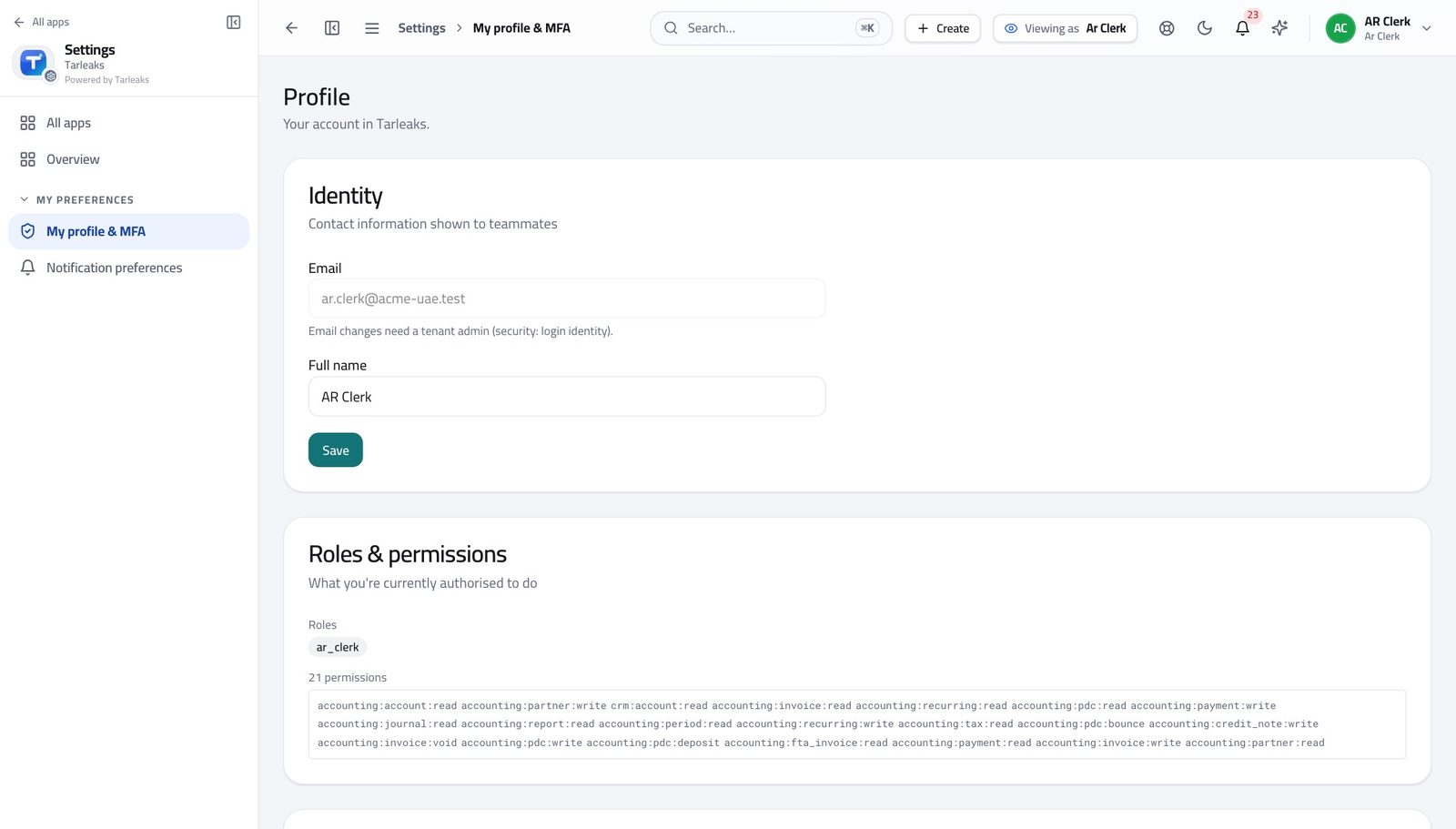
You should see It says AR Clerk. You can raise invoices, record what customers pay, and cancel an invoice with a reason.
Open the customer invoices #
Where Finance » Receivables
- Open Finance, then click Receivables in the left menu.
- Use the tabs: Invoices, Recurring, Reminders.
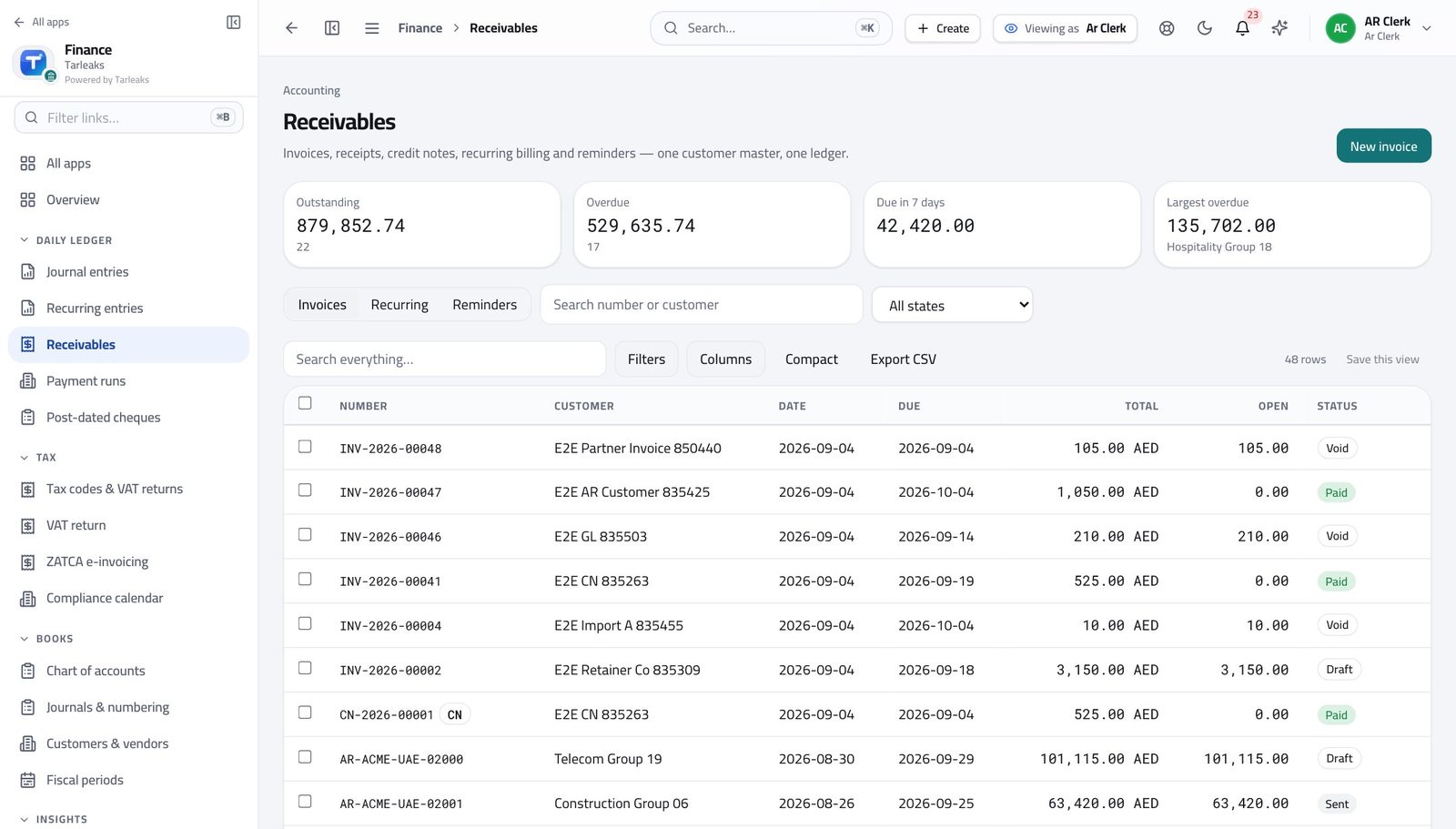
You should see Every invoice and where it has got to, in one list.
Raise a customer invoice #
Where Finance » Receivables » New invoice
- On Receivables, click New invoice.
- Choose the customer, or type a one-off name.
- Set the invoice date and the due date.
- Add a line per thing you are charging for.
- Check the total, then Save — and Send when you are ready for the customer to have it.
| Field | What to put in it |
|---|---|
| Customer | Their payment terms set the due date for you. |
| Date | The date the invoice is issued. |
| Due | When you expect the money. Change it only if you agreed to. |
| Currency | Defaults to the company currency; change it for a foreign customer and the rate is applied for you. |
| Reference / PO | Their purchase-order number. Put it in — it is the single most common reason an invoice sits unpaid. |
| Description | What you delivered, in their words rather than yours. |
| Qty / Unit price | The line amount. Tax comes from the customer's tax treatment. |
| Notes | Anything that should print on the invoice itself. |
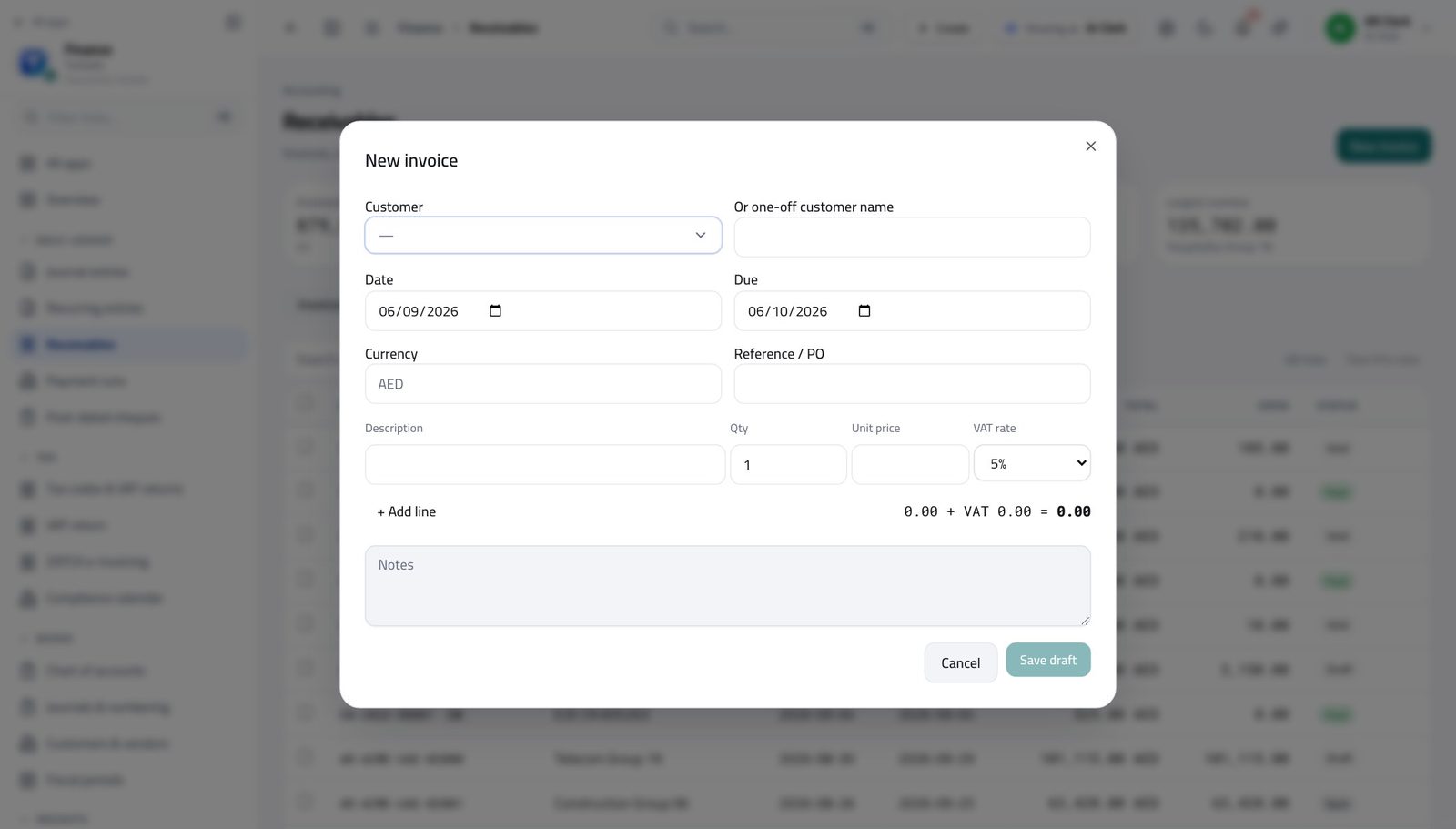
You should see Tax is applied per line from the customer's tax treatment, so the total is right without you working it out.
Watch out Sending is what makes an invoice real for the customer. Before that it is a draft you can change freely.
See who is overdue #
Where Finance » Reports » Ageing
- Open Reports from the left menu.
- Click the Ageing tab.
- Start at the oldest column and work left.
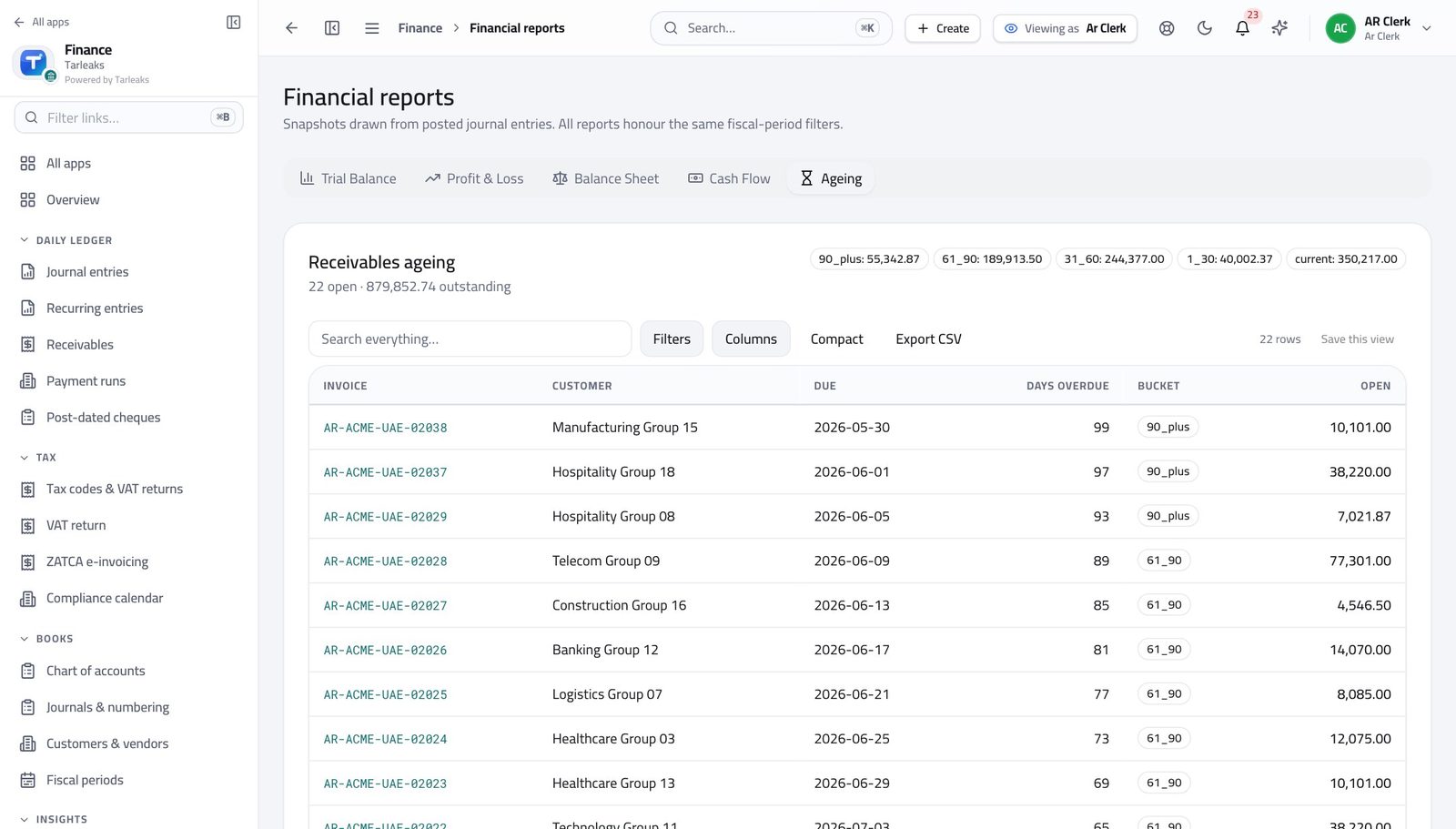
You should see Balances are grouped by how late they are, so the call list writes itself.
See what was already chased #
Where Finance » Receivables » Reminders
- On Receivables, click the Reminders tab.
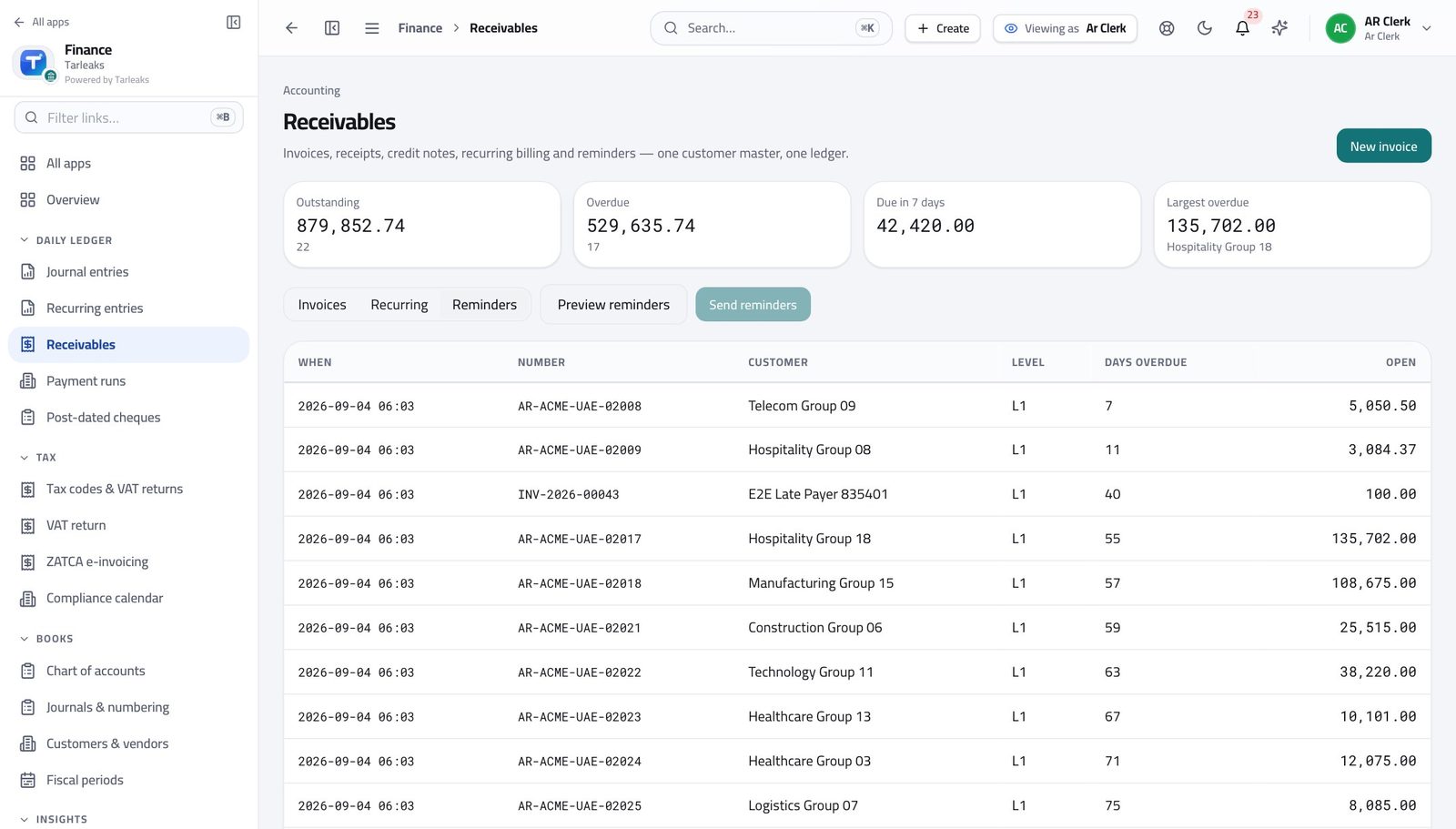
You should see You will not chase the same customer twice by accident.
Cancel invoices properly #
Where Finance » Receivables » tick rows » Cancel
- On Receivables, tick the invoices to cancel.
- Click Cancel in the bar at the bottom.
- Type the reason once — it is stored against every invoice in the batch.
- Confirm.
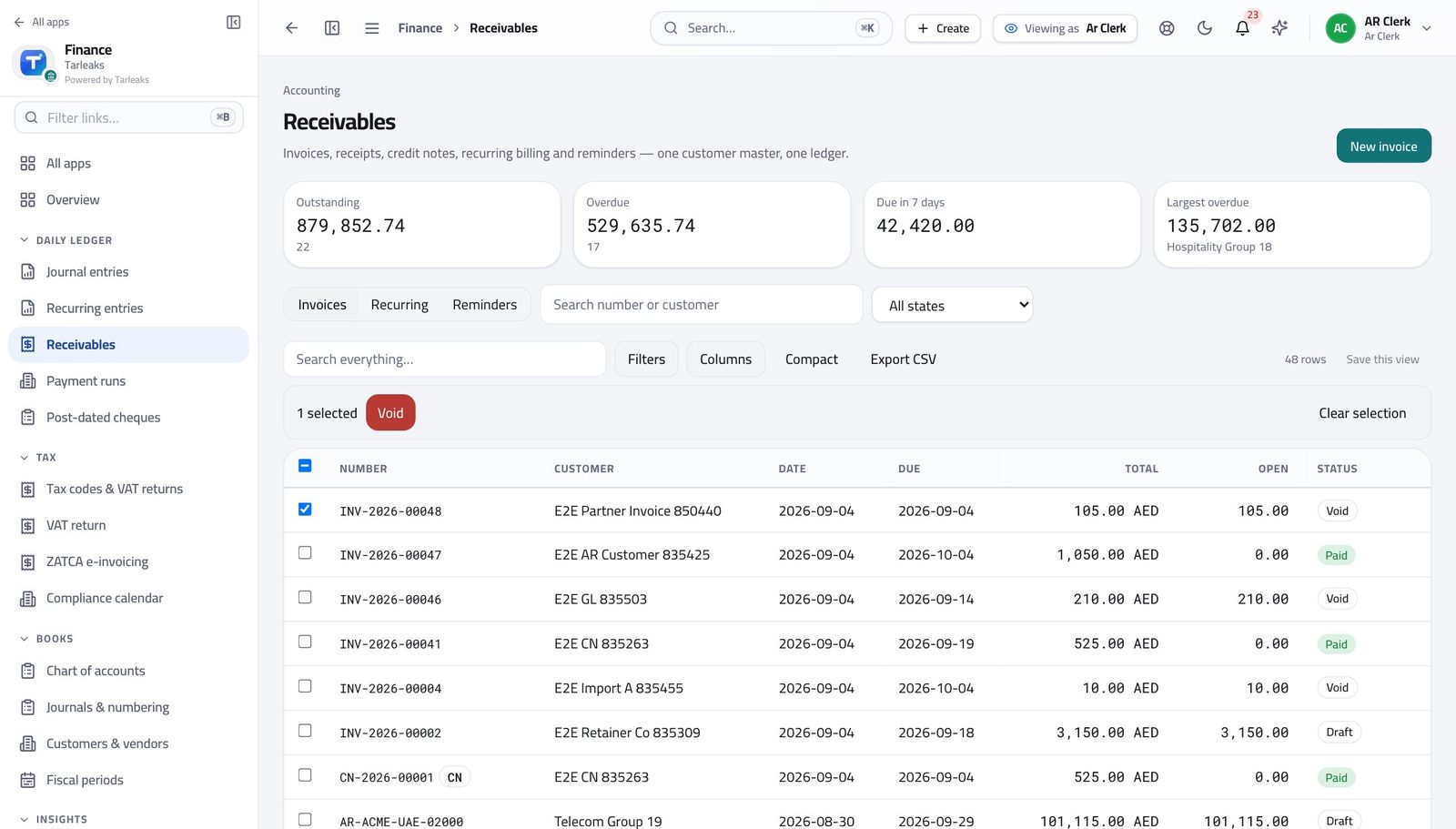
You should see The reason is kept with every invoice you cancelled. An invoice already sent to a customer is never simply deleted.
Watch out An invoice already sent to a customer is cancelled by credit note, never deleted. That is what keeps your numbers defensible.
Worth knowing Leave the reason blank and nothing happens — the record must say why.
Supplier bills are not yours #
Where Finance » Payables
- Look at the left menu under Finance.
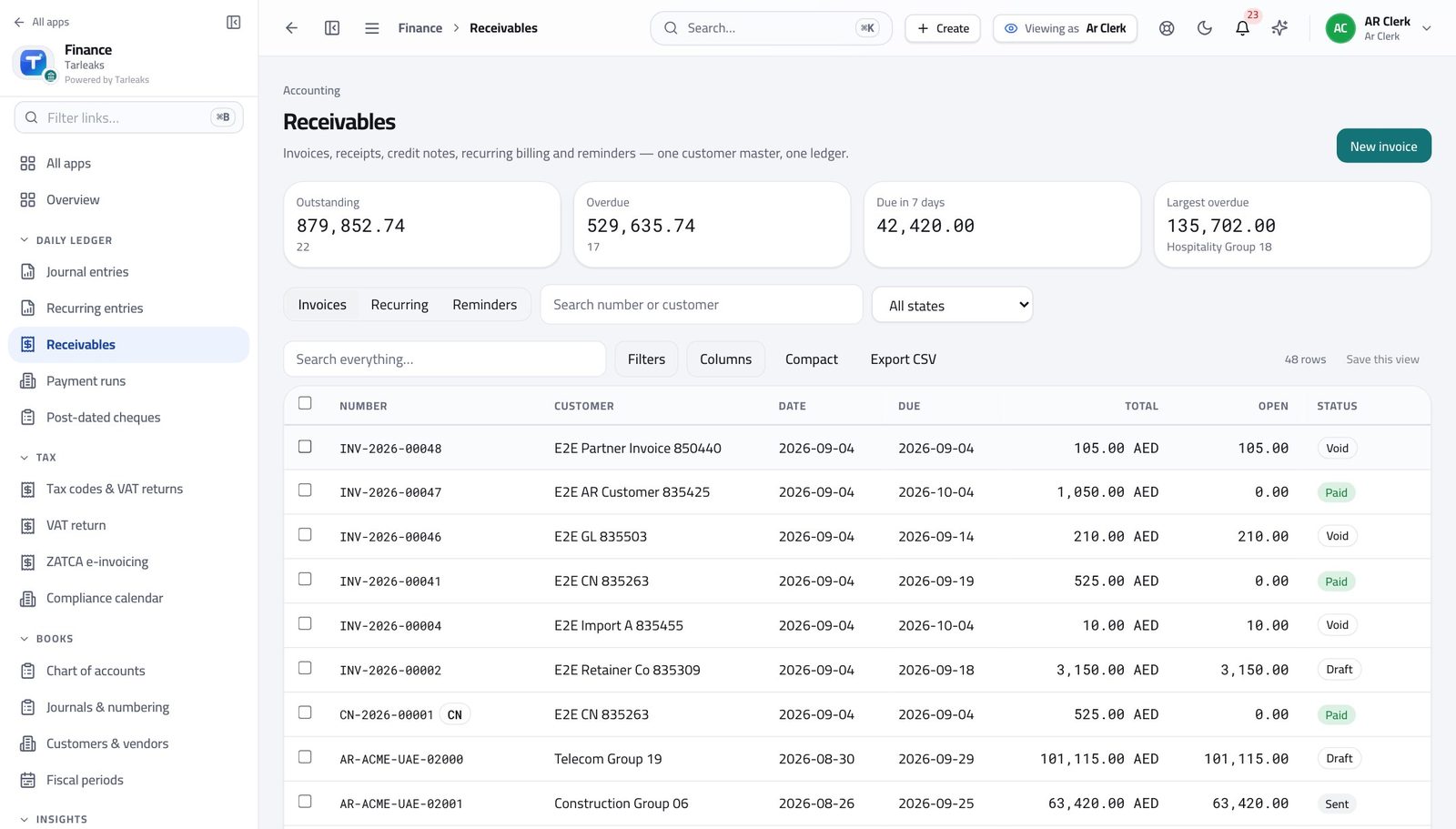
You should see Money in and money out are separate jobs. Your sign-in covers customers, not suppliers.
Use cases — the work, step by step
Each one is a sequence somebody actually performs, with the screen behind every step. Every screen here was opened in the product as this role before it was published.
dailyInvoice what shipped, then record what arrived #
An invoice raised a week late is paid a week late — and an unallocated receipt makes a paying customer look overdue.
Open Receivables. The state on each invoice says what it is waiting on.
Finance » Receivables — verified: 48 row(s) listed Raise the invoices for yesterday's deliveries: customer, dates, a line per item, and their purchase-order number in Reference.
Finance » Receivables » New invoice — verified: the control is offered Check the reminders tab before you chase anybody, so you do not call a customer who paid yesterday.
Finance » Receivables » Reminders — verified: the page says “Reminders”
weeklyWork the ageing, oldest money first #
Collections is a queue, and the right end of the queue is the oldest column.
Open Reports and switch to Ageing. Start at the right-hand column — that is the money at risk.
Finance » Reports » Ageing — verified: the page says “Ageing” Open the customer's invoices from Receivables and log what you did on the record, so the next person does not repeat it.
Finance » Receivables — verified: 48 row(s) listed Read the reminders log to see what has already gone out.
Finance » Receivables » Reminders — verified: the page says “Reminders”
urgentA customer disputes an invoice already sent #
A sent invoice is corrected by credit note, never deleted. That is what keeps the ageing and the VAT return honest.
Find the invoice in Receivables and read its state before promising anything.
Finance » Receivables — verified: 48 row(s) listed If the invoice is wrong, cancel it with the reason typed in — the reason stays on the record — and raise the corrected one.
Finance » Receivables » tick rows » Cancel — verified: the control is offered; the control is offered If it is right, send the statement and the evidence instead.
Finance » Receivables » New invoice — verified: the control is offered
An invoice that has already gone to a customer is never simply deleted. Cancelling it leaves a trail, which is what makes your numbers defensible later.
Auditor
Read everything. Change nothing. Prove both.
Reads everything and changes nothing. Every write in the module refuses this role by design.
What you will be able to do
- Open every statutory report without asking anyone to run it
- Follow any number back to the entry behind it
- Read customers, suppliers and bank statements
- See for yourself that this sign-in cannot alter a thing
What this role can and cannot do
| Can | Cannot |
|---|---|
|
|
5 steps, each one carried out in the product on .
Check what your sign-in can do #
Where Your name, top right » Profile
- Open your company's address in the browser — it looks like yourcompany.tarleaks.com.
- Type the e-mail address your administrator set up for you, then your password.
- You land on the app launcher: a grid of the apps your company uses.
- Click your name, top right.
- Choose Profile.
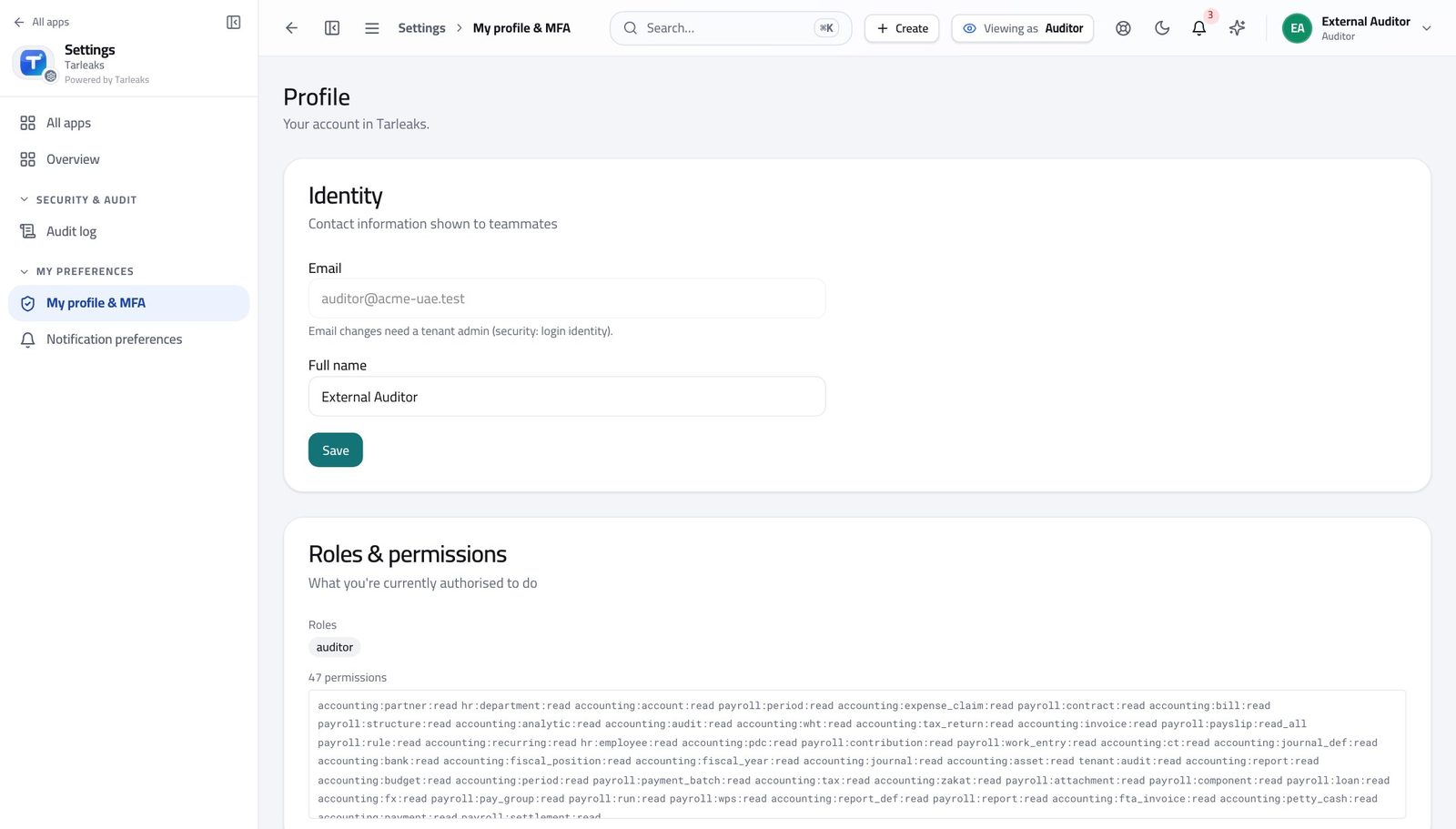
You should see It says Auditor: you can read the whole ledger and the trail behind it, and you cannot change a single record.
Open every report yourself #
Where Finance » Reports
- Open Finance, then Reports.
- Move through the tabs: Trial Balance, Profit & Loss, Balance Sheet.
- Set the date or period on each.
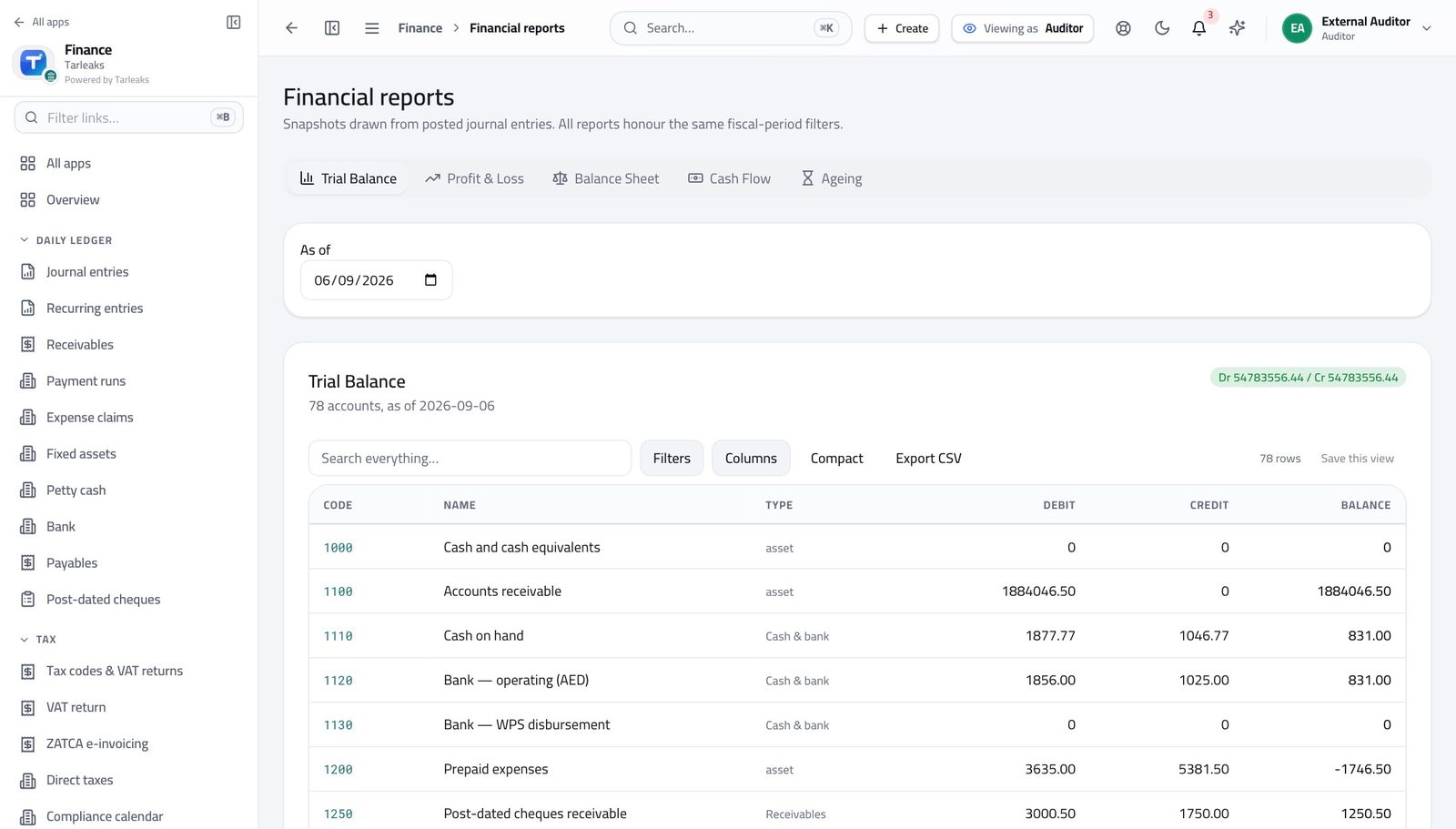
You should see Trial balance, profit and loss, and balance sheet all open without you asking anyone to prepare them.
Follow a number back to its evidence #
Where Finance » Journal entries
- Open Journal entries.
- Click any row to open the entry.
- Follow the source shown on the entry back to the bill, invoice or payroll run behind it.
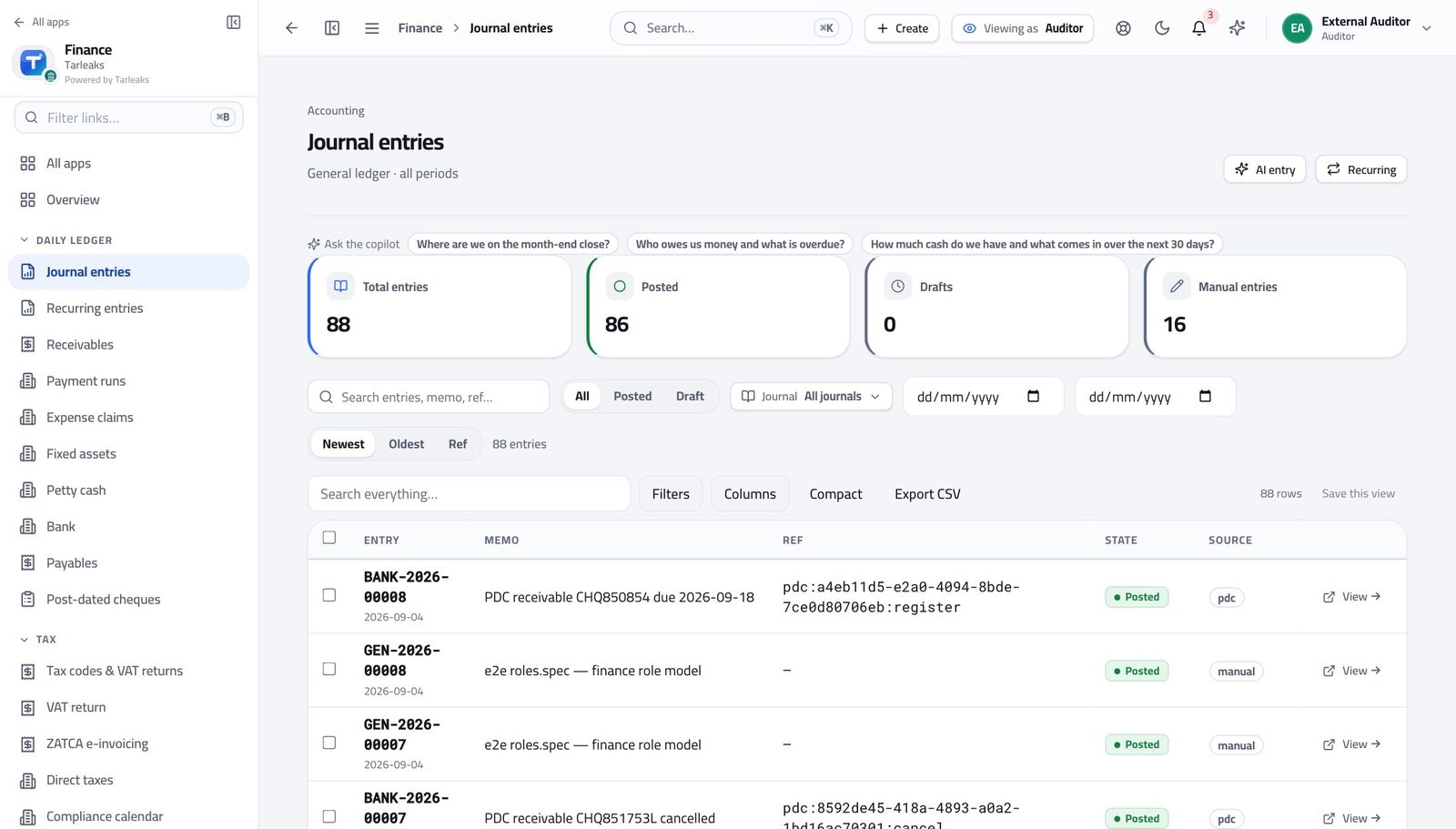
You should see You can walk from a report figure to the entry, then to the customer, supplier or bank statement behind it.
See that you cannot change anything #
Where Finance » Journal entries
- Open Journal entries.
- Look at the top right of the page.
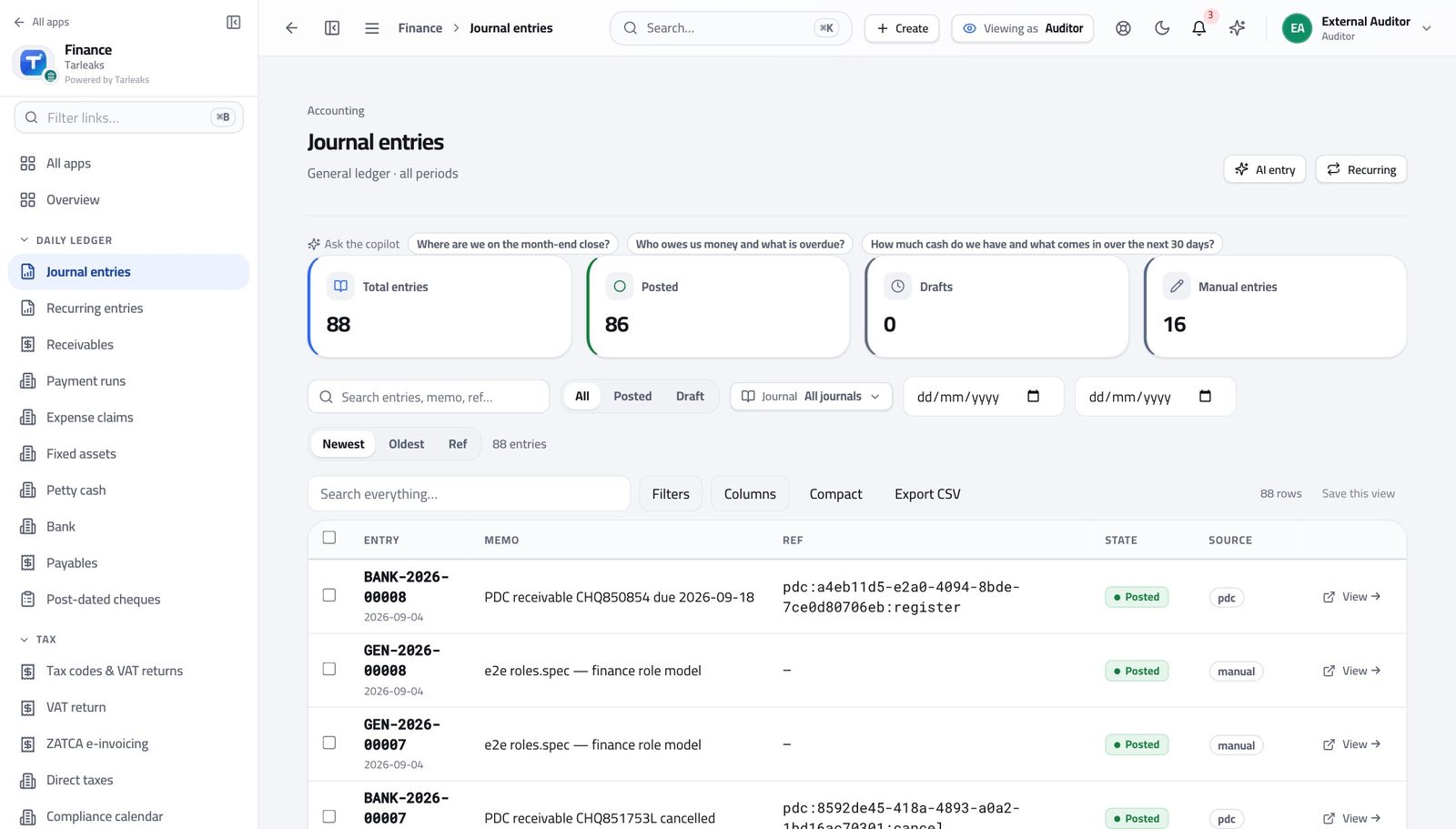
You should see There isn't one — and the same refusal happens underneath, so nothing can be written under your name.
Nothing can be archived either #
Where Finance » Customers & vendors
- Open Customers & vendors.
- Tick a row.
- Read the bar.
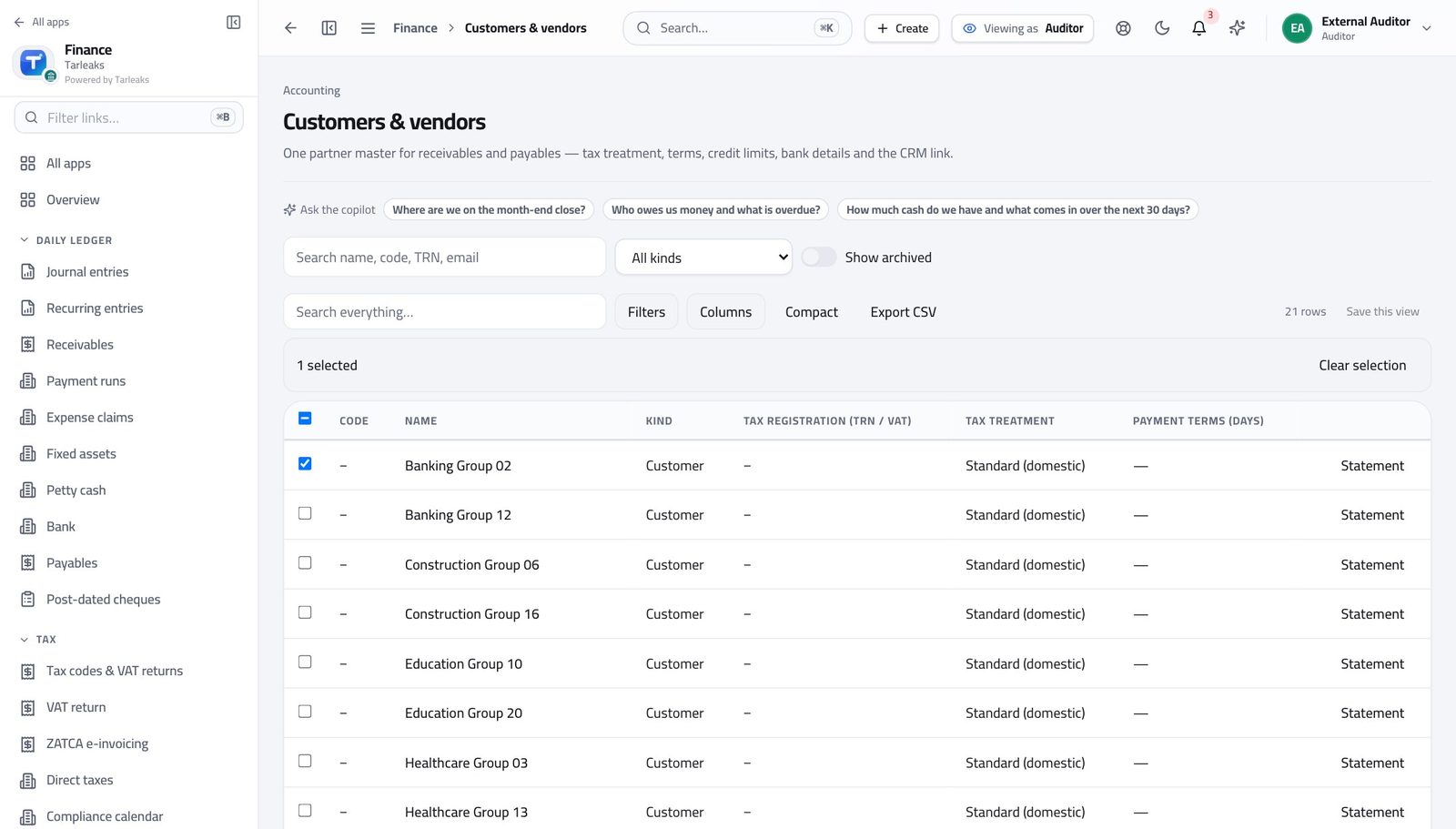
You should see It offers you nothing. You cannot remove the evidence you are reviewing.
Use cases — the work, step by step
Each one is a sequence somebody actually performs, with the screen behind every step. Every screen here was opened in the product as this role before it was published.
weeklyTrace a reported figure back to its evidence #
You should never have to accept a spreadsheet. Every figure traces to entries, and every entry names where it came from.
Start at the report — trial balance, profit and loss, or balance sheet — for the period under review.
Finance » Reports — verified: the page says “Trial Balance” Open Journal entries and find the postings behind the account that interests you.
Finance » Journal entries — verified: 88 row(s) listed Confirm, on the same screens, that this login cannot write: there is no New entry button, and the bulk bar offers nothing.
Finance » Journal entries — verified: no “New entry” anywhere on the page
Every write in this module refuses your sign-in. That is not a limitation to work around — it is the evidence that what you reviewed is what was there.
Cashier
Run the cash float and the cheque book with a clean record.
Runs the petty-cash float and post-dated cheques, and records receipts — without the authority to post to the ledger.
What you will be able to do
- See each petty-cash float and what is left in it
- Read every voucher spent against a float
- Know which cheques clear on which day
- Work confidently inside the limits of the role
What this role can and cannot do
| Can | Cannot |
|---|---|
|
|
7 steps, each one carried out in the product on .
Check what your sign-in can do #
Where Your name, top right » Profile
- Open your company's address in the browser — it looks like yourcompany.tarleaks.com.
- Type the e-mail address your administrator set up for you, then your password.
- You land on the app launcher: a grid of the apps your company uses.
- Click your name, top right.
- Choose Profile.
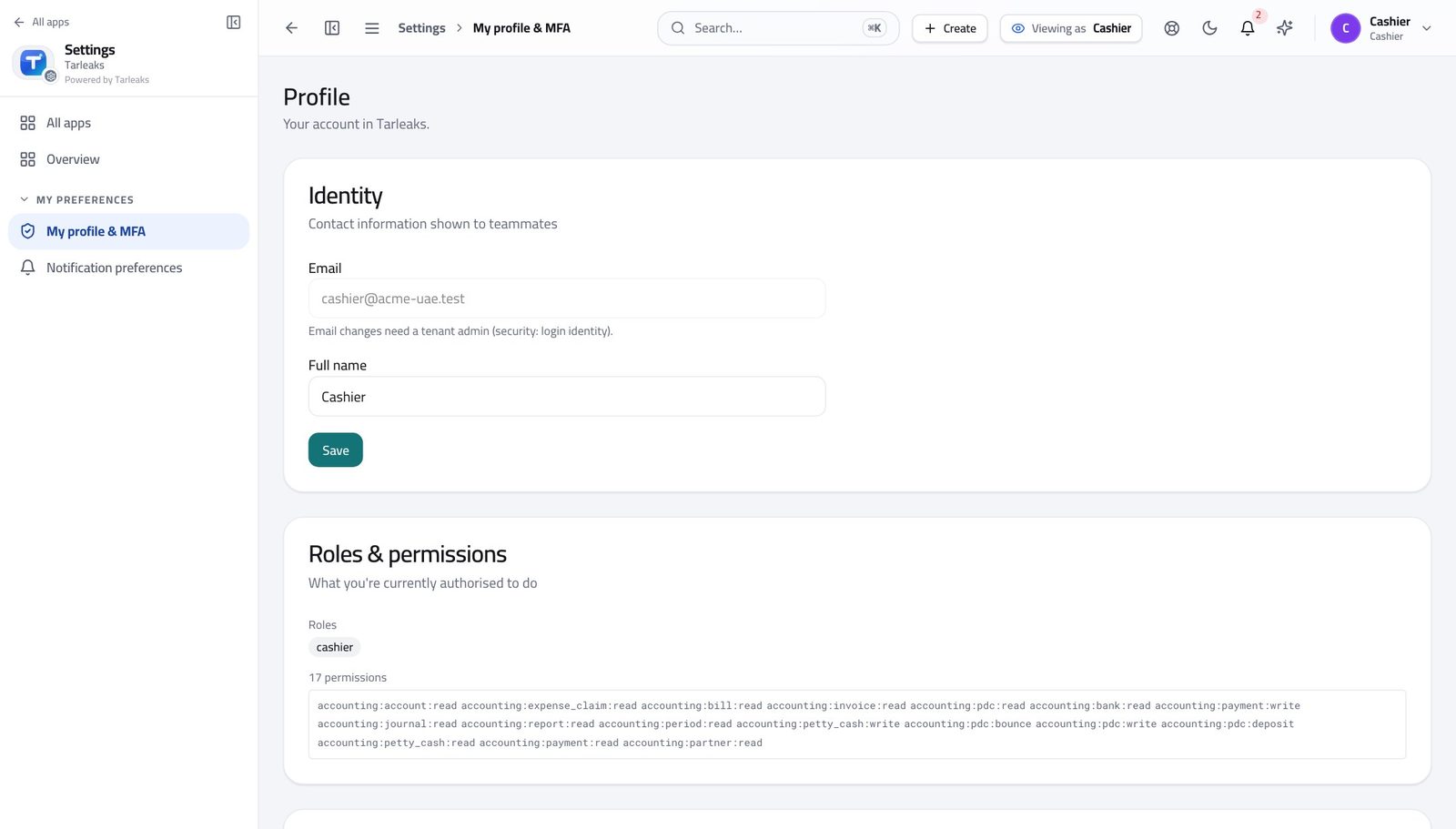
You should see It says Cashier. Petty cash and cheques are yours; writing to the ledger is not.
Open your cash floats #
Where Finance » Petty cash
- Open Finance, then click Petty cash in the left menu.
- Choose a float from the dropdown at the top.
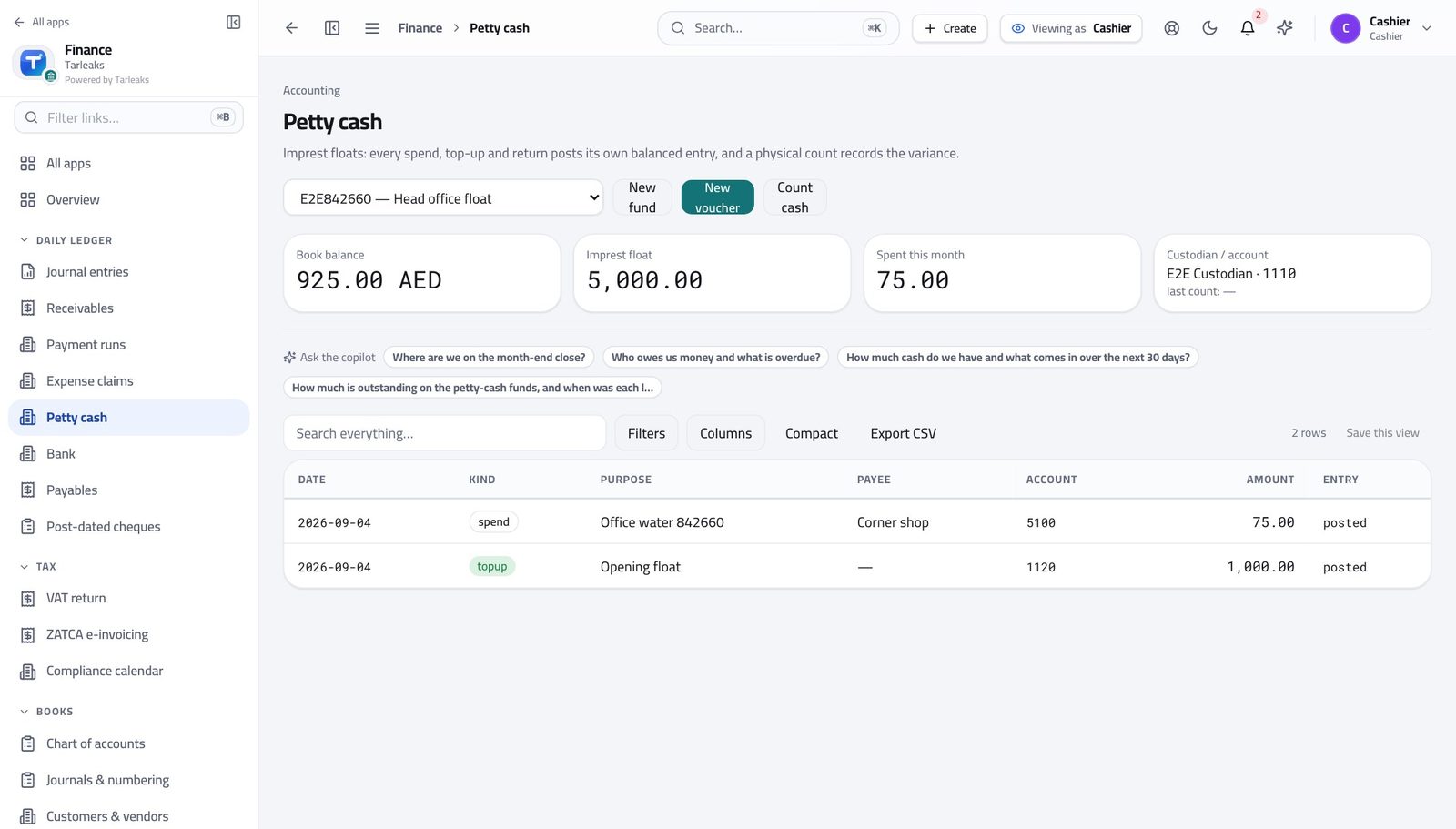
You should see You can see at a glance what you are accountable for.
See every spend against a float #
Where Finance » Petty cash
- With a float selected, read the list underneath.
- Each row is one movement, newest first.
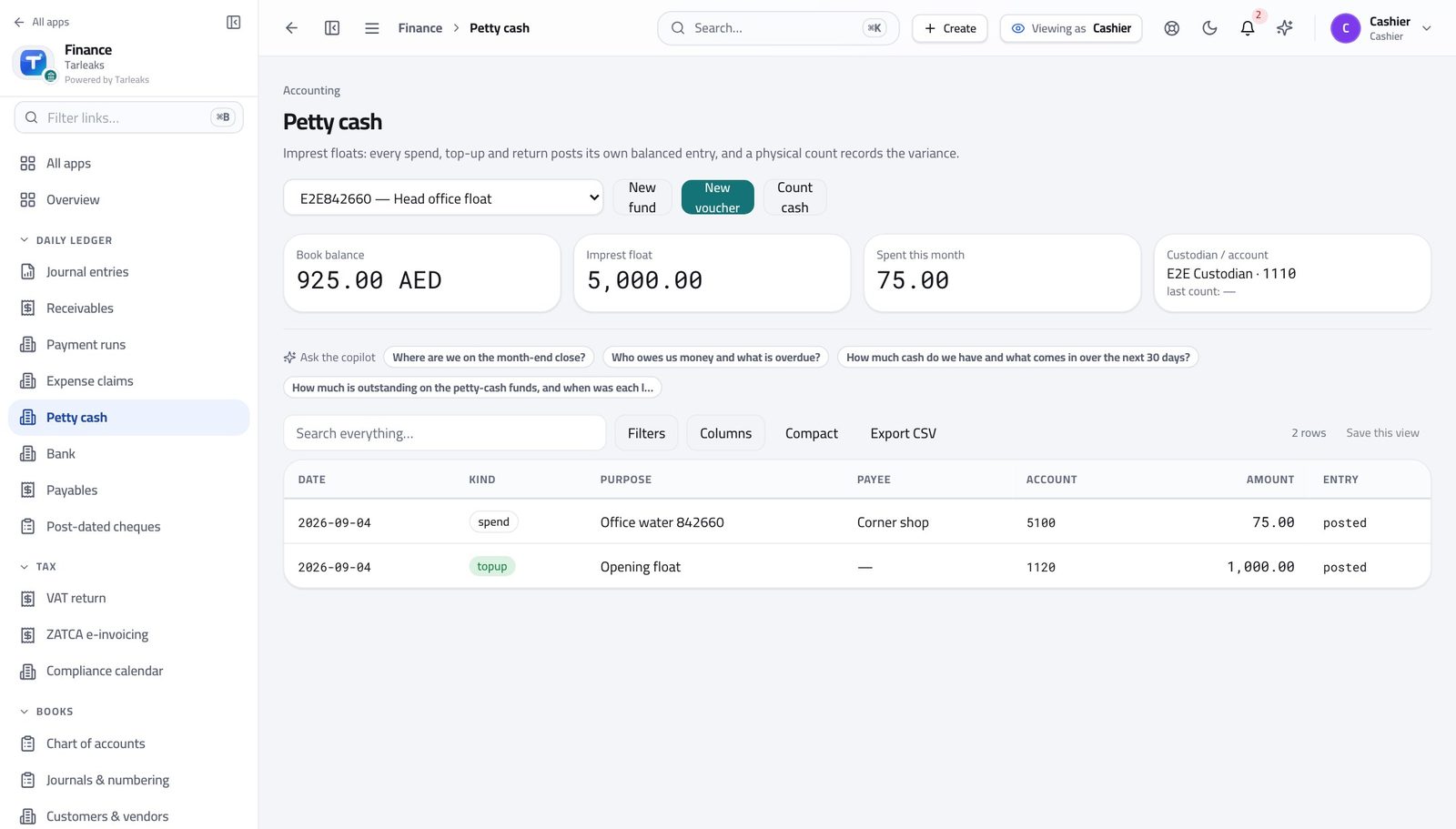
You should see Nothing leaves the float without a line here — which is what makes the count at the end of the day add up.
Record money out of the float #
Where Finance » Petty cash » New voucher
- On Petty cash, click New voucher.
- Fill what it was for, who was paid, the account and the amount.
- Add the receipt reference so the paper and the record match.
- Click Save.
| Field | What to put in it |
|---|---|
| Kind | Spend for money going out, topup for money going in. |
| Date | The day the money actually moved. |
| Purpose | What it was for, in plain words — 'water for the meeting room', not 'sundries'. |
| Payee | Who received the cash. |
| Account | Which expense account it belongs to. Your accountant can give you the two or three you will use most. |
| Amount | What left the tin. |
| VAT | The tax on the receipt, when there is any. |
| Receipt reference | The number on the paper receipt you are filing. |
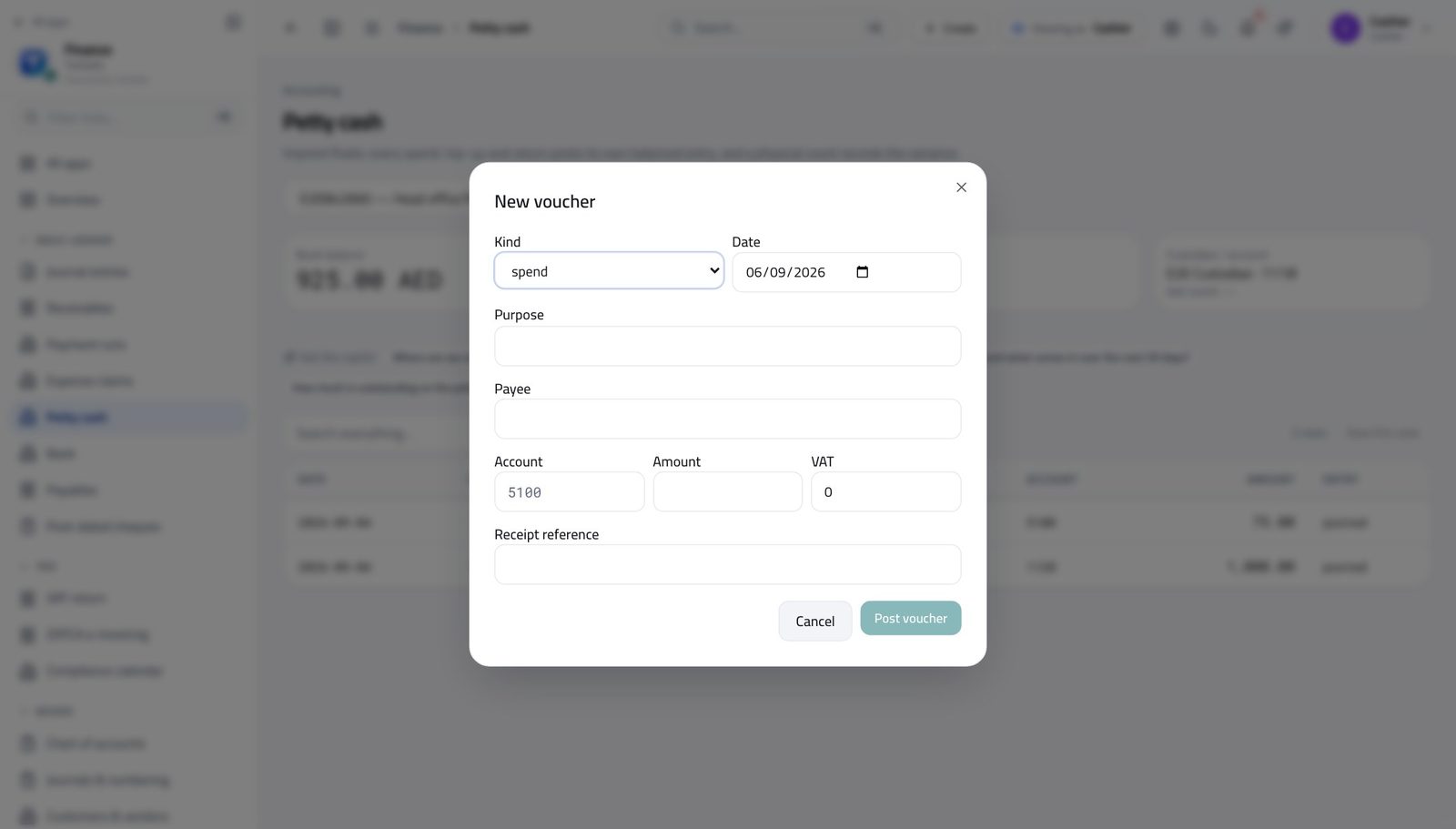
You should see The float's balance drops by that amount the moment you save, so the figure on screen always matches the tin.
Know which cheques clear when #
Where Finance » Post-dated cheques
- In the left menu, click Post-dated cheques.
- Sort or filter by date to see what matures next.
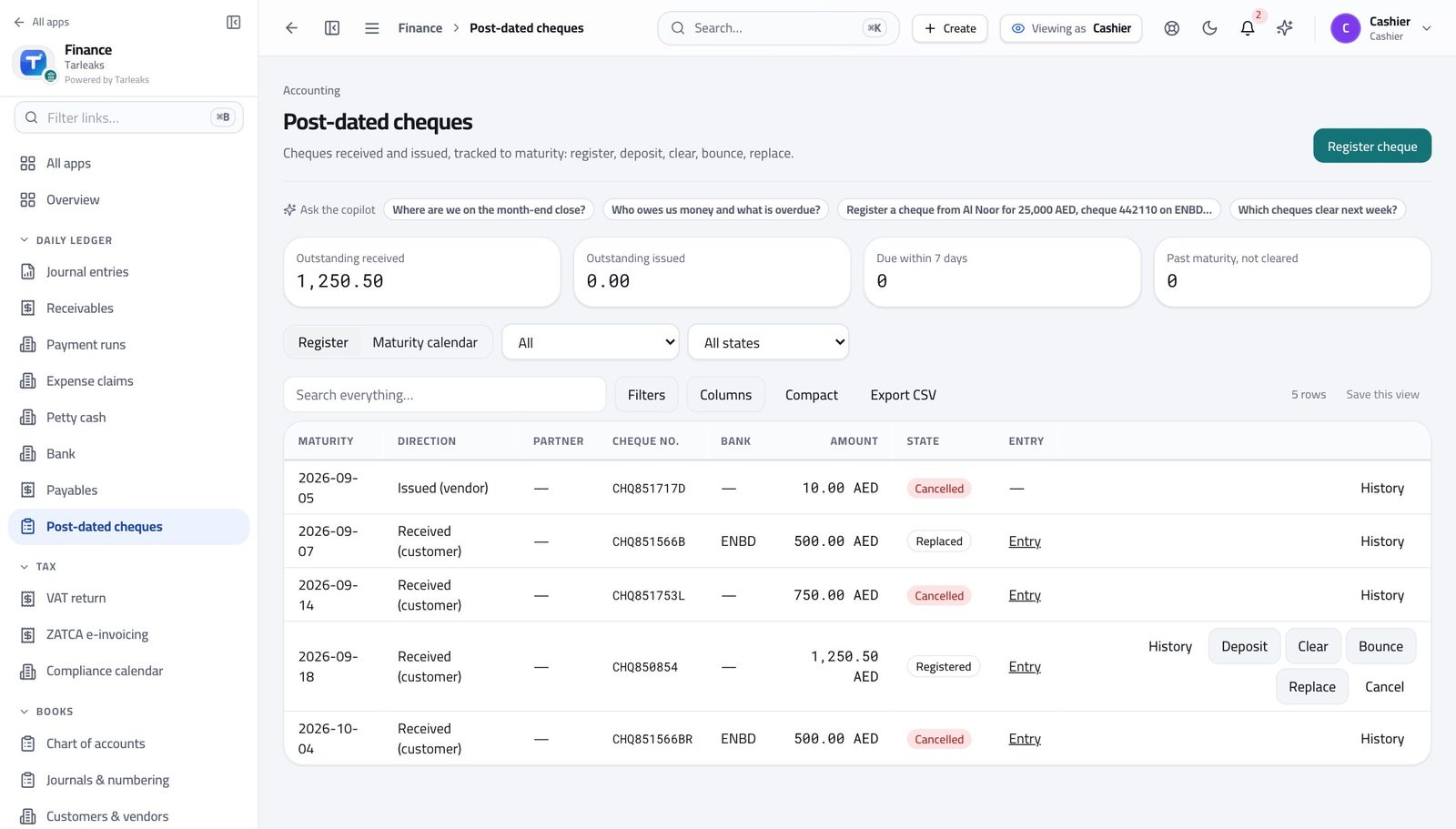
You should see Nothing gets banked early, and nothing is forgotten on the day it is due.
Count the cash and record the difference #
Where Finance » Petty cash » Count cash
- On Petty cash, click Count cash.
- Count the tin physically.
- Type what you actually counted into Counted.
- Add a note if there is a difference and you know why.
- Click Save.
| Field | What to put in it |
|---|---|
| Counted | The real figure from counting, not what you expect. |
| Note | Why there is a difference, if there is one. |
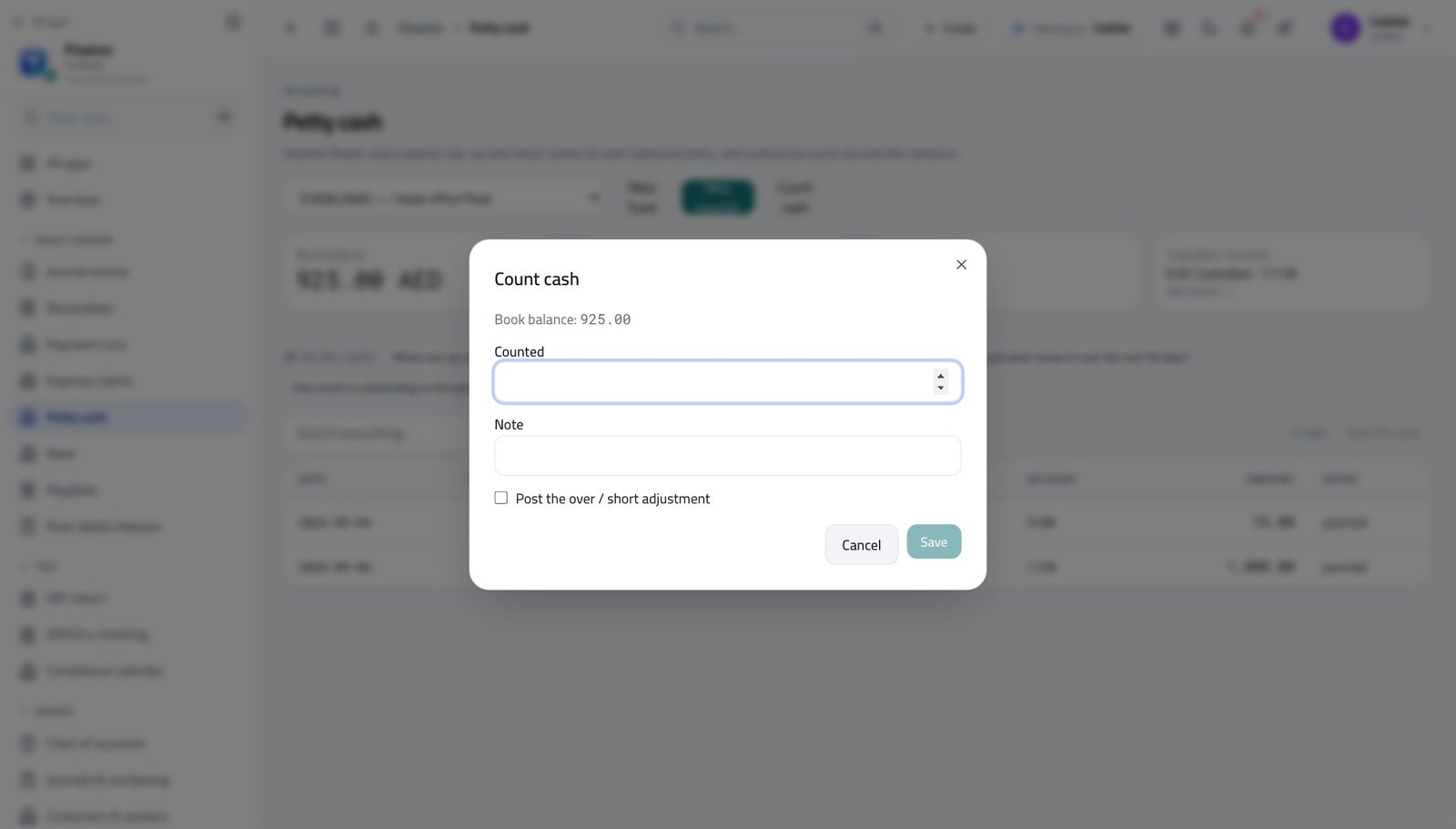
You should see Any difference between the count and the books is recorded rather than quietly absorbed — which is what protects you.
Watch out Never adjust the count to match the books. Recording the difference is the thing that protects you.
You can read the books, not write them #
Where Finance » Journal entries
- Open Journal entries from the left menu.
- Look at the top right.
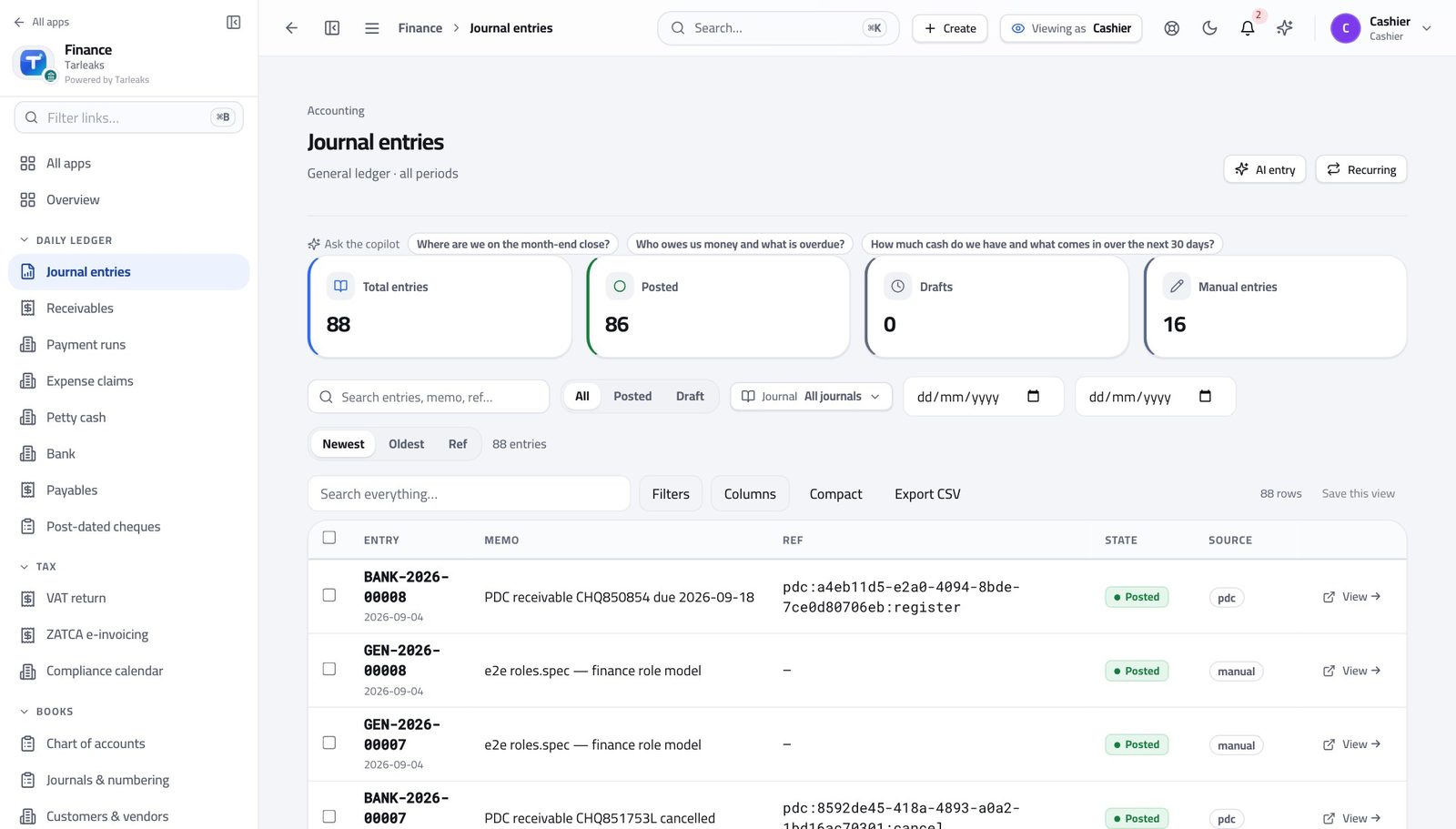
You should see You can look up any entry — but there is no button to add one. Counting cash and writing the books are deliberately different jobs.
Use cases — the work, step by step
Each one is a sequence somebody actually performs, with the screen behind every step. Every screen here was opened in the product as this role before it was published.
dailyClose the day: record the spend, then count the tin #
A difference found today has an explanation. The same difference found at month end does not.
Open Petty cash and choose the float you are responsible for. The four boxes across the top are the book balance, the float it was set up with, what has gone out this month, and who holds it.
Finance » Petty cash — verified: the page says “Petty cash” Record every spend that happened today, one voucher each, with the receipt reference. Do it now, not on Friday.
Finance » Petty cash » New voucher — verified: the control is offered Count the cash physically, then enter what you actually counted. If it differs from the book balance, write why in the note.
Finance » Petty cash » Count cash — verified: the control is offered Check the list: every movement today should be there, and the balance on screen should match what is in the tin.
Finance » Petty cash — verified: 2 row(s) listed
weeklyBank the cheques that mature this week #
Nothing should be banked early, and nothing should be forgotten on the day it is due.
Open Post-dated cheques and sort by date to see what matures next. The status column tells you which are registered, deposited, cleared or bounced.
Finance » Post-dated cheques — verified: the page says “cheque” Deposit the ones due today, then clear them once the bank confirms — each state change posts what it should.
Finance » Post-dated cheques — verified: the page says “cheque”
urgentThe tin does not match the screen #
Recording the difference is what protects you. Adjusting the count to match the books is what does not.
Count again, alone and slowly, before touching anything on screen.
Finance » Petty cash — verified: the page says “Petty cash” Read the day's vouchers looking for a spend without a voucher, or a voucher without a receipt reference.
Finance » Petty cash — verified: 2 row(s) listed Record the count as it really is, with a note explaining what you found, and tell your manager the same day.
Finance » Petty cash » Count cash — verified: the control is offered
edgeSomebody spent their own money — that is not petty cash #
A petty-cash voucher records money that left the tin. Money that left an employee's pocket is an expense claim, reimbursed through a payment run.
Check the float's own movements first — if the money did not leave the tin, there is nothing to record here.
Finance » Petty cash — verified: 2 row(s) listed Point them at Expense claims instead. It has its own approval and its own payment, which is what makes the reimbursement traceable.
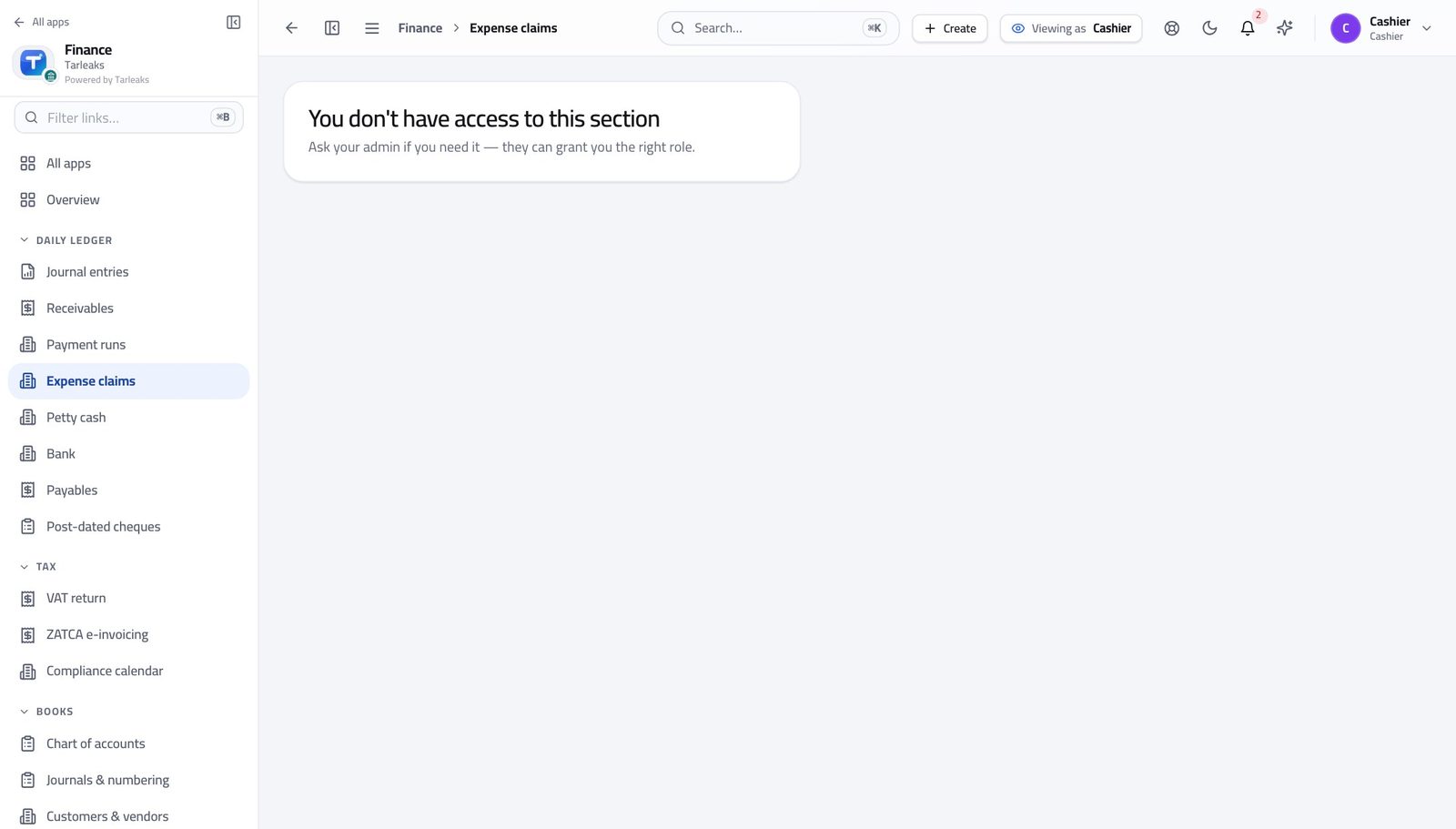
In the product — verified: the page says “claim”
Handling cash and writing the books are deliberately different jobs. You record what happened at the counter; the ledger is posted by someone else.
Finance Controller
Own the close: approve, post, lock, and answer for the numbers.
Owns the close: approves what others prepared, posts, locks the period, and answers for the numbers.
What you will be able to do
- See at a glance what still blocks the month
- Approve a queue of bills in one action
- Clear draft entries out of the way without touching posted ones
- Spot odd-looking entries before an auditor does
What this role can and cannot do
| Can | Cannot |
|---|---|
|
|
7 steps, each one carried out in the product on .
Check what your sign-in can do #
Where Your name, top right » Profile
- Open your company's address in the browser — it looks like yourcompany.tarleaks.com.
- Type the e-mail address your administrator set up for you, then your password.
- You land on the app launcher: a grid of the apps your company uses.
- Click your name, top right.
- Choose Profile.
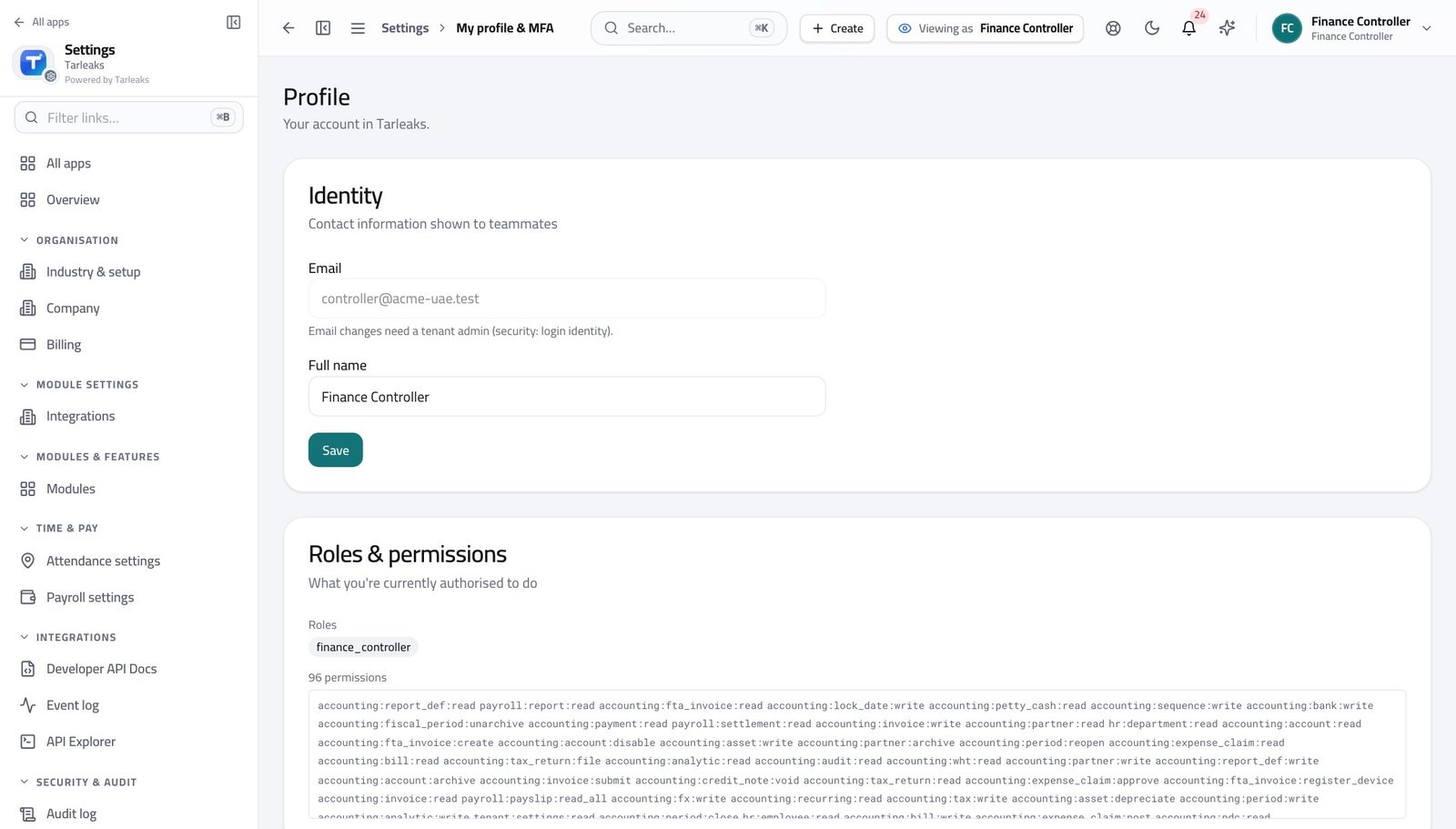
You should see It says Finance Controller — approving, posting, and closing the month all sit with you.
See the months and their state #
Where Finance » Periods
- Open Finance, then Fiscal periods in the left menu.
- Read the state beside each month.
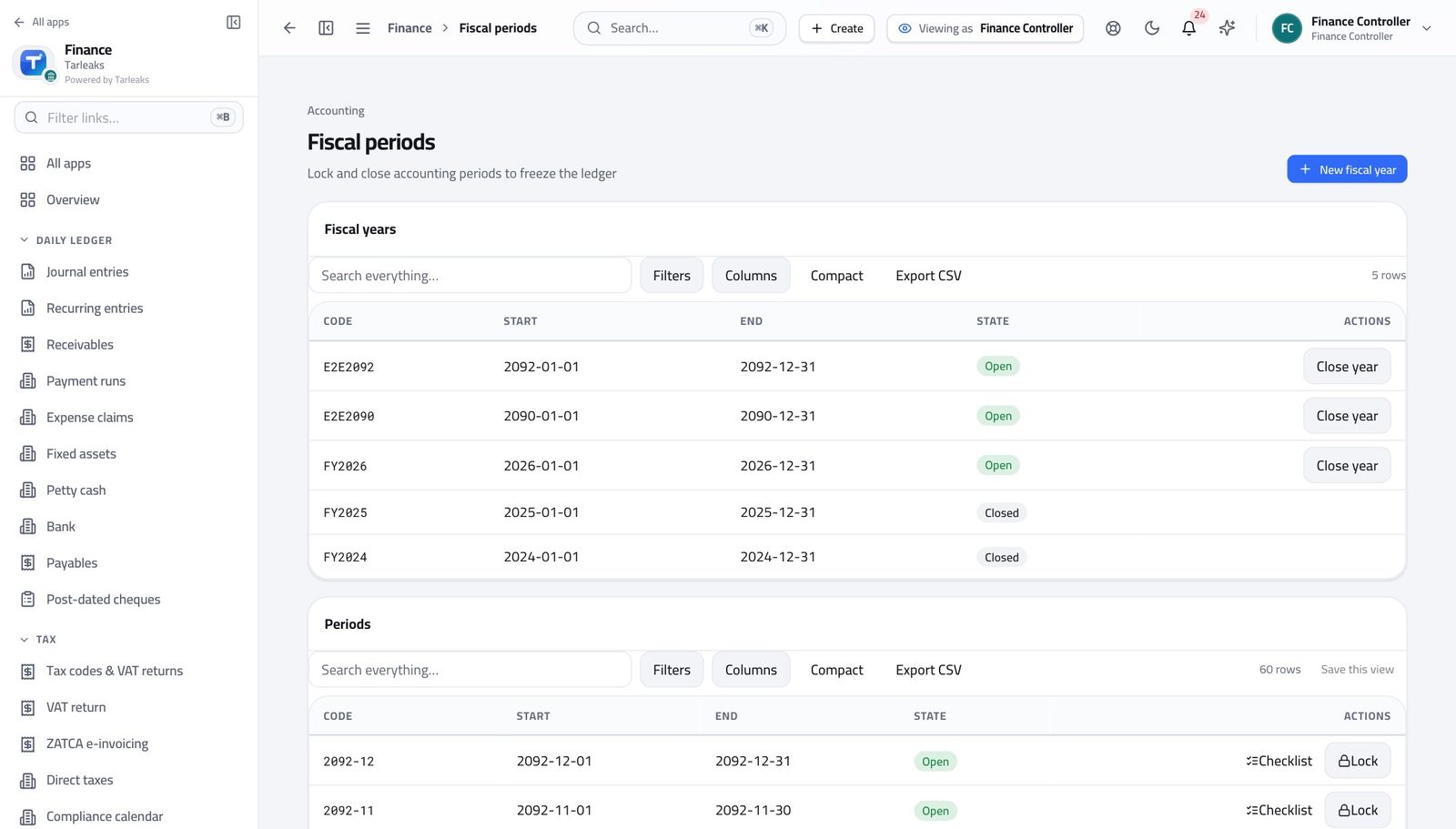
You should see Closing a month stops anyone posting into it by accident.
Close a month #
Where Finance » Periods
- Find the month you are closing.
- Open its actions and choose Close.
- Read what it tells you is still outstanding.
- Confirm only when you are satisfied.
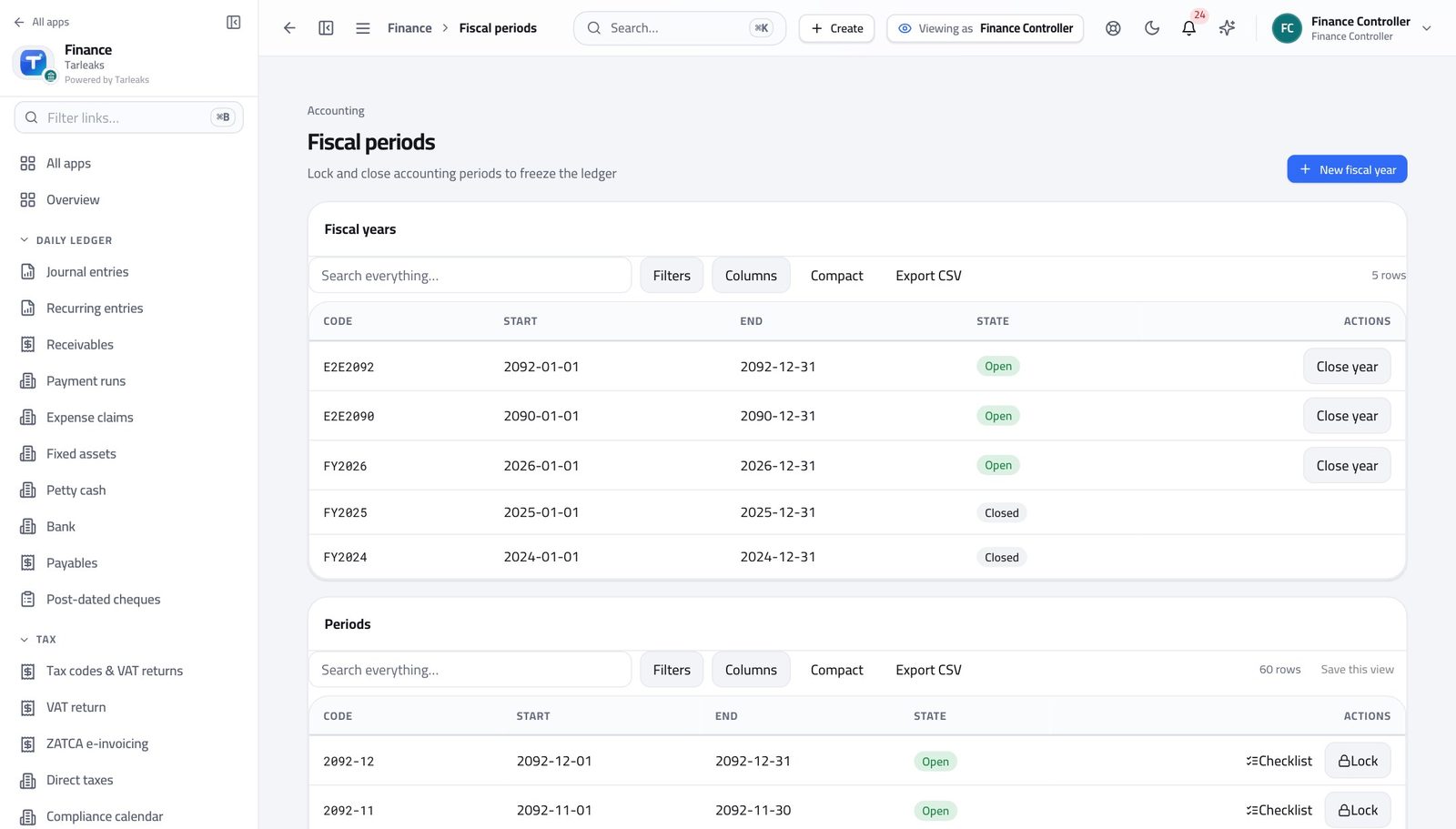
You should see Closing stops anyone posting into that month by accident. It can be reopened, and both actions are recorded against your name.
Watch out A closed month can be reopened, and both actions are recorded against your name. That is a feature, not a loophole.
Check what still blocks the close #
Where Finance » Overview
- Open the Finance overview from the left menu.
- Read the close card near the top.
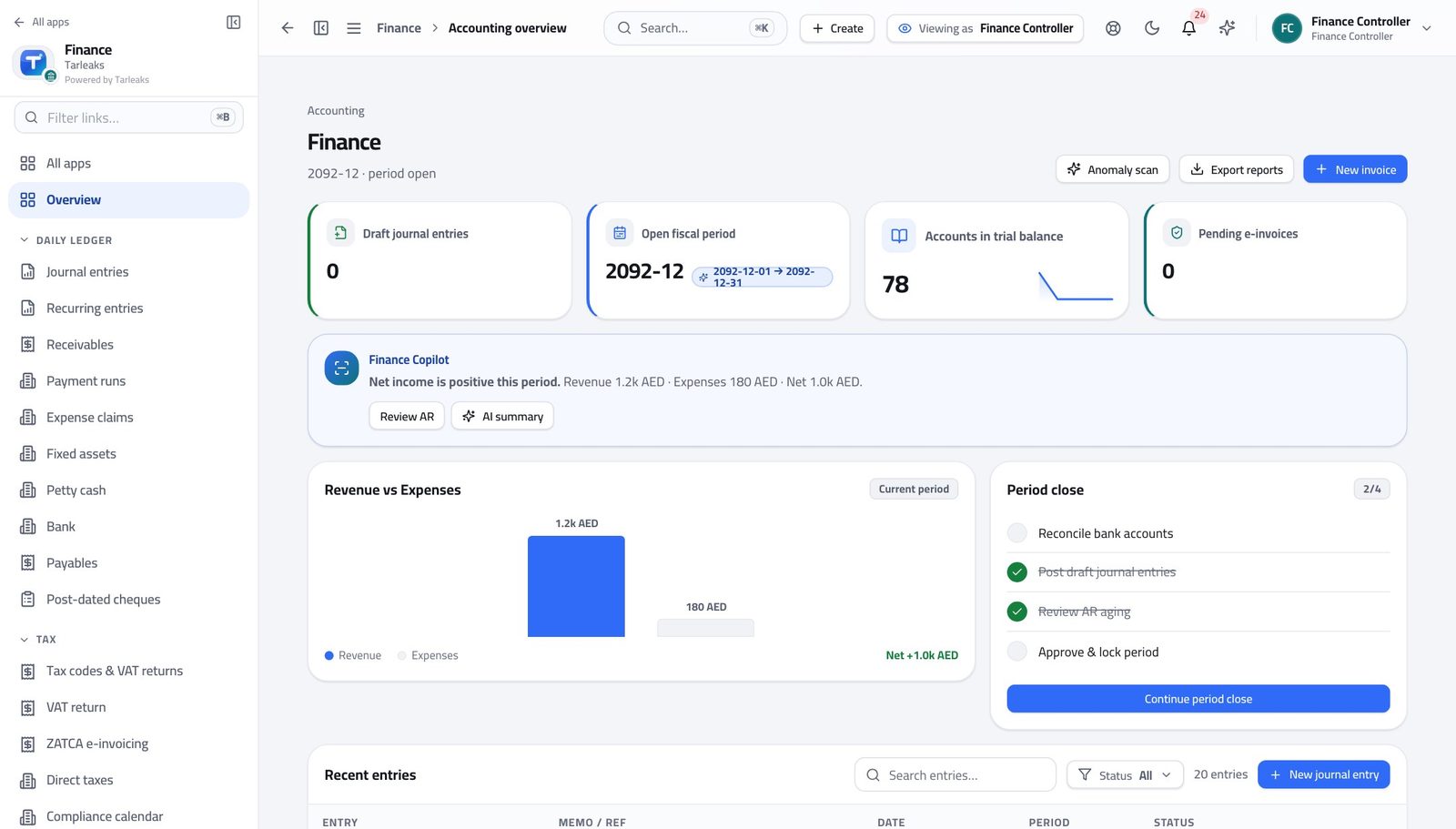
You should see One card lists what is still unapproved, unposted or unreconciled — you do not go hunting for it.
Approve a queue of bills at once #
Where Finance » Payables » tick rows » Approve
- Open Payables.
- Use the Approvals tab to see only what is waiting for you.
- Tick the bills you are approving.
- Click Approve in the bar at the bottom and confirm.
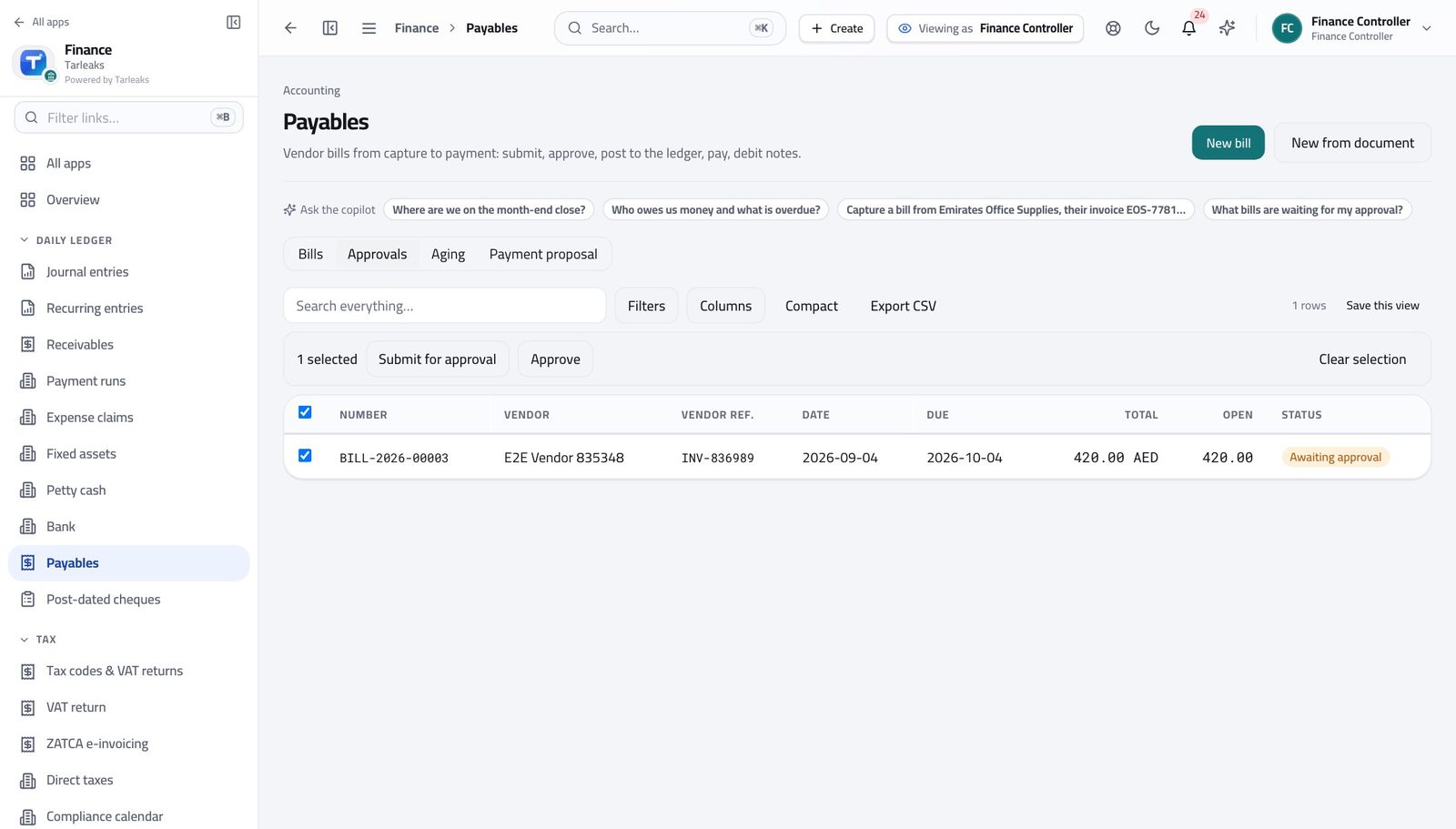
You should see Each bill is still checked on its own inside the batch, so one bad row does not stop the rest.
Watch out Each bill still runs its own checks inside the batch, so a bill over budget is refused and named while the rest go through.
Worth knowing Before a large batch, ask for a practice run — it checks every row and changes nothing.
Clear drafts out of the way #
Where Finance » Journal entries » tick rows » Archive
- Open Journal entries.
- Tick the draft entries you no longer want in the list.
- Click Archive in the bar and confirm.
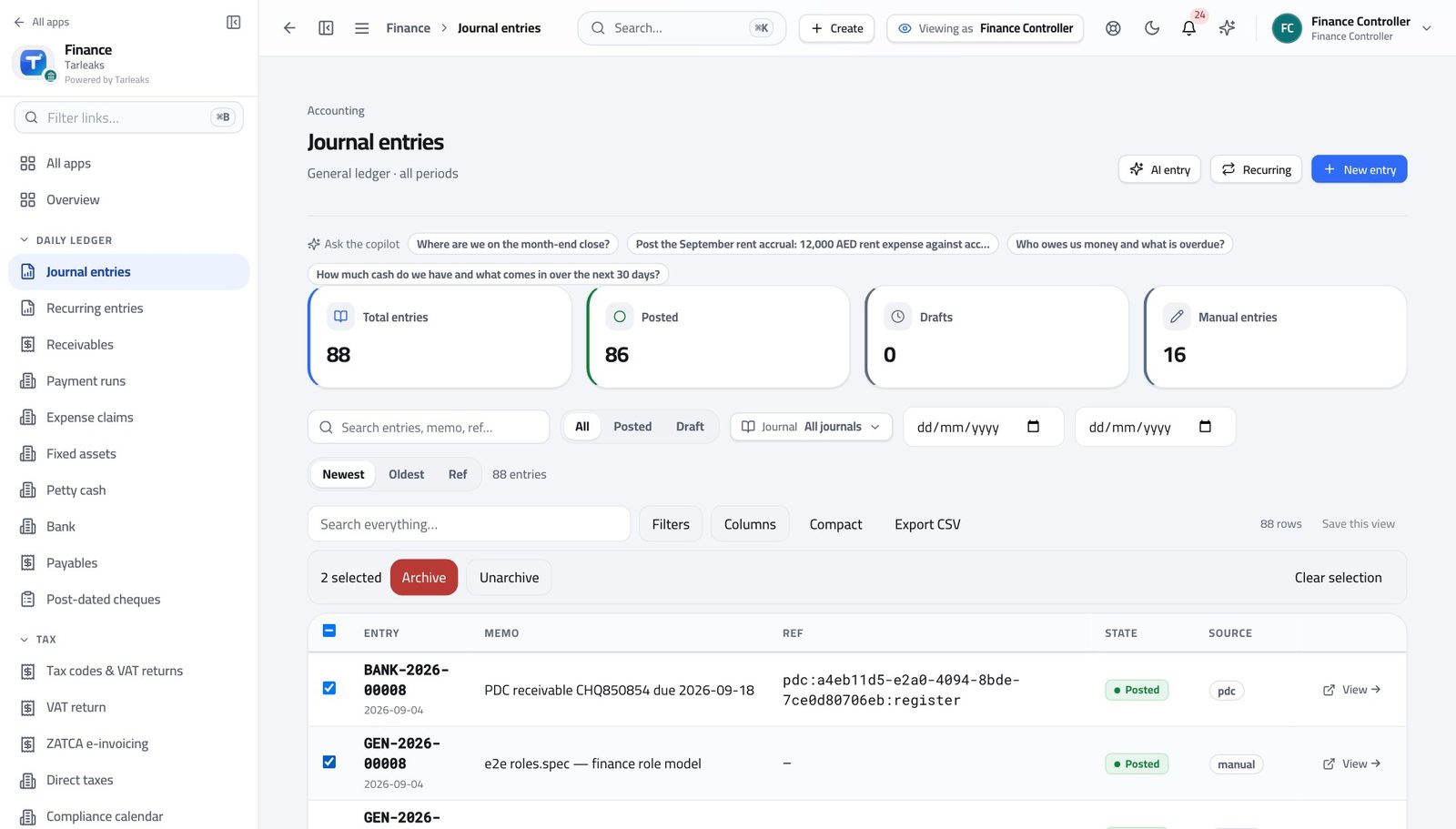
You should see Drafts are tidied away; anything already posted is refused and named. History is never rewritten.
Watch out Archiving tidies the list. It does not delete anything, and history cannot be rewritten this way.
Spot odd entries before an auditor does #
Where Finance » Journal entries » Anomalies
- Open Journal entries.
- Switch to the anomalies view.
- Read the reason beside each flagged entry.
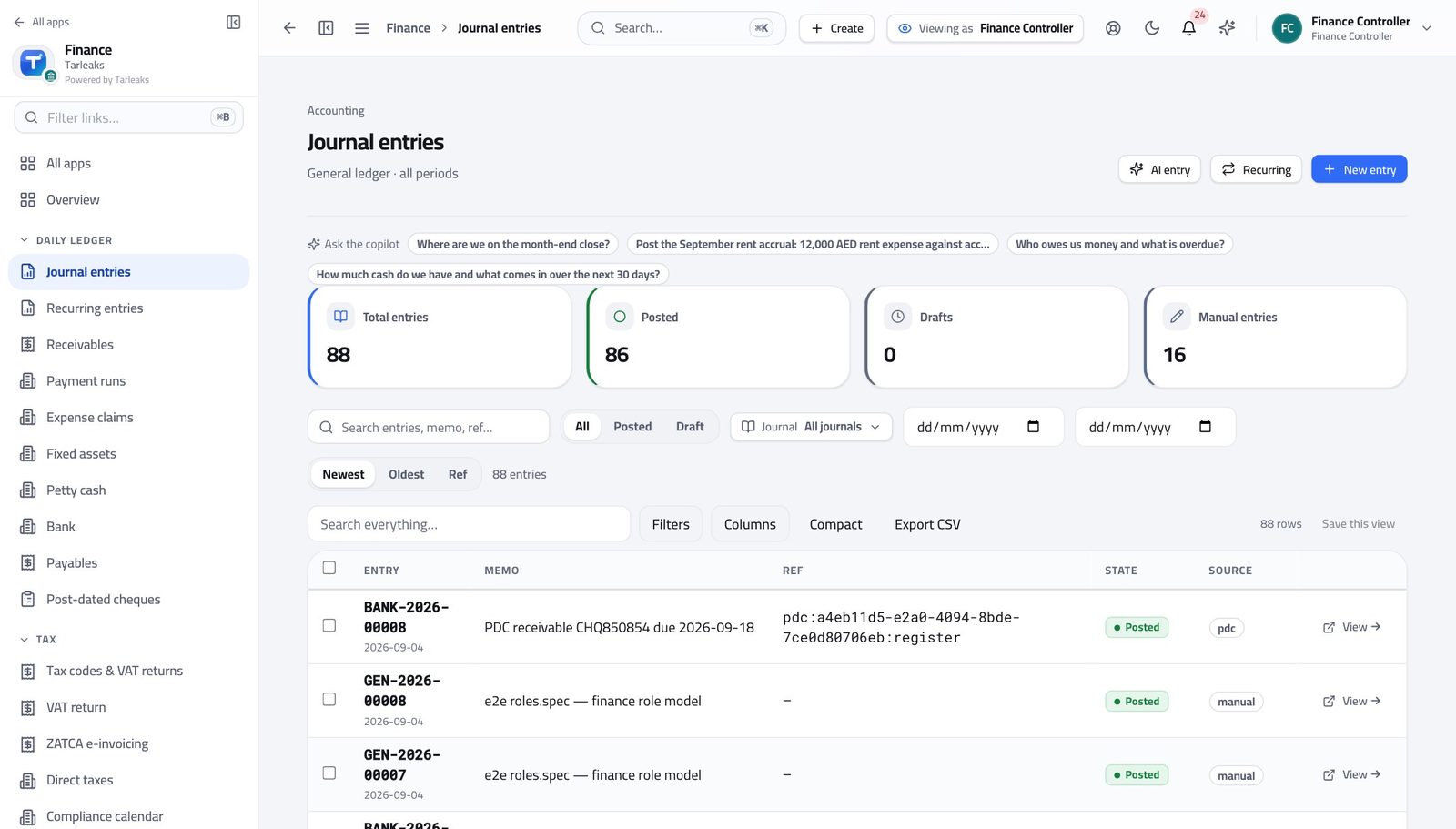
You should see Round numbers, weekend postings and back-dated entries are surfaced for you to look at — nothing is blocked, only flagged.
Watch out Nothing is blocked. These are questions to answer, not errors to fix.
Use cases — the work, step by step
Each one is a sequence somebody actually performs, with the screen behind every step. Every screen here was opened in the product as this role before it was published.
dailyThe daily approval pass #
A bill you approve today is paid on this week's run. One you leave is next week's problem, and next week's phone call.
Open the Finance overview and read the close card and the cash position before you approve anything.
Finance » Overview — verified: the page says “close” Open Payables, tick what you are approving, and approve the batch. Each bill still runs its own budget and duplicate checks.
Finance » Payables » tick rows » Approve — verified: the control is offered; the control is offered Clear the drafts nobody will finish: tick them in Journal entries and archive. Posted entries are refused per row.
Finance » Journal entries » tick rows » Archive — verified: the control is offered; the control is offered
monthlyClose the month #
Closing is reversible and audited, which is exactly why it should happen on time rather than 'when we are sure'.
Read the close card first: what is still unapproved, unposted or unreconciled.
Finance » Overview — verified: the page says “close” Open Fiscal periods and read the state of the month you are closing.
Finance » Periods — verified: 65 row(s) listed Close it, and read what the dialog tells you is outstanding before you confirm.
Finance » Periods — verified: 65 row(s) listed
urgentThe bank will not cover this week's run #
Holding a payment deliberately is a decision. Bouncing one is an incident.
Open the cash position on the Finance overview and see what is actually available.
Finance » Overview — verified: the page says “close” Approve the part of the run that must go out, and leave the rest for next week rather than approving the lot.
Finance » Payables » tick rows » Approve — verified: the control is offered; the control is offered Tell the AP clerk which suppliers are being held, so they can manage the calls rather than be surprised by them.
Your name, top right » Profile — verified: the page says “Controller”
You are the only role that can both approve and close. Use the practice run before a big batch — it checks every row and changes nothing.
Tax Agent
File on time, from numbers the ledger produced.
Files: VAT and corporate tax, withholding and zakat, and the e-invoices the authority expects.
What you will be able to do
- Produce the VAT return for any period
- Read the corporate tax calculation for the year
- Check withholding and zakat from the same books
- See which returns are drafted, filed and paid
What this role can and cannot do
| Can | Cannot |
|---|---|
|
|
6 steps, each one carried out in the product on .
Check what your sign-in can do #
Where Your name, top right » Profile
- Open your company's address in the browser — it looks like yourcompany.tarleaks.com.
- Type the e-mail address your administrator set up for you, then your password.
- You land on the app launcher: a grid of the apps your company uses.
- Click your name, top right.
- Choose Profile.
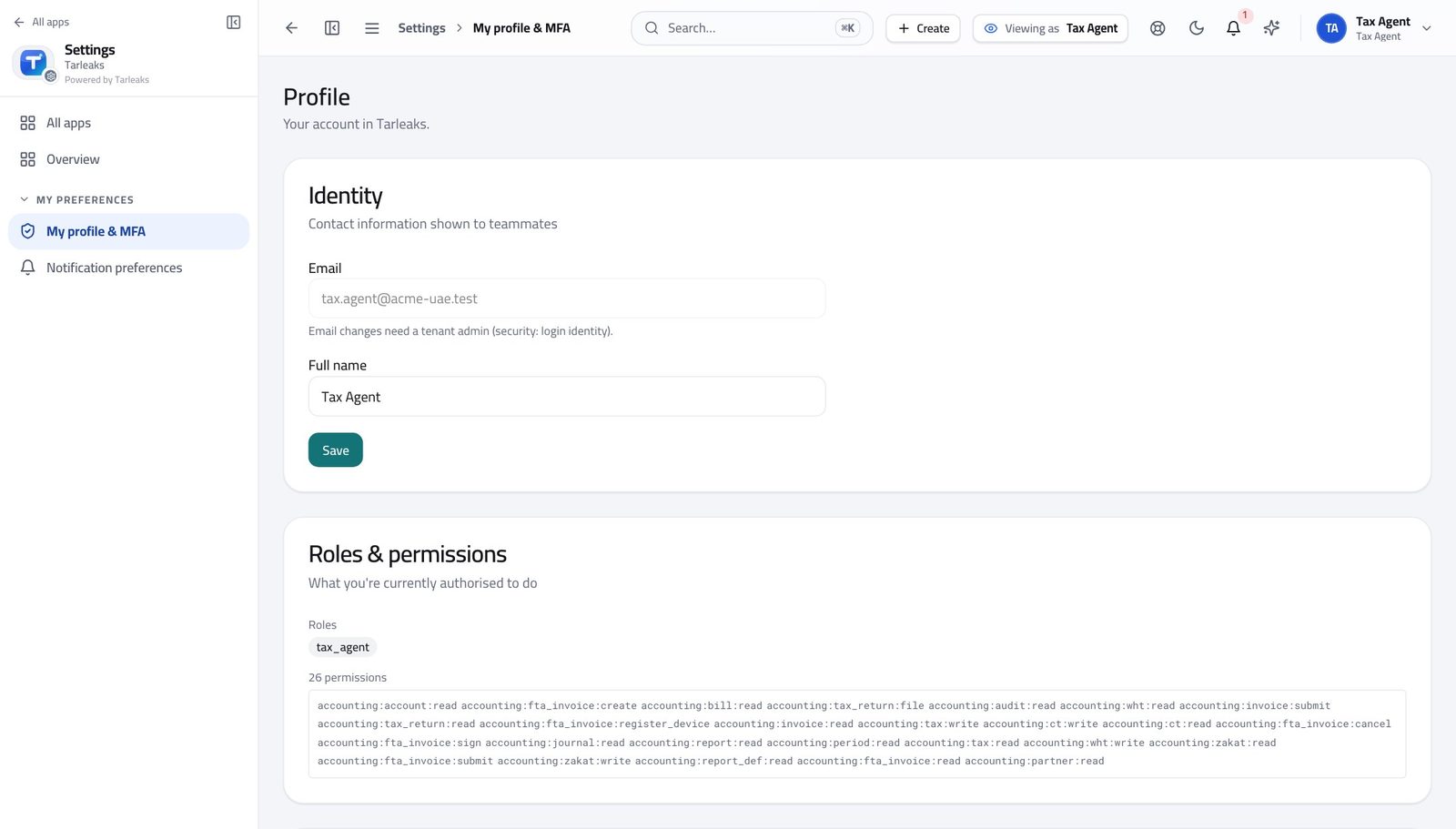
You should see It says Tax Agent. You prepare and file returns; you do not post to the ledger they are drawn from.
Produce the VAT return #
Where Finance » VAT return
- Open Finance, then VAT return in the left menu.
- Choose the period you are filing for.
- Read each box and the figure behind it.
- Click a box to see the entries that make it up.
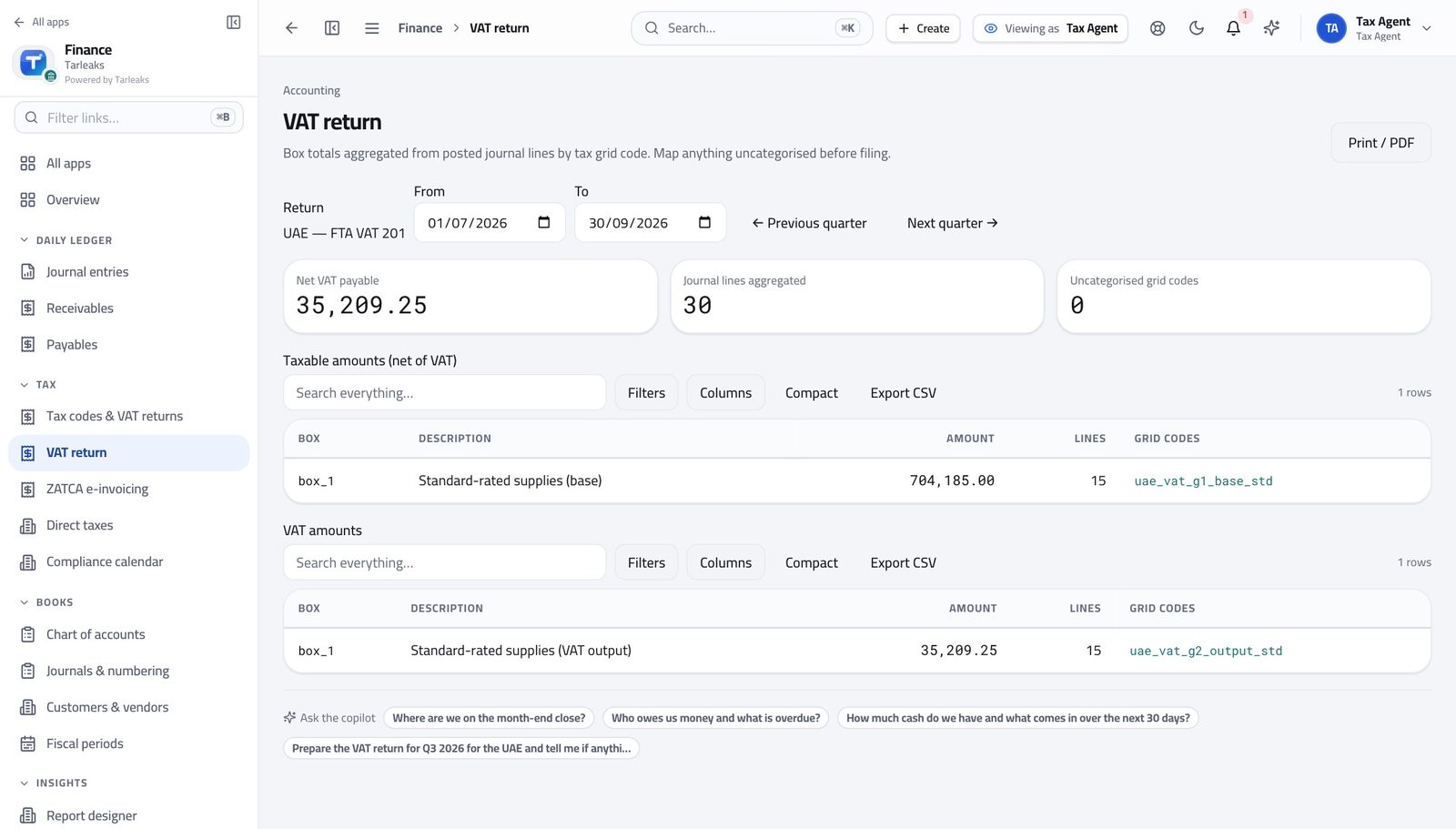
You should see Every box is filled from entries already in the books. Anything the rulebook cannot place is shown rather than quietly dropped.
Watch out Anything the rulebook cannot place is shown separately rather than dropped, so you notice before the authority does.
Read the corporate tax calculation #
Where Finance » Tax codes & VAT returns
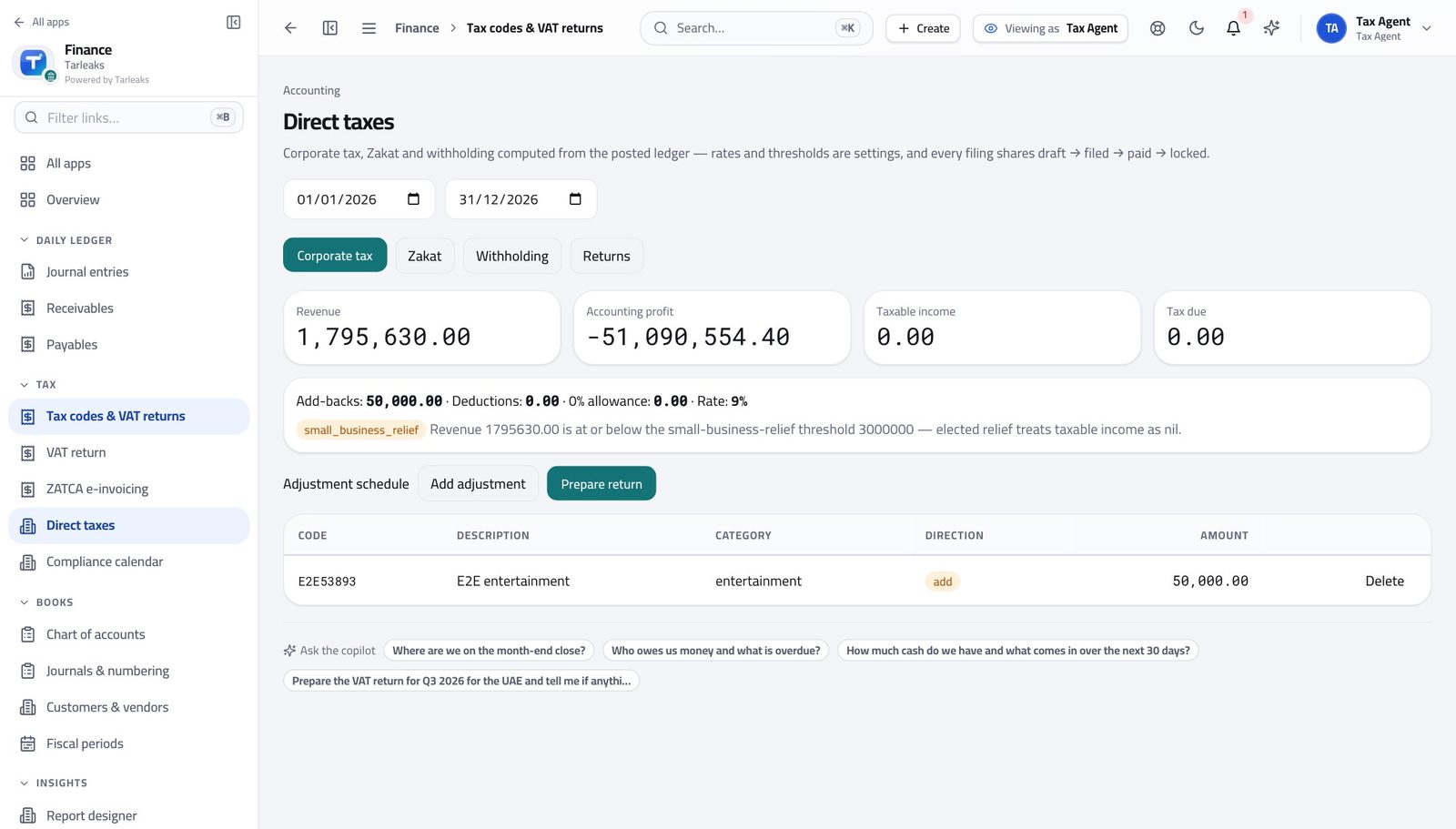
- In the left menu, open Tax codes & VAT returns.
- Open the corporate tax view.
- Follow it down: revenue, accounting profit, taxable income, tax due.
You should see The calculation shows its working, so you can explain any line of it.
Check withholding and zakat #
Where Finance » Tax codes & VAT returns
- Open the withholding register from the tax area.
- Then open the zakat view.
You should see Both are computed from the same books as everything else, so they agree with the accounts.
See which returns are filed #
Where Finance » Compliance
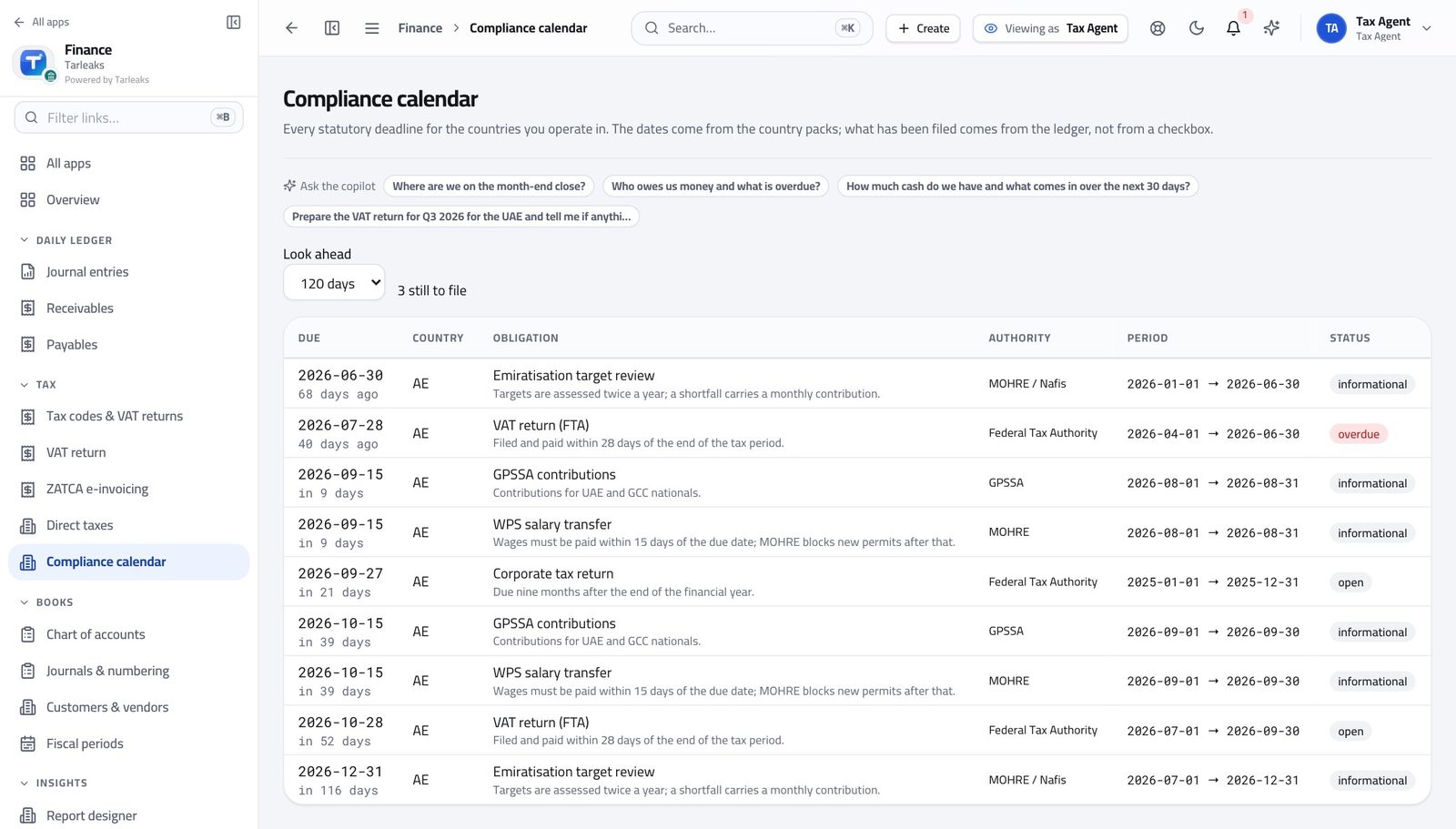
- Open Compliance calendar in the left menu.
- Read the returns list and the state beside each.
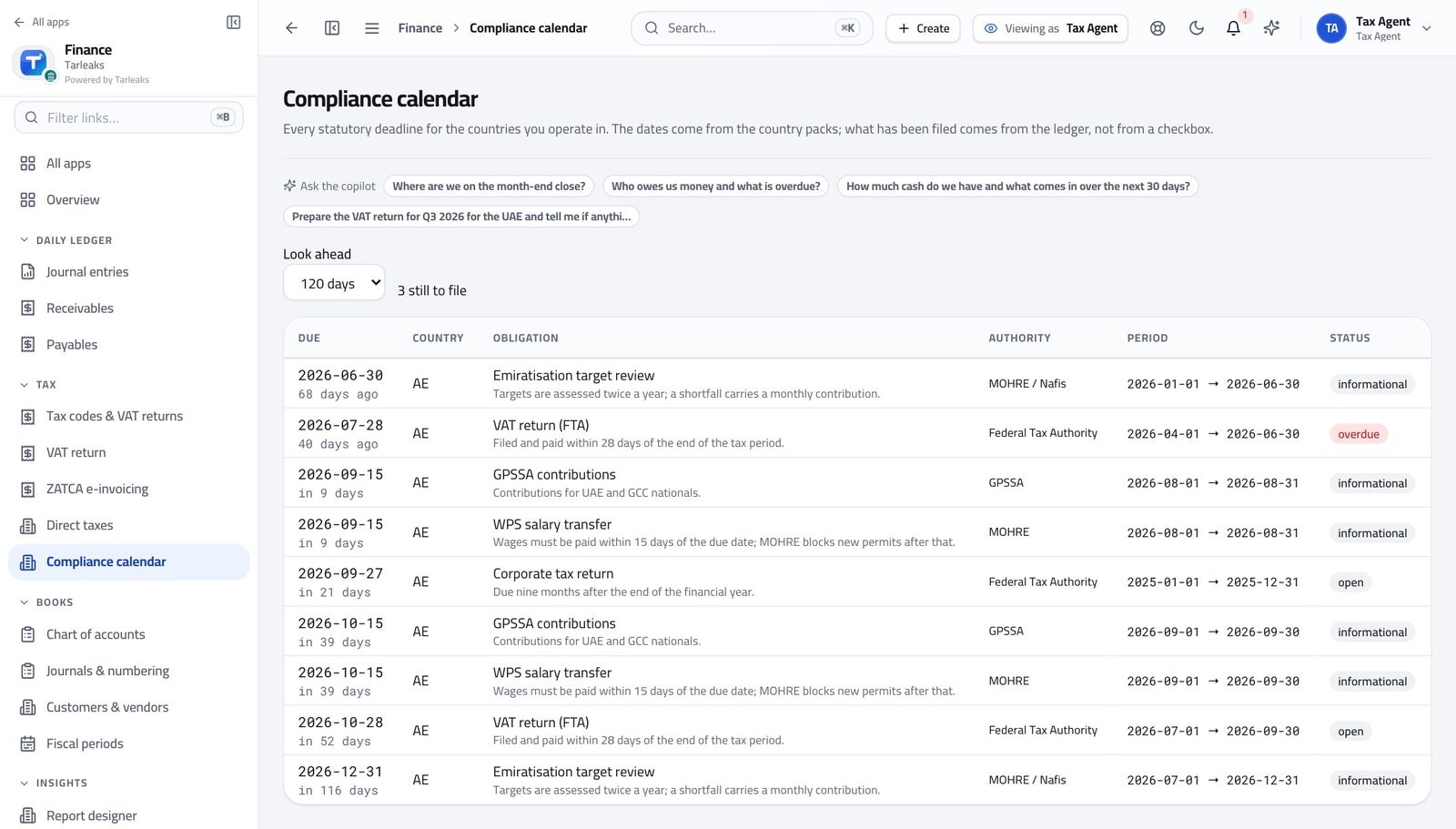
You should see Nothing is 'probably filed' — the state and the date are on the record.
You read the books, you do not write them #
Where Finance » Journal entries
- Open Journal entries.
- Look at the top right.
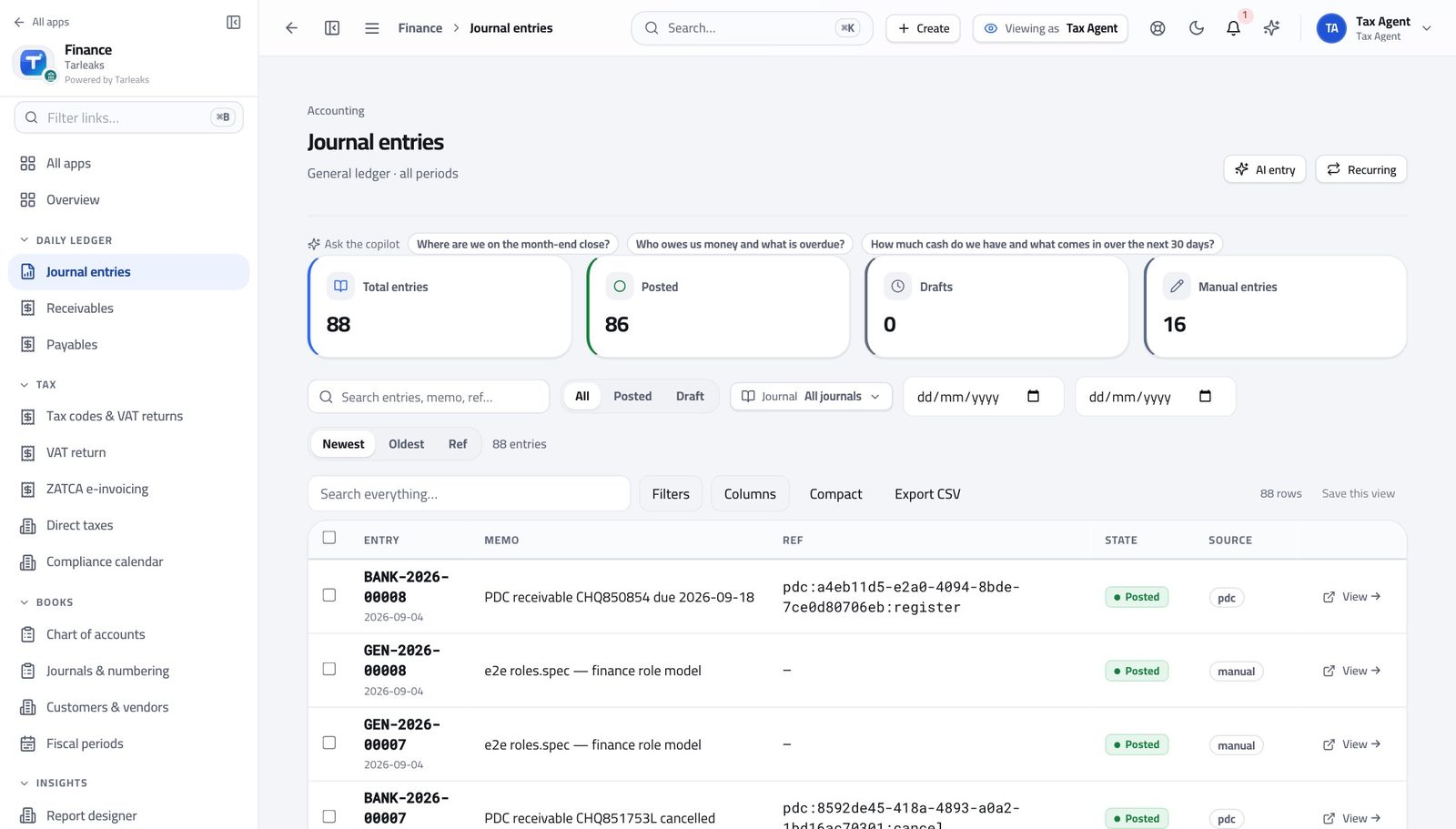
You should see Every figure you file can be traced here — and there is no button to add an entry. That separation is what makes the return trustworthy.
Use cases — the work, step by step
Each one is a sequence somebody actually performs, with the screen behind every step. Every screen here was opened in the product as this role before it was published.
monthlyFile the VAT return for the period #
Every box is derived from postings. Anything the rulebook cannot place is shown rather than dropped, which is where the two minutes of checking go.
Open VAT return and choose the period you are filing for.
Finance » VAT return — verified: the page says “VAT” Read each box against the ledger — not against last month's return — and check the uncategorised bucket.
Finance » VAT return — verified: the page says “VAT” Open the returns list and confirm the state and date once it is filed. Nothing here is 'probably filed'.
Finance » Compliance — verified: the page says “Compliance”
quarterlyCheck the corporate tax position before year end #
An adjustment found in month three is cheaper than one found in month eleven.
Open the tax area and read the computation: revenue, accounting profit, taxable income, tax due.
Finance » Tax codes & VAT returns — verified: the page says “Compliance” Check the withholding register and the zakat base where they apply — both are computed from the same books.
Finance » Tax codes & VAT returns — verified: 1 row(s) listed Look ahead in the compliance calendar so nothing is filed in a rush.
Finance » Compliance — verified: the page says “Compliance”
Nothing here is typed in by hand. Every box comes from entries already in the books, which is why the return and the accounts agree.
Payroll Manager (in accounting)
See exactly what payroll touches in the accounts — and nothing else.
Sees only what payroll needs from the ledger — the accounts it posts to and the reports that show the cost. Payables and receivables are closed to this role.
What you will be able to do
- Find the accounts a pay run posts to
- Read the trial balance and profit and loss
- Check payroll cost where the business reads it
- Stay clear of supplier and customer money
What this role can and cannot do
| Can | Cannot |
|---|---|
|
|
4 steps, each one carried out in the product on .
Check what your sign-in can do #
Where Your name, top right » Profile
- Open your company's address in the browser — it looks like yourcompany.tarleaks.com.
- Type the e-mail address your administrator set up for you, then your password.
- You land on the app launcher: a grid of the apps your company uses.
- Click your name, top right.
- Choose Profile.
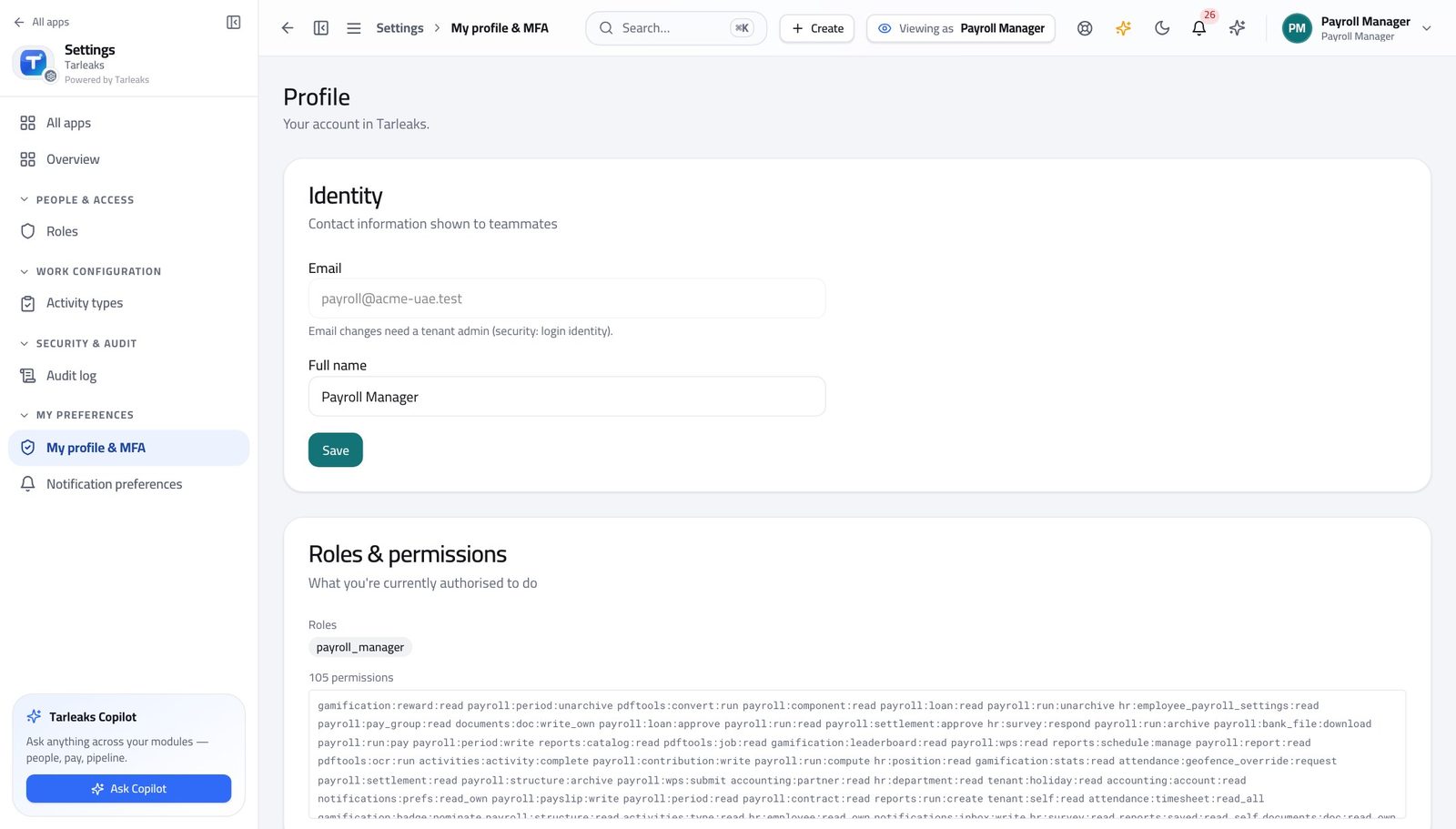
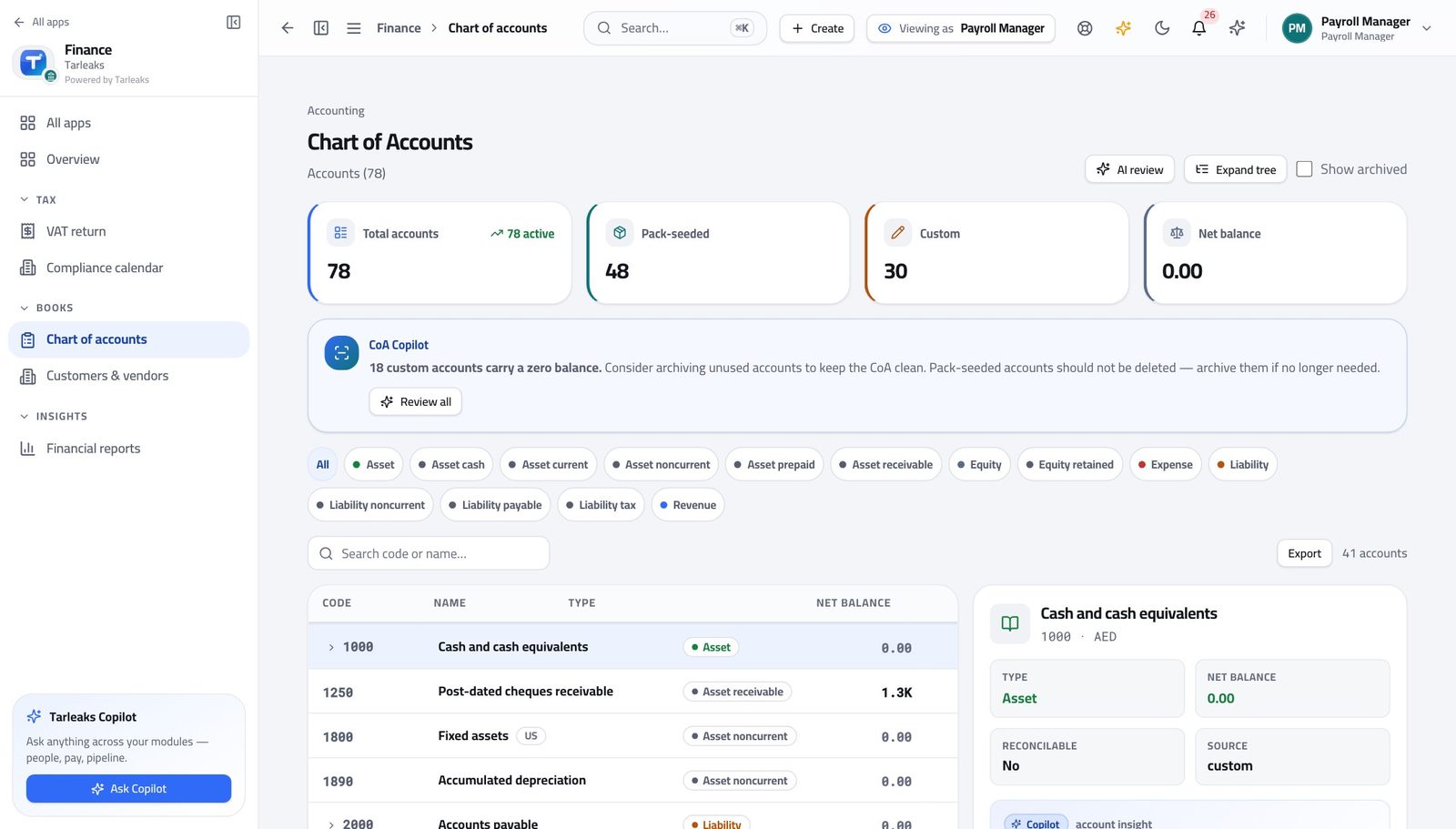
You should see It says Payroll Manager. In finance you can read the accounts and the reports — supplier and customer money is closed to you.
Find the accounts pay runs post to #
Where Finance » Chart of accounts
- Open Finance, then Chart of accounts.
- Search for salary, or open the expense branch.
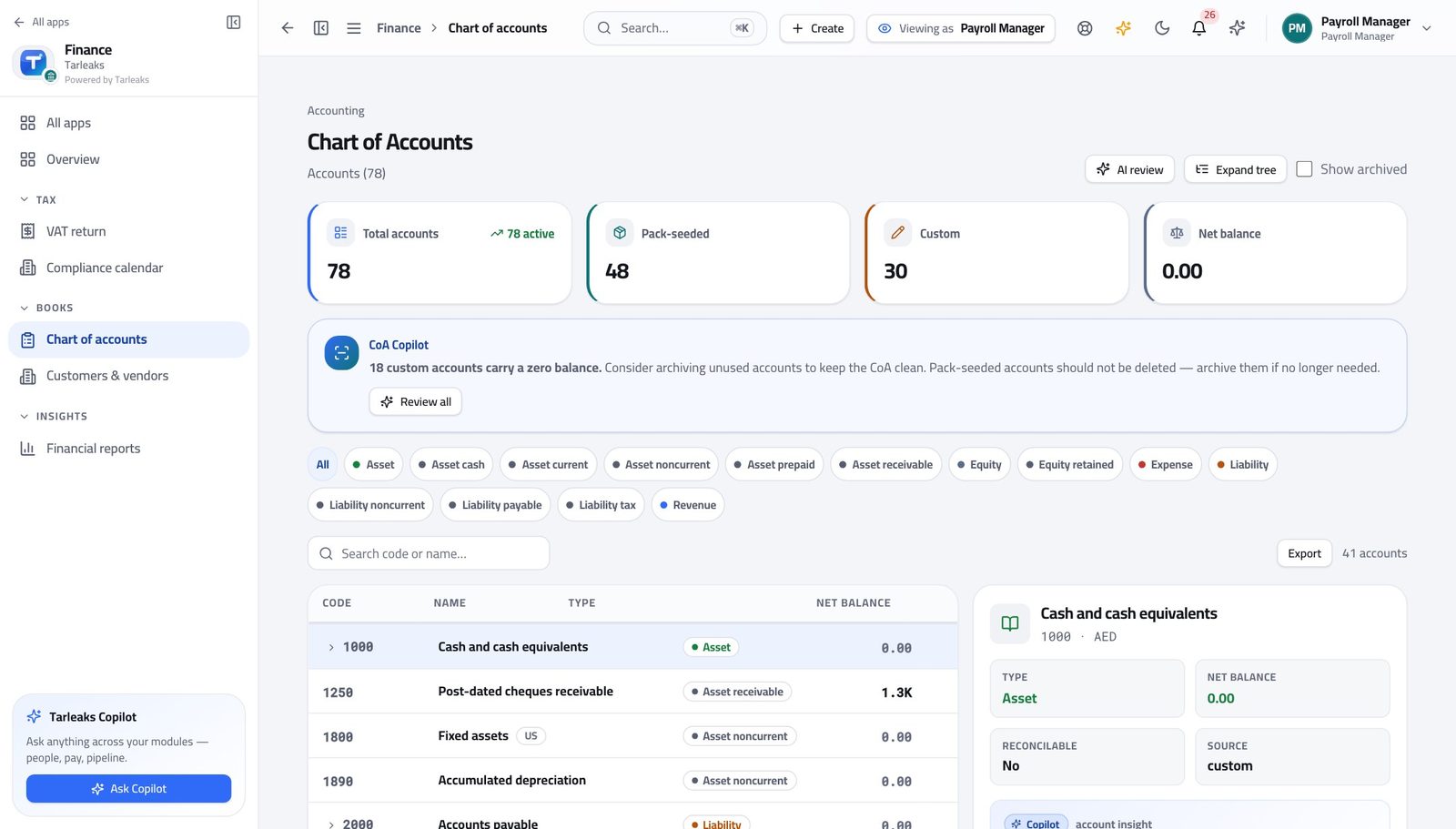
You should see You can check the mapping before a pay run rather than after it.
See payroll cost where the business reads it #
Where Finance » Reports
- Open Reports.
- Read the trial balance, then switch to Profit & Loss.
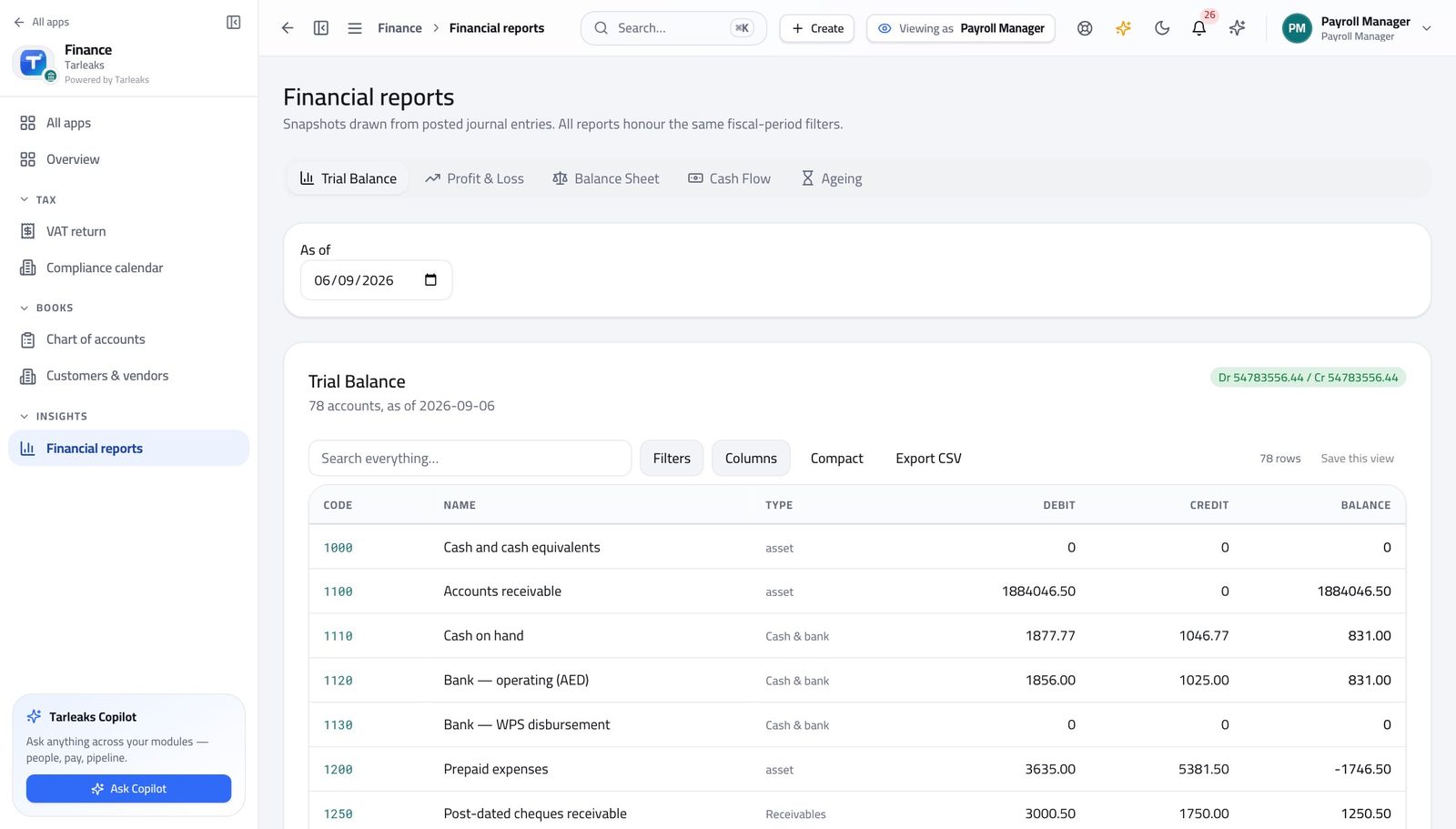
You should see The cost of people appears in the same statements everyone else uses — no separate spreadsheet.
Supplier bills are closed to you #
Where Finance » Payables
- Look at the left menu under Finance.
You should see Responsibility for salaries does not extend to what the business owes its suppliers.
Use cases — the work, step by step
Each one is a sequence somebody actually performs, with the screen behind every step. Every screen here was opened in the product as this role before it was published.
monthlyConfirm the payroll journal landed — once #
Two entries for one run means something was re-posted. Zero means the run never reached posted.
Check the accounts payroll posts to still exist and are not archived.
Finance » Chart of accounts — verified: 41 row(s) listed Read the trial balance and the profit and loss where the business reads payroll cost.
Finance » Reports — verified: the page says “Trial Balance”
Salaries are sensitive in both directions. You can see the cost of people; you cannot see who the company owes for a delivery.
Tenant Administrator
Set up the finance module once, properly.
Configures the module — country pack, taxes, journals, periods and the finance settings every other role works inside.
What you will be able to do
- Check which country rulebook is installed
- Review tax rates and tax groups
- See the report layouts the team will use
- Keep filing dates in view before they arrive
What this role can and cannot do
| Can | Cannot |
|---|---|
|
|
7 steps, each one carried out in the product on .
Check what your sign-in can do #
Where Your name, top right » Profile
- Open your company's address in the browser — it looks like yourcompany.tarleaks.com.
- Type the e-mail address your administrator set up for you, then your password.
- You land on the app launcher: a grid of the apps your company uses.
- Click your name, top right.
- Choose Profile.
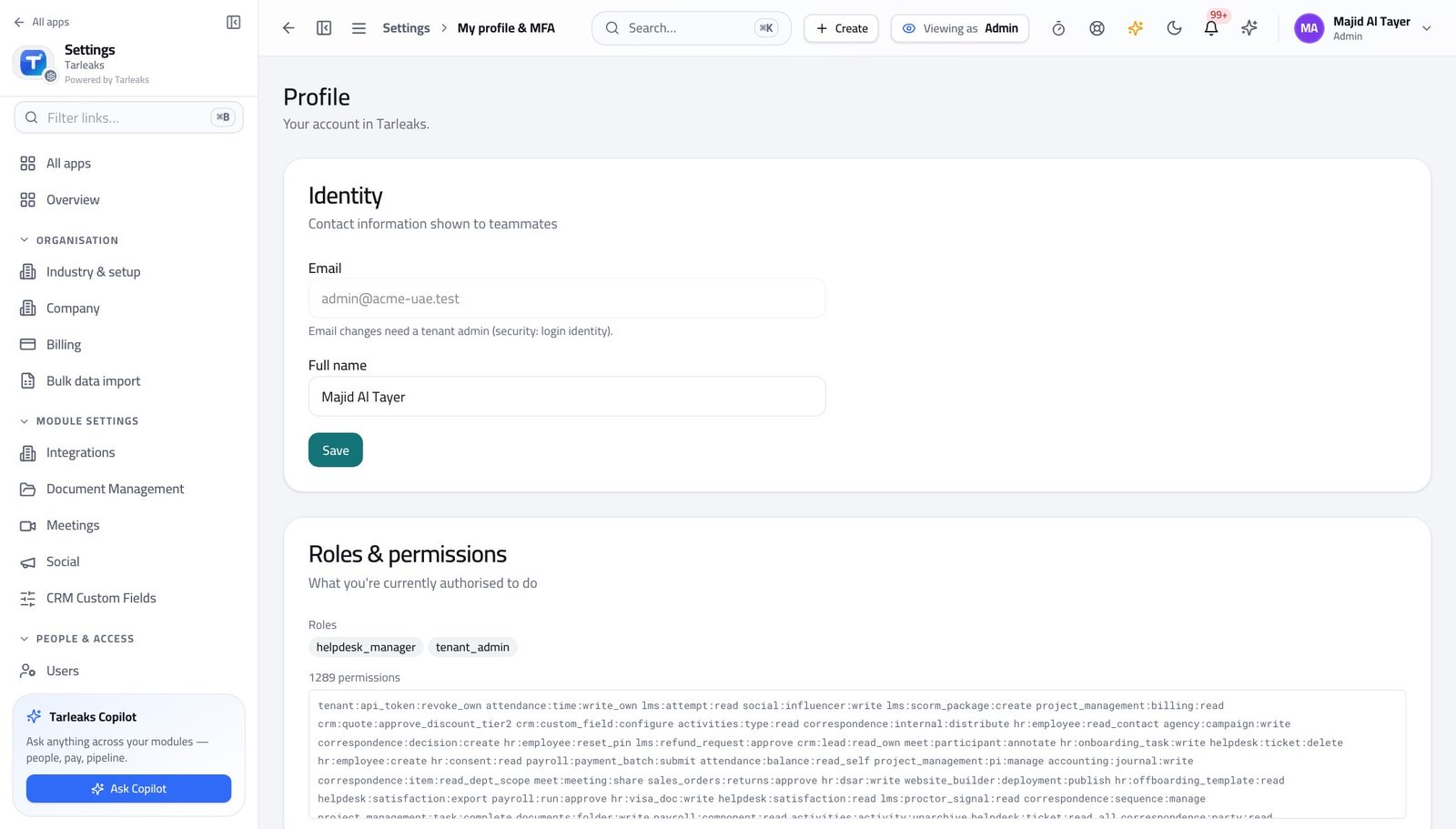
You should see It says Tenant Admin. The settings every finance role works inside are yours to change.
Open the finance settings #
Where Settings » Finance
- Open Settings from the app launcher.
- Click Finance.
- Read the base currency and the posting rules.
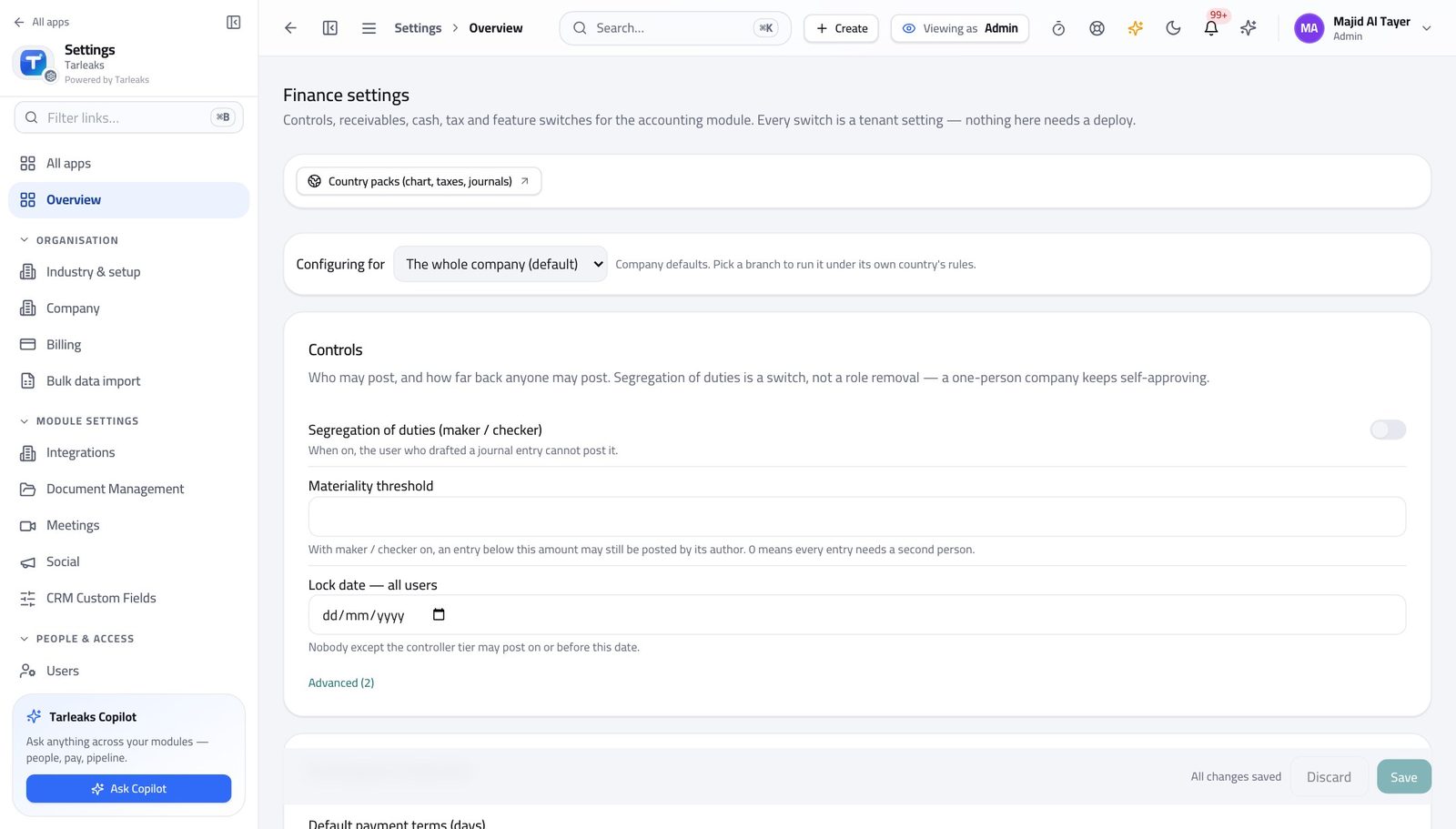
You should see This is the one place the module's behaviour is set for everybody.
Check the country rulebook #
Where Settings » Finance » Country pack
- Still in Settings, scroll to the country rulebook section.
- The installed version is marked.
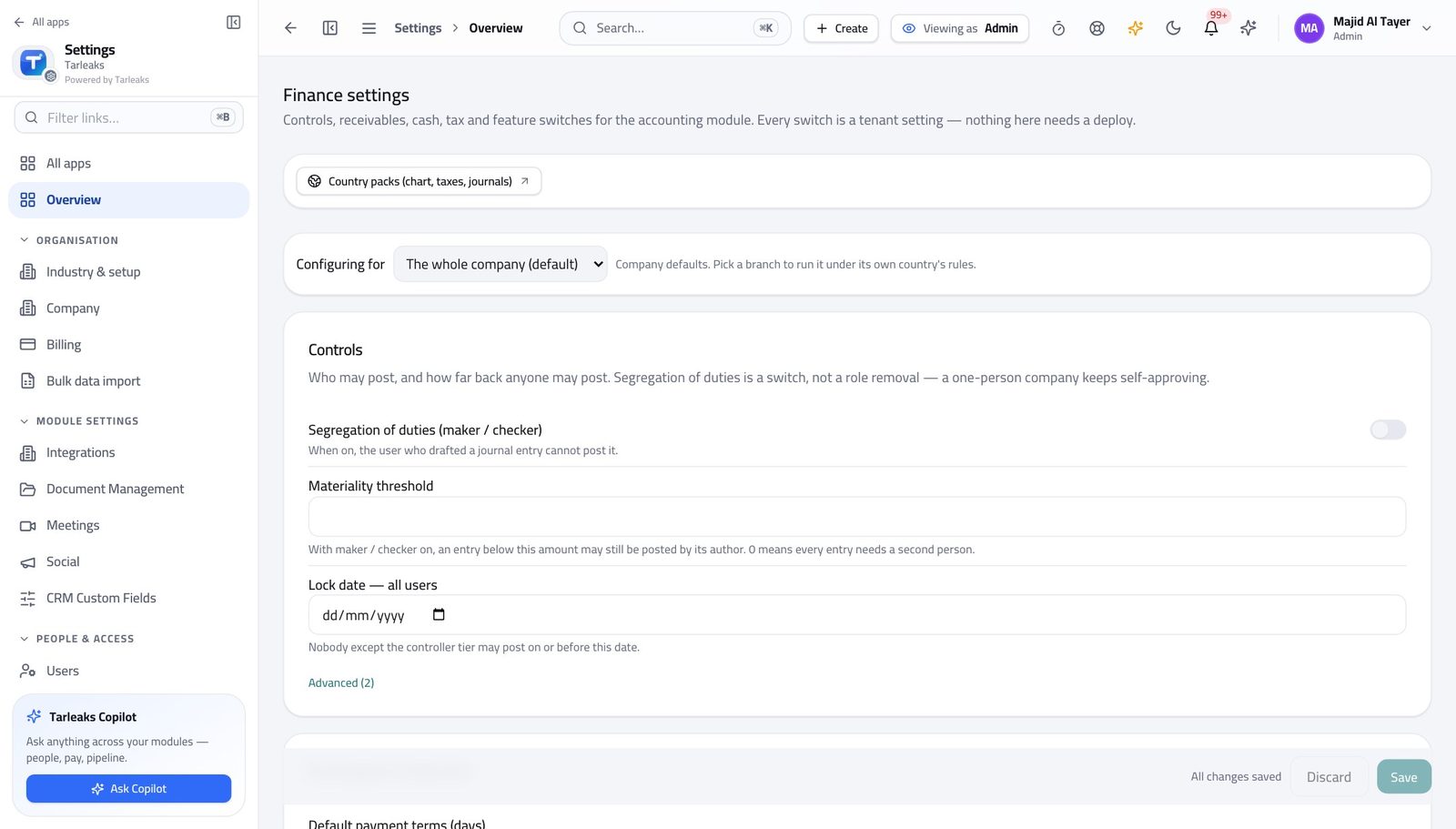
You should see Tax rates, account structure and filing rules come from a versioned rulebook, so an update is a deliberate act.
Watch out Upgrading a rulebook changes what is produced afterwards. Do it deliberately, and tell the finance team when you have.
Review the tax rates in use #
Where Finance » Tax codes & VAT returns
- Open Finance, then Tax codes & VAT returns.
- Read the rate and the group beside each tax.
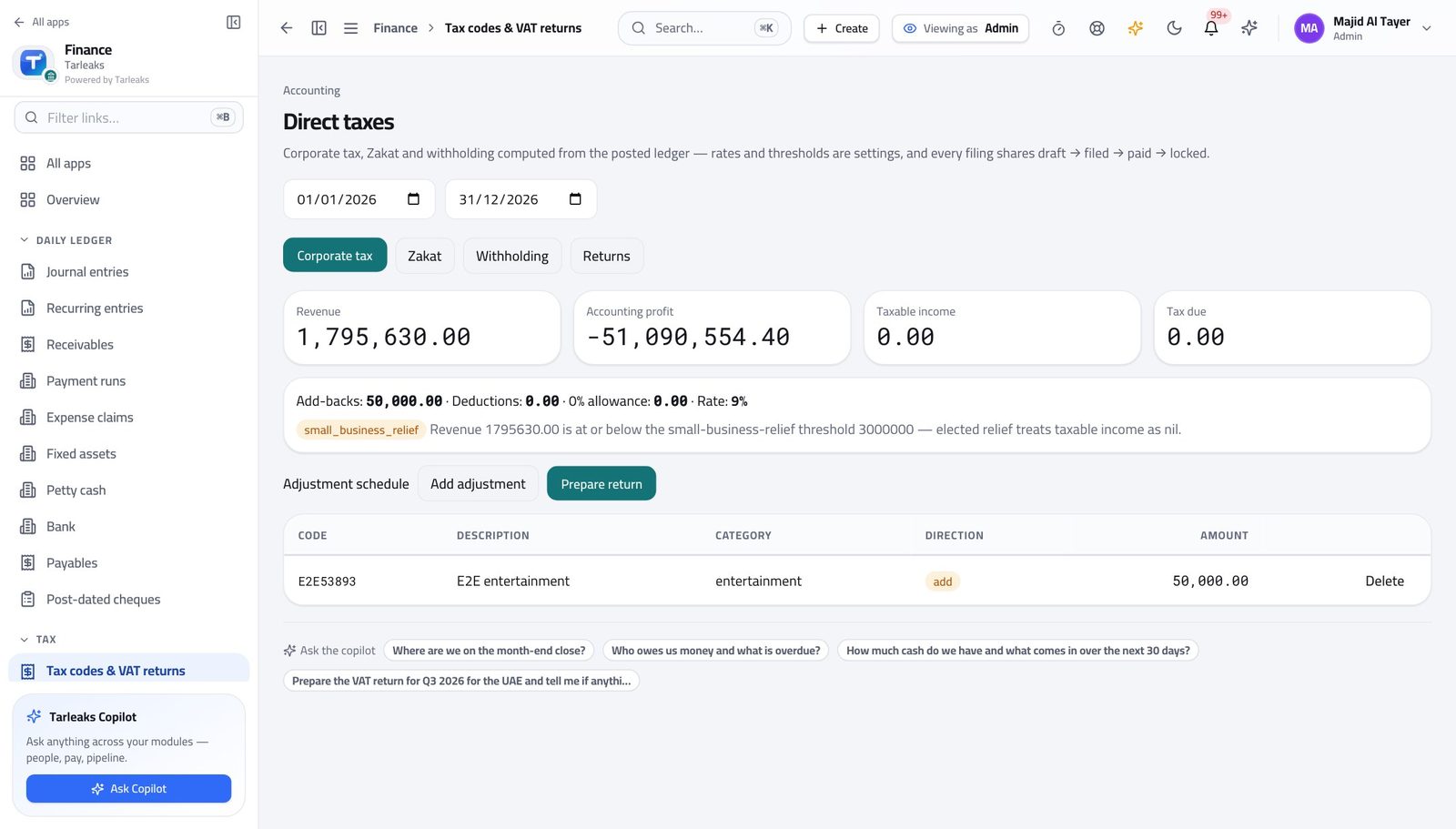
You should see Rates arrive from the rulebook and can be adjusted for your business.
Worth knowing Change a rate and every figure produced afterwards uses it. Past entries keep the rate they were posted with.
Add or adjust a tax rate #
Where Finance » Tax codes & VAT returns
- Click a tax to edit it, or add a new one.
- Set the rate, the group it reports in, and the accounts it posts to.
- Save.
| Field | What to put in it |
|---|---|
| Rate | As a percentage. 5 for UAE VAT, 15 for Saudi VAT. |
| Group | Which box of the return it belongs to. Get this wrong and the figures are right but the return is not. |
| Accounts | Where the tax lands in the books — usually a payable for sales tax and a receivable for purchase tax. |
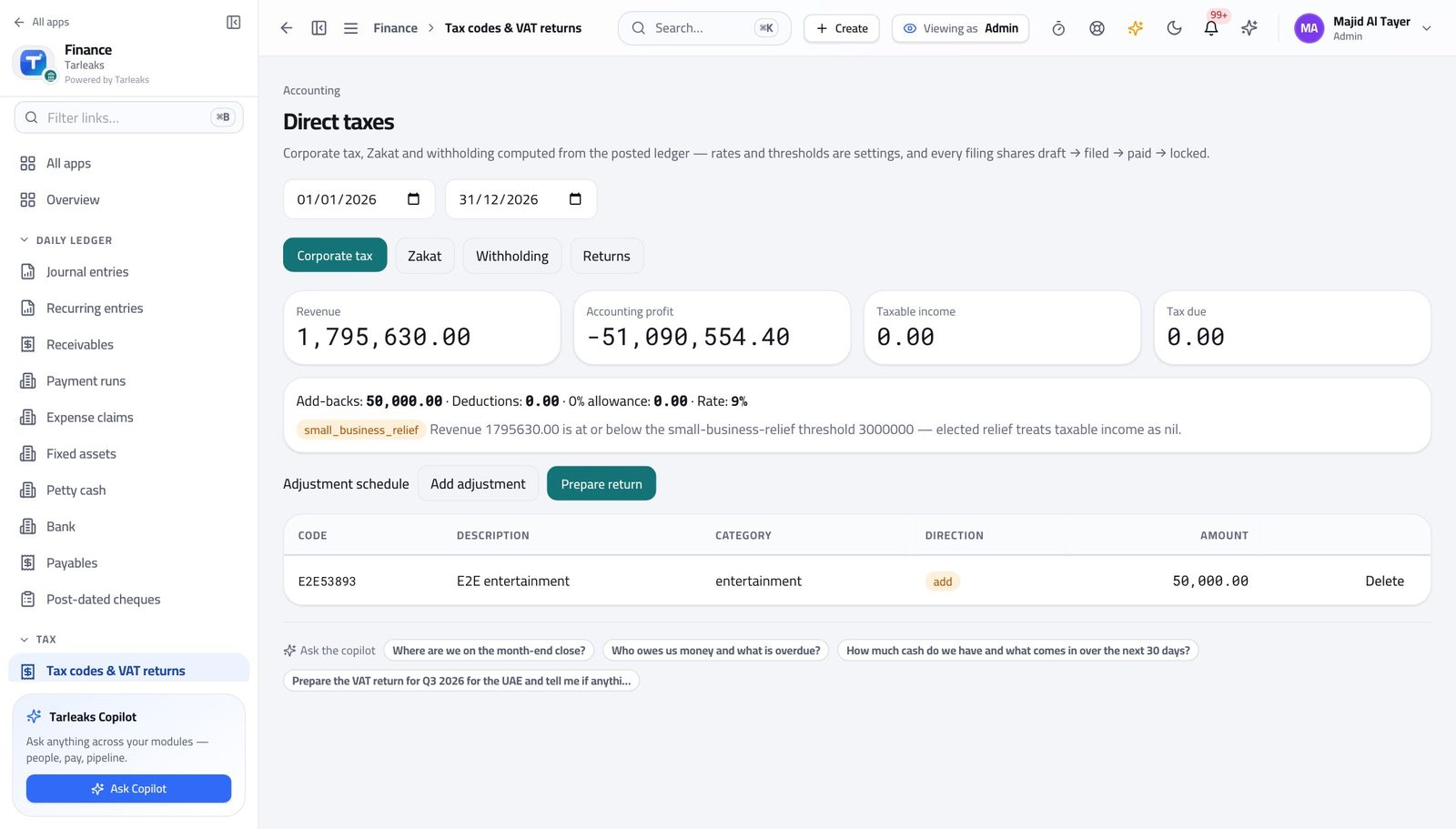
You should see The change applies to everything raised afterwards; entries already posted keep the rate they were posted with.
Watch out The change applies to everything raised afterwards. Entries already posted keep the rate they were posted with, which is what makes old returns reproducible.
Worth knowing If your business is in more than one country, check which rulebook the rate belongs to before you change it.
See the report layouts #
Where Finance » Report designer
- Open Report designer in the left menu.
- Open one of the standard layouts to see how it is built.
- Copy it before changing anything.
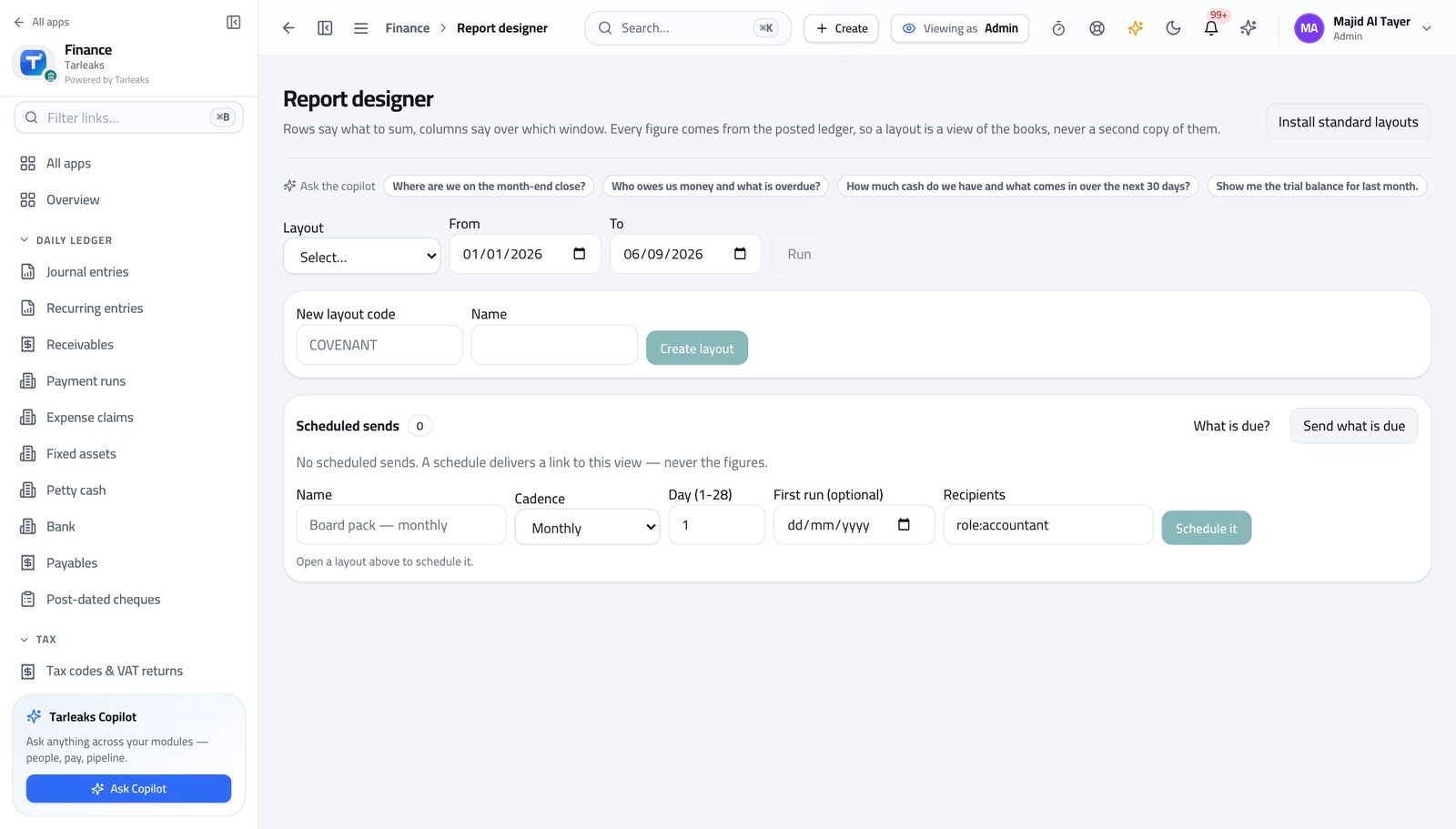
You should see A custom statement is a setting, not a development request.
Keep filing dates in view #
Where Finance » Compliance
- Open Compliance calendar.
- Read the dates for the country your business is registered in.
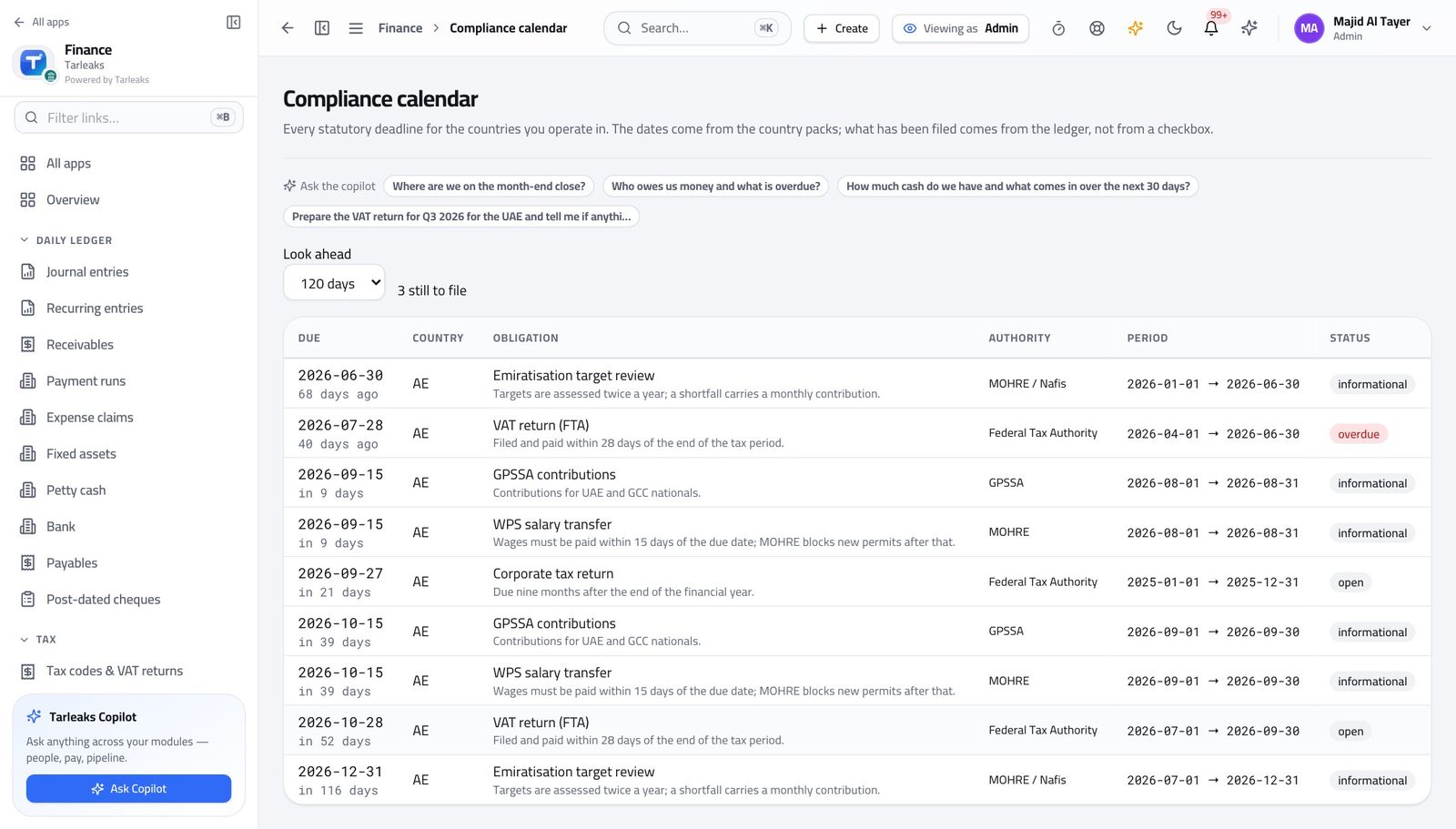
You should see The deadline arrives on the screen before it arrives in the post.
Use cases — the work, step by step
Each one is a sequence somebody actually performs, with the screen behind every step. Every screen here was opened in the product as this role before it was published.
yearlySet the module up for a new financial year #
Every January somebody cannot post because next year's periods were never created.
Open Settings → Finance and confirm the base currency and the posting rules.
Settings » Finance — verified: the page says “Finance” Check which country rulebook is installed, and its version.
Settings » Finance » Country pack — verified: the page says “pack” Read the compliance calendar for the coming year's filing dates.
Finance » Compliance — verified: the page says “Compliance”
urgentA tax rate changed by law #
The change applies to everything raised afterwards; entries already posted keep the rate they were posted with, which is what makes old returns reproducible.
Open the tax list and read the current rate and the group it reports in.
Finance » Tax codes & VAT returns — verified: 1 row(s) listed Edit the rate, set the group and the accounts it posts to, and save. Never edit a rate to fix a single wrong invoice — correct the invoice.
Finance » Tax codes & VAT returns — verified: 1 row(s) listed Tell the team the date it applies from, then check the next return renders as expected.
Finance » Compliance — verified: the page says “Compliance”
You set the rules everyone else works inside. Changing a tax rate or a rulebook version affects every number produced after it, so make the change deliberately.