Cashier — Finance guide
Run the cash float and the cheque book with a clean record.
Runs the petty-cash float and post-dated cheques, and records receipts — without the authority to post to the ledger.
What you will be able to do
- See each petty-cash float and what is left in it
- Read every voucher spent against a float
- Know which cheques clear on which day
- Work confidently inside the limits of the role
What this role can and cannot do
| Can | Cannot |
|---|---|
|
|
7 steps, each one carried out in the product on .
Check what your sign-in can do #
Where Your name, top right » Profile
- Open your company's address in the browser — it looks like yourcompany.tarleaks.com.
- Type the e-mail address your administrator set up for you, then your password.
- You land on the app launcher: a grid of the apps your company uses.
- Click your name, top right.
- Choose Profile.
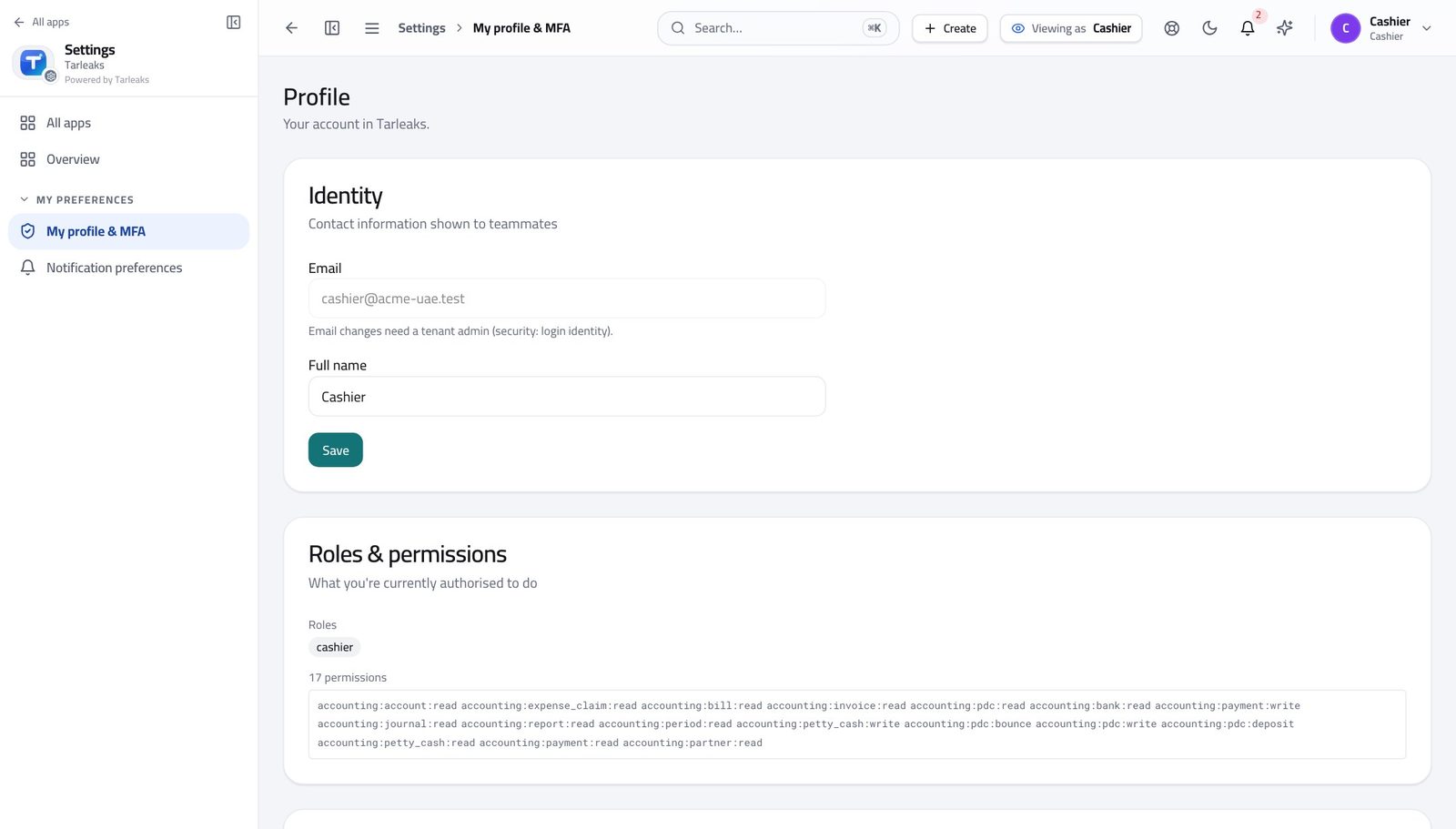
You should see It says Cashier. Petty cash and cheques are yours; writing to the ledger is not.
Open your cash floats #
Where Finance » Petty cash
- Open Finance, then click Petty cash in the left menu.
- Choose a float from the dropdown at the top.
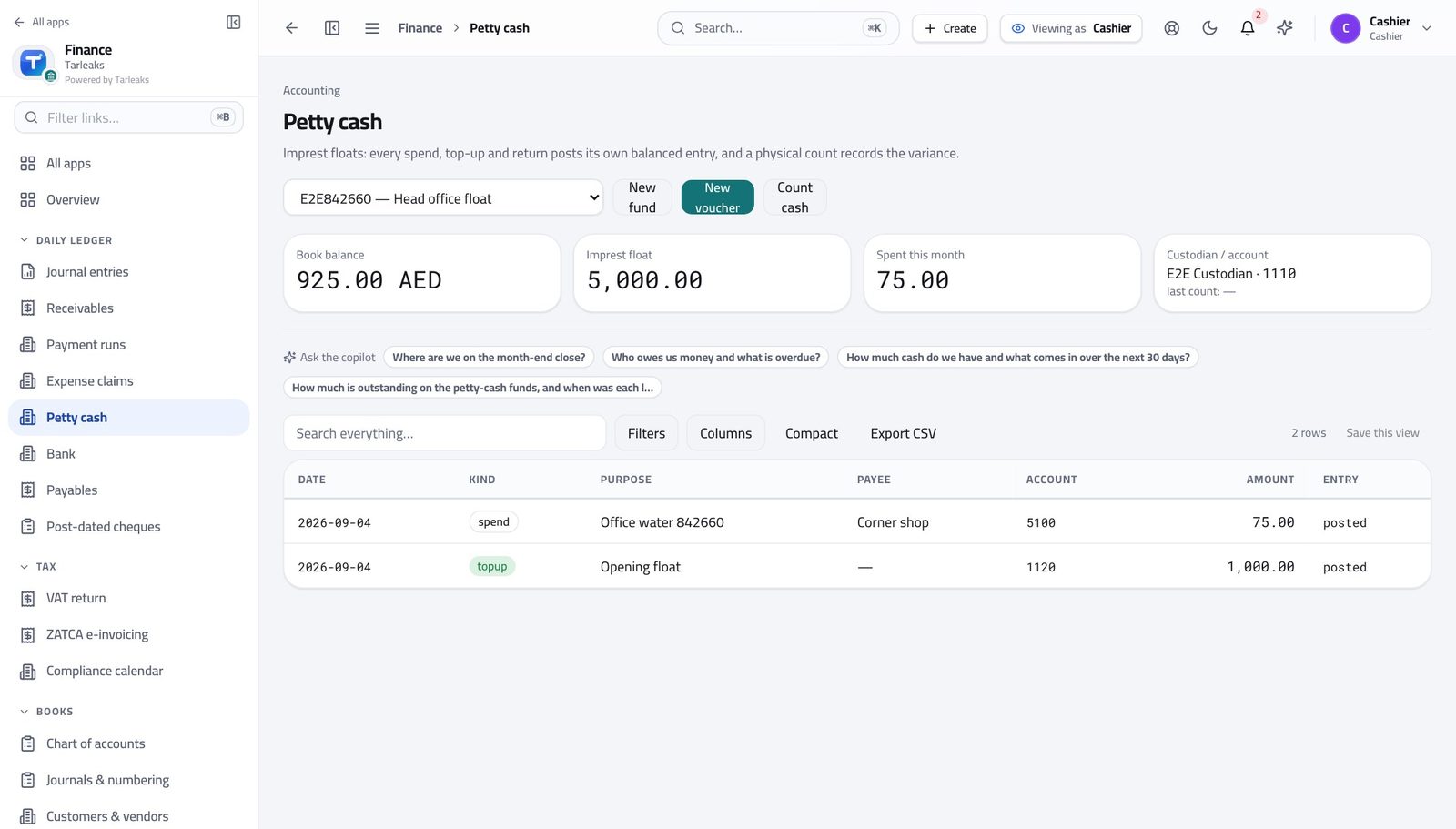
You should see You can see at a glance what you are accountable for.
See every spend against a float #
Where Finance » Petty cash
- With a float selected, read the list underneath.
- Each row is one movement, newest first.
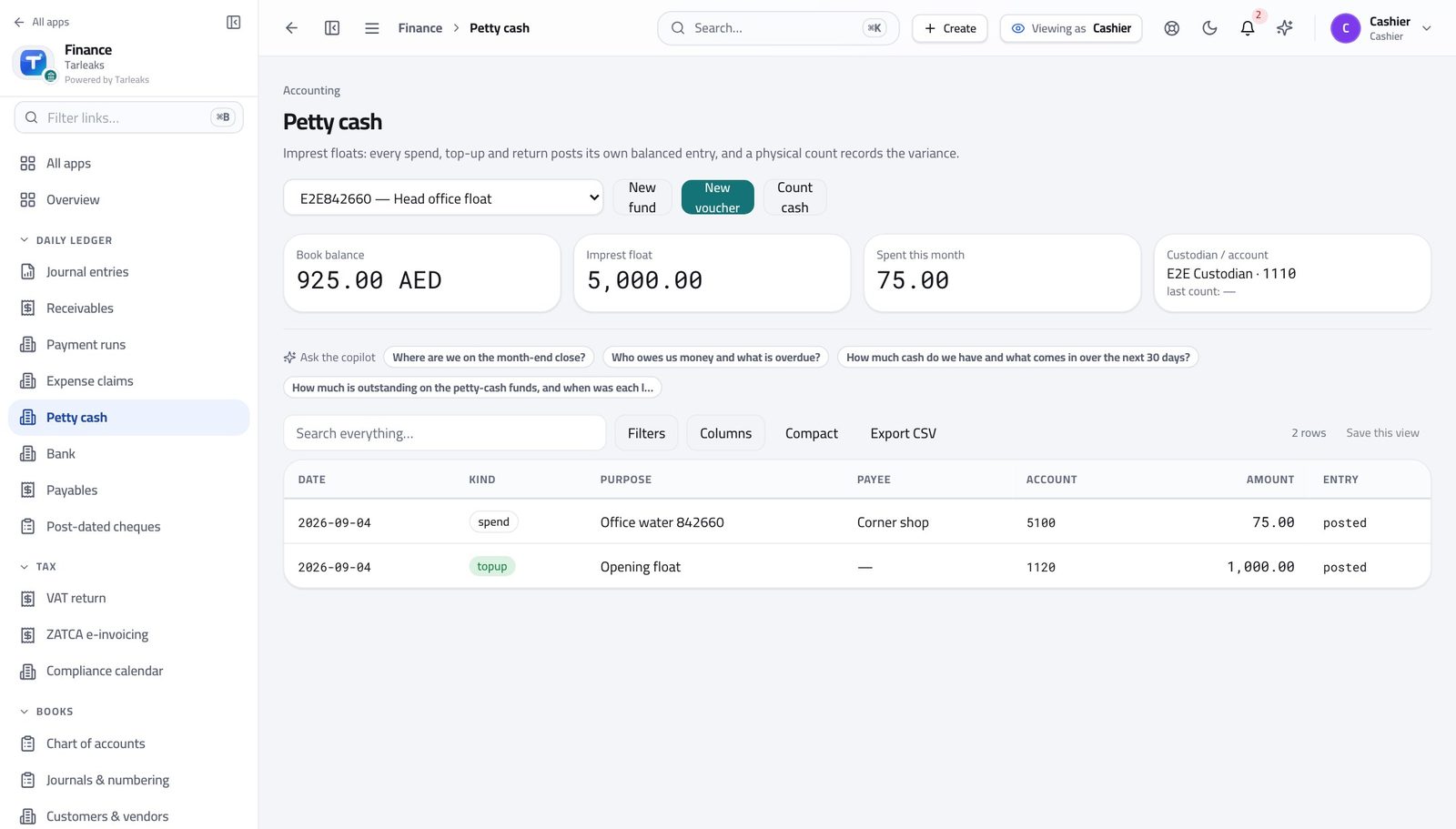
You should see Nothing leaves the float without a line here — which is what makes the count at the end of the day add up.
Record money out of the float #
Where Finance » Petty cash » New voucher
- On Petty cash, click New voucher.
- Fill what it was for, who was paid, the account and the amount.
- Add the receipt reference so the paper and the record match.
- Click Save.
| Field | What to put in it |
|---|---|
| Kind | Spend for money going out, topup for money going in. |
| Date | The day the money actually moved. |
| Purpose | What it was for, in plain words — 'water for the meeting room', not 'sundries'. |
| Payee | Who received the cash. |
| Account | Which expense account it belongs to. Your accountant can give you the two or three you will use most. |
| Amount | What left the tin. |
| VAT | The tax on the receipt, when there is any. |
| Receipt reference | The number on the paper receipt you are filing. |
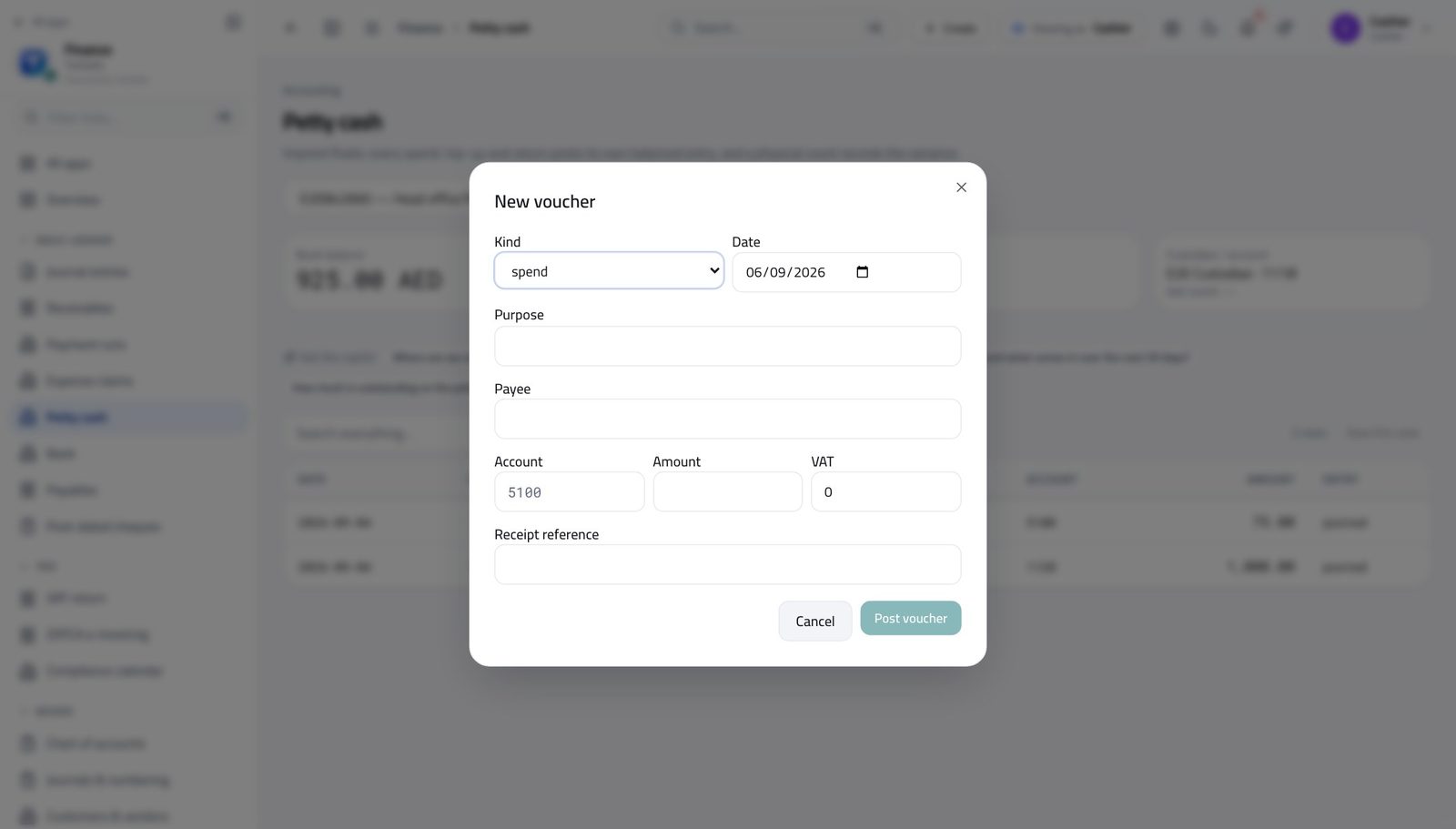
You should see The float's balance drops by that amount the moment you save, so the figure on screen always matches the tin.
Know which cheques clear when #
Where Finance » Post-dated cheques
- In the left menu, click Post-dated cheques.
- Sort or filter by date to see what matures next.
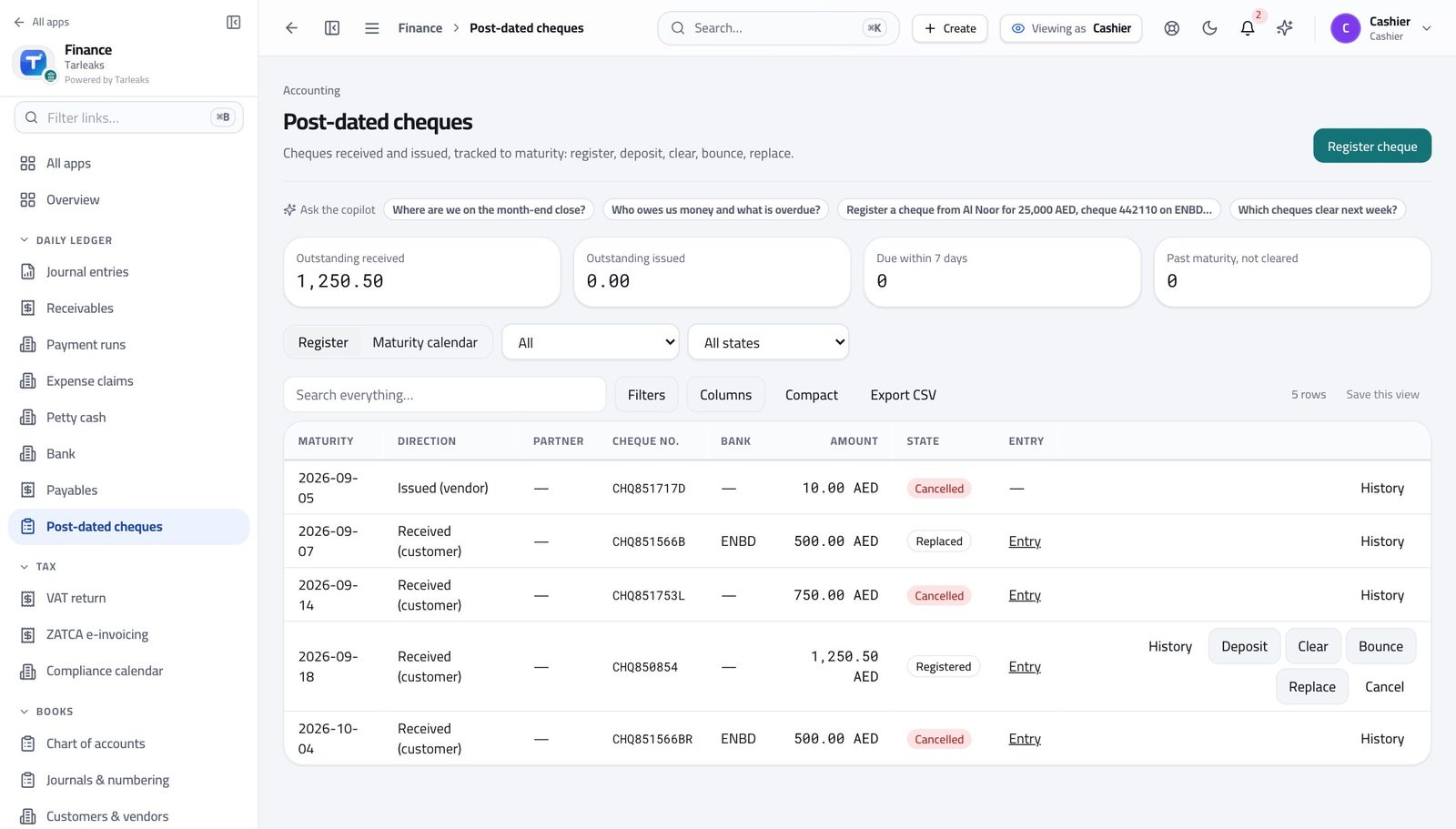
You should see Nothing gets banked early, and nothing is forgotten on the day it is due.
Count the cash and record the difference #
Where Finance » Petty cash » Count cash
- On Petty cash, click Count cash.
- Count the tin physically.
- Type what you actually counted into Counted.
- Add a note if there is a difference and you know why.
- Click Save.
| Field | What to put in it |
|---|---|
| Counted | The real figure from counting, not what you expect. |
| Note | Why there is a difference, if there is one. |
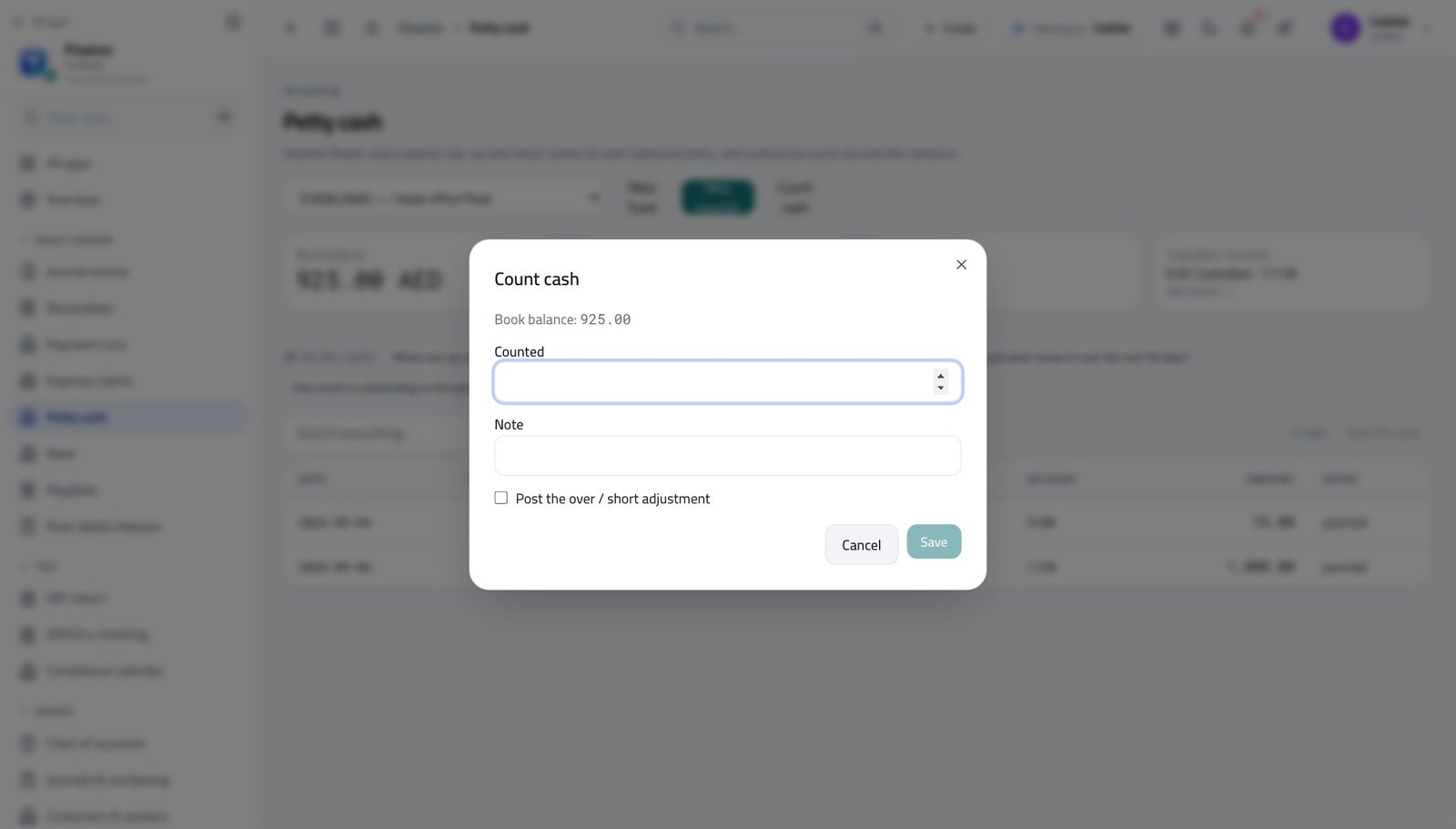
You should see Any difference between the count and the books is recorded rather than quietly absorbed — which is what protects you.
Watch out Never adjust the count to match the books. Recording the difference is the thing that protects you.
You can read the books, not write them #
Where Finance » Journal entries
- Open Journal entries from the left menu.
- Look at the top right.
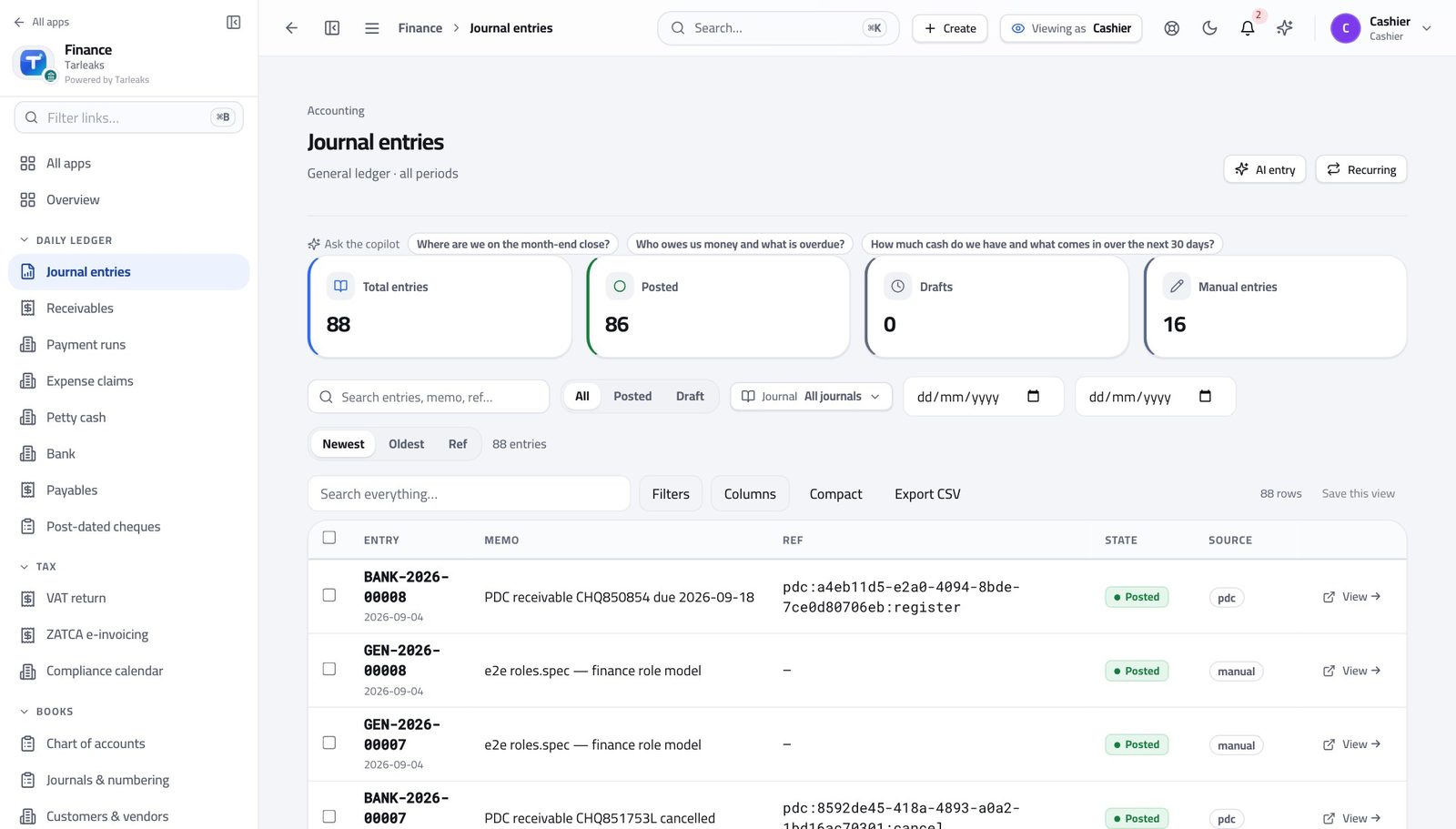
You should see You can look up any entry — but there is no button to add one. Counting cash and writing the books are deliberately different jobs.
Use cases — the work, step by step
Each one is a sequence somebody actually performs, with the screen behind every step. Every screen here was opened in the product as this role before it was published.
dailyClose the day: record the spend, then count the tin #
A difference found today has an explanation. The same difference found at month end does not.
Open Petty cash and choose the float you are responsible for. The four boxes across the top are the book balance, the float it was set up with, what has gone out this month, and who holds it.
Finance » Petty cash — verified: the page says “Petty cash” Record every spend that happened today, one voucher each, with the receipt reference. Do it now, not on Friday.
Finance » Petty cash » New voucher — verified: the control is offered Count the cash physically, then enter what you actually counted. If it differs from the book balance, write why in the note.
Finance » Petty cash » Count cash — verified: the control is offered Check the list: every movement today should be there, and the balance on screen should match what is in the tin.
Finance » Petty cash — verified: 2 row(s) listed
weeklyBank the cheques that mature this week #
Nothing should be banked early, and nothing should be forgotten on the day it is due.
Open Post-dated cheques and sort by date to see what matures next. The status column tells you which are registered, deposited, cleared or bounced.
Finance » Post-dated cheques — verified: the page says “cheque” Deposit the ones due today, then clear them once the bank confirms — each state change posts what it should.
Finance » Post-dated cheques — verified: the page says “cheque”
urgentThe tin does not match the screen #
Recording the difference is what protects you. Adjusting the count to match the books is what does not.
Count again, alone and slowly, before touching anything on screen.
Finance » Petty cash — verified: the page says “Petty cash” Read the day's vouchers looking for a spend without a voucher, or a voucher without a receipt reference.
Finance » Petty cash — verified: 2 row(s) listed Record the count as it really is, with a note explaining what you found, and tell your manager the same day.
Finance » Petty cash » Count cash — verified: the control is offered
edgeSomebody spent their own money — that is not petty cash #
A petty-cash voucher records money that left the tin. Money that left an employee's pocket is an expense claim, reimbursed through a payment run.
Check the float's own movements first — if the money did not leave the tin, there is nothing to record here.
Finance » Petty cash — verified: 2 row(s) listed Point them at Expense claims instead. It has its own approval and its own payment, which is what makes the reimbursement traceable.
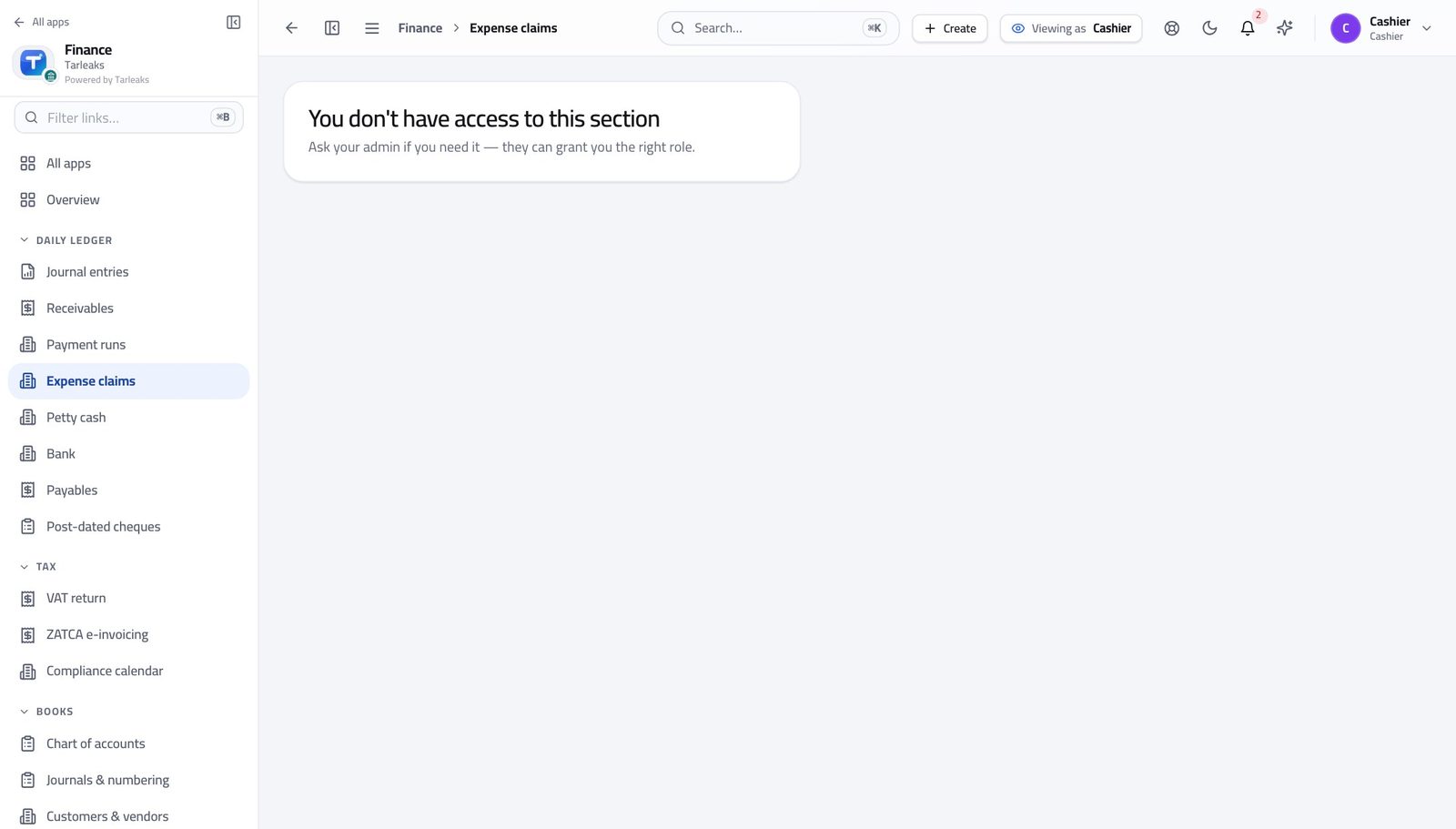
In the product — verified: the page says “claim”
Handling cash and writing the books are deliberately different jobs. You record what happened at the counter; the ledger is posted by someone else.