Finance Controller — Finance guide
Own the close: approve, post, lock, and answer for the numbers.
Owns the close: approves what others prepared, posts, locks the period, and answers for the numbers.
What you will be able to do
- See at a glance what still blocks the month
- Approve a queue of bills in one action
- Clear draft entries out of the way without touching posted ones
- Spot odd-looking entries before an auditor does
What this role can and cannot do
| Can | Cannot |
|---|---|
|
|
7 steps, each one carried out in the product on .
Check what your sign-in can do #
Where Your name, top right » Profile
- Open your company's address in the browser — it looks like yourcompany.tarleaks.com.
- Type the e-mail address your administrator set up for you, then your password.
- You land on the app launcher: a grid of the apps your company uses.
- Click your name, top right.
- Choose Profile.
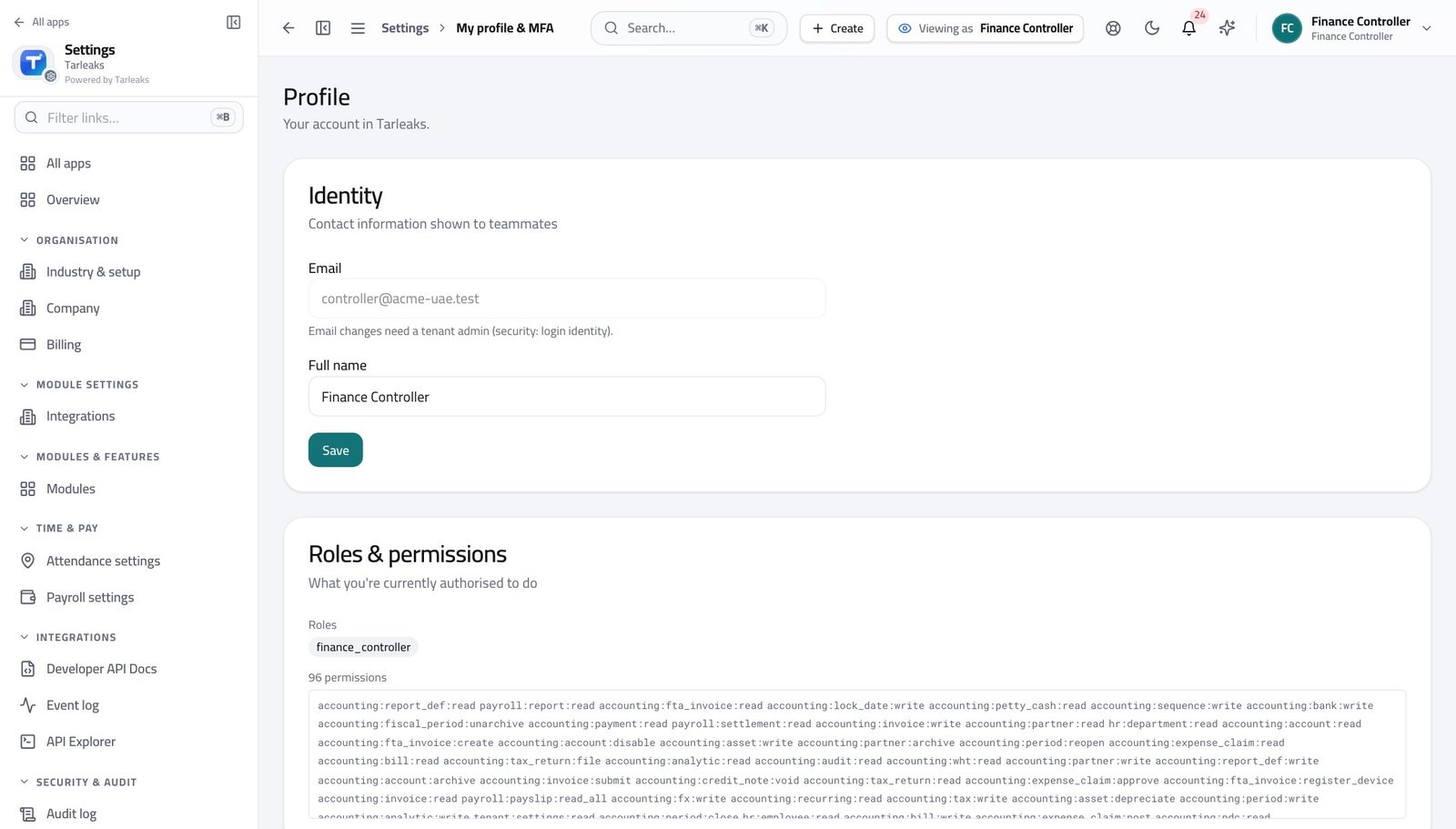
You should see It says Finance Controller — approving, posting, and closing the month all sit with you.
See the months and their state #
Where Finance » Periods
- Open Finance, then Fiscal periods in the left menu.
- Read the state beside each month.
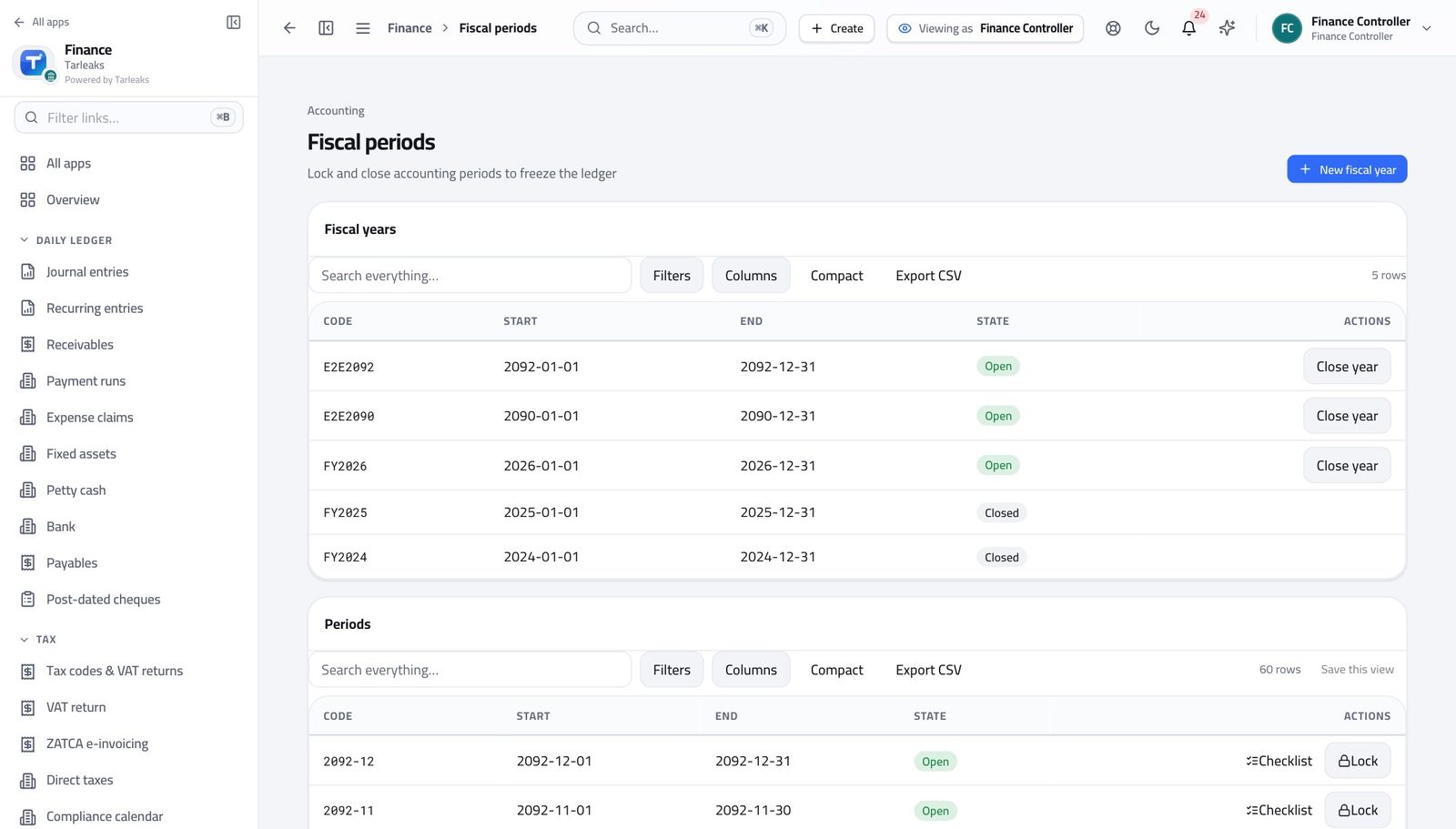
You should see Closing a month stops anyone posting into it by accident.
Close a month #
Where Finance » Periods
- Find the month you are closing.
- Open its actions and choose Close.
- Read what it tells you is still outstanding.
- Confirm only when you are satisfied.
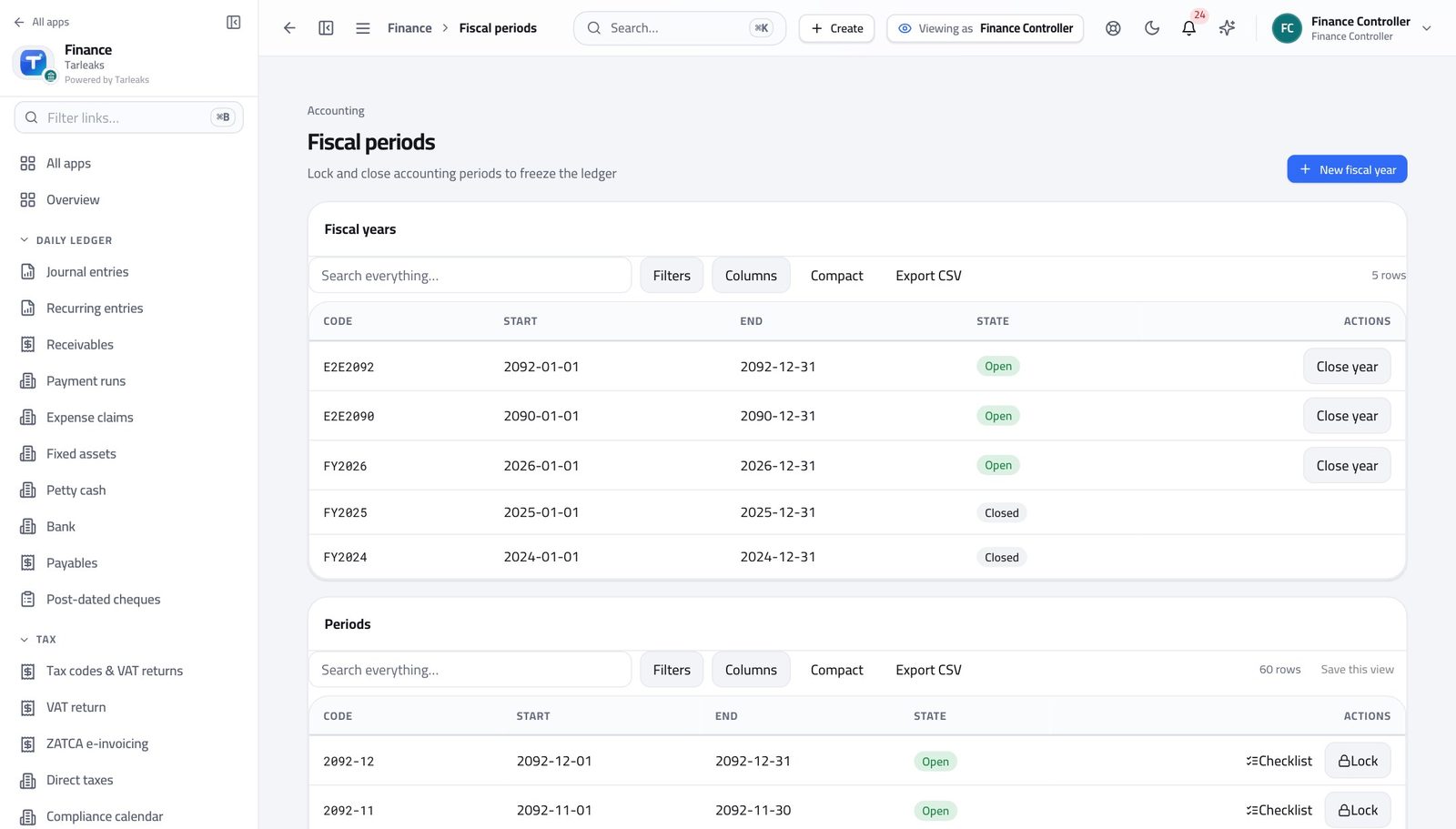
You should see Closing stops anyone posting into that month by accident. It can be reopened, and both actions are recorded against your name.
Watch out A closed month can be reopened, and both actions are recorded against your name. That is a feature, not a loophole.
Check what still blocks the close #
Where Finance » Overview
- Open the Finance overview from the left menu.
- Read the close card near the top.
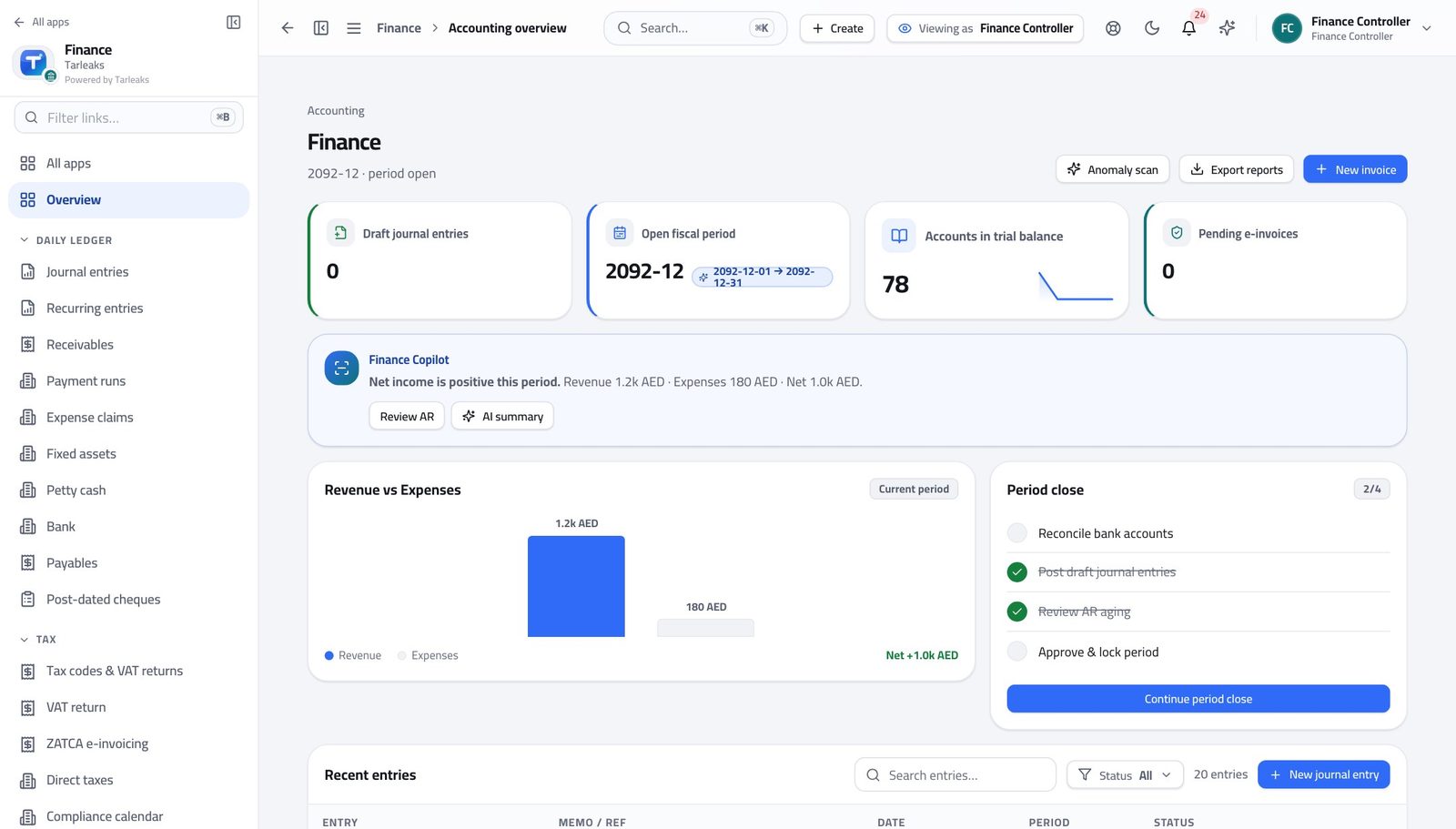
You should see One card lists what is still unapproved, unposted or unreconciled — you do not go hunting for it.
Approve a queue of bills at once #
Where Finance » Payables » tick rows » Approve
- Open Payables.
- Use the Approvals tab to see only what is waiting for you.
- Tick the bills you are approving.
- Click Approve in the bar at the bottom and confirm.
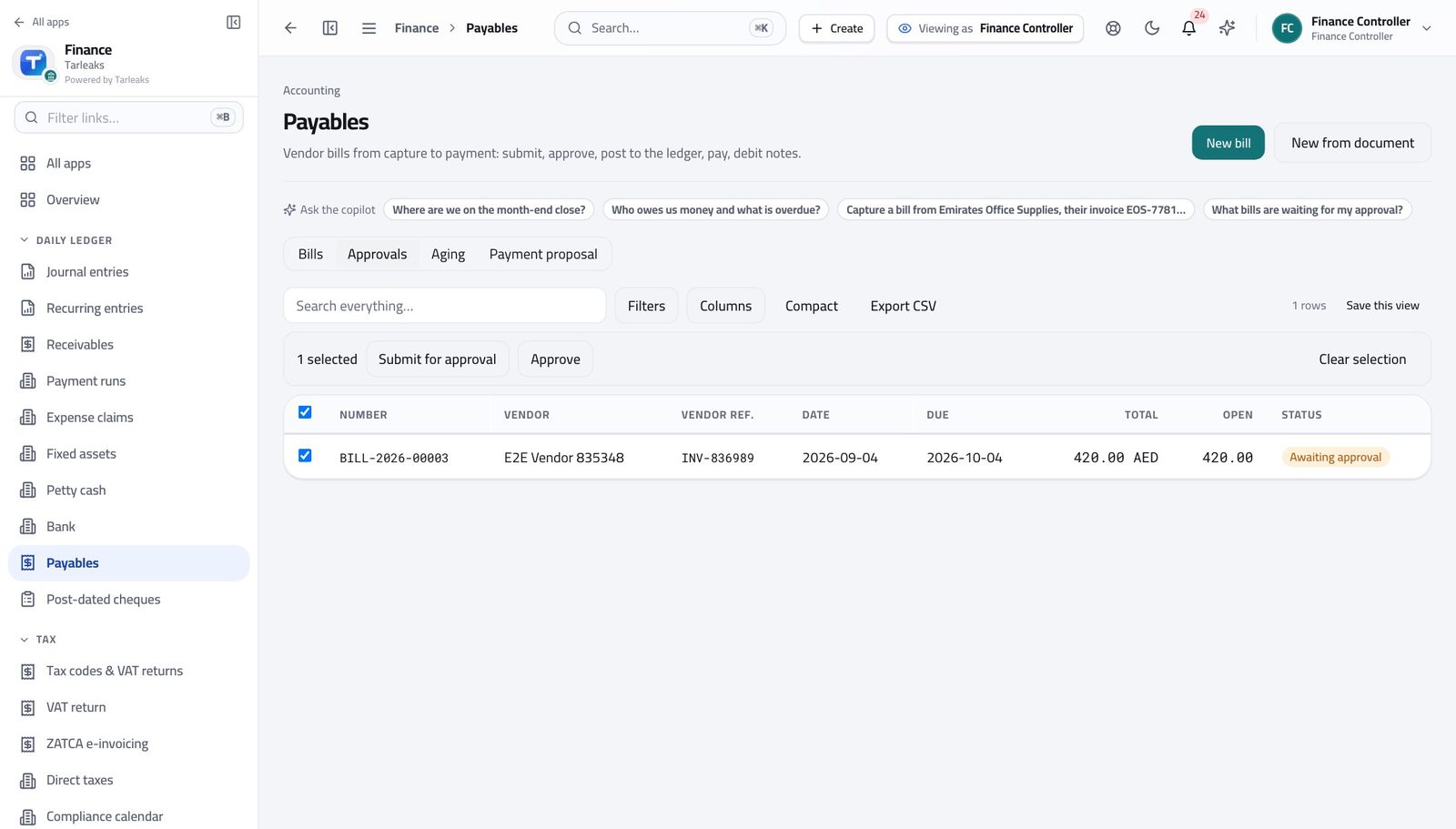
You should see Each bill is still checked on its own inside the batch, so one bad row does not stop the rest.
Watch out Each bill still runs its own checks inside the batch, so a bill over budget is refused and named while the rest go through.
Worth knowing Before a large batch, ask for a practice run — it checks every row and changes nothing.
Clear drafts out of the way #
Where Finance » Journal entries » tick rows » Archive
- Open Journal entries.
- Tick the draft entries you no longer want in the list.
- Click Archive in the bar and confirm.
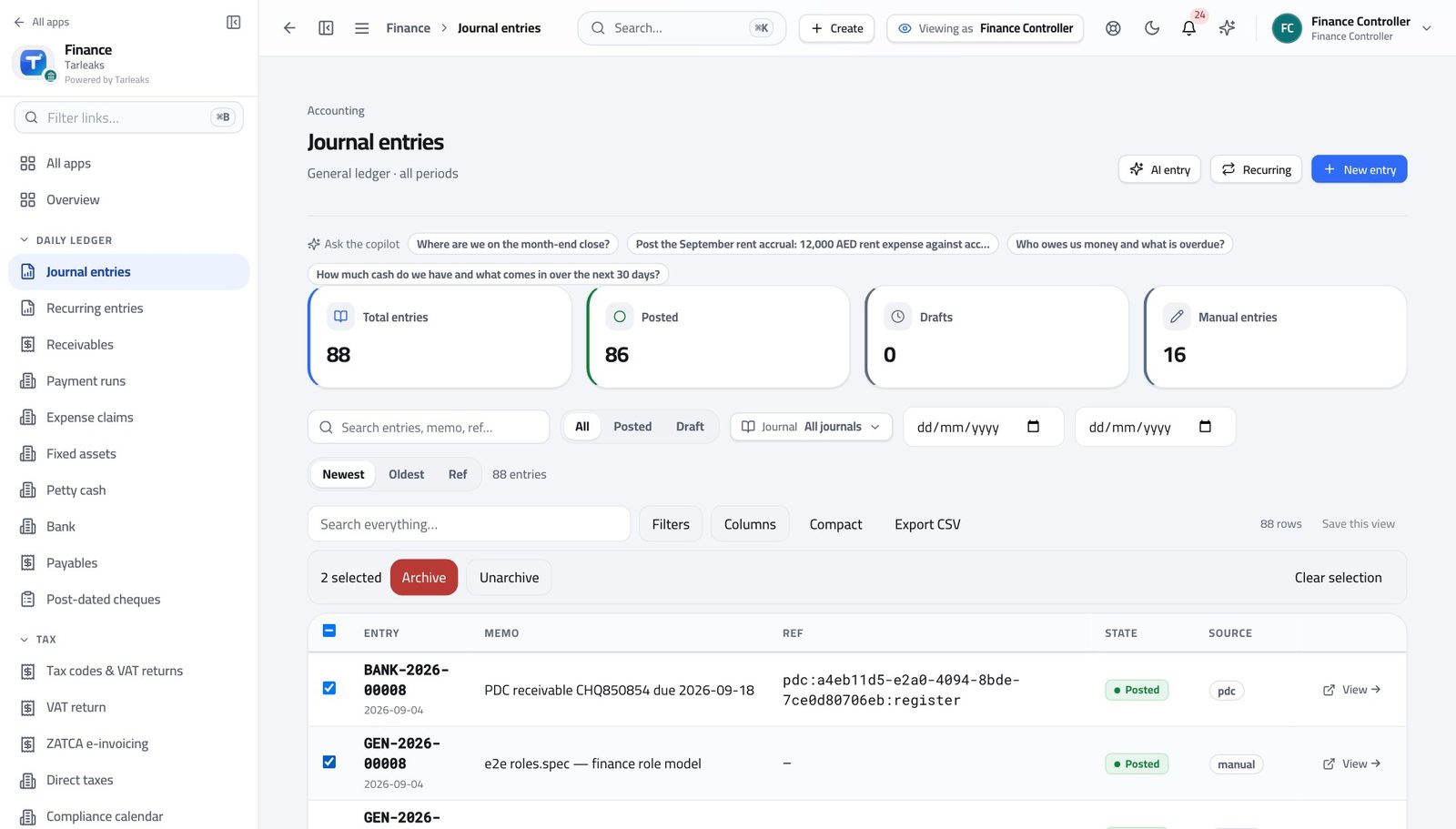
You should see Drafts are tidied away; anything already posted is refused and named. History is never rewritten.
Watch out Archiving tidies the list. It does not delete anything, and history cannot be rewritten this way.
Spot odd entries before an auditor does #
Where Finance » Journal entries » Anomalies
- Open Journal entries.
- Switch to the anomalies view.
- Read the reason beside each flagged entry.
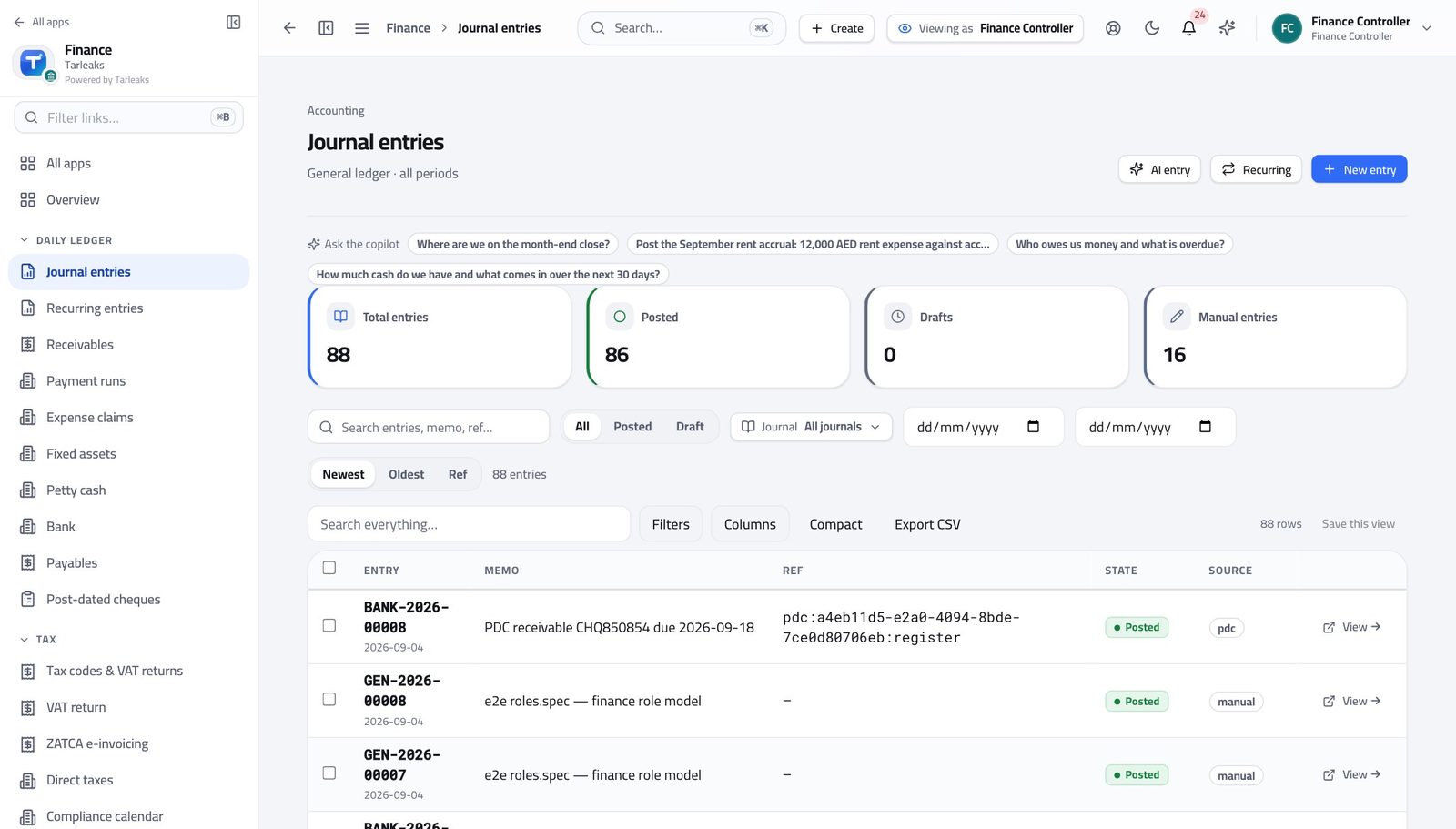
You should see Round numbers, weekend postings and back-dated entries are surfaced for you to look at — nothing is blocked, only flagged.
Watch out Nothing is blocked. These are questions to answer, not errors to fix.
Use cases — the work, step by step
Each one is a sequence somebody actually performs, with the screen behind every step. Every screen here was opened in the product as this role before it was published.
dailyThe daily approval pass #
A bill you approve today is paid on this week's run. One you leave is next week's problem, and next week's phone call.
Open the Finance overview and read the close card and the cash position before you approve anything.
Finance » Overview — verified: the page says “close” Open Payables, tick what you are approving, and approve the batch. Each bill still runs its own budget and duplicate checks.
Finance » Payables » tick rows » Approve — verified: the control is offered; the control is offered Clear the drafts nobody will finish: tick them in Journal entries and archive. Posted entries are refused per row.
Finance » Journal entries » tick rows » Archive — verified: the control is offered; the control is offered
monthlyClose the month #
Closing is reversible and audited, which is exactly why it should happen on time rather than 'when we are sure'.
Read the close card first: what is still unapproved, unposted or unreconciled.
Finance » Overview — verified: the page says “close” Open Fiscal periods and read the state of the month you are closing.
Finance » Periods — verified: 65 row(s) listed Close it, and read what the dialog tells you is outstanding before you confirm.
Finance » Periods — verified: 65 row(s) listed
urgentThe bank will not cover this week's run #
Holding a payment deliberately is a decision. Bouncing one is an incident.
Open the cash position on the Finance overview and see what is actually available.
Finance » Overview — verified: the page says “close” Approve the part of the run that must go out, and leave the rest for next week rather than approving the lot.
Finance » Payables » tick rows » Approve — verified: the control is offered; the control is offered Tell the AP clerk which suppliers are being held, so they can manage the calls rather than be surprised by them.
Your name, top right » Profile — verified: the page says “Controller”
You are the only role that can both approve and close. Use the practice run before a big batch — it checks every row and changes nothing.