How every finance number is worked out — and how to check it
Before you sign something, you should be able to say where the figure came from and prove it in two minutes. For each number: where it lives, the arithmetic behind it, the check that proves it, and what a difference usually means.
Nothing matches that. Try a shorter word.
Hours worked on a day #
Where Attendance → Time clock → Recent entries
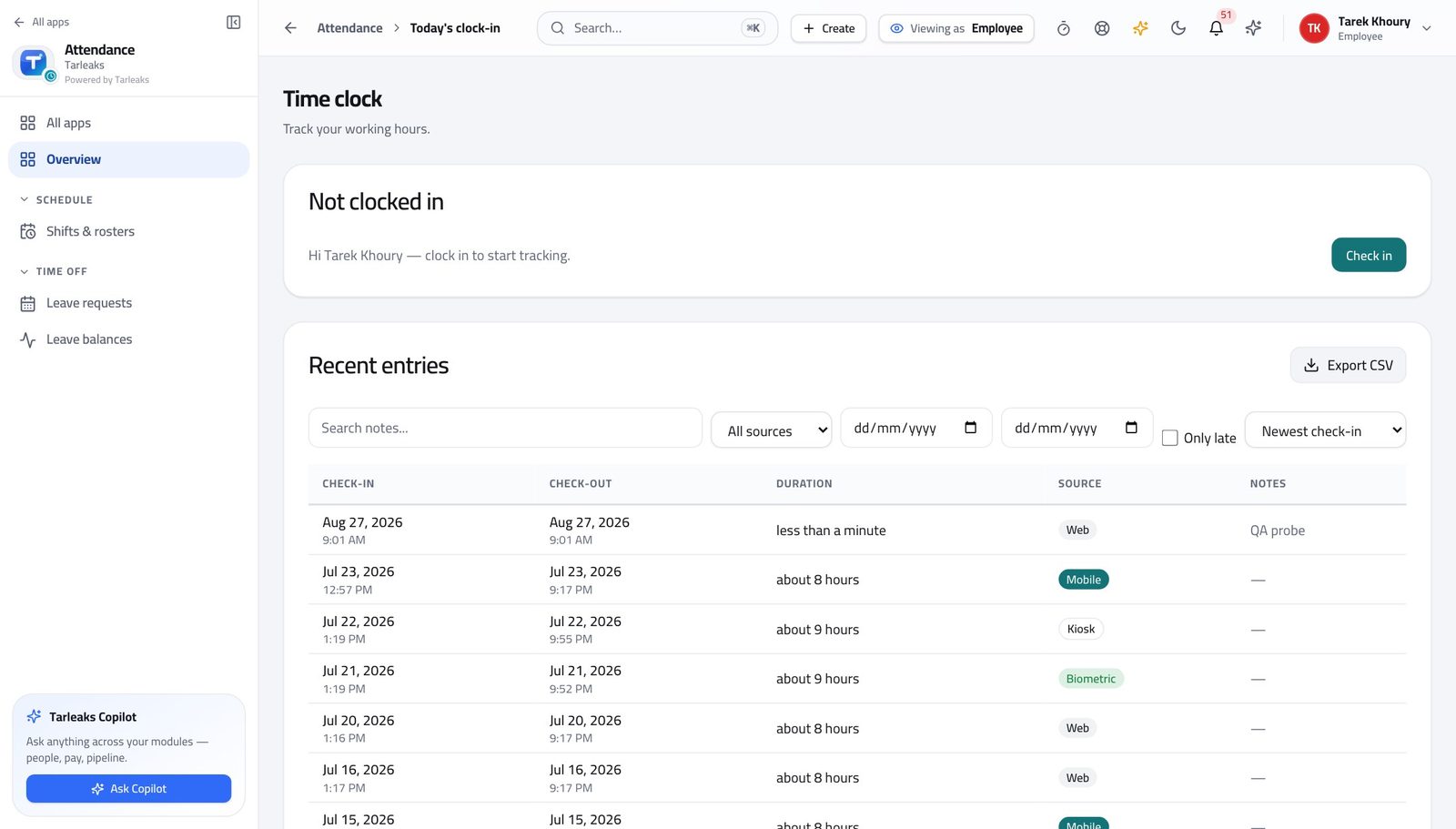
How it is worked out Check-out time less check-in time, for each entry on that day. An entry with no check-out is still open and counts nothing yet.
Check it like this Read the Duration column against the two times on the same row. The export carries the same figure already worked out.
If it disagrees A duration that looks doubled is usually two entries on the same day — somebody clocked out for lunch and back in. That is correct behaviour, not a fault.
Whether an arrival counts as late #
Where Attendance → Shifts & rosters, then Recent entries
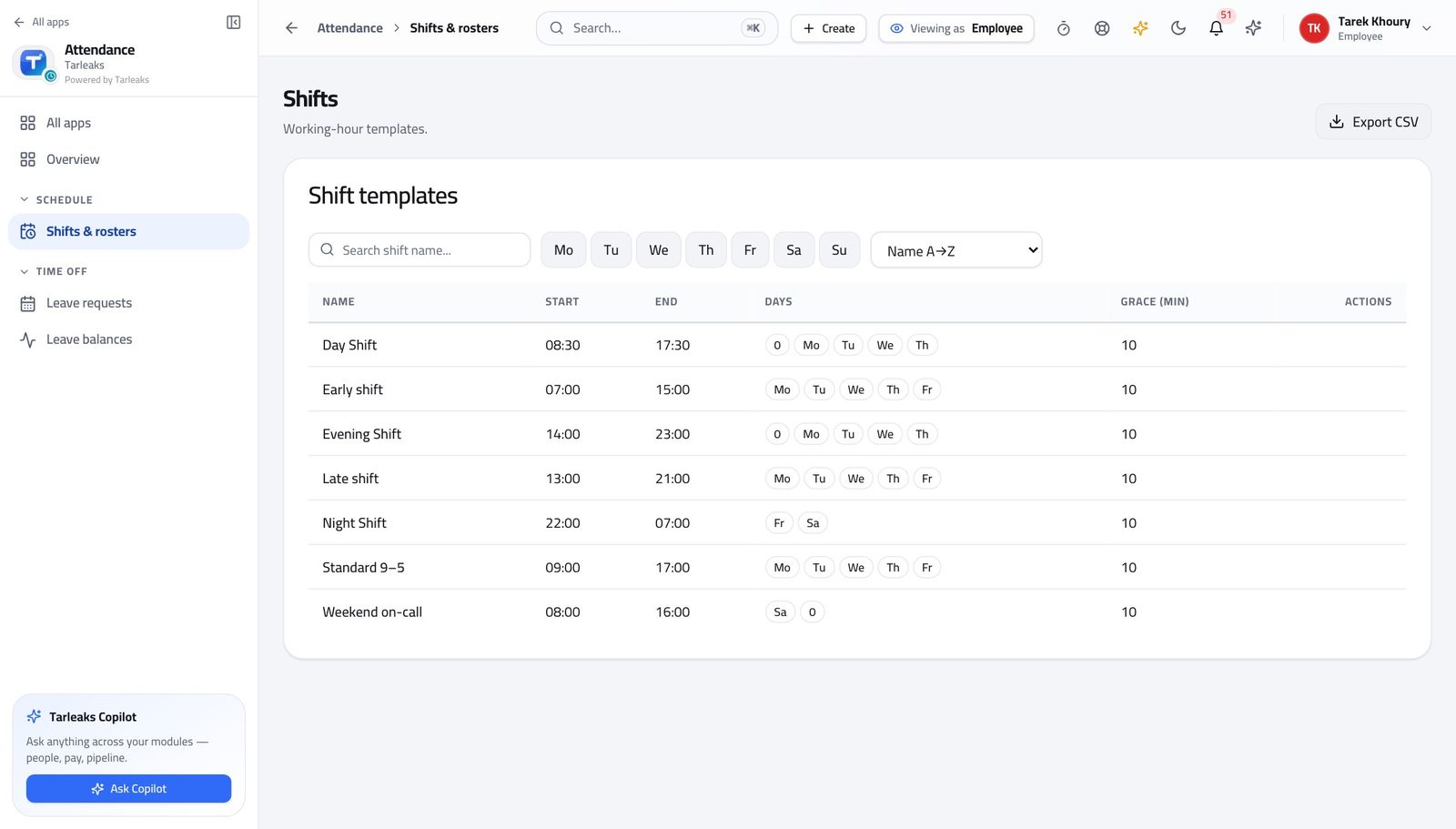
How it is worked out The check-in time against the shift's start time PLUS its grace minutes. Inside the grace, it is on time.
Check it like this Read Start and Grace (min) on the person's shift, add them, and compare with their check-in.
If it disagrees Somebody 'wrongly' marked late is almost always on a different shift from the one you assumed. Check the assignment and its dates before the person.
Leave days in a request #
Where Attendance → Leave requests
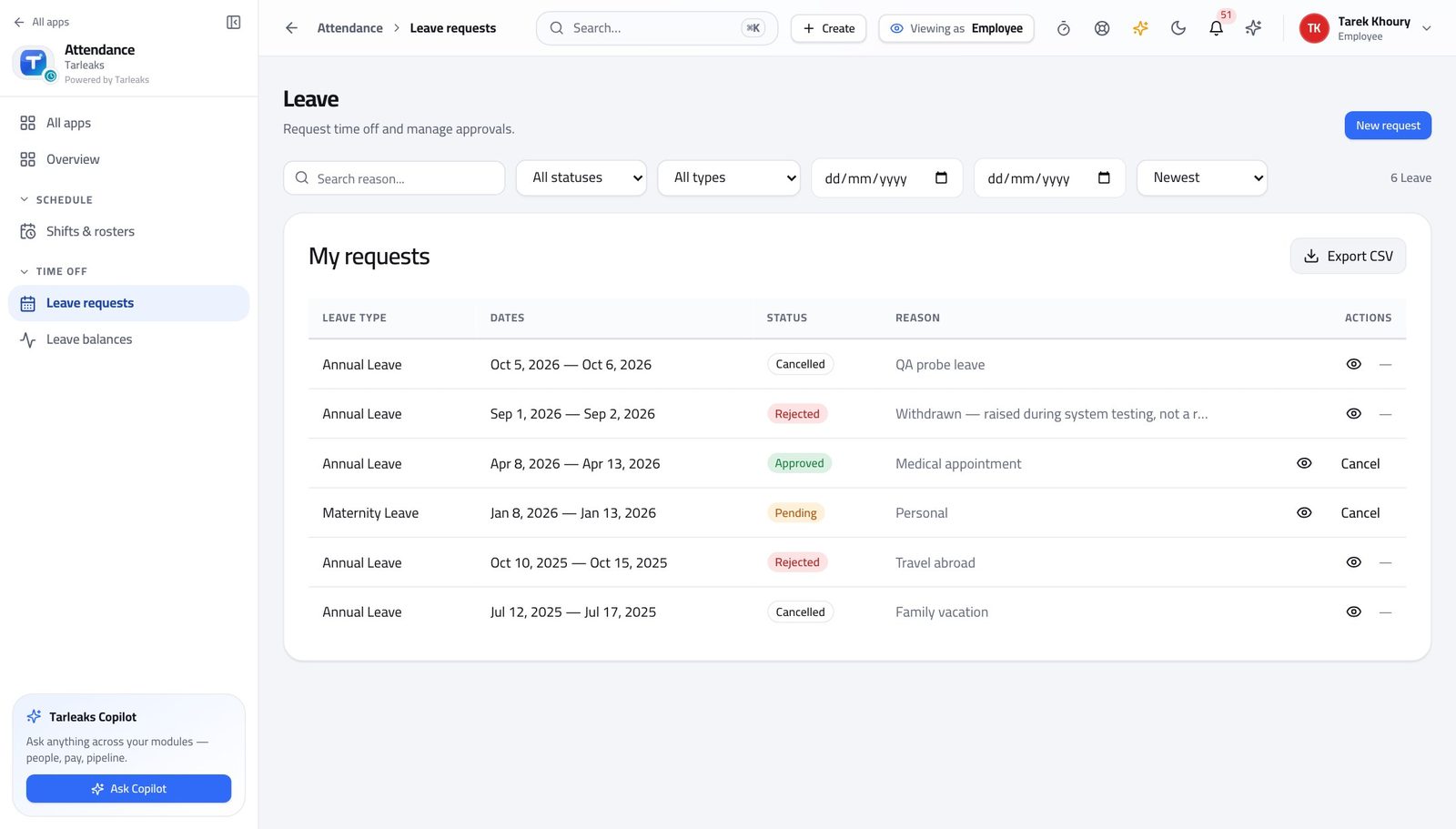
How it is worked out The start and end dates inclusive of both.
Check it like this Count the days on a calendar including the first and the last.
If it disagrees A figure one lower than you expected means somebody read the end date as exclusive. It is inclusive.
Yearly leave entitlement for a type #
Where Attendance → Leave requests → Leave types
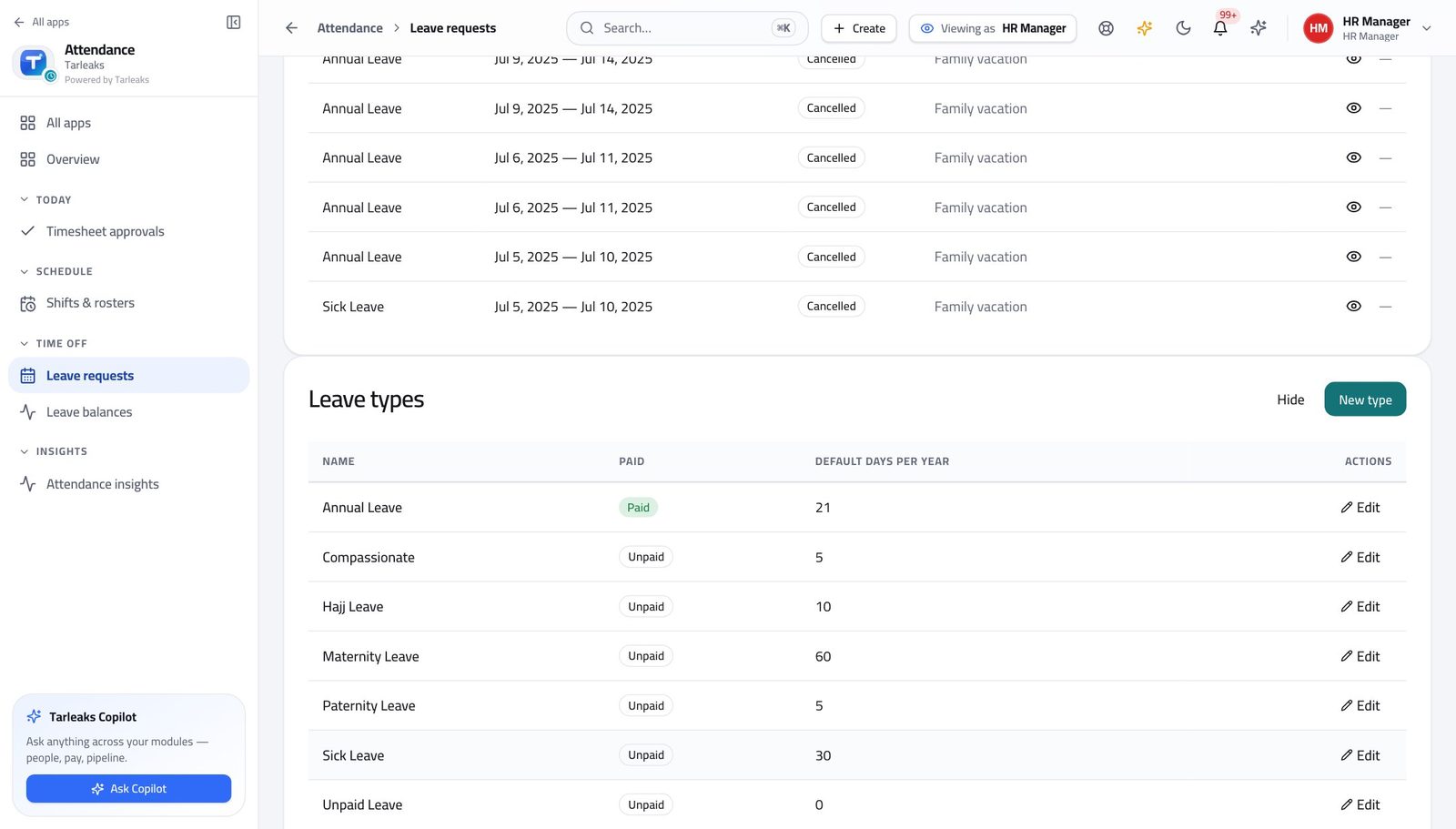
How it is worked out It is set on the leave type as Default days per year. It is a stated entitlement, not a running balance.
Check it like this Read the column. That is the whole calculation.
If it disagrees This is the number people quote when they mean their balance. They are different: the entitlement is the expectation, the balance is what has actually been earned so far.
Accrued leave balance #
Where Attendance → Leave balances
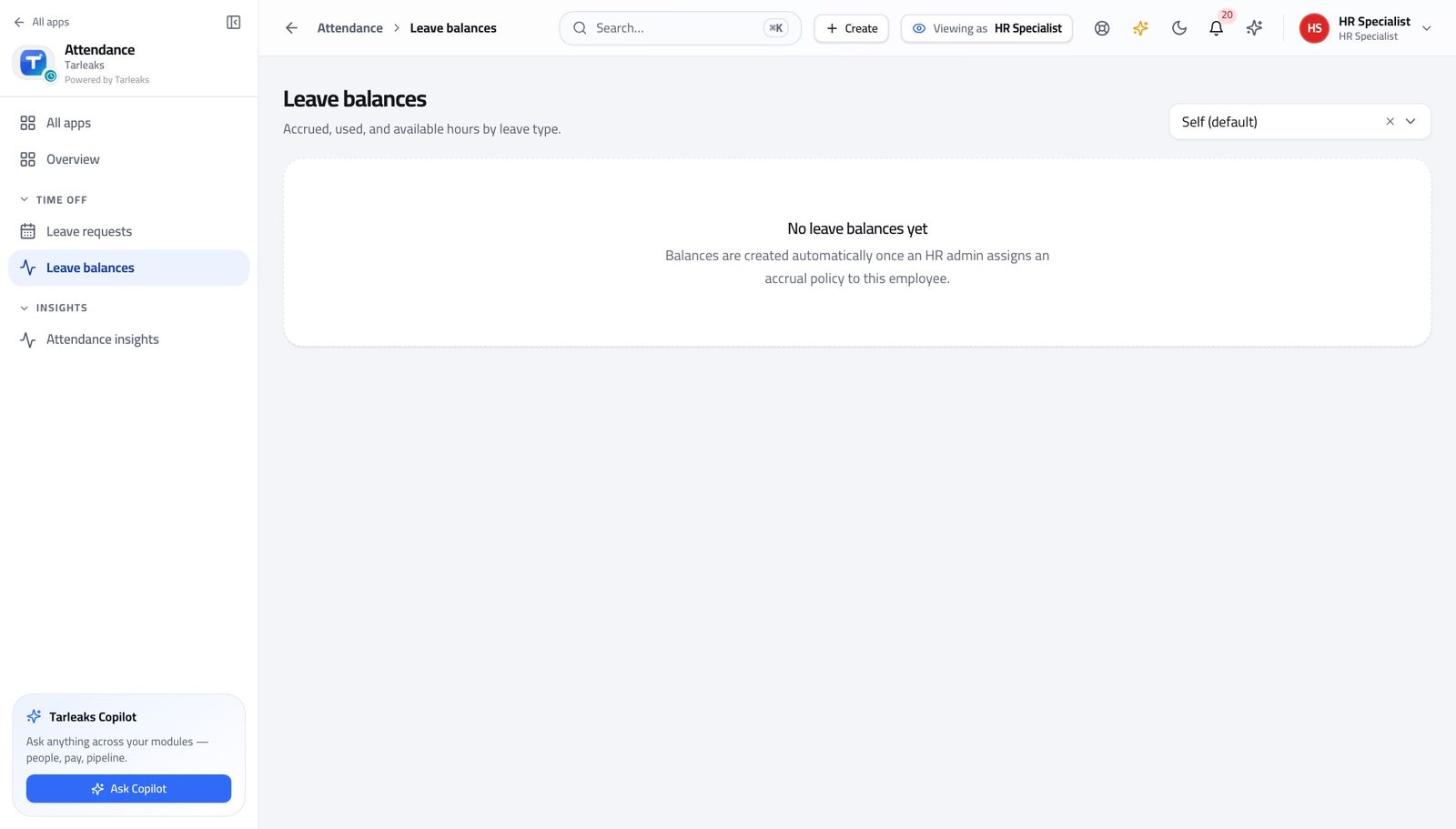
How it is worked out The accrual rule's rate multiplied by the periods elapsed since the waiting period ended, plus carry-over, less leave taken and any expiry — all in HOURS, capped by the policy's cap.
Check it like this Open View ledger and add the movements down the column. Balance after on the last line must equal the balance on the card.
If it disagrees A balance lower than expected is usually the waiting period, the cap, or an expiry line. All three are visible in the ledger.
The day figure under a balance #
Where Attendance → Leave balances
How it is worked out The hours balance divided by an eight-hour day. It is shown with a ≈ because it is an approximation for people who think in days.
Check it like this Multiply the day figure by eight and compare with the hours above it.
If it disagrees If your company's day is not eight hours, treat the day figure as indicative and use the hours. The hours are the record.
Weekly timesheet total #
Where My timesheet
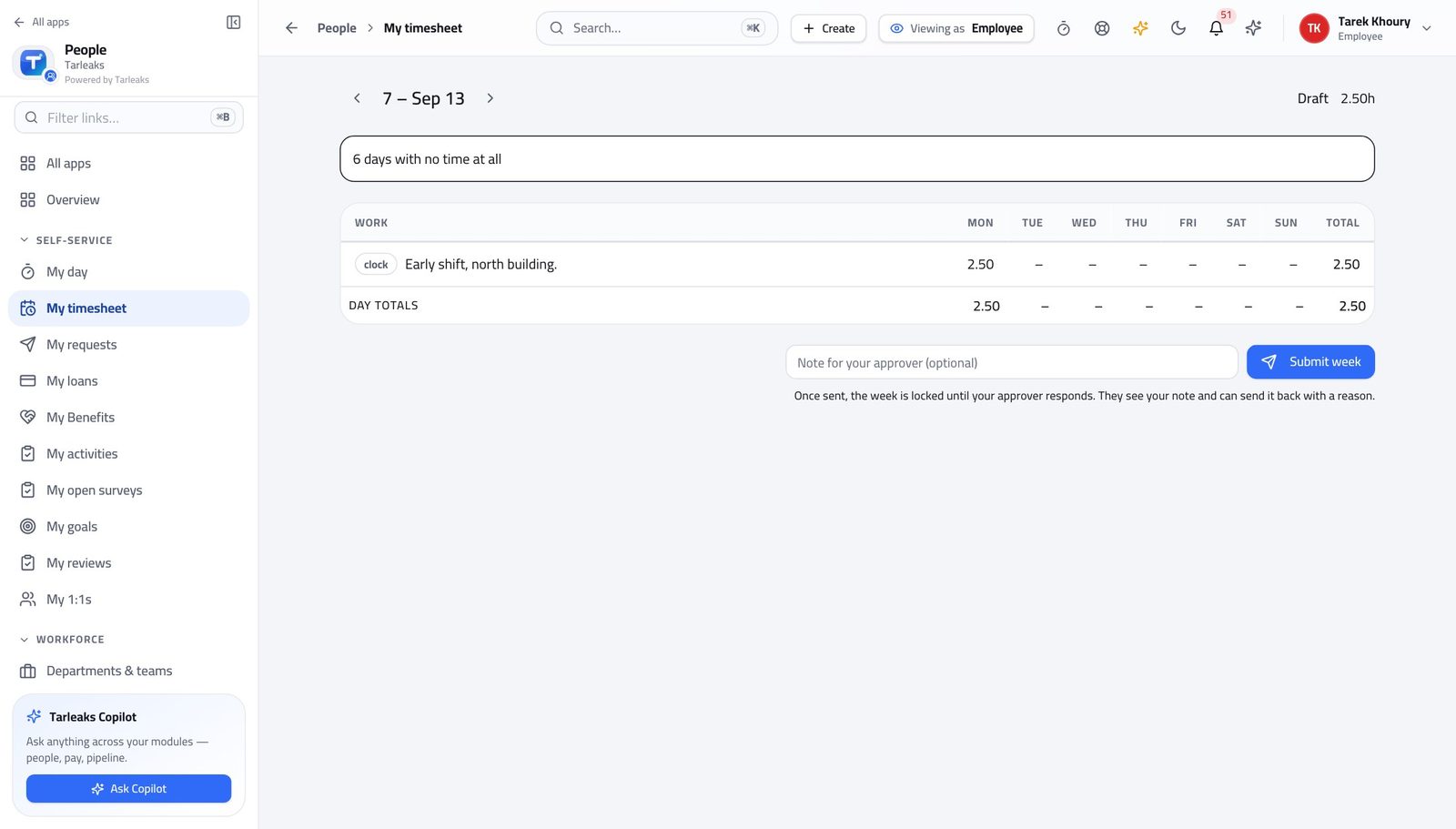
How it is worked out Clock time and project time for the seven days of the week, added together and shown in hours.
Check it like this Add the seven day totals in the grid; they must equal the figure in the top right.
If it disagrees A total higher than the days suggests means an entry crossed midnight and landed on the day it started.
Overtime hours #
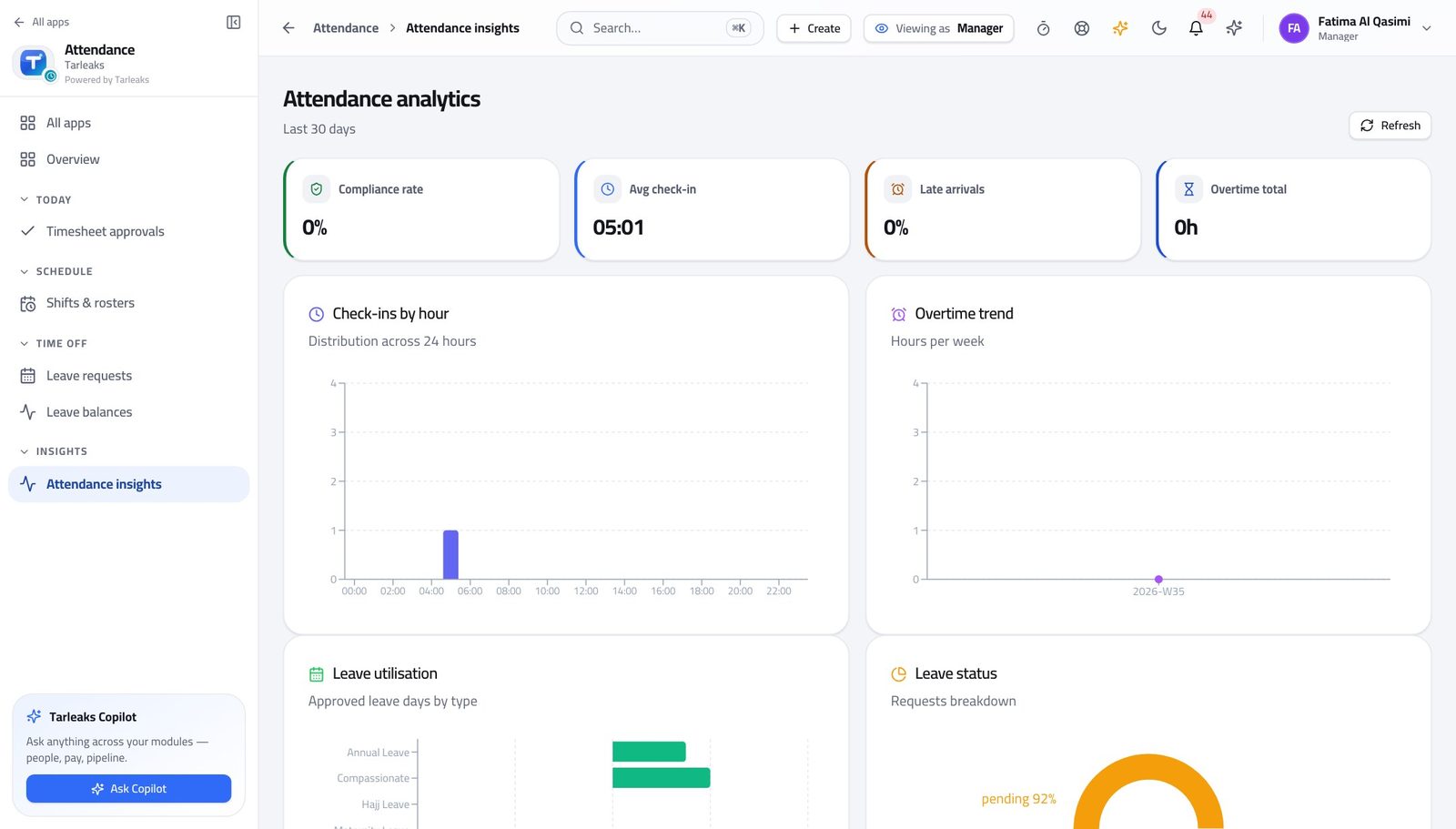
Where Attendance → Attendance insights
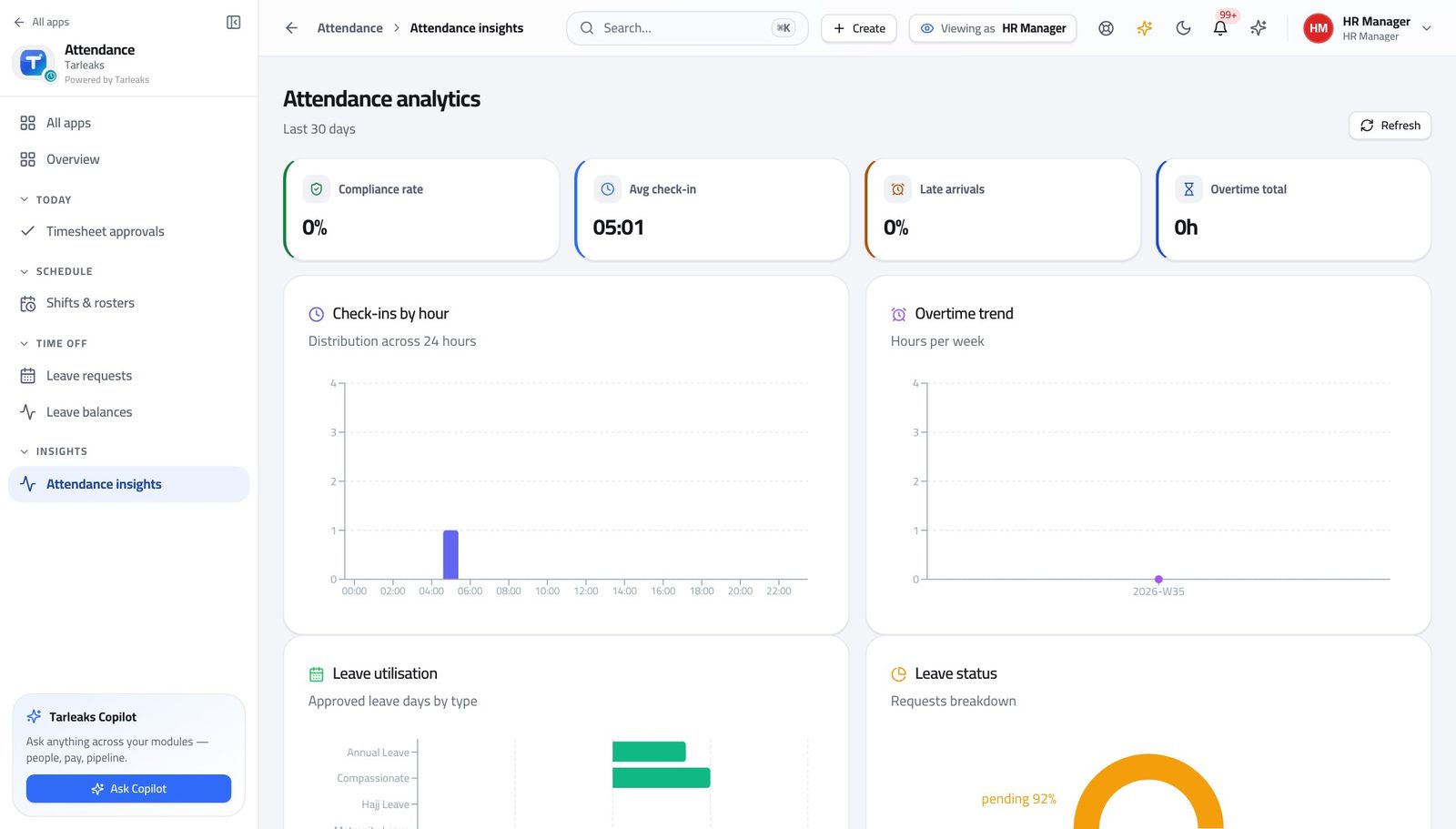
How it is worked out Hours worked above the daily and weekly thresholds set in the company's attendance settings.
Check it like this Read the thresholds first, then take one person's week and work it out by hand.
If it disagrees If the total looks wrong for everybody at once, the threshold changed. Check the settings before you check the people.
Compliance rate #
Where Attendance → Attendance insights
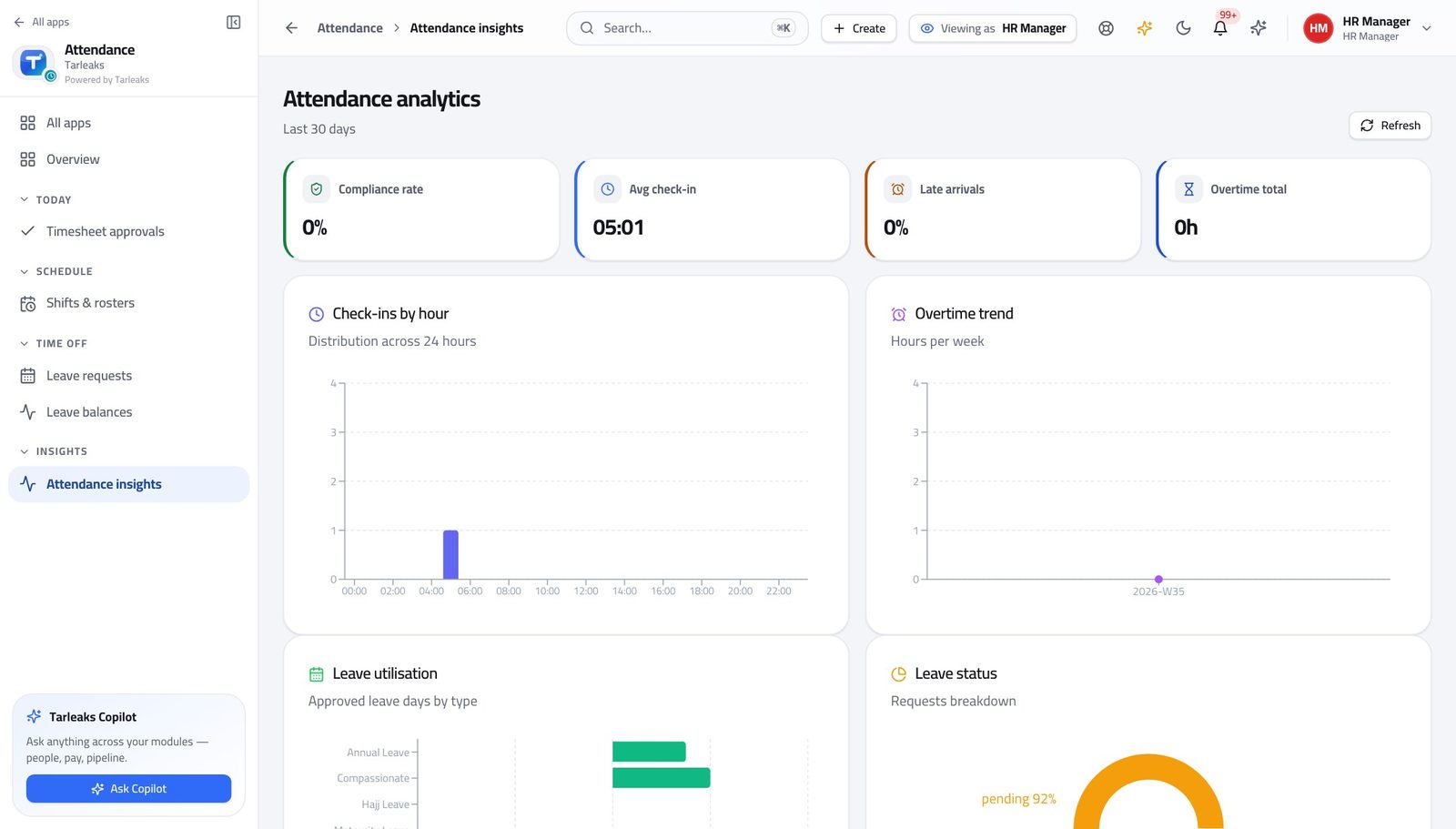
How it is worked out The share of expected working days that have a proper clock record, over the last thirty days.
Check it like this Pick one department and compare the roster against the leave for a single week.
If it disagrees A rate that drops sharply on one day is usually a failed reader, not a failed team. Check Recent entries filtered to that source.
Average check-in time #
Where Attendance → Attendance insights
How it is worked out The mean of the first check-in of each person on each day in the window.
Check it like this Compare it against one shift's start time. An average far after the start is either genuine lateness or people on a later shift being averaged in.
If it disagrees Mixing shifts is the usual cause of a nonsensical average. Look at the check-ins-by-hour chart instead — it shows the shifts as separate peaks.
Days absent in a period #
Where Attendance → Attendance insights
How it is worked out Expected working days with no clock record and no approved leave, over the period you choose.
Check it like this Take one name from the list and look for their approved leave on those dates.
If it disagrees An absence with approved leave behind it means the leave was approved after the fact — the dates are right, the sequence was not.
Faster ways to do the same work
| What you want | How |
|---|---|
| Jump to anything without the menu | Press ⌘K (or Ctrl K) and start typing — pages, records and actions are all in the same box. |
| Decide forty requests without forty clicks | Tick the rows, then use the bar at the bottom. It only offers actions your role can perform, and each row is still checked on its own. |
| Select everything you are looking at | Filter first, then tick the box in the header row. It selects the FILTERED rows, not the whole table. |
| Send a colleague exactly what you are looking at | Copy the address bar. Filters, the open tab and the week you are on are all written into the address, so they see your screen and not the default one. |
| Move a week at a time on a timesheet | The arrows beside the week heading step back and forward; This week returns you to now. The week is in the address, so a link opens on that week. |
| Find somebody's clock record fast | Time clock → Recent entries. Filter by person if your role allows it, then narrow by source or search the notes. |
| Take the answer away as a spreadsheet | Every list has an Export button that exports what the filter is currently showing — not the whole table. Filter first. |
| See how a leave balance got where it is | Leave balances → View ledger. Every accrual, day taken, carry-over, expiry and correction is a line with the balance after it. |
| Check a batch before you run it | Ask for a practice run: every row is validated against the real path and then rolled back. Nothing changes and you see what would have failed. |
| Answer 'is she in today' in one look | Attendance Today. The four boxes and the roster underneath are today only, and the row menu opens that person's timesheet, leave or record. |
| Stop guessing whether a check-in registered | The card on the time clock says it plainly, and shows the time you started and how long you have been on. |
| Work in Arabic | Switch the language in your profile. The interface mirrors right to left, and dates and times follow the same setting. |