العربية — This page is not in Arabic yet. Opens the Arabic home page.

Start free trialBook a demo

Browse the documentation

Documentation

All appsHow the apps connectTeam workflowsCompare

Apps

HR ManagementRecruitment (ATS)Payroll & WPSTime & AttendanceAccounting & E-InvoicingCRM & Sales PipelineSales Orders & FulfilmentInventory, Purchasing & WarehousingProcurement & TendersConstruction & ContractingContracts & E-SignatureProducts & Online StorePoint of SaleRentalsSubscriptions & LicensingHelpdesk & TicketingSocial Media SuiteInfluencer Marketing & Campaign ROIProject ManagementActivities WorkspaceDocument ManagementPDF Tools & E-SignatureCorrespondence RegisterTeam Chat & CallsMeetings & VideoLearning & Certification (LMS)Asset ManagementFleet ManagementRecognition & GamificationContacts & PartnersNotification CentreReports & DashboardsInsights — Business Intelligence & AppsAI CopilotAI Agents & AutomationAI Diagram StudioWebsite BuilderISO Compliance Suite (Imtithal)App MarketplaceCustomer & Partner PortalSecurity, Access & Compliance

Warehouse User — Orders guide

See what was confirmed, ship it, and say so.

Ships what the desk confirmed: opens a delivery, dispatches it, marks it delivered, and receives goods that come back. Reads orders; never creates or confirms one.

What you will be able to do

  • Read the confirmed orders and their deliveries
  • Dispatch a delivery and mark it delivered
  • Receive goods that come back

What this role can and cannot do

CanCannot
  • sales_orders:order:read
  • sales_orders:delivery:read
  • sales_orders:delivery:ship
  • sales_orders:returns:process
  • sales_orders:returns:read
  • sales_orders:returns:process
  • sales_orders:order:create
  • sales_orders:order:confirm
  • sales_orders:returns:approve
  • sales_orders:returns:approve

2 steps, each one carried out in the product on .

Find the returns to receive #

Where Sales Orders » Returns

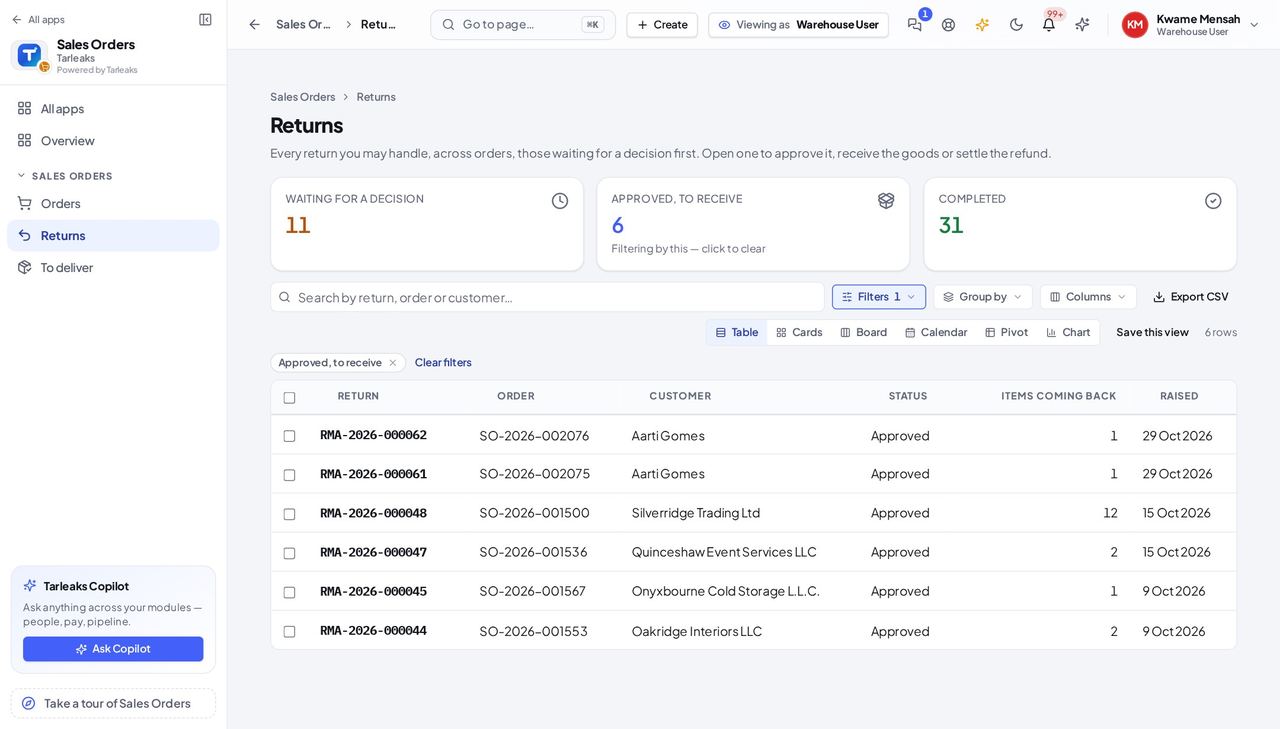
  1. Open Sales Orders » Returns.
  2. Press Approved, to receive.
Screenshot: Find the returns to receive, Warehouse User view
Each approved return with its customer, reason and how many items are coming back.

You should see Every return the manager approved, from every order — you do not need to open the order, even one another salesperson owns.

Receive a return on its own page #

Where Sales Orders » Returns » a return

  1. Click a return number in the list.
  2. Check the items by name against the order number.
  3. Press Goods received when they are in.
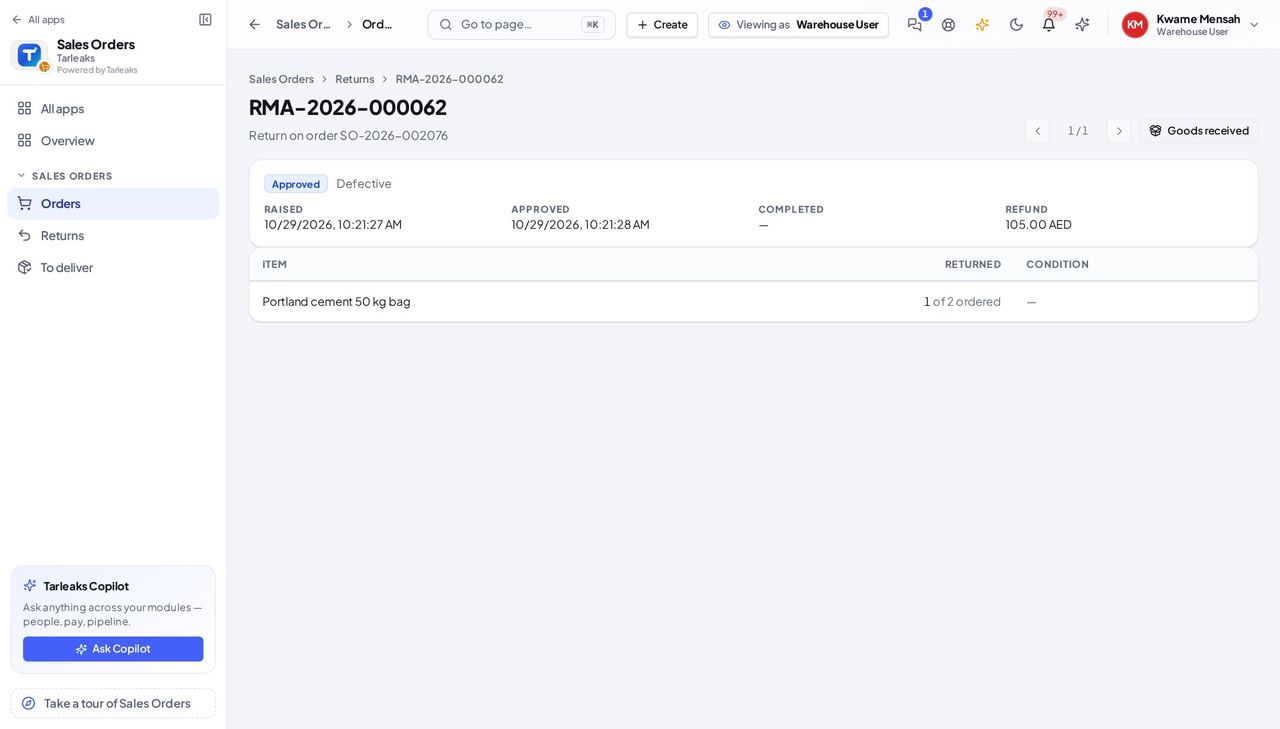
Screenshot: Receive a return on its own page, Warehouse User view
The status reads Approved until you press Goods received; you have no Approve or Reject.

You should see The status moves Approved → Processing; the manager then signs the refund.

Creating and confirming orders is the desk's job, not yours — the buttons are simply not there.

All orders role guides

Last updated