Orders role guides — what each role can do, step by step
Step-by-step guides for the order desk — the clerk who turns a signed quote into an order and a delivery, the warehouse that dispatches it, and the manager who decides a return. 12 steps across 3 roles, every one of them carried out in the product before it was published here.
Last updated
Nothing matches that. Try a shorter word, or pick All roles to search every guide.
Go deeper
Order Clerk
Turn a sale into an order the warehouse can ship, without typing a single id.
Runs the order desk: turns a signed quote — or a phone call — into an order with real customers and real products, confirms it so stock is held, creates the delivery and hands it to the warehouse. Sees the invoice arrive on its own once the goods are delivered.
What you will be able to do
- Create an order by picking the customer and the products
- Confirm it so the stock is held
- Create the delivery and follow it to the door
- Watch the invoice appear on its own
What this role can and cannot do
| Can | Cannot |
|---|---|
|
|
6 steps, each one carried out in the product on .
Open the order list #
Where Sales Orders
- Click Sales Orders in the launcher.
- Read the four tiles: Open orders, Overdue, Due this week and My open orders. Click one — Overdue, say — and the list shows exactly the orders it counted.
- Click the tile again to clear the filter.
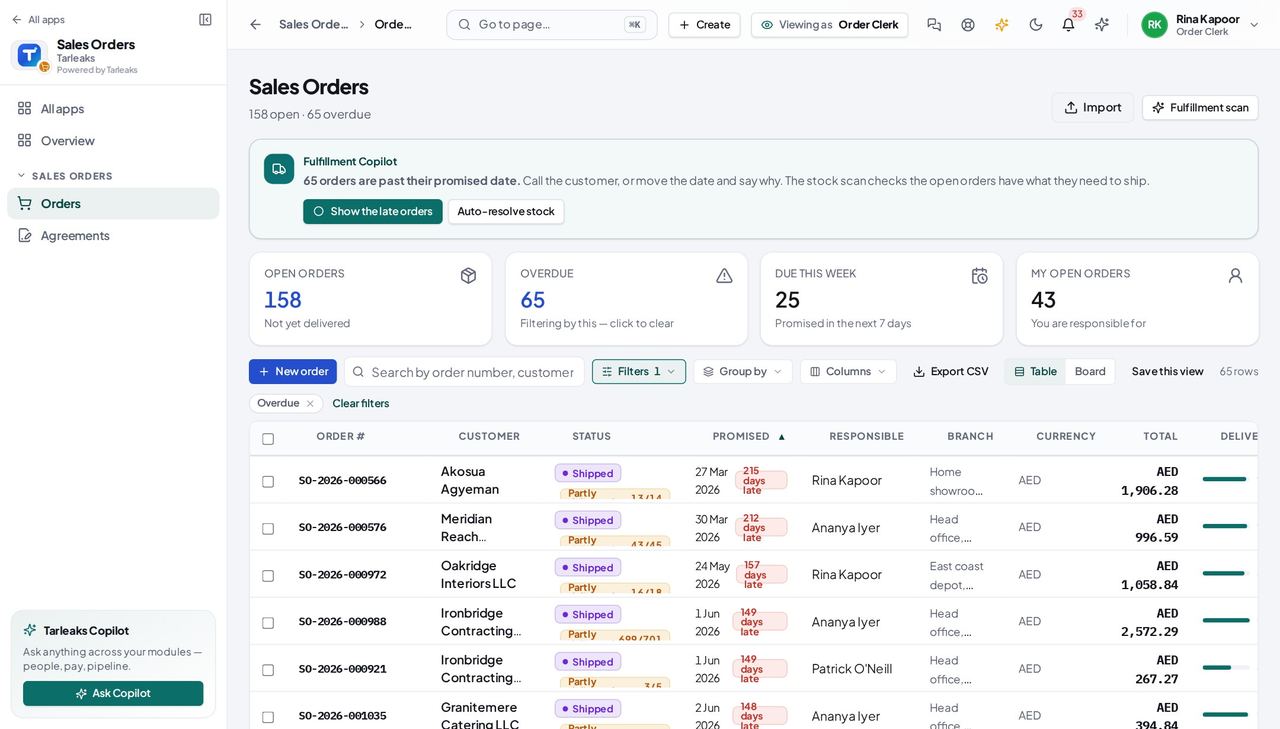
You should see Every order, whoever created it. The filter stays in the address bar, so a refresh keeps it on.
Worth knowing Copy the address bar to send a colleague exactly this view.
Start a new order by picking names #
Where Sales Orders » New Order
- Open your company's address in the browser — it looks like yourcompany.tarleaks.com.
- Type the e-mail address your administrator set up for you, then your password.
- You land on the app launcher: a grid of the apps your company uses.
- Click the Sales Orders tile.
- Press New Order (top right).
- Customer: type, pick. Product: type, pick. Add Line. Create.
| Field | What to put in it |
|---|---|
| Customer | the customer's name or TRN — never an id |
| Currency | filled from the customer; change it only for a foreign-currency deal |
| Product | the catalogue name |
| Qty | how many, in the product's unit |
| Unit price | filled by the resolver; type over it to price by hand |
| Tax | one of the company's sales taxes |
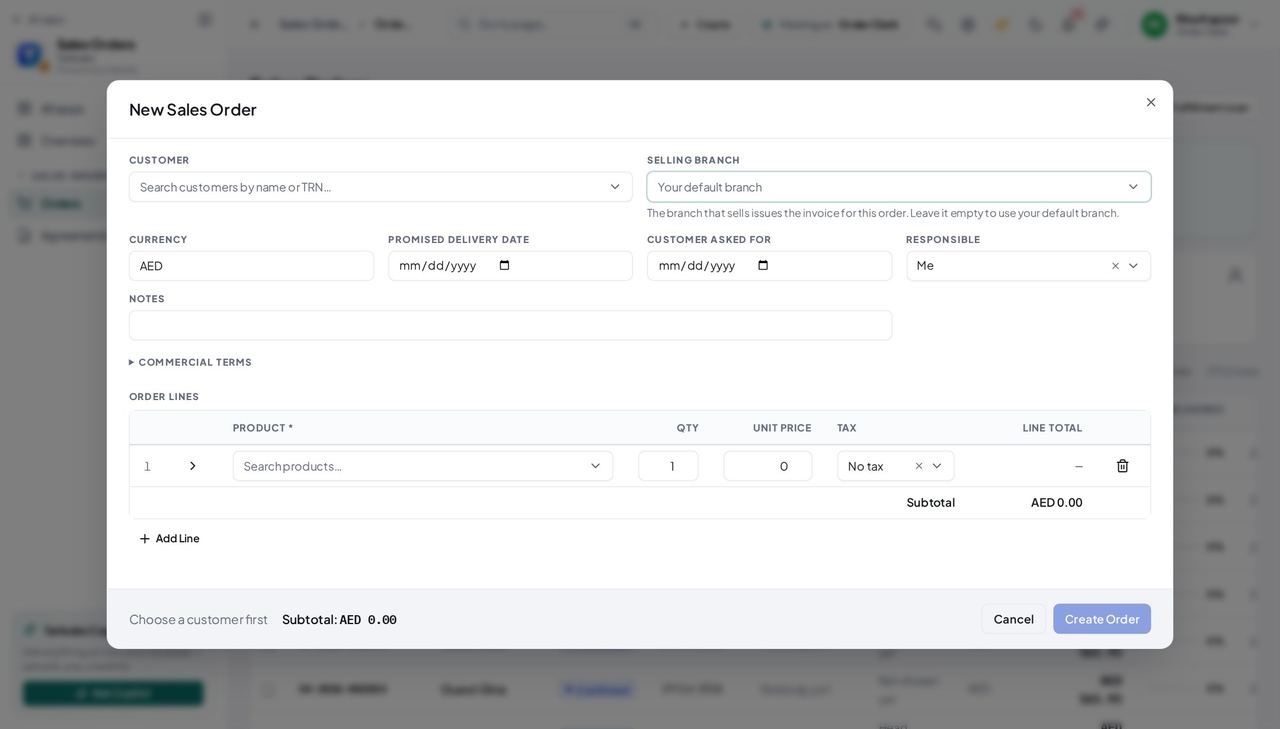
You should see The line table shows the product's name and the resolved price. No id was typed anywhere.
Watch out A customer who is not in the list is created from the picker itself — you never leave the form.
Worth knowing Type a price of your own and the badge flips to Manual — the order keeps your price and remembers it was yours.
Only a product from your catalogue goes on an order #
Where Sales Orders » New Order » Product
- Press New order, then click Product on the first line.
- Type the first letters and pick the product from the list. A product that was archived or removed is not offered.
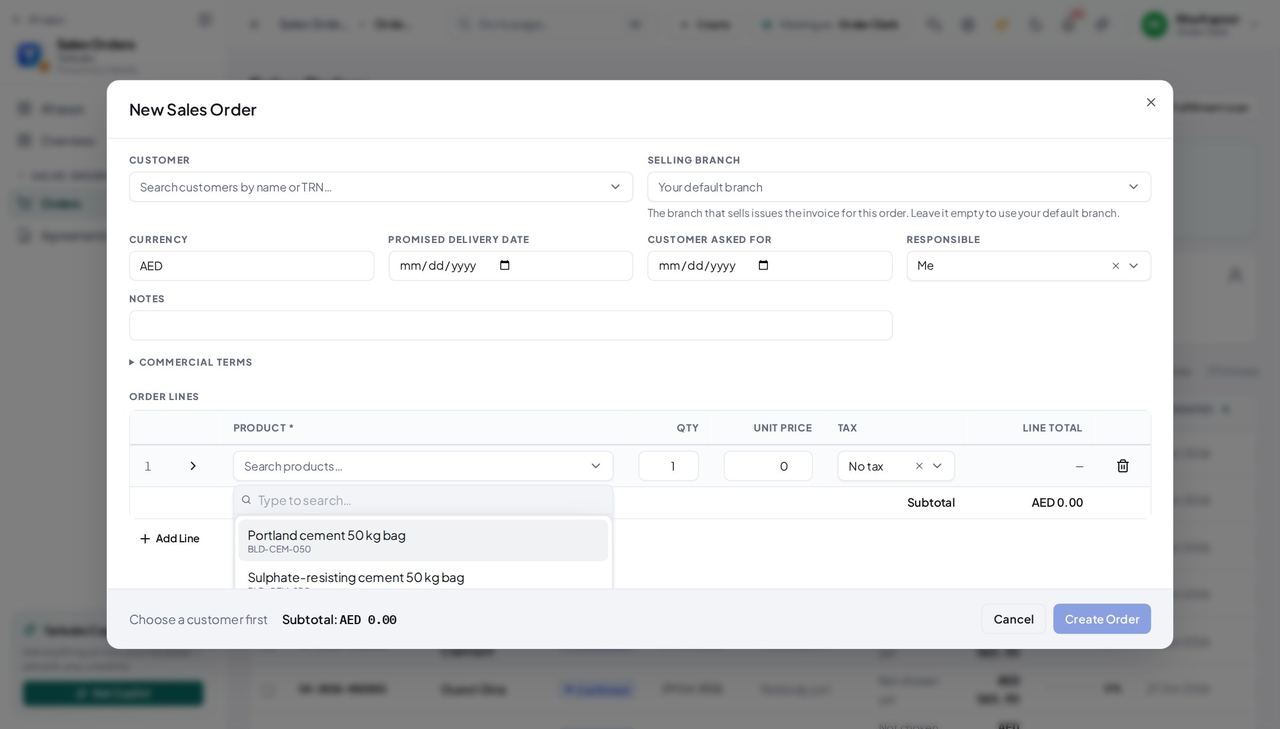
You should see An order line that names anything else is refused with a sentence that names the line: "Line 1: that product is not in your catalogue … Pick a product from the list." Nothing is saved.
Worth knowing The list comes from Products & Online Store → Products; when it is empty, the box says where to add them.
See which orders are at risk #
Where Sales Orders » Fulfillment scan
- Press Fulfillment scan.
- Read the list: late, stuck, or short of stock.
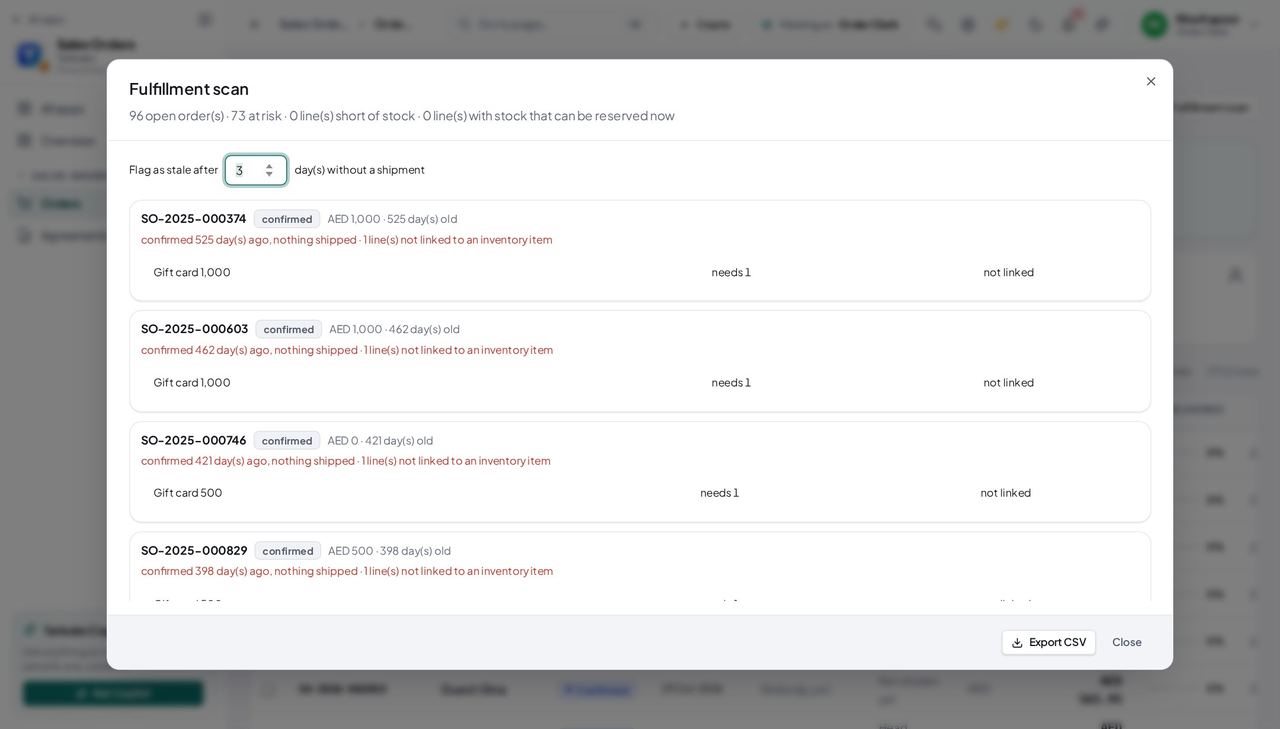
You should see The same list the copilot reads when you ask what is at risk.
Confirm an order #
Where Sales Orders » the order » Confirm
- Open a pending order from the list.
- Read Credit control first. When it says Over the limit or On credit hold, Confirm puts the order on hold instead, and finance releases it once the limit is raised in Accounting.
- Press Confirm. With the inventory module, the stock is reserved the same second; the timeline's Stock reserved step fills in.
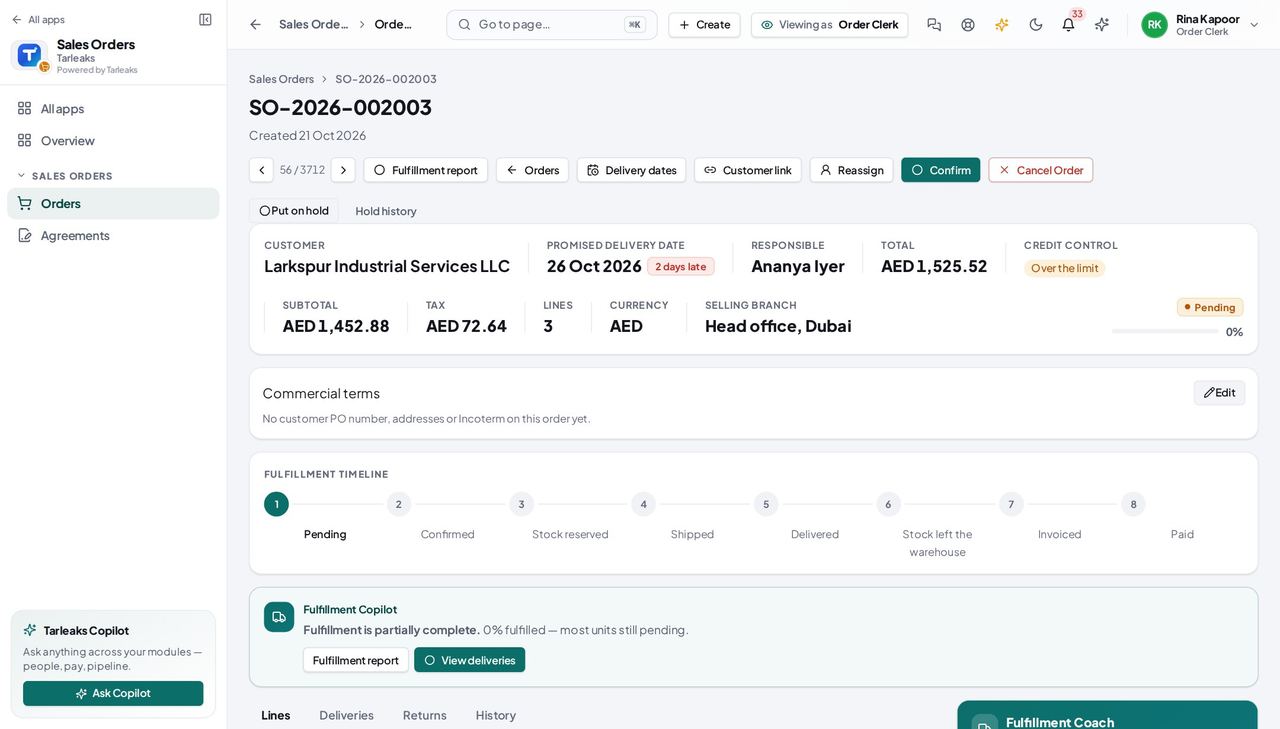
You should see The status reads Confirmed and Confirm is gone.
A return is decided by the manager #
Where Sales Orders » the order » Returns » the return
- Open an order, then its Returns tab.
- Click a return number: it opens on its own page. Approve and Reject are not offered to you.
- When the goods come back, press Goods received.
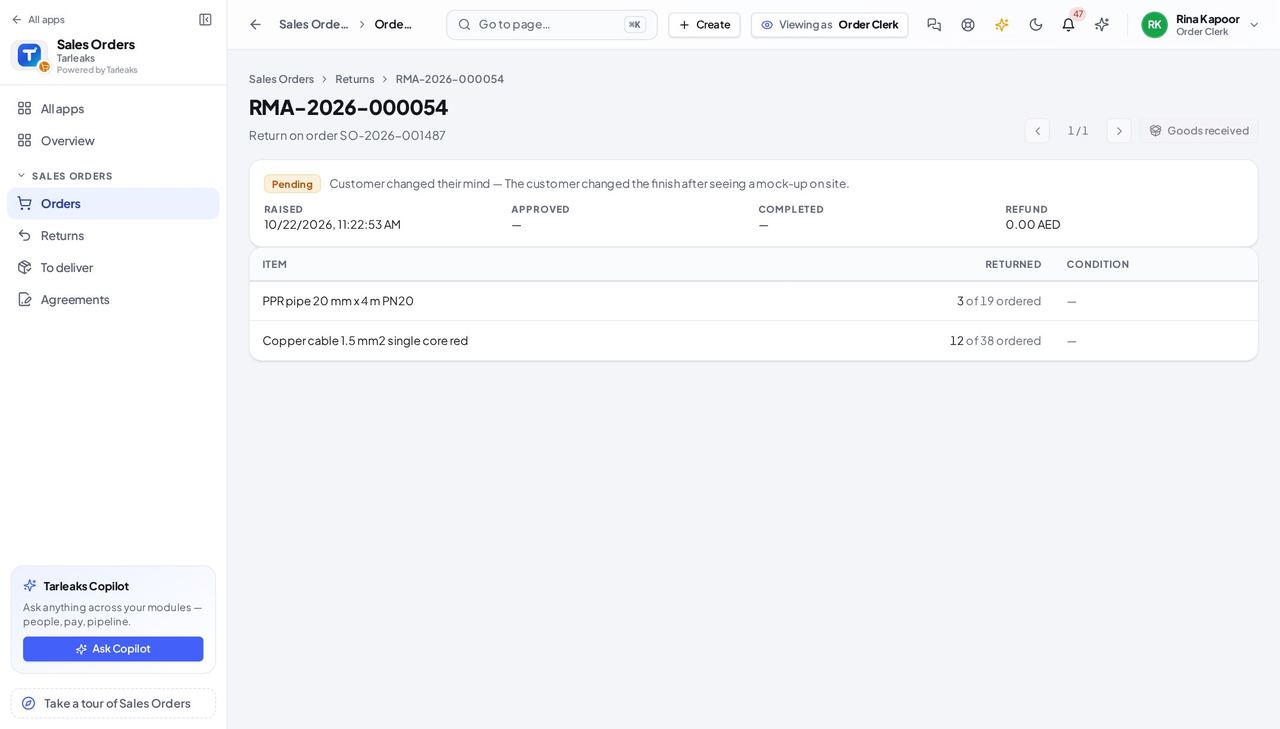
You should see You raise returns and receive the goods; the manager decides them.
Use cases — the work, step by step
Each one is a sequence somebody actually performs, with the screen behind every step. Every screen here was opened in the product as this role before it was published.
dailyA signed quote arrives, and the customer wants it Thursday #
The order already exists when the quote was accepted in CRM; your job is to check it, confirm it so the stock is held, and give the warehouse a delivery to ship.
Open Sales Orders. The order from the accepted quote is at the top, Pending, with the quote's lines and prices.
Sales Orders — verified: the page says “Overdue”; 25 row(s) listed Open it. Check the customer, the lines and the availability badges — a red badge means the warehouse cannot ship that line yet.
Sales Orders » the order » Confirm — verified: the control is offered; the page says “Credit control”; the page says “Fulfillment Timeline” Press Confirm. The stock is reserved and the timeline's Stock reserved step fills in.
Sales Orders » the order » Confirm — verified: the control is offered; the page says “Credit control”; the page says “Fulfillment Timeline” On the Deliveries tab press New Delivery, keep the full quantities, Create. The warehouse now sees it.
Sales Orders » the order » Confirm — verified: the control is offered; the page says “Credit control”; the page says “Fulfillment Timeline”
dailyA customer rings with an order that has no quote #
The drawer picks names, not ids, and the resolver prices the lines — so a phone order takes a minute and comes out priced like a quoted one.
Press New Order and pick the customer (or create them from the picker).
Sales Orders » New Order — verified: the page says “Customer”; the control is offered; the control is offered Pick each product; check the price badge; add the line.
Sales Orders » New Order — verified: the page says “Customer”; the control is offered; the control is offered Create, then Confirm as in the first case.
Sales Orders » the order » Confirm — verified: the control is offered; the page says “Credit control”; the page says “Fulfillment Timeline”
You do not approve returns and you do not sign refunds; the manager does. Everything else between the signed quote and the delivered box is yours.
Warehouse User
See what was confirmed, ship it, and say so.
Ships what the desk confirmed: opens a delivery, dispatches it, marks it delivered, and receives goods that come back. Reads orders; never creates or confirms one.
What you will be able to do
- Read the confirmed orders and their deliveries
- Dispatch a delivery and mark it delivered
- Receive goods that come back
What this role can and cannot do
| Can | Cannot |
|---|---|
|
|
2 steps, each one carried out in the product on .
Find the returns to receive #
Where Sales Orders » Returns
- Open Sales Orders » Returns.
- Press Approved, to receive.
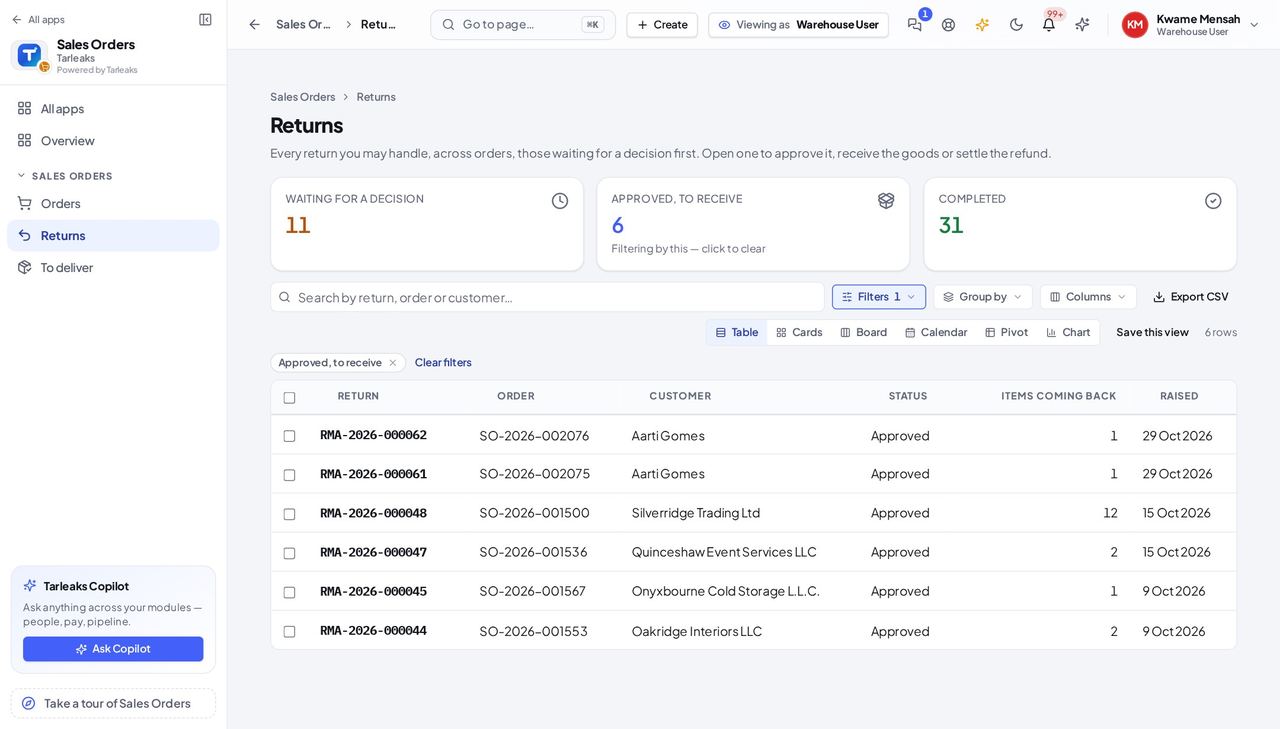
You should see Every return the manager approved, from every order — you do not need to open the order, even one another salesperson owns.
Receive a return on its own page #
Where Sales Orders » Returns » a return
- Click a return number in the list.
- Check the items by name against the order number.
- Press Goods received when they are in.
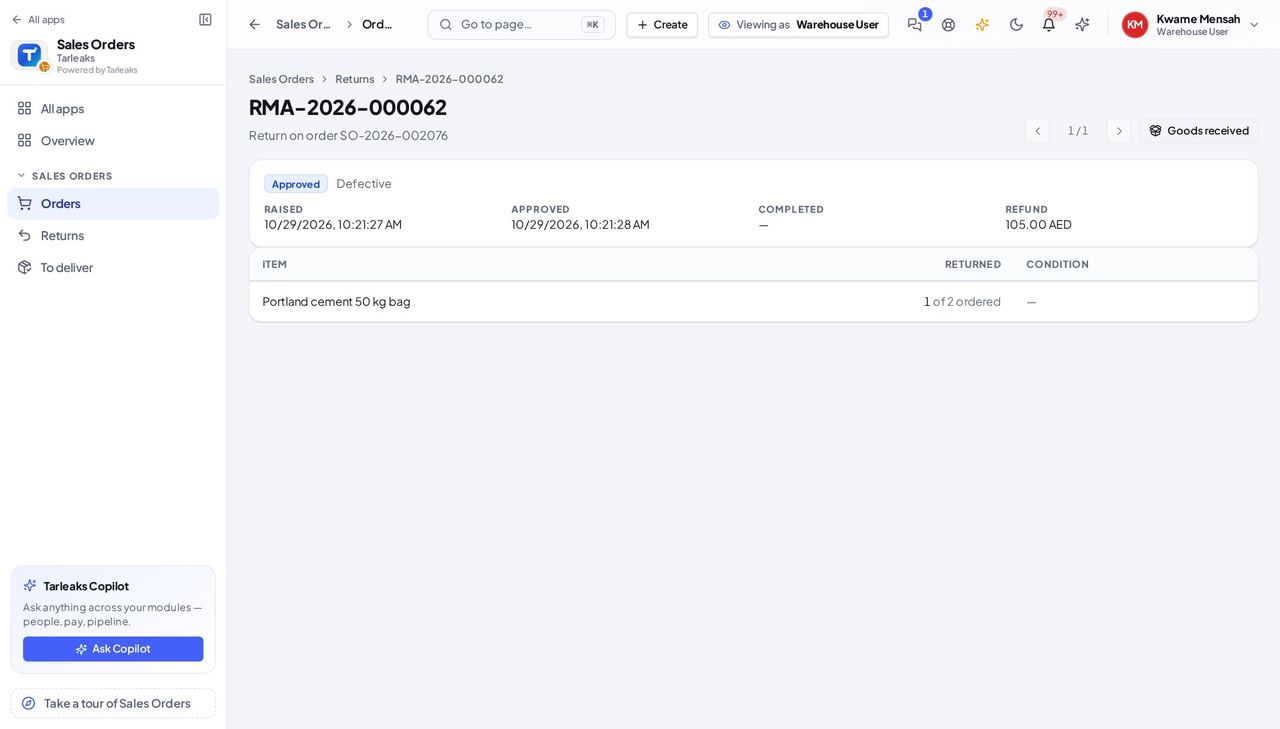
You should see The status moves Approved → Processing; the manager then signs the refund.
Creating and confirming orders is the desk's job, not yours — the buttons are simply not there.
Sales Manager
Decide the calls the desk cannot make.
Decides what the desk cannot: approves or refuses a return, signs off the refund, approves a price below the floor, confirms an order on the clerk's behalf. Reads every order, and raises one when the desk is busy.
What you will be able to do
- Read every order, every customer
- Approve or refuse a return, and sign the refund
- Confirm an order on the desk's behalf, or raise one yourself
What this role can and cannot do
| Can | Cannot |
|---|---|
|
|
4 steps, each one carried out in the product on .
Read the whole desk #
Where Sales Orders
- Open Sales Orders.
- Click the Total column's heading to put the largest orders first.
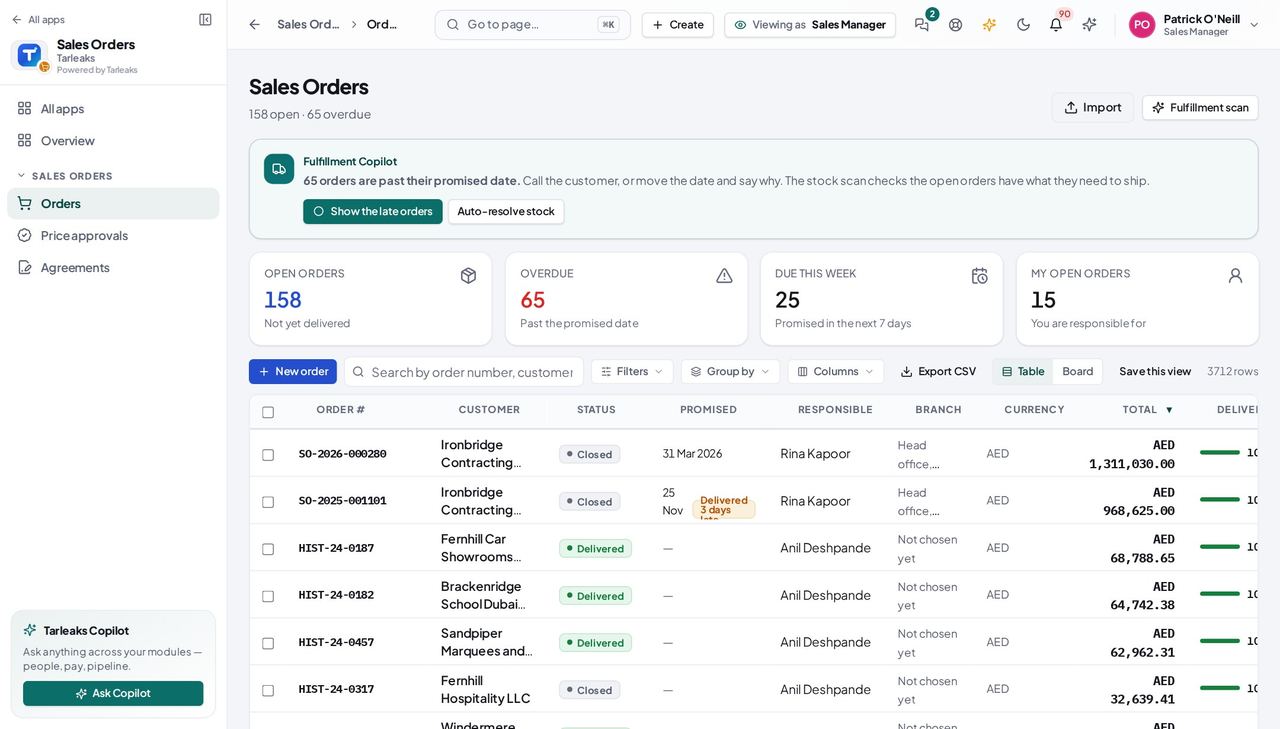
You should see Every order and every customer, with the tiles that filter them.
Decide a return on its own page #
Where Sales Orders » Returns » the return
- Open your company's address in the browser — it looks like yourcompany.tarleaks.com.
- Type the e-mail address your administrator set up for you, then your password.
- You land on the app launcher: a grid of the apps your company uses.
- Click the Sales Orders tile.
- Open the order, the Returns tab, the return number.
- Approve or Reject; after the warehouse receives the goods, enter the refund and Complete & refund.
| Field | What to put in it |
|---|---|
| Refund amount | what goes back to the customer |
| Refund method | bank transfer, credit note… |
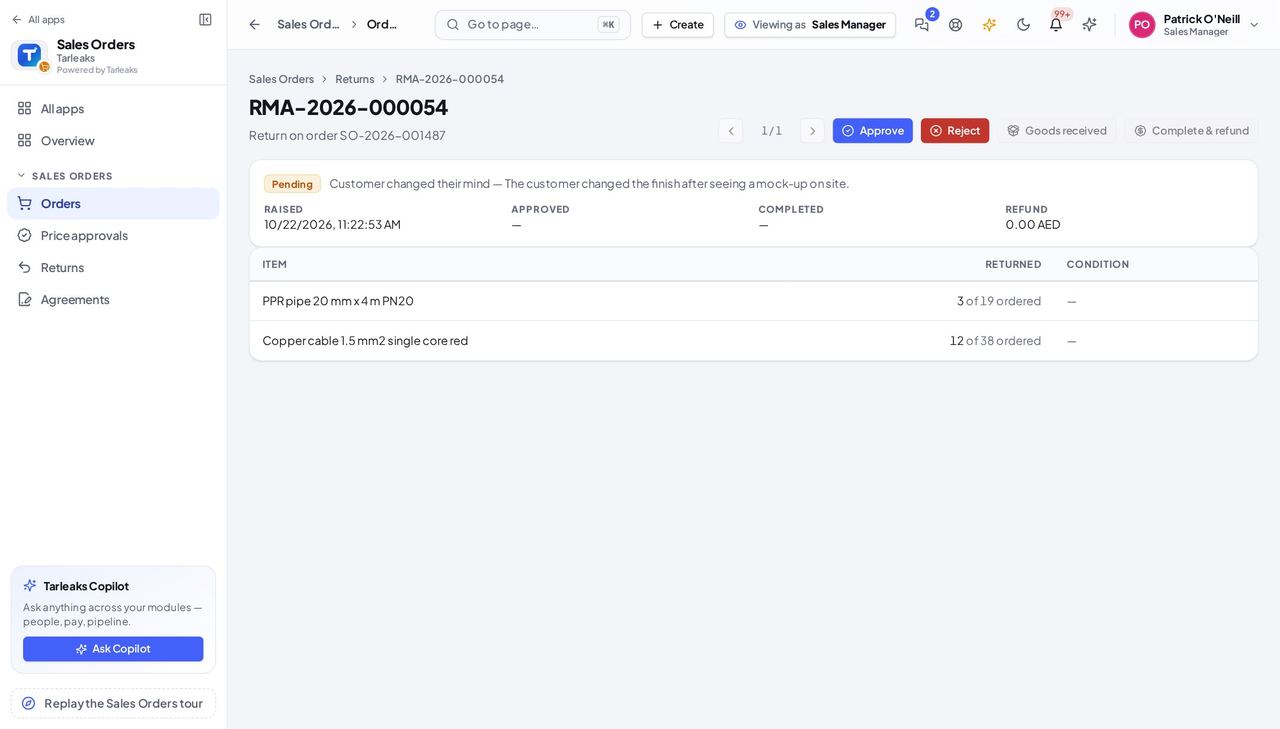
You should see The status chip moves Pending → Approved → Processing → Completed. A completed return drafts the credit note in accounting by itself.
Watch out Completing the return drafts a credit note against the order's invoice; the accountant books it.
Raise an order yourself #
Where Sales Orders » New order
- Press New order (top right of the list).
- Fill it in exactly as the desk does: customer, products, Create Order.
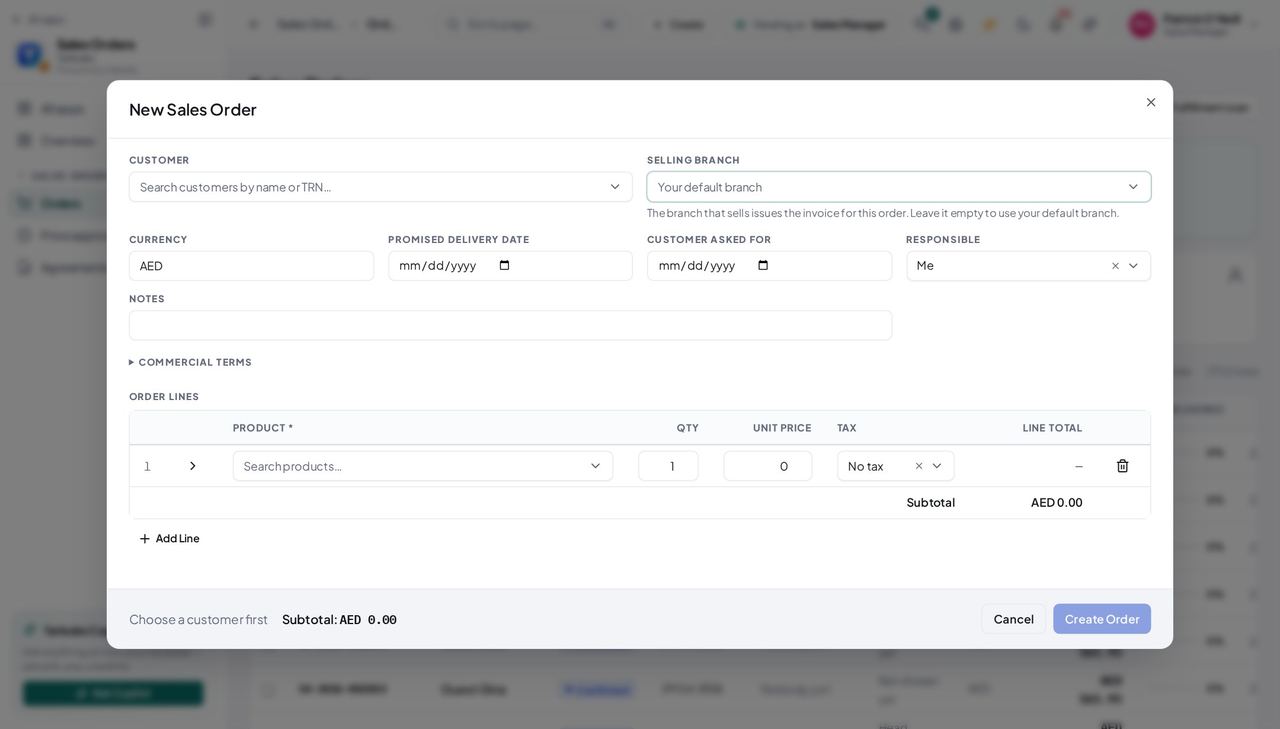
You should see The same form the desk uses, with you as Responsible.
Worth knowing Change Responsible to the clerk who will look after the order.
See every return waiting for your decision #
Where Sales Orders » Returns
- Open Sales Orders » Returns.
- Press Waiting for a decision.
- Click a return to approve or refuse it.
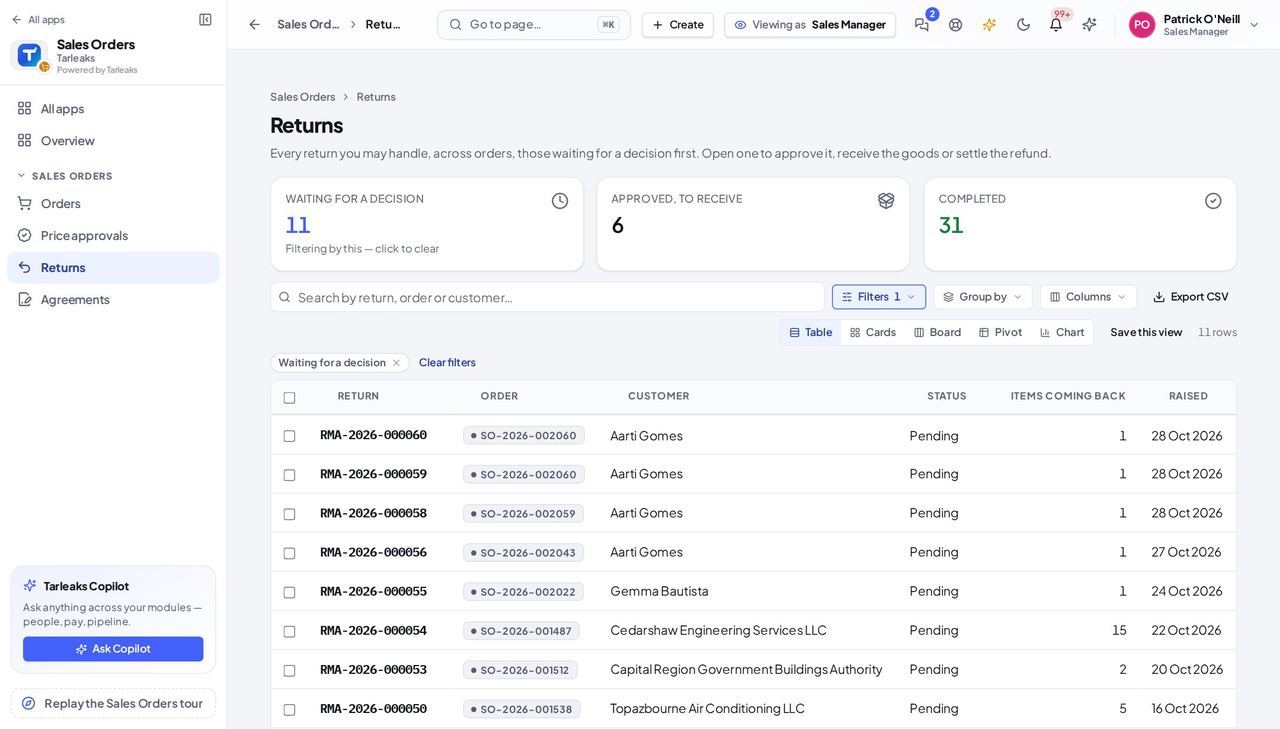
You should see One list of the returns still to approve or refuse, from every order, with the customer, the reason and how many items are coming back.
Use cases — the work, step by step
Each one is a sequence somebody actually performs, with the screen behind every step. Every screen here was opened in the product as this role before it was published.
weeklyA customer wants to send goods back #
The desk raises the return; you decide it; the warehouse receives it; you sign the refund — four people, one page.
Open the order, its Returns tab, the return number.
Sales Orders » Returns » the return — verified: the control is offered; the control is offered; the page says “Complete & refund”; no “changed_mind” anywhere on the page Read the lines and their condition; Approve or Reject.
Sales Orders » Returns » the return — verified: the control is offered; the control is offered; the page says “Complete & refund”; no “changed_mind” anywhere on the page Once the warehouse has pressed Goods received, enter the refund amount and method and press Complete & refund. Accounting drafts the credit note.
Sales Orders » Returns » the return — verified: the control is offered; the control is offered; the page says “Complete & refund”; no “changed_mind” anywhere on the page
The desk does most of the typing; you make the decisions it cannot — returns, refunds and prices below the floor.