Company administrator — Settings guide
Find every company setting from one page, and know who may do what before you change anything.
Finds every company setting from one page, reads who may do what, the security log and what went wrong, and holds the switches that change how the whole company works.
What you will be able to do
- Find any setting from one page, grouped the way the menu is
- Keep a second way in to your account when your phone is not with you
- See which roles hold a permission, and read the security log
- Read what went wrong for people in the company, and what is new in your apps
- Find the switches for error recording, the social inbox, who sees which orders, a second person on purchase orders and returns, face matching and the phone app
- See whether the company's e-mail is live or paused for testing, and why an e-mail was held back
What this role can and cannot do
| Can | Cannot |
|---|---|
|
|
26 steps, each one carried out in the product on .
Every setting, from one page #
Where Settings
- Open your company's address (yourcompany.tarleaks.com) and sign in.
- In the menu, choose Settings.
| Field | What to put in it |
|---|---|
| Security & audit | Network access, support access, sign-in apps, the audit log, the security log and the errors. |
| My preferences | Your own profile, your notification choices and your home screen. |
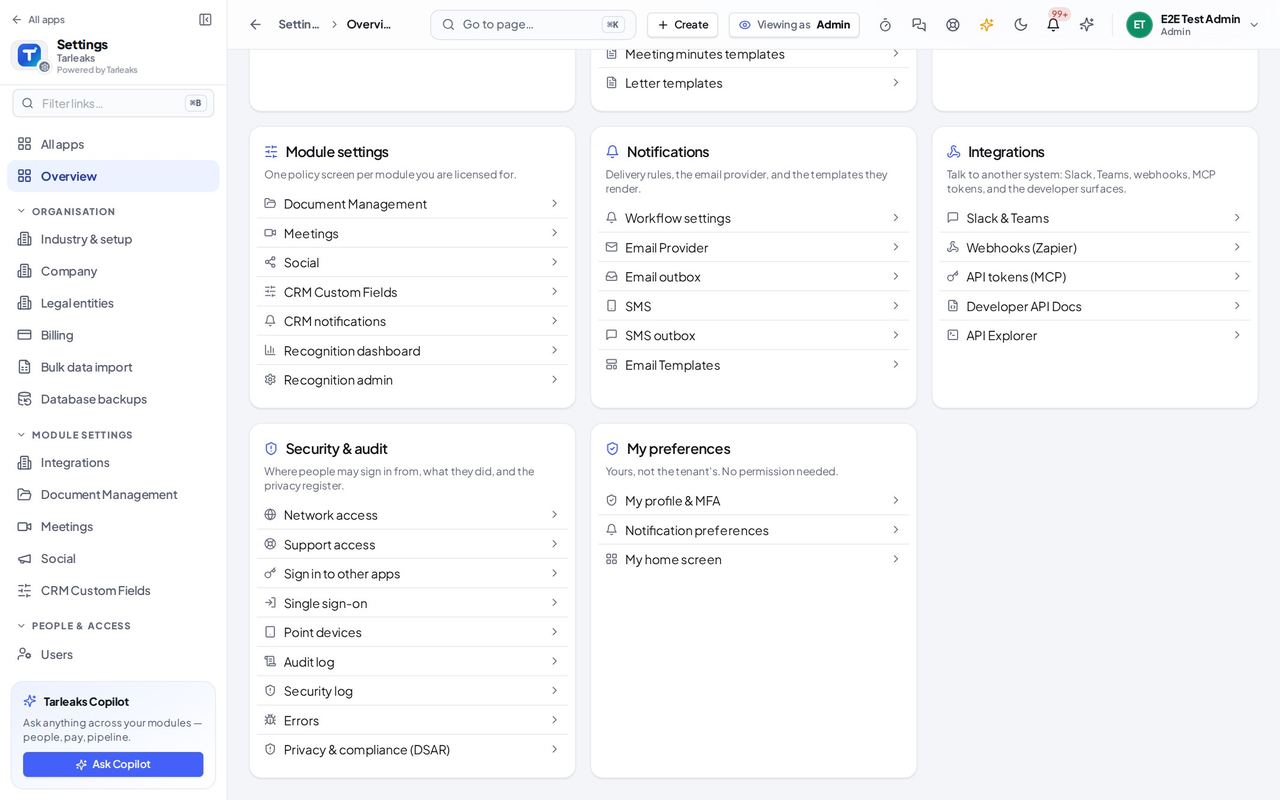
You should see One card per area, in the same order as the Settings menu: Organisation, People & access, Apps & features and so on down to My preferences. A row shows only when you may open it, so a card never lists a page that would tell you "no access".
Watch out If a page you expect is missing, your role does not include it. Settings » Roles shows which roles do.
Worth knowing The Security & audit card holds the security log and the errors; the Apps & features card holds What's new.
Your other ways in when the phone is not with you #
Where Settings » My profile & MFA
- Open your company's address (yourcompany.tarleaks.com) and sign in.
- Choose Settings, then My profile & MFA.
- Scroll down to Two-step sign-in (authenticator app).
| Field | What to put in it |
|---|---|
| Set up an authenticator app | Shown until you have one. You scan a code and type the 6-digit number it shows. |
| Make new backup codes | Asks for a current authenticator code first. The old codes stop working. |
| Approve sign-ins on my phone | On: a web sign-in waits until you tap Approve in the app. |
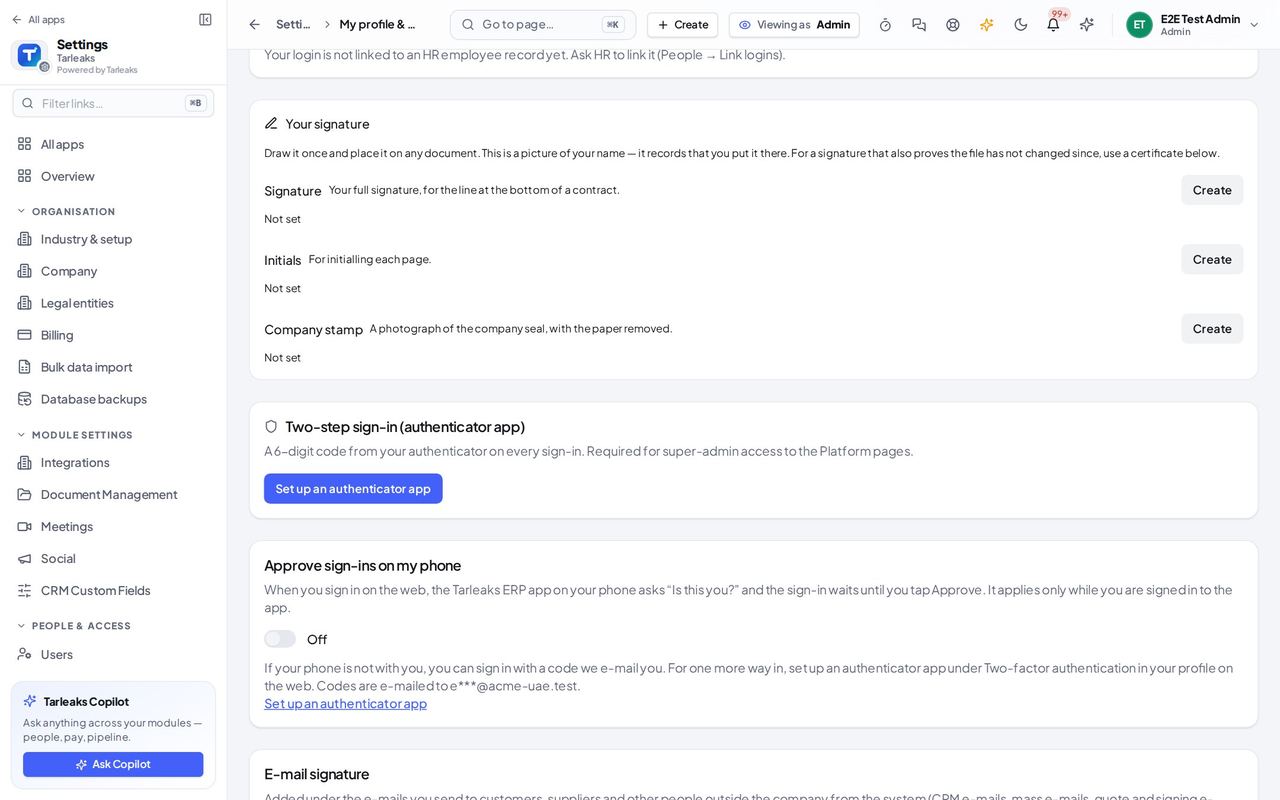
You should see The authenticator card: whether it is set up, when it was last used and how many backup codes are left. The phone-approval card: on or off, and in words which other ways in you have if the phone is not with you: a code from your authenticator, a backup code or a code by e-mail.
Watch out While the phone approval waits on the sign-in page, you can sign in another way: a code from your authenticator, a backup code, or a code by e-mail.
Worth knowing Set up the authenticator app before you turn phone approval on. Then a lost phone never locks you out.
Your own usage statistics: your choice, not the company's #
Where Settings » My profile & MFA » Usage statistics
- Open your company's address (yourcompany.tarleaks.com) and sign in.
- Choose Settings, then My profile & MFA.
- Scroll to Usage statistics.
| Field | What to put in it |
|---|---|
| Share usage statistics | Turning it on shows the whole notice first; it starts only when you agree. |
| Download my usage statistics | A file with everything recorded about you. |
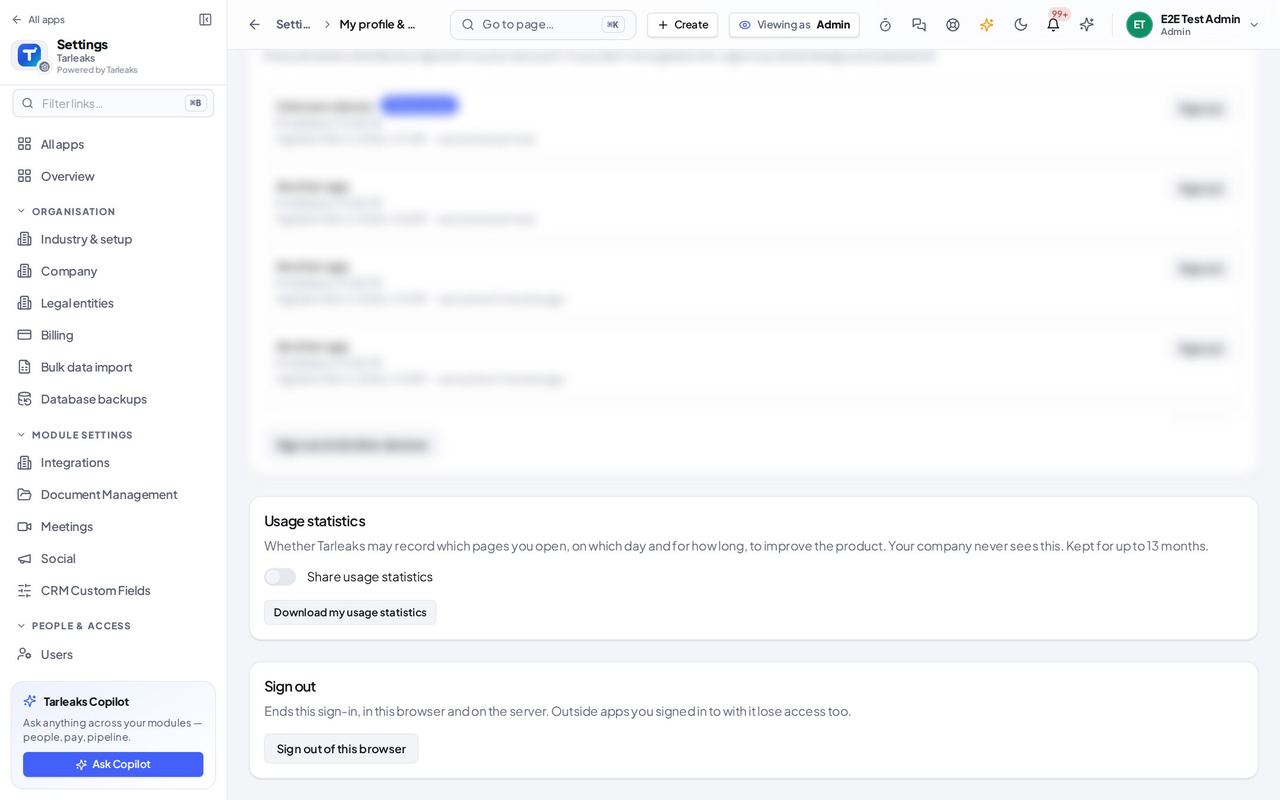
You should see Whether Tarleaks may record which pages you open, on which day and for how long. Your company never sees it. You can download what was recorded about you, or stop and have it deleted.
Watch out Turning it off can also delete what was already recorded, within 7 days. The company never sees your choice.
Which roles hold a permission #
Where Settings » Roles
- Open your company's address (yourcompany.tarleaks.com) and sign in.
- Choose Settings, then Roles.
- Or, in What's new, press Open role on an entry.
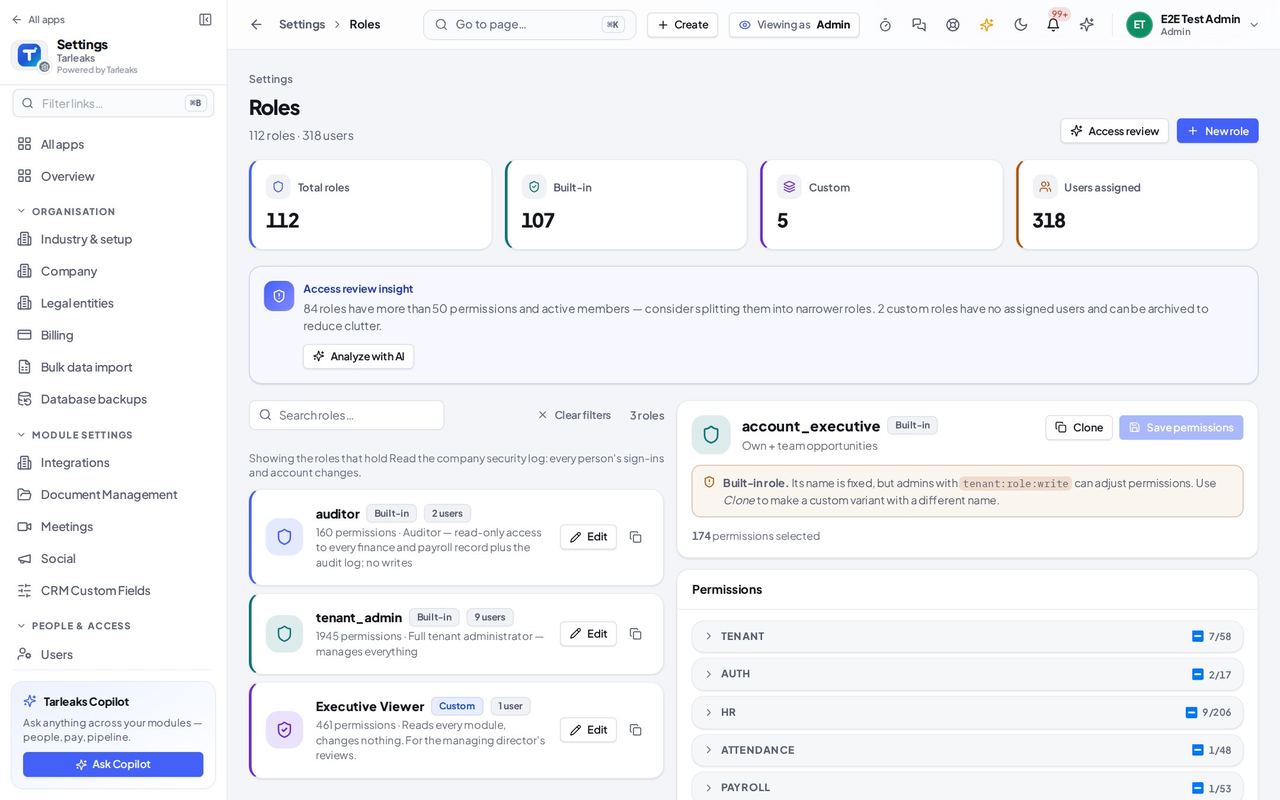
You should see Only the roles that hold the permission, with the permission named in words above the list. Click a role to see everything it allows and who has it.
Watch out Access review and Analyze with AI only start an analysis; they change no role.
Worth knowing Clear the search to see every role again. A built-in role keeps its name; Clone it to make your own version.
The security log #
Where Settings » Security & audit » Security log
- Open your company's address (yourcompany.tarleaks.com) and sign in.
- Choose Settings, then Security log.
| Field | What to put in it |
|---|---|
| What happened | In words, for example Signed in, or Wrong authenticator or backup code. |
| Done by / About | Who did it, and whose account it was about. |
| Address | The internet address the request came from. |
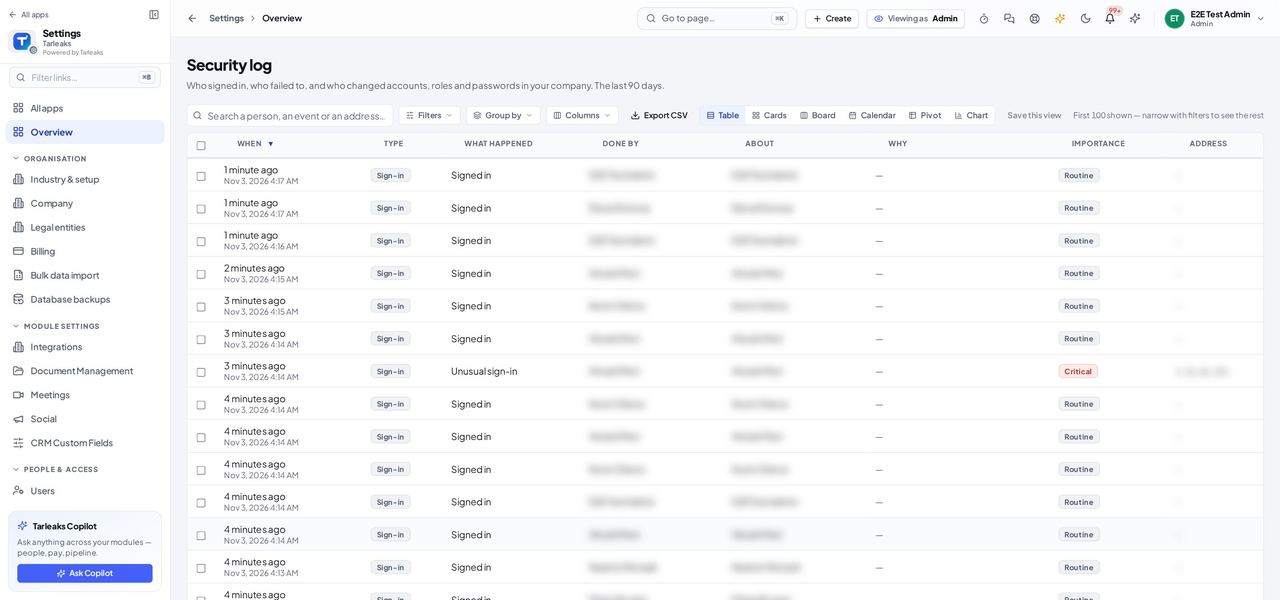
You should see Every sign-in, every failed sign-in and every change to an account, a role or a password in the last 90 days: when, what happened, who did it, who it was about, why, and how important it is.
Watch out The list covers the last 90 days. Load more brings older rows when there are more.
Worth knowing Search a person's name or an event, or sort by Importance to see the serious ones first.
Every API token in the company #
Where Settings » Integrations » API tokens (MCP)
- Open your company's address (yourcompany.tarleaks.com) and sign in.
- Choose Settings, then API tokens (MCP).
| Field | What to put in it |
|---|---|
| Scope | Which tools the token may use. * means every tool. |
| Last used | When an outside app last used it; never means it was never used. |
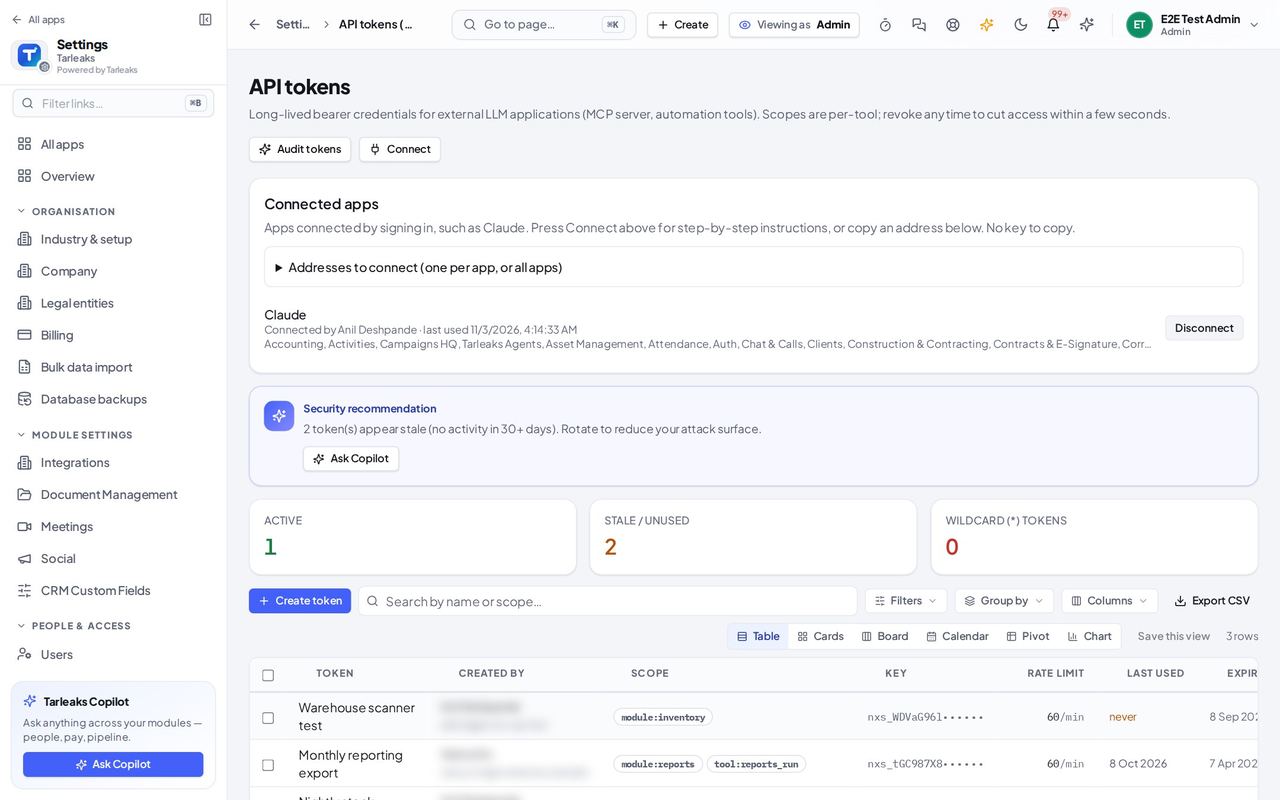
You should see Every token in the company: its name, who made it, what it may reach, its limit, when it was last used and when it stops working. Revoke cuts it off within seconds.
Watch out A token is shown in full only once, when it is made. Revoke the stale ones.
Worth knowing An HR manager in a new company sees only the tokens they made themselves.
Switch error recording on or off #
Where Settings » Features » General
- Open your company's address (yourcompany.tarleaks.com) and sign in.
- Choose Settings, then Features.
- Type Record errors in the search box.
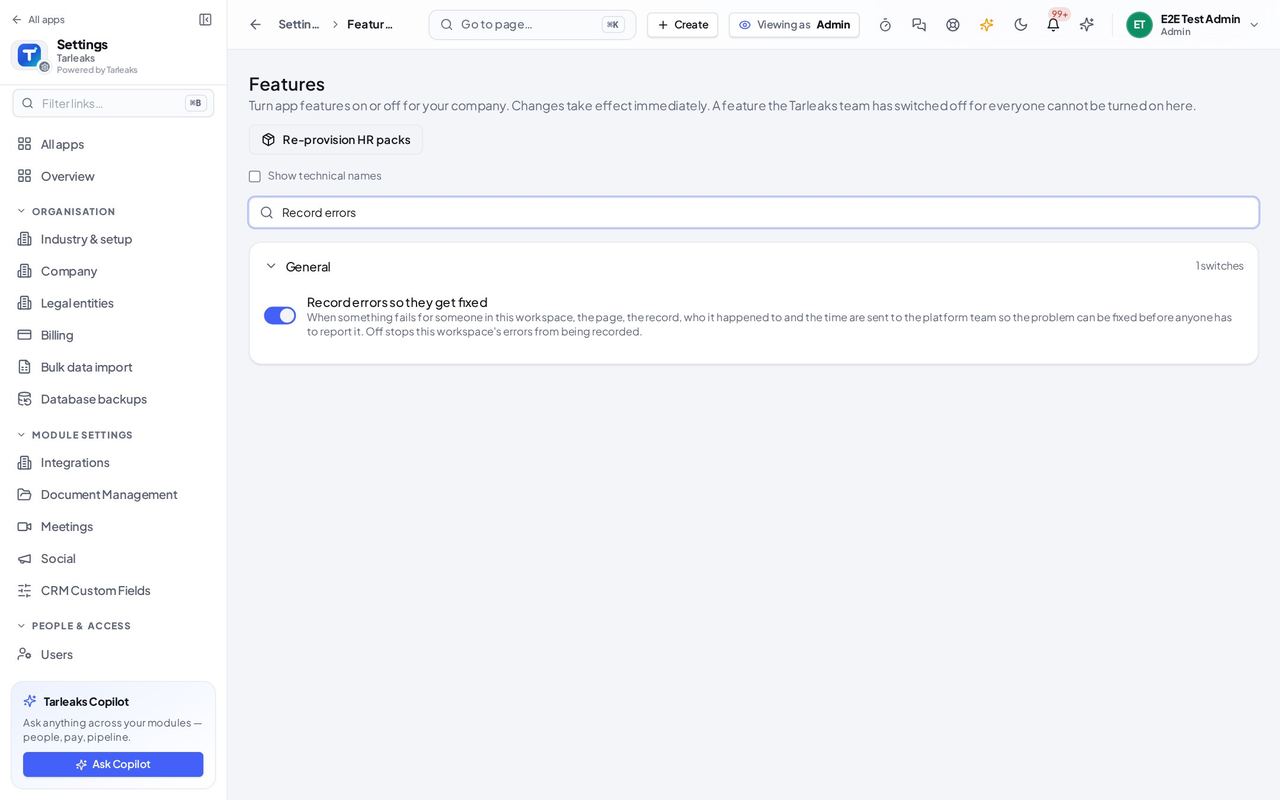
You should see The General switch Record errors so they get fixed, with what it does: when something fails for someone, the page, the record, who it happened to and the time are sent so the problem can be fixed before anyone reports it.
Watch out This page saves a switch the moment you change it, for everyone. A feature the Tarleaks team has switched off for every company is not shown at all.
Worth knowing Off stops new errors from being recorded; what was already recorded stays on the Errors page.
Close or open the social inbox #
Where Settings » Features » Social media
- Open your company's address (yourcompany.tarleaks.com) and sign in.
- Choose Settings, then Features.
- Type Unified inbox in the search box.
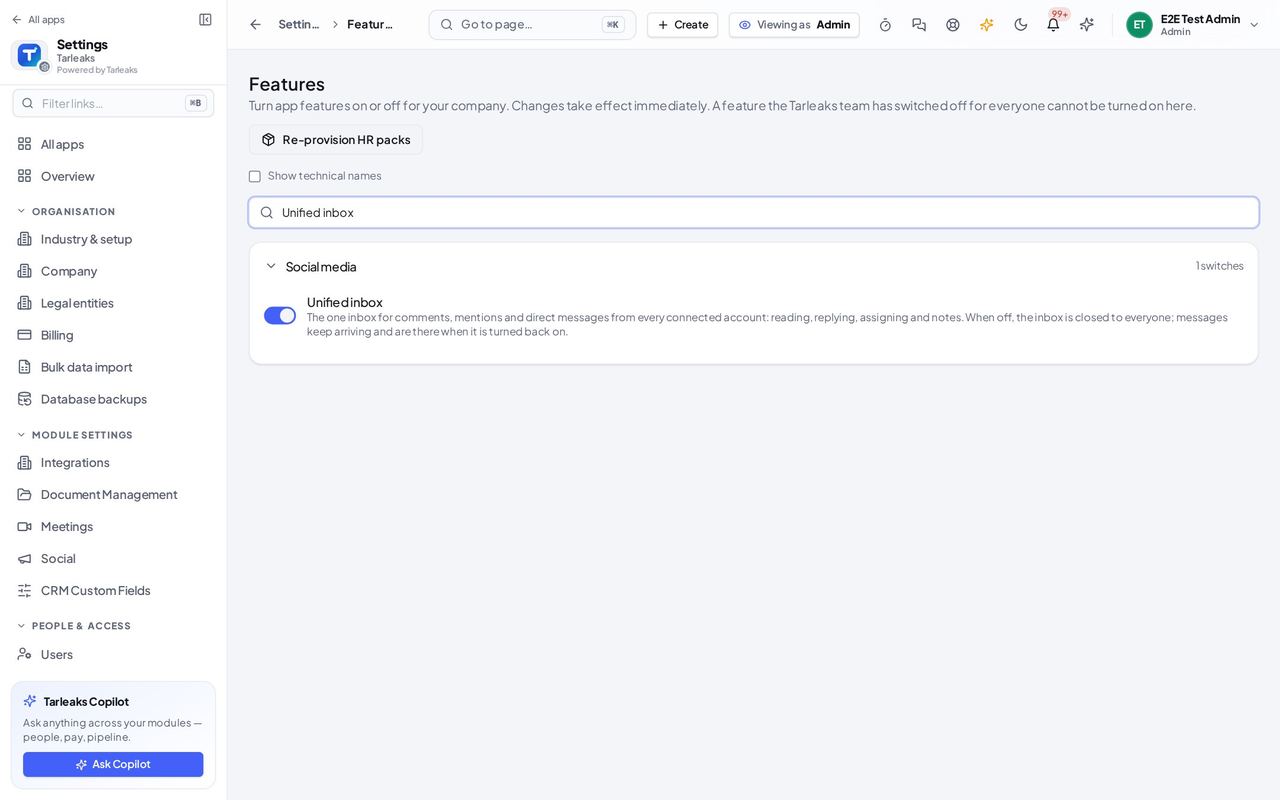
You should see The Social media switch Unified inbox. Off closes the inbox for everyone; messages keep arriving and are there when it is turned back on.
Watch out Closing the inbox stops reading and replying for everyone; new messages are still collected.
Sales reps see only their own orders #
Where Settings » Time & pay » Sales & invoicing
- Open your company's address (yourcompany.tarleaks.com) and sign in.
- Choose Settings, then Sales & invoicing.
- Find Who sees which orders.
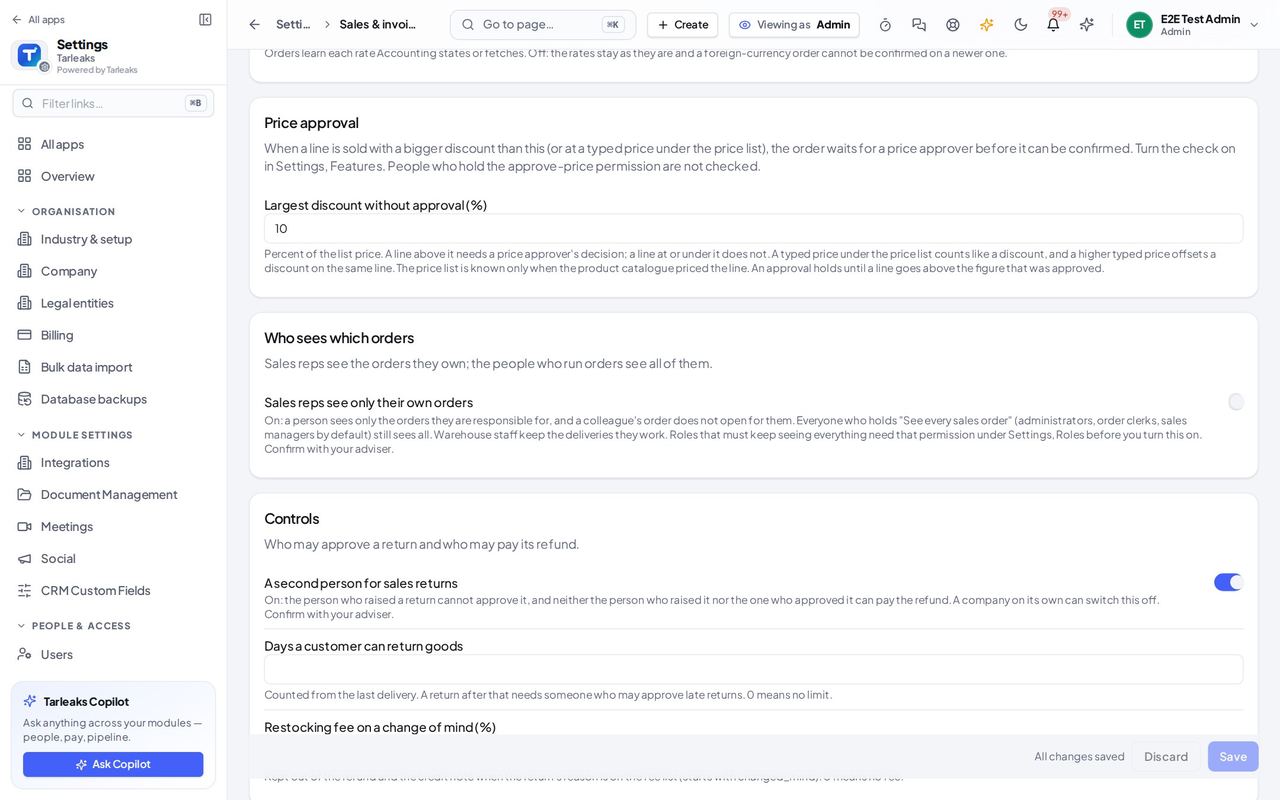
You should see One switch: Sales reps see only their own orders. On, a person sees only the orders they are responsible for; whoever holds "See every sales order" still sees all.
Watch out Warehouse staff keep the deliveries they work, whatever this says.
Worth knowing Before you turn it on, give the roles that must keep seeing every order that permission under Settings » Roles.
A second person for purchase orders and returns #
Where Settings » Sales & invoicing » Controls
- Open your company's address (yourcompany.tarleaks.com) and sign in.
- Choose Settings, then Sales & invoicing.
- Scroll to Controls under the orders, then to Controls under stock.
| Field | What to put in it |
|---|---|
| A second person for sales returns | The person who raised a return cannot approve it, and neither can pay its refund. |
| A second person for purchase orders | The person who raised a purchase order cannot approve it, even when no approval rule applies. |
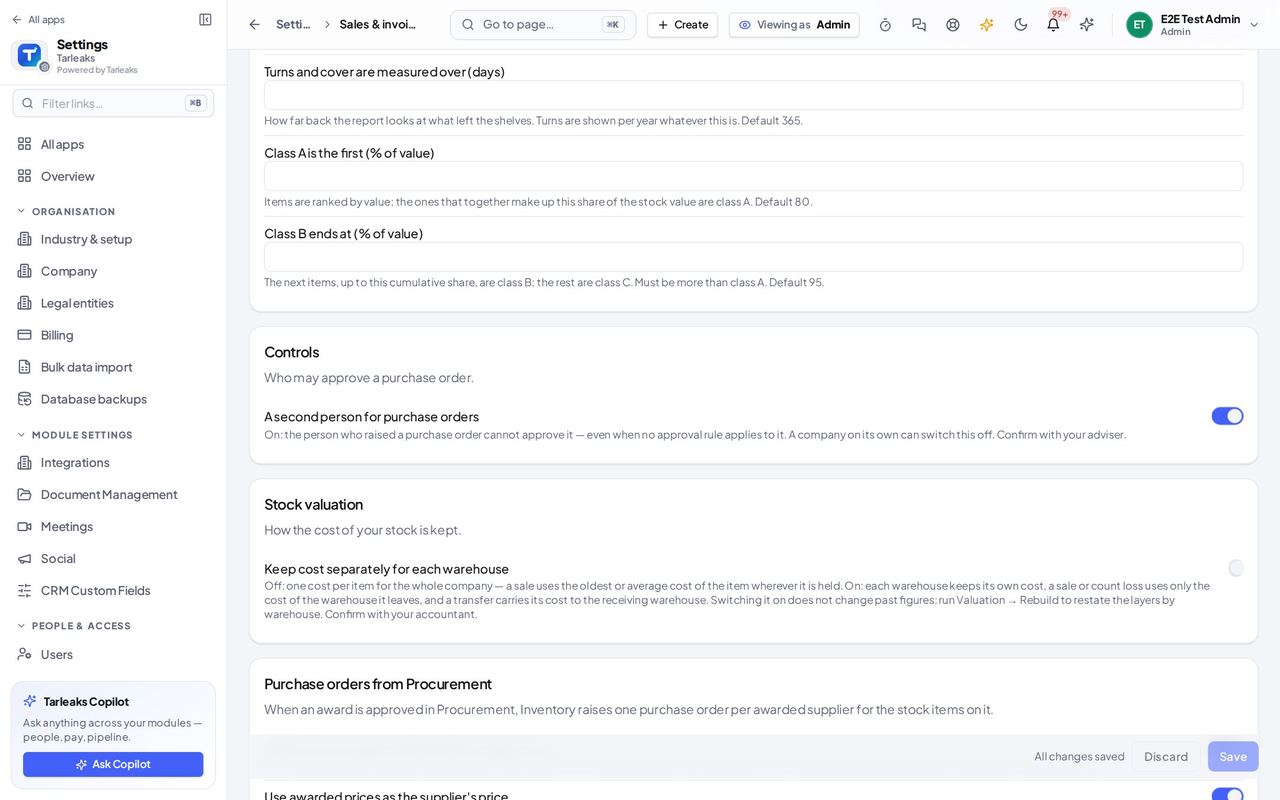
You should see A second person for sales returns: who raised a return cannot approve it, and neither of them can pay its refund. A second person for purchase orders: who raised an order cannot approve it.
Watch out New companies start with both on; a company that existed before keeps them off until it turns them on.
Worth knowing A company of one person can switch these off.
What went wrong for people in the company #
Where Settings » Security & audit » Errors
- Open your company's address (yourcompany.tarleaks.com) and sign in.
- Choose Settings, then Errors.
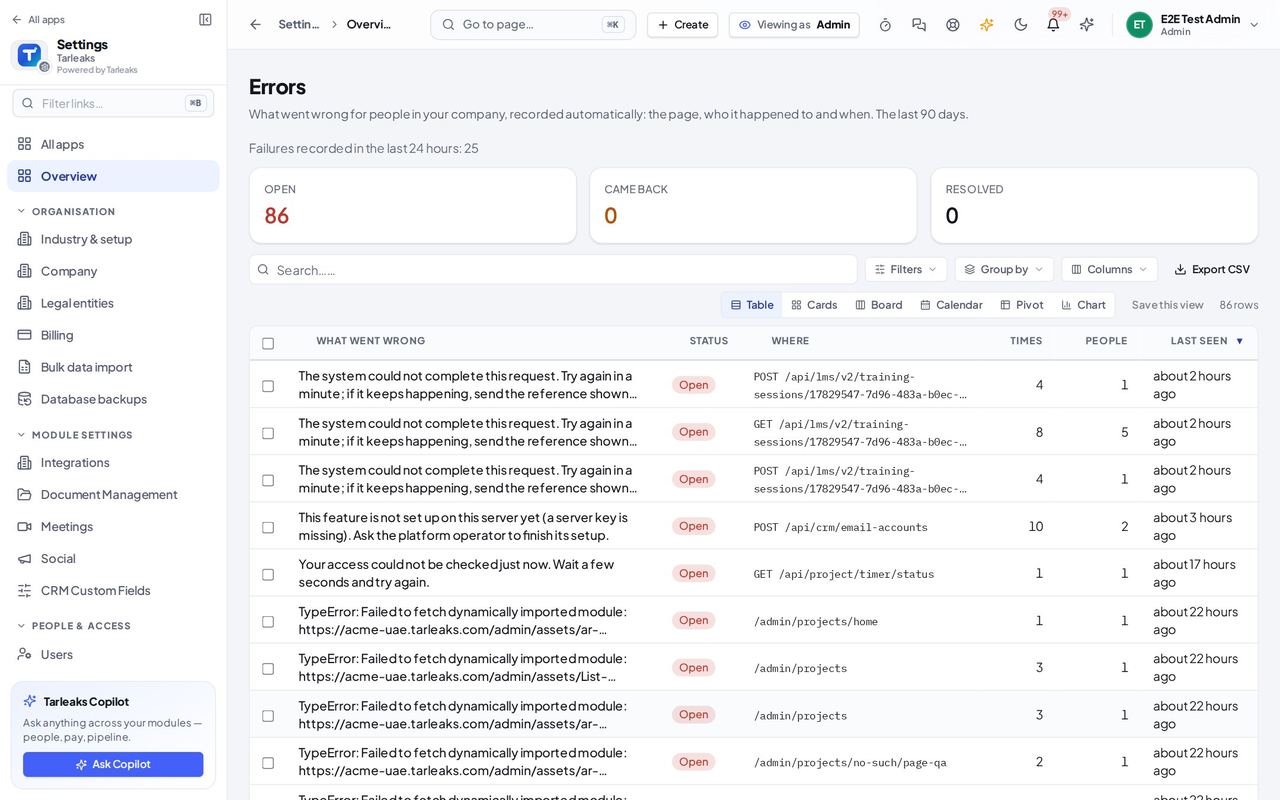
You should see One row per kind of problem: what went wrong, where, how many times, for how many people, and when it was first and last seen. The tiles count the open ones, the ones that came back and the resolved ones.
Watch out Nothing is recorded when error recording is off under Settings » Features.
Worth knowing The full guide is on the Errors page of these docs: open a row to see who, where and when, and mark it resolved with a note.
What's new in your apps #
Where Settings » Apps & features » What's new
- Open your company's address (yourcompany.tarleaks.com) and sign in.
- Choose Settings, then What's new.
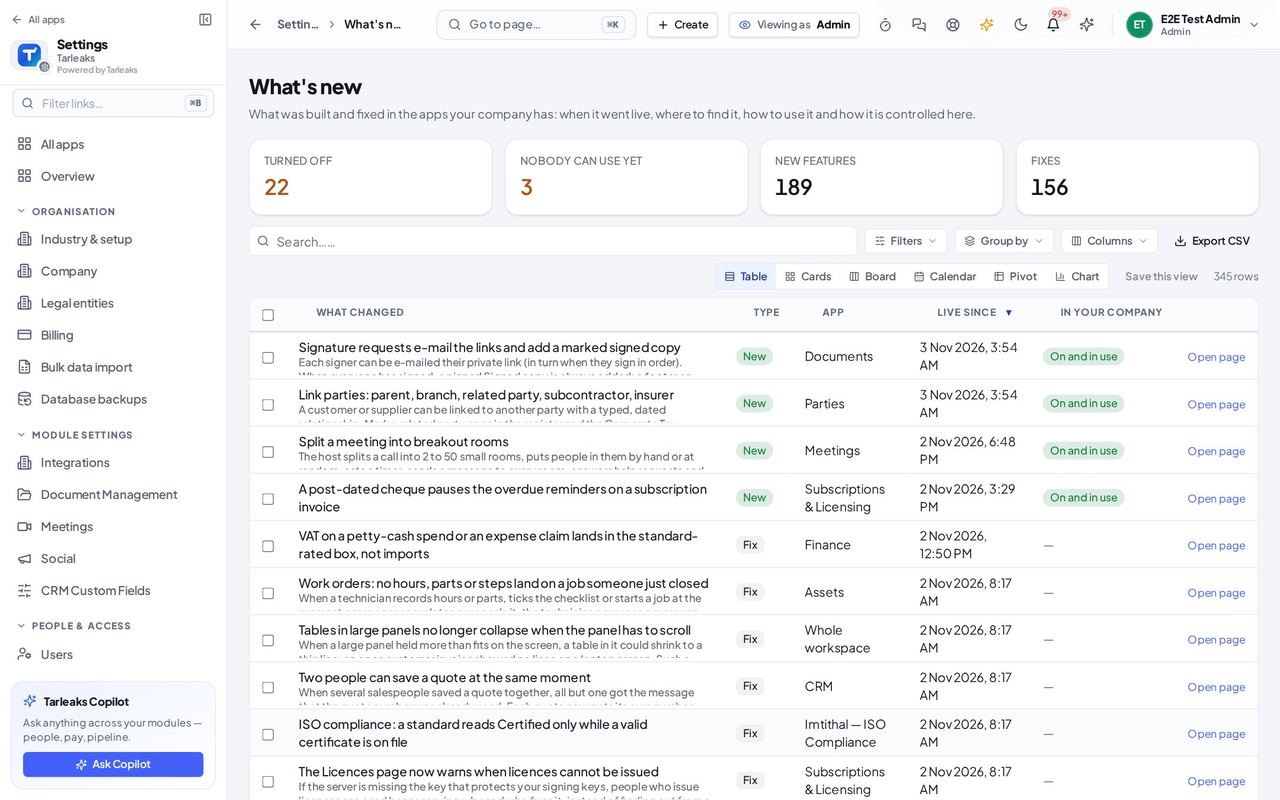
You should see What was built and fixed in the apps your company has: what changed, the app, when it went live, whether it is on in your company and how many people can use it.
Watch out Click a row for the full note, where to find it and how it is controlled.
Worth knowing Press Nobody can use yet to find what you have, but nobody's role includes.
Billing opens, with the credit card #
Where Settings » Organisation » Billing & plan
- Open your company's address (yourcompany.tarleaks.com) and sign in.
- Choose Settings, then Billing & plan.
- Scroll to Credit.
| Field | What to put in it |
|---|---|
| Balance | The prepaid credit left, and how long it lasts at the current use. |
| Top up automatically | Adds credit by card when the balance falls below the amount you set. |
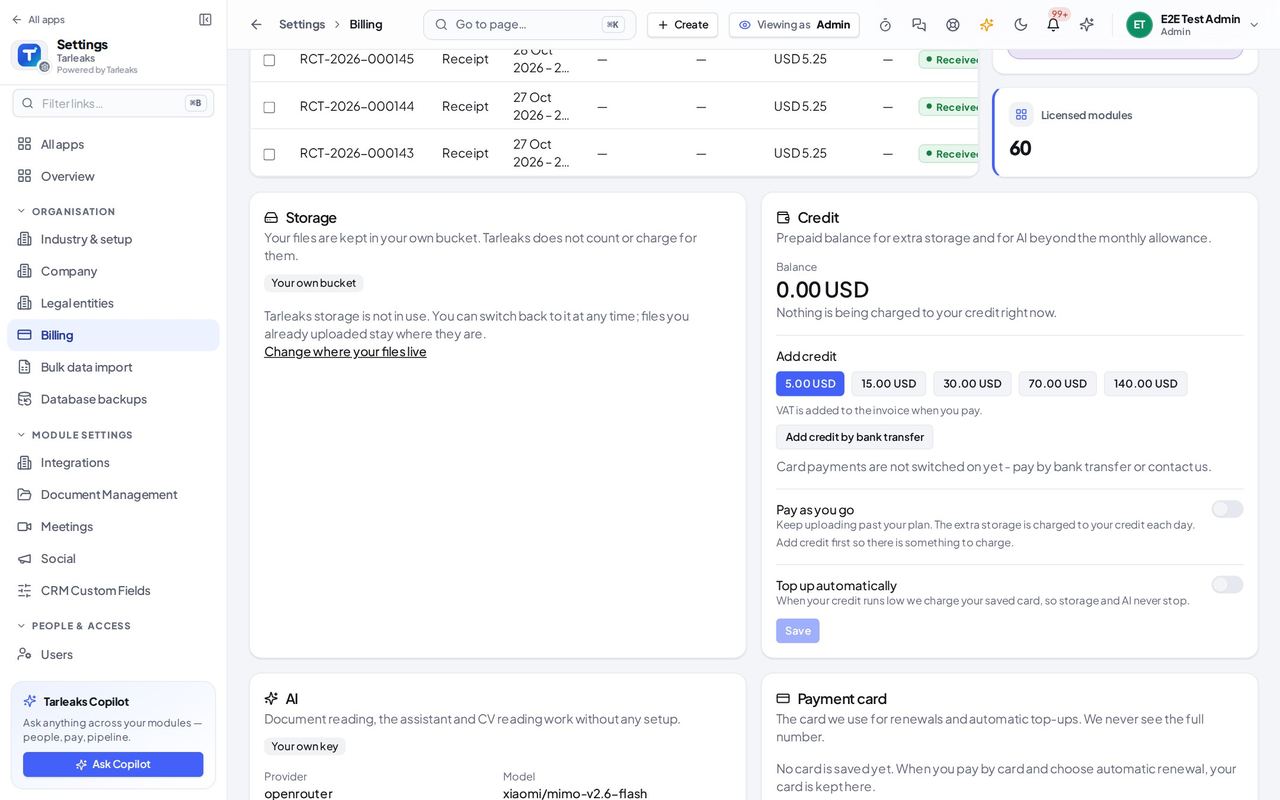
You should see The prepaid balance for extra storage and for AI beyond the monthly allowance, how long it lasts, Add credit, and Top up automatically.
Watch out The page opens for every company, including one that never saved automatic top-up.
The e-mail outbox and its test mode #
Where Settings » Notifications » Email outbox
- Open your company's address (yourcompany.tarleaks.com) and sign in.
- Choose Settings, then Email outbox.
| Field | What to put in it |
|---|---|
| Status | Sent, Held back, Failed or Discarded. |
| Why held back | Test mode was on, the address can never receive mail, the platform paused e-mail, or too many e-mails to one address in a short time. |
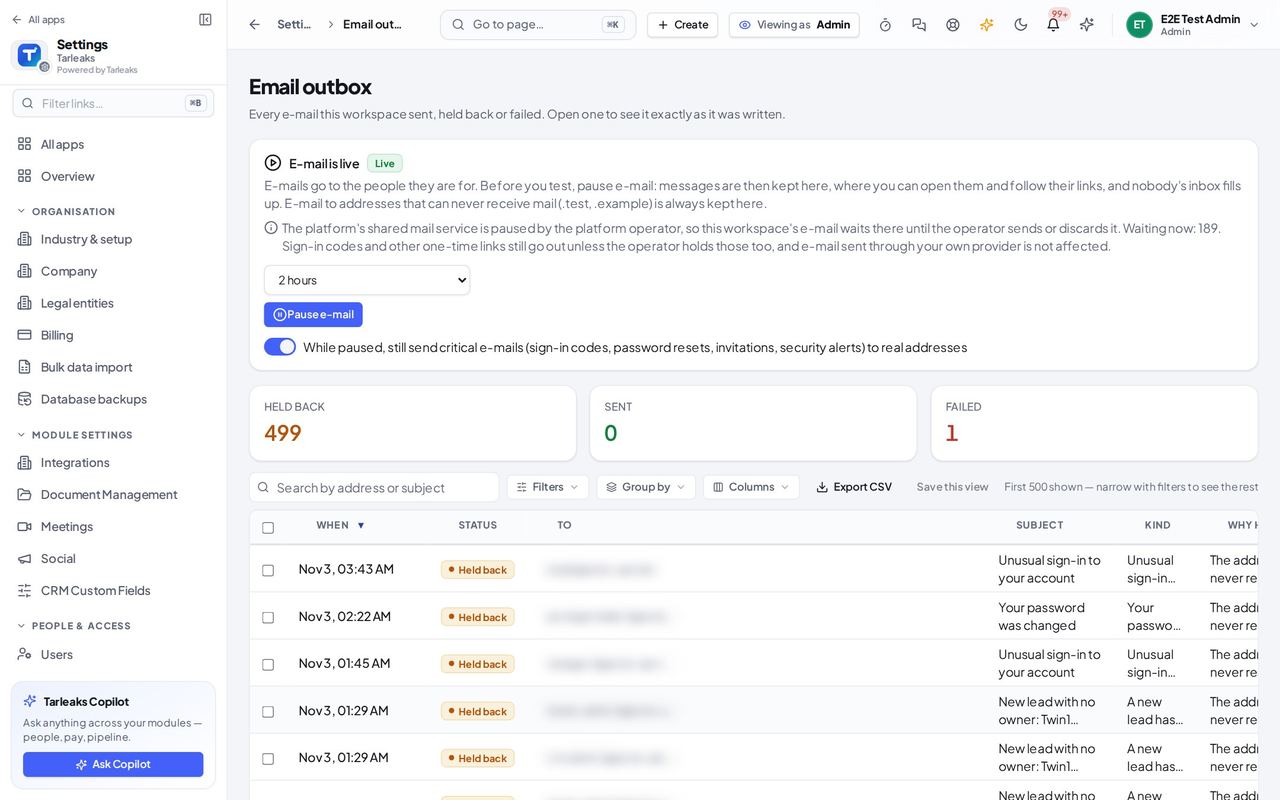
You should see At the top, whether the company's e-mail is live or paused for testing. Below, every e-mail the company sent, held back or failed: when, its status, to whom, the subject, the kind, and why it was held back.
Watch out While Still send critical e-mails is ticked (the default), sign-in codes and password resets go out even in test mode. A deadline reminder sweep sends one e-mail, not one per invoice.
Worth knowing Pause e-mail before you test: messages are then kept here, nobody receives them, and e-mail goes live again by itself.
Meeting minutes templates #
Where Settings » Work configuration » Meeting minutes templates
- Open your company's address (yourcompany.tarleaks.com) and sign in.
- Choose Settings, then Meeting minutes templates.
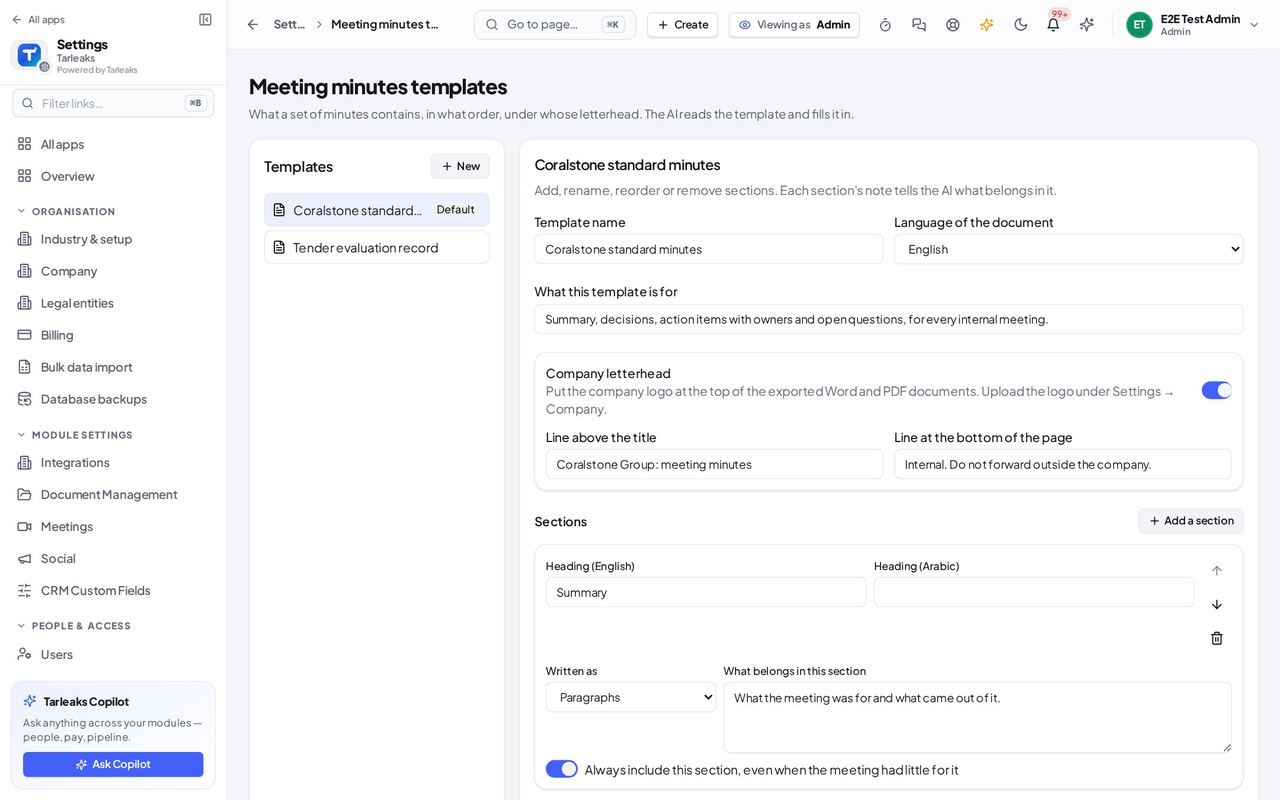
You should see The templates on the left. On the right, the chosen one: its name, language, letterhead, the line above the title and at the bottom of the page, and its sections in order.
Watch out The AI reads the chosen template when it writes the minutes.
Face matching: 'On each phone' waits for the app #
Where Settings » Time & pay » Attendance » Face matching at clock-in
- Open your company's address (yourcompany.tarleaks.com) and sign in.
- Choose Settings, then Attendance.
- Scroll to Face matching at clock-in.
| Field | What to put in it |
|---|---|
| Matching service | Built into Tarleaks, your own AWS account, your own server, or On each phone once an app can do it. |
| Turn on face matching for our company | Off until you turn it on. |
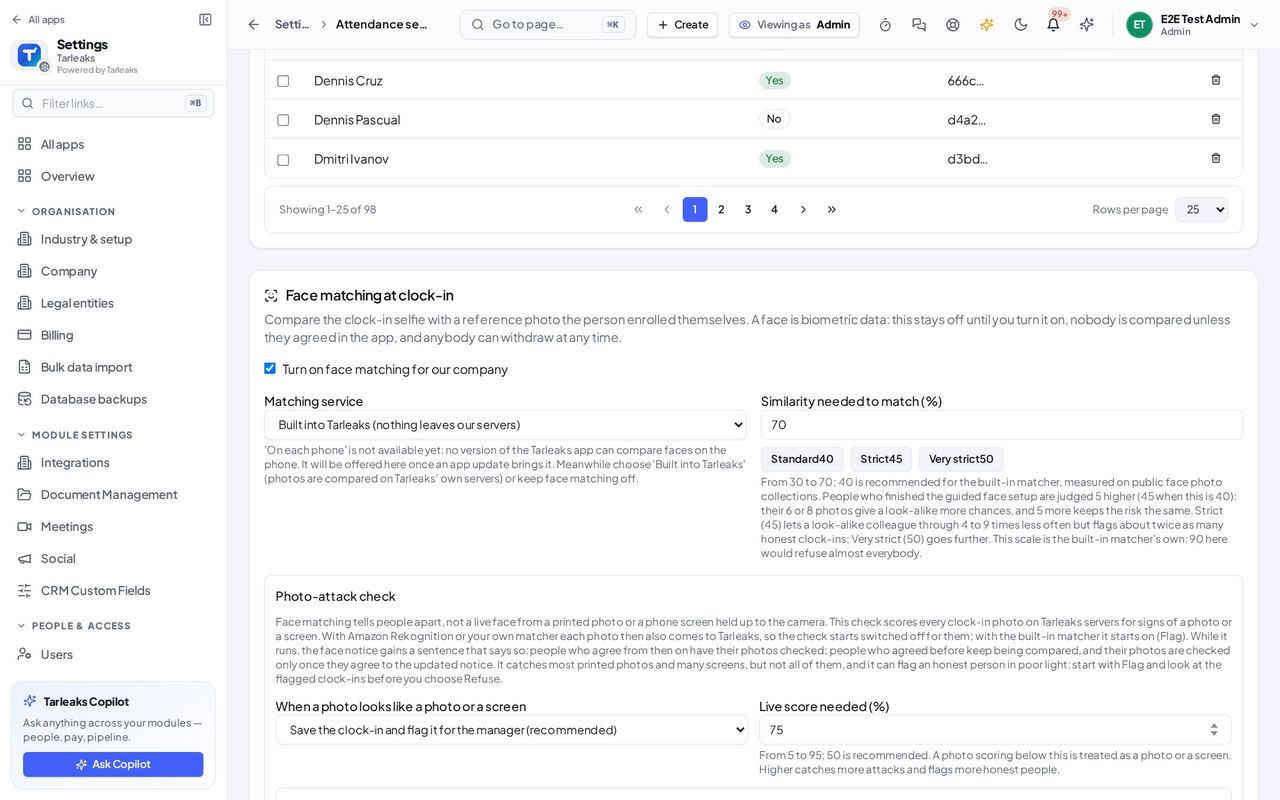
You should see 'On each phone' is marked not available yet, with the reason in words: no version of the Tarleaks app can compare faces on the phone yet. Built into Tarleaks works today.
Watch out If 'On each phone' was chosen earlier, a warning says nobody is being checked and offers Use Built into Tarleaks.
Worth knowing Face matching stays off until you turn it on, and nobody is compared unless they agreed in the app.
Crash reports and usage statistics from the phone app #
Where Settings » People & access » Mobile app
- Open your company's address (yourcompany.tarleaks.com) and sign in.
- Choose Settings, then Mobile app.
- Scroll to Crash reports and usage statistics.
| Field | What to put in it |
|---|---|
| Crash reports from the app | Reports with no personal data, so faults get fixed. |
| Usage statistics from the app | Off: nobody is asked and nothing is recorded. |
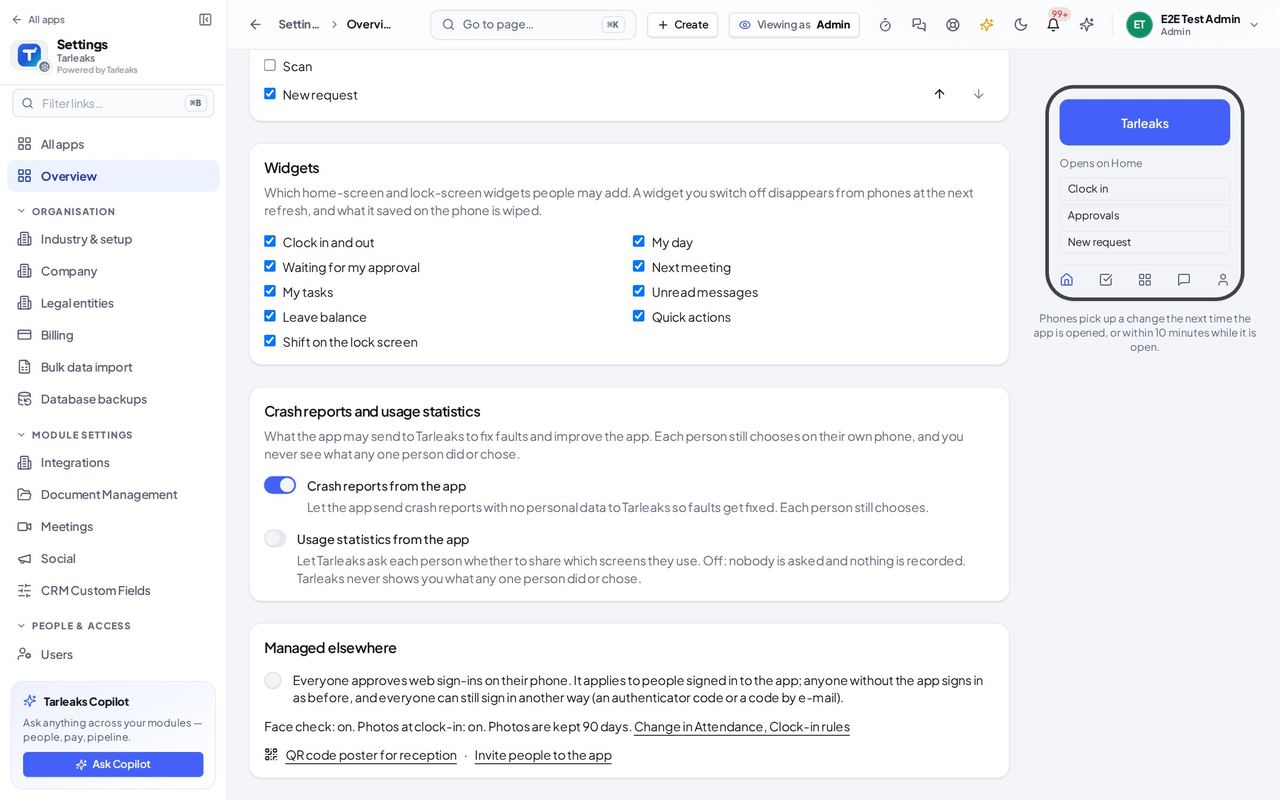
You should see Two company switches: crash reports from the app, and usage statistics from the app. Each person still chooses on their own phone, and you never see what any one person did or chose.
Watch out When Tarleaks has turned a switch off for every company, it is shown off and locked, with that reason.
Worth knowing Off: nobody is asked and nothing is recorded.
Moving to your own server: what you connect again #
Where Settings » Move to your own server
- Open your company's address (yourcompany.tarleaks.com) and sign in.
- Choose Settings, then Move to your own server.
- Read What moves, down to You connect these again on the new server.
| Field | What to put in it |
|---|---|
| You connect these again on the new server | Only settings that really hold a saved password or key, and tables of saved credentials with their count. |
| What moves | Settings, roles and permissions, users with their passwords, the history of every record and the audit trail. |
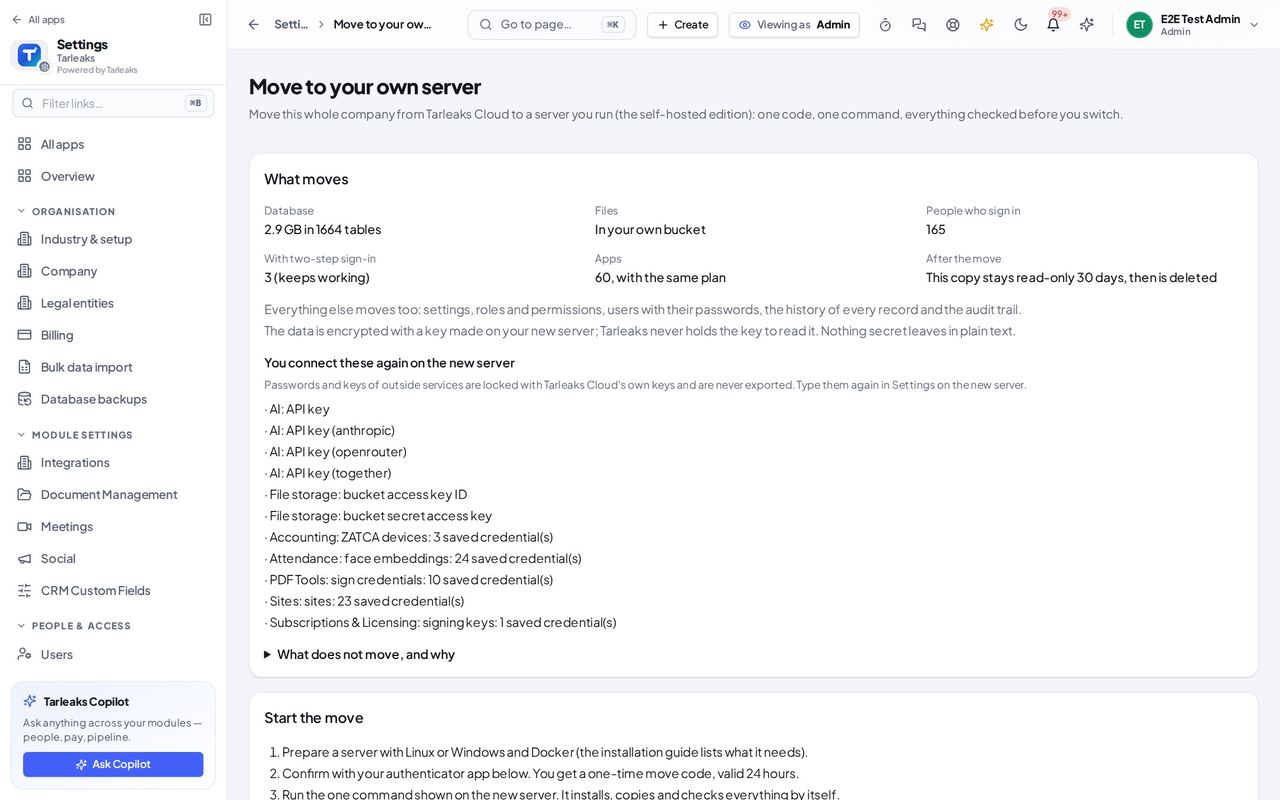
You should see What moves with the company, and the outside passwords and keys you type again on the new server. Only the ones your company really saved are named; they are never exported.
Watch out Once a move has started, the page shows its progress instead of this list.
Worth knowing Nothing to connect again? Then the list is not shown at all.
Account and security notices always reach you in the app #
Where Settings » My preferences » Notification preferences
- Open your company's address (yourcompany.tarleaks.com) and sign in.
- Choose Settings, then Notification preferences under My preferences.
- Look at Account and security.
| Field | What to put in it |
|---|---|
| Account and security | Sign-ins, passwords and changes to your account. These can't be switched off. |
| In-app (channel-by-channel table) | Ticked and locked for every account and security notice. |
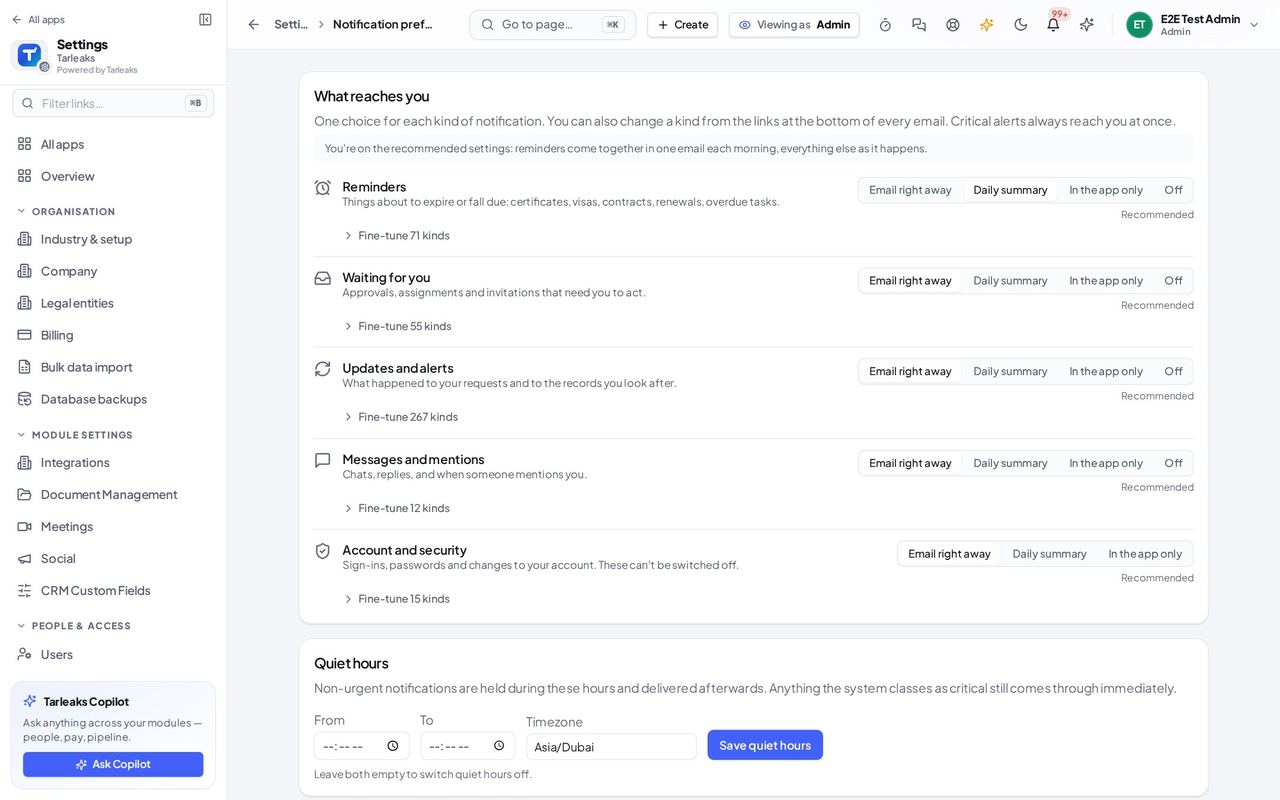
You should see Sign-ins, passwords and changes to your account always reach you: this group has no Off choice, and in the channel-by-channel table its in-app box is ticked and locked.
Watch out E-mail for these notices can still be turned off: the notice then reaches you in the app only.
Worth knowing You may still stop the e-mail copy: choose In the app only.
How long files are kept, by record type #
Where Settings » Document management » Retention
- Open your company's address (yourcompany.tarleaks.com) and sign in.
- Choose Settings, then Document management.
- Choose the Retention tab.
| Field | What to put in it |
|---|---|
| Record type | Tax record, Payroll, HR personal file, Contract, and General (the default). |
| Kept for | For example, 7 years after the end of the period, or 2 years after the employment ends. |
| Files | Live and deleted files that carry this type. |
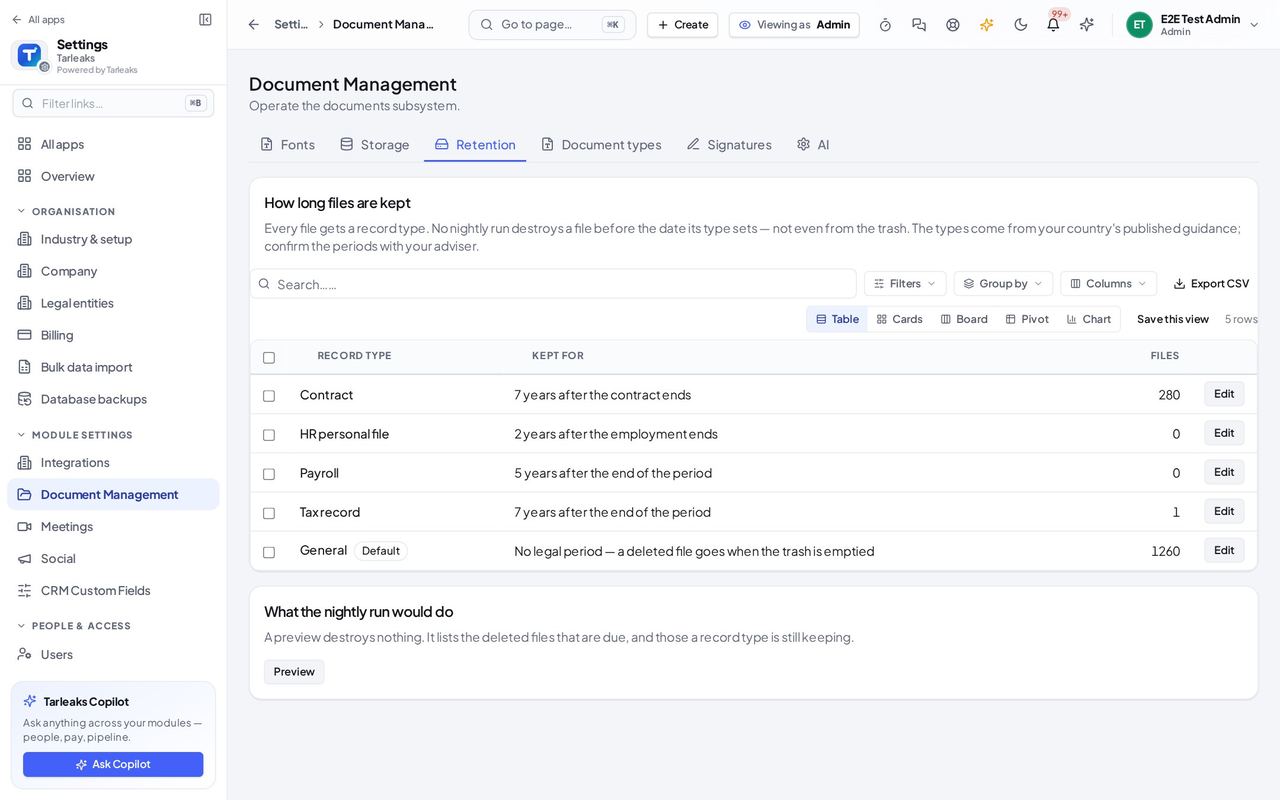
You should see Each record type, how long its files are kept and how many files carry it. No nightly run destroys a file before the date its type sets, not even from the trash.
Watch out A documents administrator sees the same list; the Retention tab is missing for anyone who does not decide how long files are kept.
Worth knowing The periods come from your country's published guidance; confirm them with your adviser.
Let people sign in with your company's identity provider #
Where Settings » Single sign-on
- Open your company's address (yourcompany.tarleaks.com) and sign in.
- Choose Settings, then Single sign-on.
- Read Values for Microsoft Entra, then the provider form below it.
| Field | What to put in it |
|---|---|
| Values for Microsoft Entra | The sign-in and reply addresses your identity provider asks for. |
| Provider form | Which provider, the client ID and secret, and who may be created on first sign-in (further down the page). |
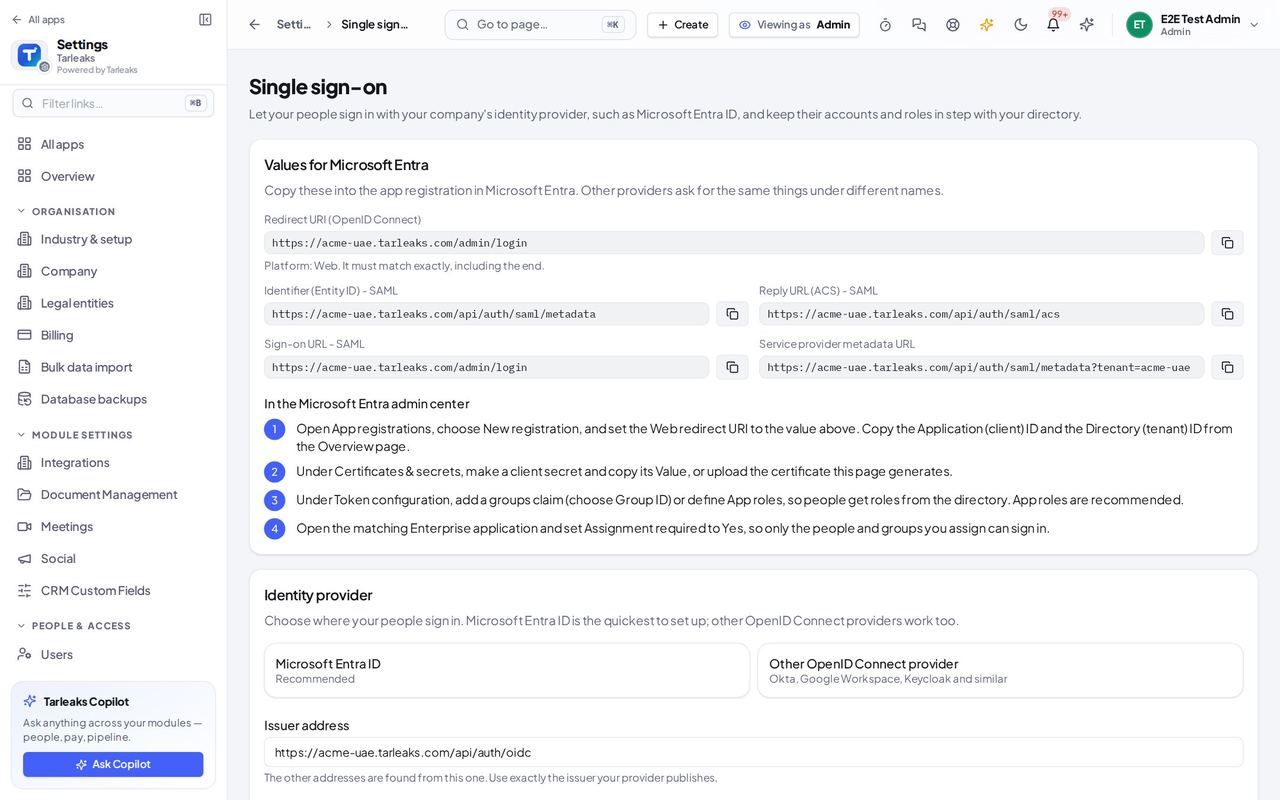
You should see The values your identity provider asks for (the sign-in address, called the redirect address, and the entity ID) and the first part of the provider form. Further down are the cards for SAML (a sign-in standard) and automatic account set-up. If the switch is off the page says so and links to it.
Watch out If the page says single sign-on is switched off, turn it on in Settings, Features first.
Worth knowing Only people allowed to see single sign-on settings (company administrators) see this page. Turn the switch on in Settings » Features first.
Model tiers and the monthly AI budget #
Where Settings » AI » Model tiers
- Open your company's address (yourcompany.tarleaks.com) and sign in.
- Choose Settings, then AI, then Model tiers.
| Field | What to put in it |
|---|---|
| Default tier | Which tier answers when a feature does not choose. |
| Thinking effort | How hard the model thinks. The model's own default is the safe choice. |
| Budget (USD per month) | The most AI may cost in a month. |
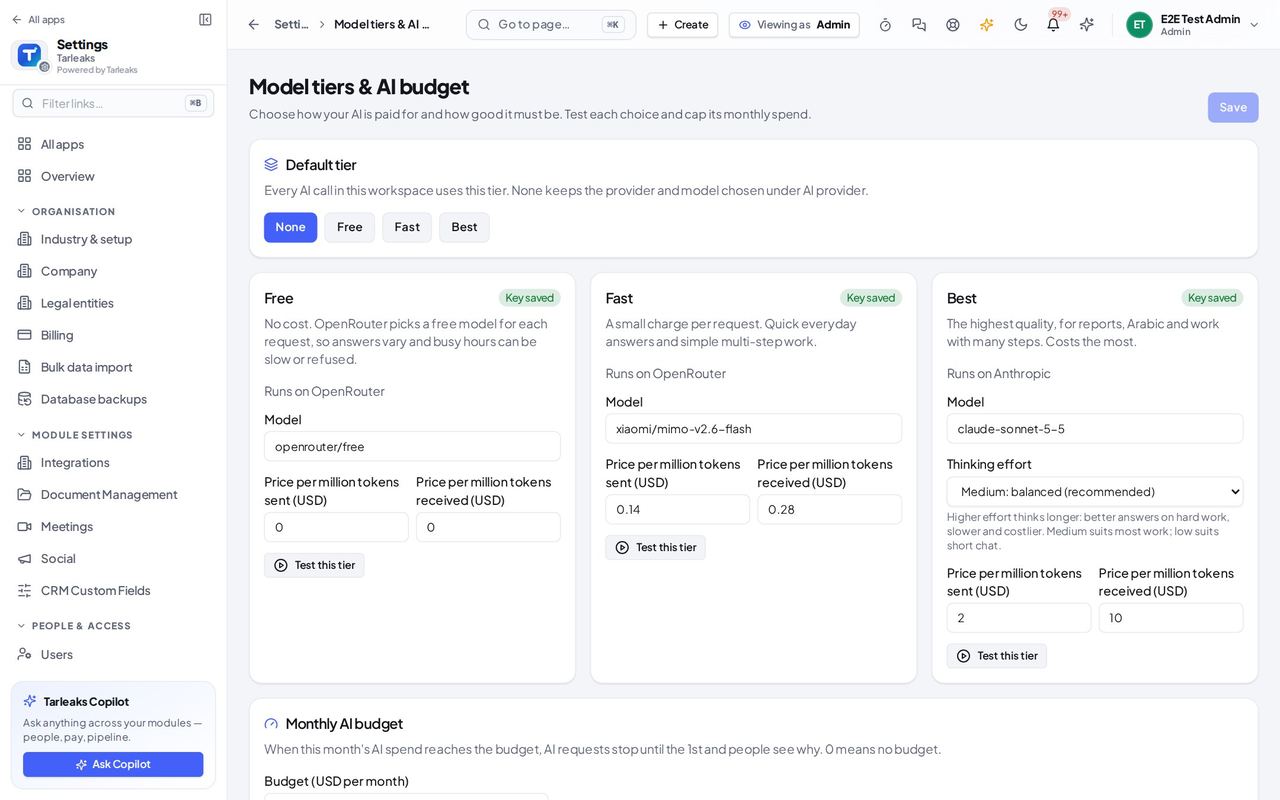
You should see Each tier names the provider and model it runs on (the model name is the technical name the provider gives it) and whether the key is saved. Prices are per million tokens, a token being about three quarters of a word. Below sit the monthly budget in US dollars and this month's cost.
Watch out Test this tier sends one small real request; the result shows what it cost.
Worth knowing If a tier is not ready, the card says which key to add and links to the AI provider page.
A different provider for pictures, and how long the model thinks #
Where Settings » AI provider
- Open your company's address (yourcompany.tarleaks.com) and sign in.
- Choose Settings, then AI provider.
- Scroll to Pictures and scanned documents and Thinking level.
| Field | What to put in it |
|---|---|
| Provider for pictures | The provider that reads pictures and scans; it needs its own saved key. |
| Thinking level | How long the model thinks. More thinking helps hard questions but is slower and costs more. |
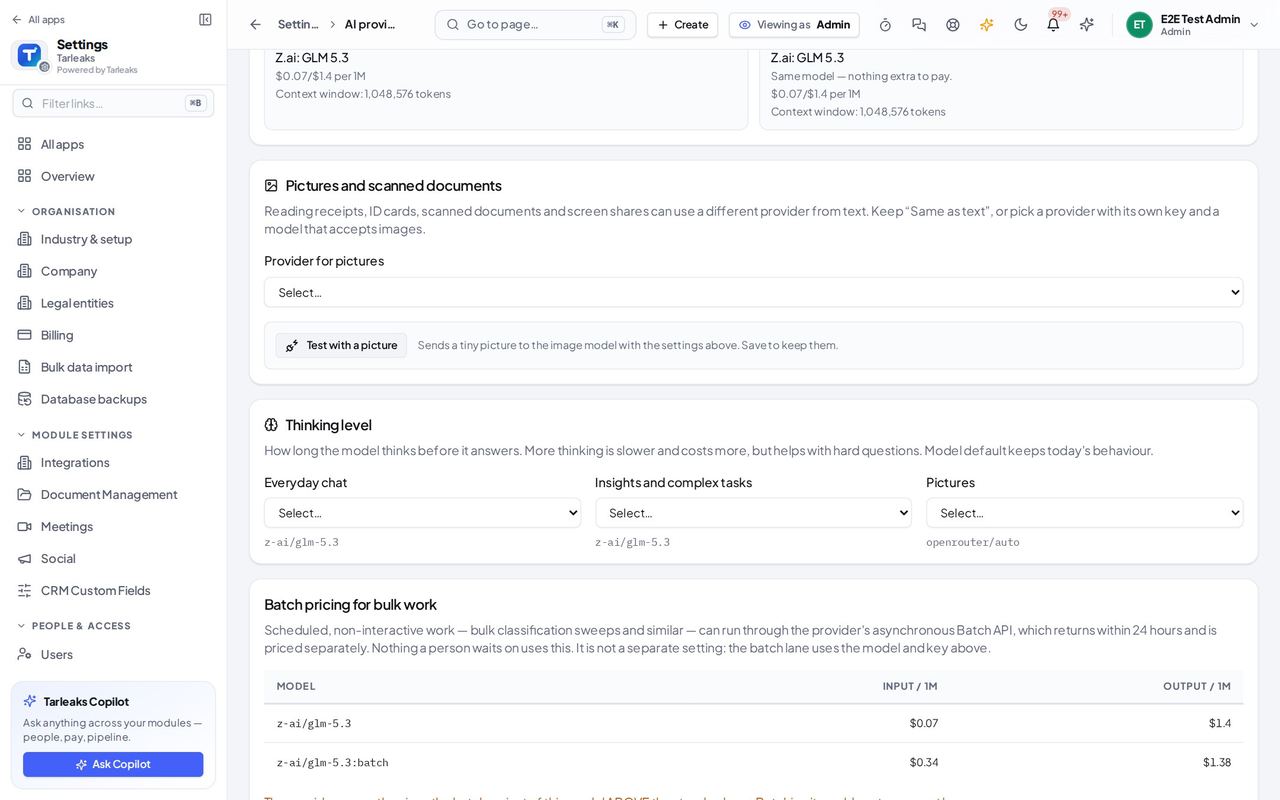
You should see Reading receipts and scans can use another provider from the text one; the Provider for pictures list sets it. Thinking level sets how long the model thinks for each use. Until you choose, the lists show Select.
Worth knowing Change these only if you need a model that reads pictures better, or one that thinks longer.
Rules for the phone app: lock, app switcher and bank account numbers #
Where Settings » Mobile app
- Open your company's address (yourcompany.tarleaks.com) and sign in.
- Choose Settings, then Mobile app.
- Scroll to the Security card.
| Field | What to put in it |
|---|---|
| Ask for Face ID, a fingerprint or the phone passcode to open the app | On by default. |
| Lock after | Minutes of no use before the app asks again. |
| Hide the app in the phone's app switcher | On: the app's screen is covered when switching apps. |
| Allow copying bank account numbers (IBAN) | Off: the number shows but has no Copy button. |
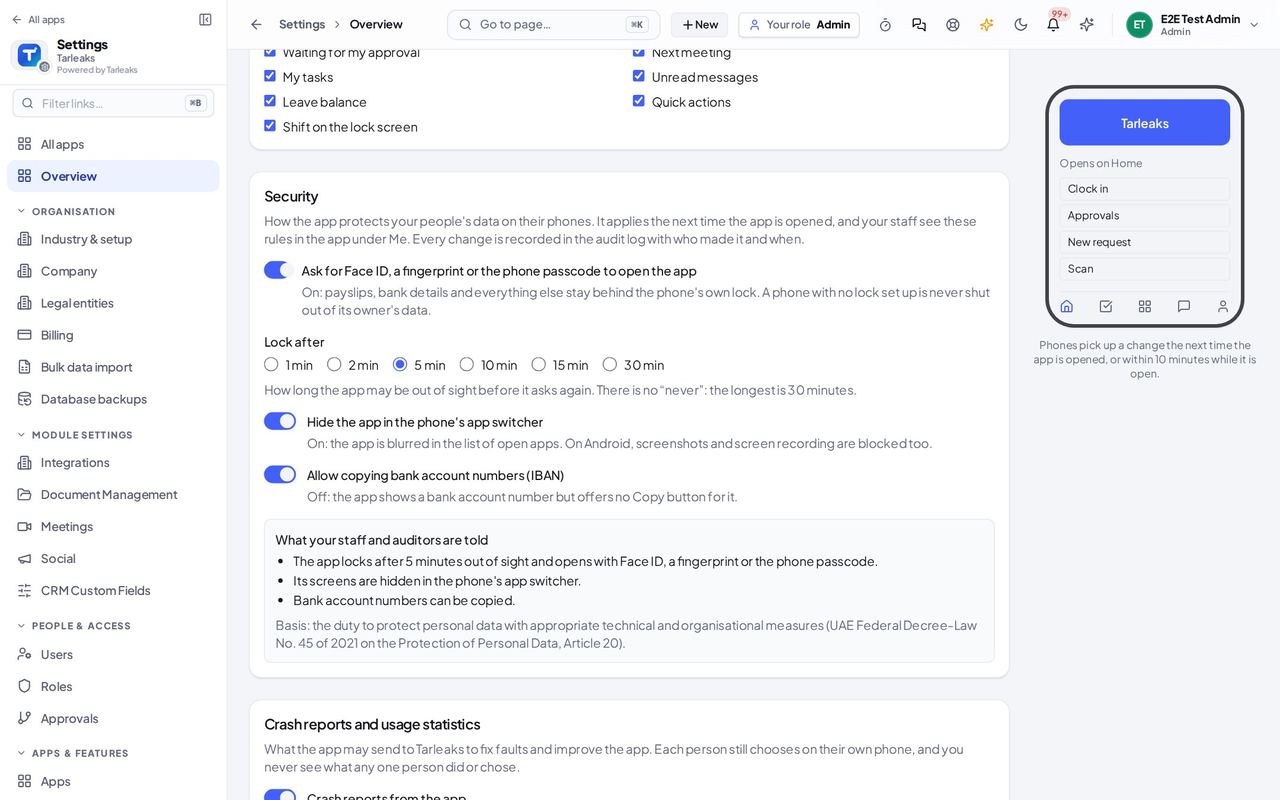
You should see How the app protects your people's data on their phones: ask for Face ID, a fingerprint or the passcode, lock after a number of minutes, hide the app in the phone's app switcher, and allow or refuse copying bank account numbers. Under them, What your staff and auditors are told shows the same rules in plain sentences.
Watch out Nothing changes until you press Save; staff see the rules in the app under Me.
Worth knowing A change applies the next time the app is opened, and is recorded in the audit log.
A tool set for each kind of person who connects an outside AI app #
Where Settings » API tokens (MCP)
- Open your company's address (yourcompany.tarleaks.com) and sign in.
- Choose Settings, then API tokens.
- Scroll to the tool sets.
| Field | What to put in it |
|---|---|
| Kind | Built in, Your role, or Saved by your workspace. |
| Tools you may use | How many tools the set gives a person. |
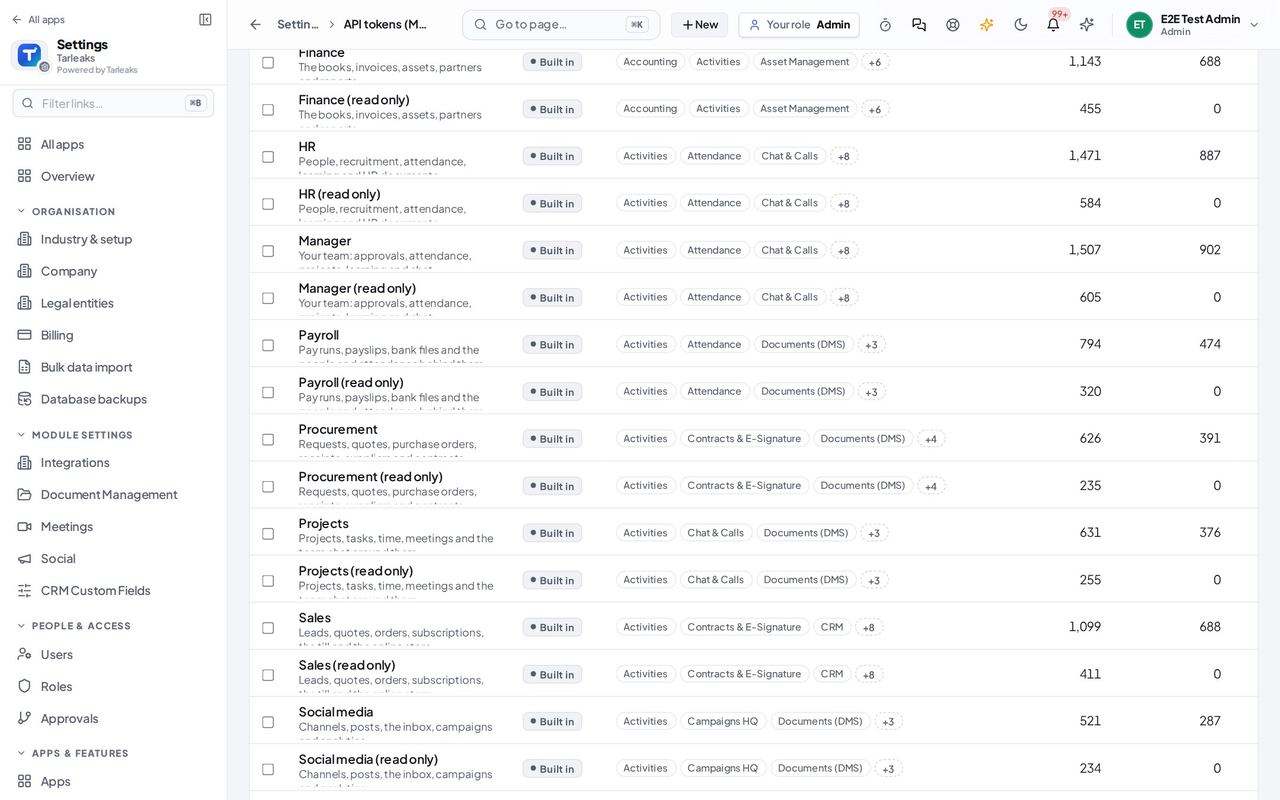
You should see One row per tool set: its name, whether it is built in, matches a role or was saved by your company, the modules it covers, how many tools a person may use and whether it can change data. A new token can start from one of them.
Watch out Only your own saved sets can be deleted; tokens already made keep their tools.
Worth knowing Deleting a set never takes tools away from tokens already made from it.
Let AI agents carry files #
Where Settings » Features » Documents
- Open your company's address (yourcompany.tarleaks.com) and sign in.
- Choose Settings, then Features.
- Type Agents carry files in the search box.
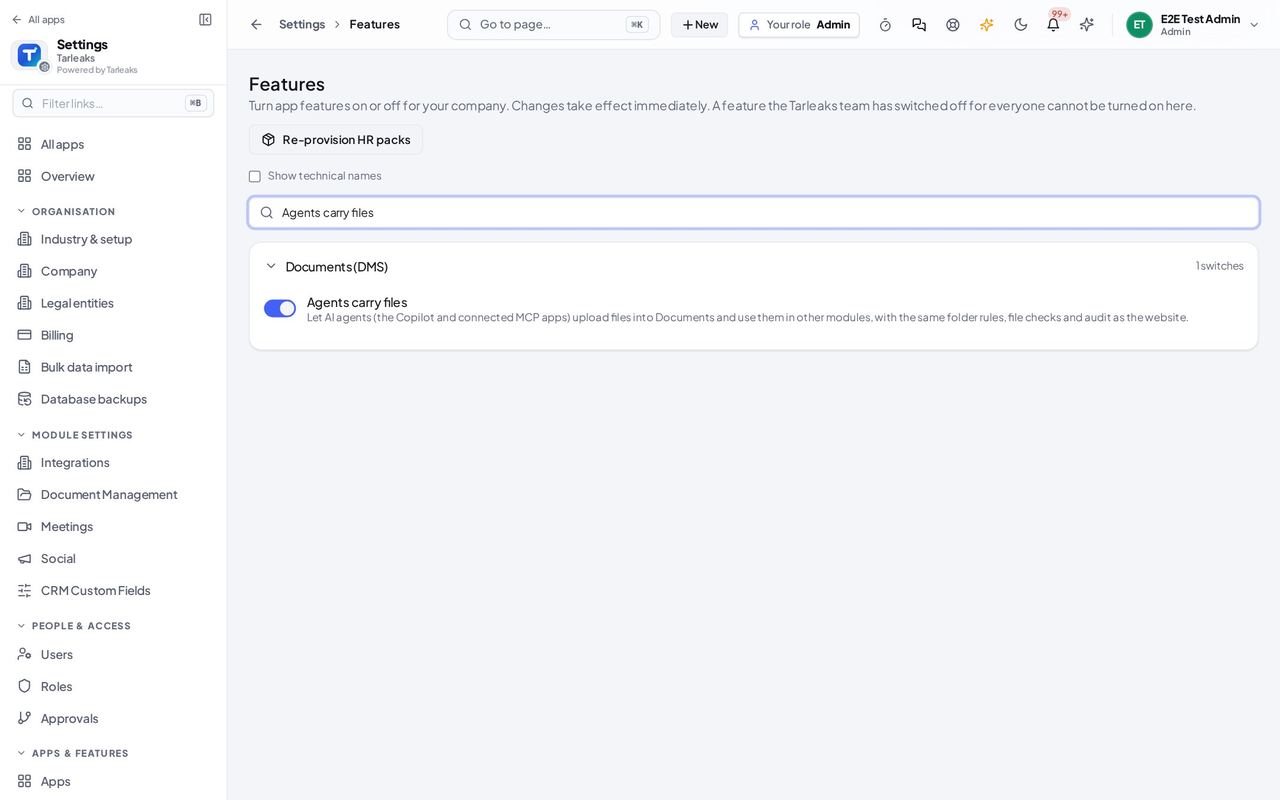
You should see The Documents switch Agents carry files. On, the Copilot and connected AI apps can upload a file into Documents and use it in other modules, with the same folder rules, file checks and record of who did it as the website. Off, they cannot.
Watch out This page saves a switch the moment you change it, for everyone. Turning it off does not delete files an agent already uploaded.
Worth knowing The file never travels inside the request: the app gets a short-lived upload link, so a large file is not a problem and nothing is stored unless the checks pass.
Every page here only shows you what you may change. Changing a switch takes effect for everyone at once, so read its description first: each one says what happens when it is off.