العربية — This page is not in Arabic yet. Opens the Arabic home page.

Start free trialBook a demo

Browse the documentation

Documentation

All appsHow the apps connectTeam workflowsCompare

Apps

HR ManagementRecruitment (ATS)Payroll & WPSTime & AttendanceAccounting & E-InvoicingCRM & Sales PipelineSales Orders & FulfilmentInventory, Purchasing & WarehousingProcurement & TendersConstruction & ContractingContracts & E-SignatureProducts & Online StorePoint of SaleRentalsSubscriptions & LicensingHelpdesk & TicketingSocial Media SuiteInfluencer Marketing & Campaign ROIProject ManagementActivities WorkspaceDocument ManagementPDF Tools & E-SignatureCorrespondence RegisterTeam Chat & CallsMeetings & VideoLearning & Certification (LMS)Asset ManagementFleet ManagementRecognition & GamificationContacts & PartnersNotification CentreReports & DashboardsInsights — Business Intelligence & AppsAI CopilotAI Agents & AutomationAI Diagram StudioWebsite BuilderISO Compliance Suite (Imtithal)App MarketplaceCustomer & Partner PortalSecurity, Access & Compliance

HR manager — Settings guide

Run people matters without carrying the company's security keys.

Runs people matters, not the company's security: the error list, the e-mail outbox and the security log stay with the administrator, and the HR manager's API tokens are their own.

What you will be able to do

  • Your Settings page shows only what you may open
  • The security log, the error list and the e-mail outbox stay with the administrator
  • Make an API token for yourself, and see and revoke only your own

What this role can and cannot do

CanCannot
  • See the API tokens you made yourself
  • Revoke the API tokens you made yourself
  • Make an API token
  • See what went wrong for people in the company (Settings » Errors)
  • Mark a problem resolved, or open it again, with a note
  • Open the e-mail outbox
  • Pause the company's e-mail while testing
  • Read the security log: everybody's sign-ins and account changes
  • See every API token in the company
  • Revoke anybody's API token

3 steps, each one carried out in the product on .

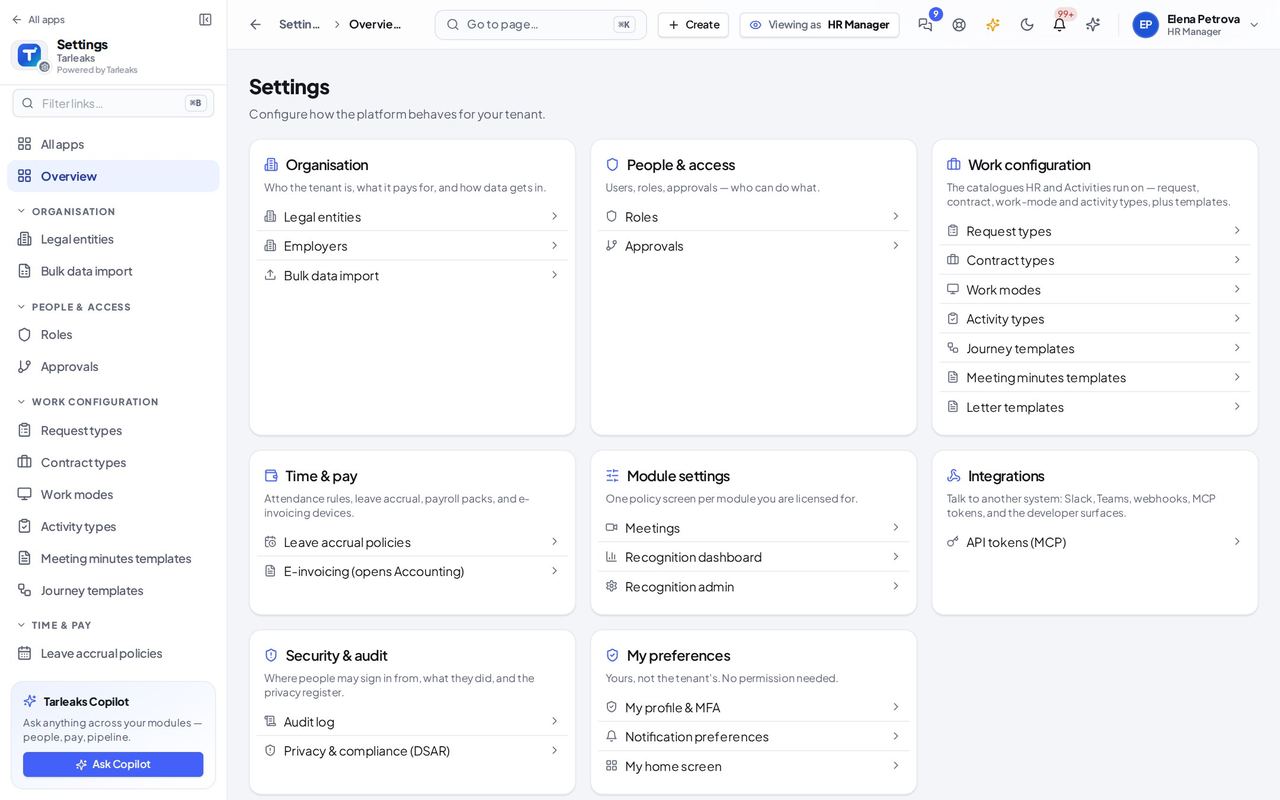
Your Settings page has no error list and no e-mail outbox #

Where Settings

  1. Open your company's address (yourcompany.tarleaks.com) and sign in.
  2. In the menu, choose Settings.
Screenshot: Your Settings page has no error list and no e-mail outbox, HR manager view
The cards hold only what your role may open.

You should see The cards you may use. Errors is not in Security & audit and Email outbox is not in Notifications: they are the administrator's.

The security log is the administrator's #

Where Settings » Security log

  1. Open your company's address (yourcompany.tarleaks.com) and sign in.
  2. Open yourcompany.tarleaks.com/admin/settings/security-log.
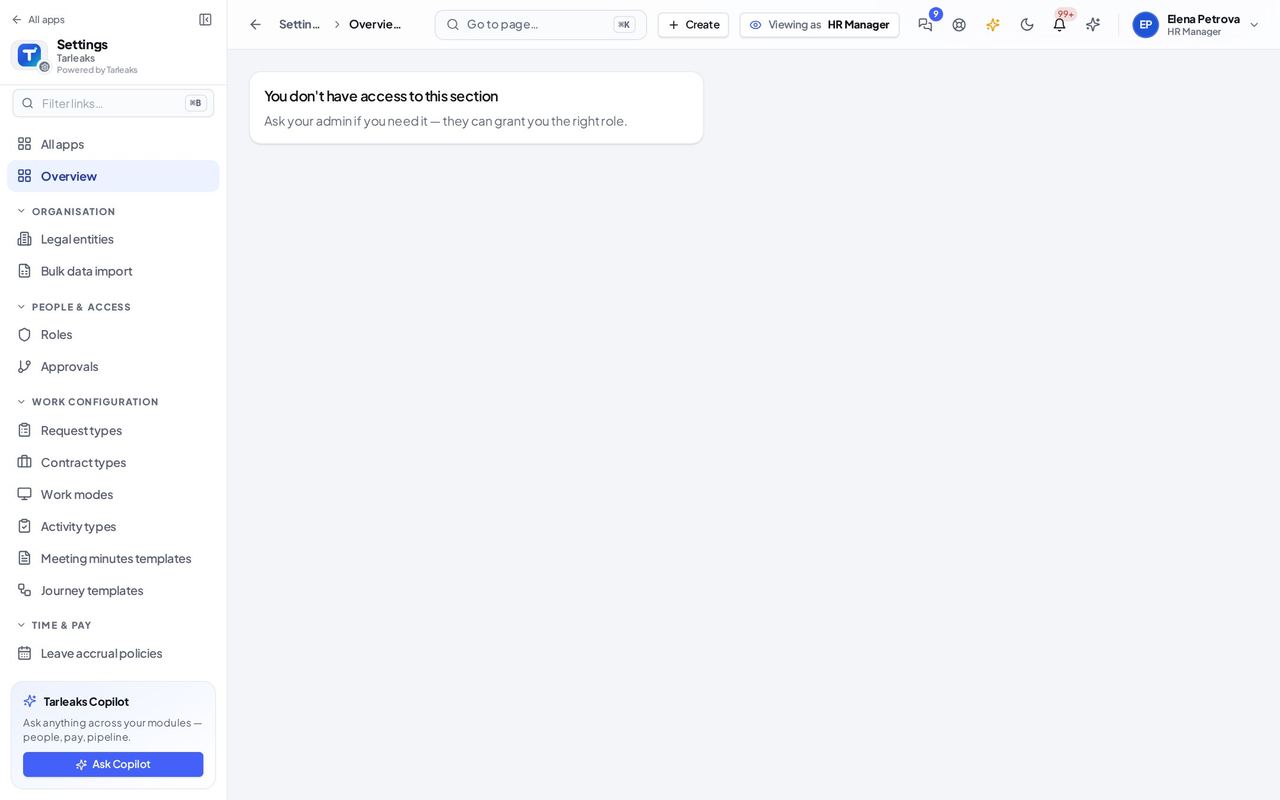
Screenshot: The security log is the administrator's, HR manager view
A card: You don't have access to this section. Ask your admin if you need it.

You should see A card saying you do not have access to this section, and to ask your administrator if you need it.

API tokens: only your own #

Where Settings » Integrations » API tokens (MCP)

  1. Open your company's address (yourcompany.tarleaks.com) and sign in.
  2. Choose Settings, then API tokens (MCP).
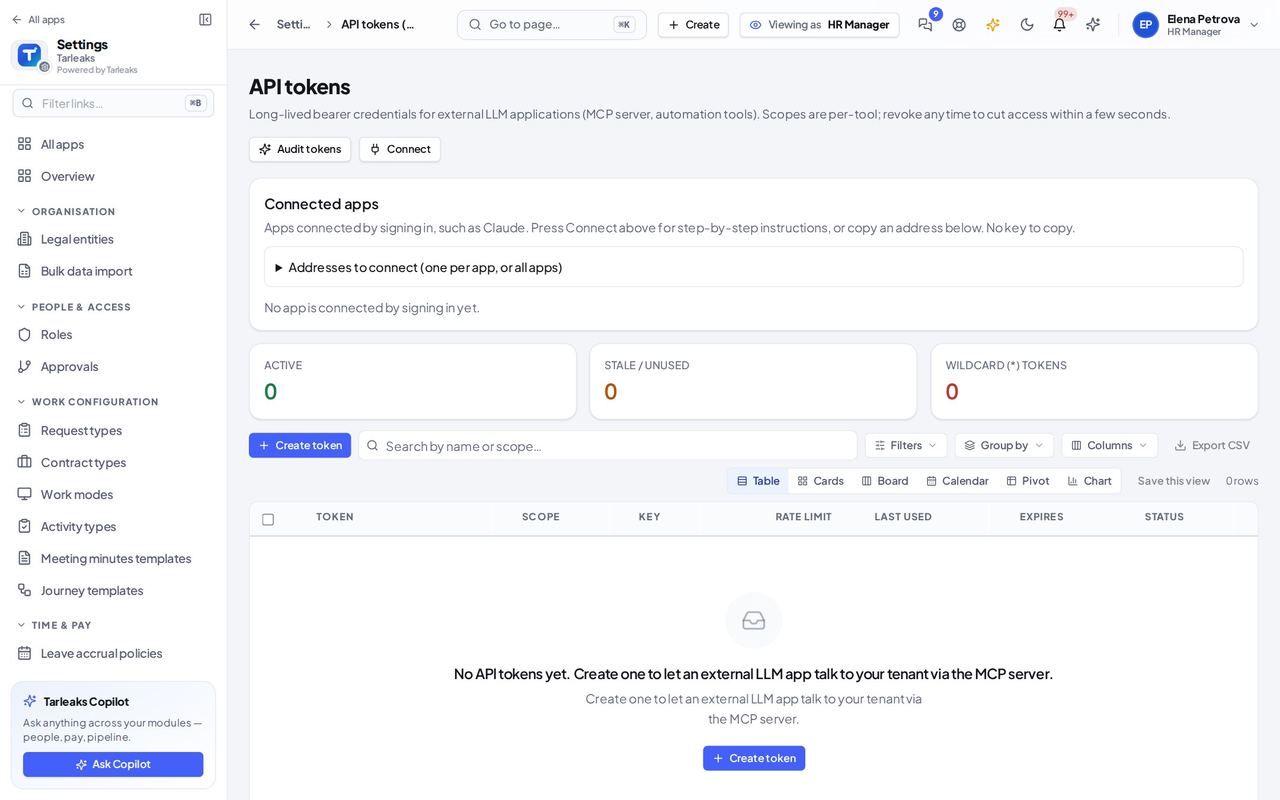
Screenshot: API tokens: only your own, HR manager view
Only your own tokens; if you have none, the list says so.

You should see Only the tokens you made yourself, with Create token to make one and Revoke on each of yours. Nobody else's tokens are listed.

Watch out Revoke works only on your own tokens.

If you need one of these pages for your work, ask your company administrator to give you a role that includes it, under Settings » Roles.

All settings role guides

Last updated