Anyone at work — Support guide
When something fails, the screen says what happened and what to do next.
Reads what a failed action says, copies the details for whoever helps, and opens a support request from the message in one click.
What you will be able to do
- Read what failed, and whether the fault is ours
- Copy the details so nobody has to ask you for them
- Open a support request from the message, already filled in
- Know that a failure on our side is recorded even if you do nothing
- Find the answer yourself on the Support page: search, topics, common questions
What this role can and cannot do
| Can | Cannot |
|---|---|
|
|
8 steps, each one carried out in the product on .
Read what the message tells you #
Where Any page, top right corner
- Open your company's address in the browser — it looks like yourcompany.tarleaks.com.
- Type the e-mail address your administrator set up for you, then your password.
- You land on the app launcher: a grid of the apps your company uses.
- Do your normal work. When an action fails, the message appears at the top right.
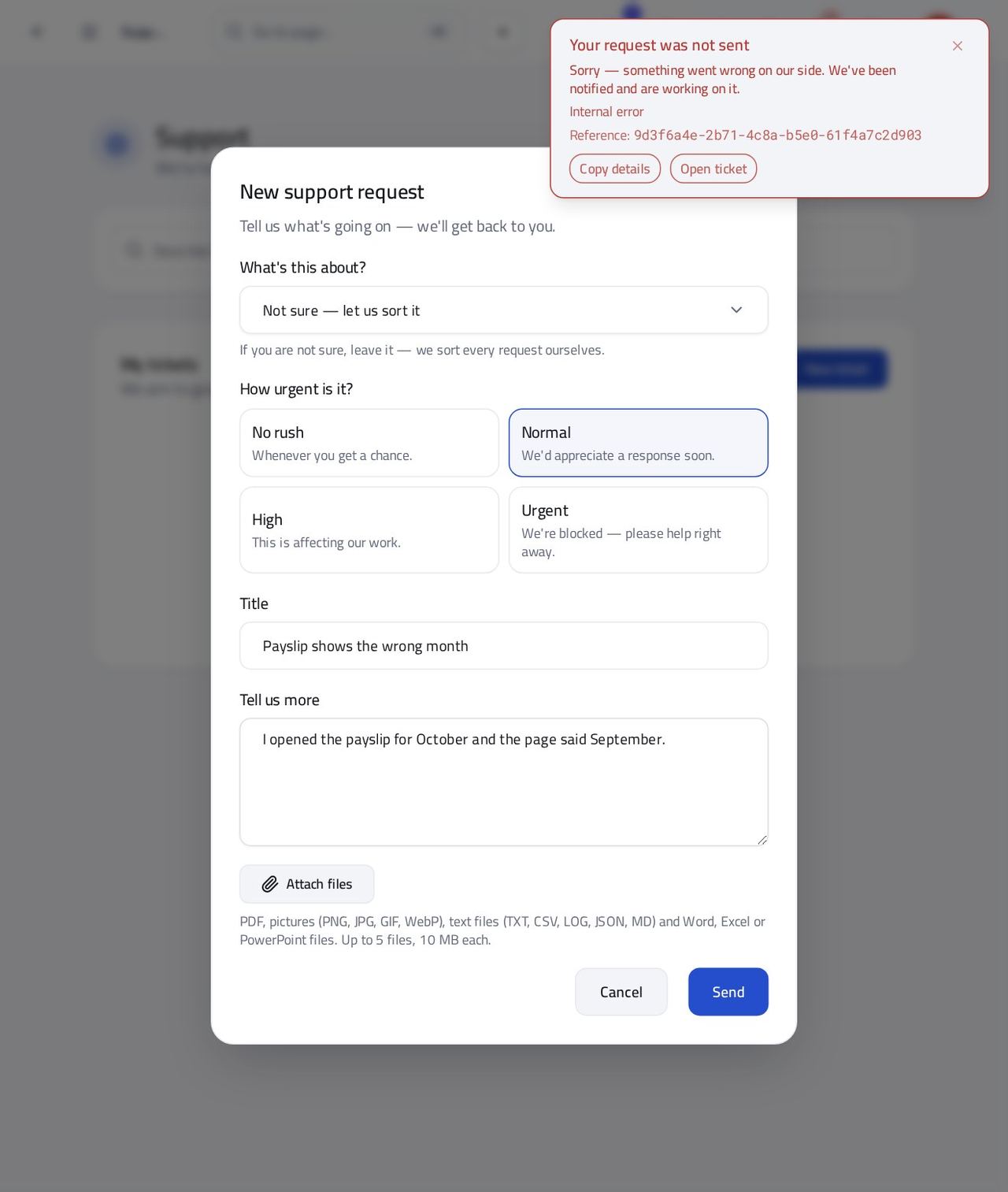
You should see The message says what failed. When the fault is on our side it starts with an apology and says we have been told. Under it is a reference — the one thing support needs from you.
Watch out The message goes after five seconds. Resting the mouse on it keeps it. If you missed it, do the action again — the same message comes back.
Worth knowing The message leaves on its own after five seconds unless the mouse is on it. Press Copy details or Open ticket before it goes.
Copy the details for whoever helps you #
Where The message » Copy details
- On the message, press Copy details.
- Paste (Ctrl V, or ⌘V on a Mac) into the place you are asking for help.
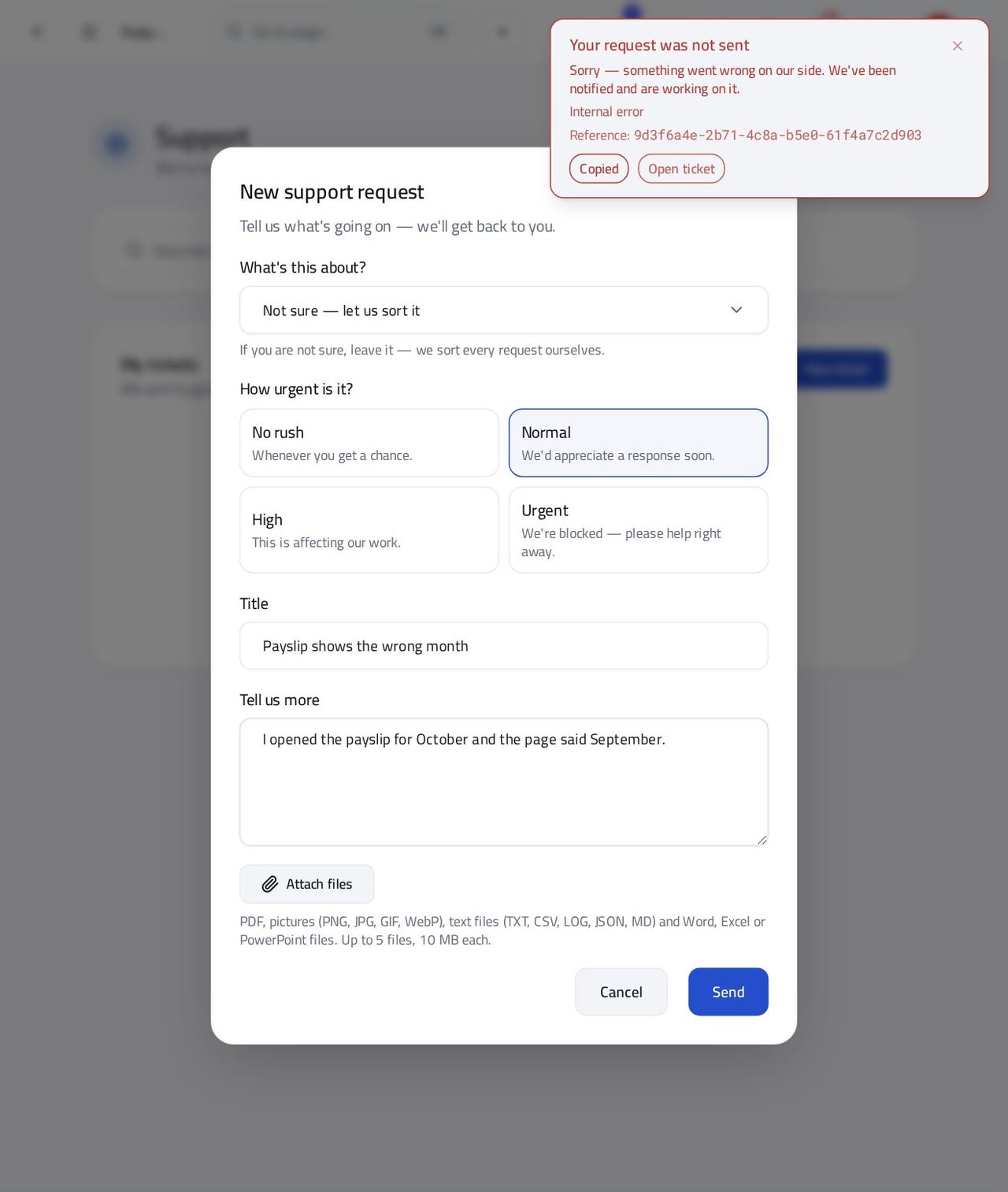
You should see What you copied is plain text: what failed, the reference, the page you were on, the time and the version of the app. It never holds a password or a sign-in.
Watch out Paste before you copy anything else — the clipboard holds one thing at a time.
Open a support request from the message #
Where The message » Open ticket
- On the message, press Open ticket.
- Read the title and the description that are already filled in.
- Type one sentence at the top of the description, then press Send.
| Field | What to put in it |
|---|---|
| Title | Already filled in from the message. Change it if you can say it better. |
| Tell us more | Starts with a line and then the details block — the reference, the page, the time. Add what you were trying to do above it. |
| What's this about / How urgent | Leave the first on “Not sure”; pick the urgency that matches your work. |
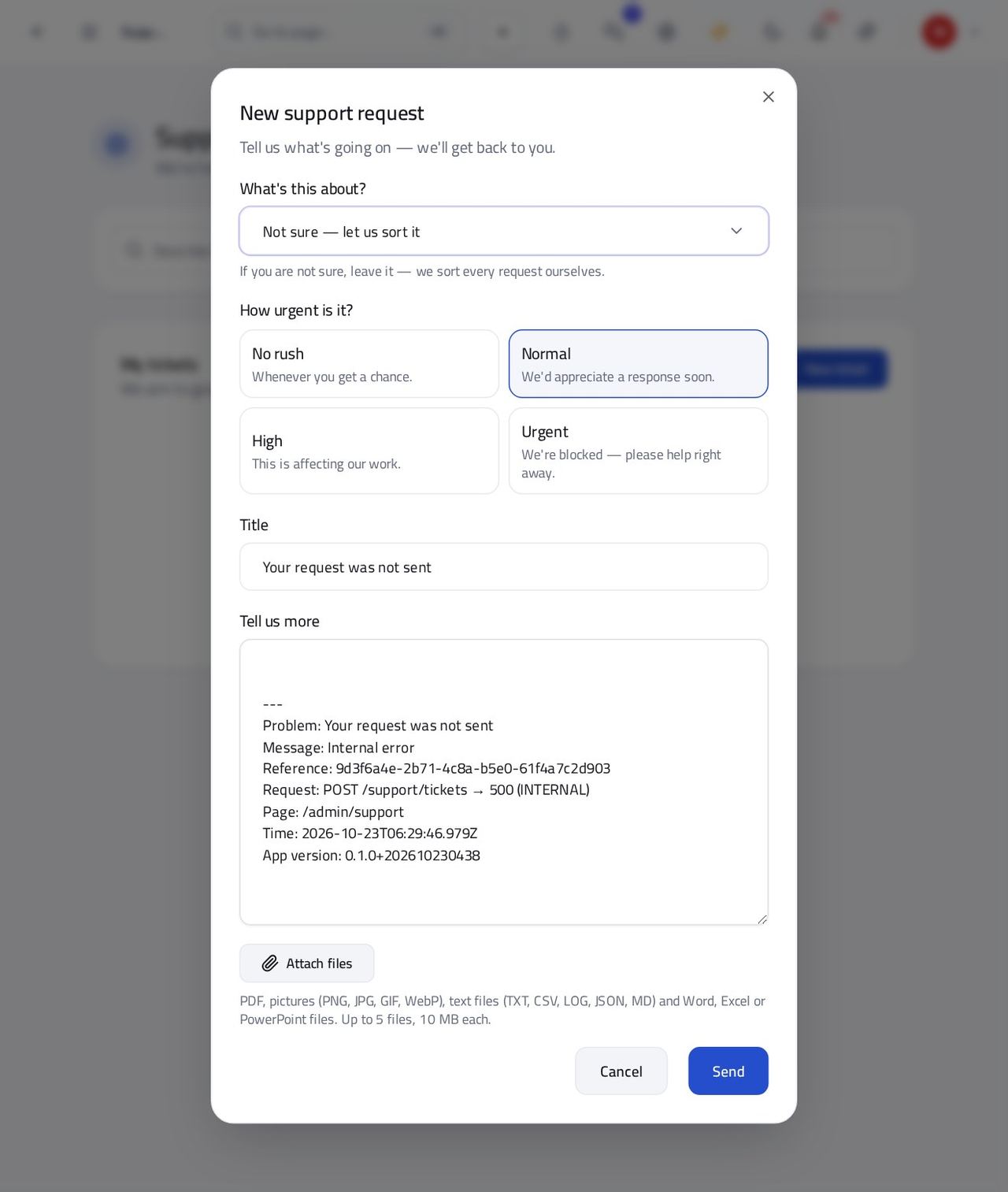
You should see The request carries the reference, so support finds the exact failure without asking you to repeat anything.
Watch out Do not delete the details block. Support searches by the reference in it.
A refusal says what to change, with no apology #
Where The message
- Do the thing that is not allowed.
- Read the message.
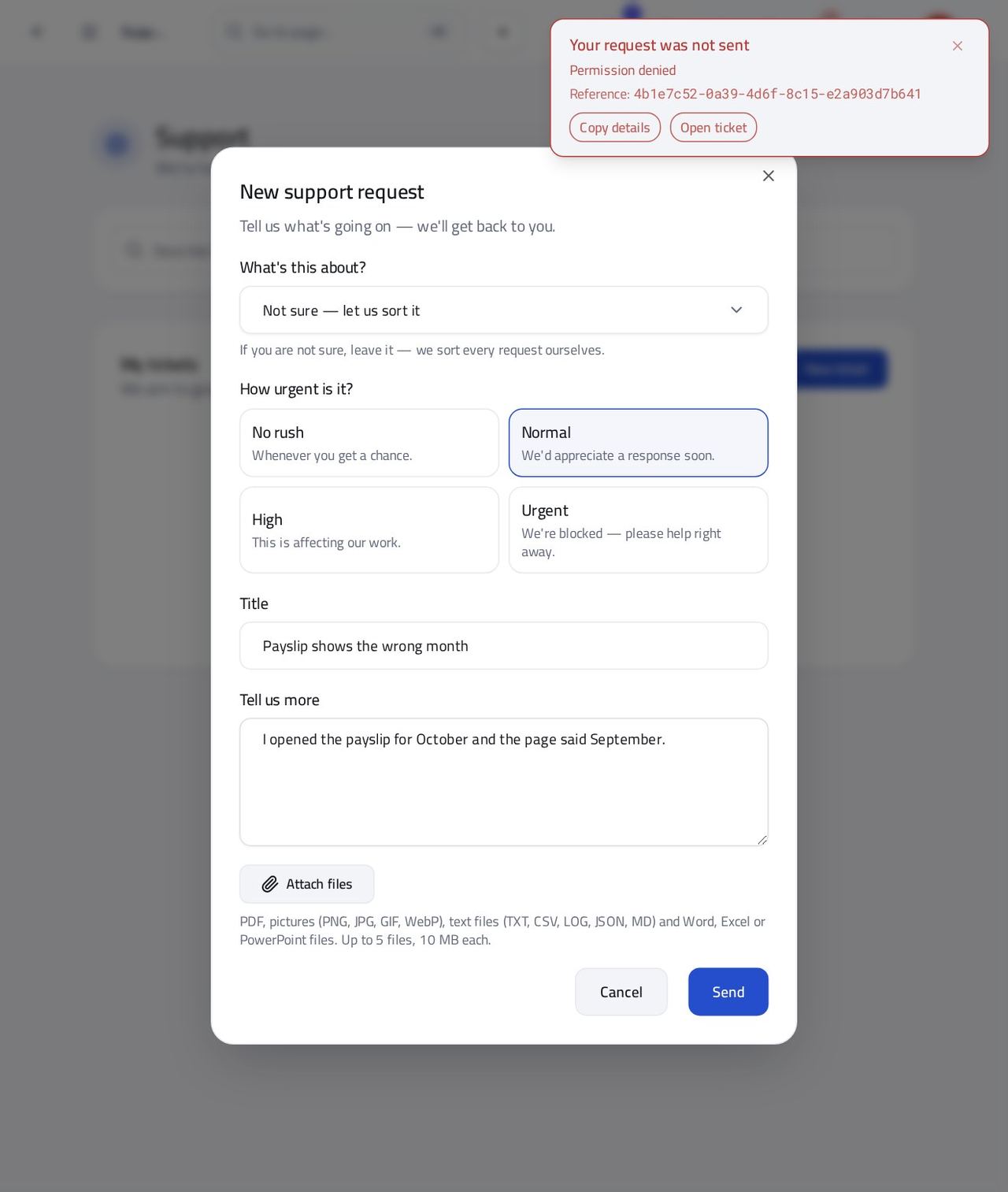
You should see An apology appears only when the fault is on our side. When the system refuses what you asked, the message tells you what to change instead, and says nothing about being sorry.
Watch out If the reason does not make sense to you, use Copy details or Open ticket — the details carry the reason word for word.
The company's error list is for administrators #
Where Settings » Errors
- Open Settings. There is no Errors entry in your menu.
- If you open its address (/settings/errors) you are told you have no access.
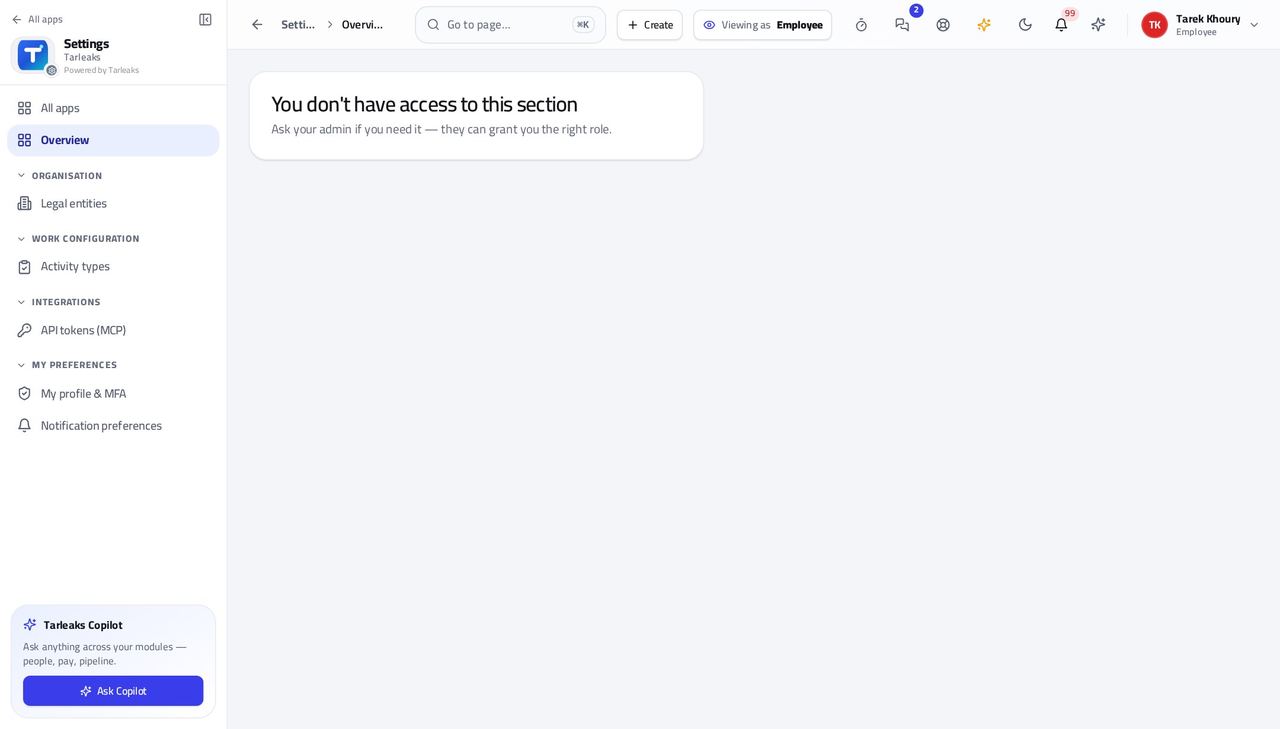
You should see Only a company administrator can read what went wrong across the company. Your own failures are still recorded, and they reach that list.
Watch out If you need to see the list, ask your company's administrator for the role that includes it.
Search the help before you ask #
Where Support » Search
- Open Support (the life-ring at the top right, or Support in the launcher).
- Type a word — leave, say — in the search box.
- Pick a tab: All, Guides, FAQ or Team workflows. The results line says how many answers the chosen tab holds; a question opens its answer in place.
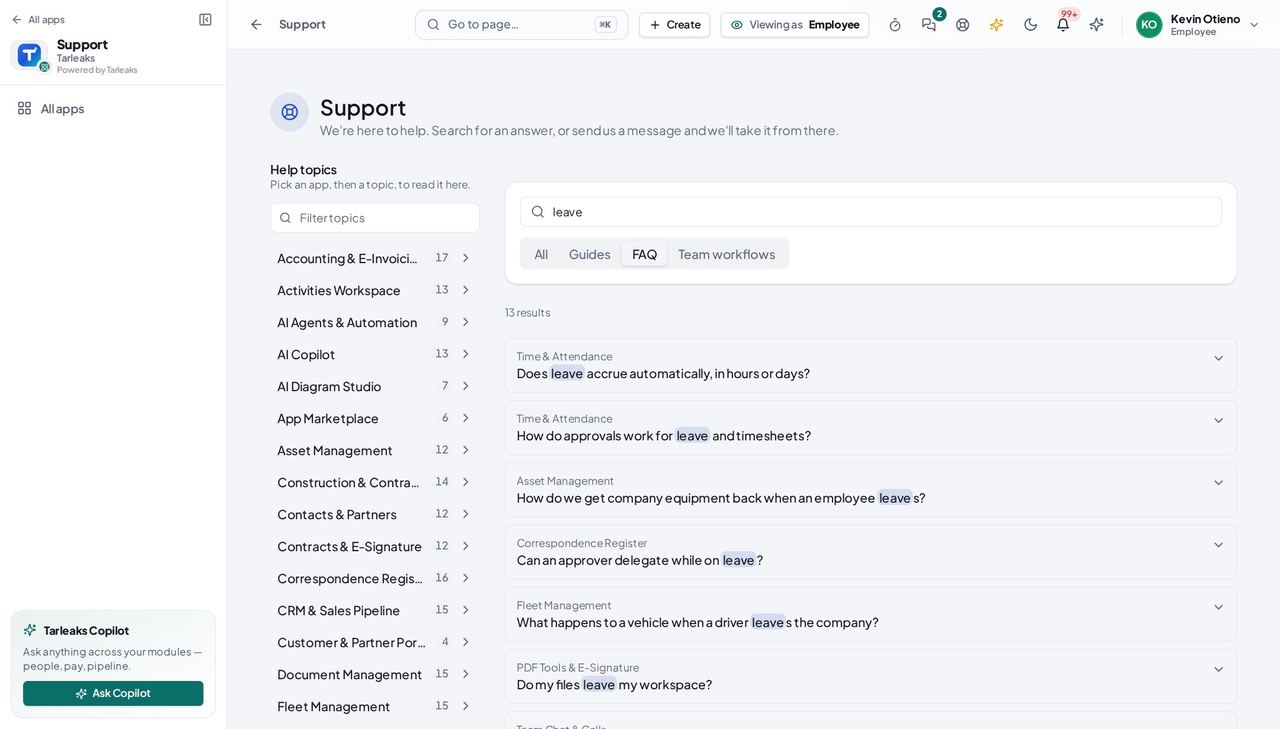
You should see The words you searched for are highlighted in each answer, and the address keeps the search and the tab, so a refresh or a pasted link shows the same list.
Read a help topic without leaving the page #
Where Support » Help topics
- Under Help topics, pick an app — Time & Attendance, say — then a topic.
- The topic opens in the reader: what it covers, the team workflows, the questions customers ask, and the apps it works with.
- Use previous / next to walk the app's topics.
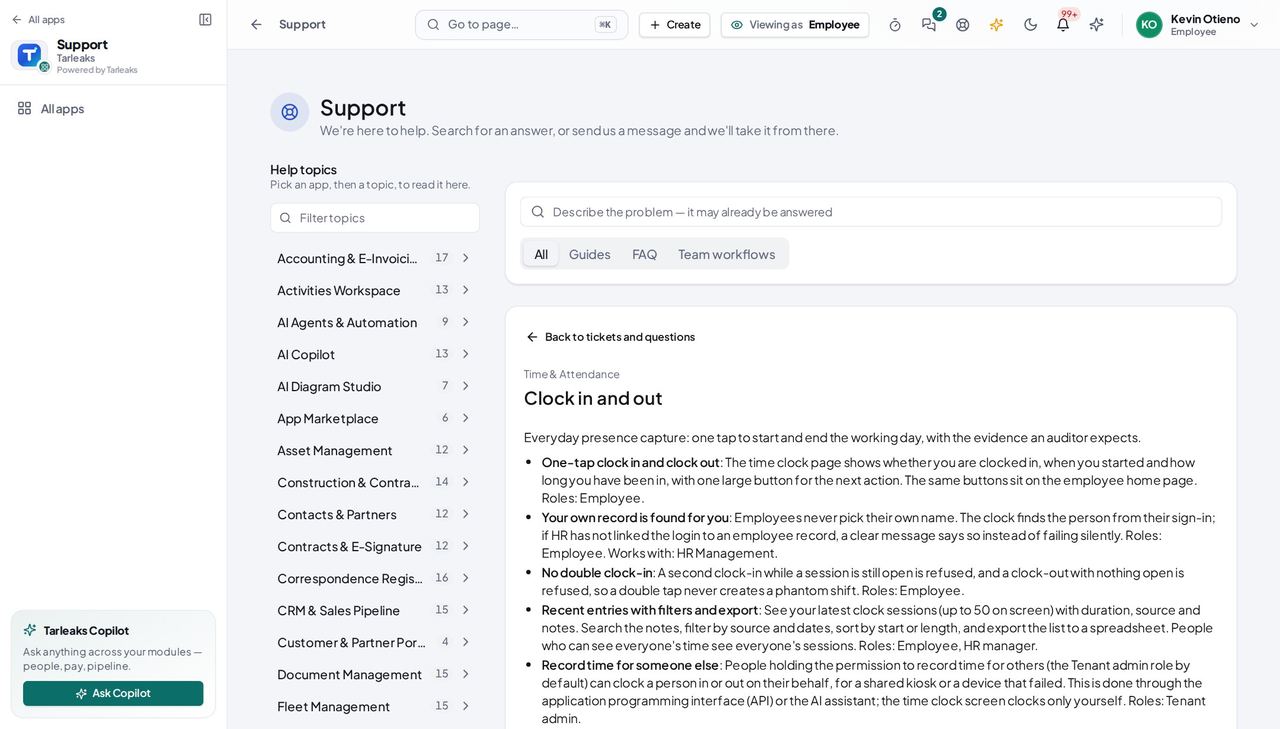
You should see The help is the product's own documentation, in English or Arabic as you use the app; on a phone the topic list is a drawer.
The common questions, and a ticket if they do not answer you #
Where Support » Frequently asked questions
- Below My tickets, open a question.
- If the answer does not help, press Still stuck? Open a ticket.
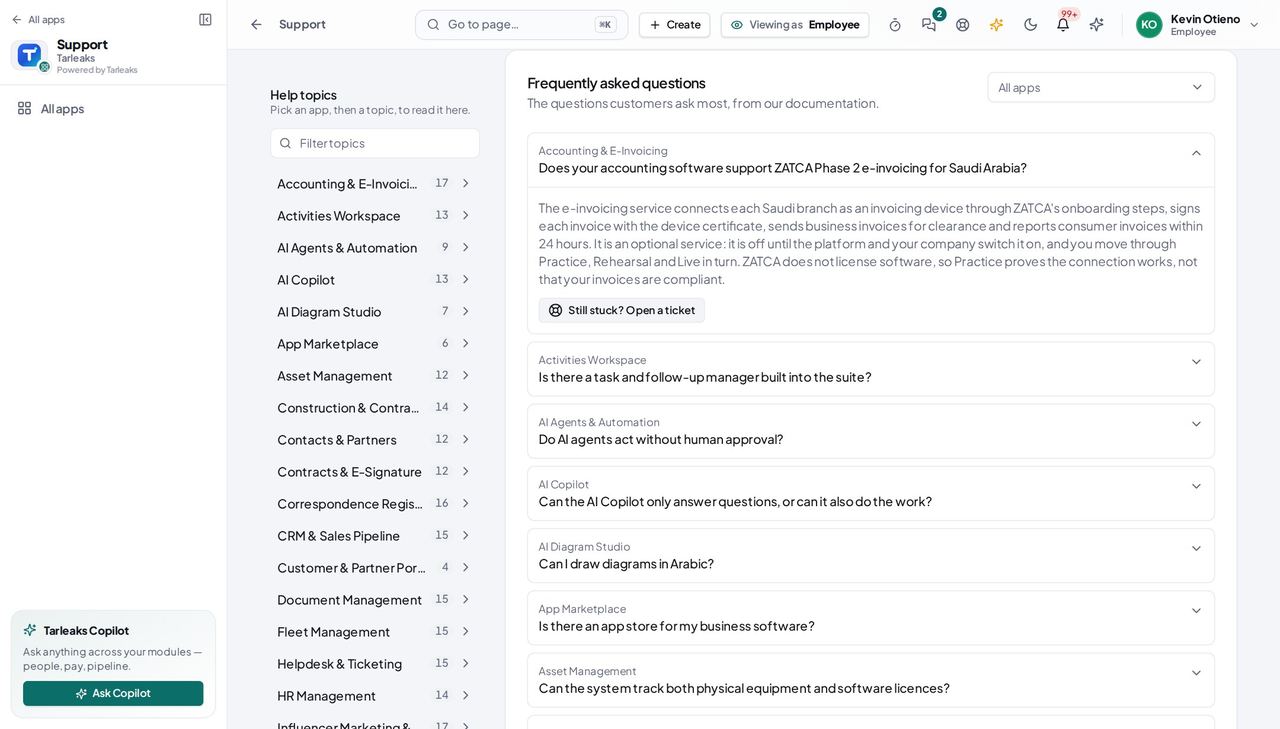
You should see The new ticket starts with the question as its title and names the guide you read, so nobody has to ask what you already tried.
Use cases — the work, step by step
Each one is a sequence somebody actually performs, with the screen behind every step. Every screen here was opened in the product as this role before it was published.
urgentSomething failed while you were working #
You should not have to describe a failure from memory. The message already holds what support needs, and it takes ten seconds to hand over.
Read the message. If it starts with an apology, the fault is on our side and we have been told; if it names a reason, that is what to change.
Any page, top right corner — verified: the page says “Sorry — something went wrong on our side”; the page says “Reference:”; the page says “Copy details”; the page says “Open ticket” Hold the mouse on the message so it stays, then press Open ticket.
The message » Open ticket — verified: the control is offered; the field already holds “Reference:”; the field already holds “Page:” Add one sentence about what you were doing and press Send. Support now has the page, the time and the reference.
The message » Open ticket — verified: the control is offered; the field already holds “Reference:”; the field already holds “Page:”
urgentAsk a colleague or your administrator for help instead #
Sometimes the quickest help is the person next to you. The details travel with you either way.
Press Copy details on the message before it goes.
The message » Copy details — verified: the page says “Copied” Paste it into the chat or e-mail to the person helping you.
The message » Copy details — verified: the page says “Copied”
You never have to remember what you clicked. The page, the time and the reference are in the message, and your company's administrator can see what went wrong for your colleagues too.