Employee — Getting started guide
Find your way around Tarleaks in your first minutes.
Every person in the company, on their first days in Tarleaks: signs in, finds their apps, takes the short tour of an app, and reads the screens in the language they prefer.
What you will be able to do
- Sign in and see only the apps your company licenses for you
- Find an app by typing a few letters
- Take the short tour of an app
- Switch the whole screen to Arabic, and back
What this role can and cannot do
| Can | Cannot |
|---|---|
|
6 steps, each one carried out in the product on .
Meet the launcher #
Where Launcher
- Open your company's address and sign in with the e-mail and password your administrator gave you.
- You land on the launcher: a grid of the apps your company uses, with a New request button, a Needs your attention list and a link to the detailed dashboard.
- An app that is not in your company's licence is not shown; ask your administrator to add it.
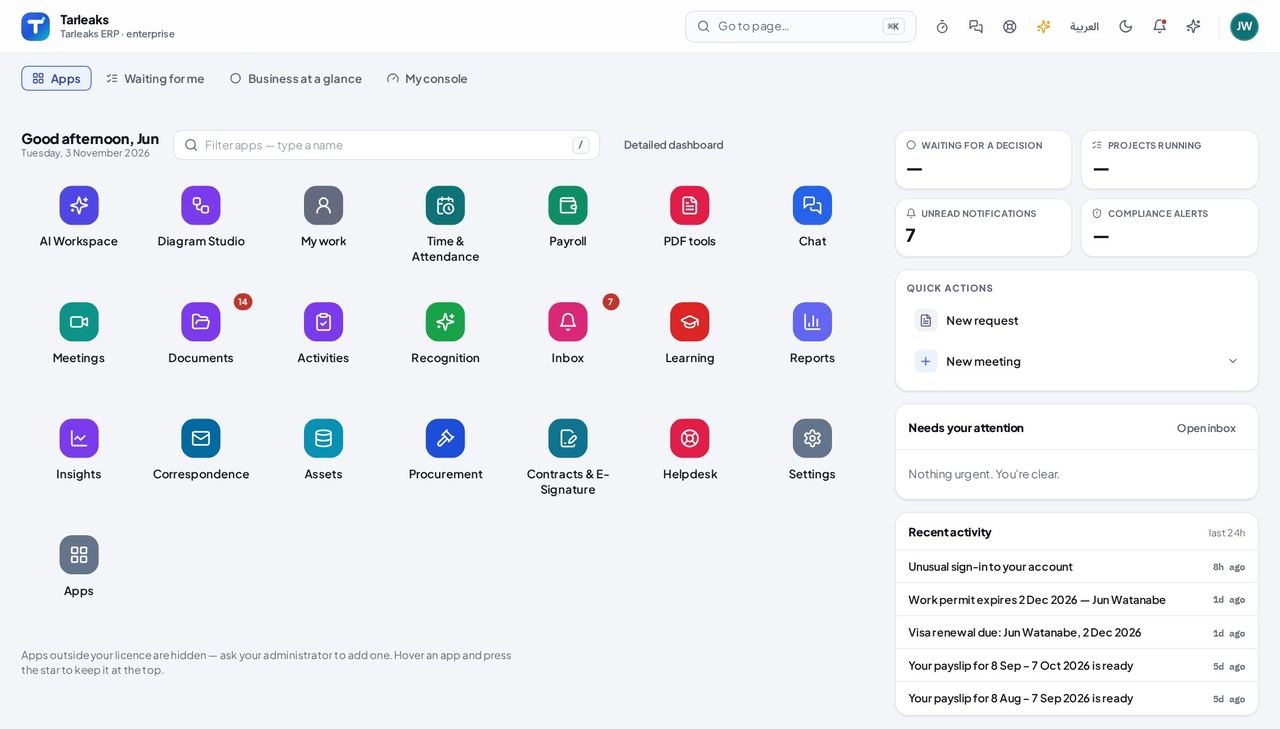
You should see A grid of apps, New request, Needs your attention and Detailed dashboard.
Find an app by typing #
Where Launcher » Filter apps
- Open your company's address in the browser — it looks like yourcompany.tarleaks.com.
- Type the e-mail address your administrator set up for you, then your password.
- Launcher → click Filter apps → type the first letters.
| Field | What to put in it |
|---|---|
| Filter apps | the first letters of the app's name |
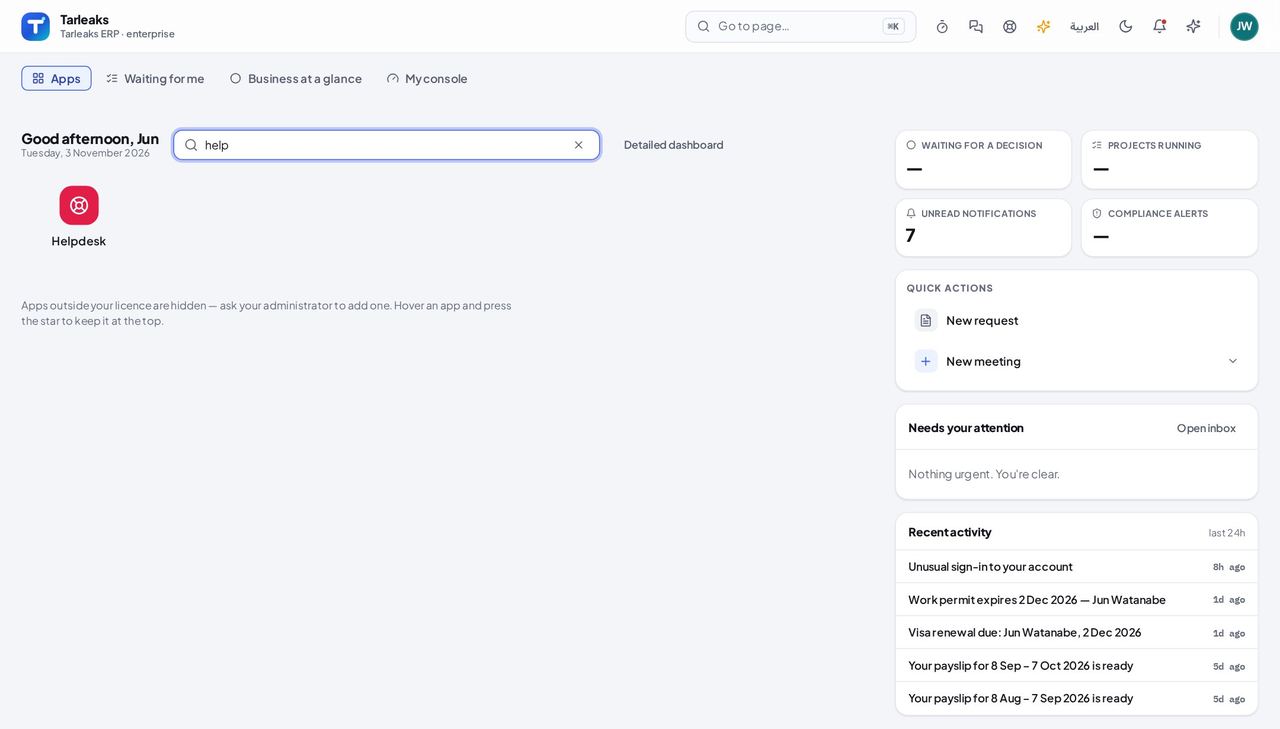
You should see Only the apps whose name matches what you typed.
Take the tour of an app #
Where An app » Take a tour
- Open an app, for example Helpdesk.
- At the foot of the side menu press Take a tour of Helpdesk.
- A welcome opens and says in a few lines what the app is for; the tour then points at the screens one by one. Close it at any time; the button stays there to start it again.
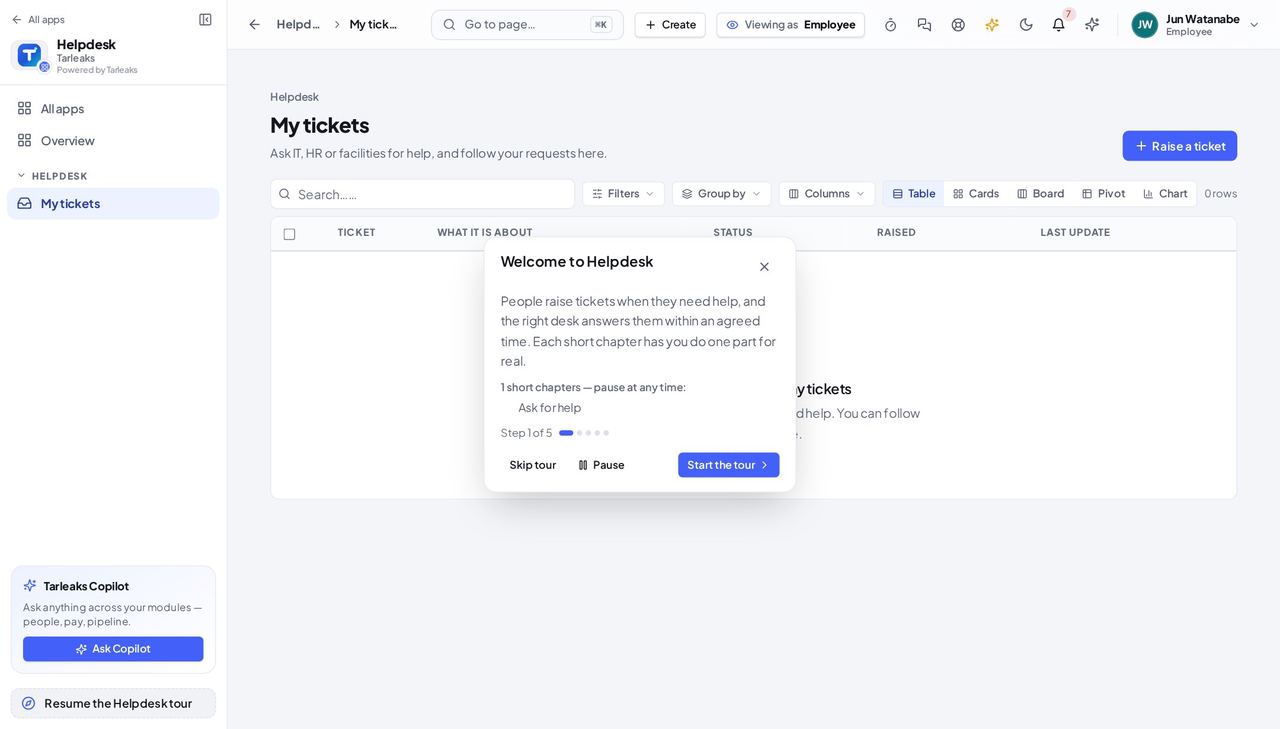
You should see A welcome with the app's name that you can close.
Switch to Arabic and back #
Where Launcher » the language button
- Open your company's address in the browser — it looks like yourcompany.tarleaks.com.
- Type the e-mail address your administrator set up for you, then your password.
- Press the language button at the top (العربية).
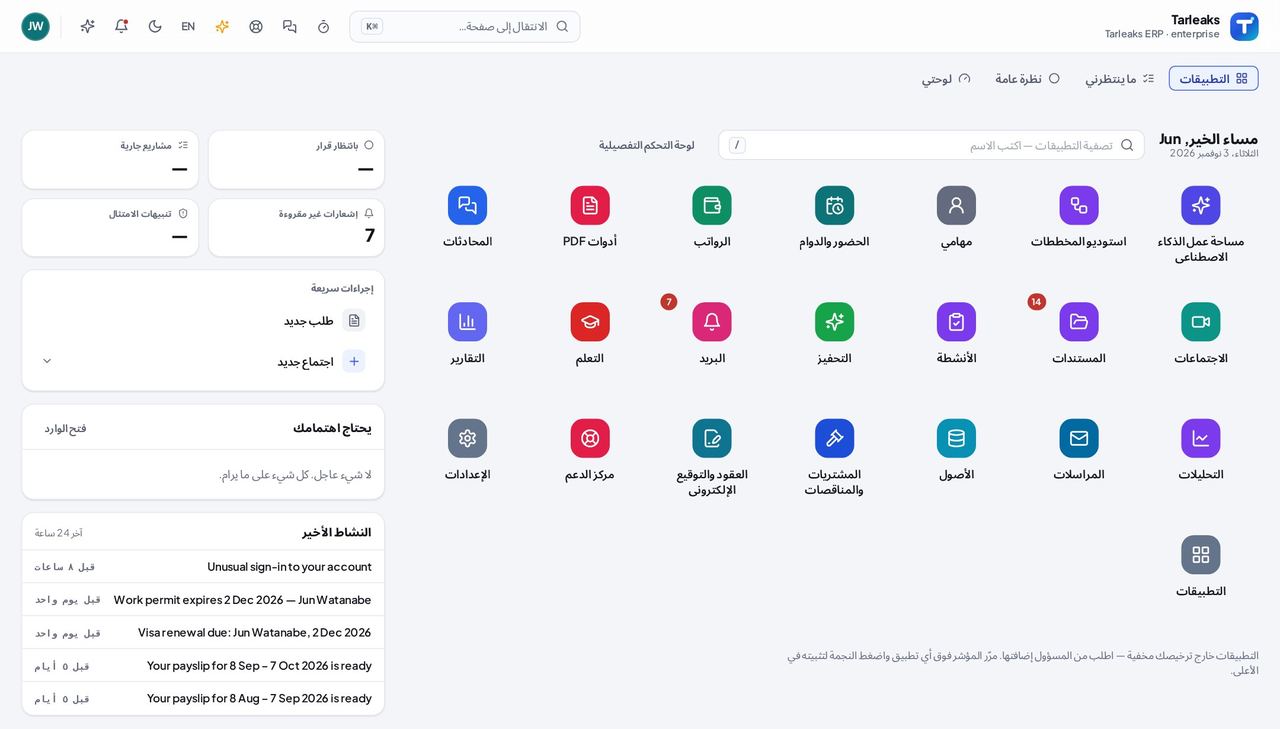
You should see The same launcher, in Arabic, laid out right to left.
Find a page or a record with Ctrl K #
Where Any screen » Ctrl K (⌘ K on a Mac)
- Open your company's address in the browser — it looks like yourcompany.tarleaks.com.
- Type the e-mail address your administrator set up for you, then your password.
- Press Ctrl K (⌘ K on a Mac) → type two or more letters → press Enter on the line you want.
| Field | What to put in it |
|---|---|
| Search box | two or more letters; start with @, &, # or $ to look for one kind of record |
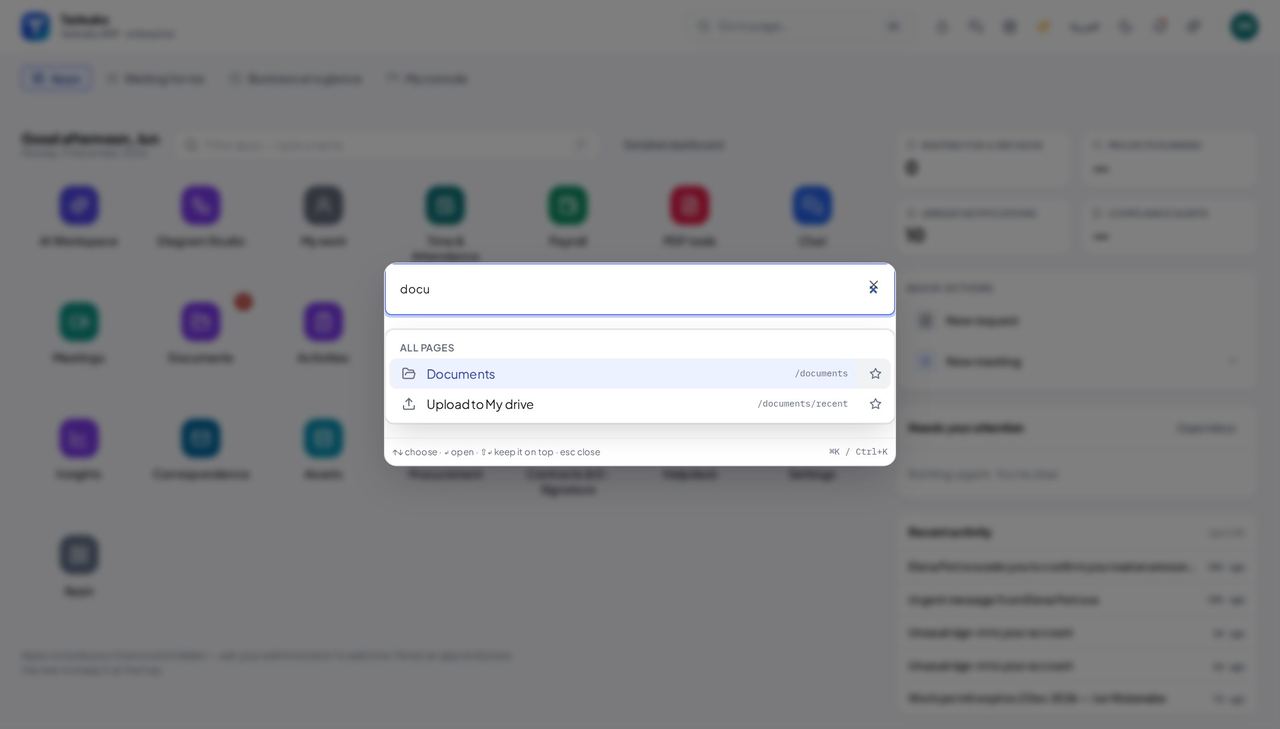
You should see A search box that lists matching pages, and records you are allowed to open.
Worth knowing You only see the kinds of record your company uses and your role may open; if a kind is missing, ask your administrator.
Replay a tour from your account menu #
Where Account menu » Tours
- Open your company's address in the browser — it looks like yourcompany.tarleaks.com.
- Type the e-mail address your administrator set up for you, then your password.
- Account menu (top right) → Tours → press the tour you want.
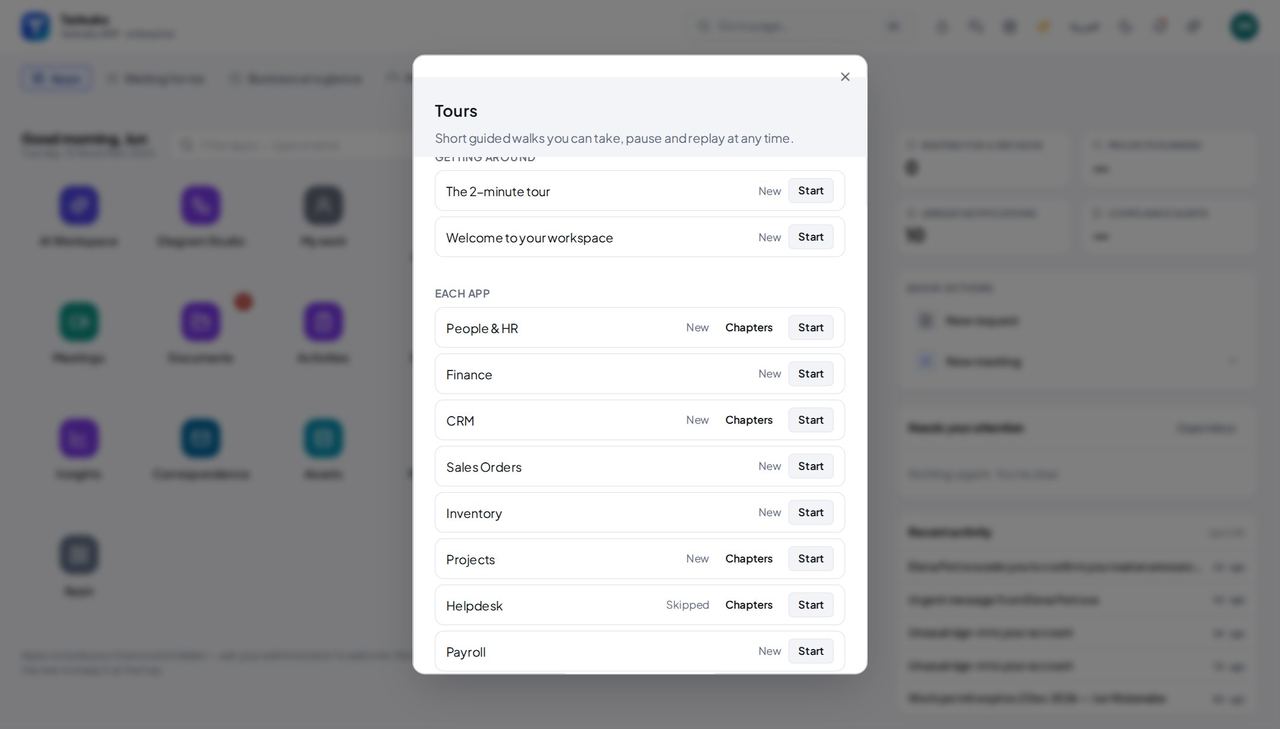
You should see A list of tours for your apps, each with its status.
Worth knowing After you finish a tour the closing card says where to replay any chapter: the last row of the app's menu, or Tours in your account menu.
Use cases — the work, step by step
Each one is a sequence somebody actually performs, with the screen behind every step. Every screen here was opened in the product as this role before it was published.
onceMy first morning #
Know where everything is before you need it.
Sign in and read the launcher: your apps, what needs your attention and the New request button.
Launcher — verified: the page says “New request”; the page says “Needs your attention”; the page says “Detailed dashboard” Type the first letters of the app you need.
Launcher » Filter apps — verified: the page says “Helpdesk”; no “Payroll” anywhere on the page Open an app and take its short tour.
An app » Take a tour — verified: the page says “Welcome to Helpdesk” Press Ctrl K to find any page or record by typing.
Any screen » Ctrl K (⌘ K on a Mac) — verified: the control is offered
onceI prefer Arabic #
The whole product works in Arabic, right to left.
Press the language button at the top of the launcher.
Launcher » the language button — verified: the page says “الإعدادات”
Everything else — what each app does — has its own guide.