Site Operator — Website guide
Put the company's website online from a ready-made template, and keep it online.
Runs the company website: picks a ready-made template, makes a version live, switches between versions, puts the site back online, connects the company's own domain. Does not change the company's settings.
What you will be able to do
- See every website of the company and whether it is live
- Choose a template, including the government templates
- Change a website's name, logo and colours
- Connect the company's own domain
What this role can and cannot do
| Can | Cannot |
|---|---|
|
|
6 steps, each one carried out in the product on .
See every website and whether it is live #
Where Website » Overview
- Click the Website tile in the launcher.
- Read each card: the website's name, whether it is Offline, Not live yet or live, and what you can do with it.
- A website that is switched off says so in words; if it has a saved version, the blue button puts it back online with that version.
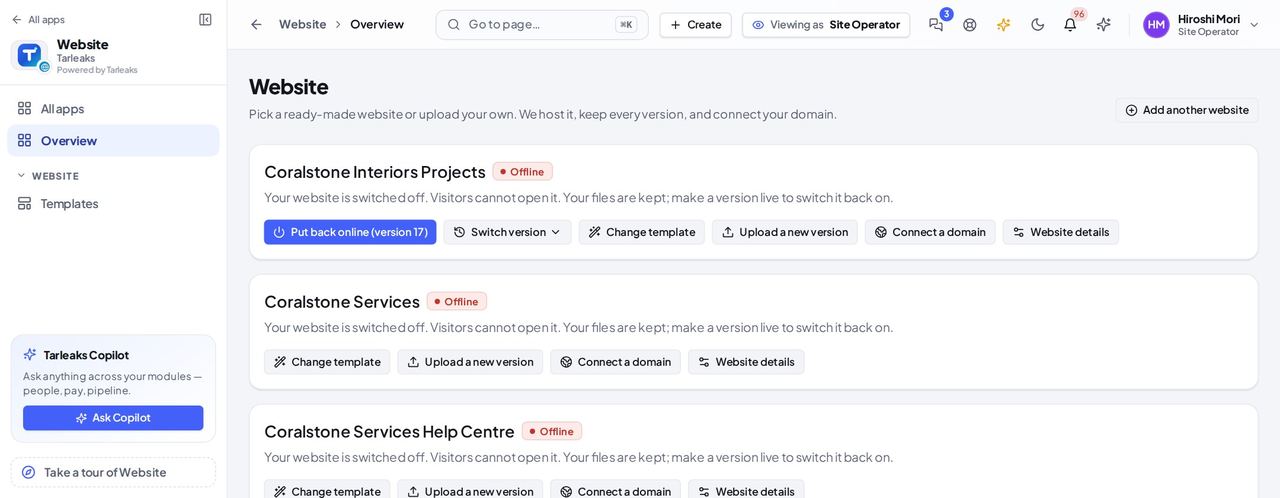
You should see One card per website, with its state and its actions.
Worth knowing Add another website, at the top right, starts from a template.
Choose a template #
Where Website » Templates
- Open Templates.
- Narrow the gallery with a kind — Business, Store, Government and more — or search by name or use.
- Press See it live to look at a template before you choose it.
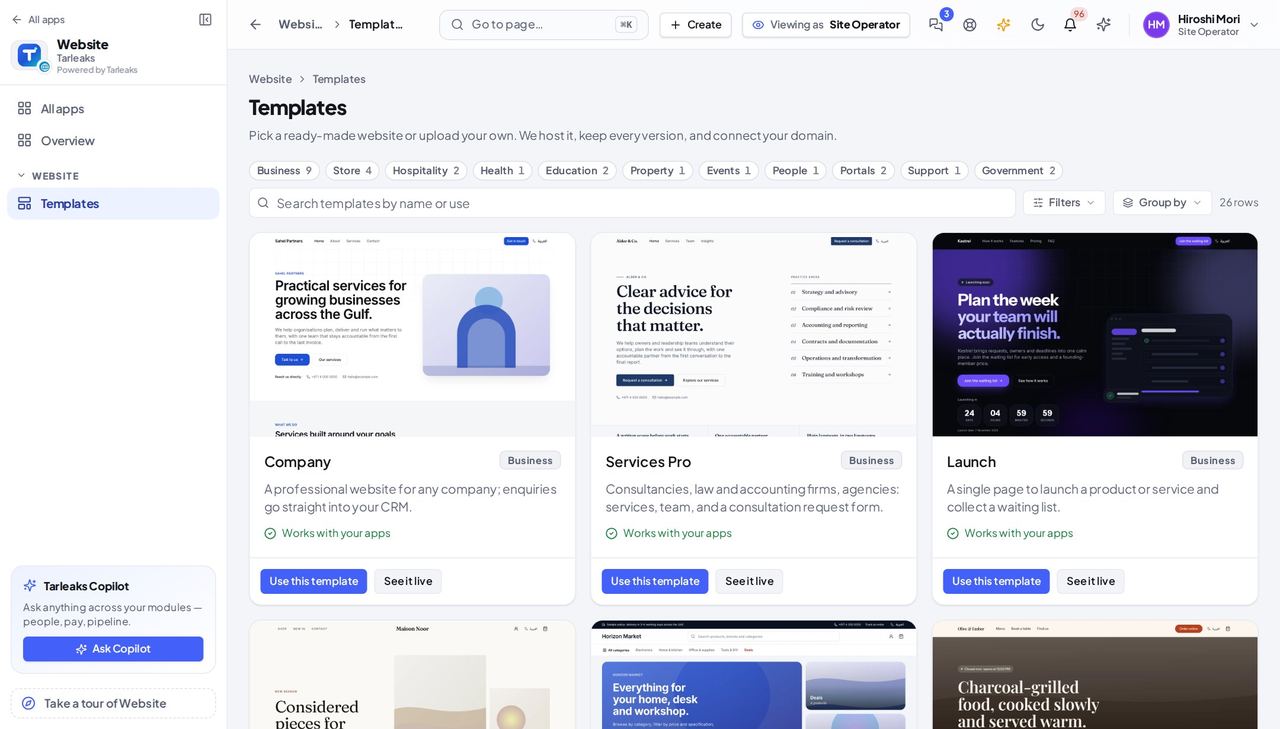
You should see A card per template with what it is for and Use this template.
Start from a government template #
Where Website » Templates » Government » a template
- Open your company's address in the browser — it looks like yourcompany.tarleaks.com.
- Type the e-mail address your administrator set up for you, then your password.
- You land on the app launcher: a grid of the apps your company uses.
- Click the Website tile.
- Templates → the Government kind → UAE Government Entity (7-Star).
- Use this template → name the website → confirm.
| Field | What to put in it |
|---|---|
| Website name | what your entity is called in public |
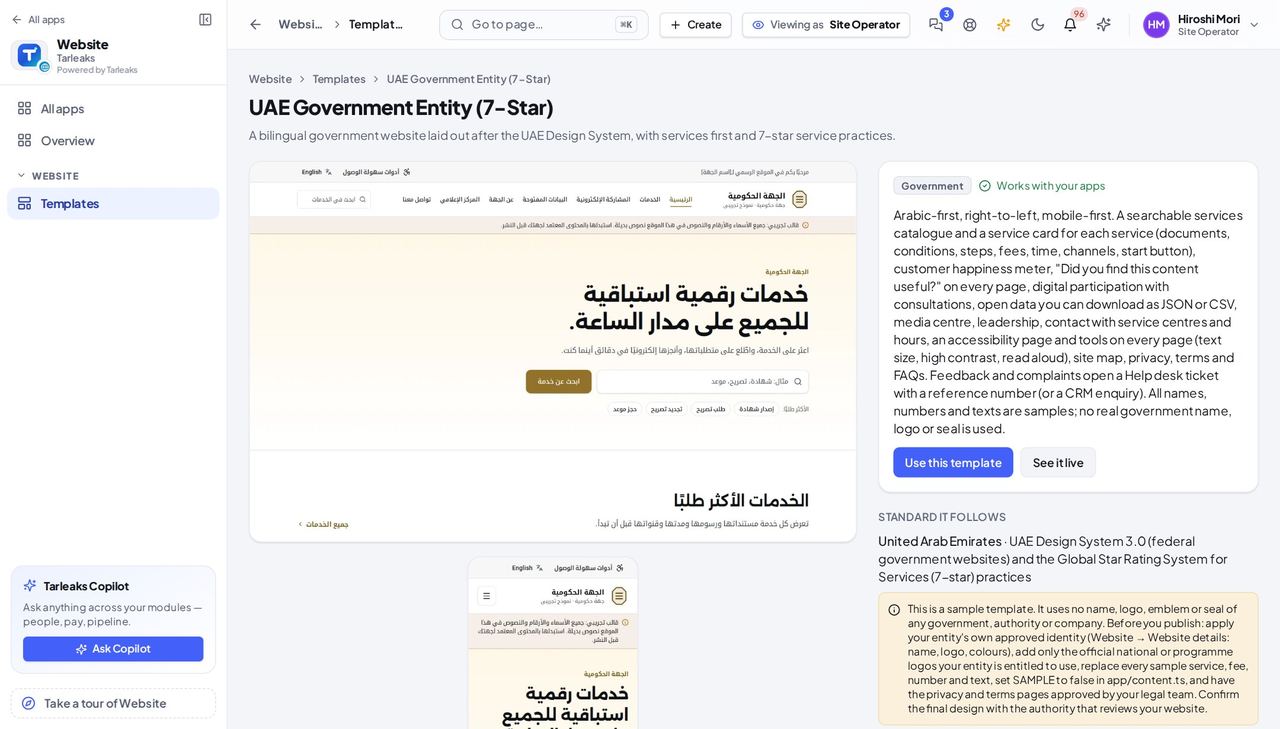
You should see The template's own page: an Arabic-first preview, the national standard it follows and the sample notice.
Watch out The sample notice is a promise to your reader: replace every sample before you publish.
Worth knowing Every name, number and text in a government template is a sample; none is a real government name, logo or seal.
Start from the Saudi government template #
Where Website » Templates » Government » KSA template
- Open Templates and the Government kind: the UAE and the Saudi templates sit side by side.
- Open the Saudi one: it names the standard it follows (the Saudi Digital Government Authority's requirements and the national Platforms Code) and carries the same sample notice.
- Replace every sample with your entity's own approved content before you publish.
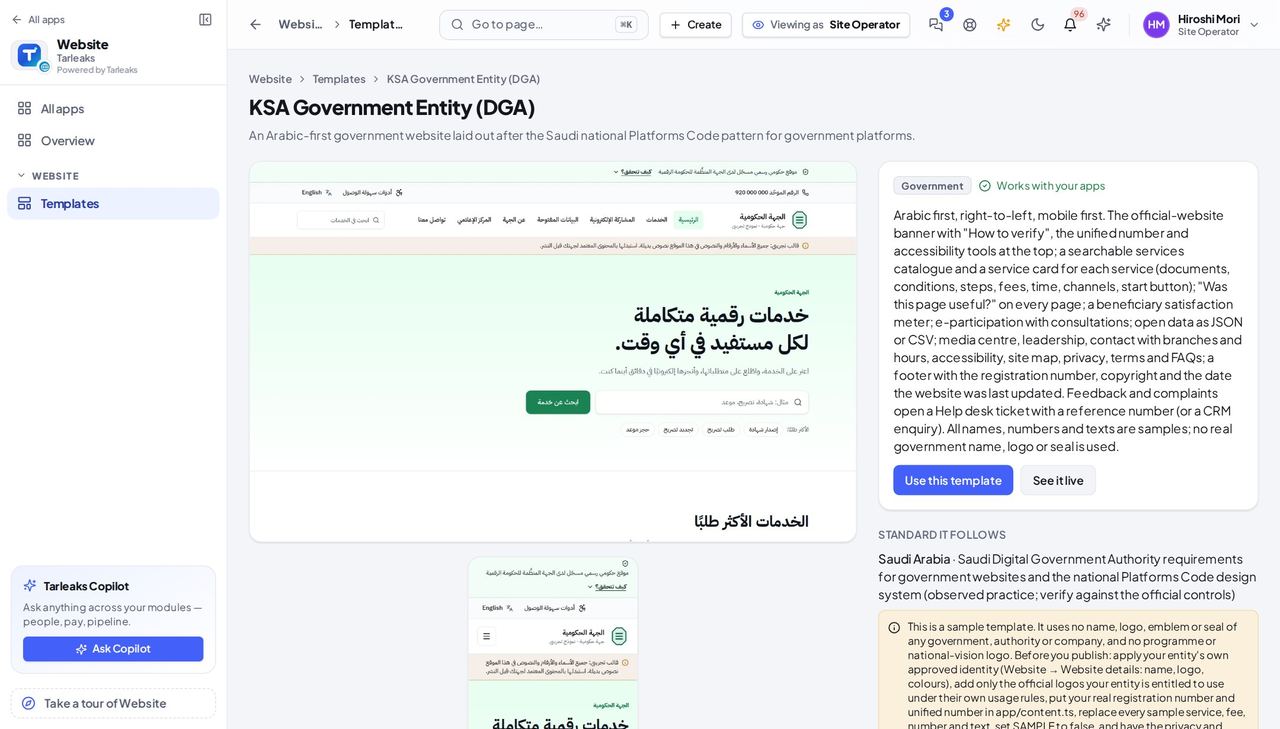
You should see The template's own page, with its standard and the sample notice.
Change a website's details #
Where Website » a website » Website details
- On the website's card press Website details.
- Under About your company fill the tagline and the about text in English and Arabic, and upload the logo and the main picture; under How customers reach you check the e-mail and phone.
- Save: the template shows these on every page.
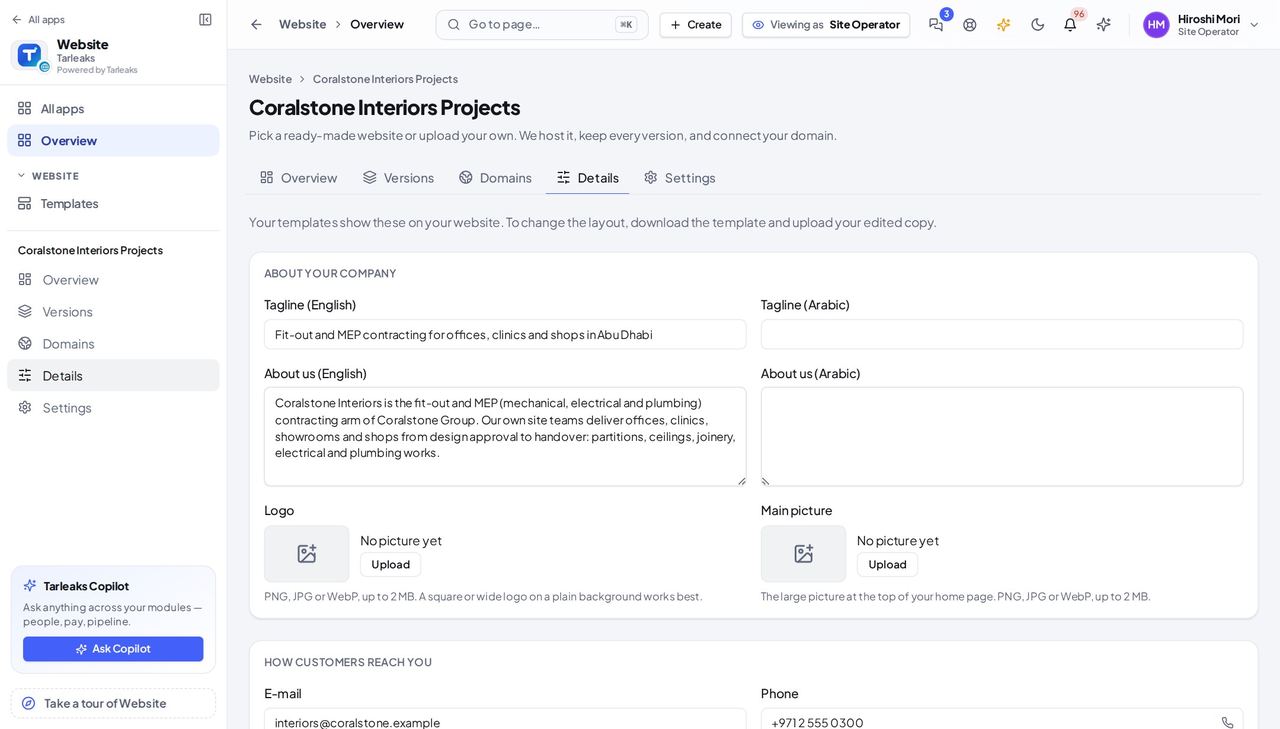
You should see The Details tab of the website: your company's words, logo, main picture and contact details.
Connect your own domain #
Where Website » a website » Connect a domain
- Open your company's address in the browser — it looks like yourcompany.tarleaks.com.
- Type the e-mail address your administrator set up for you, then your password.
- You land on the app launcher: a grid of the apps your company uses.
- Click the Website tile.
- Overview → the website → Connect a domain.
- Domains tab → Connect a domain → type your domain → add the record at your provider.
| Field | What to put in it |
|---|---|
| Domain | an address you own, for example www.yourentity.ae |
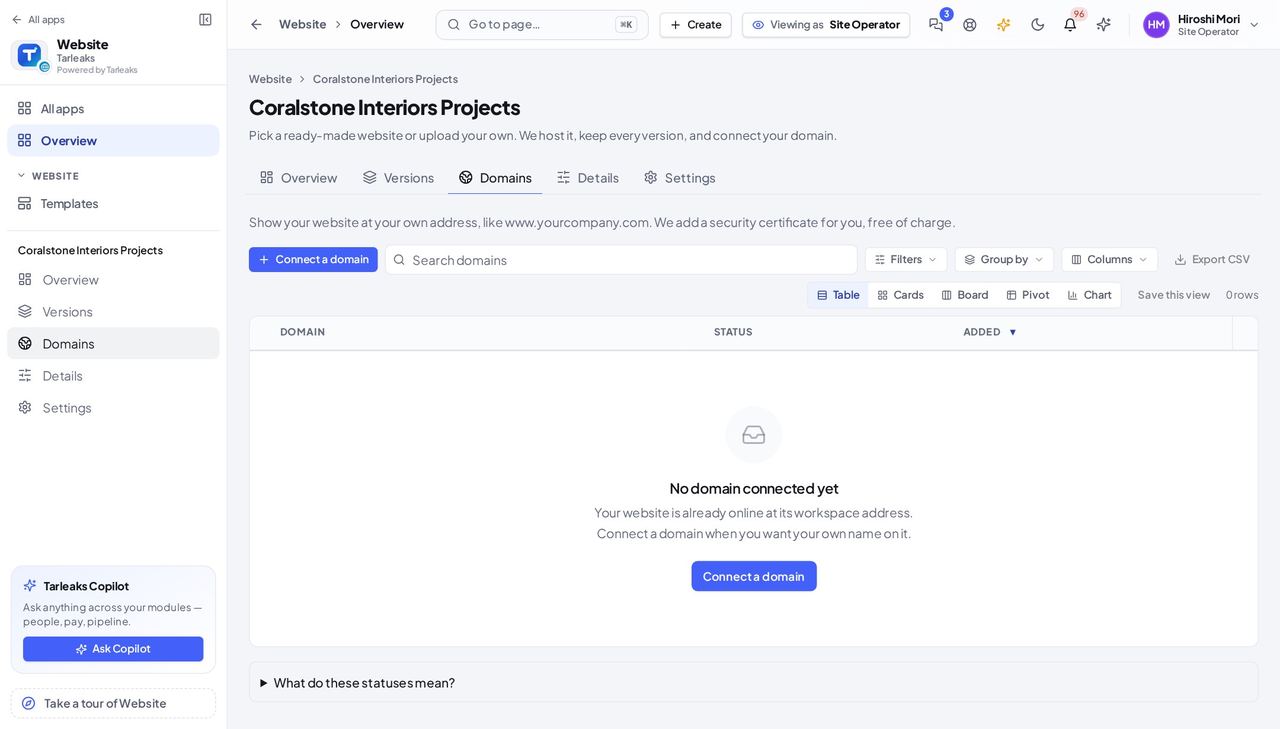
You should see The Domains tab: the list of connected domains, or No domain connected yet, and Connect a domain.
Watch out A domain points here only after the record you add at your provider has spread.
Use cases — the work, step by step
Each one is a sequence somebody actually performs, with the screen behind every step. Every screen here was opened in the product as this role before it was published.
once per entityA government entity gets its website #
The template already follows the national design standard; your job is to replace every sample with the entity's own approved content.
Templates → Government → open the template that fits: UAE or Saudi.
Website » Templates » Government » a template — verified: the page says “UAE Government Entity”; the page says “UAE Design System”; the page says “sample template” For a Saudi entity, the Saudi template.
Website » Templates » Government » KSA template — verified: the page says “Government”; the page says “Use this template” Website details: the entity's own name, logo and colours.
Website » a website » Website details — verified: the page says “About your company”; the page says “Tagline (English)”; the page says “How customers reach you” Connect a domain the entity owns.
Website » a website » Connect a domain — verified: the page says “Export CSV”; the page says “What do these statuses mean”
occasionallyThe website was switched off #
Visitors cannot open an offline website; its files are kept, and when it has a saved version, Put back online switches it on again.
Overview → find the website: it reads Offline.
Website » Overview — verified: the page says “Add another website”; the page says “Website details”; the page says “Connect a domain” Press Put back online (shown when the website has a saved version); it returns with that version. Without one, choose a template first.
Website » Overview — verified: the page says “Add another website”; the page says “Website details”; the page says “Connect a domain”
The company's other settings are the administrator's; you run the website.