Employee — Assets guide
See what is in your care and hand it back when you are done.
Holds what was checked out to them: reads the register, checks an asset in or out, follows a movement. Never retires, never changes a type, never touches an automation.
What you will be able to do
- Find any asset and who holds it
- Check an asset out or in
- Follow a movement
What this role can and cannot do
| Can | Cannot |
|---|---|
|
|
4 steps, each one carried out in the product on .
See what is in your care #
Where Assets » My assets
- Open Assets: you land on My assets.
- Read each row: where the asset is, when it was handed to you, the date to return it by, and whether you confirmed you received it.
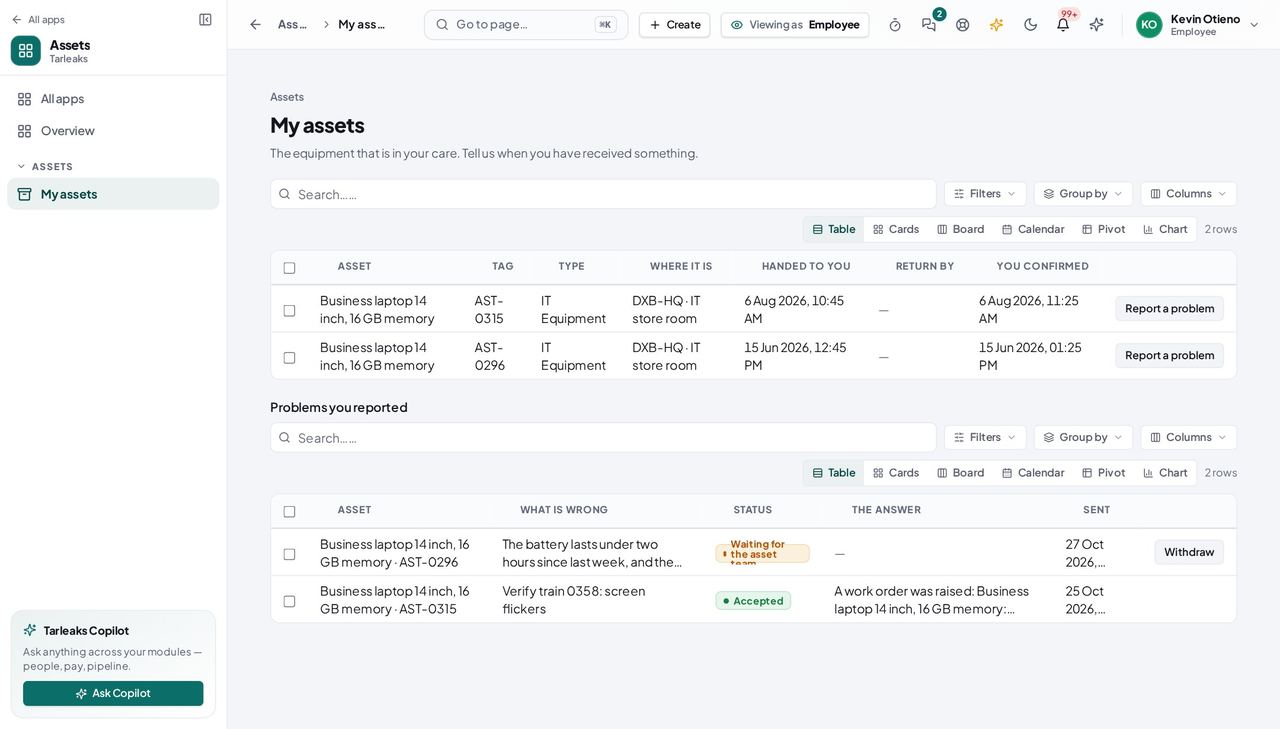
You should see Only what is yours; the full library belongs to the asset team.
The library and retiring are the asset team's #
Where Assets » My assets
- Look at the menu on the left.
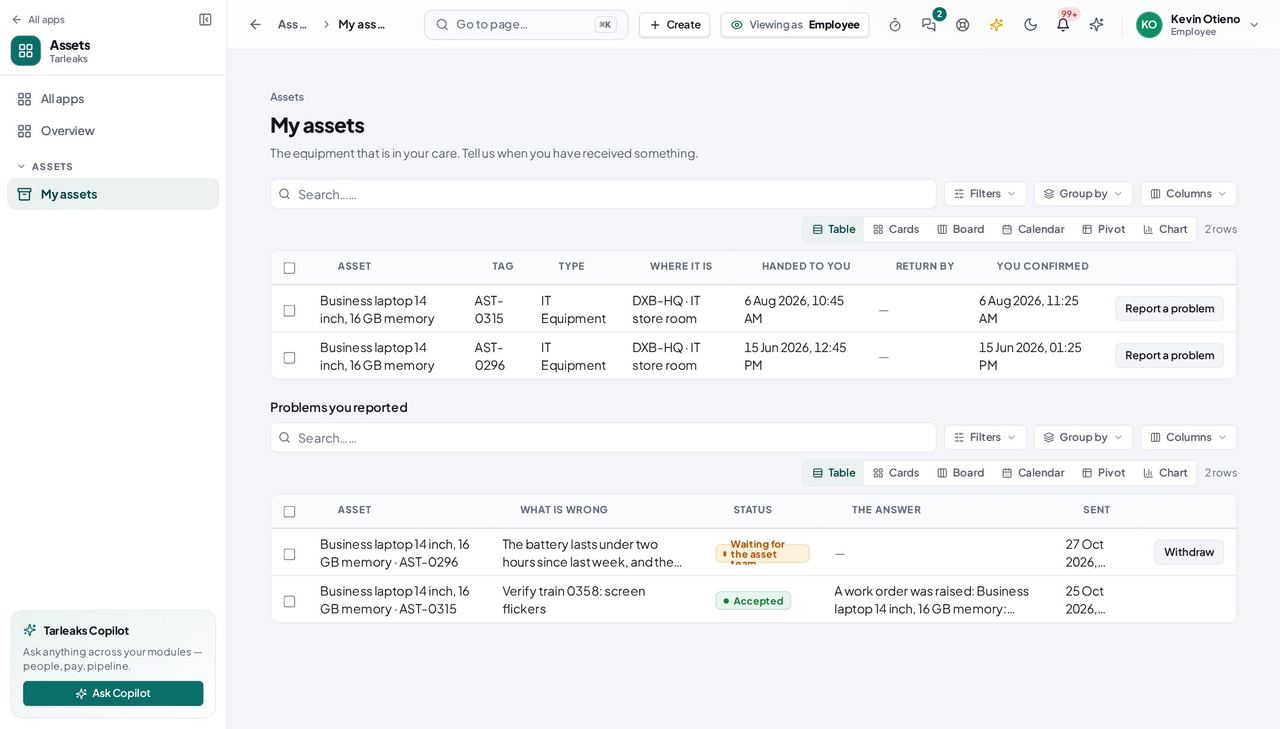
You should see My assets is there; the Asset library, Retire asset and the automations are not.
Automations run without you #
Where Assets » My assets
- Look at the menu on the left.
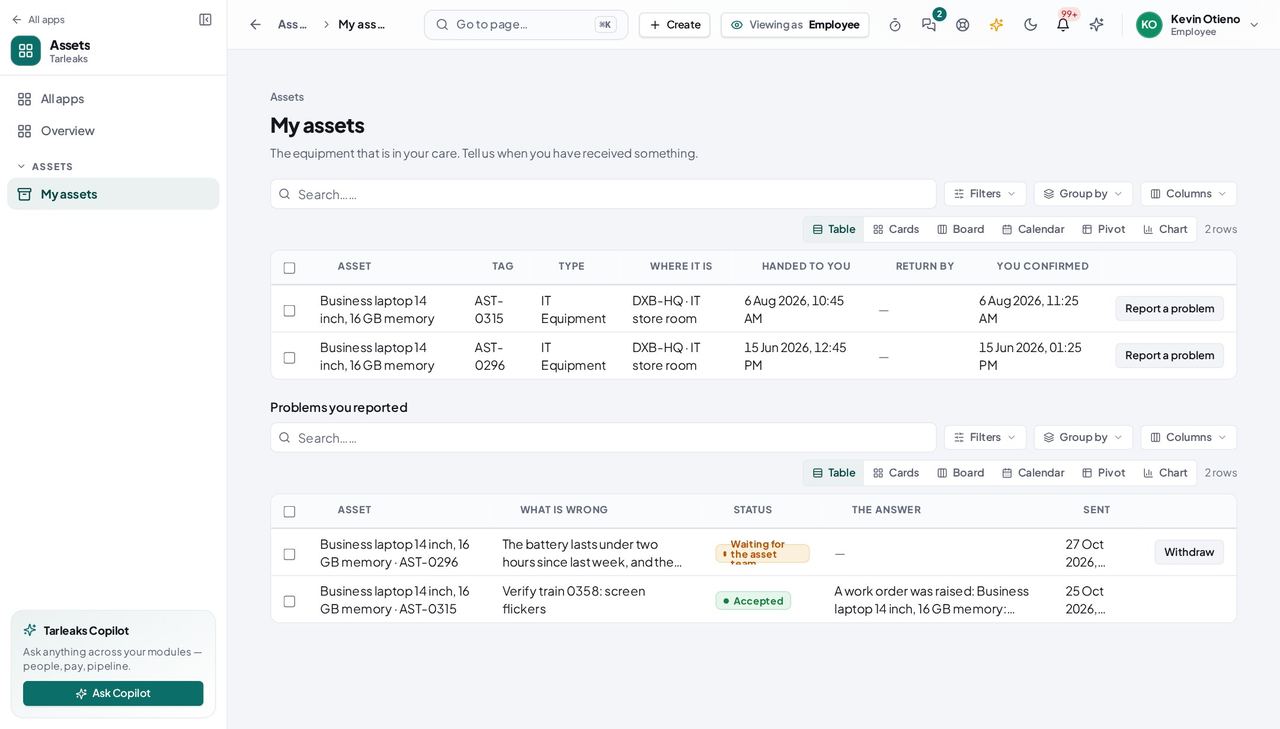
You should see There is no Automations page for this role, and no Run daily checks now; the asset team's rules chase overdue returns and repairs for you.
Report a problem with an asset you hold #
Where Assets » My assets » Report a problem
- Open your company's address in the browser — it looks like yourcompany.tarleaks.com.
- Type the e-mail address your administrator set up for you, then your password.
- You land on the app launcher: a grid of the apps your company uses.
- Click the Assets tile.
- My assets → Report a problem.
- Describe it → urgency → photos → Send to the asset team.
| Field | What to put in it |
|---|---|
| What is wrong? | In your own words |
| How urgent is it? | Can wait … I cannot work without it |
| Photos (up to 3) | Optional |
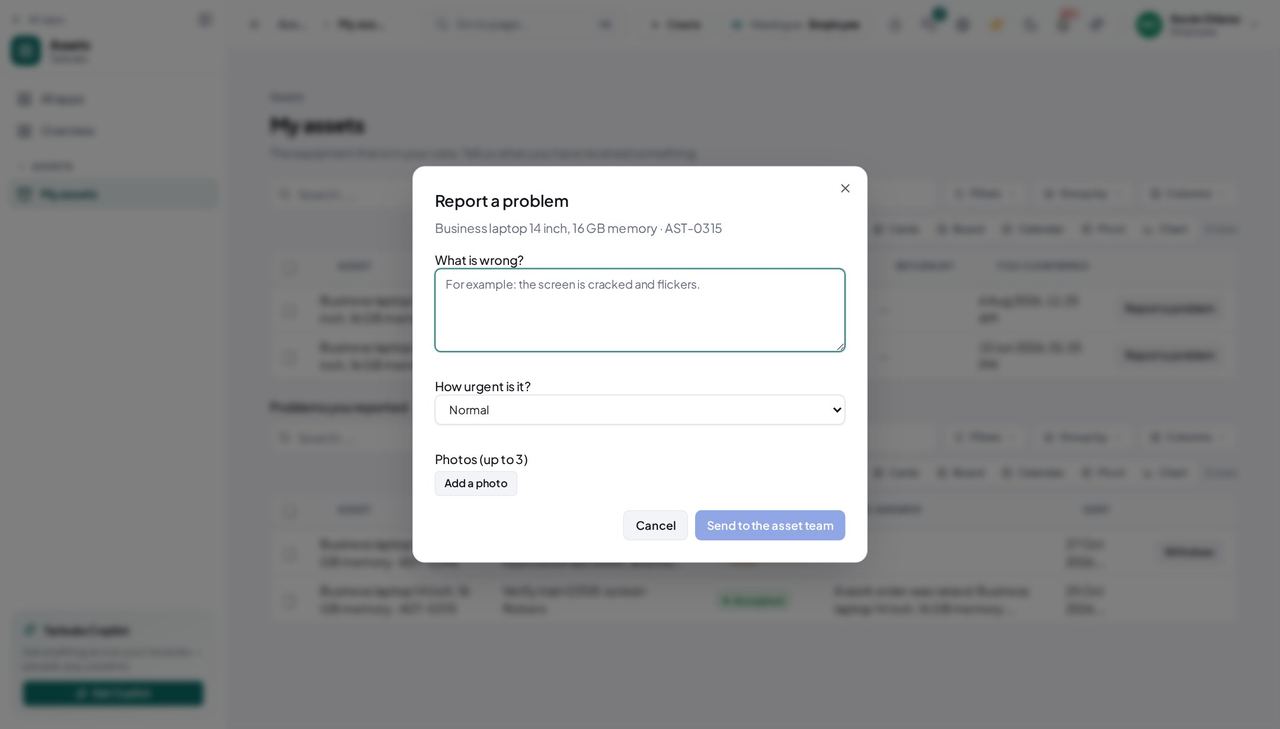
You should see The report appears under Problems you reported, with the asset team's answer when it comes.
Use cases — the work, step by step
Each one is a sequence somebody actually performs, with the screen behind every step. Every screen here was opened in the product as this role before it was published.
occasionallyHand a laptop back #
The register — and, if you are leaving, HR's checklist — needs to see it.
Library → search your name or the tag → open the asset.
Assets » My assets — verified: the page says “My assets”; the page says “Return by”; 4 row(s) listed Press Check in. The Movements tab records the return.
Assets » My assets — verified: “Asset library” is not in this role's menu; no “Retire asset” anywhere on the page
Retiring an asset, changing a type or writing an automation is not yours — the buttons are simply not there.