Assets role guides — what each role can do, step by step
Step-by-step guides for the asset register — the manager who knows where every company asset is and who holds it, the employee who hands one back, and the administrator who defines the types and statuses. 19 steps across 3 roles, every one of them carried out in the product before it was published here.
Last updated
Nothing matches that. Try a shorter word, or pick All roles to search every guide.
Go deeper
Asset Manager
Know where every company asset is, who holds it and what it is worth — and never type an id.
Runs the register: registers assets with the type's own fields, checks them out to people by name, moves them between places and custody states, raises the work orders, reads accounting's book values, retires what is done, and writes the automations that do the chasing.
What you will be able to do
- Register an asset with the fields its type asks for
- Check it out to a colleague by name, move it, bring it back
- Raise and follow the work orders
- Read the book value accounting posted, and capitalise what should be
- Retire what is done — and let the automations do the chasing
What this role can and cannot do
| Can | Cannot |
|---|---|
|
|
13 steps, each one carried out in the product on .
Read the estate #
Where Assets
- Click the Assets tile in the launcher.
- Read the four tiles: total, book value in your currency, utilisation, open work orders. Each one opens the page it counts.
- Read the insight card: it is arithmetic over your rows — overdue work orders, assets below the condition threshold, idle assets.
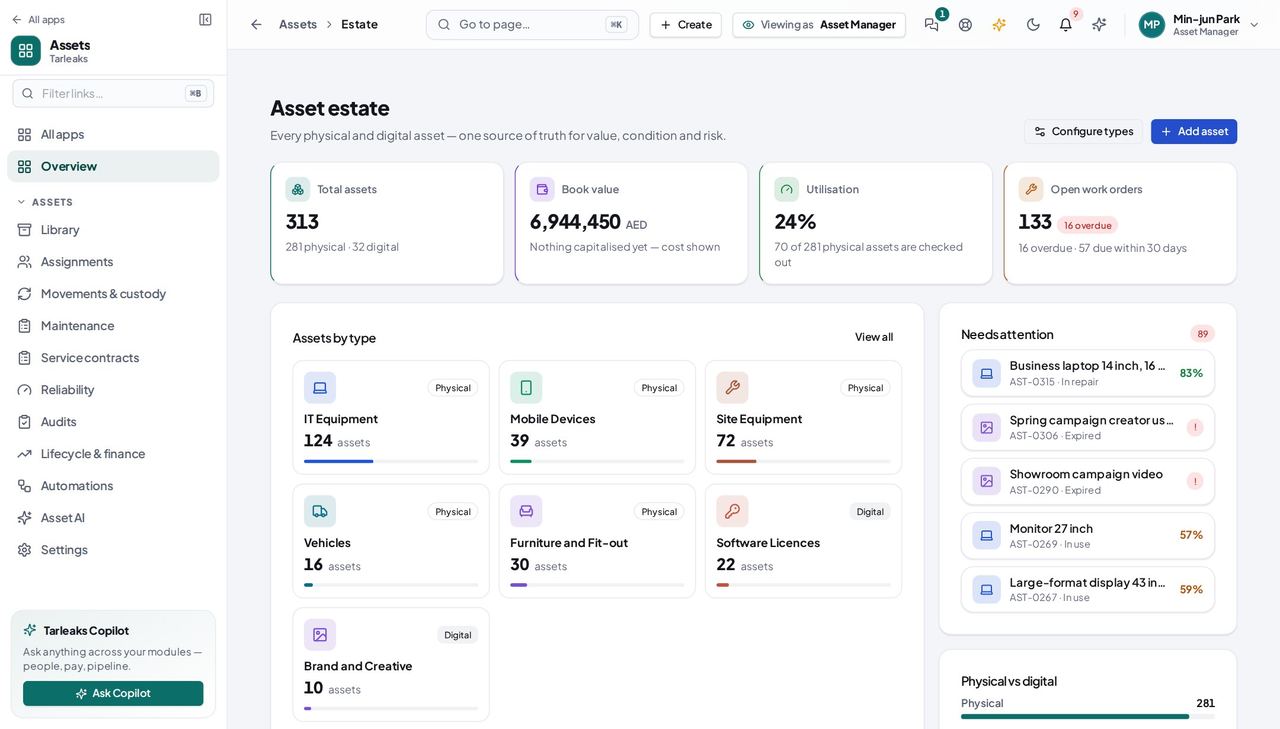
You should see Numbers that change when the estate changes; Add asset opens the form.
Open the Library and filter with a tile #
Where Assets » Library
- Open the Library.
- Click the Checked out tile: the table narrows to assets somebody holds, and the custodian column shows their name.
- Refresh the page: the filter is still on — it lives in the address bar.
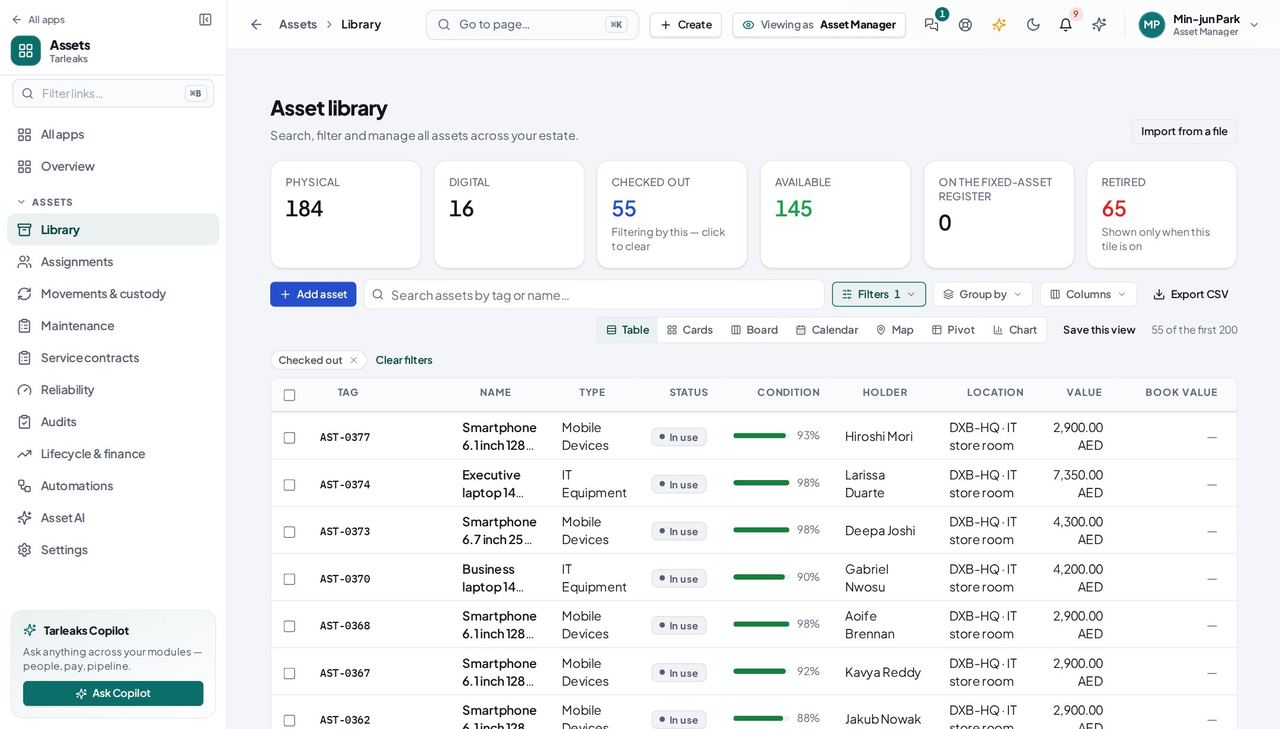
You should see Names, never ids; the filter survives a refresh.
Worth knowing Copy the address bar to send a colleague exactly this view.
Open an asset and check it out by name #
Where Assets » Library » an asset » Check out
- Open your company's address in the browser — it looks like yourcompany.tarleaks.com.
- Type the e-mail address your administrator set up for you, then your password.
- You land on the app launcher: a grid of the apps your company uses.
- Click the Assets tile.
- Library → click the asset's row.
- Check out → type a name → pick → confirm.
| Field | What to put in it |
|---|---|
| Assign to | the colleague's name or e-mail — the picker resolves the id |
| Note | optional, kept on the movement |
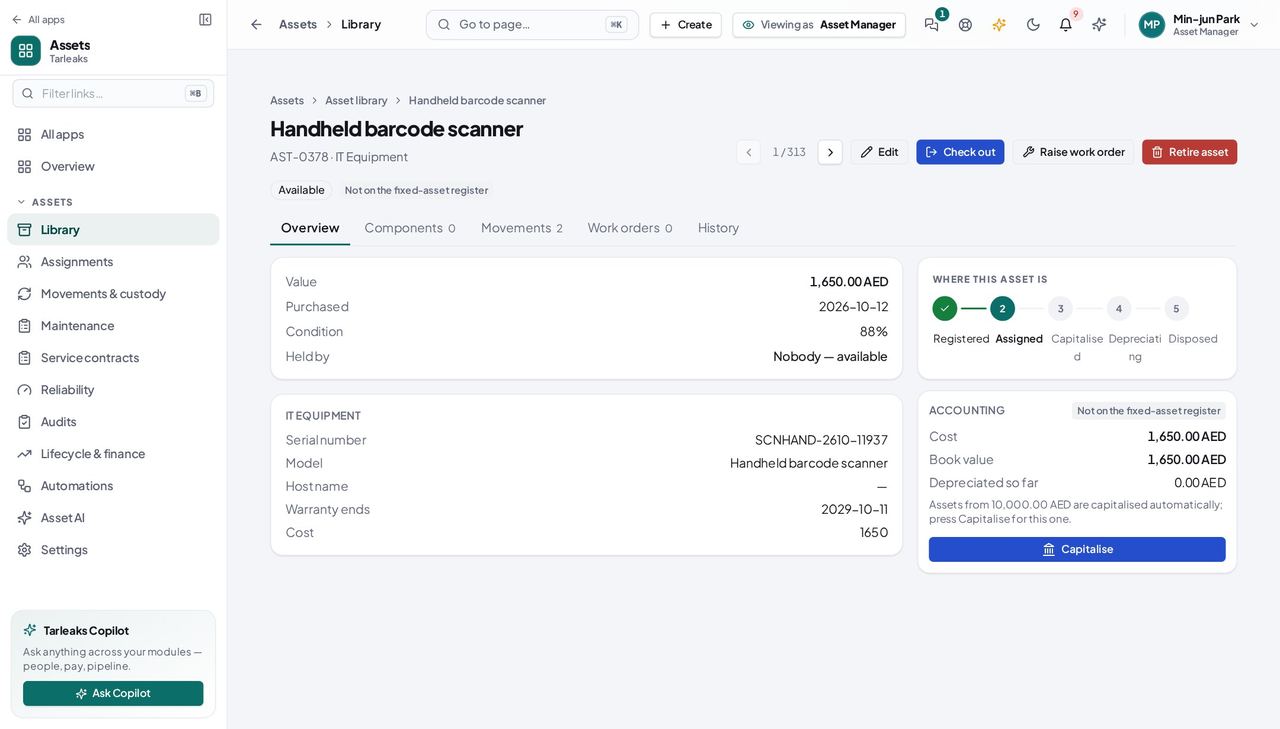
You should see The page says who holds it — by name — and the Movements tab shows the hand-over.
Watch out A person without a login is not in the list — HR links the login first.
Retire an asset #
Where Assets » Library » an asset » Retire asset
- Open your company's address in the browser — it looks like yourcompany.tarleaks.com.
- Type the e-mail address your administrator set up for you, then your password.
- You land on the app launcher: a grid of the apps your company uses.
- Click the Assets tile.
- Library → the asset → Retire asset → reason → confirm.
| Field | What to put in it |
|---|---|
| Reason | why — end of life, sold, lost; shown on the ledger |
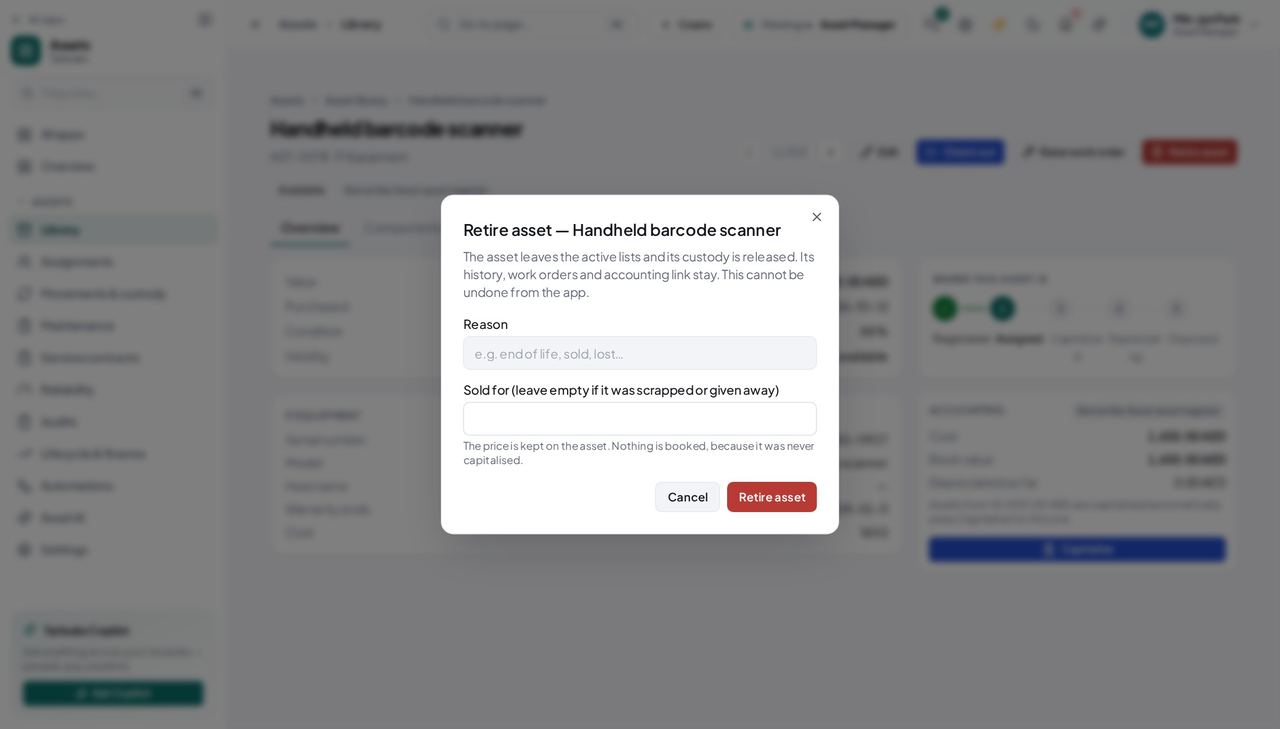
You should see The head reads Retired with the date; the asset leaves the active lists (the Library's Retired tile shows it); its history stays. A sale price on an asset on the fixed-asset register books the gain or loss in Accounting.
Watch out Retire releases custody and refuses Capitalise afterwards; it never deletes.
Worth knowing Leave the price empty when the asset was scrapped or given away.
Write a rule #
Where Assets » Automations » New rule
- Open your company's address in the browser — it looks like yourcompany.tarleaks.com.
- Type the e-mail address your administrator set up for you, then your password.
- You land on the app launcher: a grid of the apps your company uses.
- Click the Assets tile.
- Automations → New rule → name → WHEN → THEN → Save.
| Field | What to put in it |
|---|---|
| Work order title | blank = the rule name + the asset; {asset} inserts the asset |
| Status to set | a word from the chosen type's own status list |
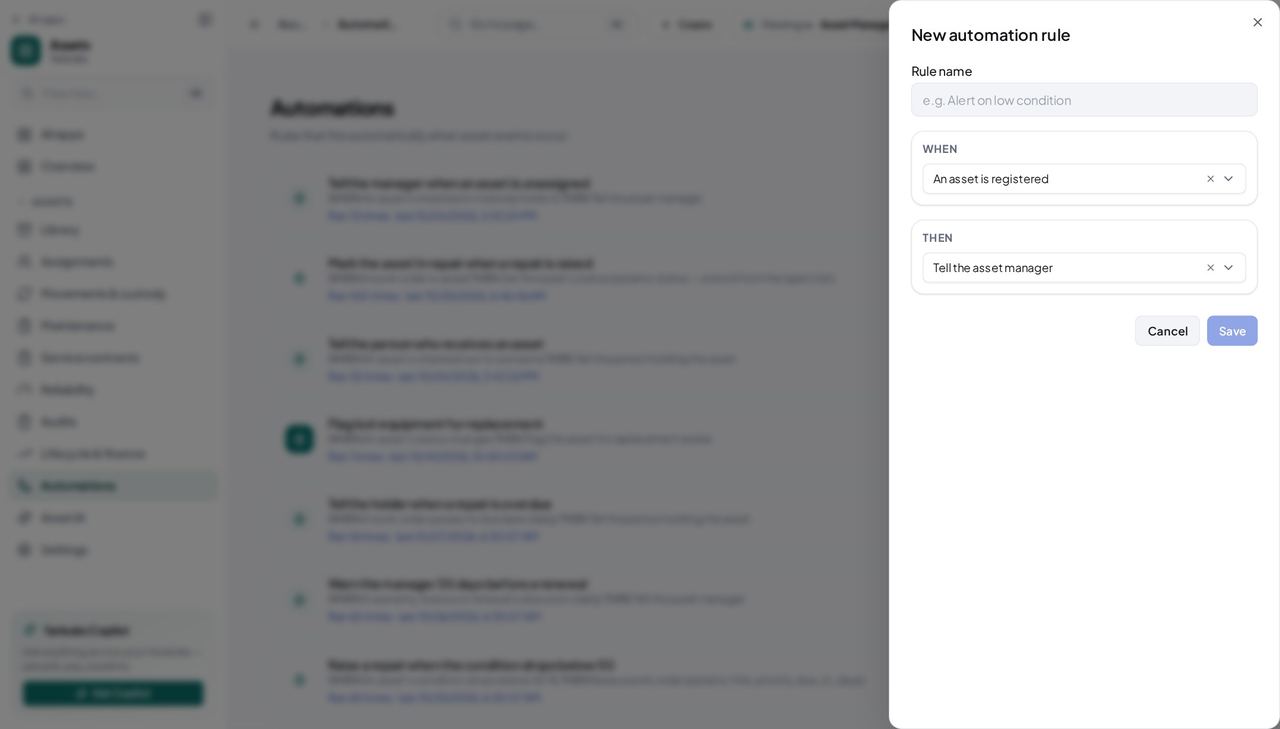
You should see A rule you can read aloud; the run log fills as it fires.
Watch out A status the type does not have is logged as Not done, never invented.
Run the daily checks now #
Where Assets » Automations » Run daily checks now
- Press Run daily checks now.
- Read the toast: how many rules were checked and how many fired.
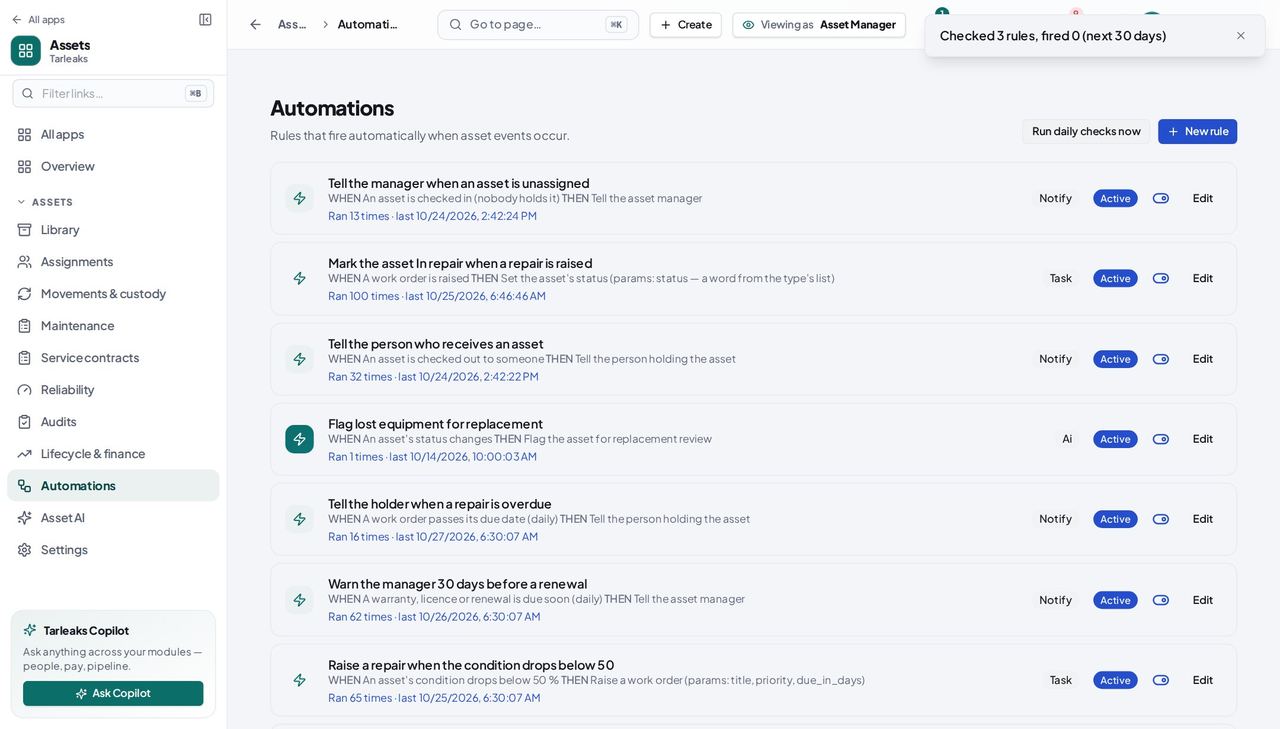
You should see Overdue work orders and expiring warranties are chased without waiting for the scheduler; pressing twice does not chase twice.
Import assets from a spreadsheet #
Where Assets » Library » Import from a file
- Open your company's address in the browser — it looks like yourcompany.tarleaks.com.
- Type the e-mail address your administrator set up for you, then your password.
- You land on the app launcher: a grid of the apps your company uses.
- Click the Assets tile.
- Library → Import from a file → Download the template.
- Fill the file → choose it → Check the file → Import.
| Field | What to put in it |
|---|---|
| File | A CSV with one asset per line, in the template's columns |
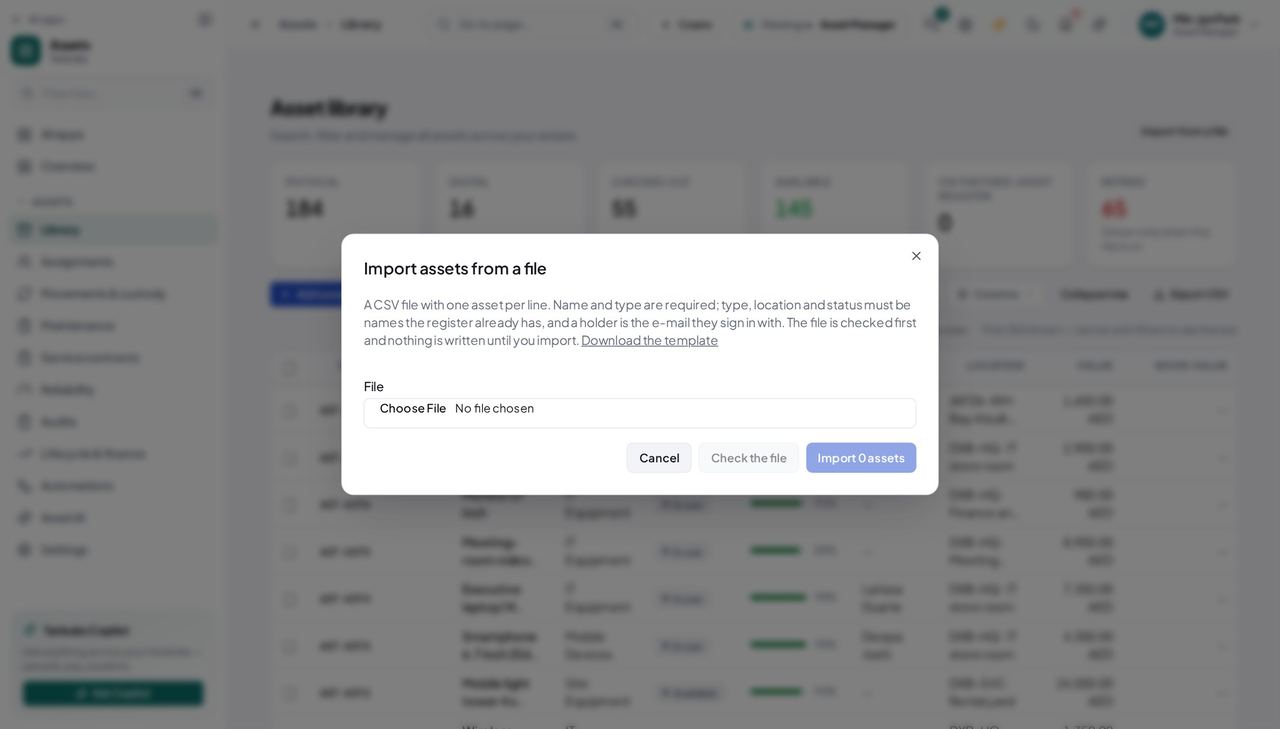
You should see Every line that would be refused is named before anything is written; for 24 hours the import can be undone, as long as none of its assets has been changed since.
Watch out A holder must be an e-mail somebody signs in with; anything else is refused by line.
Print QR labels for a batch of assets #
Where Assets » Library » tick rows » Print labels…
- Tick the assets that need a label.
- Press Print labels… and print the sheet.
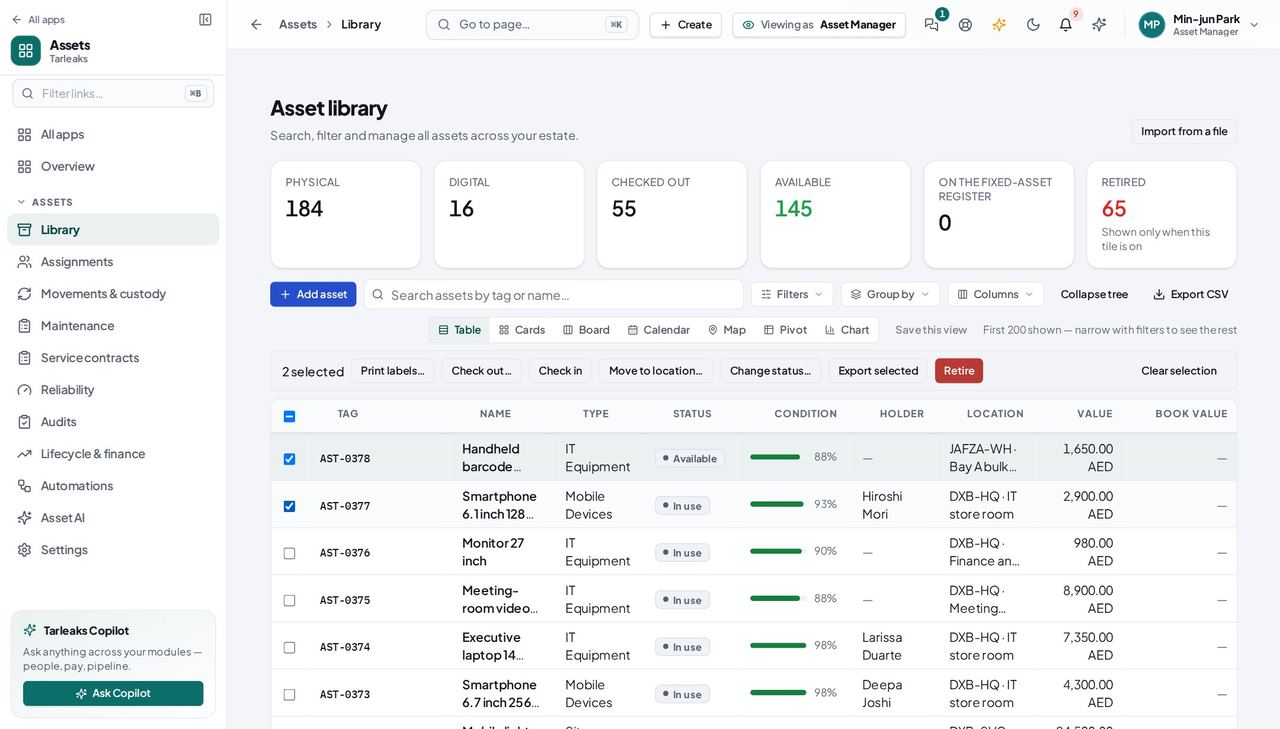
You should see Each label carries the tag and a QR code that opens the asset's own page on a phone. The same bar checks out, checks in, moves, changes status, exports or retires the ticked rows.
Lend an asset with a return date #
Where Assets » Library » an asset » Check out
- Open your company's address in the browser — it looks like yourcompany.tarleaks.com.
- Type the e-mail address your administrator set up for you, then your password.
- You land on the app launcher: a grid of the apps your company uses.
- Click the Assets tile.
- Library → the asset → Check out.
- Pick the person → set Return by → confirm.
| Field | What to put in it |
|---|---|
| Assign to | the colleague's name |
| Return by (optional) | the date the loan ends |
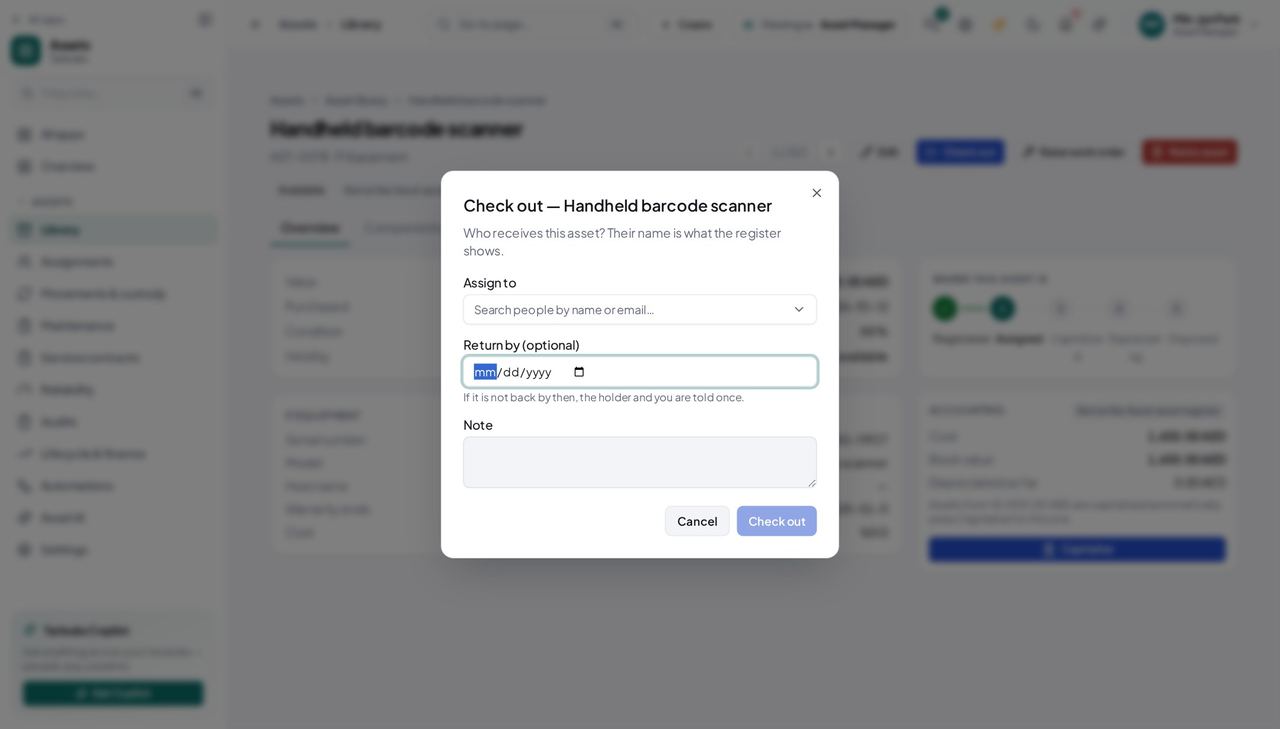
You should see The holder sees the date on My assets; a loan past its date shows as overdue.
Answer a problem report #
Where Assets » Maintenance » Problem reports
- Open Maintenance and click Problem reports.
- Read what is wrong and how urgent it is; accept it — a work order is raised — or decline it with an answer.
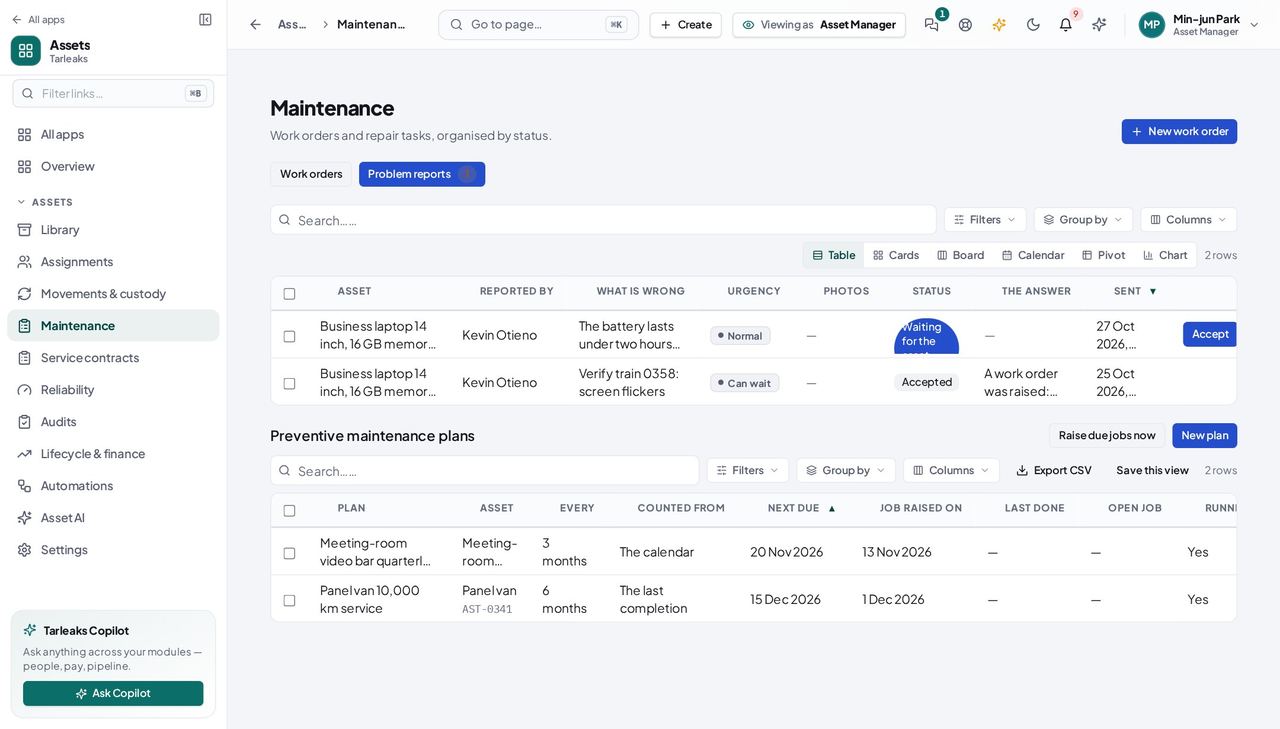
You should see The holder reads your answer under Problems you reported on their My assets page.
Plan preventive maintenance #
Where Assets » Maintenance » Preventive maintenance plans » New plan
- Open Maintenance and scroll to Preventive maintenance plans.
- Press New plan: the asset, every how many months or days, counted from the last completion or on a fixed calendar, how many days ahead to raise the job, and the checklist.
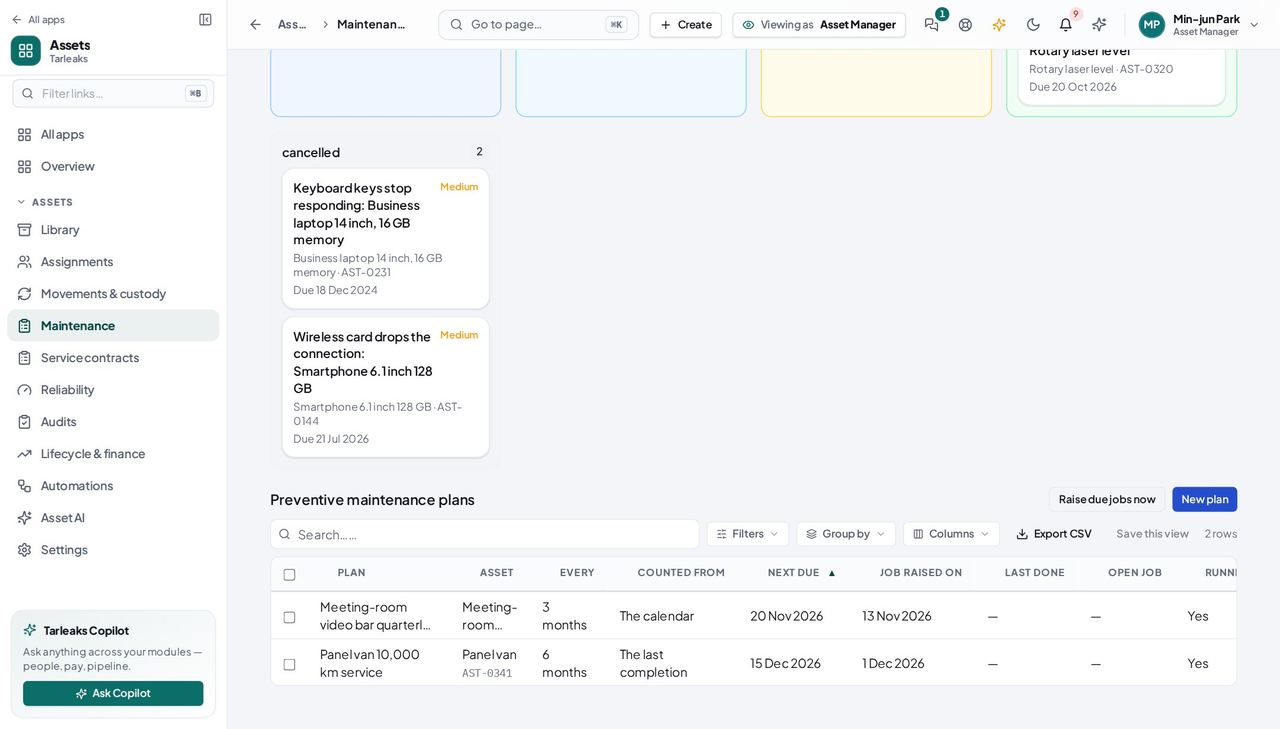
You should see Each plan shows when it is next due and the job it raised; Raise due jobs now does it at once.
Audit a place #
Where Assets » Audits » Start an audit
- Open Audits and press Start an audit for a place.
- Walk it and scan each asset you find — with the phone's camera, or on the audit's own page.
- Submit, then work the To follow up tab.
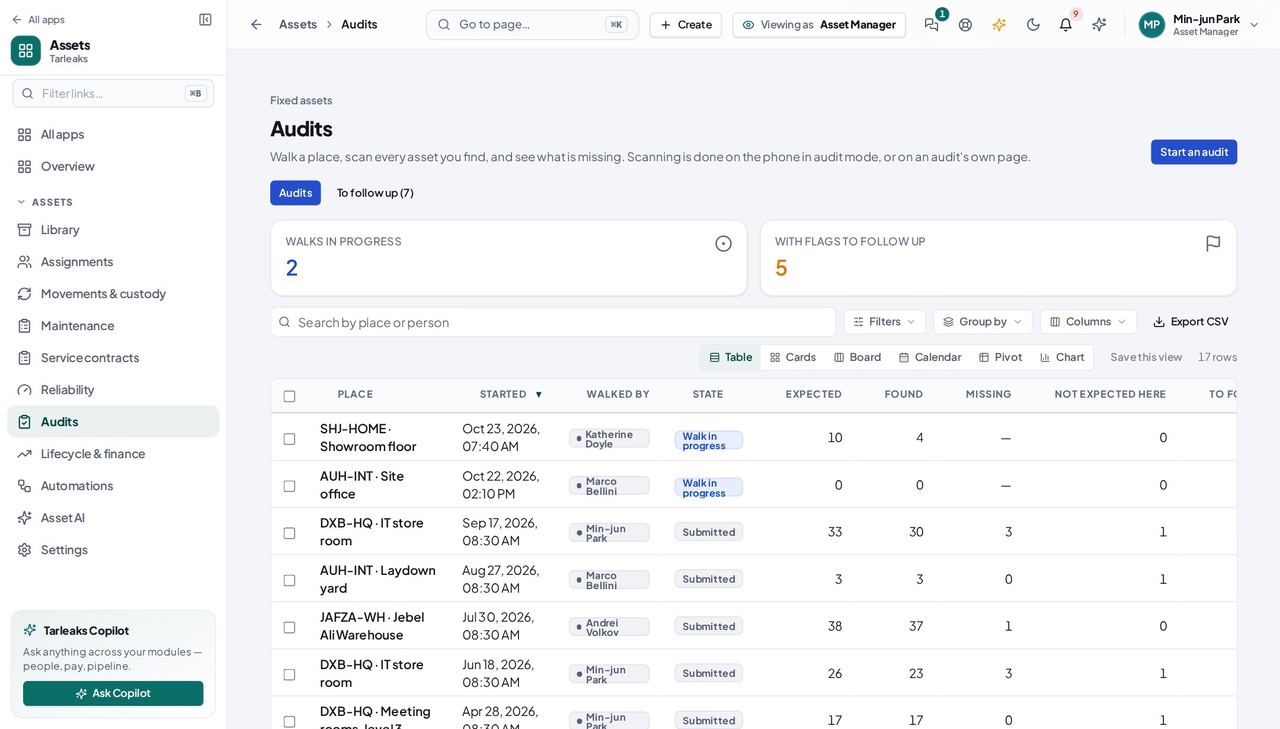
You should see Expected, found, missing and not expected here for each walk.
Tune the numbers the register uses #
Where Assets » Settings » General
- Open Settings and choose General.
- Each setting is named and explained: the capitalisation threshold, the condition that needs attention, the look-ahead for due work and the contract warning.
- Press the pencil beside a number to change it; a switch turns a part of Assets on or off.
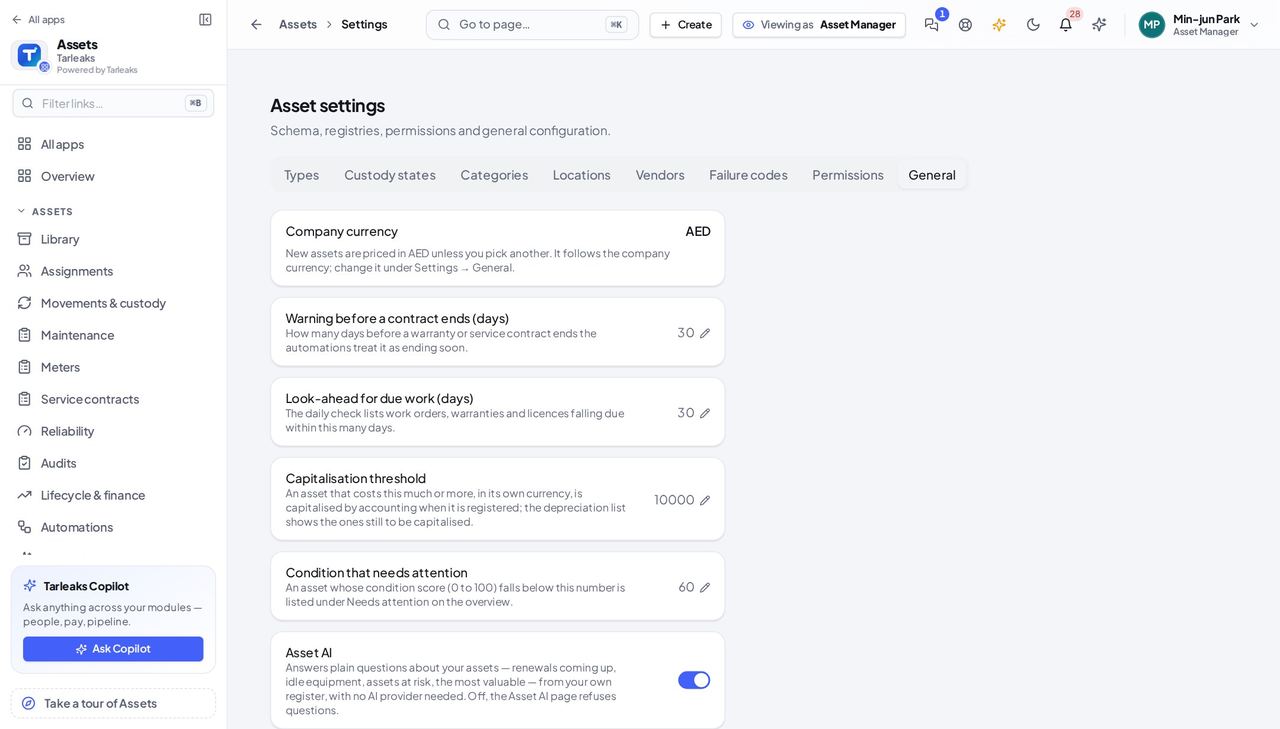
You should see The same words as Settings → Features, in English and Arabic, never a stored key.
Use cases — the work, step by step
Each one is a sequence somebody actually performs, with the screen behind every step. Every screen here was opened in the product as this role before it was published.
weeklyA new laptop arrives #
Register it with the fields its type asks for, give it a value, and check it out to the person who gets it — accounting capitalises it on its own when the value is above the threshold.
Library → Add asset: type, name, value, purchase date, the supplier from the party register, the department from HR, and the type's own fields (required ones block Create).
Assets » Library — verified: the page says “Asset library”; the page says “Checked out” Open the new asset: the Accounting card reads On the fixed-asset register within a second when the value is at or above the threshold; otherwise press Capitalise (accountant).
Assets » Library » an asset » Check out — verified: the page says “Overview”; the control is offered Check it out to the colleague by name.
Assets » Library » an asset » Check out — verified: the page says “Overview”; the control is offered
monthlySomebody is leaving #
HR's offboarding lists every asset in the leaver's custody as a return task; checking each one in ticks the task by itself.
Assignments → the leaver's group: every asset they hold, by name.
Assets » Library — verified: the page says “Asset library”; the page says “Checked out” Open each asset → Check in. The offboarding task completes on its own with the note Checked in on the asset register.
Assets » Library » an asset » Check out — verified: the page says “Overview”; the control is offered
weeklyWarranties and licences are about to end #
A rule chases them; you read the run log instead of a spreadsheet.
Automations → New rule: WHEN A warranty, licence or renewal is due soon THEN Raise a work order (title Renew {asset}).
Assets » Automations » New rule — verified: the page says “WHEN”; the page says “THEN” Press Run daily checks now, then open the rule's run log: one line per asset, and the work orders sit in Maintenance.
Assets » Automations » Run daily checks now — verified: the page says “Automations”
Types, custody states and the registries are the admin's; you use the words they defined.
Employee
See what is in your care and hand it back when you are done.
Holds what was checked out to them: reads the register, checks an asset in or out, follows a movement. Never retires, never changes a type, never touches an automation.
What you will be able to do
- Find any asset and who holds it
- Check an asset out or in
- Follow a movement
What this role can and cannot do
| Can | Cannot |
|---|---|
|
|
4 steps, each one carried out in the product on .
See what is in your care #
Where Assets » My assets
- Open Assets: you land on My assets.
- Read each row: where the asset is, when it was handed to you, the date to return it by, and whether you confirmed you received it.
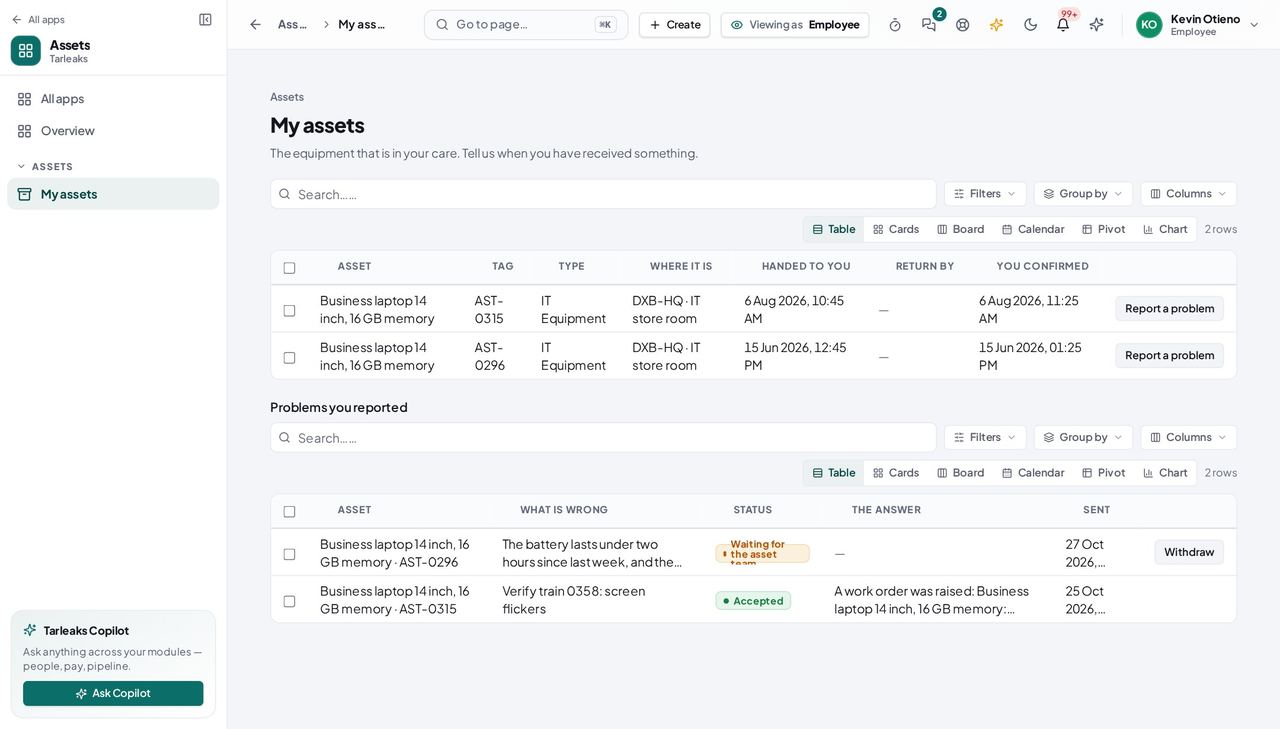
You should see Only what is yours; the full library belongs to the asset team.
The library and retiring are the asset team's #
Where Assets » My assets
- Look at the menu on the left.
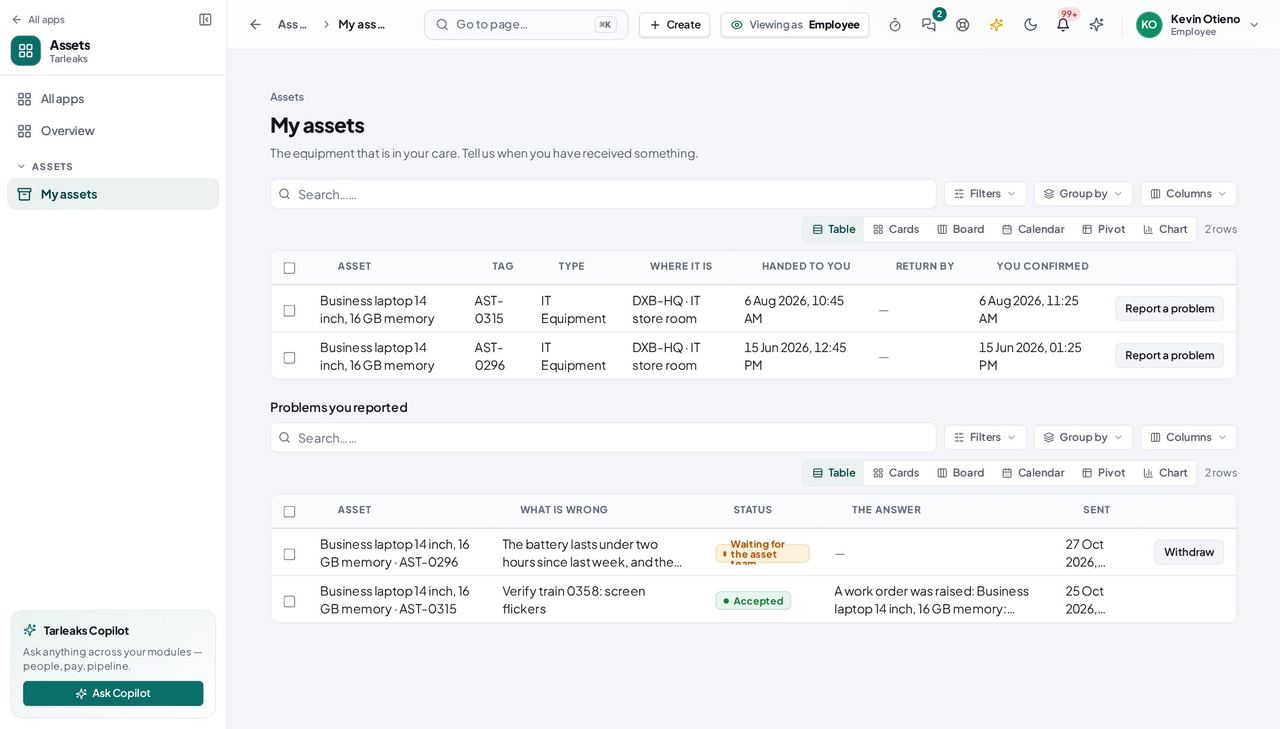
You should see My assets is there; the Asset library, Retire asset and the automations are not.
Automations run without you #
Where Assets » My assets
- Look at the menu on the left.
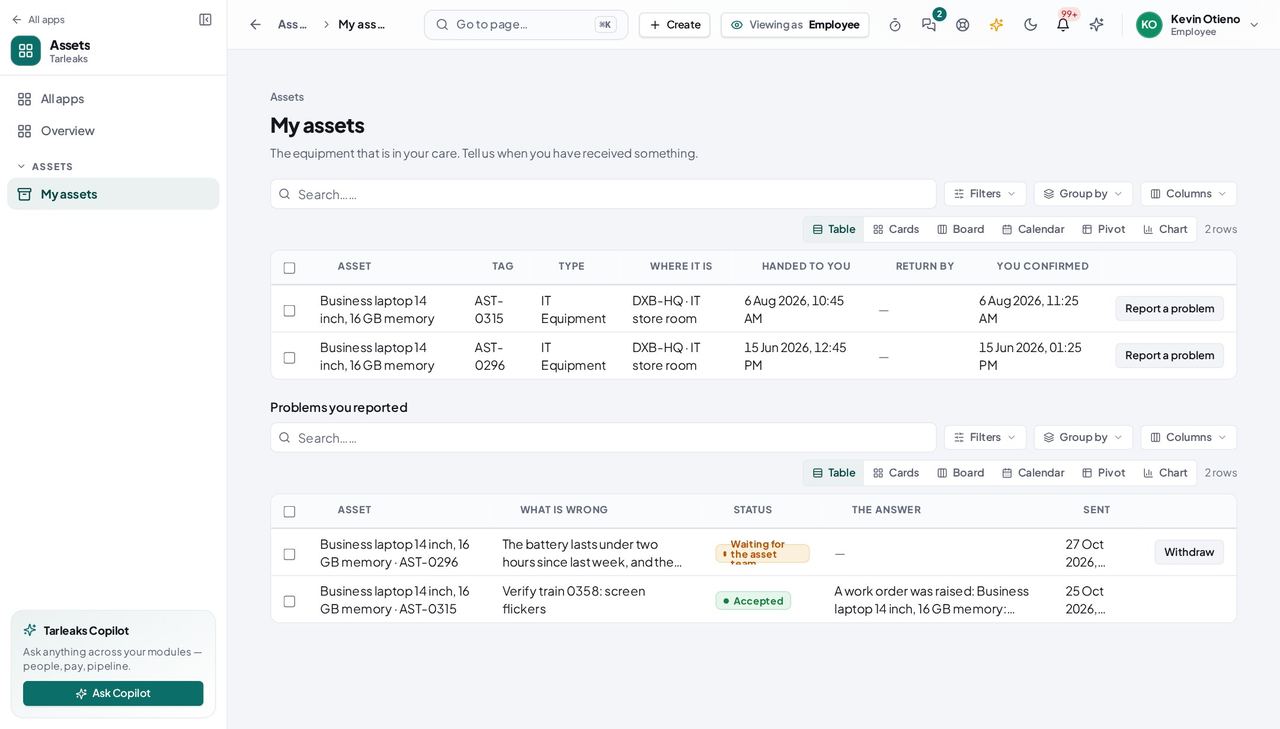
You should see There is no Automations page for this role, and no Run daily checks now; the asset team's rules chase overdue returns and repairs for you.
Report a problem with an asset you hold #
Where Assets » My assets » Report a problem
- Open your company's address in the browser — it looks like yourcompany.tarleaks.com.
- Type the e-mail address your administrator set up for you, then your password.
- You land on the app launcher: a grid of the apps your company uses.
- Click the Assets tile.
- My assets → Report a problem.
- Describe it → urgency → photos → Send to the asset team.
| Field | What to put in it |
|---|---|
| What is wrong? | In your own words |
| How urgent is it? | Can wait … I cannot work without it |
| Photos (up to 3) | Optional |
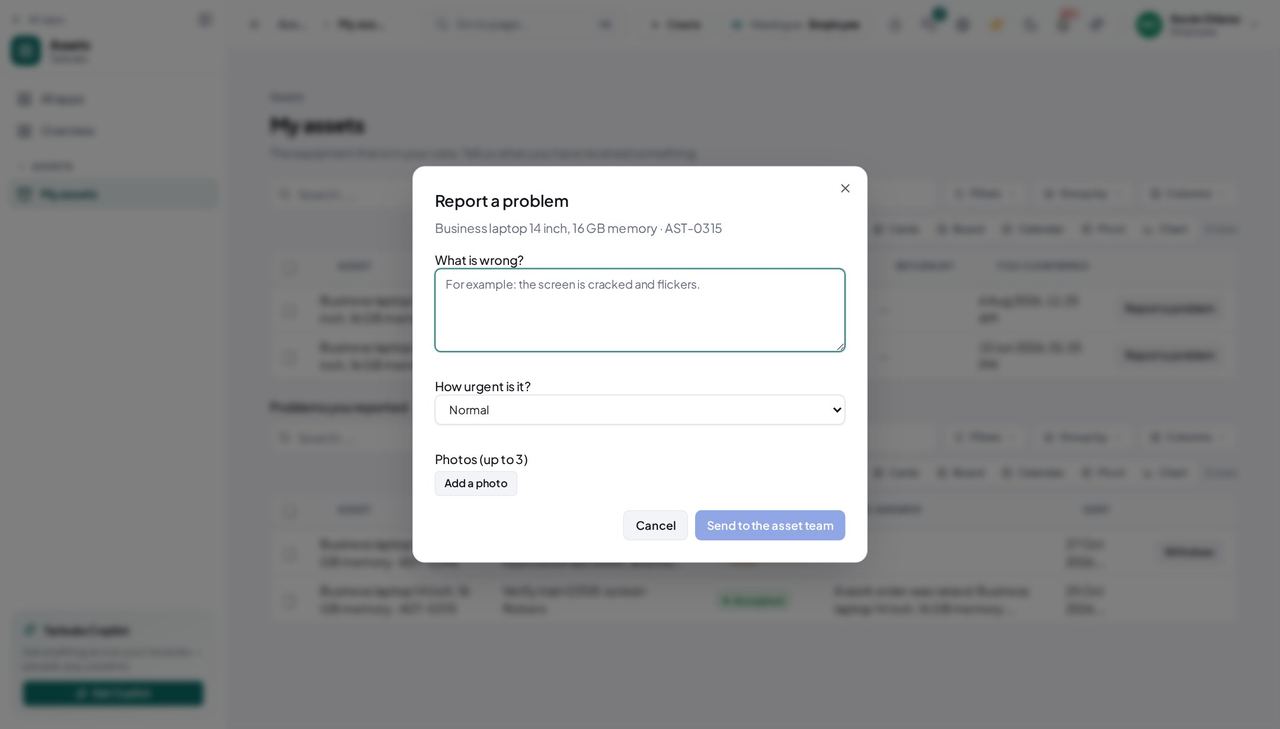
You should see The report appears under Problems you reported, with the asset team's answer when it comes.
Use cases — the work, step by step
Each one is a sequence somebody actually performs, with the screen behind every step. Every screen here was opened in the product as this role before it was published.
occasionallyHand a laptop back #
The register — and, if you are leaving, HR's checklist — needs to see it.
Library → search your name or the tag → open the asset.
Assets » My assets — verified: the page says “My assets”; the page says “Return by”; 4 row(s) listed Press Check in. The Movements tab records the return.
Assets » My assets — verified: “Asset library” is not in this role's menu; no “Retire asset” anywhere on the page
Retiring an asset, changing a type or writing an automation is not yours — the buttons are simply not there.
Tenant Admin
Define the words the register speaks, once, and let everyone use them.
Defines the vocabulary the register speaks: types and their fields and statuses, custody states, the registries, the workspace settings — and hands the asset_manager role to whoever runs the estate.
What you will be able to do
- Create types with their fields and status words
- Keep the custody states and registries tidy
- Set the capitalisation threshold and the daily-check window
- Give the asset manager their role
What this role can and cannot do
| Can | Cannot |
|---|---|
|
|
2 steps, each one carried out in the product on .
Give a type its fields and statuses #
Where Assets » Settings » Types
- Open Settings → Types and expand a type.
- Under Statuses add a word (say In repair) with a colour; rename one — every asset carrying the old word follows; delete one — refused while assets still use it, with the count.
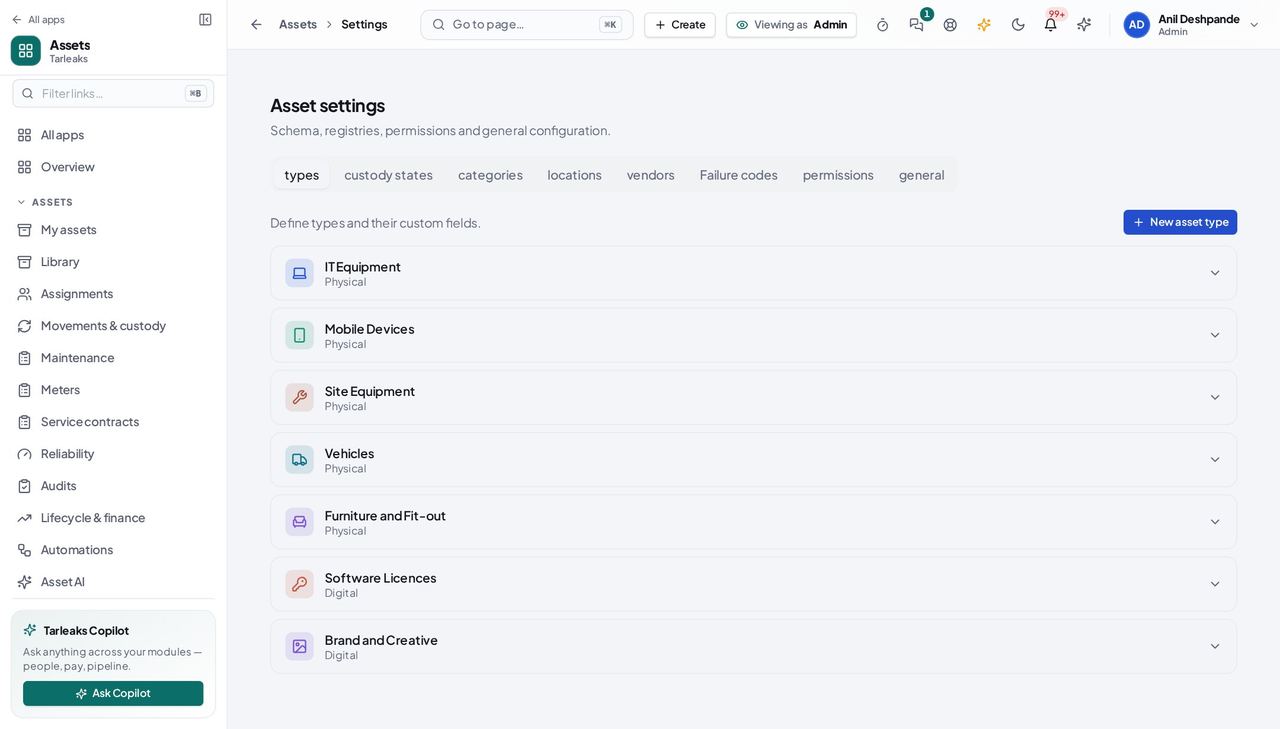
You should see The list an asset's Edit dialog offers is exactly this one.
Keep custody states and registries tidy #
Where Assets » Settings » Custody states / Vendors
- Open Custody states: every row has Edit and Delete.
- Open Vendors: Edit shows the eleven vendor fields.
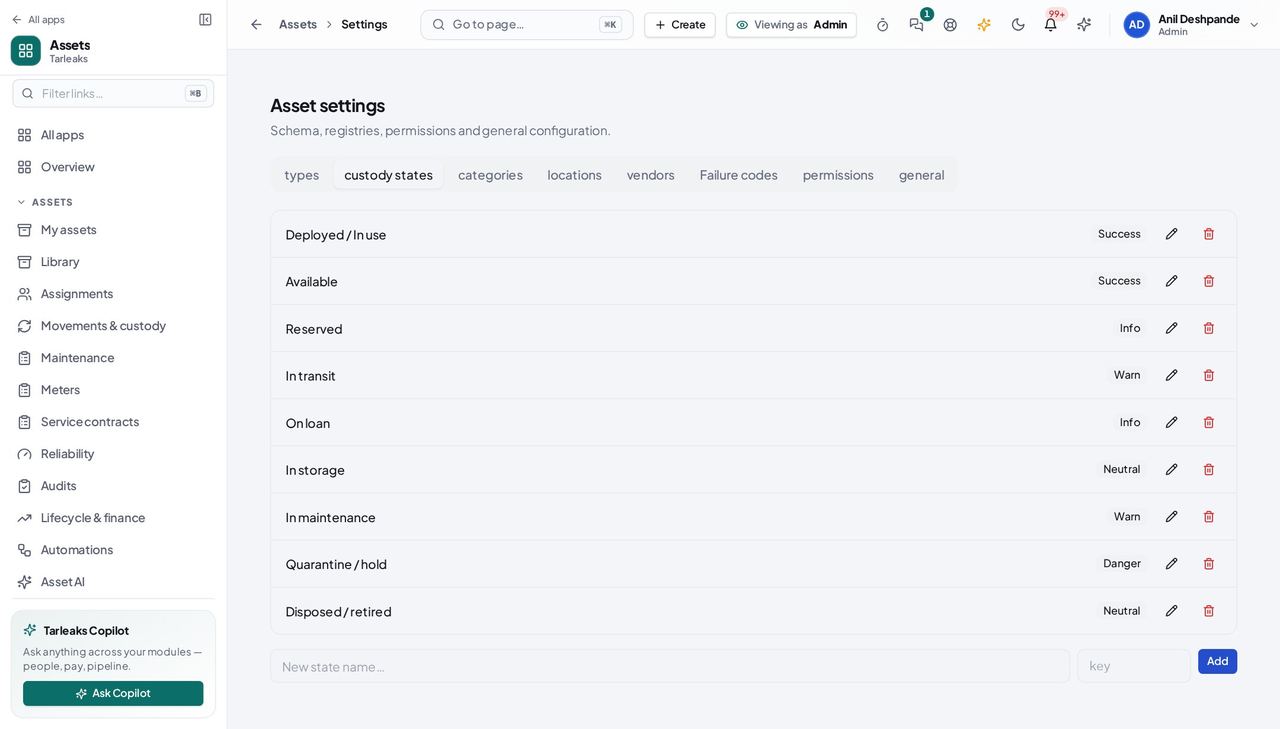
You should see Nothing is read-only that the API can change.
Day-to-day custody is the asset manager's job; you set the stage.