Employee — Attendance guide
Clock in, ask for time off, and send an honest week — in about two minutes a day.
The only one of the four who actually clocks in, asks for time off, and sends a week for approval. Everything here is about their own record and nobody else's.
What you will be able to do
- Start and end your day with one button, and see it registered
- Ask for leave and watch what it is waiting on
- Know the shift you are on and the grace you get
- Send one week that covers both your hours and your project time
What this role can and cannot do
| Can | Cannot |
|---|---|
|
|
14 steps, each one carried out in the product on .
Check what your sign-in can do #
Where Your name, top right » Profile
- Open your company's address in the browser — it looks like yourcompany.tarleaks.com.
- Type the e-mail address your administrator set up for you, then your password.
- You land on the app launcher: a grid of the apps your company uses.
- Click your name in the very top-right corner of the screen.
- Choose Profile from the menu that drops down.
- Scroll to the Roles & permissions section.
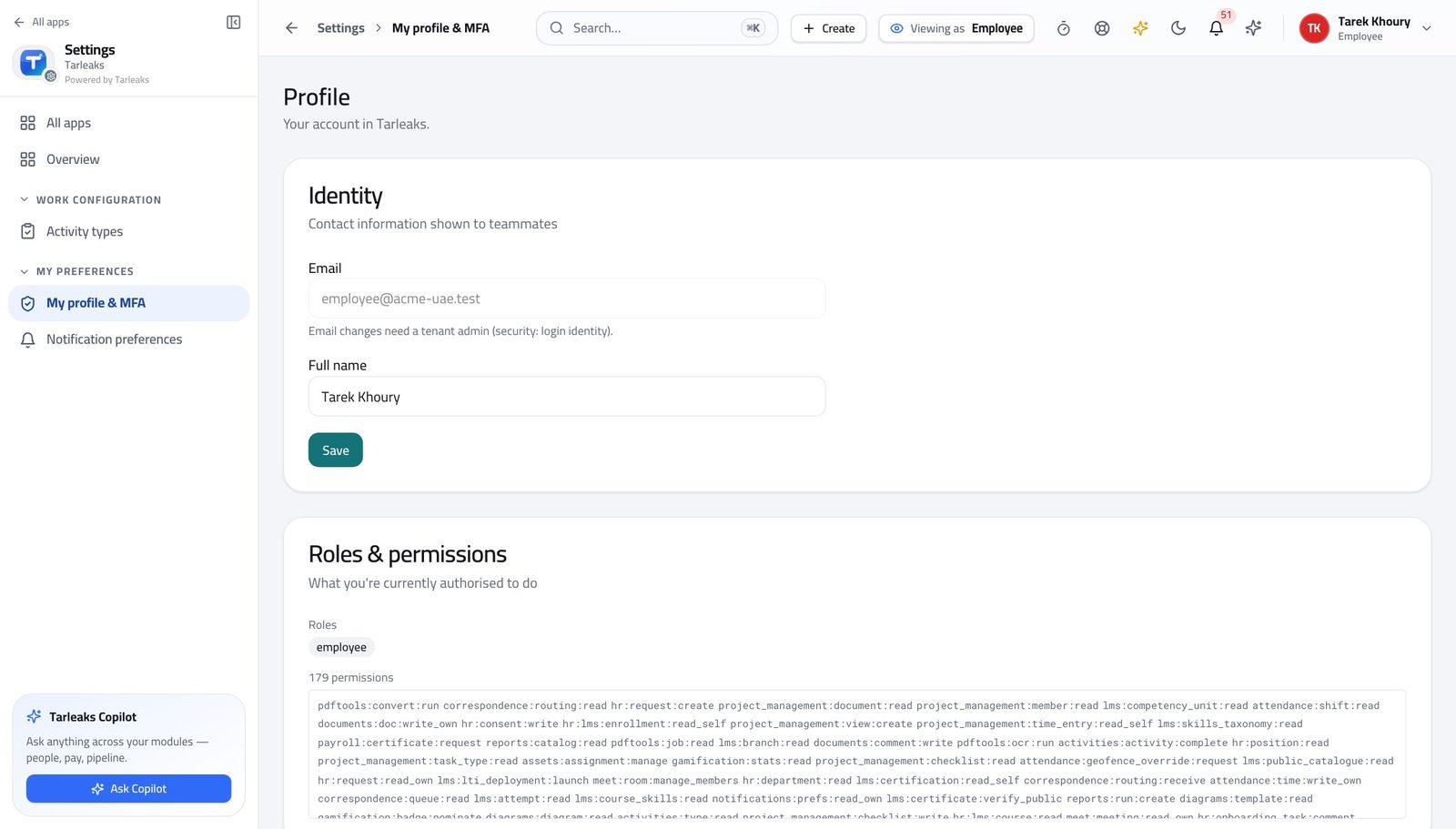
You should see Clocking in, asking for time off, raising a correction and sending your week are all yours. Reading anybody else's day, and deciding on anybody's request, are not.
Watch out Two people with the same job title can hold different roles here. If the chip does not say what you expected, ask your administrator before you start deciding anything — the buttons you see depend on it.
Start and end your day with one button #
Where Attendance » Time clock
- From the launcher, click the Attendance tile.
- Open Time clock.
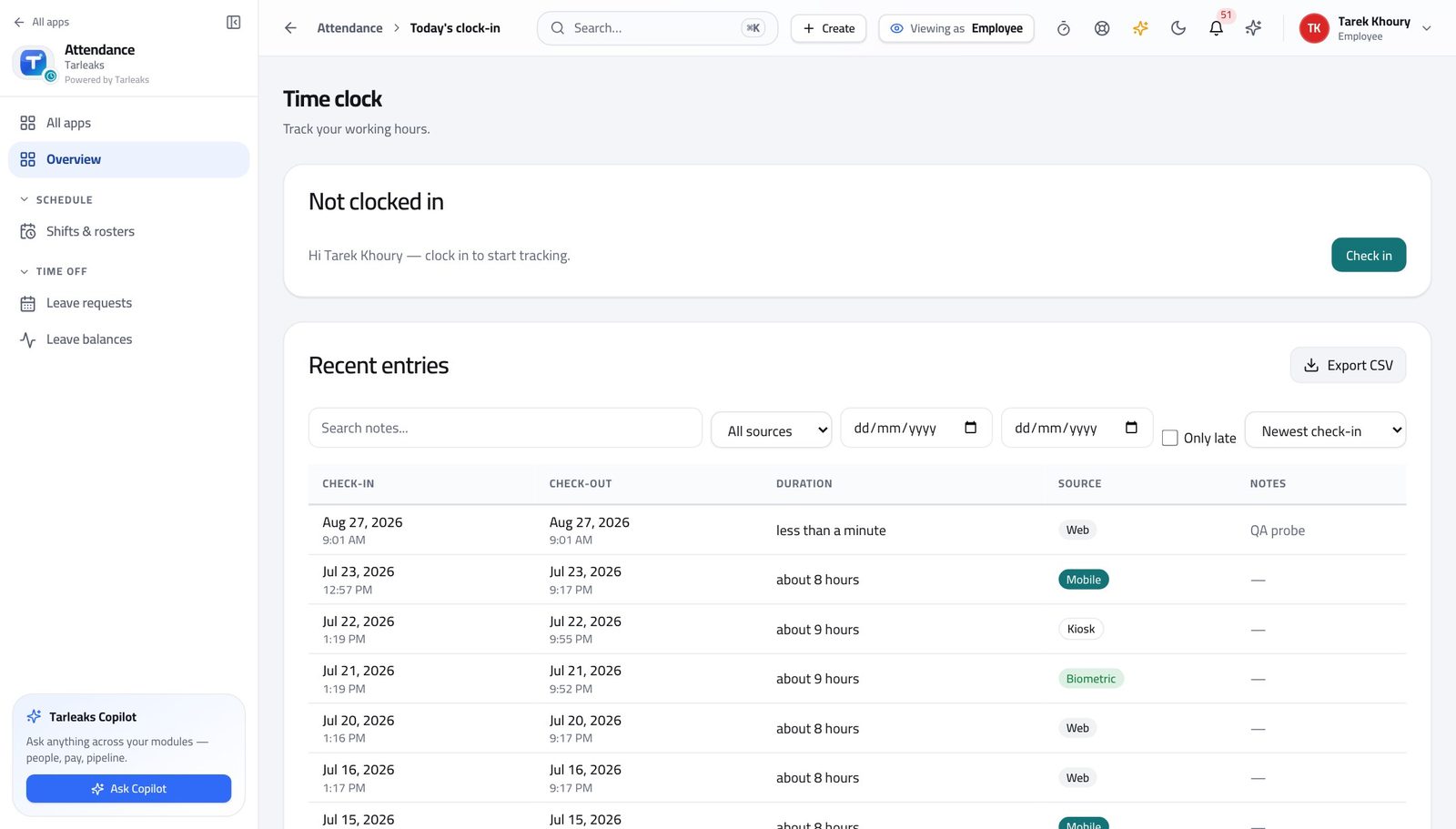
- Read the card: it says either Not clocked in or You are clocked in.
- Press Check in to start your day.
- Press Check out at the end of it.
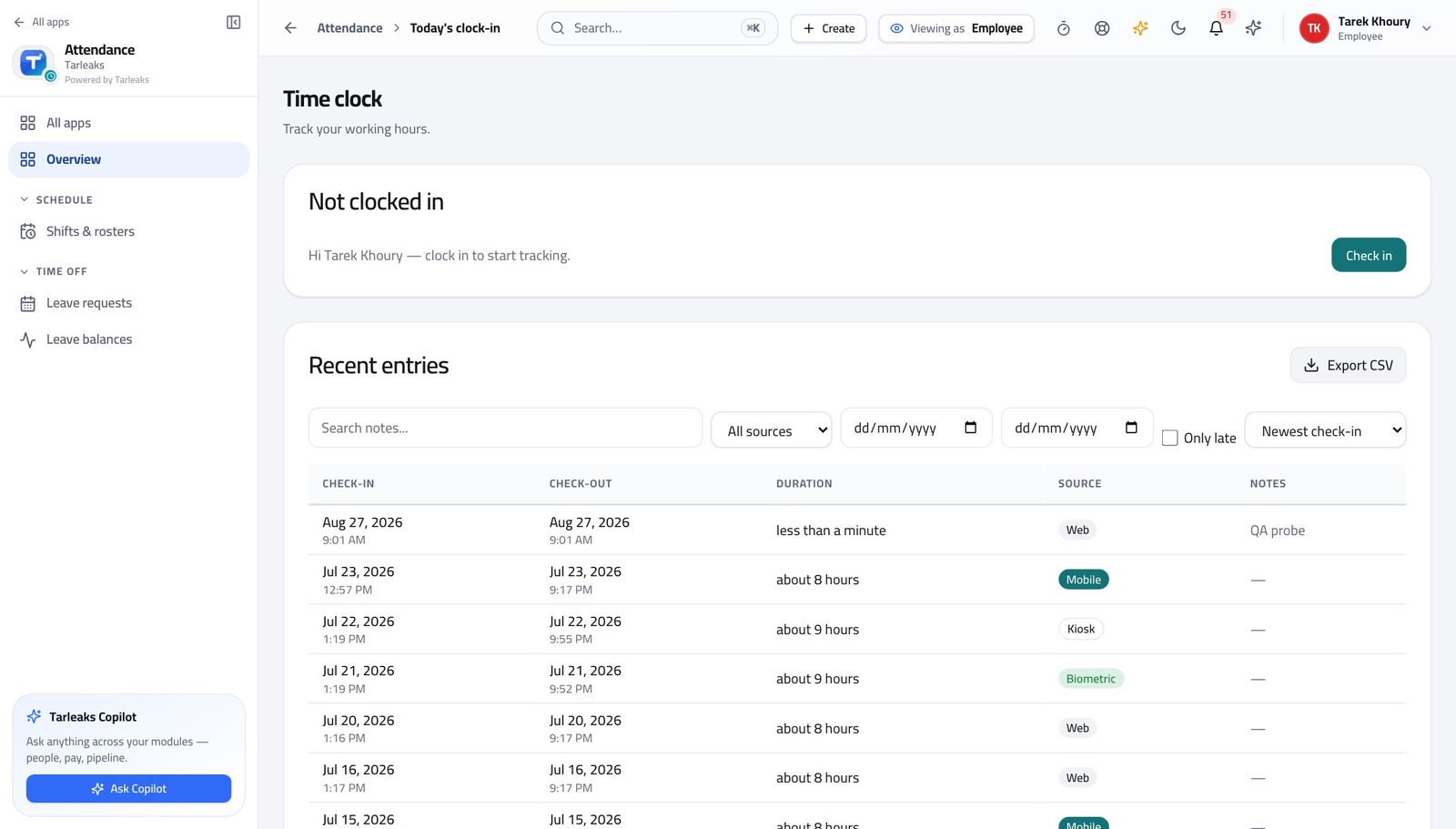
You should see Once you are in, the card shows the time you started and how long you have been on — so you are never guessing whether it registered.
Watch out If Check in refuses, read the message. The usual cause is that your company only allows clocking in near a registered office and you are not near one yet. Tell your manager rather than clocking in later.
Worth knowing If Check in refuses, read what it says. The most common reason is that your company only allows clocking in near an office, and you are not near one yet.
See your own record, and where each entry came from #
Where Attendance » Time clock » Recent entries
- Stay on Time clock and scroll to Recent entries.
- Use All sources to show only app entries, or only device ones.
- Type into Search notes when you remember what the day was about.
- Press Export to take your own record away as a spreadsheet.
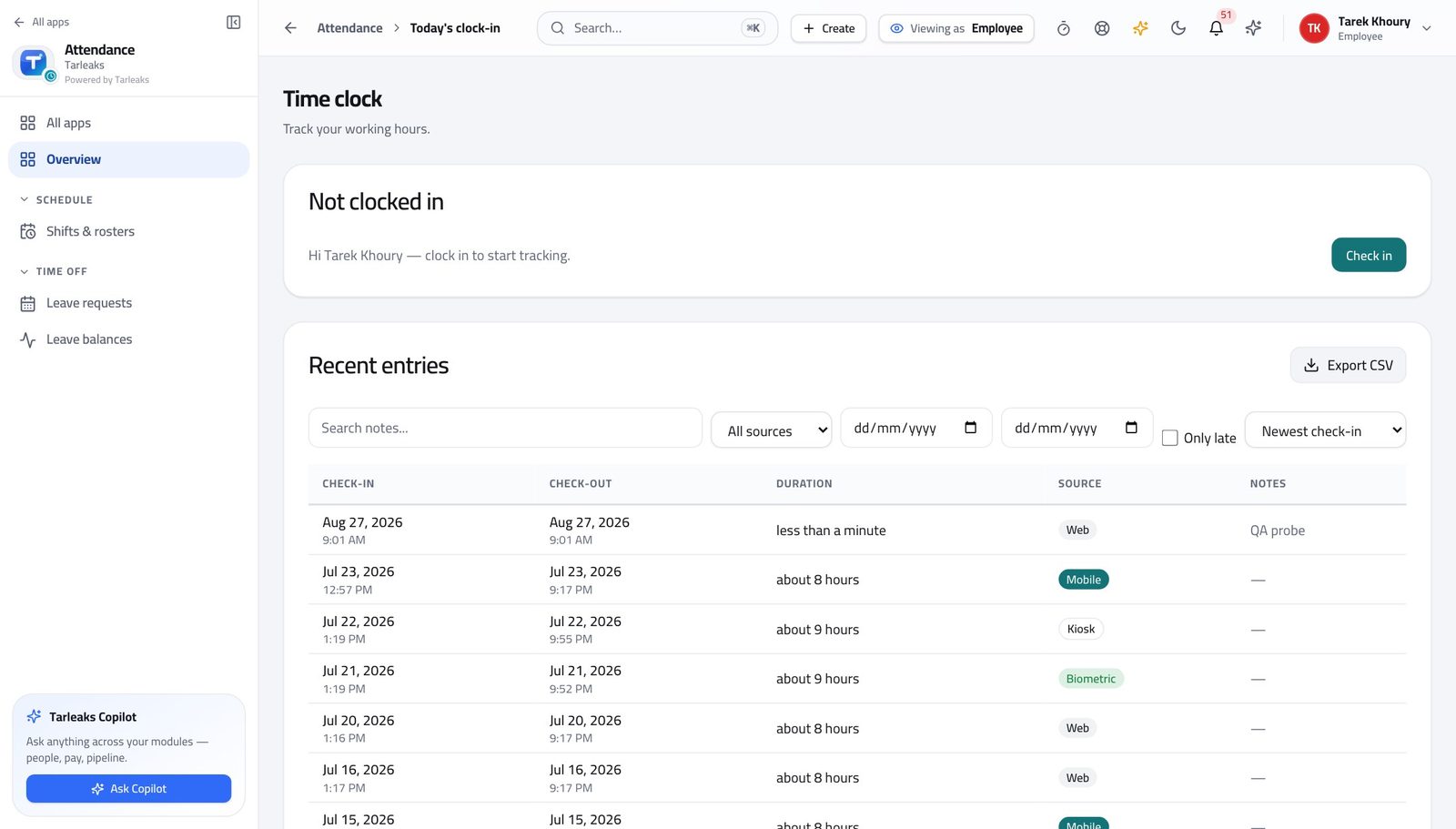
You should see Every line says its source. An entry that came from an approved correction looks different from one you pressed yourself, which is what makes a disagreement about a day short.
Watch out An entry created by an approved correction shows a different source from one you pressed yourself. That is how you tell, months later, which days were fixed after the fact.
See what you have asked for and what it is waiting on #
Where Attendance » Leave requests » My requests
- In the left menu, under TIME OFF, click Leave requests.
- Read My requests: type, dates, days, reason and status.
- Filter by status when the list gets long.
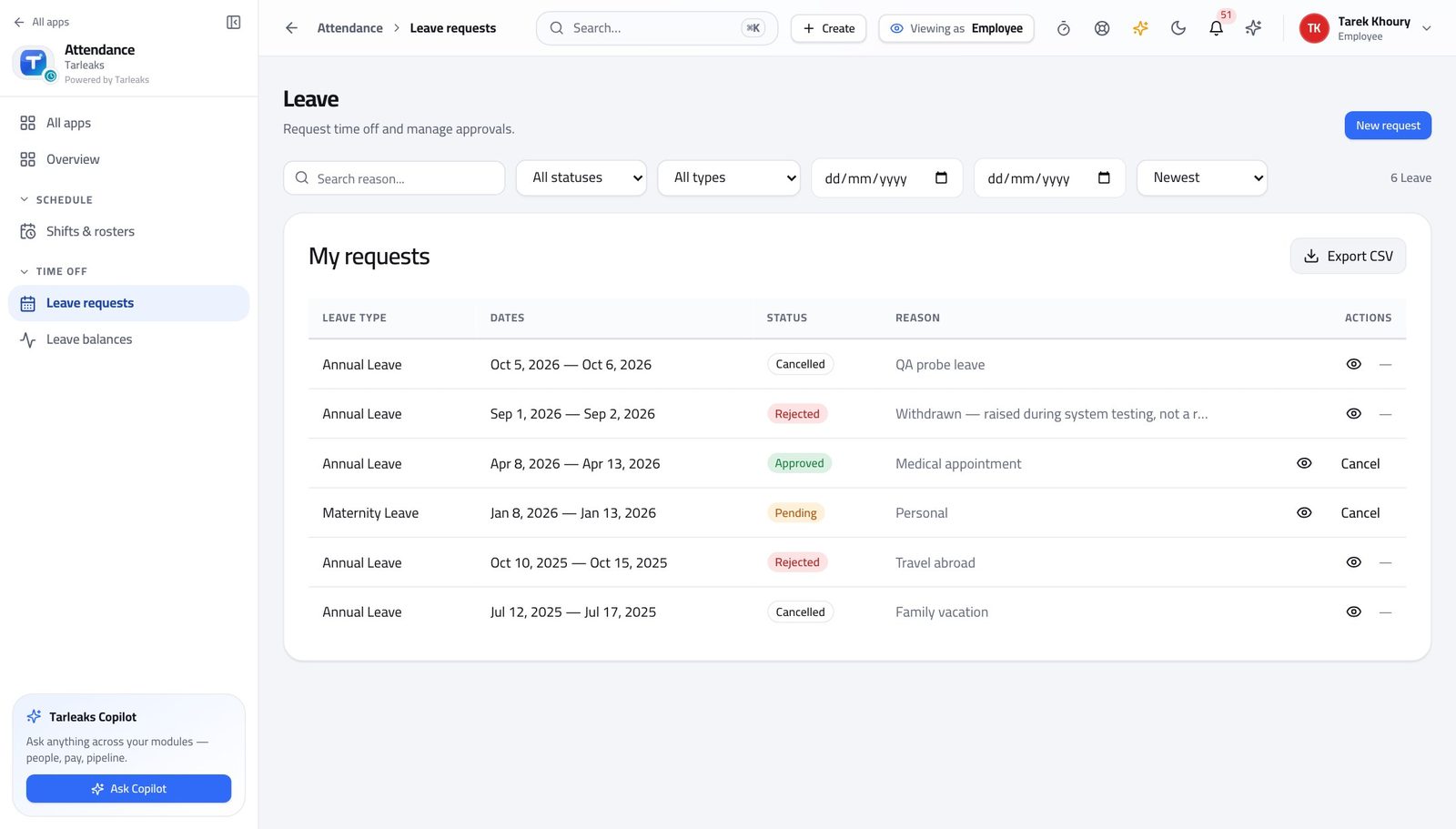
You should see Pending means nobody has decided yet. Approved is booked. A rejected request keeps the reason it was rejected for, so you are not guessing.
Watch out Pending means nobody has decided yet — it does not mean it was missed. The oldest one is the one to chase, and your manager sees the same age on their queue.
Ask for time off #
Where Attendance » Leave requests » New request
- On Leave requests, press New request at the top right.
- Open Leave type and choose one.
- Set the start date and the end date.
- Leave the employee box blank — it defaults to you.
- Add a reason if it helps whoever decides.
- Press Submit request.
| Field | What to put in it |
|---|---|
| Leave type | Pick from the list your company publishes. The type decides whether the days are paid. |
| Start date / End date | The first and last day you will be away. Inclusive of both. |
| Employee ID (optional) | Leave it blank. It exists for HR raising a request on somebody's behalf; blank means you. |
| Reason | Optional, but a sentence here is often the difference between a same-day approval and a question. |
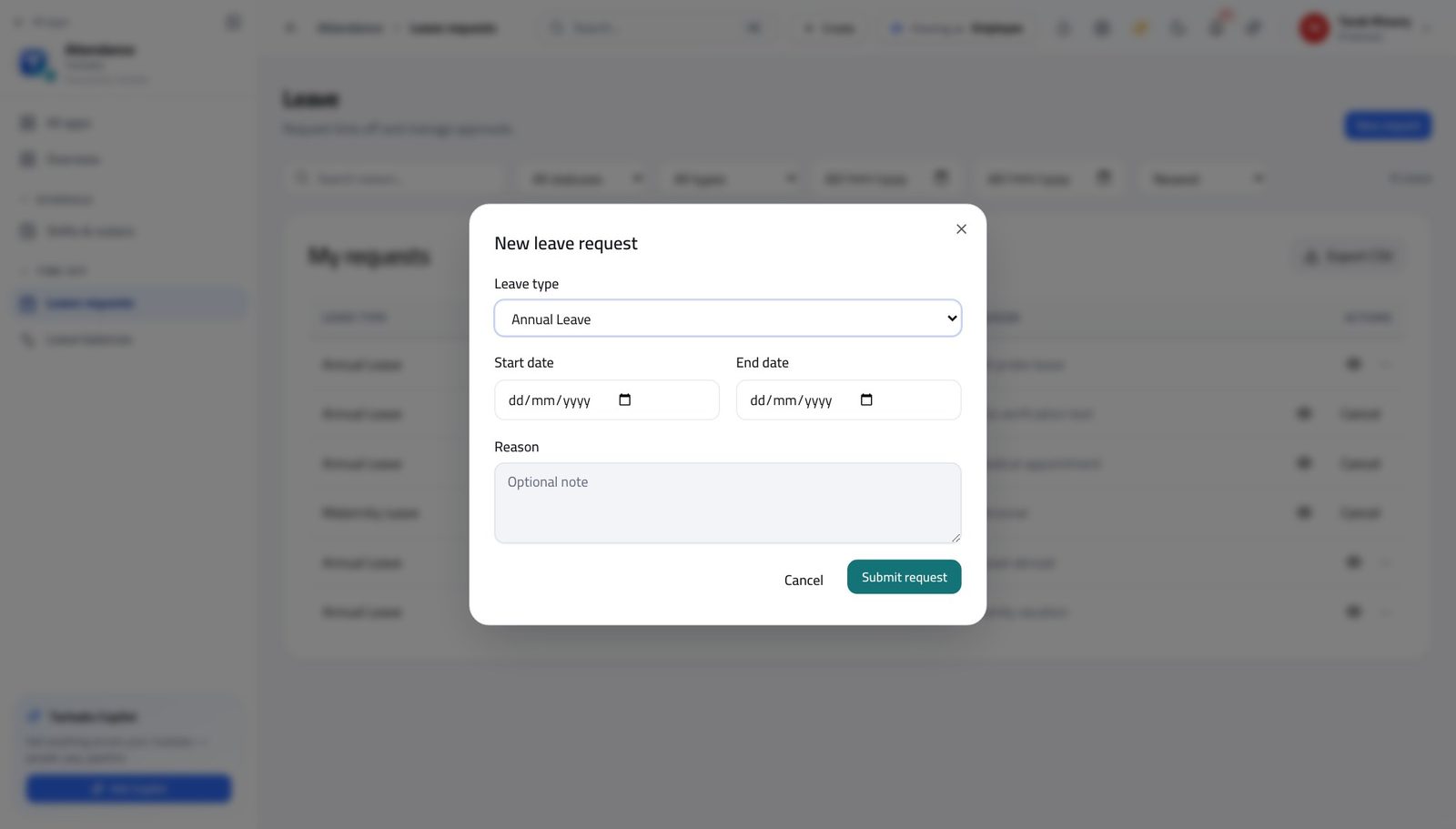
You should see The type you choose decides whether it is paid and what it counts against. You pick a type — you never type a rule.
Watch out Check your balance first if the request is long. A request the balance will not cover can still be submitted, and the refusal comes later.
Worth knowing Close the form without submitting and nothing is created. You can open it just to see what the types are.
Withdraw something you no longer need #
Where Attendance » Leave requests » My requests
- In My requests, find the pending request.
- Cancel it.
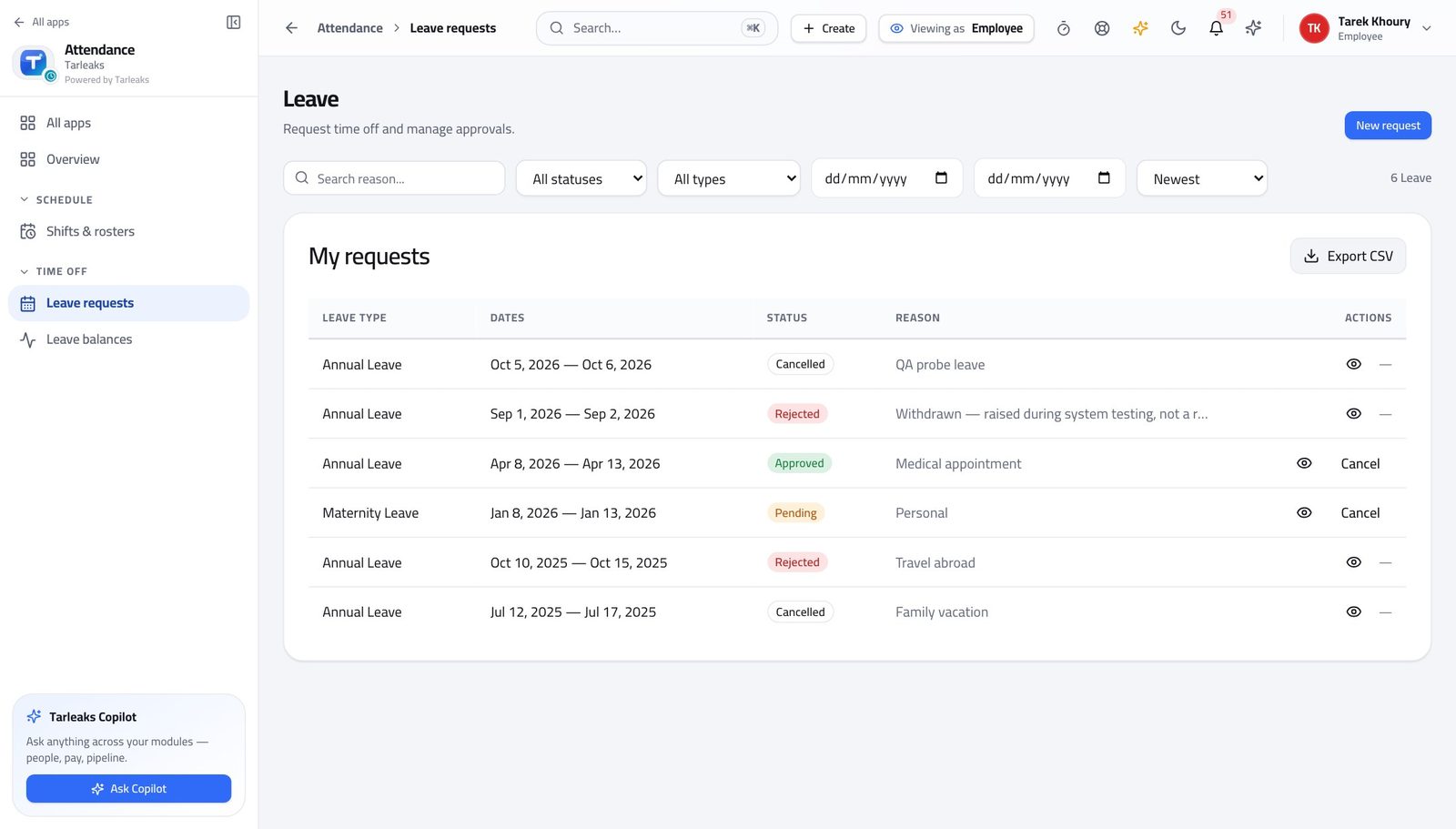
You should see A cancelled request is kept and marked cancelled, not deleted. That protects you: the trail of what you asked for and when stays intact.
Watch out A cancelled request is kept rather than deleted — that protects you, because the trail of what you asked for and when stays intact. Once a request is APPROVED, talk to your manager before cancelling: the days may already be planned around.
Worth knowing Once a request is approved, cancelling it is a conversation with your manager first — the days may already be planned around.
Know roughly where you stand before you book anything #
Where My workspace
- Open My workspace — the dashboard behind the home tiles.
- Read the Leave remaining box among the figures at the top.
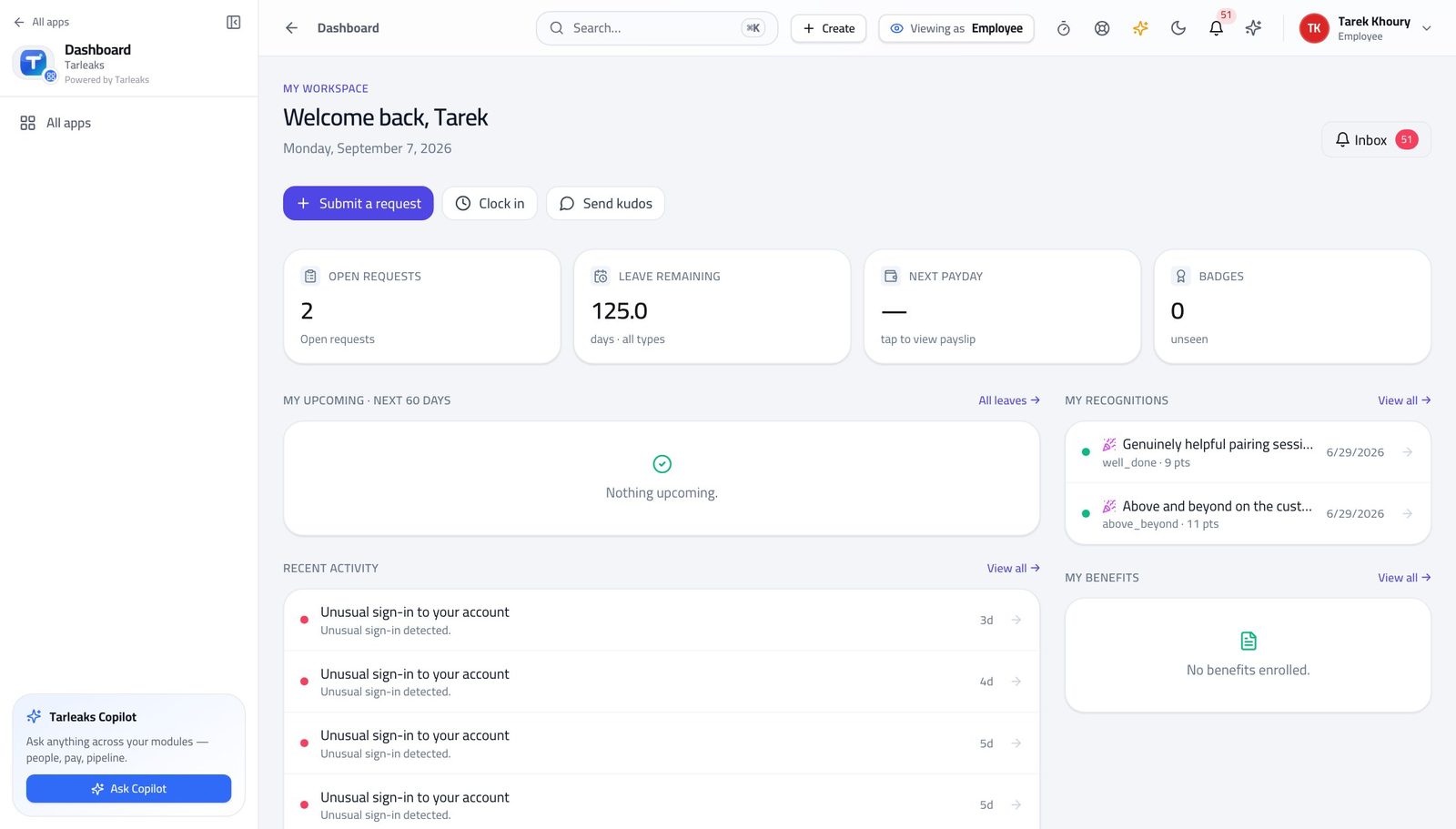
You should see A quick figure you can see without opening anything. It is your yearly entitlement less what you have taken.
Watch out For the exact position — hours accrued, hours used, what carried over and when the next accrual lands — open Leave balances instead. That screen shows the ledger behind the number.
Worth knowing For the exact hours, and how they were earned month by month, open Leave balances instead — that screen shows the ledger behind the number.
Know the shift you are on, and the grace you get #
Where Attendance » Shifts & rosters
- In the left menu, under SCHEDULE, click Shifts & rosters.
- Find your shift and read Start, End, Grace (min) and Days.
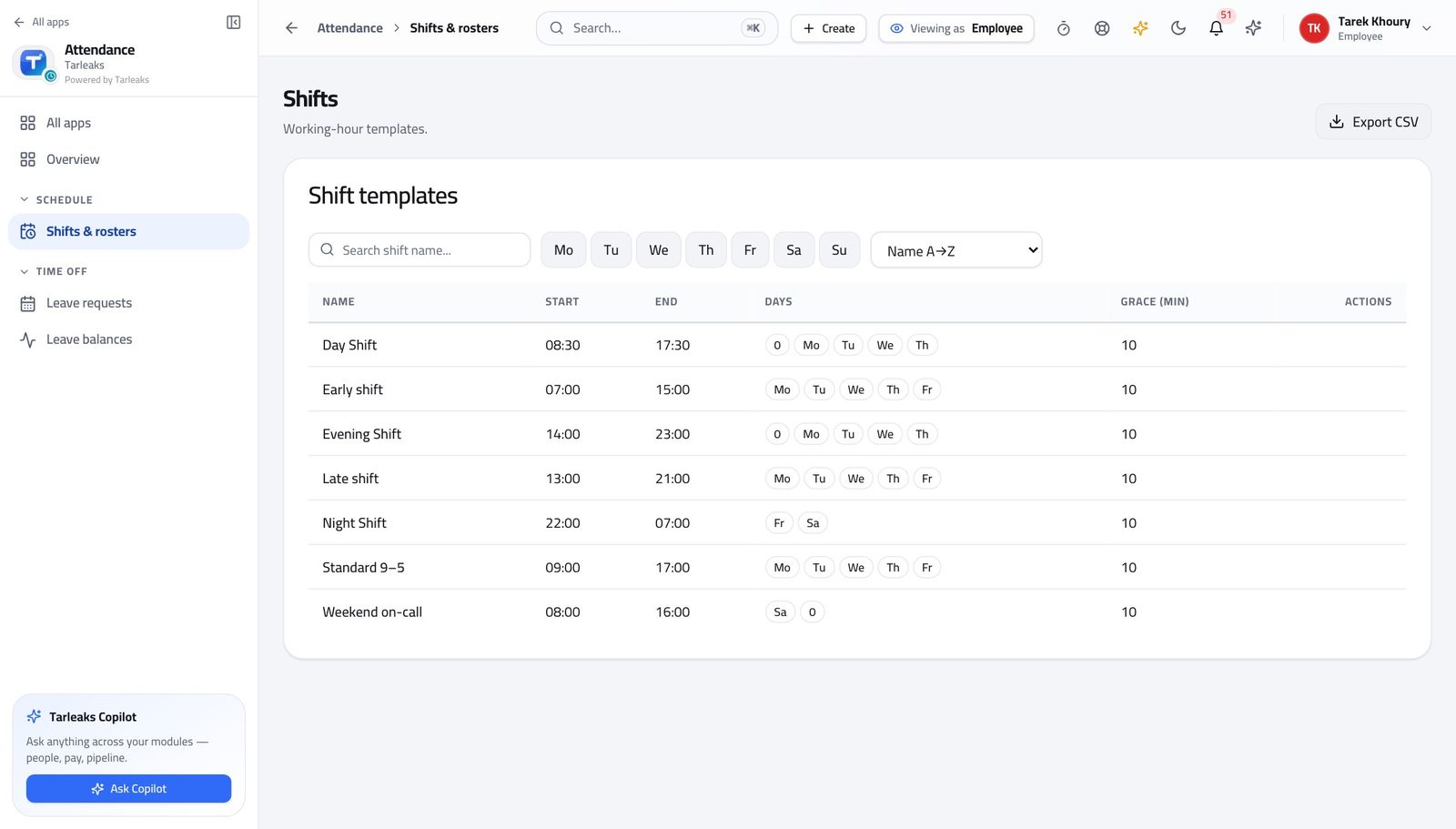
You should see Grace is the number of minutes after the start time that still counts as on time. It is published rather than private, so you know exactly where the line is.
Watch out Grace is not a licence to arrive late every day — the pattern is visible on the lateness report even when no single day counts.
See your week as one grid #
Where My timesheet
- In the left menu, under SELF-SERVICE, click My timesheet.
- Use the arrows to move a week at a time; This week returns you to now.
- Read the total in the top right, and the limit beside it if your company sets one.
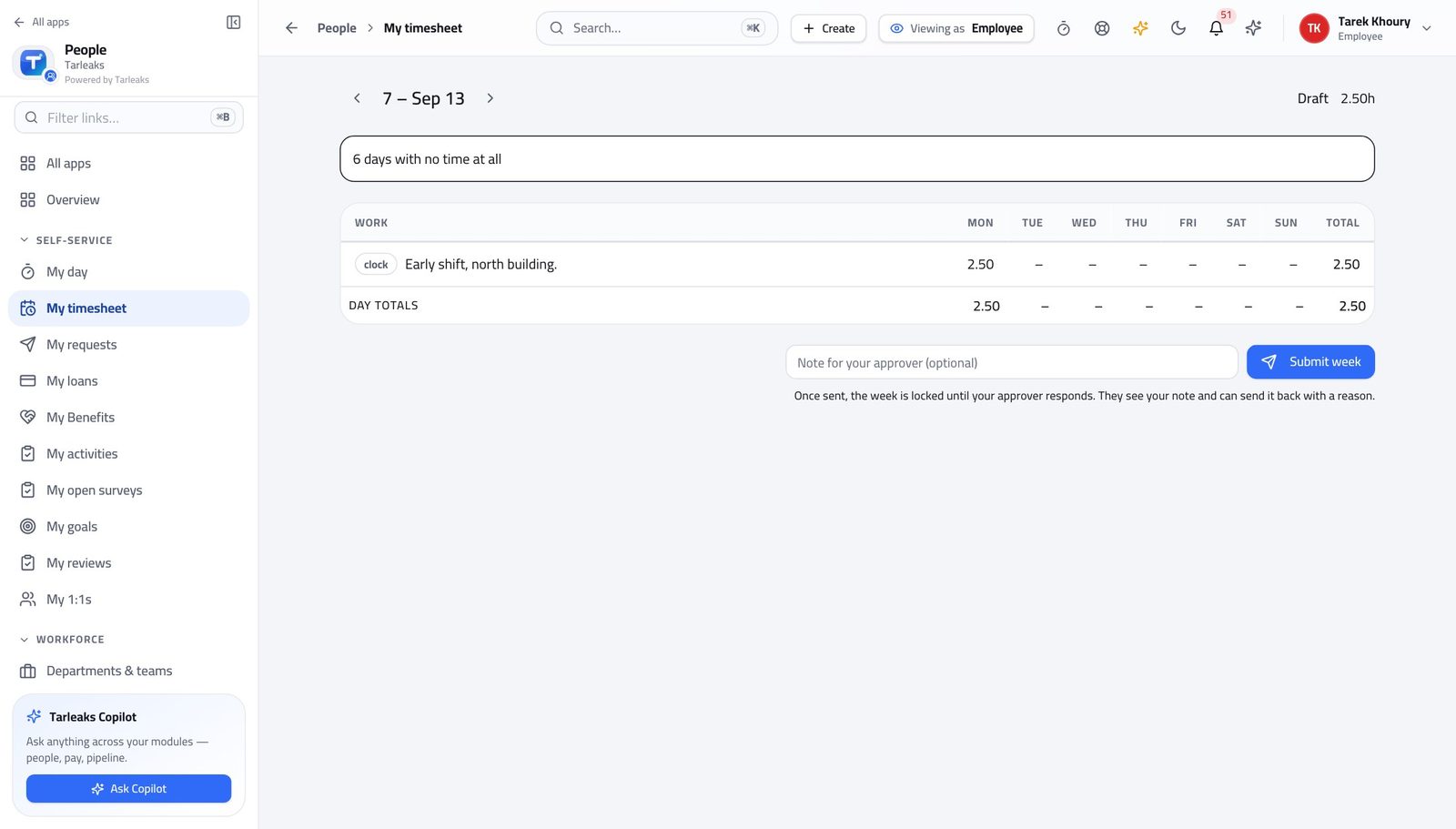
You should see Your clock time and your project time are in the SAME grid. That is the point of the screen: the total is the week you actually worked, not one half of it.
Watch out The week is written into the web address, so a link opens on that week for whoever you send it to — including your approver.
Worth knowing The week is written into the web address, so a link to a particular week opens on that week for whoever you send it to.
Read the week the way your approver will #
Where My timesheet
- Read the row per day and the total at the end.
- Hover a project line to see where the time came from.
- Read anything listed above the grid as an exception.
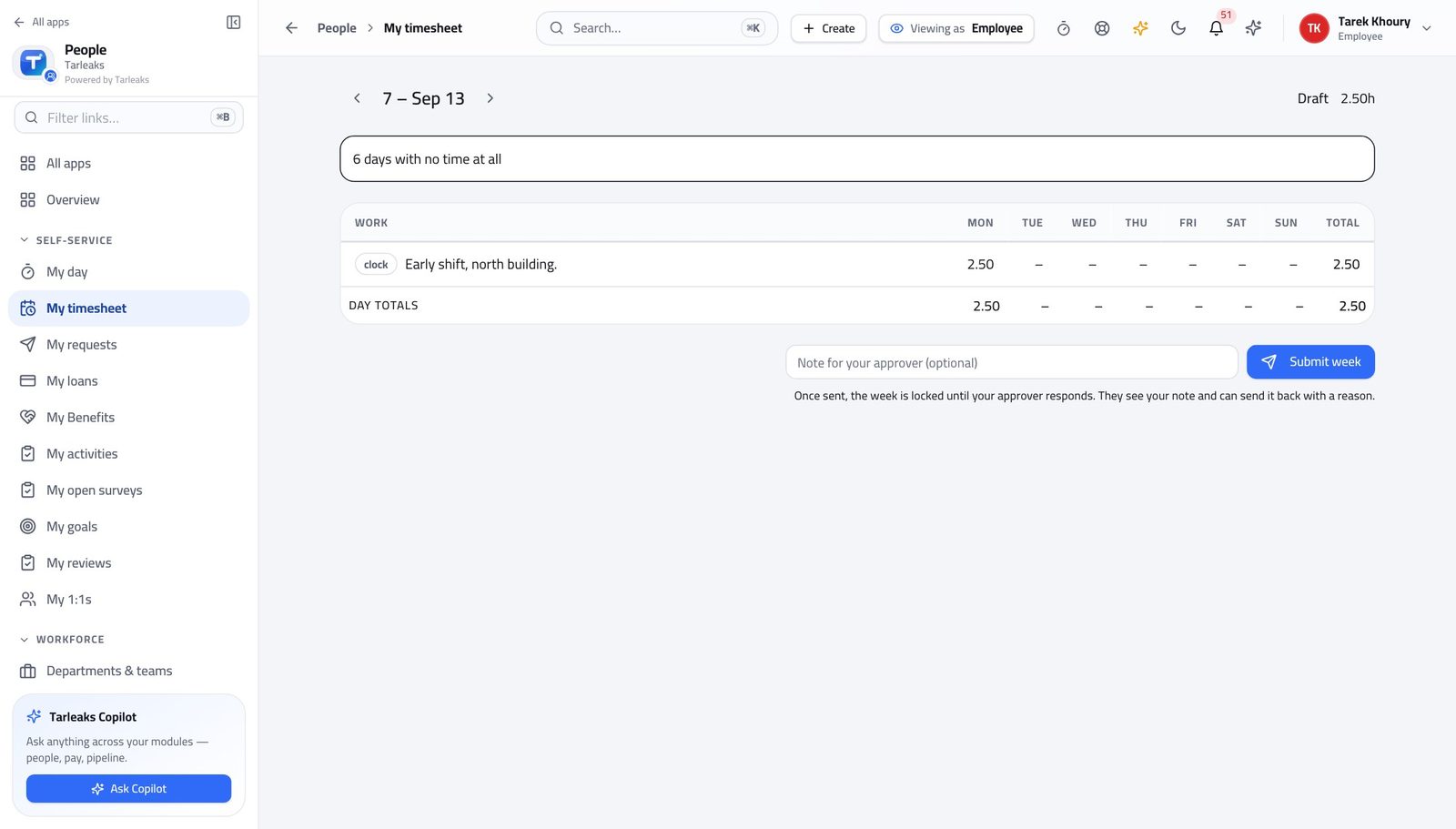
You should see The exceptions are the server's own list, not something the screen worked out — so what you see is exactly what your approver sees.
Watch out Fix the exceptions BEFORE you submit. A week sent back and resubmitted costs two people's time.
Send the week for approval #
Where My timesheet » Submit week
- On My timesheet, check the totals.
- Press Submit week.
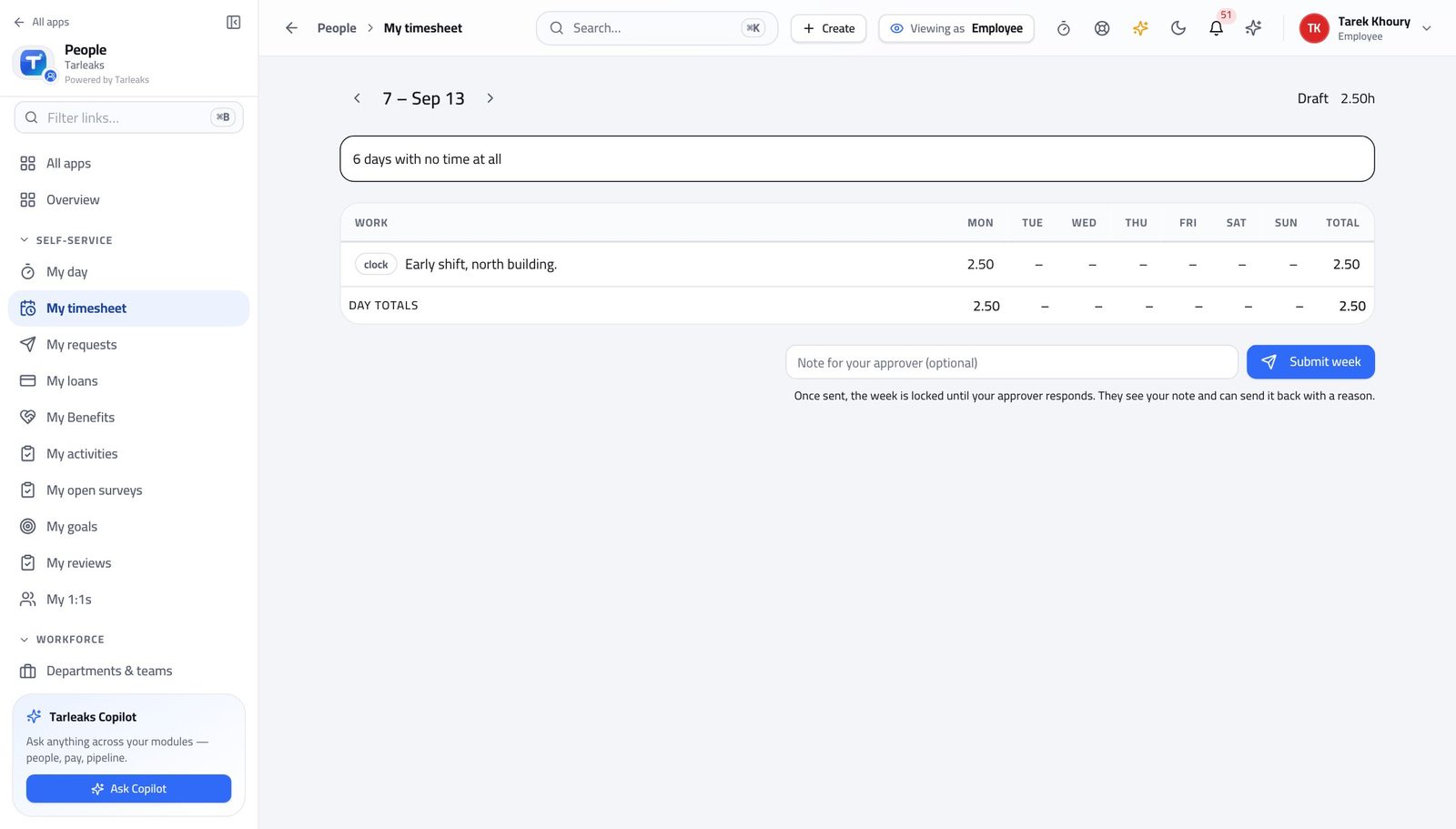
You should see Once submitted the grid is visibly locked. If it comes back, the reason stays on the screen until you deal with it rather than disappearing as a message you already dismissed.
Watch out If a week comes back, the reason is shown at the top of the screen and stays there until you deal with it. It is not a message you can accidentally dismiss.
Worth knowing Fix the exceptions before you submit. A week sent back and resubmitted takes two people's time; a week checked once takes yours.
Nobody else's day is on this sign-in #
Where Attendance » Time clock
- Look down the Attendance menu: there is no Timesheet approvals.
- In Recent entries, look for a way to show somebody else's lines.
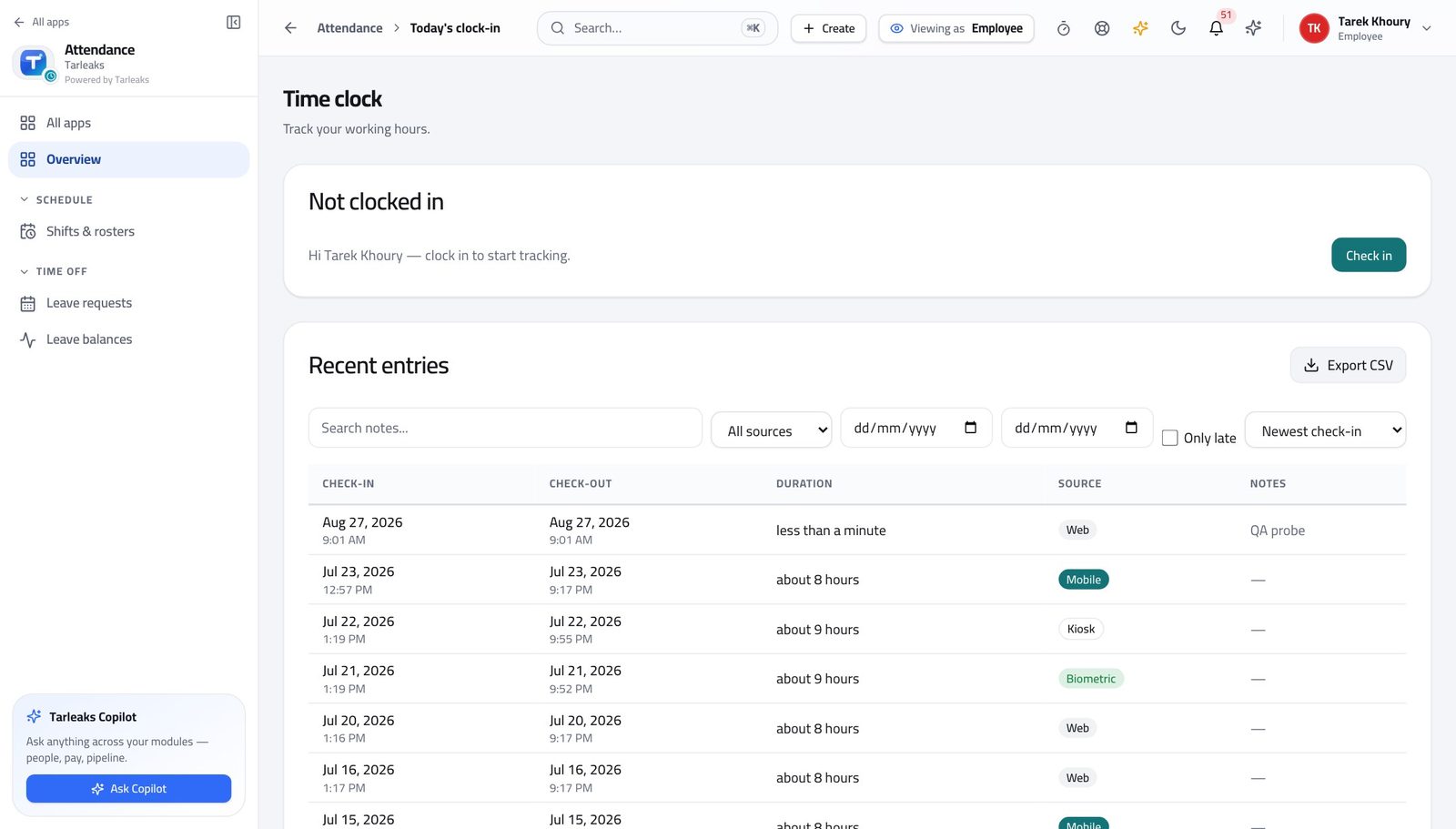
You should see Other people's days are not merely hidden from you — they are refused. That is the same protection working in your favour when somebody else goes looking for yours.
Watch out Other people's days are not merely hidden from you; the system refuses them. That is the same protection working in your favour when somebody else goes looking for yours.
Deciding requests is somebody else's job #
Where Attendance » Leave requests
- Open Leave requests and look at the page.
- There is no approval queue, and no Approve button on any row.
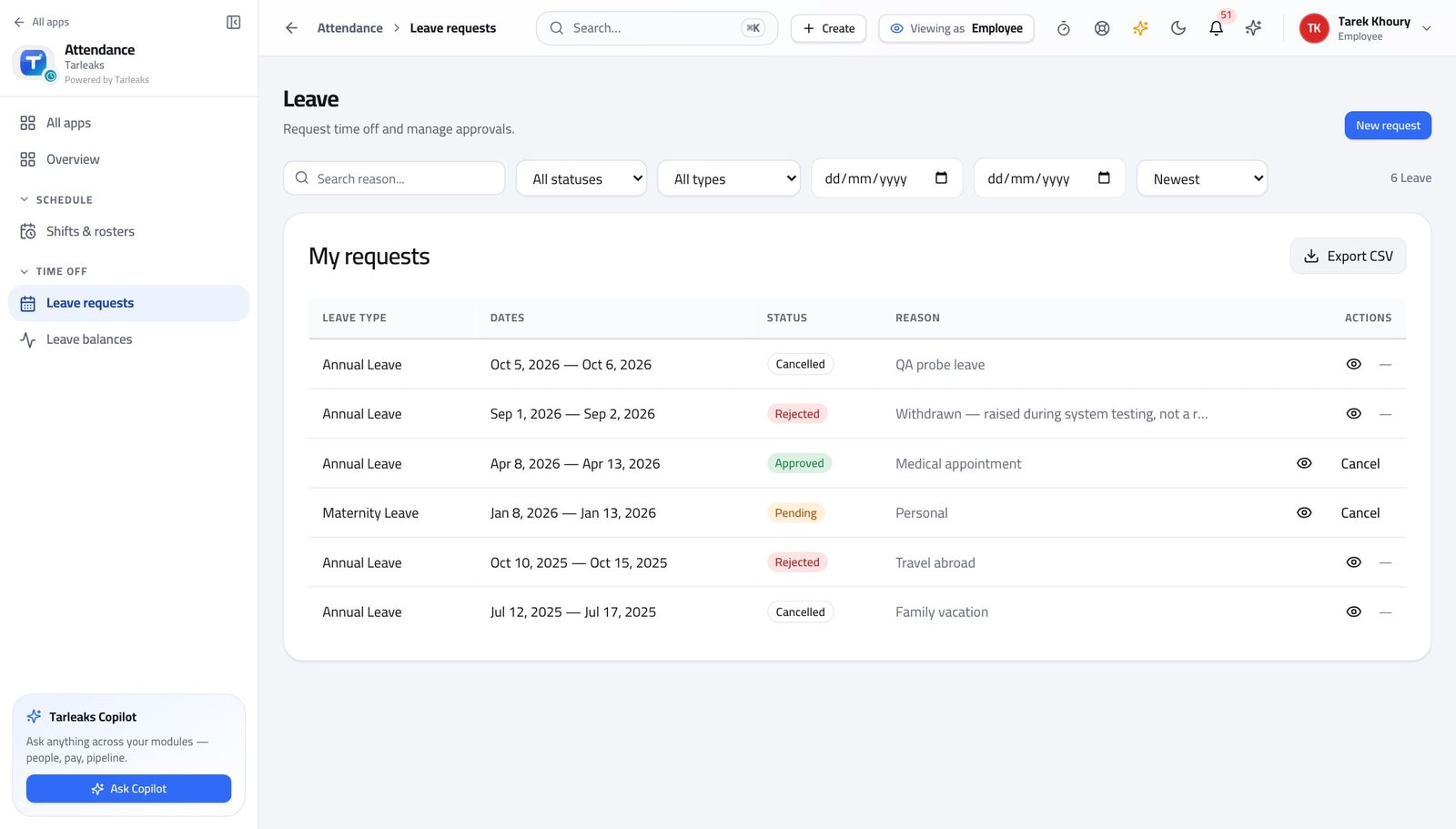
You should see You cannot approve your own leave, which is the entire reason the decision lives with your manager and with HR.
Watch out Nobody can approve their own leave here, at any level. That is the entire reason the decision lives with your manager.
The company's attendance figures are not on this sign-in #
Where Attendance
- Look down the Attendance menu.
- There is no Attendance insights entry.
You should see Lateness and compliance across the company are a management figure. Your own record is not, and it stays available to you.
Watch out Your own record stays available to you in full — Recent entries, your leave, your balance and your weeks. It is other people's you cannot see.
Use cases — the work, step by step
Each one is a sequence somebody actually performs, with the screen behind every step. Every screen here was opened in the product as this role before it was published.
dailyAn ordinary day: in, out, and nothing left to remember #
Two presses at the right moments cost ten seconds. The same two days later cost a correction, an approval, and somebody's afternoon.
Open the time clock and press Check in when you start. The card changes to say you are clocked in and shows the time it recorded.
Attendance » Time clock — verified: the page says “Time clock” At the end of the day, come back and press Check out. The card goes back to Not clocked in.
Attendance » Time clock — verified: the page says “Time clock” Glance at Recent entries. Today's line should show a check-in, a check-out and a duration — that is your confirmation.
Attendance » Time clock » Recent entries — verified: the page says “Recent entries”; 50 row(s) listed
weeklyAsk for time off, and know where it is #
The two questions people actually have are 'how much do I have' and 'has it been approved'. Both are answered before you ask anyone.
Check roughly where you stand first — the Leave remaining figure on your home page is enough to decide whether to ask.
My workspace — verified: the page says “Leave remaining” Open Leave requests and press New request. Choose the type, set the start and end dates, and leave the employee box blank — it means you.
Attendance » Leave requests » New request — verified: the control is offered; the page says “New leave request” Your request appears in My requests as Pending. That means nobody has decided yet, not that it was missed.
Attendance » Leave requests » My requests — verified: the page says “My requests”; 6 row(s) listed If plans change while it is still pending, cancel it rather than leaving it. A cancelled request is kept and marked cancelled, so the trail stays intact.
Attendance » Leave requests » My requests — verified: the page says “My requests”
weeklyClose the week properly #
A week you did not send is a week nobody can approve — and it is your hours that wait, not anybody else's.
Open My timesheet on Friday. The arrows move a week at a time; the total is in the top right, against your weekly limit if your company sets one.
My timesheet — verified: the page says “Total” Read the exceptions above the grid before anything else. They come from the server, so they are exactly what your approver will see.
My timesheet — verified: the page says “Total” Press Submit week. The grid locks. If it comes back, the reason stays at the top of this screen until you deal with it.
My timesheet » Submit week — verified: the page says “Submit week”
urgentThe clock is wrong about a day you worked #
Raising it the same day gives you a record. Raising it a month later gives everybody a guess.
Check first. Open Recent entries and look at the day — an entry with no check-out is open, not missing, and is fixed differently from one that is absent altogether.
Attendance » Time clock » Recent entries — verified: the page says “Recent entries”; 50 row(s) listed Look up the shift you are on so you know the times you are claiming against, and the grace you get.
Attendance » Shifts & rosters — verified: the page says “Shift templates”; 7 row(s) listed Raise the correction with the real times and a reason a person can read — 'left at 17:30, forgot to clock out' is enough. Your manager or HR decides it; you cannot decide your own.
Attendance » Leave requests — verified: no “Approval queue” anywhere on the page
Everything here is your own record. Other people's days are not hidden from you — they are refused, which is the same protection working in your favour when somebody else goes looking for yours.