HR Specialist — Attendance guide
Answer any question about anybody's time — and correct the record when it is wrong.
Reads the whole company's time and leave, corrects balances, and answers the questions people ask HR — without holding the approval or the roster.
What you will be able to do
- Find anyone's clock record, and where it came from
- Read every leave request in the company, whoever's manager you are
- Explain a balance from the rule that produced it
- Produce the lateness and absence figures without asking anyone
What this role can and cannot do
| Can | Cannot |
|---|---|
|
|
13 steps, each one carried out in the product on .
Check what your sign-in can do #
Where Your name, top right » Profile
- Open your company's address in the browser — it looks like yourcompany.tarleaks.com.
- Type the e-mail address your administrator set up for you, then your password.
- You land on the app launcher: a grid of the apps your company uses.
- Click your name in the very top-right corner of the screen.
- Choose Profile from the menu that drops down.
- Scroll to the Roles & permissions section.
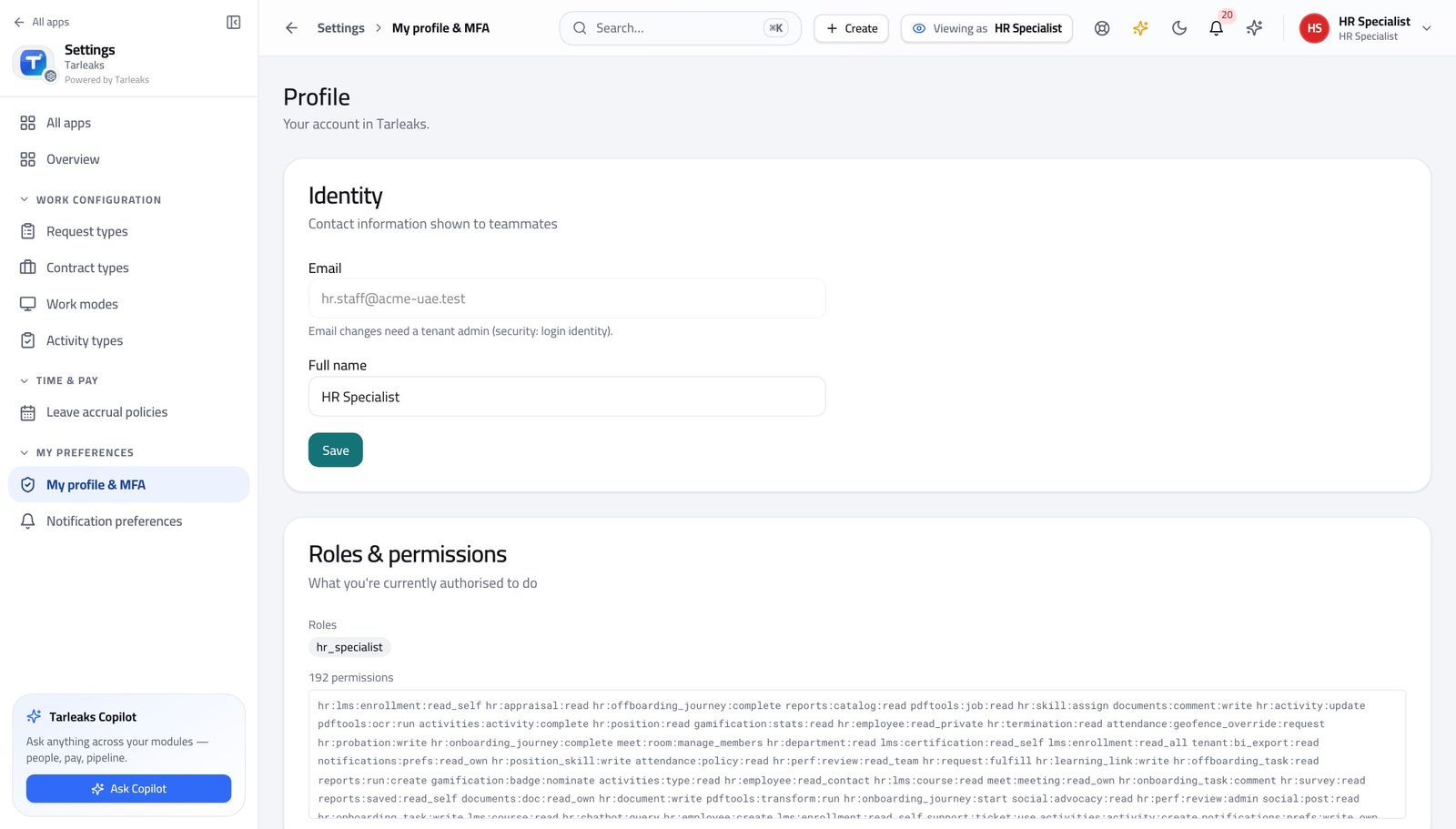
You should see Company-wide reads of time, leave and balances, plus the authority to correct a balance. Approving leave, deciding a correction and owning the roster are not here.
Watch out Two people with the same job title can hold different roles here. If the chip does not say what you expected, ask your administrator before you start deciding anything — the buttons you see depend on it.
Start on the screen you get asked about #
Where Attendance » Today
- From the launcher, click the Attendance tile.
- Read the boxes, then the roster.
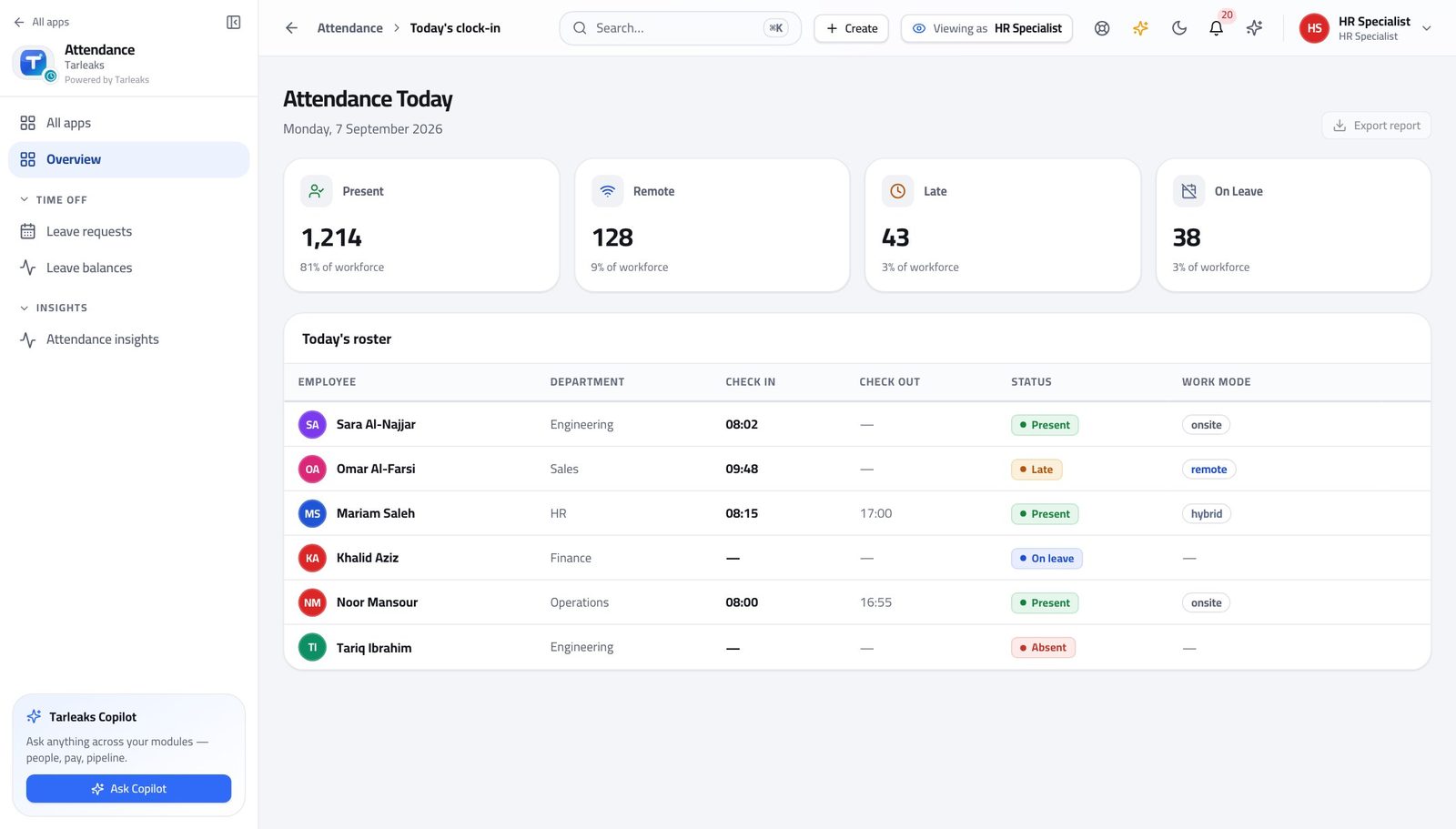
You should see 'Is she in today?' is the single most common question HR is asked, and this is where it is answered.
Look up anybody's clock record #
Where Attendance » Time clock » Recent entries
- In the left menu, under TODAY, click Today's clock-in, then open the time clock.
- Recent entries lists everybody, because this role can read the whole company's time.
- Type into Search notes to find the day somebody is asking about.
- Narrow with All sources, or with the two date boxes.
- Press Export for the same list as a spreadsheet.
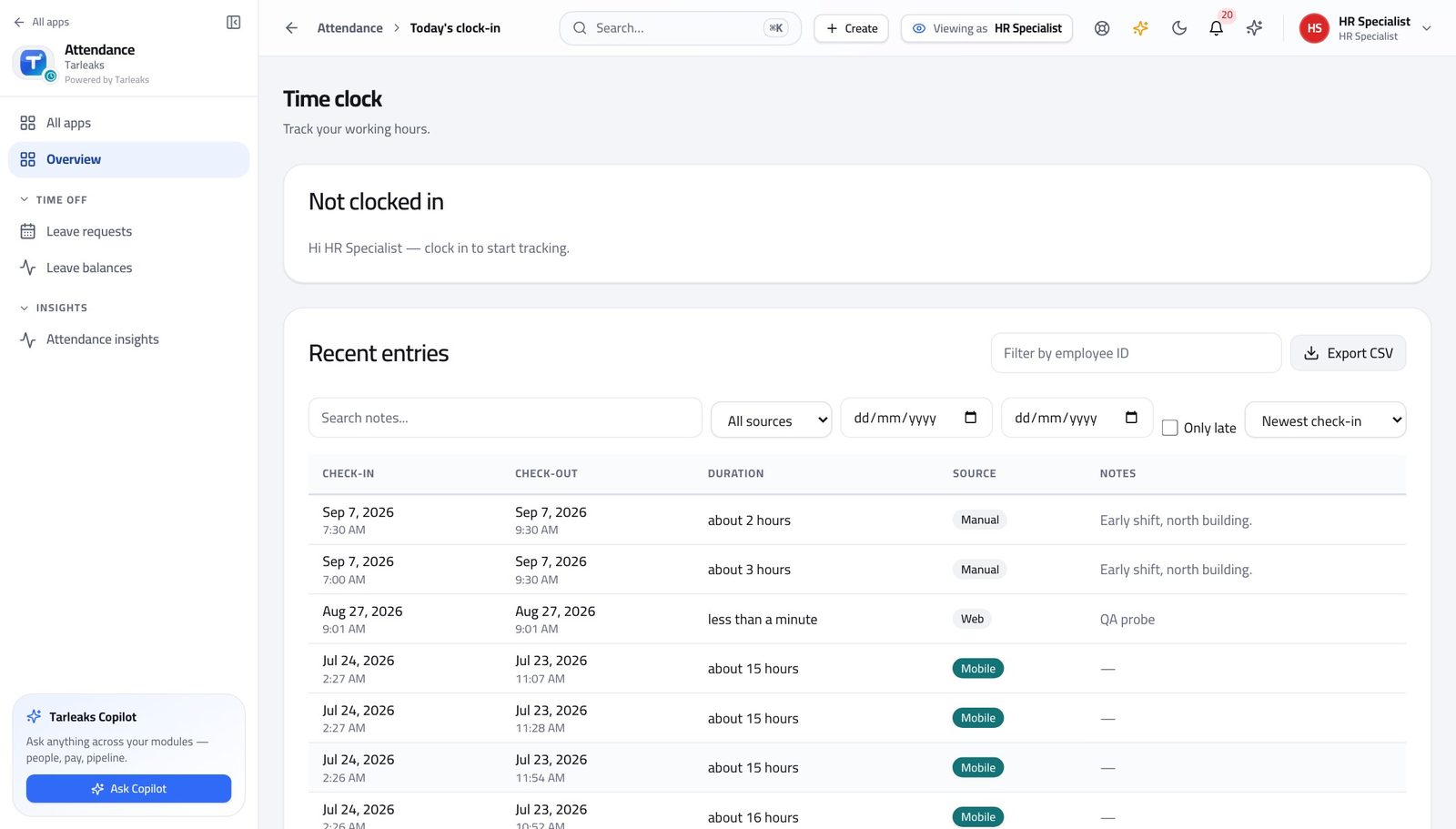
You should see Every entry says where it came from — the app, a device at the door, or a correction somebody approved. When a person says 'I did clock in', the record and its source are one search away.
Watch out An entry with no check-out is an open shift, not a missing record. Check the date before you treat it as a gap.
Worth knowing Export gives you the same list with the check-in, check-out and duration already worked out, which is what a payroll query usually needs.
Read every leave request in the company #
Where Attendance » Leave
- In the left menu, under TIME OFF, click Leave requests.
- Filter by status, by type, or by a date range.
- Sort by Longest or Newest.
- Press Export to take the filtered list away.
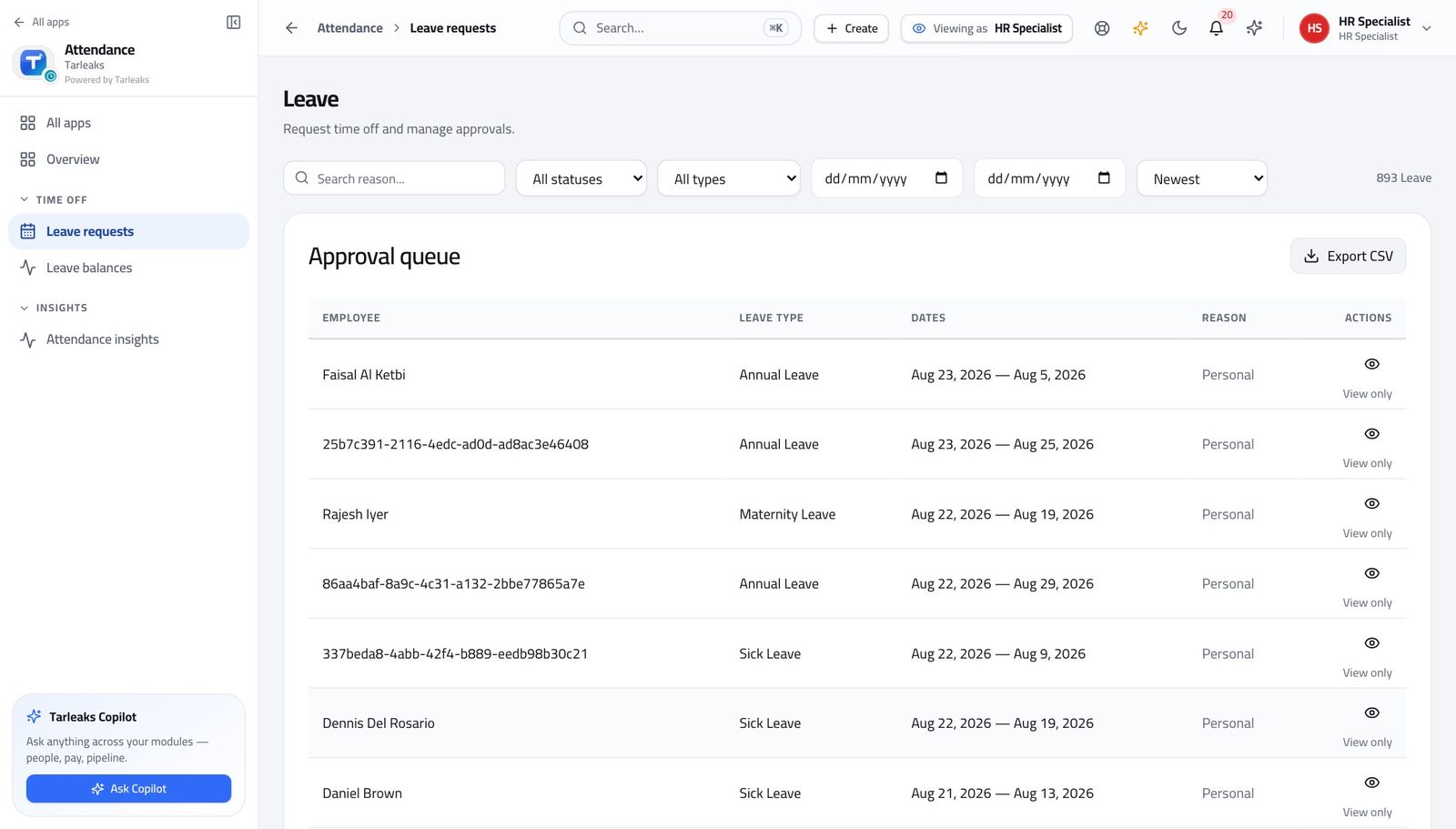
You should see You can answer a leave question about anyone without being their manager — which is exactly what an HR desk needs.
Watch out Search matches the reason text, which is often the fastest way to find the request somebody is describing to you on the phone.
Know what each kind of leave grants #
Where Attendance » Leave » Leave types
- Scroll to the Leave types card and press Show.
- Read Name, Paid and Default days per year.
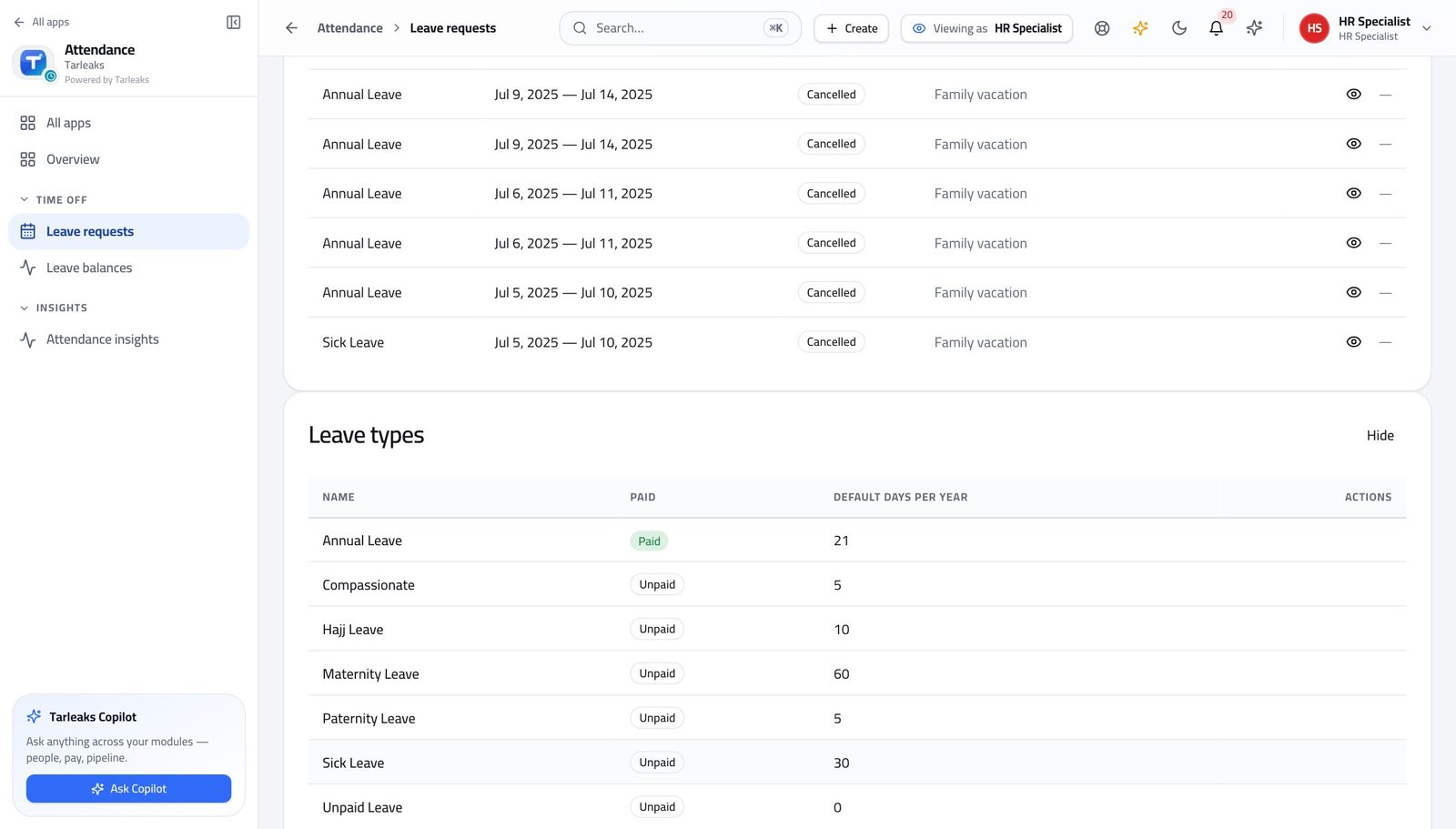
You should see Default days per year is the entitlement on the TYPE. Somebody's accrued balance is a different number, earned in hours by the accrual rule — say which one you mean when you answer.
Watch out When somebody asks 'how much leave do I have', find out which number they mean. The entitlement on the type and the accrued balance in hours are different answers, and giving the wrong one starts an argument.
Approving leave is not yours #
Where Attendance » Leave » Approval queue
- Open Leave. The approval queue is the first card, and you can read all of it.
- Look along a pending row for Approve and Reject.
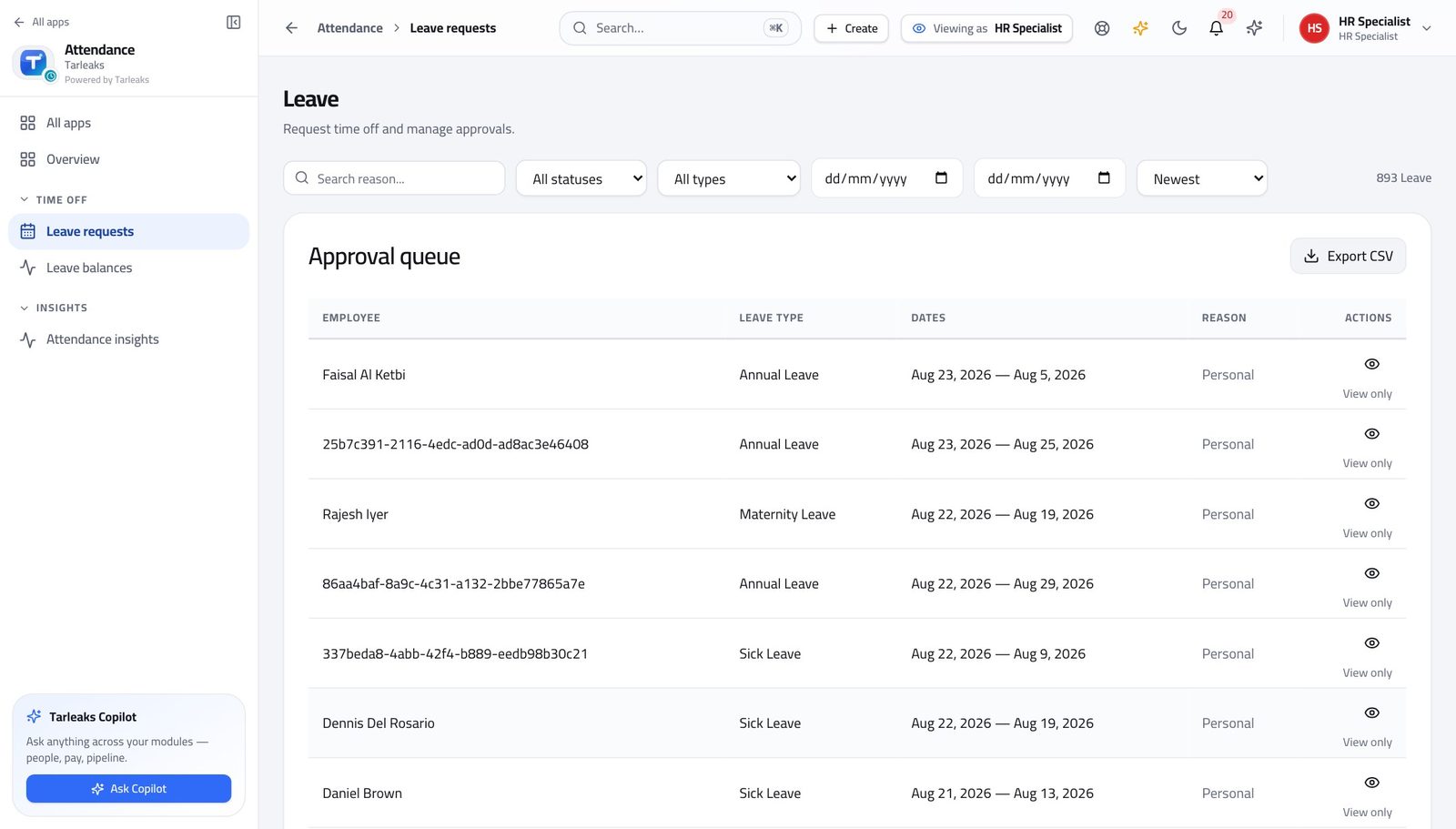
You should see You can read every pending request and answer questions about it. You cannot decide it. The person who administers leave is not the person who grants it, and that split is what makes your record-keeping trustworthy.
Watch out If somebody asks you to 'just approve it', the answer is that you cannot — send it to their manager or to HR management. That refusal is what makes your record-keeping worth trusting.
Explain a balance from the rule that made it #
Where Settings » Leave accrual policies
- Open Settings, then under TIME & PAY click Leave accrual policies.
- Read Rate, Period, cap, carry-over and its expiry.
- Press Assign to see who a policy covers.
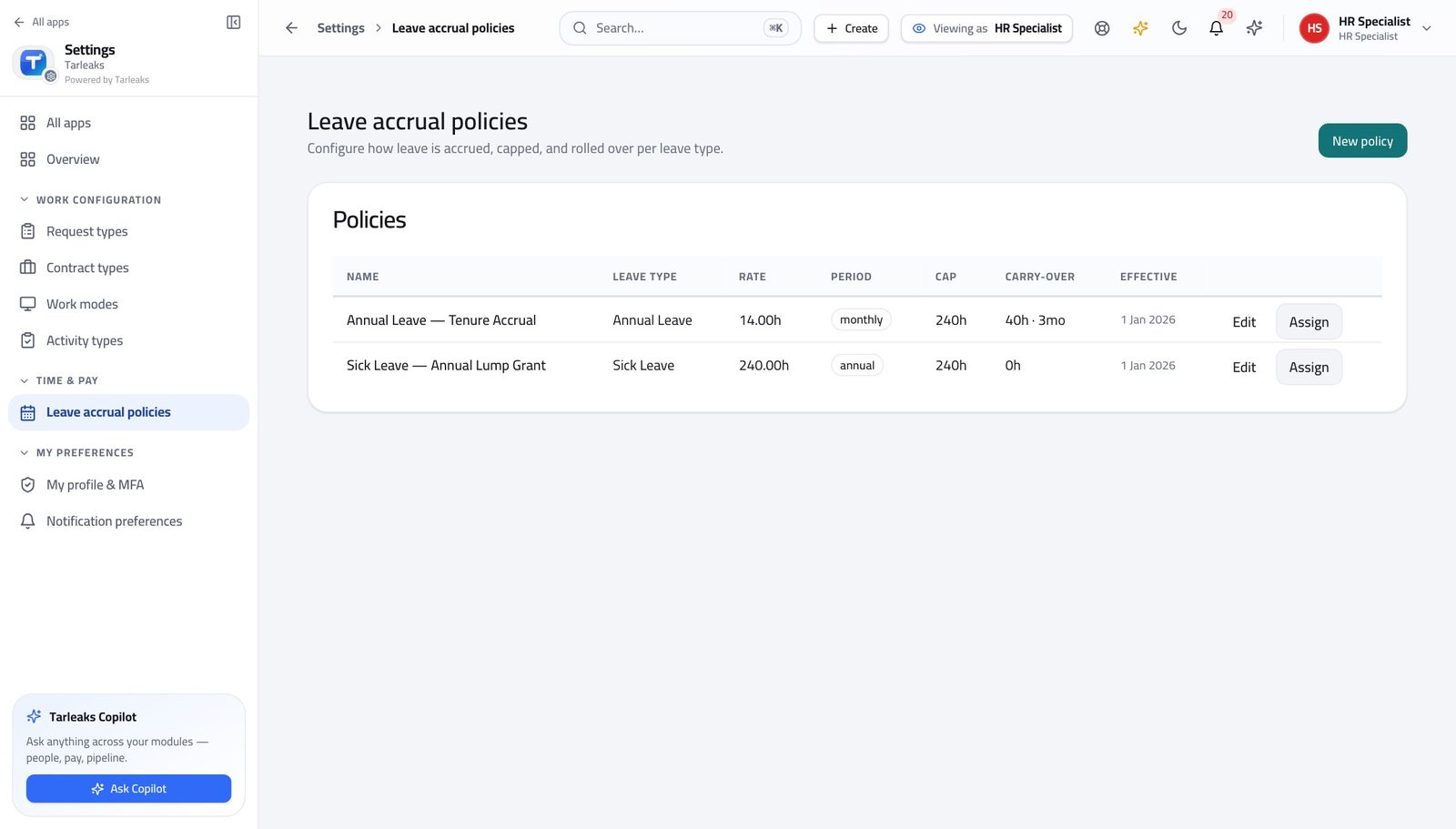
You should see Every balance you are asked about was produced by one of these. Reading the rule out loud answers most 'why do I only have this much' questions in one go.
Watch out Somebody who seems to have earned nothing is usually inside the waiting period, or not assigned to a policy at all. Check Assign before you treat it as a fault.
Read a person's balance, in hours #
Where Attendance » Leave balances
- In the left menu, under TIME OFF, click Leave balances.
- Pick the person in the box at the top right.
- Read the card per leave type.
- Press View ledger for the movements behind the number.
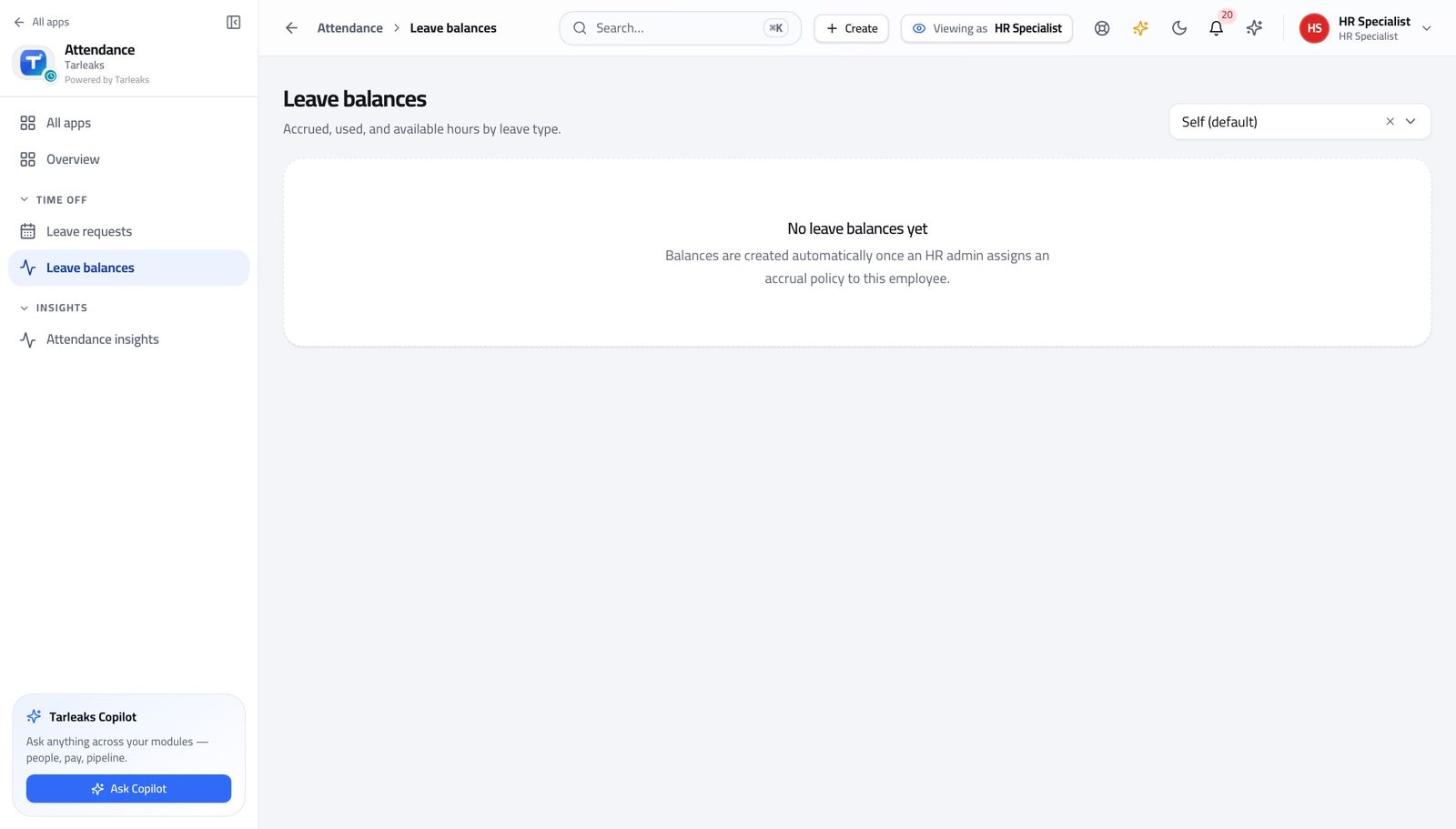
You should see Accrued this year, used this year, carried over and what is left — all in hours, with an approximate day figure underneath. The ledger is append-only, so a disputed balance can be walked back line by line.
Watch out The ledger is append-only — accrual, leave taken, carry-over, expiry, adjustment and correction each appear as their own line with the balance after it. Nothing is edited in place, so a disputed balance can always be walked back.
Worth knowing A person with no card yet is not on an accrual policy. That is a policy assignment to make, not a balance to type in.
Produce the figures HR gets asked for #
Where Attendance » Attendance insights
- In the left menu, under INSIGHTS, click Attendance insights.
- Read the four boxes and press Refresh when you need it current.
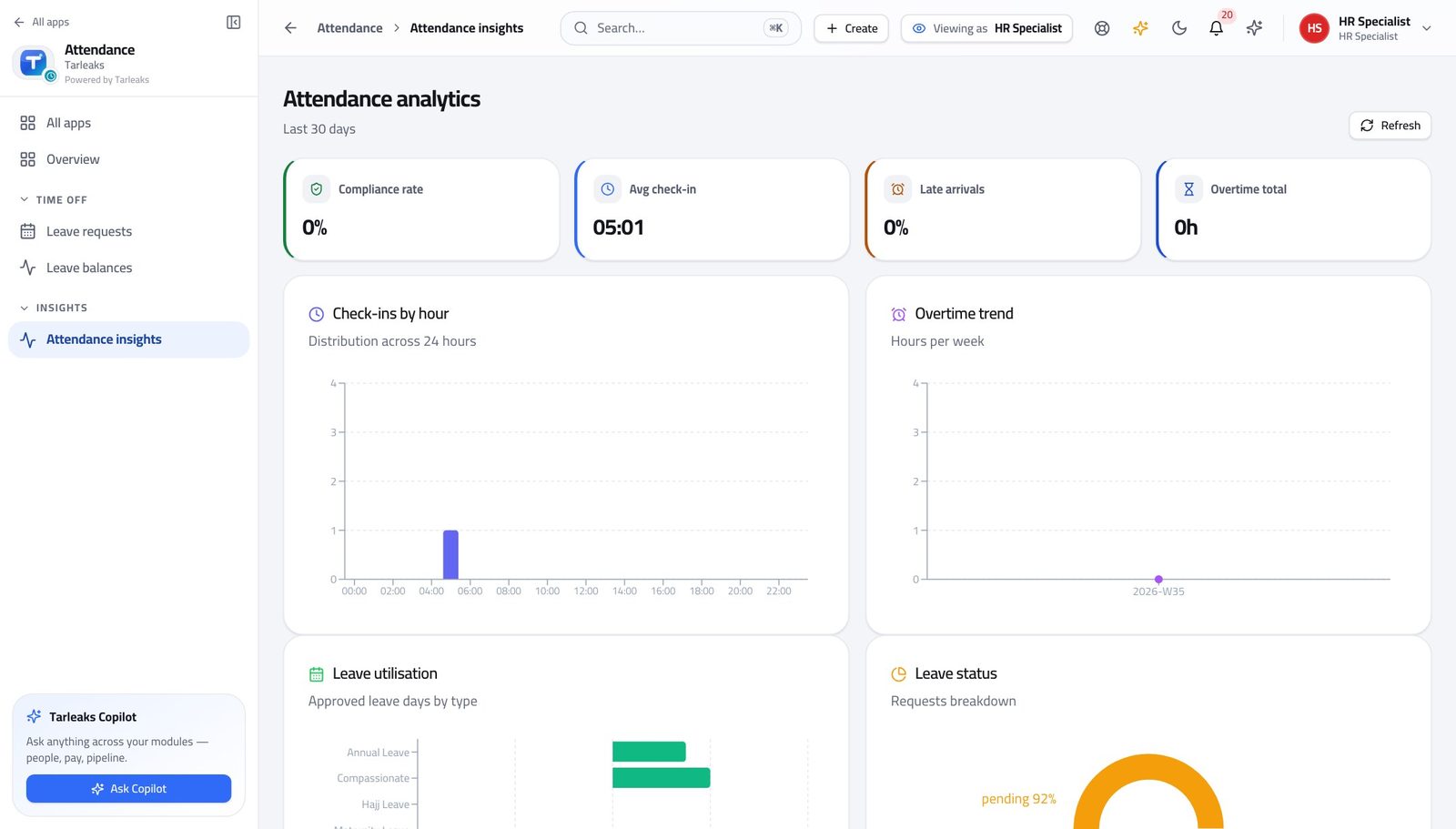
You should see You can produce these without asking anyone to run anything, which is usually the difference between a same-day answer and a next-week one.
Absence and overtime over a chosen window #
Where Attendance » Attendance insights
- Still on Attendance insights, read Overtime trend, Leave utilisation and Leave status.
- Change the period to match the question.
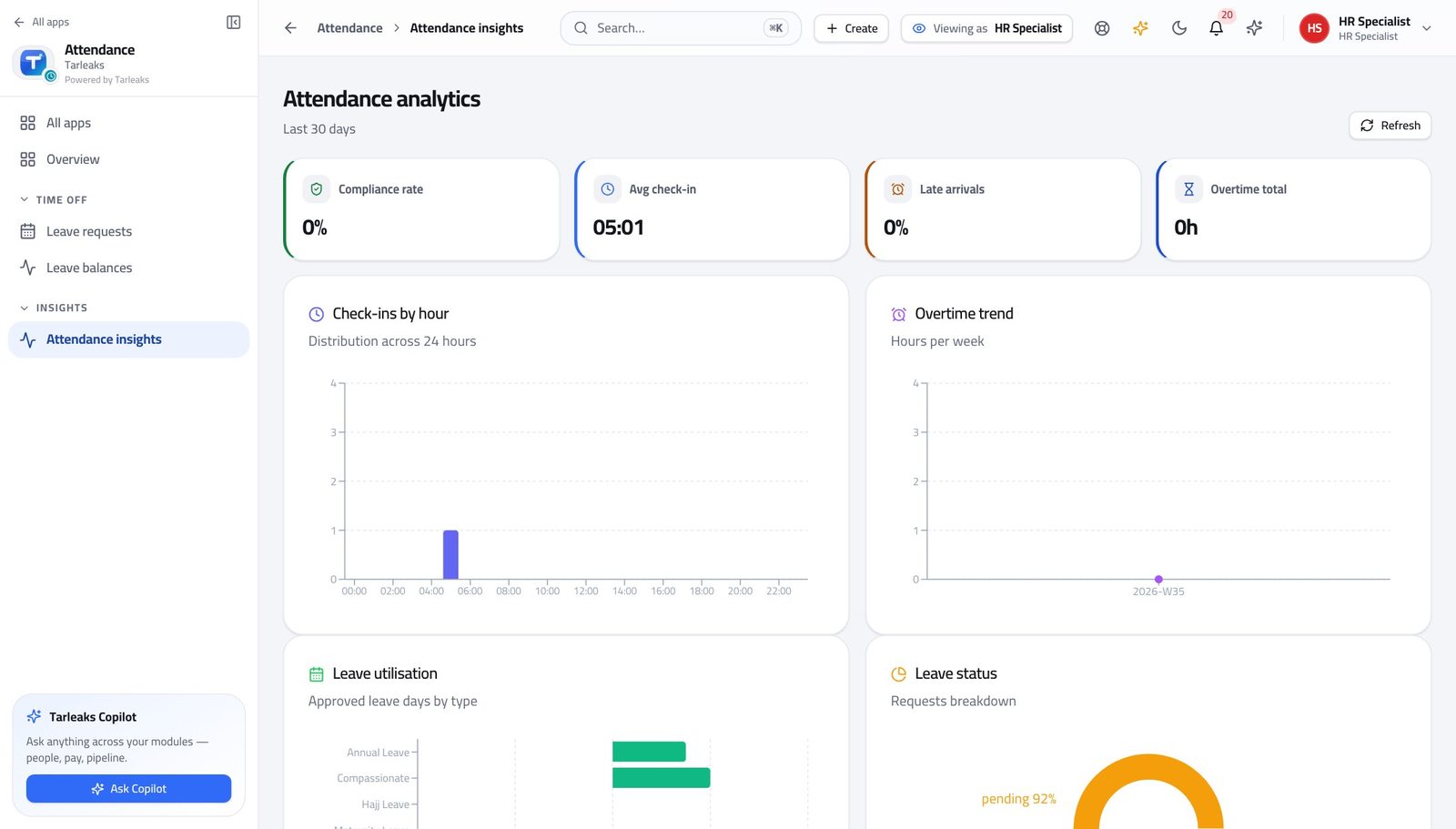
You should see The same clock records, summarised two ways. They cannot disagree with the day view because they are not a separate set of numbers.
The shift roster is not on this sign-in #
Where Attendance
- Look down the Attendance menu.
- There is no Shifts & rosters entry.
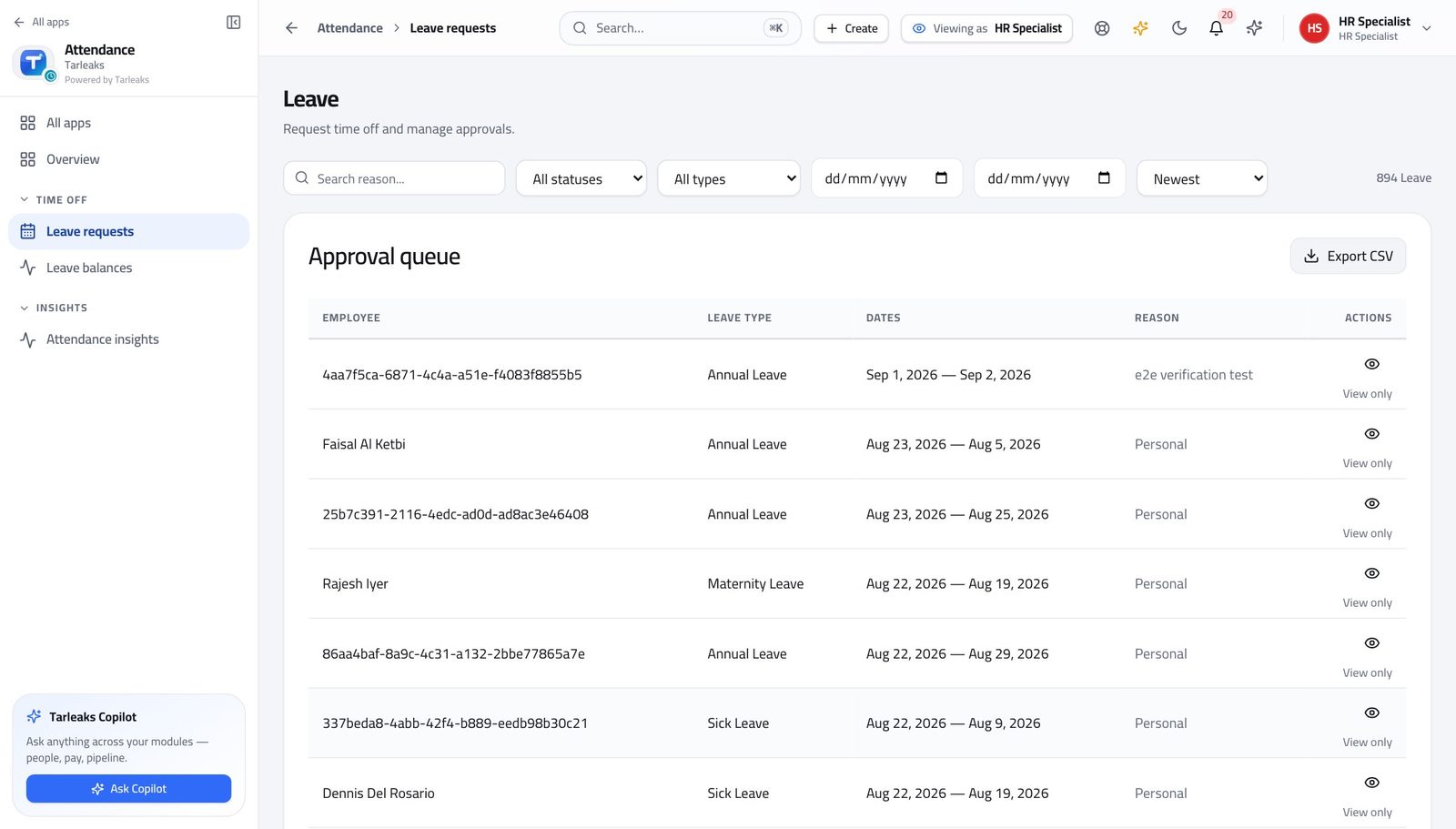
You should see Reading everybody's hours is not the same authority as deciding what their hours are. Shift changes move money, so they sit with HR management.
Watch out Shift questions go to HR management. Say which person, which shift and from which date — assignments are dated, so the date matters.
The corrections queue is not on this sign-in either #
Where Attendance
- Look down the Attendance menu.
- There is no Regularizations entry.
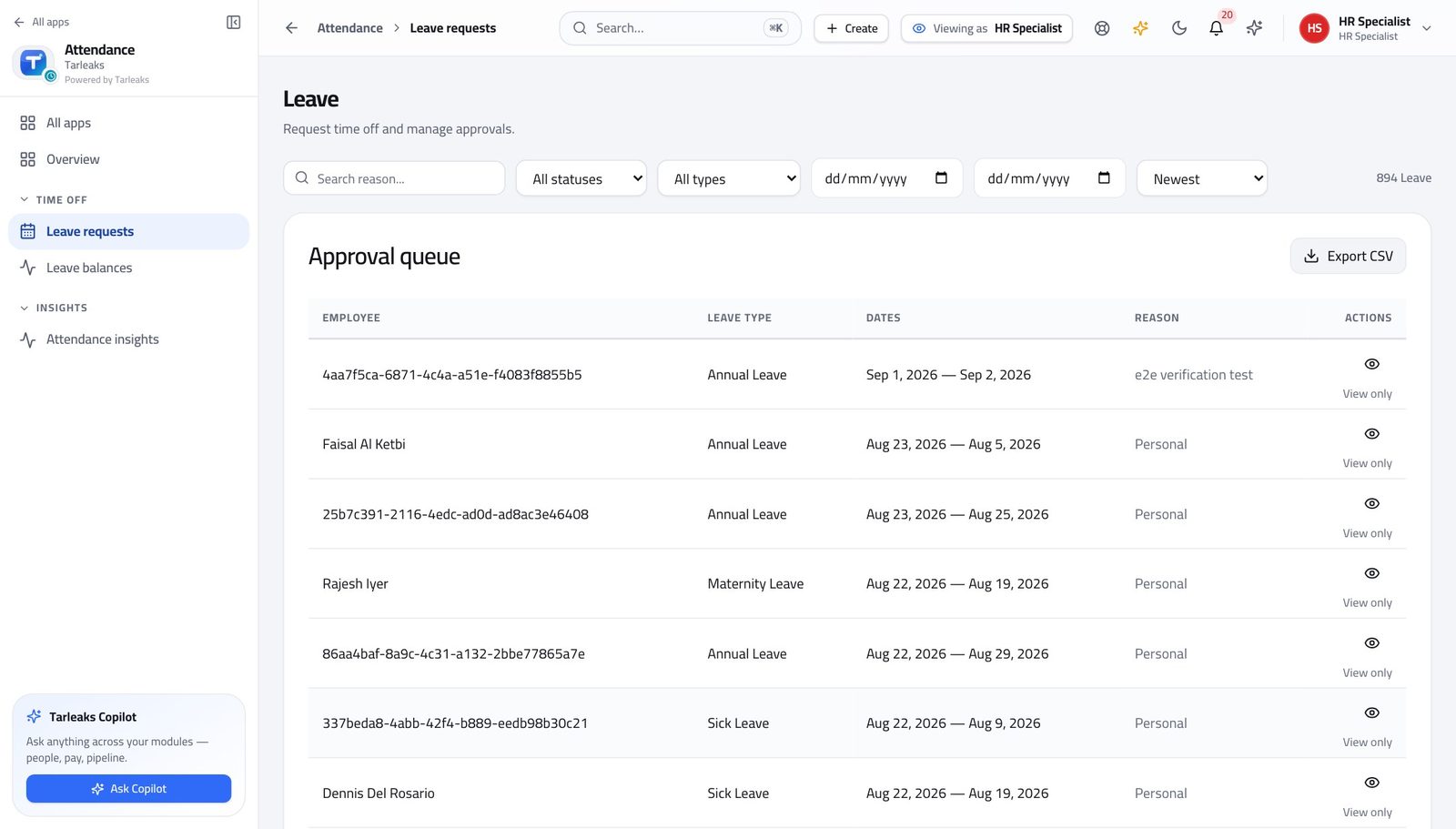
You should see A missed punch is decided by the person's manager or by HR management. Deciding it adds paid hours, which is why it is not with whoever administers the record afterwards.
Watch out You can still see the RESULT of a correction: once approved it writes a clock record, and that record appears in Recent entries with its source.
Worth knowing You can still SEE the corrected result: an approved correction writes a clock record, and that record shows up in Recent entries with its source.
Your own week is still yours to send #
Where My timesheet
- In the left menu, under SELF-SERVICE, click My timesheet.
- Move between weeks with the arrows.
- Read the total against your weekly limit, then press Submit week.
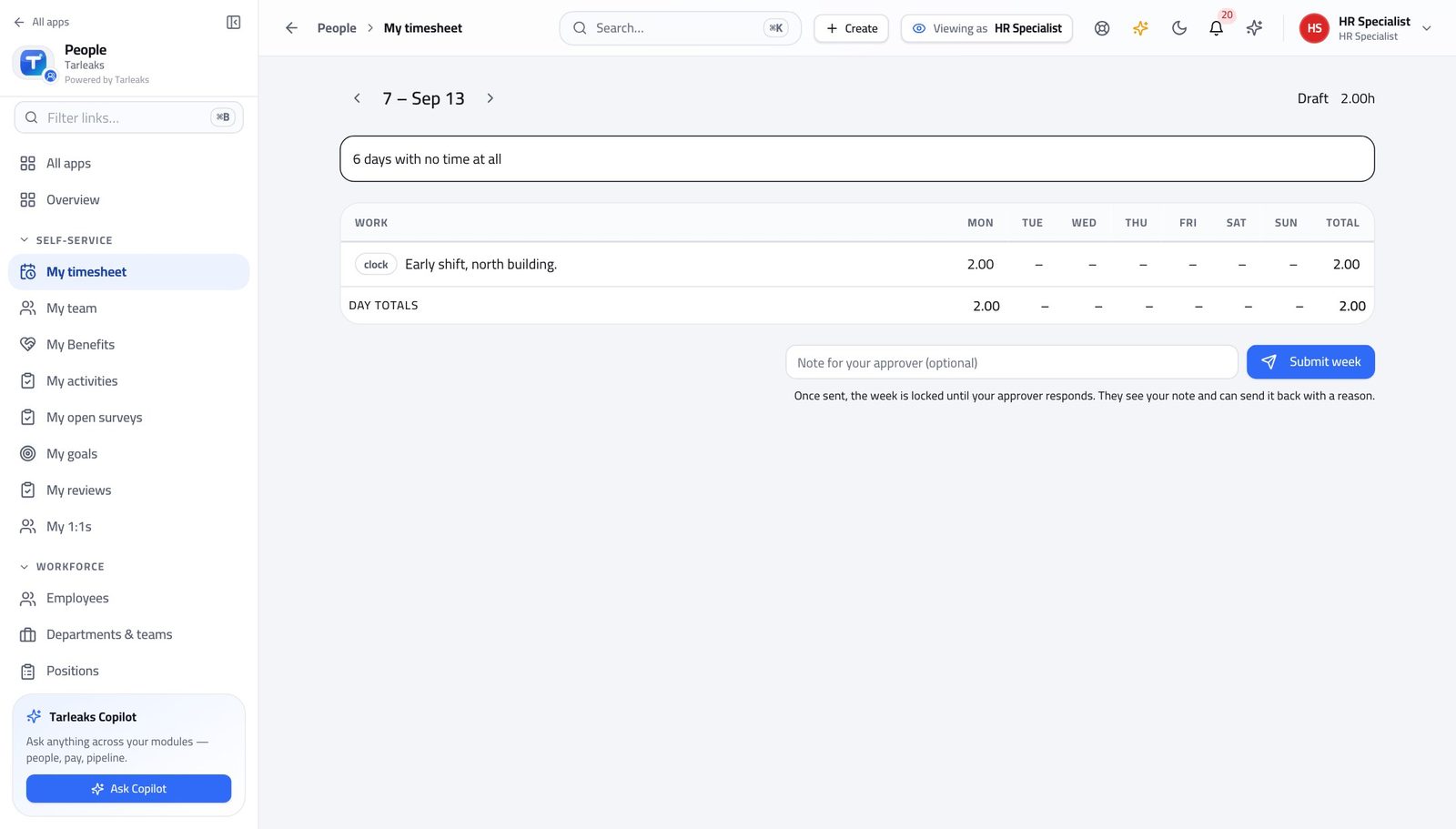
You should see Administering everyone else's time does not exempt you from recording your own — and your week goes to somebody else to approve, like anybody's.
Watch out Your week goes to somebody else to approve, like anybody's. Administering the system does not approve your own hours.
Use cases — the work, step by step
Each one is a sequence somebody actually performs, with the screen behind every step. Every screen here was opened in the product as this role before it was published.
daily'Did my clock-in register?' — answered in under a minute #
The record and its source are both on the same row, so the answer is usually a sentence rather than an investigation.
Open the time clock and search Recent entries for the person. The filter box is there because this role can read everybody's time.
Attendance » Time clock » Recent entries — verified: the page says “Recent entries”; the control is offered; the control is offered Read the Source column. App, a device at the door, and a correction somebody approved all look different — and that difference is usually the answer.
Attendance » Time clock » Recent entries — verified: the page says “Recent entries”; the control is offered; the control is offered If the entry genuinely is not there, tell them to raise a correction. You can read every record and decide none, which is what makes your answer trustworthy.
Attendance — verified: “Regularizations” is not in this role's menu
daily'How much leave have I got left?' — give the right number #
There are two numbers and people mean the second one. Answering with the first starts an argument that takes a week to unwind.
Find out which they mean. The leave type carries a yearly entitlement in days — that is the expectation, not the balance.
Attendance » Leave » Leave types — verified: the page says “Leave types”; the page says “Default days per year” Open Leave balances and pick them. The big number is hours available, with an approximate day figure underneath.
Attendance » Leave balances — verified: the page says “Leave balances” If the number surprises them, open View ledger and read the movements down: accrual, leave taken, carry-over, expiry. Nothing is edited in place, so every change has a line.
Attendance » Leave balances — verified: the page says “Leave balances” If they have no balance card at all, they are not on an accrual policy. Check who the policy covers, then ask HR management to assign them.
Settings » Leave accrual policies — verified: the page says “Leave accrual policies”; 2 row(s) listed
monthlyReconcile the month before payroll asks #
Every absence should have either approved leave or an approved correction behind it. The ones that have neither are the questions payroll is about to ask you.
Read the absence view for the month.
Attendance » Attendance insights — verified: the page says “Overtime trend” Take each name and look for approved leave over those dates.
Attendance » Leave — verified: the page says “Leave”; 893 row(s) listed For the rest, check the clock record itself — a day worked with no record is a correction somebody has not raised.
Attendance » Time clock » Recent entries — verified: the page says “Recent entries”; the control is offered; the control is offered Read the compliance and lateness figures last, so you know what payroll and management will see.
Attendance » Attendance insights — verified: the page says “Compliance rate”
edgeSomebody is earning no leave and nobody noticed #
Nothing warns anyone about this. A person with no accrual policy simply never accrues, and the first sign is a complaint months later.
Open Leave balances and pick them. No card at all is a different problem from a card reading zero.
Attendance » Leave balances — verified: the page says “Leave balances” Open the accrual policies and press Assign on the one they should be on. If they are not in the list, that is the whole answer.
Settings » Leave accrual policies — verified: the page says “Leave accrual policies”; 2 row(s) listed A card reading zero usually means they are still inside the policy's waiting period — read the rule rather than assuming a fault.
Settings » Leave accrual policies — verified: the page says “Leave accrual policies”; 2 row(s) listed
You read everything and you can correct a balance — but you do not approve leave, you do not decide a correction, and the shift roster is not on this sign-in. Administering a record and granting it are separate jobs, and that separation is what makes your corrections trustworthy.