Line Manager — Attendance guide
Decide about your own team's time — and see nothing you should not.
Decides on their OWN team's time off, missed punches and weekly hours — and sees nobody else's. The narrowing is done by the product, not by a convention everyone has to remember.
What you will be able to do
- See the leave, corrections and weeks waiting on you, and only those
- Approve a batch after a long weekend in one action
- Look up a team member's remaining hours before you agree to anything
- Spot a pattern in lateness or overtime before it becomes a conversation
What this role can and cannot do
| Can | Cannot |
|---|---|
|
|
14 steps, each one carried out in the product on .
Check what your sign-in can do #
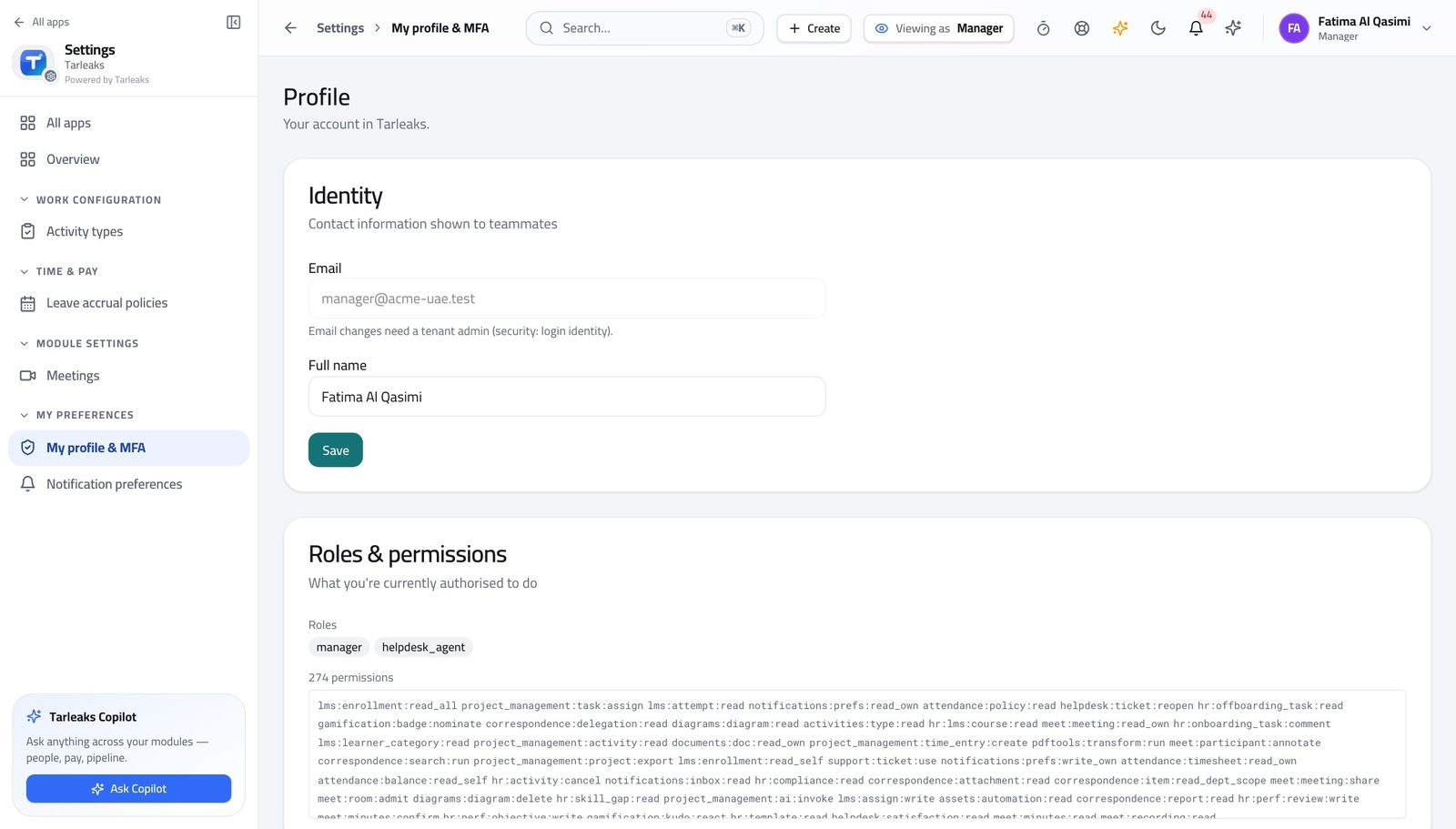
Where Your name, top right » Profile
- Open your company's address in the browser — it looks like yourcompany.tarleaks.com.
- Type the e-mail address your administrator set up for you, then your password.
- You land on the app launcher: a grid of the apps your company uses.
- Click your name in the very top-right corner of the screen.
- Choose Profile from the menu that drops down.
- Scroll to the Roles & permissions section.
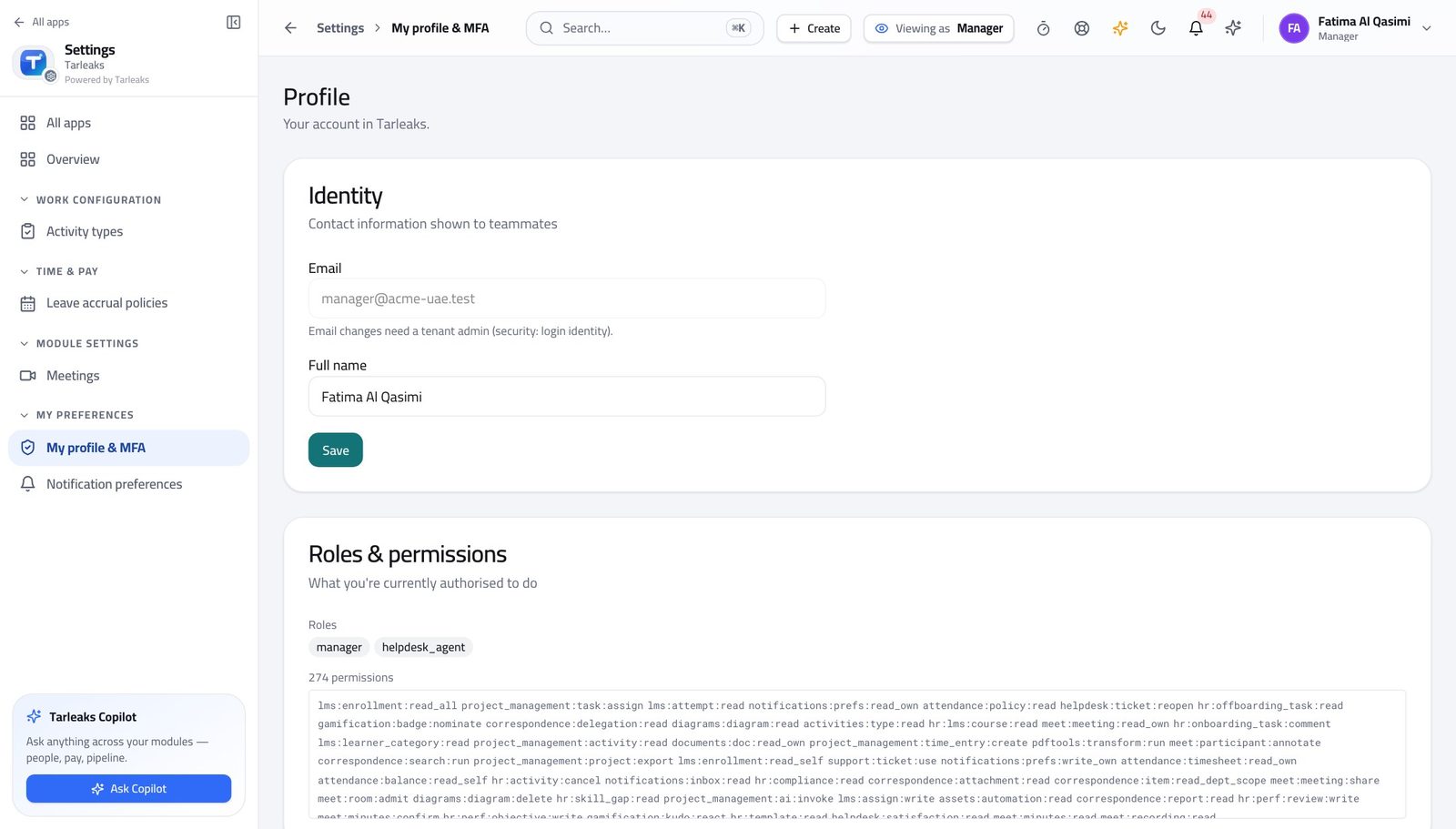
You should see You hold the same verbs an HR manager does — approve leave, approve corrections, approve weeks — over a much smaller set of people. The narrowing is done by the product.
Watch out Two people with the same job title can hold different roles here. If the chip does not say what you expected, ask your administrator before you start deciding anything — the buttons you see depend on it.
Start the day on the attendance screen #
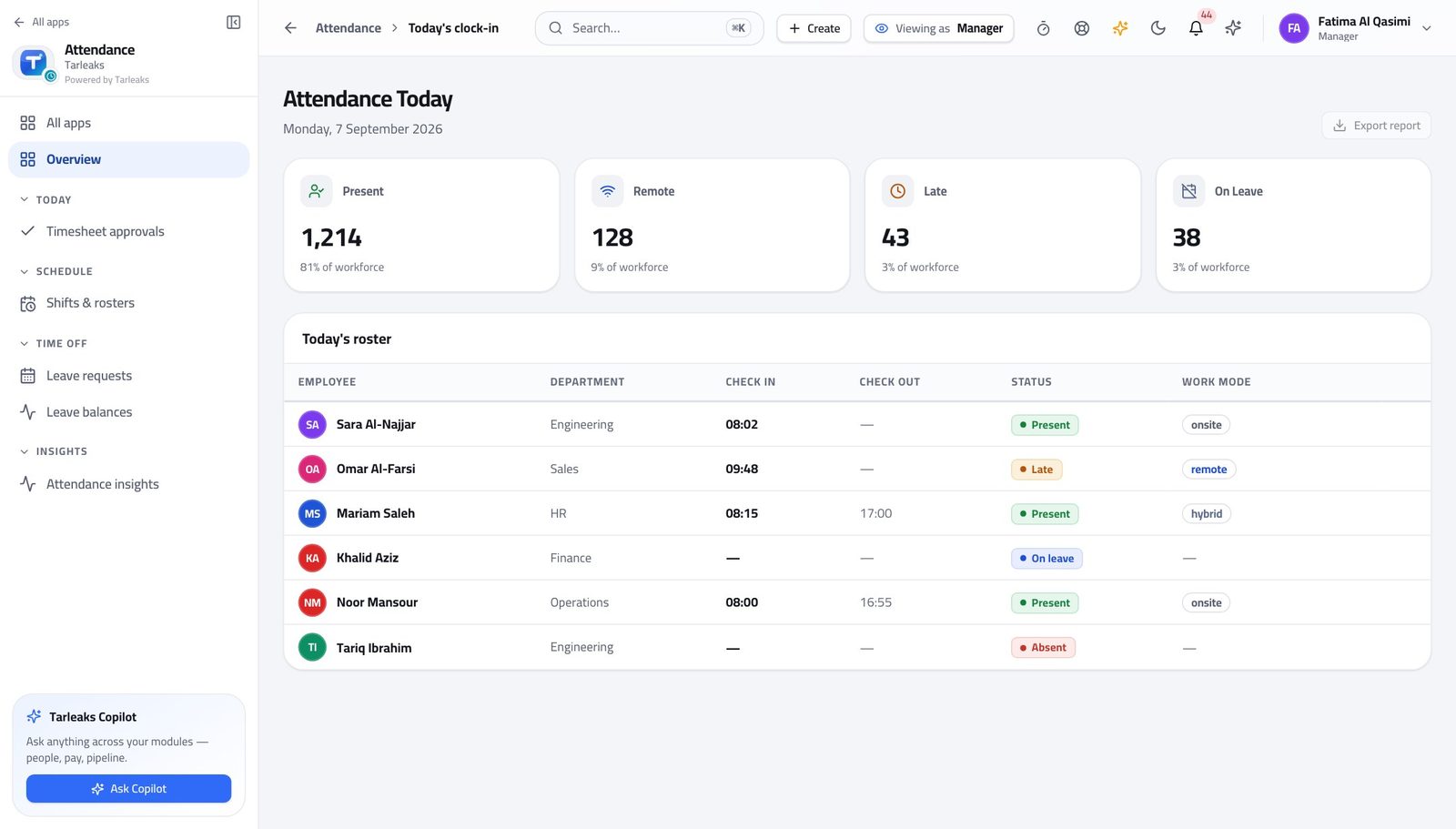
Where Attendance » Today
- From the launcher, click the Attendance tile.
- Read the four boxes and the roster underneath.
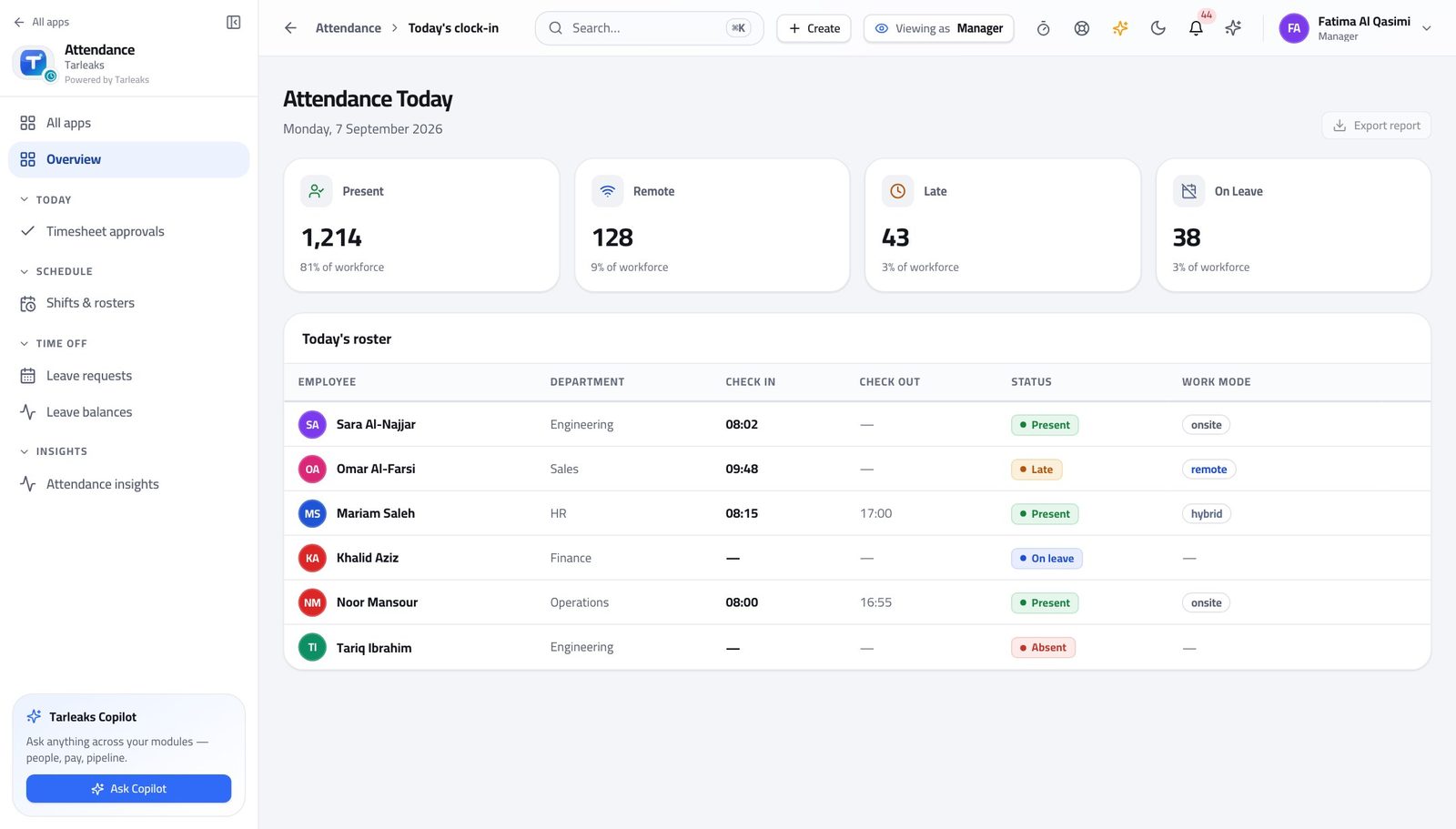
You should see The same first screen everybody in the company sees.
Your leave queue is your team's, not the company's #
Where Attendance » Leave » Approval queue
- In the left menu, under TIME OFF, click Leave requests.
- Read the count in the bar on the right of the filters.
- Filter to Pending to see what is genuinely waiting on you.
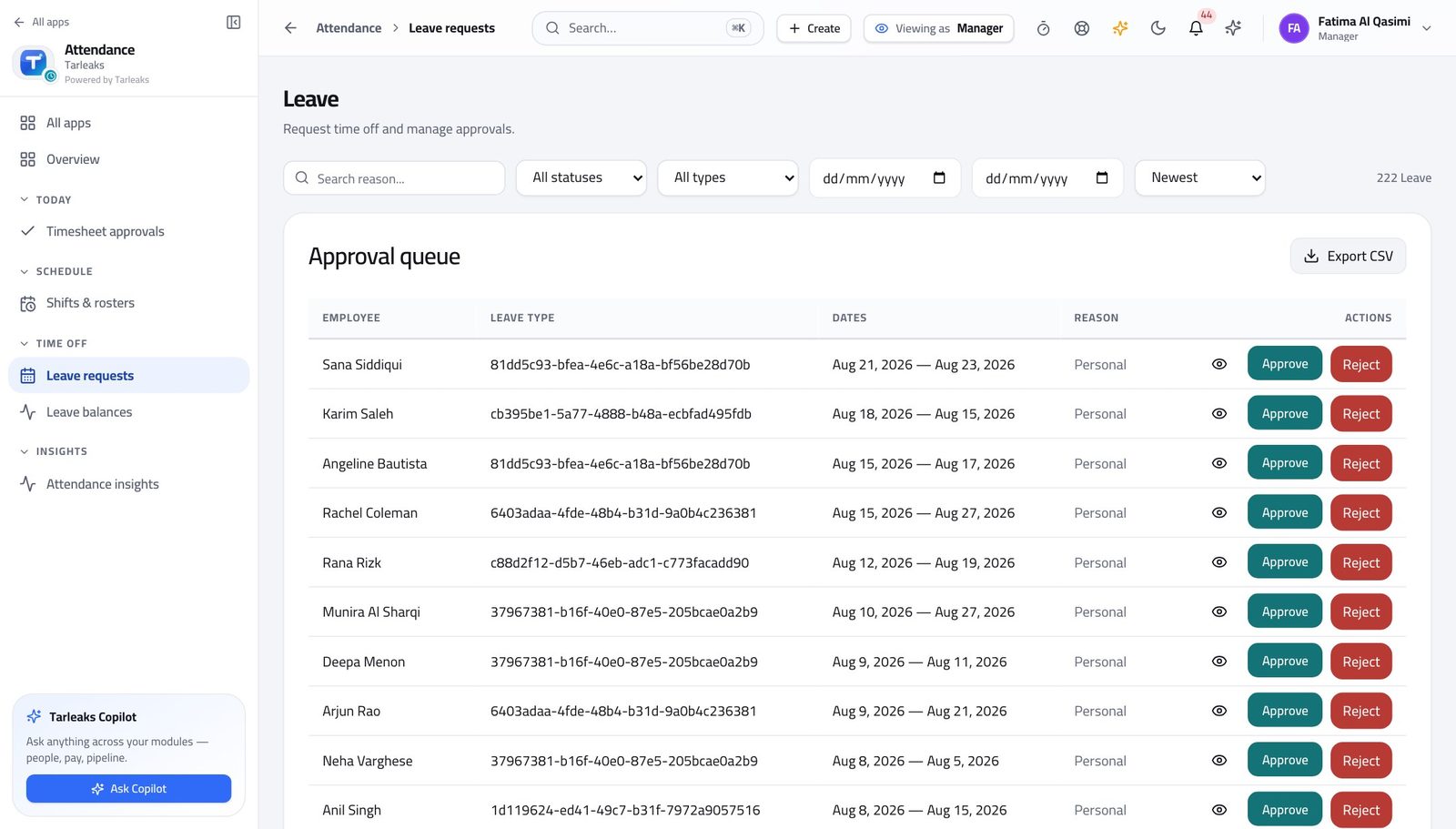
You should see You see a fraction of the company's pending requests, because the product filters by the departments you manage rather than trusting you to look away. There is nothing to switch on and nothing to remember.
Watch out If a request you were expecting is not listed, the person is not in a department you manage. That is a question for HR, not a fault — and it means somebody else already has it.
Worth knowing If a request you expected is missing, the person is not in a department you manage — that is a question for HR, not a bug.
Clear the queue after a long weekend #
Where Attendance » Leave » tick rows » Approve
- With the queue filtered to Pending, tick the rows you have decided on.
- The bar at the bottom says how many are selected.
- Press Approve and confirm.
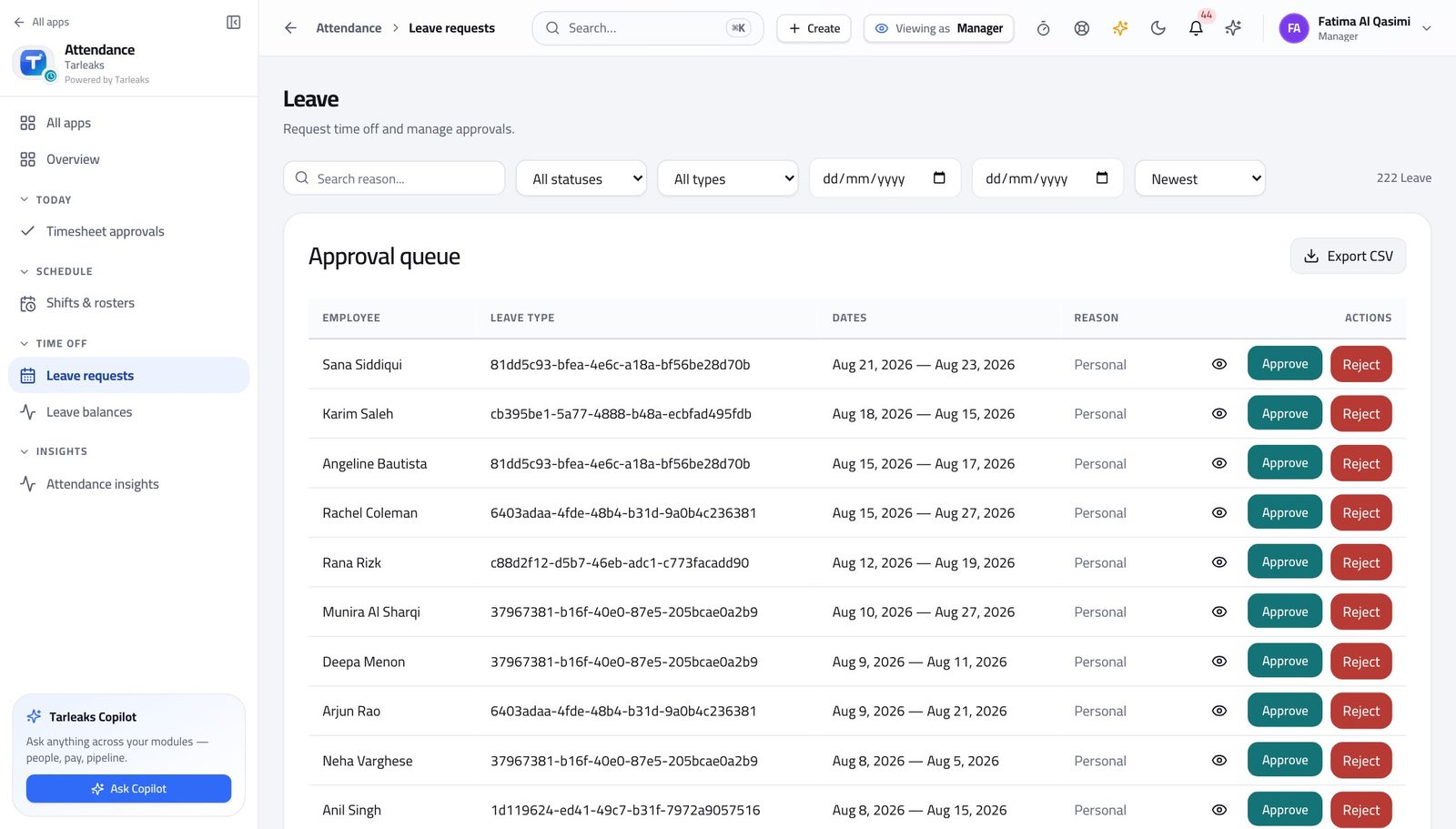
You should see The batch re-runs the department check on every row. A request that has drifted out of your team is refused inside the batch and named, rather than slipping through it.
Watch out Approving a batch is one decision repeated, not one decision. Read the dates on each row — two people off the same week is the thing a batch hides.
Missed punches are scoped the same way #
Where Attendance » Regularizations
- In the left menu, click Regularizations.
- It opens on Pending. Press the eye icon on a row to read the full detail.
- Switch the status dropdown to All to include decided ones.
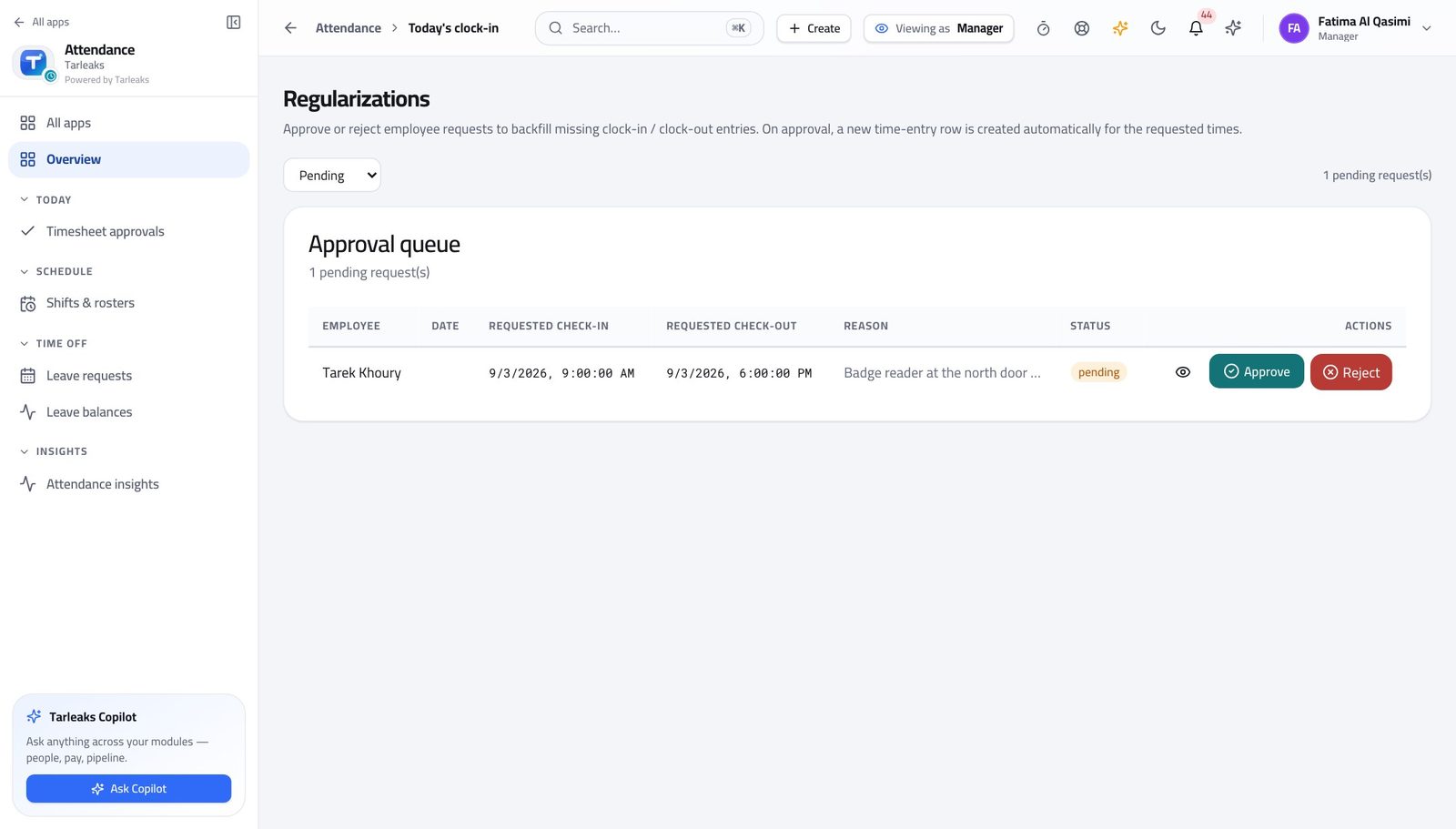
You should see Only your team's corrections are here. The same request is also in HR's queue — you are both looking at it, from different scopes, and either of you can decide it.
Watch out Approving adds paid hours. If you cannot remember the day, ask before you approve — the request is not going anywhere.
The timesheet queue says whose weeks it holds #
Where Attendance » Timesheet approvals
- In the left menu, under TODAY, click Timesheet approvals.
- Read the sentence under the heading before the rows.
- Stay on Waiting on me; the other tabs are Approved and Sent back.
- Approve with the tick, or press Send back and type a reason.
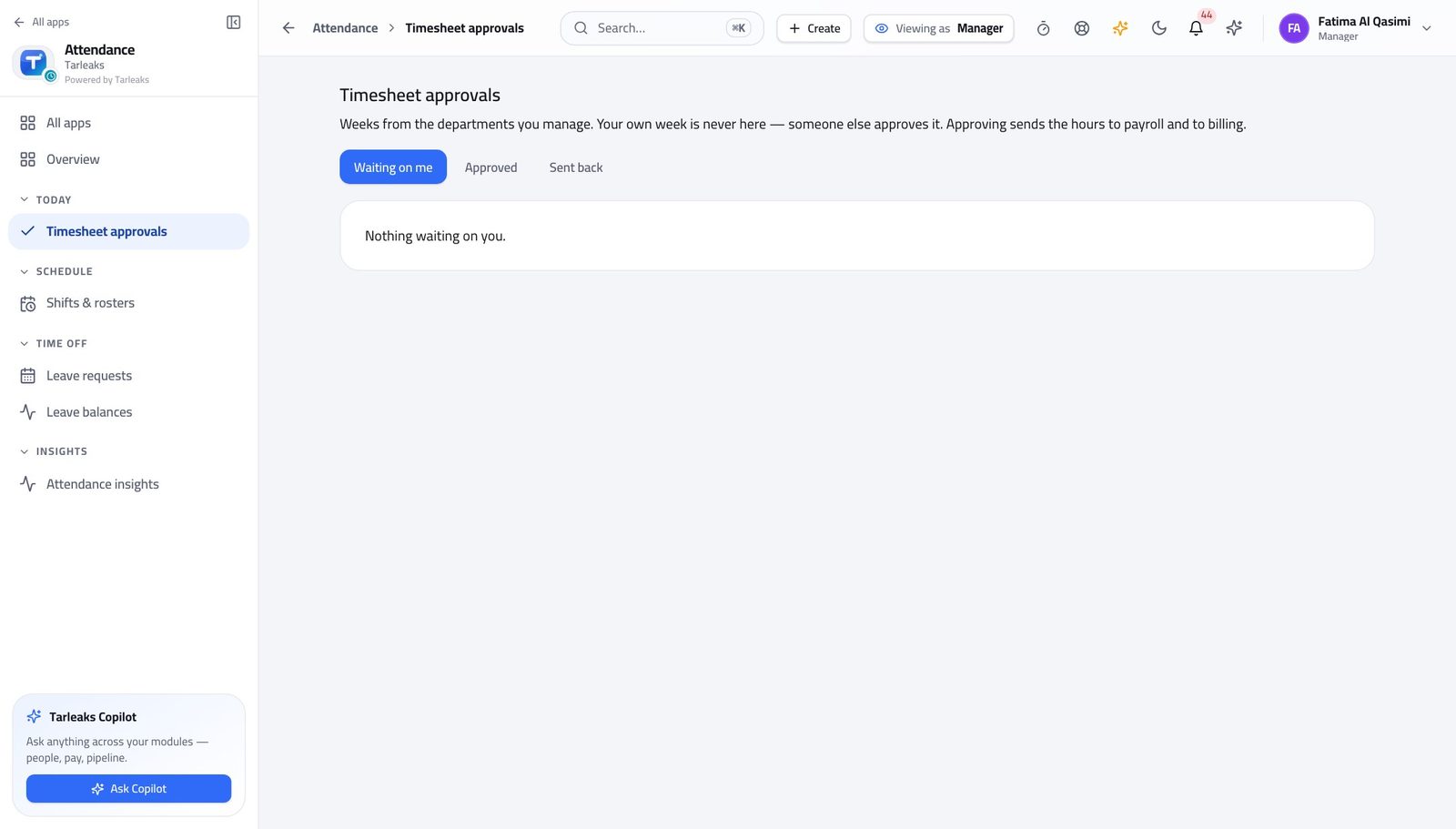
You should see It tells you in the product's own words: weeks from the departments you manage, and your own week is never here — somebody else approves that. Approving sends the hours to payroll and to billing.
Watch out The age shown on a row is how long the person has been waiting, not when they sent it. Work the oldest first.
Worth knowing The wait shown on each row is how long the person has been waiting, not the date they sent it. The wait is what you are deciding about.
Check the hours before you agree to the leave #
Where Attendance » Leave balances
- In the left menu, under TIME OFF, click Leave balances.
- Choose the team member in the box at the top right.
- Read the big number on each card, and the line underneath it.
- Press View ledger to see every movement behind it.
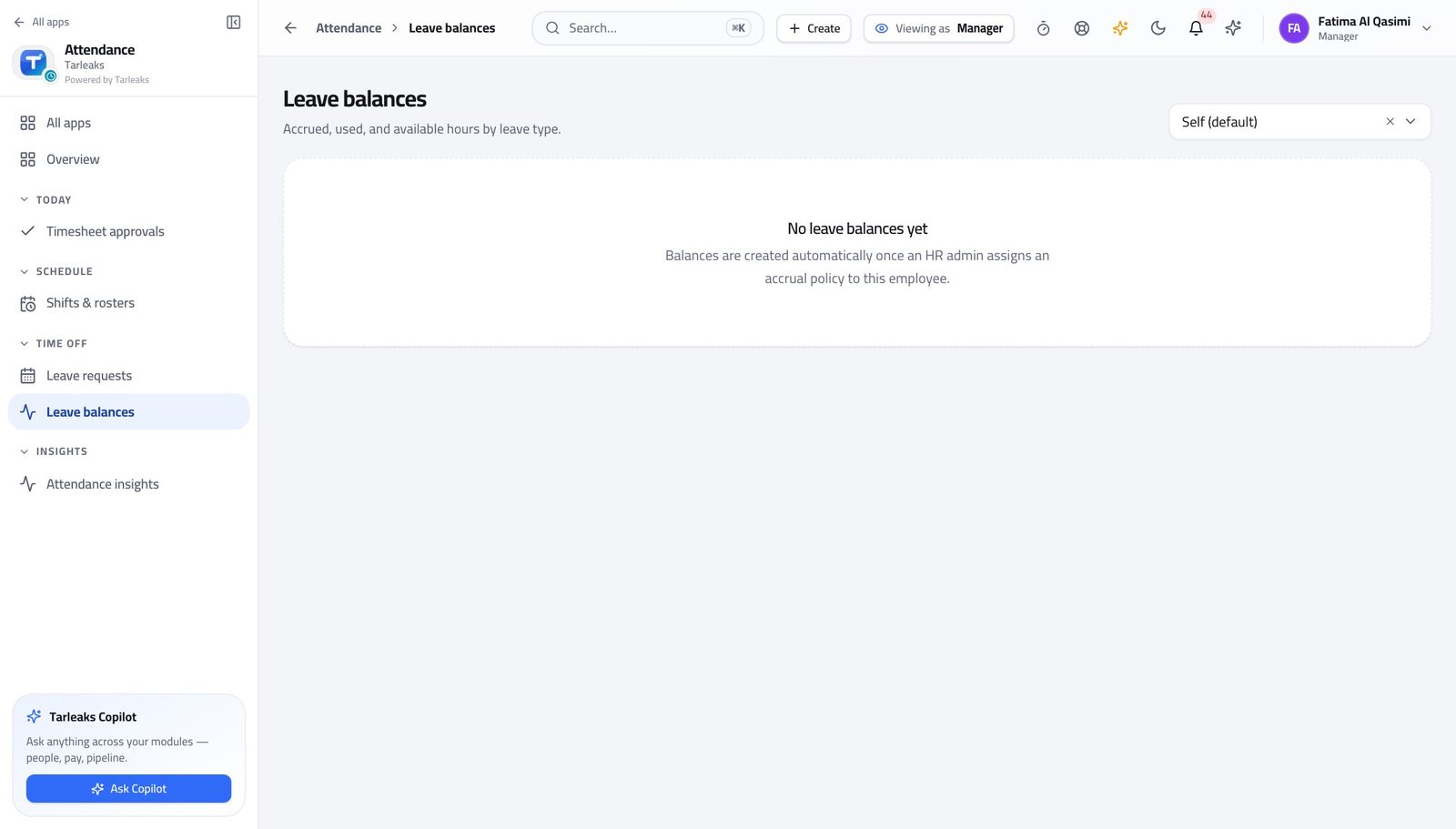
You should see The big number is hours available, with an approximate day figure underneath. Accrued this year, used this year and any carry-over are all on the card — as is the date the next accrual lands.
Watch out Check the balance BEFORE you agree to the leave, not after you approve it. A balance that goes negative is a payroll conversation.
Worth knowing The ledger is append-only: every accrual, every day taken and every correction is a line with the balance after it. Nothing is edited in place, so a disputed balance can always be walked back.
Know which shift your people are on #
Where Attendance » Shifts & rosters
- In the left menu, under SCHEDULE, click Shifts & rosters.
- Read Start, End, Grace (min) and Days on the template your team is on.
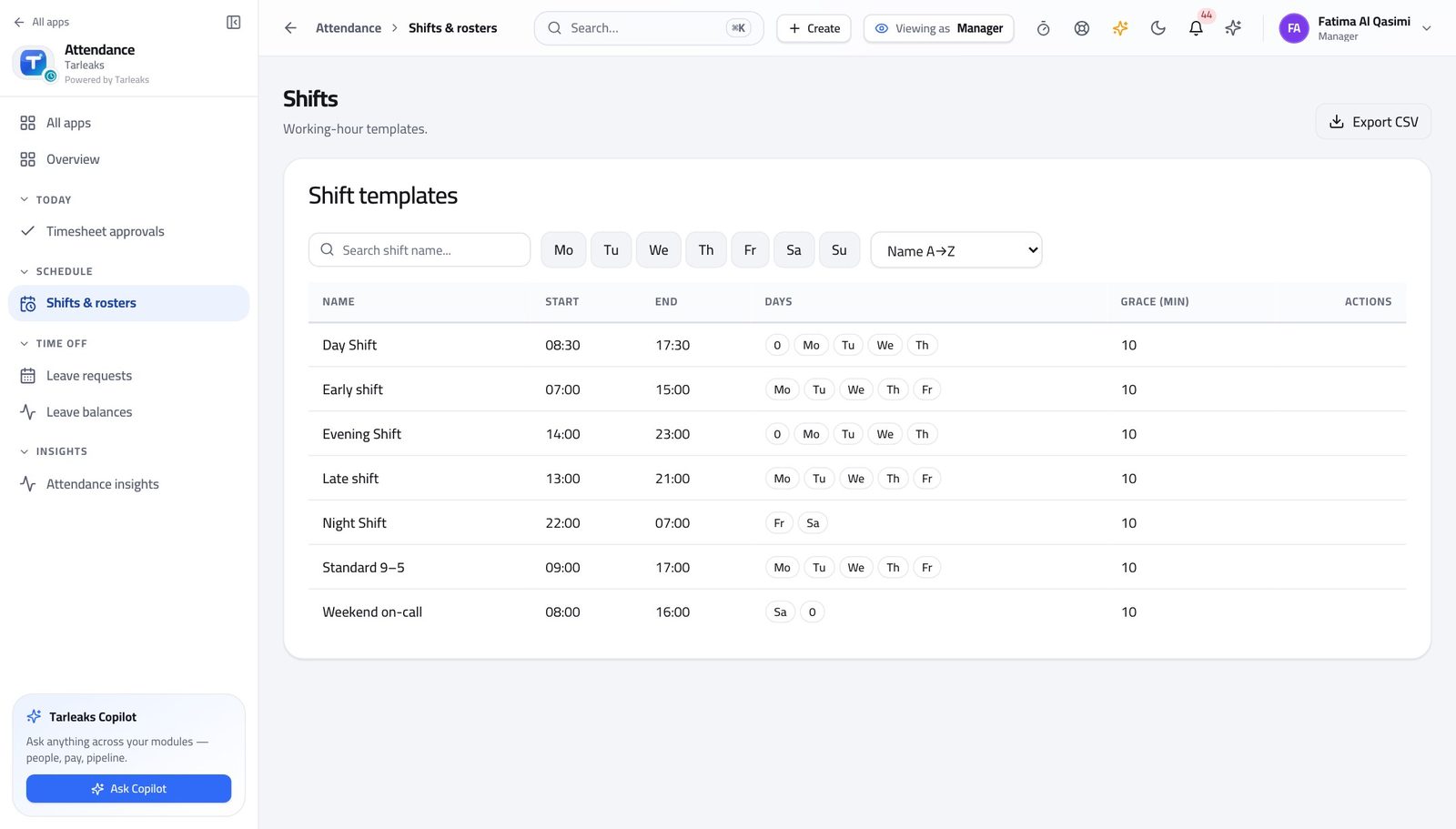
You should see You can answer 'which shift is she on, and what grace does she get' without asking HR.
You read the roster; you do not write it #
Where Attendance » Shifts & rosters
- Look at the top right of Shifts & rosters for a New shift button.
- Look along a shift row for an Assignments button.
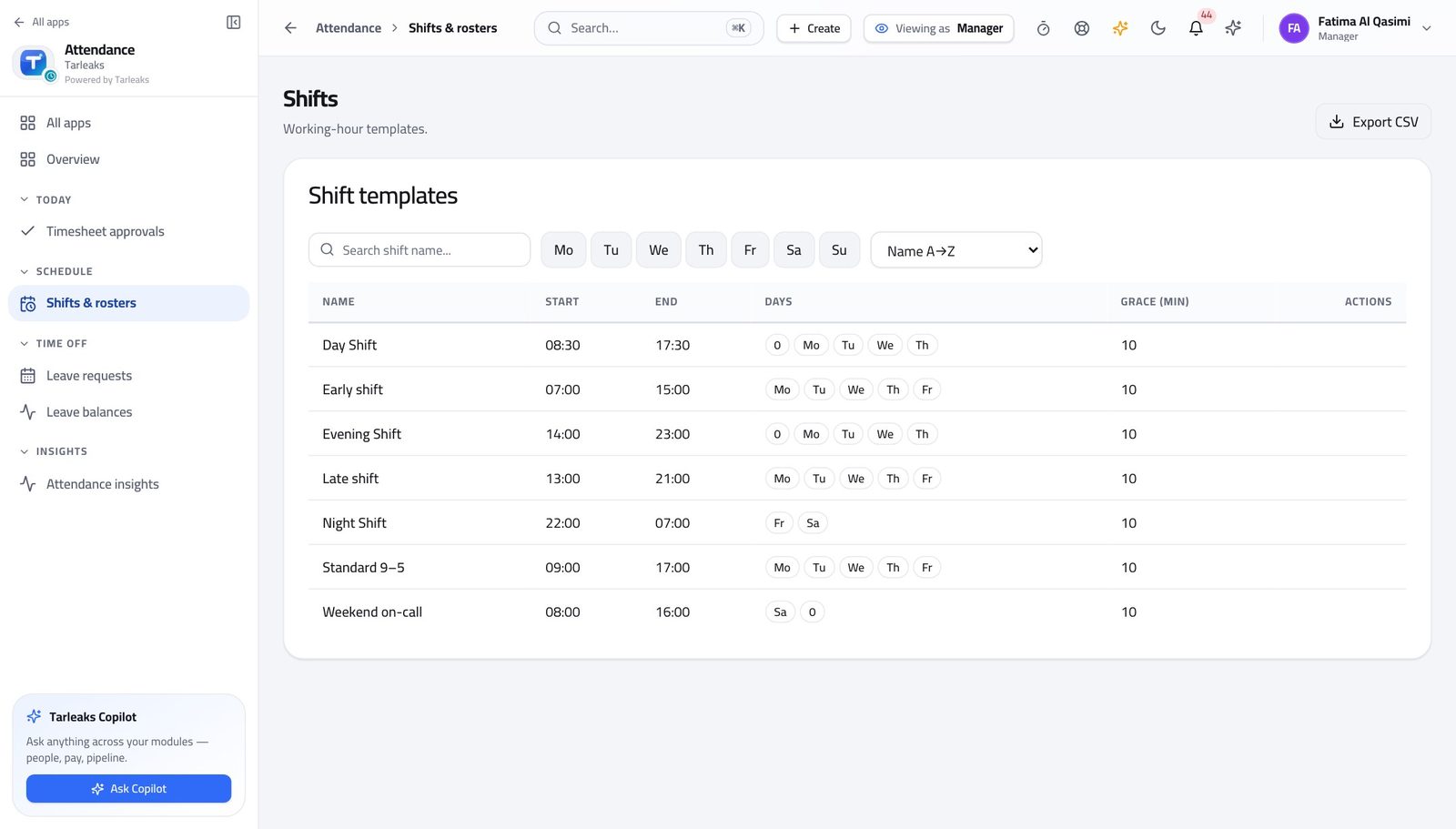
You should see Neither is offered. Moving somebody onto a different shift changes what they are paid and when they count as late, so it stays with HR.
Watch out Moving somebody to a different shift changes what they are paid and when they count as late. Ask HR — and say which shift and from which date, because assignments are dated.
Read the rule behind your team's balances #
Where Settings » Leave accrual policies
- Open Settings, then under TIME & PAY click Leave accrual policies.
- Read Rate, Period, cap, carry-over and Effective on the policy your team is on.
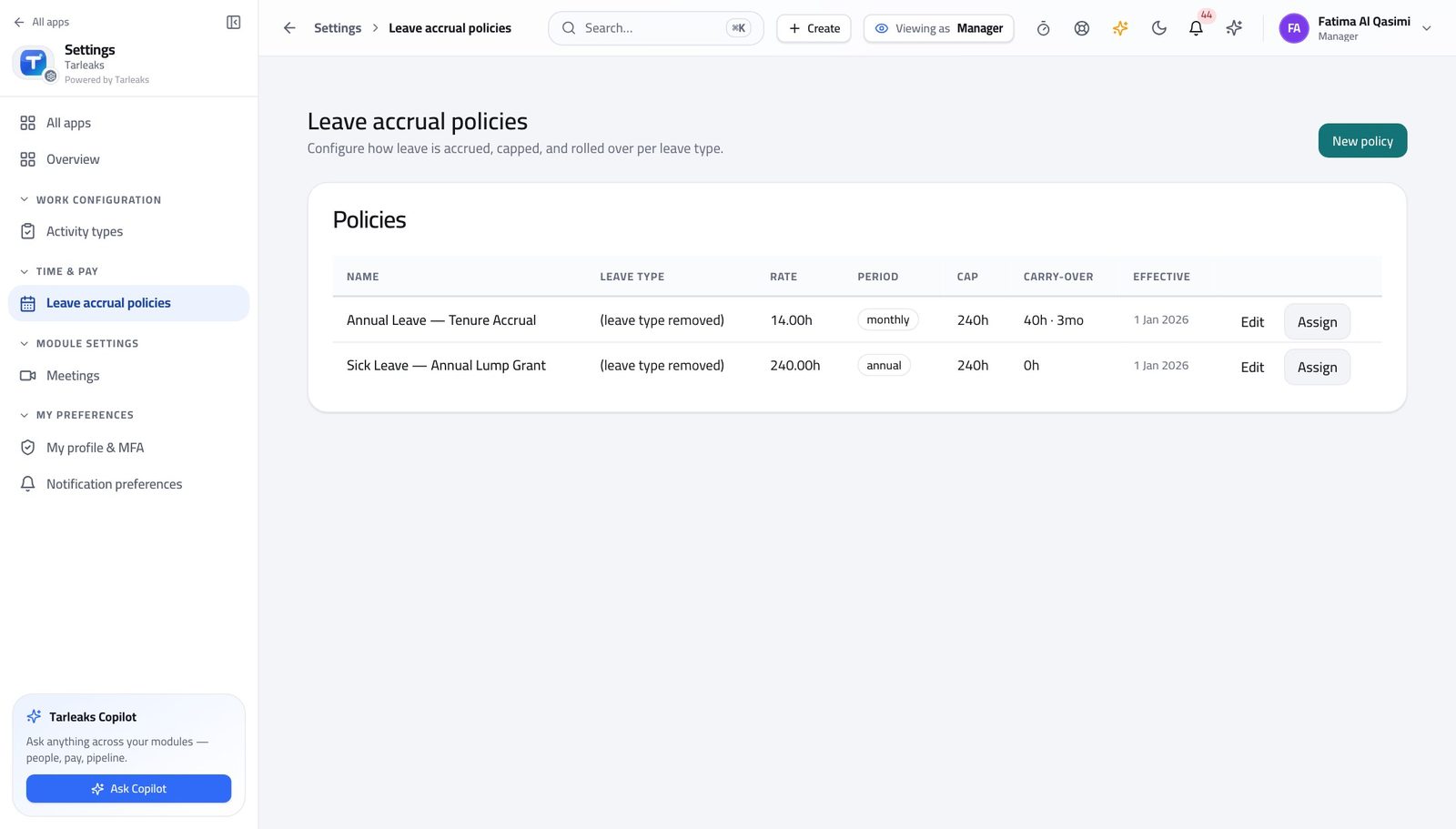
You should see When somebody asks why they have the hours they have, the rule is on screen — in hours, on a schedule, with a cap.
Watch out Read it, do not change it. Editing a policy changes what everybody on it earns from that date, which is an HR decision with a payroll tail.
Worth knowing Read it; do not change it. Editing a policy changes what everybody on it earns from that point on, and that is an HR decision.
Read the numbers on your own team #
Where Attendance » Attendance insights
- In the left menu, under INSIGHTS, click Attendance insights.
- Read the four boxes, then press Refresh if the day is still moving.
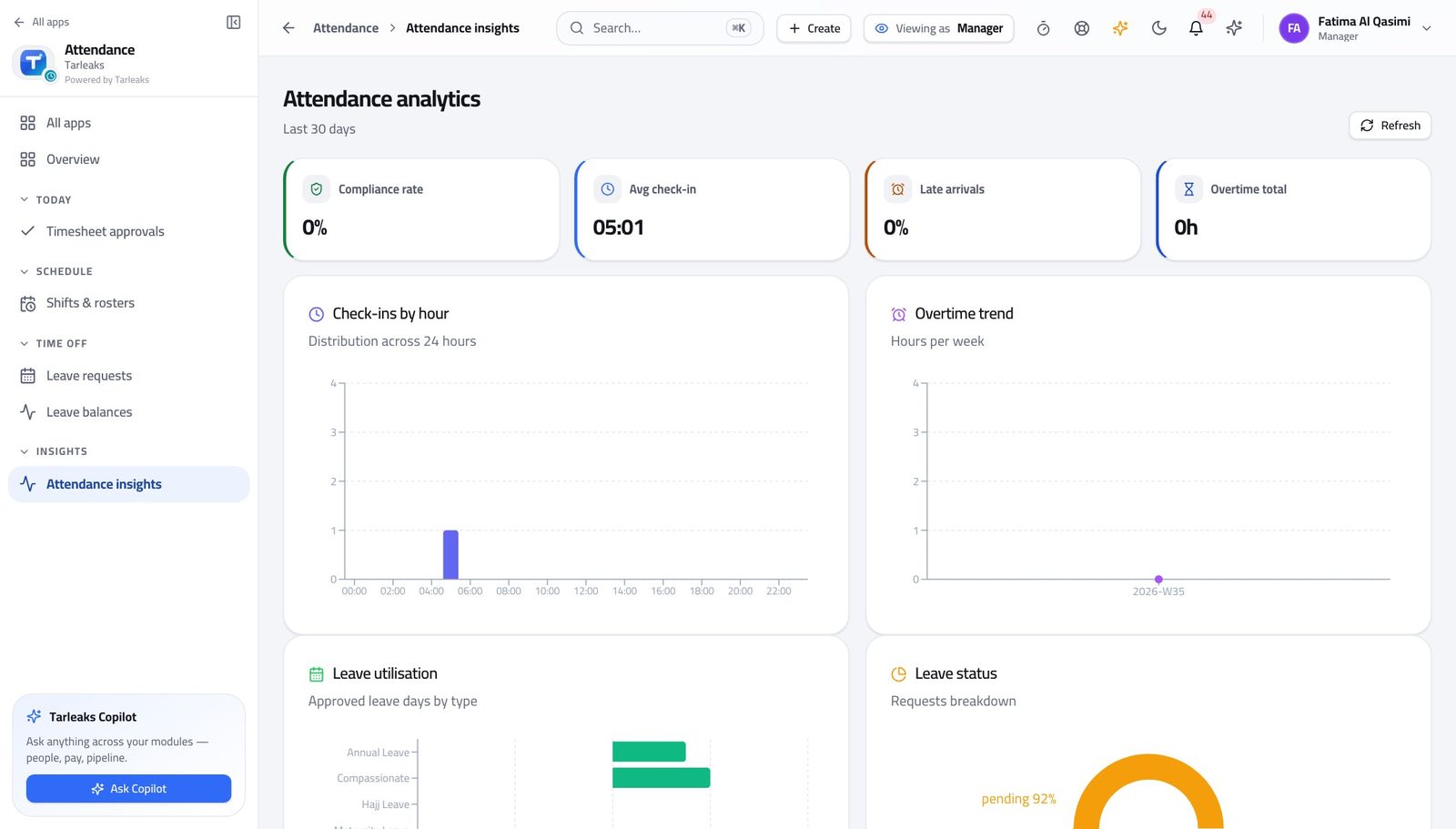
You should see The figures come from the clock records, so a conversation about lateness starts from a number rather than an impression.
Look for the pattern before the conversation #
Where Attendance » Attendance insights
- Still on Attendance insights, read Overtime trend and Leave utilisation.
- Change the period to the window the question covers.
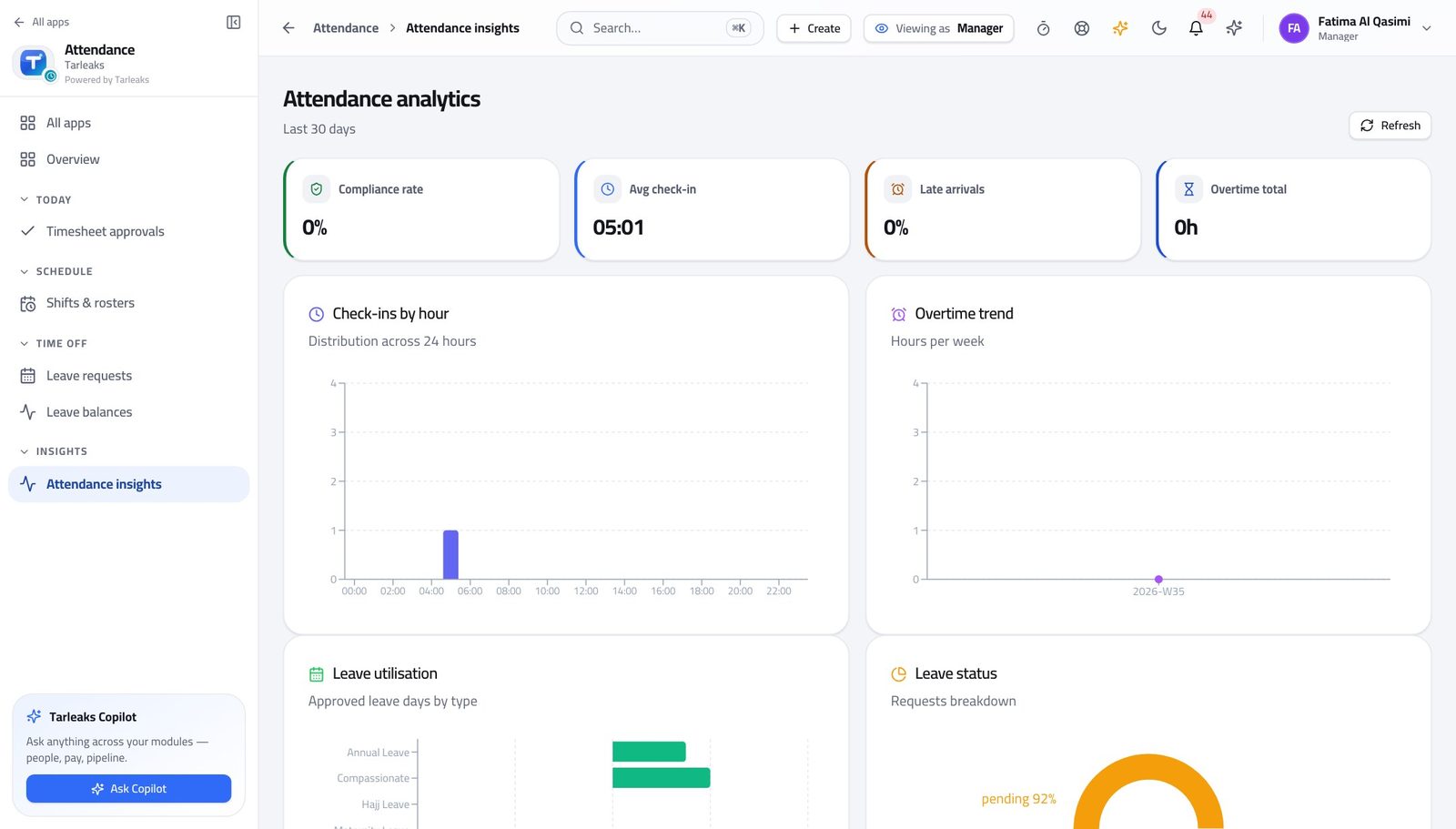
You should see A run of late arrivals that started on one date usually has a cause — a shift change, a school run, a second job. The chart tells you which week to ask about.
Watch out Do not open a lateness conversation from the average alone. Find the week it changed, then ask what happened that week.
Company attendance rules are not on this sign-in #
Where Settings
- Open Settings and look through the TIME & PAY group.
- Attendance settings is not listed for this sign-in.
You should see You decide about your team. Whether the whole company needs a geofence to clock in is a different decision, and it belongs to the administrator.
Watch out If your team works from a site that is not a registered office, they will be refused at check-in. That is an office to add — ask your administrator rather than telling people to work around it.
The company-wide attendance trail is not on this sign-in either #
Where Attendance » Today
- Look through the Attendance menu for an audit or history view.
- There is none on this sign-in.
You should see The record of who changed which attendance row, company-wide, is kept — and it is an HR and compliance record, not a management one. Scoping applies to the history as much as to the live queue, which is the same protection working in your favour.
Watch out This is the same rule that keeps your own team's records out of another manager's view. Scoping applies to the history as well as the live queue.
Use cases — the work, step by step
Each one is a sequence somebody actually performs, with the screen behind every step. Every screen here was opened in the product as this role before it was published.
weeklyMonday morning: clear everything waiting on you #
Every one of these queues is already narrowed to your departments, so 'is this mine' is never a question — which is what makes clearing them a ten-minute job rather than an hour.
Start on Attendance Today and see who is actually in. It is faster than asking and it does not put anybody on the spot.
Attendance » Today — verified: the page says “Attendance Today”; 6 row(s) listed Open the leave queue. The count in the bar is your real outstanding number — a fraction of what HR sees on the same screen, because the product filters by the departments you manage.
Attendance » Leave » Approval queue — verified: the page says “Approval queue” Tick what you have decided and approve as a batch. Every row is still checked on its own, so a request that is not yours to decide is refused inside the batch and named.
Attendance » Leave » tick rows » Approve — verified: the page says “Approve” Open Regularizations and read any corrections from your team. Approving one adds paid hours, so read the reason rather than skimming it.
Attendance » Regularizations — verified: the page says “Regularizations”; 1 row(s) listed Finish on Timesheet approvals, working Waiting on me oldest first. The age on the row is how long the person has been waiting.
Attendance » Timesheet approvals — verified: the page says “departments you manage”
dailyDecide a leave request you are not sure about #
The two things that make this decision easy — what they have left, and what the shift needs — are both one screen away.
Open the request in your queue and read the type, the dates and the reason.
Attendance » Leave » Approval queue — verified: the page says “Approval queue” Open Leave balances and pick the person. The big number is hours available; Used and Accrued this year are underneath it.
Attendance » Leave balances — verified: the page says “Leave balances” Check the shift they are on, so you know what cover the days actually need.
Attendance » Shifts & rosters — verified: the page says “Shift templates”; 7 row(s) listed Decide. If it is a no, reject with a reason that names the cover problem and the dates that would work — the reason stays on the record and saves the same request coming back next week.
Attendance » Leave » tick rows » Approve — verified: the page says “Approve”
monthlySomebody's lateness needs a conversation #
Starting from a figure and a date is a conversation. Starting from an impression is an argument.
Read the lateness figure on Attendance insights first, so you are not working from memory.
Attendance » Attendance insights — verified: the page says “Compliance rate” Look at the trend rather than the total. Find the week it changed — that is what you are actually asking about.
Attendance » Attendance insights — verified: the page says “Overtime trend” Check which shift they are assigned to and what grace it gives. Somebody 'always late' is often on the wrong shift assignment.
Attendance » Shifts & rosters — verified: the page says “Shift templates”; 7 row(s) listed Check their leave balance too. Somebody who has taken almost nothing all year is a different conversation from somebody who is simply late.
Attendance » Leave balances — verified: the page says “Leave balances”
Every list on these pages is already narrowed to the departments you manage. You are not being trusted to filter — the product does it, and it does it to the history as well as the live queue. Your own week is never in your own queue, for the obvious reason.