How every number is worked out — and how to check it
Before you sign something, you should be able to say where the figure came from and prove it in two minutes. For each number: where it lives, the arithmetic behind it, the check that proves it, and what a difference usually means.
Nothing matches that. Try a shorter word.
What is about to expire #
Where Fleet » Compliance
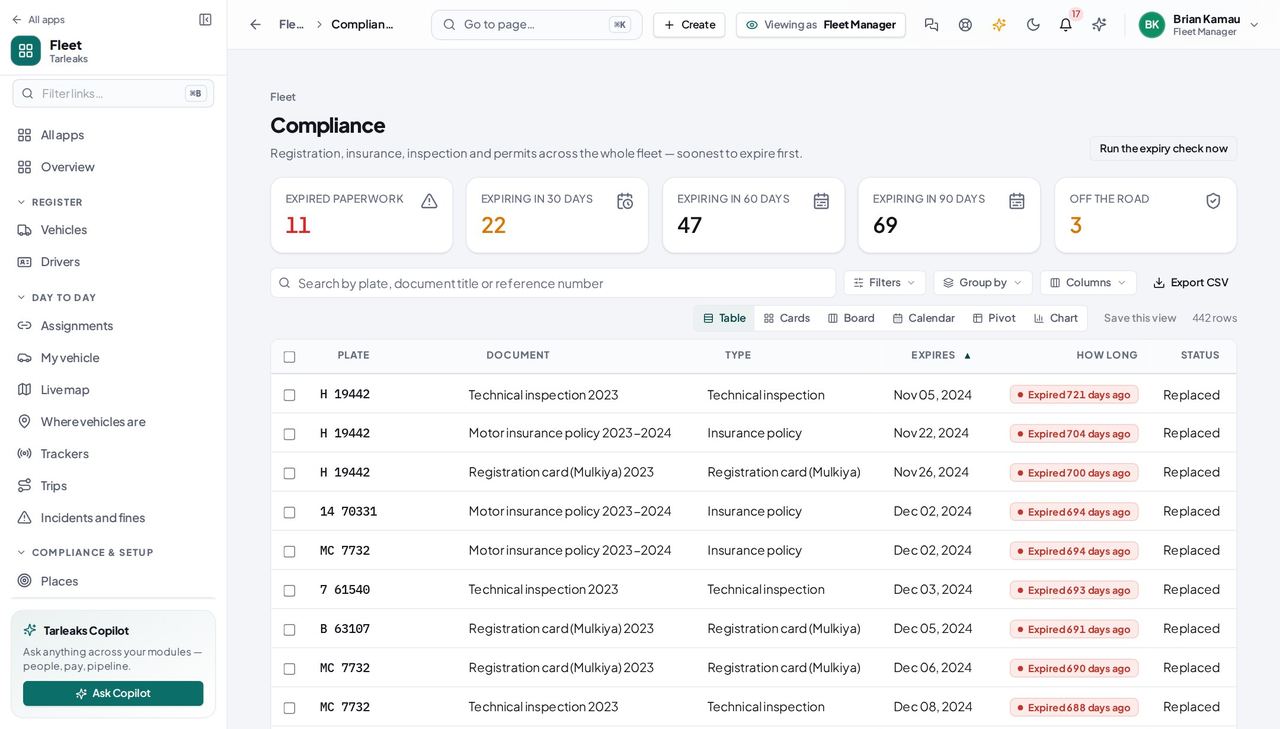
How it is worked out Every document with an expiry date that has not been replaced, counted in whole days from today. The tiles are windows: Expiring in 30 days means 0 to 30 days left, and anything already lapsed is in Expired paperwork instead — the two never double-count the same document.
Check it like this Click the tile and count the rows. The tile and the list run the same query, so they cannot disagree; if the number looks wrong, the rows will tell you which document you were not expecting.
If it disagrees A document filed with no expiry date is in neither number and is never warned about. And a renewal filed as a NEW document rather than through Renew leaves both live, so the same expiry is counted twice.
How many vehicles you actually run #
Where Fleet » Vehicles
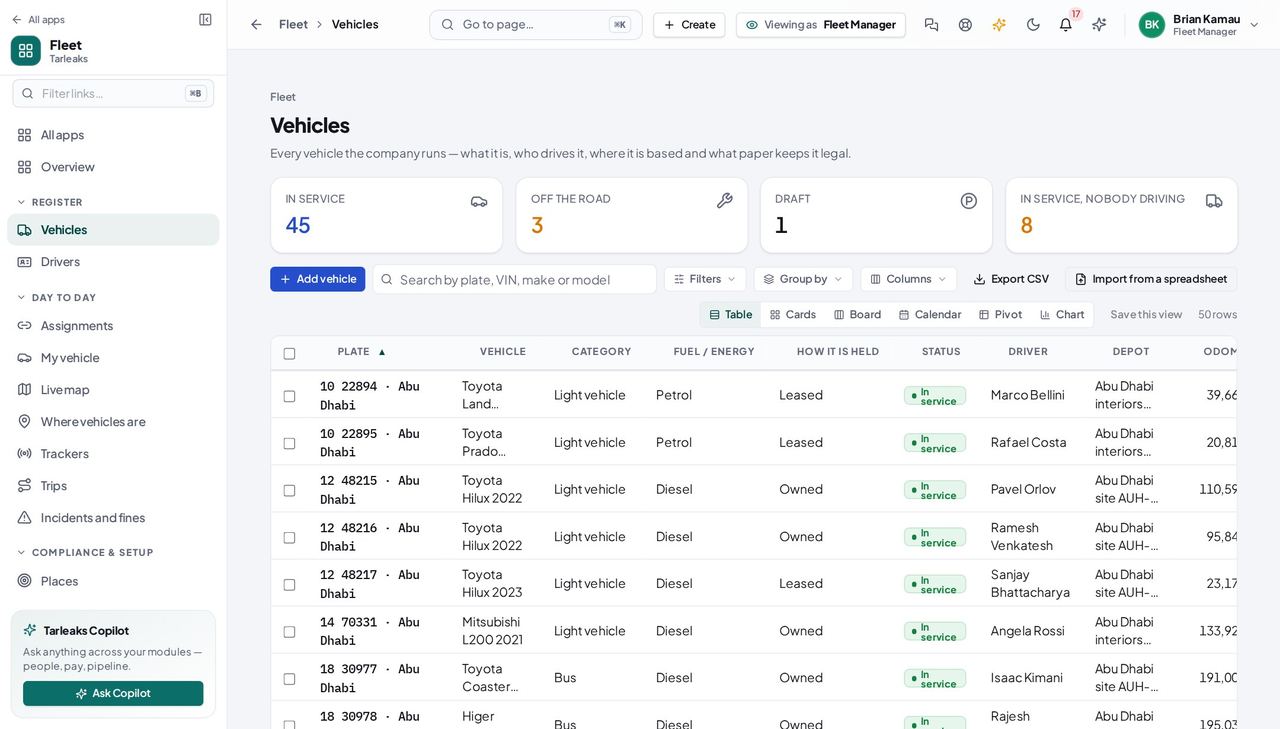
How it is worked out The tiles count by status: In service, Off the road and Draft. Archived vehicles are in none of them — they are reached from Filters › Archived, because a company asking how big its fleet is means the vehicles it still has.
Check it like this Add the three tiles together and compare with the row count when no filter is applied. The difference is your archived and disposed vehicles.
If it disagrees A vehicle left as Draft is counted as part of the fleet but can never be handed to a driver, so it shows up in the size of the fleet and never in the work.
Who is driving what right now #
Where Fleet » Assignments » Held right now
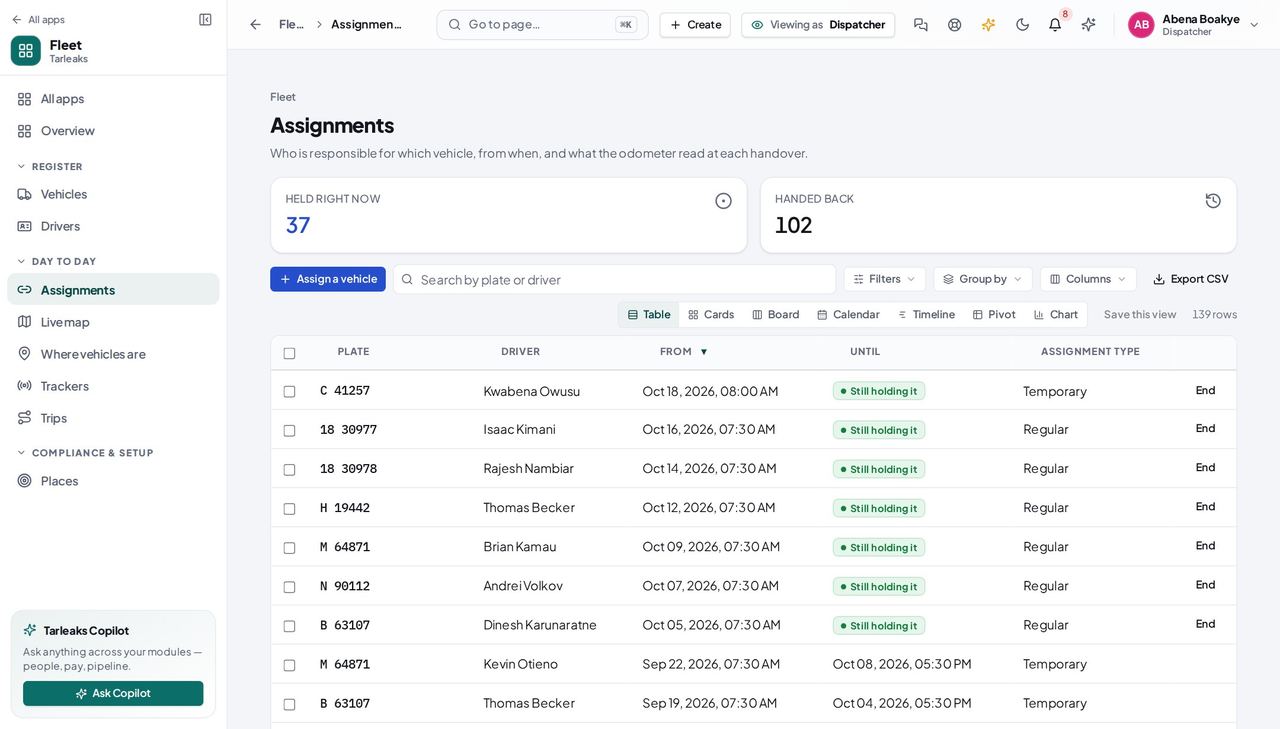
How it is worked out Every handover with no hand-back date. One vehicle has at most one of these at a time. One driver may hold as many REGULAR handovers as the company's limit allows — one by default — plus any number of temporary and pool ones.
Check it like this The count of open handovers plus the vehicles in service that nobody is driving should equal the vehicles in service. If it does not, an open handover is sitting on a vehicle that is off the road or archived.
If it disagrees An open handover on somebody who has left is the usual cause of a vehicle that “cannot be assigned to anybody”. End it, and the vehicle comes back.
The odometer on a vehicle #
Where a vehicle » Details
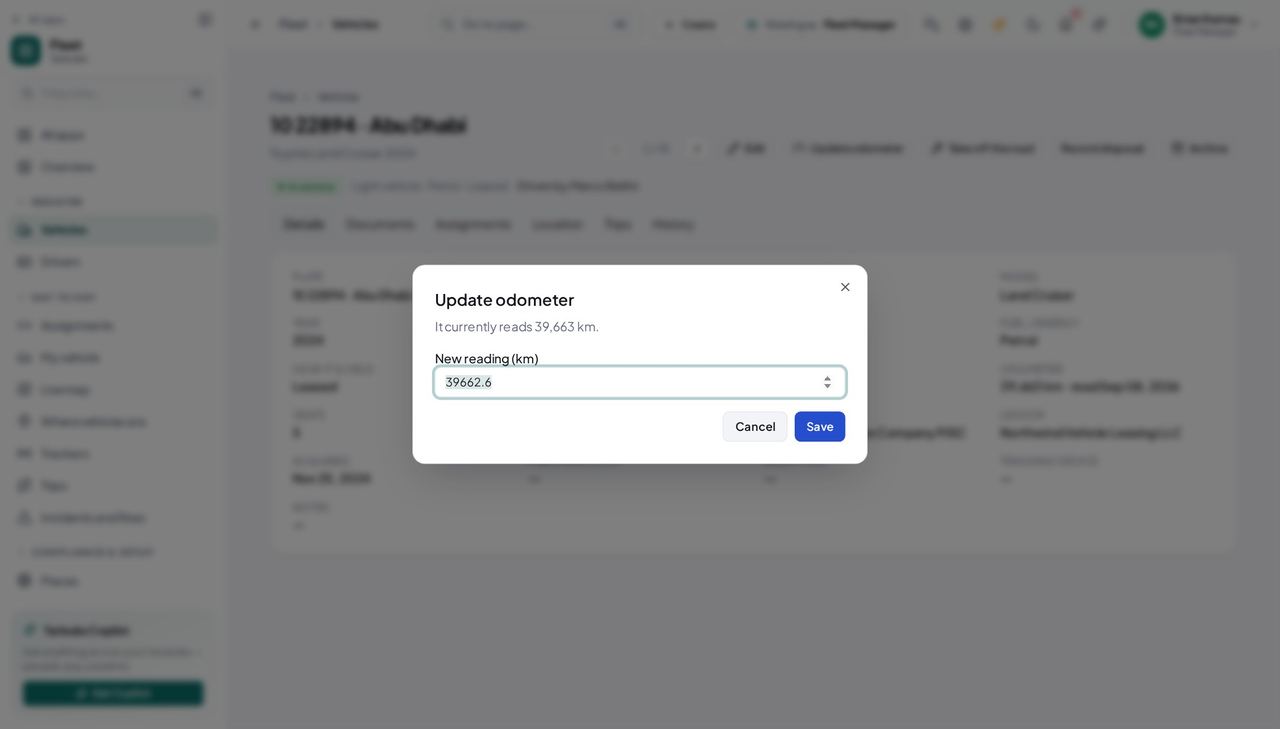
How it is worked out The highest reading anybody has recorded, with the date it was taken. A hand-back reading carries over to the vehicle automatically, so the two can never drift apart.
Check it like this Compare the reading on screen with the dashboard. The unit beside it is the one your company chose in Fleet settings — kilometres or miles — and readings already on file are not converted when that setting changes.
If it disagrees A reading lower than the last one is refused unless somebody gives a reason, because the usual cause is a typo and the second-usual is a replaced instrument cluster. Both need to be said out loud.
How long a driver may still drive #
Where Fleet » Drivers
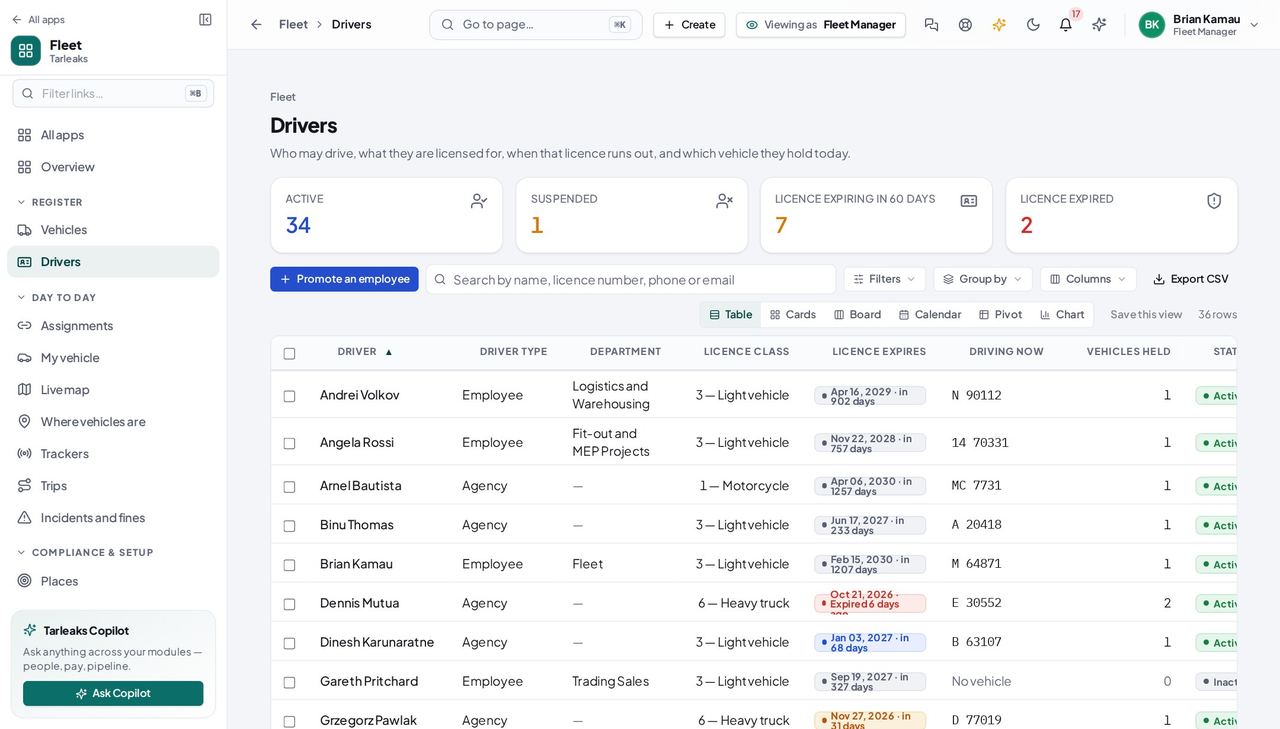
How it is worked out The licence expiry date on their own record, shown as a badge with the days remaining. Licence expiring in 60 days counts 0 to 60 days left; Licence expired is its own state, not the far end of that window.
Check it like this Open the driver and read the date off the record. The class beside it says what they may drive — “3 — Light vehicle”, “6 — Heavy truck” — and those are your company's own definitions, editable in Fleet settings.
If it disagrees A driver with no licence class recorded is not “qualified for everything” — the register refuses to hand them anything, because it has no way to tell.
Faster ways to do the same work
| What you want | How |
|---|---|
| Send somebody exactly the list you are looking at | Copy the address bar. The search text, every filter, the sort and the page are written into the URL, so they open your screen — narrowed to what THEY are allowed to see. |
| Get back to the view you had before you refreshed | You already have it. A refresh, the back button and a bookmark all restore the same filters, because the URL is where they live rather than in the page's memory. |
| Find a vehicle when you only half remember it | The search box on the register reads the plate, the VIN, the make and the model at once. “Hilux”, “8841” and a VIN fragment all work, and it searches fields the table is not even showing. |
| Walk through records without going back to the list | The ‹ › arrows at the top of a vehicle or a driver move through the list in the order you came from — including the filter you arrived with. ⌘← / ⌘→ (Ctrl on Windows) do the same from the keyboard. |
| See only the vehicles nobody is responsible for | The In service, nobody driving tile on the register. It counts the same thing the hub counts, so the two can never disagree. |
| Show the columns your depot cares about | The column chooser keeps your choice per list, in your own browser. VIN, cost centre and medical expiry are there but hidden by default — turn on the ones you use and they stay on. |
| Bring a whole fleet in at once | Import from a spreadsheet on the vehicle register. It checks the file first and reports what would happen to every row — added, updated, unchanged or a problem with the reason — and writes nothing until you say so. A vehicle already on the register (same plate and region, or same VIN) is updated rather than added twice. |
| Get a vehicle back after archiving it by mistake | Filters › Archived on the register, then Unarchive on the row. Same for a driver. Nothing in this module is deleted. |
| Send the expiry reminders that are due | Run the expiry check now on Compliance re-reads every date and sends whatever reminders are due. There is no unattended nightly run yet, so this button is what sends them — and running it twice sends nothing twice. |
| Fix an insurer or lessor that shows as a dash | Refresh party names at the top of Fleet settings asks the party register for every insurer, lessor and agency name again. They fill in within a minute. |
| Find out who changed something, and what it was before | The History tab on a vehicle or a driver: every field change with the old value, the new value, the time and the person. It records itself — nobody has to remember to write it down. |