Fleet role guides — what each role can do, step by step
Step-by-step guides for the vehicles — the fleet manager who keeps every registration, insurance policy and inspection in date, the dispatcher who hands a vehicle to a driver and takes it back, and the driver who sees only the one they drive. 40 steps across 6 roles, every one of them carried out in the product before it was published here.
Last updated
Nothing matches that. Try a shorter word, or pick All roles to search every guide.
Go deeper
Fleet Manager
Know what stops a vehicle working tomorrow — before tomorrow.
Owns the fleet: the register, the drivers, the paperwork that keeps a vehicle legal, and the vocabulary all three are filed under.
What you will be able to do
- See every vehicle, what it is, who has it and where it is based
- Keep every registration, insurance policy, inspection and permit in date
- Hand a vehicle to a driver, take it back, and have the odometer on the record
- Bring a whole fleet in from a spreadsheet instead of typing it twice
- Decide how many vehicles one driver may hold, and which emirates a plate can come from
What this role can and cannot do
| Can | Cannot |
|---|---|
|
|
19 steps, each one carried out in the product on .
What your sign-in can do #
Where Your name, top right » Profile
- Open your organisation's address in the browser — it looks like yourorganisation.tarleaks.com.
- Type the e-mail address your administrator set up for you, then your password.
- You land on the app launcher: a grid of the apps your organisation uses.
- Click the Fleet tile.
- Click your name, top right.
- Choose Profile.
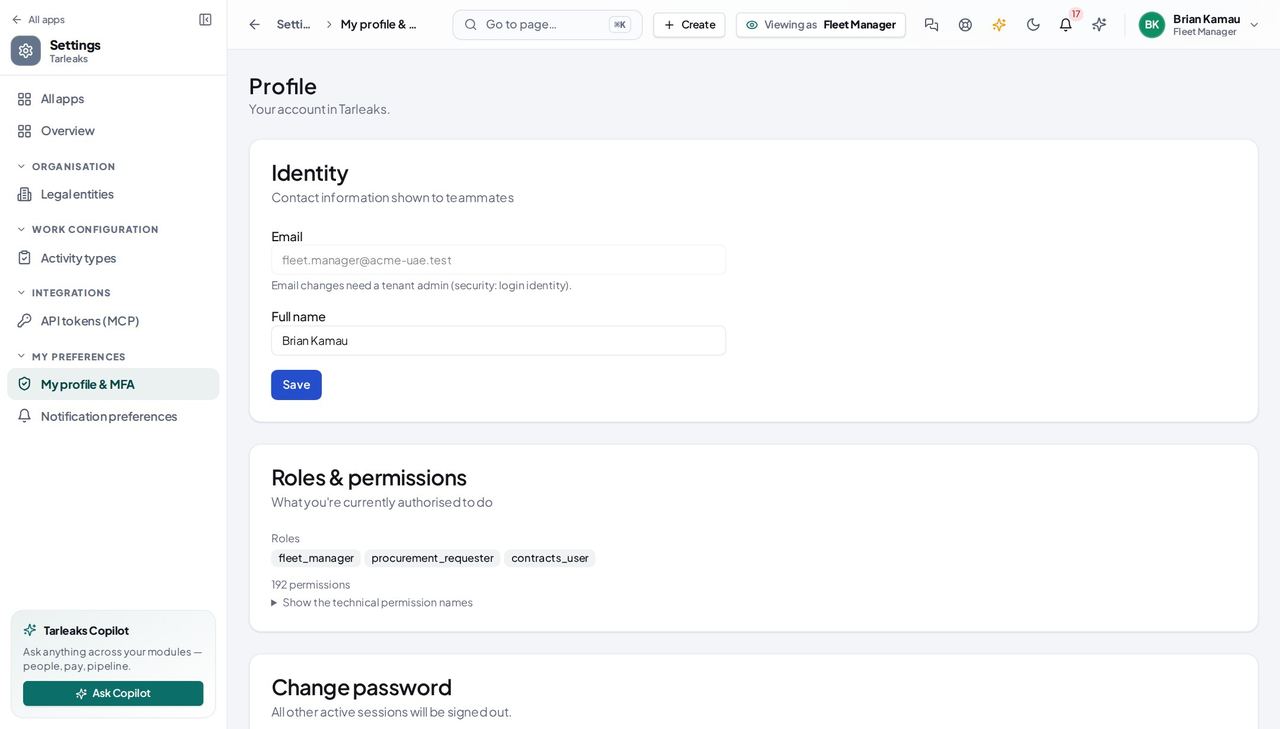
You should see The whole register sits with this role: the vehicles, the drivers, the handovers, the paperwork and the words the module uses for all of it. Nothing in Fleet is hidden from a fleet manager — where a screen is missing, it is a later release, not a permission.
The hub: what stops a vehicle working tomorrow #
Where Fleet » Overview
- Fleet opens on Overview.
- Read the numbers left to right, then the list beneath them.
- Click a number to open the list it counted — 'Licences expired' opens Drivers on exactly the drivers whose licence has lapsed.
- Click a line in 'What stops a vehicle working tomorrow' to open that vehicle's paperwork.
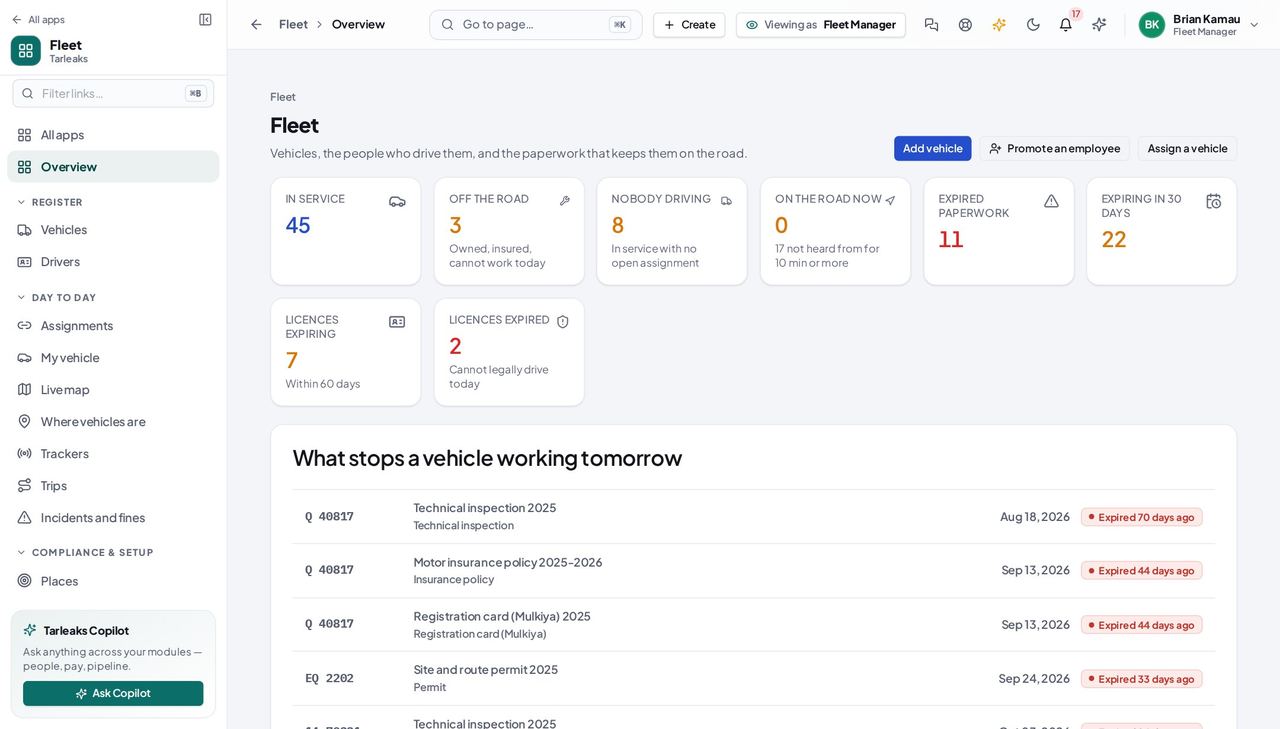
You should see Not 'how many vehicles do we own' — what cannot work tomorrow. Every number is a door: the tile and the list it opens are the SAME question asked once, so a figure you quote in a meeting can be clicked and counted. The numbers are the whole fleet, never the page you happen to be looking at. Licences are split the way paperwork is: 'Licences expiring' is the next 60 days, 'Licences expired' is a driver who cannot legally drive today, and the panel of licences under them lists only what the expiring tile counts.
Watch out A tile reading '—' rather than a number means the figure could not be loaded, not that the answer is zero. Reload before acting on it.
Worth knowing Two tiles are about paper (expired, and expiring inside 30 days) and two are about licences (expiring inside 60 days, and already expired). A colleague who cannot see the paperwork tiles has not lost them — that part of the fleet is not theirs to keep in date.
The vehicle register #
Where Fleet » Vehicles
- Sidebar » Vehicles.
- Type a plate, a VIN, a make or a model into the search box.
- Click a column header to sort; shift-click a second one to sort by both.
- Filters narrows on category, fuel, how it is held, status and depot.
- Columns turns VIN, cost centre and 'Expired papers' on.
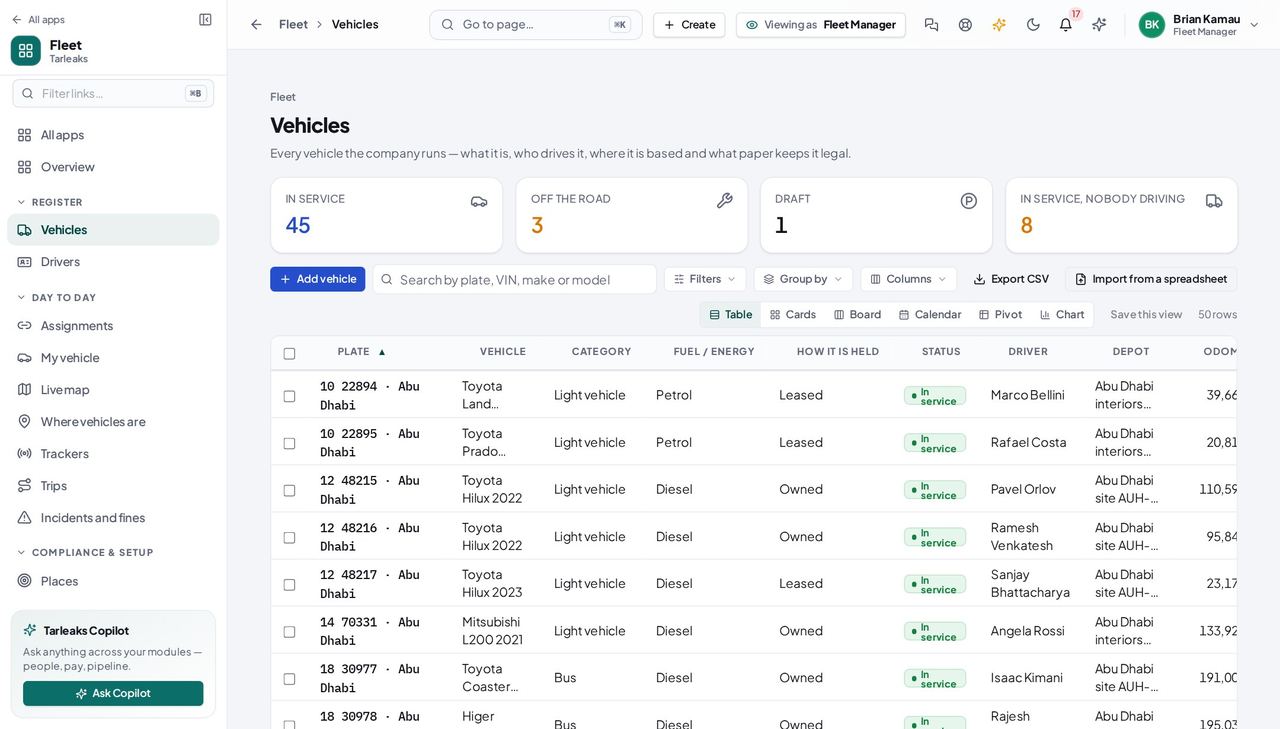
You should see One line per vehicle: what it is, who drives it, where it is based, and how near its next expiry is. The search reaches the VIN even though the column is hidden by default — the register is searched where it lives, not in your browser, which is why a search can find a row the table is not showing you a column for.
Watch out 'Unassigned' in the Driver column is a real state, not missing data: nobody is responsible for that vehicle right now.
Worth knowing The view you build — search, filters, sort, page — is in the address bar, so you can send somebody the exact list you are looking at, and the ‹ › arrows on a vehicle then walk that same list rather than the whole fleet.
Add a vehicle #
Where Fleet » Vehicles » Add vehicle
- Sidebar » Vehicles.
- Click Add vehicle.
- Fill in the plate, then tab out of the field — the register checks it for you.
- Pick the plate's emirate from the list.
- Pick the category, the fuel and how you hold it.
- Click Add vehicle.
| Field | What to put in it |
|---|---|
| Plate * | Exactly as printed on the plate — spaces and dashes do not matter |
| Plate region / emirate | Picked from your list — Dubai, Abu Dhabi, Sharjah… the emirate that issued it |
| Category * | Light vehicle, Heavy vehicle, Bus, Trailer, Plant & equipment, Motorcycle |
| Fuel / energy * | Petrol, Diesel, Hybrid, Electric, Plug-in hybrid, Natural gas (CNG), Hydrogen |
| How it is held * | Owned, Leased, Rented or Employee-owned |
| Odometer now (km) | The number on the dashboard today |
| Make / Model / Year | Toyota / Hilux / 2022 |
| VIN | Exactly 17 characters, from the registration card |
| Depot | Where it is based — the work location it belongs to |
| Insurer / Lessor | The company behind it; add one here if it is not on the list yet |
| Cost centre | Whatever your finance team uses to group its costs |
| Acquired on / Purchase cost / Currency | For a vehicle you bought: the day it became yours and what was paid. Blank for a leased or rented one |
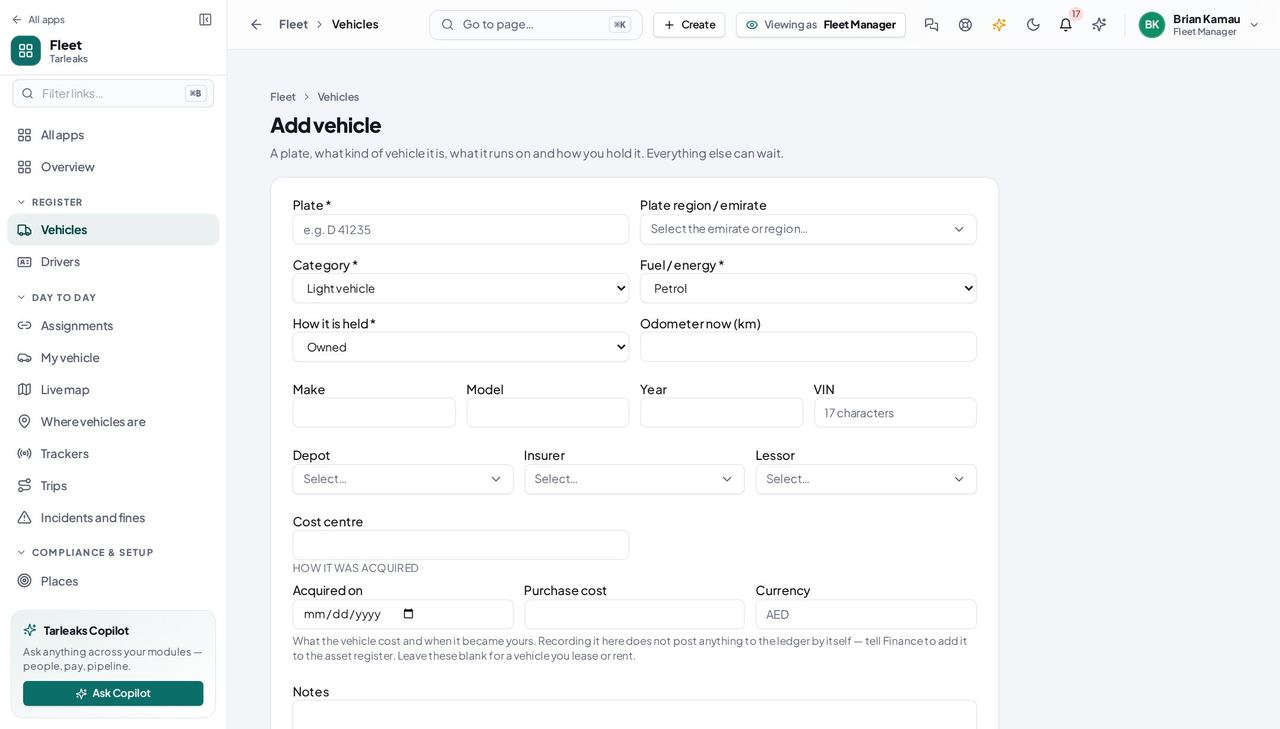
You should see Four fields, all four of them things you know while standing next to the vehicle. The plate region is doing real work: a number is unique WITHIN an emirate, so 'A 14782' in Dubai and 'A 14782' in Sharjah are two vehicles — and with the region left blank the second one looks like the first. The region is picked from your company's list rather than typed, so 'Dubai', 'dubai' and 'DXB' can no longer be three different emirates. Spaces, dots and dashes are ignored when the register compares, so 'A-14782' and 'A 14782' are the same number.
Watch out Leave the region blank and a second 'A 14782' looks like the first one. Fill it in whenever the plate carries one — it is the difference between two vehicles and one duplicate.
Worth knowing 'How it was acquired' — the date, the purchase cost and the currency — is for a vehicle you bought. Recording it does not post anything to the ledger: tell Finance to add it to the asset register. Leave it blank for a vehicle you lease or rent.
One vehicle, everything about it #
Where Fleet » Vehicles » a plate
- Sidebar » Vehicles.
- Click a plate.
- Move between Details, Documents, Assignments and History.
- Use ‹ › at the top to step to the next vehicle in the same list.
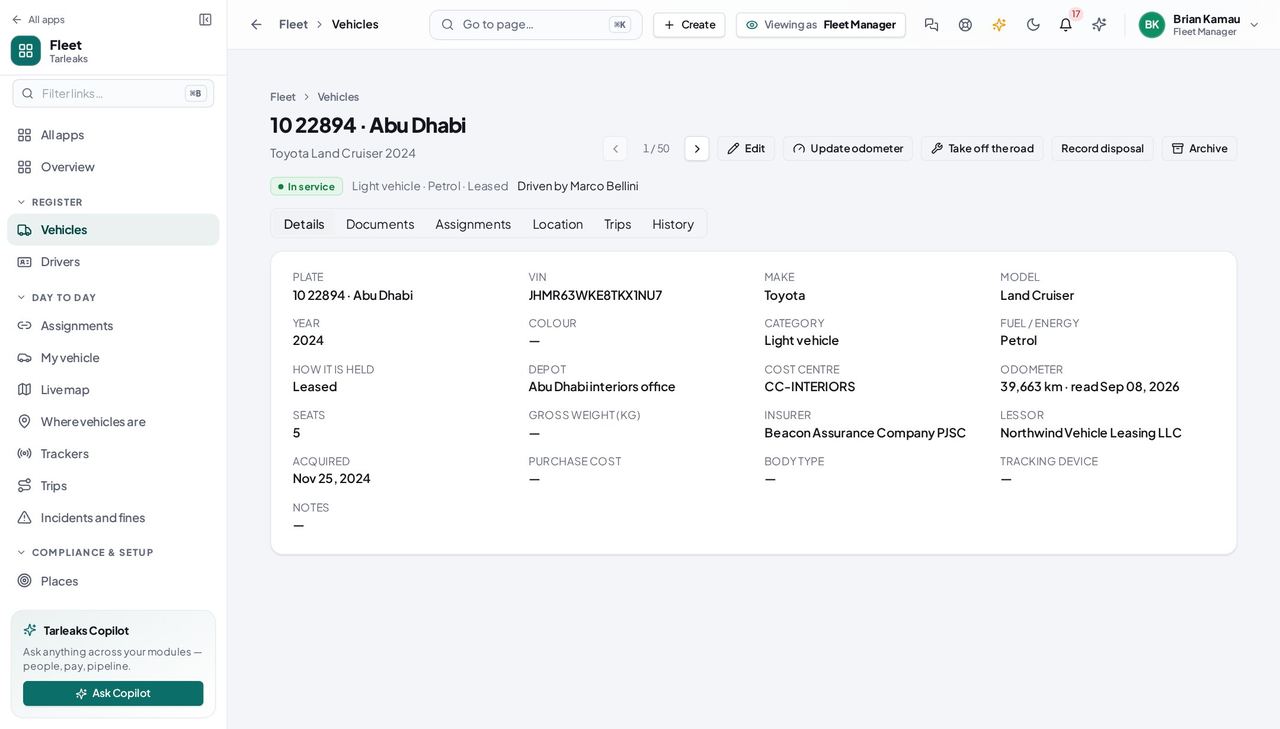
You should see Four tabs in the order the work happens: what it IS, the paper that keeps it legal, who has had it, and what changed. The tab you are on is in the address bar, so a link you paste into a message opens on the same tab — and the ‹ n / N › arrows at the top walk the list you arrived from, in the same order, so you can step through a depot or a filter without going back to it each time.
Watch out An archived vehicle is read-only and says so, with the date it was archived and the button that brings it back. A disposed one is final: nothing on it can be changed again.
Worth knowing Edit, at the top, now carries every field the vehicle has — the insurer, the lessor, the depot, the VIN, seats, weight, the tracking device and how it was acquired — so a wrong entry made on Add is corrected here. Ctrl (or ⌘) with the left and right arrow keys walks the list without the mouse.
The paperwork that keeps it legal #
Where Fleet » Vehicles » a plate » Documents
- Open a vehicle.
- Choose the Documents tab.
- Click Add document.
- Pick the type — the title fills itself in.
- Type the reference number and the expiry date.
- Click Add document.
| Field | What to put in it |
|---|---|
| Type | Registration card (Mulkiya), Insurance policy, Operating card, Technical inspection, Road tax, Permit |
| Title | Filled in from the type; change it if you keep several of one kind |
| Reference number | The policy or card number printed on the document |
| Issued by | The authority or the insurer |
| Issued on / Expires on | As printed. The expiry date is what starts the reminders |
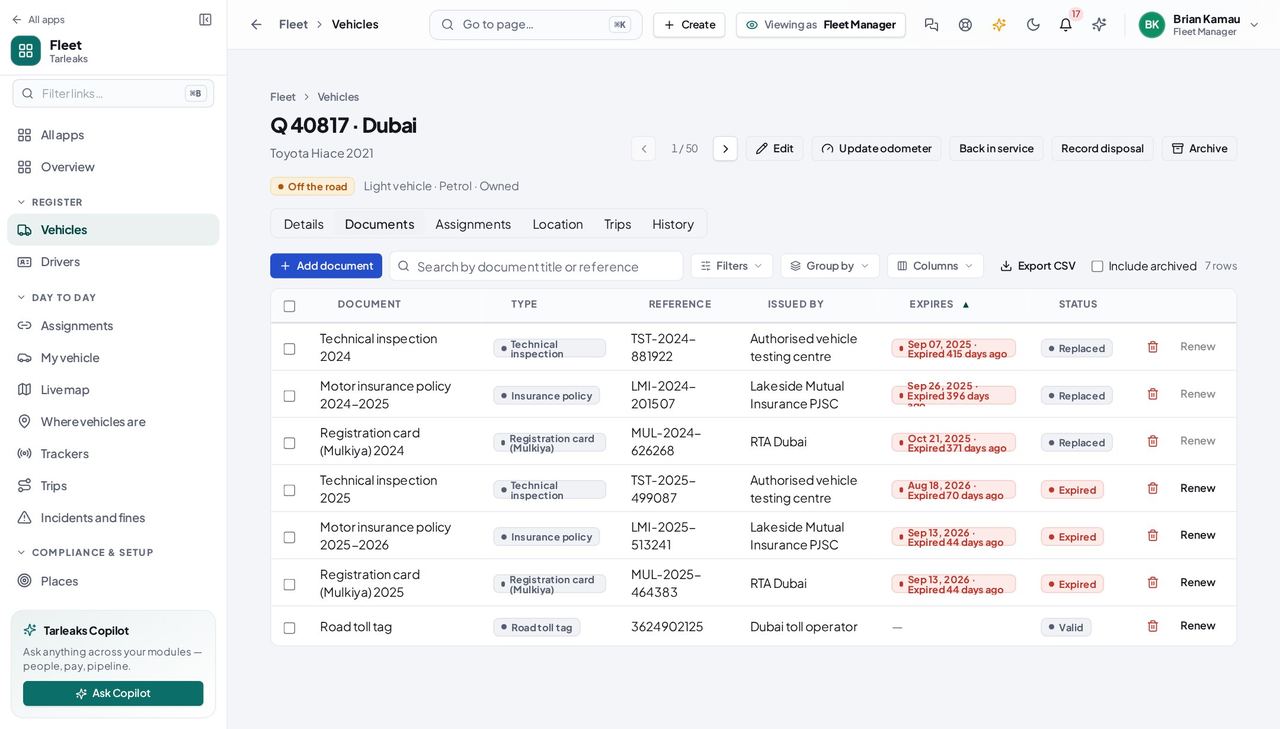
You should see Registration card, insurance, operating card, inspection, road tax, permit — each one watched from the moment it has an expiry date. The type you pick brings its reminder days with it (90, 60, 30, 15 and 7 by default), so the common case is two clicks and a date; each of those days warns once, when the expiry check next runs.
Watch out No expiry date means no reminders — if the paper genuinely does not expire that is fine, but a blank left by accident is a document nobody will be warned about. The warnings themselves are sent by the expiry check on the Compliance screen; until the nightly run ships, run it there after filing a batch. A warning reads as a sentence — 'expires in 20 days', 'expired 6 days ago' — and opens this Documents tab.
Worth knowing Archiving a document takes it off the watch list without removing it from the record. Tick 'Include archived' to see those again.
Renew a document — the old one is kept, not overwritten #
Where Fleet » Vehicles » a plate » Documents » Renew
- Open the vehicle » Documents.
- Click Renew on the row that is running out.
- Type the new reference number, the new issue date and the new expiry date.
- Click 'Record the renewal'.
| Field | What to put in it |
|---|---|
| Type | Carried over — change it only if the document really changed kind |
| Reference number | The NEW policy or card number |
| Issued on / Expires on | The new dates |
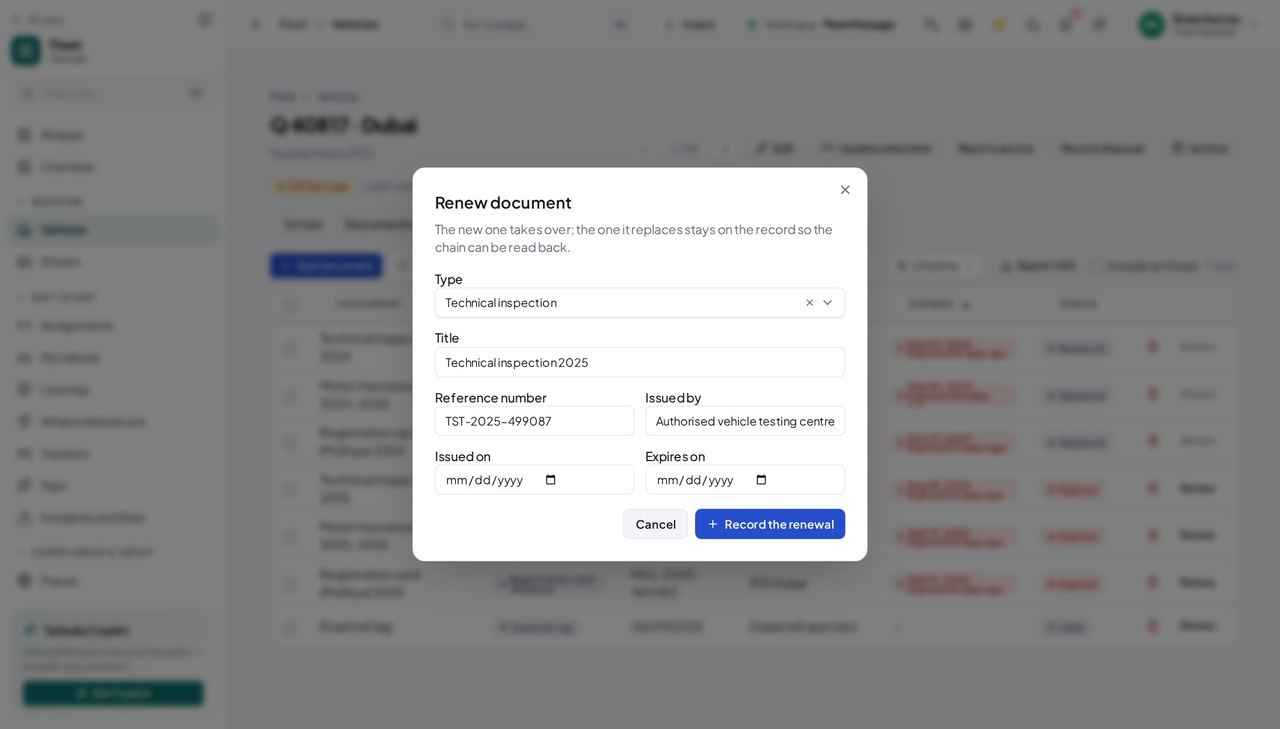
You should see Renewing does NOT edit the old policy. It files a new one and marks the old one replaced, pointing at its successor — because 'what were we insured under on the day of the accident' is a question that gets asked, and an overwritten row cannot answer it. Both happen together, so the vehicle is never carrying two live registration cards and the compliance screen never counts one expiry twice.
Watch out Do not edit last year's policy to hold this year's dates. The renewal is a new document on purpose — an overwritten row destroys the only evidence of what the cover was on the day of an incident.
Worth knowing A document that has already been replaced cannot be renewed again — renew the current one instead. That is why Renew is greyed out on the older rows.
Hand a vehicle to a driver #
Where Fleet » Assignments » Assign a vehicle
- Sidebar » Assignments.
- Click Assign a vehicle.
- Pick the vehicle, then the driver.
- Record the odometer and, if it is not now, the date and time.
- Add a handover note.
- Click Attach from Documents and pick the signed sheet — or Upload a scan first.
- Click Hand over.
| Field | What to put in it |
|---|---|
| Vehicle | Only vehicles in service that nobody holds are listed |
| Driver | Their licence class and how many vehicles they already hold are shown beside the name |
| Handed over | Now, unless you are recording something that happened earlier |
| Odometer at handover (km) | As it reads at the moment of handover |
| Assignment type | Regular, Temporary or Pool — only Regular counts toward the limit |
| Handover note | Condition, fuel level, what went with it — keys, fuel card, charger |
| Signed handover sheet | The sheet the driver signed, and photos of the condition — the files stay in Documents |
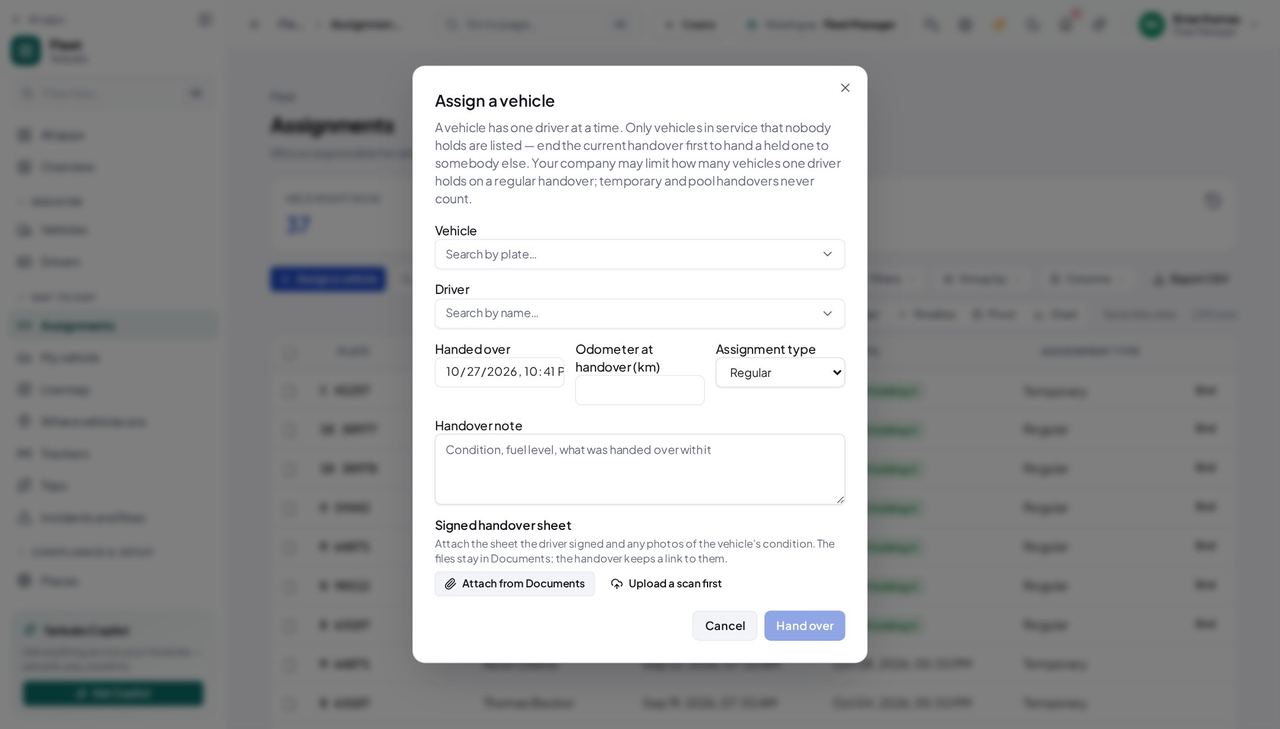
You should see A vehicle has ONE driver at a time. How many vehicles one driver may hold on a regular handover is your company's rule — one by default — and temporary and pool handovers never count. So the vehicle list here offers only vehicles in service that nobody is holding, the driver list shows each person's licence class and how many they already hold, and the dialog warns before you click when a regular handover would be refused, with a button to hand it over as Temporary instead. A licence that does not cover the vehicle's category is refused too, and the refusal names both.
Watch out A warning that the driver already holds as many vehicles as a driver may hold means the save will be refused. End one of theirs, press 'Hand it over as Temporary', or raise the limit under Fleet settings. 'No vehicle is free to hand over' means every vehicle in service already has a driver — not that the fleet is empty.
Worth knowing If the driver you want is not in the list, add them from inside this form — the new driver is selected when you come back, so you never abandon a half-filled handover. The message after saving says whether the driver was sent a notice; a driver with no sign-in is named as not told, so tell them yourself.
Take it off the road, and put it back #
Where Fleet » Vehicles » a plate » Take off the road
- Open the vehicle.
- Click Take off the road.
- Say why.
- Click Take off the road.
- When it is back: open it again and click Back in service.
| Field | What to put in it |
|---|---|
| Reason * | Accident damage, scheduled overhaul, awaiting parts… |
| What was done | On the way back in: repair completed, inspection passed |
| Disposed on / Amount received | On a disposal only — the date it left, and what you got for it |
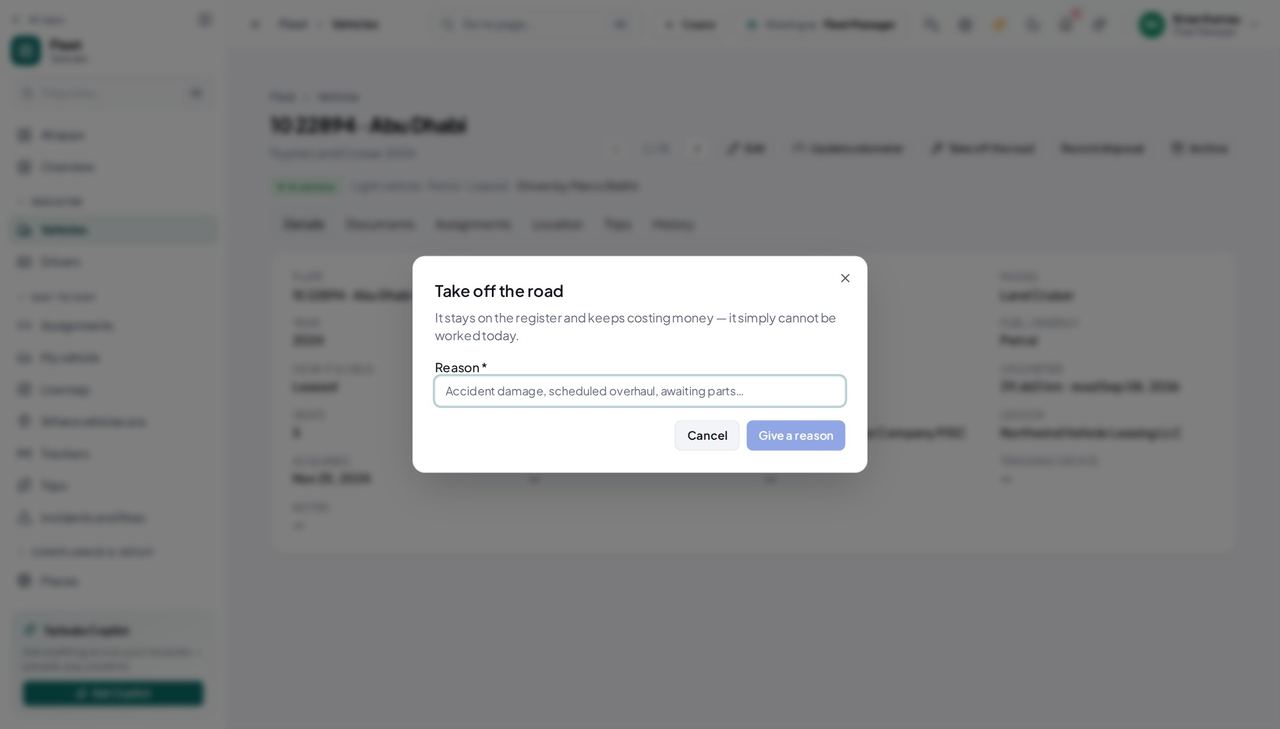
You should see Off the road is a WARNING, not a failure: the vehicle is still owned, still insured and still costing money — it simply cannot be worked today, and it stops being offered for a handover. The reason is required because the next person to read this record will be asking why a vehicle sat idle for three weeks.
Watch out Recording a disposal is final and posts nothing to the accounts. Ask Finance to write the asset off separately.
Worth knowing Record disposal is the end of the vehicle's life with you, and it is final. It does NOT tell Finance: ask them to write the asset off separately — the dialog says so rather than implying the books look after themselves.
Record the odometer #
Where Fleet » Vehicles » a plate » Update odometer
- Open the vehicle.
- Click Update odometer.
- Type the reading.
- Click Save.
| Field | What to put in it |
|---|---|
| New reading (km) | The number on the dashboard |
| Why is it lower? | Only asked when the reading goes down — a replaced cluster, or a correction |
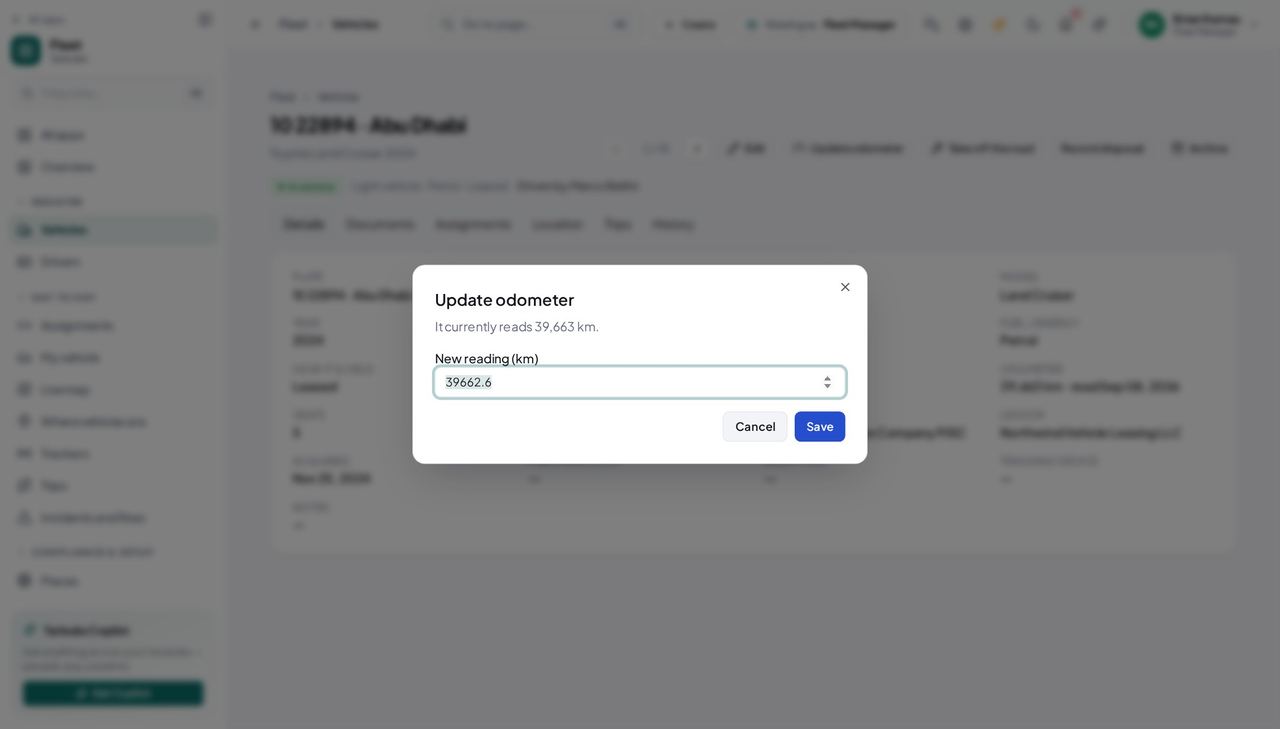
You should see An odometer only goes up. A lower reading is a replaced instrument cluster, a mistyped number or something worse — all three are worth a sentence, so a reading that goes down asks for one and keeps it on the record. Every distance, cost and service figure after this point is measured from the number you type here.
Watch out A reading that goes down without a reason is refused. That is deliberate: every fuel and cost figure behind it was measured from the old number.
Worth knowing The unit beside the field — kilometres or miles — is your organisation's choice, set once under Fleet settings. Readings already on file are not converted, so record in the unit shown.
The drivers #
Where Fleet » Drivers
- Sidebar » Drivers.
- Click the 'Licence expiring in 60 days' tile, then 'Licence expired'.
- Click a name to open the driver.
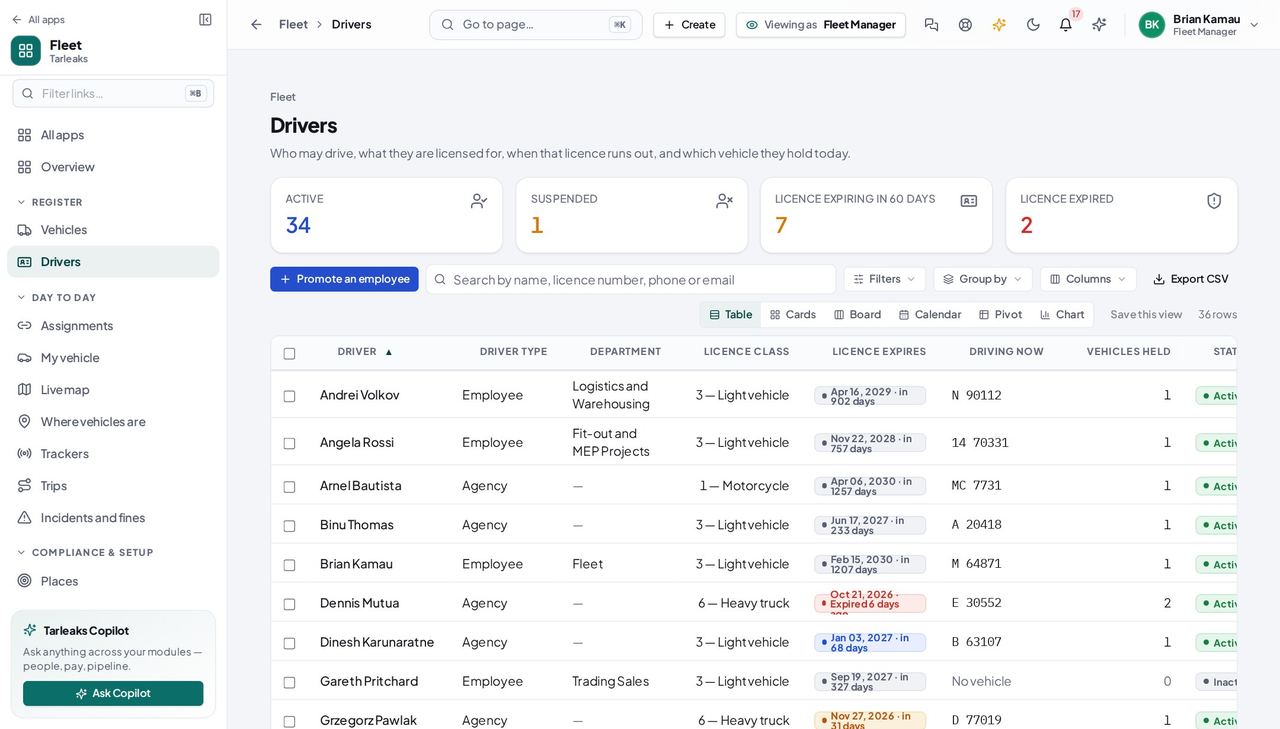
You should see The columns that matter are not the name. They are when the licence runs out, which plate the person has right now, and how many vehicles they hold — because a lapsed licence is an unroadworthy vehicle wearing a different hat. From the day it expires, nobody can be handed a vehicle on it: that refusal is a hard stop, not one of the checks a setting can switch off, because the date is a fact rather than a policy. A licence that lapses while the person still holds a vehicle does not end the handover by itself — the expiry check tells the people who hand vehicles over, once, so somebody takes it back.
Watch out A driver with no licence class on file cannot be handed a vehicle at all. That shows as a blank in the Licence class column, and it is worth fixing before somebody needs the van.
Worth knowing The 'Licence expiring in 60 days' tile is the same question the hub asks, so the number there and the rows here are one query. 'Licence expired' is its own tile: a lapsed licence is a state, not the far end of a window.
Promote an employee to a driver #
Where Fleet » Drivers » Promote an employee
- Sidebar » Drivers.
- Click Promote an employee.
- Search for the person by name.
- Add the licence number, class and expiry date.
- Click Promote to driver.
| Field | What to put in it |
|---|---|
| Employee | Search by name — only people with a login who are not already drivers are listed |
| Driver's name | On the second tab only, for a contractor or an agency driver |
| Driver type | Contractor or Agency, on the second tab |
| Licence number | As printed on the card |
| Licence class | Pick from your own list — '3 — Light vehicle', not a bare number |
| Licence expires | The date on the card |
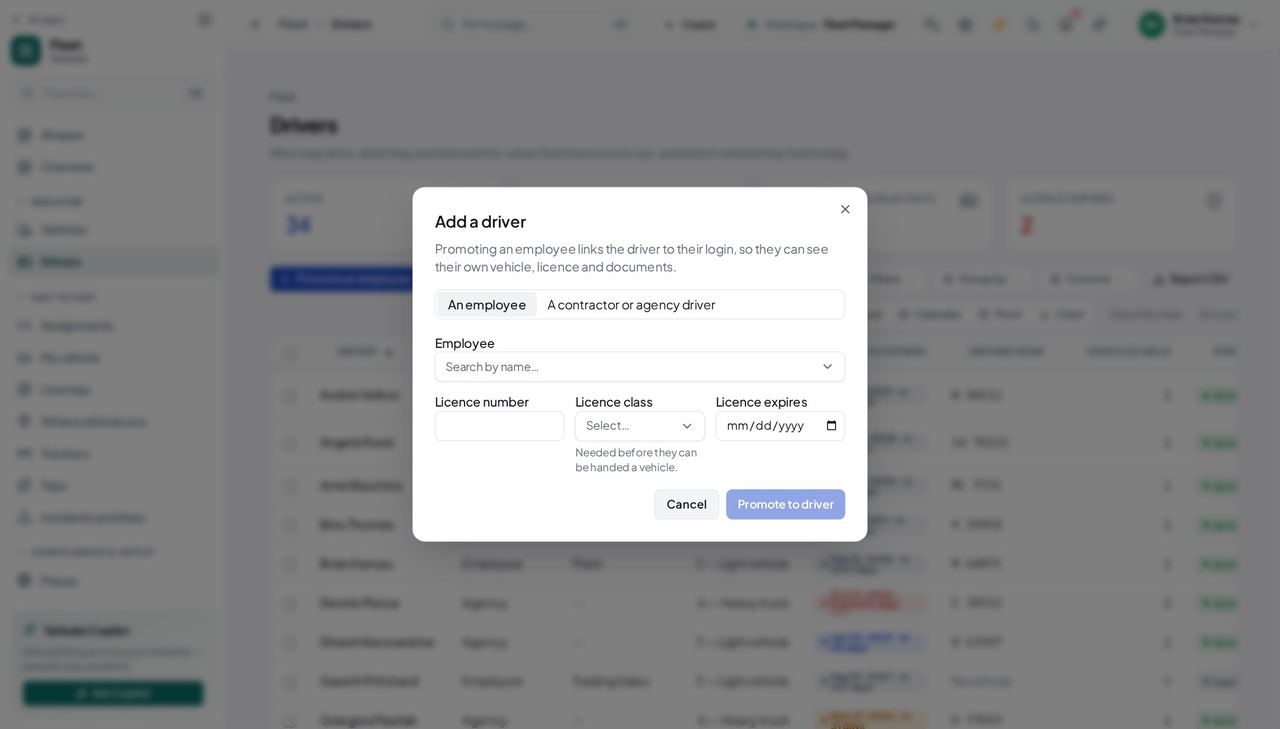
You should see Promoting links the driver to their LOGIN, and that link is the only reason 'My vehicle' can answer 'which one is mine'. A driver typed in by name instead is somebody the system can see and cannot recognise: their own page stays empty and nobody can tell why. The second tab is there for contractors and agency drivers, who genuinely have no login.
Watch out 'Every employee with a login is already a driver' usually means the person you want has no login linked to their employee record. That is an HR fix, not a fleet one — and without it 'My vehicle' can never answer for them.
Worth knowing Add the licence class now if you know it. Without one, the handover check refuses to give them a vehicle — and the message you get after saving says so rather than promising they are ready.
Compliance: what expires when #
Where Fleet » Compliance
- Sidebar » Compliance.
- Click 'Expired paperwork' for what is already lapsed.
- Click 30, 60 or 90 days for what is coming.
- Click a plate to open that vehicle's Documents tab.
- 'Show everything' clears the window.
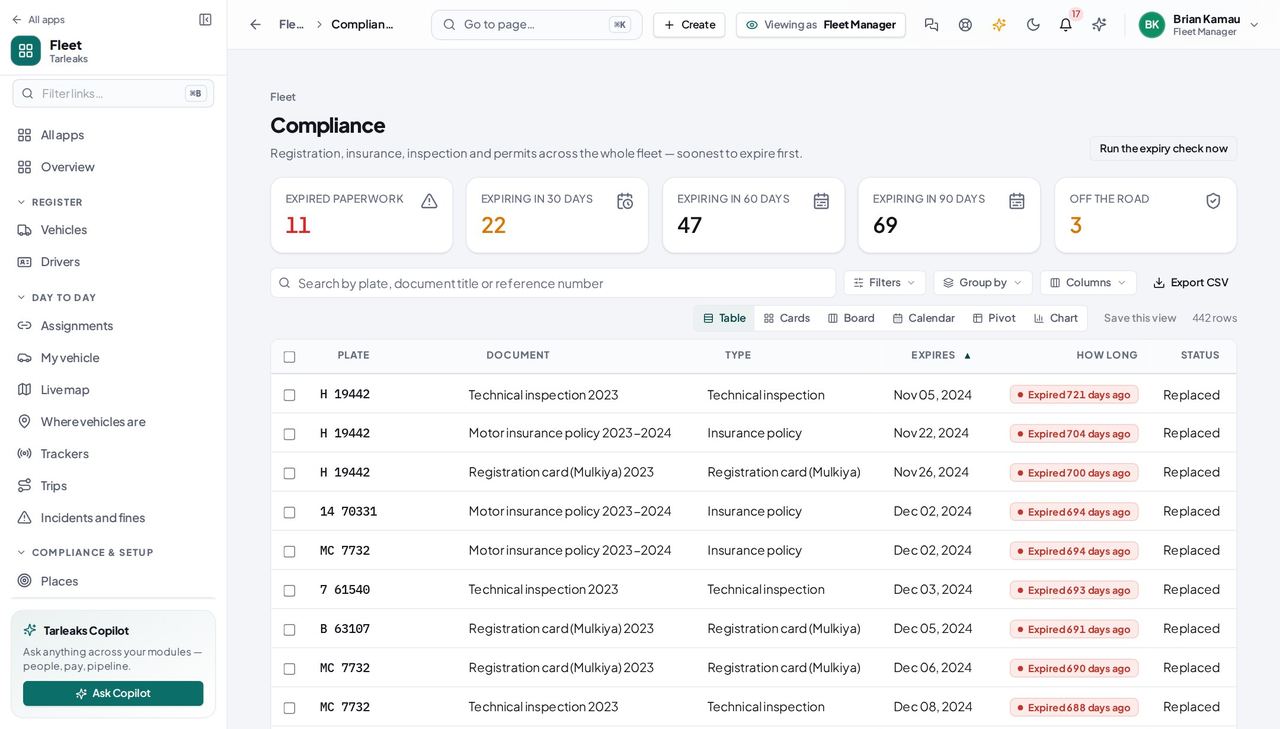
You should see Every piece of paper that can stop a vehicle working, across the whole fleet, soonest first. A window means 'expires in the next N days'; paper that has ALREADY lapsed is its own tile, not the far end of a window — mixing the two is how an urgent list ends up full of things that expired last year.
Watch out A window and a status are two different questions, so picking one clears the other. Asking for both at once would have silently produced an empty table.
Worth knowing 'Run the expiry check now' re-reads every document and every licence, brings each status up to date with today, and sends one warning per threshold crossed — once, never twice for the same threshold. Run it after filing or importing a batch of paperwork: the unattended nightly run arrives with a later release, so today this button is what sends the warnings.
The vocabulary: document types, licence classes and plate regions #
Where Fleet » Fleet settings » Plate regions
- Sidebar » Fleet settings.
- Choose Document types, Licence classes or Plate regions.
- Click a row to edit it, or New document type / New plate region to add one.
- Archive a plate region you no longer use; Restore brings it back.
- 'Load the UAE defaults' brings the standard set in.
| Field | What to put in it |
|---|---|
| Code | A short word you will not change — it is what filters, imports and each vehicle store |
| Name / Arabic name | What a person picks on screen, in both languages |
| Country | Leave blank for 'everywhere' on a document type; a plate region always belongs to one country |
| Reminders (days ahead) | 90, 60, 30, 15, 7 — one reminder at each |
| Covers | On a licence class: which vehicle categories it allows |
| Also written as | On a plate region: other spellings, separated by commas — Dubai, DXB, دبي |
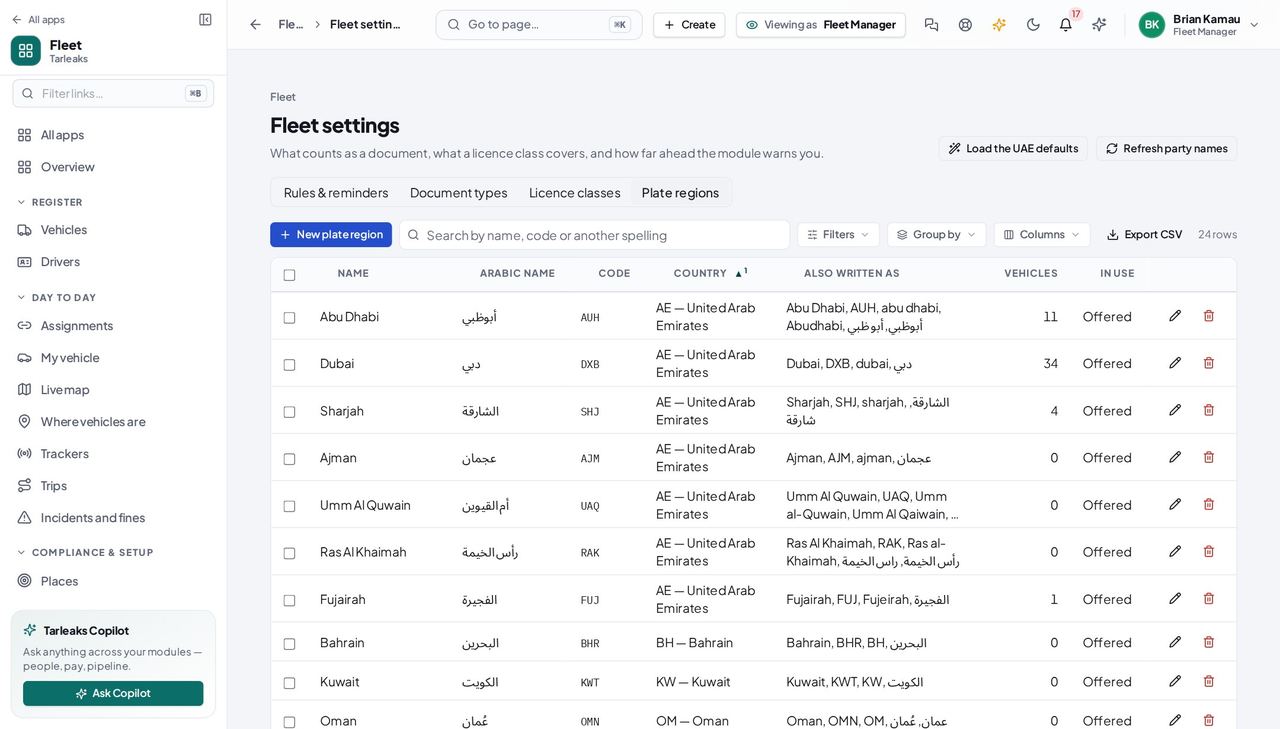
You should see These are YOUR words, not ours. The defaults — registration card (Mulkiya), insurance, operating card, inspection, road tax, permit, the nine UAE licence categories, and the plate regions of the seven emirates, the Saudi provinces and the other GCC states — are a button rather than something buried in an upgrade, so a fleet that pruned them can ask for them back. Each type carries its own reminder days, each licence class carries the vehicle categories it covers, and each plate region carries the other spellings a fuel-card or fines file uses for it, so an import that writes 'DXB' or 'دبي' lands on Dubai.
Watch out A spelling can belong to one region only, or an imported file could not tell which region it meant — the save names the region that already has it.
Worth knowing Archive a region rather than deleting it: vehicles already registered there keep it, and it simply stops being offered. A region's code cannot change once vehicles use it. A document type cannot be deleted while vehicles still hold documents of that kind.
Set the fleet's rules #
Where Fleet » Fleet settings » Rules & reminders
- Sidebar » Fleet settings.
- Stay on Rules & reminders.
- Set 'Vehicles a driver may hold at once (regular handovers)'.
- Tick or clear 'Refuse a handover the licence does not cover'.
- Click Save.
| Field | What to put in it |
|---|---|
| Remind me this many days ahead | 90, 60, 30, 15, 7 — the ladder a new document starts with |
| Distance unit | Kilometres or miles, for every screen; readings on file are not converted |
| Refuse a handover the licence does not cover | On. Turn it off only while your licence classes are not on file yet |
| Vehicles a driver may hold at once (regular handovers) | 1 by default; 0 for no limit. Temporary and pool handovers never count |
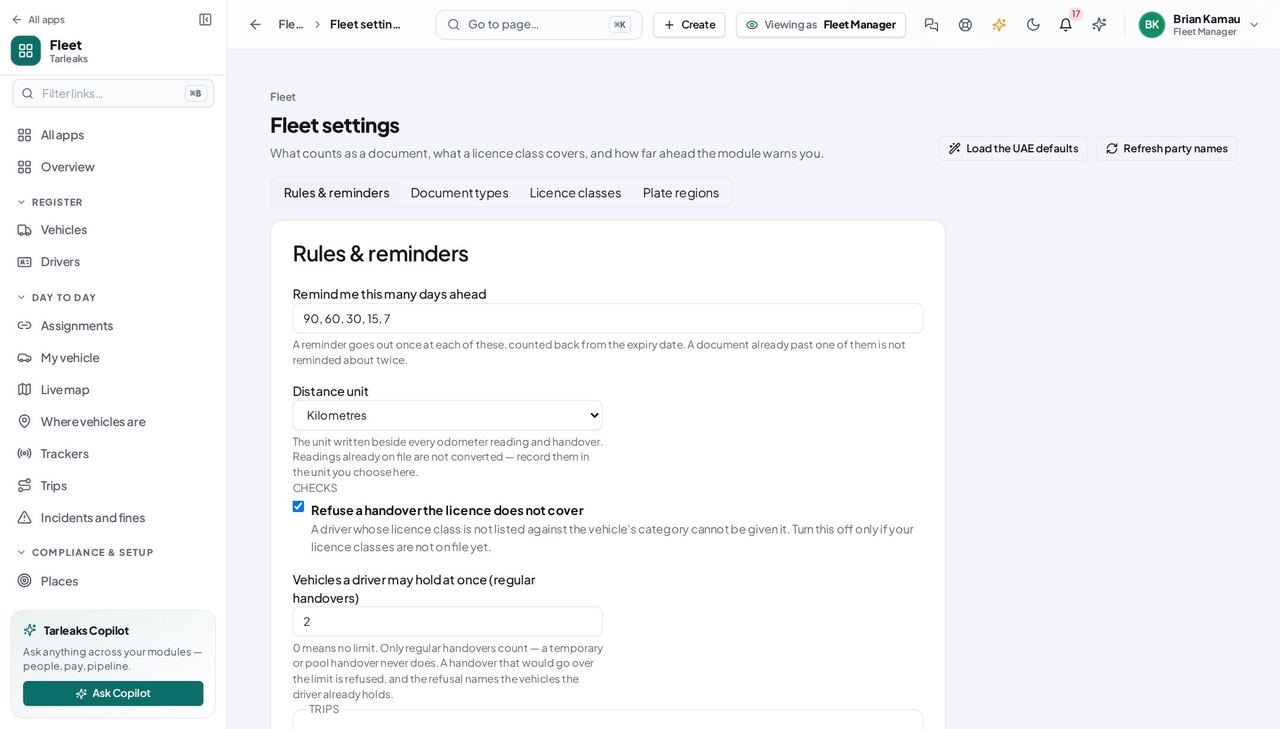
You should see These are the rules every handover and every reminder is checked against. 'Vehicles a driver may hold at once (regular handovers)' is one by default and 0 means no limit; a temporary or pool handover never counts, which is how somebody covers a colleague's route for a day without the register saying they are responsible for two vans. A handover that would go over the limit is refused, and the refusal names the vehicles the driver already holds.
Watch out Raising the limit does not change any handover already open, and lowering it does not end one — it decides only whether the NEXT regular handover is refused.
Worth knowing An insurer, lessor or agency showing as a dash instead of a name? 'Refresh party names', at the top of this page, asks for every one of them again; they fill in within a minute.
Choose what the maps are drawn on #
Where Fleet » Fleet settings » Rules & reminders » Map tile server address
- Sidebar » Fleet settings.
- Stay on Rules & reminders.
- Fill or clear 'Map tile server address'.
- Click Save.
| Field | What to put in it |
|---|---|
| Map tile server address | https://… with {z}, {x} and {y} in it; empty = plain background |
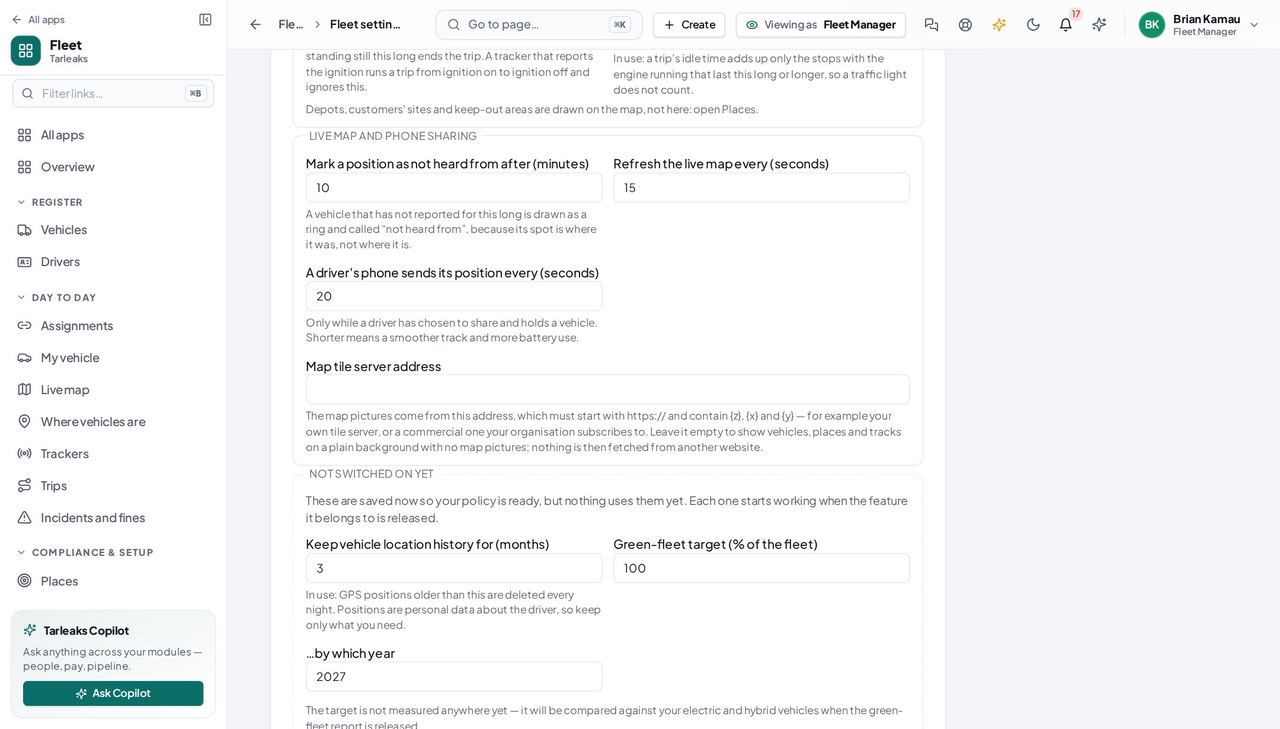
You should see Every fleet map — the live map, a trip's track, the places — draws its map pictures from this address. Empty, the vehicles and tracks show on a plain background and nothing is fetched from another website.
Worth knowing A company that must not send any data outside its own network leaves it empty or points it at its own server.
Bring the whole fleet in from a spreadsheet #
Where Fleet » Vehicles » Import from a spreadsheet
- Sidebar » Vehicles.
- Click Import from a spreadsheet.
- Choose the CSV file, or paste it into the box.
- Click Check the file and read the row-by-row report.
- Click Import.
| Field | What to put in it |
|---|---|
| plate | Required. The plate as printed |
| plate_region | The emirate by its name or its code — Dubai or DXB. A region not on your list fails its row |
| category | light, heavy, bus, trailer, equipment, motorcycle |
| energy_type | petrol, diesel, hybrid, bev, phev, cng, hydrogen |
| ownership | owned, leased, rented, employee |
| make / model / model_year / vin | Optional, and worth having |
| acquired_on / acquisition_cost / currency | Optional — the purchase date and cost of a vehicle you bought |
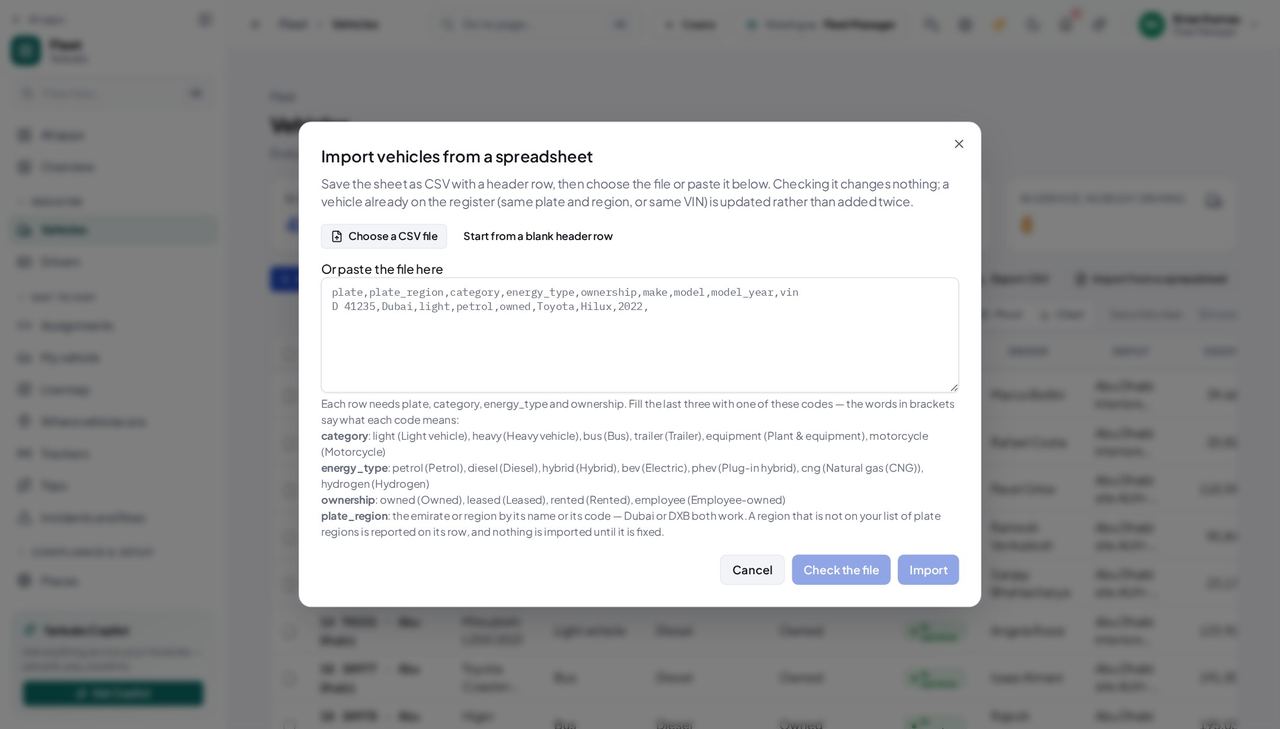
You should see Checking changes nothing, and it is not an approximation: the check and the import make the same decision about every row, so a preview cannot promise something the import then refuses. A file with one bad row is refused whole — half a register is a register nobody can trust — and a vehicle already on file (same plate and region, or same VIN) is updated rather than added twice, so re-running the same sheet is safe.
Watch out One bad row refuses the whole file. Fix it in the sheet and check again — a half-imported register is worse than none, and re-running a corrected sheet updates rather than duplicates.
Worth knowing 'Start from a blank header row' writes the column names for you. Four of them are required — plate, category, energy_type, ownership — and the dialog lists the exact words each of the last three accepts.
Archive a vehicle, and bring it back #
Where Fleet » Vehicles » Filters » Archived
- To archive: open the vehicle and click Archive, or use the row's Archive action in the register.
- To find it: Vehicles » Filters » Archived.
- Click Unarchive on the row, or open it and click Unarchive.
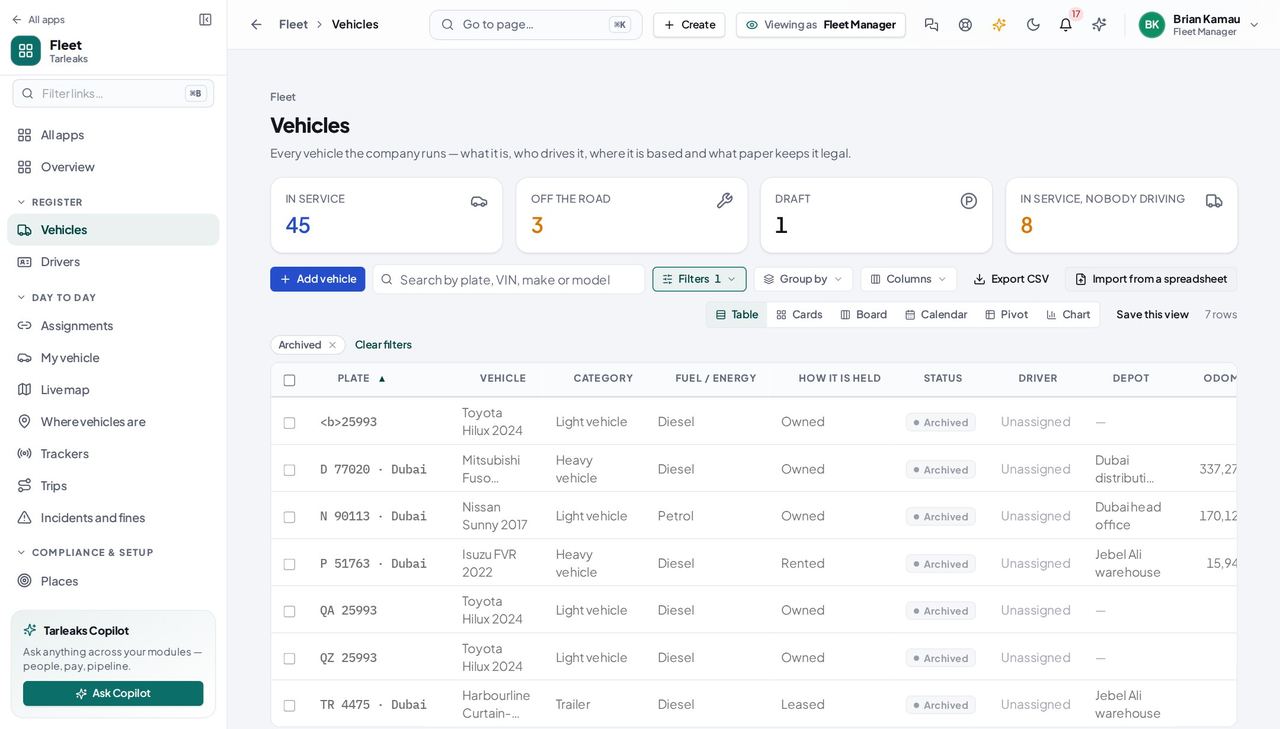
You should see Archiving is not deleting. The vehicle leaves every list, its whole history stays on the record, and this filter is the way back — which is also the way to undo an archive made by mistake. A vehicle somebody is still holding refuses to be archived at all: end the handover first, so the register never loses track of who has what.
Watch out A vehicle somebody is still holding cannot be archived. End the handover first — the refusal says exactly that.
Worth knowing An archived vehicle still reads 'In service' in its own history, because archiving does not change what state it was in. The row and the record both show Archived over the top of it.
What changed, when, and who did it #
Where Fleet » Vehicles » a plate » History
- Open a vehicle.
- Choose the History tab.
- Read the timeline; use the box at the top to add a note or a message.
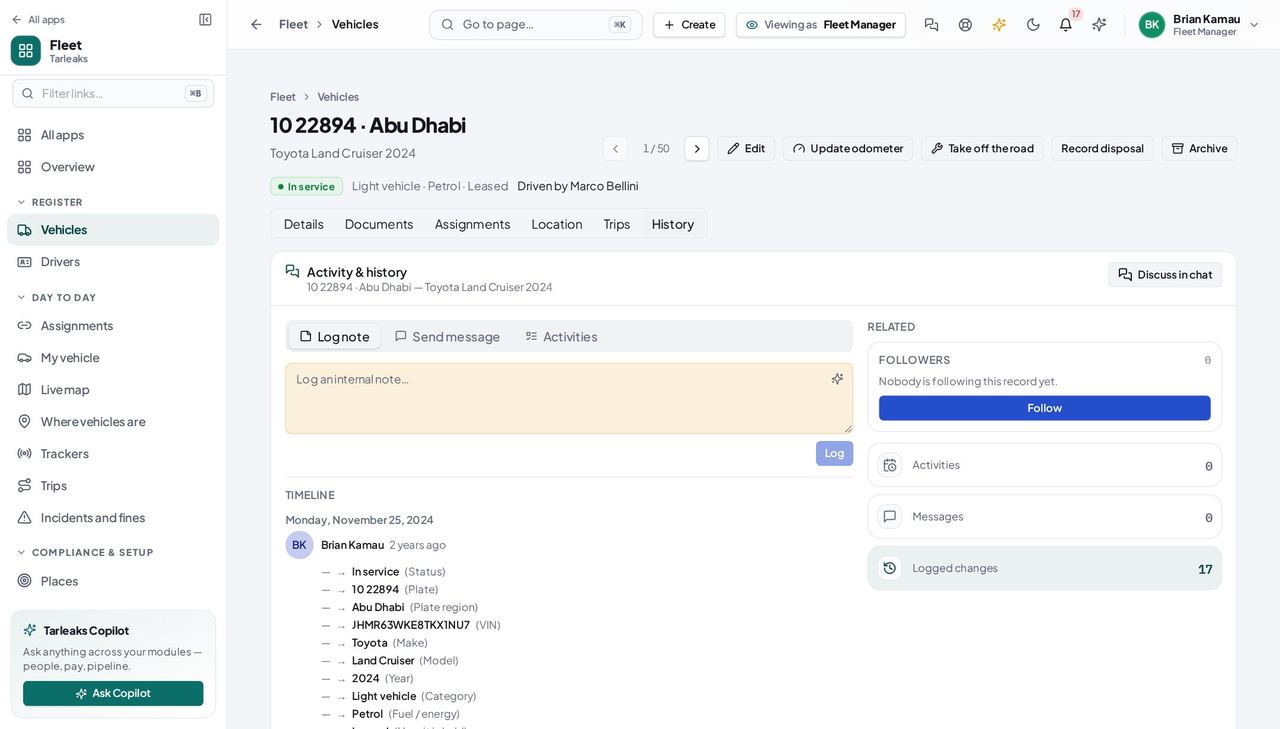
You should see Field by field, with the value before and the value after, and the person who made the change beside it. It is recorded by the database itself rather than by the screen you used, so an import, a bulk change and a hand-made correction all leave the same trail — and the handover history can say who handed a vehicle over rather than 'somebody'.
Watch out A line that says a change happened without naming anybody means that change came in by a route that did not record who asked for it. The change itself is still there, and still accurate.
Worth knowing A brand-new vehicle has almost nothing here yet — the trail starts when the first thing about it changes.
Use cases — the work, step by step
Each one is a sequence somebody actually performs, with the screen behind every step. Every screen here was opened in the product as this role before it was published.
weeklyThe Monday morning sweep: what stops a vehicle this week #
Every line on this list turns into the same three things — a vehicle standing at a depot, a fine at the roadside, or an insurer declining a claim. All three are cheap to prevent on Monday and expensive to explain on Thursday.
Open the hub and read “What stops a vehicle working tomorrow”. It is the paperwork closest to expiry across the whole fleet, soonest first, and each row opens that vehicle's documents.
Fleet » Overview — verified: the page says “What stops a vehicle working tomorrow”; the page says “Nobody driving”; the page says “Expired paperwork”; the page says “Licences expiring”; the page says “Licences expired” Open Compliance and narrow it to the next 30 days. The tiles and the list are one query, so the number on the tile is the number of rows underneath it — click it and count if you ever doubt it.
Fleet » Compliance — verified: 25 row(s) listed; the page says “Expiring in 30 days”; the control is offered Now look at what has ALREADY lapsed. This is not a warning list: a vehicle whose registration card has expired should not be on the road today, whoever is holding the keys.
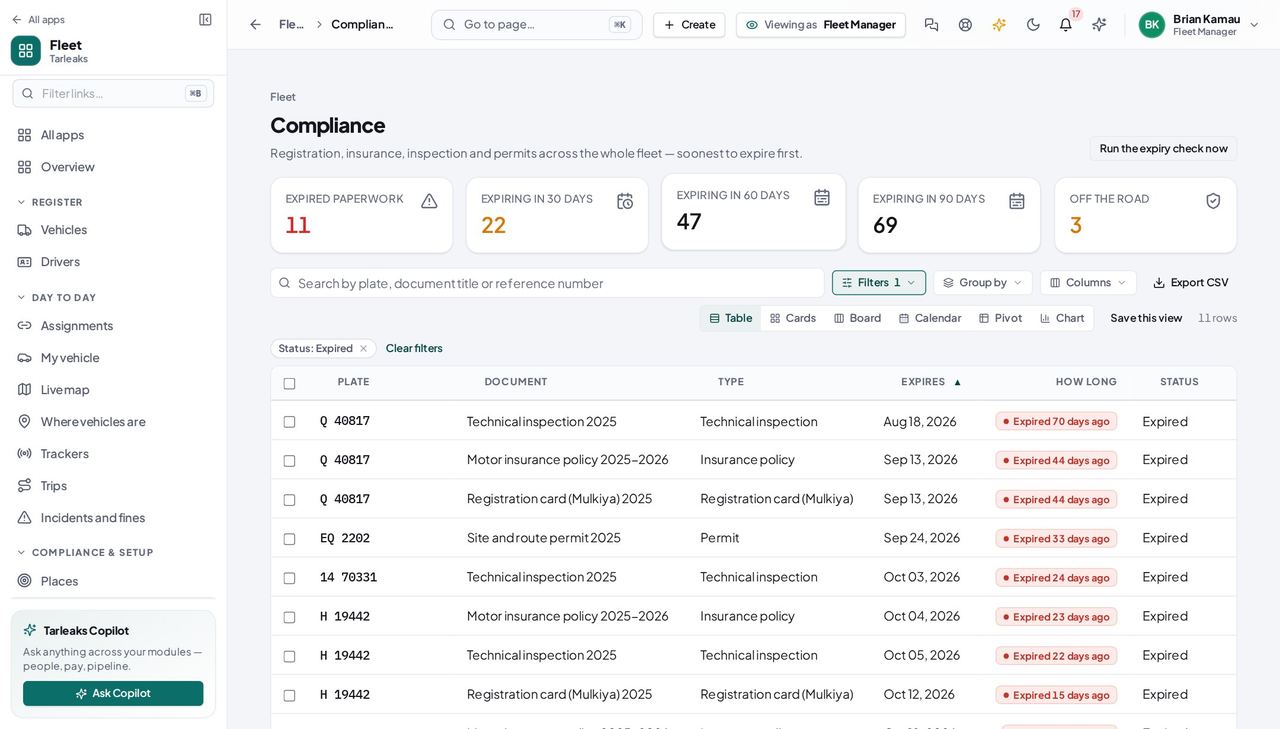
Fleet » Compliance » Expired paperwork — verified: the page says “Expired paperwork”; 11 row(s) listed For each one you have the new paper for, open the vehicle and use Renew rather than editing the date. The old card stays on the record as replaced, so the chain can be read back years later.
Fleet » Vehicles » a plate » Documents » Renew — verified: the page says “Renew document”; the page says “The new one takes over” Read the window again, this time widened to 90 days — next month's work, and anything that needs a government appointment booked. What you renewed has left the list: the new card's expiry is a year out, and the one it replaced is on the record as replaced rather than counted again.
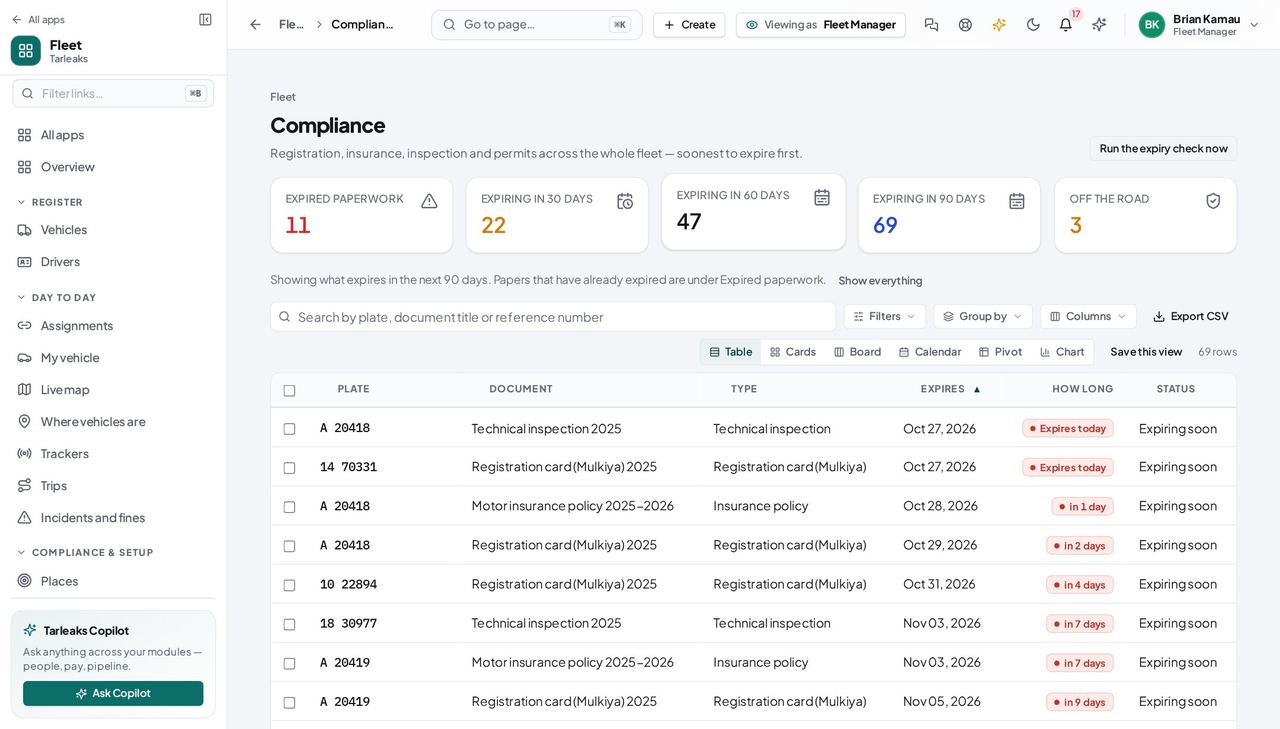
Fleet » Compliance » Expiring in 90 days — verified: the page says “Expiring in 90 days”; the page says “Show everything”; 25 row(s) listed
monthlyA new van arrives at the depot — or twenty of them #
Until its plate is on the register, nothing watches its insurance, nobody can be handed it, and it is in none of the numbers you quote. Four fields put it on; the rest can wait until the file arrives.
Add it with the four things that are required — the plate, what kind of vehicle it is, what it runs on, and how you hold it — and pick its emirate from the list. If you bought it, fill in how it was acquired. If the plate is already on the register the page says which vehicle has it, before you save rather than after.
Fleet » Vehicles » Add vehicle — verified: the page says “Plate region”; the page says “Select the emirate or region”; the page says “How it is held”; the page says “How it was acquired”; the control is offered If a batch arrived together, import them instead of typing them. Checking the file changes nothing: it reports what would happen to every row — added, updated, unchanged, or a problem with the reason — and a vehicle already on the register is updated rather than added twice.
Fleet » Vehicles » Import from a spreadsheet — verified: the page says “Import vehicles from a spreadsheet”; the page says “Check the file” Open the vehicle you just created and check what you typed: the plate and its emirate, the make and model, the depot it is based at, and the odometer reading you started it on.
Fleet » Vehicles » a plate — verified: the page says “How it is held”; the page says “Odometer”; the control is offered File the registration card (Mulkiya) and the insurance policy on its Documents tab, each with its expiry date. That date is the whole point: a document with one is watched, and a reminder goes out 90, 60, 30, 15 and 7 days before.
Fleet » Vehicles » a plate » Documents — verified: 7 row(s) listed; the page says “Include archived”; the control is offered If the person who will drive it is not on the roster yet, promote their employee record to a driver — their name, department and login come across, and you add the licence number, the class and the expiry date.
Fleet » Drivers » Promote an employee — verified: the page says “Promote to driver”; the page says “Licence class” Hand it over, with the signed handover sheet attached. The picker only offers vehicles in service that nobody is holding, it refuses a driver whose licence class does not cover this category of vehicle, and it warns before the click when the driver already holds as many regular vehicles as your company allows. The driver is sent a notice that the vehicle is now theirs.
Fleet » Assignments » Assign a vehicle — verified: the page says “A vehicle has one driver at a time”; the page says “temporary and pool handovers never count”; the page says “Signed handover sheet”; the control is offered; the control is offered
urgentA vehicle goes into the workshop, and comes back #
Off the road is not a failure state — the vehicle is still owned, still insured and still costing money. It simply cannot be worked today, and everybody who might hand it to a driver needs to know that before they try.
Take it off the road and say why. The reason is required, and it is what the next person reads instead of phoning you: accident damage, scheduled overhaul, awaiting parts.
Fleet » Vehicles » a plate » Take off the road — verified: the page says “It stays on the register and keeps costing money”; the control is offered Look at the register: it now shows under Off the road, and it has left the list of vehicles that can be handed over. Nobody can give it to a driver by mistake while it is in the bay.
Fleet » Vehicles — verified: 25 row(s) listed; the page says “Next expiry”; the page says “In service” Prove that yourself — open the handover form and look for it. It is not in the picker, because the picker only lists vehicles in service that nobody holds.
Fleet » Assignments » Assign a vehicle — verified: the page says “A vehicle has one driver at a time”; the page says “temporary and pool handovers never count”; the page says “Signed handover sheet”; the control is offered; the control is offered When the work is finished, the same control puts it back in service — and this time it asks what was done rather than why it stopped. From that moment it can be handed to a driver again.
Fleet » Vehicles » a plate » Take off the road — verified: the page says “It stays on the register and keeps costing money”; the control is offered Record the odometer as the workshop left it, so the next handover starts from a true number. What the module does NOT hold yet is the job itself: no work order, no parts, no labour hours, no service schedule — keep the workshop's own paperwork where it is today.
Fleet » Vehicles » a plate » Update odometer — verified: the page says “It currently reads”; the control is offered
monthlyMonth end: prove the fleet is legal, and know where the cost is #
Two different questions get asked at month end. “Is everything legal?” this module answers completely. “What did the fleet cost?” it does not answer yet, and saying so plainly is better than a number that is only part of the truth.
Read Compliance with no window at all: every document on file, soonest to expire first. Nothing should be sitting in Expired at month end — if it is, that vehicle has been running on lapsed paper and somebody needs to know today. Then widen it to 90 days for next quarter's renewals.
Fleet » Compliance — verified: 25 row(s) listed; the page says “Expiring in 30 days”; the control is offered Count what you actually run: the vehicles in service, with the depot and the cost centre on each row. The cost centre is the join to Finance — it is how a fuel bill, a workshop invoice or an insurance premium ends up against the right part of the business.
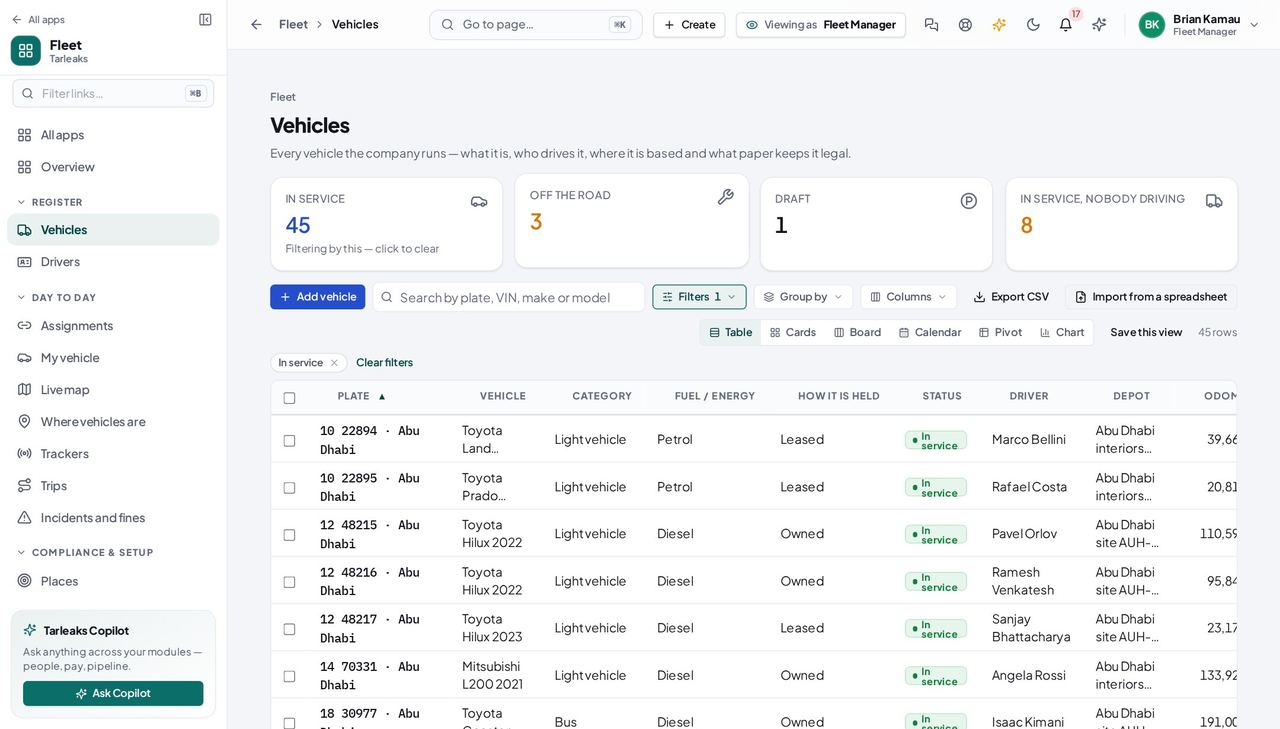
Fleet » Vehicles » In service — verified: the page says “In service”; 25 row(s) listed Take the five numbers off the hub for the report: in service, off the road, nobody driving, expired paperwork and licences running out. Each one is a tile you can click, so anybody who questions a figure can be shown the rows behind it.
Fleet » Overview — verified: the page says “What stops a vehicle working tomorrow”; the page says “Nobody driving”; the page says “Expired paperwork”; the page says “Licences expiring”; the page says “Licences expired” Read the vehicle's own history for what actually changed this month, and who changed it. What it does NOT hold is money: fuel, maintenance, tolls and fines are not in this release, so the cost of keeping the fleet legal is still assembled from Finance's bills against the cost centre on each vehicle.
Fleet » Vehicles » a plate » History — verified: the page says “Activity & history”; no “Your role cannot see” anywhere on the page
urgentA driver is still holding a vehicle on an expired licence #
An expired licence stops anybody handing that person a NEW vehicle, but it does not take back the one they already have. The expiry check tells the people who hand vehicles over, once; the vehicle is only safe again when somebody ends the handover or files the renewed licence date.
Start on the hub. 'Licences expired' counts the drivers who cannot legally drive today; click it and Drivers opens on exactly those people.
Fleet » Overview — verified: the page says “What stops a vehicle working tomorrow”; the page says “Nobody driving”; the page says “Expired paperwork”; the page says “Licences expiring”; the page says “Licences expired” Read 'Driving now' and 'Vehicles held' on each of them. A lapsed licence with a plate beside it is the case to act on this morning.
Fleet » Drivers — verified: 25 row(s) listed; the page says “Licence expires”; the page says “Driving now”; the page says “Vehicles held” Open the handovers held right now and end that one, recording the odometer as it reads — or, if the renewed licence is in your hand, put its new expiry date on the driver's record instead.
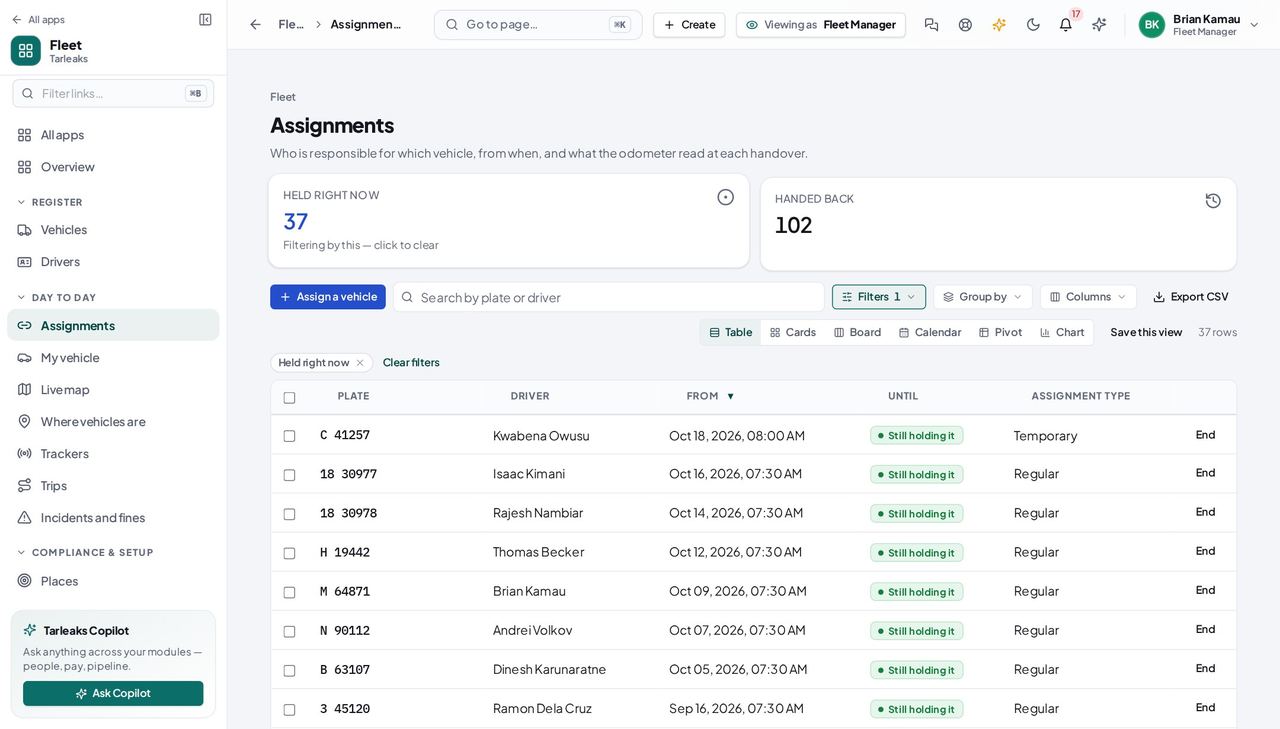
Fleet » Assignments » Held right now — verified: the page says “Held right now”; 25 row(s) listed; the control is offered
Everything here is the register: the vehicles, the people who drive them, and the paper that keeps them legal. Workshop jobs, service schedules, fuel, tolls, fines and incidents are later releases — so where you do not see a screen for one, it is not hidden from you, it is not built yet.
Dispatcher
Every vehicle in somebody's hands, and you know whose.
Decides who drives what today. Hands a vehicle over, takes it back, and keeps the roster of people who can be handed one.
What you will be able to do
- See who is holding what, right now
- Hand a vehicle over, with the odometer, a note and the signed sheet taken at the handover
- End a handover when the vehicle comes back
- Add a driver on the spot, without leaving the form you are filling
What this role can and cannot do
| Can | Cannot |
|---|---|
|
|
8 steps, each one carried out in the product on .
What your sign-in can do #
Where Your name, top right » Profile
- Open your organisation's address in the browser — it looks like yourorganisation.tarleaks.com.
- Type the e-mail address your administrator set up for you, then your password.
- You land on the app launcher: a grid of the apps your organisation uses.
- Click the Fleet tile.
- Click your name, top right.
- Choose Profile.
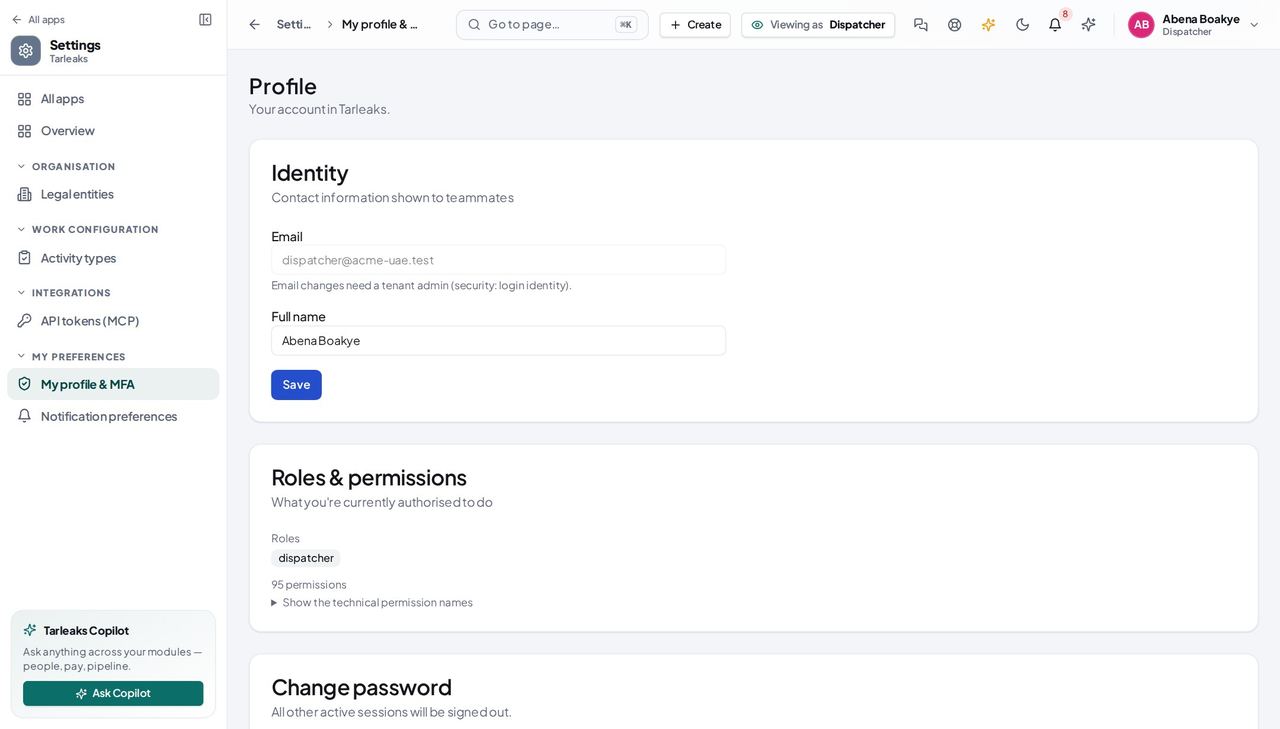
You should see Vehicles, drivers and the handovers between them — including adding a vehicle and adding a driver. The paperwork, the archive and the settings belong to the fleet manager, so those screens are not in your menu at all.
The hub as a dispatcher #
Where Fleet » Overview
- Fleet opens on Overview.
- Click 'Nobody driving' to open exactly those vehicles.
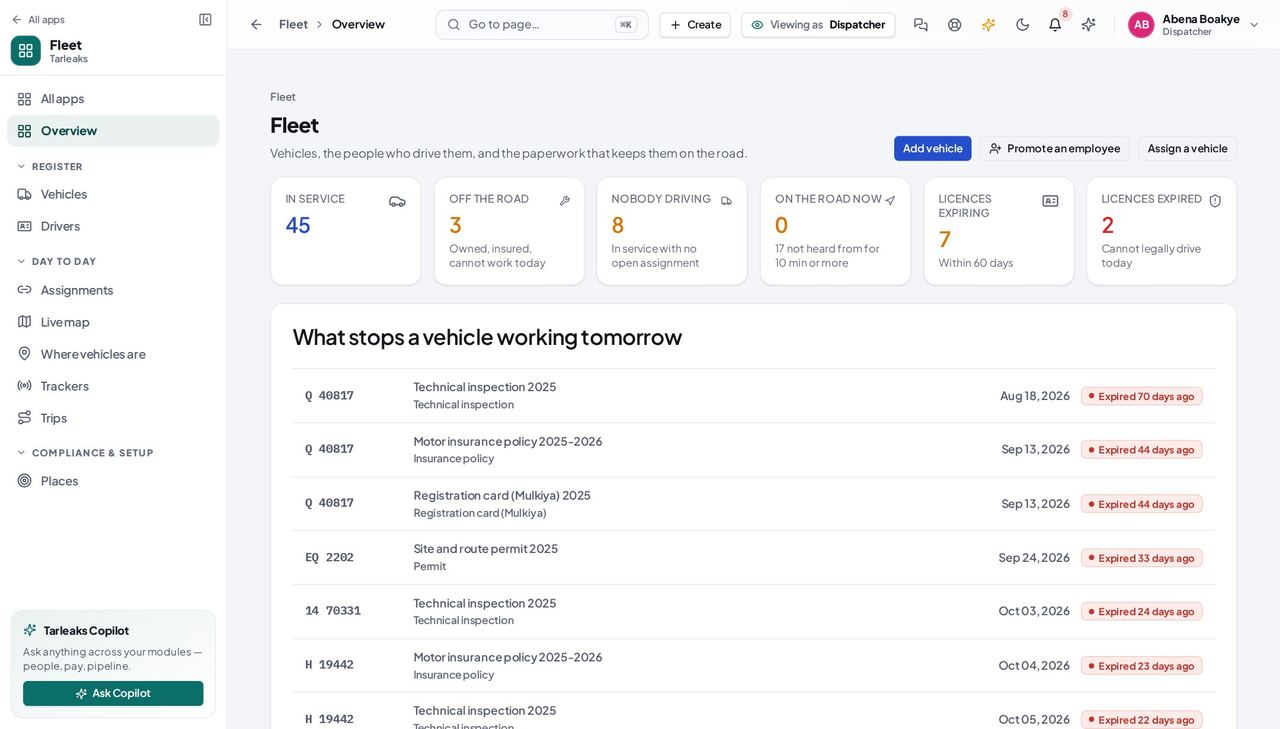
You should see Your number on this page is 'Nobody driving' — a vehicle in service with no open handover is either idle capacity or somebody driving without a record. The two paperwork tiles are absent because keeping documents in date is not your job; the tile would have opened a screen you cannot read, and a door painted on a wall is worse than no door.
Watch out No paperwork tiles here, and no Compliance in your menu. If a vehicle's registration or insurance is the problem, the fleet manager is the person who can see and fix it.
Who is driving what #
Where Fleet » Assignments
- Sidebar » Assignments.
- Click 'Held right now' or 'Handed back'.
- Search by plate, driver or handover note.
- Click a plate to open the vehicle's own handover history.
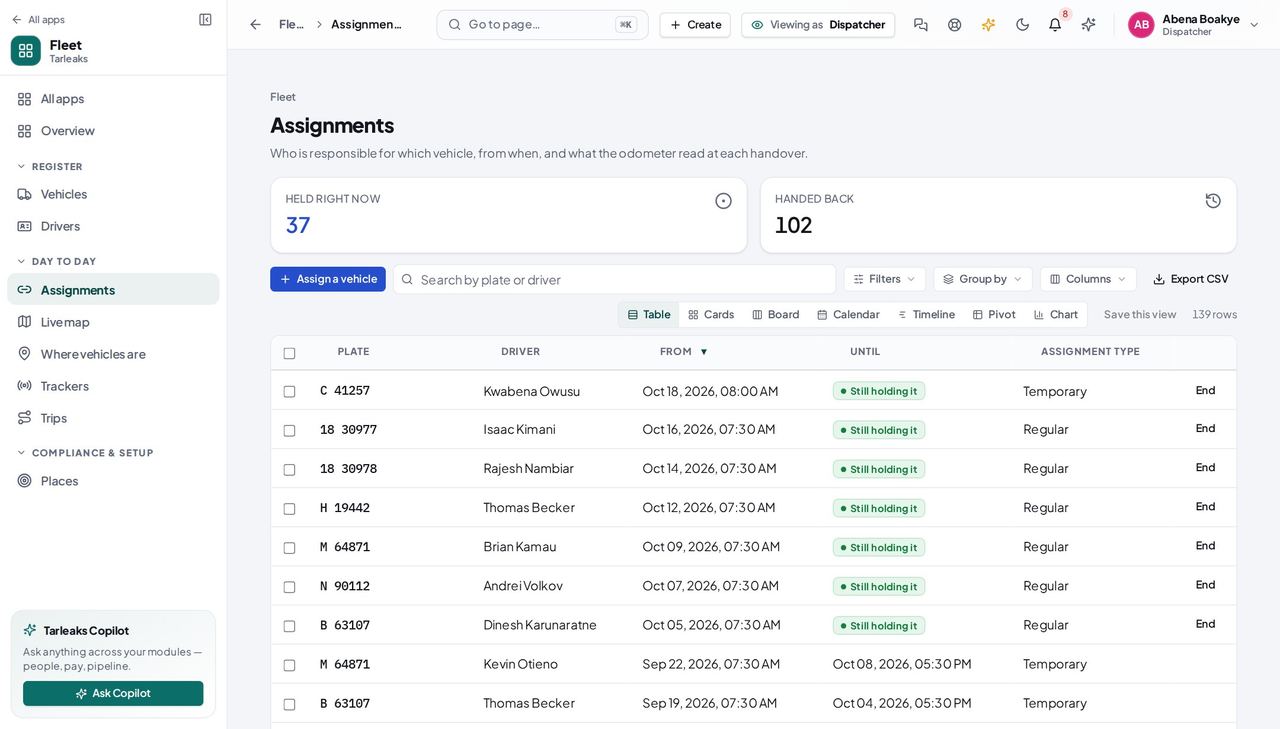
You should see The handover register: plate, driver, from when, until when, and the odometer at each end. Both tiles are answered by the register itself rather than by narrowing the page in front of you, so 'held right now' is the whole fleet's answer and not this page's.
Watch out Turn on 'Odometer out' and 'Odometer in' from the Columns menu when you are working out how far a vehicle went with somebody.
Worth knowing Search reaches the plate, the driver's name and the handover note — which is how you find 'the van somebody mentioned had a cracked windscreen'.
Hand a vehicle over #
Where Fleet » Assignments » Assign a vehicle
- Sidebar » Assignments.
- Click Assign a vehicle.
- Pick the vehicle, then the driver.
- Record the odometer and write the handover note.
- Click Attach from Documents and pick the signed sheet — or Upload a scan first.
- Click Hand over.
| Field | What to put in it |
|---|---|
| Vehicle | Only vehicles in service that nobody holds |
| Driver | The licence class and how many vehicles they hold, beside each name |
| Handed over | Now, unless you are catching up on something earlier |
| Odometer at handover (km) | As it reads when you hand the keys over |
| Assignment type | Regular, Temporary or Pool — only Regular counts toward the limit |
| Handover note | Condition, fuel level, and what went with it |
| Signed handover sheet | The sheet the driver signed and any photos — they stay in Documents |
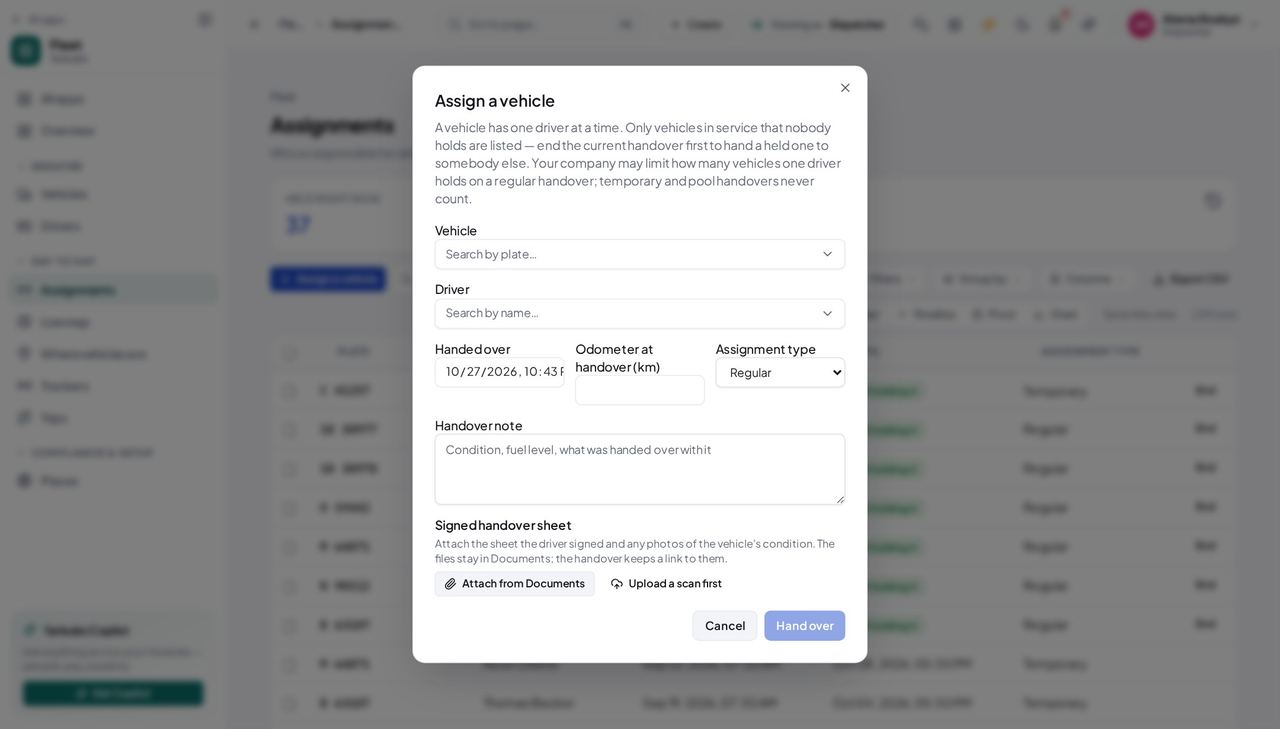
You should see Only vehicles in service that nobody holds are offered — a vehicle somebody already has cannot be handed to a second person, and offering it would be a choice the save refuses. Beside each driver's name is their licence class and how many vehicles they already hold. When a regular handover would take them past your company's limit, the dialog says so before you click — naming what they hold — and offers to hand this one over as Temporary, which never counts. A licence that does not cover the vehicle's category is refused, with both named in the message.
Watch out If the dialog warns that the driver already holds as many vehicles as allowed, the save will be refused: end one of theirs, press 'Hand it over as Temporary', or ask your fleet manager to raise the limit. A licence that does not cover the vehicle's category is refused too — check the driver's class rather than picking a different vehicle type.
Worth knowing The handover note and the signed sheet are the record of the vehicle's condition, its fuel level and 'two keys and a fuel card'. They are what you will be asked about when it comes back damaged. The message after saving says whether the driver was sent a notice — if it says they have no sign-in, tell them yourself.
End a handover #
Where Fleet » Assignments » Held right now » End
- Sidebar » Assignments.
- Click 'Held right now'.
- Click End on the row.
- Record the odometer as it reads now and say why it ended.
- Click End handover.
| Field | What to put in it |
|---|---|
| Handed back | Now, unless the vehicle came back earlier |
| Odometer at hand-back (km) | As it reads on return — this is the number everything after is measured from |
| Why it ended | Left the company, moved depot, vehicle sold… |
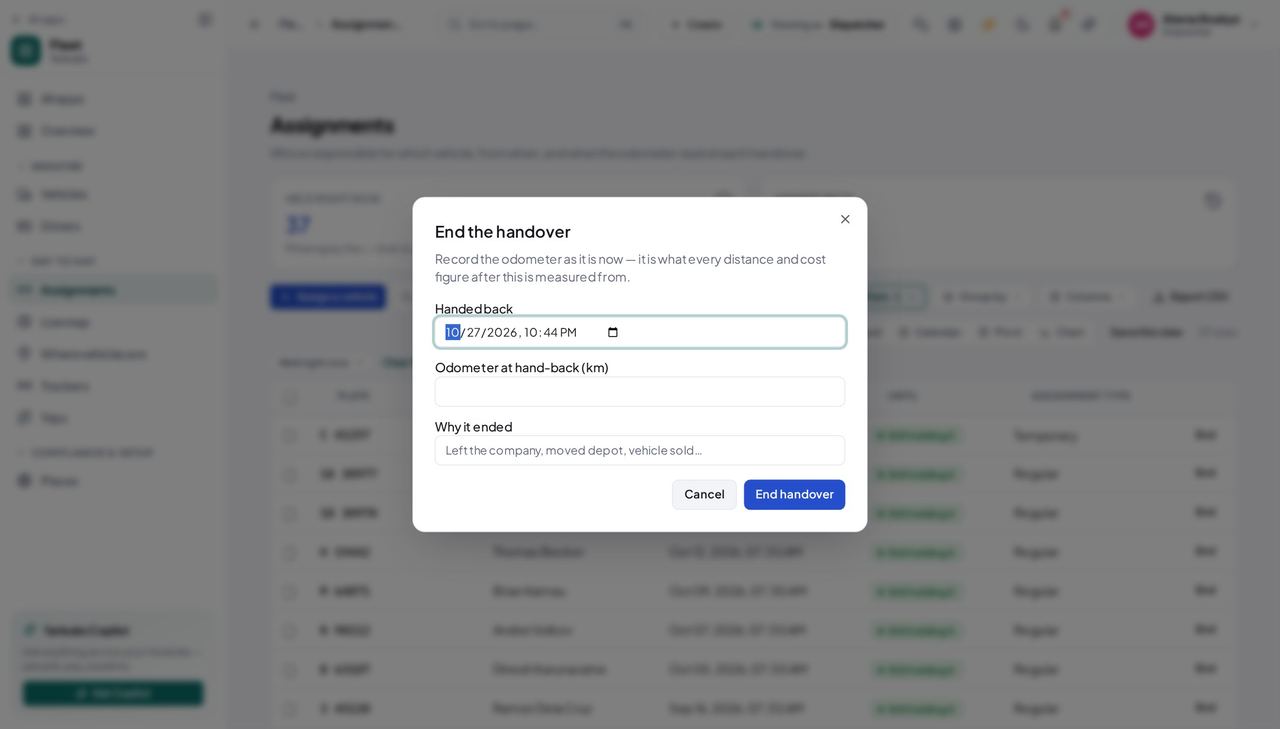
You should see The vehicle comes back to the pool and can be handed to somebody else. The odometer at hand-back is asked for every time because it is what every distance, cost and service interval after this handover is measured from — a blank there is a gap nothing later can fill in.
Watch out The hand-back date cannot be before the handover started. If the refusal mentions the date, check the time as well as the day.
The drivers you can hand to #
Where Fleet » Drivers
- Sidebar » Drivers.
- Read the Licence class and Licence expires columns.
- Click Promote an employee to add somebody.
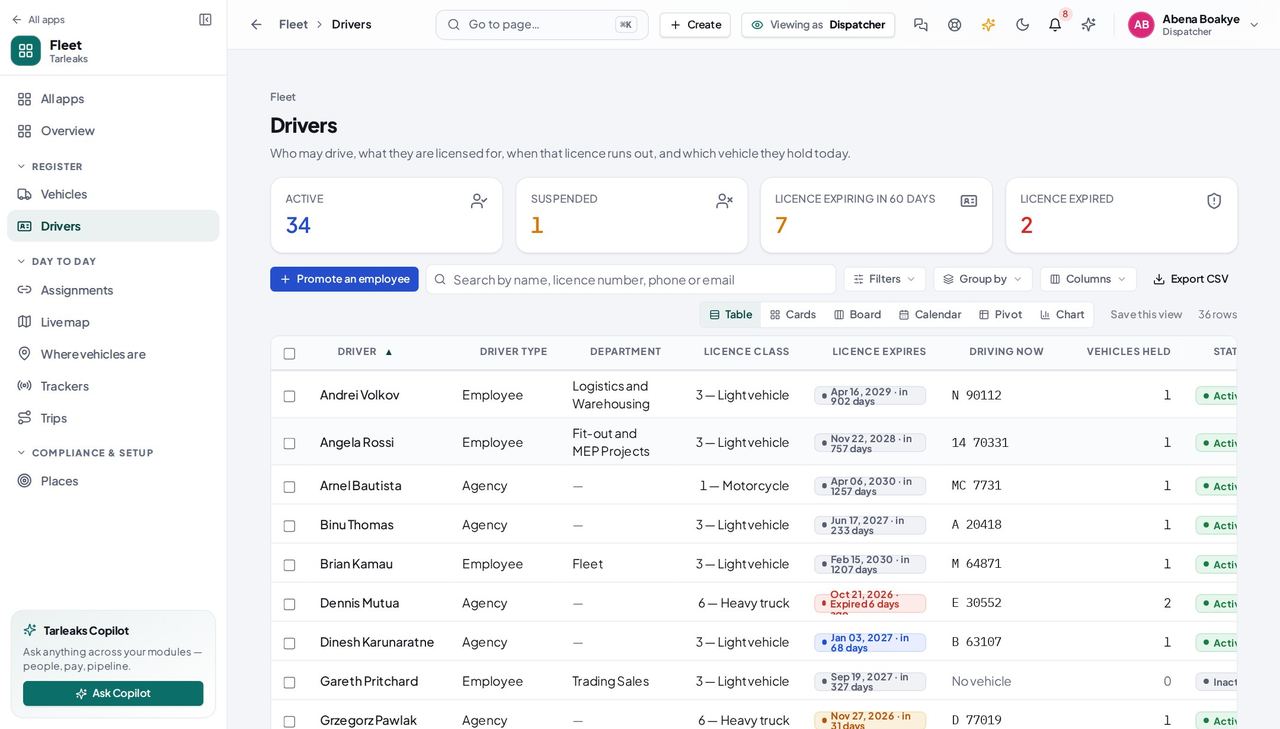
You should see Who may drive, what they are licensed for, when that licence lapses, the plate they are holding today and how many vehicles they hold — '2 (1 regular)' when one of them is temporary or pool, which does not count toward the limit. You can add a driver here, and from inside the handover form — but a driver with no licence class on file cannot be given a vehicle, so it is worth filling in while you have the licence in your hand.
Watch out A blank Licence class means that driver cannot be handed a vehicle. Add it on their record, or ask them for the card.
Where every vehicle was last heard from #
Where Fleet » Live map
- Sidebar » Live map.
- Click a tile — Moving, Stopped, Not heard from — to narrow the list.
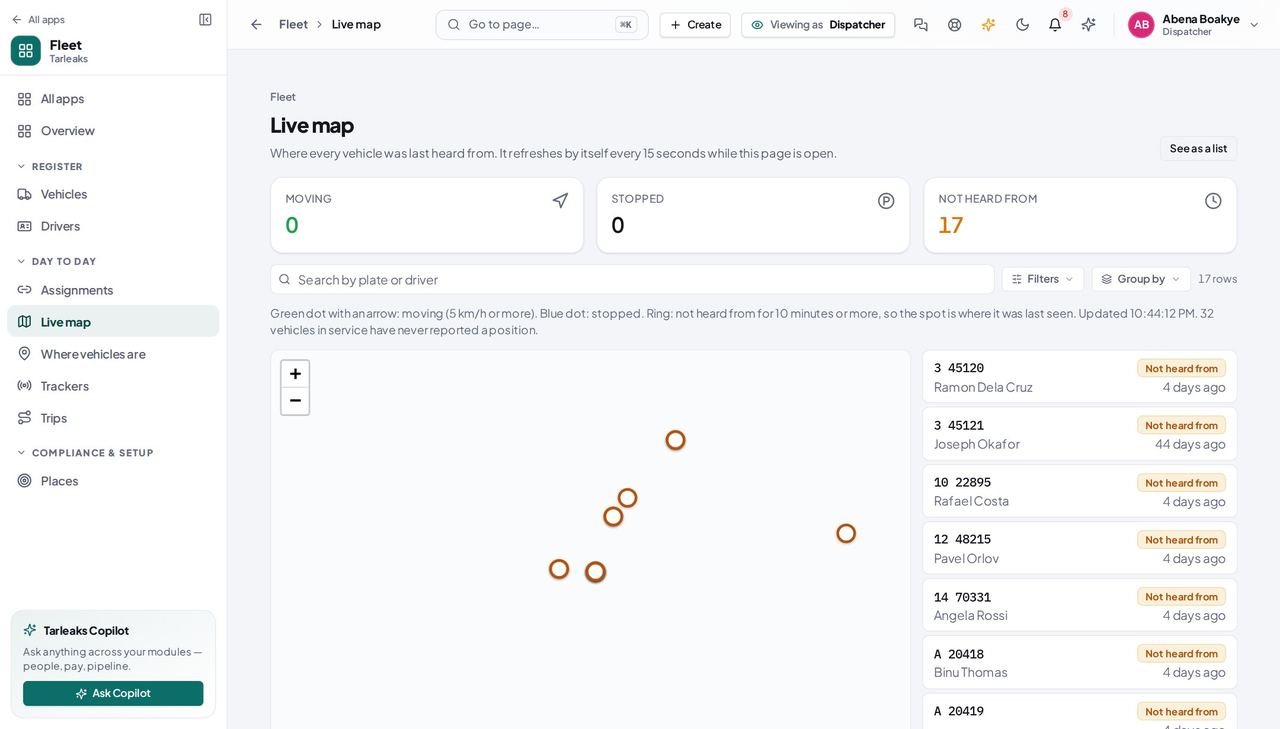
You should see A green dot with an arrow is moving, a blue dot is stopped, a ring has not been heard from for ten minutes or more. The page refreshes itself every 15 seconds.
Watch out A vehicle that has never reported is not on the map; the line under the tiles says how many there are.
Worth knowing 'No map background' means your fleet manager has not set a map server yet: the dots are still in the right place relative to each other, on a plain background.
What a dispatcher cannot do #
Where Fleet » Vehicles » a plate
- Sidebar » Vehicles.
- Open any vehicle.
- Look along the buttons at the top, and at the row of tabs.
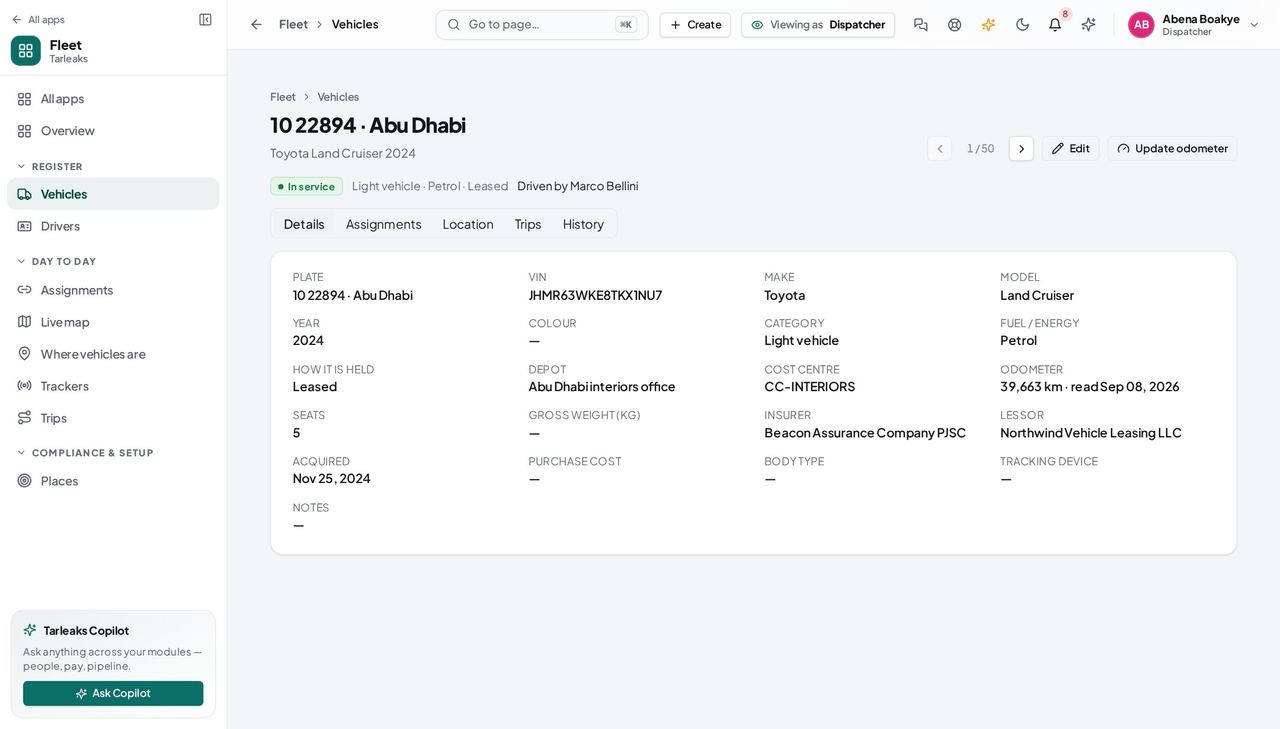
You should see None of them are there. You can edit a vehicle and update its odometer; you cannot decide that it is off the road, that it has left the fleet, or what paperwork it carries — and there is no Fleet settings in your menu. Those are absent rather than present-and-refusing, so you never find out by being turned away after filling a form.
Watch out You CAN edit a vehicle and update its odometer. Use both — an odometer recorded at every handover is what makes the cost figures usable later.
Worth knowing If a vehicle needs to come off the road, the fleet manager is the person — and the fastest thing you can do is end its handover so nobody takes it out in the meantime.
Use cases — the work, step by step
Each one is a sequence somebody actually performs, with the screen behind every step. Every screen here was opened in the product as this role before it was published.
dailyWho is driving what, this morning #
The only question a dispatcher is asked all day. Two screens answer it: who is holding a vehicle right now, and which vehicles nobody is responsible for.
Start on the hub. It counts what is in service, what is off the road, and how many vehicles in service nobody is driving — the last one is the number you can do something about.
Fleet » Overview — verified: the page says “Nobody driving”; no “Expired paperwork” anywhere on the page; no “Expiring in 30 days” anywhere on the page Open Assignments and read who is holding what. One vehicle has one driver at a time; one driver may hold several vehicles.
Fleet » Assignments — verified: 25 row(s) listed; the page says “Held right now”; the page says “Assignment type” Filter to what is held right now. The filter is written into the address bar, so this exact view survives a refresh and can be sent to somebody else as a link.
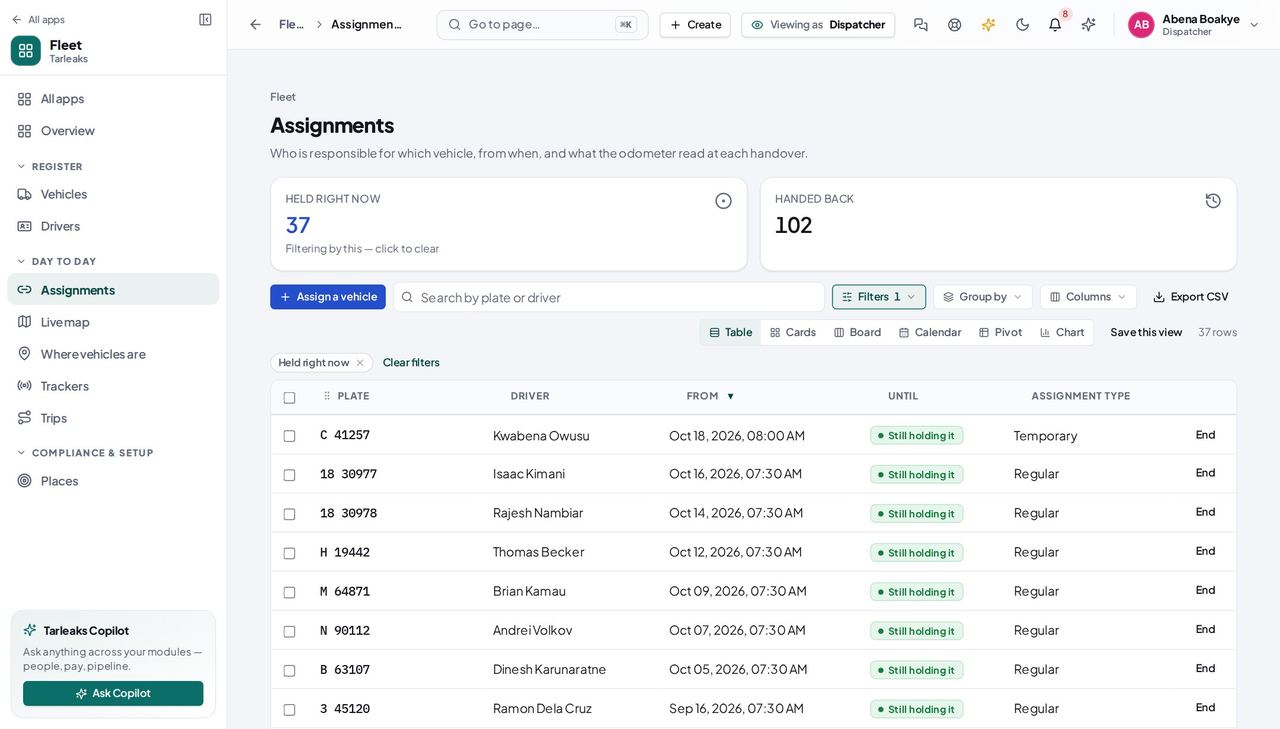
Fleet » Assignments » Held right now — verified: the page says “Held right now”; 25 row(s) listed
dailyHand a vehicle over to a driver #
A handover is the moment responsibility moves. Everything afterwards — who had the vehicle on a date, what the odometer read, who answers for a toll when tolls arrive — is read off this one record.
Check the driver first: what licence class they hold and when it expires. An expired licence is a hard stop, not a warning, and no setting turns that off.
Fleet » Drivers — verified: 25 row(s) listed; the page says “Licence class”; the page says “Vehicles held”; the control is offered Open the handover form. Pick the vehicle, pick the driver, write the handover note — fuel level, existing damage, what was in the cab — and attach the signed sheet. If the dialog warns that the driver already holds as many regular vehicles as allowed, hand this one over as Temporary or end one of theirs first.
Fleet » Assignments » Assign a vehicle — verified: the page says “A vehicle has one driver at a time”; the page says “temporary and pool handovers never count”; the page says “Signed handover sheet”; the control is offered; the control is offered Check it landed on the register. The row shows the driver, the date it was handed over, the opening odometer and “Still holding it” where the hand-back date will go.
Fleet » Assignments — verified: 25 row(s) listed; the page says “Held right now”; the page says “Assignment type”
monthlySomebody is leaving — take the keys back #
An open handover on a person who no longer works here is the one record that quietly ruins everything downstream: the vehicle cannot be given to anybody else, and it still points at them.
Find their open handover on the register. Search by their name — the search reads the driver and the plate, not only what the table happens to be showing.
Fleet » Assignments — verified: 25 row(s) listed; the page says “Held right now”; the page says “Assignment type” End it, and record the odometer as it reads on the dashboard right now. It refuses a closing reading lower than the opening one, and it refuses a hand-back dated before the hand-over.
Fleet » Assignments » Held right now » End — verified: the page says “End the handover”; the page says “Odometer at hand-back” Check it moved to Handed back. The closed row keeps both dates and both readings — which is exactly what will attribute a toll or a fine to the right person once those arrive. They are not in this release, so today a fine that lands next month is matched by hand against these dates.
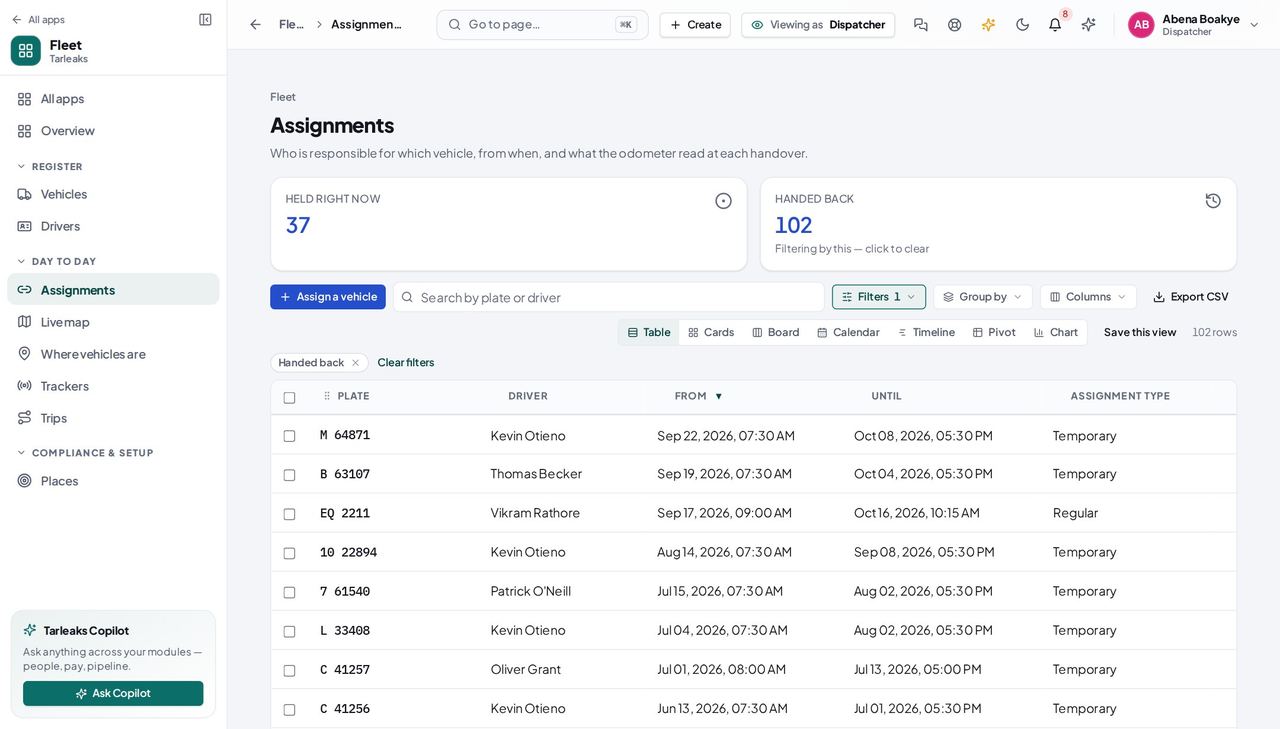
Fleet » Assignments » Handed back — verified: the page says “Handed back”; 25 row(s) listed Then ask the fleet manager to take them off the roster. You can add a driver and correct their details, but archiving one is not yours — and neither is the vehicle's paperwork or the module's settings.
Fleet » Vehicles » a plate — verified: the action is not offered to this role; the action is not offered to this role; the action is not offered to this role; no “Record disposal” anywhere on the page; no “Fleet settings” anywhere on the page
You decide who drives what. Whether a vehicle is legal to drive, how long its paperwork is kept, and how the module behaves are the fleet manager's decisions — which is why those screens are not in your menu rather than in it and refusing.
Workshop Manager
See which vehicles cannot work, and which are about to stop.
Reads the fleet and what is off the road. The workshop's own screens — jobs, servicing, inspections, tyres — are not built yet.
What you will be able to do
- Read the fleet at a glance: in service, off the road, nobody driving
- See what expires in the next 90 days, vehicle by vehicle
- Look up any vehicle — plate, make, model, VIN, odometer, depot
What this role can and cannot do
| Can | Cannot |
|---|---|
|
|
3 steps, each one carried out in the product on .
What your sign-in can do #
Where Your name, top right » Profile
- Open your organisation's address in the browser — it looks like yourorganisation.tarleaks.com.
- Type the e-mail address your administrator set up for you, then your password.
- You land on the app launcher: a grid of the apps your organisation uses.
- Click the Fleet tile.
- Click your name, top right.
- Choose Profile.
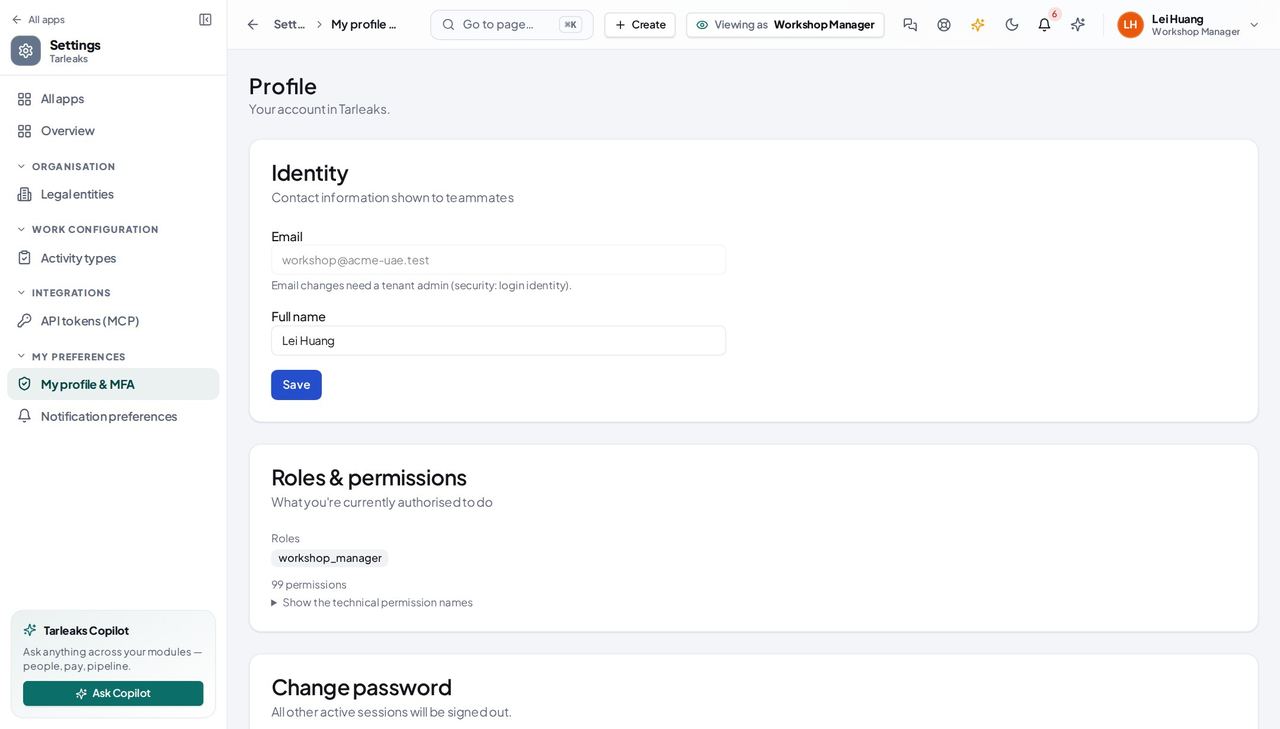
You should see Today: the fleet at a glance and the vehicle register, read-only. Your sign-in also allows work orders, service schedules, inspections, defects and tyres — those screens are a later release and are not built yet, so this guide covers only what actually answers.
What stops a vehicle working tomorrow #
Where Fleet » Overview
- Fleet opens on Overview.
- Click 'Off the road' to see the vehicles that cannot be worked.
- Click a line in 'What stops a vehicle working tomorrow' to open that vehicle.
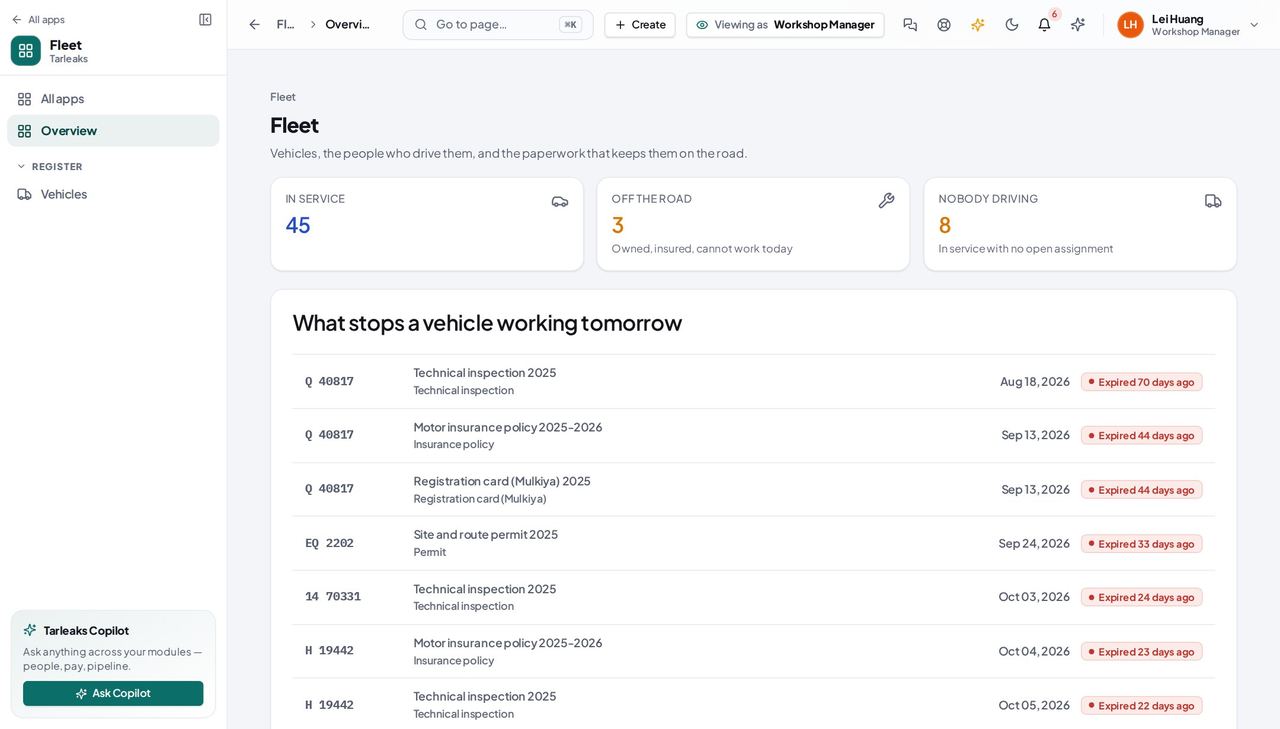
You should see 'Off the road' is your number: those vehicles are owned, insured and costing money while they cannot be worked. The list below it is the other reason a vehicle stops — paper, not parts — so you can see a van whose inspection lapses on Thursday before somebody plans a job around it.
Watch out 'Licences expiring' and 'Licences expired' count DRIVERS. The roster behind them is not open to this role, so read the numbers and tell the fleet manager rather than clicking through to a screen you cannot open.
Worth knowing There are no licence tiles here on purpose: they count drivers, and the driver roster is not open to the workshop. If a driver's licence is the reason a vehicle cannot go out, your fleet manager sees it on their own overview.
The vehicles, and what the workshop cannot yet do here #
Where Fleet » Vehicles
- Sidebar » Vehicles.
- Search by plate, make, model or VIN.
- Sort by Odometer, or group by Depot.
- Columns turns VIN and 'Expired papers' on.
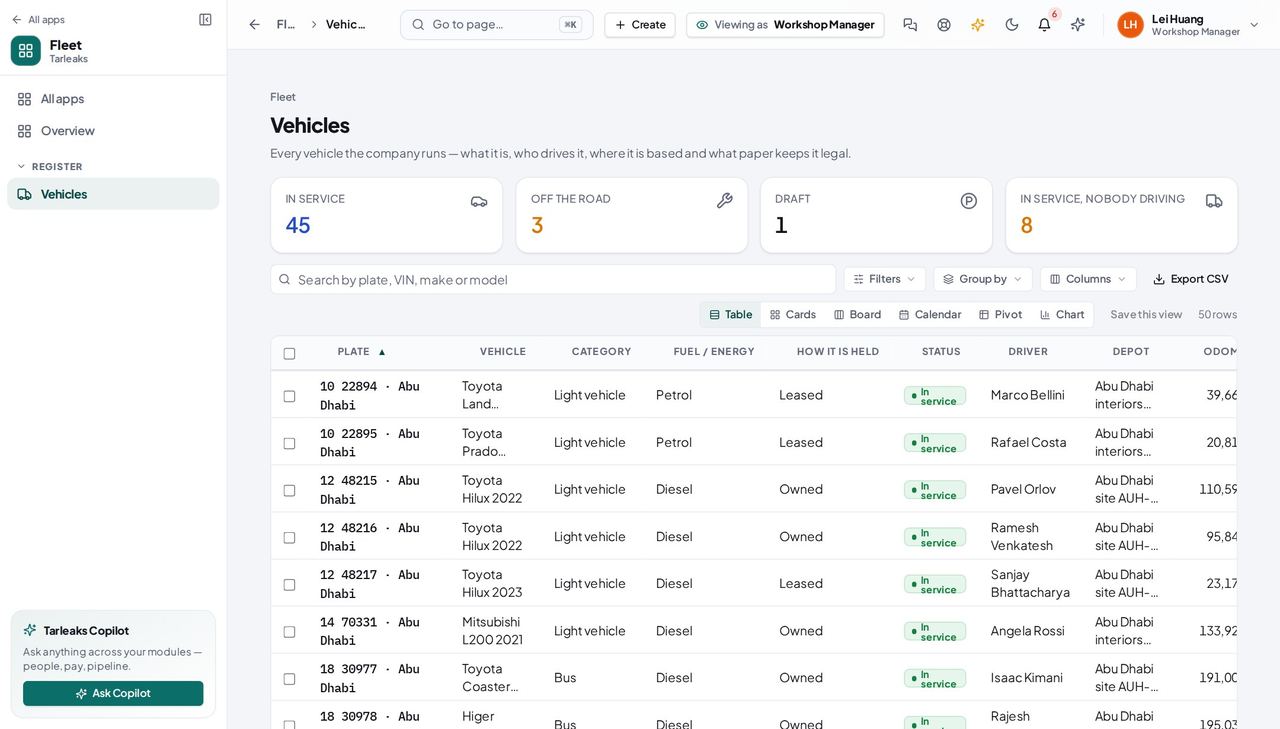
You should see You can find and read any vehicle in the fleet — its category, fuel, odometer, depot, insurer and how it is held. You cannot add, edit or archive one, and there is no way to record a job, a service, an inspection or a defect against it: those are a later release, not a permission somebody forgot. Until they ship, this screen's honest use is confirming which vehicle you have, and its odometer.
Watch out Nothing on this screen records what you did. Keep using your own job sheets until work orders are released; there is no hidden place in the product for them.
Worth knowing Two columns are off by default and worth turning on from the Columns menu: VIN, and 'Expired papers'.
Use cases — the work, step by step
Each one is a sequence somebody actually performs, with the screen behind every step. Every screen here was opened in the product as this role before it was published.
dailyThe morning list: what is standing still #
A workshop plans around two facts — which vehicles cannot work today, and which will stop next because a certificate runs out. The module gives you both; it does not yet give you anywhere to record the work itself.
Open the hub. “Off the road” is the bay list, and “What stops a vehicle working tomorrow” is the technical inspections and permits closest to expiry — the jobs to book before somebody is stopped at a checkpoint.
Fleet » Overview — verified: the page says “What stops a vehicle working tomorrow”; the page says “Off the road”; no “Licences expired” anywhere on the page; no “Licences expiring” anywhere on the page; no “Expired paperwork” anywhere on the page Open the register and filter to Off the road. Each row gives you the plate, make, model, depot and odometer — what you need before a vehicle arrives in the bay. Job cards, parts, labour hours, service schedules, defects and tyres are not in this release, so your own job sheet is still the record of the work; and taking a vehicle off the road is the fleet manager's to do, not yours.
Fleet » Vehicles — verified: 25 row(s) listed; no “Add vehicle” anywhere on the page; no “Import from a spreadsheet” anywhere on the page
dailyLook a vehicle up before it comes into the bay #
Reading the plate, the model year and the odometer off the register before you open the bonnet is faster than asking the driver, and it is the same number the fleet manager is looking at.
Check what your sign-in can reach, so you know what to ask somebody else for. Today it is the fleet summary and the vehicle register, read-only.
Your name, top right » Profile — verified: the page says “Roles & permissions” Search the register by plate, VIN, make or model. Open the vehicle for its full details: category, fuel or energy type, how it is held, its depot, its cost centre and the last odometer reading with the date it was taken.
Fleet » Vehicles — verified: 25 row(s) listed; no “Add vehicle” anywhere on the page; no “Import from a spreadsheet” anywhere on the page
This is the short guide on purpose. The workshop's own screens — service schedules, work orders, inspections, defects and the tyre register — are a later release and are not built, so nothing below pretends they are. What you have today is the register and the compliance picture: enough to know which vehicle to pull in, not yet enough to record what you did to it. The gap inventory that ships with these guides lists each of those by name and by release.
Technician
Look up the vehicle you were sent to, and read it back to yourself.
The bay. Looks up the vehicle they were sent to and nothing else; the job card itself is a later phase.
What you will be able to do
- Find a vehicle by plate, make, model or VIN
- Read what it is: category, fuel, odometer, depot, insurer
What this role can and cannot do
| Can | Cannot |
|---|---|
|
|
2 steps, each one carried out in the product on .
What your sign-in can do #
Where Your name, top right » Profile
- Open your organisation's address in the browser — it looks like yourorganisation.tarleaks.com.
- Type the e-mail address your administrator set up for you, then your password.
- You land on the app launcher: a grid of the apps your organisation uses.
- Click the Fleet tile.
- Click your name, top right.
- Choose Profile.
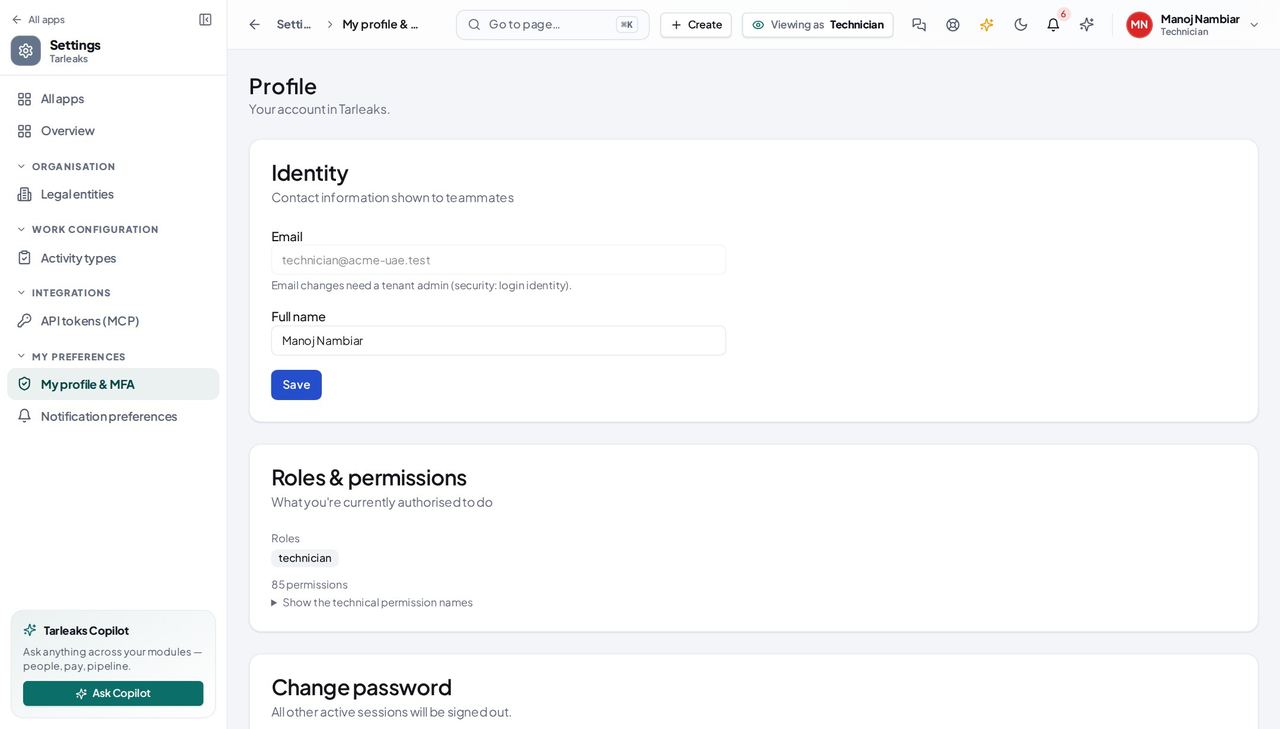
You should see One thing, today: look up a vehicle. Your sign-in already allows work orders, inspections, defects and tyre fitments — none of those screens exist yet, which is why this guide is two steps long instead of pretending otherwise.
The vehicle you were sent to #
Where Fleet » Vehicles » a plate
- Sidebar » Vehicles.
- Type the plate — or the VIN from the windscreen — into the search box.
- Click the plate.
- Read the Details tab.
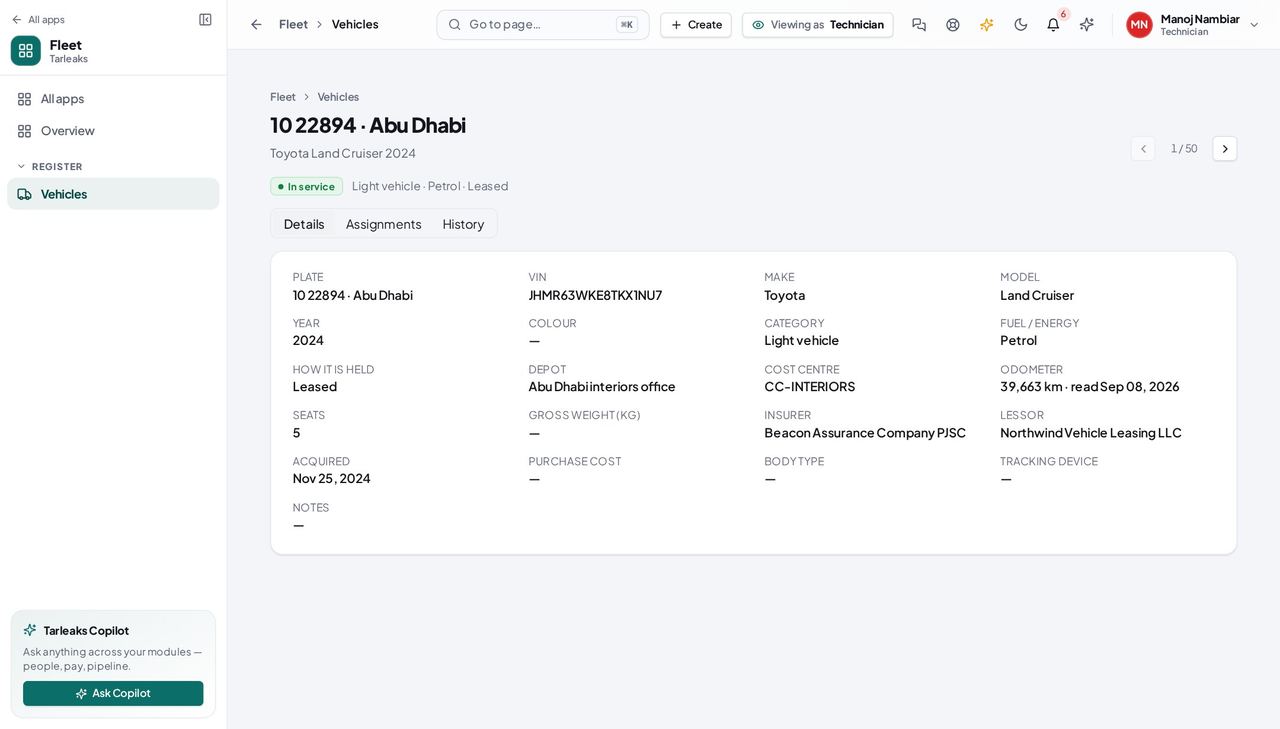
You should see Enough to be sure you are working on the right vehicle: plate and region, VIN, make, model, year, colour, category, fuel, odometer, depot and who insures it. Everything here is read-only for you — there is no Edit, no Update odometer and no Documents tab — because recording what you DID is the workshop release that has not shipped.
Watch out Everything is read-only. If something here is wrong — the odometer, the colour, the depot — tell the fleet manager; there is no Edit for you, and that is on purpose rather than a fault.
Worth knowing The VIN is not shown in the list by default, but searching for it works — type it into the search box and the vehicle comes back.
Use cases — the work, step by step
Each one is a sequence somebody actually performs, with the screen behind every step. Every screen here was opened in the product as this role before it was published.
dailyIdentify the vehicle you were sent to #
A technician needs to be certain which vehicle is in front of them — two white Hiluxes in one yard is how the wrong one gets serviced. The register answers that from the plate or the VIN.
Check what your sign-in reaches, so you know what to ask somebody else for. Today it is the vehicle register: the fleet-wide summary, the roster of drivers, the handovers and the paperwork are not yours, and the screens where the work itself would be recorded are not built for anybody yet.
Your name, top right » Profile — verified: the page says “Roles & permissions” Find the vehicle by plate or VIN and read it: make, model, year, colour, fuel or energy type, depot and the last odometer reading. Where the job itself gets recorded — the work order, the parts, the hours, the tyre fitment, the defect you found — is not built yet, so it stays on your own job sheet and goes to the workshop manager.
Fleet » Vehicles » a plate — verified: the page says “VIN”; the page says “Odometer”; no “Update odometer” anywhere on the page; the action is not offered to this role
Two steps, because two steps is honestly all there is for you today. Work orders, the jobs assigned to you, inspection forms, defect reports and tyre fitments are a later release: your sign-in already allows them, and the screens do not exist yet. Until they do, record what you did the way your workshop does now, and use this to check you are looking at the right vehicle. The gap inventory that ships with these guides lists each missing screen and the release it belongs to.
Driver
Know the vehicle you are responsible for is legal to drive.
Self-service, scoped to one person: the vehicle handed to them, its paperwork, and when their own licence runs out.
What you will be able to do
- See every vehicle handed to you, and since when
- See when your own licence and medical run out
- See the registration, insurance and permits of the vehicle you hold
What this role can and cannot do
| Can | Cannot |
|---|---|
|
|
5 steps, each one carried out in the product on .
What your sign-in can do #
Where Your name, top right » Profile
- Open your organisation's address in the browser — it looks like yourorganisation.tarleaks.com.
- Type the e-mail address your administrator set up for you, then your password.
- You land on the app launcher: a grid of the apps your organisation uses.
- Click the Fleet tile.
- Click your name, top right.
- Choose Profile.
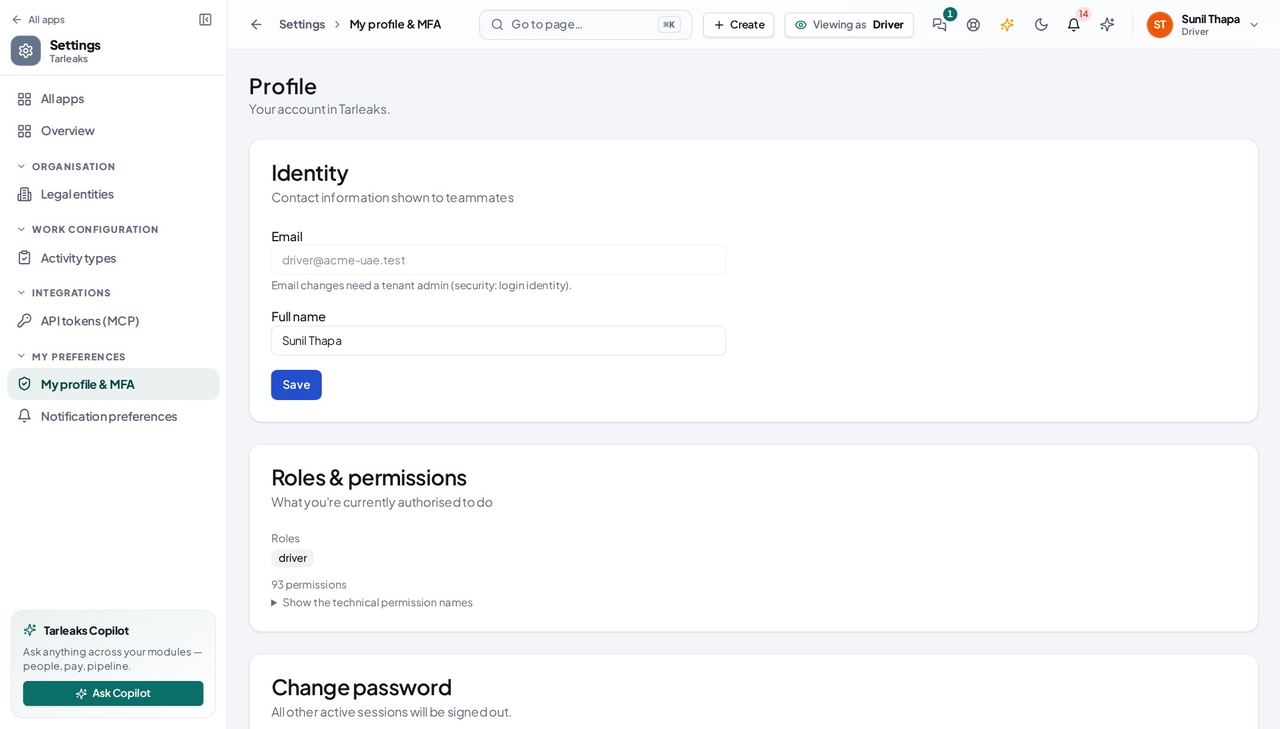
You should see Your own vehicle, your own licence, and the paperwork of the vehicle you hold. Nothing about the rest of the fleet and nothing about other drivers — that is the design of the role, not a screen that failed to load.
My vehicle #
Where Fleet » My vehicle
- Open Fleet — you land on My vehicle.
- Read the plate, the make and model, and when it was handed to you.
- Open the signed handover sheet from the card, if one is attached.
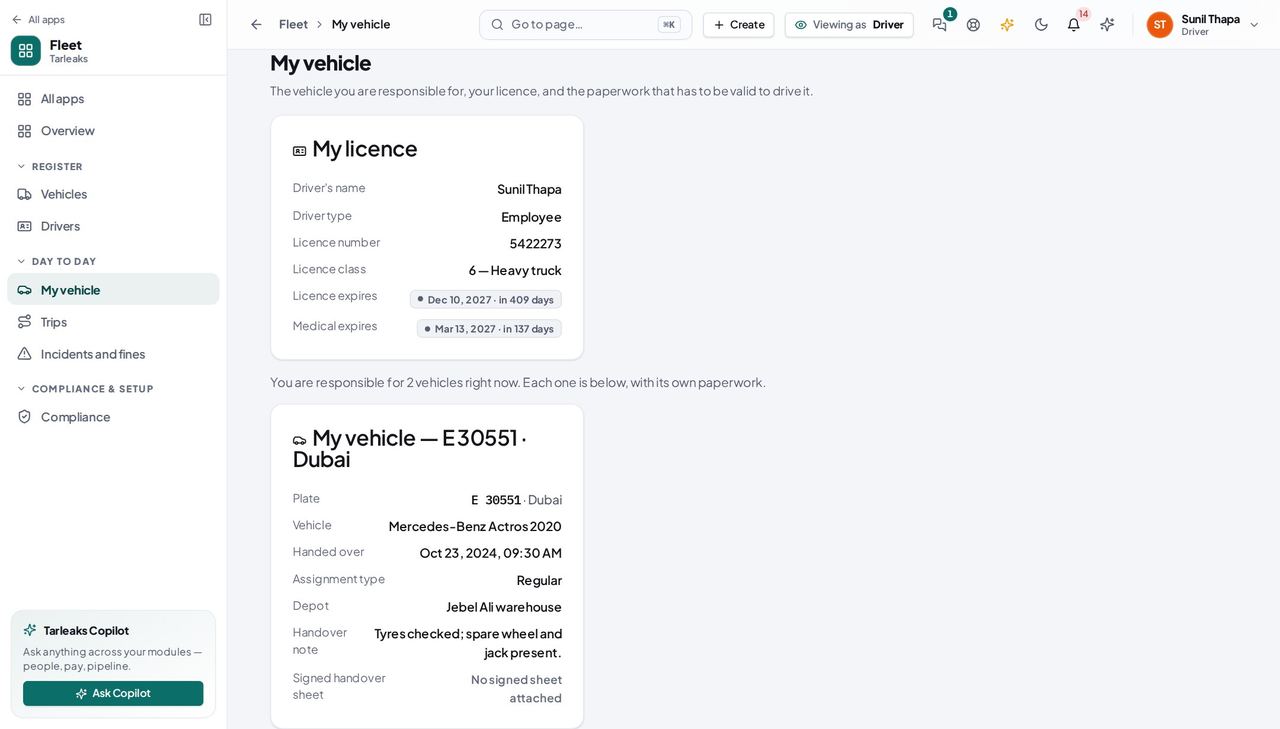
You should see The vehicles you are responsible for, and since when. If you are holding two — your own van and a vehicle you are covering on a temporary handover — the page says how many and each gets its own card, titled by its plate, with its own paperwork underneath. When a vehicle is handed to you or taken back, you are sent a notice that opens this page.
Watch out If the page says you are not set up as a driver, nothing is broken and nothing you can do will fix it. Ask your fleet manager to add you under Fleet, Drivers.
Worth knowing If this page says you are not set up as a driver, your login has not been linked to a driver record. Ask your fleet manager to add you under Fleet, Drivers — it is one step for them, and this page fills in straight away.
My licence and when it expires #
Where Fleet » My vehicle » My licence
- Open My vehicle.
- Read the My licence card at the top.
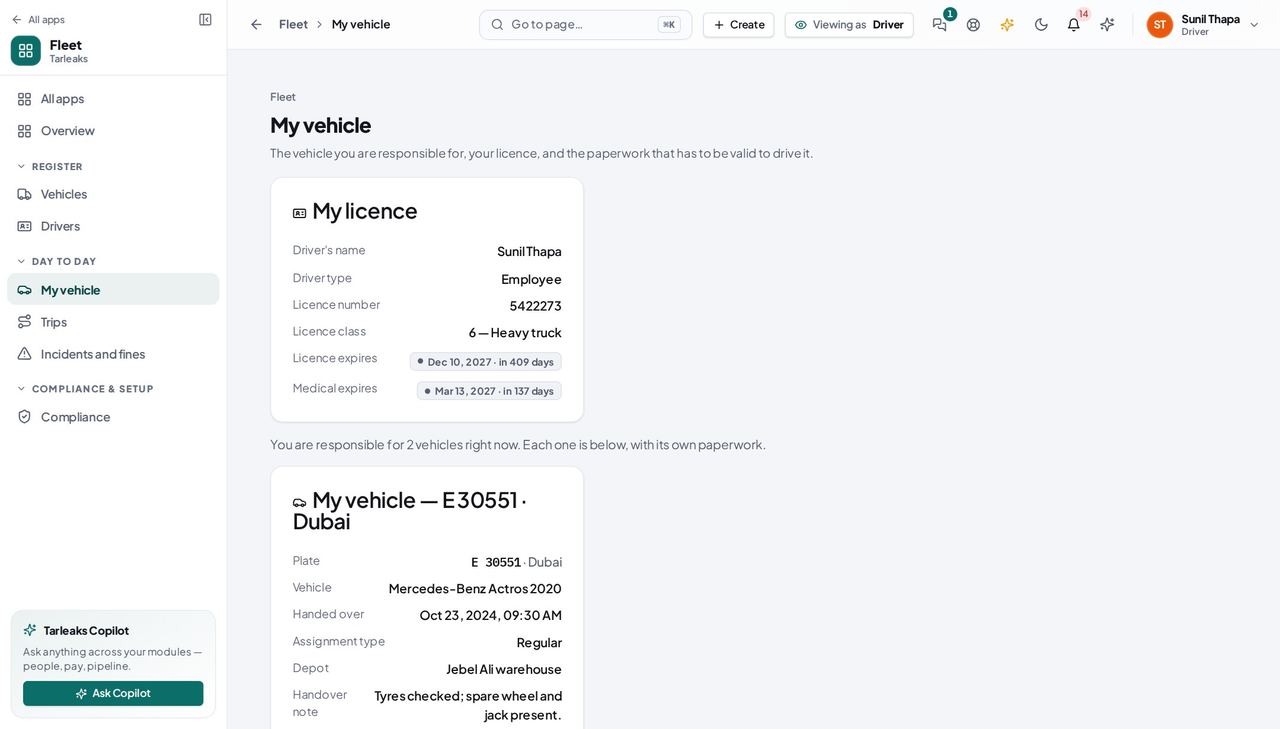
You should see Your licence number, what class it is, and the two dates that decide whether you may drive at all. The badge is colour-coded on purpose: inside 30 days is urgent, because the day a licence lapses the system stops letting anyone hand you a vehicle.
Watch out A lapsed licence stops anybody handing you a vehicle, so send the renewal to your fleet manager before the date, not after.
Worth knowing You cannot change these yourself. Send the renewed licence to your fleet manager and they update the record — which is also what keeps you off the 'expiring' list they work from.
The paperwork for the vehicle I drive #
Where Fleet » Compliance
- Sidebar » Compliance.
- Read the top line first — it is the paper closest to expiring.
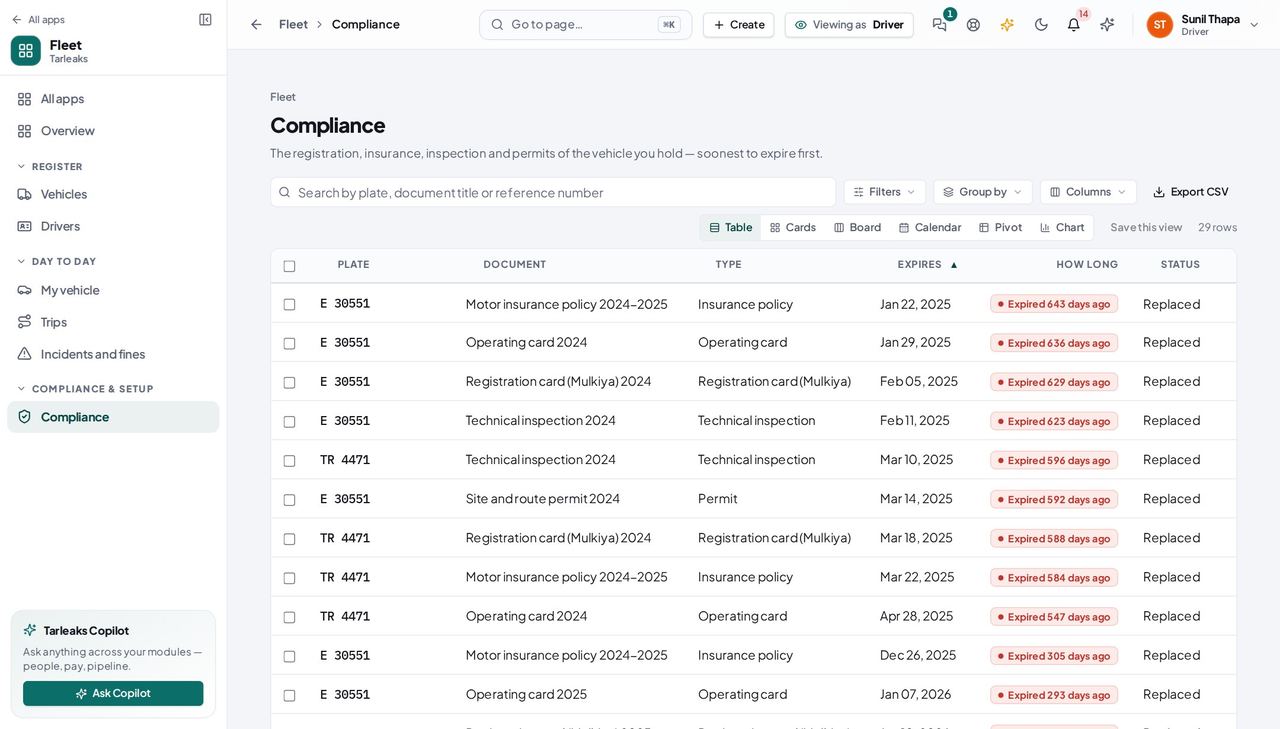
You should see The registration, insurance, inspection and permits of the vehicle you hold — and only that vehicle. Soonest to expire first, so the top line is the one that matters. This is the screen to check before a long trip or a border crossing.
Watch out An empty list is not proof the vehicle is legal — it can also mean nothing has been filed for it. Either way, tell your fleet manager.
Worth knowing The same list, per vehicle, is on the My-vehicle page under 'Documents for …'. If a document is missing or has expired, tell your fleet manager and do not assume the vehicle is in order.
What a driver cannot see #
Where Fleet » Vehicles
- Sidebar » Vehicles.
- Look at how many rows there are, and at what is missing from the top of the page.
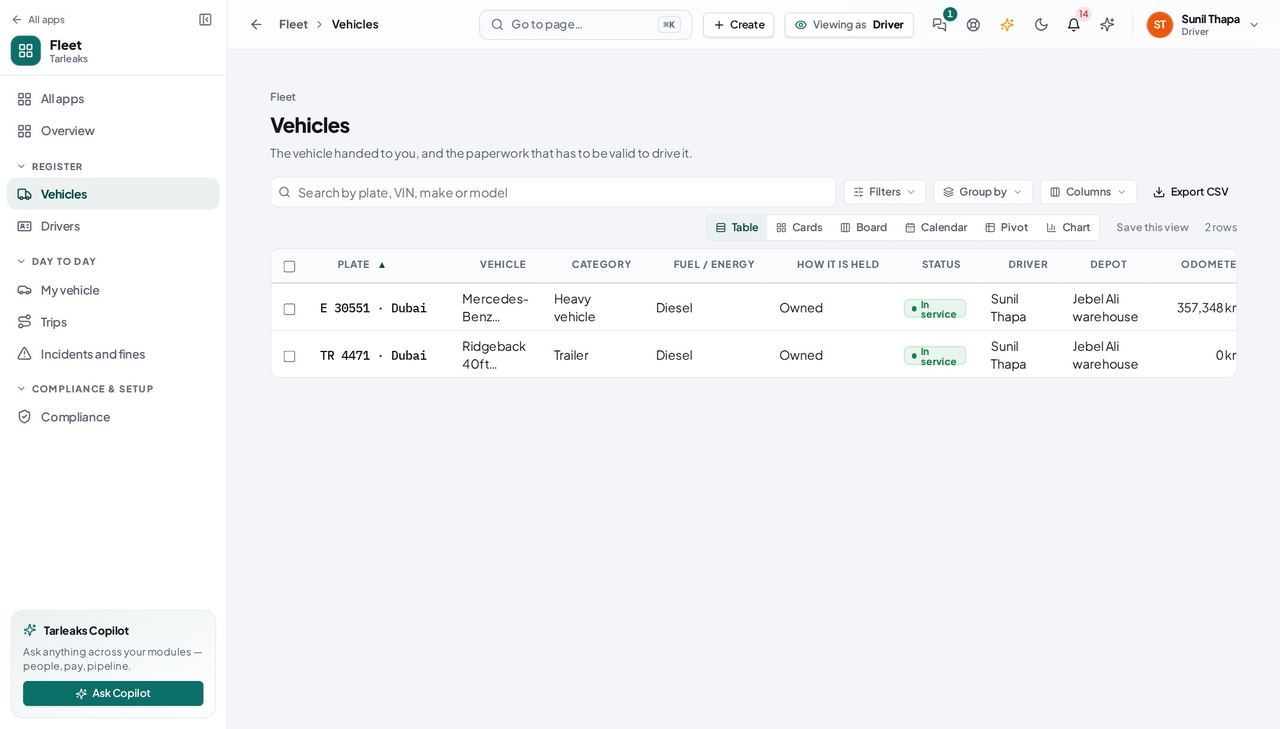
You should see The register shows you ONE vehicle — yours — and none of those controls are on the screen. You are not being refused: the page is built for what a driver needs, which is to know the vehicle handed to you is legal to drive. Other drivers, other vehicles and the settings are not hidden behind a locked button; they are simply not part of this screen.
Watch out A colleague's screen showing dozens of vehicles is not a fault on yours — they hold a role that looks after the whole fleet.
Use cases — the work, step by step
Each one is a sequence somebody actually performs, with the screen behind every step. Every screen here was opened in the product as this role before it was published.
dailyCheck your vehicle before you take it out #
Two minutes here is the difference between a normal day and being stopped with an expired registration card in a vehicle that is, on paper, your responsibility.
Open My vehicle. It names the plate you are holding, when it was handed to you, which depot it belongs to and the handover note written when you took it.
Fleet » My vehicle — verified: the page says “My vehicle”; the page says “Handed over”; the page says “Signed handover sheet”; the page says “vehicles right now” Read the paperwork for that vehicle. The badge beside each document says how long is left — a red one means it has already expired, and the vehicle should not move until the fleet office has renewed it.
Fleet » Compliance — verified: 25 row(s) listed; the page says “of the vehicle you hold” If something is wrong, report it the way your depot does today — by radio, phone or in person — with the plate and the odometer reading in front of you. The module cannot take a defect report, a fuel receipt or an inspection from you yet.
Fleet » Vehicles — verified: the page says “The vehicle handed to you”; no “Add vehicle” anywhere on the page; no “Import from a spreadsheet” anywhere on the page; no “Fleet settings” anywhere on the page
yearlyMy licence is about to run out #
An expired licence stops you being handed any vehicle at all — it is a hard refusal, not a warning — so the weeks before the date are the only time to deal with it quietly.
Open My licence and read the expiry date and the badge beside it. Your medical expiry is on the same card, and it runs out on its own schedule.
Fleet » My vehicle » My licence — verified: the page says “My licence”; the page says “Licence expires” Renew it, then take the new licence to the fleet office. You cannot change the date yourself — only somebody who keeps the roster can, which is what makes the date on your record worth trusting.
Fleet » Vehicles — verified: the page says “The vehicle handed to you”; no “Add vehicle” anywhere on the page; no “Import from a spreadsheet” anywhere on the page; no “Fleet settings” anywhere on the page
edgeWhy can I not see the rest of the fleet? #
Because you are not meant to. A driver sees their own record, their own vehicle and its paperwork — and that boundary is the reason the fleet office can put a whole depot's data in one system.
Read what your sign-in can do. It is short on purpose: your own driver record, the vehicle handed to you, and that vehicle's documents.
Your name, top right » Profile — verified: the page says “Roles & permissions” The whole-fleet summary, the register of every vehicle, the roster of other drivers, everybody else's handovers and the module's settings are not in your menu at all. Follow a link to one and the page says plainly that it is not for you — it does not fail, and it does not show you a blank screen either.
Fleet » Vehicles — verified: the page says “The vehicle handed to you”; no “Add vehicle” anywhere on the page; no “Import from a spreadsheet” anywhere on the page; no “Fleet settings” anywhere on the page
You see your own vehicles and your own licence, and nothing else — not the rest of the fleet, not other drivers, not the settings. That is the design, not a gap. When a vehicle is handed to you, or taken back, you are sent a notice. What IS a gap: submitting an inspection, reporting a defect, seeing your fuel, your trips or a fine to dispute are all later releases. If the paperwork here looks wrong or missing, tell your fleet manager — do not assume the vehicle is in order.
Safety Officer
See the whole fleet and every licence behind it, and change nothing.
Reads the whole fleet and every driver's licence. Accidents, claims and driver scoring are a later phase.
What you will be able to do
- Read the fleet at a glance, including what cannot work today
- See every driver, what they are licensed for, and when that lapses
- Know which licences run out inside 60 days
What this role can and cannot do
| Can | Cannot |
|---|---|
|
|
3 steps, each one carried out in the product on .
What your sign-in can do #
Where Your name, top right » Profile
- Open your organisation's address in the browser — it looks like yourorganisation.tarleaks.com.
- Type the e-mail address your administrator set up for you, then your password.
- You land on the app launcher: a grid of the apps your organisation uses.
- Click the Fleet tile.
- Click your name, top right.
- Choose Profile.
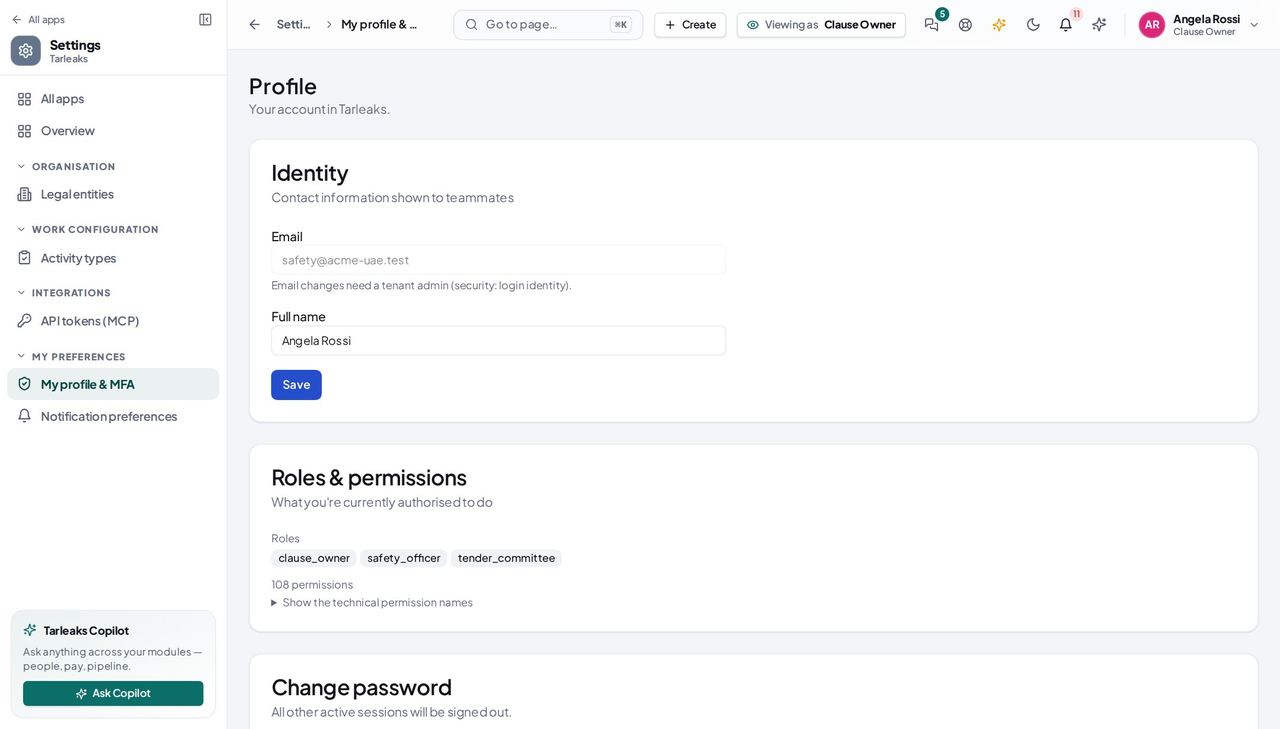
You should see Read the fleet and read the roster — and change neither. Incidents, claims and driver scoring are allowed by your sign-in and are a later release, so what follows is only what answers today.
The fleet at a glance #
Where Fleet » Overview
- Fleet opens on Overview.
- Click 'Off the road', 'Nobody driving', 'Licences expiring' and 'Licences expired' in turn.
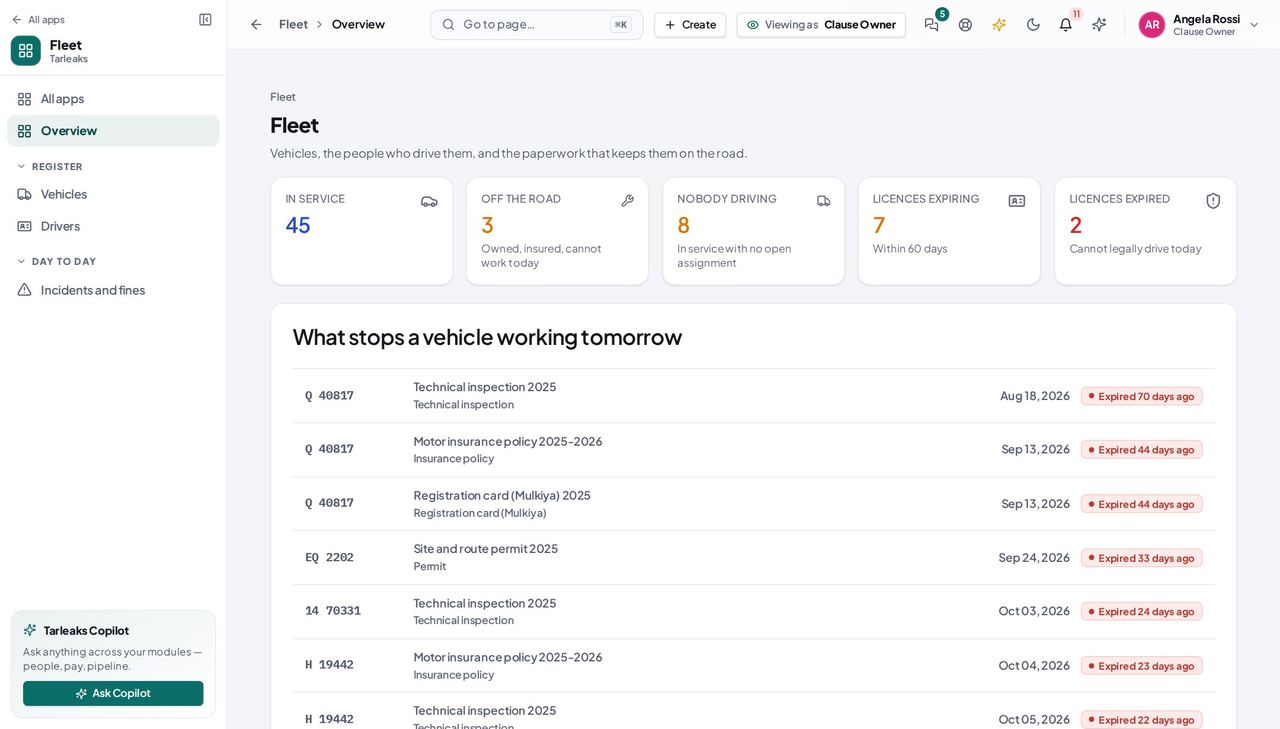
You should see Four of these numbers are safety questions wearing fleet clothes: a vehicle that cannot work, a vehicle nobody is accountable for, a driver whose licence is about to lapse, and a driver who cannot legally drive today. The paperwork tiles are not yours — keeping documents in date belongs to the fleet manager — so they are absent rather than shown and unclickable.
Watch out No paperwork tiles: an expired insurance policy is the fleet manager's to chase. Read what you need from the vehicle's own record instead.
The drivers and their licences #
Where Fleet » Drivers
- Sidebar » Drivers.
- Click 'Licence expiring in 60 days', then 'Licence expired'.
- Columns » Medical expires.
- Click a name to read the driver's record.
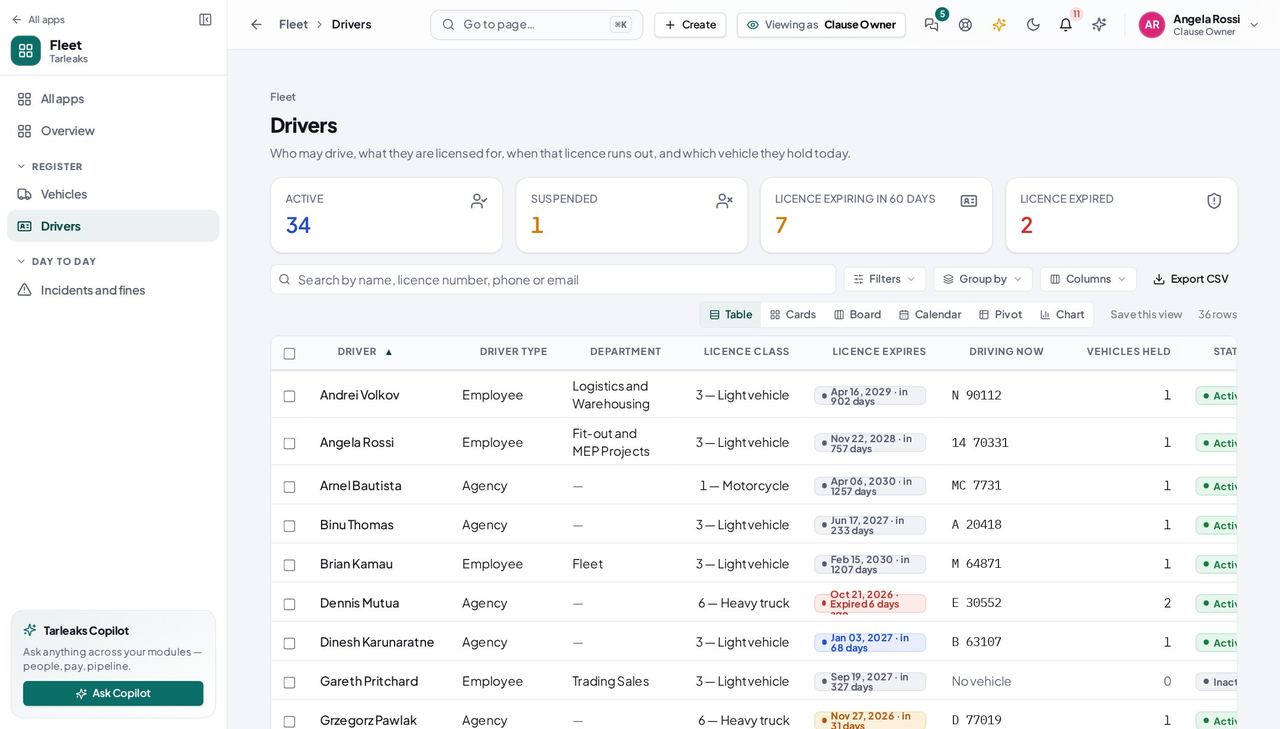
You should see Every driver, what they are licensed for, when it lapses, and which vehicle they are holding. Expired and expiring are two separate tiles on purpose: a lapsed licence is a person who must not be driving today, while a 60-day window is a reminder to chase. You can read all of it and change none of it — there is no Promote an employee button in this role.
Watch out A driver in that list who still shows a plate under 'Driving now' is exactly the case to raise: the handover is open and the licence is not valid. The expiry check sends a notice about it to the people who hand vehicles over — you are not one of them, so raise it with the fleet manager.
Worth knowing The list you build is in the address bar, so 'the eleven drivers whose licence lapses inside 60 days' can be sent to somebody as a link rather than a screenshot.
Use cases — the work, step by step
Each one is a sequence somebody actually performs, with the screen behind every step. Every screen here was opened in the product as this role before it was published.
monthlyThe monthly licence review #
A driver with a lapsed licence is the single cheapest safety finding to prevent and the most expensive one to be caught with. It is one screen and it takes five minutes.
Start on the hub: “Licences expiring” counts the drivers whose licence runs out inside 60 days. Click it and it opens the roster narrowed to exactly those people — the tile and the list are the same query.
Fleet » Overview — verified: the page says “In service”; the page says “Licences expiring”; the page says “Licences expired”; no “Expired paperwork” anywhere on the page Read the roster. Each driver shows their licence class, what that class covers, when it expires, when their medical expires and which vehicle they are driving today.
Fleet » Drivers — verified: 25 row(s) listed; the page says “Licence expires”; no “Promote an employee” anywhere on the page Name the ones who need chasing to the fleet manager. You read the roster; you do not change a licence date or suspend a driver, and that separation is what makes your review independent of the record you are reviewing.
Your name, top right » Profile — verified: the page says “Roles & permissions”
quarterlyBefore an inspection: is every vehicle on the road roadworthy? #
An inspector asks two questions — are the vehicles legal, and are the people driving them licensed for what they are driving. Today you can answer both from the register; you cannot yet show them an incident file, because that part is not built.
Read the fleet at a glance: how many vehicles are in service, how many are off the road, and how many are in service with nobody driving them. The technical inspections closest to expiry are listed underneath.
Fleet » Overview — verified: the page says “In service”; the page says “Licences expiring”; the page says “Licences expired”; no “Expired paperwork” anywhere on the page Open the register and read what each vehicle is: category, fuel or energy type, depot and status. A vehicle showing “Off the road” is not a finding — it is one that has been taken out of service deliberately, which is the outcome you want.
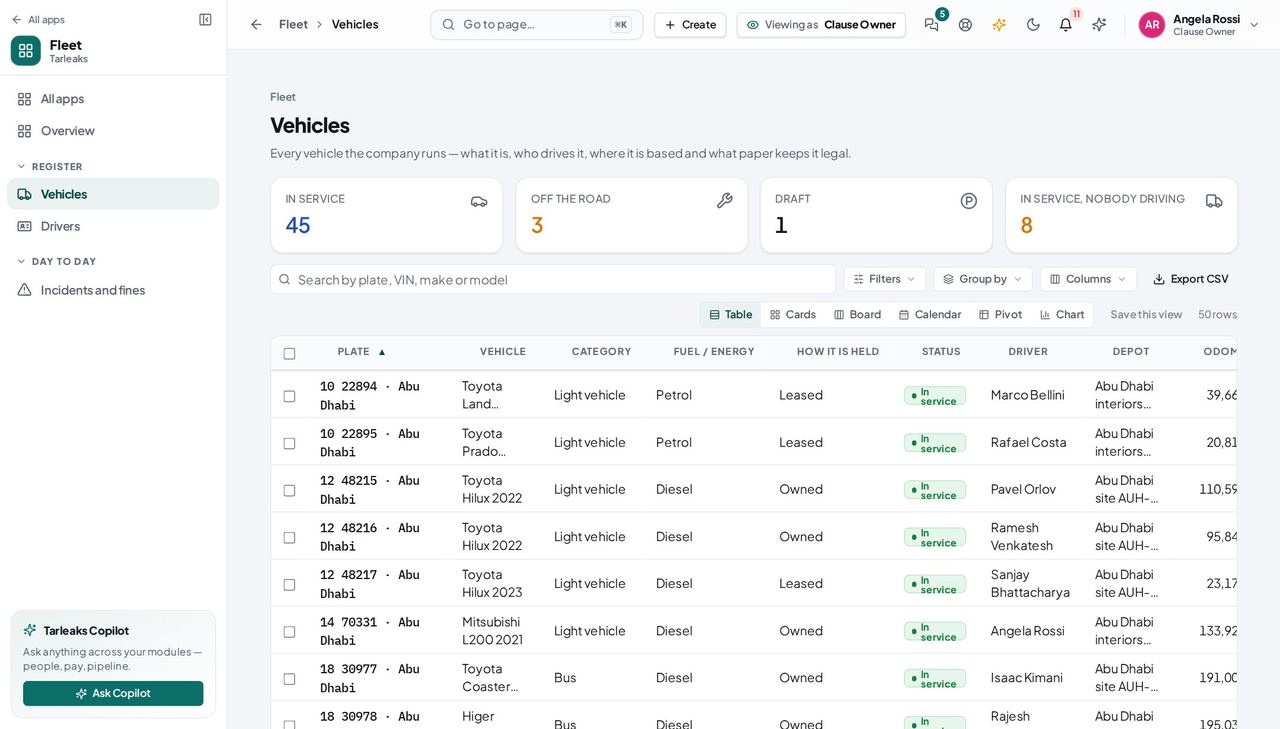
Fleet » Vehicles — verified: the page says “Plate”; 25 row(s) listed Cross-check the drivers against the categories they hold. Where you would want an incident record, a claim or a driver score, there is nothing to show yet — those are a later release, so keep recording them the way you do now.
Fleet » Drivers — verified: 25 row(s) listed; the page says “Licence expires”; no “Promote an employee” anywhere on the page
You can read the fleet and the roster; you cannot hand a vehicle over, change a vehicle or open the settings. Incidents, claims and driver scoring — the heart of this role — are a later release: the permissions are already yours and the screens are not built, so this guide covers only what really answers today.