Accountant — Insights guide
Read the finance reports, take them out when you need a file, ask your own questions and have reports sent to the people who need them, on time and in their language.
Reads the finance reports, takes them out as a file, asks its own questions and sends reports on a schedule to the people who need them.
What you will be able to do
- Find the reports open to you, and the ready-made reports the company could add
- Read a report, and take it or one of its tiles out as a PDF, Excel or CSV file
- Ask your own questions, with dates that roll forward such as the next 30 days
- Send a report on a schedule to colleagues, in the file and language you choose
- See who was left out of a send and why, and every file that left Insights
- Find only your own questions in the run history
What this role can and cannot do
| Can | Cannot |
|---|---|
|
|
12 steps, each one carried out in the product on .
Where Insights starts #
Where App launcher » Insights
- Open your company's address (yourcompany.tarleaks.com) and sign in.
- Open the app launcher and choose Insights.
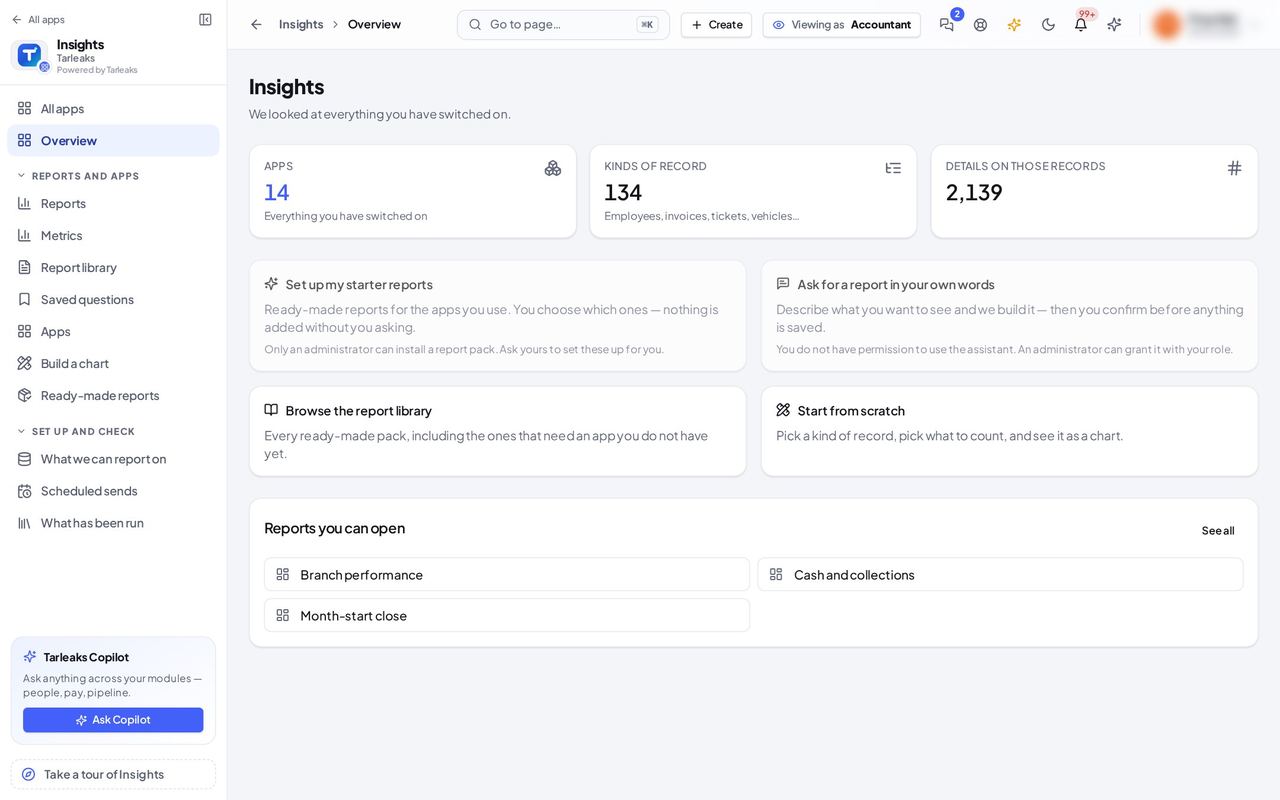
You should see Four ways in: set up your starter reports, ask for a report in your own words, browse the report library, or start from scratch. Below them, Reports you can open. A way in that is not yours to use is greyed out and says who can, instead of failing when you press it.
Watch out Set up my starter reports and Ask for a report in your own words are greyed out for you: setting up a pack is for an administrator, and the assistant needs a permission an administrator grants with your role.
Worth knowing Browse the report library opens the ready-made reports right on this page; See all ready-made reports takes you to the full list.
Ready-made reports, grouped by who they are for #
Where Insights » Ready-made reports
- Open your company's address (yourcompany.tarleaks.com) and sign in.
- Open the app launcher and choose Insights.
- Press See all ready-made reports.
| Field | What to put in it |
|---|---|
| Where you stand | Ready to set up, Already set up, Needs another app, or Not yours to set up. |
| Reads from | The apps and records the pack's tiles read. |
| See what it does | Opens the pack's dashboards and tiles; reading it changes nothing. |
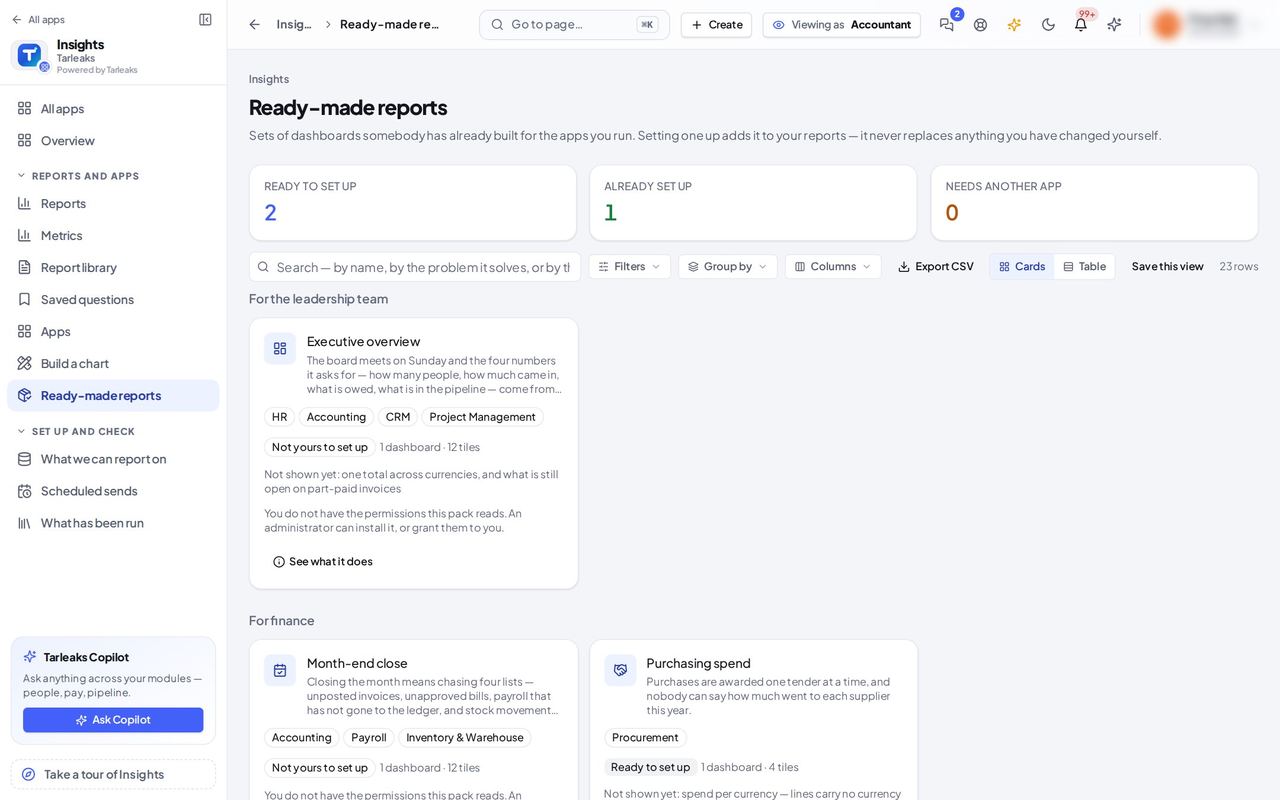
You should see One card per pack, grouped by who it is for: the leadership team, finance, sales, HR and operations. Each card says what it reads from, whether you already have it, and See what it does. Setting a pack up puts it in front of everyone, so Set up is only offered to the people who may publish reports.
Watch out A pack marked Shows part of this leaves something out that your access does not cover, and says what.
Worth knowing A pack that reads from an app your company does not use, or from data you cannot see, says so on its card.
What a ready-made report holds #
Where Insights » Ready-made reports » Purchasing spend
- Open your company's address (yourcompany.tarleaks.com) and sign in.
- Open the app launcher and choose Insights.
- Press See all ready-made reports.
- Press See what it does on a pack.
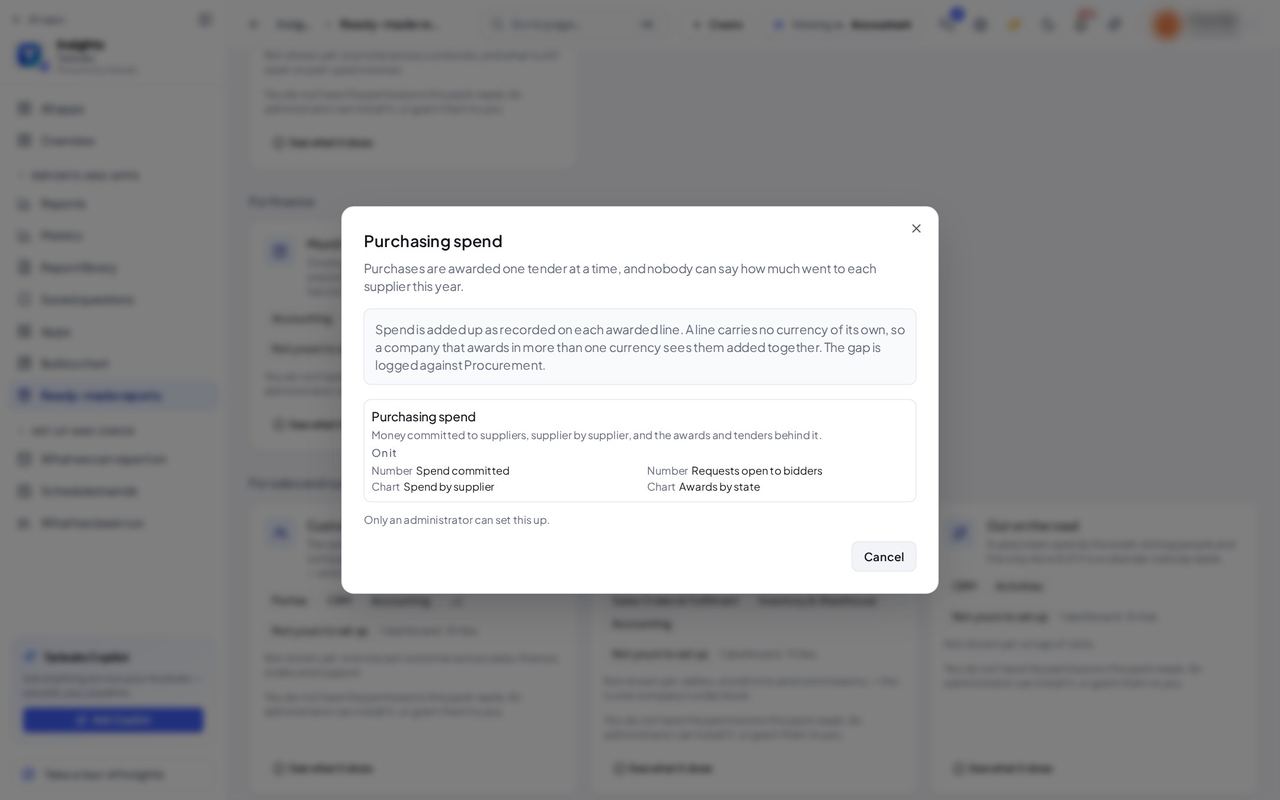
You should see Every dashboard in the pack and every tile on it, with what each tile counts, and who may set it up. Nothing is set up, e-mailed or scheduled by reading this.
The reports you can open #
Where Insights » Reports
- Open your company's address (yourcompany.tarleaks.com) and sign in.
- Open the app launcher and choose Insights.
- In the menu, choose Reports.
| Field | What to put in it |
|---|---|
| Finished? | Ready to use, or Draft while its author is still working on it. |
| Who can open it | Everyone in the company, the people it was shared with, or only its author. |
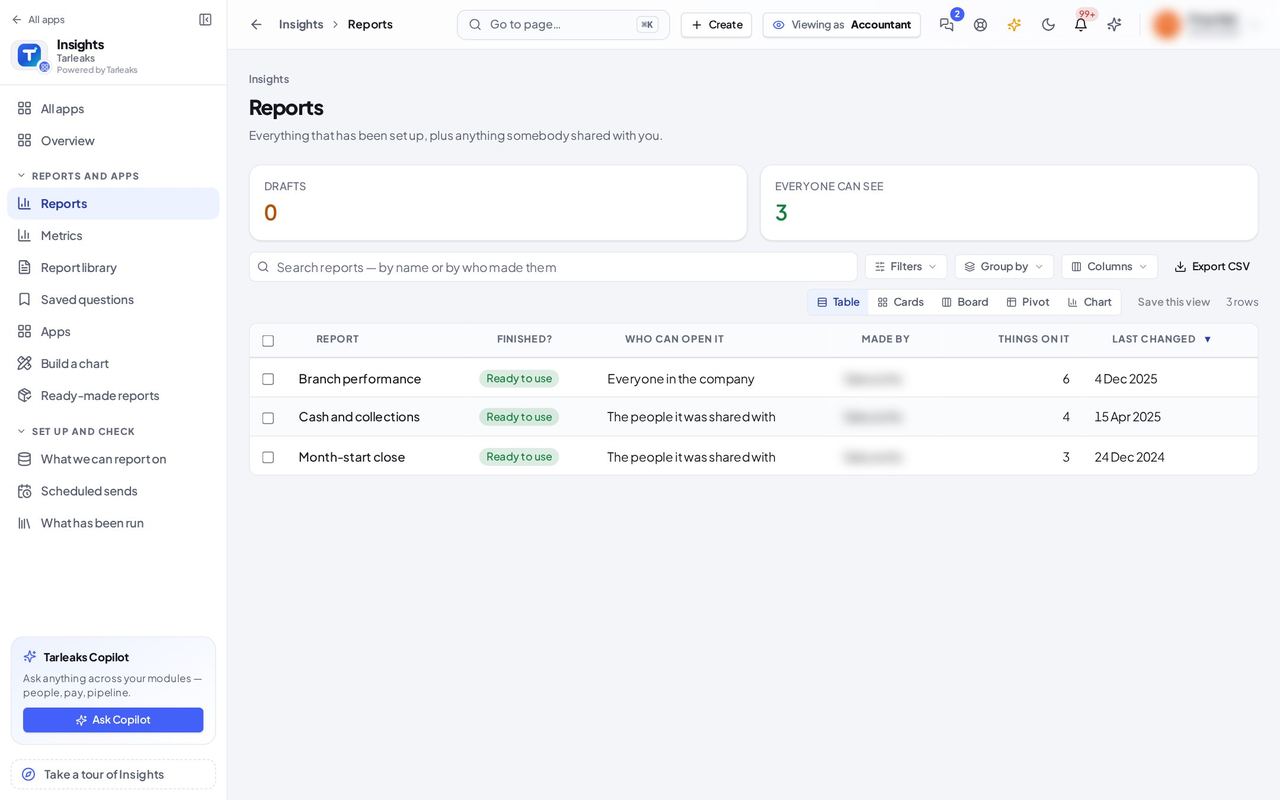
You should see Every report open to you, whether it is ready to use or still a draft, who can open it, who made it and when it last changed. Reports are made by the people who may build them, so there is no New report for you.
Read a report, take it out as a PDF, have it sent to you #
Where Insights » Reports » Cash and collections
- Open your company's address (yourcompany.tarleaks.com) and sign in.
- Open the app launcher and choose Insights.
- In the menu, choose Reports.
- Click the report's name.
| Field | What to put in it |
|---|---|
| Download as PDF | The whole report as a file, with the dates and filters you chose. |
| Send on a schedule | Opens Scheduled sends with this report already chosen. |
| Send me this | Puts you on the report's e-mail; press again to stop. |
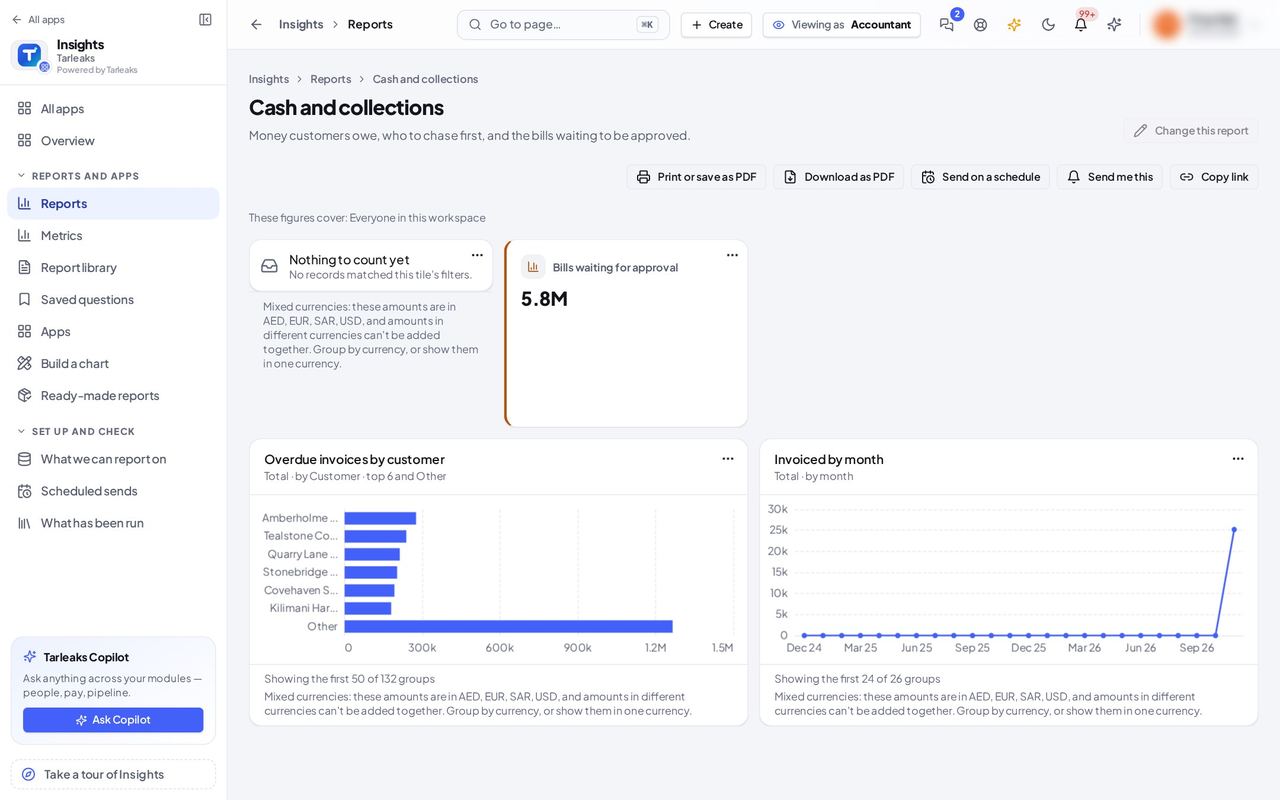
You should see The report's tiles, whose figures they cover, and the buttons above them: Print or save as PDF, Download as PDF (the whole report as you see it now), Send on a schedule, Send me this and Copy link. Change this report is greyed out: changing a report is for the people who build them.
Watch out A tile whose data you may not read says so; the rest of the report still works.
Worth knowing Send me this puts you on the report's weekly e-mail with one press; Stop sending me this takes you off again.
Take one tile out as a file #
Where Insights » Reports » a tile » More for this tile
- Open your company's address (yourcompany.tarleaks.com) and sign in.
- Open the app launcher and choose Insights.
- Open a report.
- Open the ⋯ menu at the corner of a tile.
| Field | What to put in it |
|---|---|
| Explain this number | How the number was worked out. |
| See the rows behind it | The records the number counts. |
| Download as CSV / Excel / PDF | Only this tile, as filtered now. |
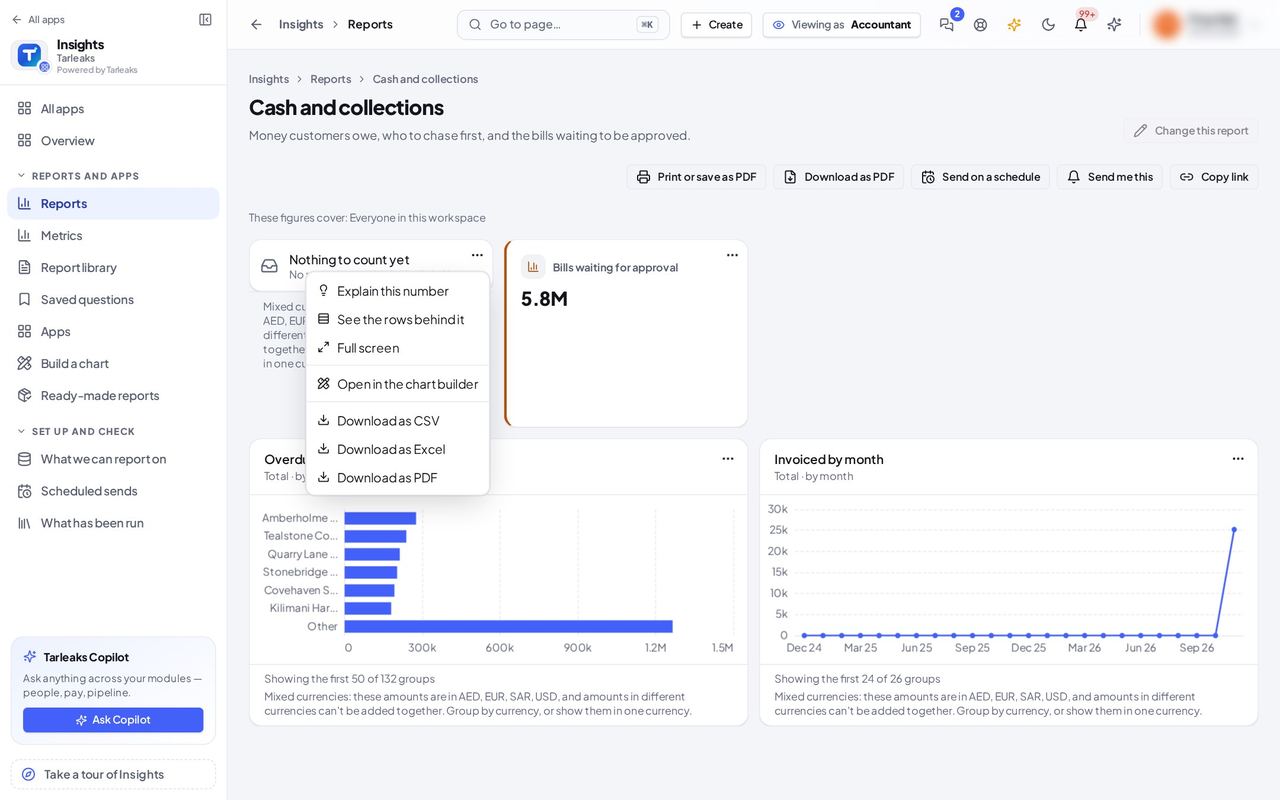
You should see Explain this number, See the rows behind it, View as a table, Full screen, Open in the chart builder, and Download as CSV, Excel or PDF: just this tile, filtered as you see it.
Worth knowing Every file you take out is listed under Files taken out on Scheduled sends, with whether it holds the whole list or only the first rows.
Dates that roll forward: in the next N days #
Where Insights » Build a chart » Only include
- Open your company's address (yourcompany.tarleaks.com) and sign in.
- Open the app launcher and choose Insights.
- In the menu, choose Saved questions.
- Open a question that filters on a date.
- Under Only include, change the comparison to is in the next.
- Type the number of days.
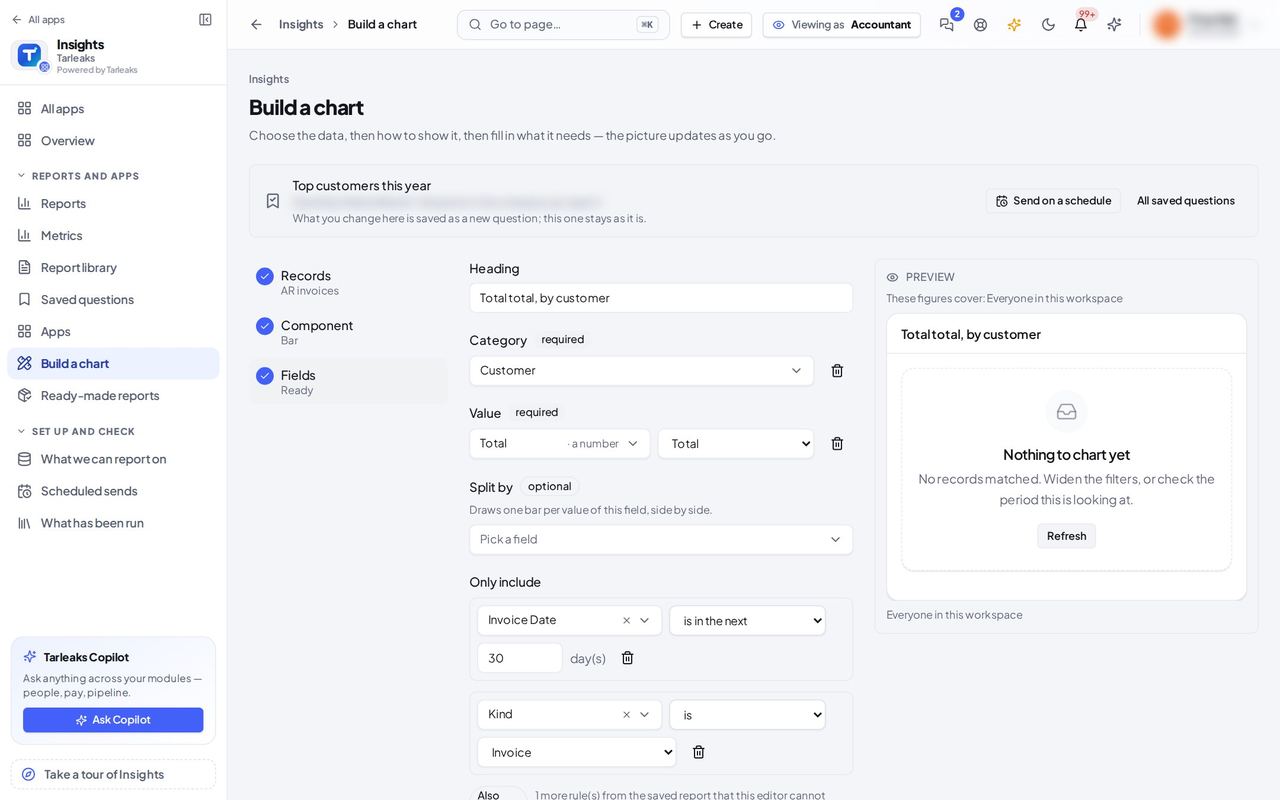
You should see A number of days takes the place of a date. The question then always looks that many days ahead from the day it is asked, so a report of what falls due in the next 30 days stays right without anybody changing it. The presets offer the next 7, 30 and 90 days too.
Watch out Press Save this question only if you want to keep the change.
Worth knowing Nothing changes until you press Save this question; leaving the page keeps the question as it was.
Scheduled sends, and every file that left #
Where Insights » Scheduled sends
- Open your company's address (yourcompany.tarleaks.com) and sign in.
- Open the app launcher and choose Insights.
- In the menu, choose Scheduled sends.
| Field | What to put in it |
|---|---|
| Last time | When it last went, and whether everybody got it. |
| Did not all go out | Shows the sends where somebody was left out or something failed. |
| Files taken out | Every download and every sent file, with who took it and how much it held. |
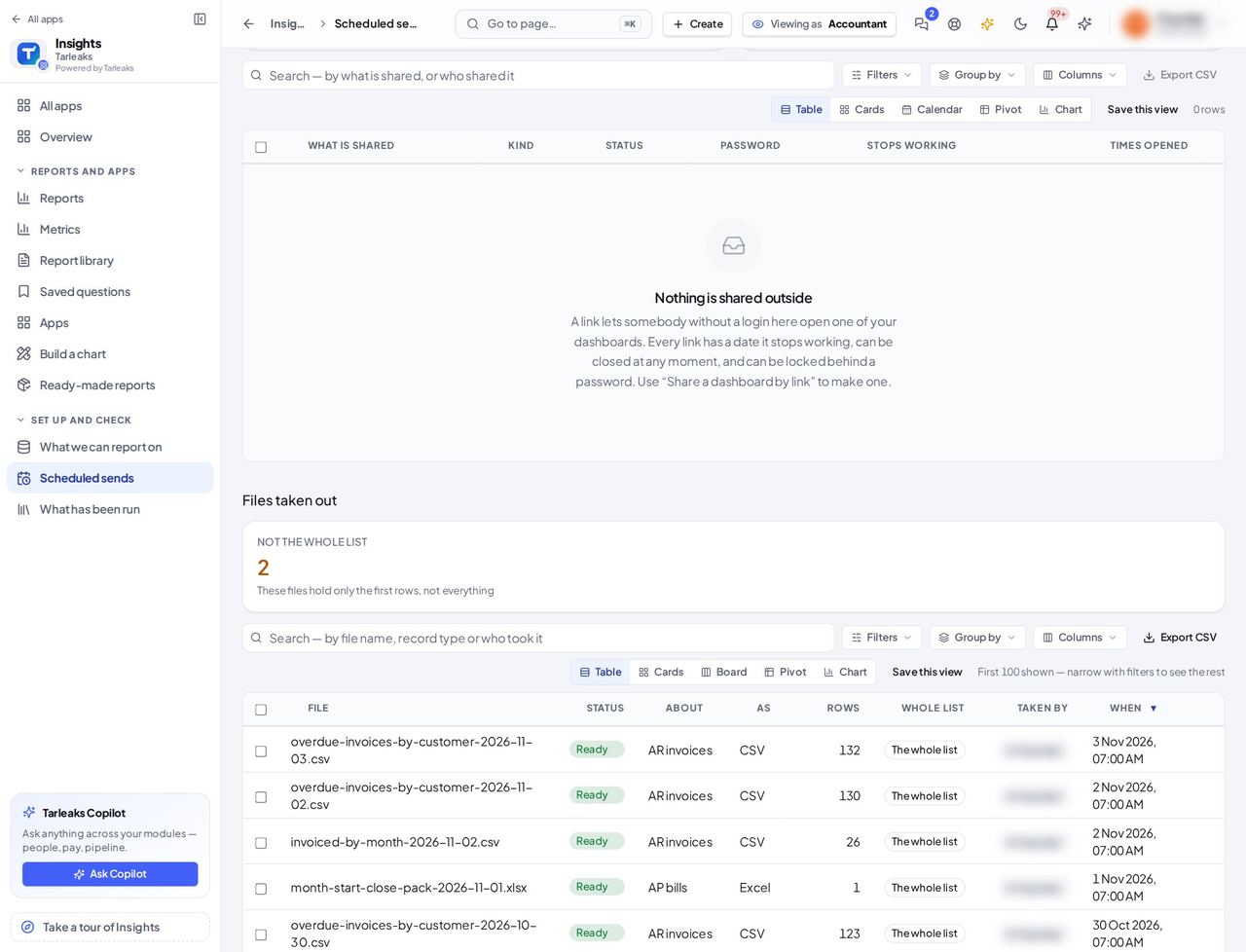
You should see Every report and alert set up to go out: what it sends, to whom, how often, as which file, when it last went and whether everybody got it (Did not all go out filters the ones that did not). New delivery sets up another. Further down, Files taken out lists every download and every sent file, who took it and whether it was the whole list; only your own can be downloaded again.
Send a report on a schedule, in the language you choose #
Where Insights » Scheduled sends » New delivery
- Open your company's address (yourcompany.tarleaks.com) and sign in.
- Open the app launcher and choose Insights.
- In the menu, choose Scheduled sends.
- Press New delivery.
| Field | What to put in it |
|---|---|
| As a | CSV, Excel, PDF, or both in one zip file. |
| File language | The language the file is written in, whatever language you work in. |
| Who gets it | Colleagues by name; each gets what their own access allows. |
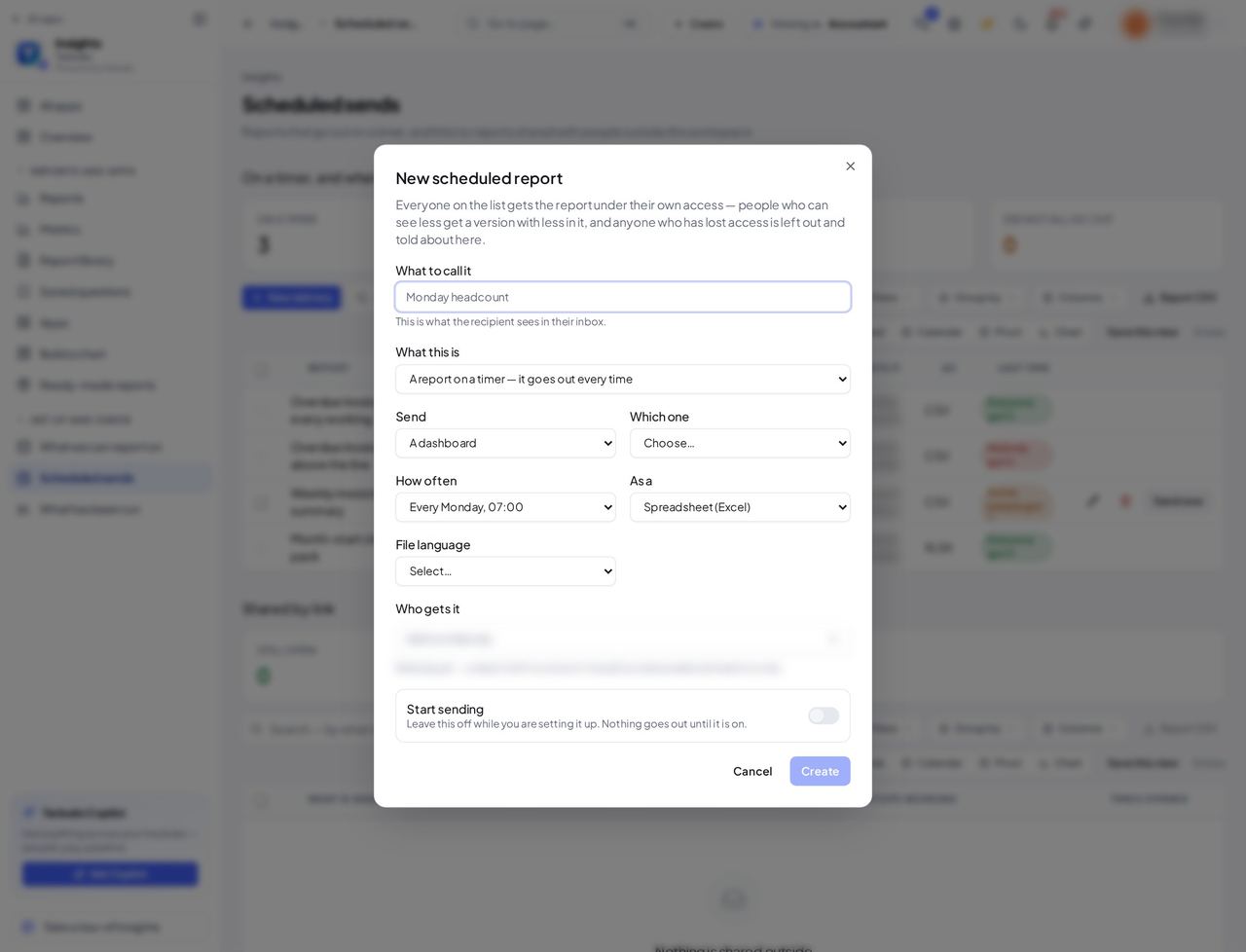
You should see What to call it, which report or question, how often, as which file (CSV, Excel, PDF, or both in one zip file), the File language (your workspace's language, English or Arabic) and who gets it. Everybody on the list gets it under their own access.
Watch out Somebody who may send only to themselves sees You can add only yourself, and who to ask instead.
Worth knowing Close the form without saving and nothing is set up.
Who was left out, and why #
Where Insights » Scheduled sends » a schedule
- Open your company's address (yourcompany.tarleaks.com) and sign in.
- Open the app launcher and choose Insights.
- In the menu, choose Scheduled sends.
- Click the schedule's name.
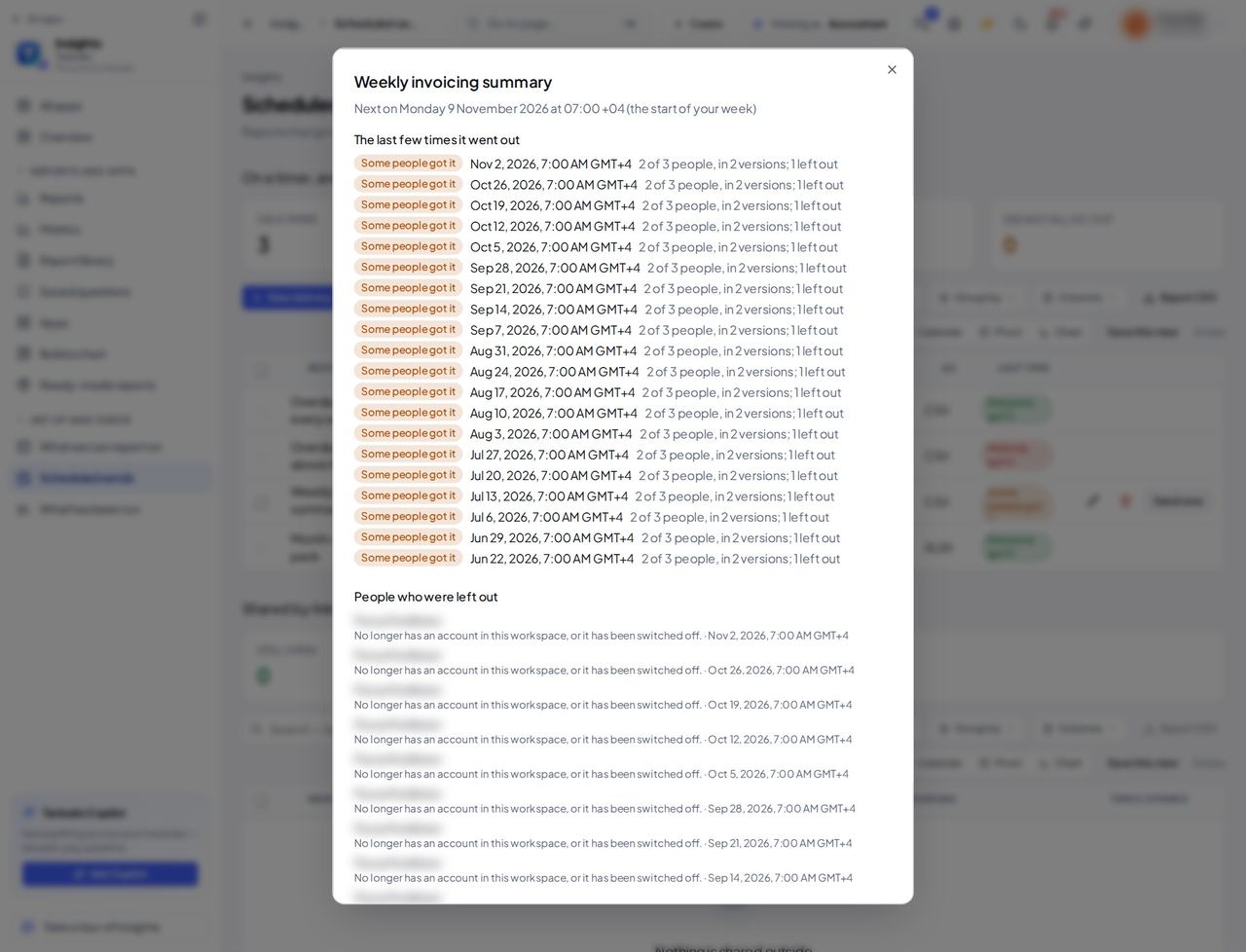
You should see When it goes next, every time it went with how many people got it, and People who were left out: each person the report was not sent to, with the reason, such as no longer having an account or not being allowed to see the data in it.
Worth knowing Somebody left out is never sent a version with the data taken out without being told: they are named here instead, so you can give them access or take them off the list.
Only your own runs in the run history #
Where Insights » What has been run
- Open your company's address (yourcompany.tarleaks.com) and sign in.
- Open the app launcher and choose Insights.
- In the menu, choose What has been run.
| Field | What to put in it |
|---|---|
| What happened | Answered, answered in part, or refused because the data is not open to you. |
| Took | How long the answer took. |
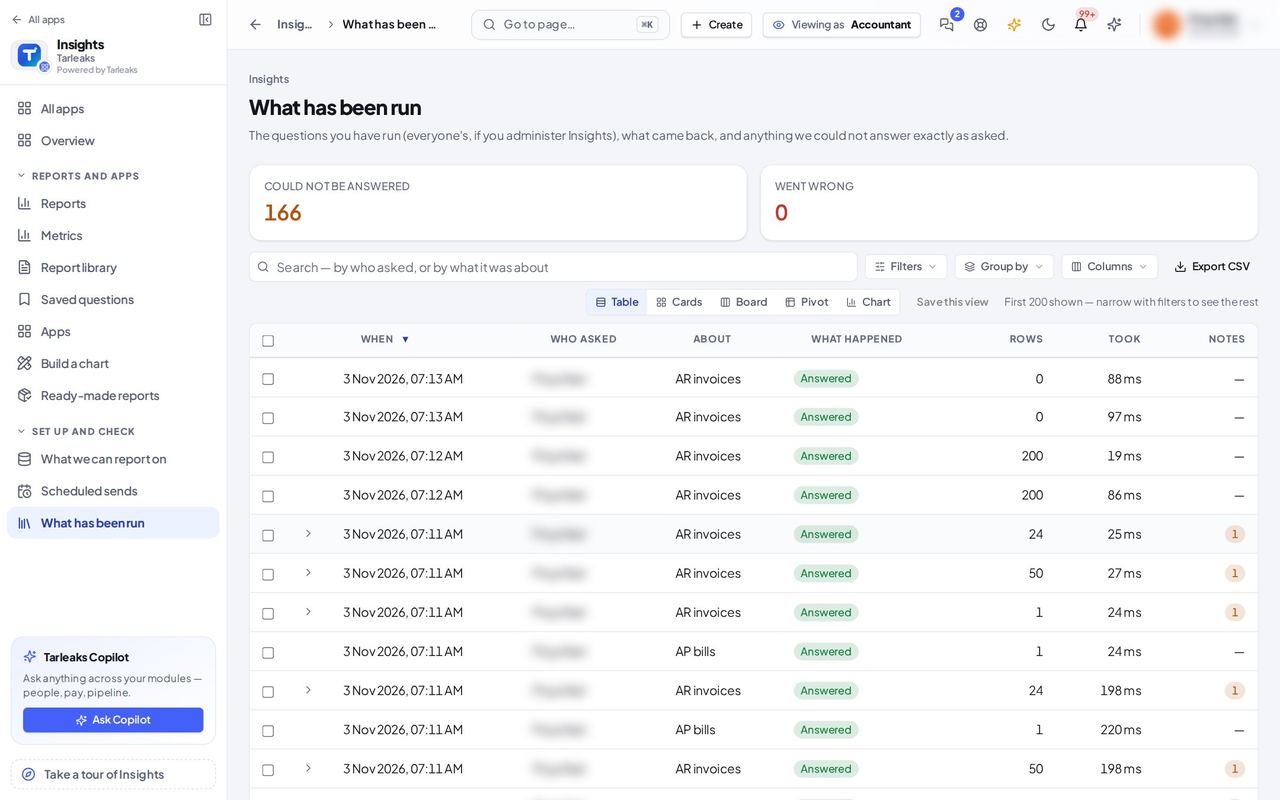
You should see Every question you ran, what came back, how many rows, how long it took and anything that could not be answered exactly as asked. You see your own runs only; the people who look after Insights see everyone's.
Saved questions, and who can open each #
Where Insights » Saved questions
- Open your company's address (yourcompany.tarleaks.com) and sign in.
- Open the app launcher and choose Insights.
- In the menu, choose Saved questions.
| Field | What to put in it |
|---|---|
| What it counts | The kind of record the question reads, such as AR invoices. |
| Whose | Yours, or shared with you. |
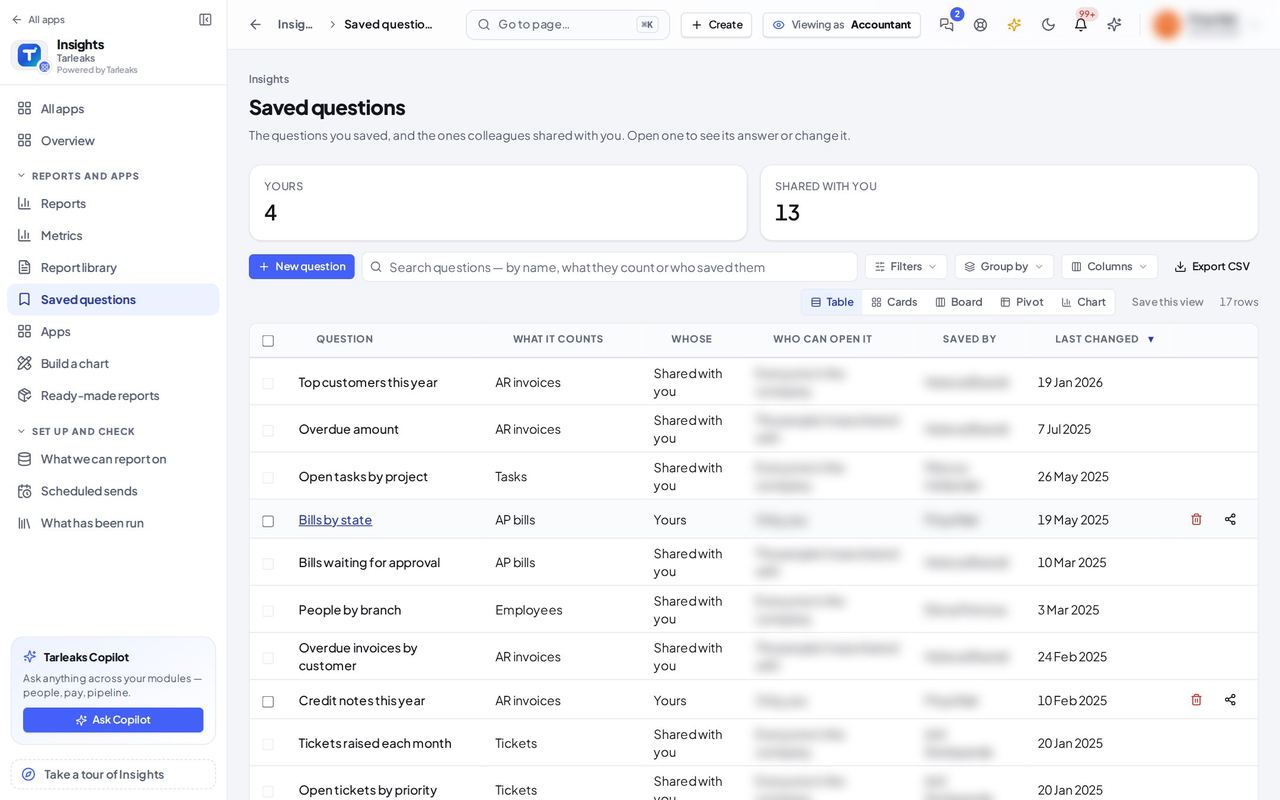
You should see Every saved question open to you, what it counts (the kind of record it reads), whose it is, who can open it, who saved it and when it last changed. Your own questions can be shared from here.
Everybody a scheduled report goes to gets it under their own access: somebody who may see less gets a version with less in it, and somebody who may see nothing is left out and named on the schedule.