Manager — Insights guide
Read the reports that cover your team, as far as your own access goes.
Reads the reports open to it and keeps its own questions; the reports are built and sent by others.
What you will be able to do
- Find the reports shared with you
- Read a report; a tile built on data that is not open to you says so
- Ask and keep your own questions
What this role can and cannot do
| Can | Cannot |
|---|---|
|
|
3 steps, each one carried out in the product on .
The reports open to you #
Where Insights » Reports
- Open your company's address (yourcompany.tarleaks.com) and sign in.
- Open the app launcher and choose Insights.
- In the menu, choose Reports.
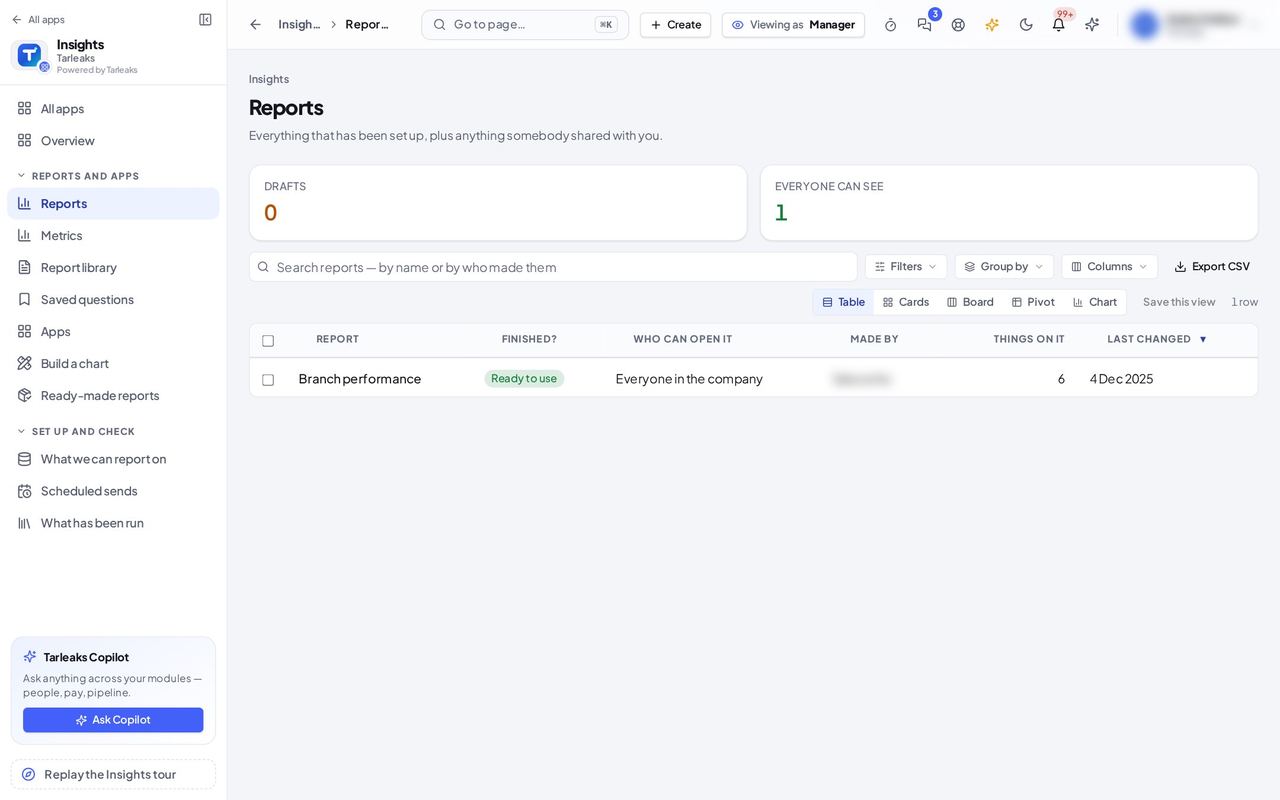
You should see The reports shared with you, with who made them and when they last changed. There is no New report: reports are built by the people who may build them.
A report, as far as your access goes #
Where Insights » Reports » Branch performance
- Open your company's address (yourcompany.tarleaks.com) and sign in.
- Open the app launcher and choose Insights.
- In the menu, choose Reports.
- Click the report's name.
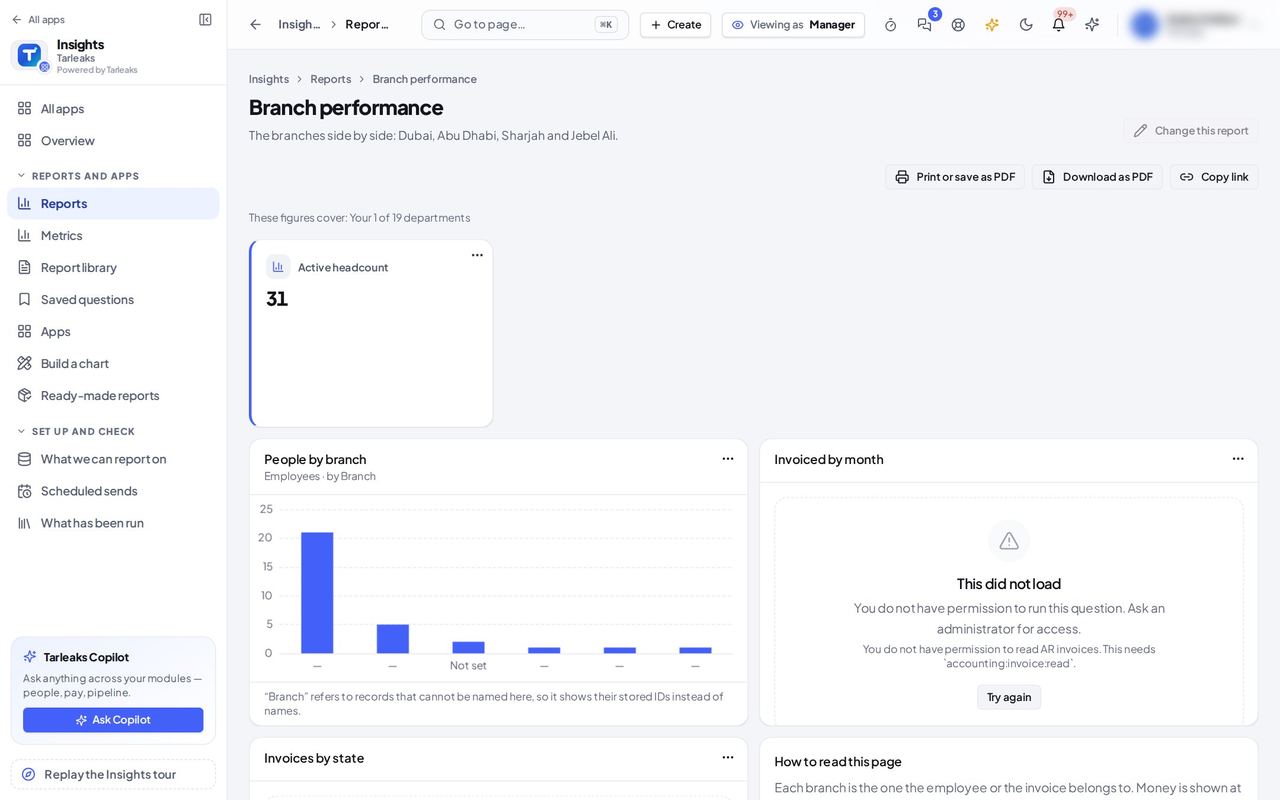
You should see The figures cover your own departments. A tile built on data that is not open to you says it did not load and that you do not have permission, instead of showing a number that leaves part out. You can print the report or download it as a PDF; there is no Send on a schedule or Send me this.
Your own saved questions #
Where Insights » Saved questions
- Open your company's address (yourcompany.tarleaks.com) and sign in.
- Open the app launcher and choose Insights.
- In the menu, choose Saved questions.
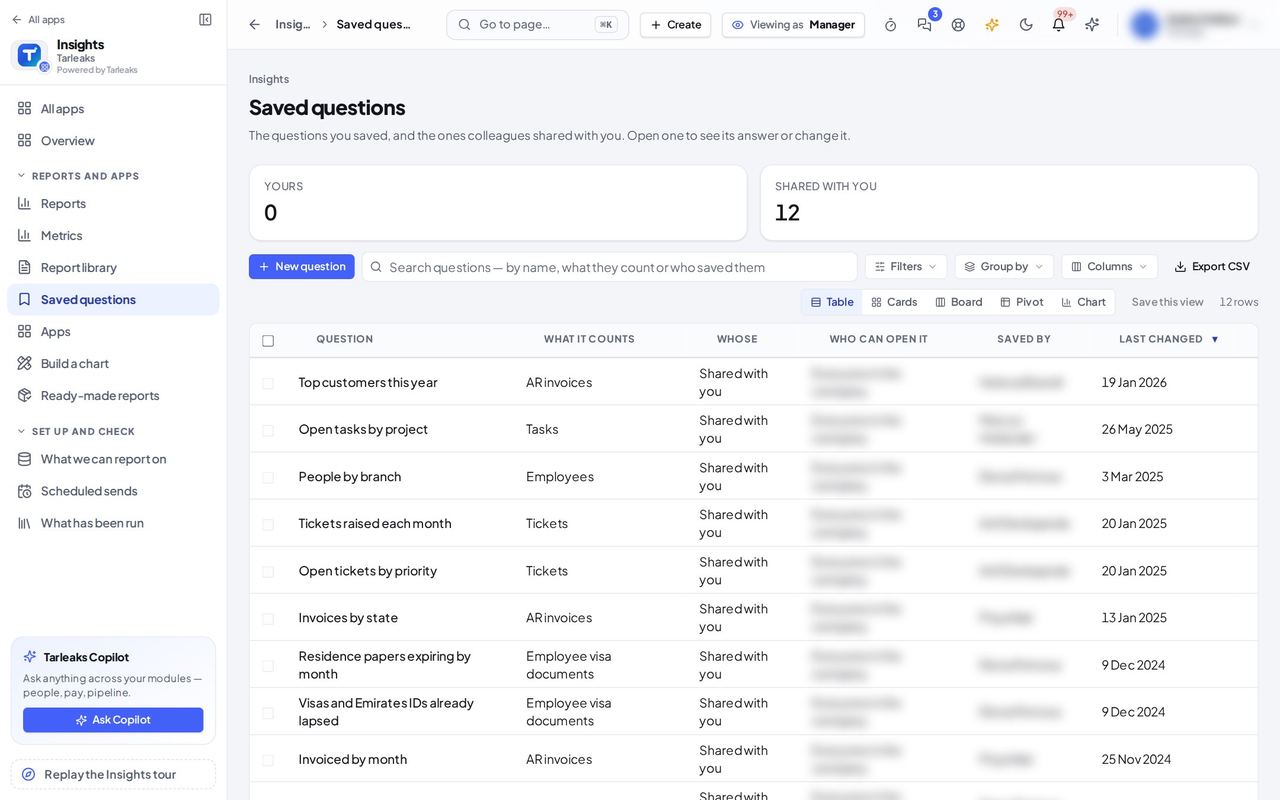
You should see The questions colleagues shared with you, and New question to ask and keep your own: what you save is yours until you share it.
Watch out Scheduled sends lists what is set up, but you cannot set one up: ask somebody who may send.
If you need a report sent to your team every week, ask your accountant, payroll or HR manager: they may schedule it for colleagues.