العربية — This page is not in Arabic yet. Opens the Arabic home page.

Start free trialBook a demo

Browse the documentation

Documentation

All appsHow the apps connectTeam workflowsCompare

Apps

HR ManagementRecruitment (ATS)Payroll & WPSTime & AttendanceAccounting & E-InvoicingCRM & Sales PipelineSales Orders & FulfilmentInventory, Purchasing & WarehousingProcurement & TendersConstruction & ContractingContracts & E-SignatureProducts & Online StorePoint of SaleRentalsSubscriptions & LicensingHelpdesk & TicketingSocial Media SuiteInfluencer Marketing & Campaign ROIProject ManagementActivities WorkspaceDocument ManagementPDF Tools & E-SignatureCorrespondence RegisterTeam Chat & CallsMeetings & VideoLearning & Certification (LMS)Asset ManagementFleet ManagementRecognition & GamificationContacts & PartnersNotification CentreReports & DashboardsInsights — Business Intelligence & AppsAI CopilotAI Agents & AutomationAI Diagram StudioWebsite BuilderISO Compliance Suite (Imtithal)App MarketplaceCustomer & Partner PortalSecurity, Access & Compliance

Auditor — Insights guide

Check the numbers in the reports without taking any data out of the system.

Reads the reports to check them, and takes nothing out of the system.

What you will be able to do

  • Read a report, with no downloads and no scheduled sends
  • Try a chart in the builder without saving it

What this role can and cannot do

CanCannot
  • Open the reports shared with you
  • Ask a question of the company's data and see the answer
  • Open the saved questions shared with you
  • Take a report or a tile out as a file
  • See what is set up to be sent
  • Have reports sent on a schedule
  • Save a question of your own
  • Change your saved questions

3 steps, each one carried out in the product on .

Read a report, take nothing out #

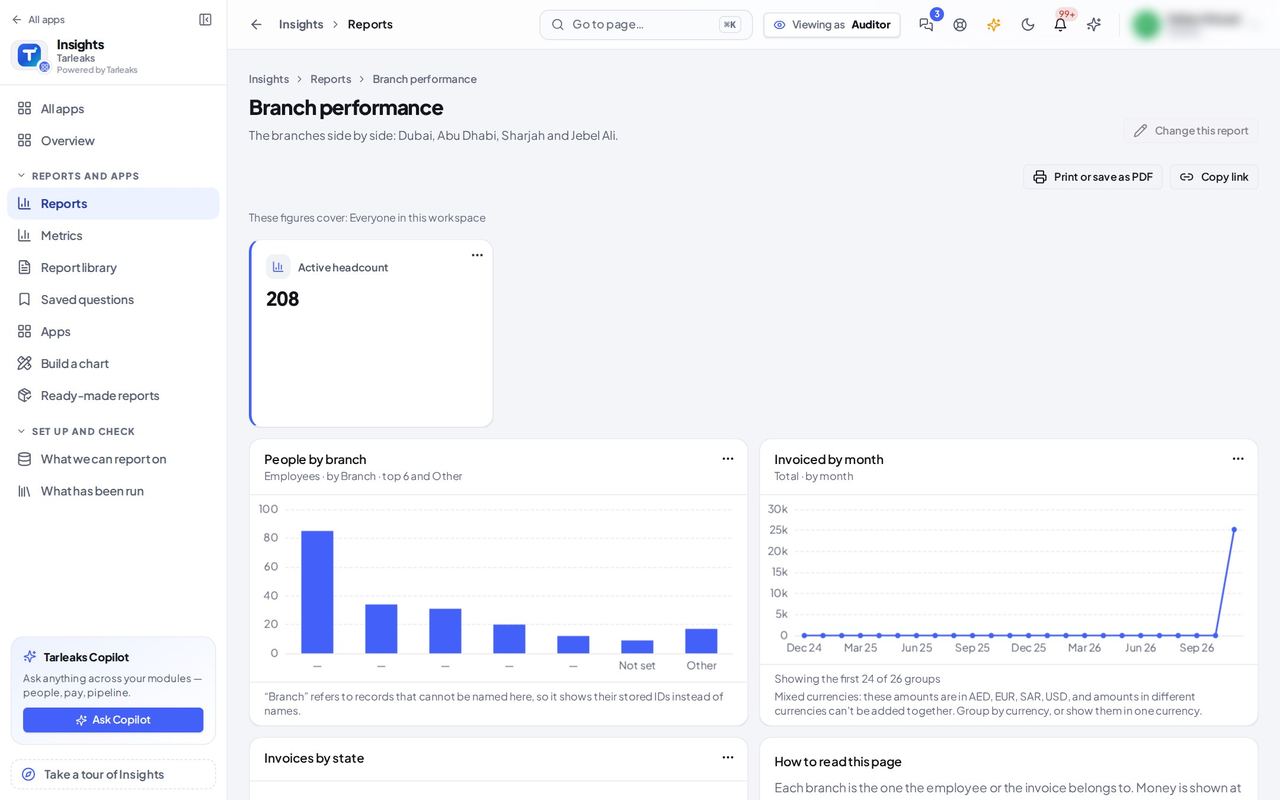
Where Insights » Reports » Branch performance

  1. Open your company's address (yourcompany.tarleaks.com) and sign in.
  2. Open the app launcher and choose Insights.
  3. In the menu, choose Reports.
  4. Click the report's name.
Screenshot: Read a report, take nothing out, Auditor view
Print is the only way to take the report with you, and it prints what is on the screen.

You should see The report and Print; no Download as PDF, no Send on a schedule and no Send me this, so nothing you read leaves the system as a file.

Scheduled sends are closed to you #

Where Insights » Scheduled sends

  1. Open your company's address (yourcompany.tarleaks.com) and sign in.
  2. Open the app launcher and choose Insights.
  3. Scheduled sends is not in your menu: type /insights/schedules after the company address.
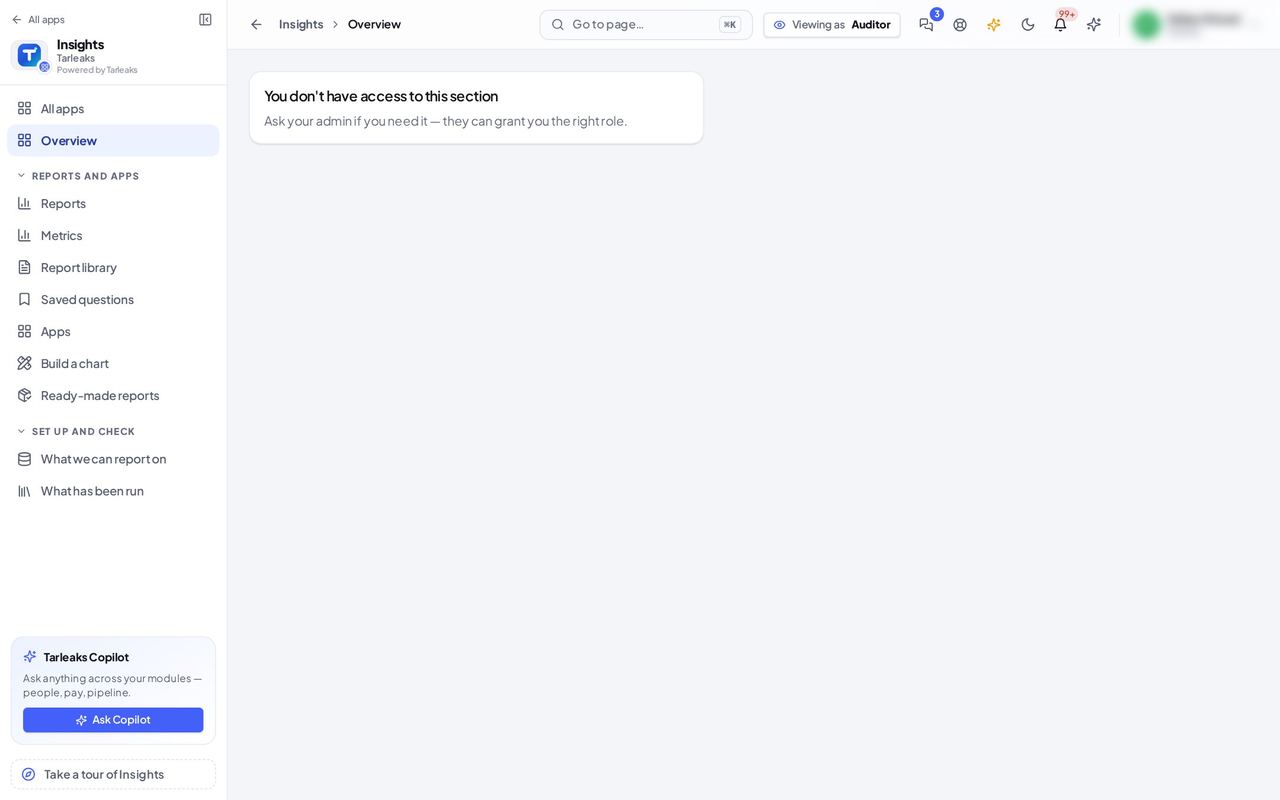
Screenshot: Scheduled sends are closed to you, Auditor view
A plain message that the section is not open to you. The server refuses the list as well.

You should see A plain message that the section is not open to you. The server refuses the list as well.

Try a chart without saving it #

Where Insights » Build a chart

  1. Open your company's address (yourcompany.tarleaks.com) and sign in.
  2. Open the app launcher and choose Insights.
  3. In the menu, choose Build a chart (Start from scratch on the Insights page is greyed out for you: it saves a new question).
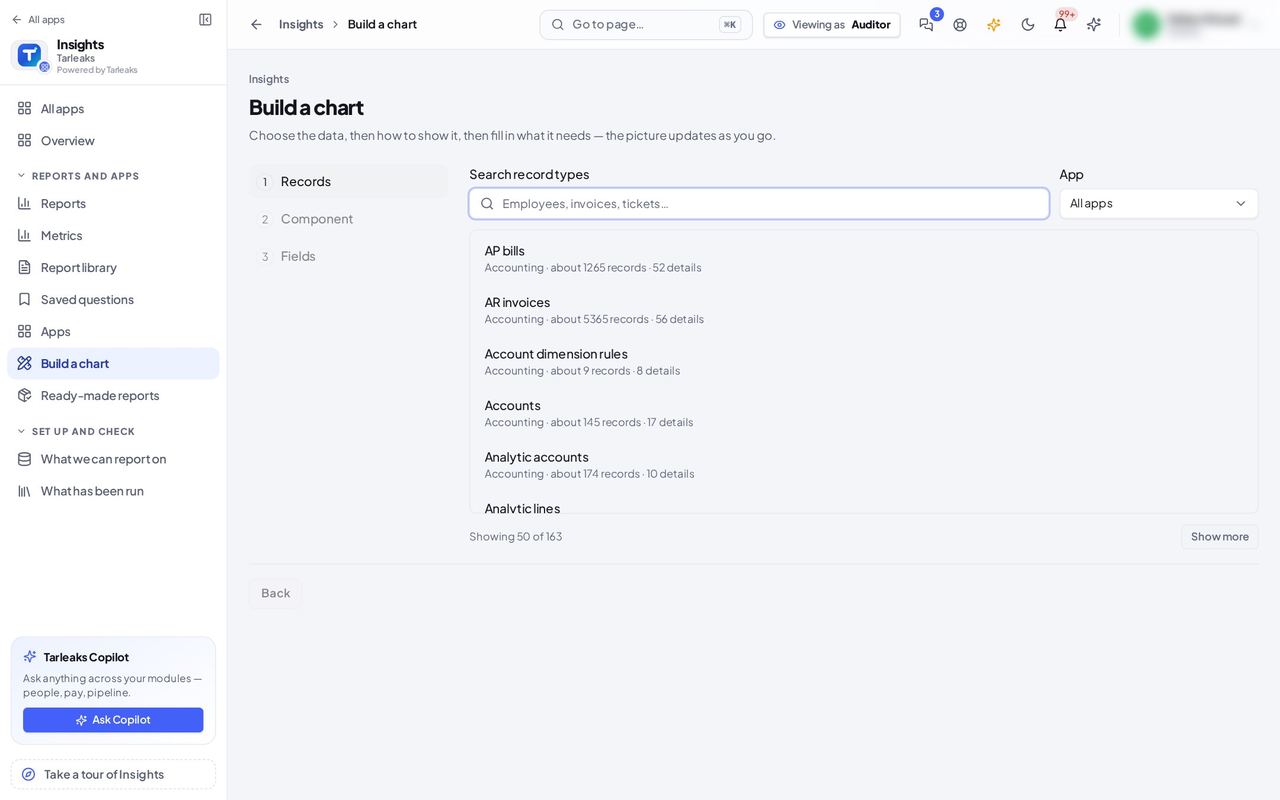
Screenshot: Try a chart without saving it, Auditor view
Choose the records, then the chart, then what it needs; the answer shows on the right.

You should see The same chart builder: choose the records, how to show them and what to include, and see the answer. There is no Save this question and no Put this on a report.

Everything you read is the company's data as it is at that moment; nothing you open leaves the system as a file.

All insights role guides

Last updated