Compliance director — Compliance guide
Run every ISO standard the company works on from one portfolio, and know who answers for each requirement and who signs it off.
Decides which ISO standards the company works on, who answers for each clause and who approves, and reads every register of every standard: clauses, evidence, audits, risks, documents and the management system they share.
What you will be able to do
- See the standards you track apart from the ones you could add, and filter them by where they stand
- Know which edition each standard is assessed against, and move to a new one when you are ready
- Read what every clause asks of you, and which other standards ask the same
- Work the Statement of Applicability, the audit programme, the audits, the findings and the risks
- See, before you name somebody, whether they can open Compliance at all
- Open any piece of evidence, and work from your phone
- Find your own compliance work on Home, and check how ready you are for the certification audit
What this role can and cannot do
| Can | Cannot |
|---|---|
|
|
17 steps, each one carried out in the product on .
Your standards, and the ones you can add #
Where App launcher » ISO compliance
- Open your company's address (yourcompany.tarleaks.com) and sign in.
- Open the app launcher and choose ISO compliance.
| Field | What to put in it |
|---|---|
| Overall conformity | How well you conform, across the standards you track only. |
| Open gaps | Clauses not yet in conformity, over the standards you track. |
| Add a standard | Standards your licence includes that nobody is tracking yet. |
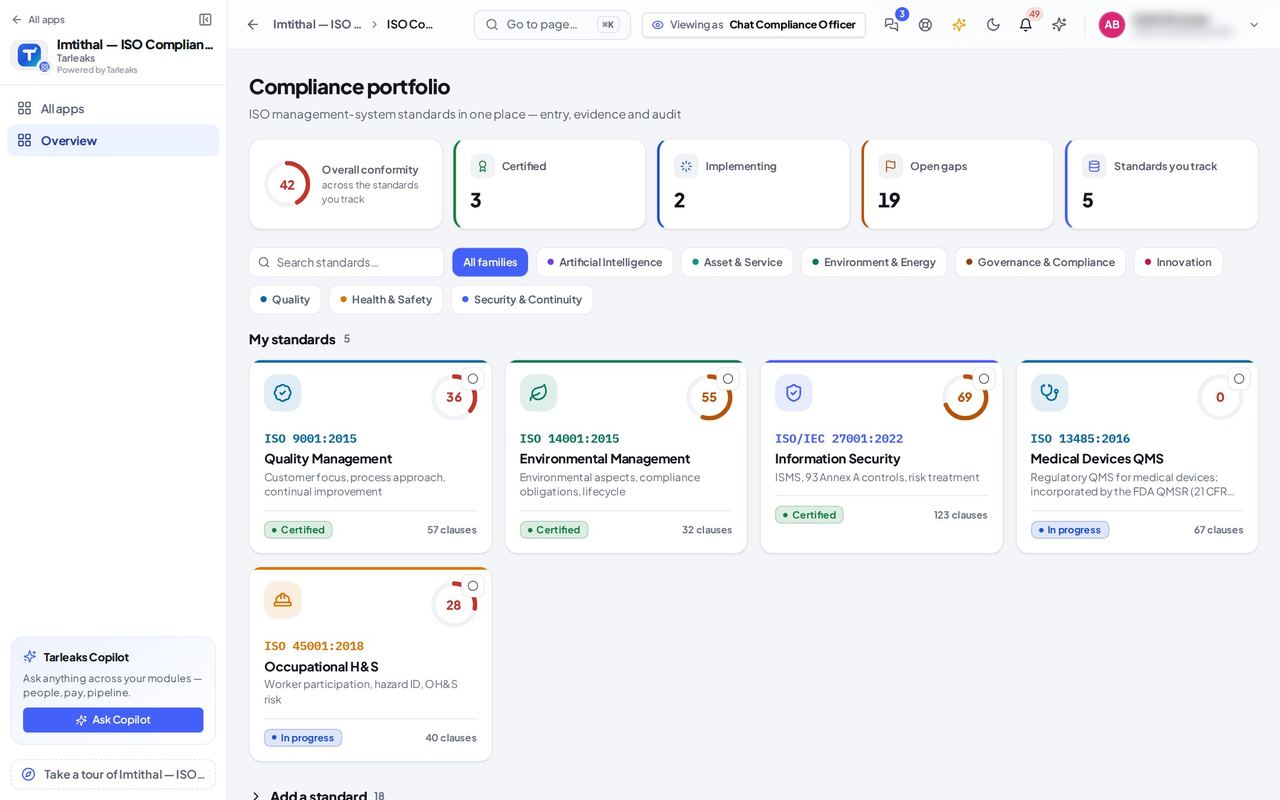
You should see The Compliance portfolio. At the top, how well you conform overall across the standards you track, and four tiles: Certified, Implementing, Open gaps and Standards you track. Below them My standards, the ones the company works on, furthest along first, each with its edition. Everything else your licence includes is folded under Add a standard.
Watch out A guidance standard (such as ISO 31000) is never counted as certification.
Worth knowing Overall conformity counts only the standards you track: a standard counts from the moment you track it.
The tiles filter the standards #
Where Compliance portfolio » Certified
- Open your company's address (yourcompany.tarleaks.com) and sign in.
- Open the app launcher and choose ISO compliance.
- Press the Certified tile.
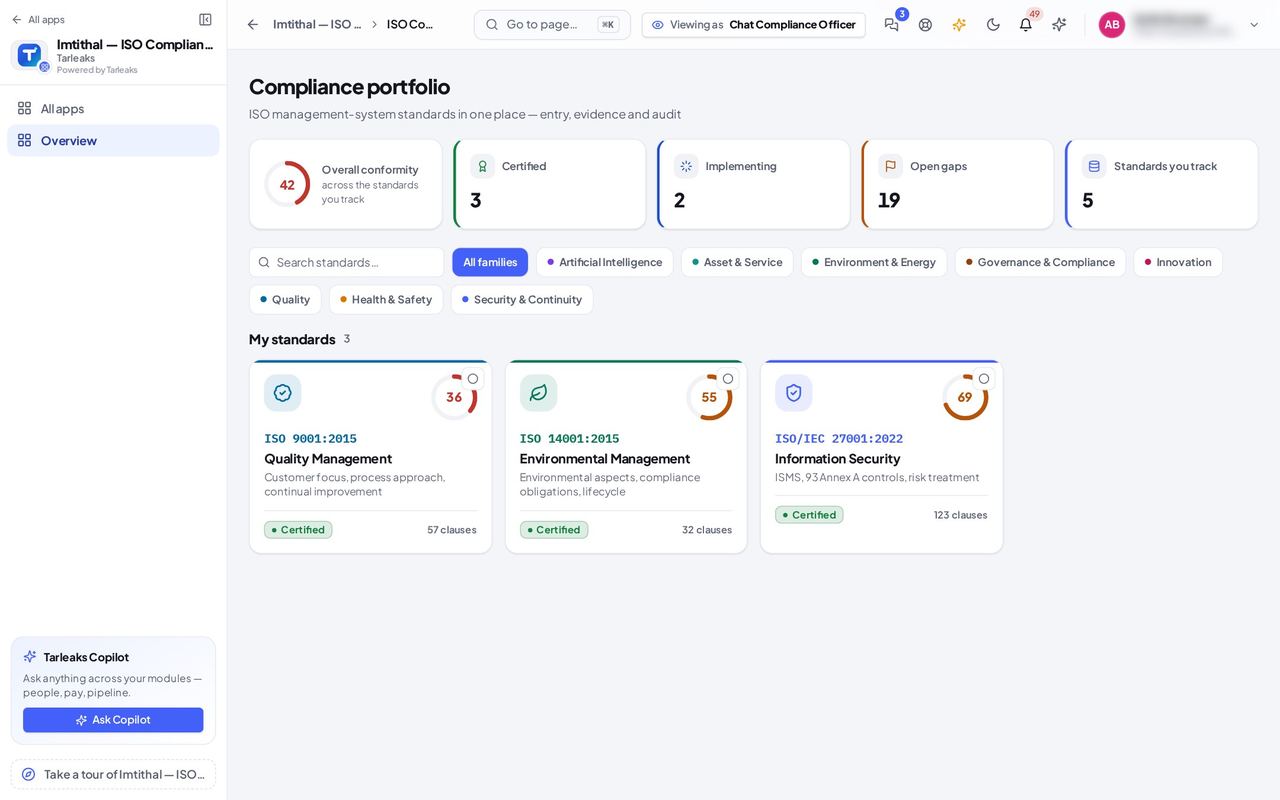
You should see Only the certified standards stay under My standards. Implementing shows the ones being worked on, Open gaps the ones still below 100 %, and Standards you track clears every filter. Press a tile again to show everything.
Watch out Open gaps opens a standard's gap analysis when you click its tile.
Worth knowing The filter stays in the address, so a refresh or a link you send keeps it.
Start tracking another standard #
Where Compliance portfolio » Add a standard
- Open your company's address (yourcompany.tarleaks.com) and sign in.
- Open the app launcher and choose ISO compliance.
- Type the standard's number in Search standards.
- Press Track this standard.
| Field | What to put in it |
|---|---|
| Track this standard | Moves the standard into My standards; it then counts in the portfolio. |
| Stop tracking | On a tracked tile's menu. The standard moves back; nothing is deleted. |
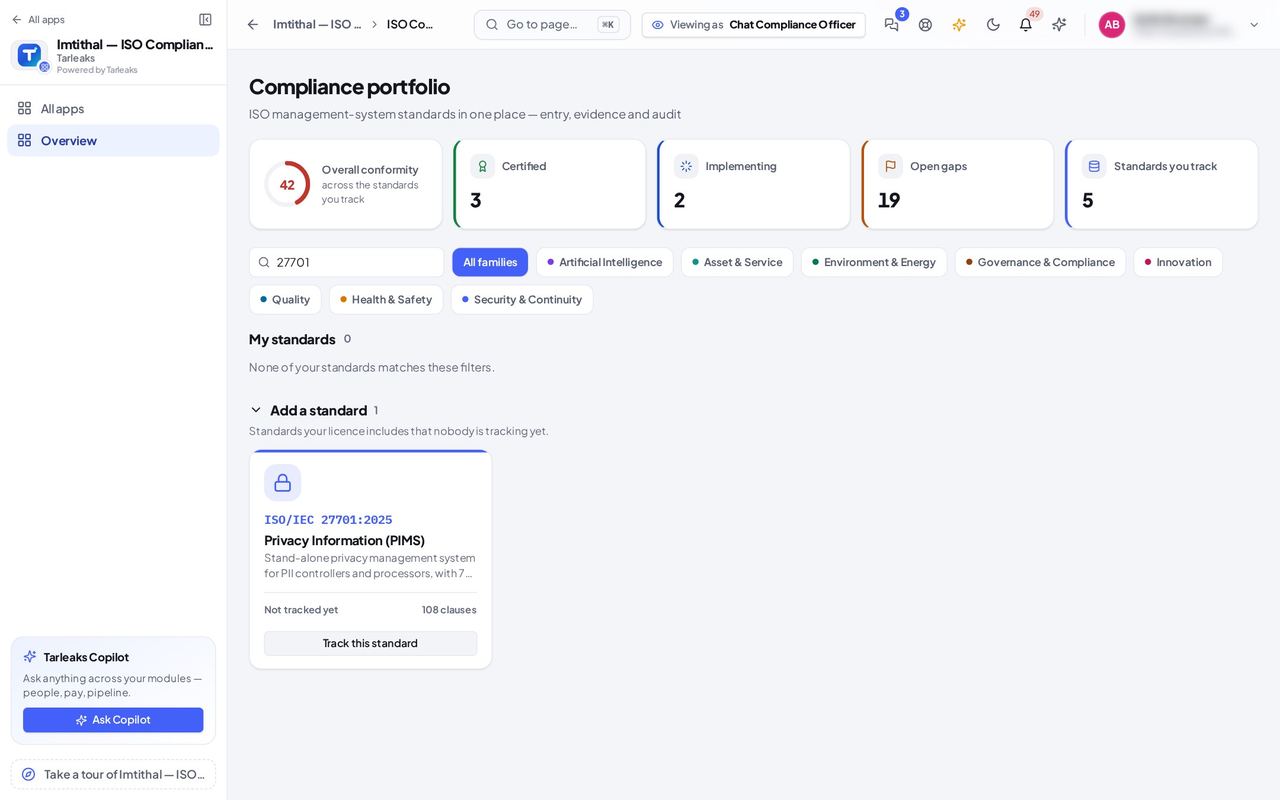
You should see The standard's tile says Not tracked yet and offers Track this standard. Once tracked it moves to My standards and counts in the portfolio. Stop tracking (on a tracked tile's menu) moves it back; its records are kept.
Watch out Only somebody who chooses the company's standards sees these buttons.
Every standard names its edition #
Where ISO 27001 » Dashboard
- Open your company's address (yourcompany.tarleaks.com) and sign in.
- Open the app launcher and choose ISO compliance.
- Click the ISO 27001 tile.
| Field | What to put in it |
|---|---|
| Edition | The edition the company is assessed against, for example ISO/IEC 27001:2022. |
| Amendment chip | An amendment ISO published to this edition; it is part of the requirements. |
| Revision in progress | Shown when ISO is writing the next edition. |
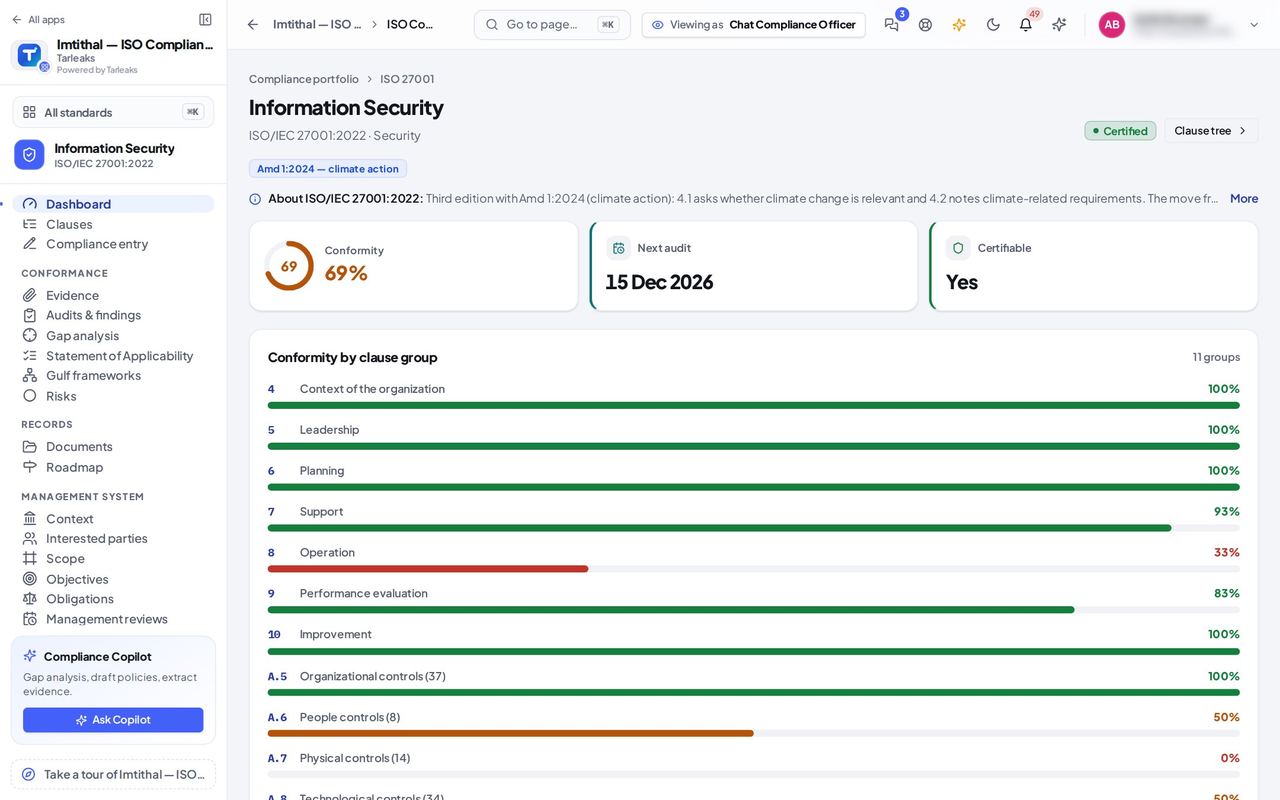
You should see The standard's dashboard. Under its name, the edition the company is assessed against (ISO/IEC 27001:2022), and a chip for the amendment ISO published to it (Amd 1:2024, climate action), which is part of what you are assessed against. Below, conformity per clause group, including the Annex A control themes.
Worth knowing Hover over the amendment chip for what it means.
A new edition is waiting: move when you are ready #
Where ISO 9001 » Dashboard
- Open your company's address (yourcompany.tarleaks.com) and sign in.
- Open the app launcher and choose ISO compliance.
- Click the ISO 9001 tile.
- Press Move to ISO 9001:2026.
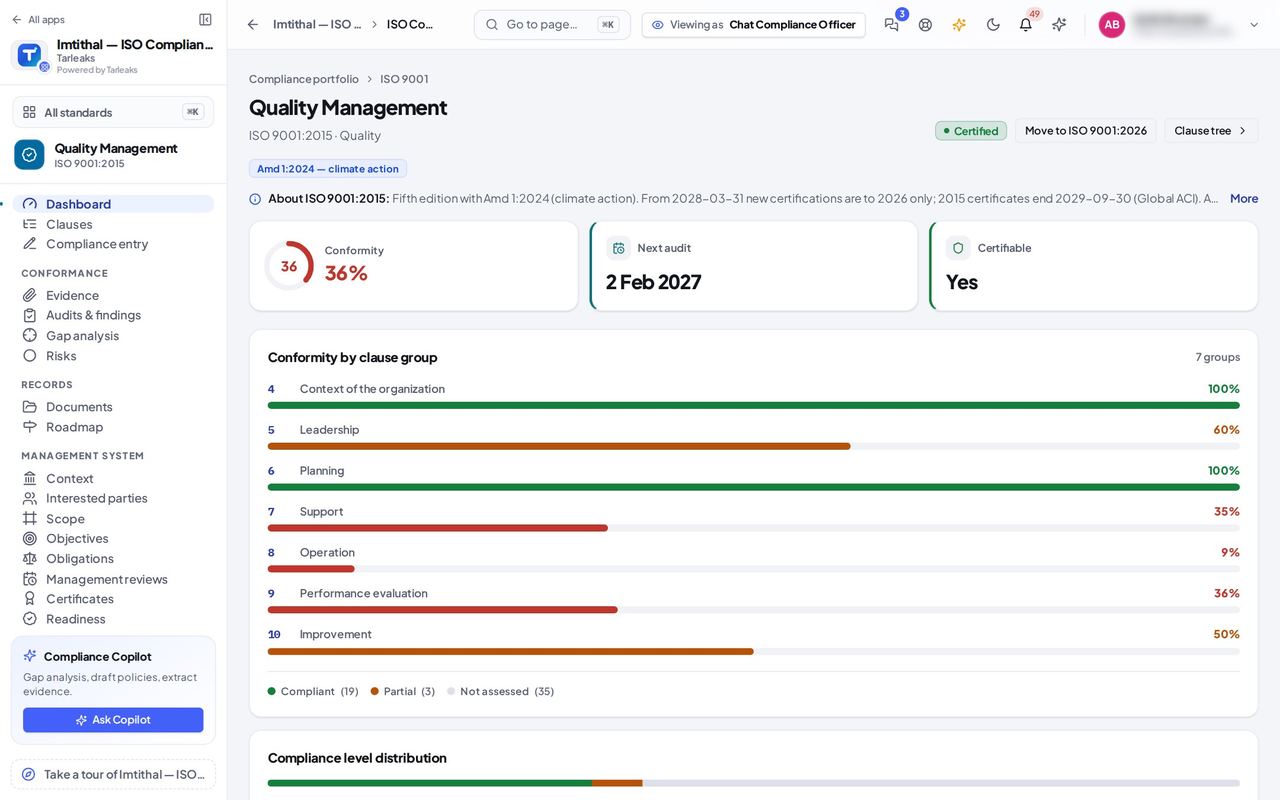
You should see A button Move to ISO 9001:2026 next to the certification status. It first shows what is kept, what is new and what is no longer in the new edition; nothing moves until you confirm. Statuses, owners, evidence and findings follow their requirement, and new clauses start Not assessed.
Watch out Nothing moves until you confirm in the preview. Clauses the edition dropped stay on file, marked Clause no longer in this edition.
Worth knowing Roadmap shows the transition calendar: until when certificates on the old edition can still be issued, and when they end.
Every clause says what it asks of you #
Where ISO 27001 » Clauses » 5.2 Policy
- Open your company's address (yourcompany.tarleaks.com) and sign in.
- Open the app launcher and choose ISO compliance.
- Click the ISO 27001 tile.
- In the menu, choose Clauses.
- Click 5.2 Policy in the tree.
| Field | What to put in it |
|---|---|
| What this asks of you | The requirement in plain words. |
| An auditor expects a record here | The standard asks for documented information: keep a record. |
| Also satisfies | The same requirement in the other standards the company tracks. |
| Open | Links to the clause's compliance entry, evidence, findings, documents, risks and its row in the Statement of Applicability. |
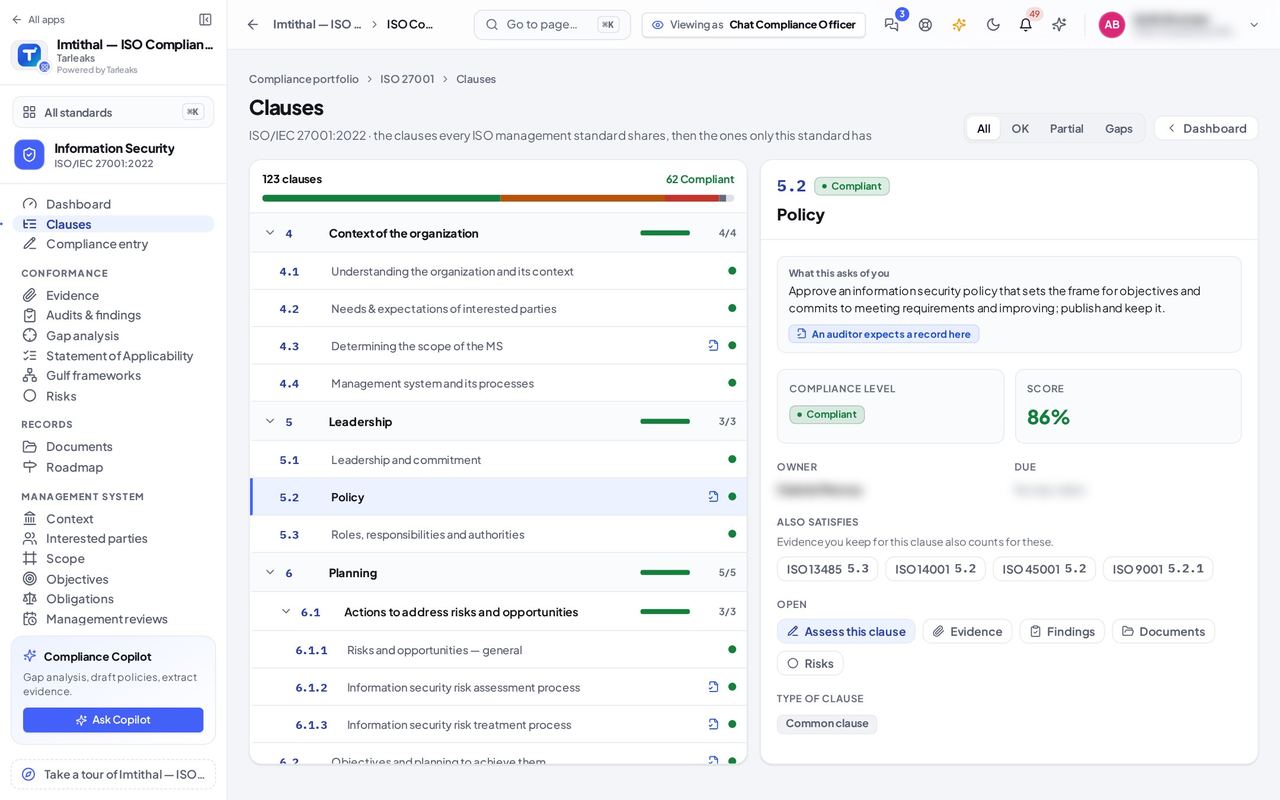
You should see Beside the tree, the clause in plain words under What this asks of you, and a badge An auditor expects a record here where the standard asks for documented information. Its owner and due date, and under Also satisfies the same requirement in the other standards the company tracks: evidence you keep for this clause counts for those too.
Worth knowing The clause you open stays in the address, so you can send a colleague straight to it.
All 93 Annex A controls in the Statement of Applicability #
Where ISO 27001 » Statement of Applicability
- Open your company's address (yourcompany.tarleaks.com) and sign in.
- Open the app launcher and choose ISO compliance.
- Click the ISO 27001 tile.
- In the menu, choose Statement of Applicability.
| Field | What to put in it |
|---|---|
| Applicable | Yes, or Excluded with the reason it is excluded. |
| Reasons | Risk treatment, legal, regulatory or contractual requirement, business need or good practice. |
| Approve | Records a new approved version with your name and the date. |
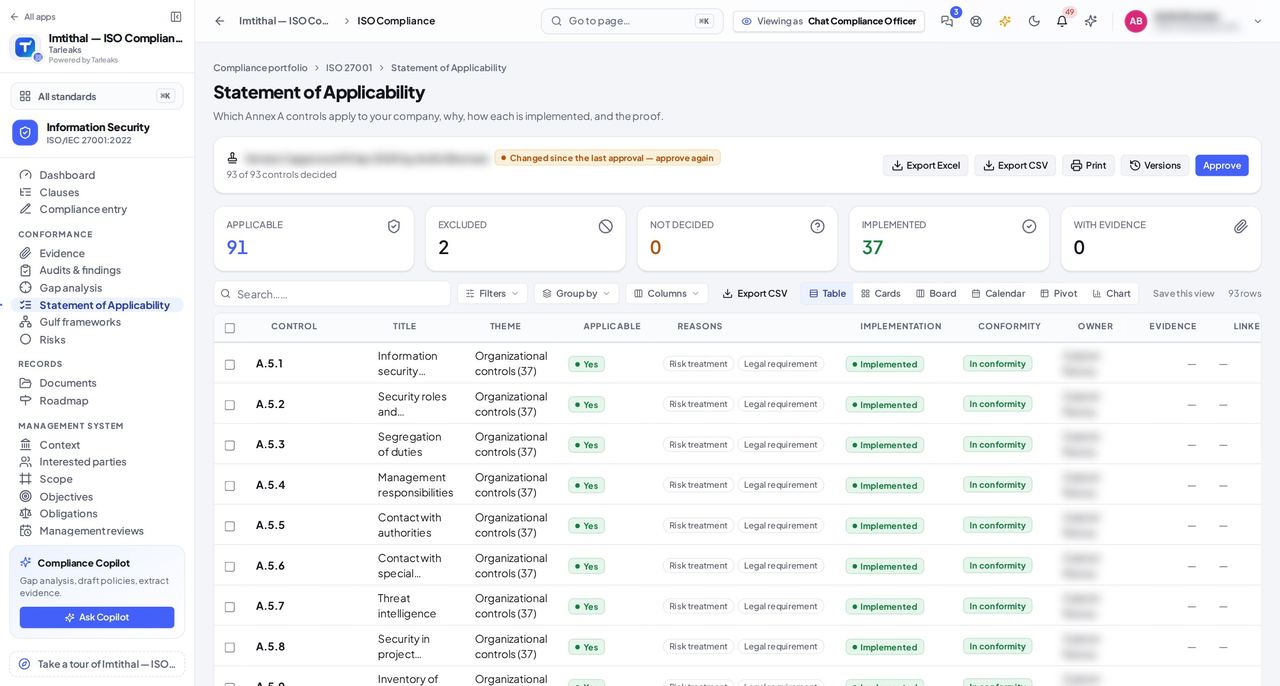
You should see Every one of the 93 Annex A controls: whether it applies, the reasons it does, how it is implemented, its conformity, owner, evidence and linked risks. The card above says which version was approved, when, and whether anything changed since. Export Excel, Export CSV, Print, Versions and Approve sit on that card.
Watch out Click Decide on a row to change one control; the change waits for the next approval.
Worth knowing Approve again after a change: the card says Changed since the last approval until you do.
Audits, findings and corrective actions in one place #
Where ISO 27001 » Audits & findings
- Open your company's address (yourcompany.tarleaks.com) and sign in.
- Open the app launcher and choose ISO compliance.
- Click the ISO 27001 tile.
- In the menu, choose Audits & findings.
| Field | What to put in it |
|---|---|
| Audit programmes | The plan for a period: what is audited, against what, how often. |
| Audits | Each internal, surveillance or certification audit, with its findings counted. |
| Corrective actions | What is being done about each finding, and by when. |
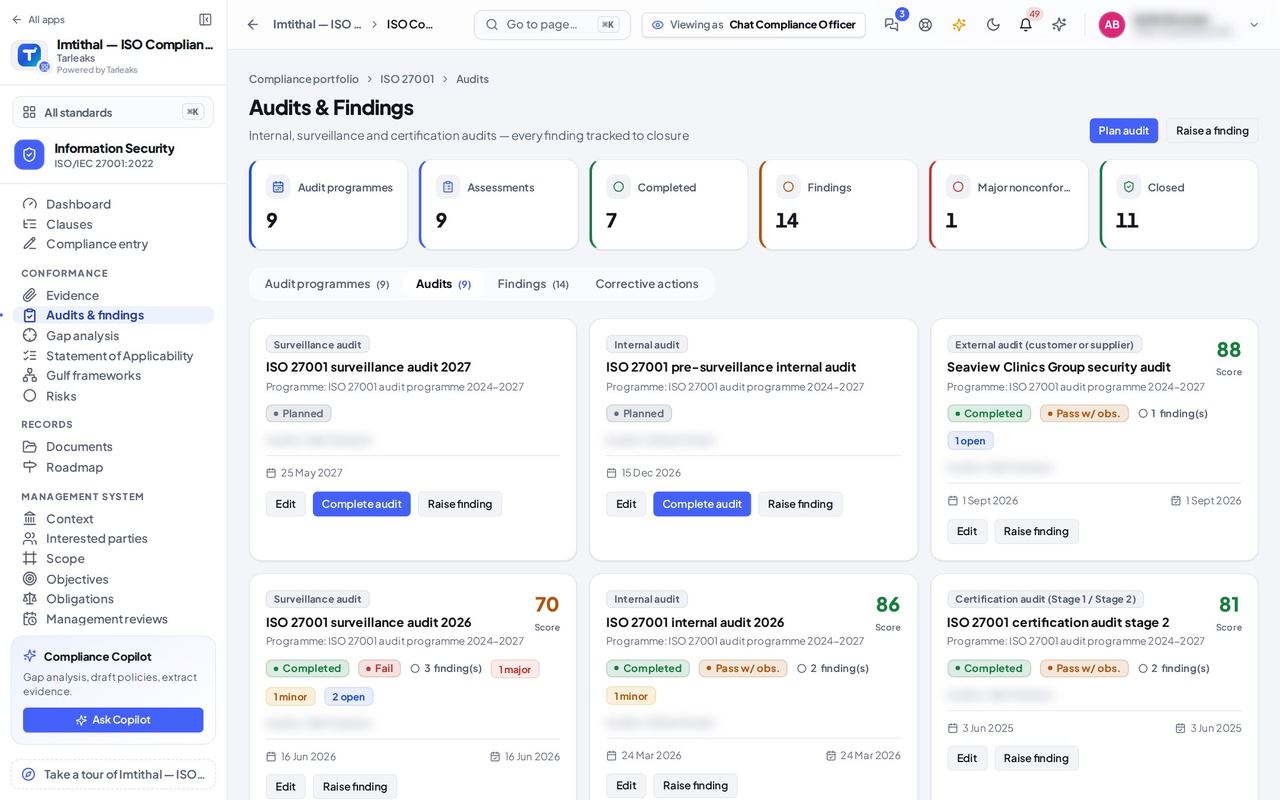
You should see Four tabs: Audit programmes, Audits, Findings and Corrective actions. The Audits tab lists every internal, surveillance and certification audit with its dates, auditor and how many major, minor and open findings it raised. Plan audit and Raise a finding are at the top.
Worth knowing The tab you are on stays in the address: a link to ?tab=findings opens the findings.
Approving the audit programme is the approver's act #
Where ISO 27001 » Audits & findings » Audit programmes
- Open your company's address (yourcompany.tarleaks.com) and sign in.
- Open the app launcher and choose ISO compliance.
- Click the ISO 27001 tile.
- Choose Audits & findings, then Audit programmes.
- Click the programme's name.
| Field | What to put in it |
|---|---|
| Where it stands | Draft, Approved, Running, Completed or Cancelled. |
| Approved | Offered only to somebody who may approve audit programmes. |
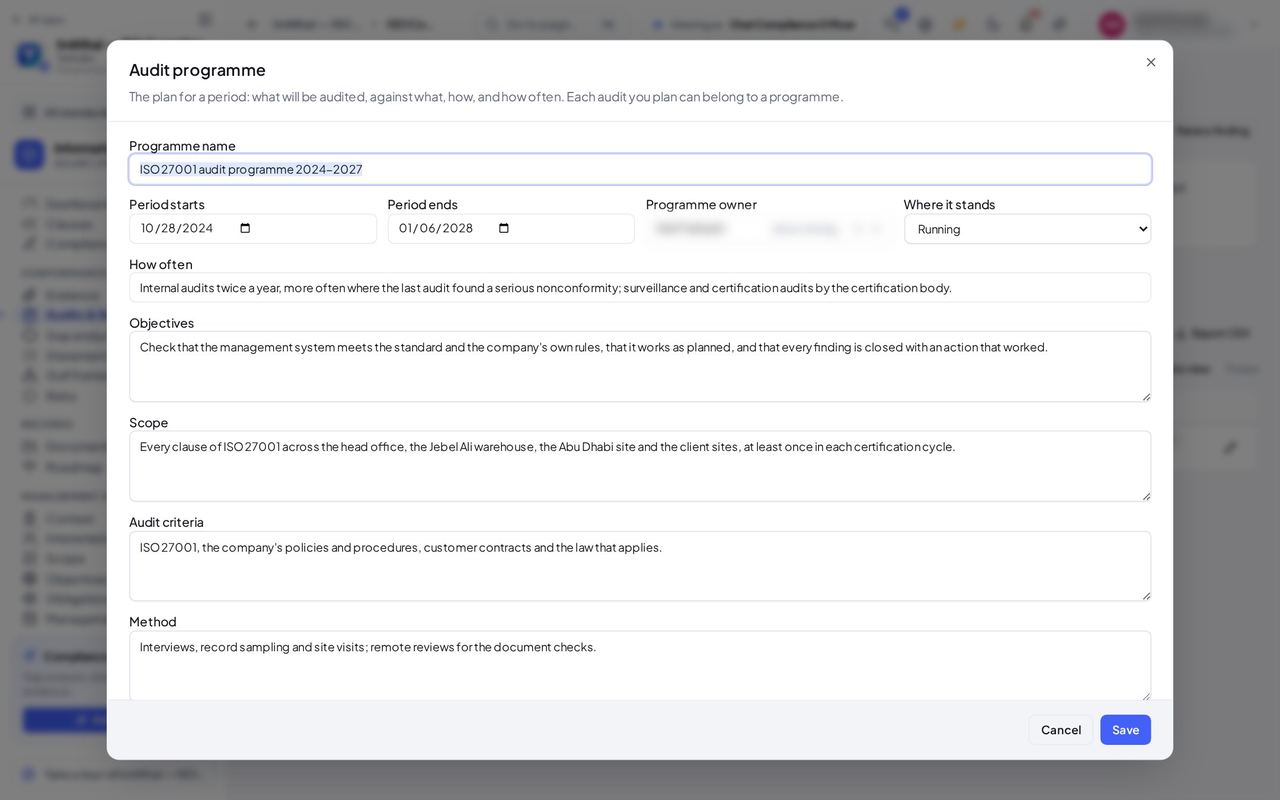
You should see The programme: what is audited, against what, how often, and Where it stands. As a person who may approve, you can choose Approved there; it records you and the date. The auditors who plan the programme cannot approve it.
Watch out Starting a draft or cancelled programme without approval is refused too.
Worth knowing A controlled document works the same way: only somebody who may approve documents can set one to Approved.
Audits on a phone #
Where ISO 27001 » Audits & findings, on a phone
- Open your company's address (yourcompany.tarleaks.com) and sign in.
- On your phone, open ISO compliance, then ISO 27001, then Audits & findings.
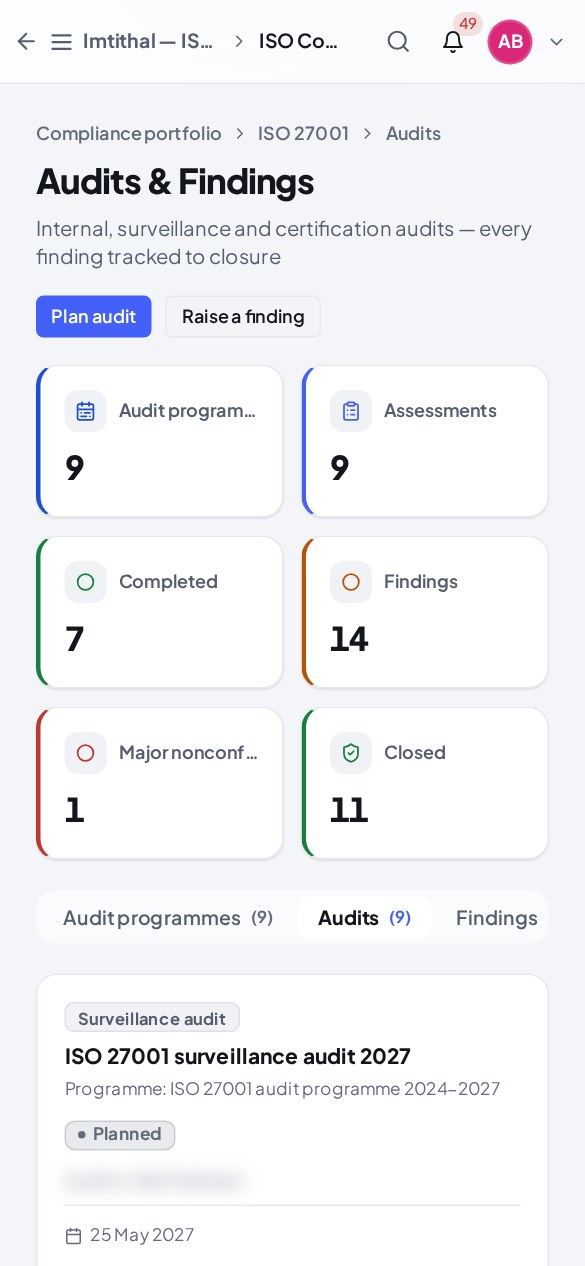
You should see The tabs fit the width of the screen and slide sideways on their own when they do not all fit; the page itself stays still. Each audit is a card you can read without zooming.
Worth knowing The same holds in Arabic: the pages read right to left and nothing scrolls the page sideways.
The risk register #
Where ISO 27001 » Risks
- Open your company's address (yourcompany.tarleaks.com) and sign in.
- Open the app launcher and choose ISO compliance.
- Click the ISO 27001 tile.
- In the menu, choose Risks.
| Field | What to put in it |
|---|---|
| Risk before controls | Likelihood × impact with nothing in place, 1 to 25. |
| Risk after controls | What is left once the treatment works. |
| Accepted | Whether the owner accepted the remaining risk. |
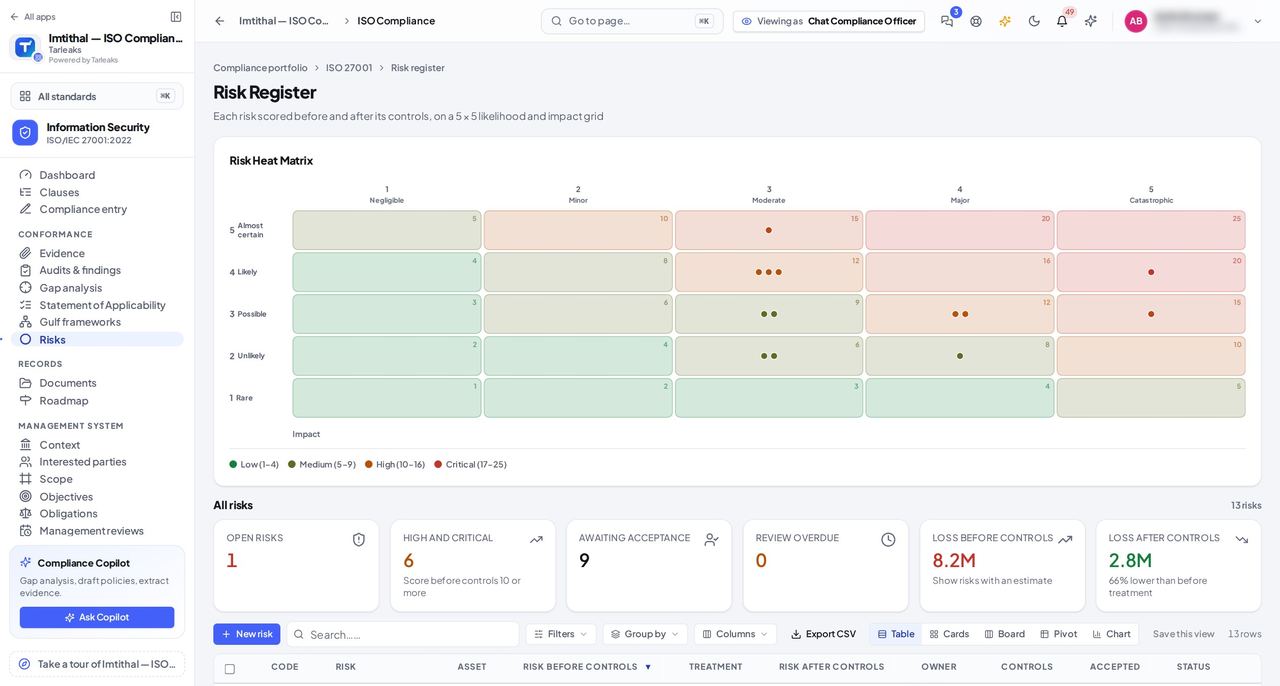
You should see Every risk with its code, the asset, the risk before controls, the treatment, the risk after controls, the owner, whether the remaining risk was accepted and the next review. The tiles count open risks, high and critical ones, risks waiting for acceptance and overdue reviews.
Worth knowing A risk title, an asset and a threat must each fit on one line; a line break is refused so every row of the list stays one row.
Pickers say who cannot open Compliance #
Where ISO 27001 » Documents » a document » Owner
- Open your company's address (yourcompany.tarleaks.com) and sign in.
- Open the app launcher and choose ISO compliance.
- Click the ISO 27001 tile.
- In the menu, choose Documents.
- Click a document's title.
- Open the Owner list.
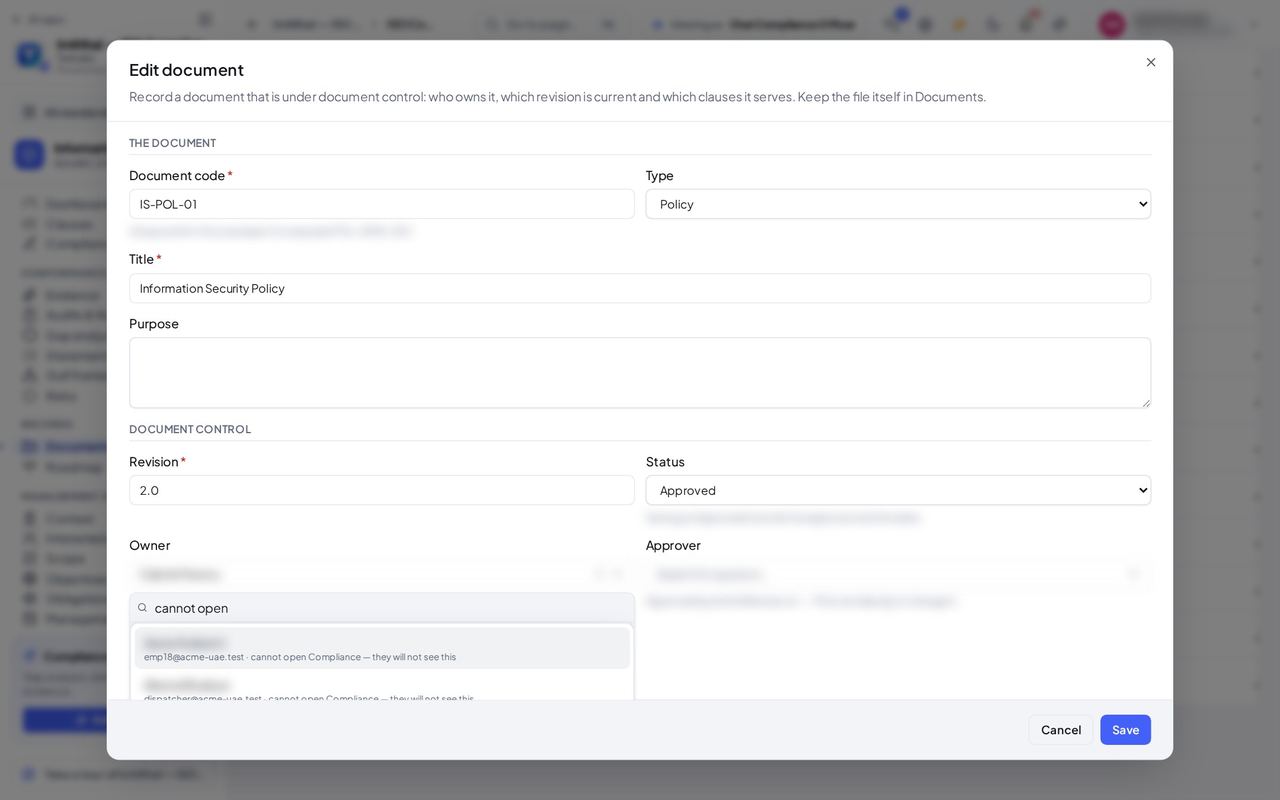
You should see Under the name of anybody who cannot open the compliance suite: cannot open Compliance — they will not see this. You can still name them, but they will never see what you gave them, so give them a compliance role first or pick somebody else. The same note is in every owner, approver and auditor list of Compliance.
Watch out Somebody named here who cannot open Compliance never sees the document. Give them a compliance role under Settings » Roles, or pick somebody else.
Worth knowing Opening the list and searching it changes nothing; close the document without saving.
Open any piece of evidence #
Where ISO 27001 » Evidence
- Open your company's address (yourcompany.tarleaks.com) and sign in.
- Open the app launcher and choose ISO compliance.
- Click the ISO 27001 tile.
- In the menu, choose Evidence.
- Click a row.
| Field | What to put in it |
|---|---|
| Captured by | Who recorded it. That person cannot accept or reject it. |
| Expiry | When it stops counting; Does not expire when it never does. |
| File | The attached file, opened in place. |
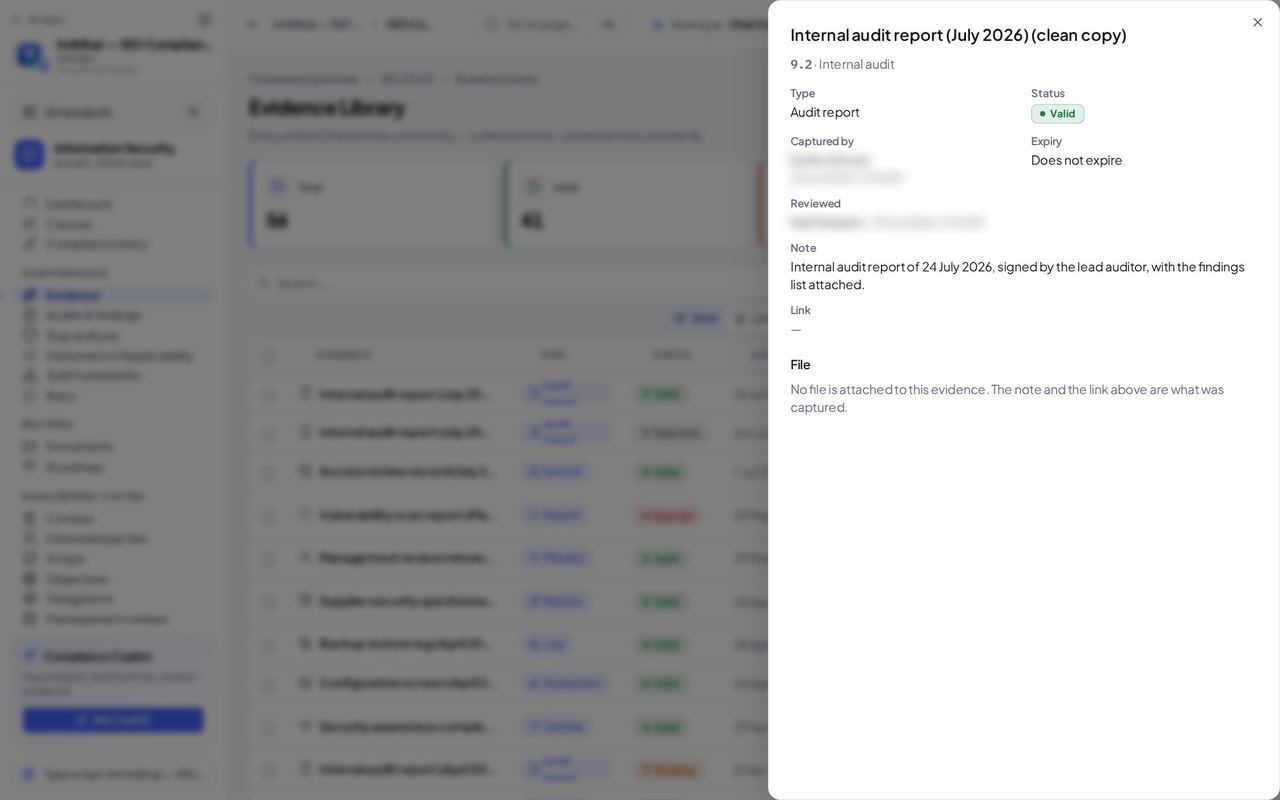
You should see A panel opens with the clause it proves, its type, its status, who captured it, when it expires, who reviewed it, the note and link, and the file itself when one is attached. Accept and Reject appear only on evidence that is waiting for review and that somebody else captured: nobody accepts their own.
Worth knowing A file you attach goes into the Documents workspace ISO compliance evidence, so it is kept and found like any other company file.
Say where a clause stands, from your phone #
Where ISO 27001 » Compliance entry, on a phone
- Open your company's address (yourcompany.tarleaks.com) and sign in.
- On your phone, open ISO compliance, then ISO 27001, then Compliance entry.
| Field | What to put in it |
|---|---|
| Mine | The clauses you own. |
| Due soon | Clauses whose due date is close or past. |
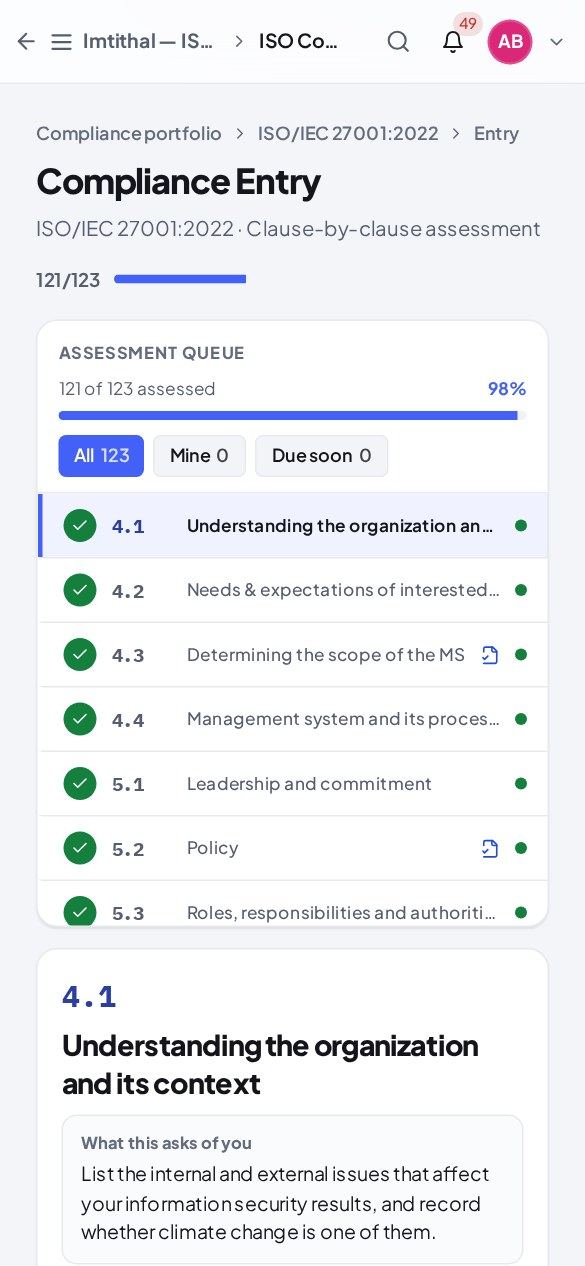
You should see How many clauses are assessed so far, then the queue: All, Mine (the clauses you own) and Due soon. The clause form follows below it on a phone, starting from what was saved before.
Watch out The form starts from what was saved for the clause, so nothing typed before is lost.
Worth knowing Every status is entered and confirmed by a person.
Your own compliance work, on Home #
Where Home » My compliance work
- Open your company's address (yourcompany.tarleaks.com) and sign in.
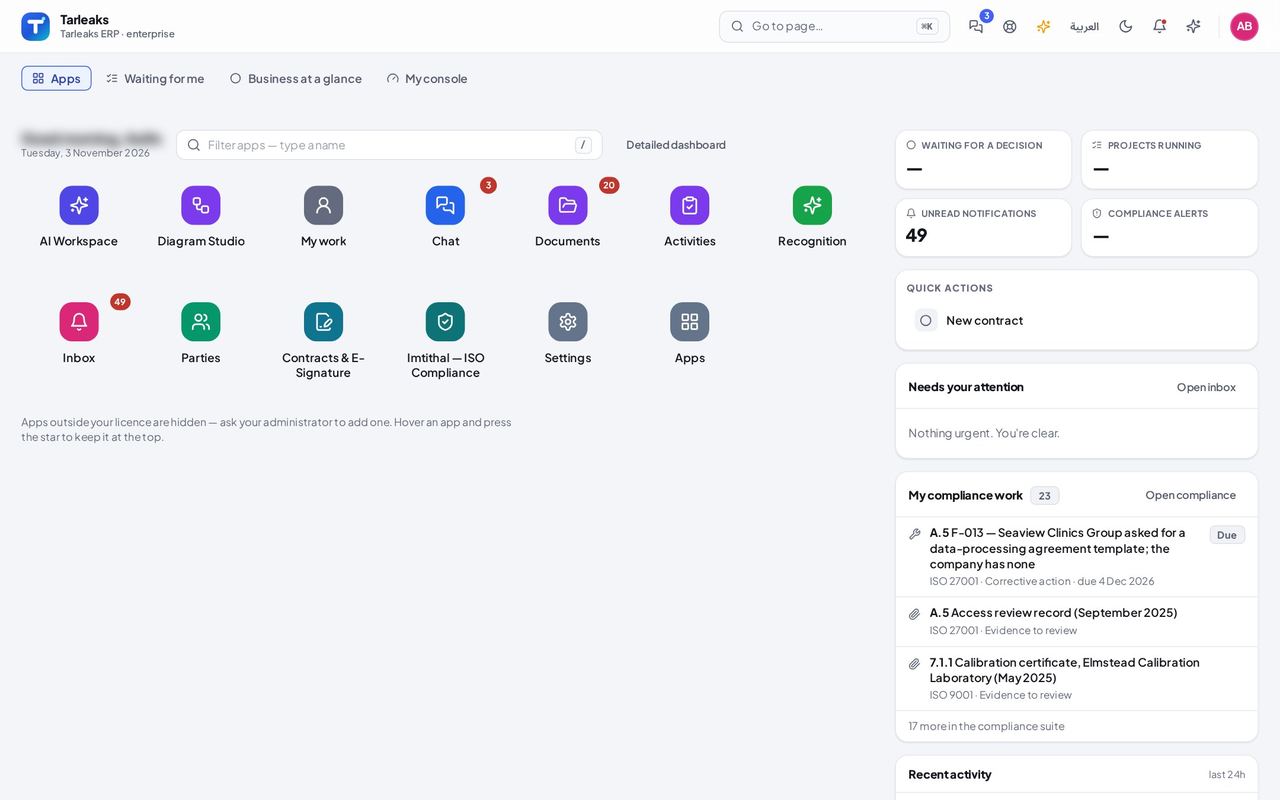
You should see A card My compliance work with what is waiting for you: clauses you own, evidence to review, corrective actions, audits, management-review invitations and actions, objective reviews and obligation checks. Overdue items come first; each opens the page where you deal with it. Open compliance takes you to the portfolio.
Which Gulf rules an ISO 27001 control also covers #
Where ISO 27001 » Gulf frameworks
- Open your company's address (yourcompany.tarleaks.com) and sign in.
- Open the app launcher and choose ISO compliance.
- Click the ISO 27001 tile.
- In the menu, choose Gulf frameworks.
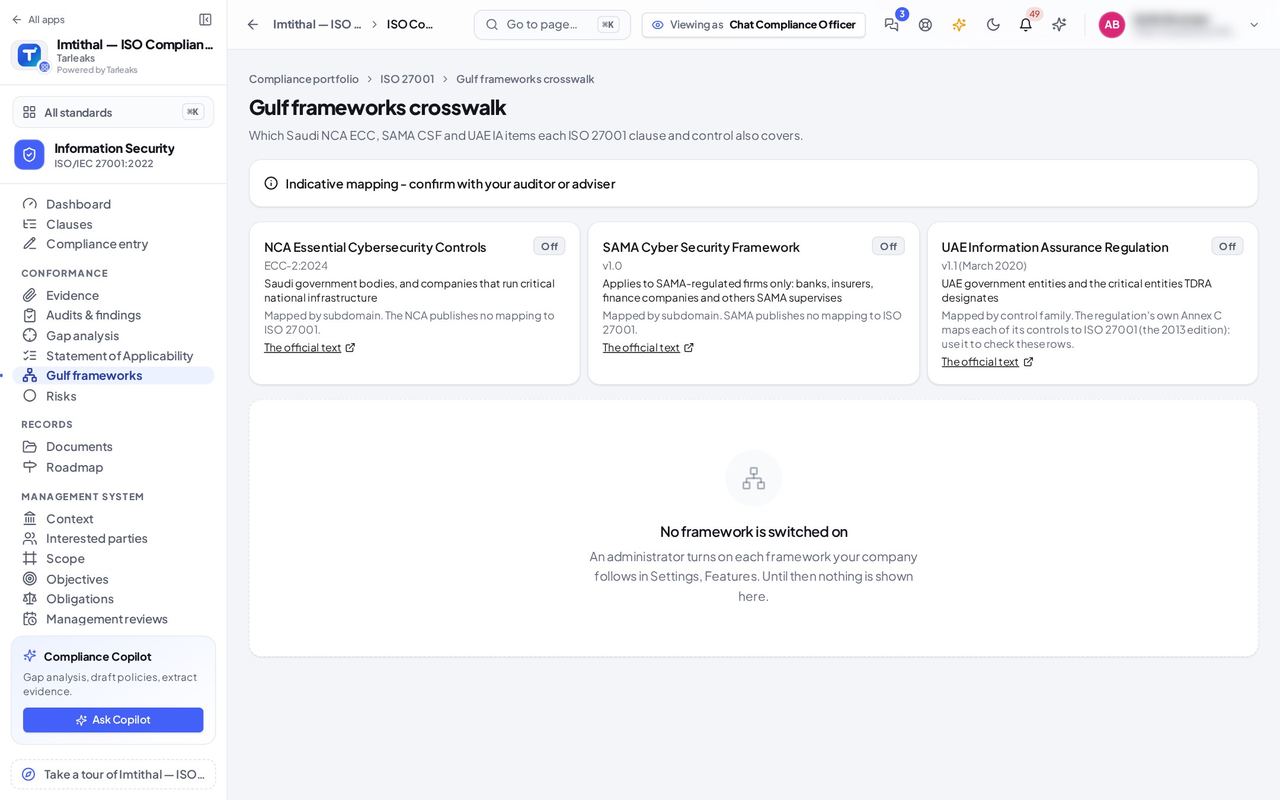
You should see One card per Gulf framework Tarleaks maps onto ISO 27001 (for example the NCA Essential Cybersecurity Controls), who it applies to, whether it is on for your company and a link to The official text. With a framework on, the table shows which of its items each ISO 27001 clause or control also covers. A framework nobody switched on shows nothing.
Watch out Turn a framework on only if your company follows it; the page then shows its mapping.
Worth knowing An administrator switches each framework on under Settings » Features. The mapping is indicative: confirm it with your auditor or adviser.
Ready for the certification audit? #
Where ISO 27001 » Management system » Readiness
- Open your company's address (yourcompany.tarleaks.com) and sign in.
- Open the app launcher and choose ISO compliance.
- Click the ISO 27001 tile.
- In the menu, under Management system, choose Readiness.
| Field | What to put in it |
|---|---|
| Ready | The record the auditor expects is on file. |
| Still missing | What is missing, with Fix it to open the page that puts it right. |
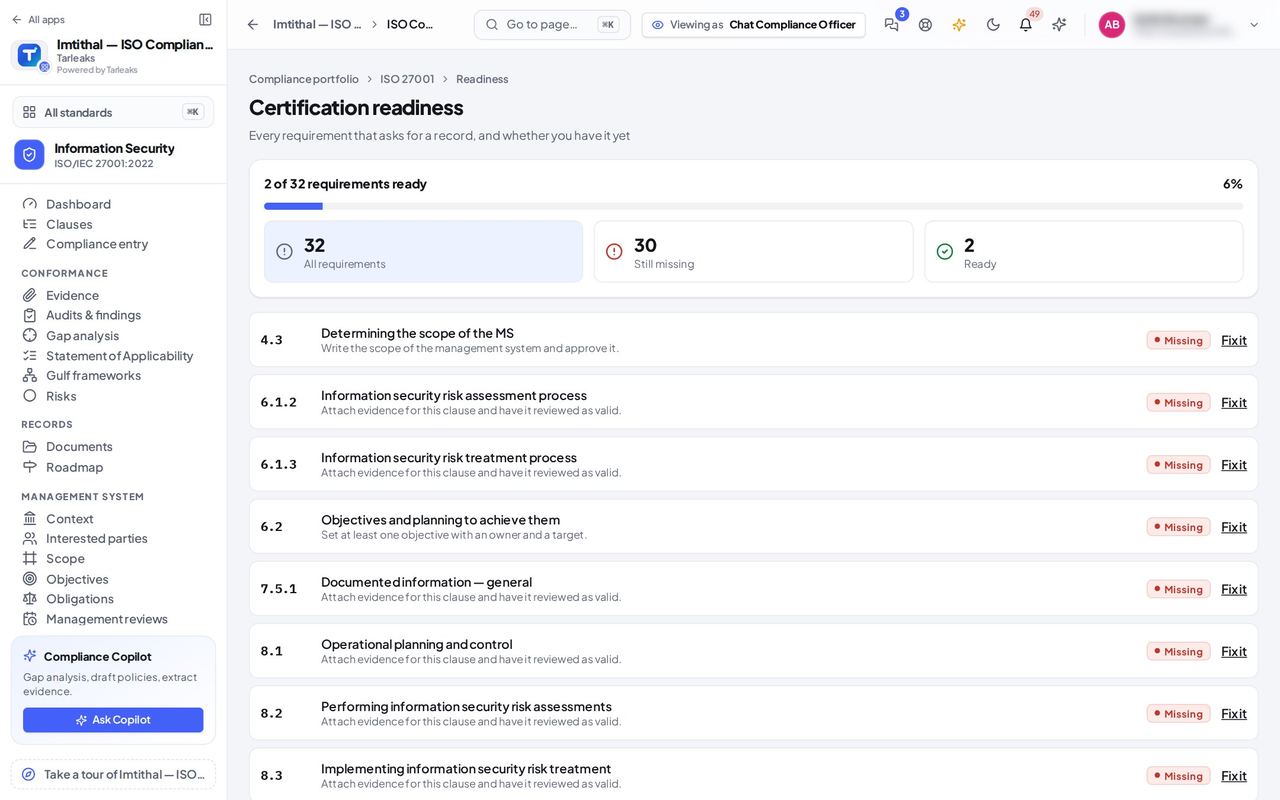
You should see Certification readiness: how many requirements are ready, then each clause where an auditor expects a record, marked Ready or Still missing with the reason, and Fix it to open the page that puts it right. The same Management system group holds Context, Interested parties, Scope, Objectives, Obligations, Management reviews and Certificates, kept once for every standard you track.
No Compliance screen fills anything in with AI: every status and every text is entered by a person, and by default evidence is accepted by somebody other than the person who captured it.