Internal auditor — Compliance guide
Plan and run the internal audits, and follow every finding until it is closed, without approving your own plan.
Plans and runs the internal audits and records what they find. Because the auditor plans the programme it then audits, somebody else approves it.
What you will be able to do
- See the audits you run and the evidence waiting for you on Home
- Change the audit programme, while somebody else approves it
- Raise findings and follow their corrective actions
- Read the controlled documents you sample, without changing them
What this role can and cannot do
| Can | Cannot |
|---|---|
|
|
4 steps, each one carried out in the product on .
Your audits and the evidence waiting for you #
Where Home » My compliance work
- Open your company's address (yourcompany.tarleaks.com) and sign in.
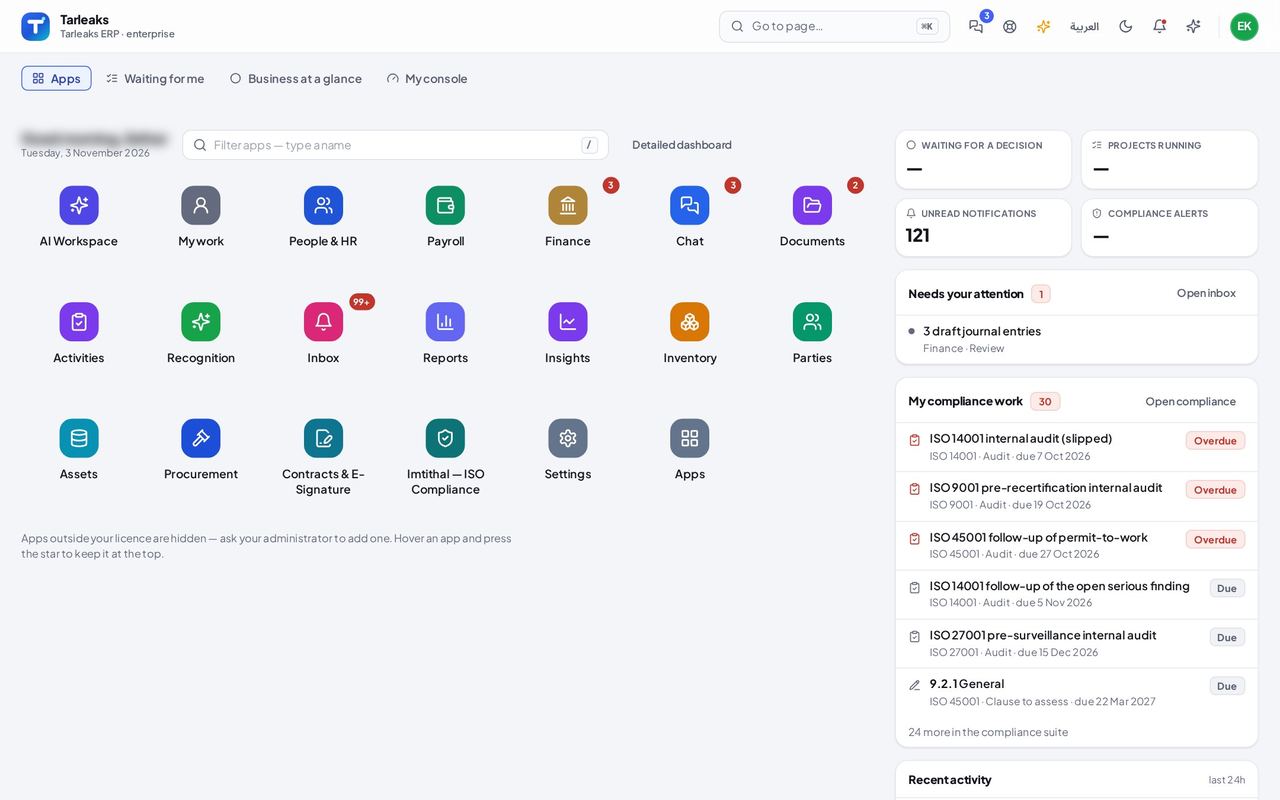
You should see My compliance work lists the audits you run, overdue ones first, then the clauses and the evidence waiting for you. The card shows the first six; a line under them says how many more are waiting in the compliance suite. Each line opens the audit, clause or evidence.
You plan the audit programme; somebody else approves it #
Where ISO 27001 » Audits & findings » Audit programmes
- Open your company's address (yourcompany.tarleaks.com) and sign in.
- Open the app launcher and choose ISO compliance.
- Click the ISO 27001 tile.
- Choose Audits & findings, then Audit programmes.
- Click the programme's name.
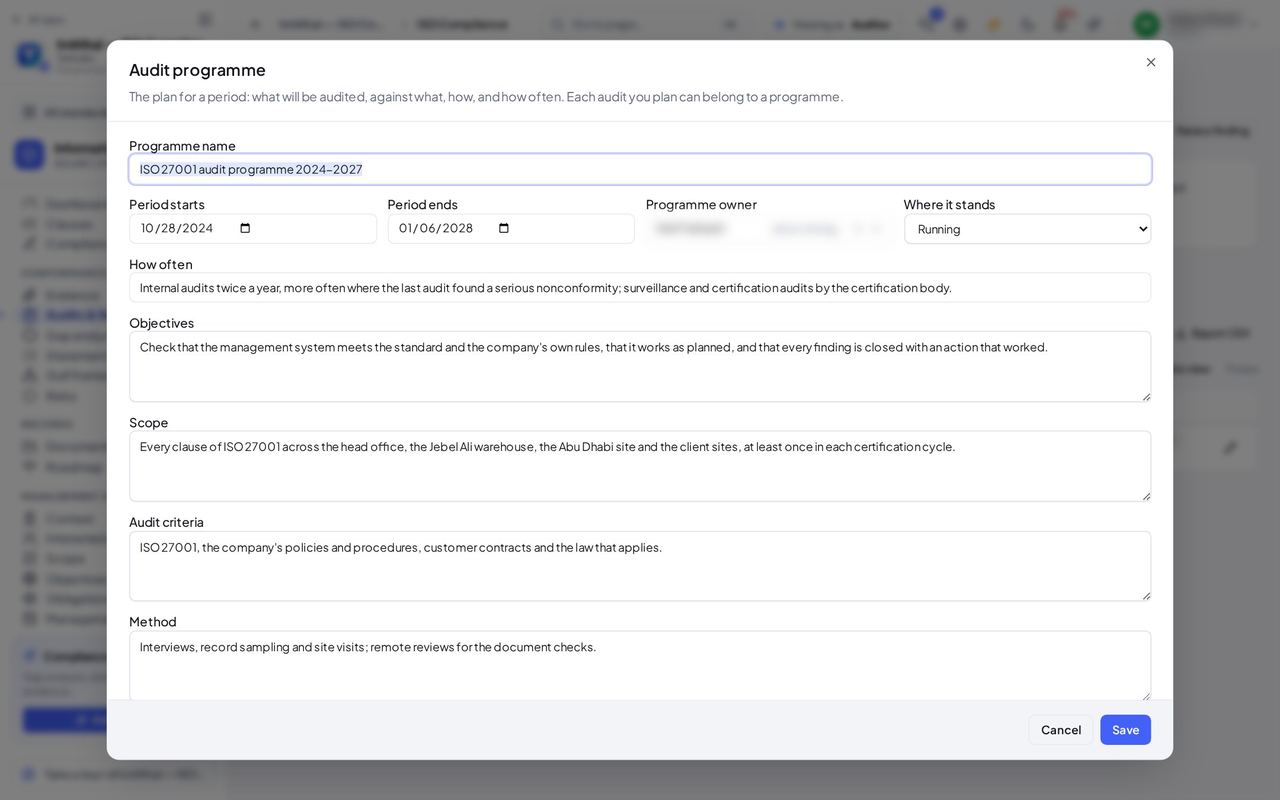
You should see You can change what is audited, against what and how often. Where it stands offers Draft, Running, Completed and Cancelled, but not Approved: because you plan the audits, an approver signs the plan off. If you try anyway, the server refuses and asks you to save it as a draft for somebody who may approve programmes.
Watch out Ask an approver (the compliance director or management system manager) to approve the programme.
Worth knowing A draft programme shows no Approve programme button for you either.
Findings, followed until they are closed #
Where ISO 27001 » Audits & findings » Findings
- Open your company's address (yourcompany.tarleaks.com) and sign in.
- Open the app launcher and choose ISO compliance.
- Click the ISO 27001 tile.
- Choose Audits & findings, then Findings.
| Field | What to put in it |
|---|---|
| Raise a finding | Records a nonconformity or an observation against a clause. |
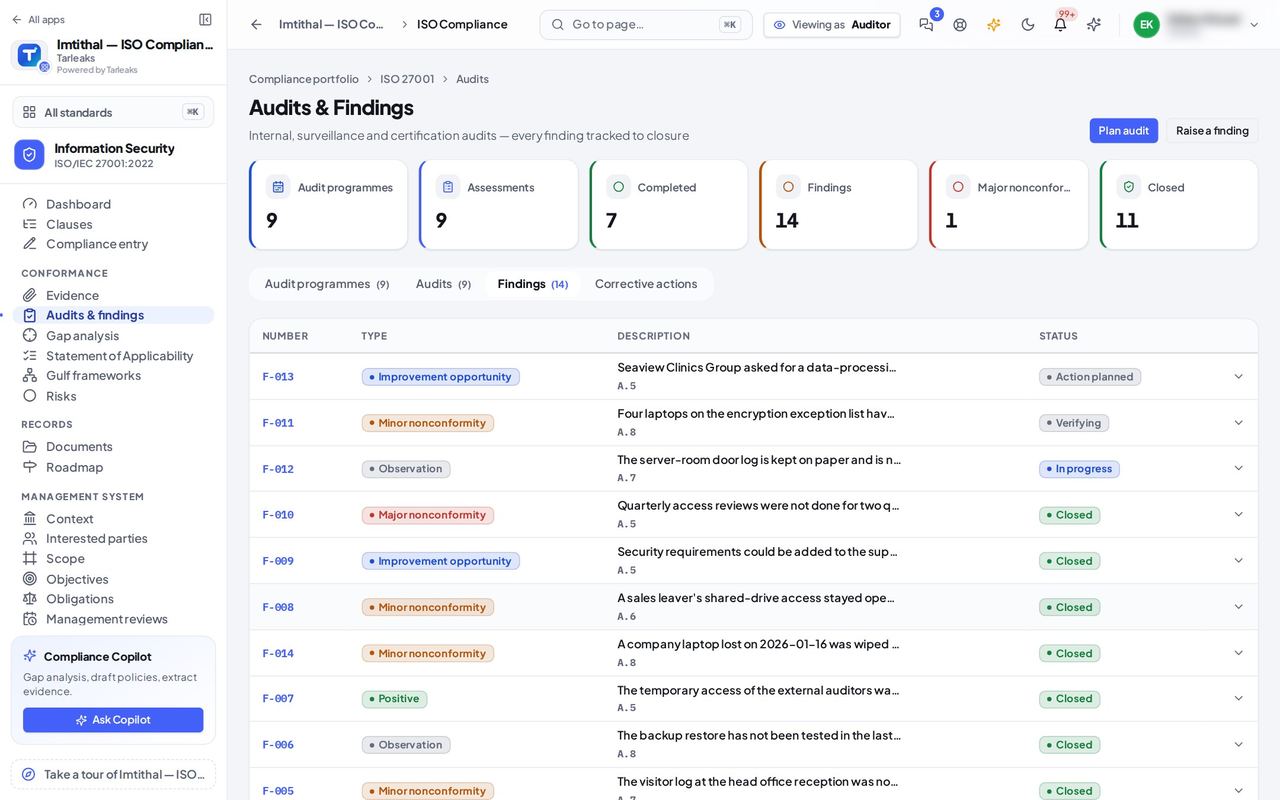
You should see Every finding with its clause, grade, what kind it is and where it stands. Open a row for its corrective action. Raise a finding at the top adds one; a nonconformity is closed only once its corrective action was checked and found to work.
Worth knowing Add ?show=open to the address (or press the Open tile) to see only the findings still open.
Controlled documents: you read them, the owners change them #
Where ISO 27001 » Documents
- Open your company's address (yourcompany.tarleaks.com) and sign in.
- Open the app launcher and choose ISO compliance.
- Click the ISO 27001 tile.
- In the menu, choose Documents.
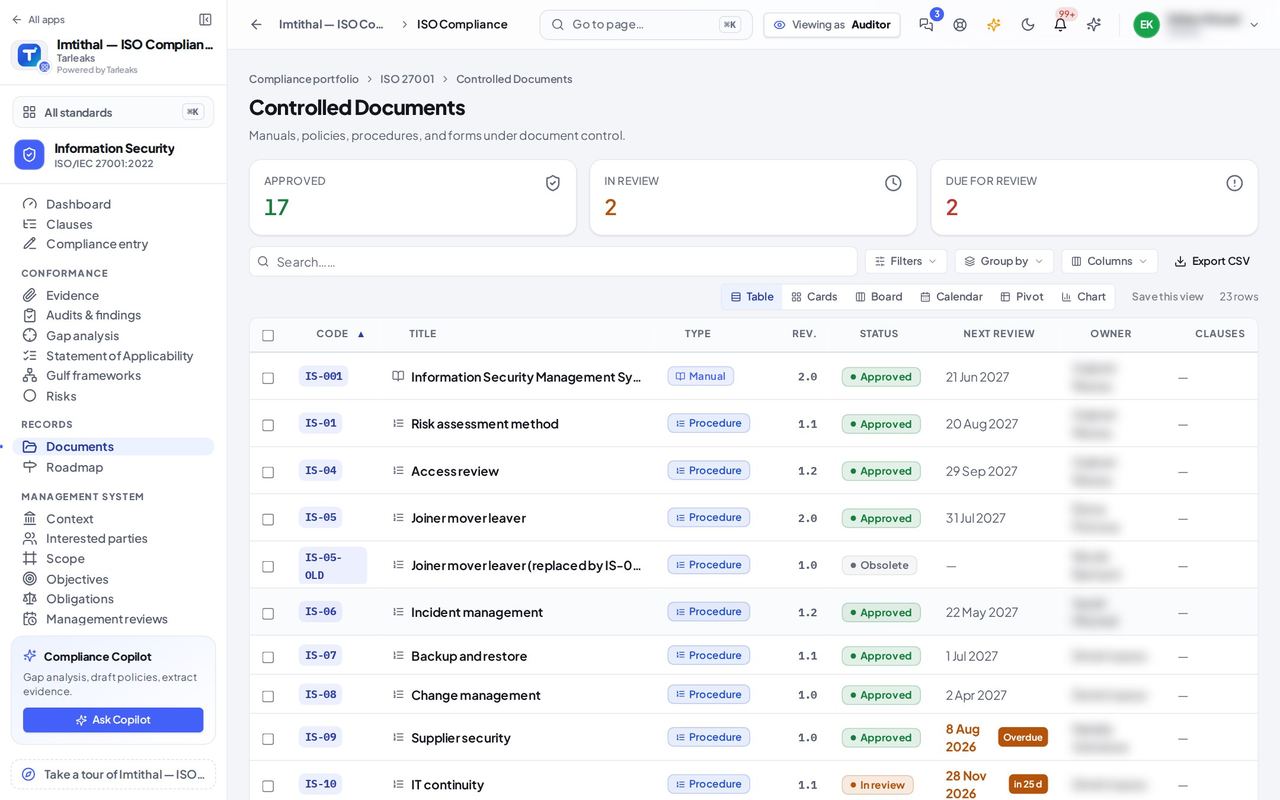
You should see Every controlled document with its code, revision, status and next review date, and tiles for Approved, In review and Due for review. There is no New document and a row does not open a form: documents are written by their owners and approved by the people who may approve them.
If you need to approve a programme or change a document, ask your compliance director: approving is kept apart from planning on purpose.