Meetings role guides — what each role can do, step by step
Step-by-step guides for video meetings — the host who runs the meeting and keeps its record, and the employee who joins and finds what was decided. 9 steps across 2 roles, every one of them carried out in the product before it was published here.
Last updated
Nothing matches that. Try a shorter word, or pick All roles to search every guide.
Go deeper
Meeting Host
Run a meeting people want to be in, and leave a record the right people can use.
Sets meetings up, runs them (admits people, polls, breakouts, recording), then shares the recording, transcript and minutes with the right people.
What you will be able to do
- See what is on today and start or join it
- Find any past meeting with its recording, transcript and minutes
- Search what was said across meetings
- Know what you may not see: the company-wide compliance register
What this role can and cannot do
| Can | Cannot |
|---|---|
|
|
6 steps, each one carried out in the product on .
See what is on and start it #
Where Meetings » Upcoming
- Open your company's address in the browser — it looks like yourcompany.tarleaks.com.
- Type the e-mail address your administrator set up for you, then your password.
- You land on the app launcher: a grid of the apps your company uses.
- Click the Meetings tile.
- Upcoming → Start (or Join now or Rejoin).
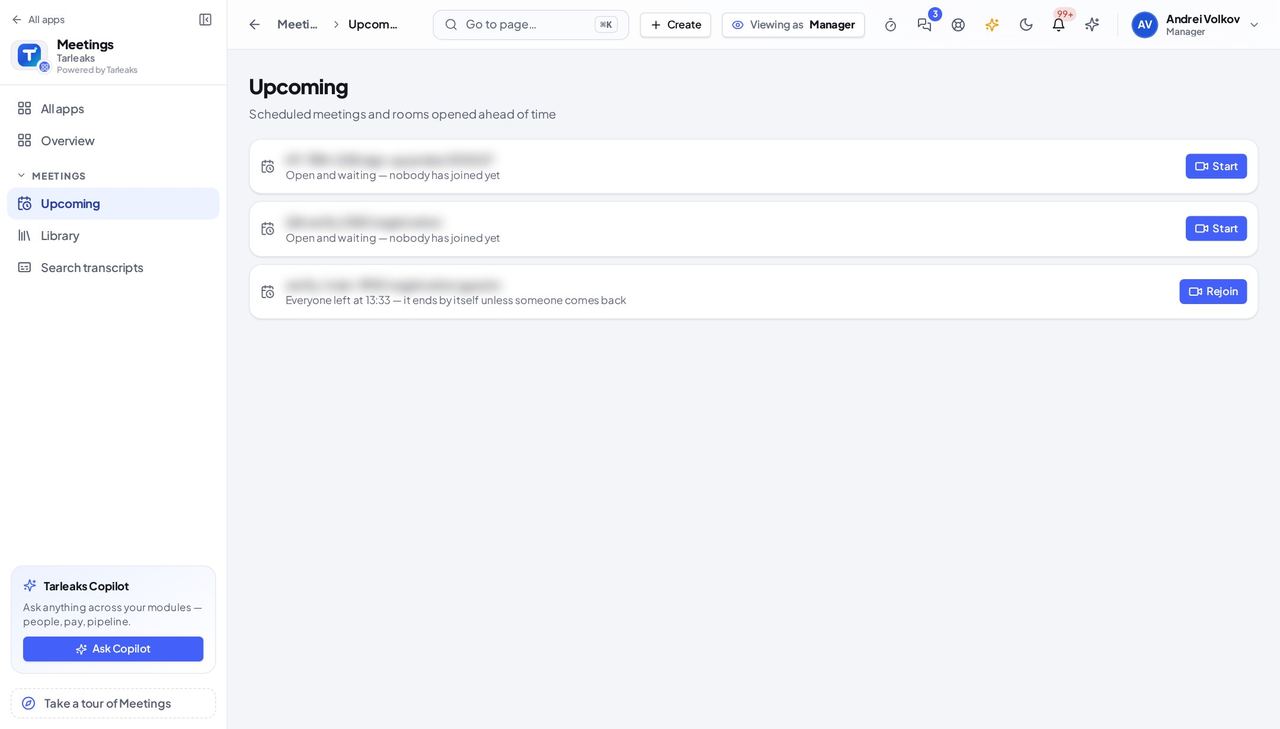
You should see Your meetings in time order, each saying who is in it and offering Start, Join now or Rejoin.
Watch out Starting a room puts you in it; people see you the moment you join.
Find a past meeting and its recording #
Where Meetings » Library
- Open your company's address in the browser — it looks like yourcompany.tarleaks.com.
- Type the e-mail address your administrator set up for you, then your password.
- You land on the app launcher: a grid of the apps your company uses.
- Click the Meetings tile.
- Library → click the meeting.
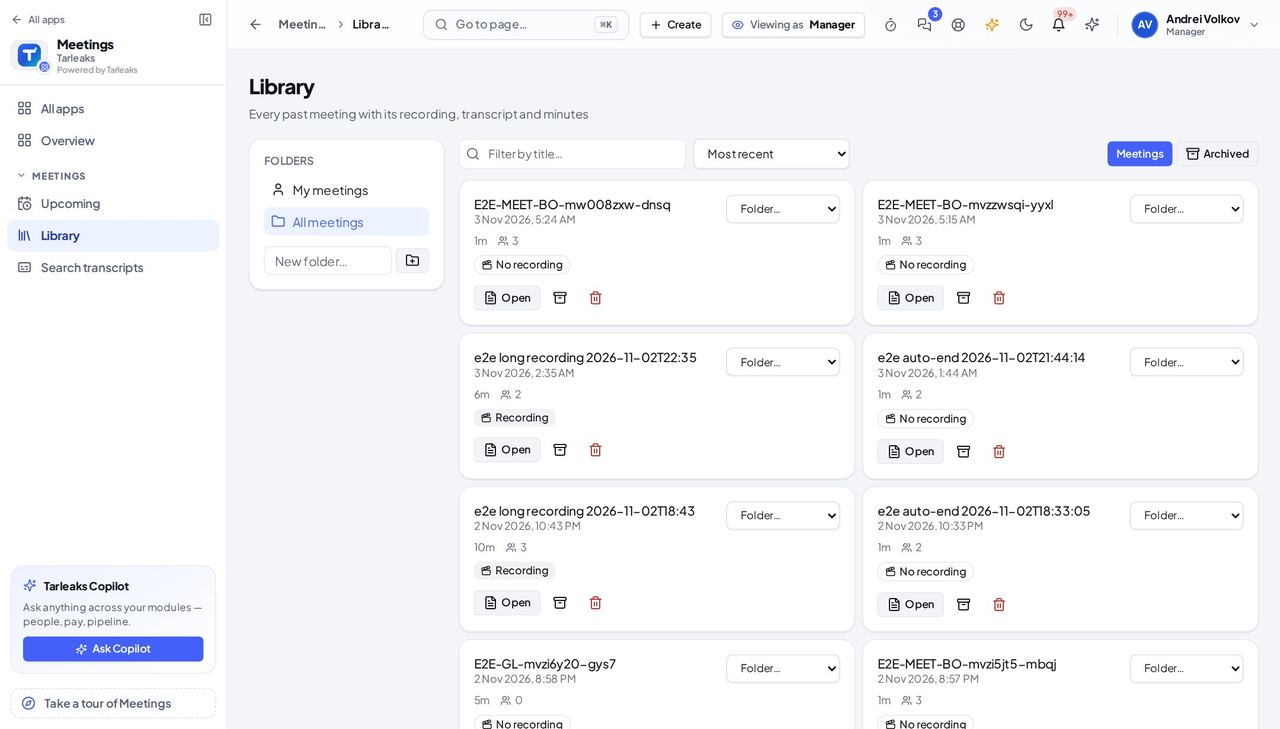
You should see Past meetings with their length, and the recording where there is one.
Search what was said #
Where Meetings » Search transcripts
- Open Search transcripts, type at least two letters, and press Search.
- Narrow it with Look in: What was said, Chat or Minutes.
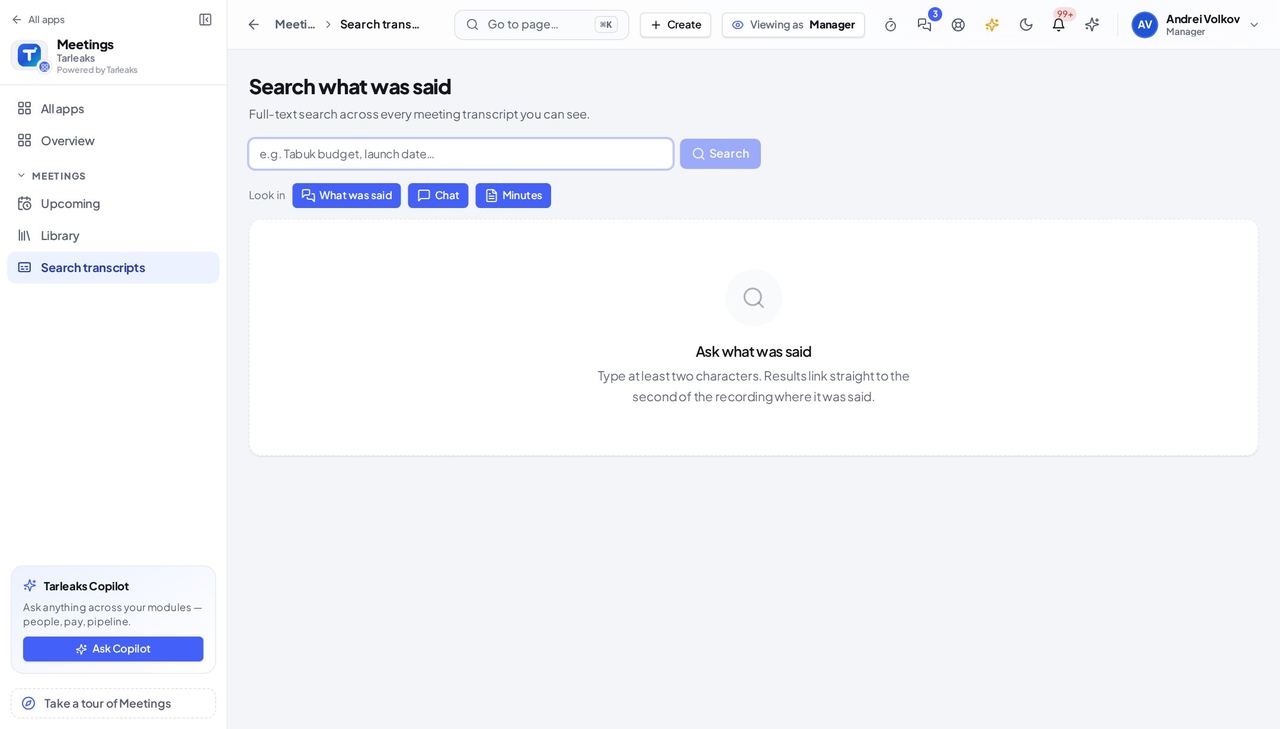
You should see A search box and the Look in choices; results link to the second of the recording where it was said.
See what is not yours #
Where Meetings (the menu)
- Look at the Meetings menu: Upcoming, Library and Search transcripts are there.
- Compliance is not: the consent register covers the whole company and is kept by the people who manage recordings.
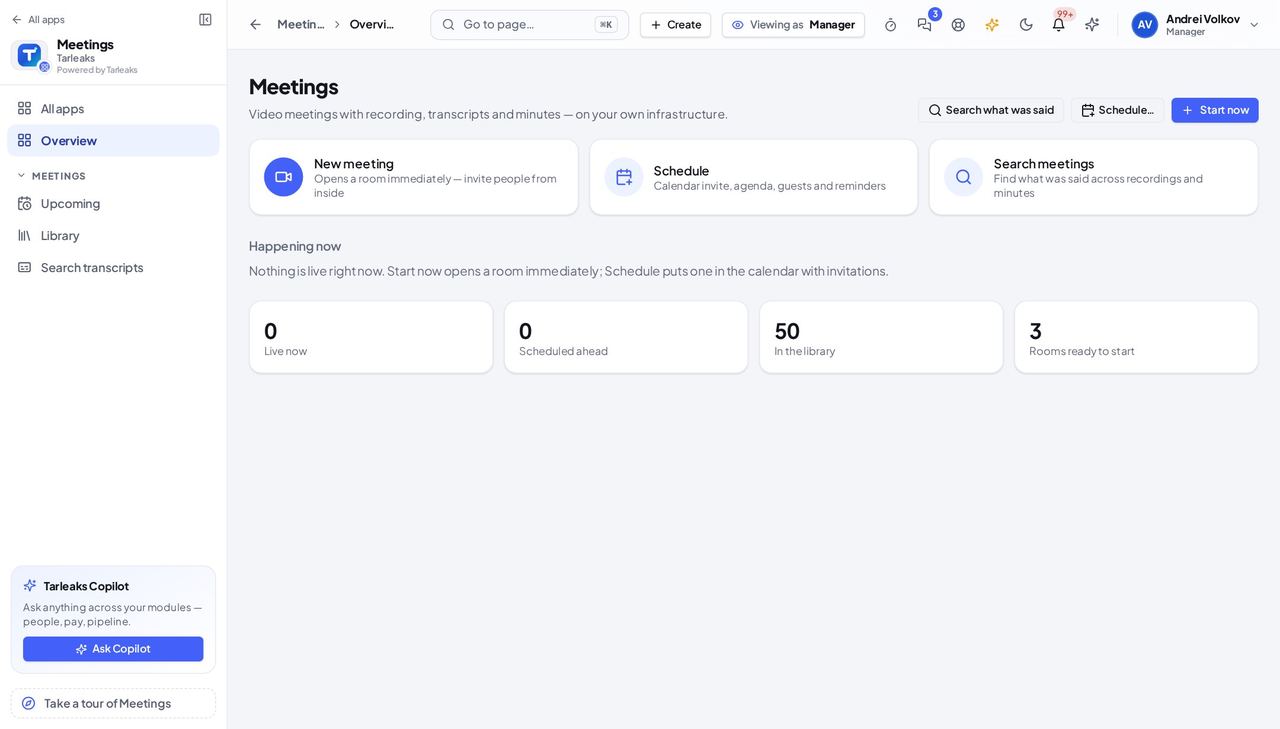
You should see The Meetings menu without a Compliance entry.
See that a meeting nobody needs ended by itself #
Where Meetings » Library » the meeting
- Open your company's address in the browser — it looks like yourcompany.tarleaks.com.
- Type the e-mail address your administrator set up for you, then your password.
- You land on the app launcher: a grid of the apps your company uses.
- Click the Meetings tile.
- Library → click the meeting.
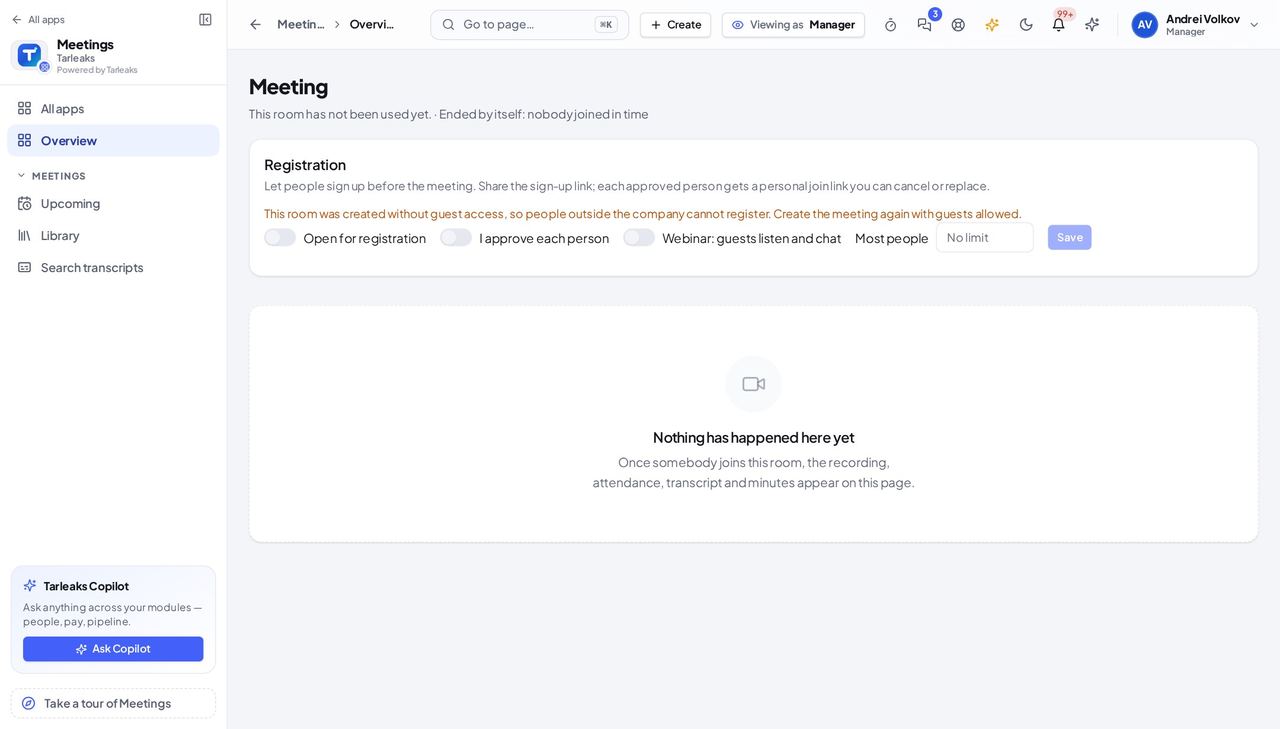
You should see The meeting page with the line "Ended by itself: nobody joined in time".
Watch out A meeting with people in it is never ended by itself; ending it for everyone yourself still works and is recorded as ended by the host.
Open a meeting to registration or make it a webinar #
Where Meetings » Library » the meeting
- Open your company's address in the browser — it looks like yourcompany.tarleaks.com.
- Type the e-mail address your administrator set up for you, then your password.
- You land on the app launcher: a grid of the apps your company uses.
- Click the Meetings tile.
- Library → click the meeting → the Registration card at the top.
| Field | What to put in it |
|---|---|
| Open for registration | On to let people sign up from a link. |
| I approve each person | On to approve every sign-up yourself. |
| Webinar: guests listen and chat | On when guests should only watch and listen. |
| Most people | A whole number, or empty for no limit. |
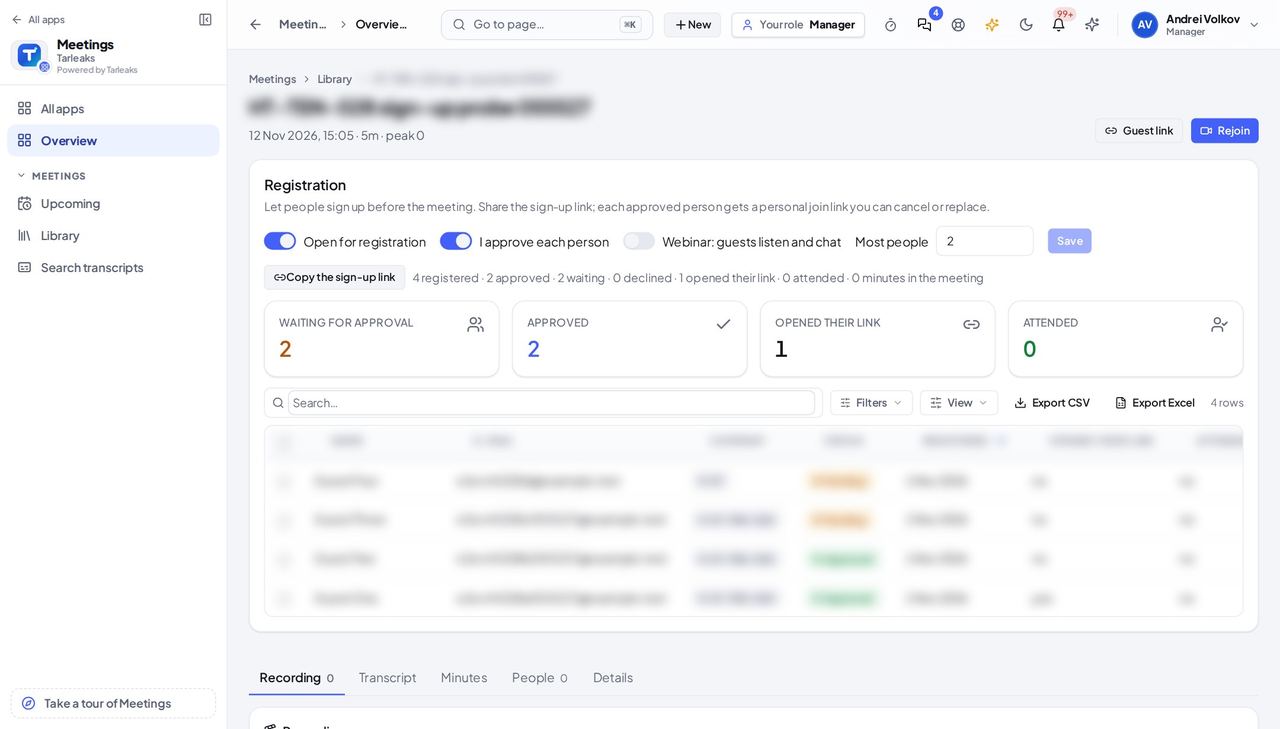
You should see The Registration card with its switches, the sign-up link button and the counts of people waiting for approval and approved.
Watch out A webinar guest cannot switch their camera or microphone on.
Worth knowing A person who signs up gets a personal join link of their own; you can cancel or replace it from the list.
Use cases — the work, step by step
Each one is a sequence somebody actually performs, with the screen behind every step. Every screen here was opened in the product as this role before it was published.
weeklyFind what was decided last week #
Minutes and decisions are searchable, so nobody has to ask who remembers.
Search transcripts → type the topic.
Meetings » Search transcripts — verified: the page says “Search what was said”; the page says “Look in” Library → open that meeting to read the minutes in full.
Meetings » Library — verified: the page says “Library”; the page says “All meetings”
when someone asks where a meeting wentCheck why a meeting is no longer open #
Rooms nobody needs close by themselves, and the meeting page says why, so you do not have to guess.
Library → open the meeting and read the line under its title.
Meetings » Library » the meeting — verified: the page says “Ended by itself: nobody joined in time”; no “Join now” anywhere on the page
before an open session, training or customer eventRun a sign-up meeting or webinar #
People sign up from one link, you decide who comes in, and everyone gets a join link of their own.
Library → open the meeting → switch on Open for registration and copy the sign-up link.
Meetings » Library » the meeting — verified: the page says “Registration”; the page says “Open for registration”; the page says “Copy the sign-up link”
The company-wide consent register and the meeting settings belong to the people who manage recordings for the whole company.
Employee
Join a meeting in a click and find what was decided afterwards.
Joins and starts meetings, uses chat, polls and captions, and reads the minutes of meetings they were in. Cannot record, share a recording or read the compliance register.
What you will be able to do
- See your meetings and join them
- Find a past meeting and read its minutes
- Search what was said
What this role can and cannot do
| Can | Cannot |
|---|---|
|
|
3 steps, each one carried out in the product on .
See your meetings and join them #
Where Meetings » Upcoming
- Open your company's address in the browser — it looks like yourcompany.tarleaks.com.
- Type the e-mail address your administrator set up for you, then your password.
- You land on the app launcher: a grid of the apps your company uses.
- Click the Meetings tile.
- Upcoming → Join now.
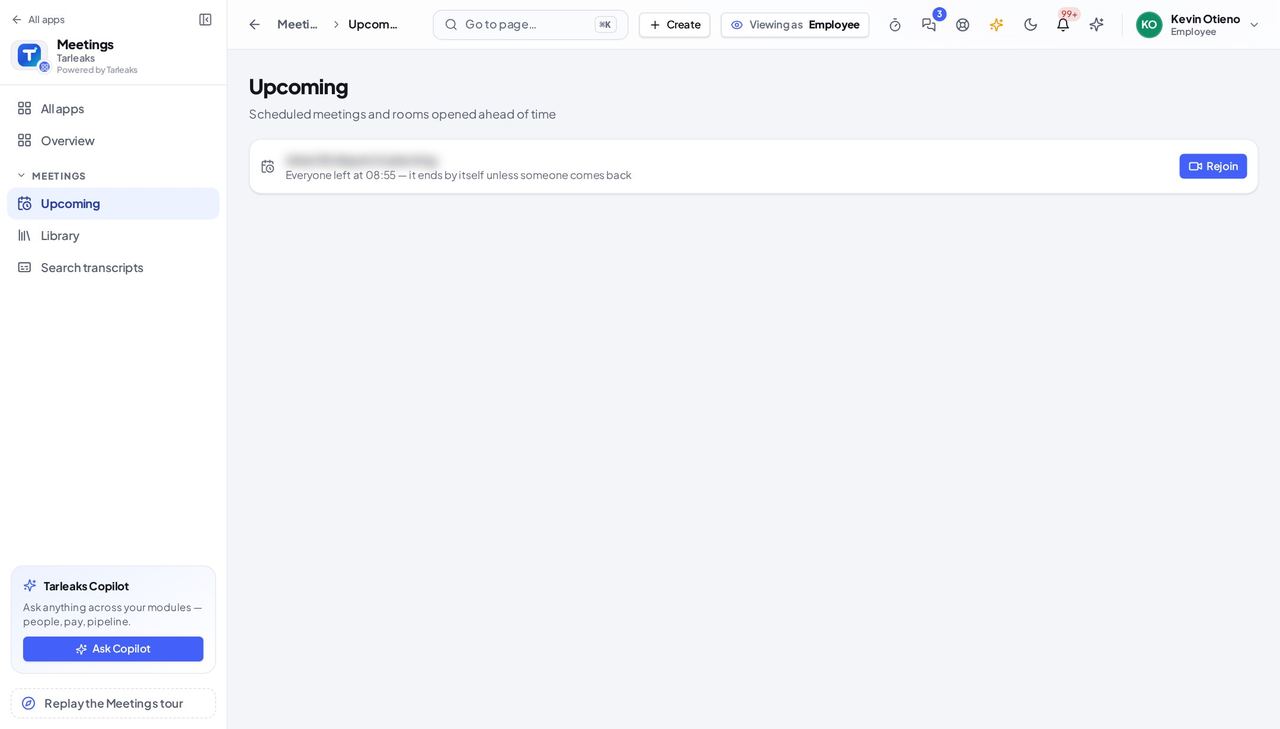
You should see The meetings you created or were invited to.
Find a past meeting #
Where Meetings » Library
- Open Library.
- Press Open on a meeting to read its minutes; a recording appears only if you were given access.
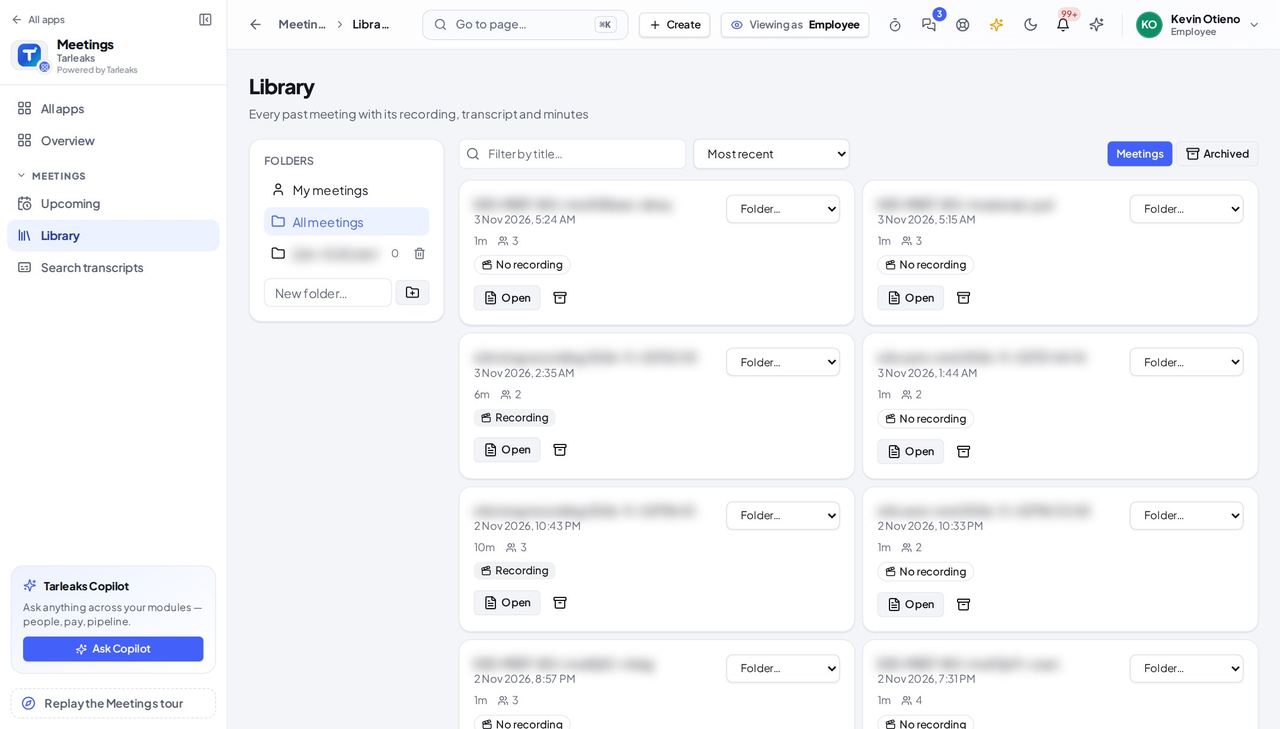
You should see Meetings you were part of, newest first.
See what is not yours #
Where Meetings (the menu)
- Look at the Meetings menu: there is no Compliance entry.
- A recording cannot be started or shared from your account.
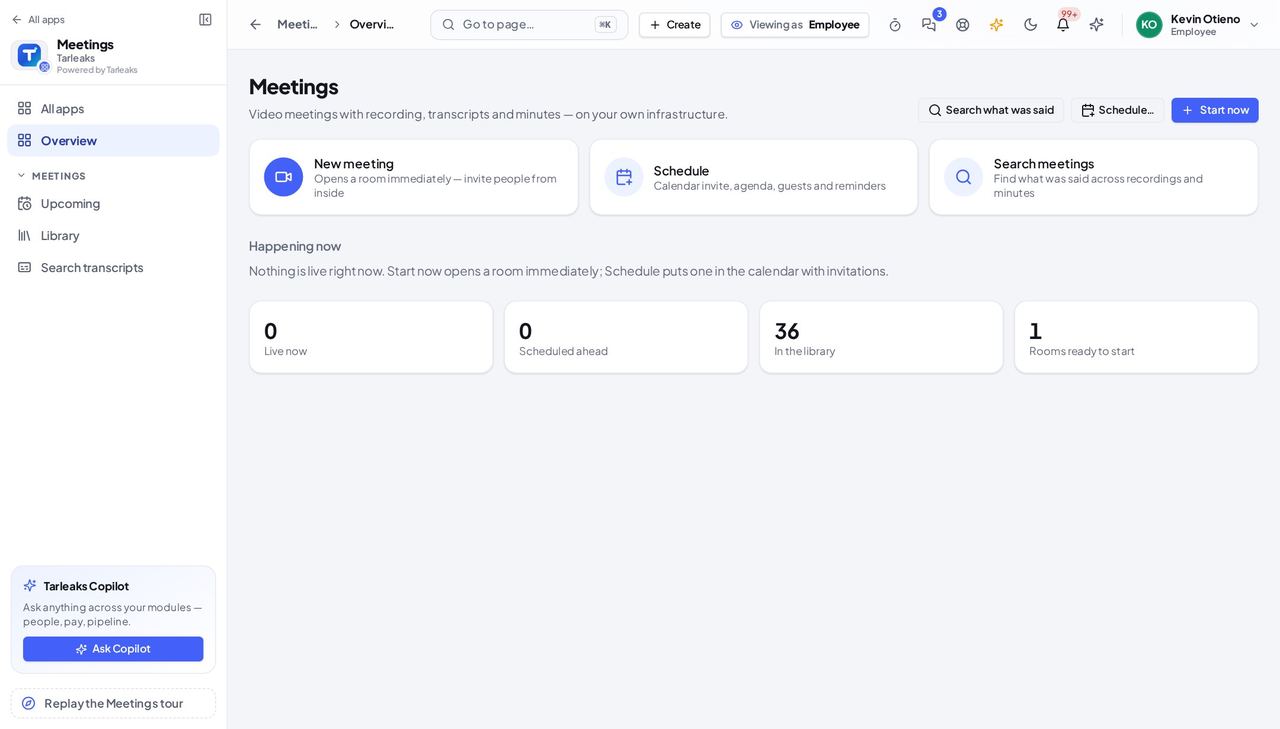
You should see The Meetings menu without Compliance (the permission list in step 1 shows recording and sharing are not held).
Use cases — the work, step by step
Each one is a sequence somebody actually performs, with the screen behind every step. Every screen here was opened in the product as this role before it was published.
dailyJoin today's meeting #
One click from the list to the pre-join screen.
Upcoming → Join now on the meeting that has started.
Meetings » Upcoming — verified: the page says “Upcoming”
Recording, sharing a recording and the compliance register are not yours — those controls are simply not there.