Payroll Specialist — Payroll guide
Get the month right before anyone else looks at it.
Prepares everything and approves nothing: contracts, periods, hours, loans, attachments, the run and its calculation. The approval buttons are not hidden from this role — they do not exist for it.
What you will be able to do
- Put joiners on the payroll and keep leavers off it
- Get the hours, loans and court orders in before you calculate
- Calculate, check the odd-looking people, and explain each one
- Hand a run over that the approver can sign without a phone call
What this role can and cannot do
| Can | Cannot |
|---|---|
|
|
19 steps, each one carried out in the product on .
Check what your sign-in can do #
Where Your name, top right » Profile
- Open your company's address in the browser — it looks like yourcompany.tarleaks.com.
- Type the e-mail address your administrator set up for you, then your password.
- You land on the app launcher: a grid of the apps your company uses.
- Click your name in the very top-right corner.
- Choose Profile.
- Read the role chip, then scroll the list underneath it.
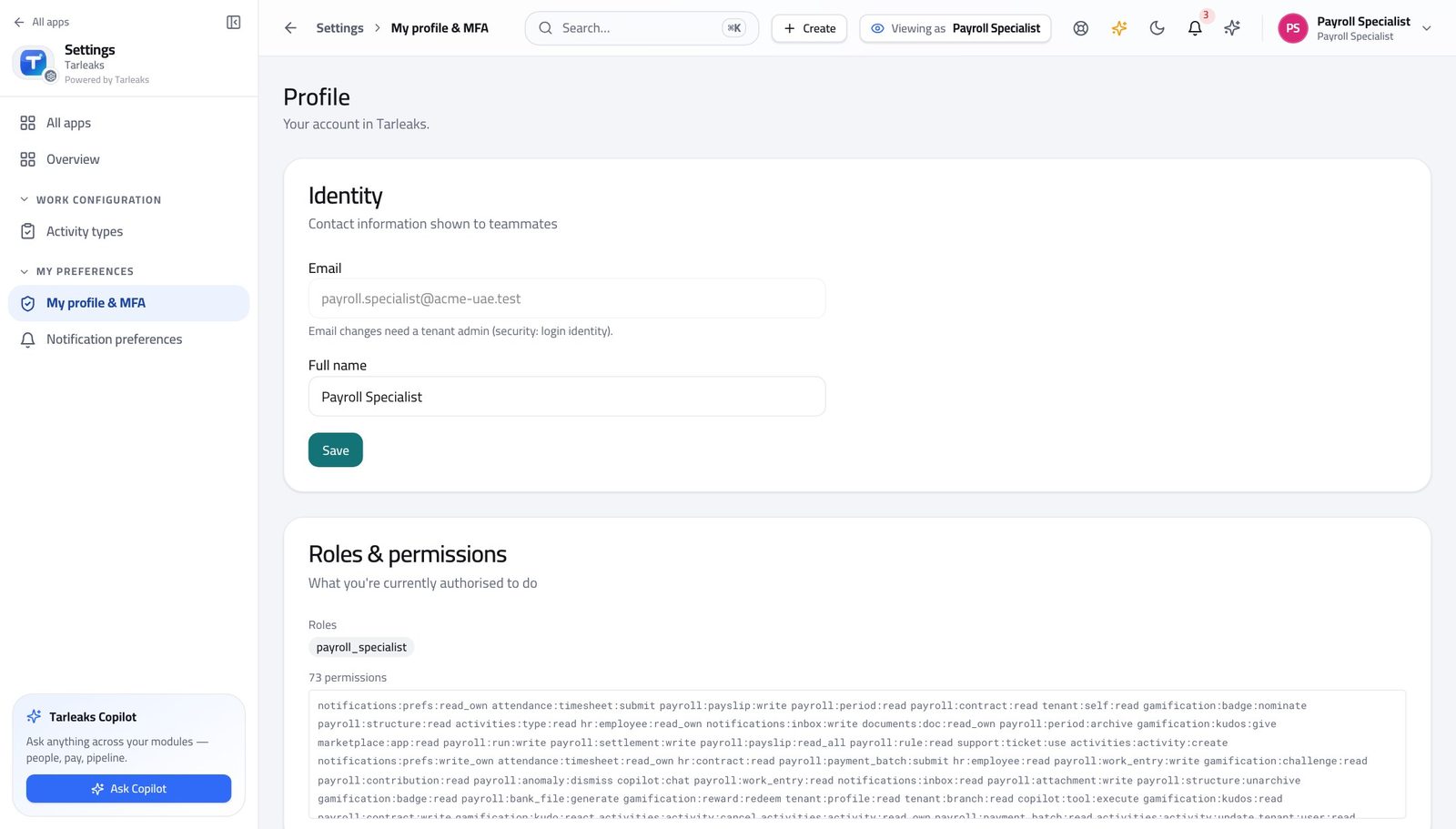
You should see It says payroll specialist. Everything that goes INTO a payroll is yours. Nothing that signs one off is.
Watch out Read it once, properly. Half the questions people bring to payroll are really "whose job is this", and this page answers them.
Worth knowing This is worth reading once, properly. Half the questions people ask payroll are really "whose job is this", and the answer is on this page.
Start at the payroll home #
Where Payroll » Overview
- From the launcher, click the Payroll tile.
- Read the Runs to review card on the overview.
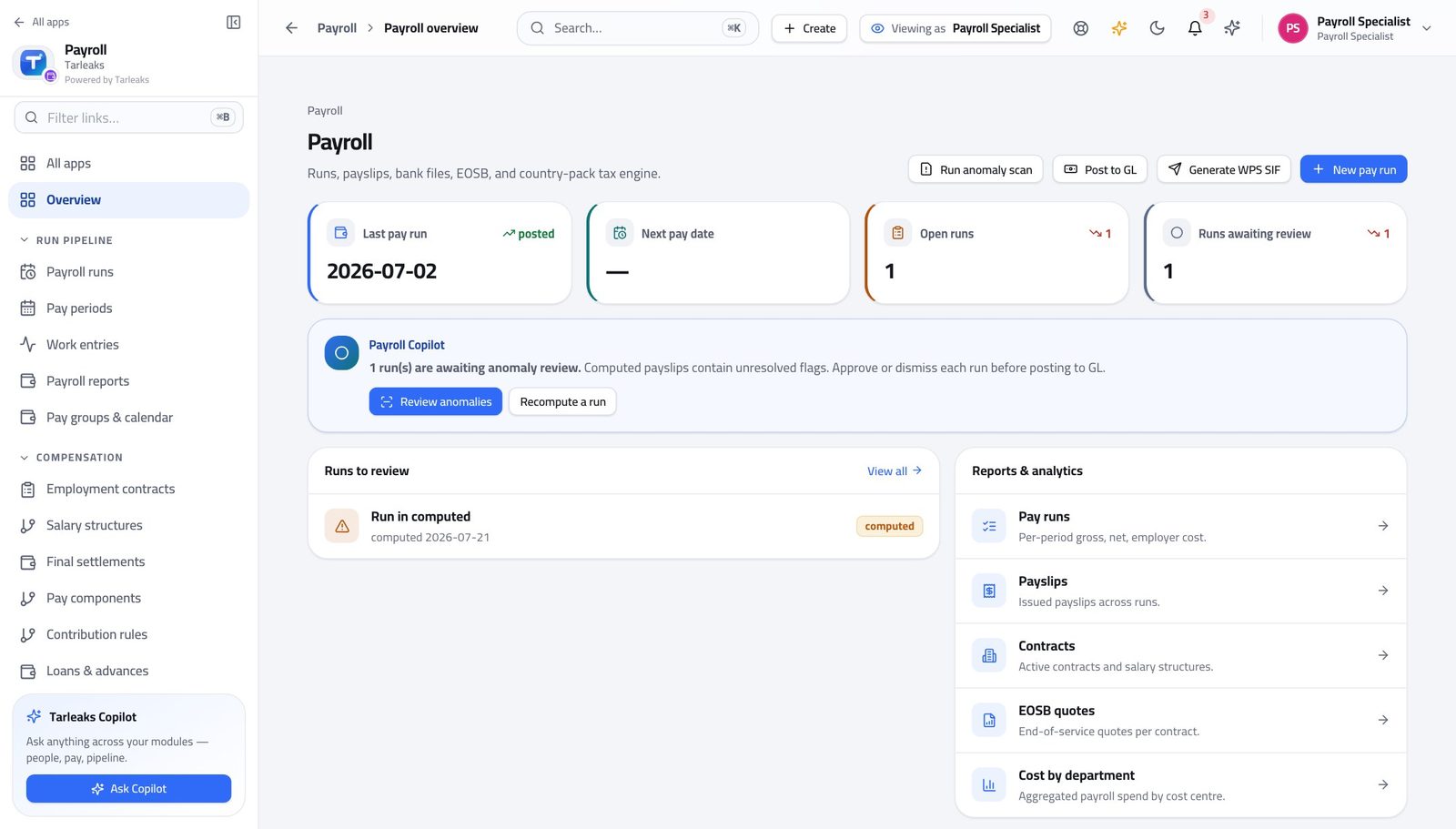
You should see Every run that is calculating, calculated, in review or approved, with the state it stopped at — so you start the day knowing what is still yours.
Watch out A run in review is with the approver, not with you. Chasing it is your job; changing it is not.
Open the month #
Where Payroll » Pay periods
- In the left menu, under RUN PIPELINE, click Pay periods.
- Check the month you are paying exists and is open.
- Use Close, Lock or Reopen in the row when the month is finished.
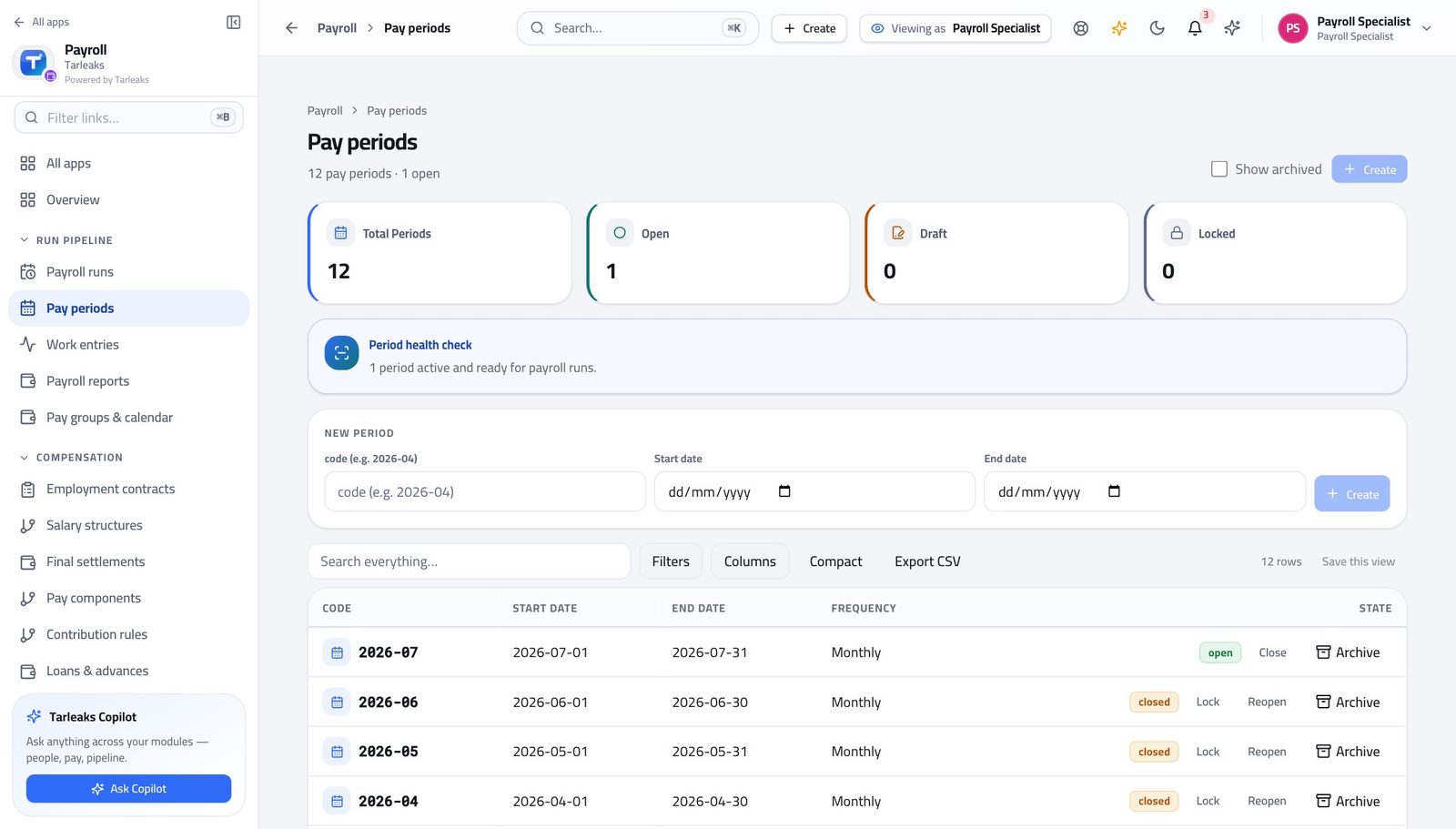
You should see Nothing can be calculated outside a period. The State column carries the actions that move it — close it when the month is done, lock it when nothing more should land in it.
Watch out Both closing and reopening are recorded against your name — which is exactly why they should happen on time rather than "when we are sure".
Worth knowing Closing and locking are both reversible and both recorded against your name, which is exactly why they should happen on time rather than "when we are sure".
Check everybody has a contract #
Where Payroll » Employment contracts
- In the left menu, under COMPENSATION, click Employment contracts.
- Search by name or employee number.
- Press Show expired in the banner to see contracts that have run out.
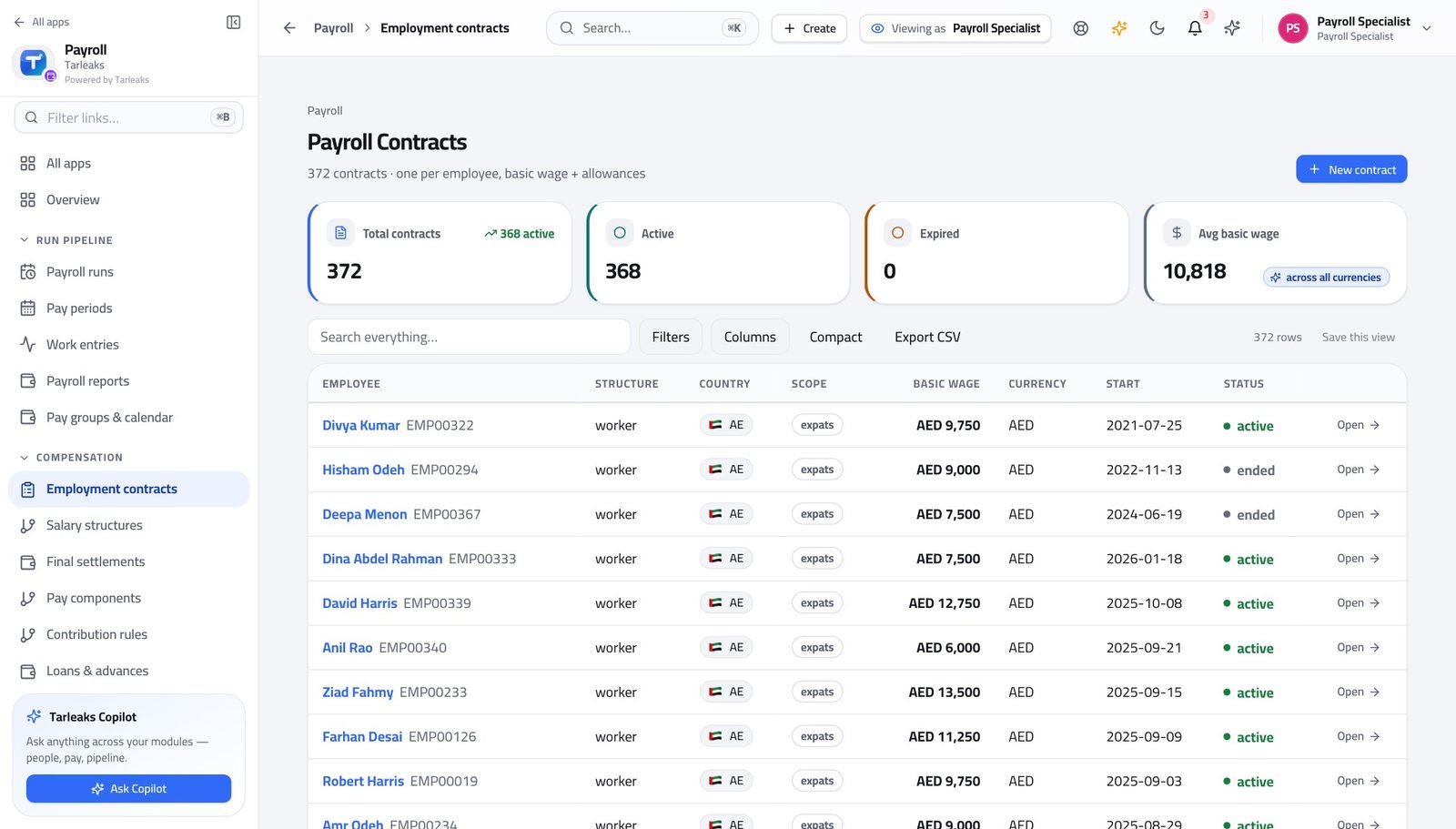
You should see One contract per person, carrying the wage the calculation reads. Somebody without an active contract is simply not paid — no error, no warning, just absent from the run.
Watch out Somebody without an active contract is simply absent from the run. There is no error and no warning — which is why you check this BEFORE you calculate, not after.
Put a new joiner on the payroll #
Where Payroll » Employment contracts » New contract
- Press New contract.
- Fill the form.
- Press Save.
| Field | What to put in it |
|---|---|
| Employee | Pick them from the list. |
| Structure type | Which set of rules pays them. |
| Currency | What they are paid in. |
| Country | Whose statutory rules apply. |
| Nationality scope | Nationals, GCC citizen, expat or all — this picks the social-insurance rates, so it changes real money. |
| Basic wage | Monthly basic, before allowances. |
| Start date | First day this contract pays from. |
| Housing / Transport / Phone | What the offer promised. The salary rules read these by name. |
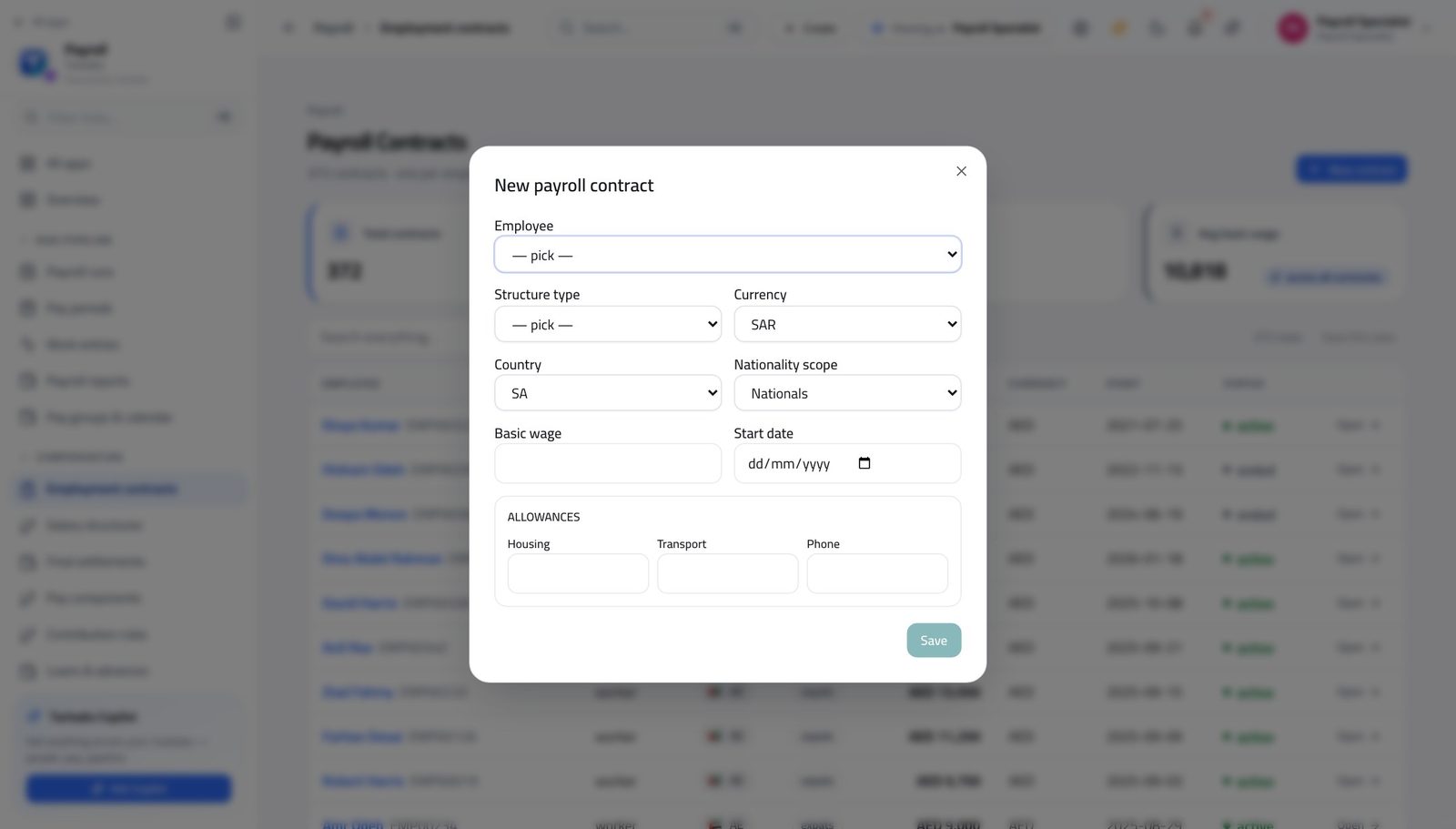
You should see The allowances you enter here are what the salary rules refer to by name, so a housing allowance typed here is what the housing rule pays.
Watch out Employee, structure type and start date are fixed once saved. Get those three right; everything else can be edited later.
Worth knowing Employee, structure type and start date cannot be changed afterwards. Wage, end date, status and frequency can. Get the first three right.
Check the hours are in #
Where Payroll » Work entries
- In the left menu, under RUN PIPELINE, click Work entries.
- Set the From and To dates to the month you are paying.
- Read the Source column.
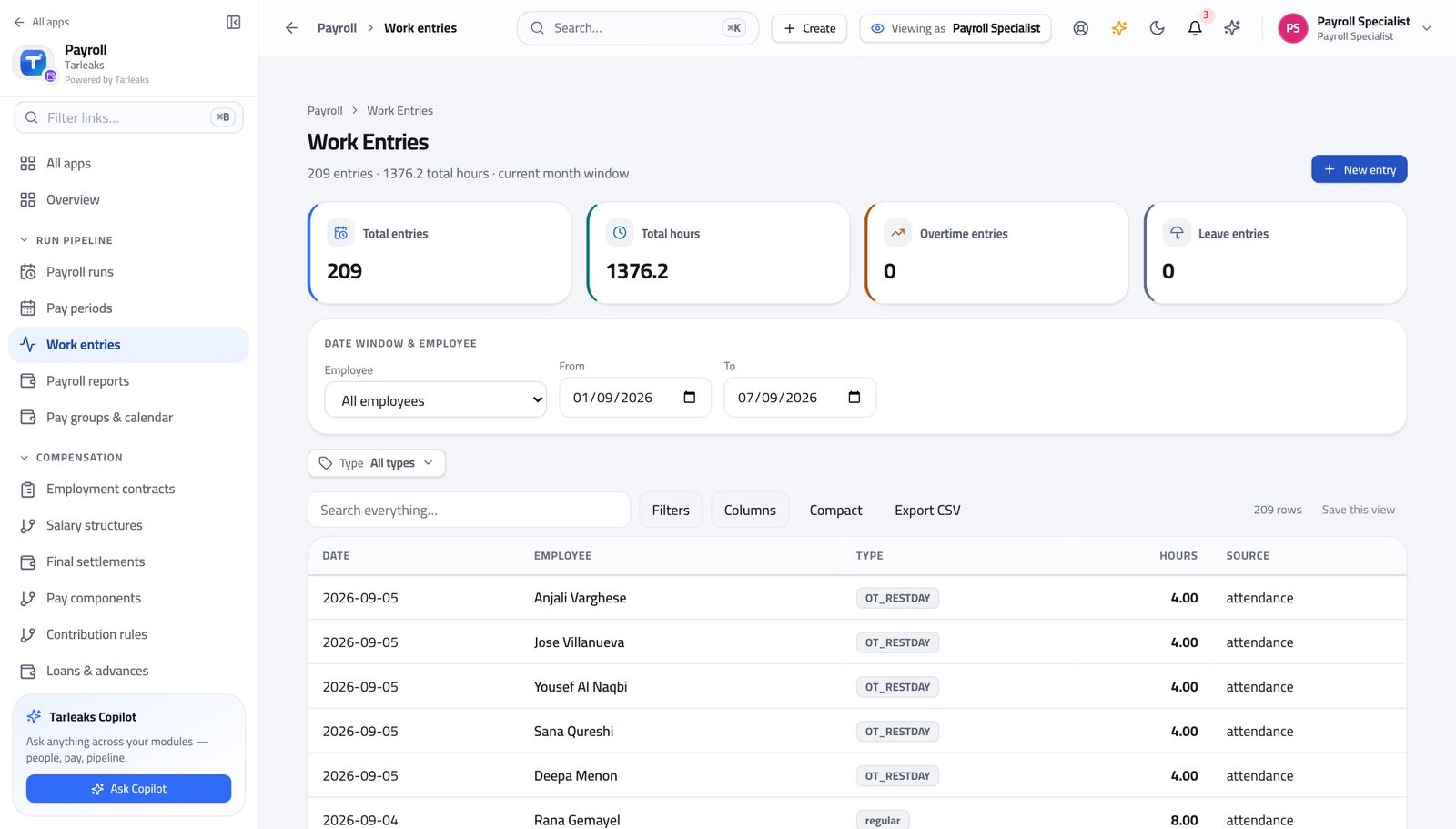
You should see Approved timesheets and approved leave arrive here on their own; anything you type by hand sits beside them and is never overwritten when a week is re-approved.
Watch out Hours still waiting for a manager's approval are NOT here and will not be paid. Chase them before you calculate. And do not re-enter an approved week by hand — re-approving it replaces its rows, and yours would be paid twice.
Worth knowing Hours still waiting for a manager's approval are NOT here yet, and will not be paid. Chase those before you calculate, not after.
Add hours the system could not know about #
Where Payroll » Work entries » New entry
- Press New entry.
- Fill the form.
- Press Save entry.
| Field | What to put in it |
|---|---|
| Employee | Pick them from the list. |
| Date | The day the work or the absence happened. |
| Entry type | Attendance, overtime, sick, annual leave, unpaid leave, public holiday and the rest. It decides how the rules treat the day. |
| Hours | Quarter-hours are accepted. |
| Source | Leave this as manual. The other values belong to rows the system wrote itself. |
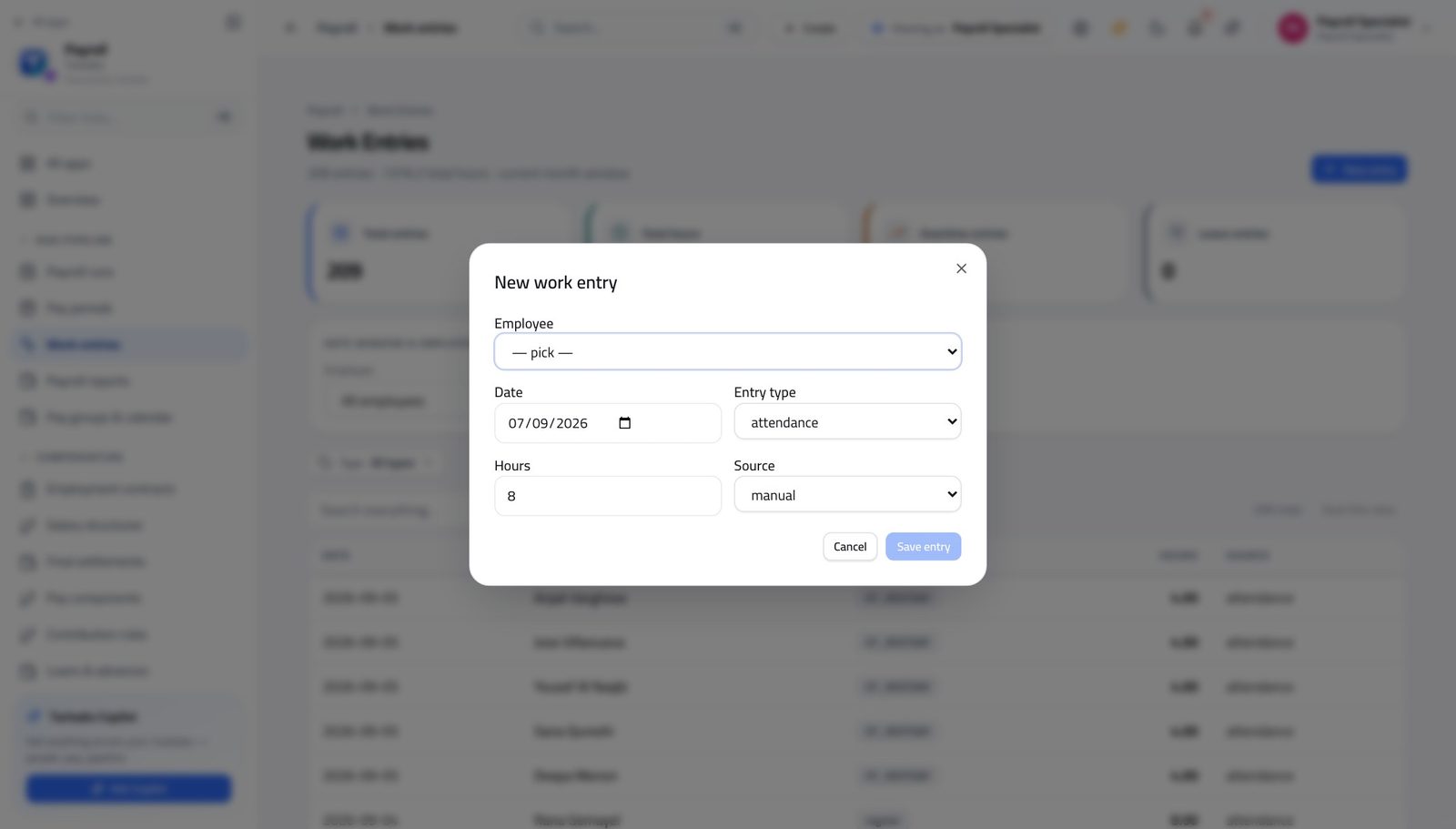
You should see Use this for what the timesheets cannot tell you. Anything that came from an approved timesheet is already here and should be left alone.
Watch out Use this only for what the timesheets cannot tell you. Anything that arrived from an approved timesheet is already here.
Check the deductions the company is obliged to take #
Where Payroll » Salary attachments
- In the left menu, under COMPENSATION, click Salary attachments.
- Read the Active section.
- Use Cancel on a row that has been lifted.
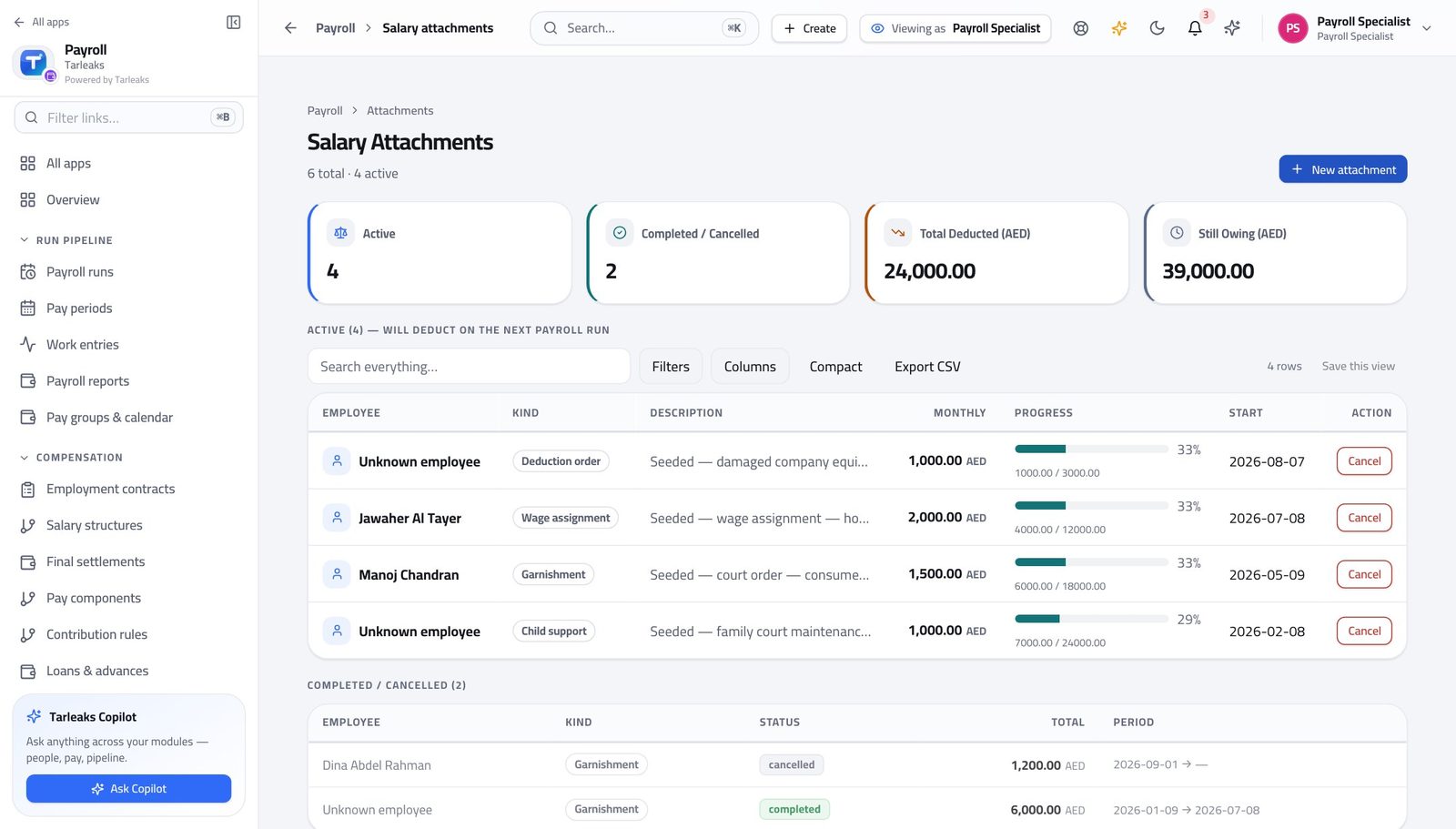
You should see Court orders, child support and wage assignments, each with what has been collected and what is left. They deduct themselves on the next run and close themselves when they are paid off.
Watch out Attachments close themselves when they are paid off. Cancelling one early stops future deductions and refunds nothing already taken.
Check the loans that are being repaid #
Where Payroll » Loans & advances
- In the left menu, under COMPENSATION, click Loans & advances.
- Click a row to open it.
- Read the instalment schedule.
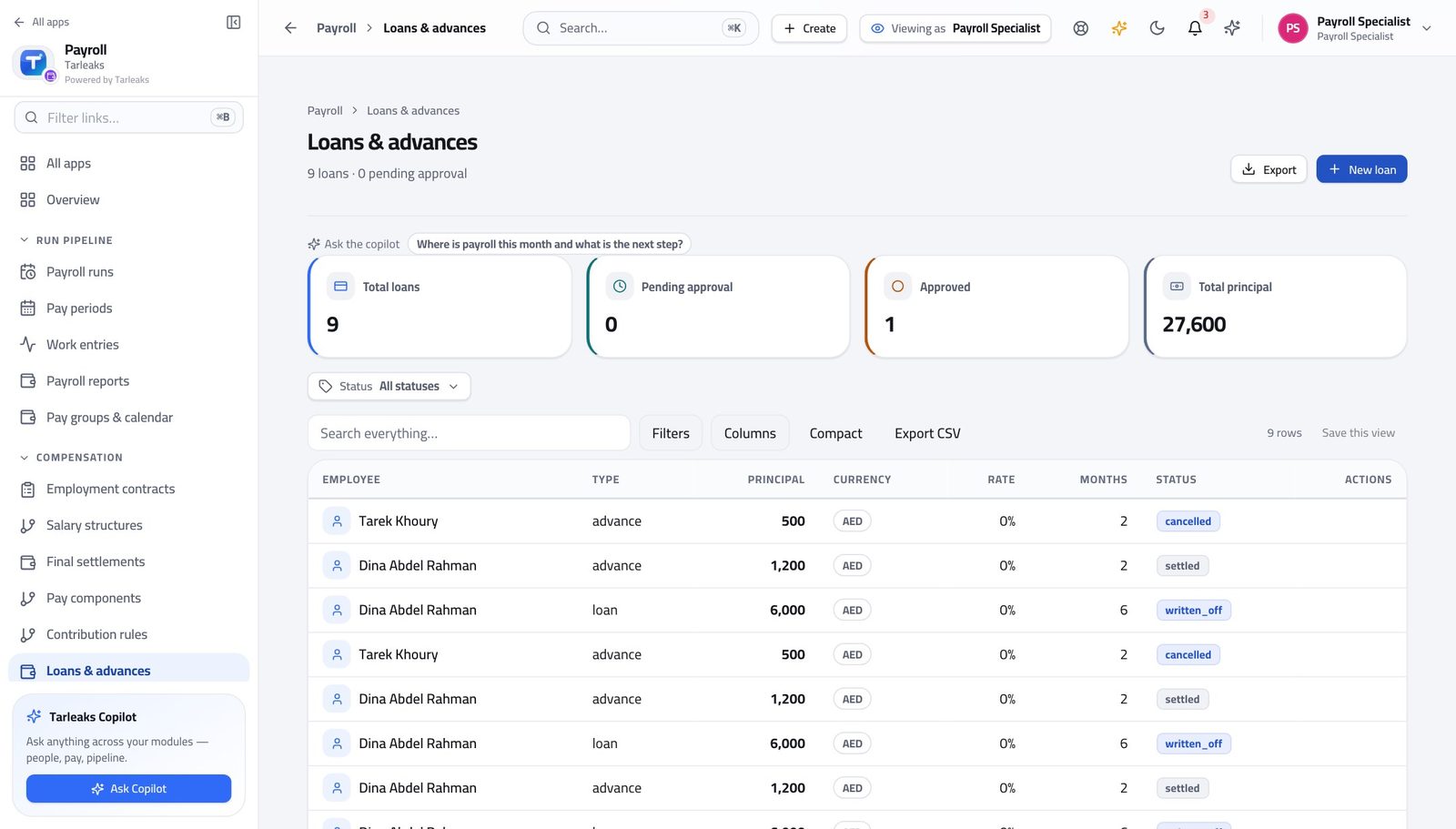
You should see Each loan's schedule, what has been deducted, what is left and what comes off the next payslip. The run takes the next unpaid instalment by itself and stamps it paid.
Watch out Deductions only start once a loan is approved. A pending loan takes nothing off anybody's pay.
Record a loan or an advance #
Where Payroll » Loans & advances » New loan
- Press New loan.
- Fill the form.
- Press Save.
| Field | What to put in it |
|---|---|
| Employee | Search for them by name or number. |
| Type | Salary advance, loan or other. |
| Principal | The amount being lent. |
| Currency | Three letters — AED, SAR. |
| Interest % (annual) | Leave at the company default unless you have been told otherwise. |
| Months | How many instalments. The company's policy caps this, and the form refuses more. |
| First deduction on | The pay period the first instalment comes off. Set it to next month, not this one, if the current run is already calculated. |
| Note | Why. Worth a sentence — the approver reads it. |
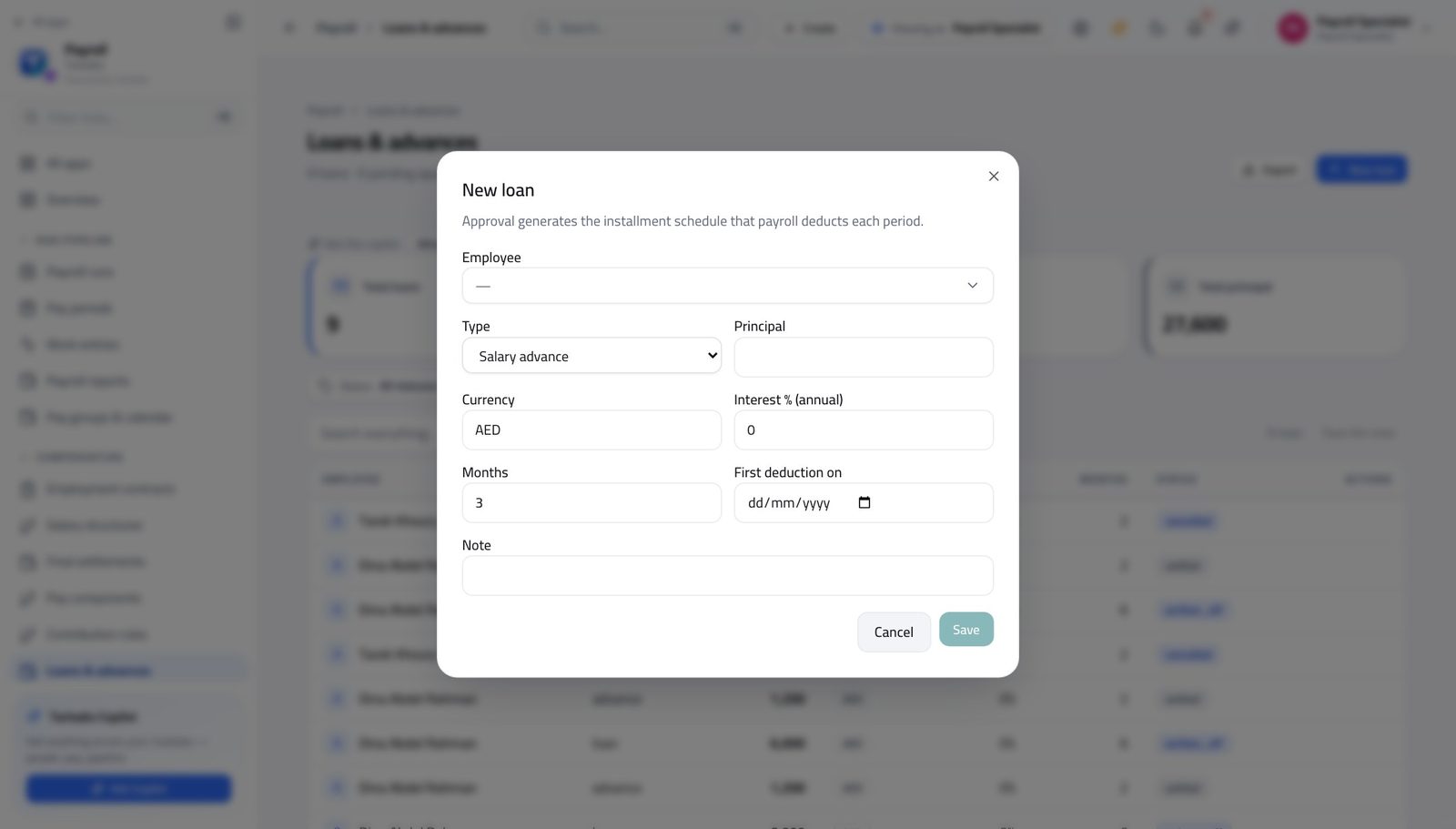
You should see Nothing is deducted until somebody approves it. Approval is what builds the instalment schedule that every future run then follows on its own.
Watch out The loan is created pending. It deducts nothing until somebody with approval authority agrees to it.
Open the run register #
Where Payroll » Payroll runs
- In the left menu, click Payroll runs.
- Search, filter and sort to find what you want.
- Press Open on the run.
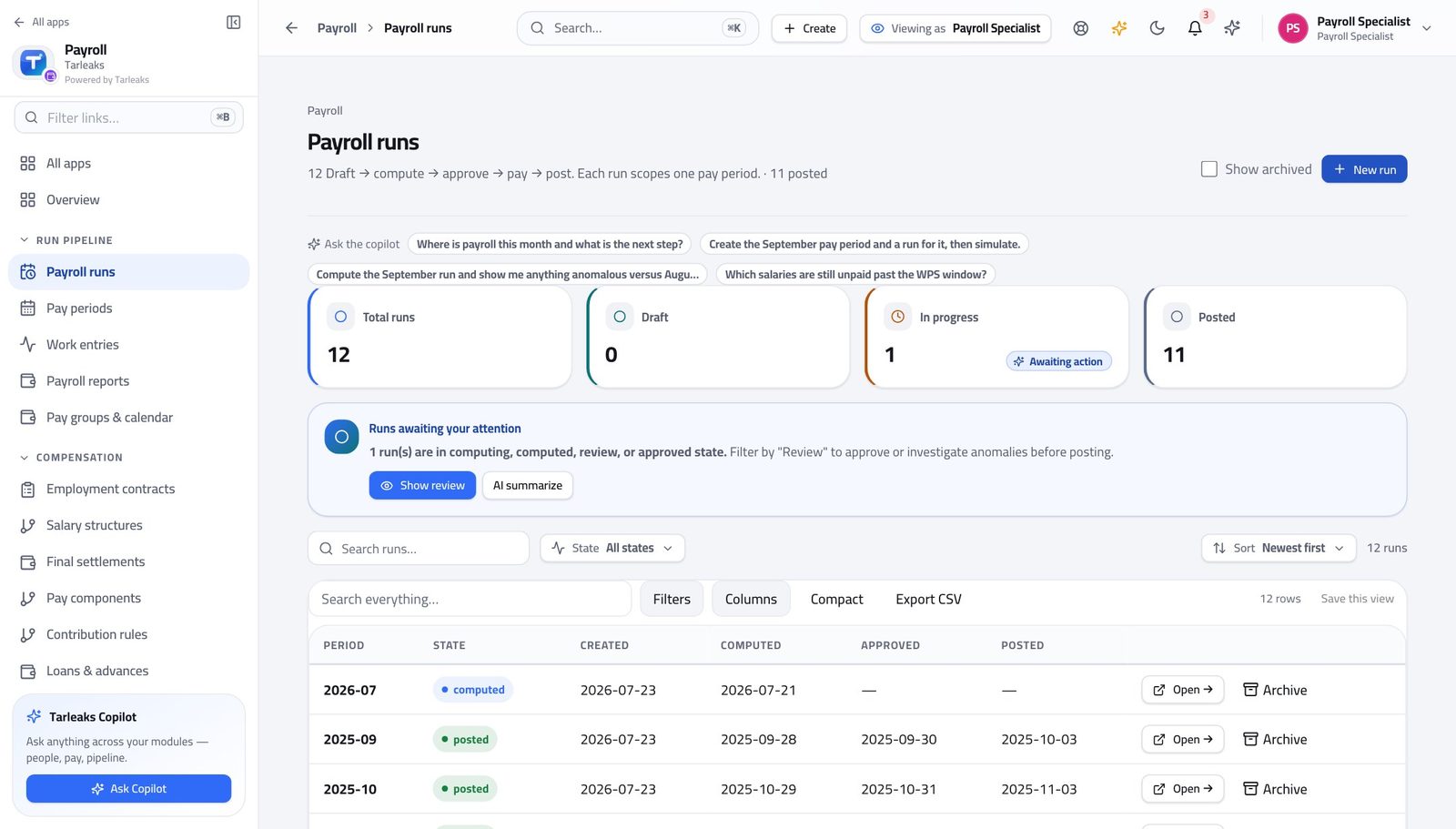
You should see Your runs and where each one stopped. Because the filters live in the address, you can paste the approver a link that opens exactly the view you are describing.
Watch out Paste that address to the approver and they open exactly the view you are describing — much better than "the one from Tuesday".
Start the run #
Where Payroll » Payroll runs » New run
- Press New run.
- Choose the pay period.
- Leave Structure empty unless you are deliberately paying one group separately.
- Press Create run, then open it and press Compute.
| Field | What to put in it |
|---|---|
| Pay period | The month this run pays. |
| Structure (optional) | Empty means each person is paid under the structure their own contract points at, which is almost always what you want. |
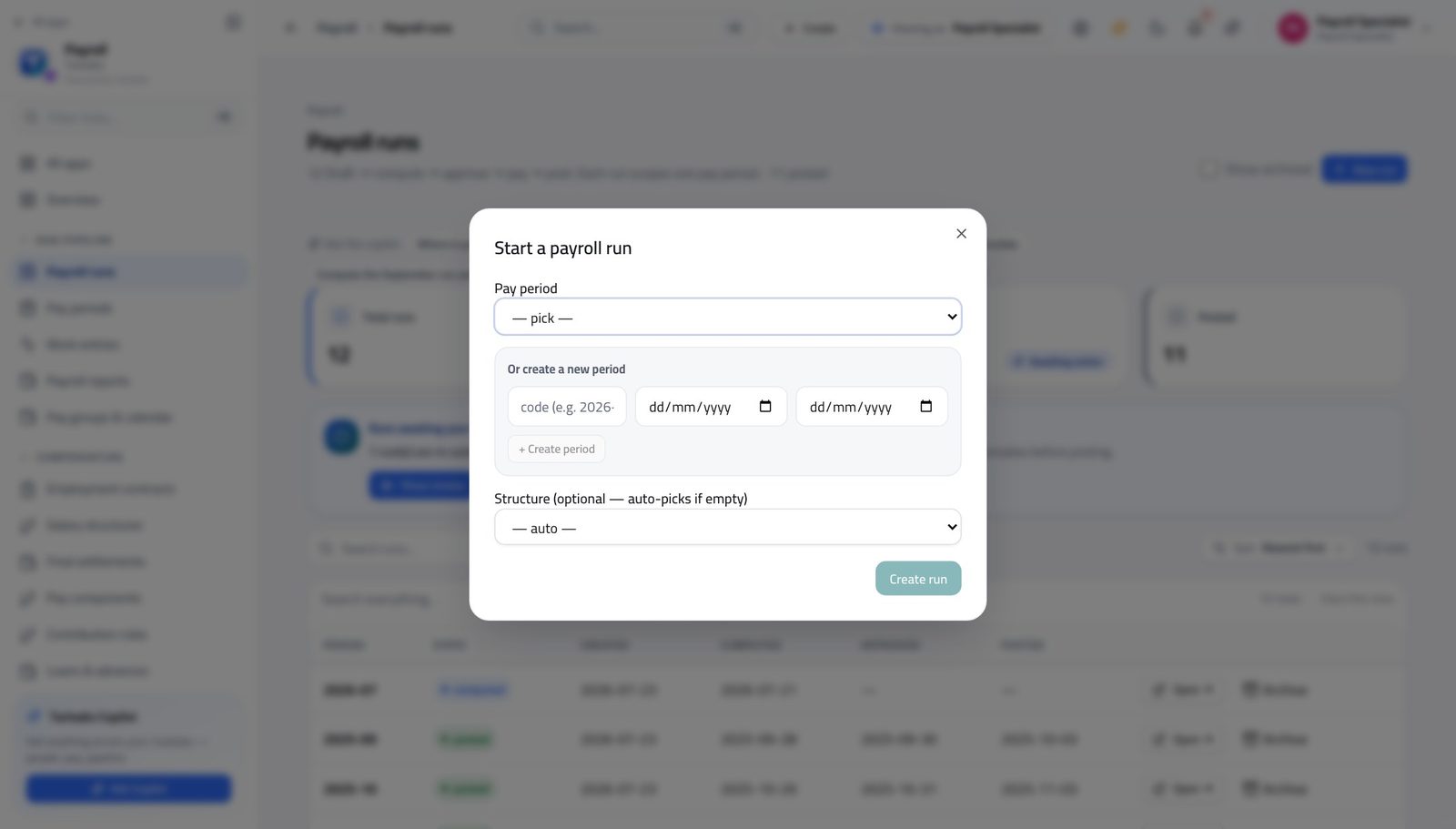
You should see The run is created empty, in draft. Open it and press Compute when your inputs are in — you can recompute as often as you like until it is submitted.
Watch out Compute can be run again and again while the run is still yours. Simulate is the safer first move: it calculates a throwaway copy and shows you the totals without touching the run at all.
Worth knowing Simulate is the safer twin of Compute: it calculates a throwaway copy and shows you the totals without touching the run at all.
Explain every flag before you hand the run over #
Where Payroll » Payroll runs » Open » Anomaly detection flags
- Open the calculated run.
- Scroll to Anomaly Detection Flags.
- For each flag, either fix the cause and recompute, or press the dismiss icon and type why.
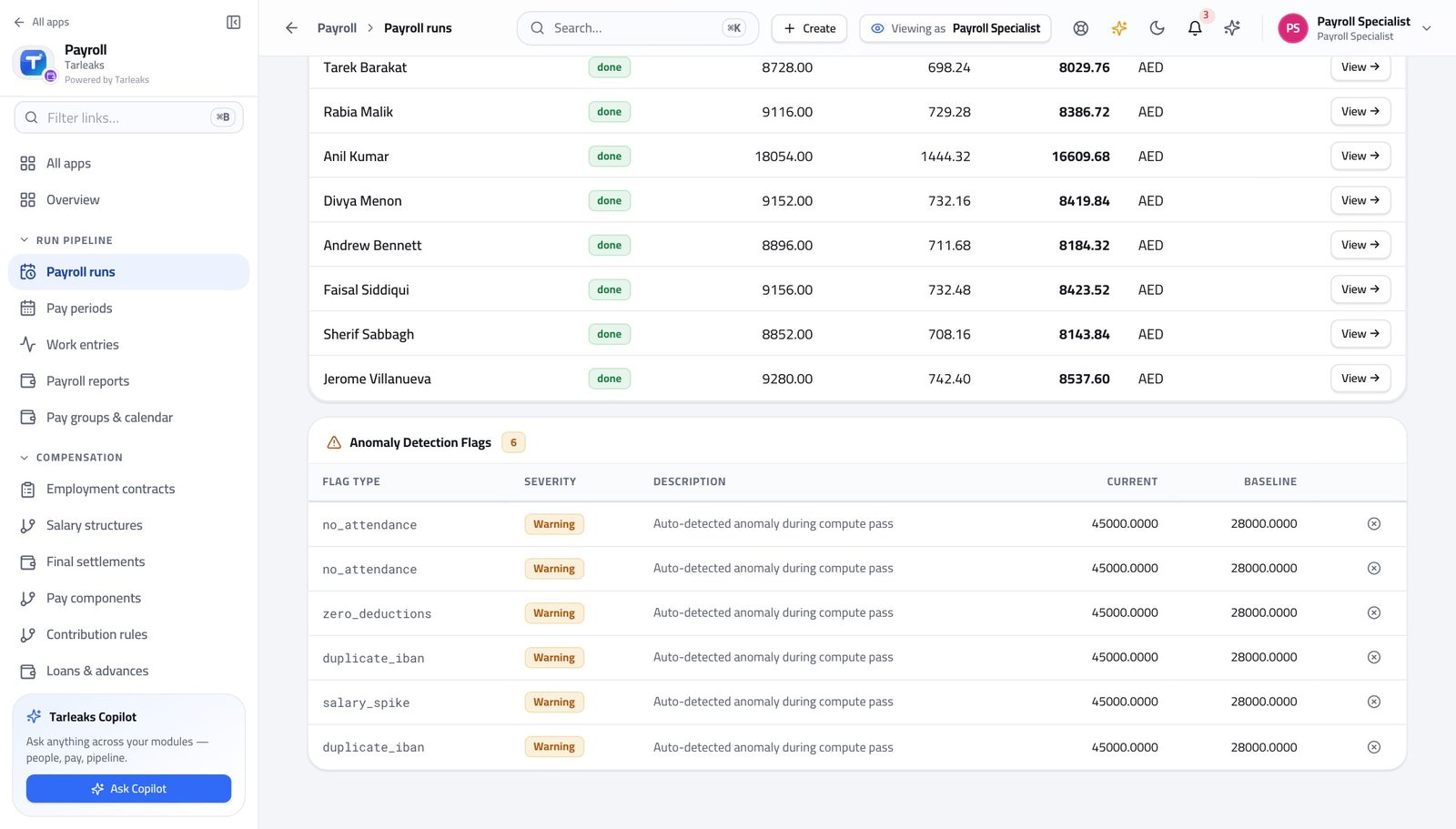
You should see You are the person who knows why somebody's pay doubled. A flag you leave unexplained becomes a phone call from the approver at five o'clock.
Watch out You are the person who knows why somebody's pay doubled. A flag you leave unexplained becomes a phone call at five o'clock on payday.
Check the bank file before you hand it on #
Where Payroll » Payroll runs » Open » Bank / WPS » Pre-flight
- Open the approved run.
- Scroll to the bank panel.
- Choose the format for your country.
- Press Pre-flight and read the issues.
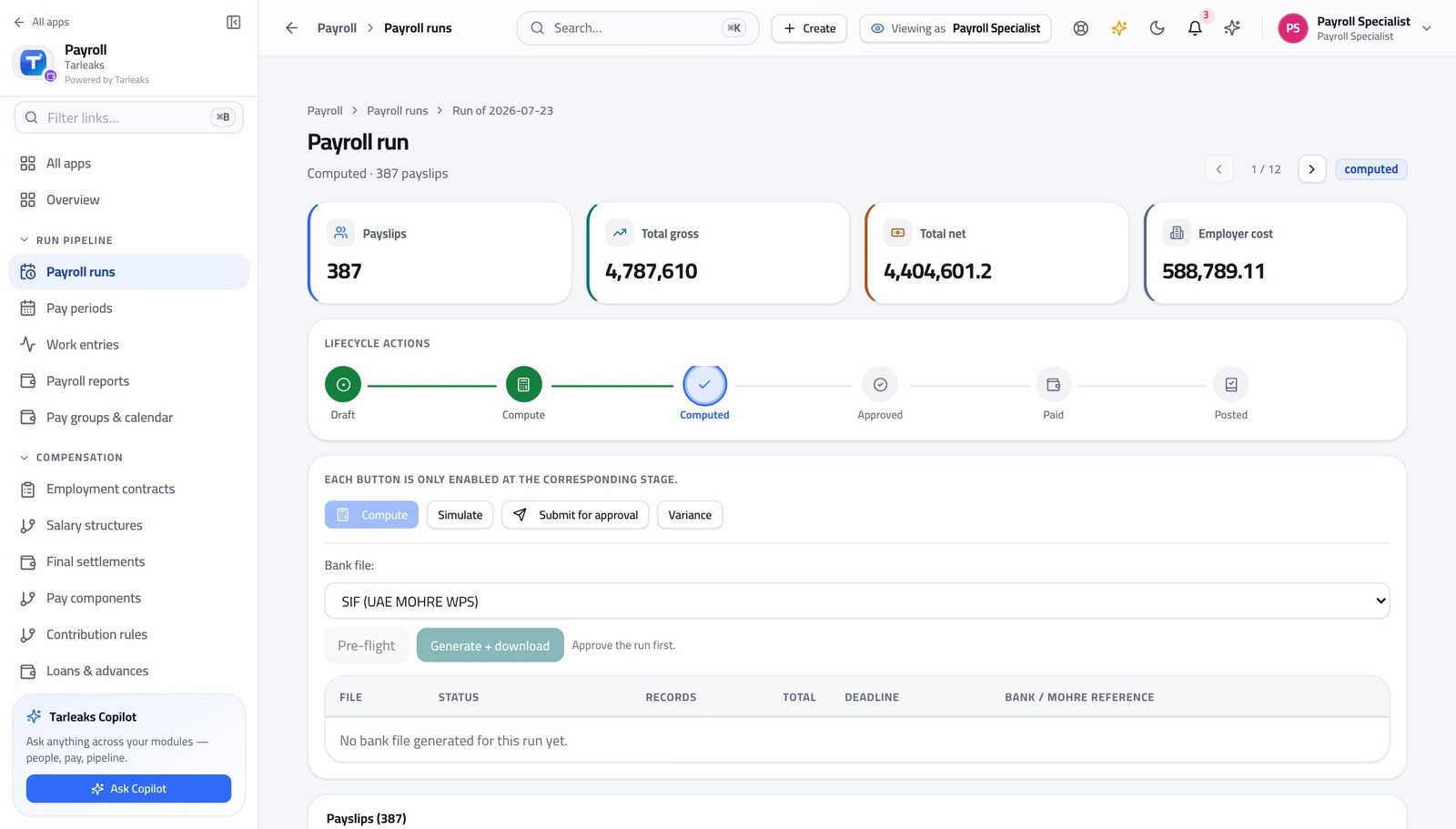
You should see Every account number, every national id and every company identifier checked, with the statutory deadline. Fix what it lists now; the bank will not be as forgiving.
Watch out Missing account numbers and missing national ids are the two that come up again and again, and both are HR records rather than payroll ones. Fixing them means going to the employee's record.
There is no Approve button on your screen #
Where Payroll » Payroll runs » Open
- Open a calculated run.
- Read the row of actions at the top of the page.
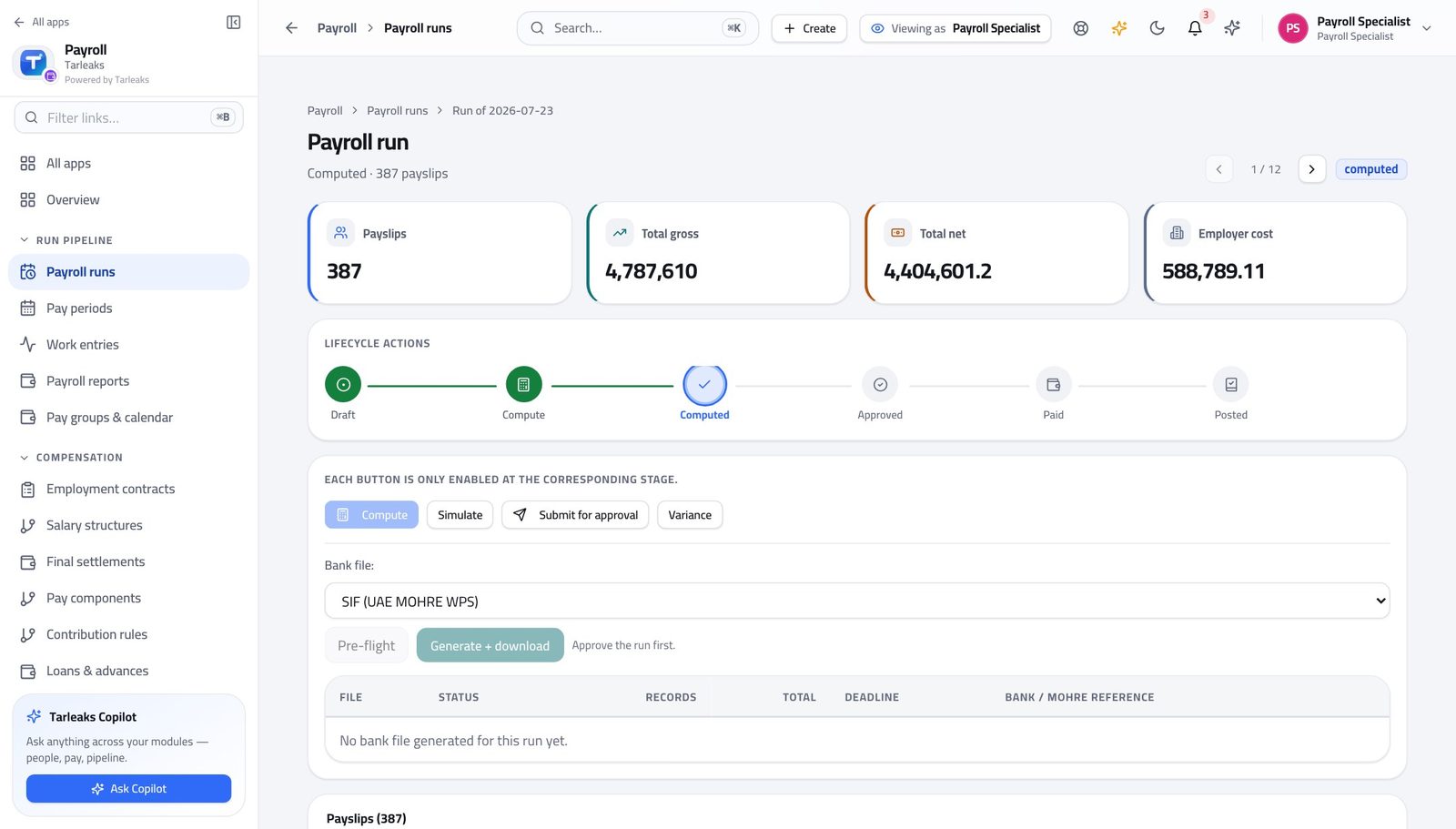
You should see The person who prepared the numbers cannot be the person who signs them off. It is not hidden from you — it does not exist for you, and it refuses the same way if anyone tries to reach it another way.
Watch out Submitting is the handover. Do it deliberately, when the flags are explained and the variance looks like the month you lived through — not the moment the calculation finishes.
Releasing the money and posting it are separate again #
Where Payroll » Payroll runs » Open
- On the same run, look for Mark paid and Post to GL.
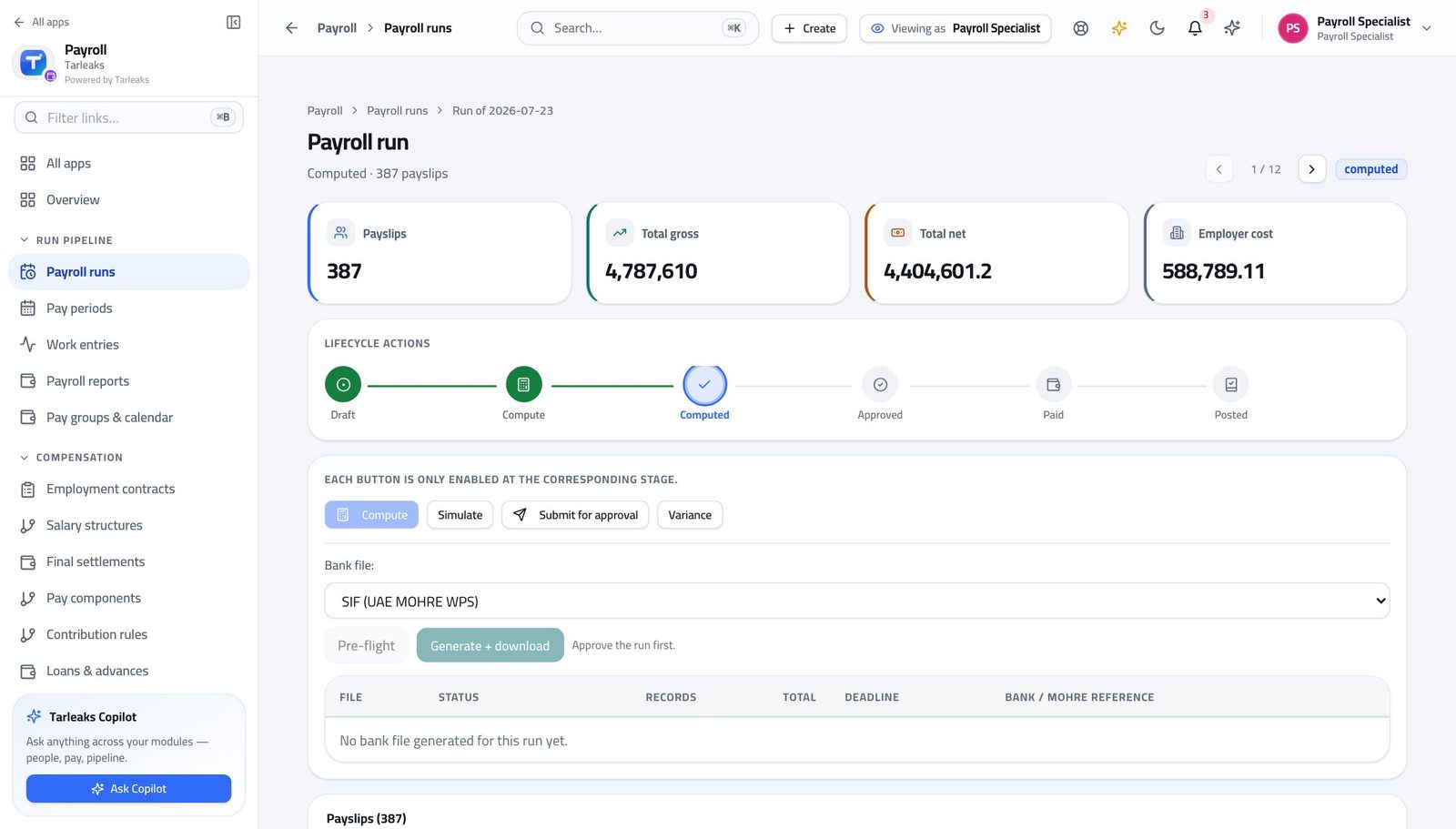
You should see Approval is not the last gate. Saying the bank has paid, and writing the cost into the company's accounts, are two more decisions — and neither of them is yours.
Watch out Approval is not the last gate. Saying the bank paid, and writing the cost into the company's accounts, are two further decisions and neither is yours.
You record a loan; somebody else agrees to lend it #
Where Payroll » Loans & advances » open a loan
- Open Loans & advances.
- Click a pending loan.
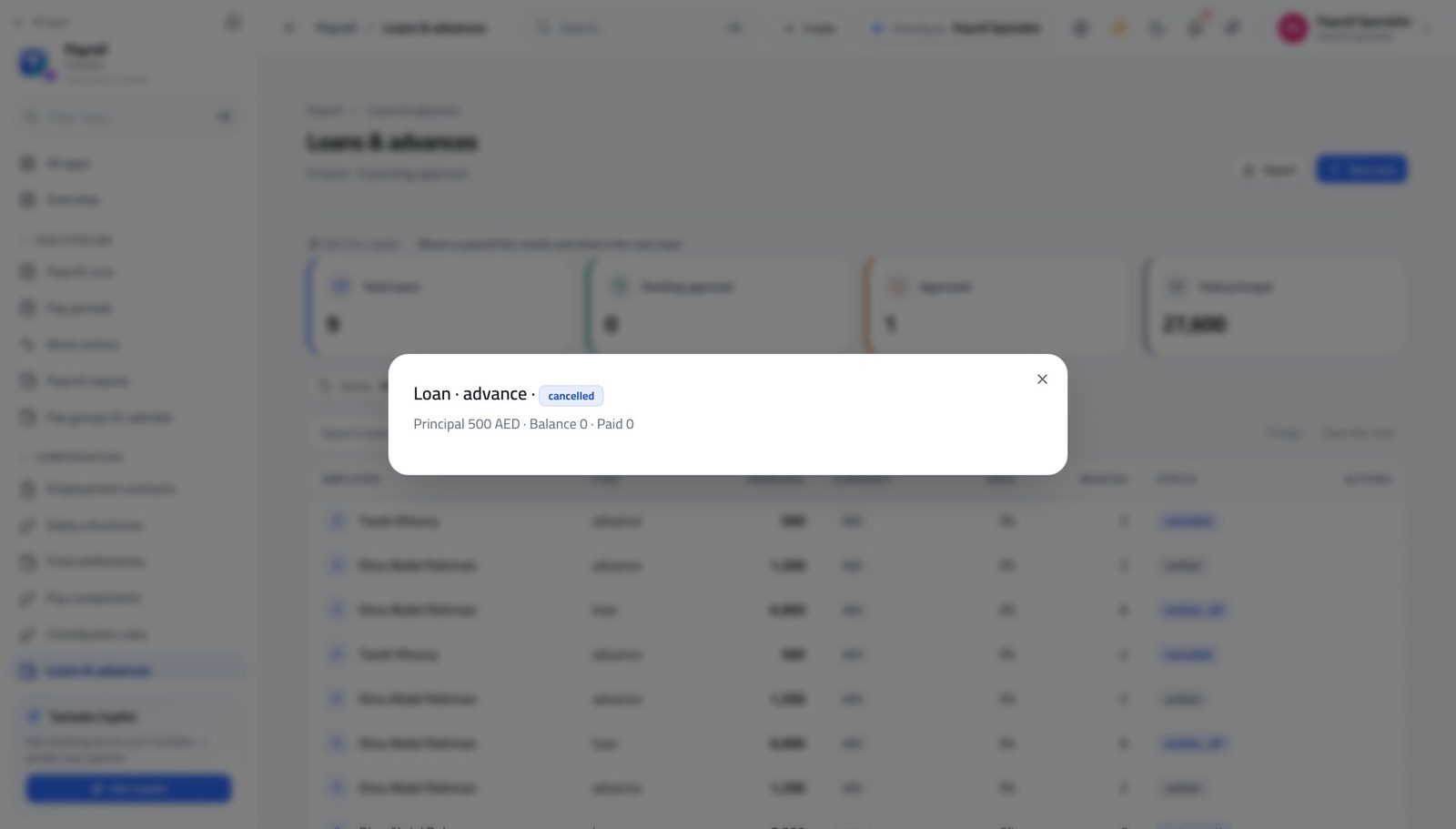
You should see You capture the amount, the term and the first deduction date. Agreeing to lend the company's money is a different decision.
Watch out You record the terms; somebody else agrees to lend the money. If a loan is urgent, the fix is to ask the approver, not to look for another way in.
Read what is owed to the authorities #
Where Payroll » Payroll reports » Contributions
- In the left menu, click Payroll reports.
- Set the two dates.
- Read the Contributions view.
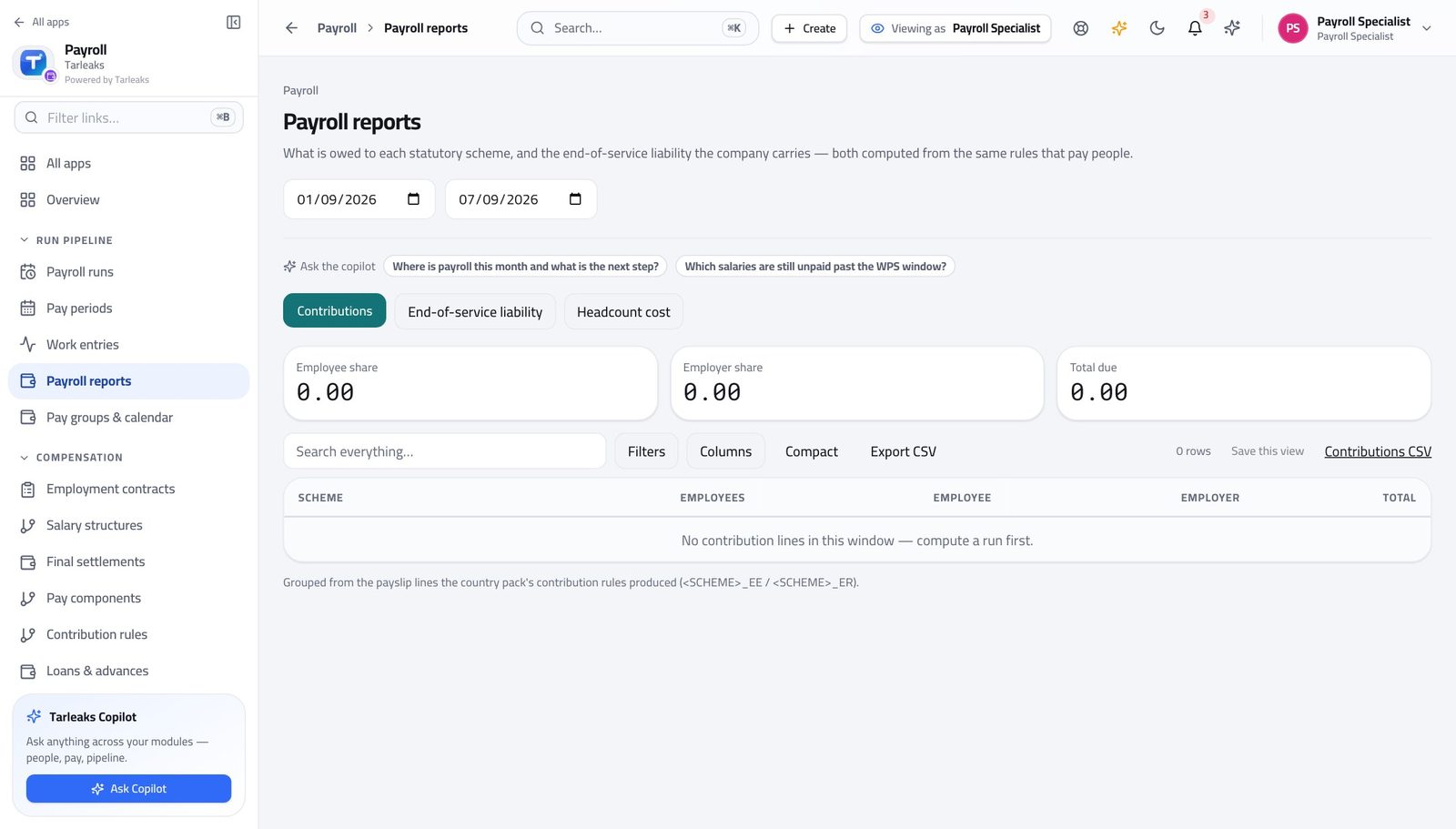
You should see Per scheme and per person, from the same payslips that paid them — which is why the return and the payroll agree.
Watch out The figures come from the payslips, so a run you have not calculated yet is simply not in them.
Price a leaver before anybody commits to it #
Where Payroll » Final settlements » New settlement » Quote
- In the left menu, under COMPENSATION, click Final settlements.
- Press New settlement.
- Pick the leaver, set the last working day and the reason.
- Press Quote and read the preview.
| Field | What to put in it |
|---|---|
| Employee | The person leaving. |
| Last working day | Service is counted to this date. |
| Reason | The same list the end-of-service quote uses. Several reasons reduce the entitlement. |
| Leave days | Unused days to be paid out. Leave empty to use the balance the company already holds. |
| Notice days | Notice owed to them. A negative number is notice they owe the company. |
| Final-month days | Days worked in the last, unpaid month. |
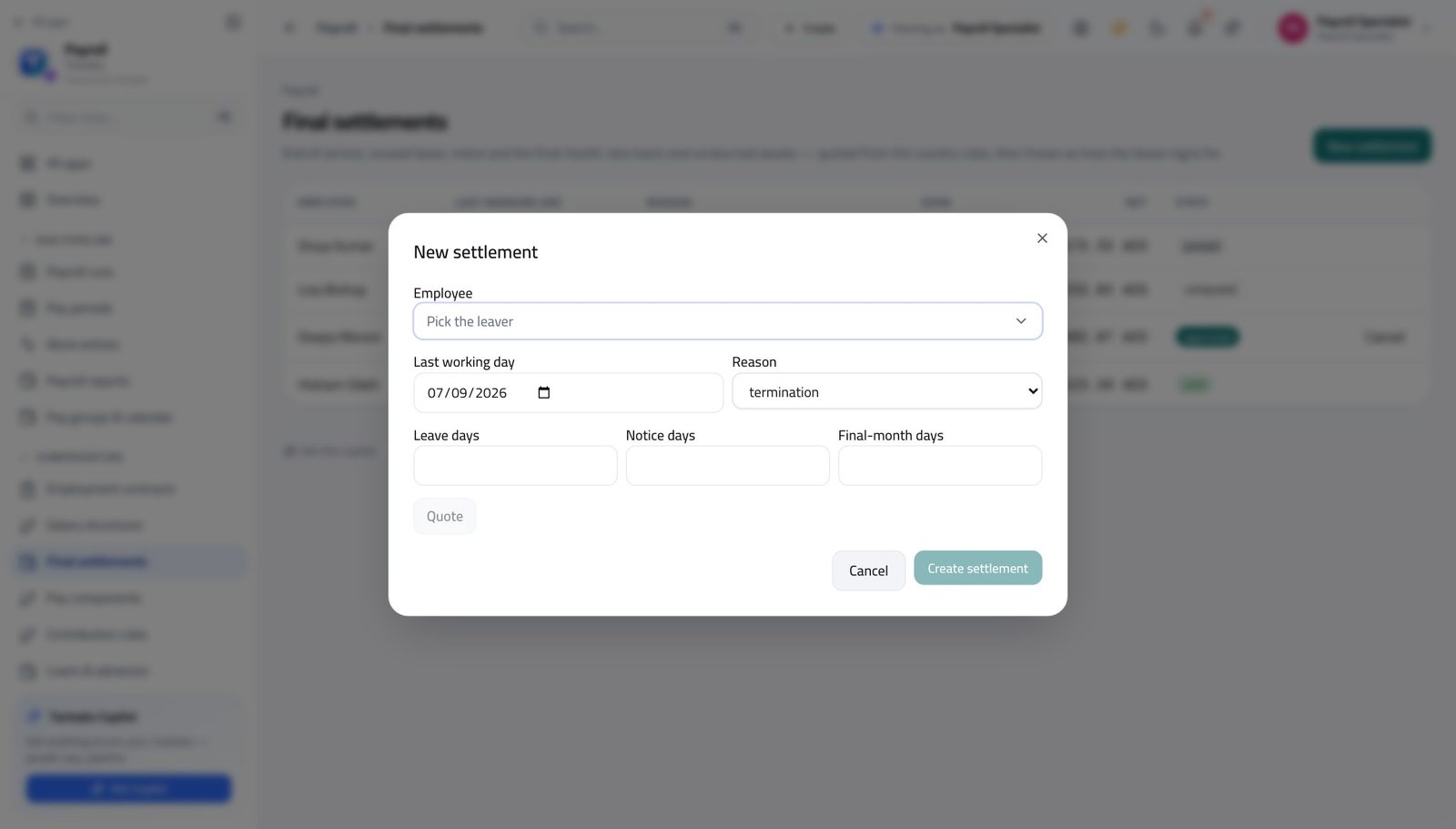
You should see End of service, unused leave, notice and the final unpaid month, priced by the same country rules the real settlement will use. Quoting creates nothing — you only commit when you press Create settlement.
Watch out Quoting creates nothing. Only Create settlement does, and only then does it appear in the approver's queue.
Use cases — the work, step by step
Each one is a sequence somebody actually performs, with the screen behind every step. Every screen here was opened in the product as this role before it was published.
dailyA day of inputs, before anything is calculated #
Everything the run pays comes from these four screens. A calculation is only as good as the day you spent on them.
Start at the payroll home and see what is still open.
Payroll » Overview — verified: the page says “Payroll” Put joiners on the payroll and give leavers an end date. Filter to expired to find contracts that have quietly run out.
Payroll » Employment contracts — verified: the page says “Payroll Contracts”; 372 row(s) listed Enter the new contracts. Employee, structure type and start date are fixed once saved — get those three right.
Payroll » Employment contracts » New contract — verified: the control is offered; the page says “New payroll contract” Check the hours. Approved timesheets and approved leave arrive by themselves; add only what they cannot tell you.
Payroll » Work entries — verified: the page says “Work Entries” Record any loan or advance somebody asked for. Nothing is deducted until it is approved.
Payroll » Loans & advances » New loan — verified: the control is offered; the control is offered Check the court orders and other obliged deductions are current.
Payroll » Salary attachments — verified: the page says “Salary Attachments”
monthlyCalculate the month, explain it, and hand it over #
The handover is the product of this job. An approver who has to phone you has been handed an unfinished run.
Check the period is open, then create the run against it. Simulate first if you want the totals without touching anything.
Payroll » Payroll runs » New run — verified: the control is offered Compute, then read every flag and either fix the cause or dismiss it with a sentence somebody else could read in a year.
Payroll » Payroll runs » Open » Anomaly detection flags — verified: the page says “Anomaly Detection Flags” Pre-flight the bank file now, not after approval. Missing account numbers are HR records and take a day to fix.
Payroll » Payroll runs » Open » Bank / WPS » Pre-flight — verified: the control is offered Submit for approval. That is the whole of your authority over the run, and it is deliberate.
Payroll » Payroll runs » Open — verified: the page says “Submit for approval”; the action is not offered to this role; the action is not offered to this role Tell the approver it is waiting, and send them the link to the filtered list rather than describing it.
Payroll » Payroll runs — verified: the page says “Payroll runs”; 12 row(s) listed
urgentThe approver sent it back #
The reason stays on the run, so the fix does not depend on anybody remembering a conversation.
Open the run and read the rejection reason on it.
Payroll » Payroll runs » Open — verified: the page says “Submit for approval”; the action is not offered to this role; the action is not offered to this role Fix the input the reason names. If it is hours, check whether the timesheet was approved rather than typing them in — an approved week replaces its own rows and yours would be paid twice.
Payroll » Work entries — verified: the page says “Work Entries” Recompute and re-read the flags. A fix that creates a new anomaly is a fix you want to know about now.
Payroll » Payroll runs » Open » Anomaly detection flags — verified: the page says “Anomaly Detection Flags” Submit again.
Payroll » Payroll runs » Open — verified: the page says “Submit for approval”; the action is not offered to this role; the action is not offered to this role
edgeSomebody is leaving on the twentieth #
The quote is free and creates nothing, so there is no reason to guess what a leaver costs.
Set the end date on their payroll contract so no future run pays them.
Payroll » Employment contracts — verified: the page says “Payroll Contracts”; 372 row(s) listed Quote the settlement: last working day, reason, unused leave, notice and the days worked in the final unpaid month.
Payroll » Final settlements » New settlement » Quote — verified: the control is offered; the control is offered Check their loans. An outstanding balance comes off the settlement rather than being written off.
Payroll » Loans & advances — verified: the page says “Loans” Create the settlement and tell the approver. Outstanding clearance items will block their approval, so chase the laptop before the last day, not after.
Payroll » Final settlements » New settlement » Quote — verified: the control is offered; the control is offered
You will not find an Approve button. That is not an oversight and it is not a lack of trust — it is the control that protects you. If a number is later questioned, the record shows you prepared it and somebody else agreed to it.