Payroll Approver — Payroll guide
Sign off a payroll you can defend.
The second pair of eyes. Reads what the specialist prepared, compares it with last month, then approves, pays and posts it — and cannot change a single input.
What you will be able to do
- See what moved since last month, person by person
- Read the flags and the explanations before you agree
- Approve, release the money, and post it to the accounts
- Send a run back with a reason instead of fixing it yourself
What this role can and cannot do
| Can | Cannot |
|---|---|
|
|
18 steps, each one carried out in the product on .
Check what your sign-in can do #
Where Your name, top right » Profile
- Open your company's address in the browser — it looks like yourcompany.tarleaks.com.
- Type the e-mail address your administrator set up for you, then your password.
- You land on the app launcher: a grid of the apps your company uses.
- Click your name in the very top-right corner.
- Choose Profile.
- Read the role chip.
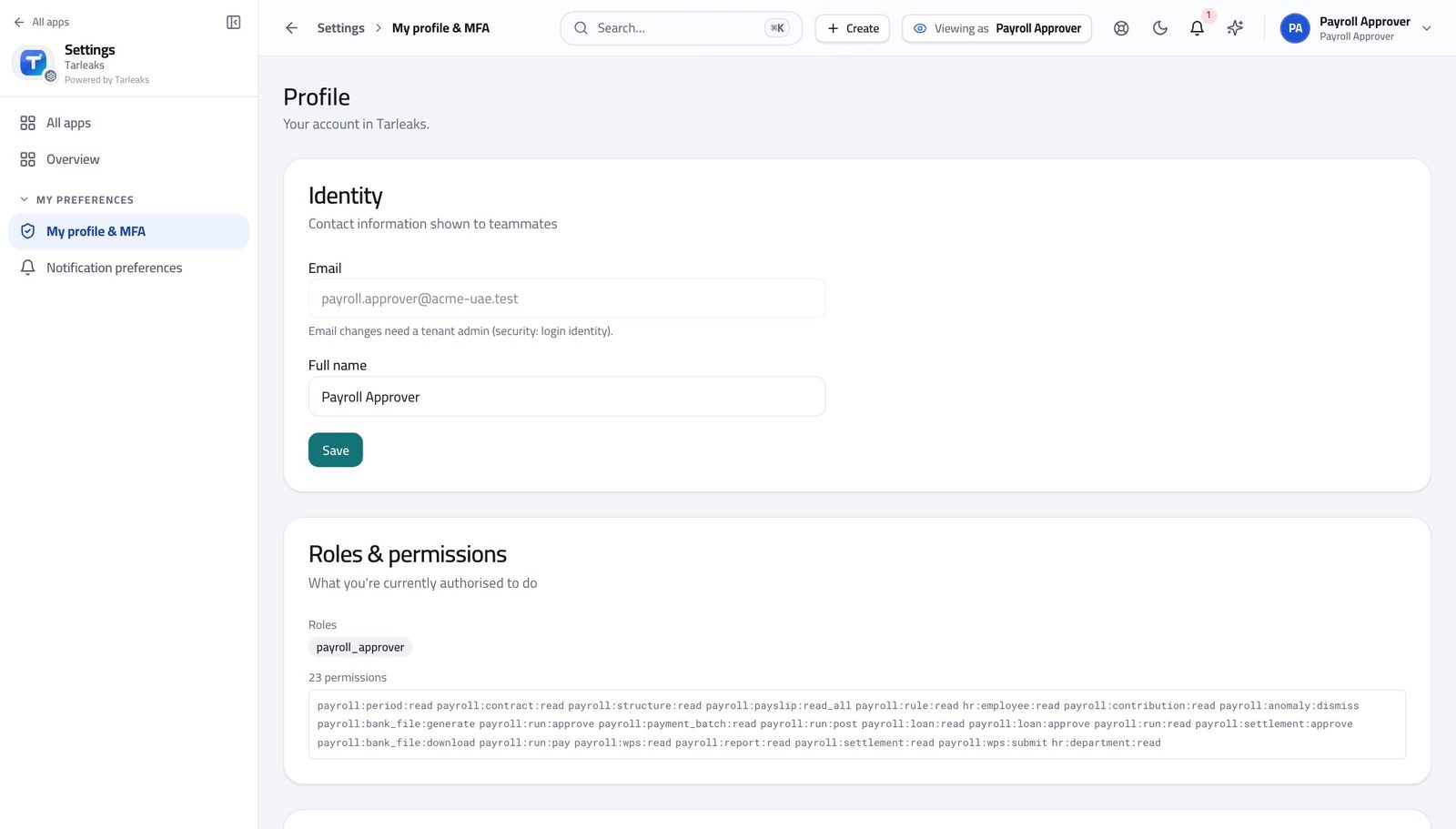
You should see It says payroll approver. You approve, you release, you post, and you send things back. You cannot change an hour, a wage or a payslip — which is what makes your signature mean something.
Watch out Notice what is missing as much as what is there. You cannot change an hour, a wage or a payslip — and that is the whole value of your signature.
See what is waiting for you #
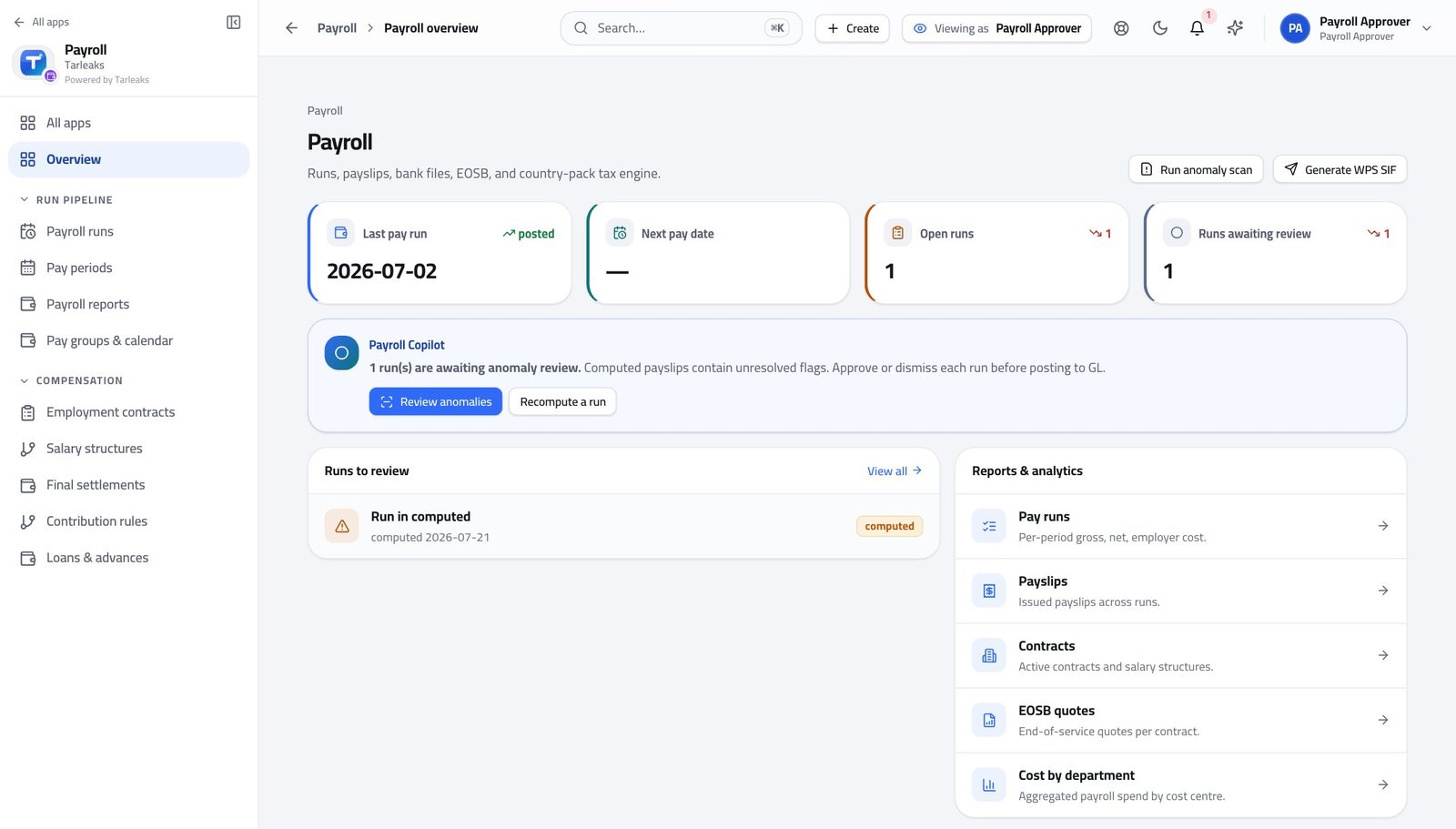
Where Payroll » Overview
- From the launcher, click the Payroll tile.
- Read the Runs to review card.
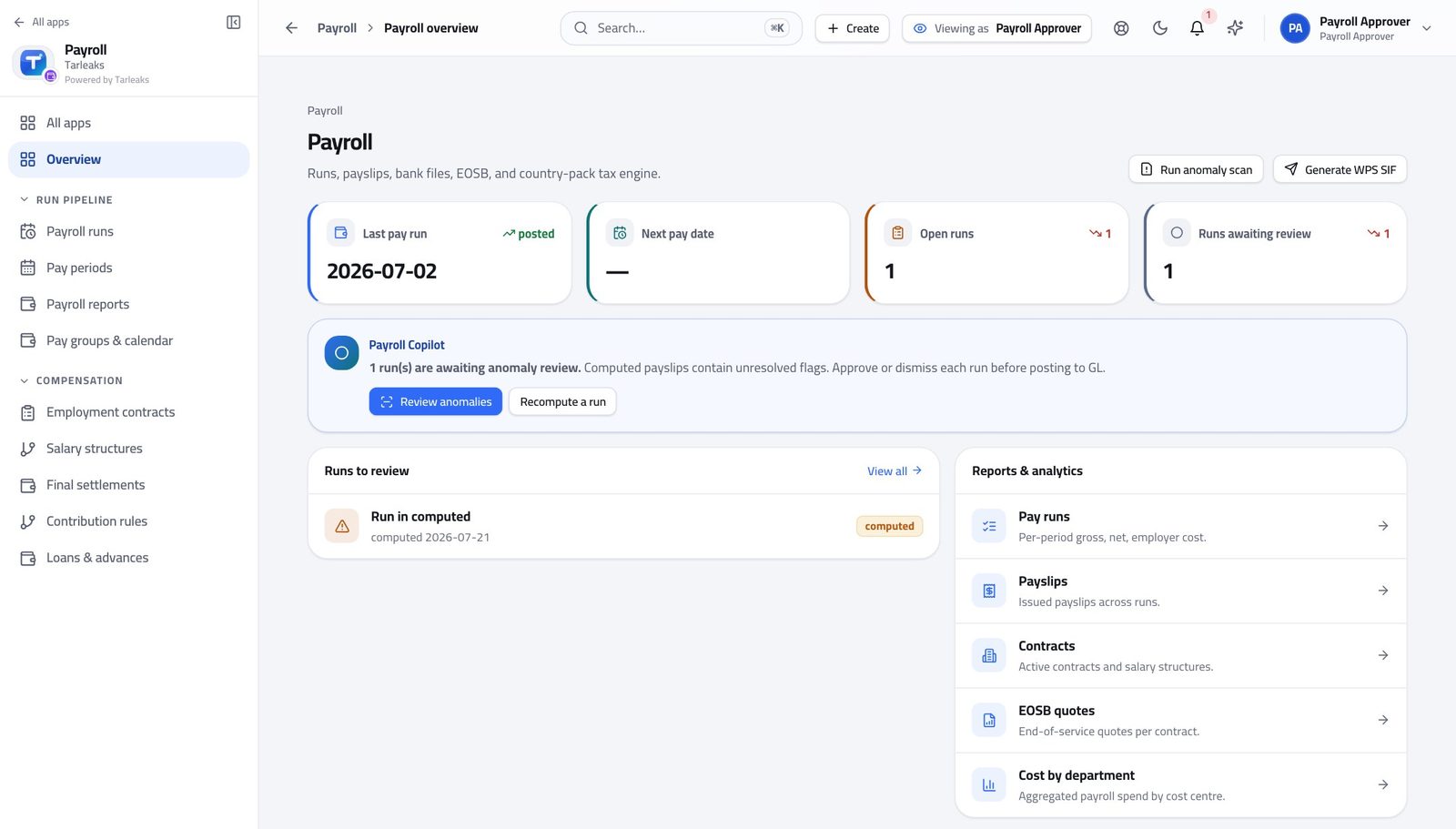
You should see The runs that stopped short of approval, and what each one stopped at.
Watch out A run sitting in review for three days is not waiting for the system. It is waiting for you.
Open the run register #
Where Payroll » Payroll runs
- In the left menu, under RUN PIPELINE, click Payroll runs.
- Open the State filter and choose Review.
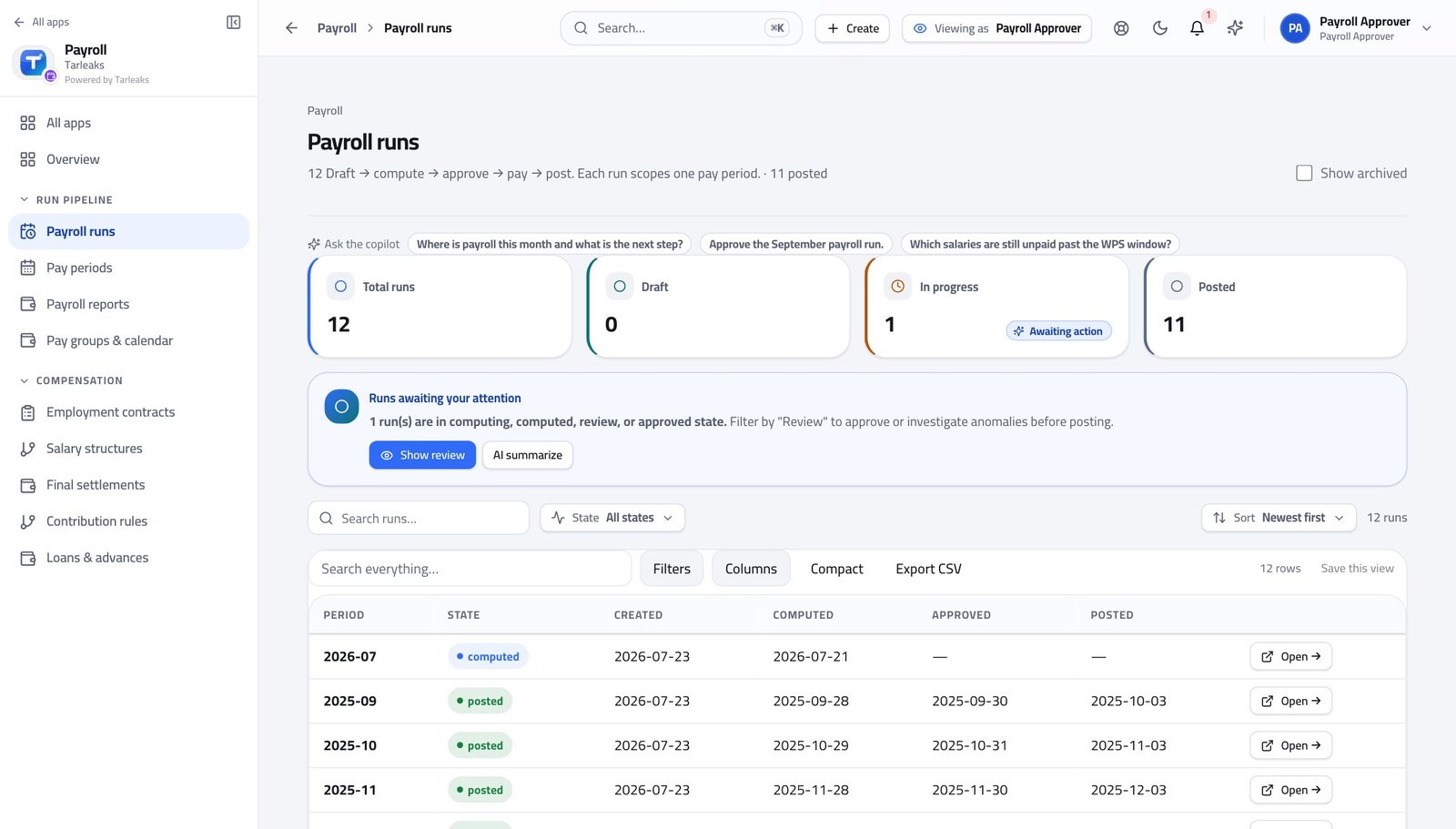
You should see Your queue. There is no New run button on this page for you, which is the point: the thing you check is not the thing you make.
Watch out If your queue is empty, ask the person who prepares runs. There is nothing here for you to start.
Open the run and read its four numbers #
Where Payroll » Payroll runs » Open
- From the launcher, click the Payroll tile.
- In the left menu, under RUN PIPELINE, click Payroll runs.
- Press Open on the run you want.
- Read the four figures across the top.
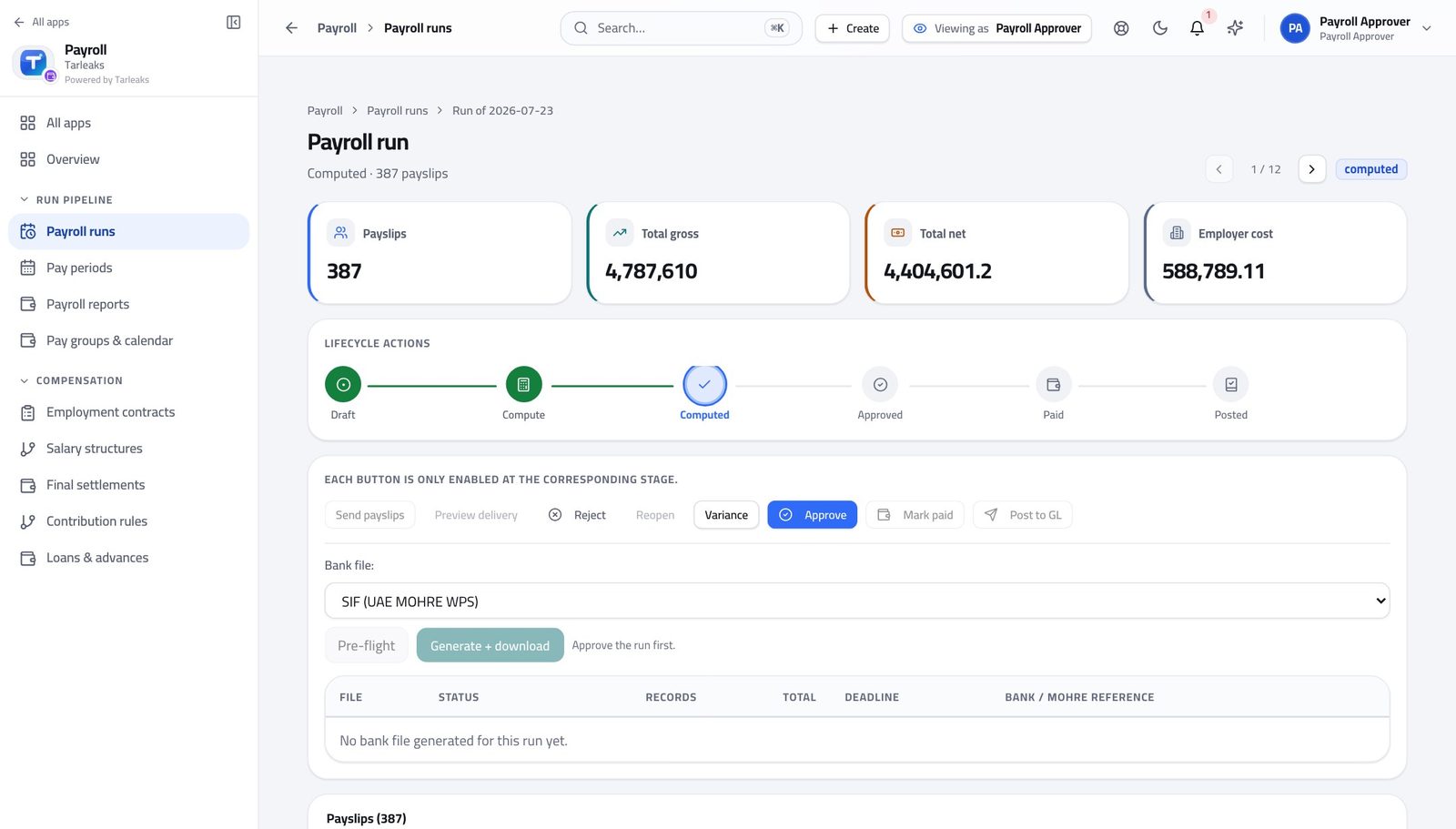
You should see These are the four figures you are signing for, with the stage stepper above them showing how the run got here.
Watch out Employer cost is gross plus the employer's own contributions. It is the number that hits the budget, and it is not the number people mean when they say "the payroll".
The row of decisions on a run #
Where Payroll » Payroll runs » Open » Lifecycle actions
- On the same run, read the row of actions.
- Hover over any that are greyed out — each is only enabled at the stage it belongs to.
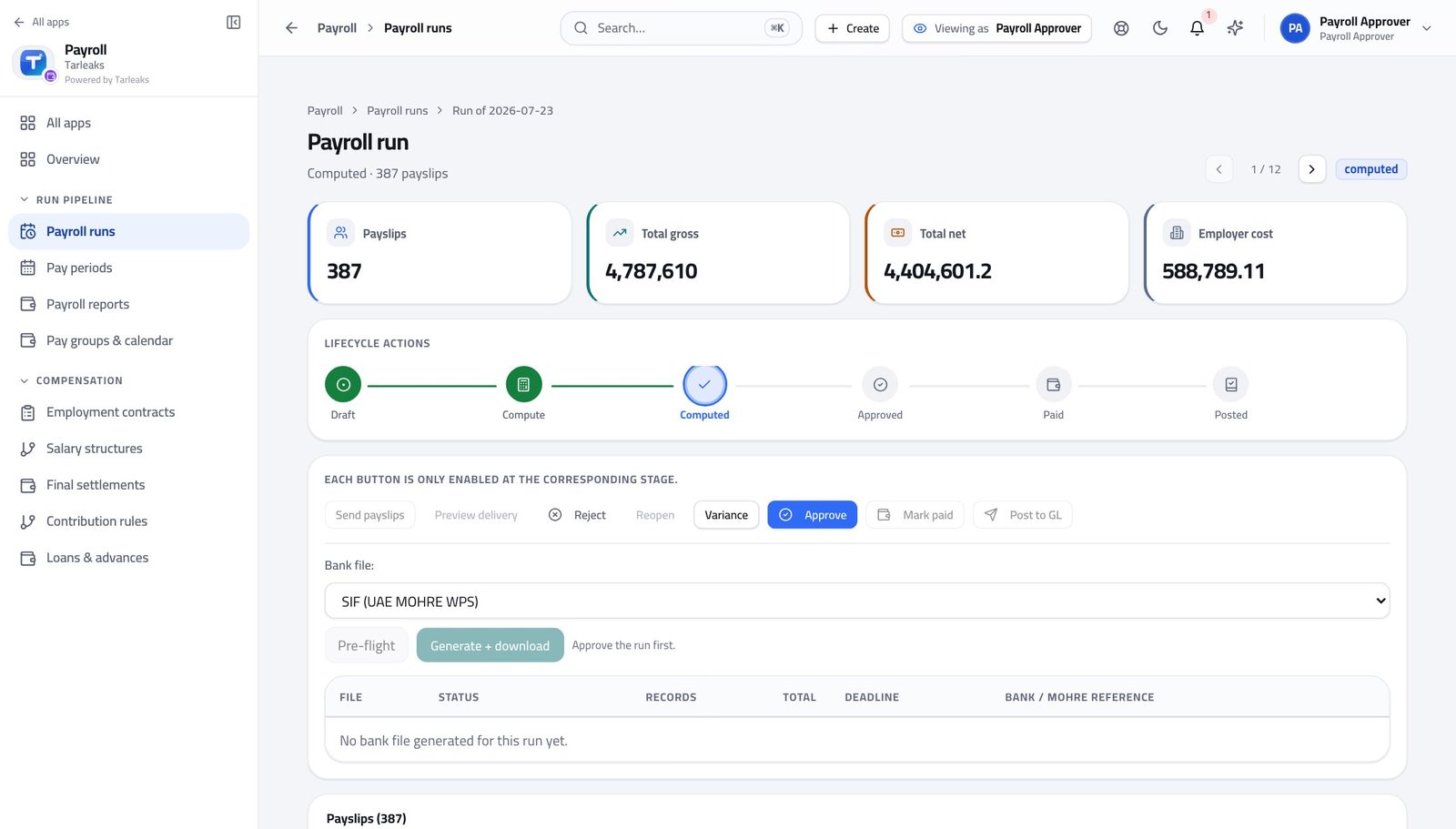
You should see Reject and Reopen send work back. Approve locks the payslips to the rulebook version they were calculated under. Mark paid records that the bank went through, and Post to GL writes the cost into the company's accounts.
Watch out Approving is not the end. A run that is approved but never posted is money that left the bank and never reached the accounts — and it is invisible until somebody reconciles the month.
Worth knowing Approving is not the end. A run that is approved but never posted is money that left the bank and never reached the accounts.
Read the variance first — before anything else #
Where Payroll » Payroll runs » Open » Variance
- From the launcher, click the Payroll tile.
- In the left menu, under RUN PIPELINE, click Payroll runs.
- Press Open on the run you want.
- Press Variance.
- Read the headline, then every person listed underneath.
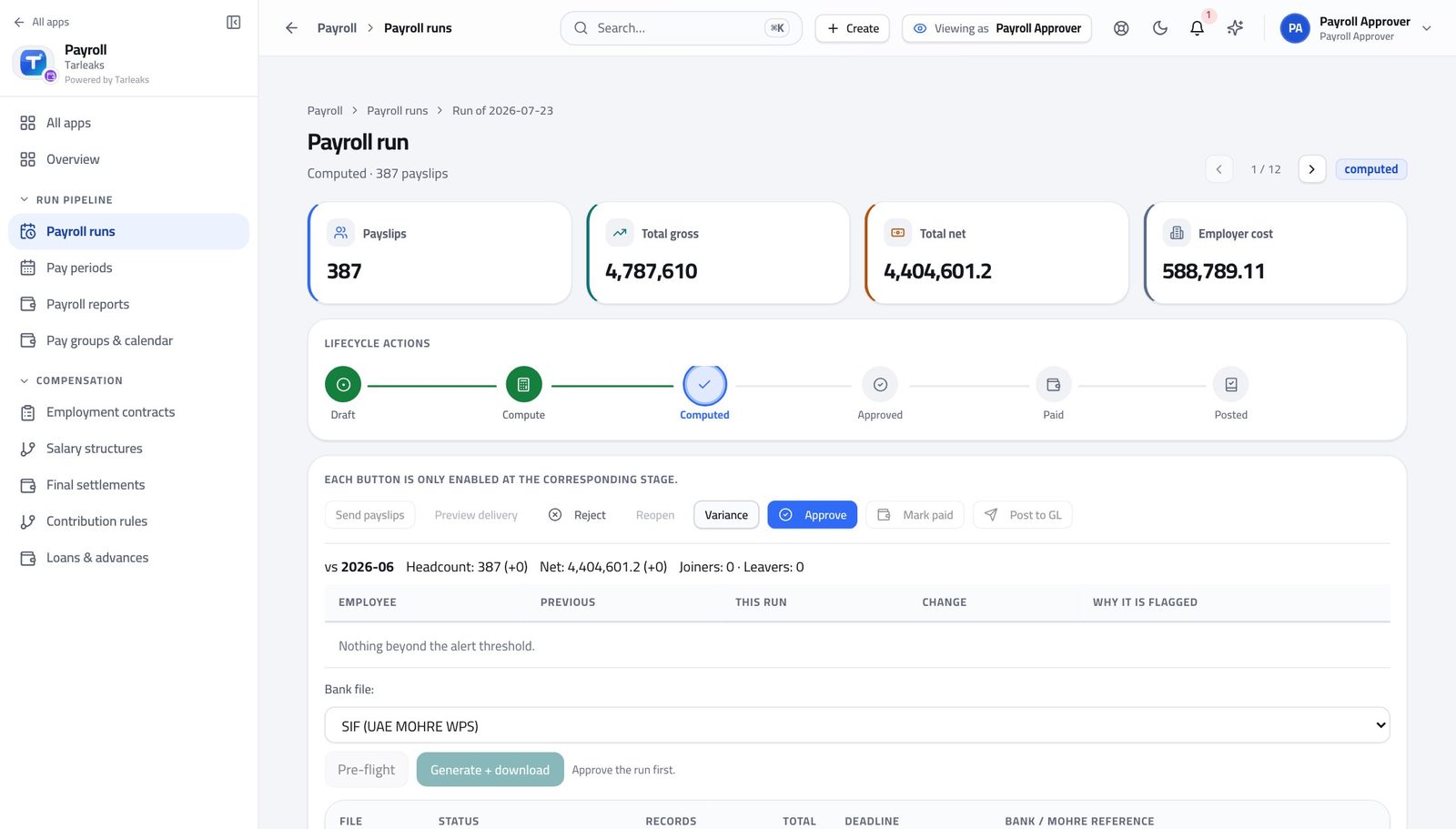
You should see Headcount, gross, net and employer cost against the previous run, then every person whose net pay moved beyond the threshold, with the reason, and the joiners and leavers. This is the single most useful screen you have.
Watch out Read this BEFORE the totals look reasonable to you. A payroll that is right in aggregate can still be wrong for eleven people, and the aggregate is what makes you stop looking.
Worth knowing The same comparison appears again inside the Approve confirmation, so you get one last look at it with your finger on the button.
Read the flags and the explanations left on them #
Where Payroll » Payroll runs » Open » Anomaly detection flags
- From the launcher, click the Payroll tile.
- In the left menu, under RUN PIPELINE, click Payroll runs.
- Press Open on the run you want.
- Scroll to Anomaly Detection Flags.
- Read the open flags, and the reasons on the dismissed ones.
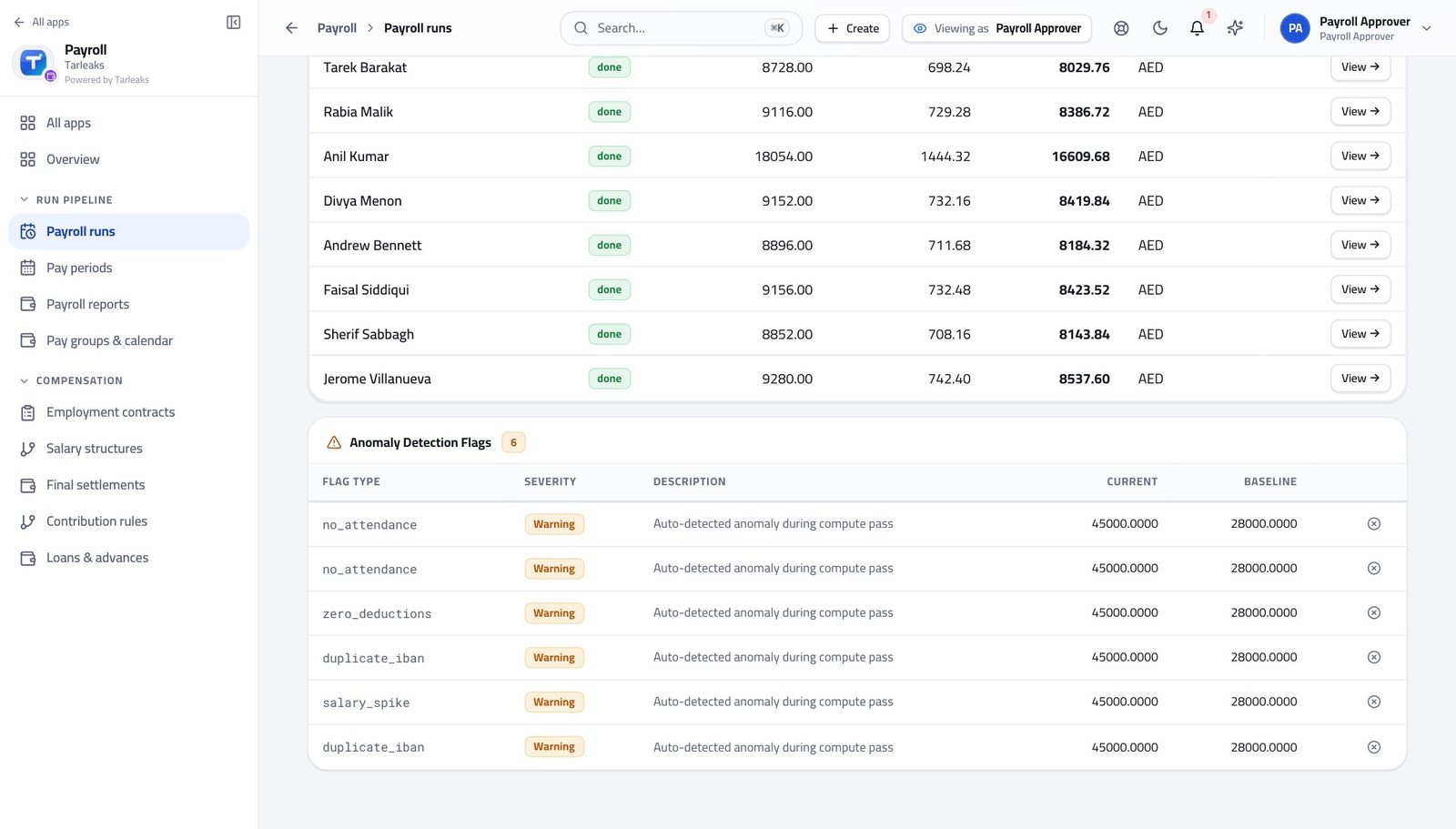
You should see A dismissed flag still shows who dismissed it and why. If a reason does not convince you, send the run back rather than accepting it.
Watch out If a reason does not convince you, reject the run with that as the reason. Accepting a weak explanation is how a bad payroll gets signed.
Read the run's history before adding to it #
Where Payroll » Payroll runs » Open » Run history
- From the launcher, click the Payroll tile.
- In the left menu, under RUN PIPELINE, click Payroll runs.
- Press Open on the run you want.
- Scroll to the run's history.
You should see Who created it, who calculated it and who submitted it — with times. Your approval becomes the next line, permanently.
Watch out Your approval becomes the next line and never comes off. That is the point.
Go from a total to the person behind it #
Where Payroll » Payroll runs » Open » Payslips
- Open the run and scroll to the payslips, or open Payslips from the left menu.
- Sort by net, or search for the person the variance flagged.
- Press View on their row.
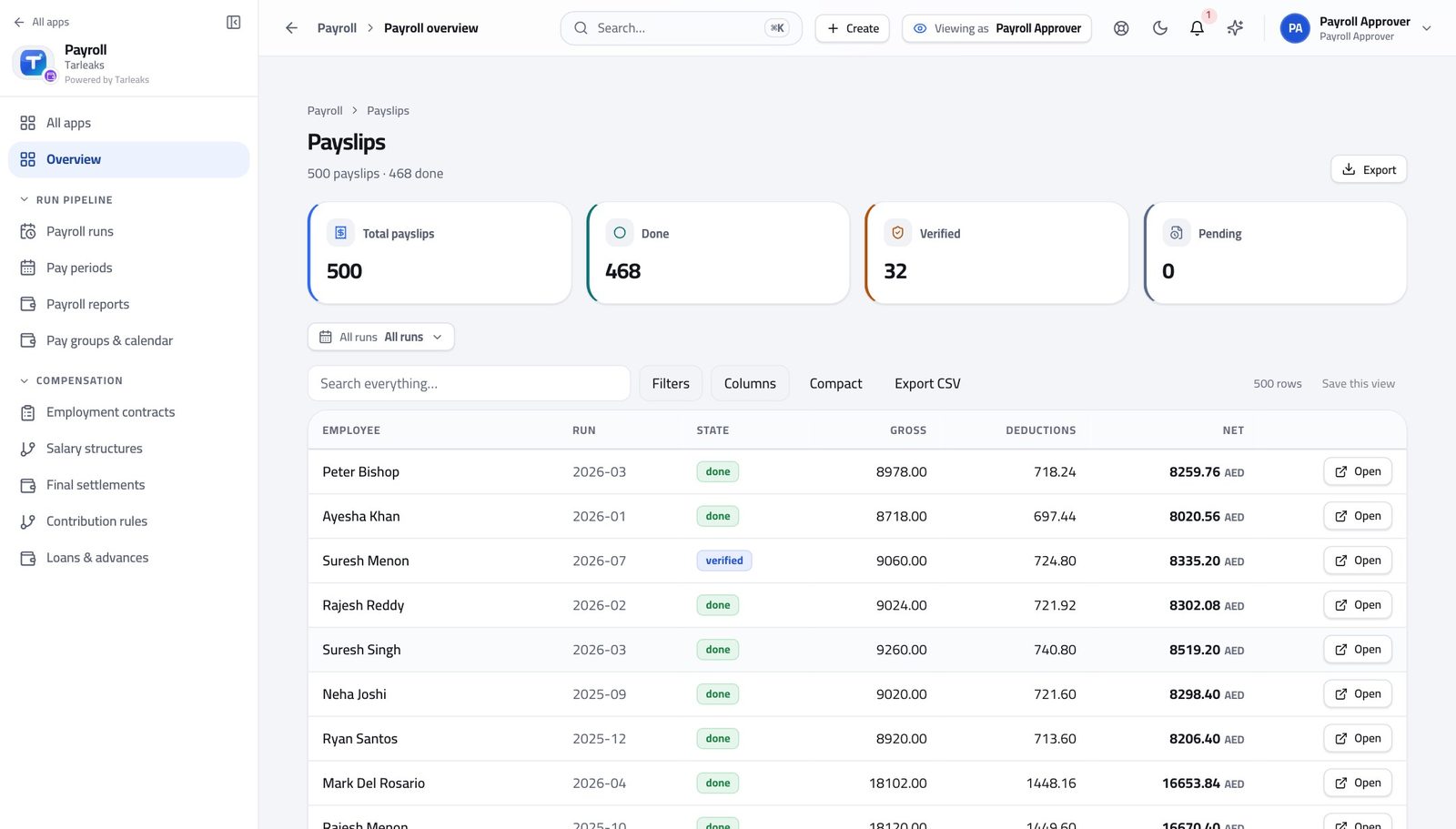
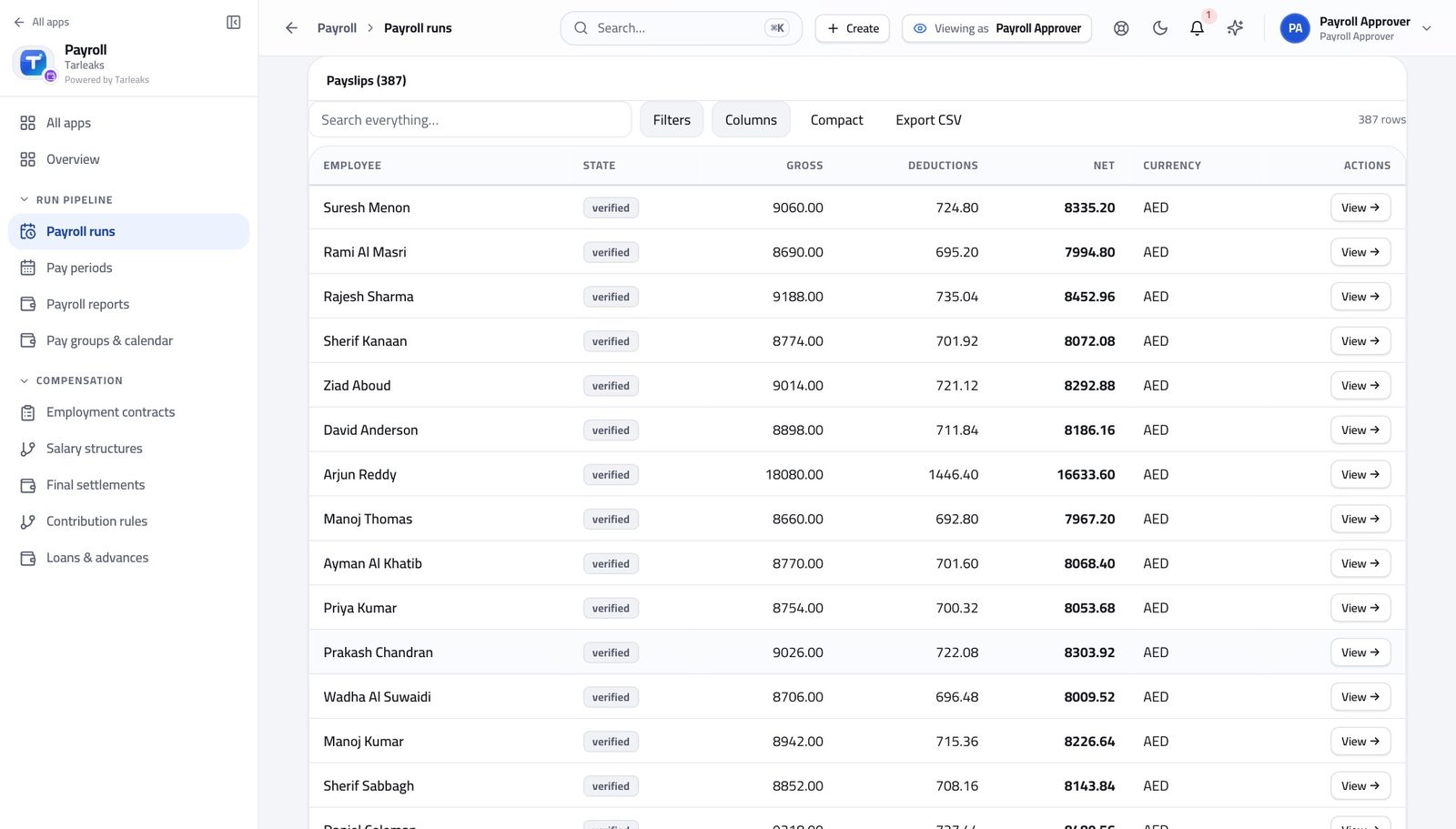
You should see Every payslip in the run, led by the person's name, and each one opens the full line-by-line breakdown.
Watch out If the variance flagged somebody, open their slip rather than accepting the reason on the summary. It takes ten seconds.
Read the bank file's history #
Where Payroll » Payroll runs » Open » Bank / WPS
- From the launcher, click the Payroll tile.
- In the left menu, under RUN PIPELINE, click Payroll runs.
- Press Open on the run you want.
- Scroll to the bank panel.
- Read the submission log and the banner above it.
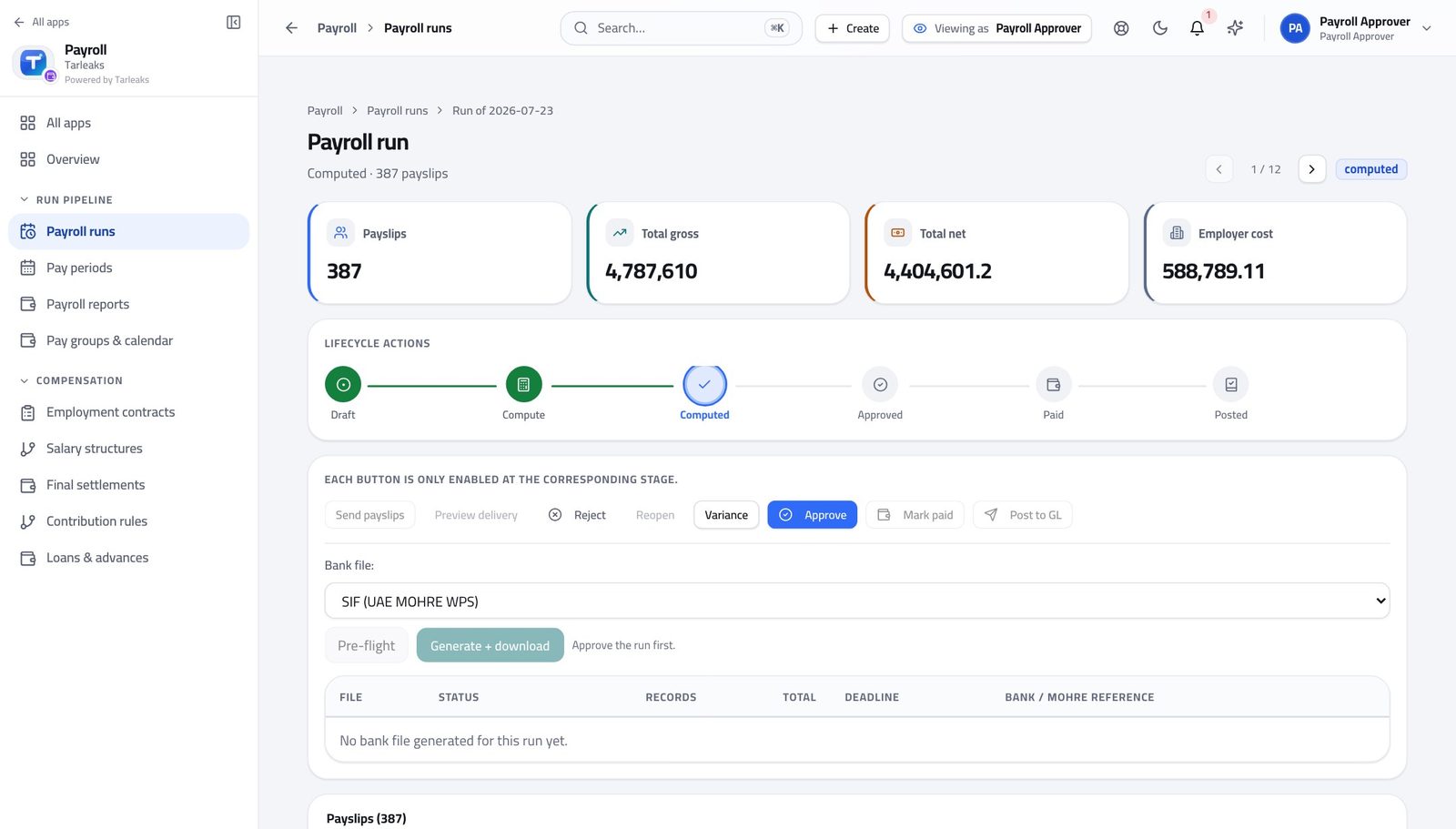
You should see Every file generated for this run, what the bank said about it, the bank reference and how long is left on the statutory window.
Watch out A file marked generated and never submitted looks the same as one nobody made. If the log is empty on a paid run, ask why before you post it.
Record what the bank said #
Where Payroll » Payroll runs » Open » Bank / WPS » Mark submitted
- In the bank panel, press Mark submitted on the file you sent.
- Enter the reference the bank gave you.
- When they confirm, press Accepted. If they bounce it, press Rejected and type the reason.
- After a rejection, press Regenerate + resubmit.
| Field | What to put in it |
|---|---|
| Bank / MOHRE reference | Whatever the bank or the portal gave you back. This is what you will be asked for if a salary goes missing. |
| Rejection reason | Required on a rejection. Copy the bank's own wording rather than paraphrasing it. |
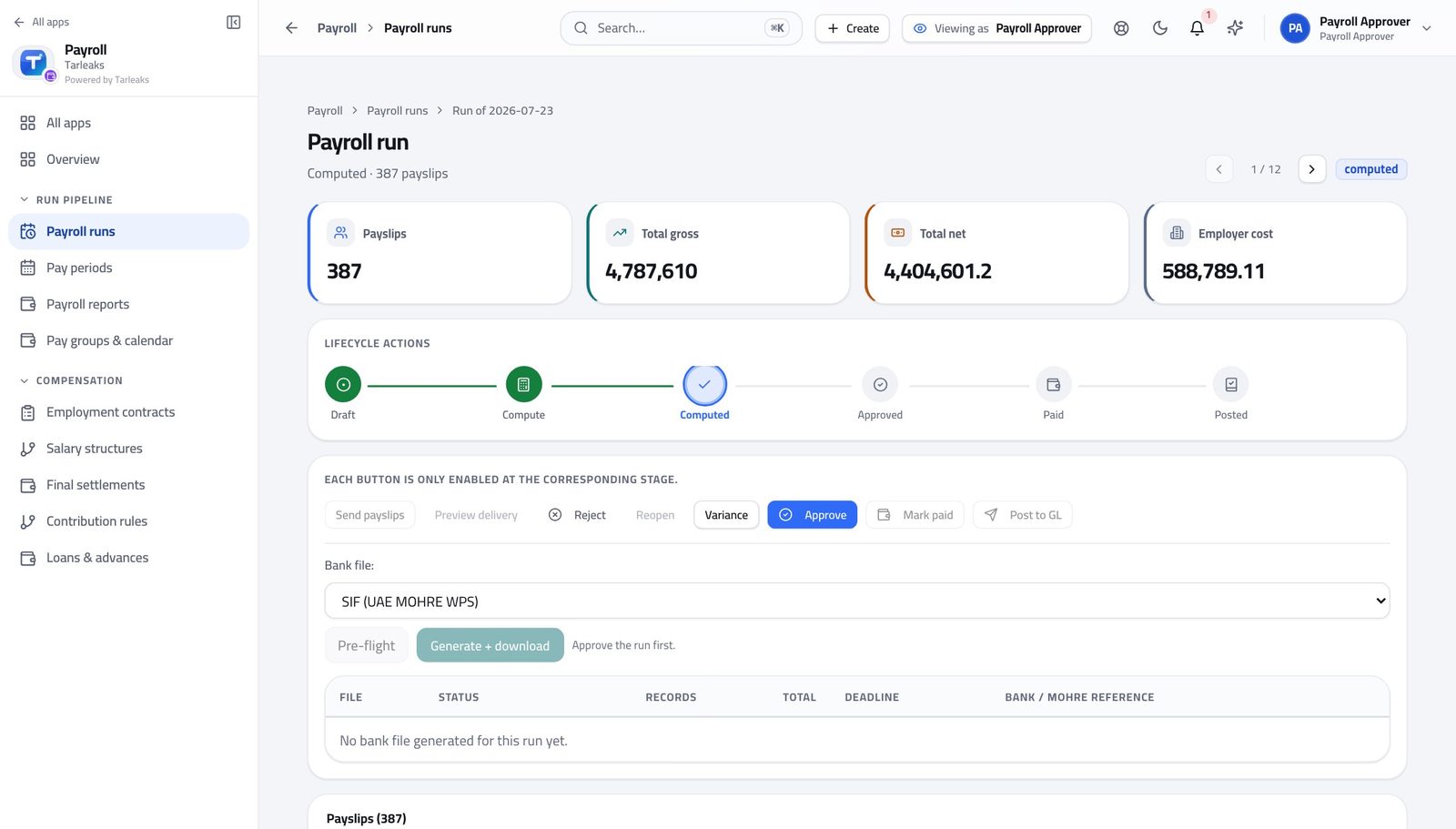
You should see The log stops being a list of files and becomes the answer to "was everyone paid, and if not, why not" — with the statutory deadline counting down beside it.
Watch out Record the submission the same day. The deadline in the log is statutory and counts from the end of the pay period, not from when you got round to it.
Check the file can actually be produced #
Where Payroll » Payroll runs » Open » Bank / WPS » Pre-flight
- In the same bank panel, choose the format and press Pre-flight.
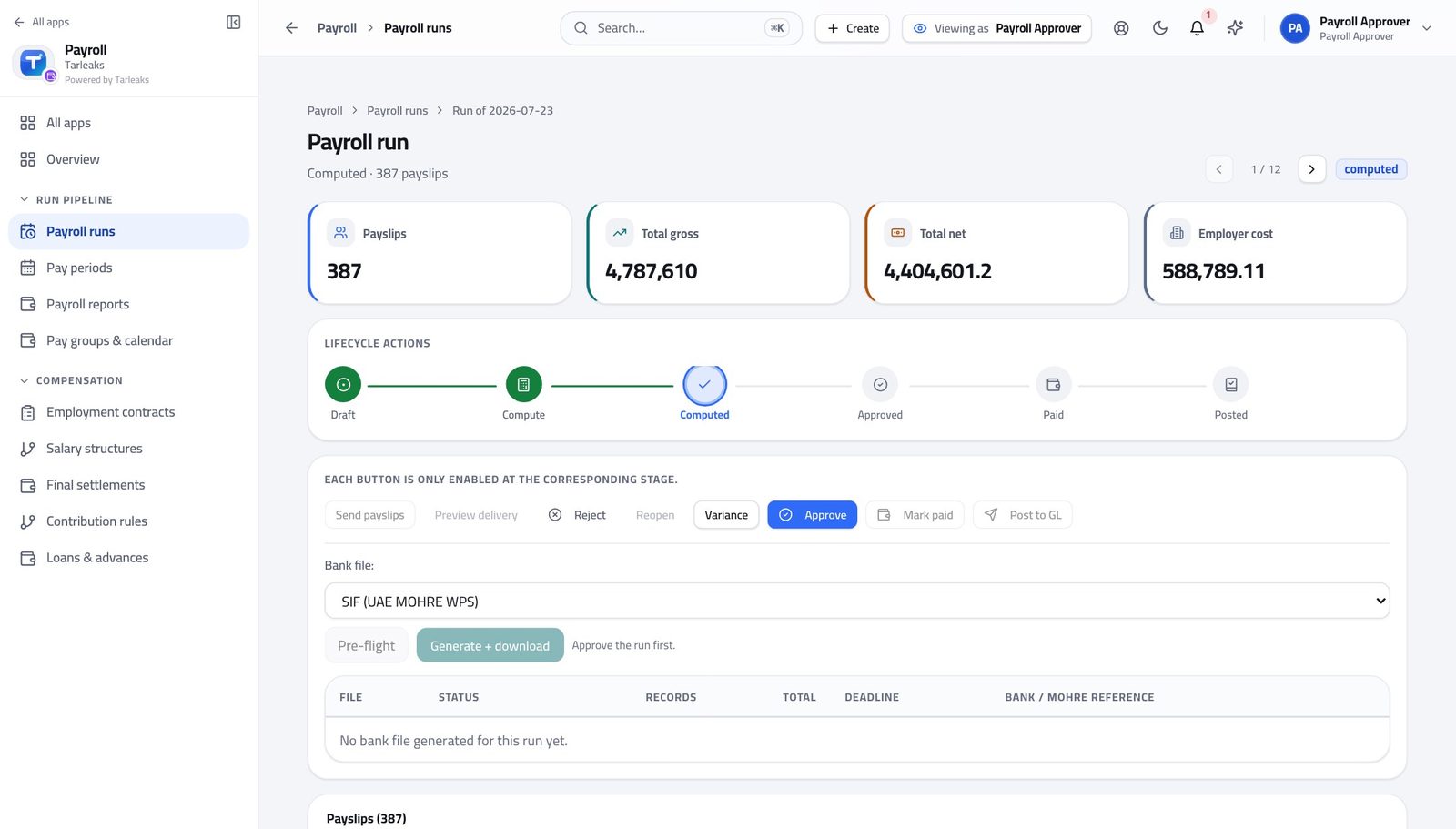
You should see Approving a run whose bank file cannot be produced only moves the problem to the day the salaries are due. Two seconds here saves that.
Watch out Approving a run whose file cannot be produced only moves the problem to payday. Two seconds here saves that.
Decide on the loans waiting for you #
Where Payroll » Loans & advances » open a loan
- Open Loans & advances.
- Click a pending row to open it.
- Read the principal, the term and the schedule.
- Press Approve, or Reject with a reason.
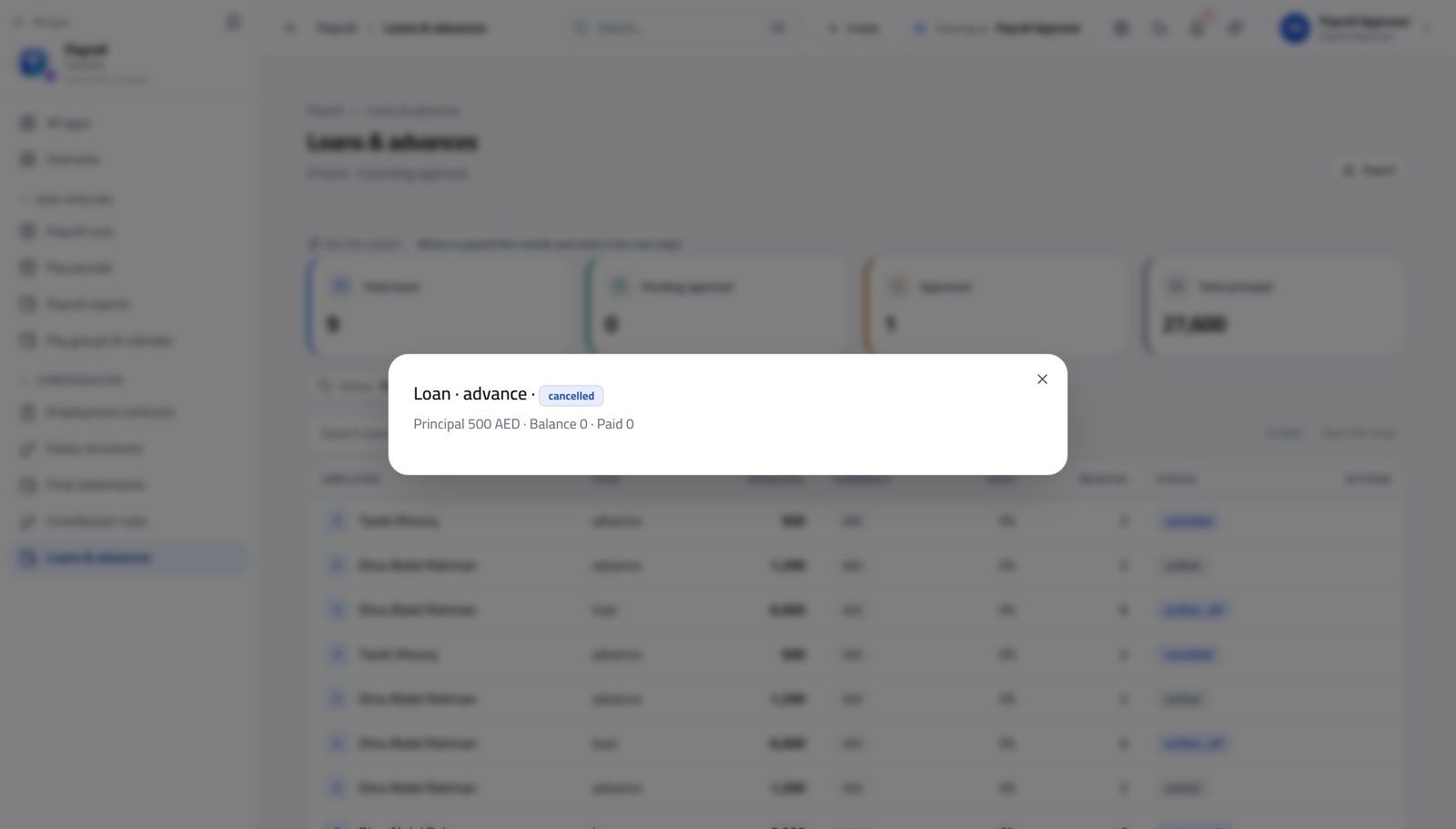
You should see Approving generates the instalment schedule that every future run deducts automatically. Rejecting keeps your reason on the record.
Watch out You cannot approve a loan you asked for yourself — the system refuses it. If the loan is yours, somebody else decides it.
Worth knowing You cannot approve a loan you asked for yourself. If a loan is yours, somebody else decides it.
Decide on the leavers waiting for you #
Where Payroll » Final settlements
- In the left menu, under COMPENSATION, click Final settlements.
- Click a leaver's name.
- Read the itemised lines and the clearance list, then approve.
- Once approved, use Pay, then Post to GL.
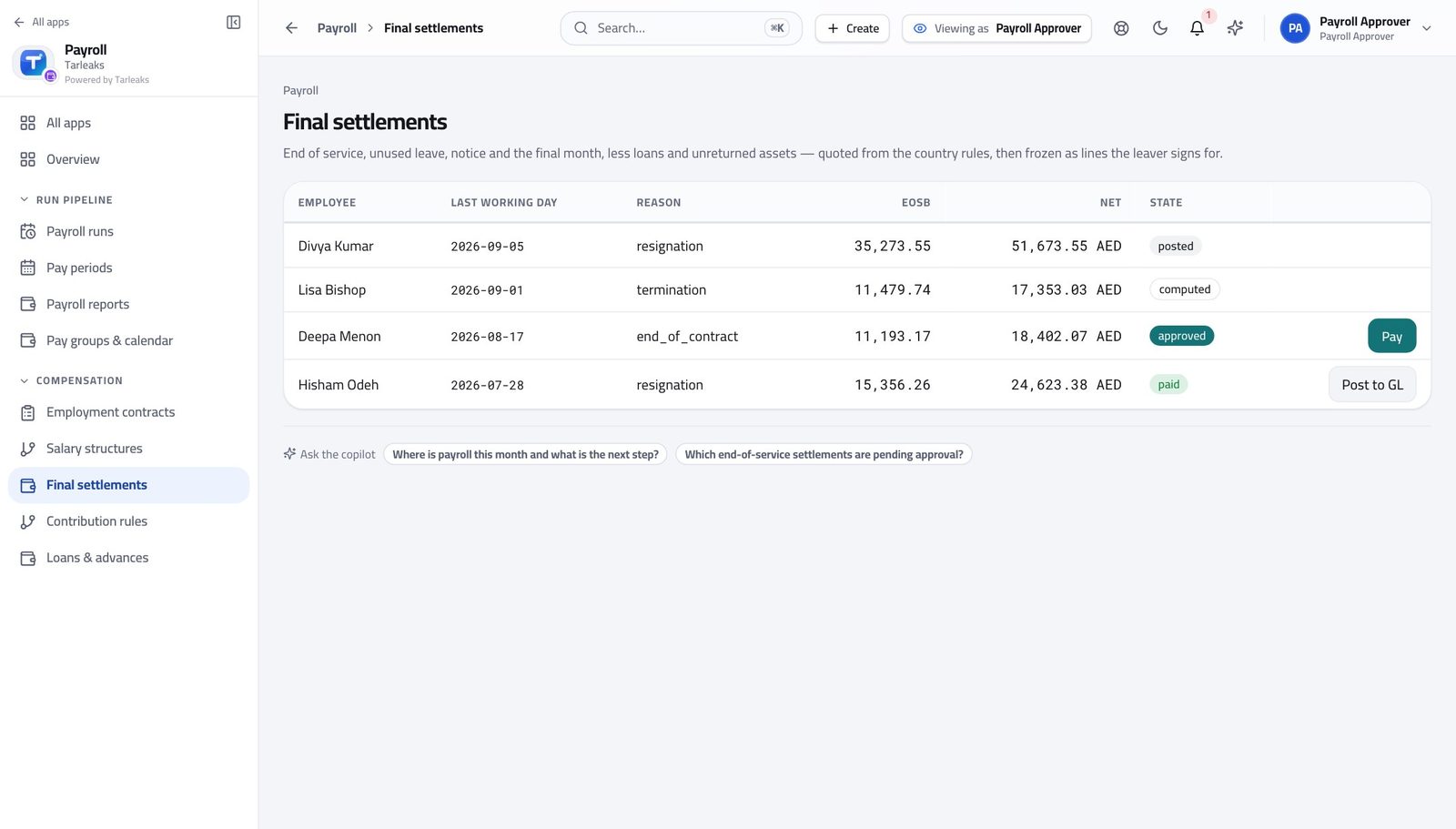
You should see End of service, unused leave, notice and the final month, less loans and anything not handed back. Outstanding clearance items are counted, and approval refuses while they are open.
Watch out A settlement walks the same one-way road as a run: draft, approved, paid, posted. Cancel is only available before it is paid.
You cannot create the thing you check #
Where Payroll » Payroll runs
- Open Payroll runs and look at the top of the page.
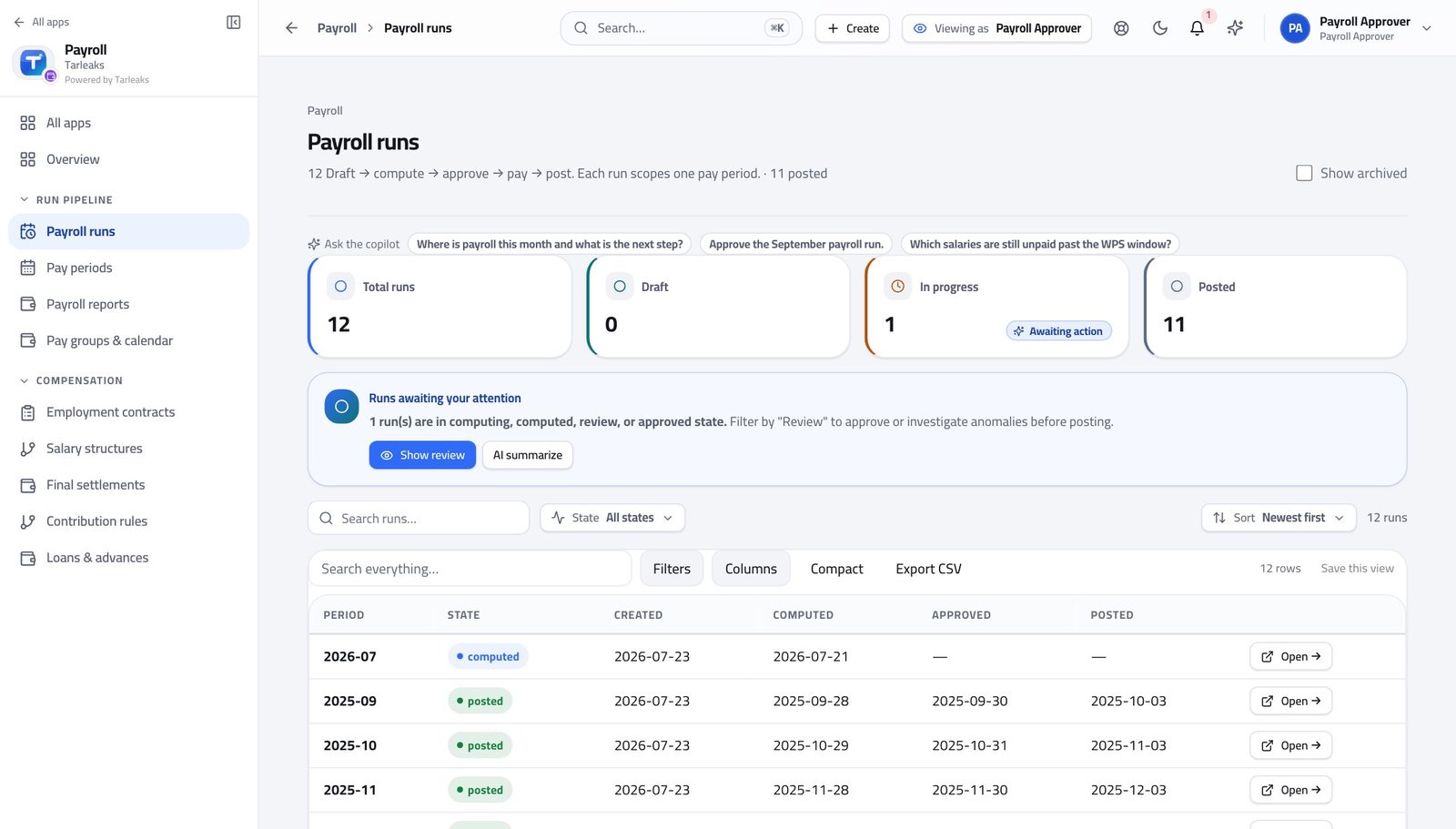
You should see If your queue is empty, that is a question for the person who prepares runs — not a button for you. The checker creating the work would collapse the whole control.
Watch out This is deliberate and it is not negotiable. The checker creating the work would collapse the whole control.
You cannot change what anyone is paid #
Where Payroll » Employment contracts
- Open Employment contracts.
- Tick a few rows and look at the bar that appears.
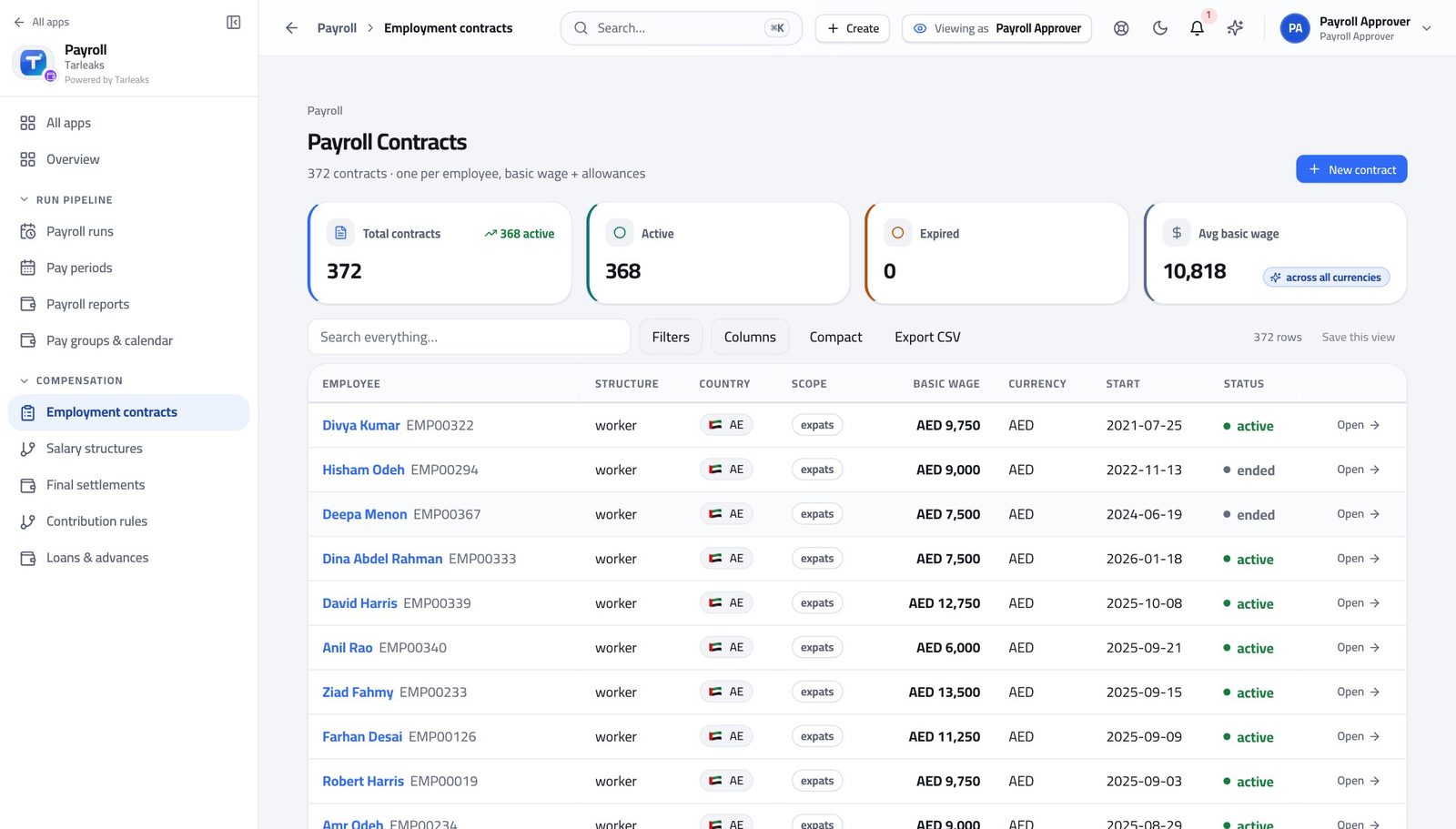
You should see Reading what somebody is paid is a completely different authority from changing it, and the split is enforced on the batch exactly as it is on one row.
Watch out Reading what somebody is paid and changing it are different authorities, and the split holds on a batch of four hundred exactly as it does on one.
The hours behind the run are closed to you #
Where Payroll » Work entries is not in your menu.
- Look down the left menu.
- There is no Work entries entry, and no Salary attachments entry.
You should see You approve the RESULT of the hours, not the hours. Changing an input after seeing the total is precisely what the split exists to prevent.
Watch out If the hours look wrong, reject the run and say so. Fixing the hours yourself would make your own approval worthless.
Check what the employer owes before you release the money #
Where Payroll » Payroll reports » Contributions
- In the left menu, click Payroll reports.
- Set the two dates and read the employer share on Contributions.
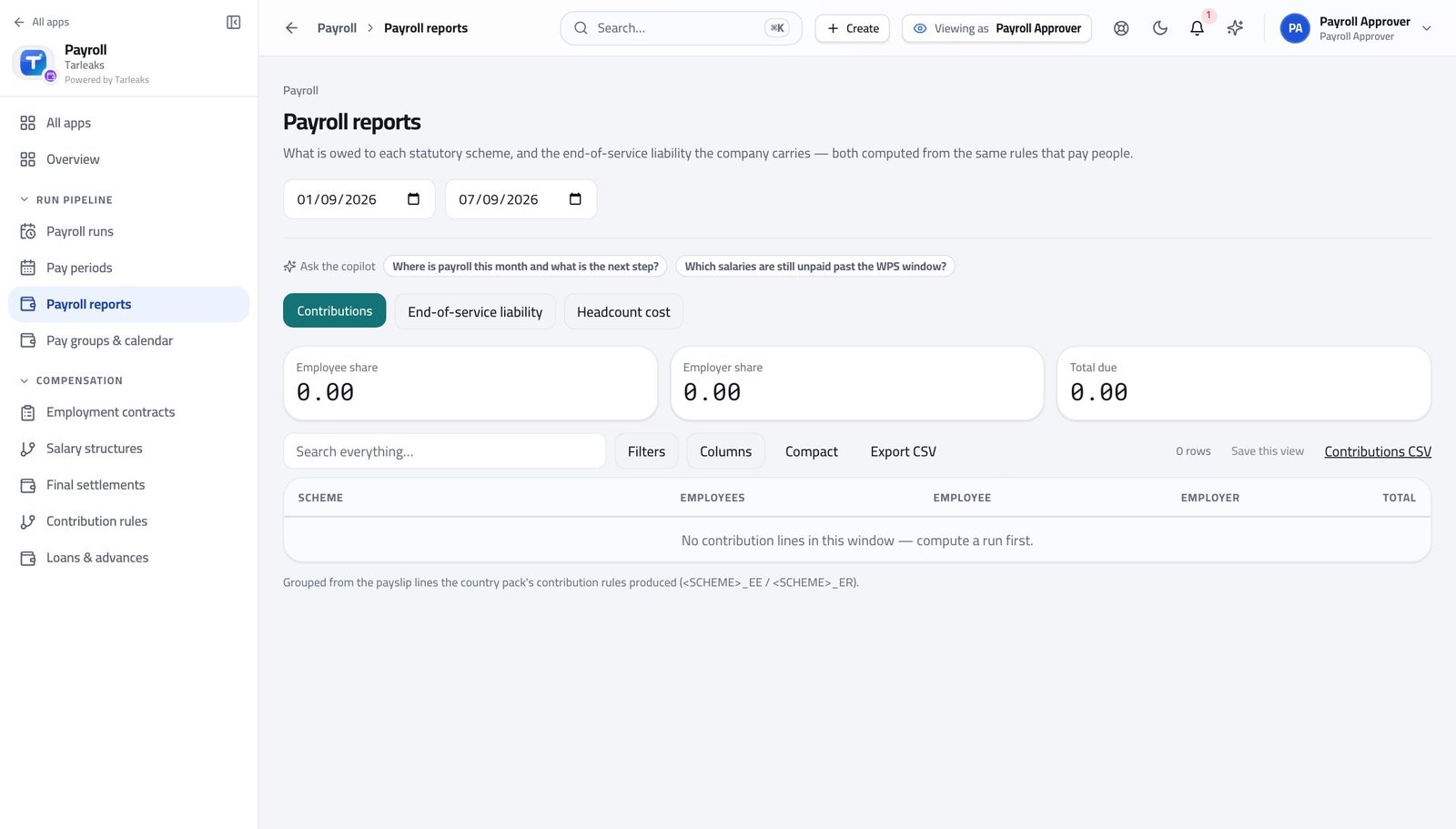
You should see The company's own statutory cost for the period, from the same payslips — so you are approving the full cost, not just the net pay.
Watch out You are approving the full cost, not just what lands in people's accounts. The two differ by a lot in the Gulf.
Use cases — the work, step by step
Each one is a sequence somebody actually performs, with the screen behind every step. Every screen here was opened in the product as this role before it was published.
monthlySign off a payroll you can defend #
In this order, because the variance is the only screen that finds the eleven people a correct total hides — and once you have seen a reasonable total, you stop looking.
Open the run that is waiting for you. Read the four figures, then stop reading them.
Payroll » Payroll runs » Open — verified: the page says “Lifecycle actions” Open the variance and read the person list. Joiners and leavers should explain most of the movement; anything they do not explain is your question.
Payroll » Payroll runs » Open » Variance — verified: the control is offered Read the flags and the reasons left on the dismissed ones. If a reason does not convince you, it is not a reason.
Payroll » Payroll runs » Open » Anomaly detection flags — verified: the page says “Anomaly Detection Flags” Open the payslips of anybody the variance named. It takes ten seconds and it is the difference between signing and rubber-stamping.
Payroll » Payroll runs » Open » Payslips — verified: the page says “Payslips”; 500 row(s) listed Pre-flight the bank file before you approve, so you are not approving a run that cannot be paid.
Payroll » Payroll runs » Open » Bank / WPS » Pre-flight — verified: the control is offered Approve — the confirmation shows you the variance one last time — then release the money and post it to the accounts.
Payroll » Payroll runs » Open » Lifecycle actions — verified: the page says “Lifecycle actions”; the page says “Mark paid” Record what the bank did with the file. A file generated and never marked submitted looks exactly like one nobody made.
Payroll » Payroll runs » Open » Bank / WPS » Mark submitted — verified: the control is offered
urgentSomething does not look right — send it back #
Fixing it yourself would destroy the only thing that makes your approval worth having.
Confirm what is wrong: open the variance, then the payslips of the people it names.
Payroll » Payroll runs » Open » Variance — verified: the control is offered Press Reject and write what the preparer must fix. The reason stays on the run and they are told.
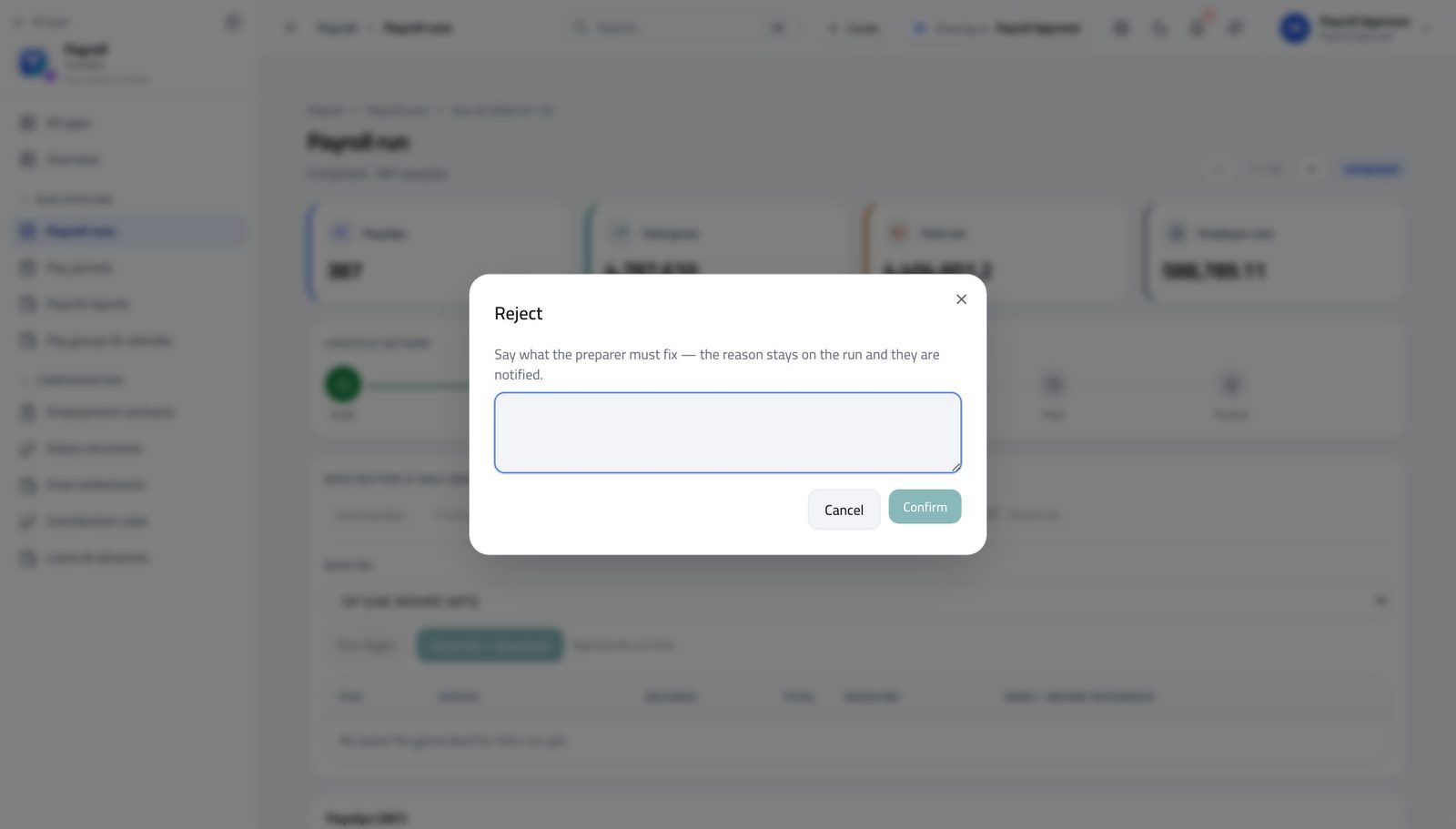
In the product — verified: the control is offered; the control is offered If you have already approved it and it is not yet paid or posted, Reopen clears the approval instead. A paid or posted run cannot be reopened, and that is correct.
Payroll » Payroll runs » Open » Lifecycle actions — verified: the page says “Lifecycle actions”; the page says “Mark paid” The run history now carries both your rejection and whatever happens next, permanently.
Payroll » Payroll runs » Open » Run history — verified: the page says “Lifecycle actions”
weeklyDecide the loans and the leavers waiting on you #
Both queues are people waiting for an answer, and neither one sends you a reminder.
Open a pending loan, read the amount, the term and the schedule it would create, then approve or reject with a reason.
Payroll » Loans & advances » open a loan — verified: the control is offered Open the leavers' settlements. Outstanding clearance items are counted, and approval refuses while they are open.
Payroll » Final settlements — verified: the page says “Final settlements” Check the employer's own cost for the period before you release anything — you are approving the full cost, not just the net.
Payroll » Payroll reports » Contributions — verified: the page says “Payroll reports”
You cannot change a single input — not an hour, not a wage, not a payslip. If something is wrong, reject it with a reason and it goes back to the person who prepared it. Fixing it yourself would destroy the only thing that makes your signature worth having.