Payroll role guides — what each role can do, step by step
Step-by-step guides for the pay run — the specialist who prepares it, the approver who signs it off, the manager who owns the pipeline end to end, and the employee who reads their own payslip. 68 steps across 4 roles, every one of them carried out in the product before it was published here.
Nothing matches that. Try a shorter word, or pick All roles to search every guide.
Go deeper
Payroll Manager
Take the month from an empty period to money in people's accounts — and to a number the accounts agree with.
Owns the run from the empty period to the posted journal — and owns the rules it is calculated from. The only payroll role that both prepares and signs off.
What you will be able to do
- See in one screen what the month still needs
- Compare this payroll with last month before anyone signs
- Check the bank file before the bank does
- Prove, months later, exactly who approved what and when
What this role can and cannot do
| Can | Cannot |
|---|---|
|
|
19 steps, each one carried out in the product on .
Check what your sign-in can do #
Where Your name, top right » Profile
- Open your company's address in the browser — it looks like yourcompany.tarleaks.com.
- Type the e-mail address your administrator set up for you, then your password.
- You land on the app launcher: a grid of the apps your company uses.
- Click your name in the very top-right corner of the screen.
- Choose Profile from the menu that drops down.
- Scroll to the roles section.
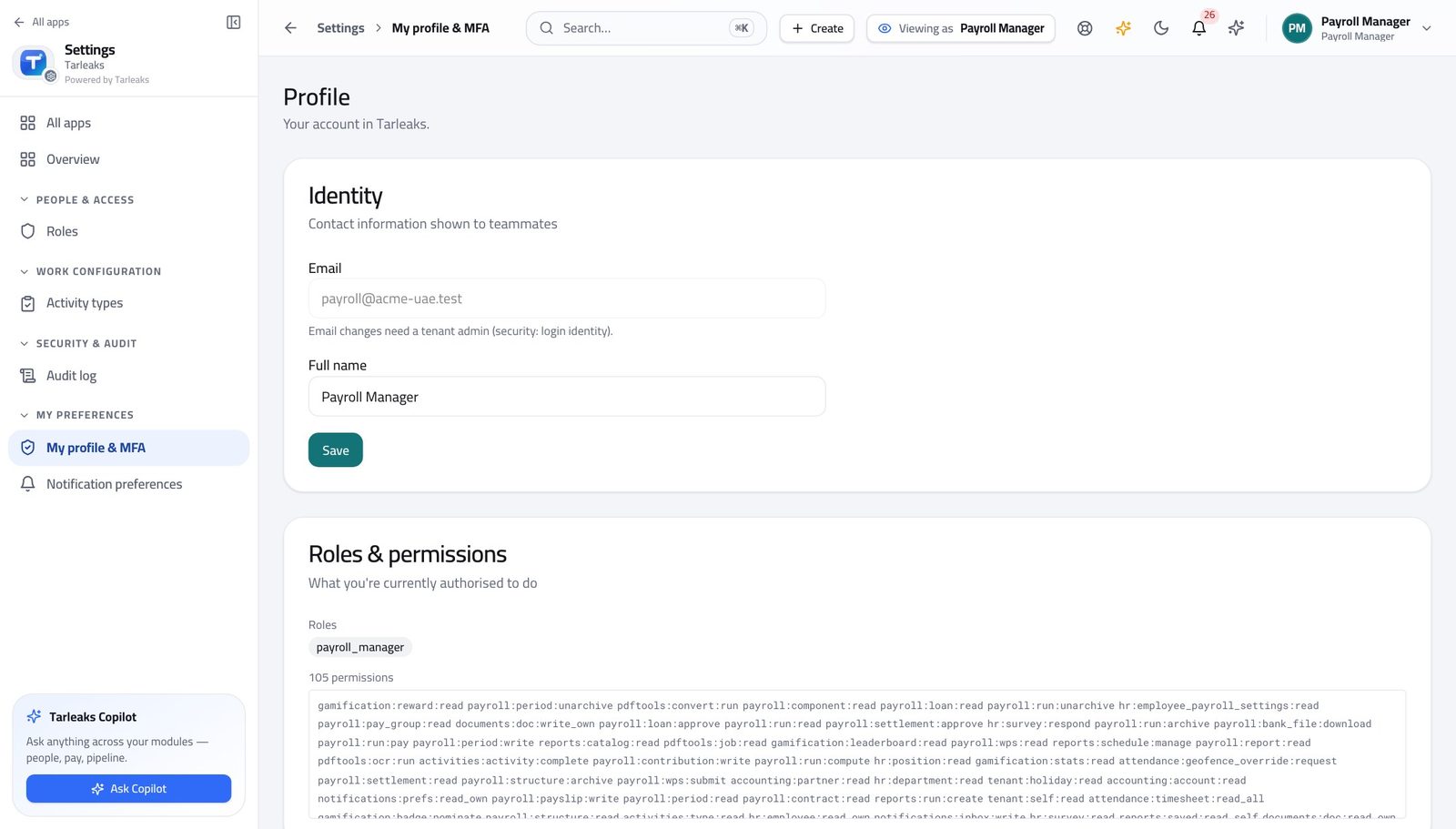
You should see It says payroll manager. You can calculate a run, approve it, release the money and post it to the accounts — and you can change the rules the calculation uses. Replacing the country rulebook is not yours.
Watch out If the chip does not say what you expected, stop and ask your administrator before you start a run. Half of what you can press depends on it.
Worth knowing Two people with the same job title can have different roles here. If the chip is not what you expected, ask your administrator before you start a run.
Start at the payroll home #
Where Payroll » Overview
- From the launcher, click the Payroll tile.
- You land on the overview. Read the four boxes across the top.
- Click any box to open the list behind it.
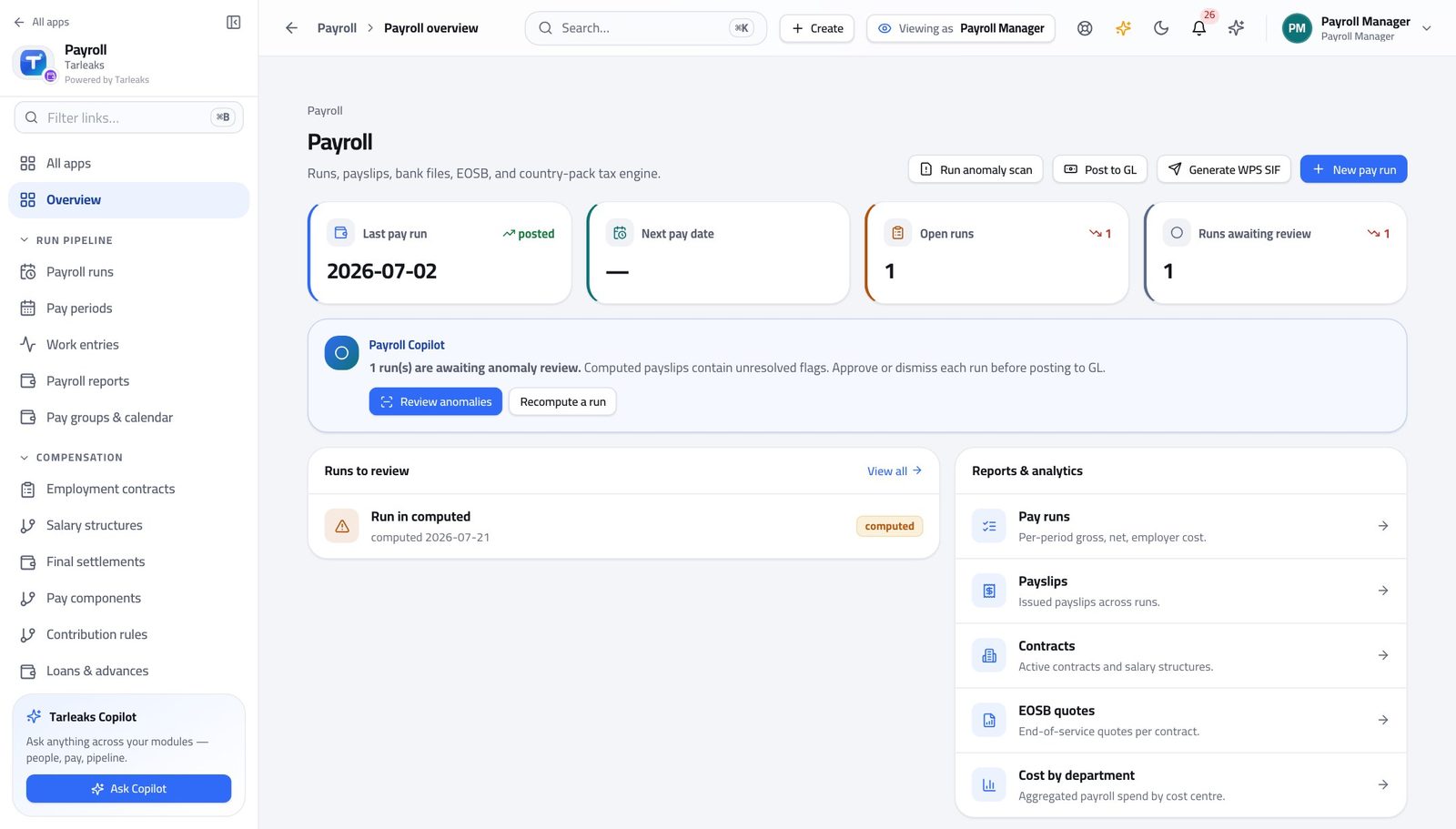
You should see The last pay run, the next pay date, how many runs are open and how many are waiting for review. Every box is clickable and takes you to the list behind it.
Watch out "Runs awaiting review" counts runs with flags still open, not runs waiting for a signature. A run can be perfectly clean and still be sitting there unsigned.
Check the month exists before you calculate anything #
Where Payroll » Pay periods
- In the left menu, under RUN PIPELINE, click Pay periods.
- Find the month you are paying.
- Read the State column: open, closed or locked.
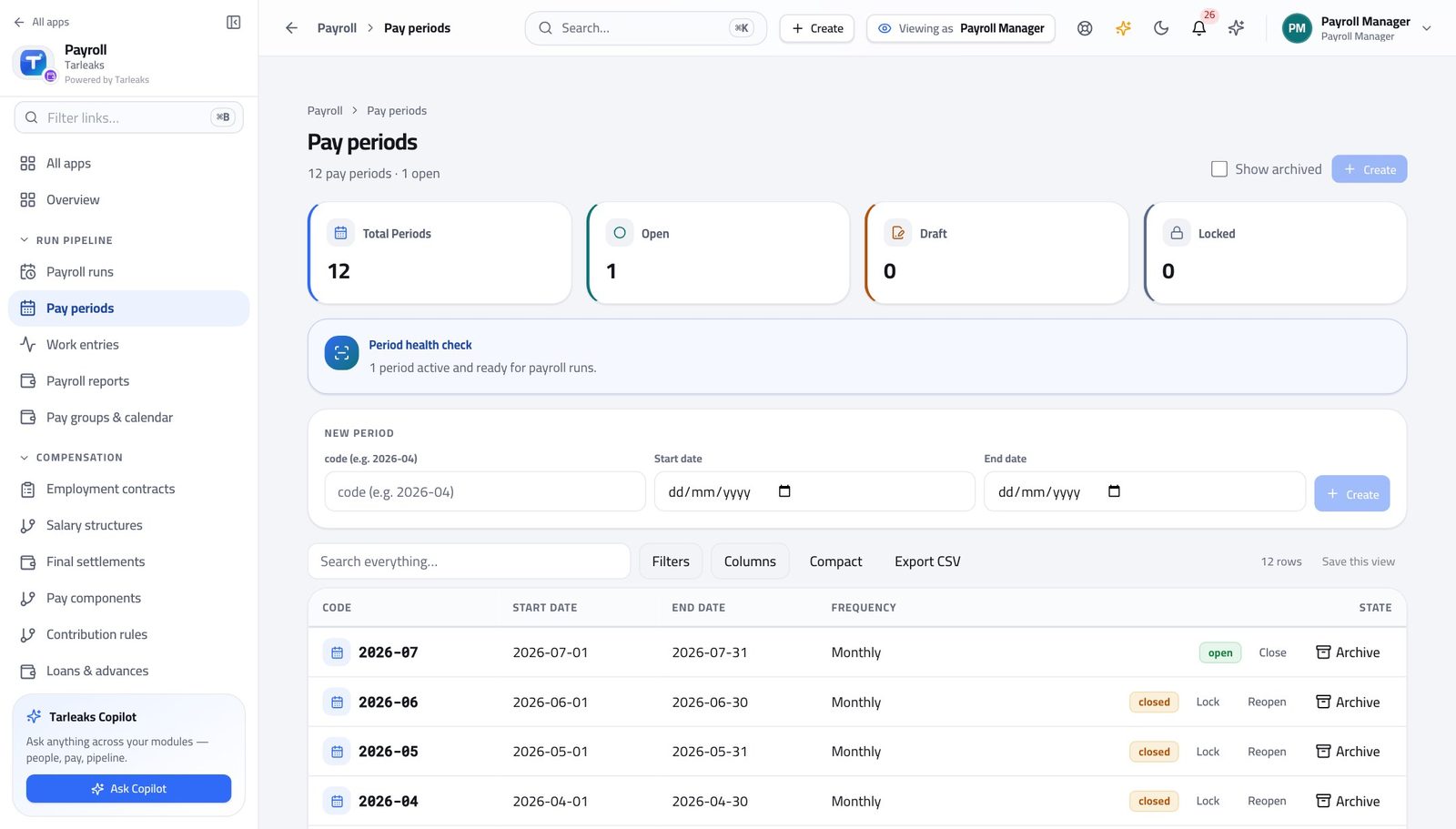
You should see A run can only live inside a period, and only an open period accepts one. Closed and locked months are shown differently on purpose.
Watch out The four boxes at the top filter the list, but that filter is not kept when you refresh the page — unlike the run list's, which is.
Open next month #
Where Payroll » Pay periods » Create
- On the Pay periods page, press Create at the top right.
- Fill the three fields in the card that appears.
- Press Create.
| Field | What to put in it |
|---|---|
| Code | How the month is named everywhere else. Use the shape your company already uses — 2026-05, for a May period. |
| Start date | The first day the period covers. |
| End date | The last day. The statutory payment clock starts from this date, not from the day you pay. |
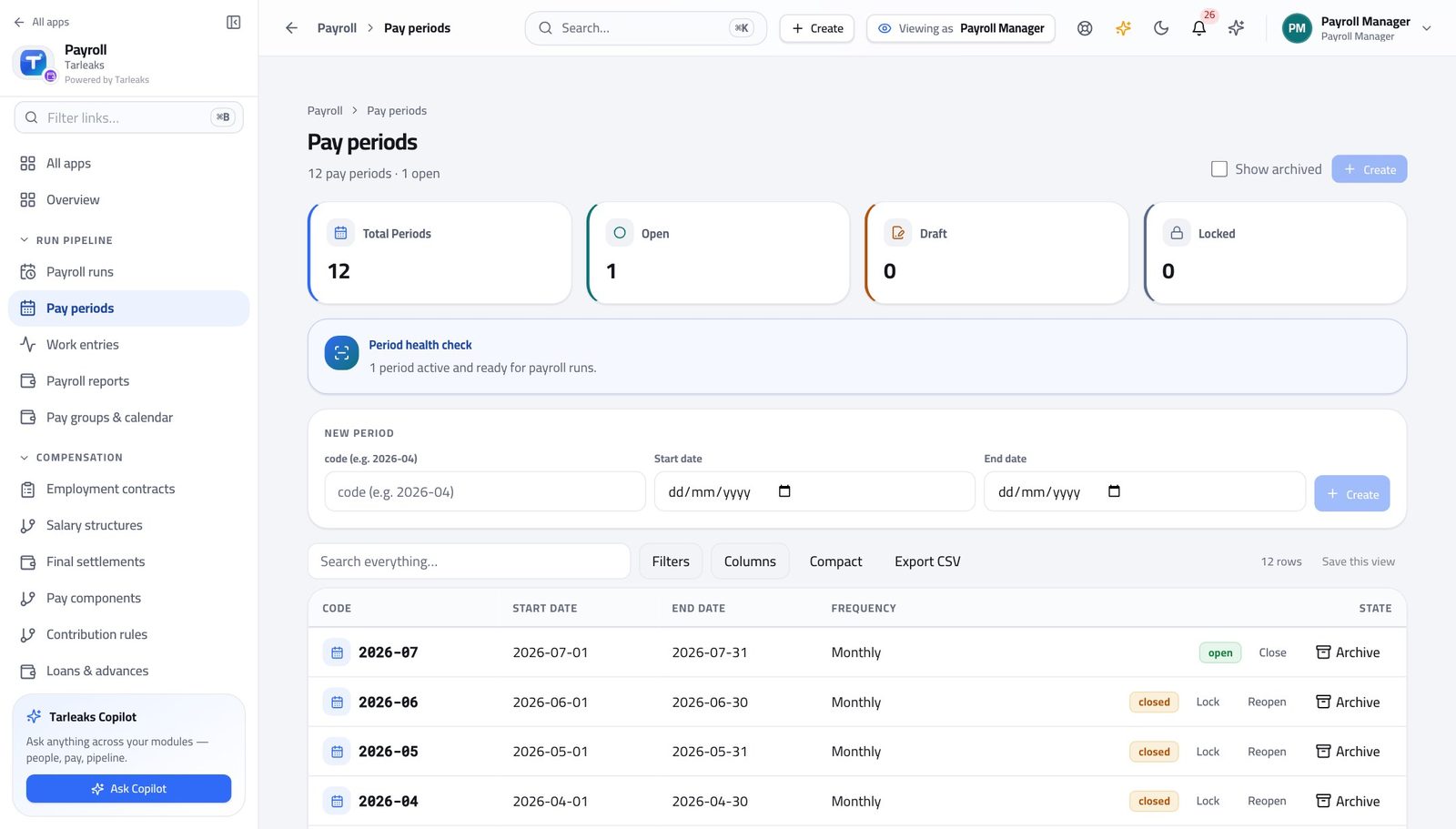
You should see The month appears as open and can now hold a run. Codes read like 2026-05, which is what everything else in payroll will show you.
Watch out Create the month before you need it. A period created on payday is a period nobody checked.
Worth knowing Create the month before you need it. A period created on payday is a period nobody checked.
Open the run register #
Where Payroll » Payroll runs
- In the left menu, click Payroll runs.
- Click one of the four boxes at the top to narrow the list.
- Click it again, or press Clear, to widen it back.
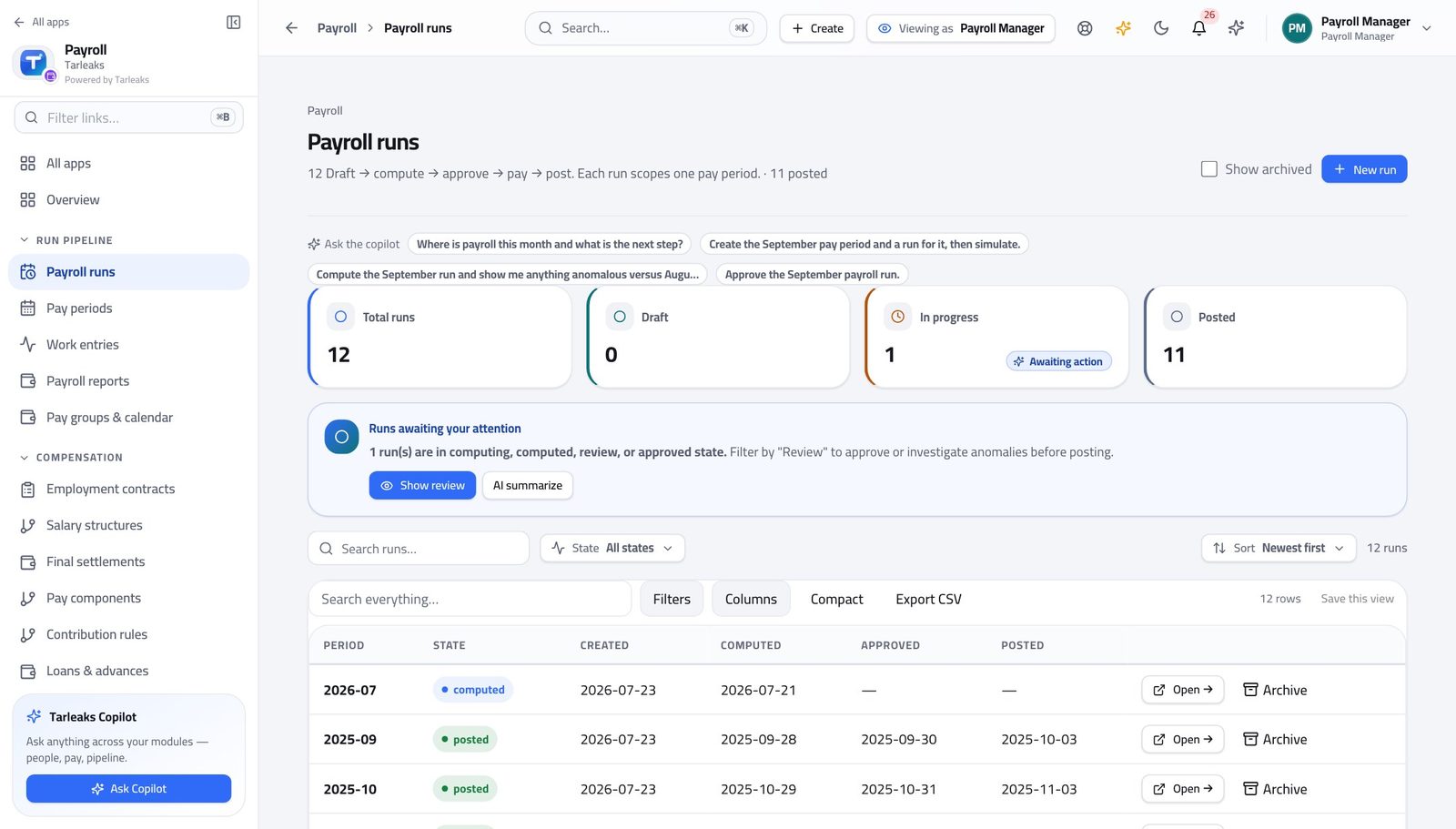
You should see Every run the company has ever produced, newest first, with the state it stopped at. The box you click is written into the address, so you can send somebody the same filtered list.
Watch out What you filter to is written into the address bar, so you can paste the link to a colleague and they see the same list.
Start the run #
Where Payroll » Payroll runs » New run
- On the Payroll runs page, press New run.
- Choose the pay period from the list.
- Leave Structure empty unless you are deliberately paying one group on its own.
- Press Create run.
| Field | What to put in it |
|---|---|
| Pay period | The month this run pays. Only periods that exist are offered — create the period first if it is missing. |
| Structure (optional) | Leave empty and each person is paid under the structure their contract points at. Set it only to force one structure for the whole run. |
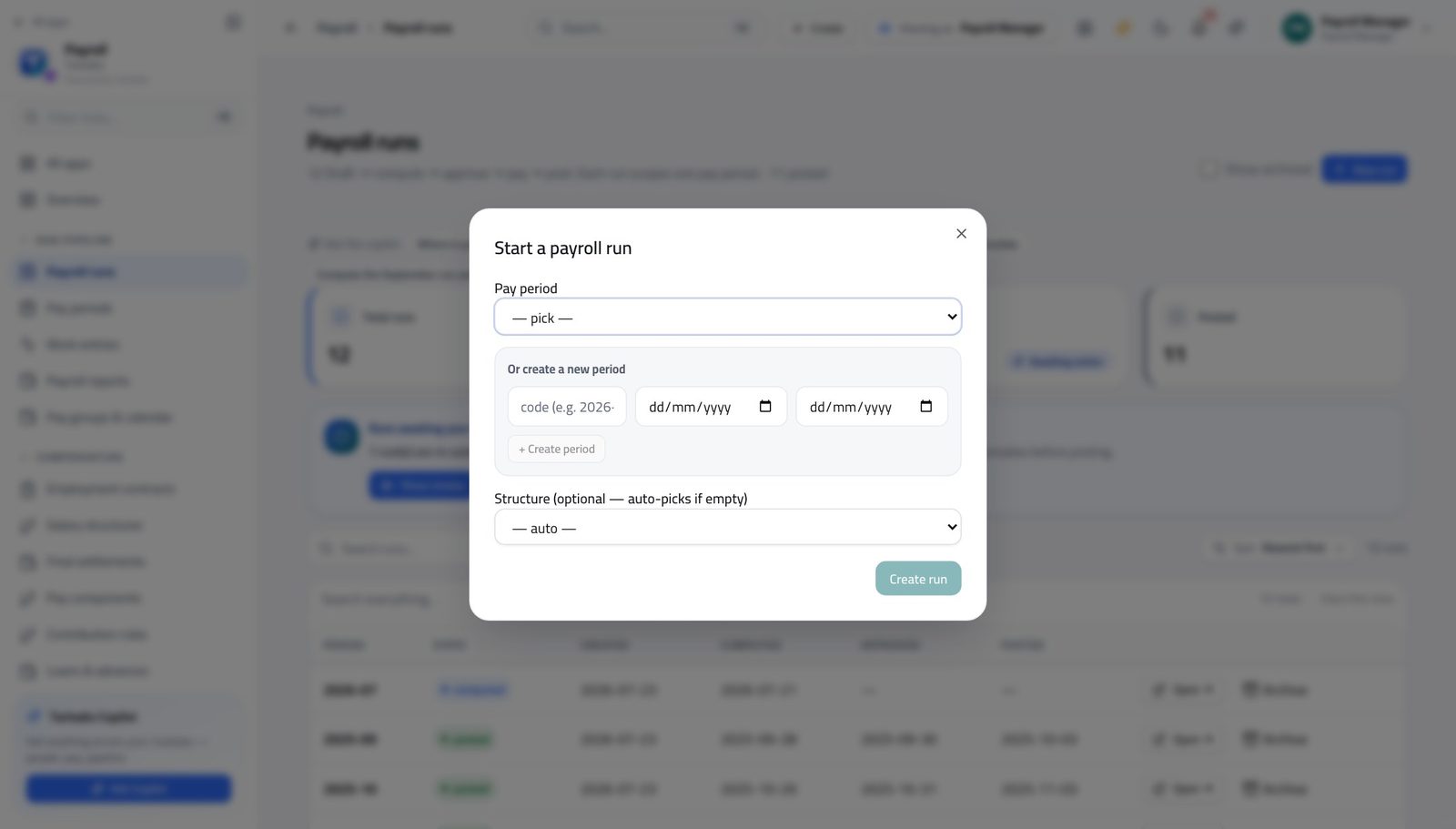
You should see The run is created empty, in draft. Nothing is calculated until you open it and press Compute, so creating one commits you to nothing.
Watch out Creating a run calculates nothing. It is an empty container until you open it and press Compute.
Open a run and read its totals #
Where Payroll » Payroll runs » Open
- From the launcher, click the Payroll tile.
- In the left menu, under RUN PIPELINE, click Payroll runs.
- Press Open on the run you want.
- Read the four figures across the top.
- Click any of them to jump to the payslips they are made of.
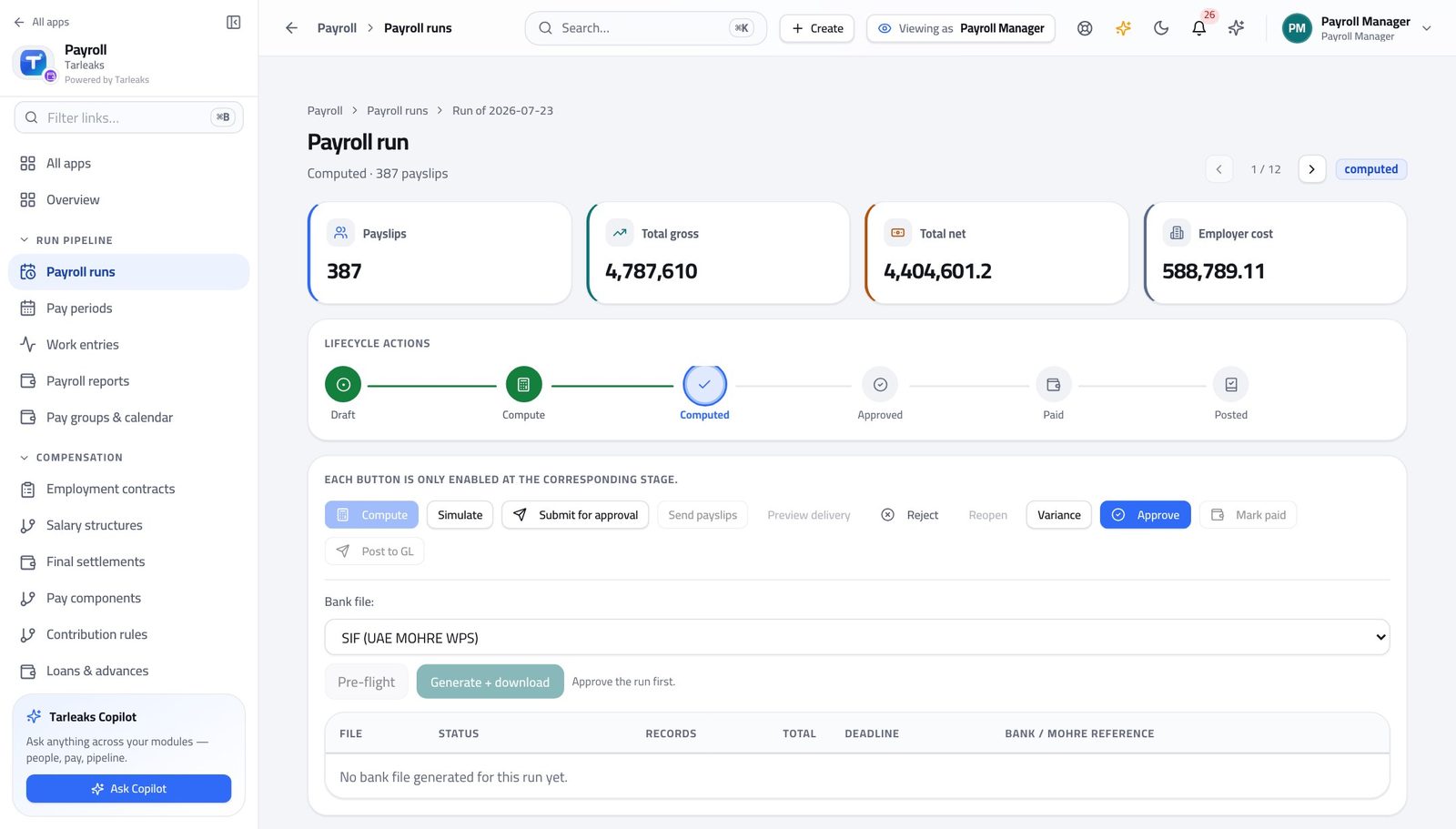
You should see The four numbers you will be asked about, with the stage stepper above them showing how far the run has walked.
Watch out Employer cost is not the same as gross. It is gross plus the employer's own half of every statutory contribution — the number a budget is set against.
Worth knowing Every one of those four boxes scrolls you straight down to the payslips they are made of.
Read the run's own history #
Where Payroll » Payroll runs » Open » Run history
- From the launcher, click the Payroll tile.
- In the left menu, under RUN PIPELINE, click Payroll runs.
- Press Open on the run you want.
- Scroll down past the actions to the run's history.
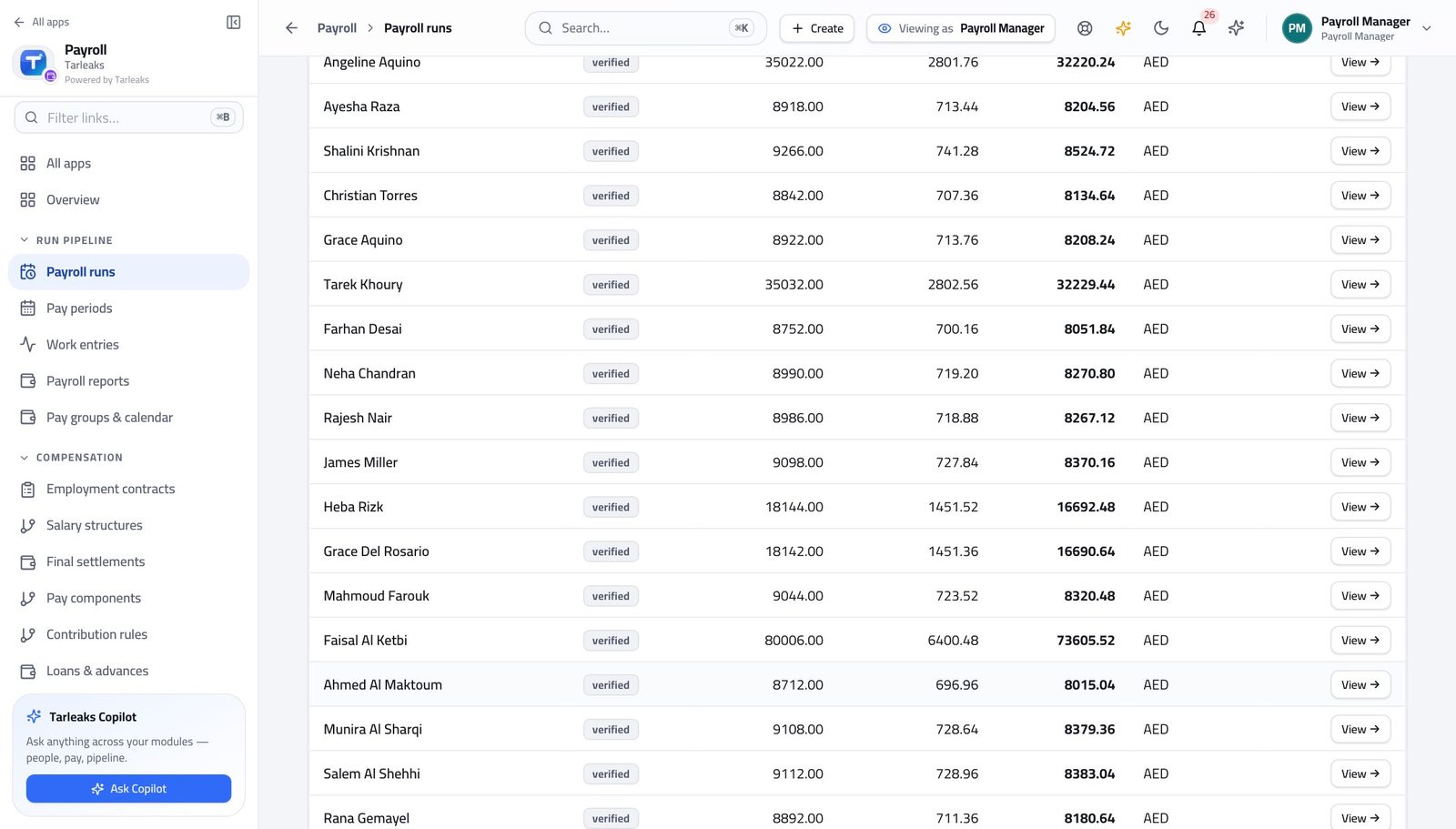
You should see Who created it, who calculated it, who submitted it and who approved it, each with the time. This is the answer to "who signed this off" three years later.
Watch out This is what an auditor asks for. It is also what protects you when somebody asks why a run was reopened in March.
Read the flags before you go near Approve #
Where Payroll » Payroll runs » Open » Anomaly detection flags
- From the launcher, click the Payroll tile.
- In the left menu, under RUN PIPELINE, click Payroll runs.
- Press Open on the run you want.
- Scroll to Anomaly Detection Flags.
- Read the flag type, the current figure and the baseline it is compared against.
- Press the dismiss icon on a flag you have explained.
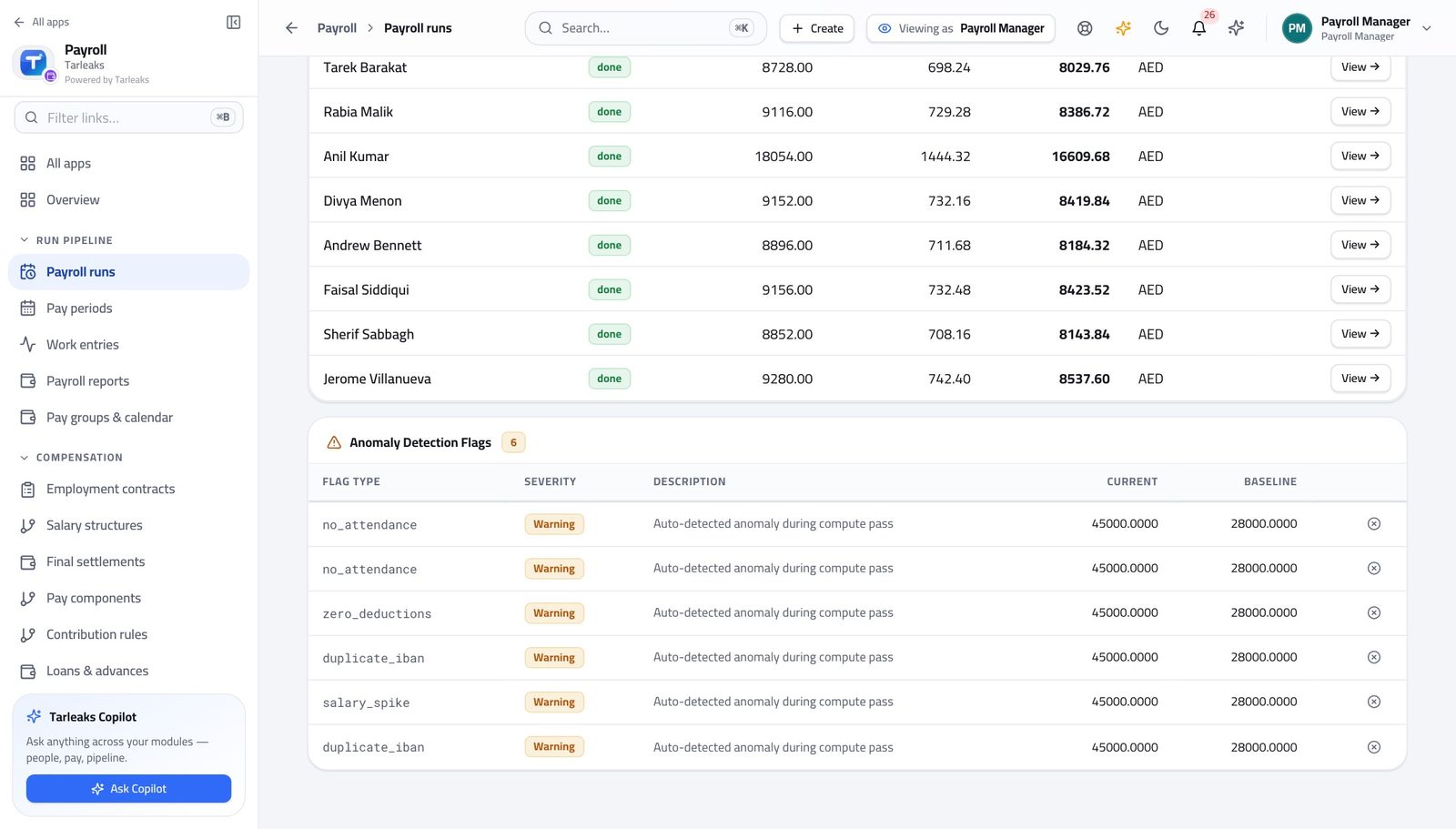
You should see Pay that jumped against the last three months, deductions that disappeared, people with no attendance, and two people sharing a bank account. A flag never blocks a run — it makes somebody look.
Watch out Dismissing without a reason is worse than leaving the flag open. The reason is what the approver reads instead of phoning you.
Worth knowing Dismissing a flag keeps your reason on the record. Dismiss with a sentence somebody else could read in a year.
Compare this month with last month #
Where Payroll » Payroll runs » Open » Variance
- From the launcher, click the Payroll tile.
- In the left menu, under RUN PIPELINE, click Payroll runs.
- Press Open on the run you want.
- Press Variance in the row of actions.
- Read the headline figures, then the table of people underneath.
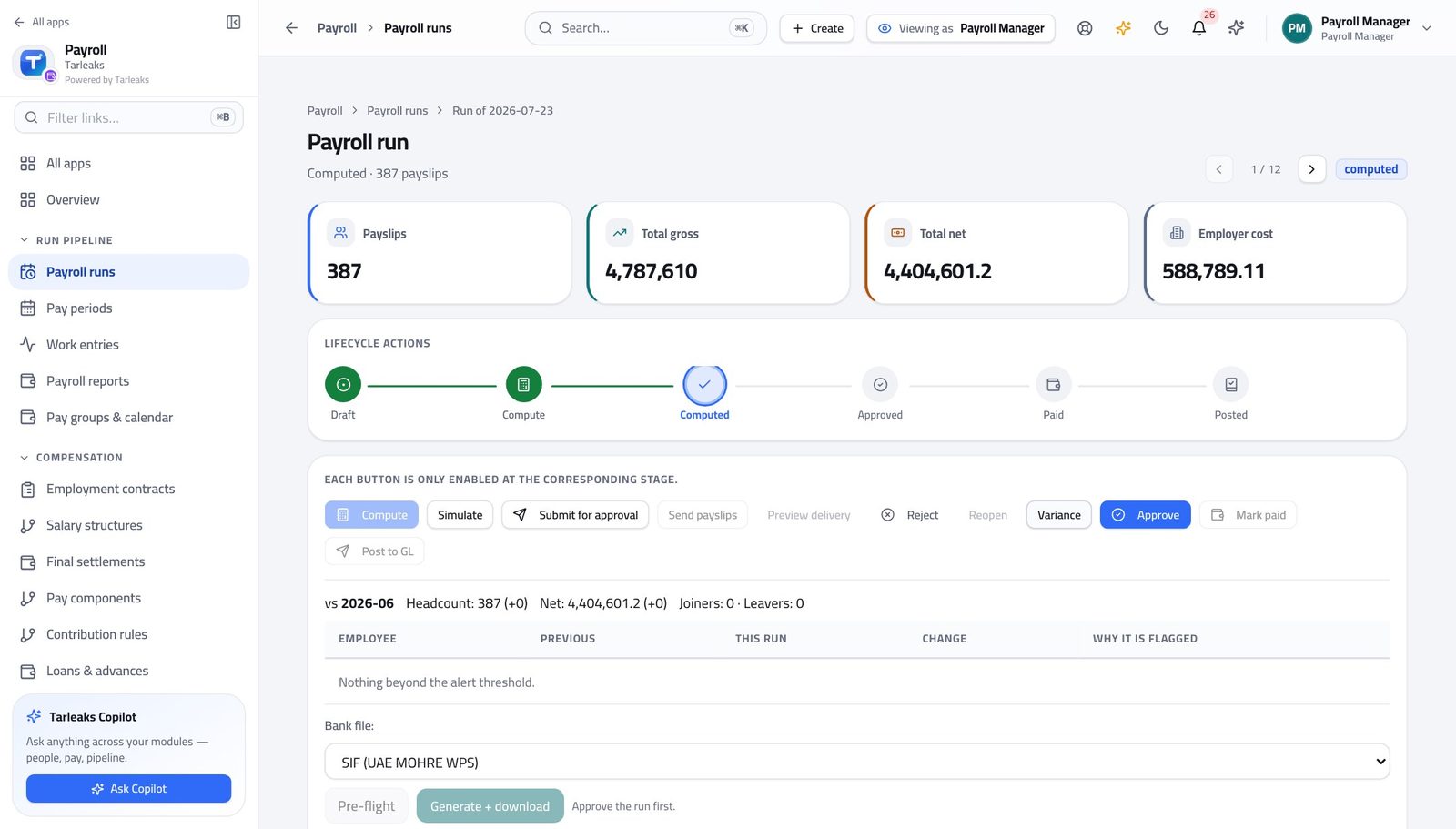
You should see Every person whose net pay moved more than the alert threshold, with the reason, plus the joiners and the leavers. A payroll that is right in total can still be wrong for eleven people.
Watch out Joiners and leavers explain most of a big move. If they do not explain this one, do not approve it yet.
Check the bank file before the bank does #
Where Payroll » Payroll runs » Open » Bank / WPS » Pre-flight
- From the launcher, click the Payroll tile.
- In the left menu, under RUN PIPELINE, click Payroll runs.
- Press Open on the run you want.
- Scroll to the bank panel.
- Choose the file format for your country from the list.
- Press Pre-flight.
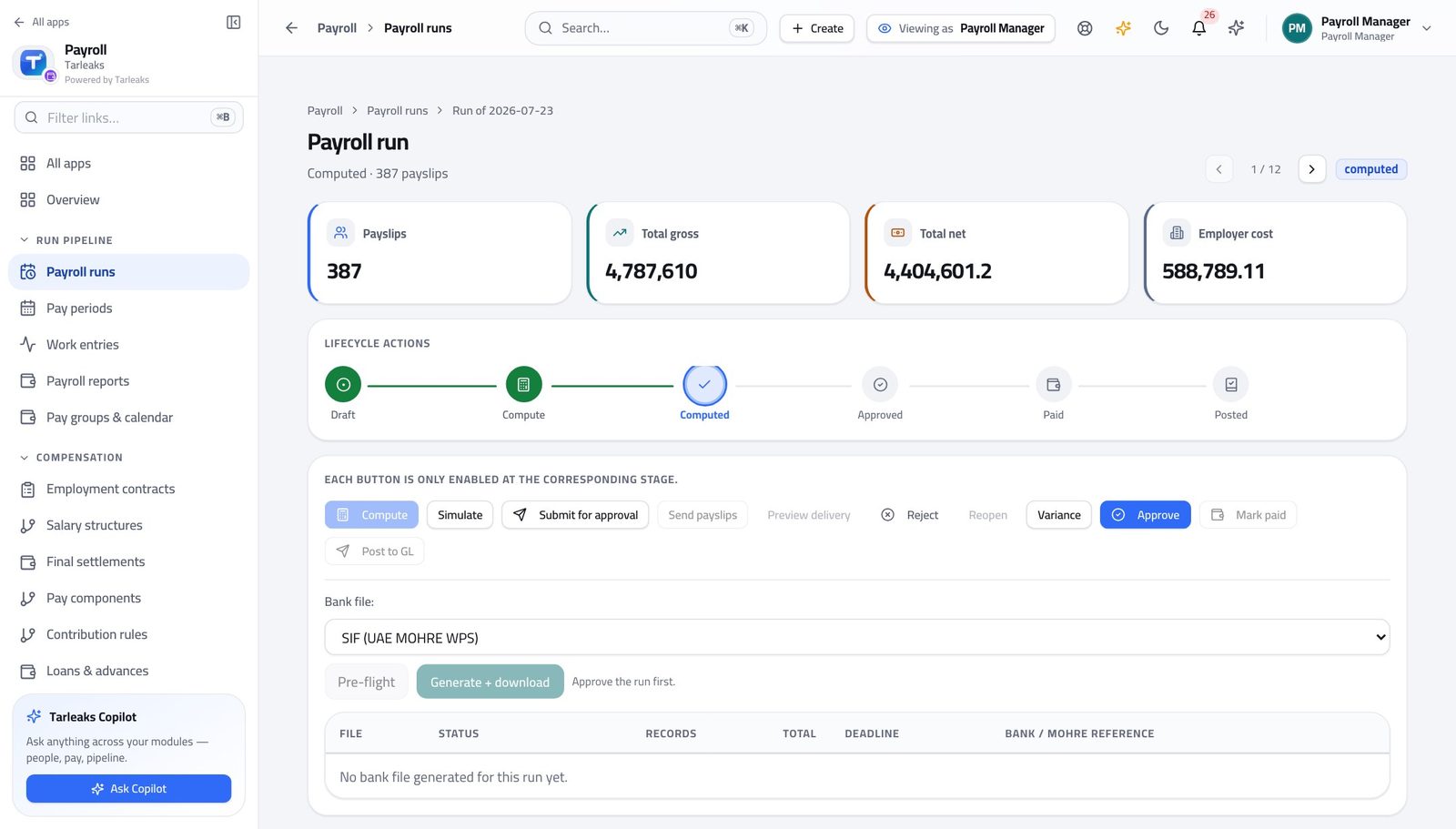
You should see Missing company identifiers, malformed account numbers, missing national ids and missing basic-pay lines, listed before a file exists. The check writes nothing and can be run as often as you like.
Watch out The deadline shown is statutory and counts from the end of the pay period. Generating the file late does not restart it.
Worth knowing The panel also shows how many days are left on the statutory payment window. That clock started when the period ended, not when you generated the file.
See what the bank did with every file you sent #
Where Payroll » Payroll runs » Open » Bank / WPS
- From the launcher, click the Payroll tile.
- In the left menu, under RUN PIPELINE, click Payroll runs.
- Press Open on the run you want.
- Scroll to the submission log under the bank panel.
- Read the status, the deadline and the reference on each row.
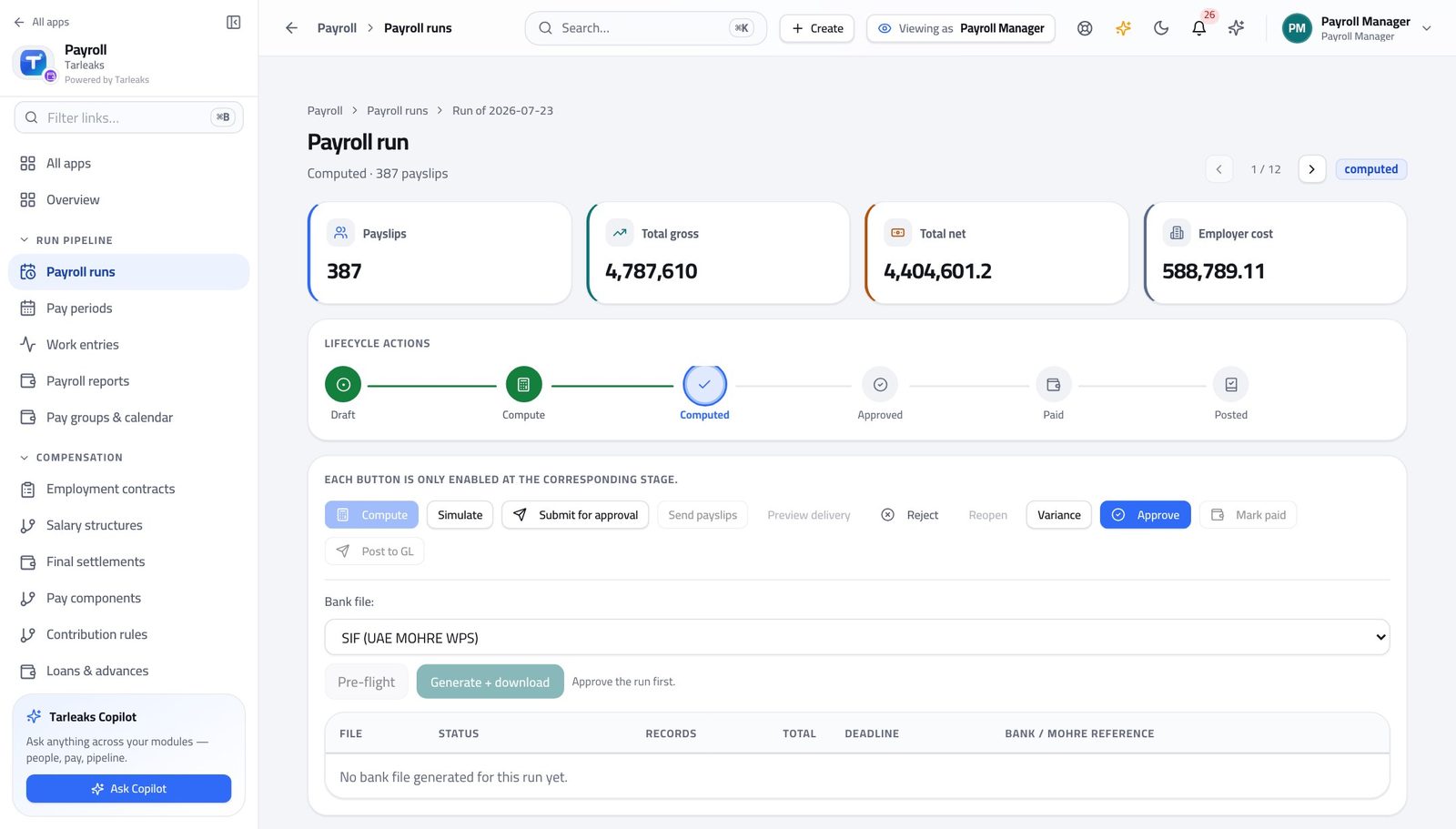
You should see Generated, submitted, accepted, rejected or cancelled — with the bank reference, the rejection reason and the days left. The banner above it counts the whole company, not just this run.
Watch out A file that was generated but never marked submitted looks identical to one nobody made. Record the submission the day you make it.
Find one person's payslip #
Where Payroll » Payroll runs » Open » Payslips
- In the left menu, click Payroll runs and open a run, then scroll to the payslips — or open Payslips from the menu to search every run at once.
- Type part of somebody's name in the search box.
- Press Open on their row.
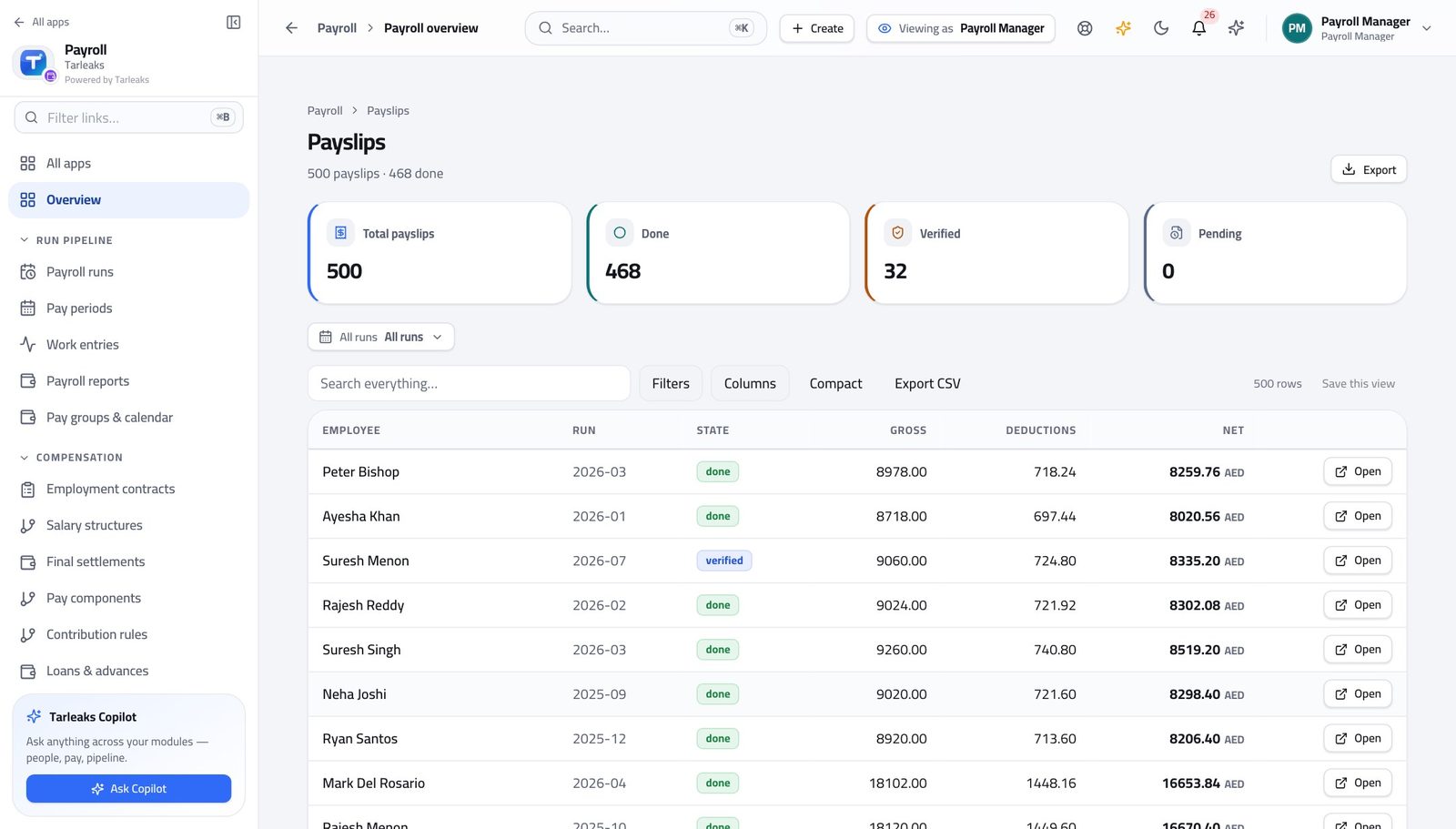
You should see The grid leads with the person's name, not a reference, and every row opens the full breakdown.
Watch out A payslip that is still pending is one the run has not finished with. Do not quote it to anybody.
See what everyone is paid under #
Where Payroll » Employment contracts
- In the left menu, under COMPENSATION, click Employment contracts.
- Search by name, employee number or structure code.
- Press Open to see one in full.
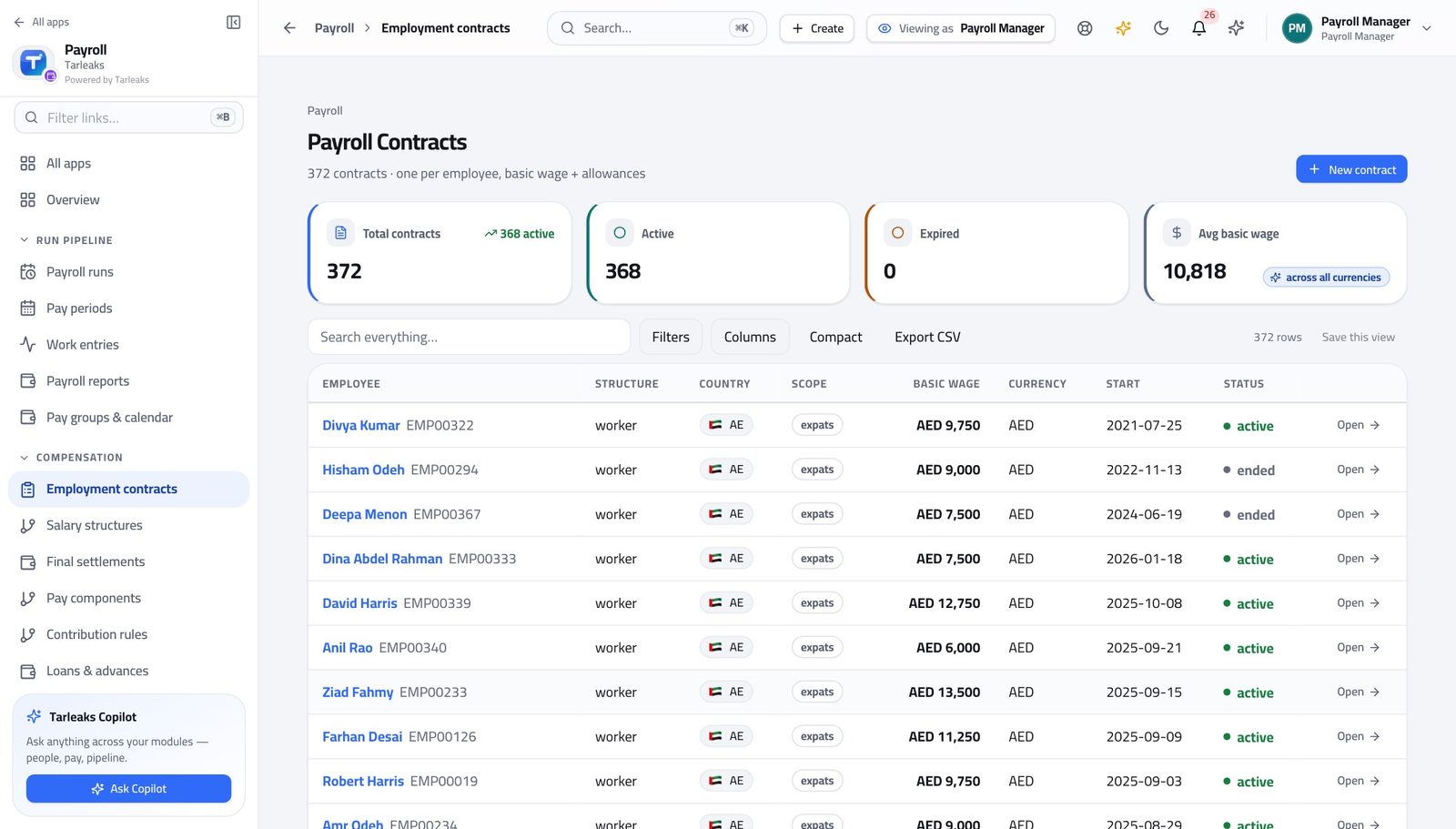
You should see The wage, the currency, the structure and the country each person is paid under. This is what the calculation actually reads.
Watch out The search reaches every contract in the company, not just the rows on screen — so it finds a joiner from six months ago as easily as today's.
Put a new joiner on the payroll #
Where Payroll » Employment contracts » New contract
- On the Employment contracts page, press New contract.
- Fill the form.
- Press Save.
| Field | What to put in it |
|---|---|
| Employee | The person. Pick them from the list rather than typing anything. |
| Structure type | Which set of rules pays them — employee, worker, intern. It decides which salary structure applies. |
| Currency | What they are paid in. |
| Country | Which country's statutory rules apply to them. |
| Nationality scope | Nationals, GCC citizen, expat or all. This decides which social-insurance rates the calculation uses, so it is not cosmetic. |
| Basic wage | The monthly basic, before allowances. |
| Start date | The first day this contract pays from. |
| Housing / Transport / Phone | The allowances the offer promised. The salary rules refer to these by name, so a housing allowance typed here is what the housing rule pays. |
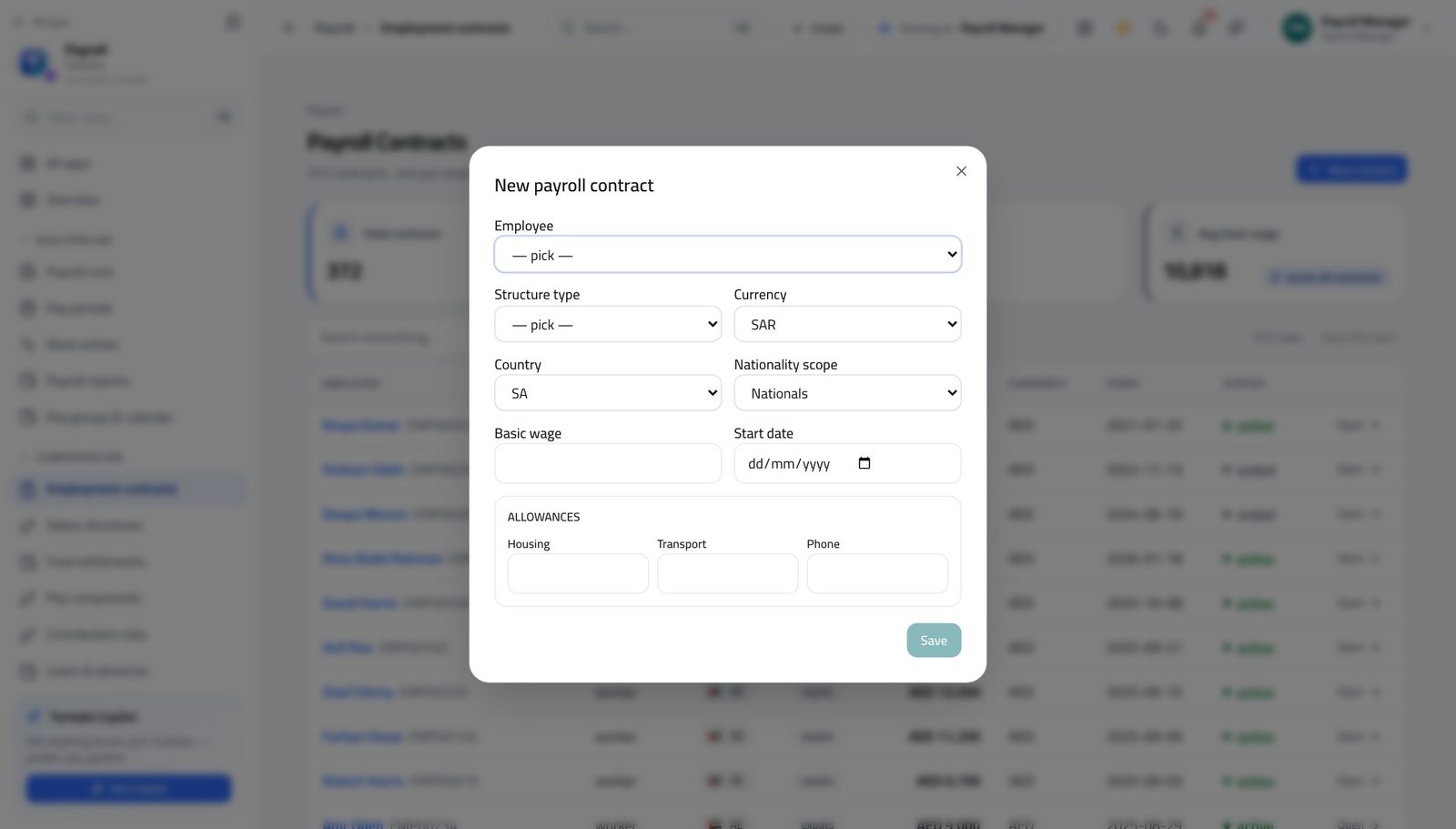
You should see Without a contract a person is simply absent from every run — no error, no warning. This form is what puts them in it.
Watch out Employee, structure type and start date cannot be changed afterwards — you would have to end this contract and create another. Wage, end date, status and frequency can be changed at any time.
Ask what it would cost if somebody left #
Where Payroll » Employment contracts » Open » End-of-service benefit
- Open Employment contracts and press Open on a contract.
- Scroll to the End-of-service benefit card.
- Set the termination date and the reason.
- Press Compute quote.
| Field | What to put in it |
|---|---|
| Termination date | The day they would leave. Service is counted to this date. |
| Reason | Termination by employer, resignation, fixed-term end, force majeure, employer breach, and the two Saudi female-employee reasons. Several of these reduce the entitlement — the quote applies that for you. |
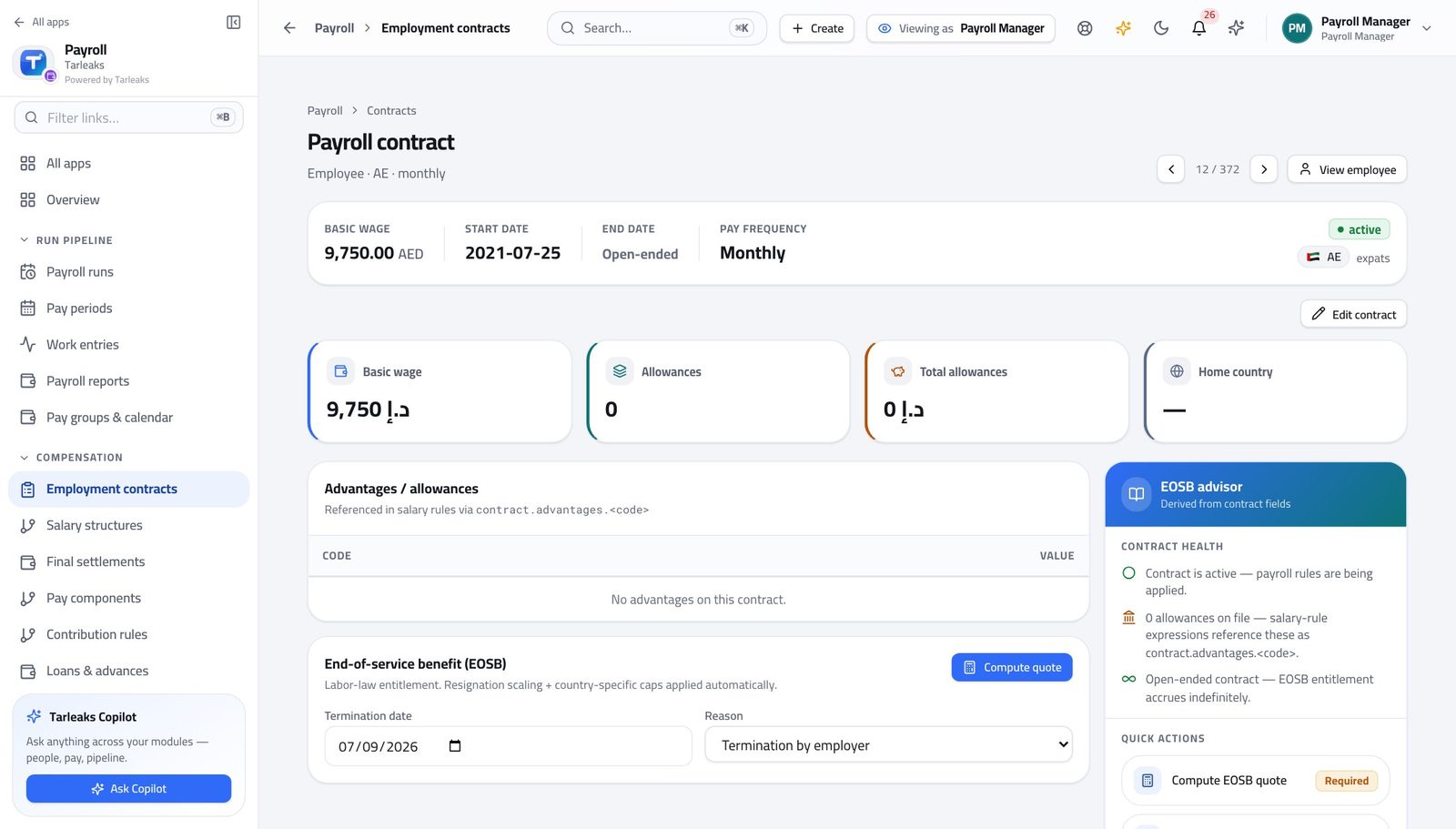
You should see The entitlement, the tier breakdown behind it and any reduction the reason causes — using the same country rules a real final settlement will use. Asking terminates nobody and records nothing.
Watch out This is a question, not an action. Nobody is terminated and nothing is recorded by asking it.
Worth knowing Resignation reduces the entitlement in several Gulf countries and the quote applies that automatically. Change the reason and watch the figure move.
Test a pay rule before it touches a payslip #
Where Payroll » Salary structures » Edit » Live tester
- In the left menu, under COMPENSATION, click Salary structures.
- Choose the structure from the list at the top.
- Press Edit on the rule you want to look at.
- Scroll to the live tester, set a sample wage, and press Evaluate.
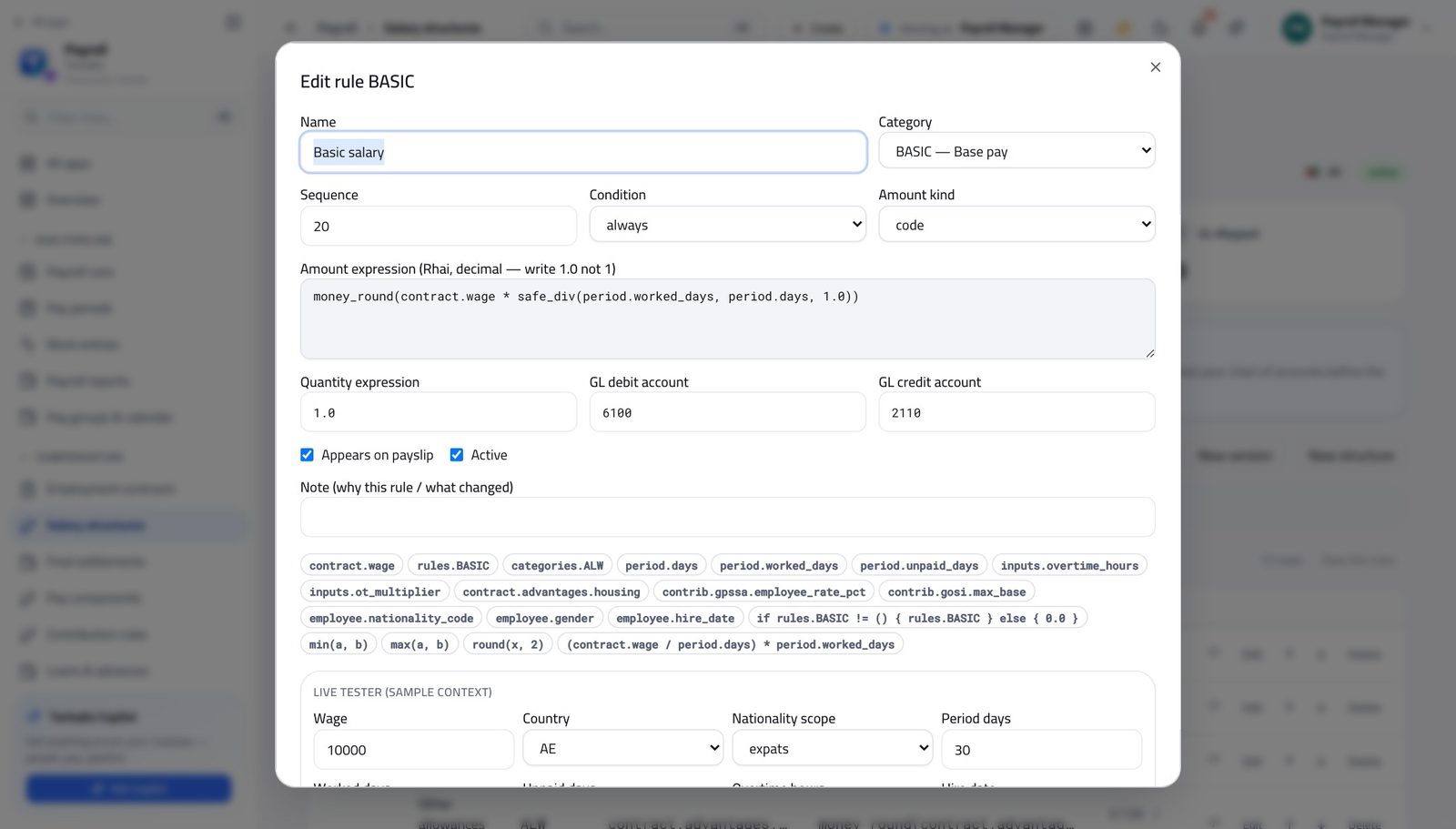
You should see The rule runs against a made-up employee and shows whether the condition fired and what the amount came to. Nobody's real pay is touched.
Watch out Amounts must be written with a decimal point — 1.0, not 1. It is the single most common reason a rule refuses to save.
Worth knowing The chips under the expression box paste the things you are allowed to refer to — the wage, an earlier rule's result, a contribution rate — so you do not have to remember the names.
Read what the month cost and what is owed #
Where Payroll » Payroll reports
- In the left menu, under RUN PIPELINE, click Payroll reports.
- Set the two dates at the top.
- Move between Contributions, End-of-service liability and Headcount cost.
- In Headcount cost, choose By department, By branch or By country.
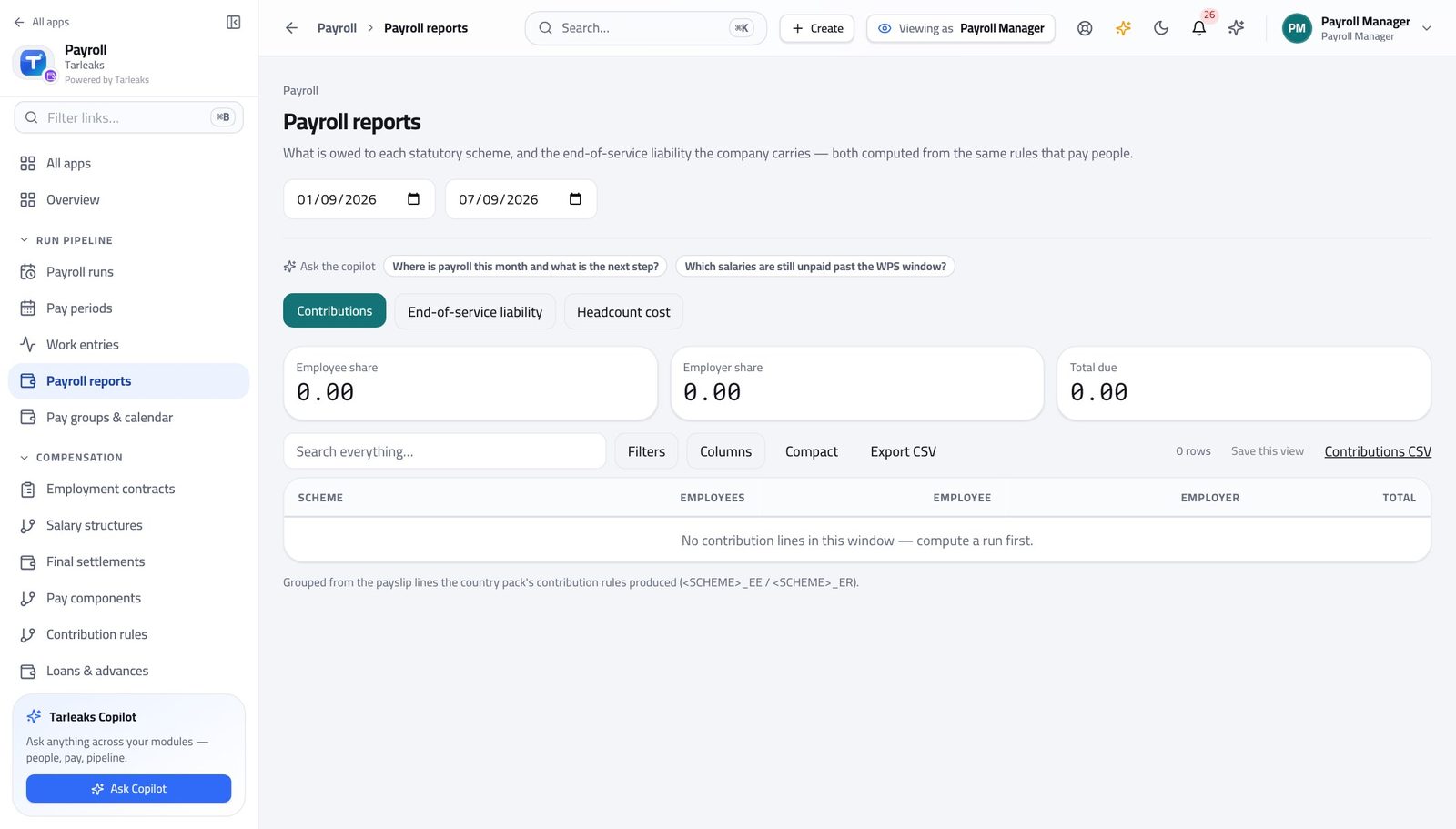
You should see What is owed to each statutory scheme, what the company would owe if everyone left today, and what people cost by department, branch or country — all from the same payslips that paid them.
Watch out Employer cost is gross plus the employer's half of every contribution. It is the number a budget is set against, and a payslip list cannot give it to you.
Worth knowing Every figure links to the payslips behind it, so a number you did not expect is one click from the people who caused it.
Replacing the country rulebook is not yours #
Where Settings » Payroll refuses this sign-in.
- Open the payroll settings page.
- It answers that you do not have access to this section.
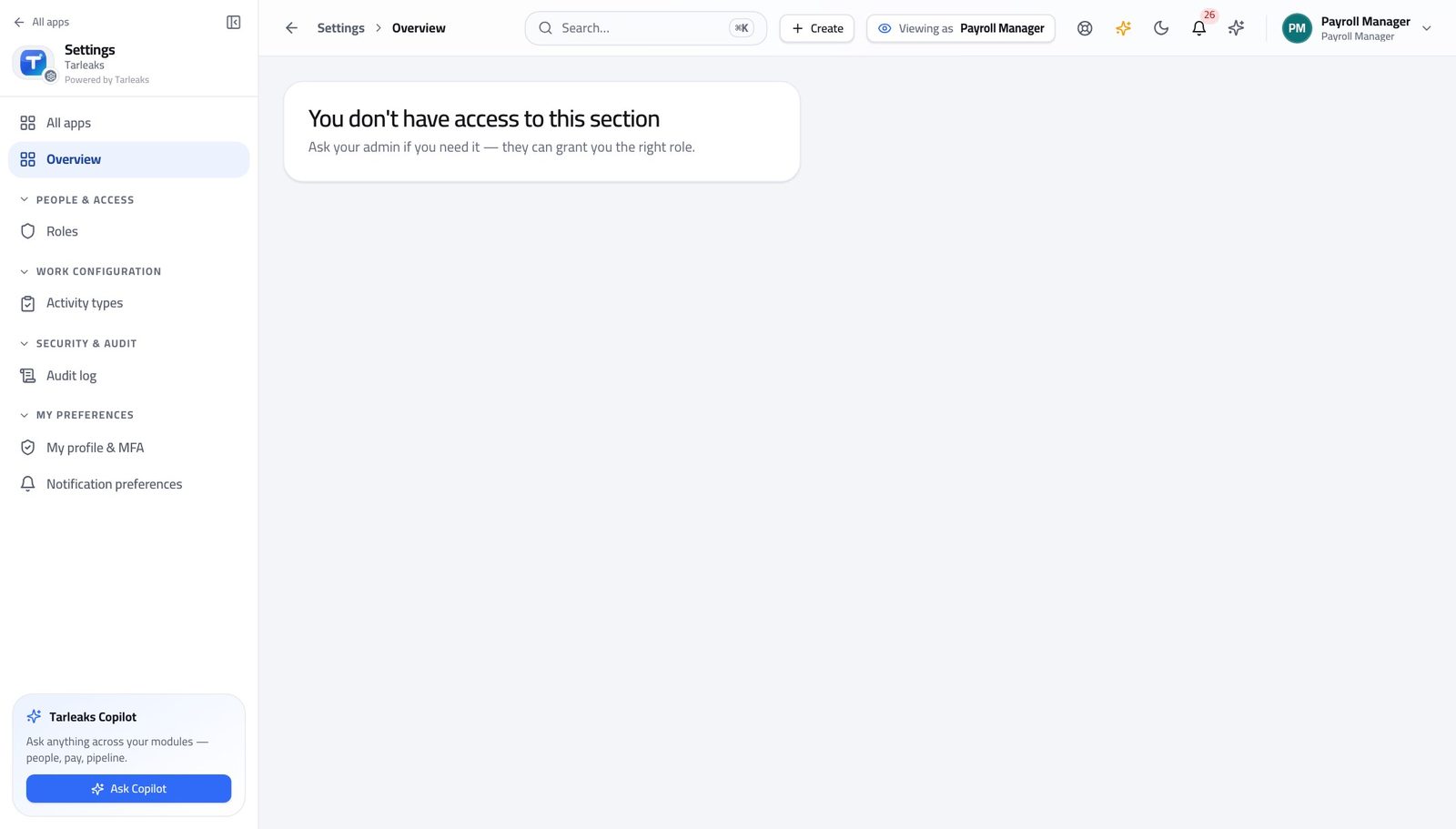
You should see You tune the rules the company already runs on — rates, pay components, contribution bands, all under COMPENSATION. Swapping the statutory rulebook underneath them changes every number produced afterwards, so it is deliberately an administrator's decision.
Watch out Ask the administrator for a rulebook change in writing, and ask them which date it applies from. Rates already used on a posted payslip never change.
Use cases — the work, step by step
Each one is a sequence somebody actually performs, with the screen behind every step. Every screen here was opened in the product as this role before it was published.
monthlyRun the month from an empty period to a posted journal #
The order is not a preference. Every step depends on the one before it, and the two that people skip — the variance and the pre-flight — are the two that cost a day when they are skipped.
Start at the payroll home and read what is still open. If last month is not posted, deal with that first.
Payroll » Overview — verified: the page says “Payroll” Check the month you are about to pay exists and is open. Nothing can be calculated outside a period.
Payroll » Pay periods — verified: the page says “Pay periods”; 12 row(s) listed Check everybody who should be paid has an active contract. Somebody without one is simply absent from the run, with no error anywhere.
Payroll » Employment contracts — verified: the page says “Payroll Contracts”; 372 row(s) listed Create the run against the period, then open it and press Compute. Recompute as often as you need while it is still yours.
Payroll » Payroll runs » New run — verified: the control is offered Read every flag and explain it. A flag left unexplained becomes a phone call on payday.
Payroll » Payroll runs » Open » Anomaly detection flags — verified: the page says “Anomaly Detection Flags” Read the variance against last month — the person list, not the headline. This is the step that catches the eleven people a correct total hides.
Payroll » Payroll runs » Open » Variance — verified: the control is offered Pre-flight the bank file before you approve. Approving a run whose file cannot be produced only moves the problem to payday.
Payroll » Payroll runs » Open » Bank / WPS » Pre-flight — verified: the control is offered; the control is offered Approve, then generate the file, send it, and record the submission with the bank's reference.
Payroll » Payroll runs » Open » Bank / WPS — verified: the control is offered Mark the run paid when the bank confirms, then post it so the cost reaches the accounts. Approved and never posted is the one that bites at year end.
Payroll » Payroll runs » Open — verified: the page says “Payroll run”; the page says “Lifecycle actions” Close the pay period.
Payroll » Pay periods — verified: the page says “Pay periods”; 12 row(s) listed
urgentThe bank bounced the file and it is payday #
The statutory clock did not stop when the bank said no, and it counts from the end of the pay period rather than from your rejection.
Open the run's bank panel and read the log row: the status, the reference and the rejection reason the bank gave.
Payroll » Payroll runs » Open » Bank / WPS — verified: the control is offered Run the pre-flight again. Whatever the bank objected to is usually named here as an error against one person's row.
Payroll » Payroll runs » Open » Bank / WPS » Pre-flight — verified: the control is offered; the control is offered Fix the cause — nearly always an account number or a national id on somebody's record — then regenerate and resubmit from the same panel, and record the new submission.
Payroll » Payroll runs » Open » Bank / WPS — verified: the control is offered
edgeA payslip was wrong and the run is already paid #
A booked payslip is deliberately immutable. The correction is a new figure in a new period, which is exactly what an auditor expects to see.
Open the payslip and confirm what is actually wrong — line by line, in the run it was paid from.
Payroll » Payroll runs » Open » Payslips — verified: the page says “Payslips”; 500 row(s) listed Check the run's state. If it is paid or posted, Reopen refuses, and it should: what was paid stays visible as what was paid.
Payroll » Payroll runs » Open — verified: the page says “Payroll run”; the page says “Lifecycle actions” Put the correction into the next period instead — a work entry for missing hours, a contract change for a wrong wage — and tell the person which payslip it will appear on.
Payroll » Employment contracts — verified: the page says “Payroll Contracts”; 372 row(s) listed Read the run history on the original run so you can say who approved it and when, before anybody asks.
Payroll » Payroll runs » Open » Run history — verified: the page says “Lifecycle actions”
weeklySomebody joined on the fifteenth #
A joiner entered after the run is calculated is a joiner who is not paid, and nothing on the screen will tell you.
Create their payroll contract with the real start date. The allowances you type here are what the salary rules pay by name.
Payroll » Employment contracts » New contract — verified: the control is offered; the page says “New payroll contract” Recompute the run. The calculation prorates from the start date using the company's proration basis.
Payroll » Payroll runs » Open — verified: the page says “Payroll run”; the page says “Lifecycle actions” Check the variance: the joiner should appear in the joiners count and their part-month should look like a part-month.
Payroll » Payroll runs » Open » Variance — verified: the control is offered
You are the one role that can both prepare and sign off. That is convenient and it is also a risk, so when the company turns on the two-person rule you will find you cannot approve a run you created yourself — and that is working as intended.
Payroll Specialist
Get the month right before anyone else looks at it.
Prepares everything and approves nothing: contracts, periods, hours, loans, attachments, the run and its calculation. The approval buttons are not hidden from this role — they do not exist for it.
What you will be able to do
- Put joiners on the payroll and keep leavers off it
- Get the hours, loans and court orders in before you calculate
- Calculate, check the odd-looking people, and explain each one
- Hand a run over that the approver can sign without a phone call
What this role can and cannot do
| Can | Cannot |
|---|---|
|
|
19 steps, each one carried out in the product on .
Check what your sign-in can do #
Where Your name, top right » Profile
- Open your company's address in the browser — it looks like yourcompany.tarleaks.com.
- Type the e-mail address your administrator set up for you, then your password.
- You land on the app launcher: a grid of the apps your company uses.
- Click your name in the very top-right corner.
- Choose Profile.
- Read the role chip, then scroll the list underneath it.
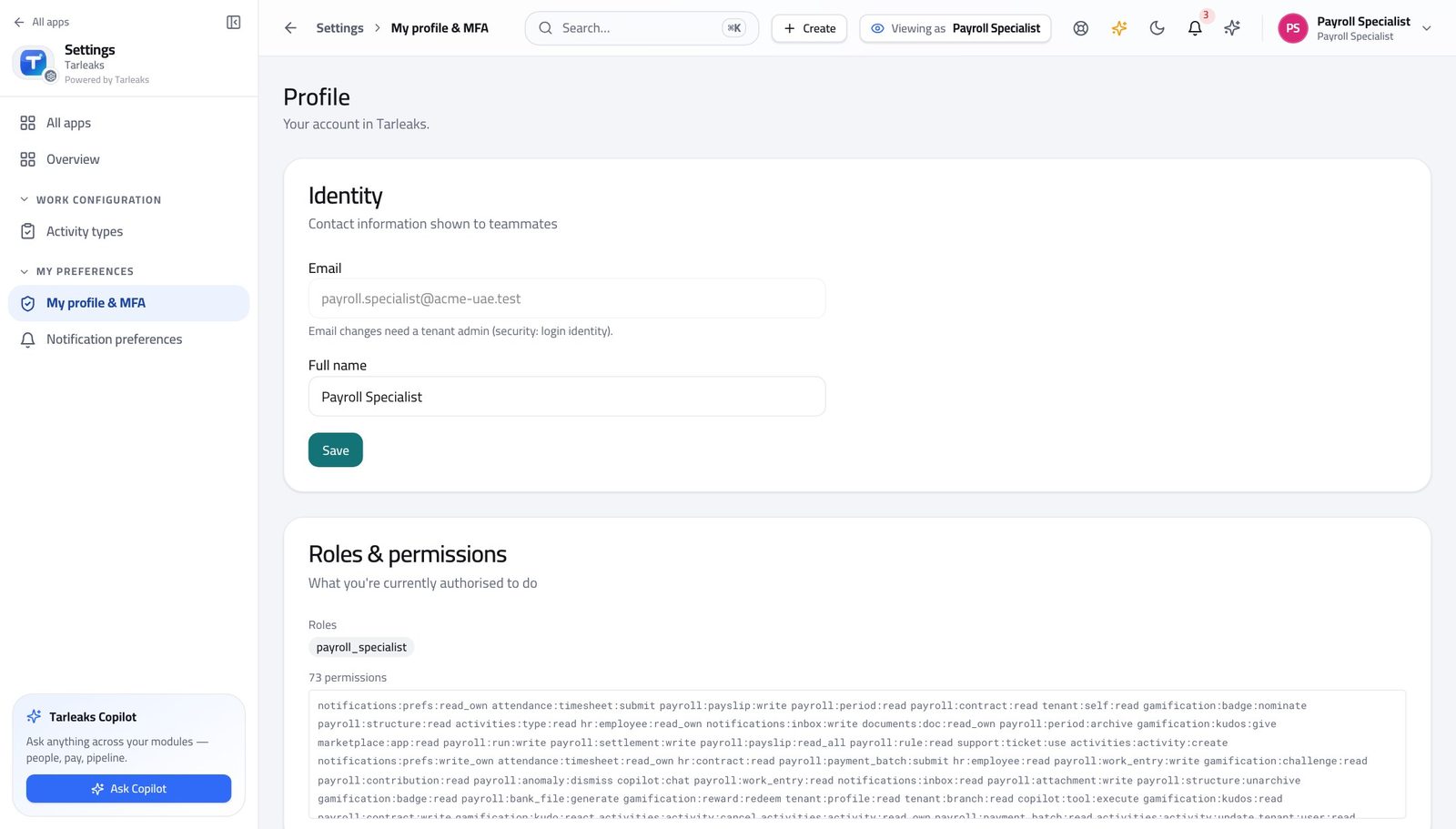
You should see It says payroll specialist. Everything that goes INTO a payroll is yours. Nothing that signs one off is.
Watch out Read it once, properly. Half the questions people bring to payroll are really "whose job is this", and this page answers them.
Worth knowing This is worth reading once, properly. Half the questions people ask payroll are really "whose job is this", and the answer is on this page.
Start at the payroll home #
Where Payroll » Overview
- From the launcher, click the Payroll tile.
- Read the Runs to review card on the overview.
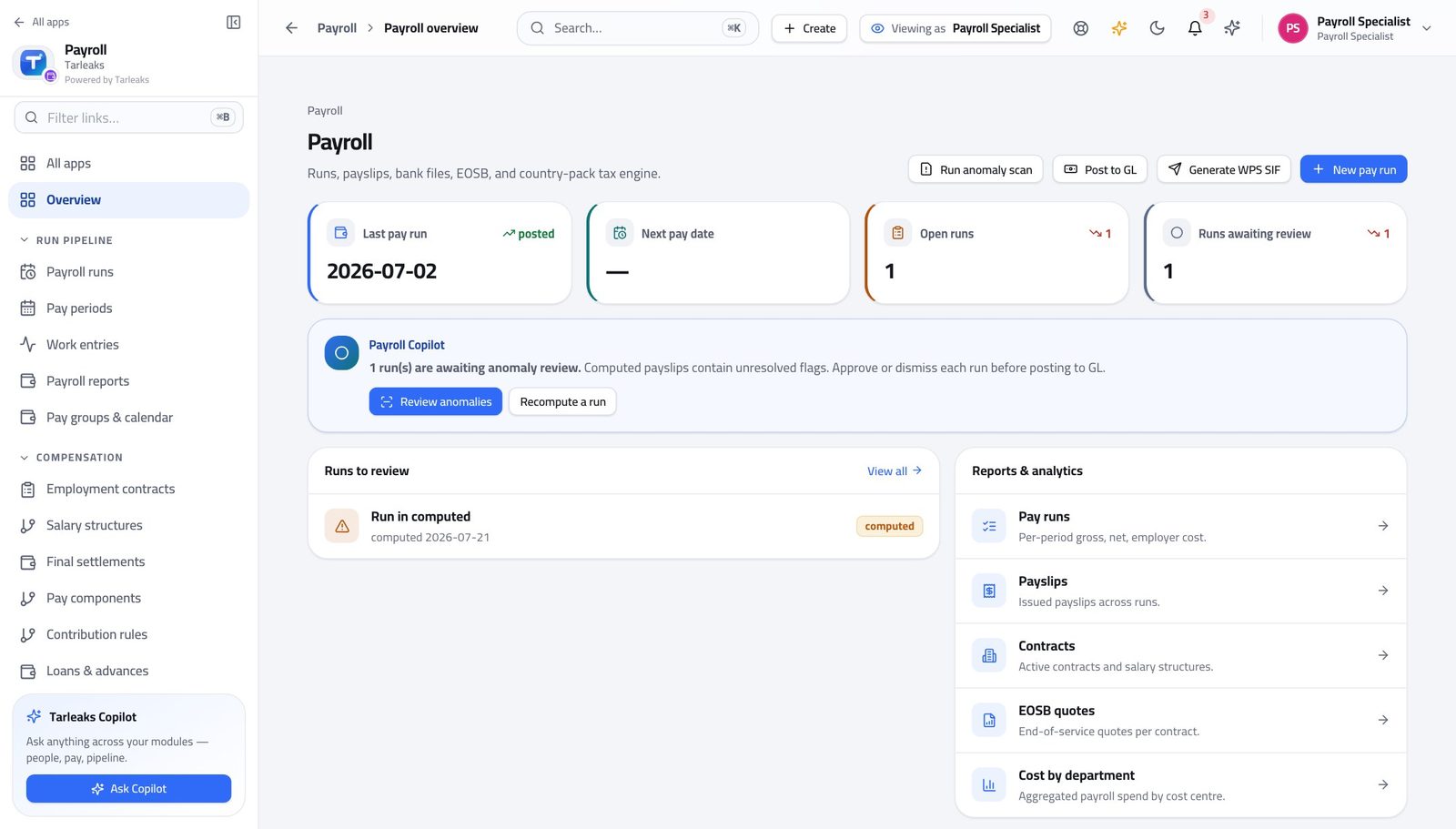
You should see Every run that is calculating, calculated, in review or approved, with the state it stopped at — so you start the day knowing what is still yours.
Watch out A run in review is with the approver, not with you. Chasing it is your job; changing it is not.
Open the month #
Where Payroll » Pay periods
- In the left menu, under RUN PIPELINE, click Pay periods.
- Check the month you are paying exists and is open.
- Use Close, Lock or Reopen in the row when the month is finished.
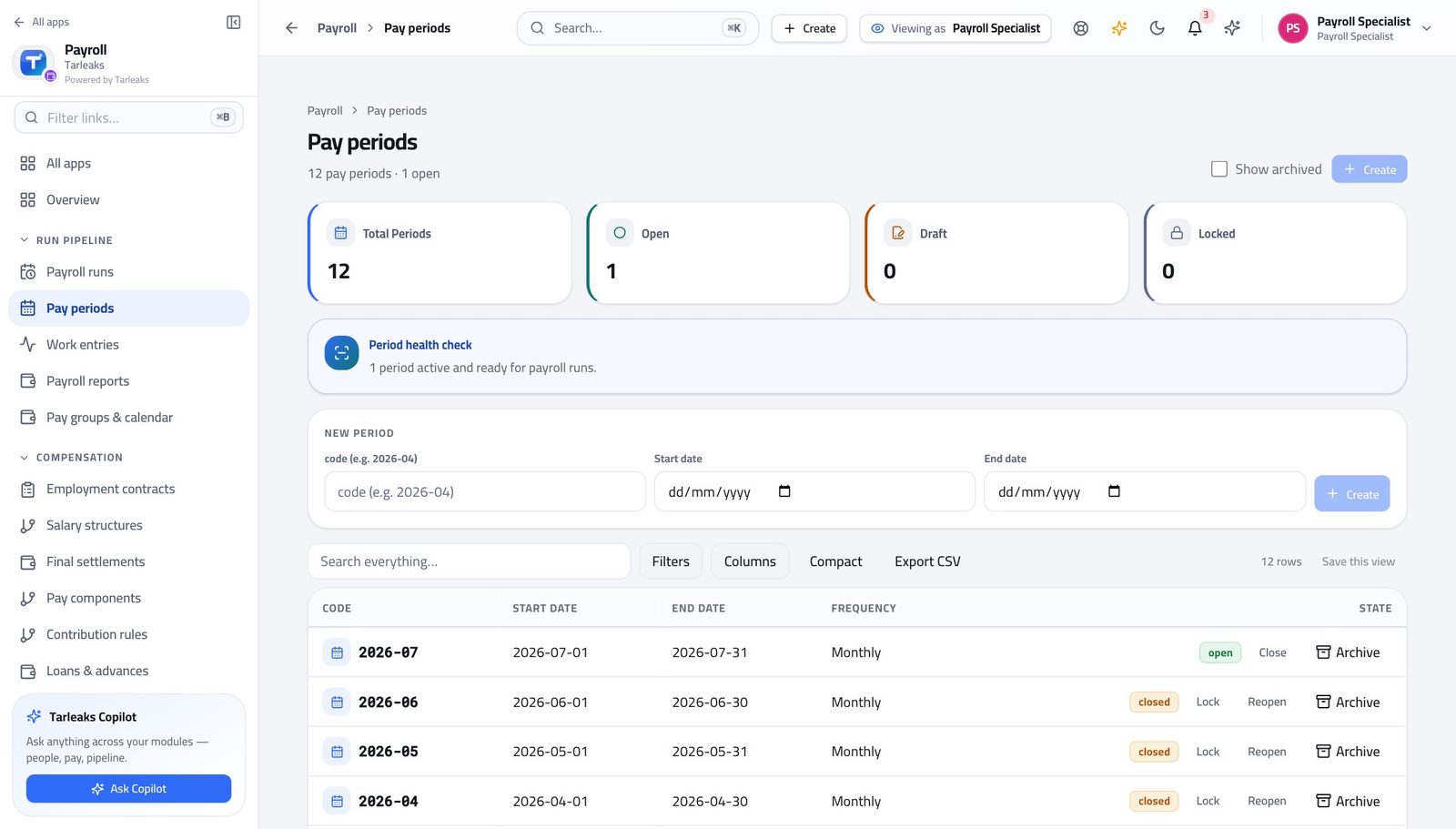
You should see Nothing can be calculated outside a period. The State column carries the actions that move it — close it when the month is done, lock it when nothing more should land in it.
Watch out Both closing and reopening are recorded against your name — which is exactly why they should happen on time rather than "when we are sure".
Worth knowing Closing and locking are both reversible and both recorded against your name, which is exactly why they should happen on time rather than "when we are sure".
Check everybody has a contract #
Where Payroll » Employment contracts
- In the left menu, under COMPENSATION, click Employment contracts.
- Search by name or employee number.
- Press Show expired in the banner to see contracts that have run out.
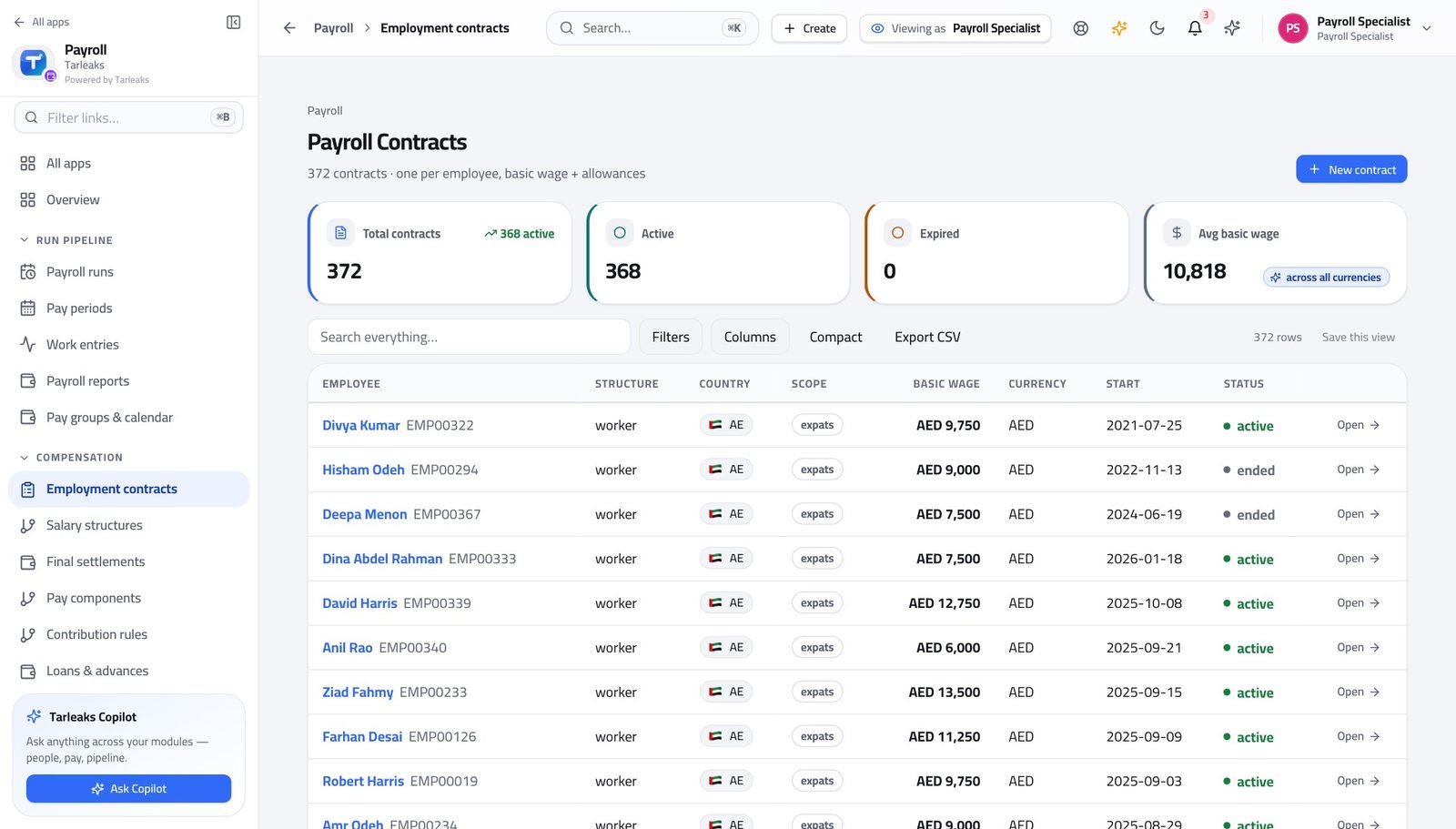
You should see One contract per person, carrying the wage the calculation reads. Somebody without an active contract is simply not paid — no error, no warning, just absent from the run.
Watch out Somebody without an active contract is simply absent from the run. There is no error and no warning — which is why you check this BEFORE you calculate, not after.
Put a new joiner on the payroll #
Where Payroll » Employment contracts » New contract
- Press New contract.
- Fill the form.
- Press Save.
| Field | What to put in it |
|---|---|
| Employee | Pick them from the list. |
| Structure type | Which set of rules pays them. |
| Currency | What they are paid in. |
| Country | Whose statutory rules apply. |
| Nationality scope | Nationals, GCC citizen, expat or all — this picks the social-insurance rates, so it changes real money. |
| Basic wage | Monthly basic, before allowances. |
| Start date | First day this contract pays from. |
| Housing / Transport / Phone | What the offer promised. The salary rules read these by name. |
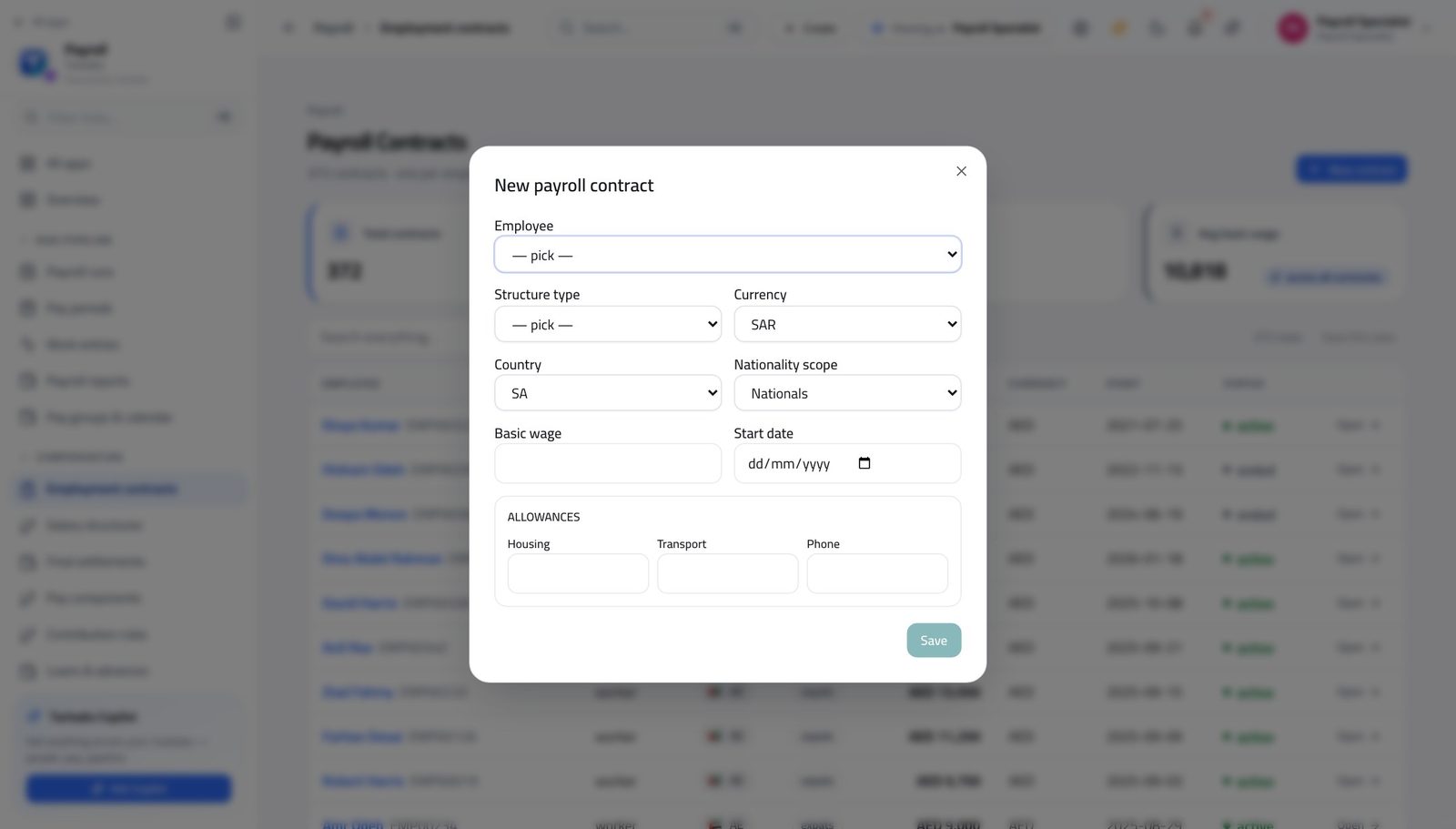
You should see The allowances you enter here are what the salary rules refer to by name, so a housing allowance typed here is what the housing rule pays.
Watch out Employee, structure type and start date are fixed once saved. Get those three right; everything else can be edited later.
Worth knowing Employee, structure type and start date cannot be changed afterwards. Wage, end date, status and frequency can. Get the first three right.
Check the hours are in #
Where Payroll » Work entries
- In the left menu, under RUN PIPELINE, click Work entries.
- Set the From and To dates to the month you are paying.
- Read the Source column.
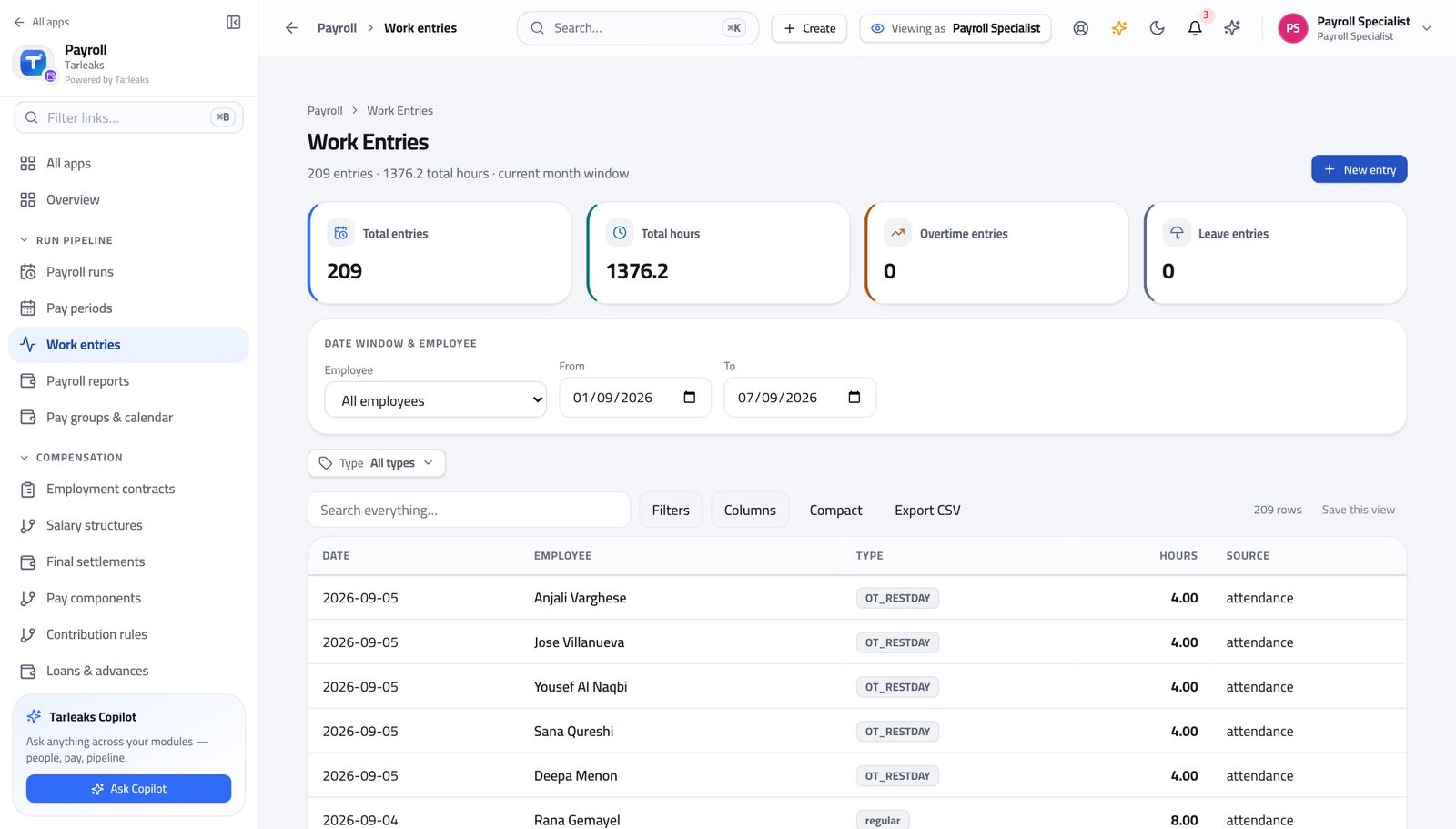
You should see Approved timesheets and approved leave arrive here on their own; anything you type by hand sits beside them and is never overwritten when a week is re-approved.
Watch out Hours still waiting for a manager's approval are NOT here and will not be paid. Chase them before you calculate. And do not re-enter an approved week by hand — re-approving it replaces its rows, and yours would be paid twice.
Worth knowing Hours still waiting for a manager's approval are NOT here yet, and will not be paid. Chase those before you calculate, not after.
Add hours the system could not know about #
Where Payroll » Work entries » New entry
- Press New entry.
- Fill the form.
- Press Save entry.
| Field | What to put in it |
|---|---|
| Employee | Pick them from the list. |
| Date | The day the work or the absence happened. |
| Entry type | Attendance, overtime, sick, annual leave, unpaid leave, public holiday and the rest. It decides how the rules treat the day. |
| Hours | Quarter-hours are accepted. |
| Source | Leave this as manual. The other values belong to rows the system wrote itself. |
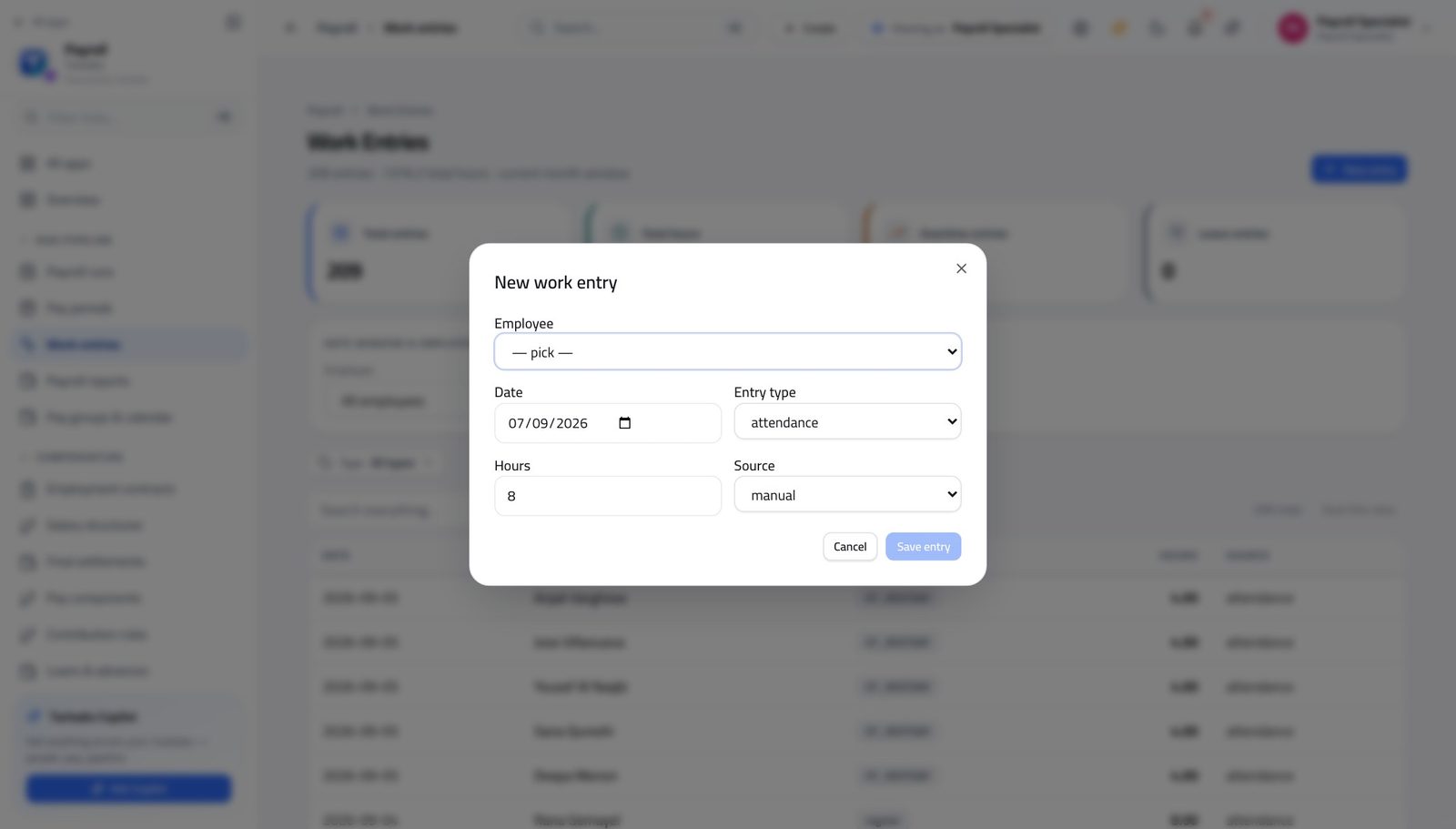
You should see Use this for what the timesheets cannot tell you. Anything that came from an approved timesheet is already here and should be left alone.
Watch out Use this only for what the timesheets cannot tell you. Anything that arrived from an approved timesheet is already here.
Check the deductions the company is obliged to take #
Where Payroll » Salary attachments
- In the left menu, under COMPENSATION, click Salary attachments.
- Read the Active section.
- Use Cancel on a row that has been lifted.
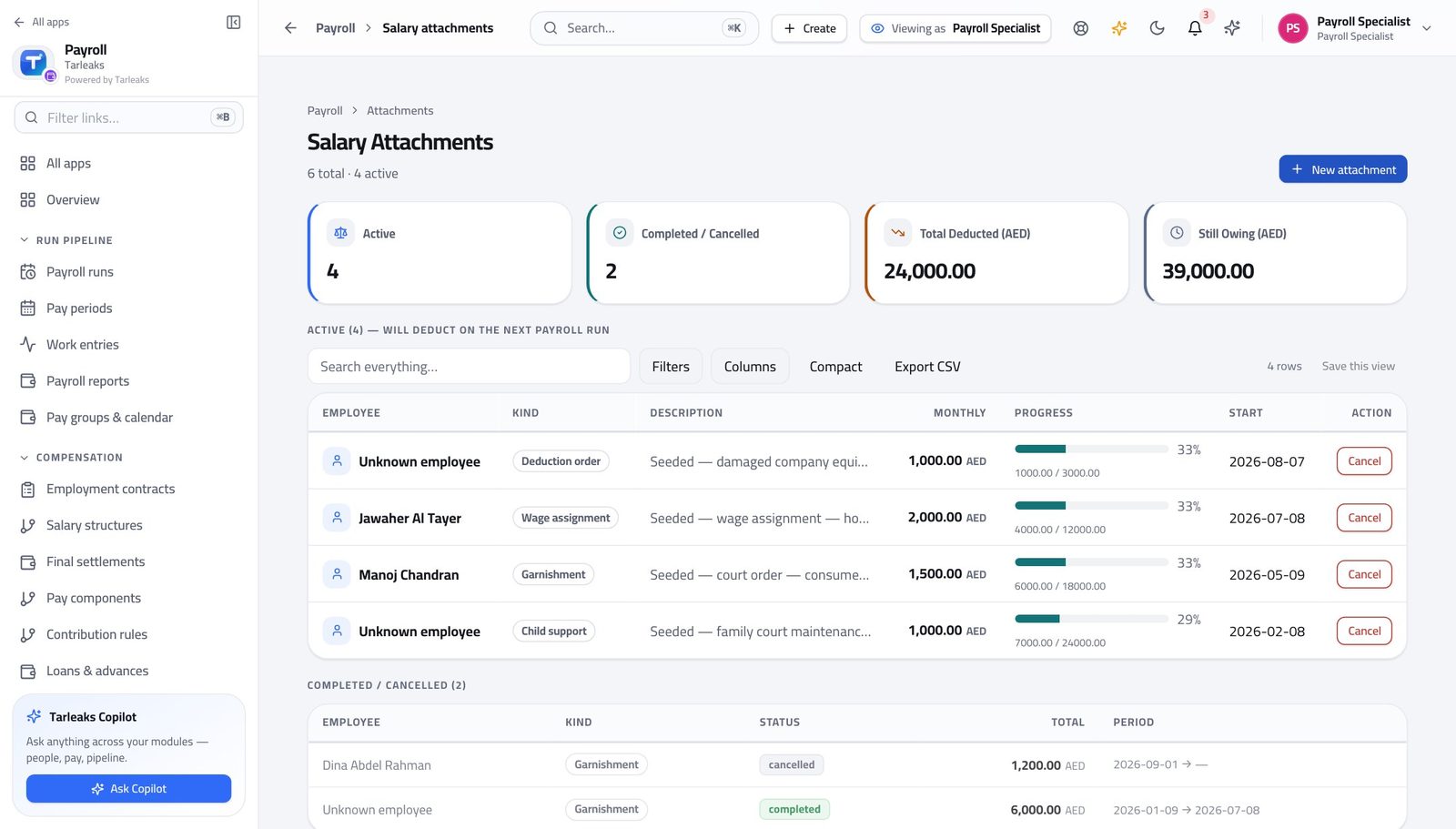
You should see Court orders, child support and wage assignments, each with what has been collected and what is left. They deduct themselves on the next run and close themselves when they are paid off.
Watch out Attachments close themselves when they are paid off. Cancelling one early stops future deductions and refunds nothing already taken.
Check the loans that are being repaid #
Where Payroll » Loans & advances
- In the left menu, under COMPENSATION, click Loans & advances.
- Click a row to open it.
- Read the instalment schedule.
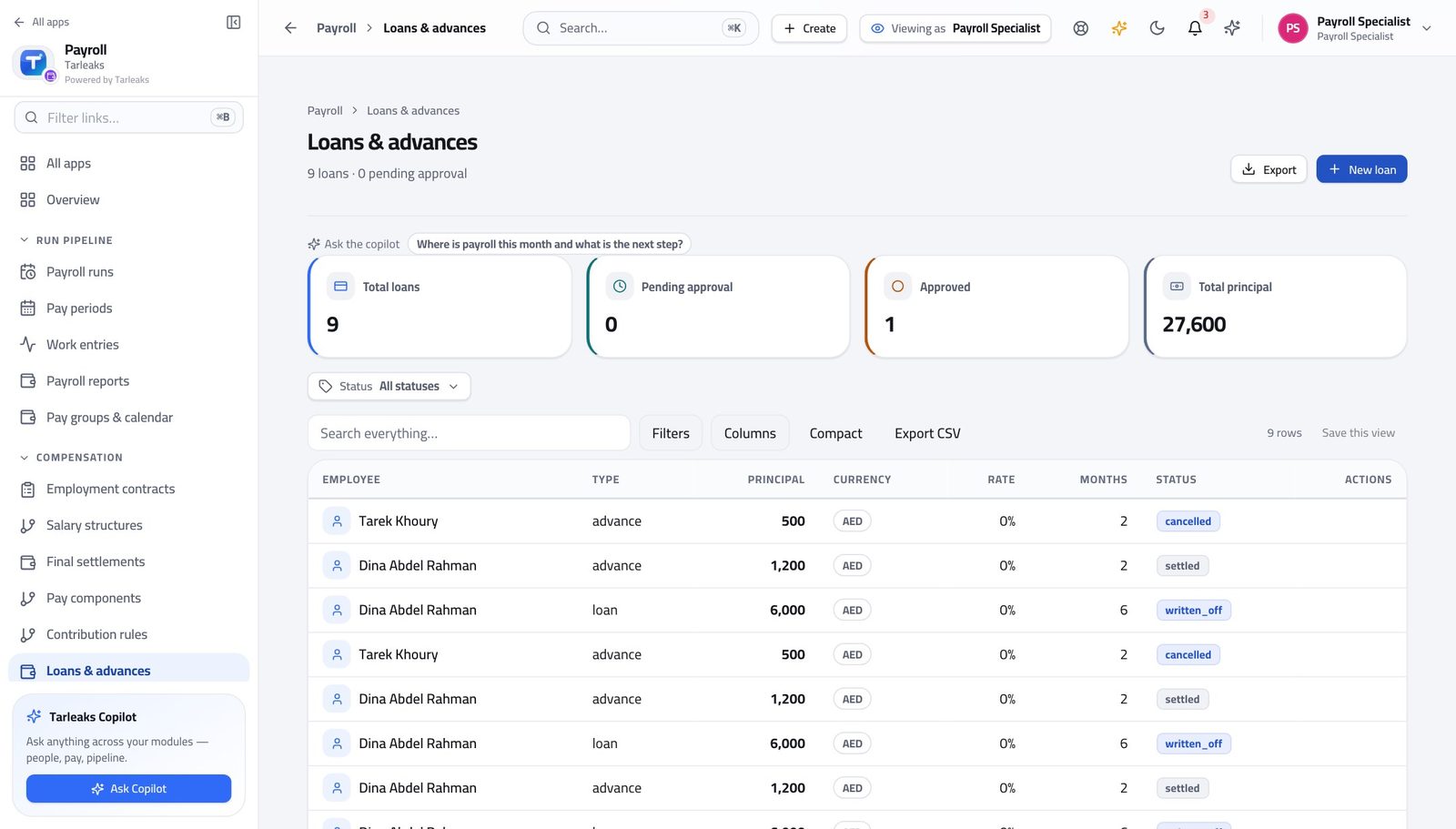
You should see Each loan's schedule, what has been deducted, what is left and what comes off the next payslip. The run takes the next unpaid instalment by itself and stamps it paid.
Watch out Deductions only start once a loan is approved. A pending loan takes nothing off anybody's pay.
Record a loan or an advance #
Where Payroll » Loans & advances » New loan
- Press New loan.
- Fill the form.
- Press Save.
| Field | What to put in it |
|---|---|
| Employee | Search for them by name or number. |
| Type | Salary advance, loan or other. |
| Principal | The amount being lent. |
| Currency | Three letters — AED, SAR. |
| Interest % (annual) | Leave at the company default unless you have been told otherwise. |
| Months | How many instalments. The company's policy caps this, and the form refuses more. |
| First deduction on | The pay period the first instalment comes off. Set it to next month, not this one, if the current run is already calculated. |
| Note | Why. Worth a sentence — the approver reads it. |
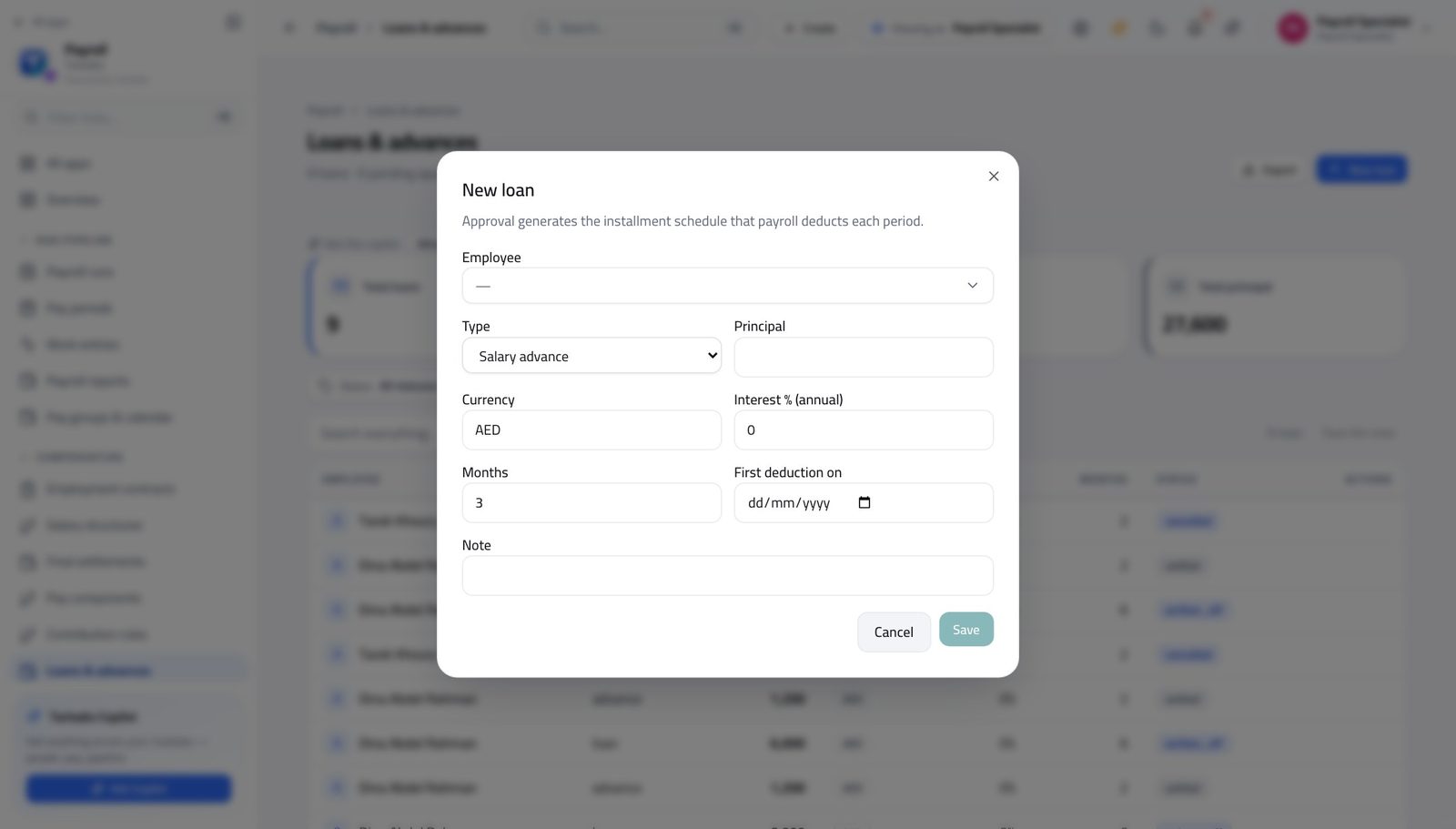
You should see Nothing is deducted until somebody approves it. Approval is what builds the instalment schedule that every future run then follows on its own.
Watch out The loan is created pending. It deducts nothing until somebody with approval authority agrees to it.
Open the run register #
Where Payroll » Payroll runs
- In the left menu, click Payroll runs.
- Search, filter and sort to find what you want.
- Press Open on the run.
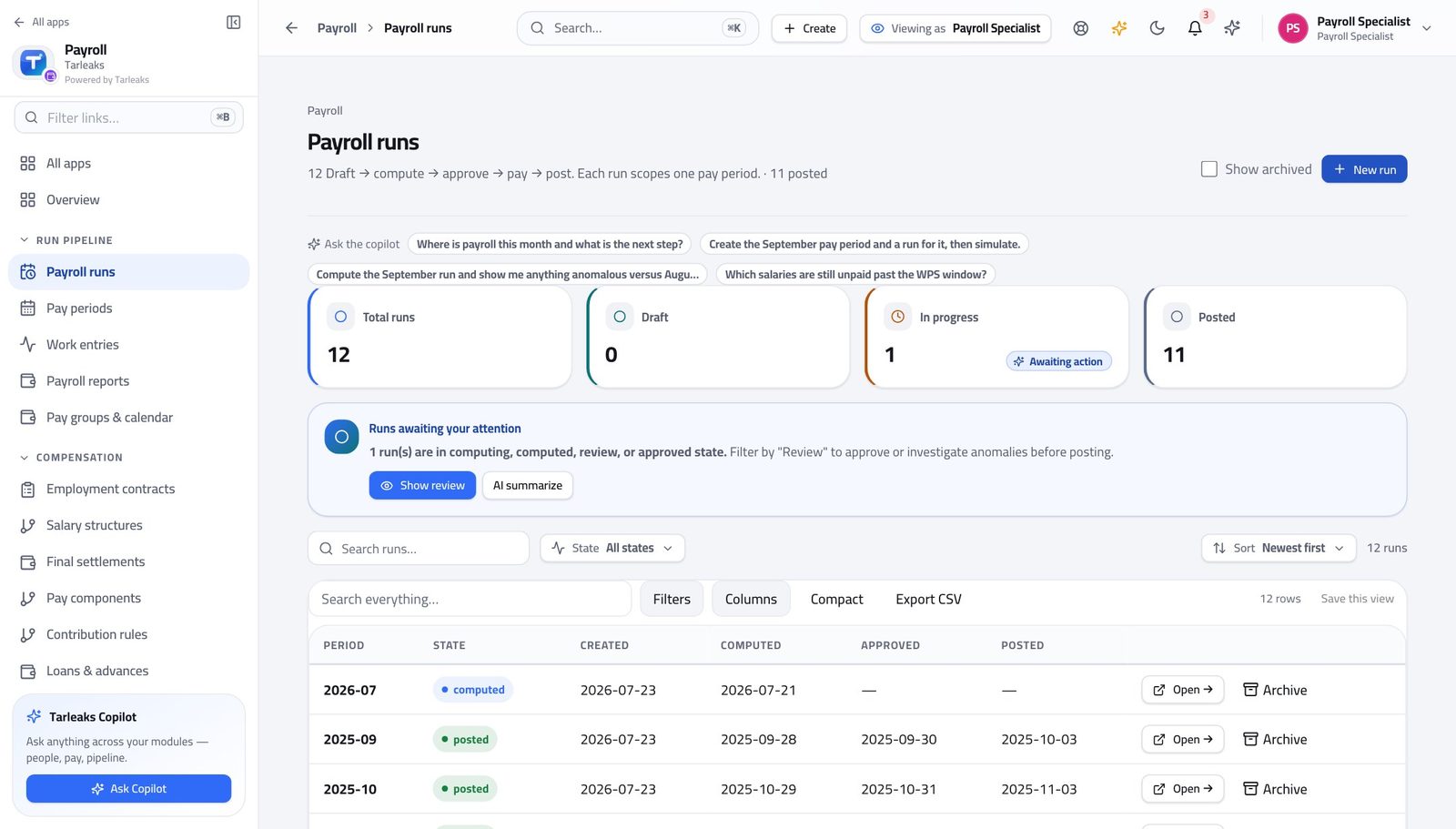
You should see Your runs and where each one stopped. Because the filters live in the address, you can paste the approver a link that opens exactly the view you are describing.
Watch out Paste that address to the approver and they open exactly the view you are describing — much better than "the one from Tuesday".
Start the run #
Where Payroll » Payroll runs » New run
- Press New run.
- Choose the pay period.
- Leave Structure empty unless you are deliberately paying one group separately.
- Press Create run, then open it and press Compute.
| Field | What to put in it |
|---|---|
| Pay period | The month this run pays. |
| Structure (optional) | Empty means each person is paid under the structure their own contract points at, which is almost always what you want. |
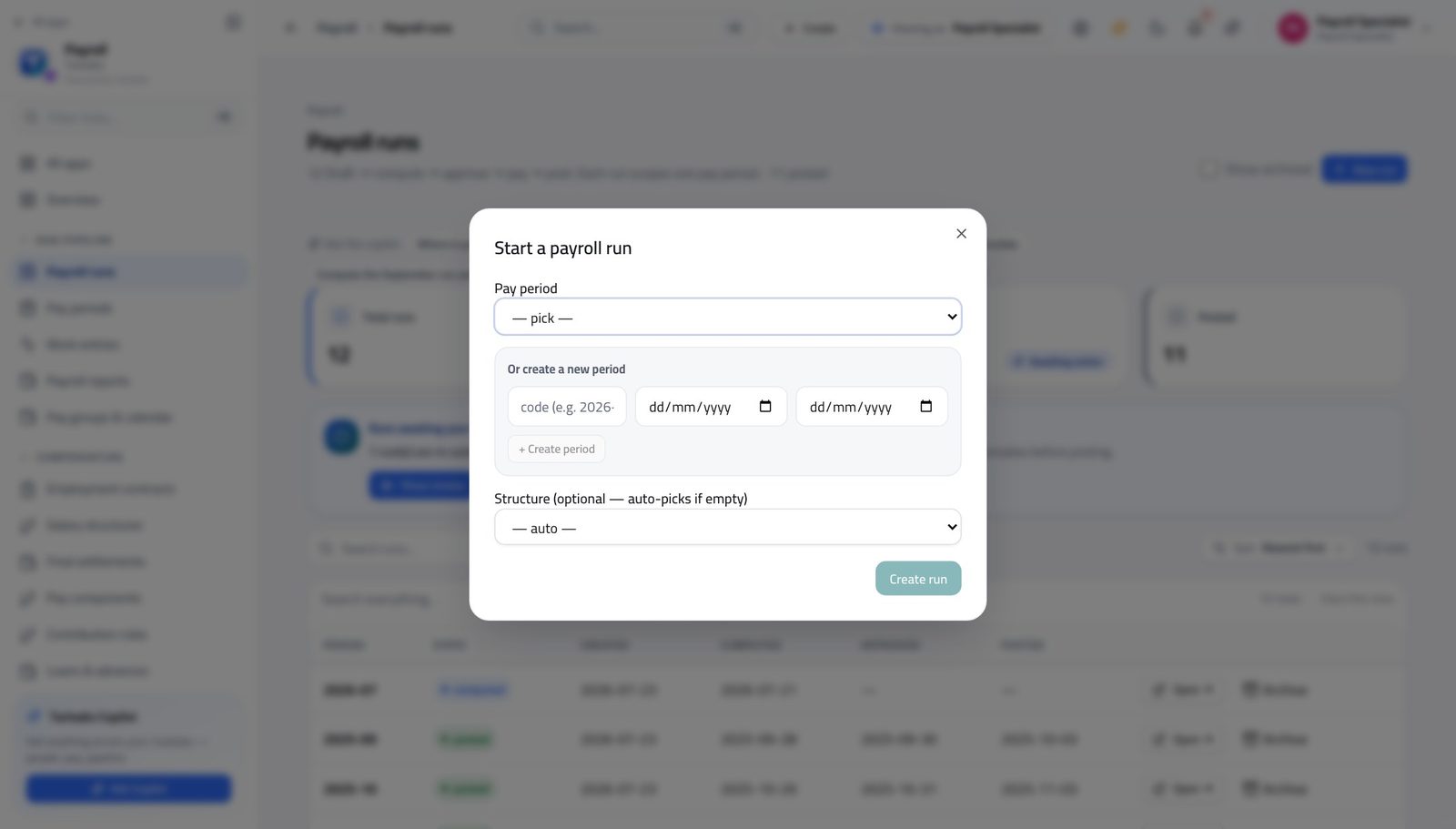
You should see The run is created empty, in draft. Open it and press Compute when your inputs are in — you can recompute as often as you like until it is submitted.
Watch out Compute can be run again and again while the run is still yours. Simulate is the safer first move: it calculates a throwaway copy and shows you the totals without touching the run at all.
Worth knowing Simulate is the safer twin of Compute: it calculates a throwaway copy and shows you the totals without touching the run at all.
Explain every flag before you hand the run over #
Where Payroll » Payroll runs » Open » Anomaly detection flags
- Open the calculated run.
- Scroll to Anomaly Detection Flags.
- For each flag, either fix the cause and recompute, or press the dismiss icon and type why.
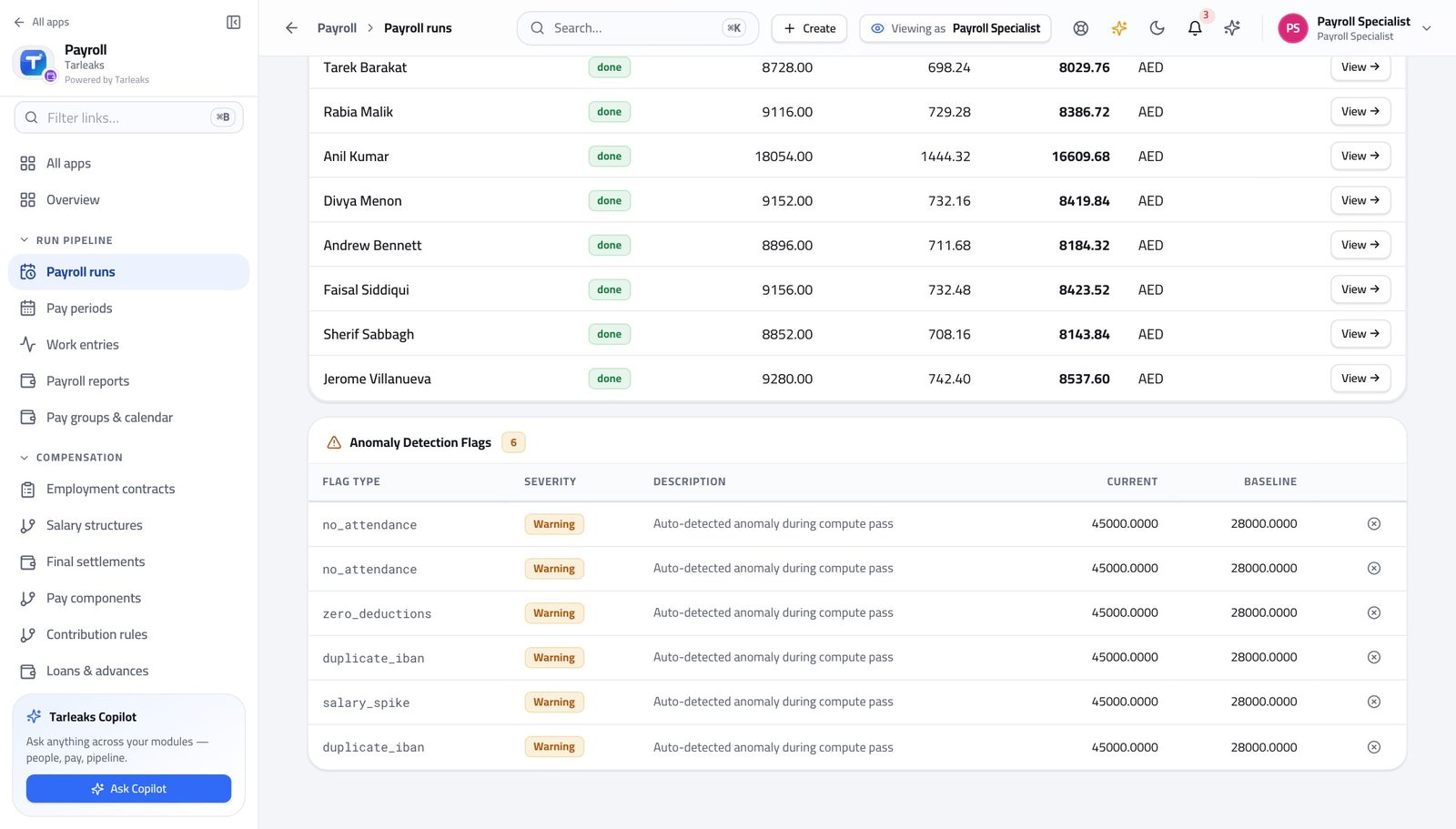
You should see You are the person who knows why somebody's pay doubled. A flag you leave unexplained becomes a phone call from the approver at five o'clock.
Watch out You are the person who knows why somebody's pay doubled. A flag you leave unexplained becomes a phone call at five o'clock on payday.
Check the bank file before you hand it on #
Where Payroll » Payroll runs » Open » Bank / WPS » Pre-flight
- Open the approved run.
- Scroll to the bank panel.
- Choose the format for your country.
- Press Pre-flight and read the issues.
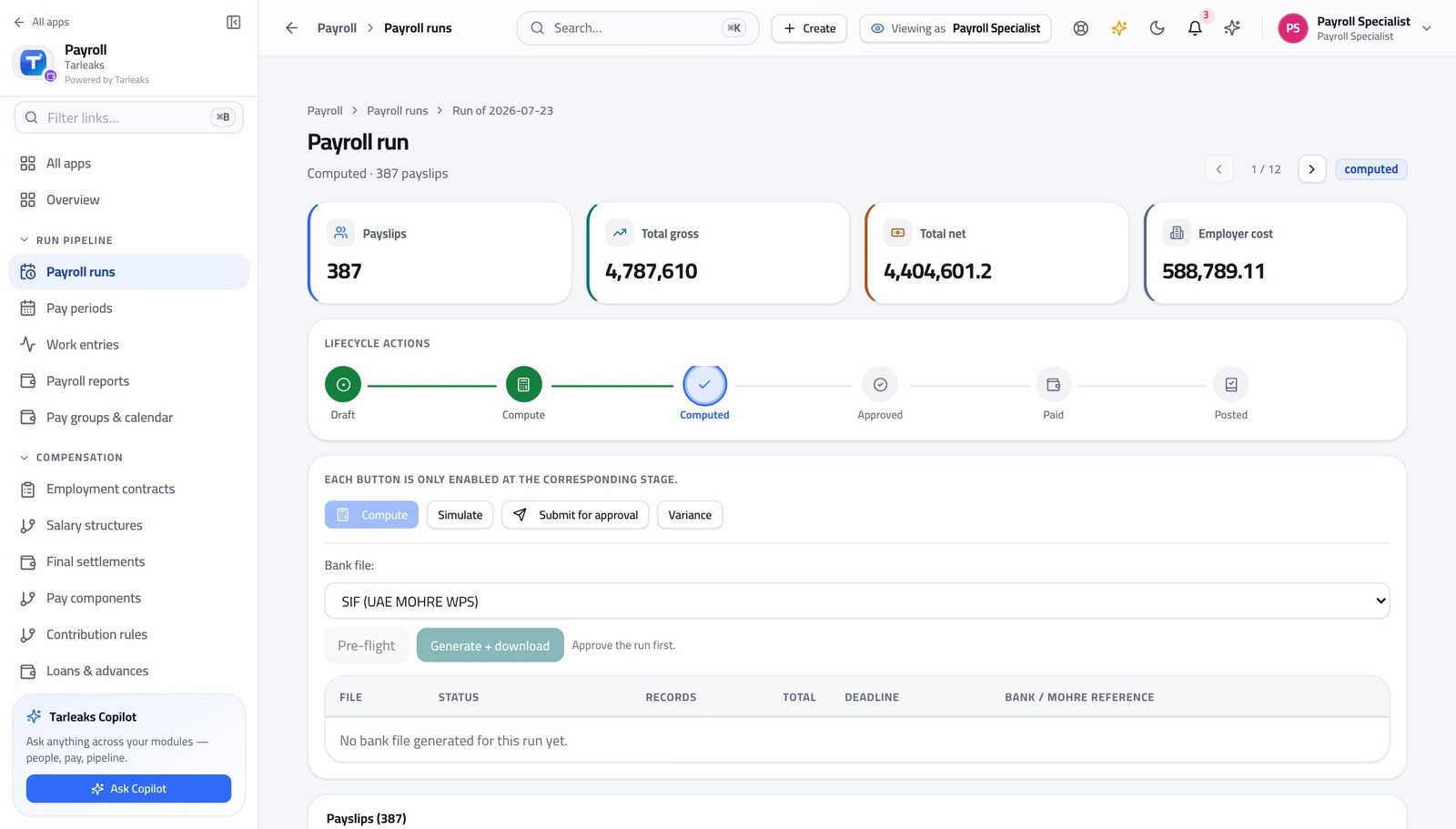
You should see Every account number, every national id and every company identifier checked, with the statutory deadline. Fix what it lists now; the bank will not be as forgiving.
Watch out Missing account numbers and missing national ids are the two that come up again and again, and both are HR records rather than payroll ones. Fixing them means going to the employee's record.
There is no Approve button on your screen #
Where Payroll » Payroll runs » Open
- Open a calculated run.
- Read the row of actions at the top of the page.
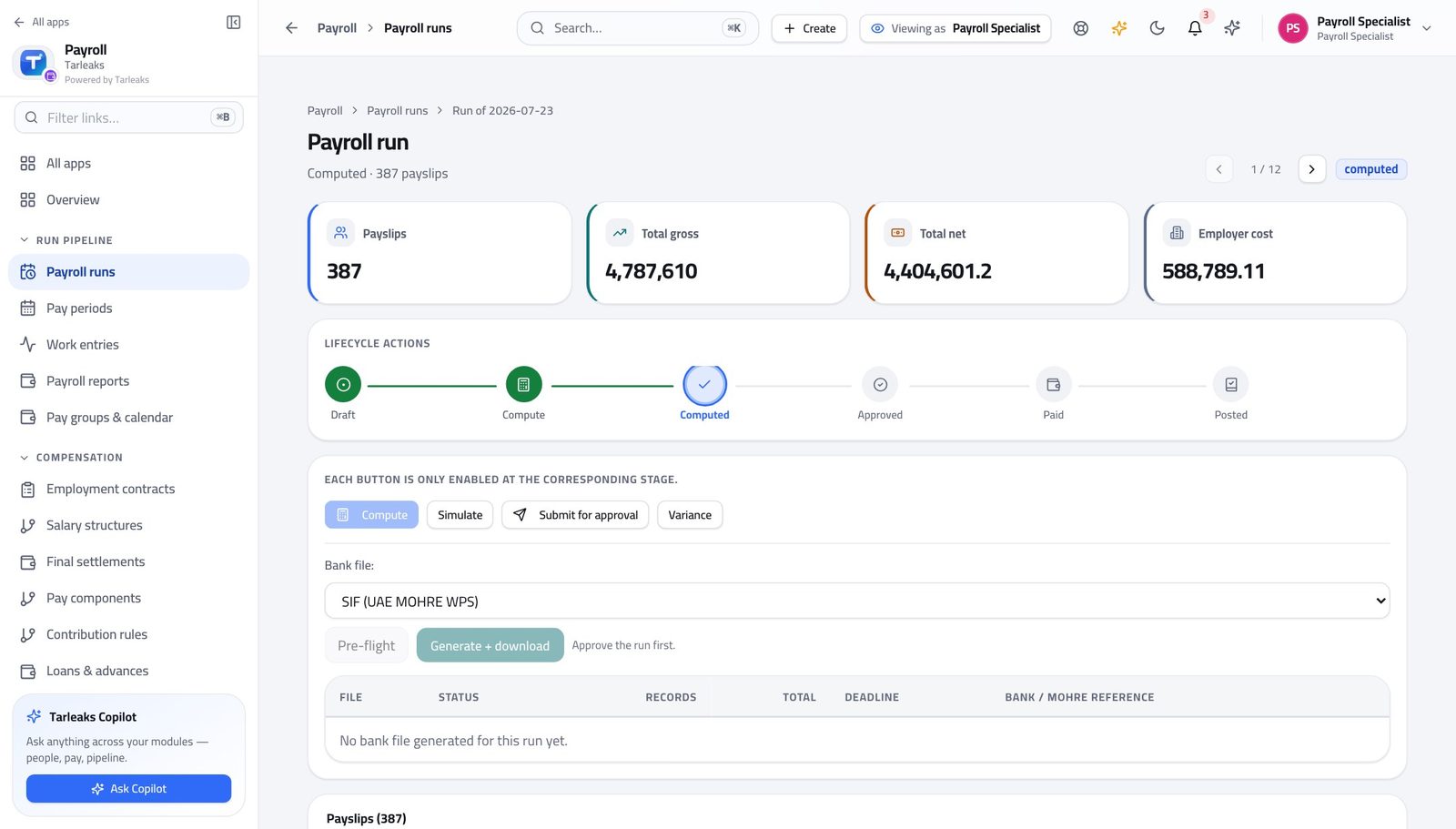
You should see The person who prepared the numbers cannot be the person who signs them off. It is not hidden from you — it does not exist for you, and it refuses the same way if anyone tries to reach it another way.
Watch out Submitting is the handover. Do it deliberately, when the flags are explained and the variance looks like the month you lived through — not the moment the calculation finishes.
Releasing the money and posting it are separate again #
Where Payroll » Payroll runs » Open
- On the same run, look for Mark paid and Post to GL.
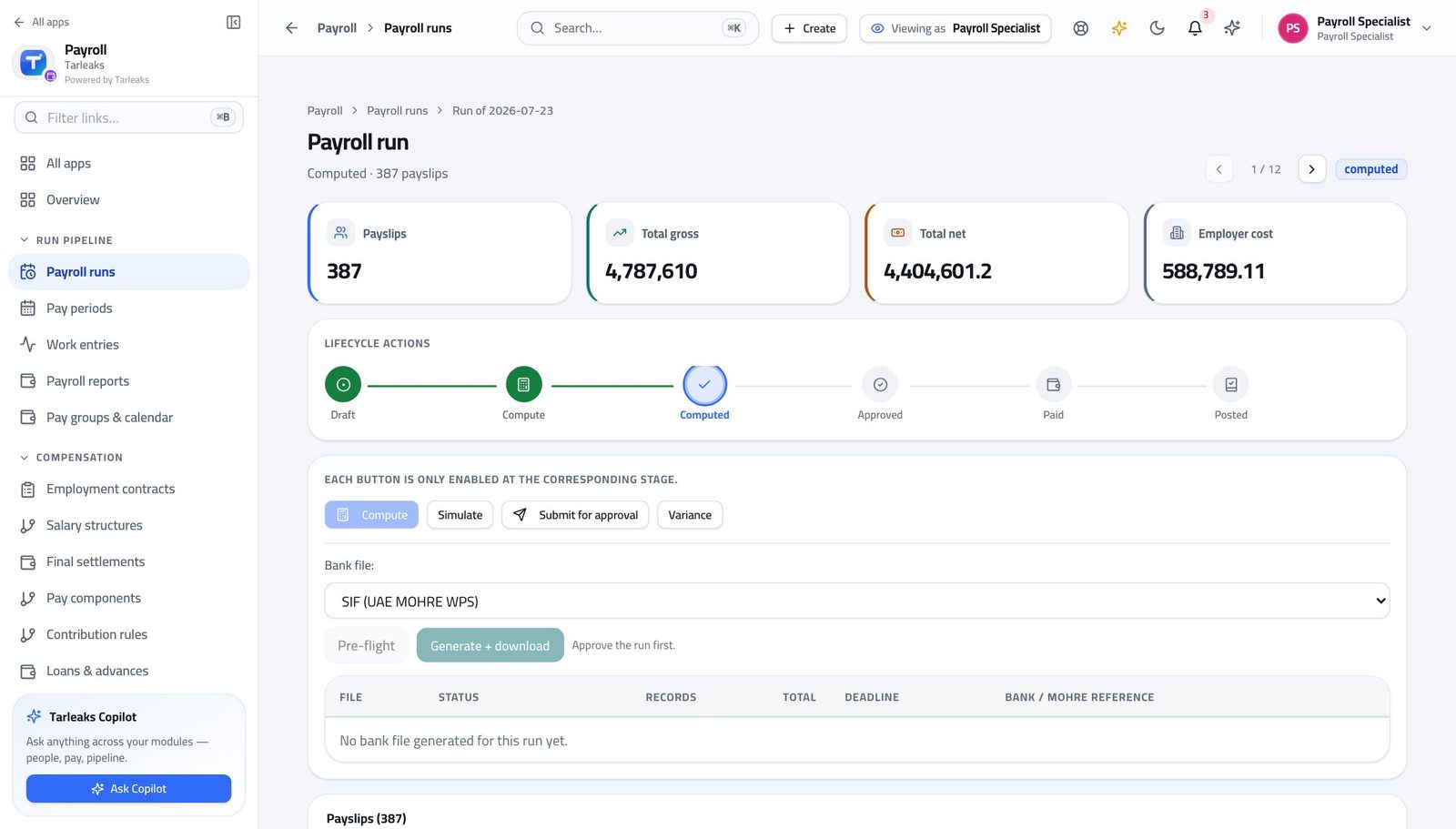
You should see Approval is not the last gate. Saying the bank has paid, and writing the cost into the company's accounts, are two more decisions — and neither of them is yours.
Watch out Approval is not the last gate. Saying the bank paid, and writing the cost into the company's accounts, are two further decisions and neither is yours.
You record a loan; somebody else agrees to lend it #
Where Payroll » Loans & advances » open a loan
- Open Loans & advances.
- Click a pending loan.
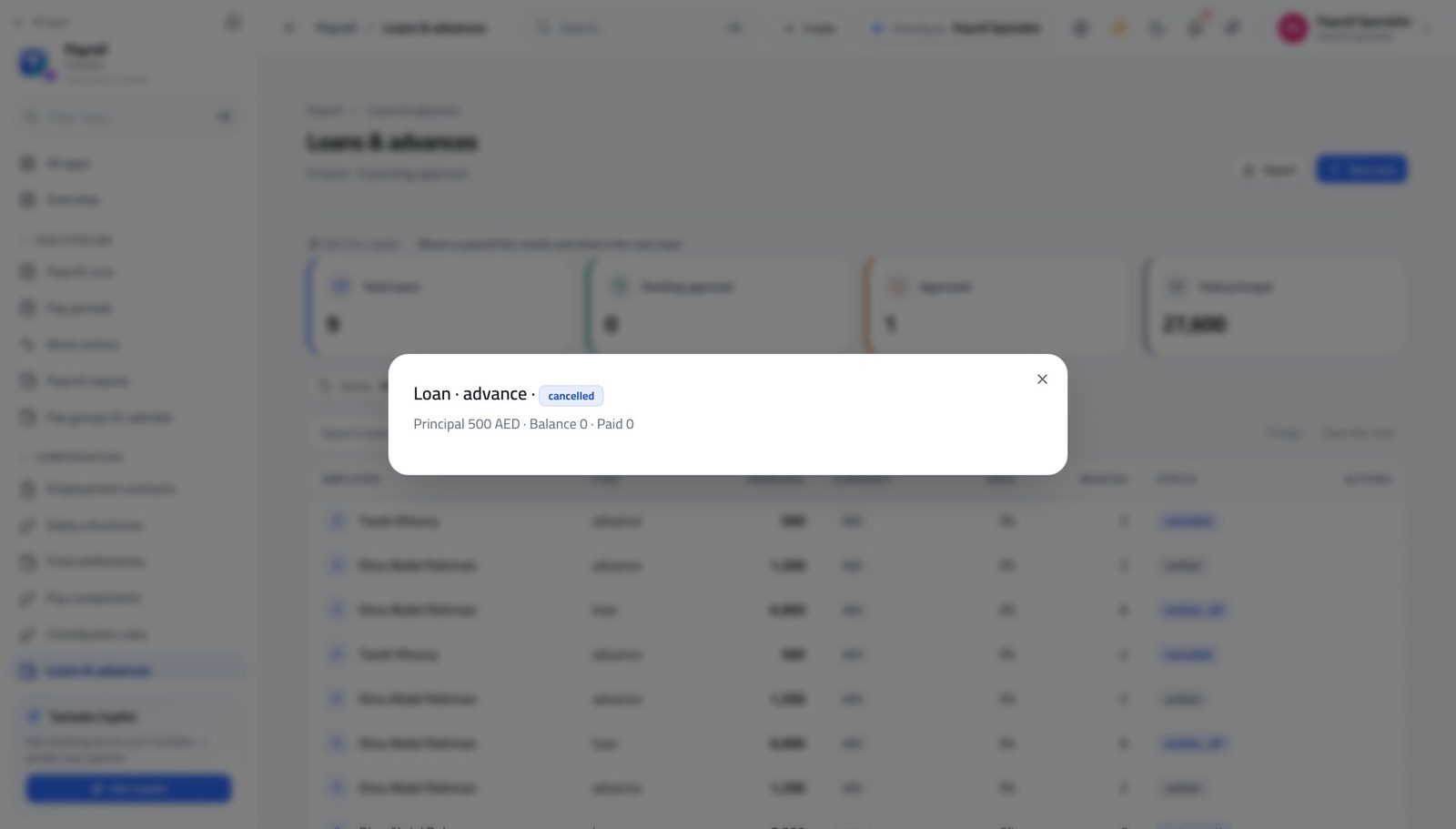
You should see You capture the amount, the term and the first deduction date. Agreeing to lend the company's money is a different decision.
Watch out You record the terms; somebody else agrees to lend the money. If a loan is urgent, the fix is to ask the approver, not to look for another way in.
Read what is owed to the authorities #
Where Payroll » Payroll reports » Contributions
- In the left menu, click Payroll reports.
- Set the two dates.
- Read the Contributions view.
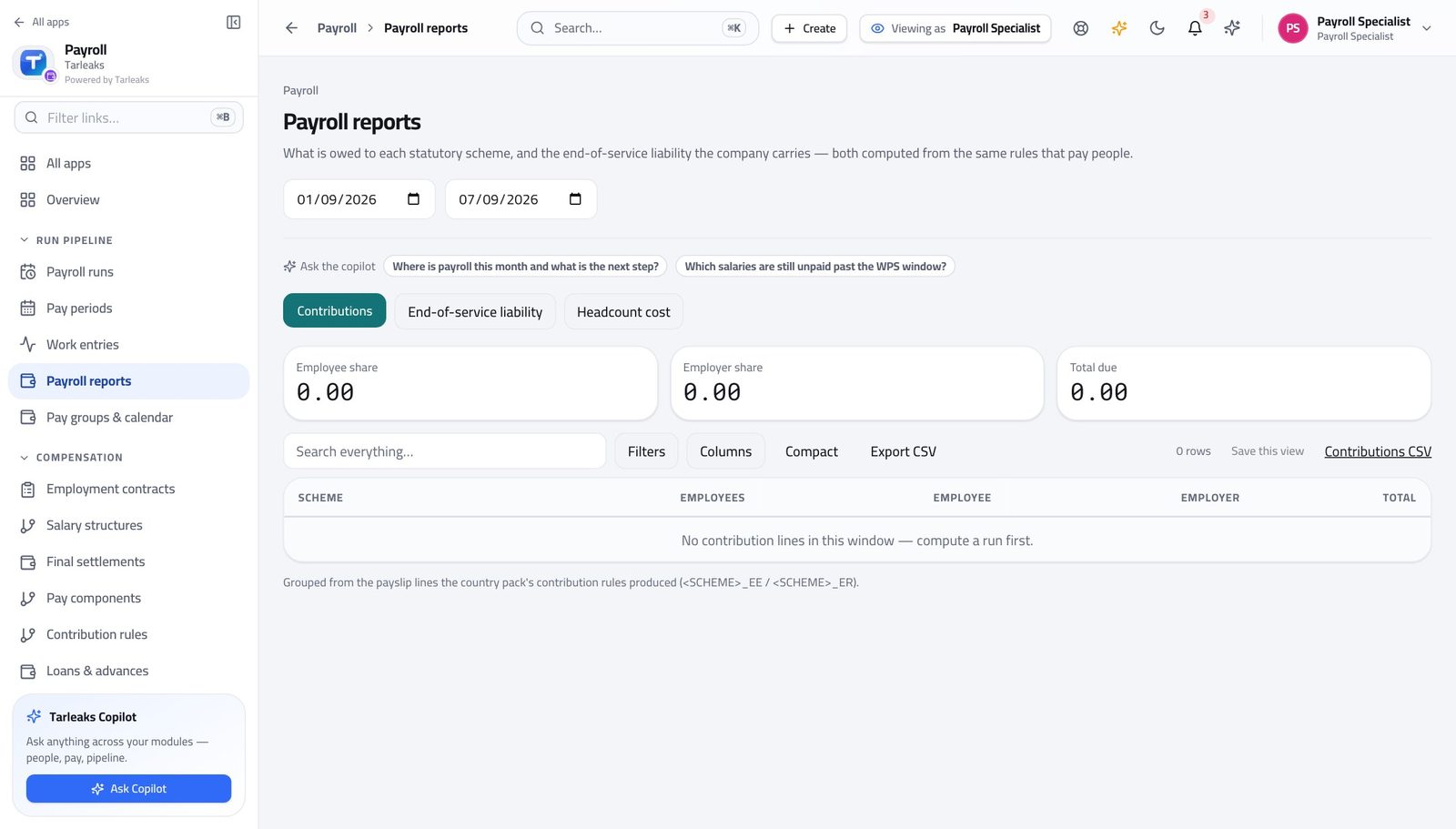
You should see Per scheme and per person, from the same payslips that paid them — which is why the return and the payroll agree.
Watch out The figures come from the payslips, so a run you have not calculated yet is simply not in them.
Price a leaver before anybody commits to it #
Where Payroll » Final settlements » New settlement » Quote
- In the left menu, under COMPENSATION, click Final settlements.
- Press New settlement.
- Pick the leaver, set the last working day and the reason.
- Press Quote and read the preview.
| Field | What to put in it |
|---|---|
| Employee | The person leaving. |
| Last working day | Service is counted to this date. |
| Reason | The same list the end-of-service quote uses. Several reasons reduce the entitlement. |
| Leave days | Unused days to be paid out. Leave empty to use the balance the company already holds. |
| Notice days | Notice owed to them. A negative number is notice they owe the company. |
| Final-month days | Days worked in the last, unpaid month. |
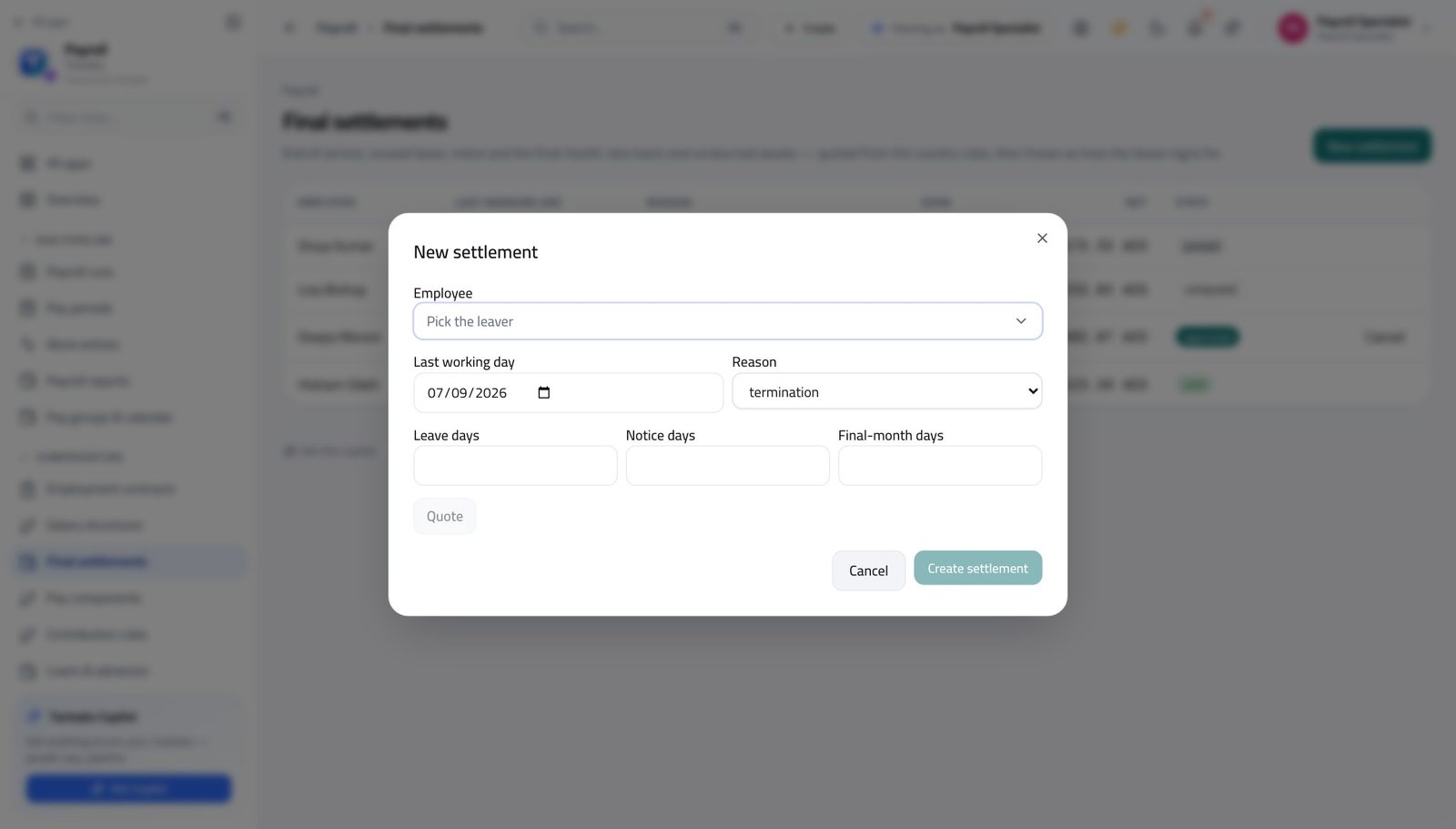
You should see End of service, unused leave, notice and the final unpaid month, priced by the same country rules the real settlement will use. Quoting creates nothing — you only commit when you press Create settlement.
Watch out Quoting creates nothing. Only Create settlement does, and only then does it appear in the approver's queue.
Use cases — the work, step by step
Each one is a sequence somebody actually performs, with the screen behind every step. Every screen here was opened in the product as this role before it was published.
dailyA day of inputs, before anything is calculated #
Everything the run pays comes from these four screens. A calculation is only as good as the day you spent on them.
Start at the payroll home and see what is still open.
Payroll » Overview — verified: the page says “Payroll” Put joiners on the payroll and give leavers an end date. Filter to expired to find contracts that have quietly run out.
Payroll » Employment contracts — verified: the page says “Payroll Contracts”; 372 row(s) listed Enter the new contracts. Employee, structure type and start date are fixed once saved — get those three right.
Payroll » Employment contracts » New contract — verified: the control is offered; the page says “New payroll contract” Check the hours. Approved timesheets and approved leave arrive by themselves; add only what they cannot tell you.
Payroll » Work entries — verified: the page says “Work Entries” Record any loan or advance somebody asked for. Nothing is deducted until it is approved.
Payroll » Loans & advances » New loan — verified: the control is offered; the control is offered Check the court orders and other obliged deductions are current.
Payroll » Salary attachments — verified: the page says “Salary Attachments”
monthlyCalculate the month, explain it, and hand it over #
The handover is the product of this job. An approver who has to phone you has been handed an unfinished run.
Check the period is open, then create the run against it. Simulate first if you want the totals without touching anything.
Payroll » Payroll runs » New run — verified: the control is offered Compute, then read every flag and either fix the cause or dismiss it with a sentence somebody else could read in a year.
Payroll » Payroll runs » Open » Anomaly detection flags — verified: the page says “Anomaly Detection Flags” Pre-flight the bank file now, not after approval. Missing account numbers are HR records and take a day to fix.
Payroll » Payroll runs » Open » Bank / WPS » Pre-flight — verified: the control is offered Submit for approval. That is the whole of your authority over the run, and it is deliberate.
Payroll » Payroll runs » Open — verified: the page says “Submit for approval”; the action is not offered to this role; the action is not offered to this role Tell the approver it is waiting, and send them the link to the filtered list rather than describing it.
Payroll » Payroll runs — verified: the page says “Payroll runs”; 12 row(s) listed
urgentThe approver sent it back #
The reason stays on the run, so the fix does not depend on anybody remembering a conversation.
Open the run and read the rejection reason on it.
Payroll » Payroll runs » Open — verified: the page says “Submit for approval”; the action is not offered to this role; the action is not offered to this role Fix the input the reason names. If it is hours, check whether the timesheet was approved rather than typing them in — an approved week replaces its own rows and yours would be paid twice.
Payroll » Work entries — verified: the page says “Work Entries” Recompute and re-read the flags. A fix that creates a new anomaly is a fix you want to know about now.
Payroll » Payroll runs » Open » Anomaly detection flags — verified: the page says “Anomaly Detection Flags” Submit again.
Payroll » Payroll runs » Open — verified: the page says “Submit for approval”; the action is not offered to this role; the action is not offered to this role
edgeSomebody is leaving on the twentieth #
The quote is free and creates nothing, so there is no reason to guess what a leaver costs.
Set the end date on their payroll contract so no future run pays them.
Payroll » Employment contracts — verified: the page says “Payroll Contracts”; 372 row(s) listed Quote the settlement: last working day, reason, unused leave, notice and the days worked in the final unpaid month.
Payroll » Final settlements » New settlement » Quote — verified: the control is offered; the control is offered Check their loans. An outstanding balance comes off the settlement rather than being written off.
Payroll » Loans & advances — verified: the page says “Loans” Create the settlement and tell the approver. Outstanding clearance items will block their approval, so chase the laptop before the last day, not after.
Payroll » Final settlements » New settlement » Quote — verified: the control is offered; the control is offered
You will not find an Approve button. That is not an oversight and it is not a lack of trust — it is the control that protects you. If a number is later questioned, the record shows you prepared it and somebody else agreed to it.
Payroll Approver
Sign off a payroll you can defend.
The second pair of eyes. Reads what the specialist prepared, compares it with last month, then approves, pays and posts it — and cannot change a single input.
What you will be able to do
- See what moved since last month, person by person
- Read the flags and the explanations before you agree
- Approve, release the money, and post it to the accounts
- Send a run back with a reason instead of fixing it yourself
What this role can and cannot do
| Can | Cannot |
|---|---|
|
|
18 steps, each one carried out in the product on .
Check what your sign-in can do #
Where Your name, top right » Profile
- Open your company's address in the browser — it looks like yourcompany.tarleaks.com.
- Type the e-mail address your administrator set up for you, then your password.
- You land on the app launcher: a grid of the apps your company uses.
- Click your name in the very top-right corner.
- Choose Profile.
- Read the role chip.
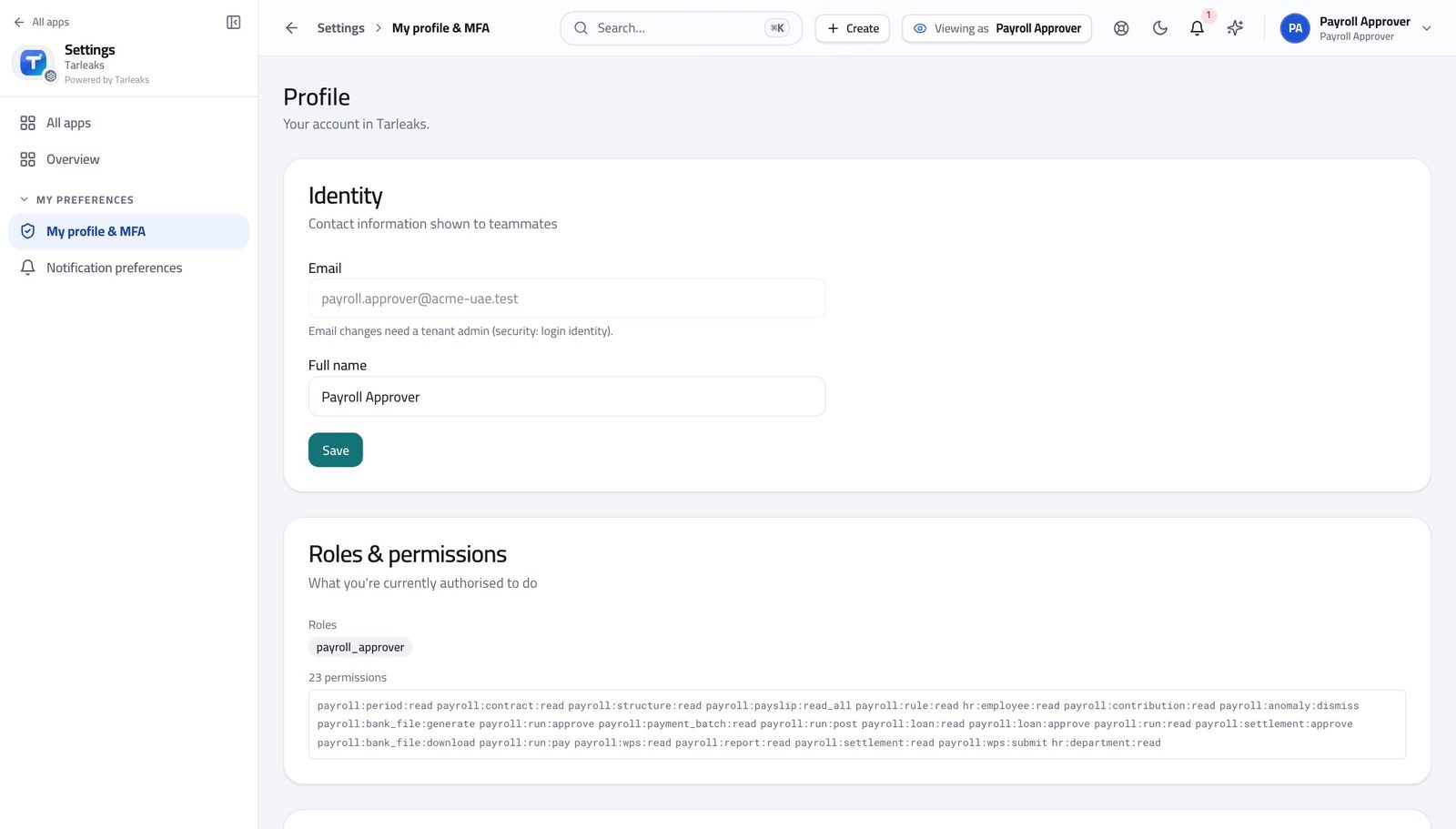
You should see It says payroll approver. You approve, you release, you post, and you send things back. You cannot change an hour, a wage or a payslip — which is what makes your signature mean something.
Watch out Notice what is missing as much as what is there. You cannot change an hour, a wage or a payslip — and that is the whole value of your signature.
See what is waiting for you #
Where Payroll » Overview
- From the launcher, click the Payroll tile.
- Read the Runs to review card.
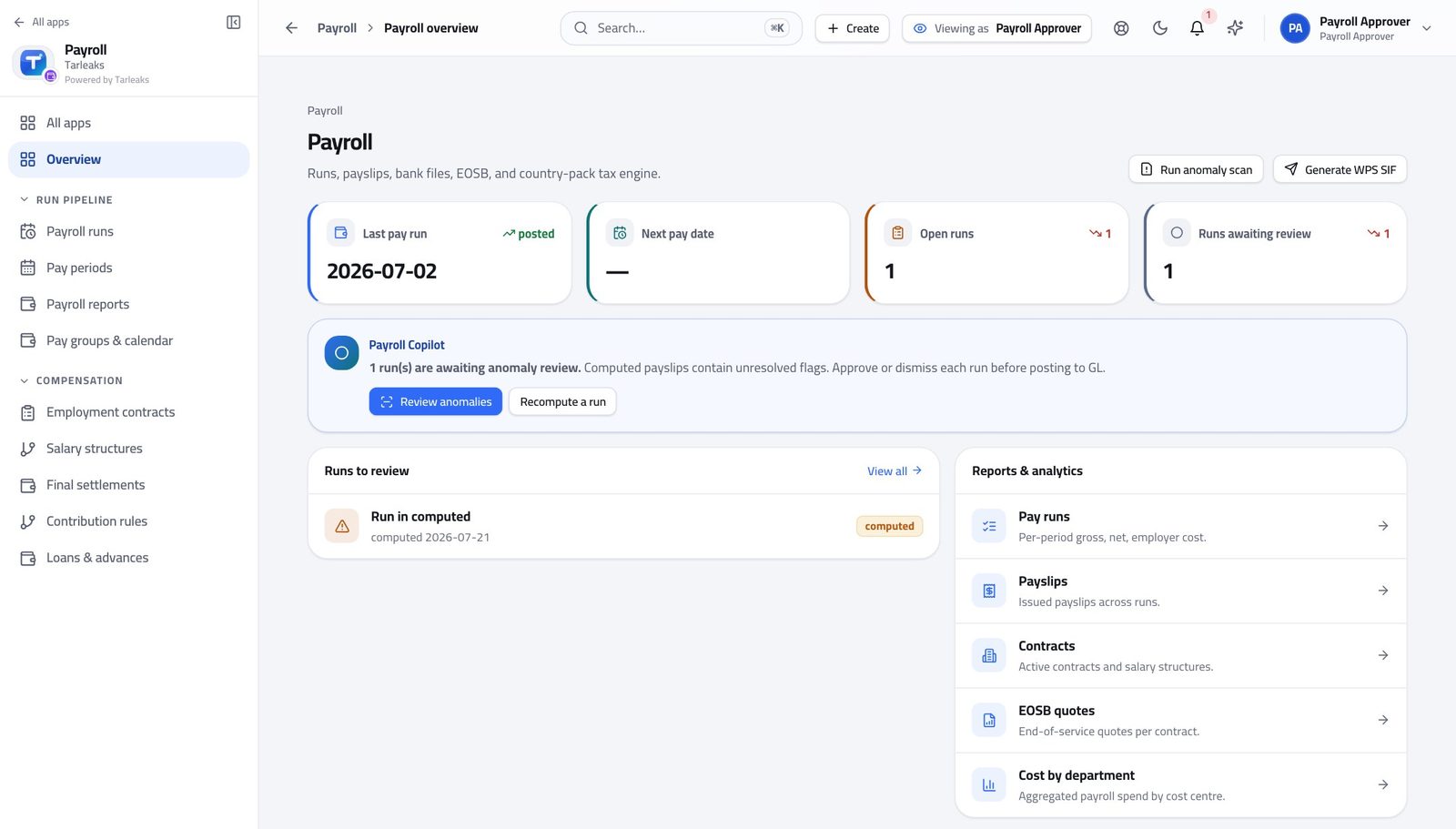
You should see The runs that stopped short of approval, and what each one stopped at.
Watch out A run sitting in review for three days is not waiting for the system. It is waiting for you.
Open the run register #
Where Payroll » Payroll runs
- In the left menu, under RUN PIPELINE, click Payroll runs.
- Open the State filter and choose Review.
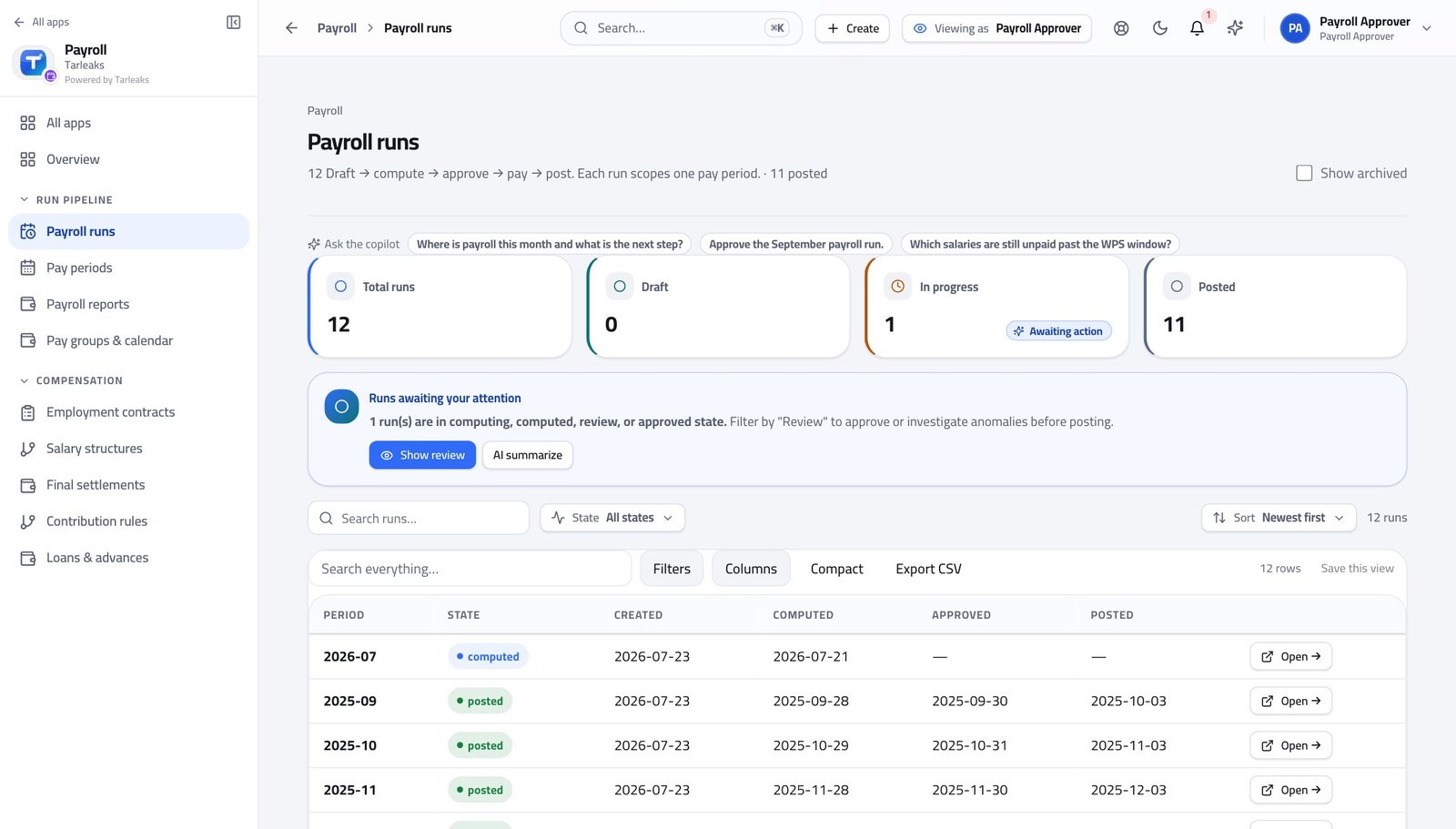
You should see Your queue. There is no New run button on this page for you, which is the point: the thing you check is not the thing you make.
Watch out If your queue is empty, ask the person who prepares runs. There is nothing here for you to start.
Open the run and read its four numbers #
Where Payroll » Payroll runs » Open
- From the launcher, click the Payroll tile.
- In the left menu, under RUN PIPELINE, click Payroll runs.
- Press Open on the run you want.
- Read the four figures across the top.
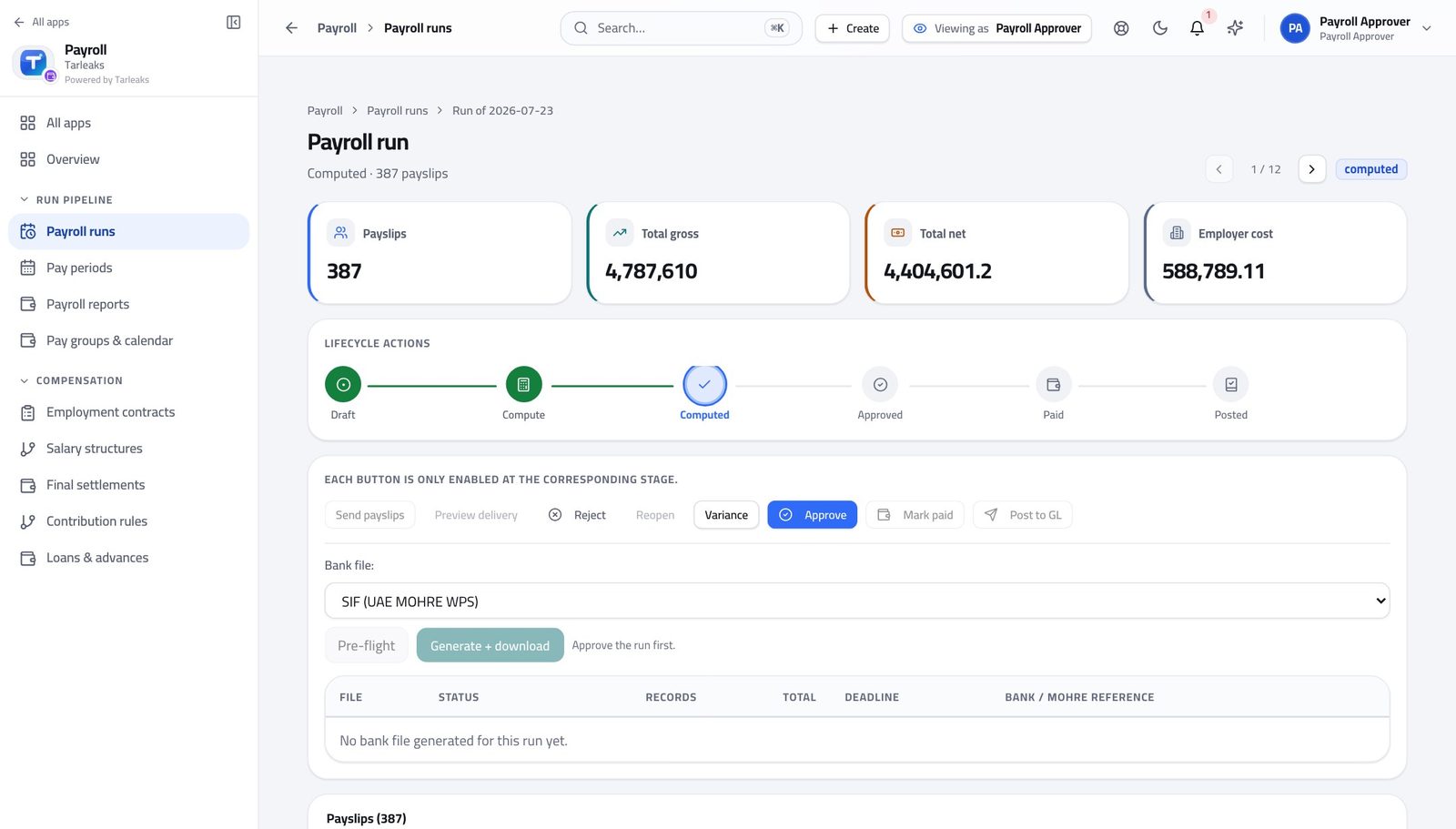
You should see These are the four figures you are signing for, with the stage stepper above them showing how the run got here.
Watch out Employer cost is gross plus the employer's own contributions. It is the number that hits the budget, and it is not the number people mean when they say "the payroll".
The row of decisions on a run #
Where Payroll » Payroll runs » Open » Lifecycle actions
- On the same run, read the row of actions.
- Hover over any that are greyed out — each is only enabled at the stage it belongs to.
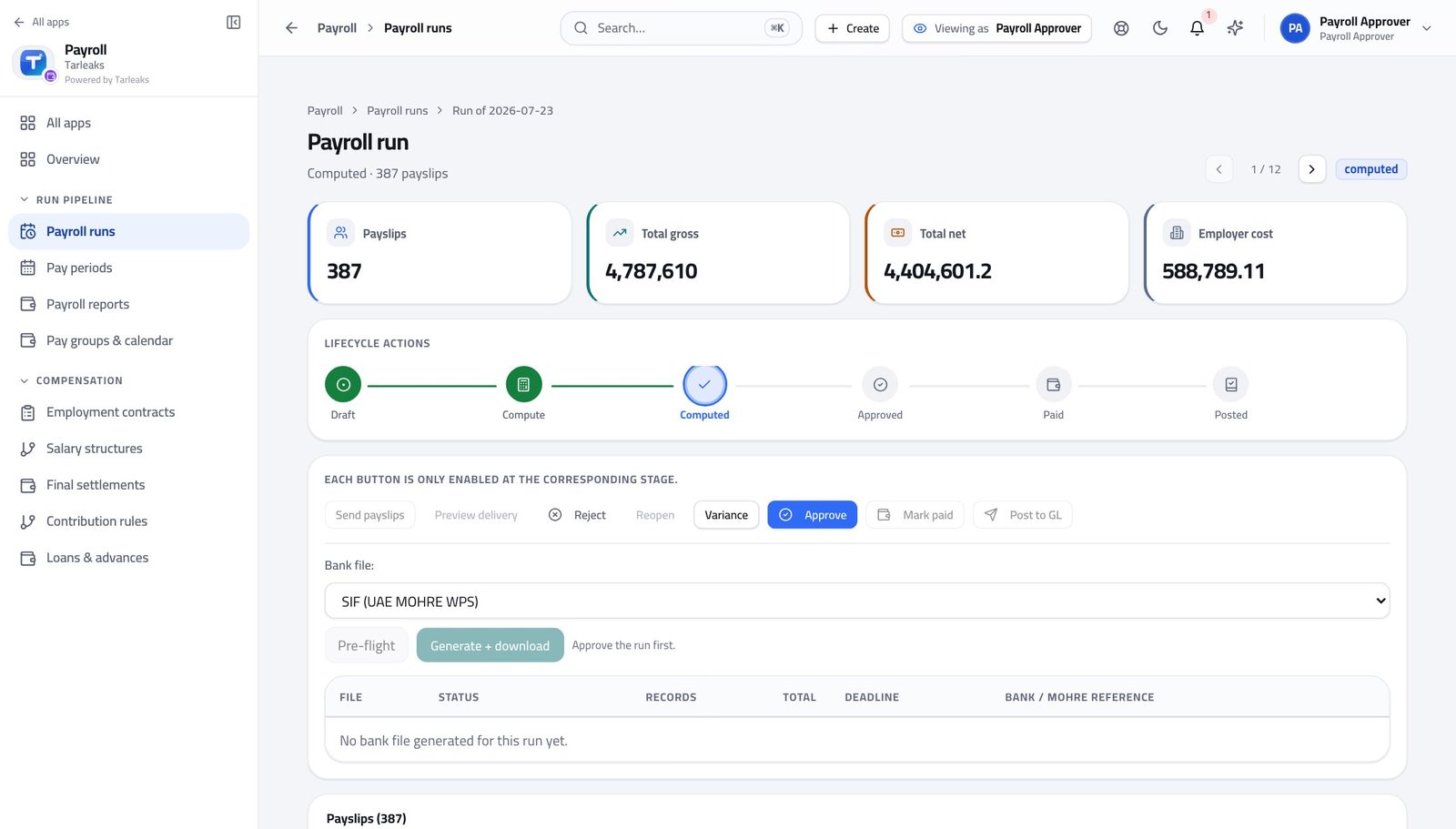
You should see Reject and Reopen send work back. Approve locks the payslips to the rulebook version they were calculated under. Mark paid records that the bank went through, and Post to GL writes the cost into the company's accounts.
Watch out Approving is not the end. A run that is approved but never posted is money that left the bank and never reached the accounts — and it is invisible until somebody reconciles the month.
Worth knowing Approving is not the end. A run that is approved but never posted is money that left the bank and never reached the accounts.
Read the variance first — before anything else #
Where Payroll » Payroll runs » Open » Variance
- From the launcher, click the Payroll tile.
- In the left menu, under RUN PIPELINE, click Payroll runs.
- Press Open on the run you want.
- Press Variance.
- Read the headline, then every person listed underneath.
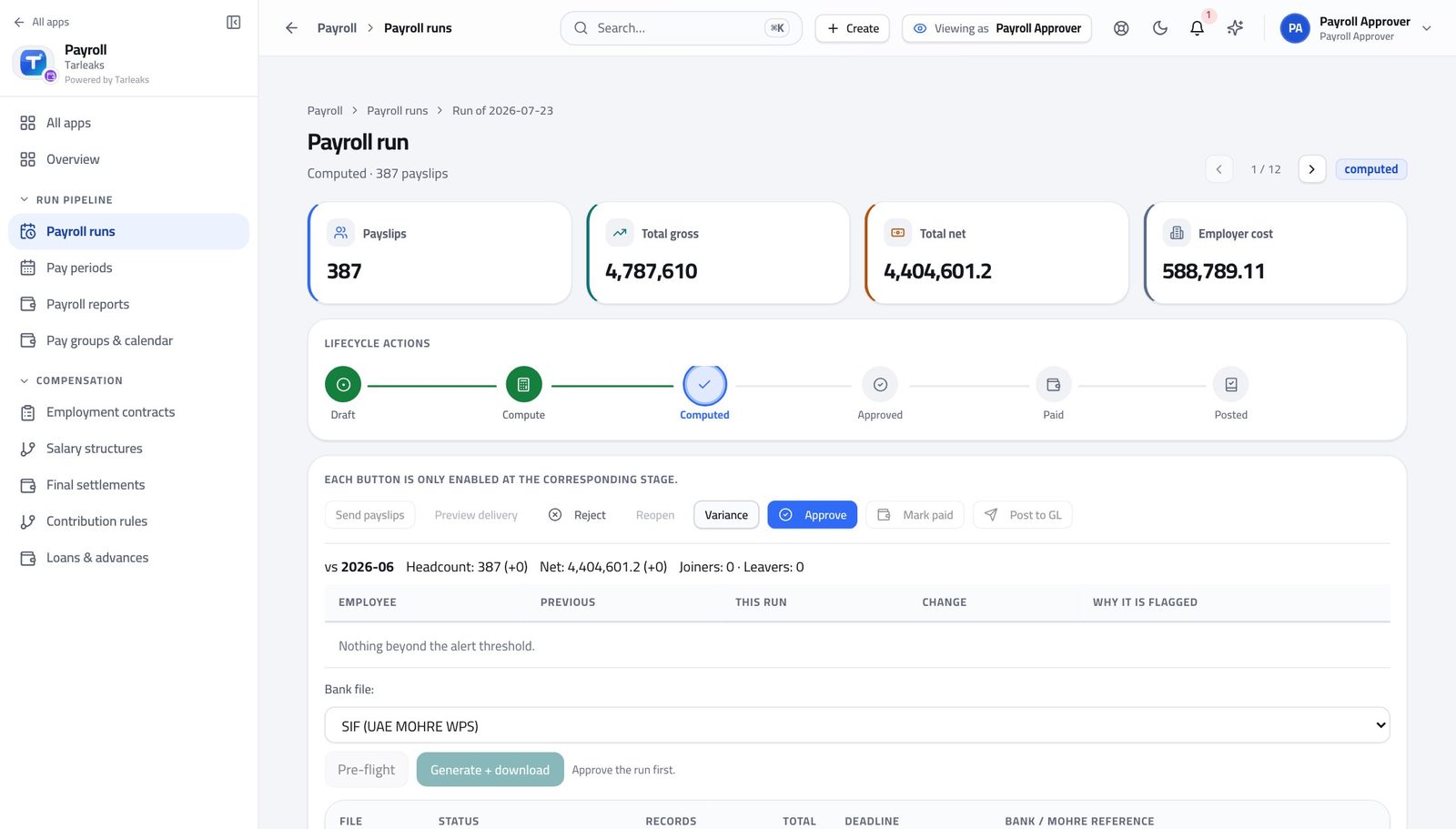
You should see Headcount, gross, net and employer cost against the previous run, then every person whose net pay moved beyond the threshold, with the reason, and the joiners and leavers. This is the single most useful screen you have.
Watch out Read this BEFORE the totals look reasonable to you. A payroll that is right in aggregate can still be wrong for eleven people, and the aggregate is what makes you stop looking.
Worth knowing The same comparison appears again inside the Approve confirmation, so you get one last look at it with your finger on the button.
Read the flags and the explanations left on them #
Where Payroll » Payroll runs » Open » Anomaly detection flags
- From the launcher, click the Payroll tile.
- In the left menu, under RUN PIPELINE, click Payroll runs.
- Press Open on the run you want.
- Scroll to Anomaly Detection Flags.
- Read the open flags, and the reasons on the dismissed ones.
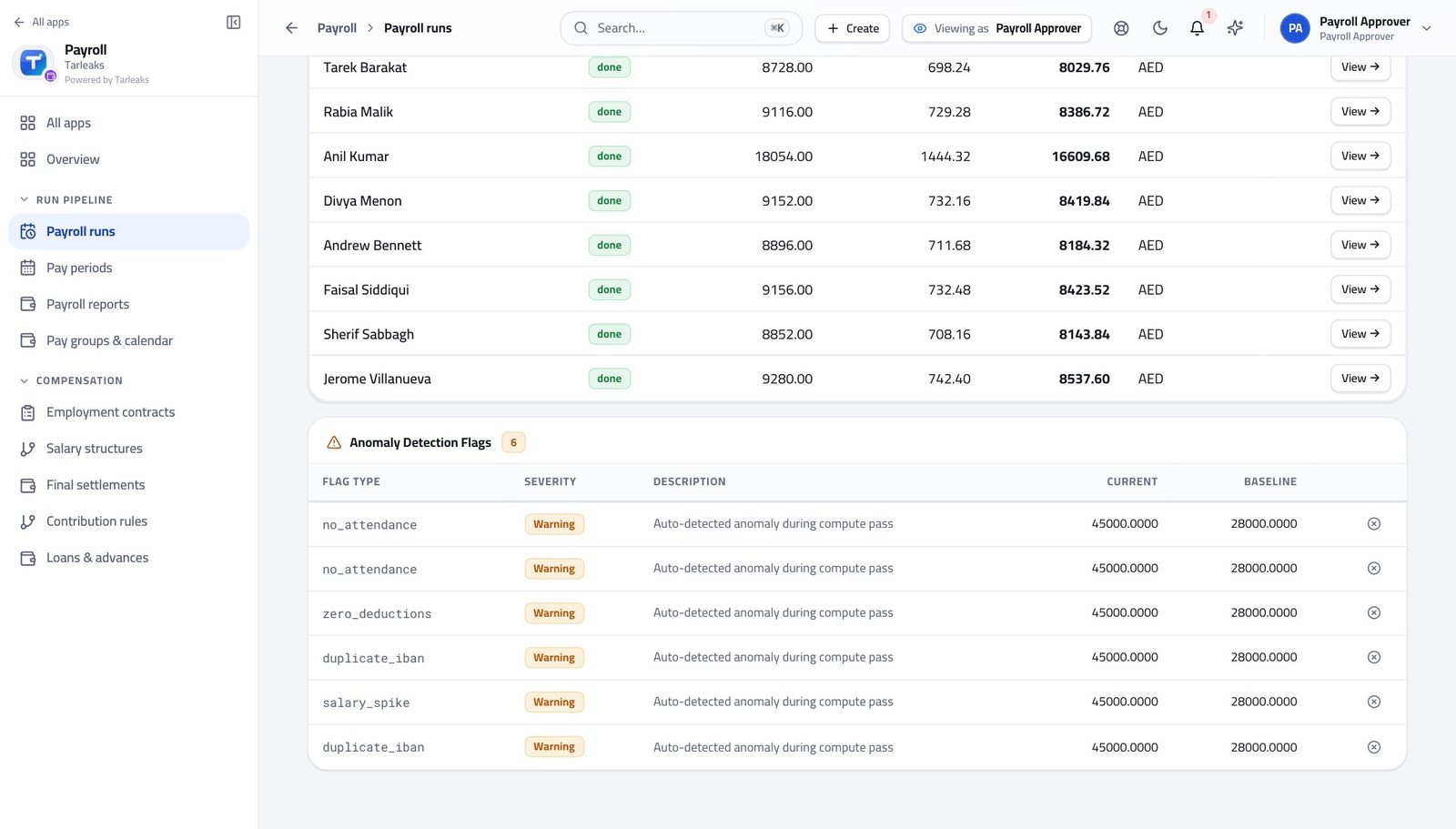
You should see A dismissed flag still shows who dismissed it and why. If a reason does not convince you, send the run back rather than accepting it.
Watch out If a reason does not convince you, reject the run with that as the reason. Accepting a weak explanation is how a bad payroll gets signed.
Read the run's history before adding to it #
Where Payroll » Payroll runs » Open » Run history
- From the launcher, click the Payroll tile.
- In the left menu, under RUN PIPELINE, click Payroll runs.
- Press Open on the run you want.
- Scroll to the run's history.
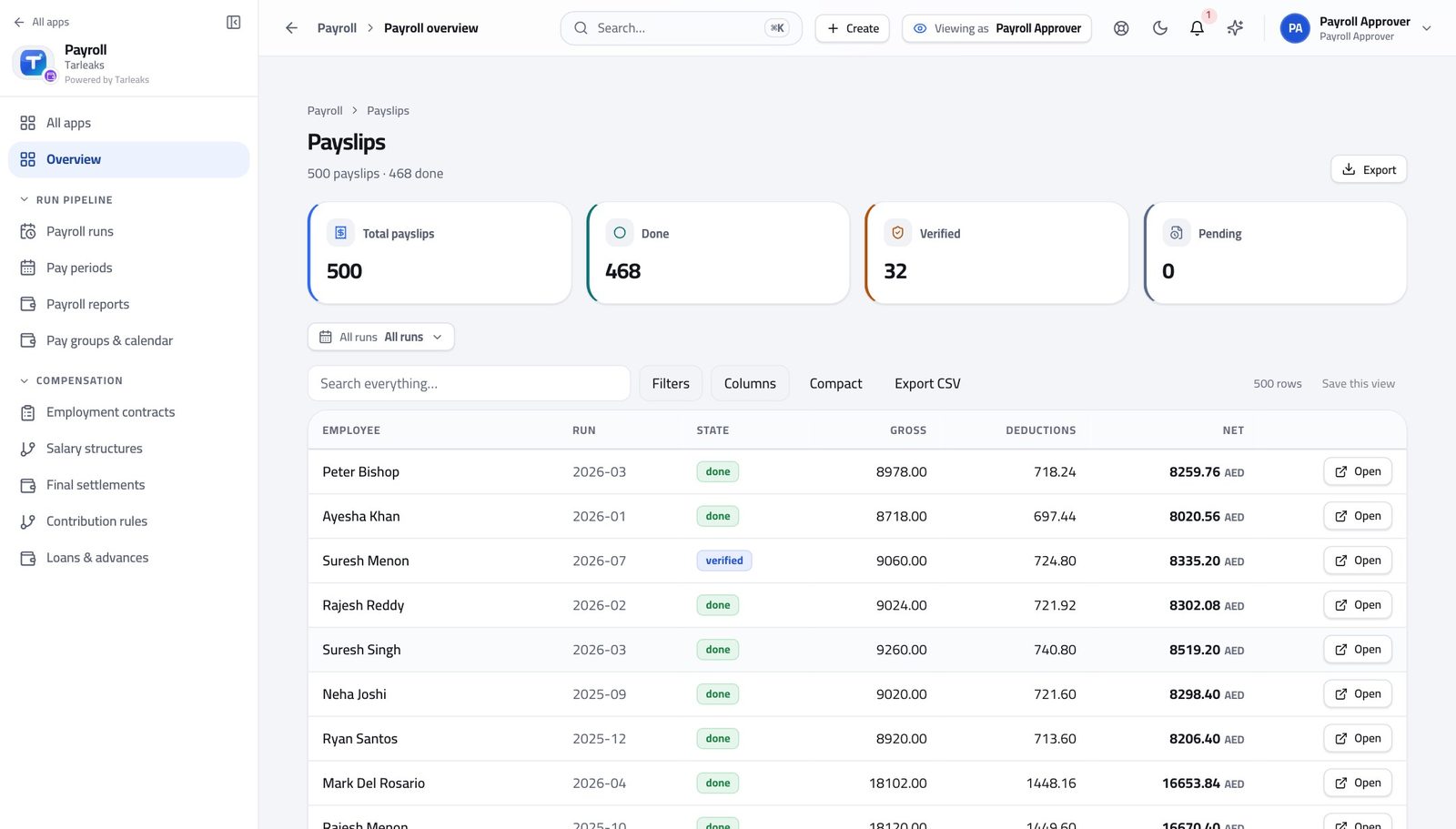
You should see Who created it, who calculated it and who submitted it — with times. Your approval becomes the next line, permanently.
Watch out Your approval becomes the next line and never comes off. That is the point.
Go from a total to the person behind it #
Where Payroll » Payroll runs » Open » Payslips
- Open the run and scroll to the payslips, or open Payslips from the left menu.
- Sort by net, or search for the person the variance flagged.
- Press View on their row.
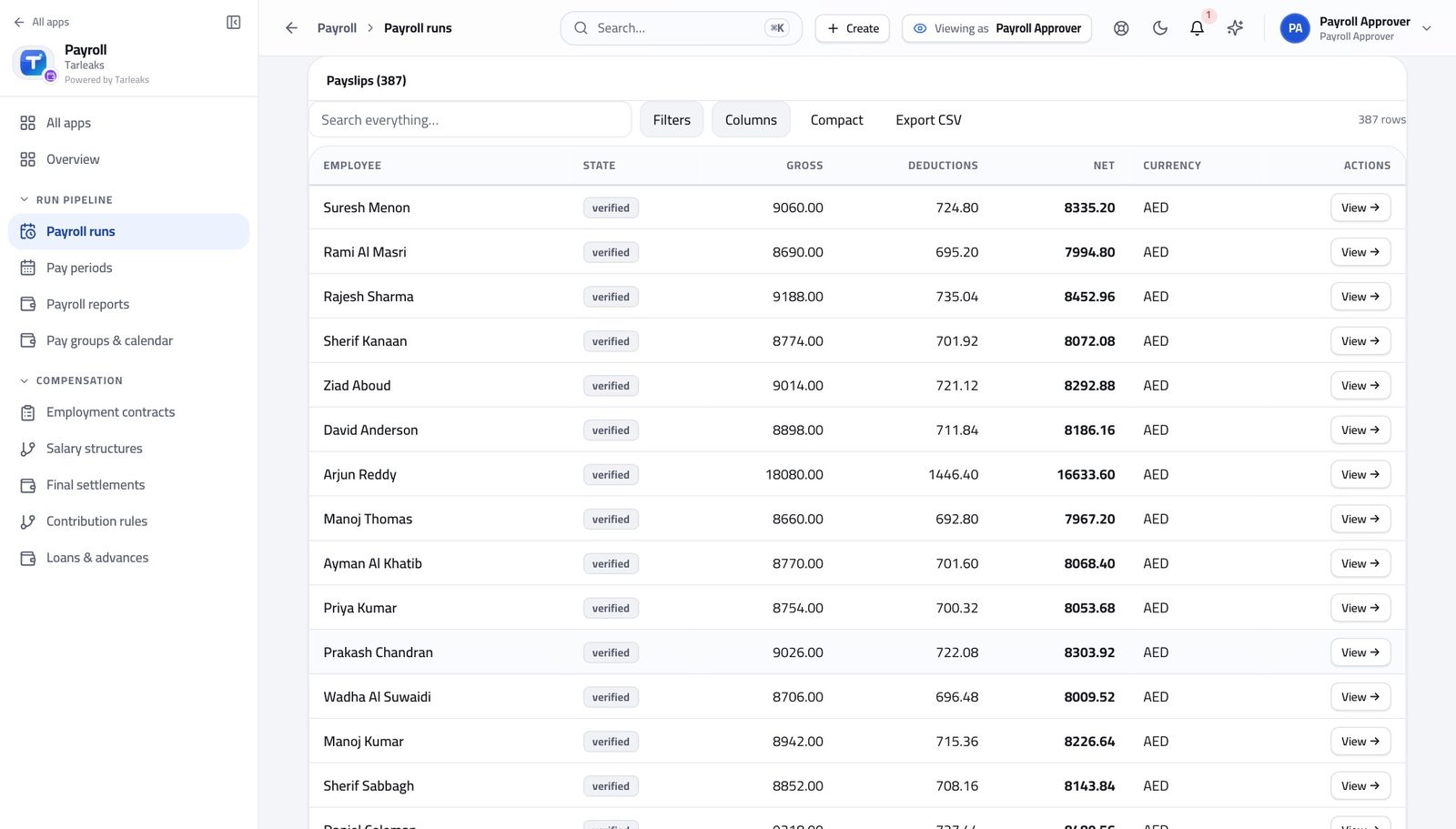
You should see Every payslip in the run, led by the person's name, and each one opens the full line-by-line breakdown.
Watch out If the variance flagged somebody, open their slip rather than accepting the reason on the summary. It takes ten seconds.
Read the bank file's history #
Where Payroll » Payroll runs » Open » Bank / WPS
- From the launcher, click the Payroll tile.
- In the left menu, under RUN PIPELINE, click Payroll runs.
- Press Open on the run you want.
- Scroll to the bank panel.
- Read the submission log and the banner above it.
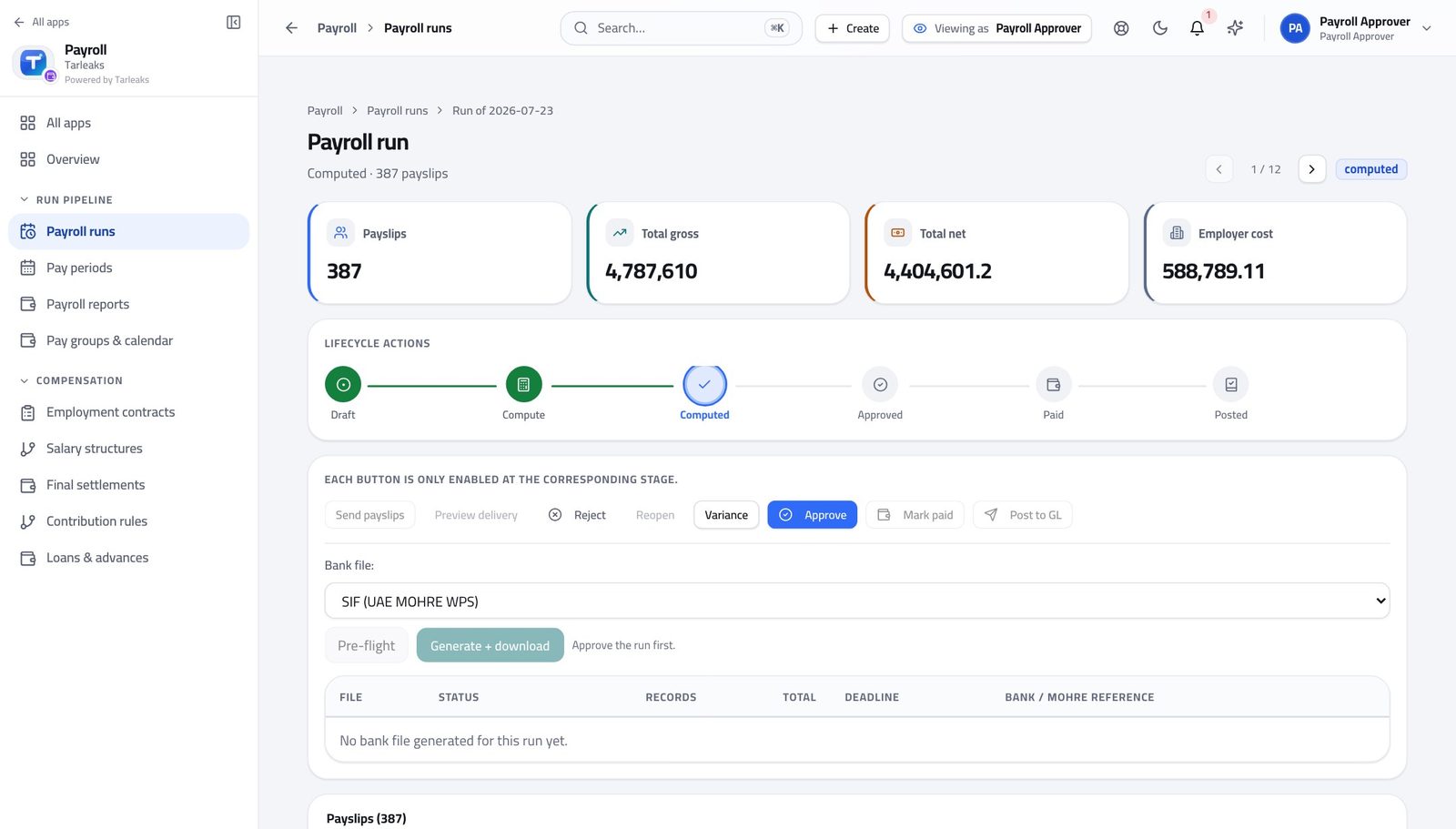
You should see Every file generated for this run, what the bank said about it, the bank reference and how long is left on the statutory window.
Watch out A file marked generated and never submitted looks the same as one nobody made. If the log is empty on a paid run, ask why before you post it.
Record what the bank said #
Where Payroll » Payroll runs » Open » Bank / WPS » Mark submitted
- In the bank panel, press Mark submitted on the file you sent.
- Enter the reference the bank gave you.
- When they confirm, press Accepted. If they bounce it, press Rejected and type the reason.
- After a rejection, press Regenerate + resubmit.
| Field | What to put in it |
|---|---|
| Bank / MOHRE reference | Whatever the bank or the portal gave you back. This is what you will be asked for if a salary goes missing. |
| Rejection reason | Required on a rejection. Copy the bank's own wording rather than paraphrasing it. |
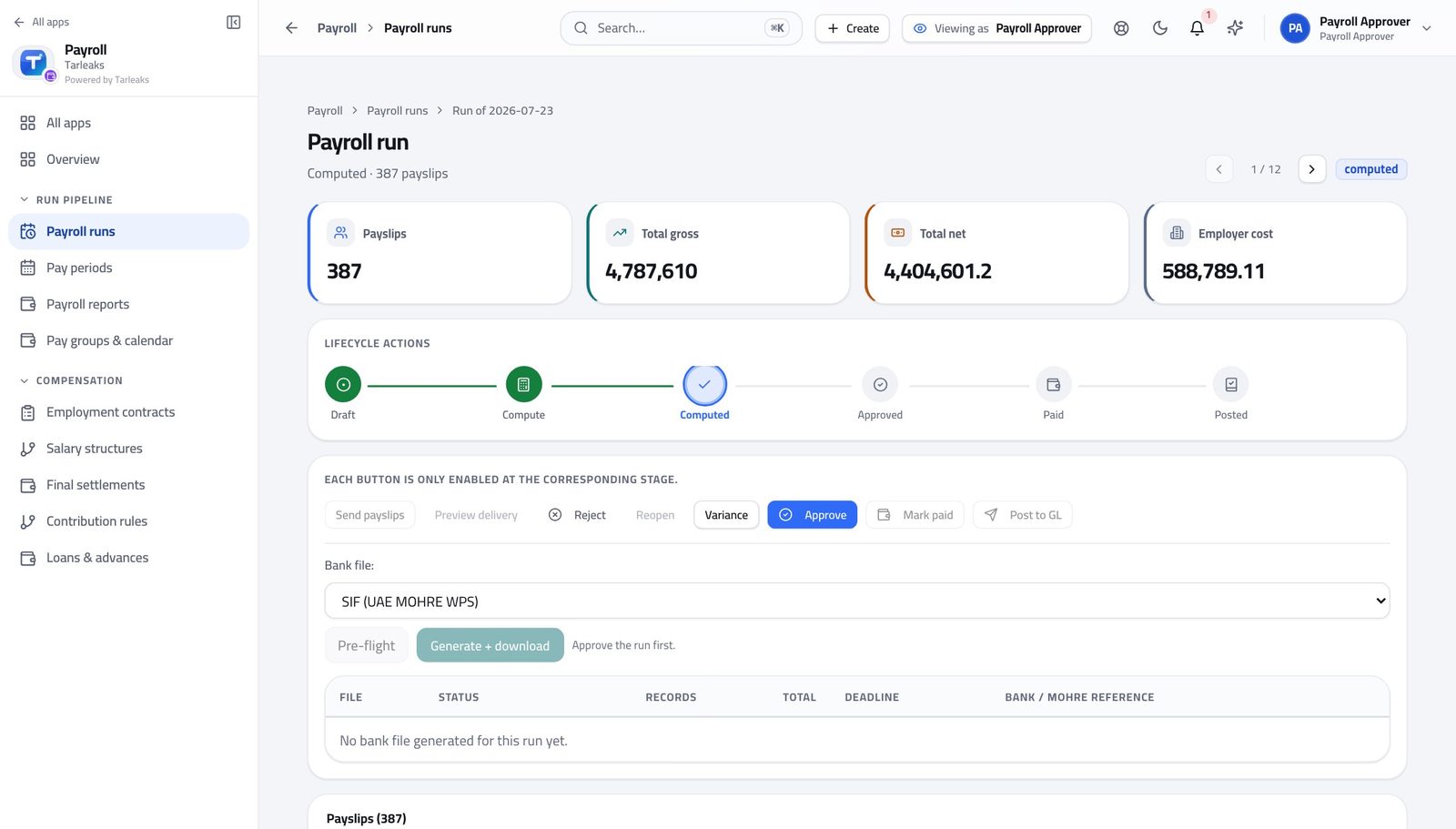
You should see The log stops being a list of files and becomes the answer to "was everyone paid, and if not, why not" — with the statutory deadline counting down beside it.
Watch out Record the submission the same day. The deadline in the log is statutory and counts from the end of the pay period, not from when you got round to it.
Check the file can actually be produced #
Where Payroll » Payroll runs » Open » Bank / WPS » Pre-flight
- In the same bank panel, choose the format and press Pre-flight.
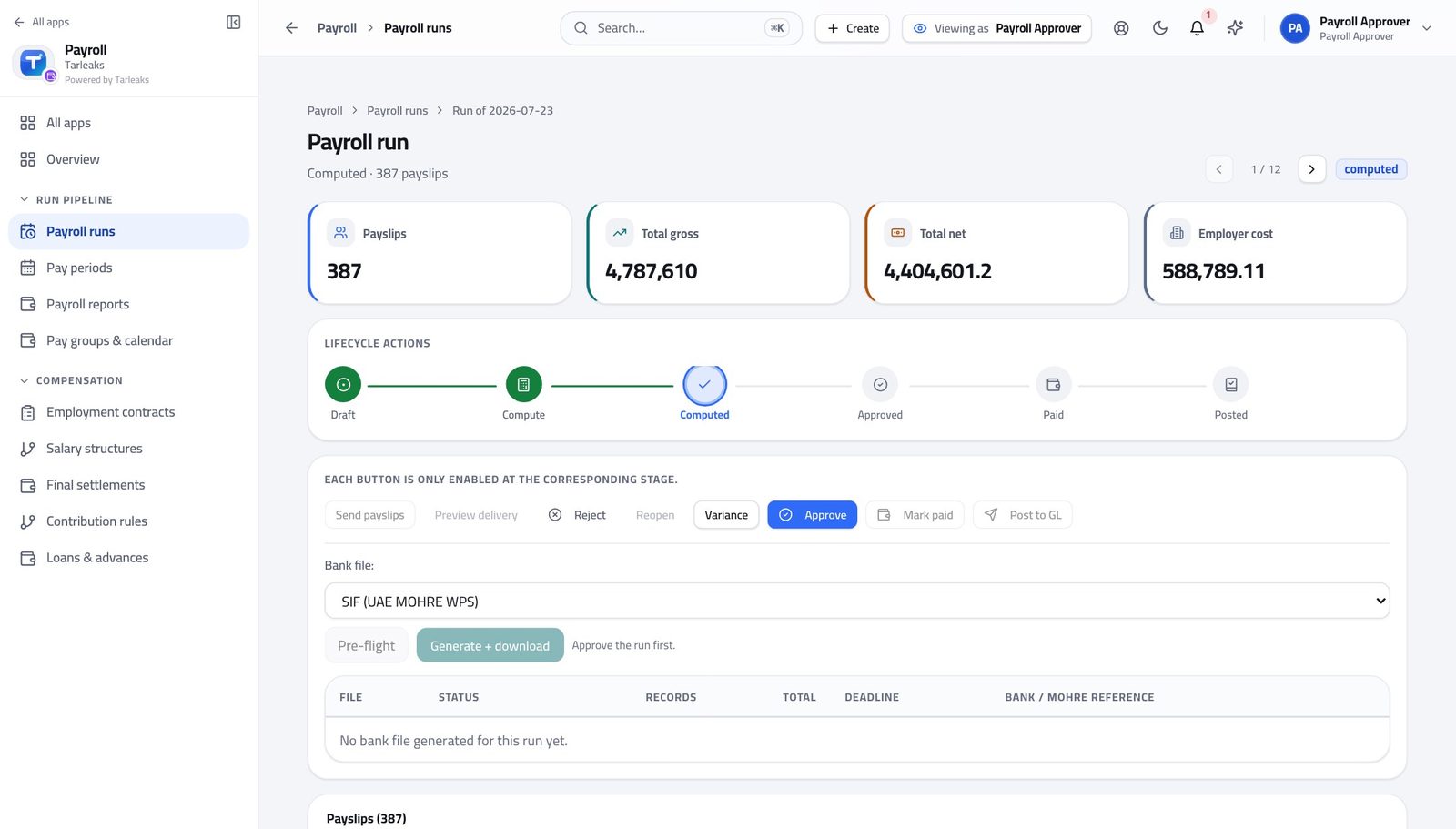
You should see Approving a run whose bank file cannot be produced only moves the problem to the day the salaries are due. Two seconds here saves that.
Watch out Approving a run whose file cannot be produced only moves the problem to payday. Two seconds here saves that.
Decide on the loans waiting for you #
Where Payroll » Loans & advances » open a loan
- Open Loans & advances.
- Click a pending row to open it.
- Read the principal, the term and the schedule.
- Press Approve, or Reject with a reason.
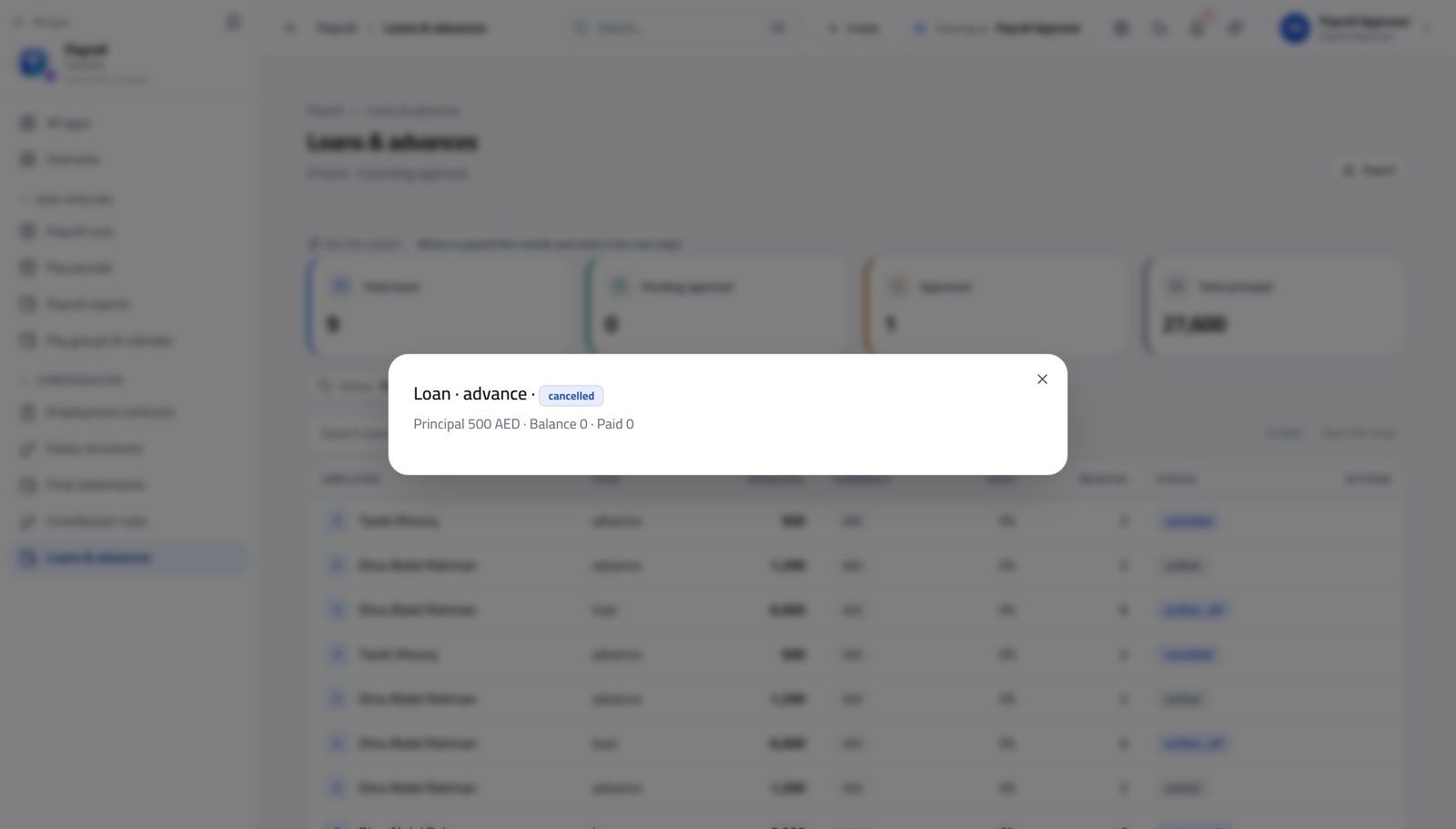
You should see Approving generates the instalment schedule that every future run deducts automatically. Rejecting keeps your reason on the record.
Watch out You cannot approve a loan you asked for yourself — the system refuses it. If the loan is yours, somebody else decides it.
Worth knowing You cannot approve a loan you asked for yourself. If a loan is yours, somebody else decides it.
Decide on the leavers waiting for you #
Where Payroll » Final settlements
- In the left menu, under COMPENSATION, click Final settlements.
- Click a leaver's name.
- Read the itemised lines and the clearance list, then approve.
- Once approved, use Pay, then Post to GL.
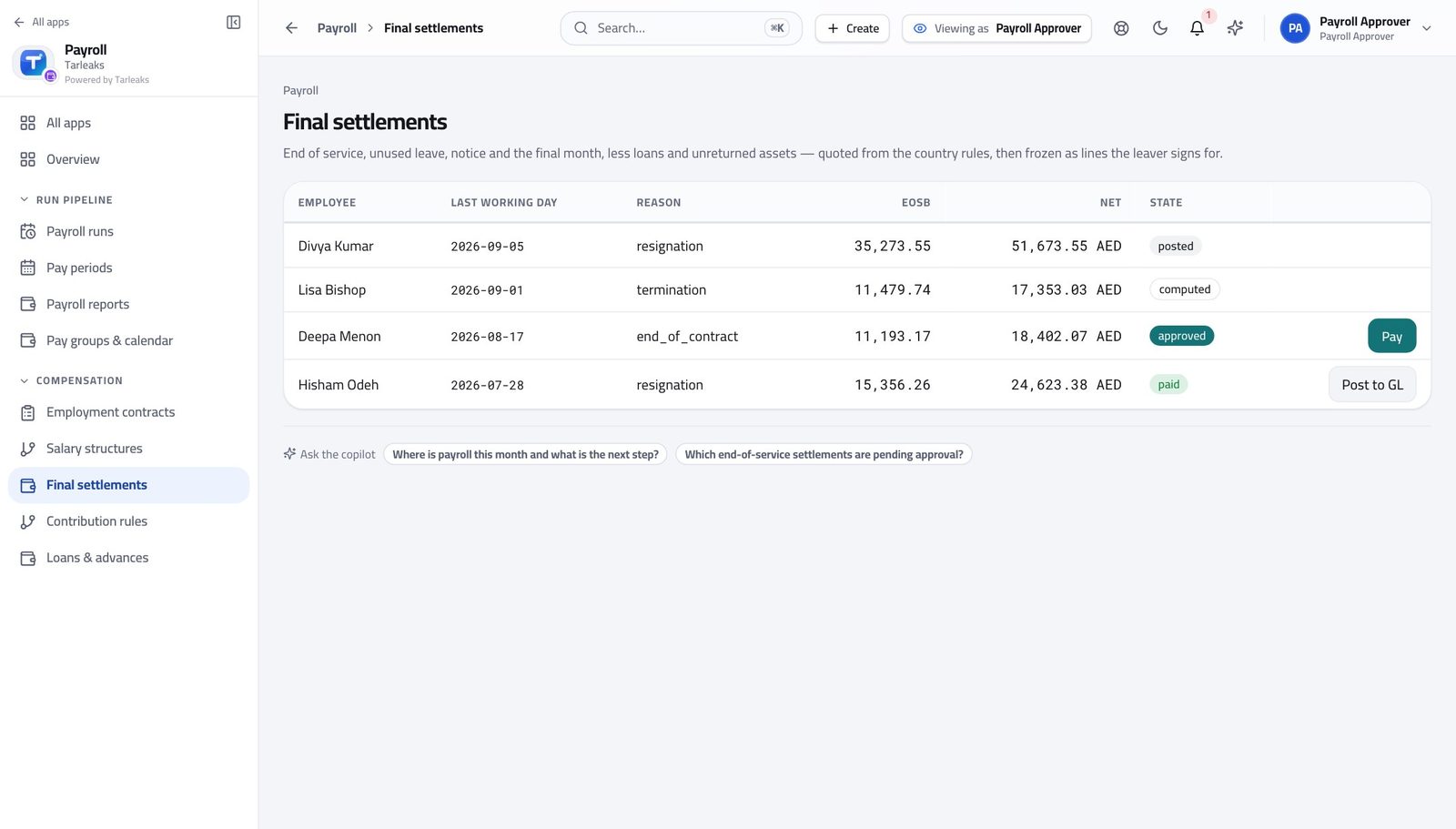
You should see End of service, unused leave, notice and the final month, less loans and anything not handed back. Outstanding clearance items are counted, and approval refuses while they are open.
Watch out A settlement walks the same one-way road as a run: draft, approved, paid, posted. Cancel is only available before it is paid.
You cannot create the thing you check #
Where Payroll » Payroll runs
- Open Payroll runs and look at the top of the page.
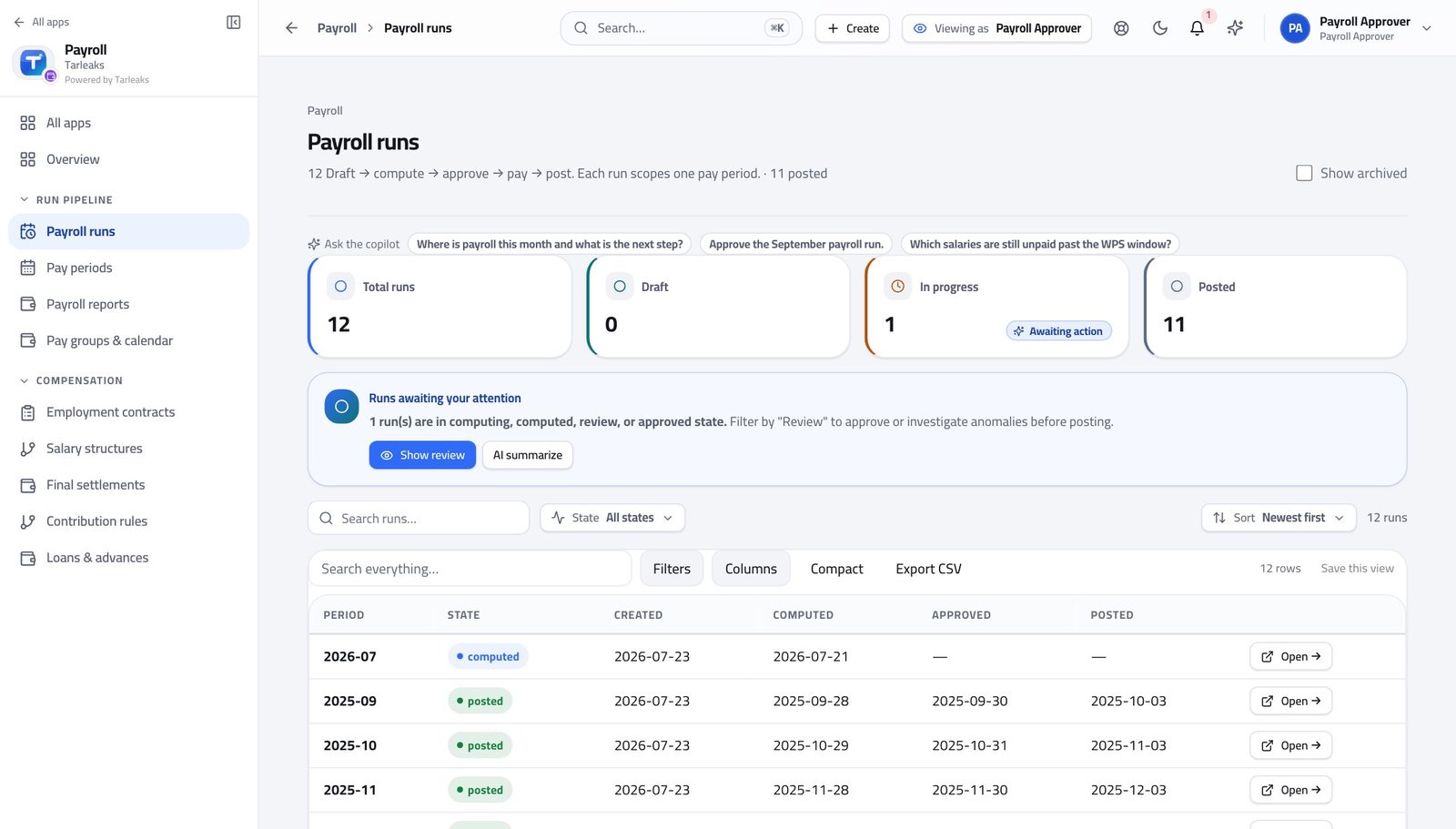
You should see If your queue is empty, that is a question for the person who prepares runs — not a button for you. The checker creating the work would collapse the whole control.
Watch out This is deliberate and it is not negotiable. The checker creating the work would collapse the whole control.
You cannot change what anyone is paid #
Where Payroll » Employment contracts
- Open Employment contracts.
- Tick a few rows and look at the bar that appears.
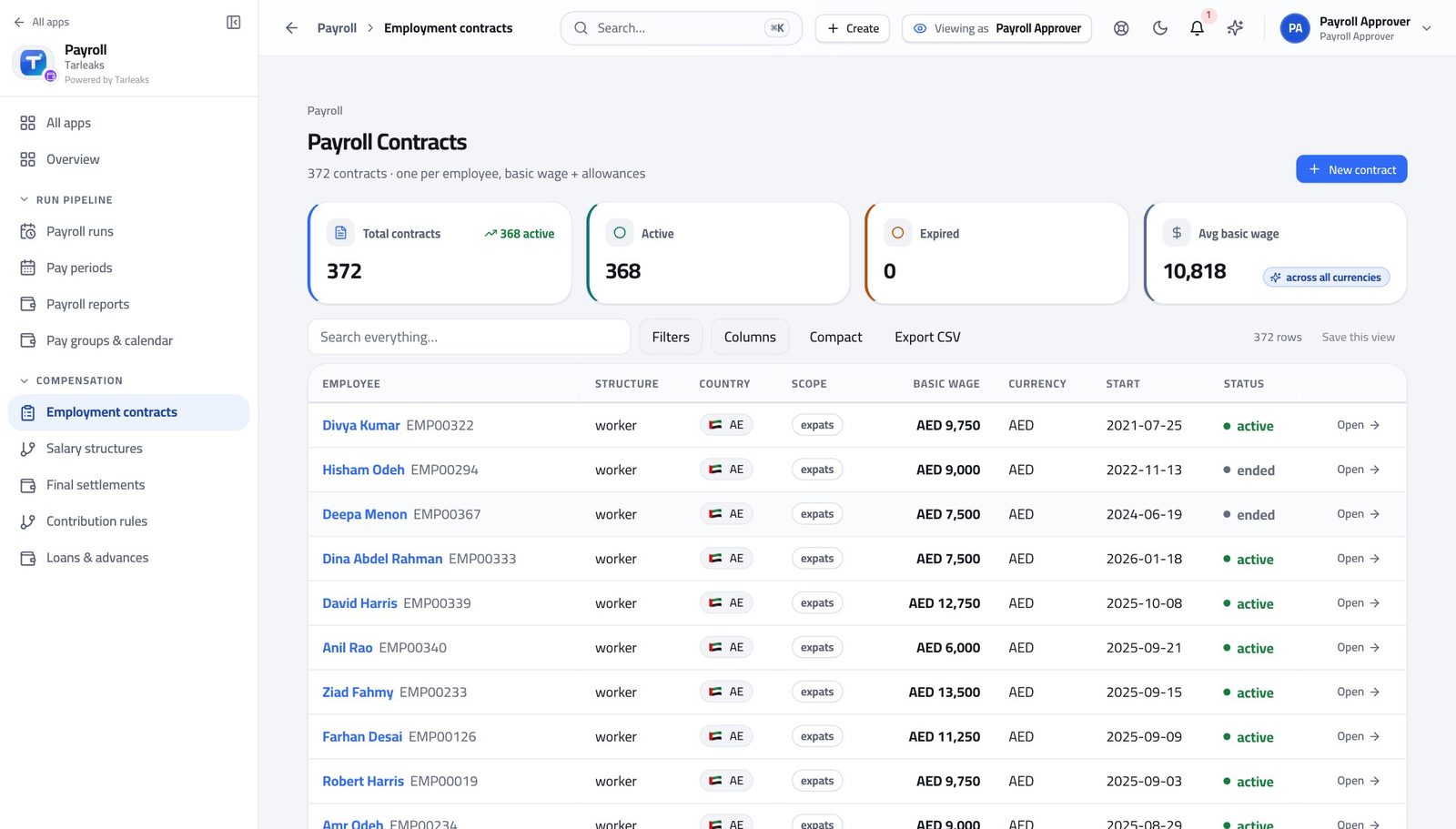
You should see Reading what somebody is paid is a completely different authority from changing it, and the split is enforced on the batch exactly as it is on one row.
Watch out Reading what somebody is paid and changing it are different authorities, and the split holds on a batch of four hundred exactly as it does on one.
The hours behind the run are closed to you #
Where Payroll » Work entries is not in your menu.
- Look down the left menu.
- There is no Work entries entry, and no Salary attachments entry.
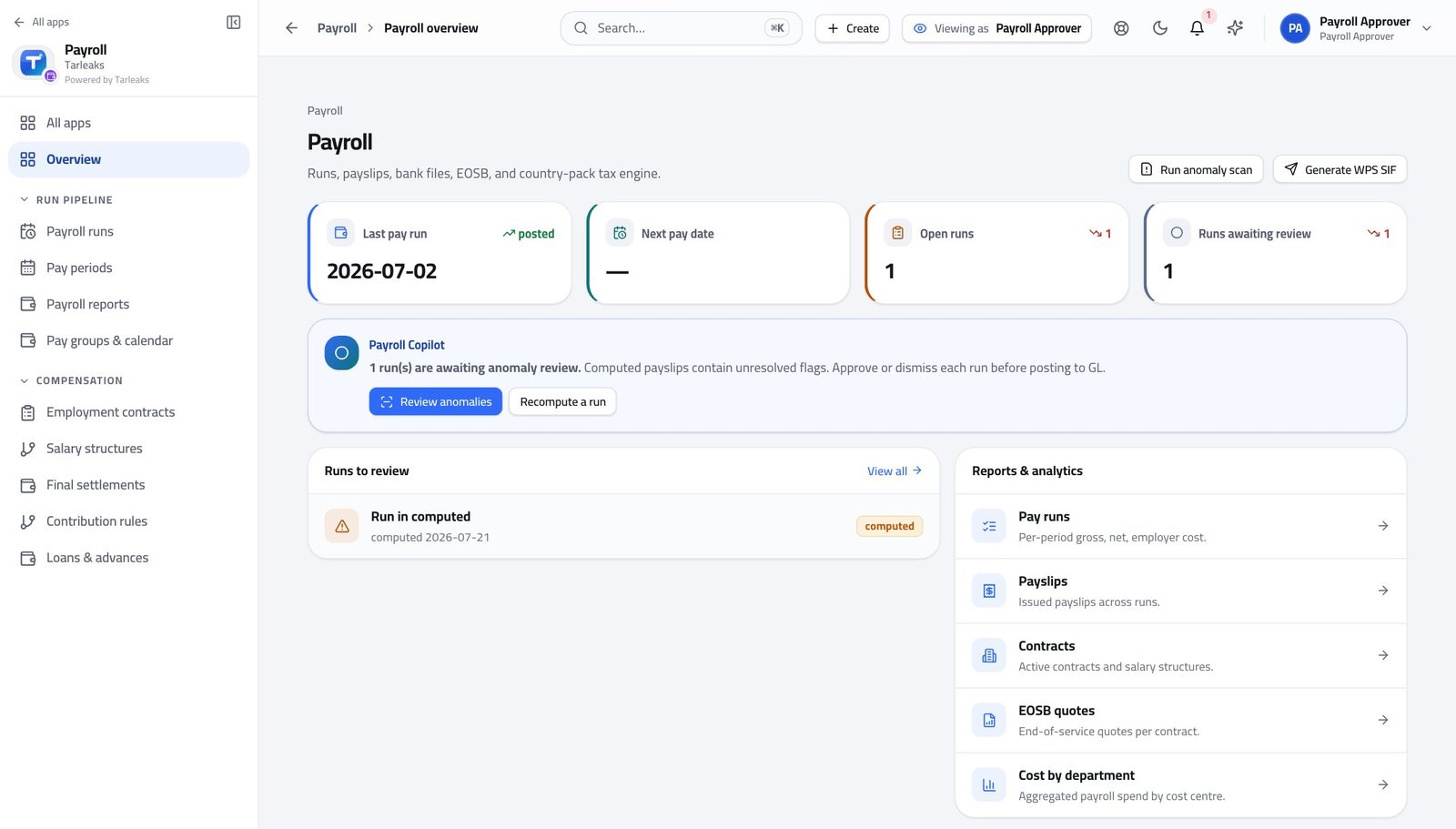
You should see You approve the RESULT of the hours, not the hours. Changing an input after seeing the total is precisely what the split exists to prevent.
Watch out If the hours look wrong, reject the run and say so. Fixing the hours yourself would make your own approval worthless.
Check what the employer owes before you release the money #
Where Payroll » Payroll reports » Contributions
- In the left menu, click Payroll reports.
- Set the two dates and read the employer share on Contributions.
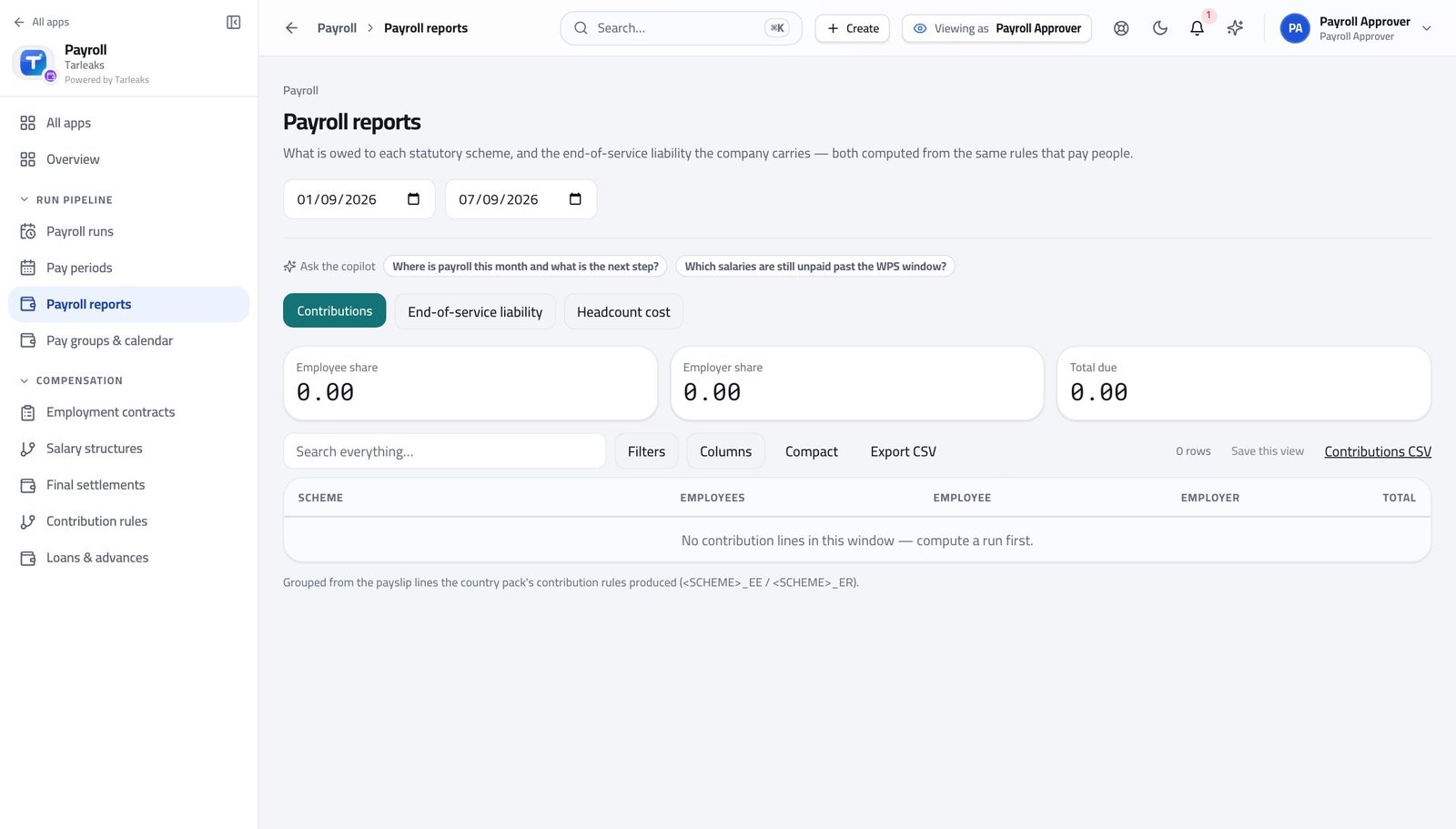
You should see The company's own statutory cost for the period, from the same payslips — so you are approving the full cost, not just the net pay.
Watch out You are approving the full cost, not just what lands in people's accounts. The two differ by a lot in the Gulf.
Use cases — the work, step by step
Each one is a sequence somebody actually performs, with the screen behind every step. Every screen here was opened in the product as this role before it was published.
monthlySign off a payroll you can defend #
In this order, because the variance is the only screen that finds the eleven people a correct total hides — and once you have seen a reasonable total, you stop looking.
Open the run that is waiting for you. Read the four figures, then stop reading them.
Payroll » Payroll runs » Open — verified: the page says “Lifecycle actions” Open the variance and read the person list. Joiners and leavers should explain most of the movement; anything they do not explain is your question.
Payroll » Payroll runs » Open » Variance — verified: the control is offered Read the flags and the reasons left on the dismissed ones. If a reason does not convince you, it is not a reason.
Payroll » Payroll runs » Open » Anomaly detection flags — verified: the page says “Anomaly Detection Flags” Open the payslips of anybody the variance named. It takes ten seconds and it is the difference between signing and rubber-stamping.
Payroll » Payroll runs » Open » Payslips — verified: the page says “Payslips”; 500 row(s) listed Pre-flight the bank file before you approve, so you are not approving a run that cannot be paid.
Payroll » Payroll runs » Open » Bank / WPS » Pre-flight — verified: the control is offered Approve — the confirmation shows you the variance one last time — then release the money and post it to the accounts.
Payroll » Payroll runs » Open » Lifecycle actions — verified: the page says “Lifecycle actions”; the page says “Mark paid” Record what the bank did with the file. A file generated and never marked submitted looks exactly like one nobody made.
Payroll » Payroll runs » Open » Bank / WPS » Mark submitted — verified: the control is offered
urgentSomething does not look right — send it back #
Fixing it yourself would destroy the only thing that makes your approval worth having.
Confirm what is wrong: open the variance, then the payslips of the people it names.
Payroll » Payroll runs » Open » Variance — verified: the control is offered Press Reject and write what the preparer must fix. The reason stays on the run and they are told.
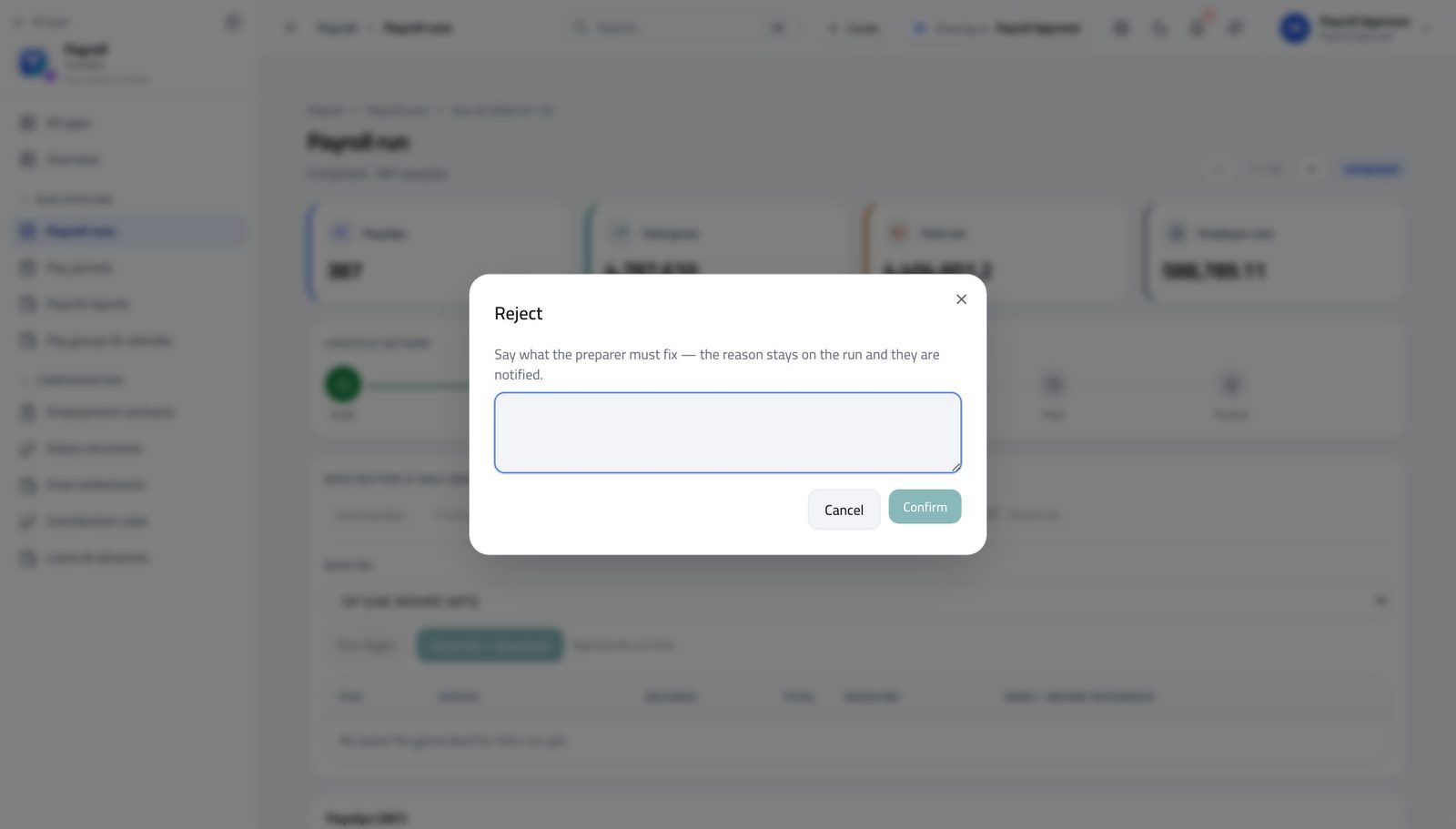
In the product — verified: the control is offered; the control is offered If you have already approved it and it is not yet paid or posted, Reopen clears the approval instead. A paid or posted run cannot be reopened, and that is correct.
Payroll » Payroll runs » Open » Lifecycle actions — verified: the page says “Lifecycle actions”; the page says “Mark paid” The run history now carries both your rejection and whatever happens next, permanently.
Payroll » Payroll runs » Open » Run history — verified: the page says “Lifecycle actions”
weeklyDecide the loans and the leavers waiting on you #
Both queues are people waiting for an answer, and neither one sends you a reminder.
Open a pending loan, read the amount, the term and the schedule it would create, then approve or reject with a reason.
Payroll » Loans & advances » open a loan — verified: the control is offered Open the leavers' settlements. Outstanding clearance items are counted, and approval refuses while they are open.
Payroll » Final settlements — verified: the page says “Final settlements” Check the employer's own cost for the period before you release anything — you are approving the full cost, not just the net.
Payroll » Payroll reports » Contributions — verified: the page says “Payroll reports”
You cannot change a single input — not an hour, not a wage, not a payslip. If something is wrong, reject it with a reason and it goes back to the person who prepared it. Fixing it yourself would destroy the only thing that makes your signature worth having.
Employee
Your pay, your proof of it, and your loans — without asking anyone.
Sees their own pay and nobody else's: every payslip, the salary certificate a bank asks for, and their own loans.
What you will be able to do
- Open any payslip you have ever been paid
- Print the salary certificate a bank or a landlord asks for
- Get the whole year on one page for a mortgage or a tax return
- Ask for an advance and watch it come off your payslips
What this role can and cannot do
| Can | Cannot |
|---|---|
|
|
12 steps, each one carried out in the product on .
Check what your sign-in can do #
Where Your name, top right » Profile
- Open your company's address in the browser — it looks like yourcompany.tarleaks.com.
- Type the e-mail address your administrator set up for you, then your password.
- You land on the app launcher: a grid of the apps your company uses.
- Click your name in the very top-right corner.
- Choose Profile.
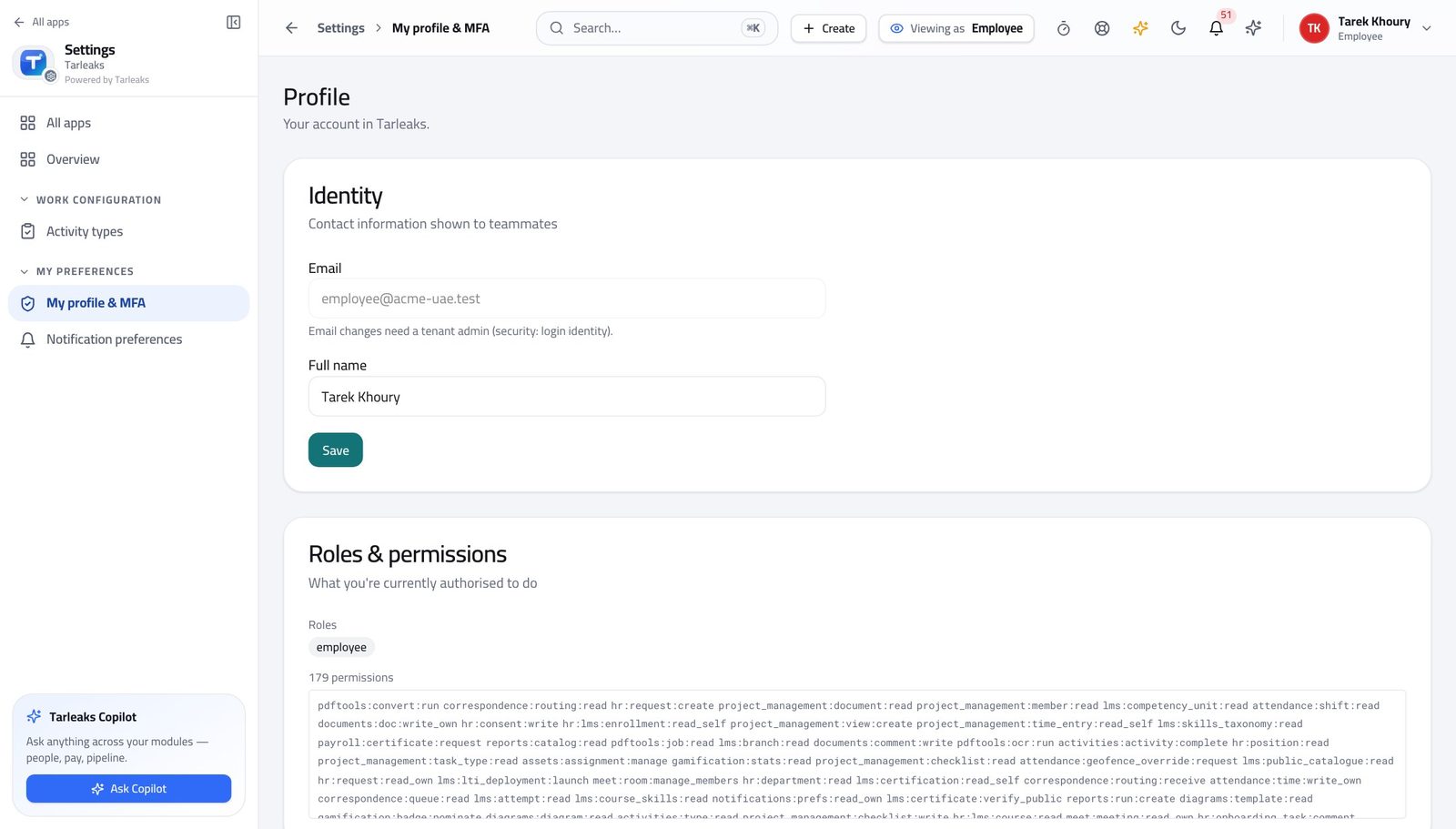
You should see Your own pay and your own loans. There is nothing here that reaches anybody else's — and nobody outside payroll can reach yours either.
Watch out If you think you should see more than your own pay, that is a conversation with your administrator, not a setting you can change.
Open your payslips #
Where Payroll » My payslips
- From the launcher, click the Payroll tile.
- In the left menu, under SELF SERVICE, click My payslips.
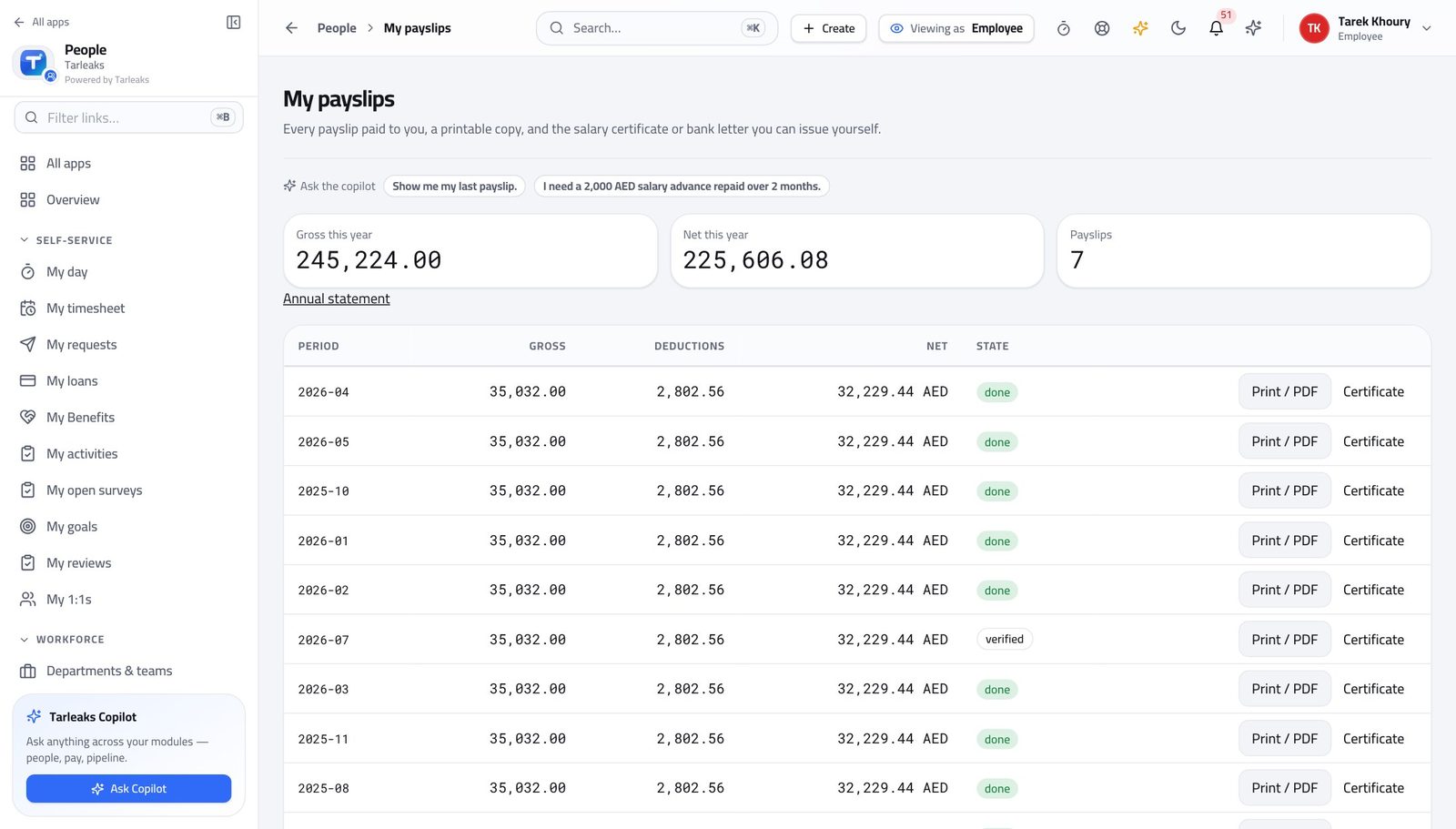
You should see Every month you have been paid in this company, newest first, with gross, deductions and net on each row.
Watch out The list is your own by construction. There is no filter to remove and nothing to get wrong.
Read one payslip properly #
Where Payroll » My payslips » pick a month
- On My payslips, click the month you want.
- Read the sections in order: basic, allowances, deductions, net.
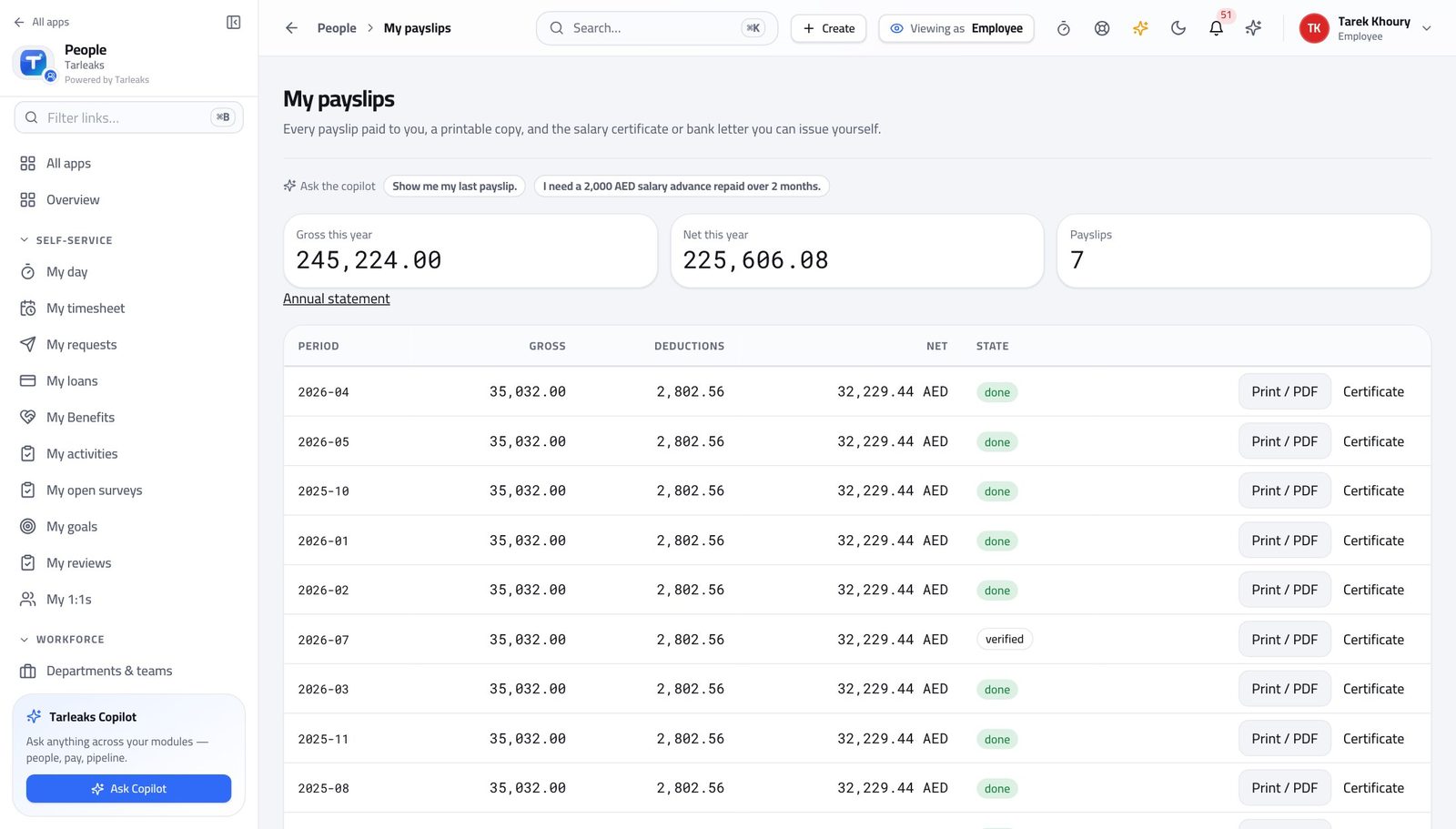
You should see Every line with its own amount, grouped so you can see what was added and what was taken. The rulebook version it was calculated under is printed on it — which is why an old payslip still adds up years later.
Watch out A deduction you do not recognise is almost always a loan instalment or a court order. Both have their own screens, and both show you the whole schedule.
Worth knowing If a deduction you do not recognise appears, it is almost always a loan instalment or a court order. Both have their own screens.
Print a payslip #
Where Payroll » My payslips » Print / PDF
- Find the month you need.
- Press Print / PDF on its row.
- Save it from your browser's print dialog.
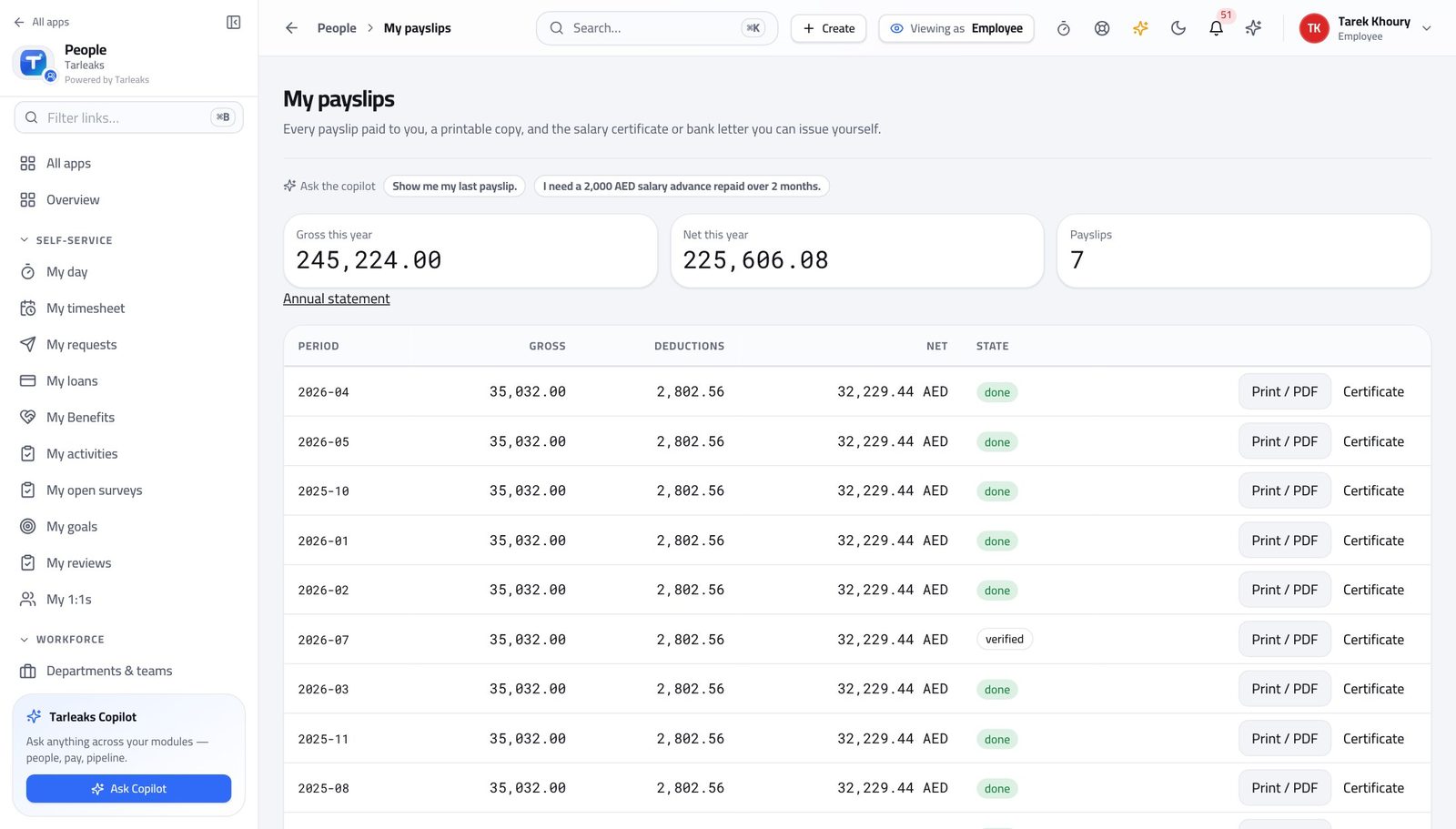
You should see A clean printable page with your employer's details on it — the version a landlord or an embassy will accept.
Watch out Banks, embassies and landlords accept this. You do not need to ask HR for a stamped copy.
Issue your own salary certificate #
Where Payroll » My payslips » Certificate
- Press Certificate on any month.
- Fill the short form.
- Press Open document and save or print it.
| Field | What to put in it |
|---|---|
| Document | Salary certificate for a general letter, or Bank letter when a specific bank asked for one. |
| Bank | Only for a bank letter — the bank's name as they wrote it. |
| Addressed to | Who it is for. Leave it empty for "To whom it may concern". |
| Purpose | Why it is being issued — a visa, a loan, a tenancy. Some authorities want this on the letter. |
| Language | English or Arabic. Arabic prints right to left. |
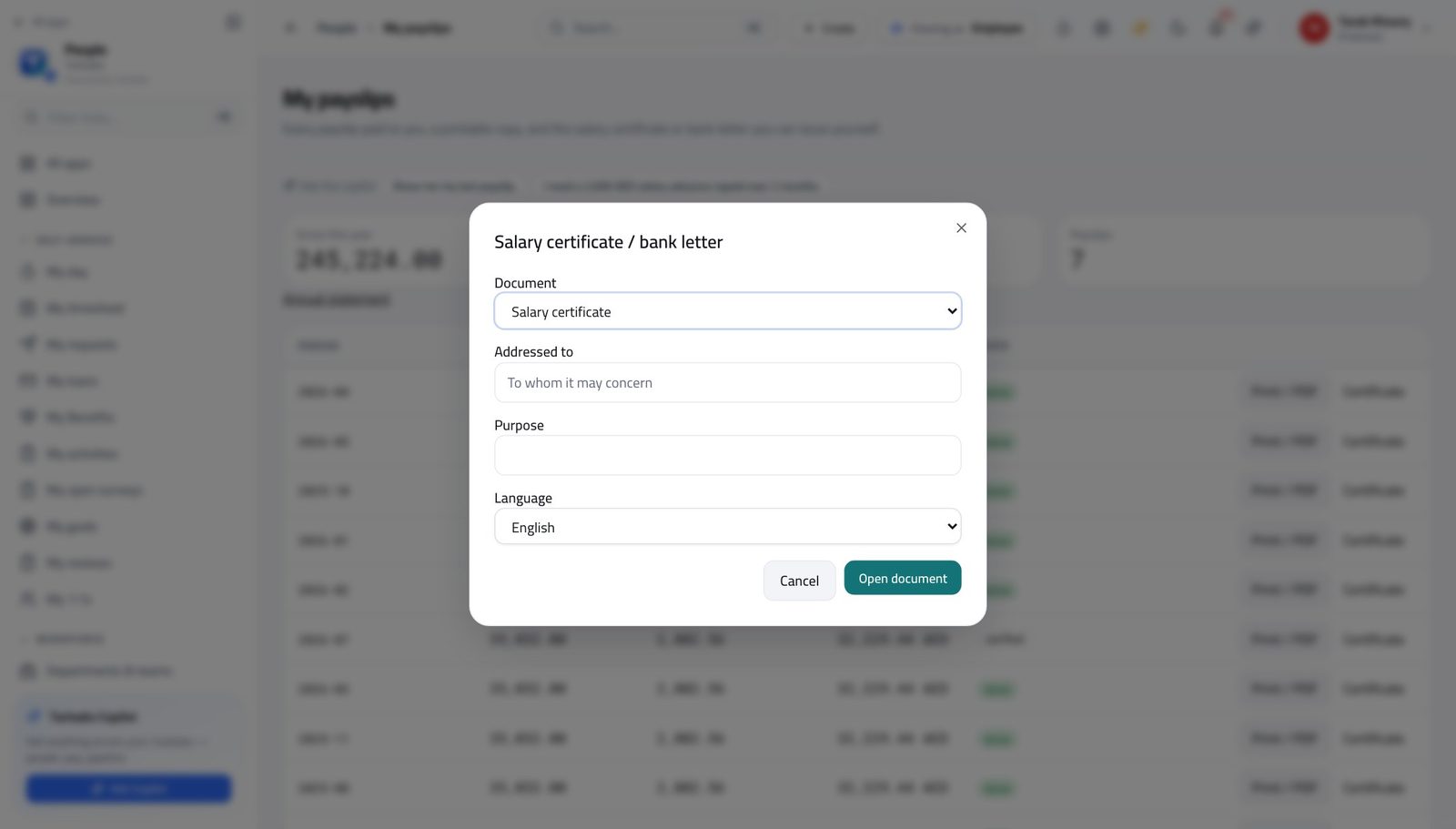
You should see The letter people normally email HR for and wait three days. It is filled in from the pay you were actually paid, in English or Arabic.
Watch out It is filled in from the pay you were actually paid, so it agrees with your payslips by construction. Nobody has to check it.
Get the whole year on one page #
Where Payroll » My payslips » Annual statement
- At the top of My payslips, press Annual statement.
- Save or print the page that opens.
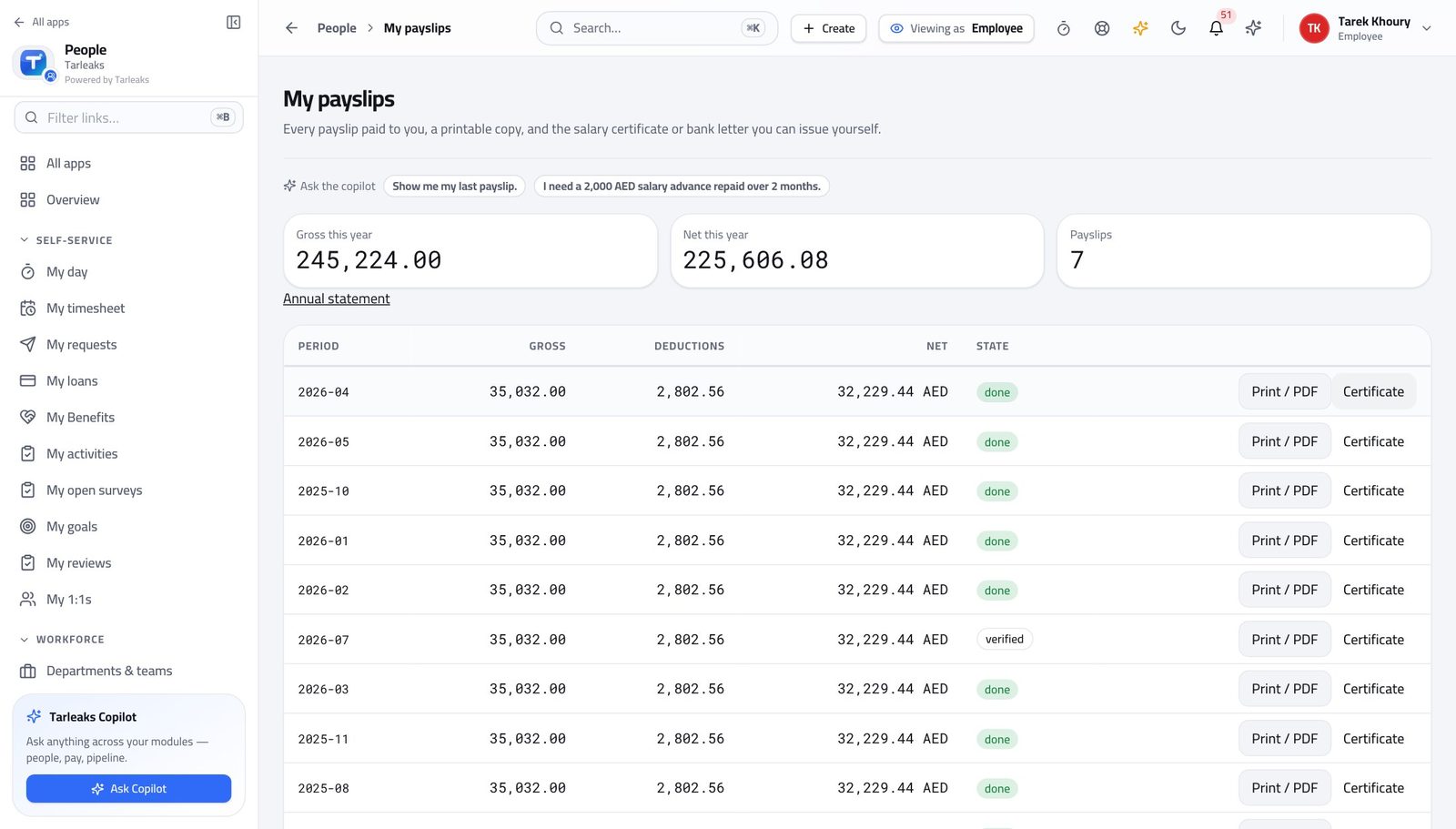
You should see Twelve payslips summarised on one sheet — what a mortgage application or an annual tax return asks for, instead of a stack of monthly slips.
Watch out Only months already paid appear. Asking for the statement in January gives you a very short document.
See your loans and what is left to pay #
Where HR » My loans
- In the left menu, under SELF-SERVICE, click My loans.
- Read the policy banner at the top.
- Press Schedule on a loan to see every instalment.
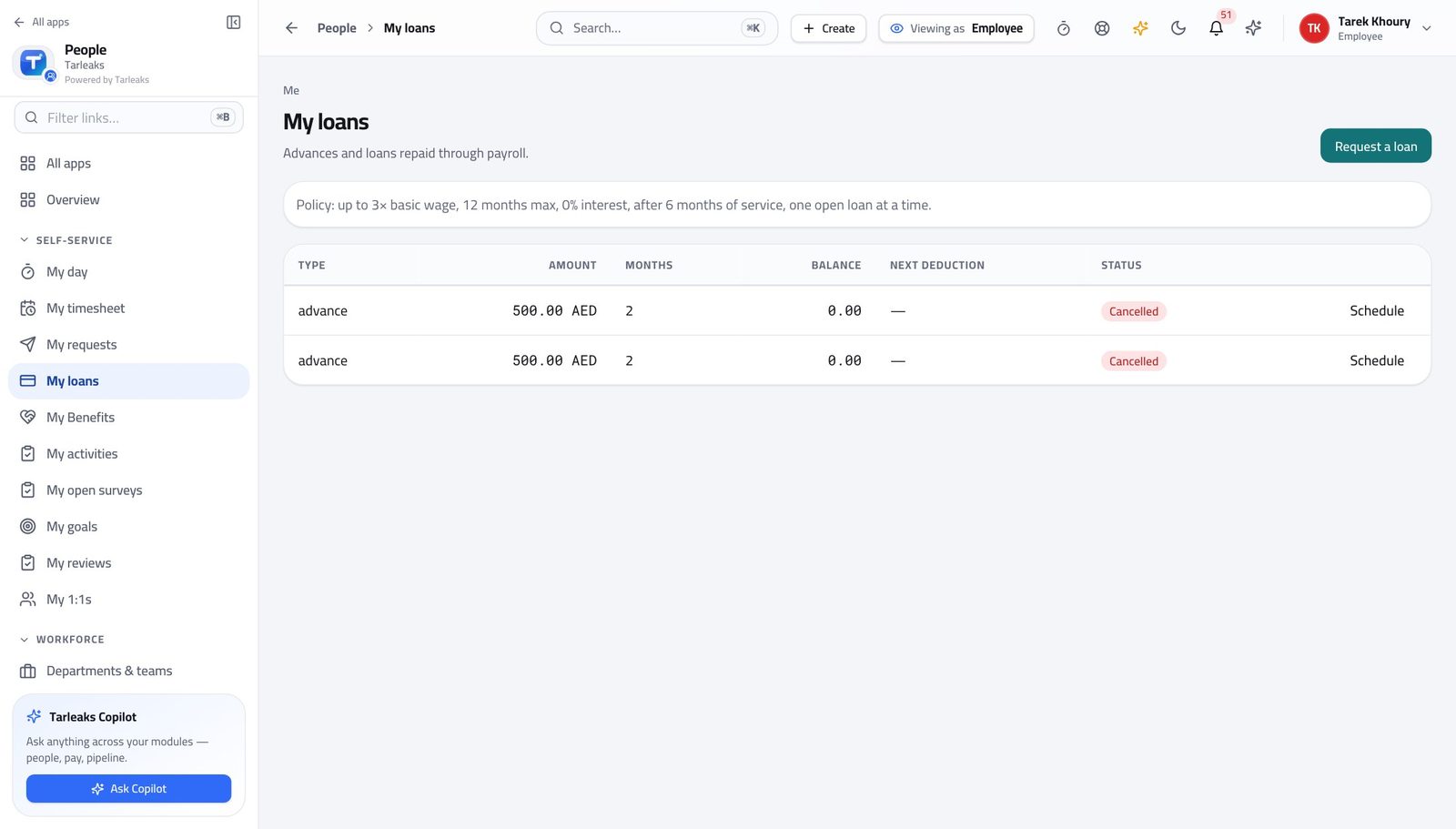
You should see What you borrowed, what has been deducted, what is left and when the next deduction comes off. The banner above the list is the company's lending rules, so you know what you can ask for before you ask.
Watch out The banner is the company's own limits: how many months, how many times your salary, how long you must have worked here, and that you may only have one open loan at a time.
Ask for an advance #
Where HR » My loans » Request a loan
- Press Request a loan.
- Fill the short form.
- Press Submit.
| Field | What to put in it |
|---|---|
| Type | Salary advance, loan or other. |
| Amount | Within the multiple of salary the banner allows. |
| Months | Within the maximum the banner allows — the form refuses more. |
| Reason | A sentence. Somebody reads it before deciding. |
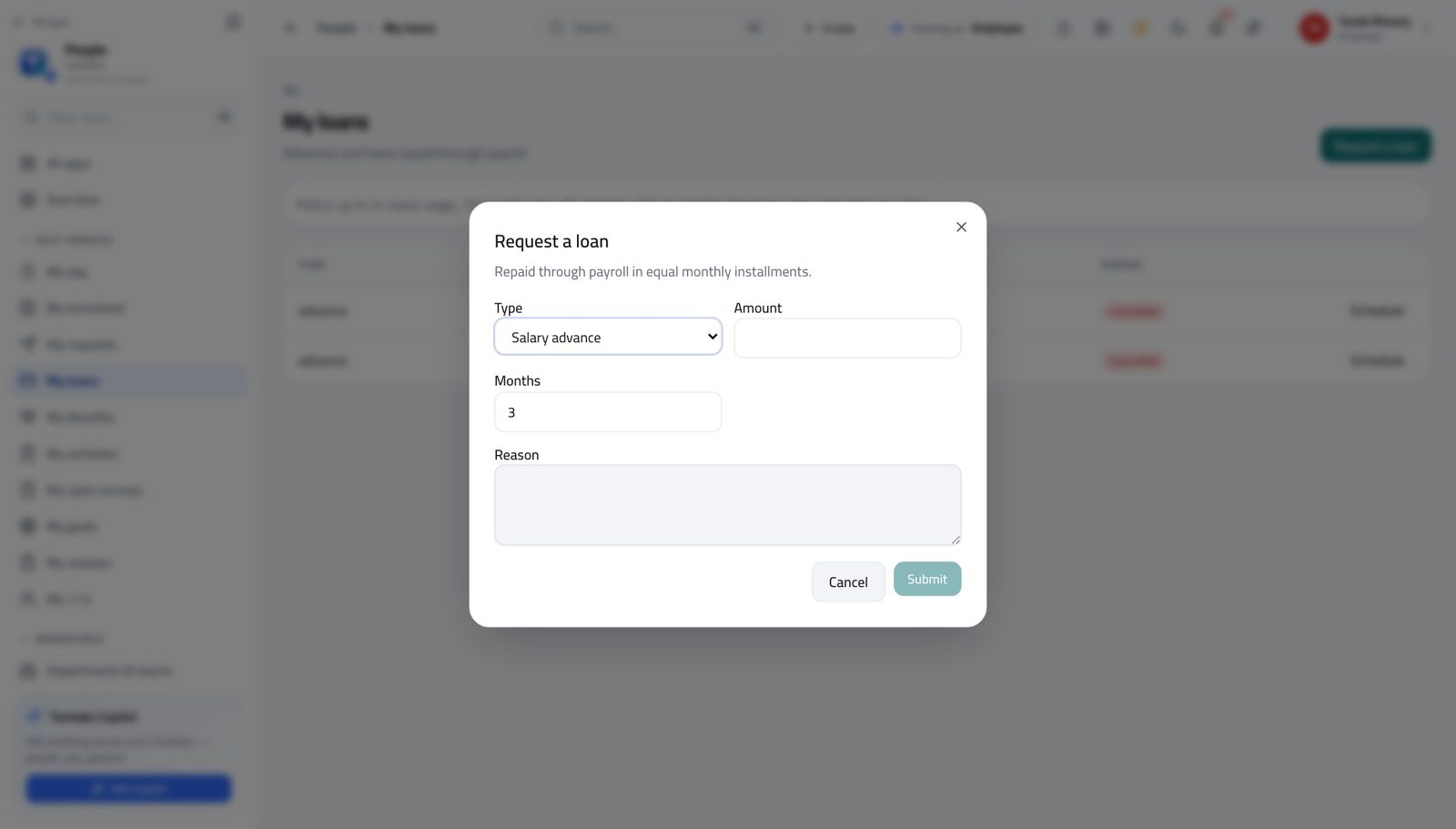
You should see The request goes to payroll as pending. The banner above the form is the company's own limits, so a request inside them is one nobody has to argue with.
Watch out You can withdraw a request while it is still pending. Once it is approved the schedule exists and payroll starts deducting on the date it names.
Worth knowing You can withdraw a request while it is still pending. Once it is approved the schedule exists and payroll starts deducting.
Everybody else's loans are closed to you #
Where Payroll » Loans & advances is not in your menu.
- From any payroll screen, look down the left menu.
- There is no company-wide loan list — only My payslips under SELF SERVICE.
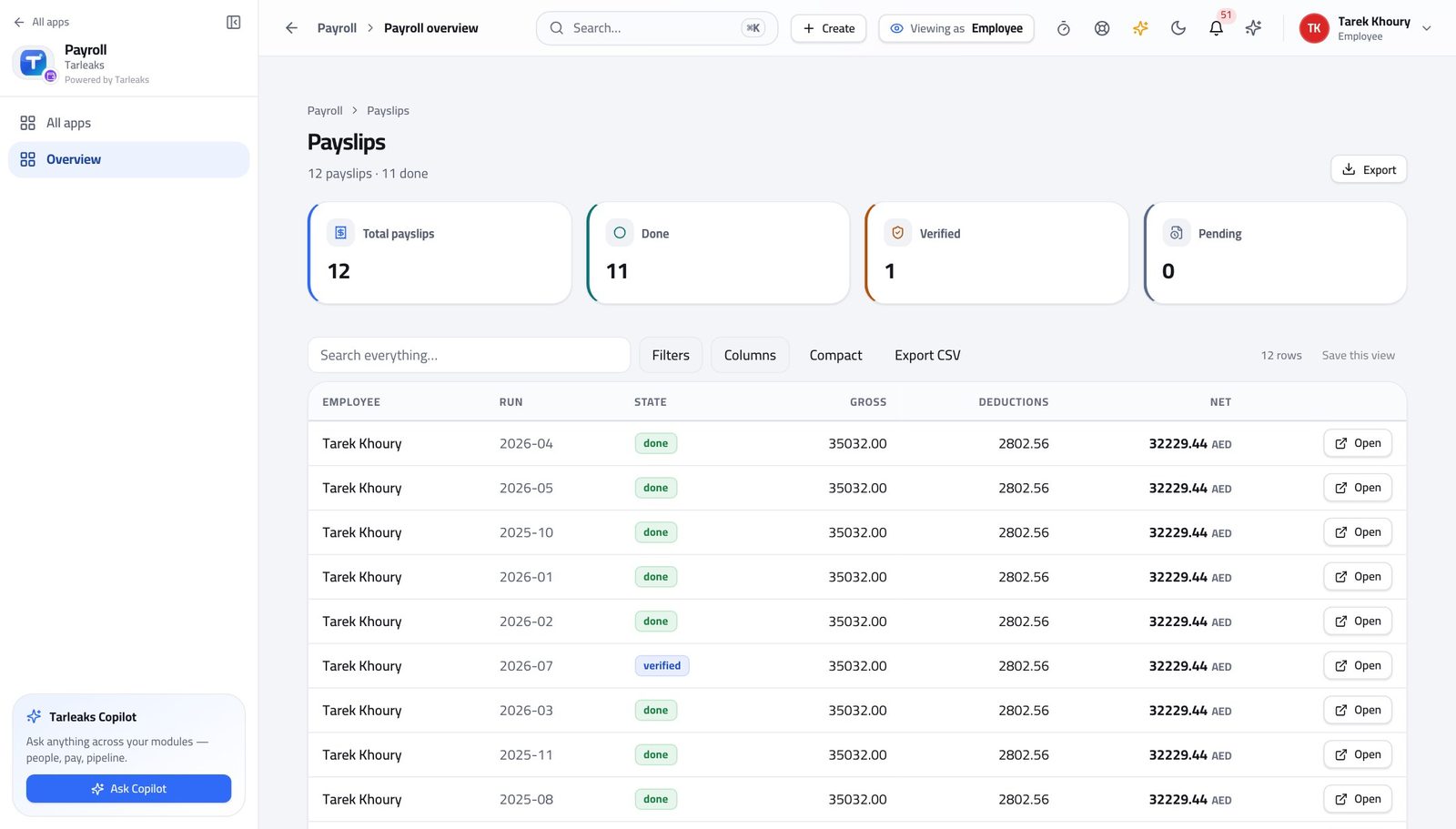
You should see Your own borrowing is yours to see. Your colleague's is not, and the same rule protects yours.
Watch out The same rule that hides your colleague's borrowing from you hides yours from them.
The payroll runs are closed to you #
Where Payroll » Payroll runs is not in your menu.
- Look down the left menu.
- There is no Payroll runs entry.
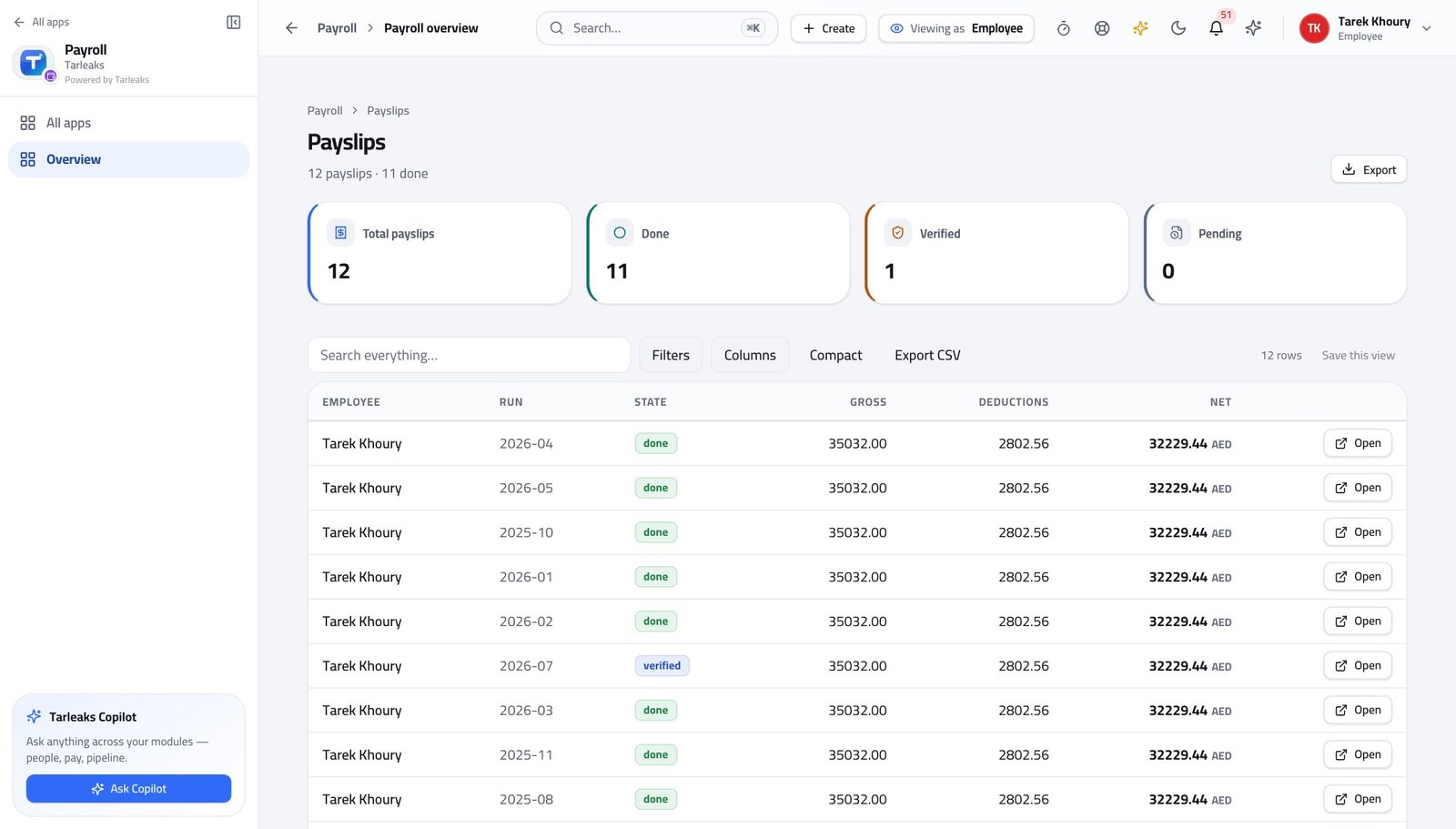
You should see A run holds every salary in the company. Opening one is a payroll job, not an employee one.
Watch out If a payslip looks wrong, raise it with payroll rather than looking for the run. They can see everything you can and more.
The contract list is closed to you #
Where Payroll » Employment contracts is not in your menu.
- Look down the left menu.
- There is no Employment contracts entry.
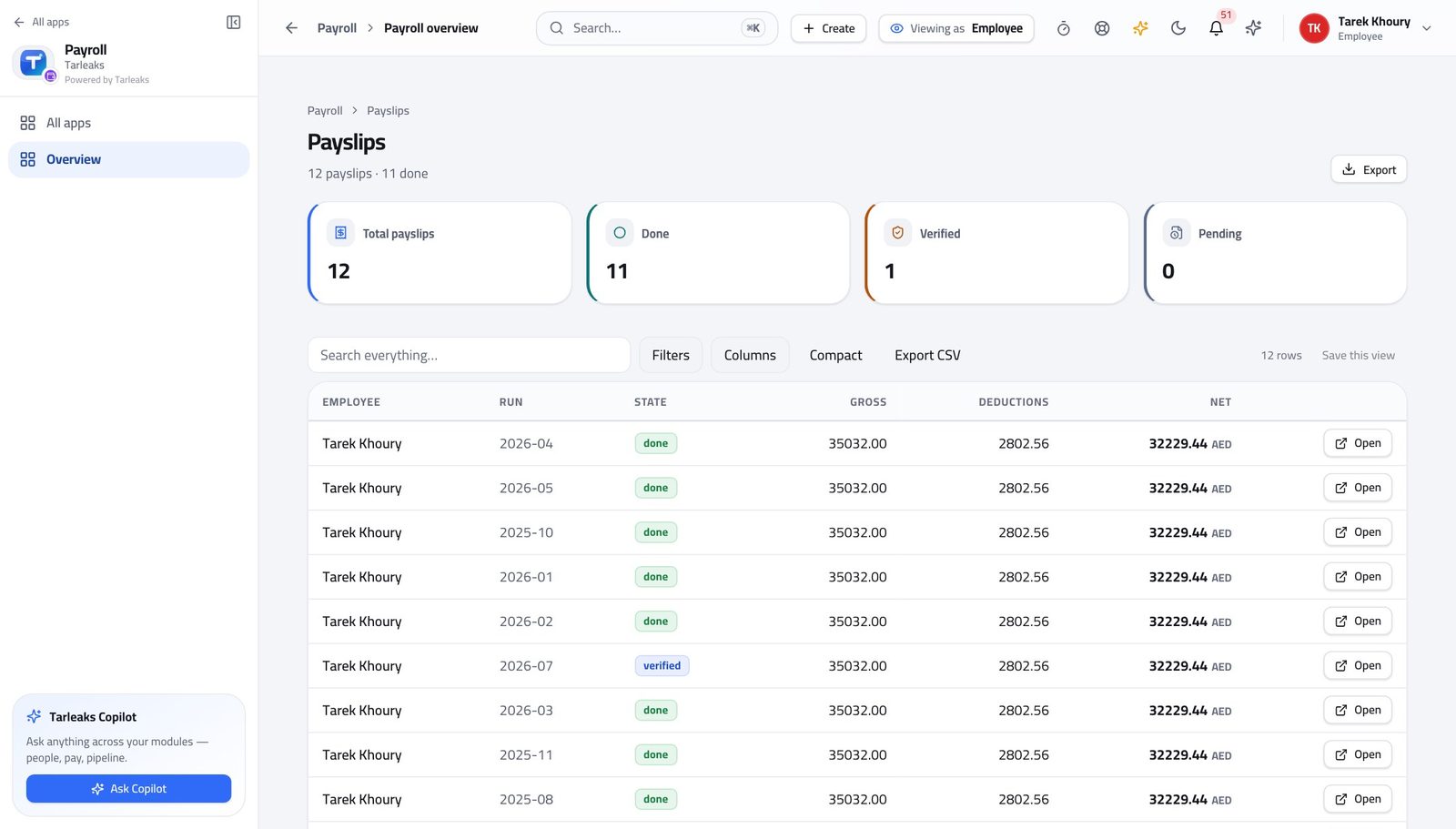
You should see You can see what you are paid. You cannot see what anybody else is paid — and neither can they see yours.
Watch out If your basic looks wrong on the payslip, that is a contract question for HR or payroll — and the payslip is the evidence to bring.
The company reports are closed to you #
Where Payroll » Payroll reports is not in your menu.
- Look down the left menu.
- There is no Payroll reports entry.
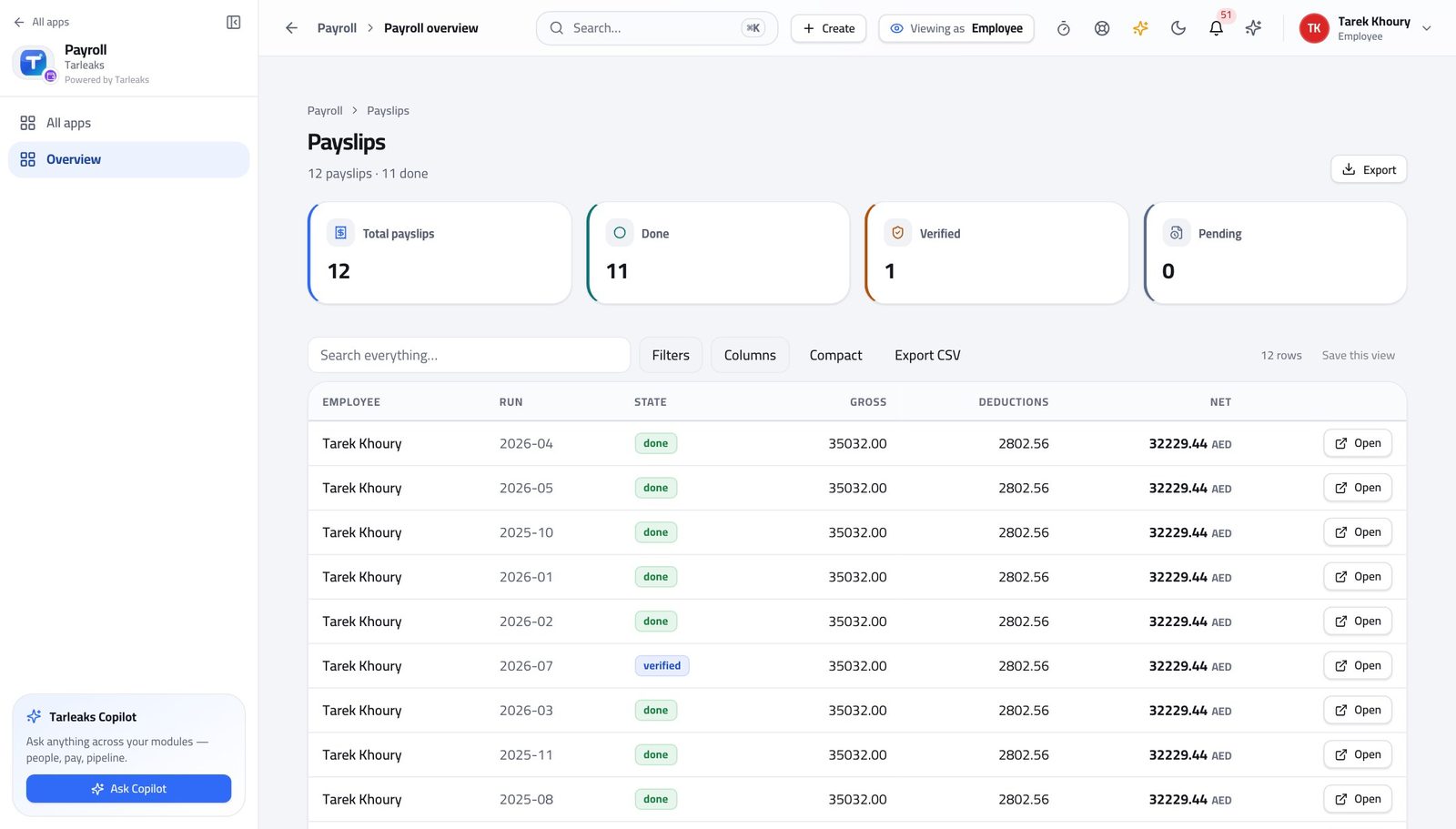
You should see The company's statutory returns are the company's. Your own contributions are on your payslip, where they belong.
Watch out The company's returns are the company's. Yours are the lines with your name on them.
Use cases — the work, step by step
Each one is a sequence somebody actually performs, with the screen behind every step. Every screen here was opened in the product as this role before it was published.
monthlyPayday: check your payslip properly #
Five minutes on the day it lands is worth an hour three months later, when nobody remembers the month.
Open My payslips. The three boxes at the top are your totals for the year so far.
Payroll » My payslips — verified: the control is offered; the page says “My payslips” Open this month and read the deductions section line by line. A new line is almost always a loan instalment or a court order.
Payroll » My payslips » pick a month — verified: 12 row(s) listed If a deduction is a loan, open My loans and check the schedule — it shows every instalment and which have been taken.
HR » My loans — verified: the page says “My loans”; the control is offered Print or save the payslip if you need it for anything. It carries your employer's details and the full breakdown.
Payroll » My payslips » Print / PDF — verified: the page says “Print”
urgentA bank asked for proof of salary today #
This used to be an e-mail to HR and a three-day wait. It does not need to be one.
Open My payslips and find the most recent month.
Payroll » My payslips — verified: the control is offered; the page says “My payslips” Press Certificate, choose bank letter and name the bank — or a salary certificate addressed to whoever asked — and pick the language.
Payroll » My payslips » Certificate — verified: the control is offered; the control is offered If they want the whole year rather than one month, use the annual statement instead.
Payroll » My payslips » Annual statement — verified: the control is offered
edgeAsk for an advance, and watch it come off #
The rules are on the screen before you ask, so a request inside them is one nobody has to argue with.
Open My loans and read the policy banner: how many months, how many times your salary, how long you must have worked here, and whether you may have more than one open loan.
HR » My loans — verified: the page says “My loans”; the control is offered Request the loan inside those limits. The form refuses anything outside them rather than letting you find out later.
HR » My loans » Request a loan — verified: the control is offered; the control is offered Once it is approved, the schedule appears — press Schedule to see every instalment and its date. You can withdraw a request while it is still pending.
HR » My loans — verified: the page says “My loans”; the control is offered From then on the deduction shows on each payslip until the last instalment is taken.
Payroll » My payslips » pick a month — verified: 12 row(s) listed
You see your own pay and nobody else's. That is enforced the same way in both directions: nobody outside payroll can open yours either.