How every number is worked out — and how to check it
Before you sign something, you should be able to say where the figure came from and prove it in two minutes. For each number: where it lives, the arithmetic behind it, the check that proves it, and what a difference usually means.
Nothing matches that. Try a shorter word.
Order total #
Where Sales Orders → the order
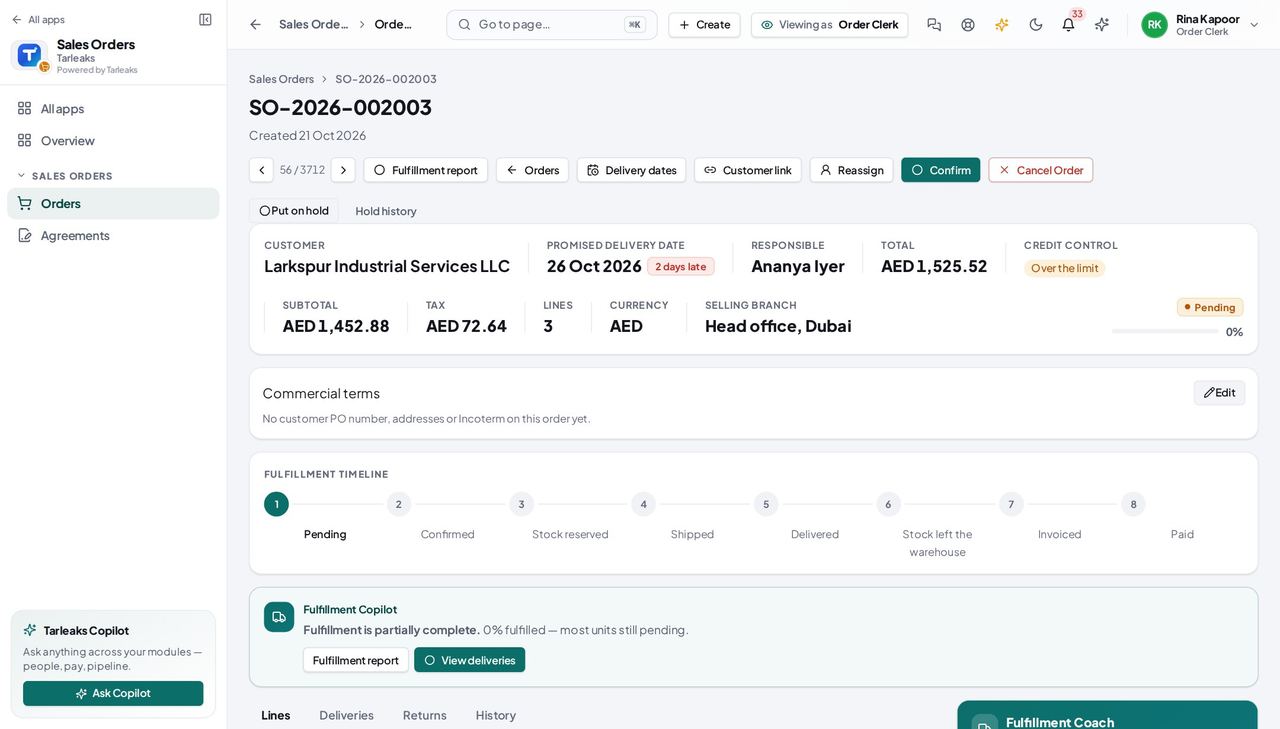
How it is worked out Each line is quantity × unit price; the line's tax is applied to that amount at the line's rate. The order's total is the sum of the lines plus their tax.
Check it like this Add the line totals; apply each line's rate; the tax column equals the sum. Prices come from the resolver unless the badge says Manual.
If it disagrees A total out by a few percent is a line at the wrong tax — open the line and look at its Tax pick.
Delivered percentage #
Where Sales Orders → the list's Delivered tile
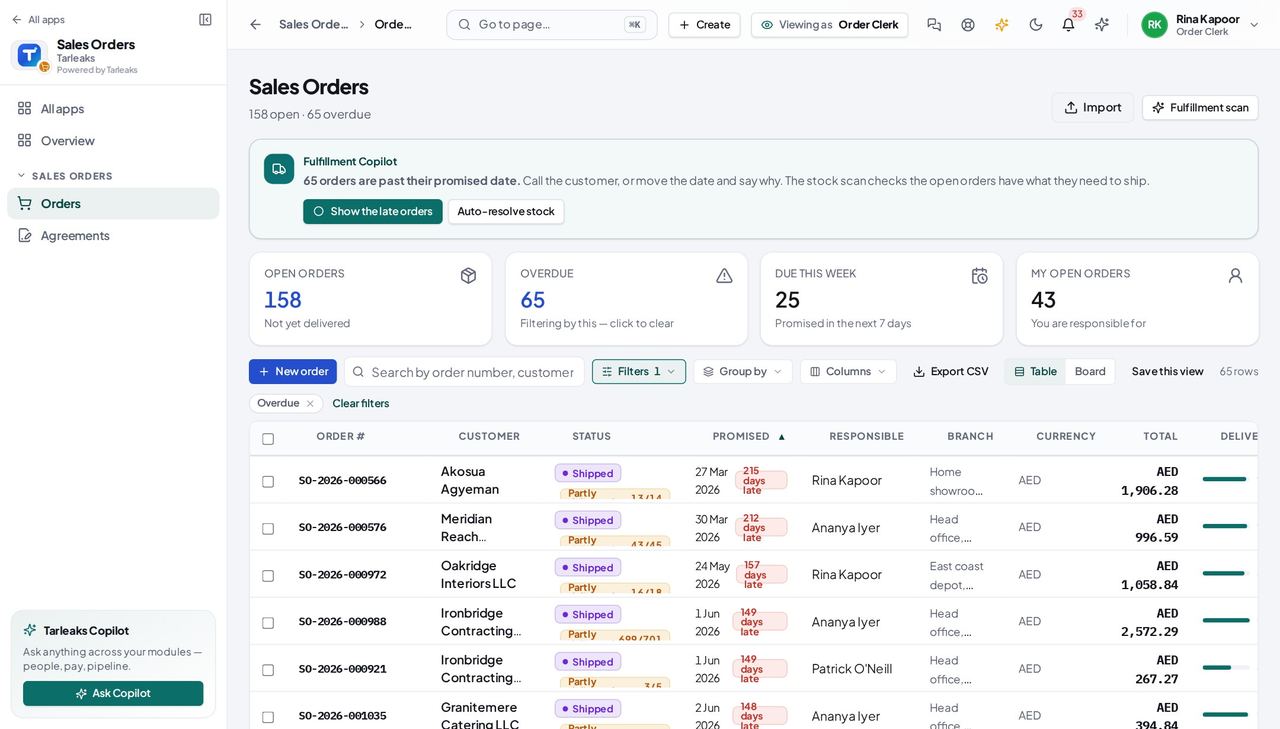
How it is worked out Orders delivered, paid or closed, over all orders loaded.
Check it like this Filter to Delivered, Paid and Closed and count the rows.
If it disagrees A cancelled order counts against the rate; it is an order that was not delivered.
Refund on a return #
Where Sales Orders → the order → Returns → the return
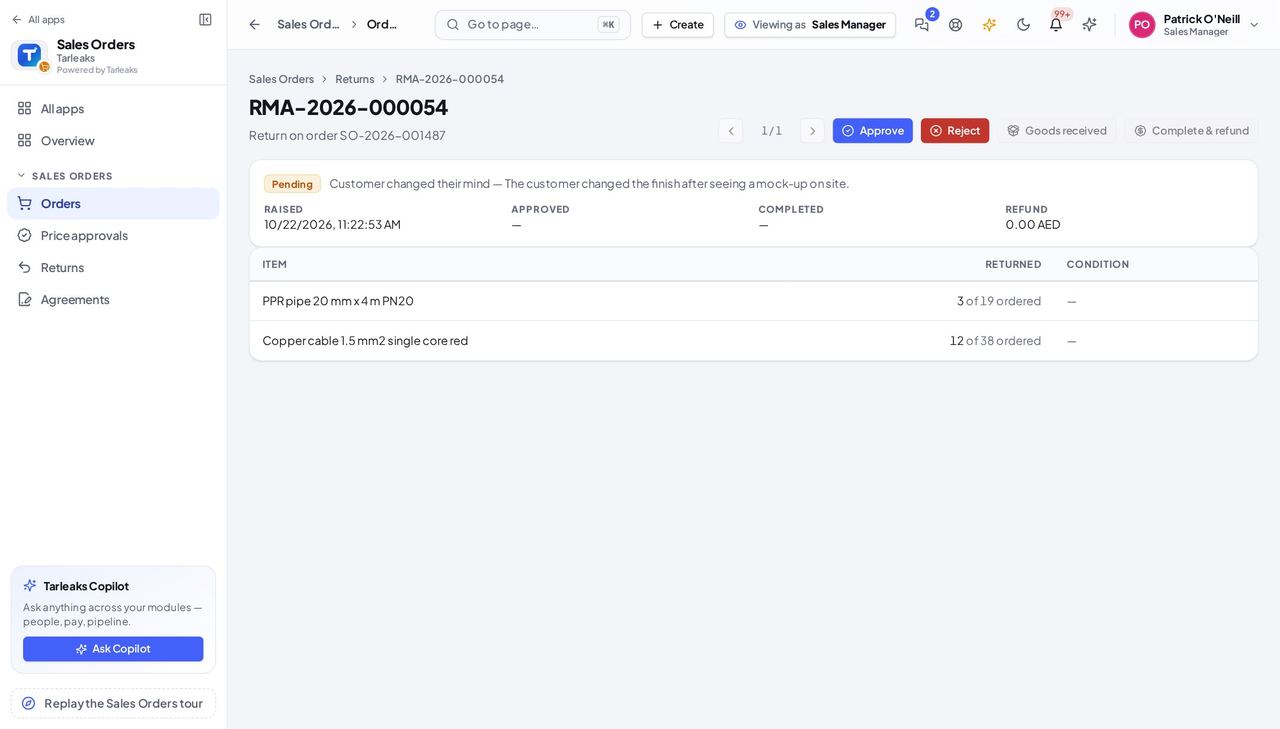
How it is worked out What the manager typed at Complete & refund — the product does not compute it from the lines, because part refunds and restocking fees are the manager's call.
Check it like this Compare with the returned lines at their invoiced price; the credit note in Receivables carries the line-by-line amount.
If it disagrees A refund above the invoice is accepted here and flagged on the credit note — review before booking.
Faster ways to do the same work
| What you want | How |
|---|---|
| Send a colleague exactly the list you are looking at | Copy the address bar — the status, the search and the list/board choice are in it, and they survive a refresh. |
| Walk an order's deliveries or returns without going back | On a delivery or return page use ‹ › (or ⌘/Ctrl + arrow keys outside a text field). |
| Create a customer while typing the order | In the Customer picker choose New party at the bottom of the list — the form stays open and the new customer is selected. |
| Ask the copilot what is at risk | Type 'which orders are at risk' — it reads the same list as Fulfillment scan. |