Accountant — Finance guide
Keep the books straight — and prove it in three reports.
Keeps the ledger: the chart of accounts, journals and entries, the partner master, and the statutory reports the business is measured on.
What you will be able to do
- Find any account, journal or entry in seconds
- Read the trial balance, profit and loss, and balance sheet
- Tidy the customer and supplier list without deleting history
- Ask one question and get the whole chart checked at once
What this role can and cannot do
| Can | Cannot |
|---|---|
|
|
14 steps, each one carried out in the product on .
Check what your sign-in can do #
Where Your name, top right » Profile
- Open your company's address in the browser — it looks like yourcompany.tarleaks.com.
- Type the e-mail address your administrator set up for you, then your password.
- You land on the app launcher: a grid of the apps your company uses.
- Click your name in the very top-right corner of the screen.
- Choose Profile from the menu that drops down.
- Scroll to the Security and access section.
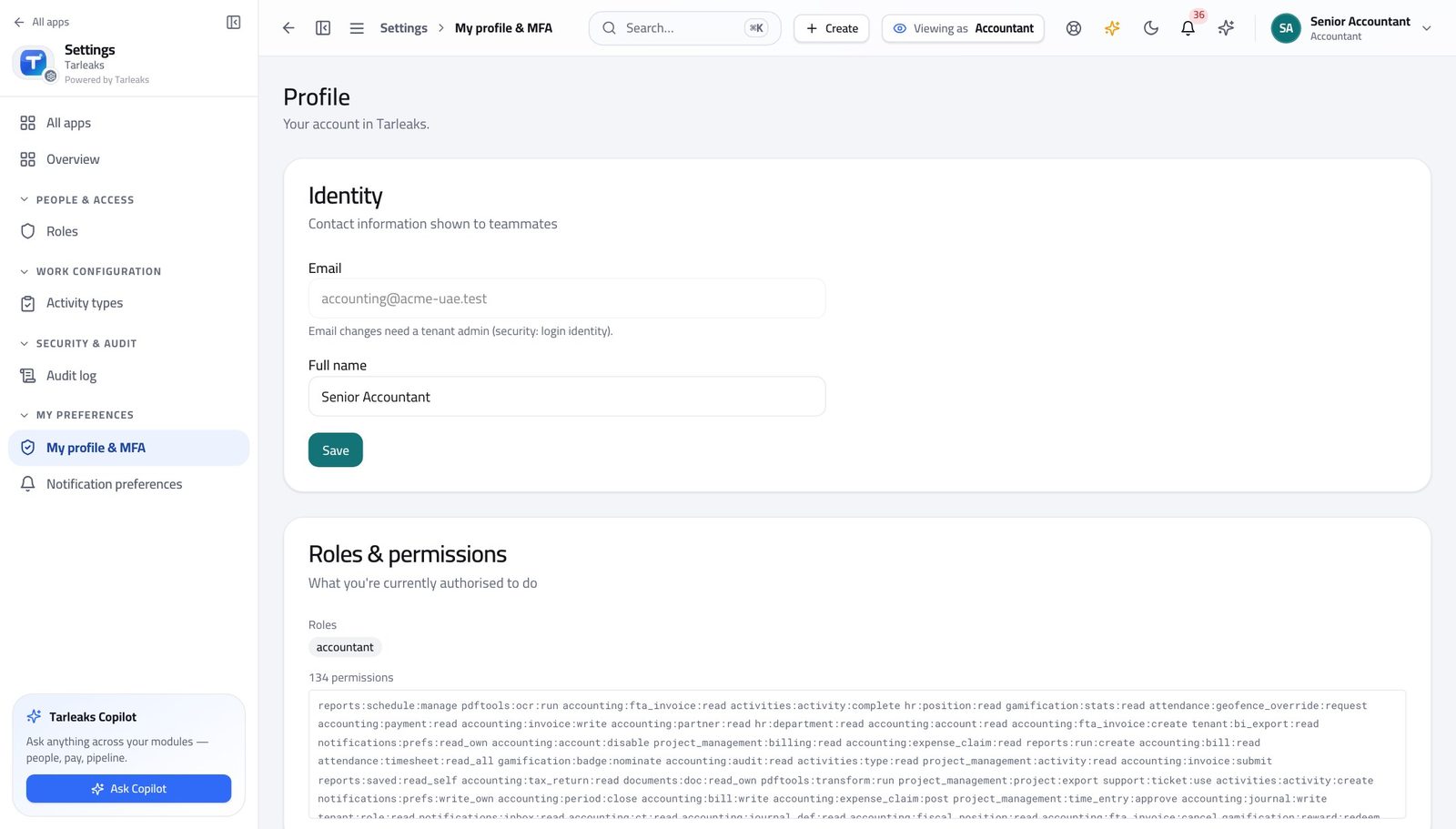
You should see It says Accountant. You can write and post entries and tidy the customer and supplier list — approving supplier bills is somebody else's job.
Watch out Two people can have the same job title and different roles here. If the chip does not say what you expected, ask your administrator before you start entering anything — the buttons you see depend on it.
Worth knowing If the role here is not what you expected, stop and ask your administrator before you start entering anything.
Open the chart of accounts #
Where Finance » Chart of accounts
- From the launcher, click the Finance tile.
- In the left menu, find the BOOKS group.
- Click Chart of accounts.
- Click the small arrow beside any heading row — 1000 Cash and cash equivalents, for example — to open the accounts beneath it.
- Use Expand tree, top right, to open every level at once.
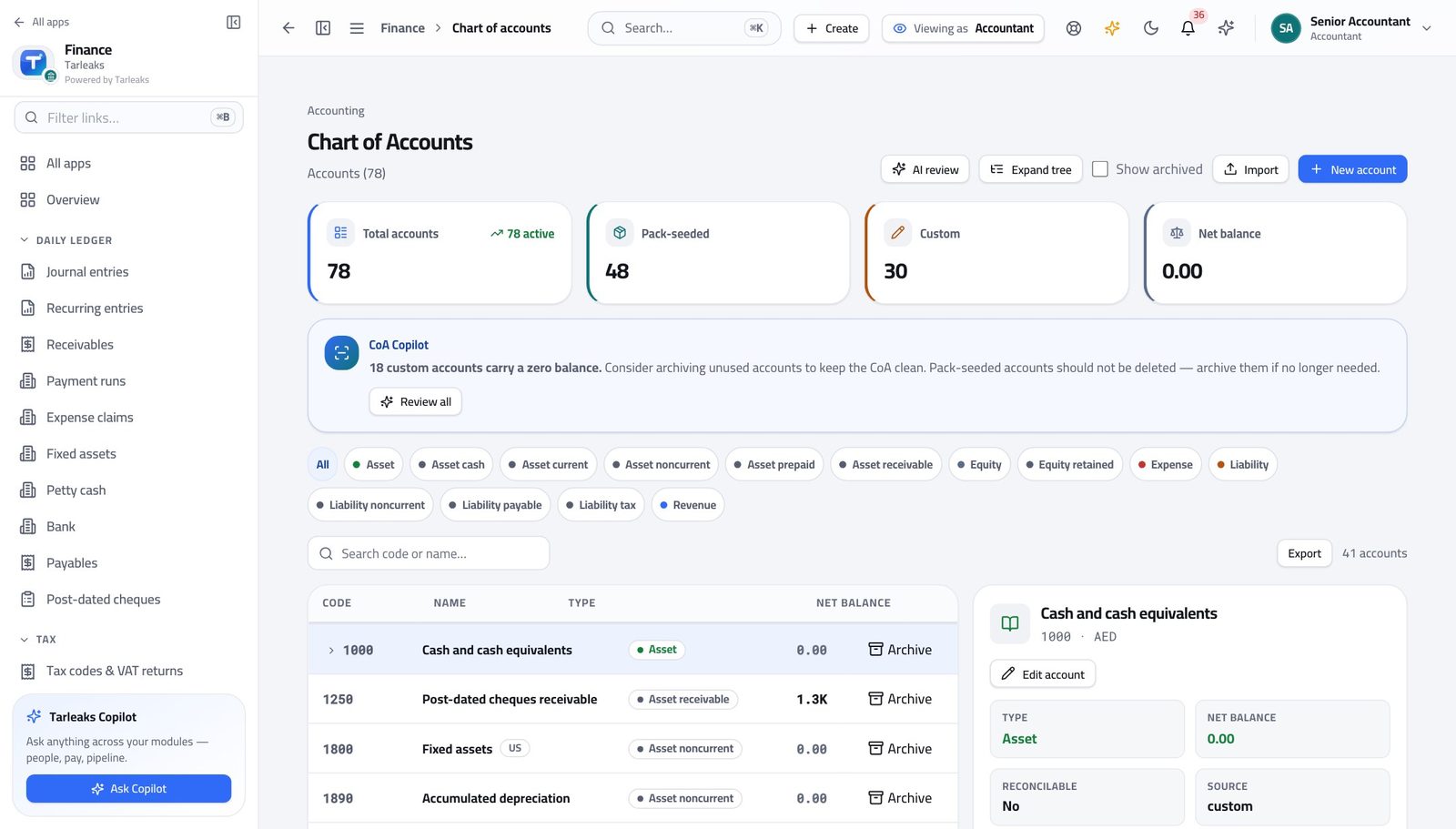
You should see The full account tree for your country is already there — you do not build it from scratch.
Watch out An account with an arrow is a heading, not a place to post. Post to the accounts underneath it.
See the books your entries land in #
Where Finance » Journals
- In the left menu, open the BOOKS group.
- Click Journals & numbering.
- Read the short code beside each journal name.
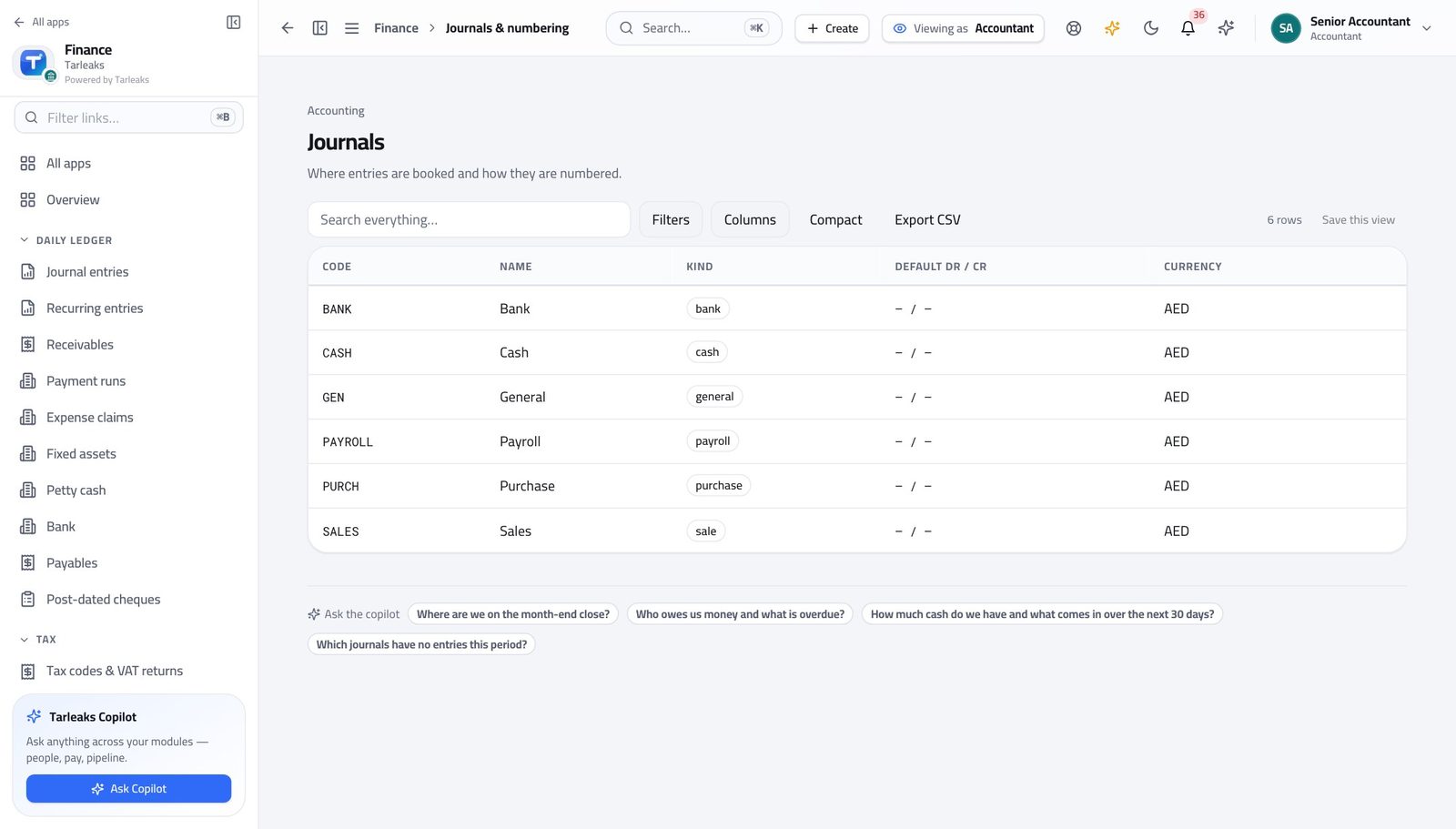
You should see Sales, purchases, bank and general each have their own book and their own numbering.
Watch out Changing a journal's numbering affects every entry made afterwards, not the ones already posted.
Find any entry ever posted #
Where Finance » Journal entries
- In the left menu, under DAILY LEDGER, click Journal entries.
- Click one of the summary boxes across the top — Drafts, for example — to narrow the list to those entries.
- Click the same box again to clear the filter.
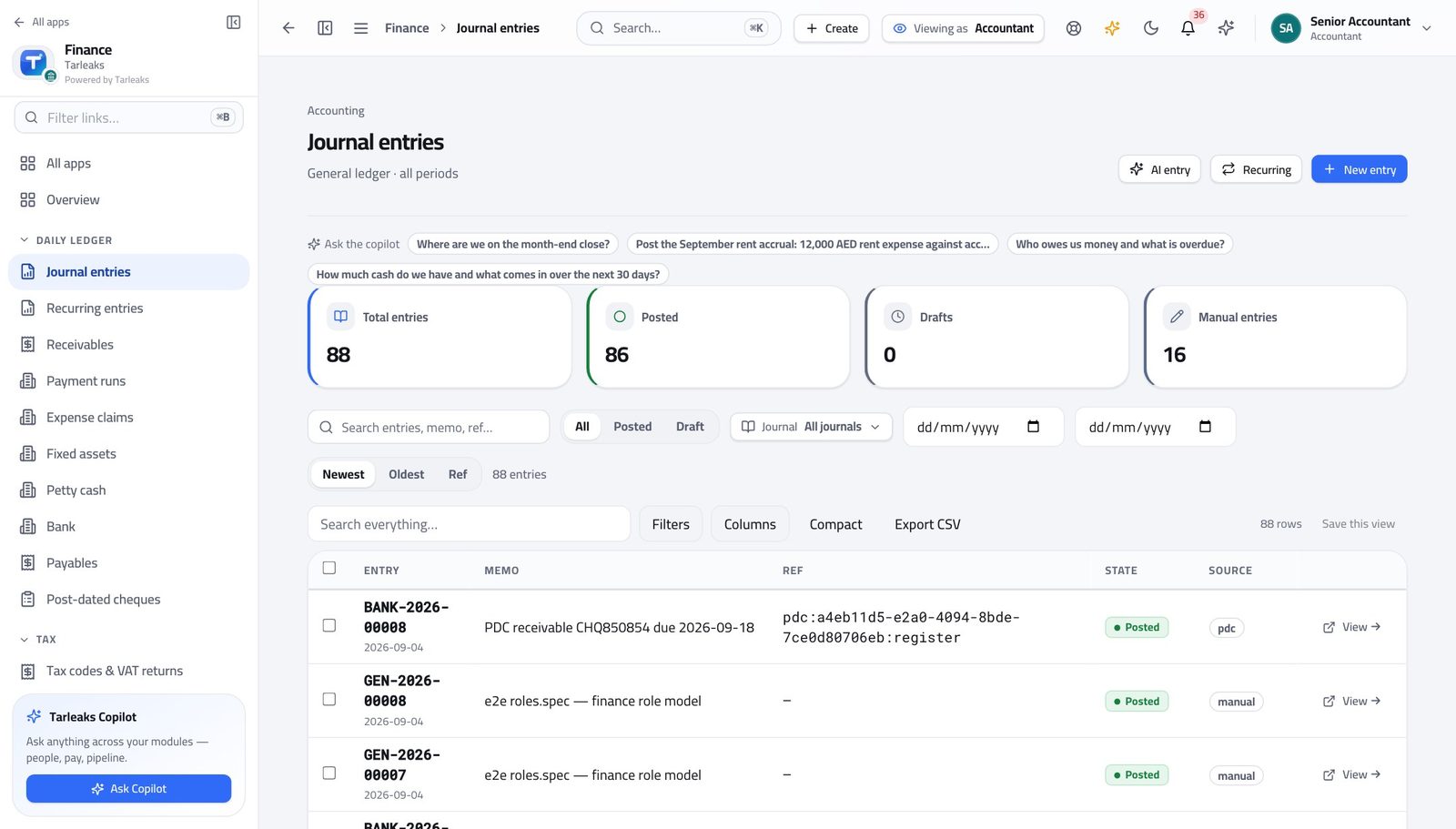
You should see Everything the business posted is in this one list, newest first.
Watch out The filter is written into the web address, so you can bookmark the filtered list or paste it to a colleague and they see the same thing.
Worth knowing The box you click also changes the web address, so you can bookmark the filtered list or send it to a colleague.
Start a new journal entry #
Where Finance » Journal entries » New entry
- On the Journal entries page, click New entry at the top right.
- Fill the header: the date, the journal, and a memo saying what this is.
- In the lines table, choose the account, then type the amount into either Debit or Credit — never both on one line.
- Add a line for the other side of the entry.
- Watch the totals under the table: they turn even when the two sides match.
- Click Save as draft to come back to it, or Post to put it in the books.
| Field | What to put in it |
|---|---|
| Date | The date the transaction belongs to — not today's date, unless they are the same. It must sit inside an open month. |
| Journal | Which book this belongs in. General is the catch-all; use sales, purchases or bank when it obviously belongs there. |
| Memo | One line a colleague could read in a year and understand. 'Reclass Q3 marketing spend' beats 'adjustment'. |
| Account | Start typing the code or the name; the list narrows as you type. |
| Description | Optional per line, useful when one entry covers several things. |
| Debit / Credit | One or the other on each line. The totals at the bottom must be equal before you can post. |
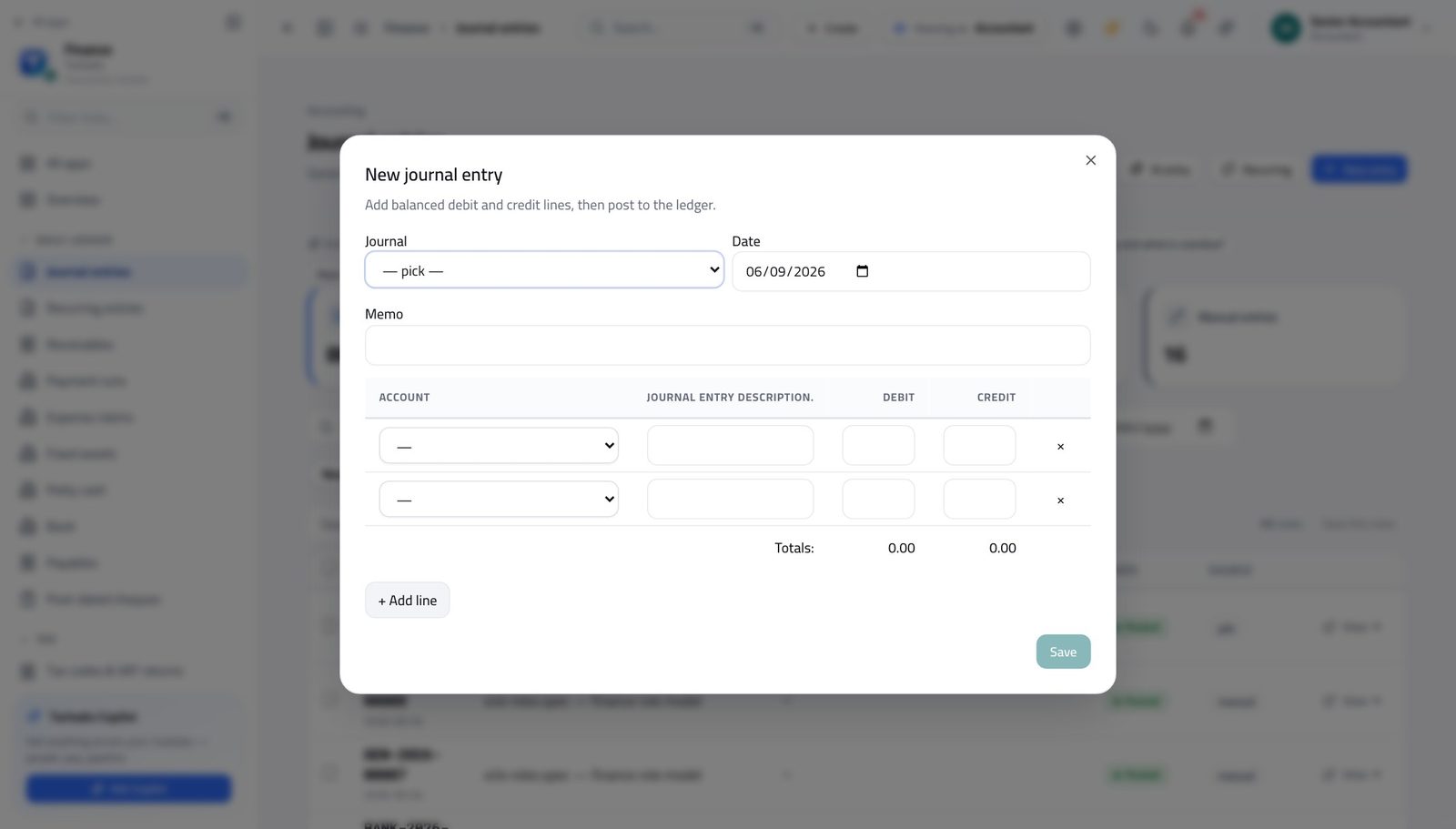
You should see Debits and credits are totalled as you type, and the entry cannot be saved until the two sides agree.
Watch out Saving as a draft changes nothing in the books. Posting does, and a posted entry is corrected by reversing it — never by editing.
Worth knowing Close the form without saving and nothing is created — you can open it just to look.
Check the books balance #
Where Finance » Reports » Trial Balance
- In the left menu, under INSIGHTS, click Reports.
- The page opens on the Trial Balance tab.
- Set As of to the date you want the position for.
- Read the totals row at the very bottom.
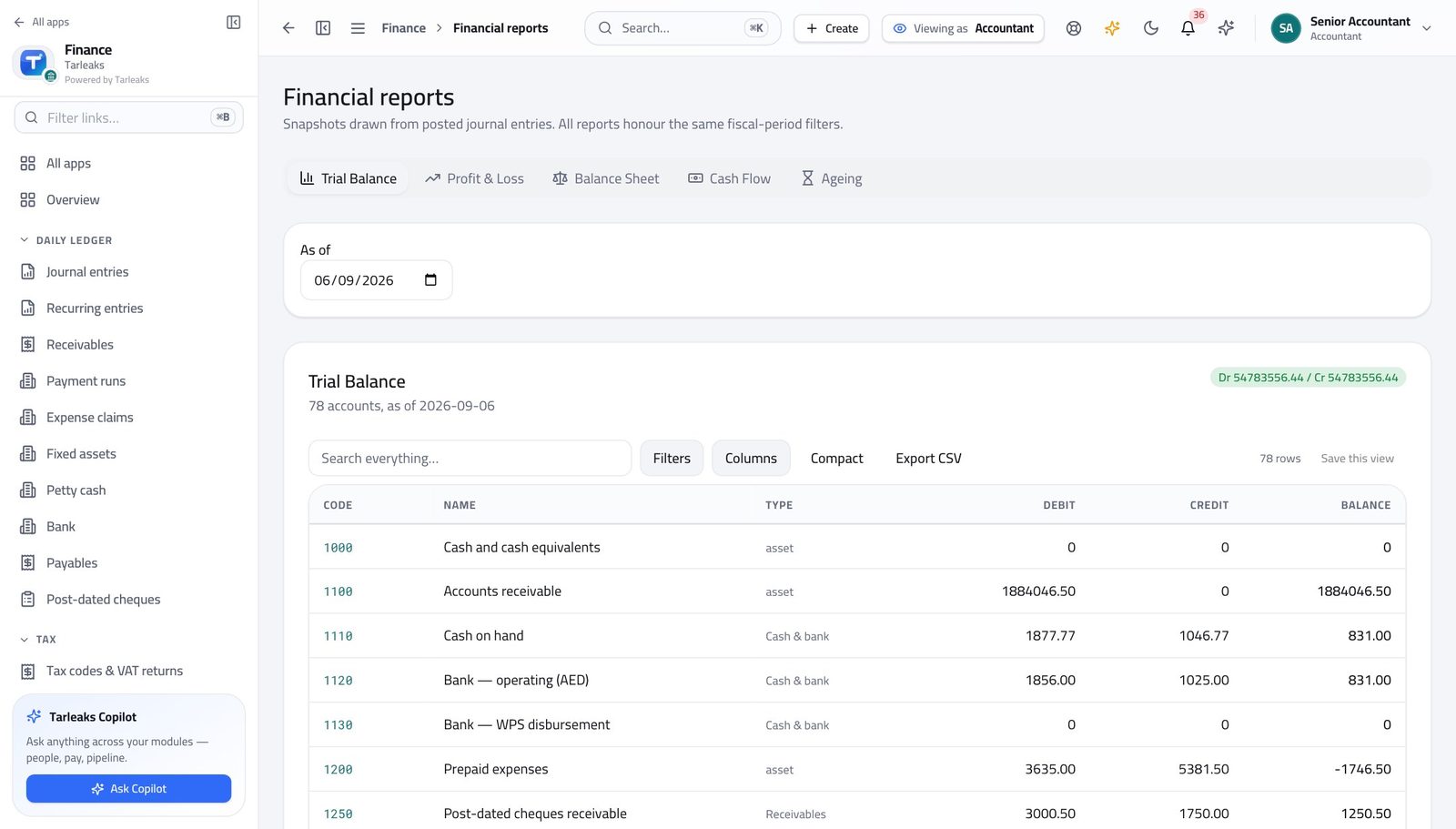
You should see The debit and credit totals match. If they ever do not, something is wrong upstream — not in the report.
Watch out If the two totals differ, do not go looking in this report — the problem is upstream, in an entry, and this is how you found out.
Read the profit and loss #
Where Finance » Reports » Profit & Loss
- Still on Reports, click the Profit & Loss tab.
- Set From and To to the period you are reporting on.
- Click a section heading to open the accounts inside it.
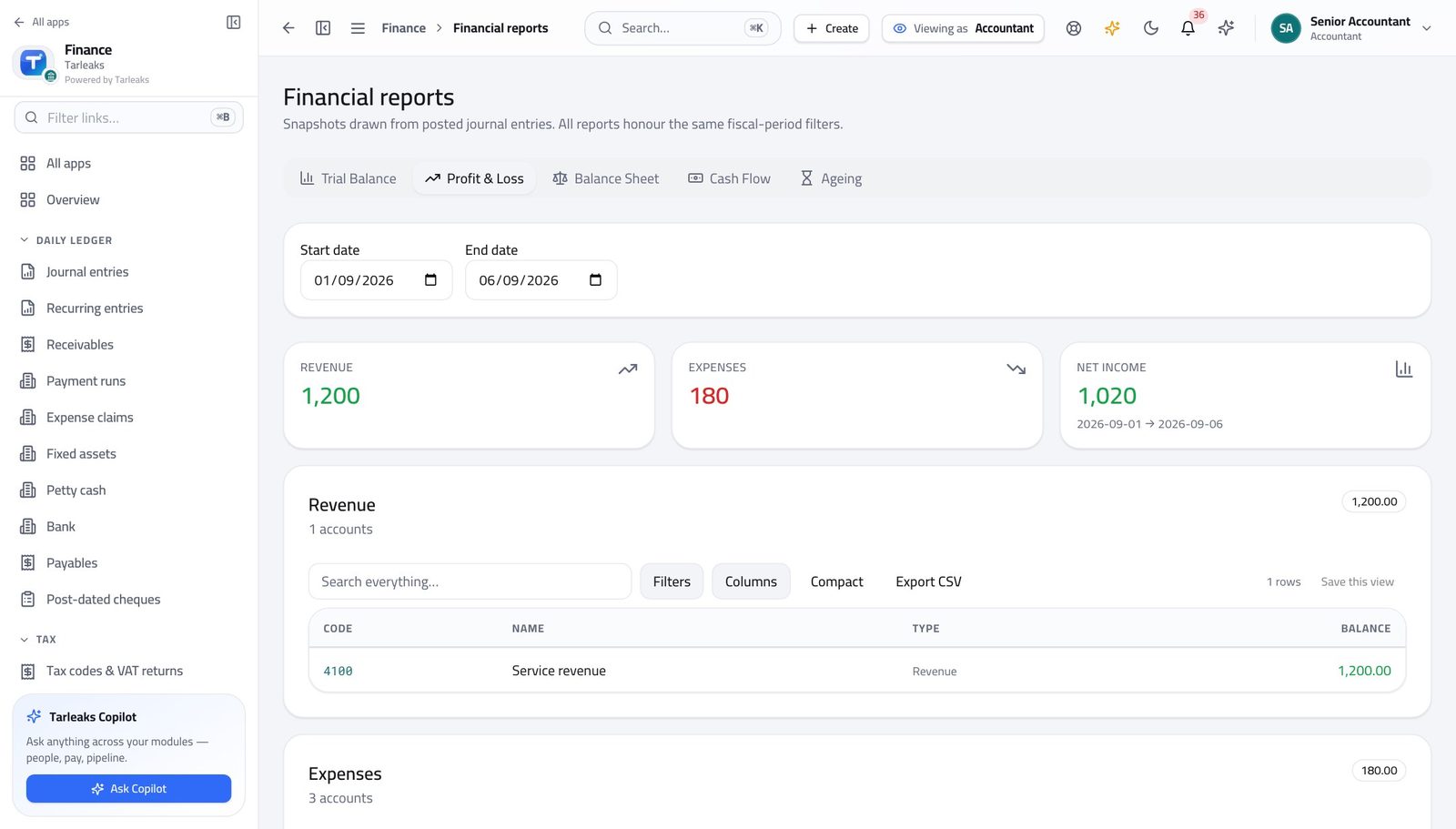
You should see Income, costs and the result for the period — all built from entries already posted.
Watch out This report covers a period between two dates. The balance sheet is a position on one date — that is why their date pickers differ.
Read the balance sheet #
Where Finance » Reports » Balance Sheet
- Click the Balance Sheet tab.
- Set As of to the closing date.
- Compare the two halves: what the business owns against what it owes plus what it is worth.
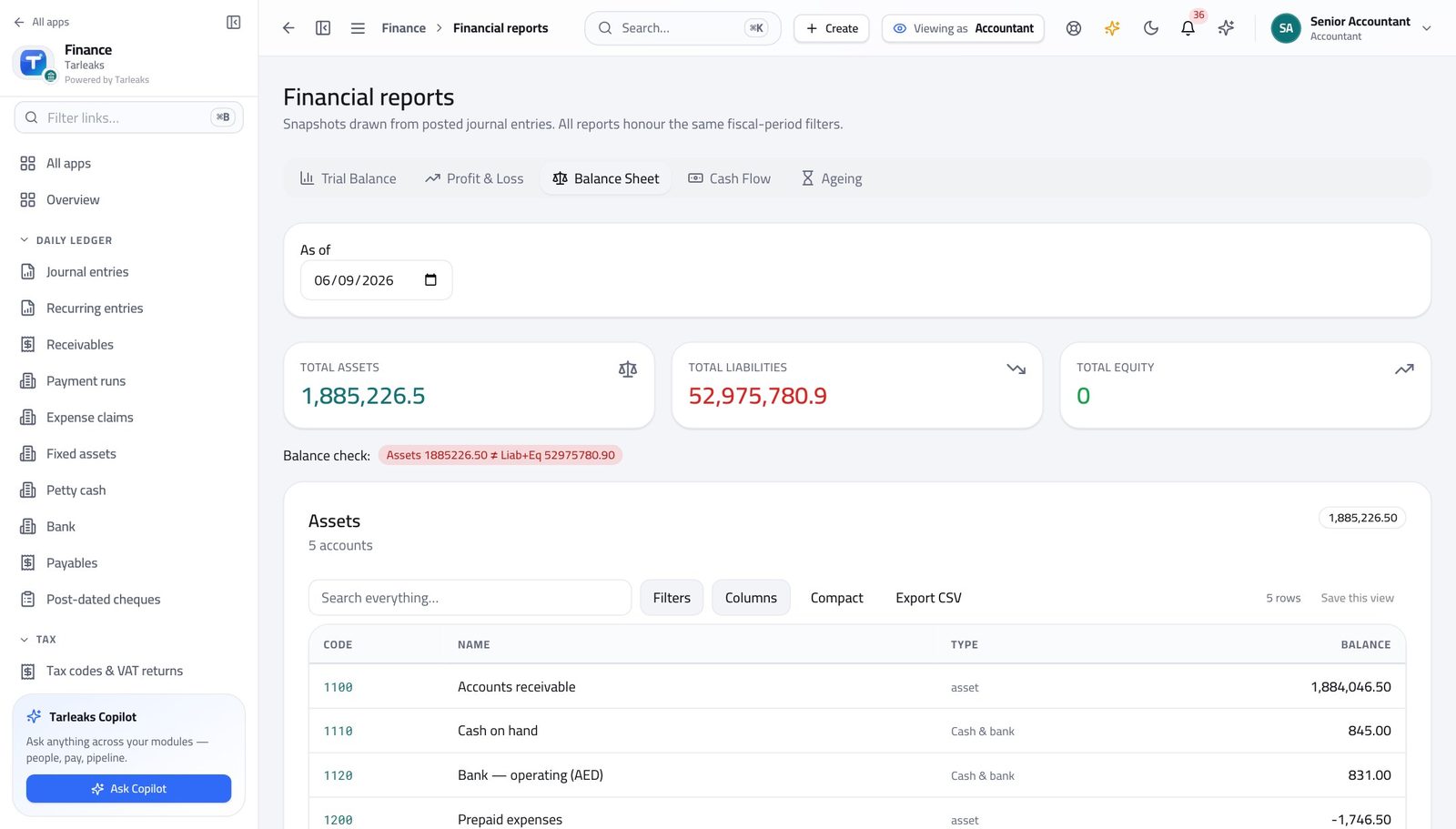
You should see What the business owns, owes and is worth on that date.
Open the customer and supplier list #
Where Finance » Customers & vendors
- In the left menu, under BOOKS, click Customers & vendors.
- Type part of a name, a code or a tax number into the search box.
- Use the All kinds dropdown to show only customers or only suppliers.
- Turn on Show archived to find a record somebody tidied away.
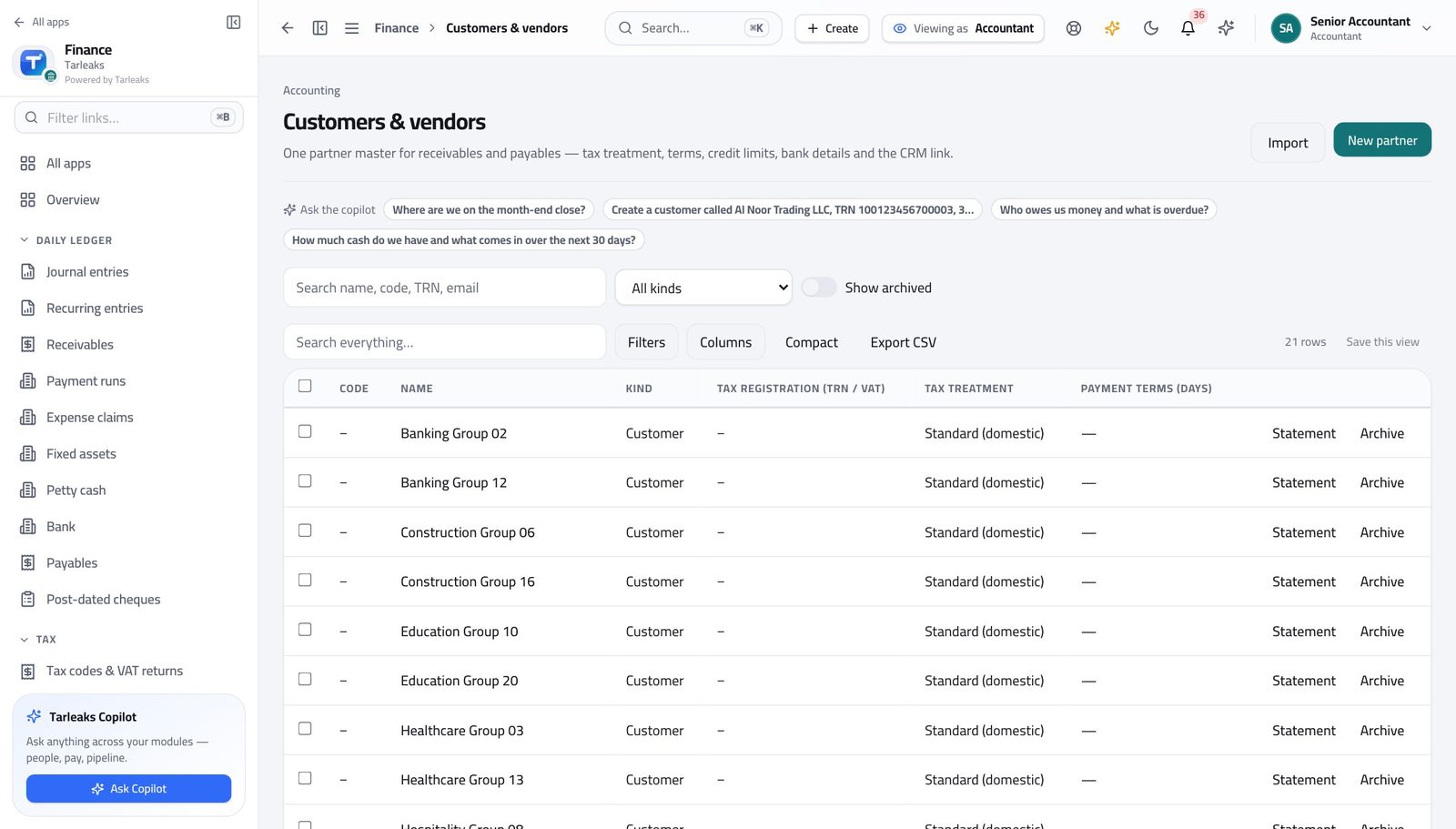
You should see One list for both sides of the business, so a company you buy from and sell to is a single record.
Watch out Search matches the tax registration number too, which is usually the fastest way to find the right company when names are similar.
Add a customer or supplier #
Where Finance » Customers & vendors » New partner
- On Customers & vendors, click New partner at the top right.
- Fill the name and choose the kind.
- Add the tax details if you have them — they drive how tax is applied later.
- Click Save.
| Field | What to put in it |
|---|---|
| Name | The legal name you will see on their invoices. |
| Name (Arabic) | Optional, but printed on Arabic documents when set. |
| Kind | Customer, vendor, or both. Both is normal for a company you buy from and sell to. |
| Code | Your own short reference. Leave blank and one is not required. |
| Tax registration (TRN / VAT) | Their tax number. Needed on tax invoices and checked in the VAT return. |
| Tax treatment | Standard domestic, zero-rated, exempt, export. This decides the tax applied on their invoices. |
| Payment terms (days) | How long they get to pay. This sets the due date automatically on new invoices. |
| Credit limit | Optional ceiling for what they may owe you at once. |
| IBAN | Used when you pay them; leave blank for customers. |
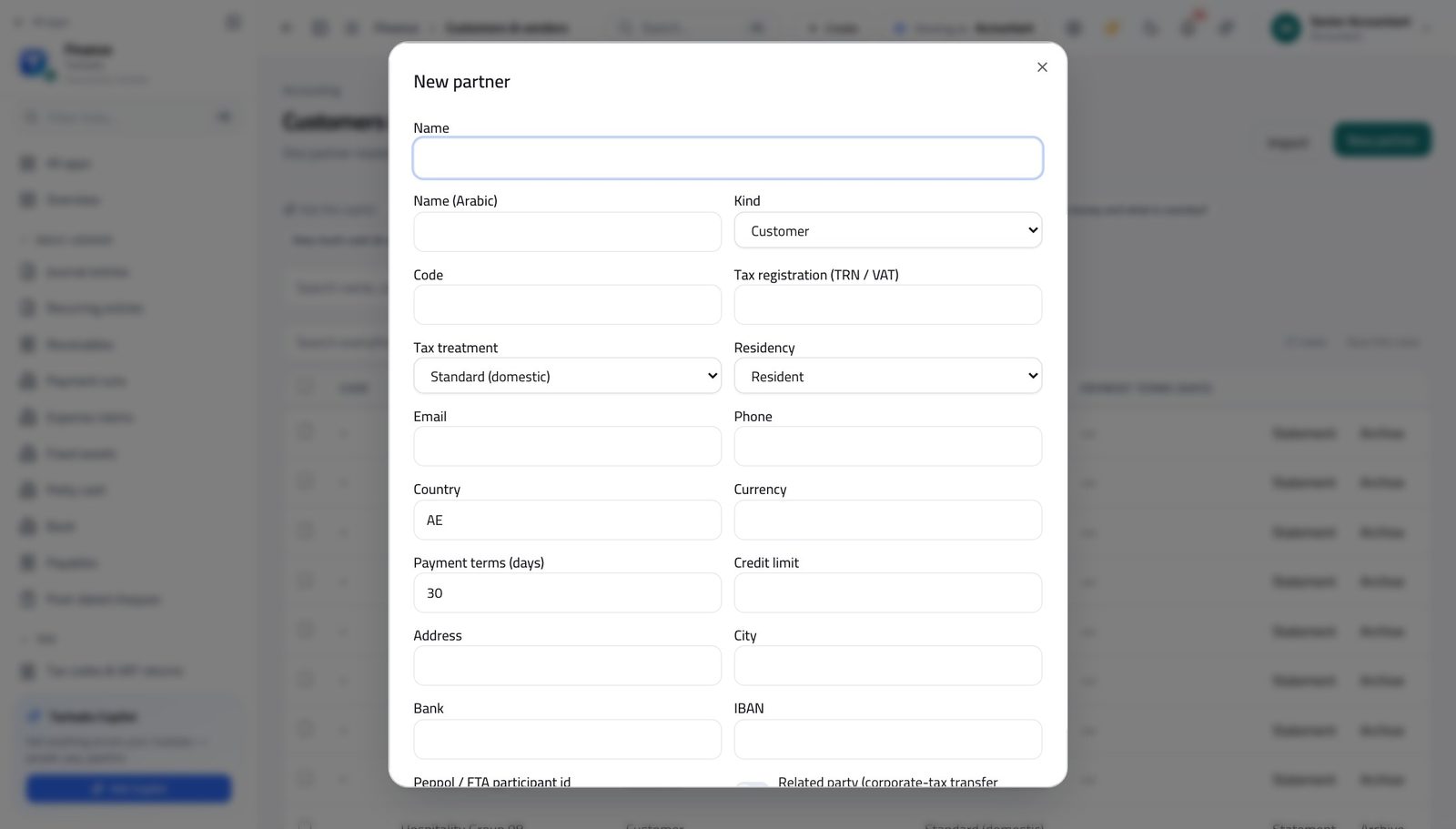
You should see One record serves both sides: if you later buy from a customer, you do not create them twice.
See money in and money out #
Where Finance » Receivables, then Finance » Payables
- In the left menu, click Receivables to see what customers owe.
- Then click Payables to see what the business owes suppliers.
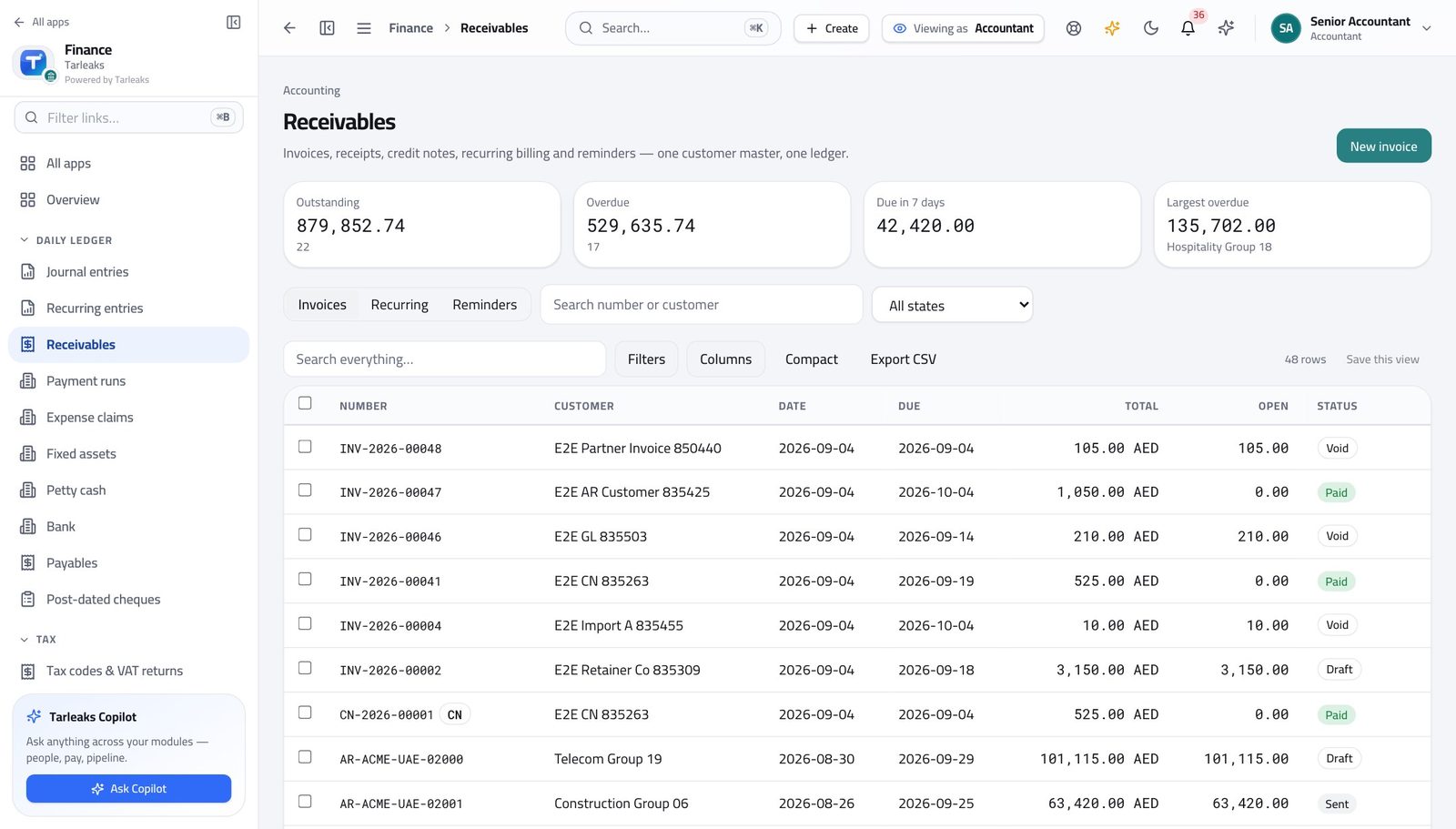
You should see Both lists open for you, so you can reconcile the two sides without asking anyone.
Tidy several records at once #
Where Finance » Customers & vendors » tick rows » Archive
- Open Customers & vendors.
- Tick the checkbox at the left of each row you want to tidy away.
- A bar appears along the bottom saying how many are selected.
- Click Archive in that bar.
- Read the confirmation, then confirm.
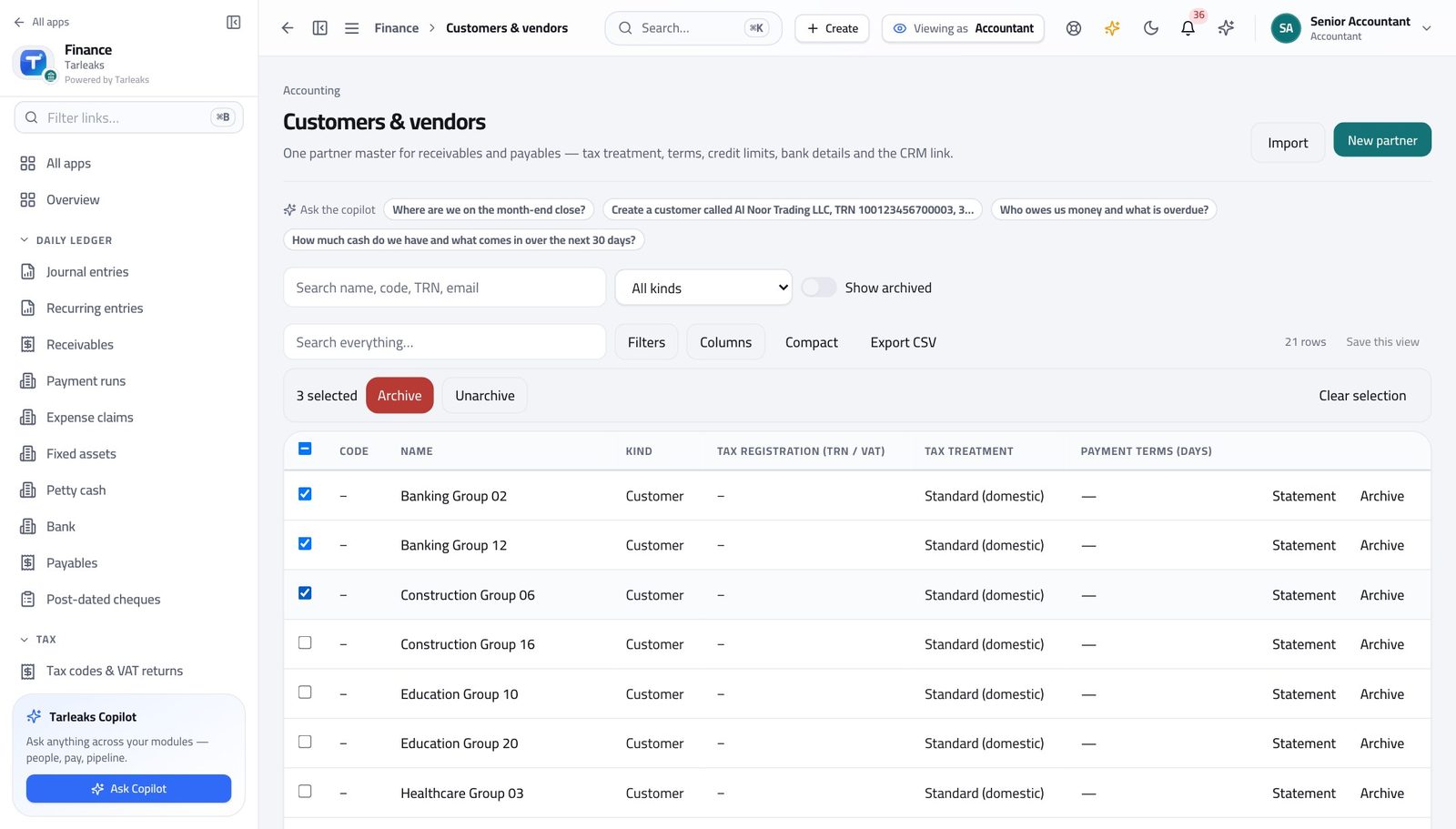
You should see The records leave the everyday list without being deleted. Anything that cannot be archived is named, and the rest still go through.
Watch out Tick the box in the header row and you select everything the current filter shows — not the whole list. Filter first, then select all.
Worth knowing Archiving is reversible. Turn on Show archived to find a record again.
See where your authority stops #
Where Finance » Payables
- Open Payables from the left menu.
- Tick a bill that is waiting for approval.
- Read the bar at the bottom.
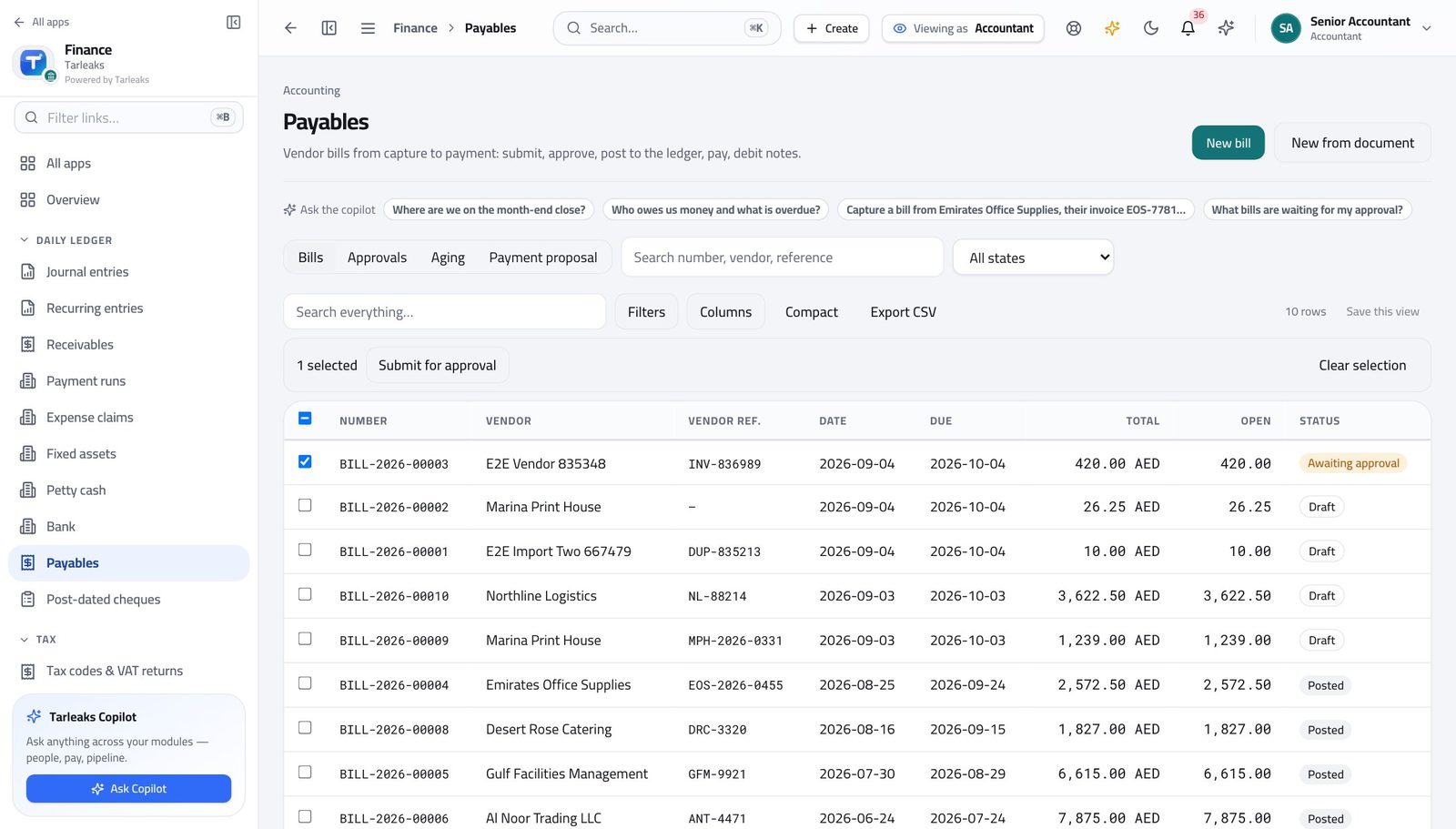
You should see There is no Approve button for you. Approval belongs to the controller, and the system enforces that — it is not just a missing button.
Have the whole chart checked for you #
Where Finance » Chart of accounts » Review
- Open Chart of accounts.
- Click Review at the top right.
- Wait a few seconds while the whole chart is checked.
- Read the findings, grouped by the kind of problem.
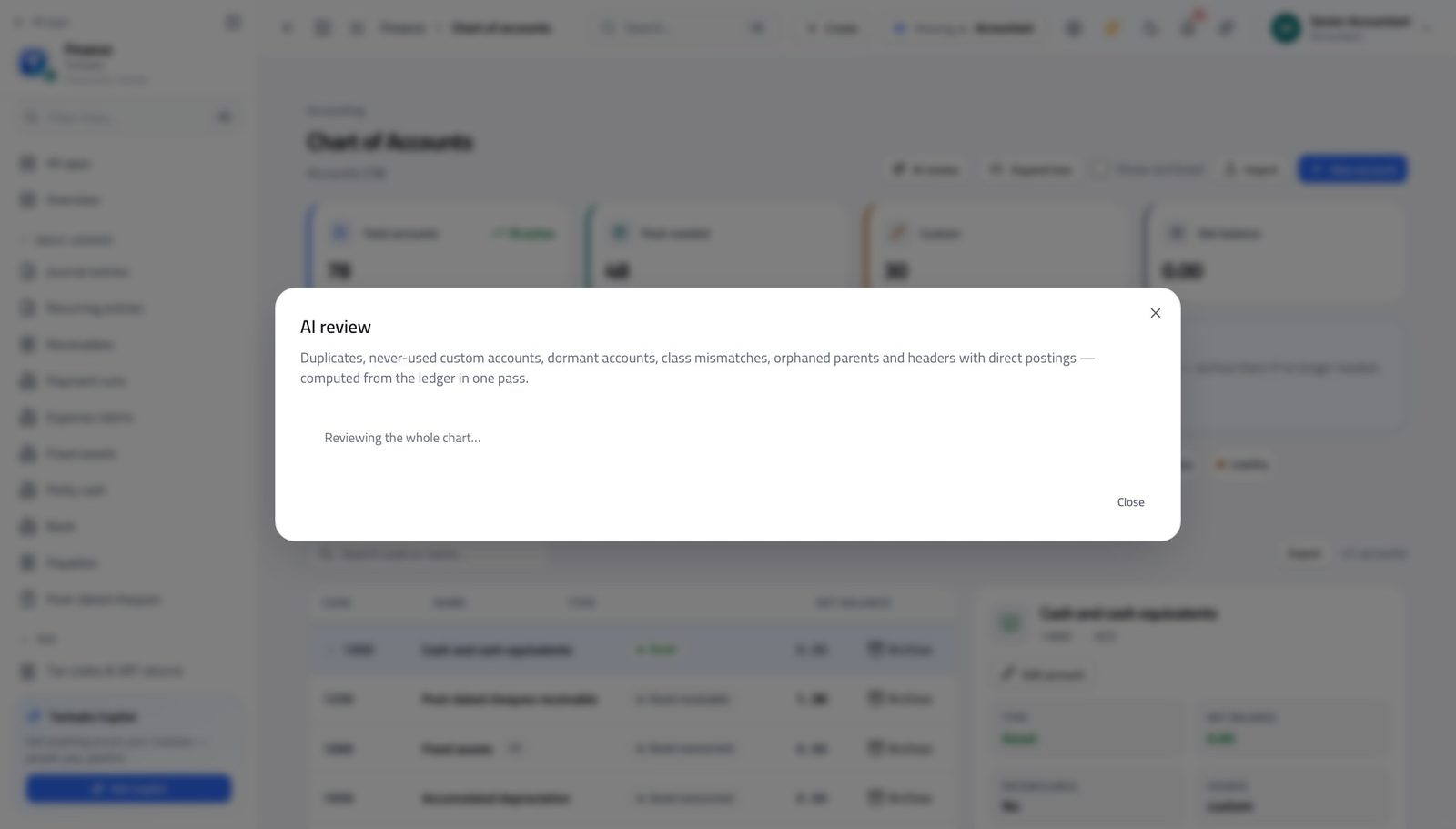
You should see Duplicates, unused accounts and gaps come back in one pass, each finding naming the accounts involved.
Watch out This reads the chart; it changes nothing. Acting on a finding is a separate, deliberate step.
Use cases — the work, step by step
Each one is a sequence somebody actually performs, with the screen behind every step. Every screen here was opened in the product as this role before it was published.
dailyThe morning pass: drafts, bank, oddities #
Fifteen minutes here is what stops month end being a week long.
Open Journal entries and look at the drafts. Each one gets posted or gets a memo saying what it is waiting for.
Finance » Journal entries — verified: 88 row(s) listed Open the bank and work yesterday's imported lines: match what is obvious, leave what is not.
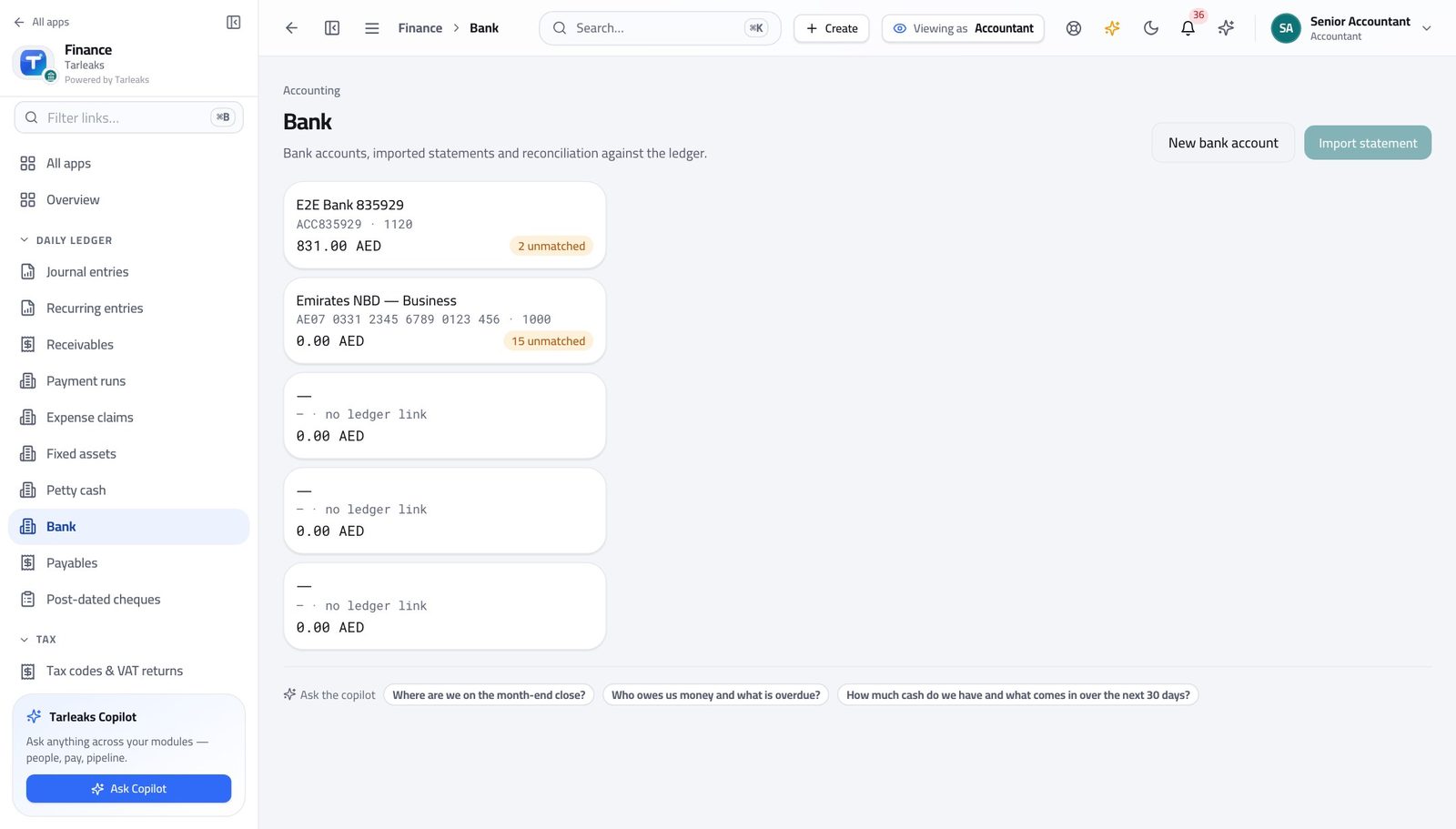
In the product — verified: the page says “statement” Check the chart is still clean — Review reports duplicates, unused accounts and gaps in one pass.
Finance » Chart of accounts » Review — verified: the page says “Review”
weeklyProve the books balance before anyone asks #
If the trial balance ever fails to balance, you want to be the one who found it.
Open Reports. It opens on the trial balance — set the date and read the two totals at the bottom.
Finance » Reports » Trial Balance — verified: the page says “Trial Balance” Switch to the profit and loss for the same period.
Finance » Reports » Profit & Loss — verified: the page says “Profit” Then the balance sheet, as at the same date. The result on one must agree with the movement on the other.
Finance » Reports » Balance Sheet — verified: the page says “Balance Sheet”
monthlyPost an entry, and correct one you got wrong #
A posted entry is corrected by reversal, never by editing. The reversal IS the correction, and it is what an auditor expects.
Open Journal entries and start a new one: date, journal, memo, then a line per account. The Post button stays disabled until the two sides agree.
Finance » Journal entries » New entry — verified: the control is offered To correct a posted entry, find it in the register and use its own reverse action rather than editing it.
Finance » Journal entries — verified: 88 row(s) listed Check the effect where it matters: the trial balance for the period.
Finance » Reports » Trial Balance — verified: the page says “Trial Balance”
monthlyTidy the customer and supplier master #
Duplicates in the partner master are how one company ends up with two balances, neither of them right.
Open Customers & vendors and search for the names you suspect are duplicated — search matches the tax number too.
Finance » Customers & vendors — verified: the page says “Customers & vendors”; 21 row(s) listed Add the missing details on the record that is staying: tax registration, treatment, payment terms.
Finance » Customers & vendors » New partner — verified: the control is offered Tick the ones being retired and archive them together. Archiving keeps the history; deleting is deliberately not offered.
Finance » Customers & vendors » tick rows » Archive — verified: the control is offered; the page says “Archive”
Approving supplier bills and closing the month belong to the finance controller. That is on purpose: the person who writes the books is not the person who signs them off.