Accounts Payable Clerk — Finance guide
Get every supplier bill captured, checked and ready to approve.
Captures what suppliers bill and prepares it for approval — never approves or posts it, which is what keeps payables honest.
What you will be able to do
- See every bill and what state it is in
- Know what is due and how late it is
- Send a whole batch of bills for approval in one go
- Keep supplier details up to date
What this role can and cannot do
| Can | Cannot |
|---|---|
|
|
9 steps, each one carried out in the product on .
Check what your sign-in can do #
Where Your name, top right » Profile
- Open your company's address in the browser — it looks like yourcompany.tarleaks.com.
- Type the e-mail address your administrator set up for you, then your password.
- You land on the app launcher: a grid of the apps your company uses.
- Click your name, top right.
- Choose Profile.
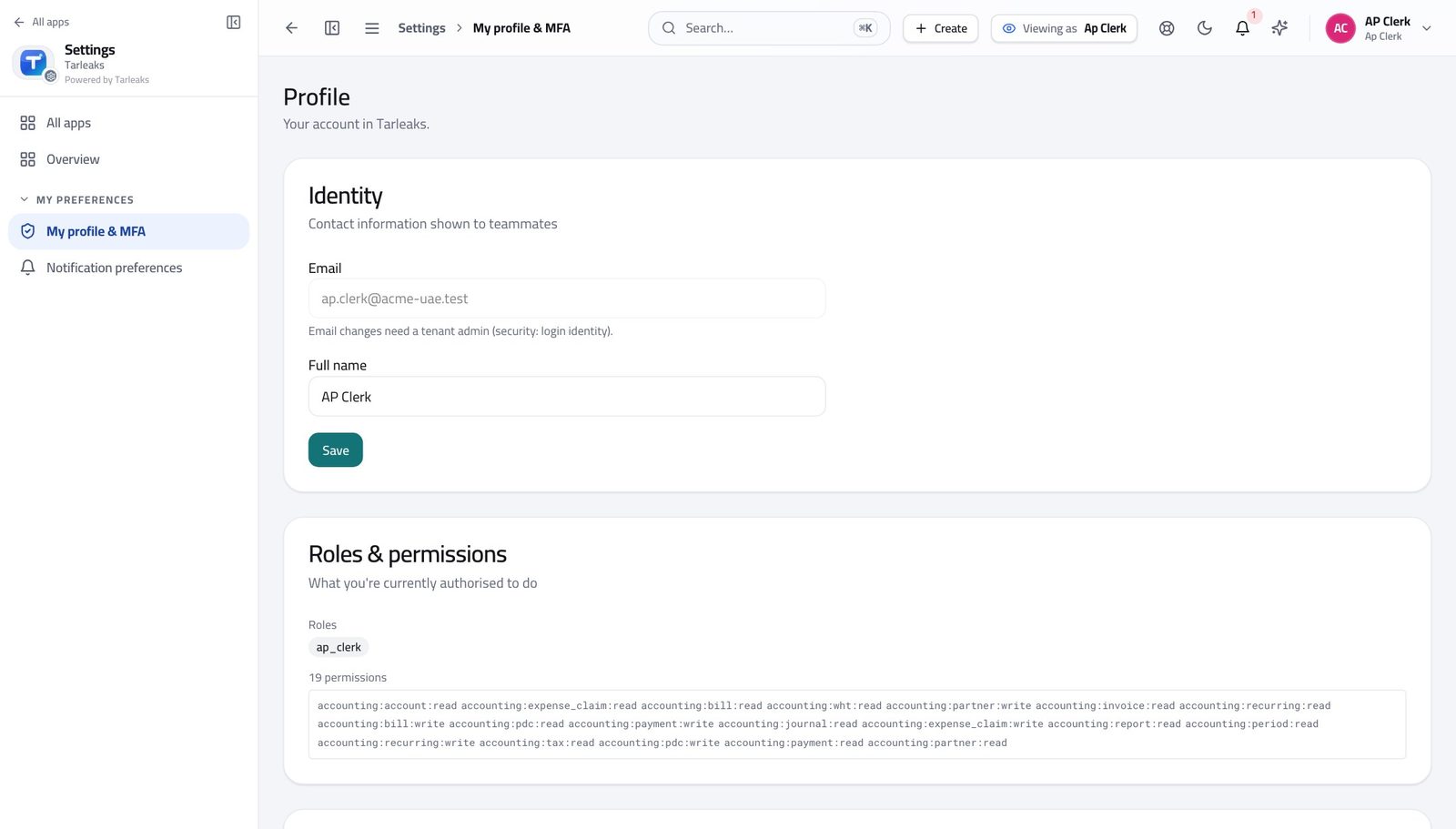
You should see It says AP Clerk. You can enter bills and prepare payments; approving and posting them is somebody else's job.
Open the supplier bills list #
Where Finance » Payables
- From the launcher, open Finance.
- In the left menu, click Payables.
- Use the tabs across the top: Bills, Approvals, Aging, Payment proposal.
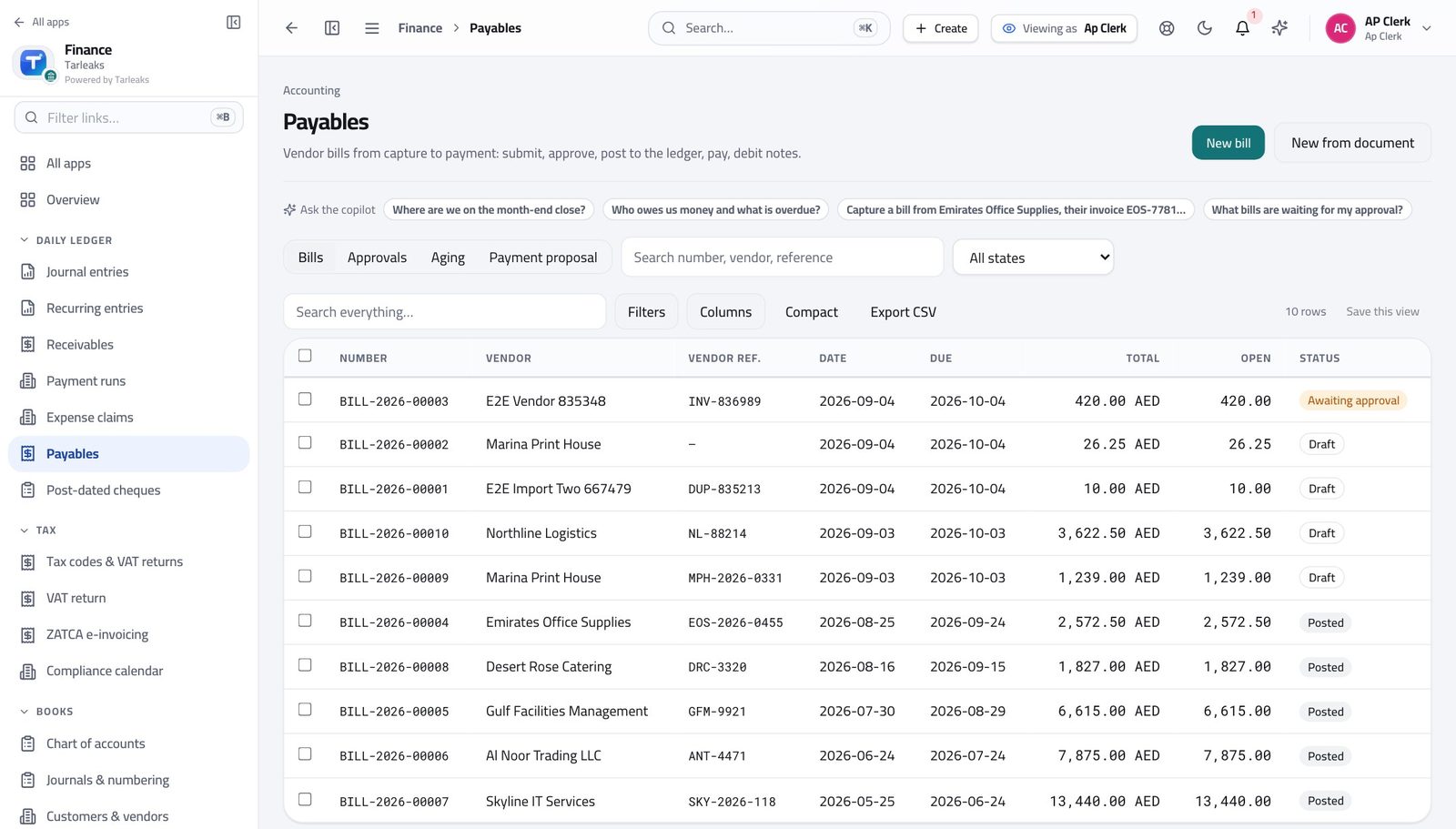
You should see Every bill you have entered is here with its current state.
Enter a supplier bill #
Where Finance » Payables » New bill
- On Payables, click New bill at the top right.
- Choose the supplier, or type a one-off name if they are not in the list.
- Enter the supplier's own invoice number, the bill date and the due date.
- Add one line per charge: description, account, quantity, unit price and tax.
- Check the total against the supplier's document.
- Click Save to keep it as a draft, or Save and submit to send it for approval.
| Field | What to put in it |
|---|---|
| Vendor | Pick from your supplier list. Their payment terms fill the due date for you. |
| Or one-off vendor name | For a supplier you will not use again — no master record is created. |
| Vendor invoice no. | Their reference, exactly as printed. This is what stops the same bill being paid twice. |
| Bill date | The date on the supplier's document. |
| Due | When they expect to be paid. Filled from payment terms; change it if you agreed something else. |
| WHT rate (non-resident) | Only for suppliers where withholding tax applies. Leave empty otherwise. |
| Description | What the charge was for, per line. |
| Account | The expense account this belongs to. Ask your accountant which one if the charge is unusual. |
| Qty / Unit price | Multiply to the line amount. Use quantity 1 and the full amount when it is a single service. |
| Tax | The tax code for the line. The tax amount is worked out for you. |
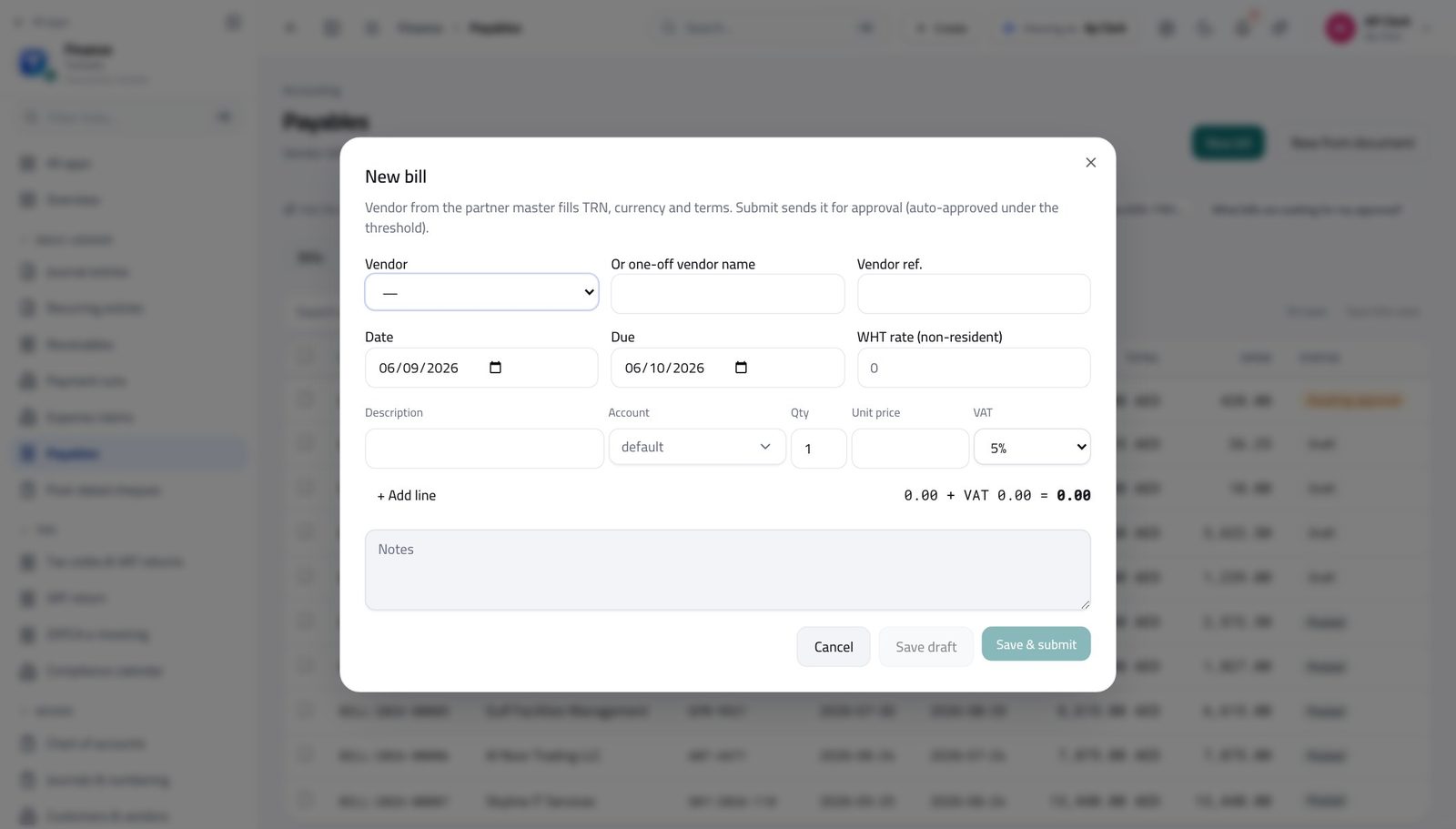
You should see The total, the tax and what is left to pay are worked out for you as you add lines.
Watch out If the total is a few fils out, the tax code on a line is usually the reason — not the prices.
Worth knowing Have the supplier's PDF? Use New from document instead and the details are read off it for you to check.
See what is due and how late #
Where Finance » Payables » Ageing
- On Payables, click the Aging tab.
- Read the Bucket column.
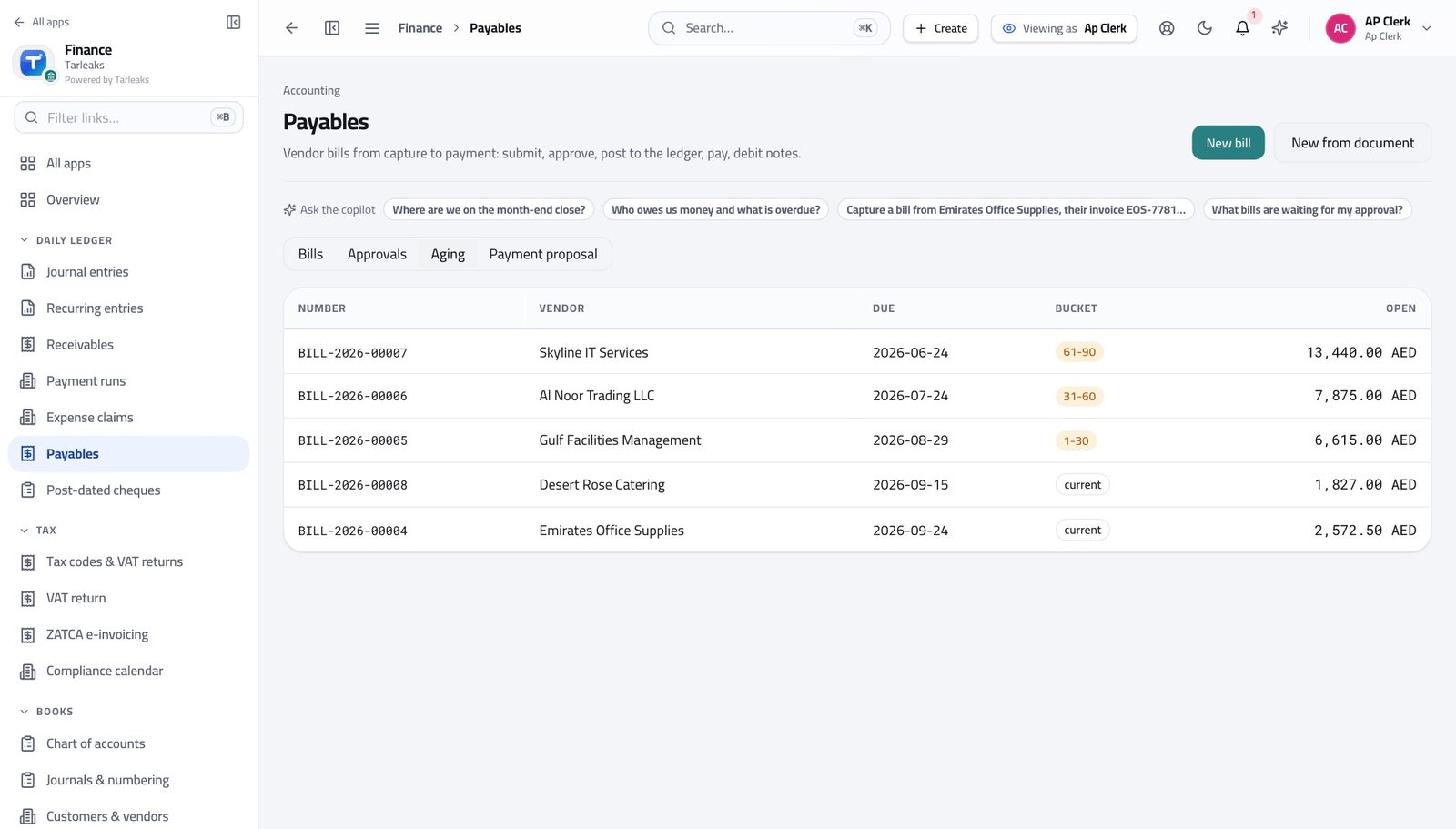
You should see You can tell in one look which suppliers need paying first.
Look at the payment runs #
Where Finance » Payment runs
- In the left menu, click Payment runs.
- Open a run to see which bills it covers.
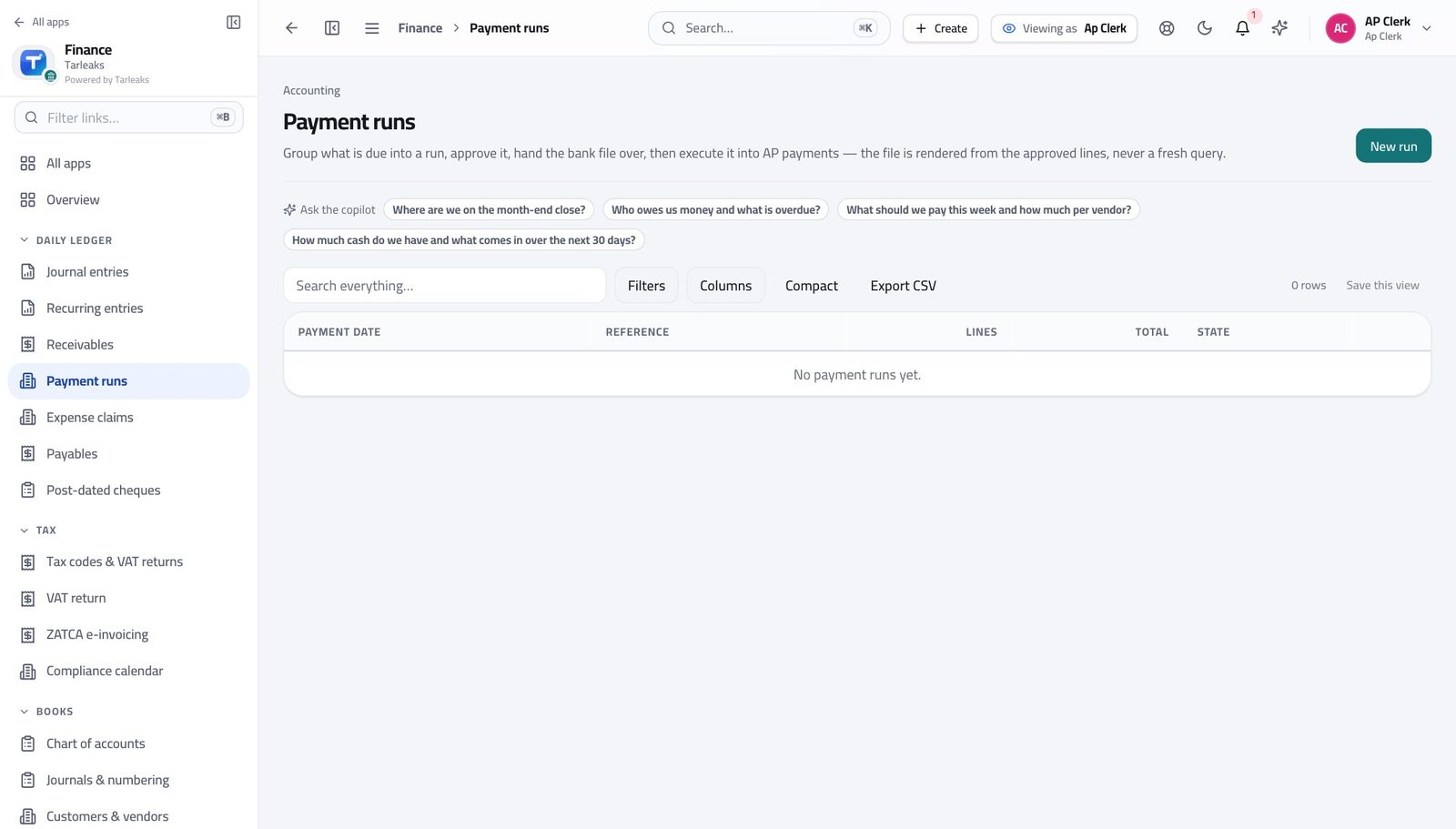
You should see You put the run together; the controller approves it before any money moves.
Send a batch of bills for approval #
Where Finance » Payables » tick rows » Submit
- On Payables, tick each bill you have finished entering.
- In the bar at the bottom, click Submit.
- Confirm.
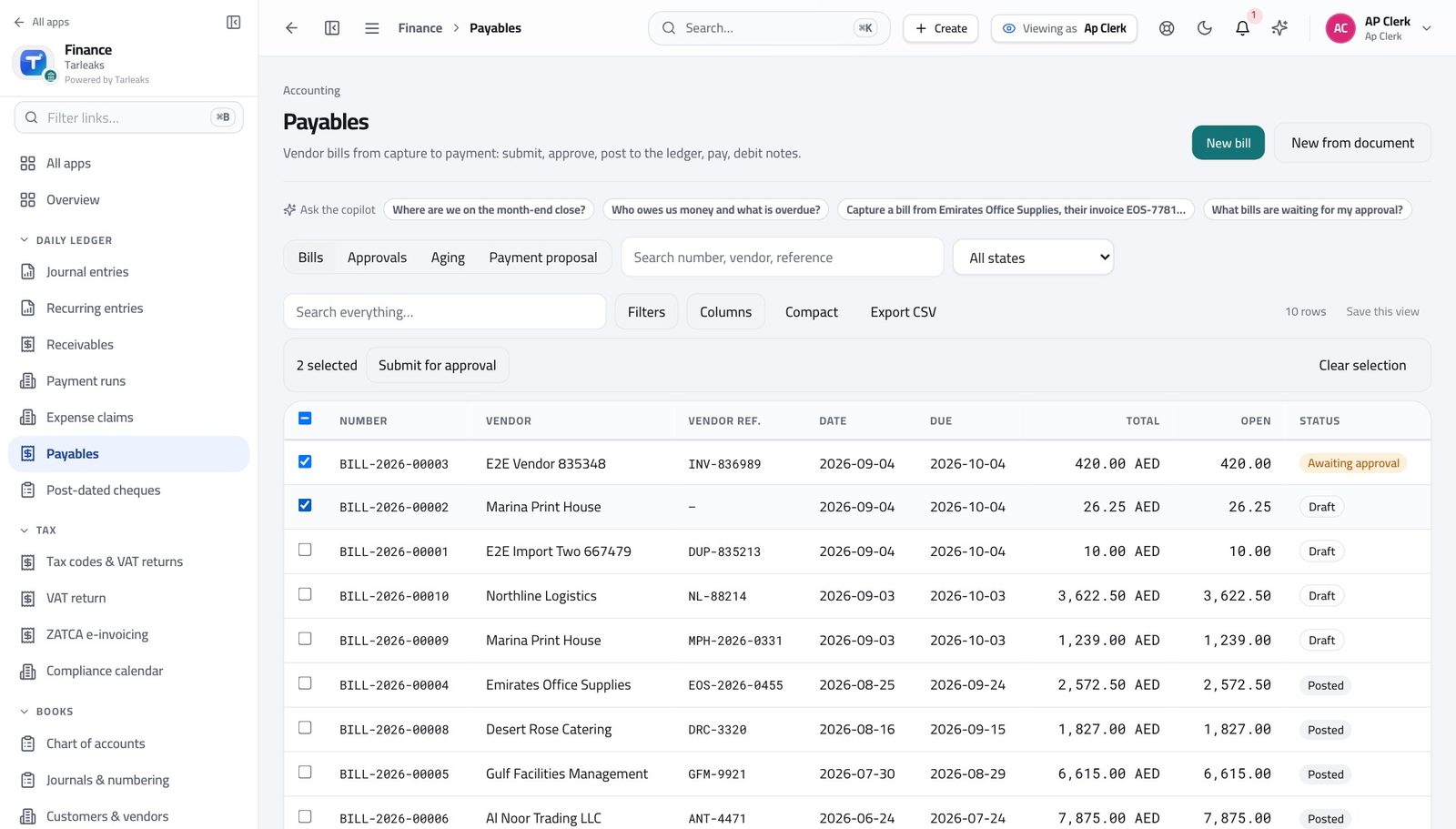
You should see They all go forward in one action, and each bill is still checked on its own — a bill with a problem is named and the others still move.
Watch out A bill that fails its own checks is named in the result and stays where it was — the others still go forward.
Worth knowing Not sure about a batch? Ask for a practice run first — it checks every row and changes nothing.
See where your authority stops #
Where Finance » Payables
- Tick any bill.
- Read the bar at the bottom.
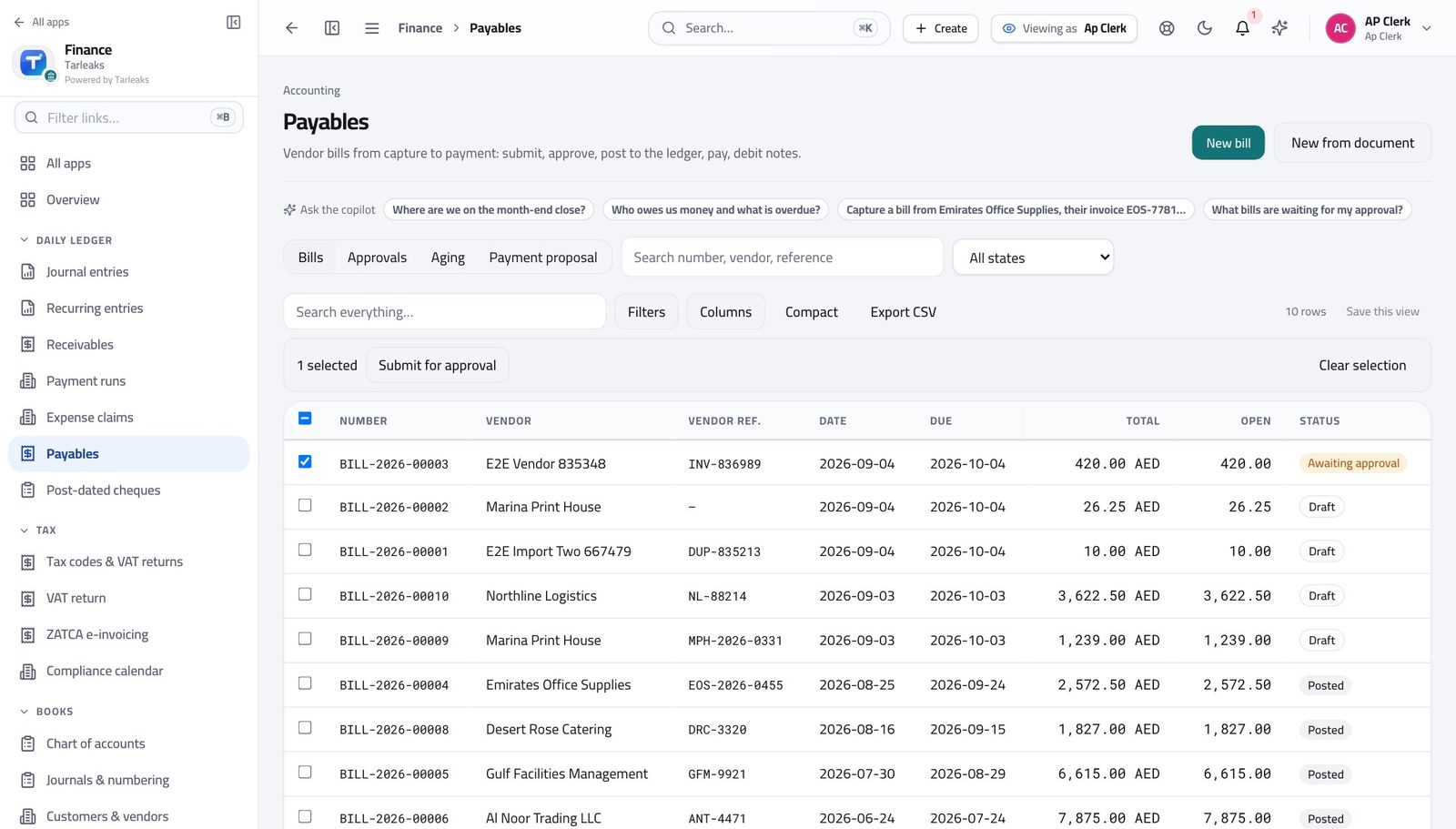
You should see Submit is there; Approve is not. The person who enters a bill never approves it — that is what keeps payables honest.
Edit suppliers, but do not remove them #
Where Finance » Customers & vendors
- Open Customers & vendors.
- Tick a supplier.
- Read the bar.
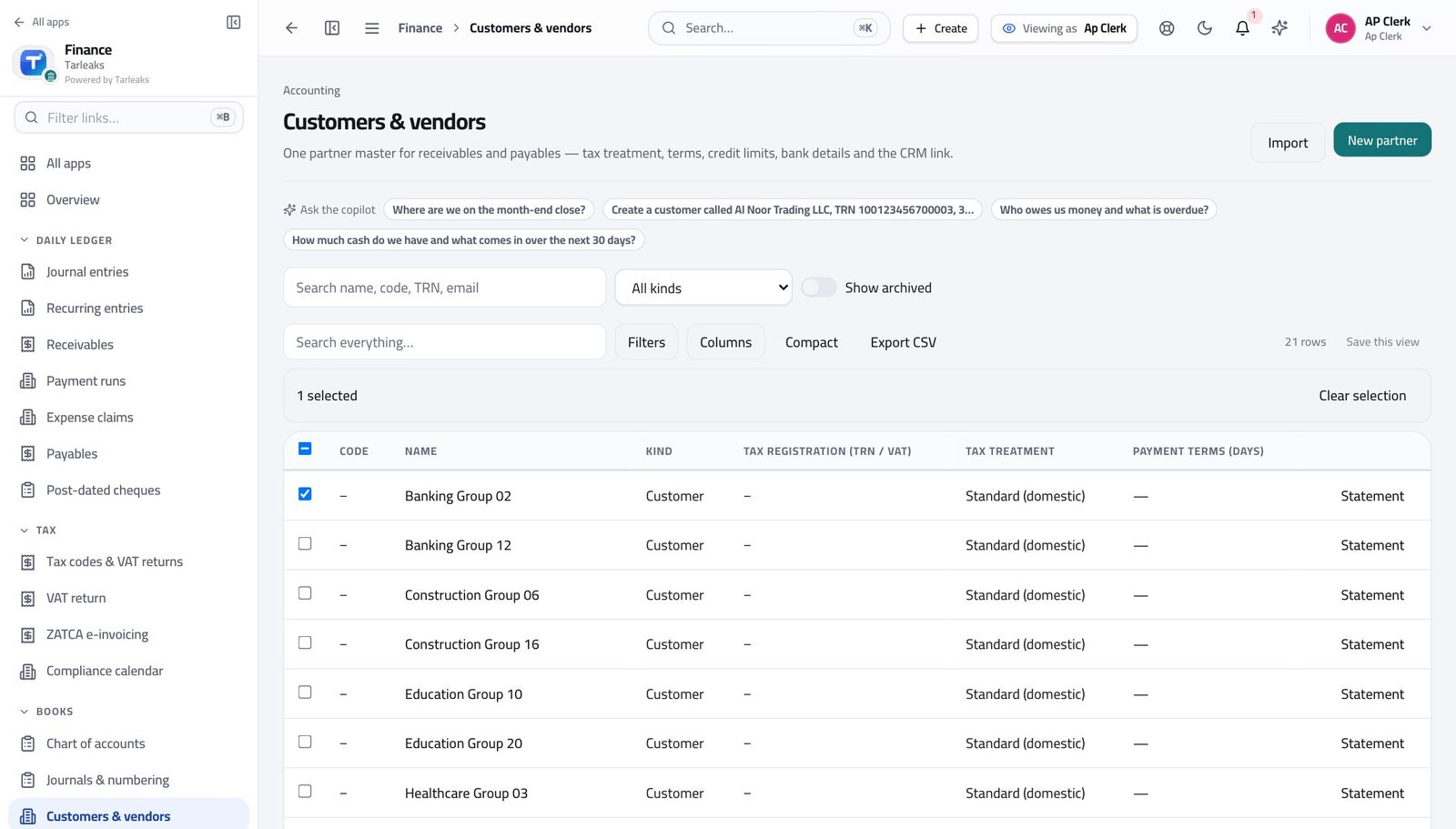
You should see You can correct a supplier's details, but taking one out of the master list is a different authority.
Payroll is not yours to see #
Where The left menu
- Look down the app list in the left rail.
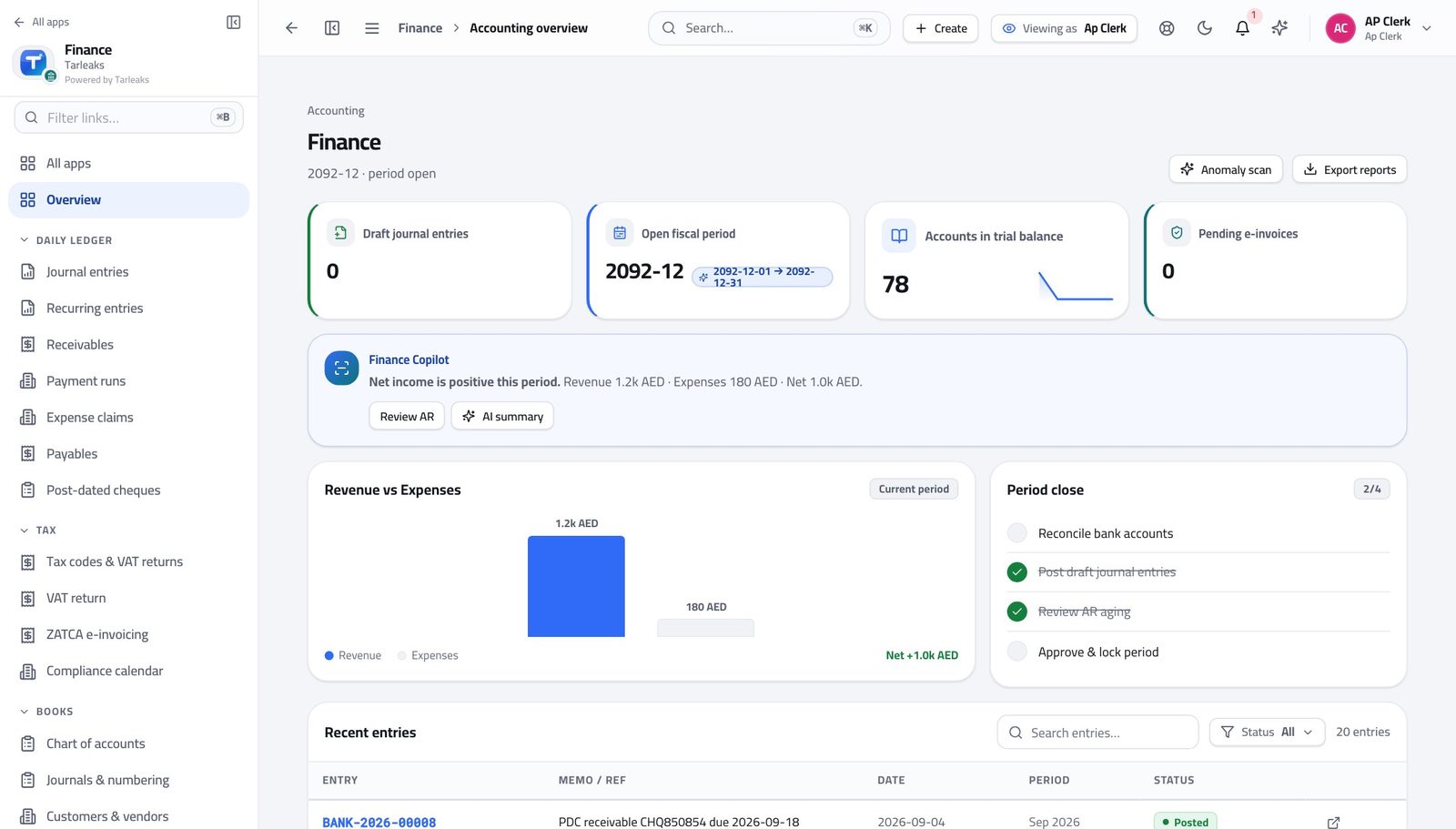
You should see Someone handling supplier invoices has no reason to see salaries, so the whole area is closed — not just hidden.
Use cases — the work, step by step
Each one is a sequence somebody actually performs, with the screen behind every step. Every screen here was opened in the product as this role before it was published.
dailyA day of supplier invoices, entered and sent for approval #
You are the last person who sees the paper. Everything after you depends on what you typed.
Open Payables. The state column tells you whose turn it is on every bill you have entered.
Finance » Payables — verified: 10 row(s) listed Enter each invoice that arrived: supplier, their own invoice number, the dates, then a line per charge. Check the total against the supplier's document to the fils.
Finance » Payables » New bill — verified: the control is offered Tick the bills you finished and submit them together. Each one still runs its own checks, so a problem bill is named and the rest go forward.
Finance » Payables » tick rows » Submit — verified: the control is offered; the control is offered
weeklyWork the week's payables before the payment run #
A supplier at ninety days calls the managing director, not you.
Open the Aging tab and read the Bucket column, oldest first.
Finance » Payables » Ageing — verified: the page says “Bucket”; 5 row(s) listed Look at the payment runs to see what is already scheduled, and what still needs to be added.
Finance » Payment runs — verified: the page says “Payment” Chase your own approvals: anything sitting in submitted is yours to escalate.
Finance » Payables — verified: the control is offered; the action is not offered to this role
urgentA supplier says they were never paid #
Nine times out of ten the answer is on the screen before the call ends: it was never approved, or it was paid and they missed it.
Open Payables and find their bills — search by the supplier's own invoice number, which is exactly what they will quote.
Finance » Payables — verified: 10 row(s) listed Read the state. Submitted means nobody approved it; approved means it is waiting for a payment run.
Finance » Payables — verified: the control is offered; the action is not offered to this role If it was paid, open the payment run and give them its date and reference.
Finance » Payment runs — verified: the page says “Payment”
You prepare; someone else approves and pays. If a button you expected is missing, that is the reason — and it protects you as much as the company.