Tax Agent — Finance guide
File on time, from numbers the ledger produced.
Files: VAT and corporate tax, withholding and zakat, and the e-invoices the authority expects.
What you will be able to do
- Produce the VAT return for any period
- Read the corporate tax calculation for the year
- Check withholding and zakat from the same books
- See which returns are drafted, filed and paid
What this role can and cannot do
| Can | Cannot |
|---|---|
|
|
6 steps, each one carried out in the product on .
Check what your sign-in can do #
Where Your name, top right » Profile
- Open your company's address in the browser — it looks like yourcompany.tarleaks.com.
- Type the e-mail address your administrator set up for you, then your password.
- You land on the app launcher: a grid of the apps your company uses.
- Click your name, top right.
- Choose Profile.
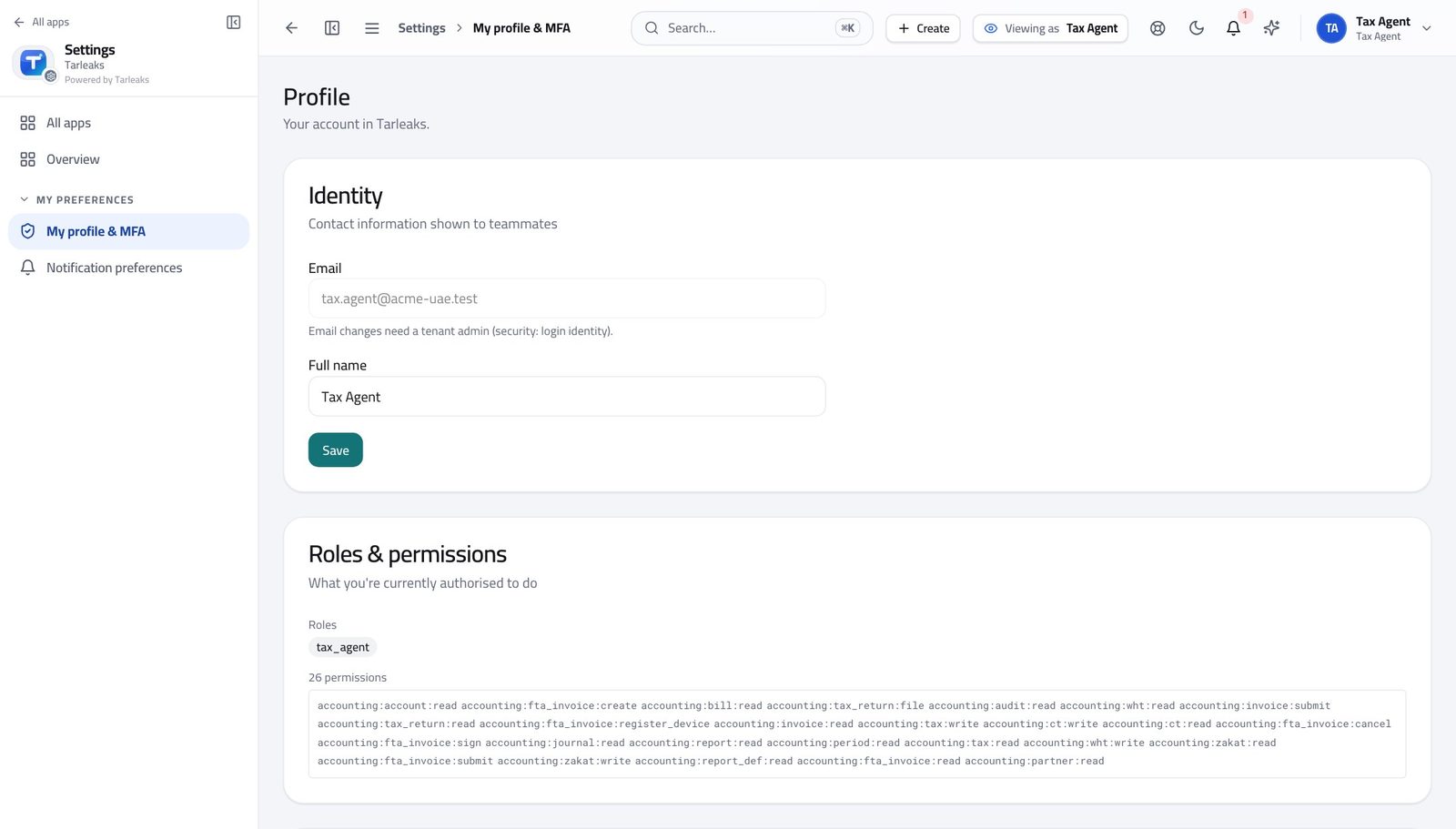
You should see It says Tax Agent. You prepare and file returns; you do not post to the ledger they are drawn from.
Produce the VAT return #
Where Finance » VAT return
- Open Finance, then VAT return in the left menu.
- Choose the period you are filing for.
- Read each box and the figure behind it.
- Click a box to see the entries that make it up.
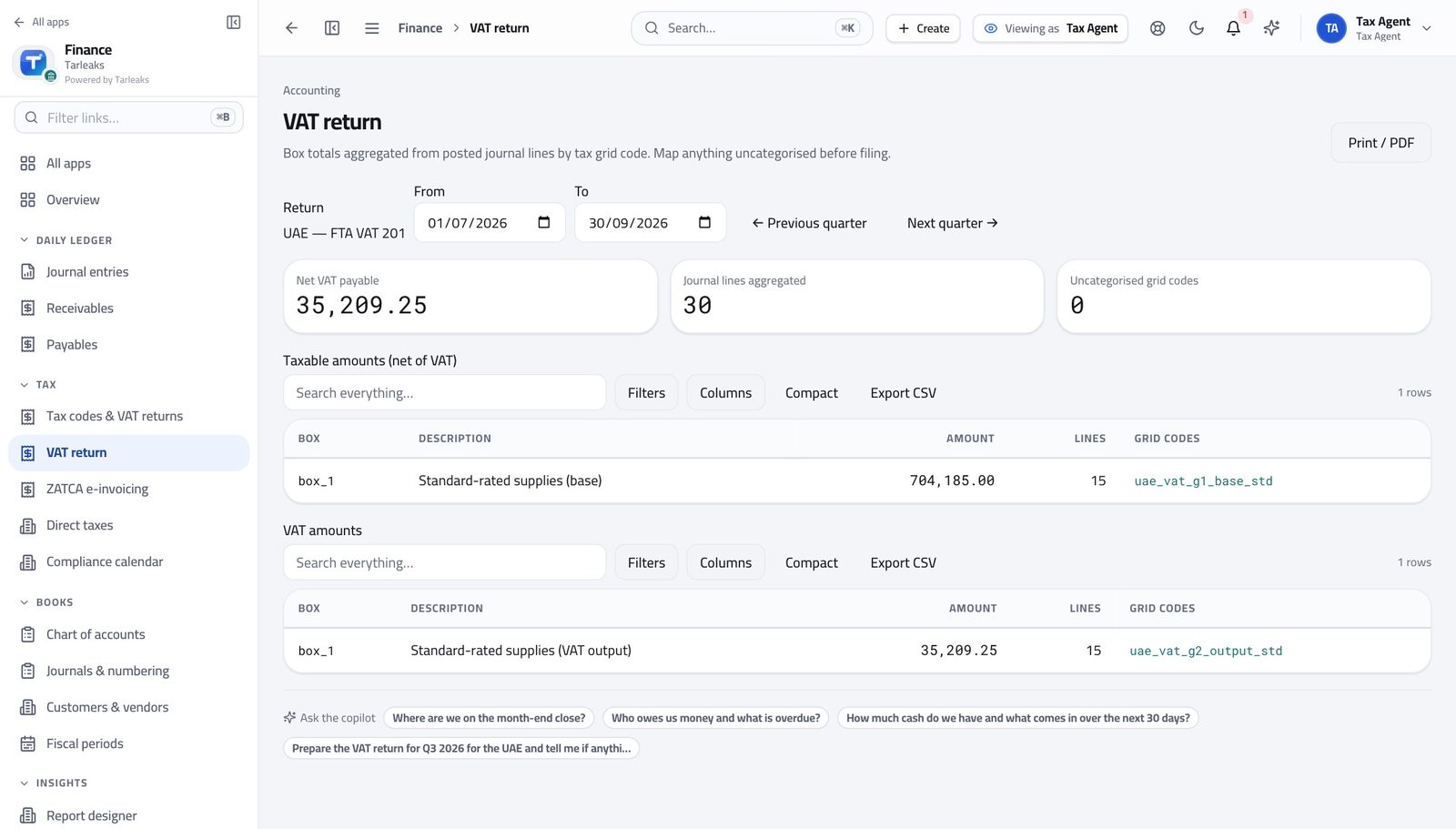
You should see Every box is filled from entries already in the books. Anything the rulebook cannot place is shown rather than quietly dropped.
Watch out Anything the rulebook cannot place is shown separately rather than dropped, so you notice before the authority does.
Read the corporate tax calculation #
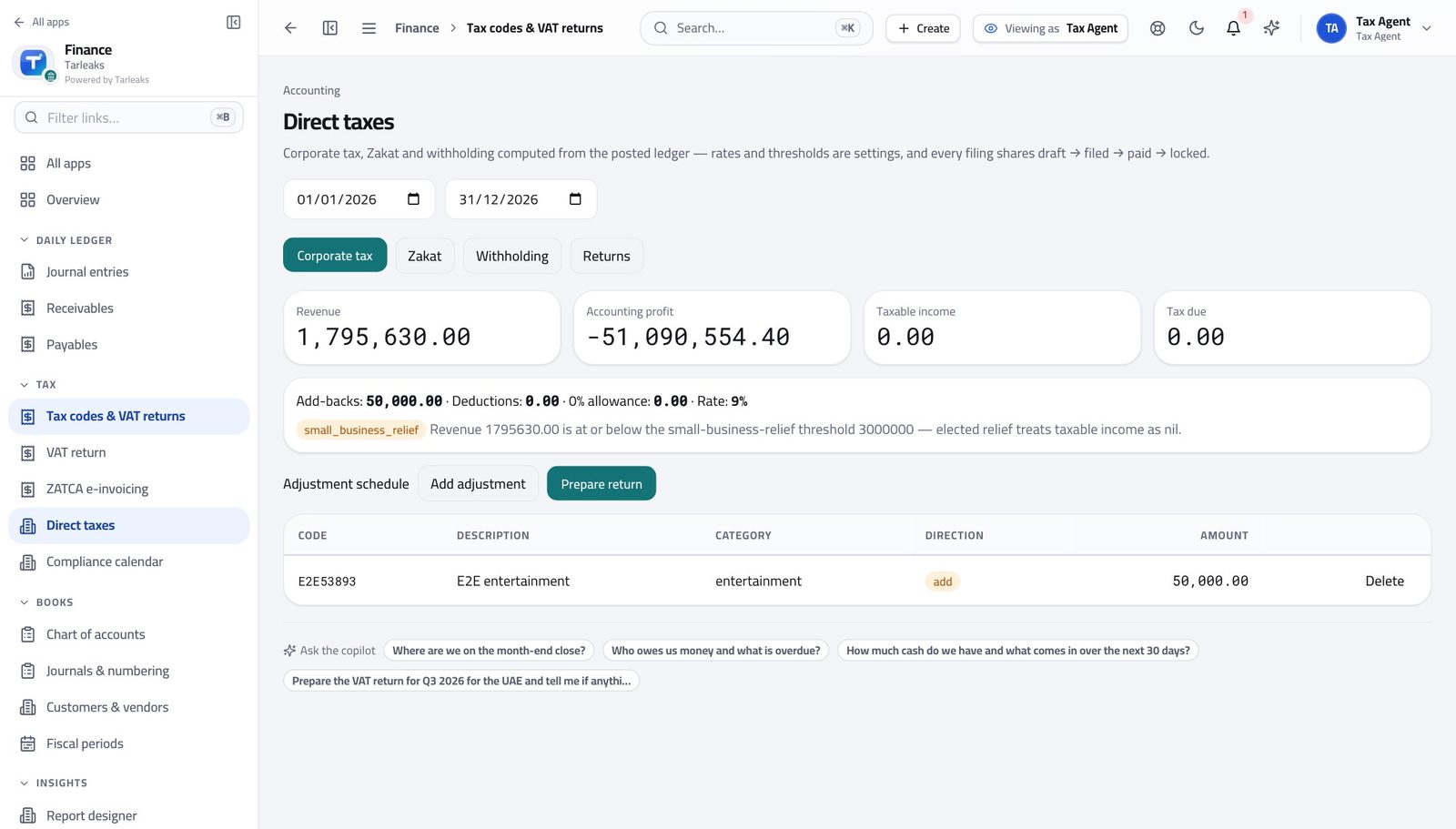
Where Finance » Tax codes & VAT returns
- In the left menu, open Tax codes & VAT returns.
- Open the corporate tax view.
- Follow it down: revenue, accounting profit, taxable income, tax due.
You should see The calculation shows its working, so you can explain any line of it.
Check withholding and zakat #
Where Finance » Tax codes & VAT returns
- Open the withholding register from the tax area.
- Then open the zakat view.
You should see Both are computed from the same books as everything else, so they agree with the accounts.
See which returns are filed #
Where Finance » Compliance
- Open Compliance calendar in the left menu.
- Read the returns list and the state beside each.
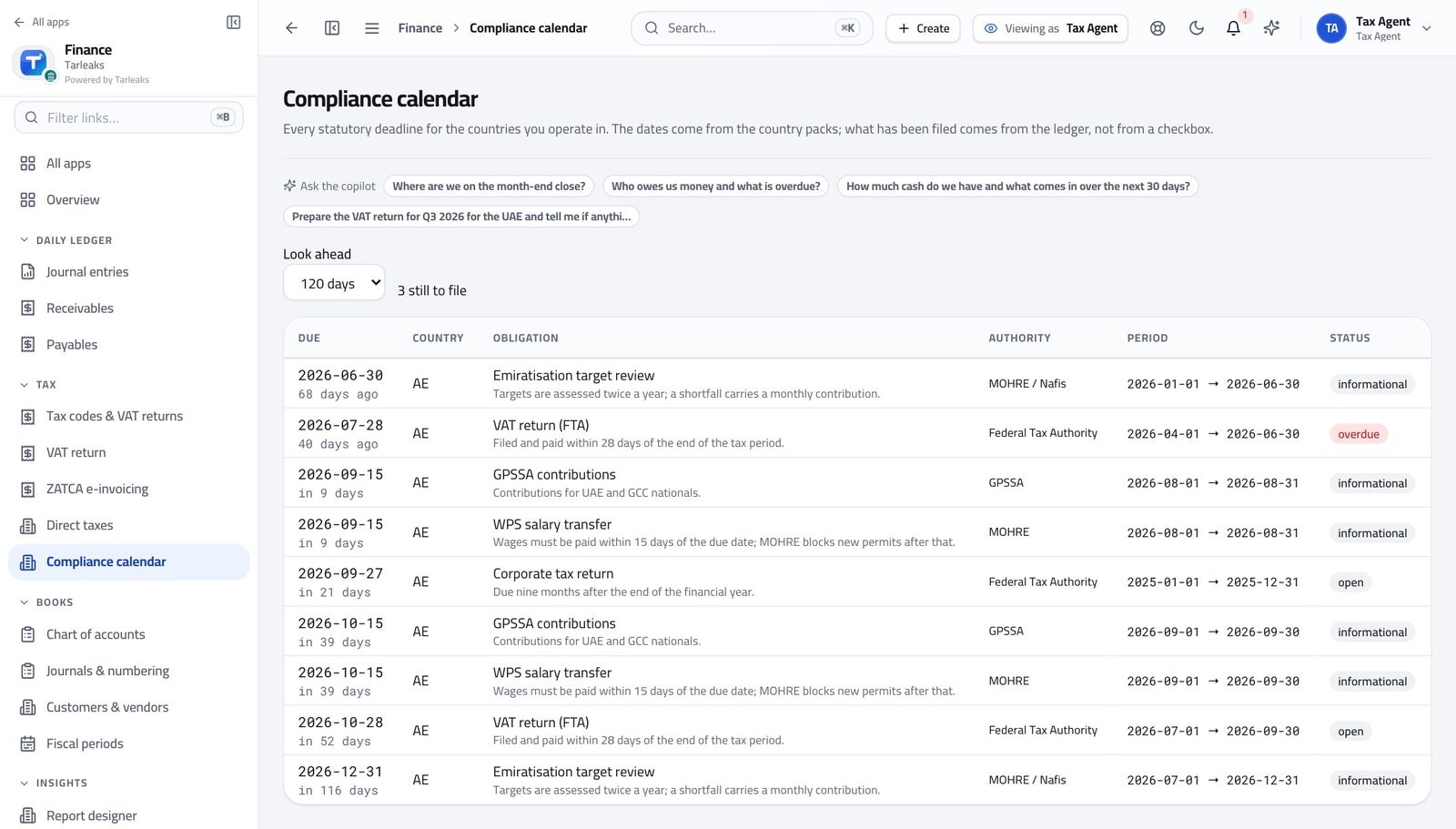
You should see Nothing is 'probably filed' — the state and the date are on the record.
You read the books, you do not write them #
Where Finance » Journal entries
- Open Journal entries.
- Look at the top right.
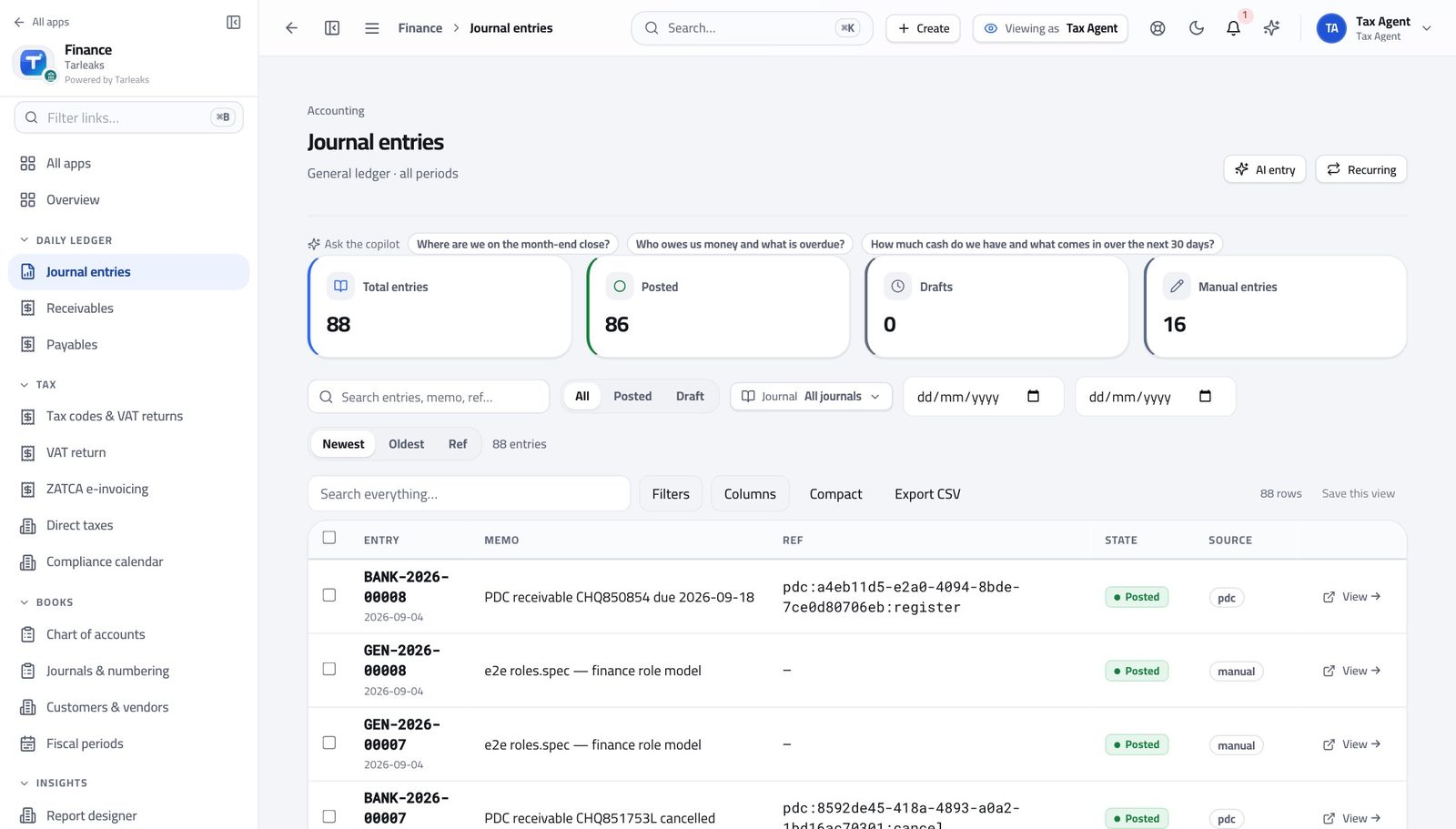
You should see Every figure you file can be traced here — and there is no button to add an entry. That separation is what makes the return trustworthy.
Use cases — the work, step by step
Each one is a sequence somebody actually performs, with the screen behind every step. Every screen here was opened in the product as this role before it was published.
monthlyFile the VAT return for the period #
Every box is derived from postings. Anything the rulebook cannot place is shown rather than dropped, which is where the two minutes of checking go.
Open VAT return and choose the period you are filing for.
Finance » VAT return — verified: the page says “VAT” Read each box against the ledger — not against last month's return — and check the uncategorised bucket.
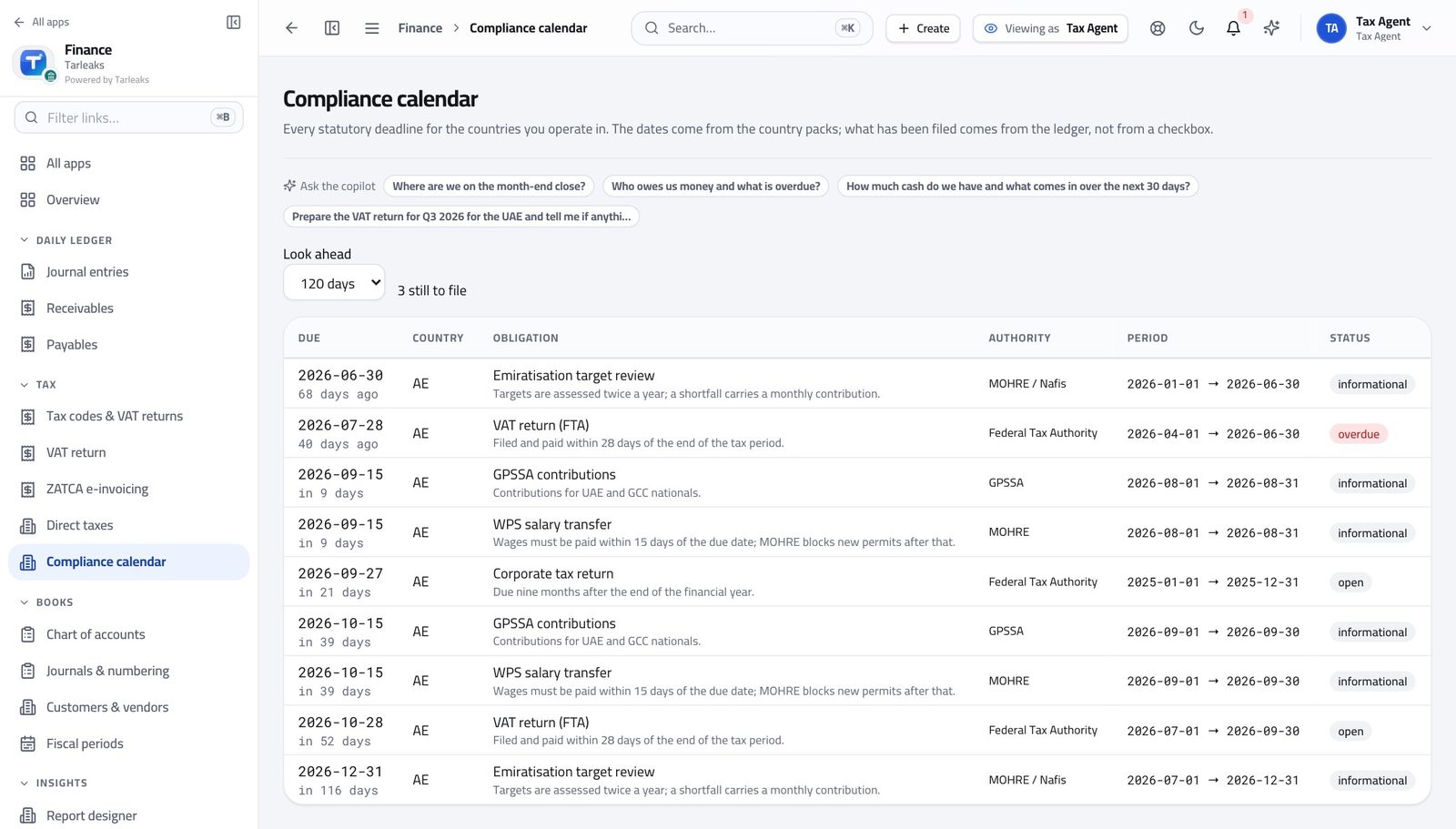
Finance » VAT return — verified: the page says “VAT” Open the returns list and confirm the state and date once it is filed. Nothing here is 'probably filed'.
Finance » Compliance — verified: the page says “Compliance”
quarterlyCheck the corporate tax position before year end #
An adjustment found in month three is cheaper than one found in month eleven.
Open the tax area and read the computation: revenue, accounting profit, taxable income, tax due.
Finance » Tax codes & VAT returns — verified: the page says “Compliance” Check the withholding register and the zakat base where they apply — both are computed from the same books.
Finance » Tax codes & VAT returns — verified: 1 row(s) listed Look ahead in the compliance calendar so nothing is filed in a rush.
Finance » Compliance — verified: the page says “Compliance”
Nothing here is typed in by hand. Every box comes from entries already in the books, which is why the return and the accounts agree.