Tenant Administrator — Finance guide
Set up the finance module once, properly.
Configures the module — country pack, taxes, journals, periods and the finance settings every other role works inside.
What you will be able to do
- Check which country rulebook is installed
- Review tax rates and tax groups
- See the report layouts the team will use
- Keep filing dates in view before they arrive
What this role can and cannot do
| Can | Cannot |
|---|---|
|
|
7 steps, each one carried out in the product on .
Check what your sign-in can do #
Where Your name, top right » Profile
- Open your company's address in the browser — it looks like yourcompany.tarleaks.com.
- Type the e-mail address your administrator set up for you, then your password.
- You land on the app launcher: a grid of the apps your company uses.
- Click your name, top right.
- Choose Profile.
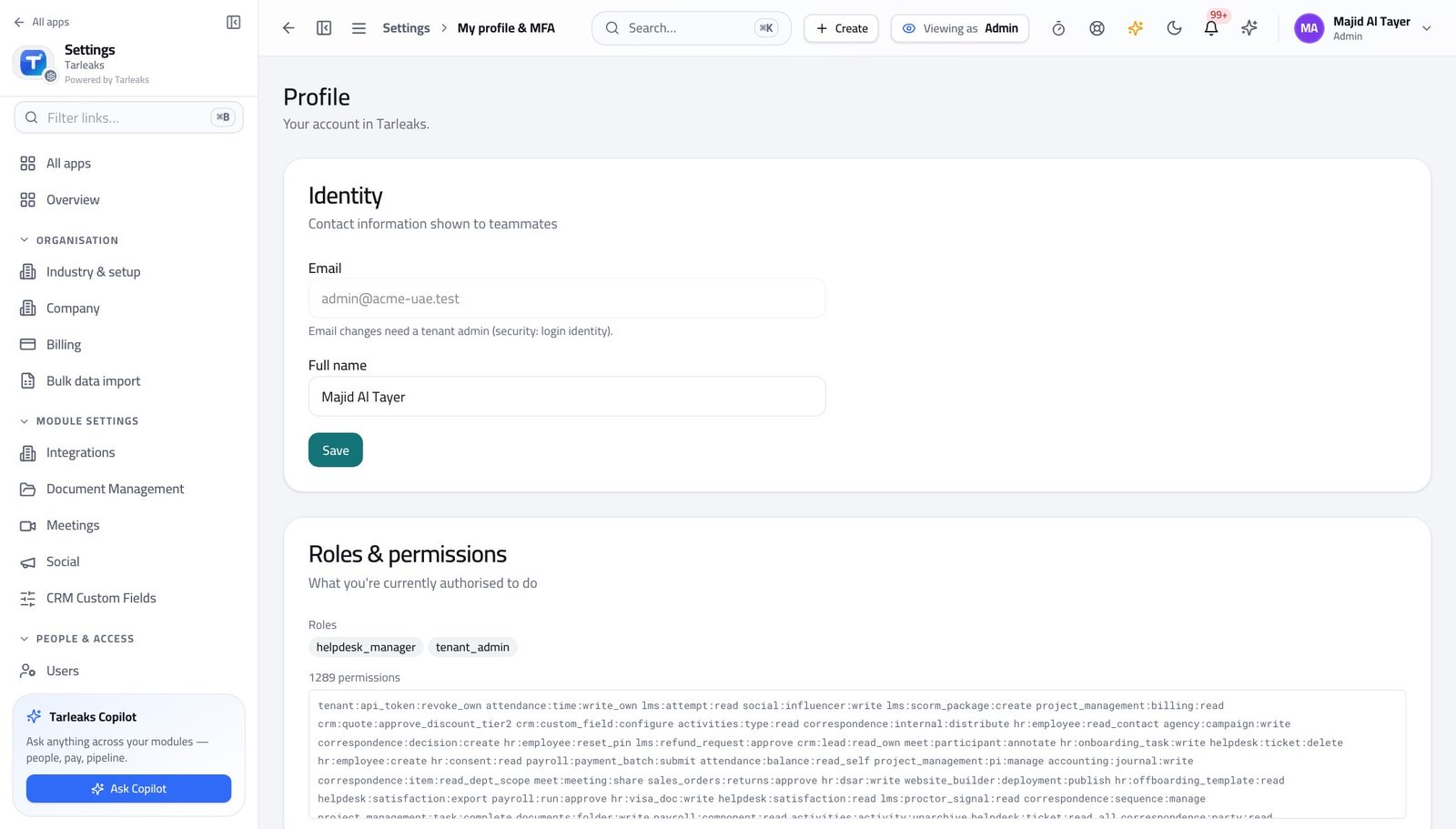
You should see It says Tenant Admin. The settings every finance role works inside are yours to change.
Open the finance settings #
Where Settings » Finance
- Open Settings from the app launcher.
- Click Finance.
- Read the base currency and the posting rules.
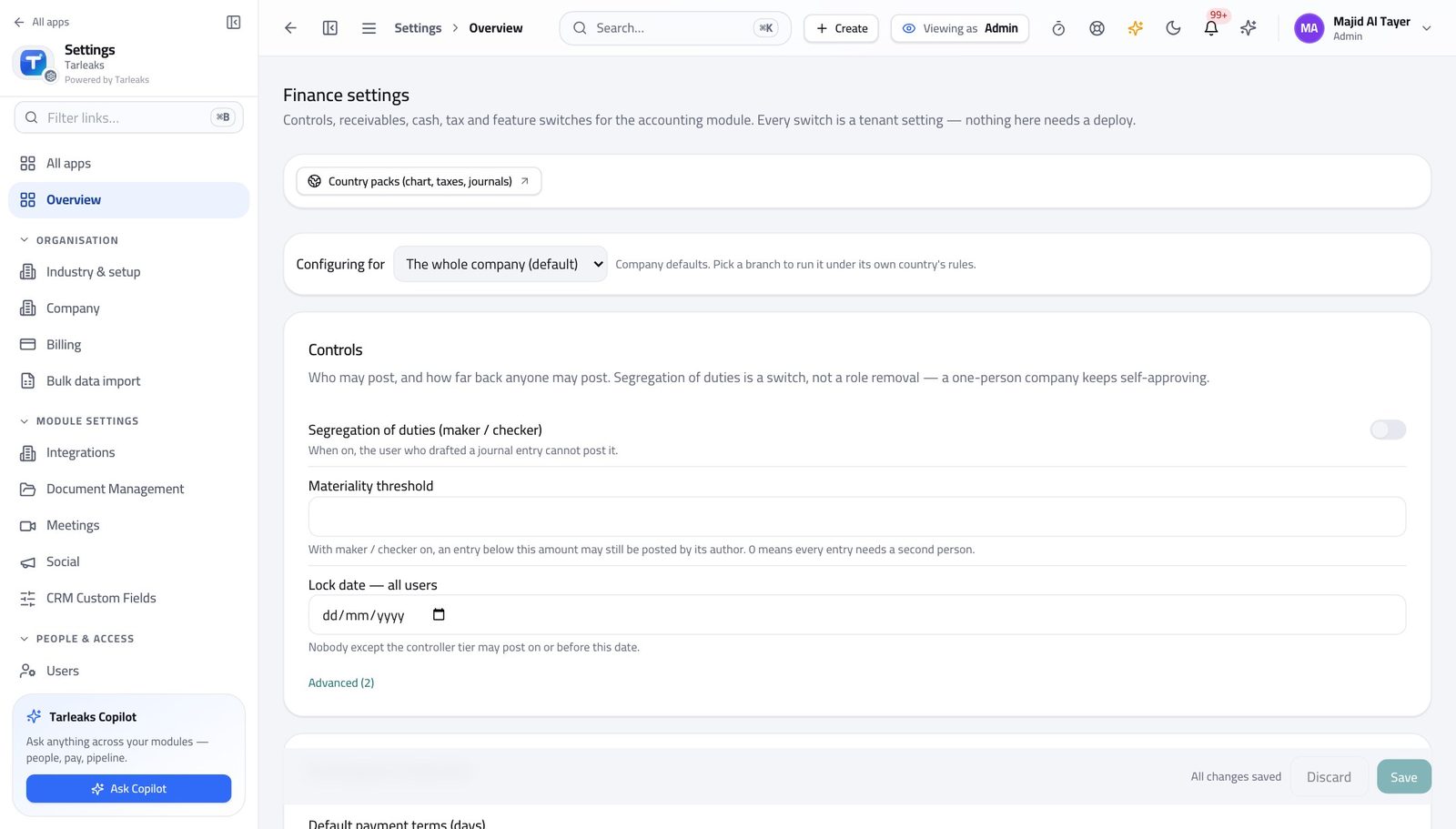
You should see This is the one place the module's behaviour is set for everybody.
Check the country rulebook #
Where Settings » Finance » Country pack
- Still in Settings, scroll to the country rulebook section.
- The installed version is marked.
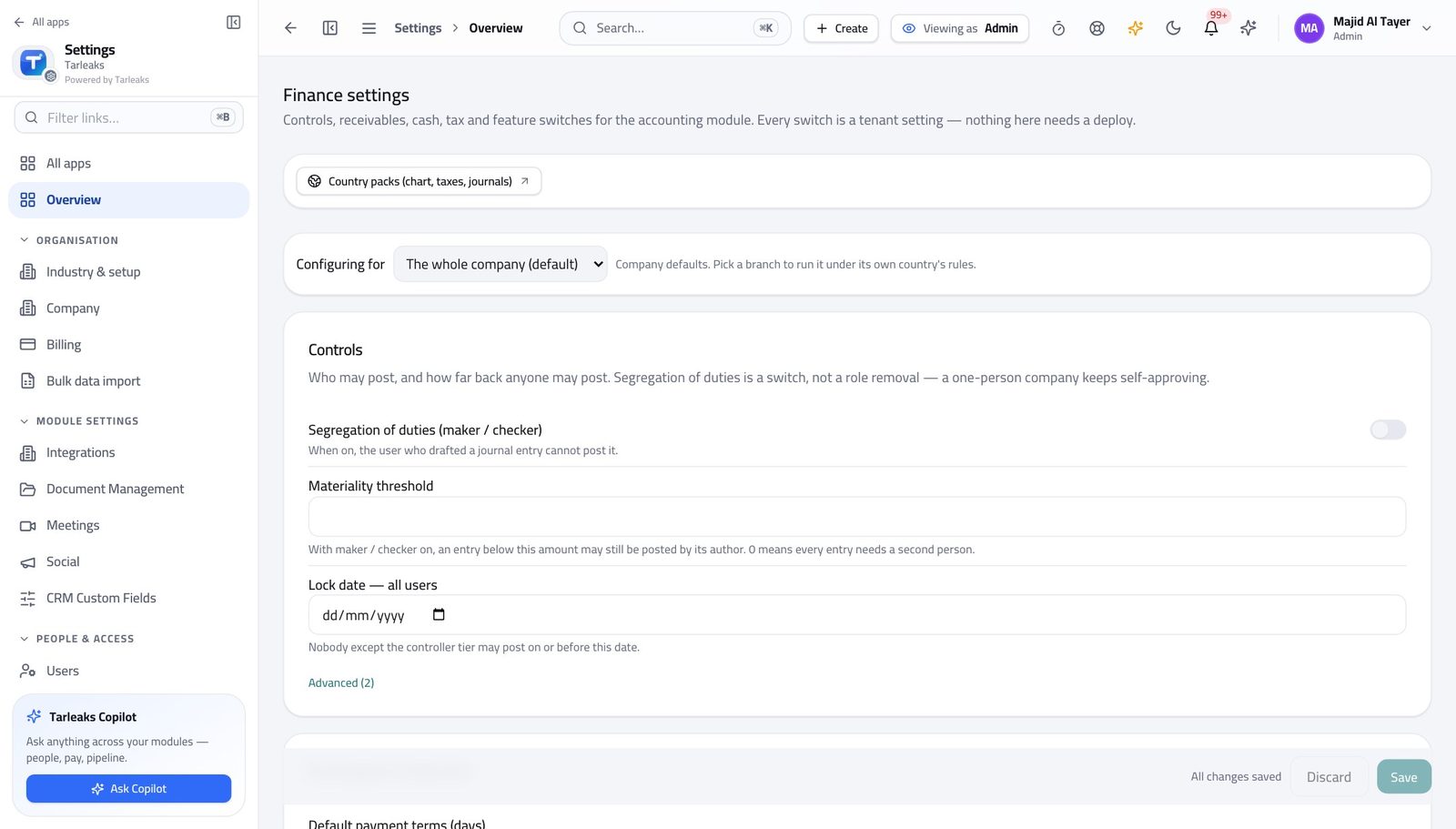
You should see Tax rates, account structure and filing rules come from a versioned rulebook, so an update is a deliberate act.
Watch out Upgrading a rulebook changes what is produced afterwards. Do it deliberately, and tell the finance team when you have.
Review the tax rates in use #
Where Finance » Tax codes & VAT returns
- Open Finance, then Tax codes & VAT returns.
- Read the rate and the group beside each tax.
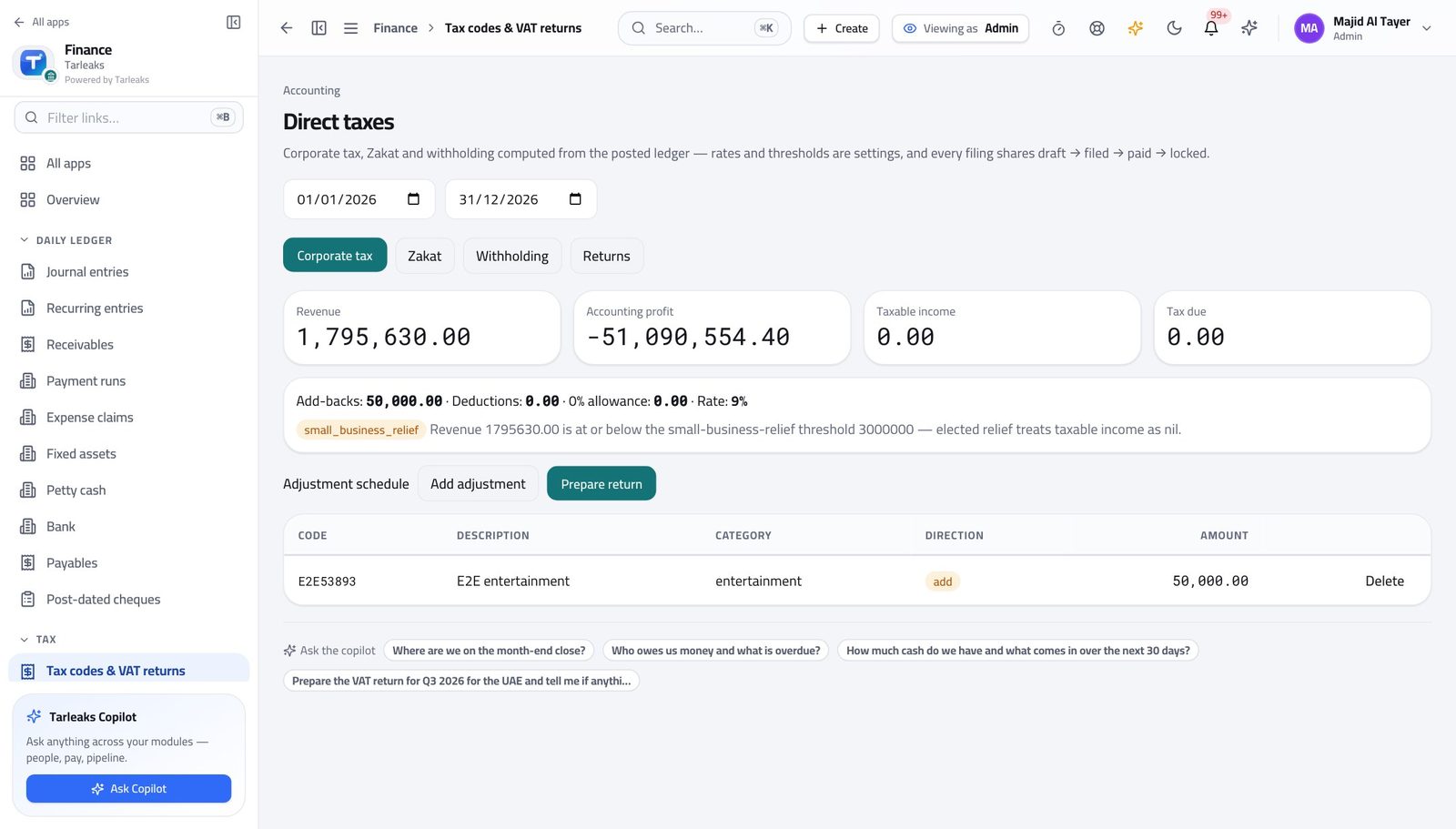
You should see Rates arrive from the rulebook and can be adjusted for your business.
Worth knowing Change a rate and every figure produced afterwards uses it. Past entries keep the rate they were posted with.
Add or adjust a tax rate #
Where Finance » Tax codes & VAT returns
- Click a tax to edit it, or add a new one.
- Set the rate, the group it reports in, and the accounts it posts to.
- Save.
| Field | What to put in it |
|---|---|
| Rate | As a percentage. 5 for UAE VAT, 15 for Saudi VAT. |
| Group | Which box of the return it belongs to. Get this wrong and the figures are right but the return is not. |
| Accounts | Where the tax lands in the books — usually a payable for sales tax and a receivable for purchase tax. |
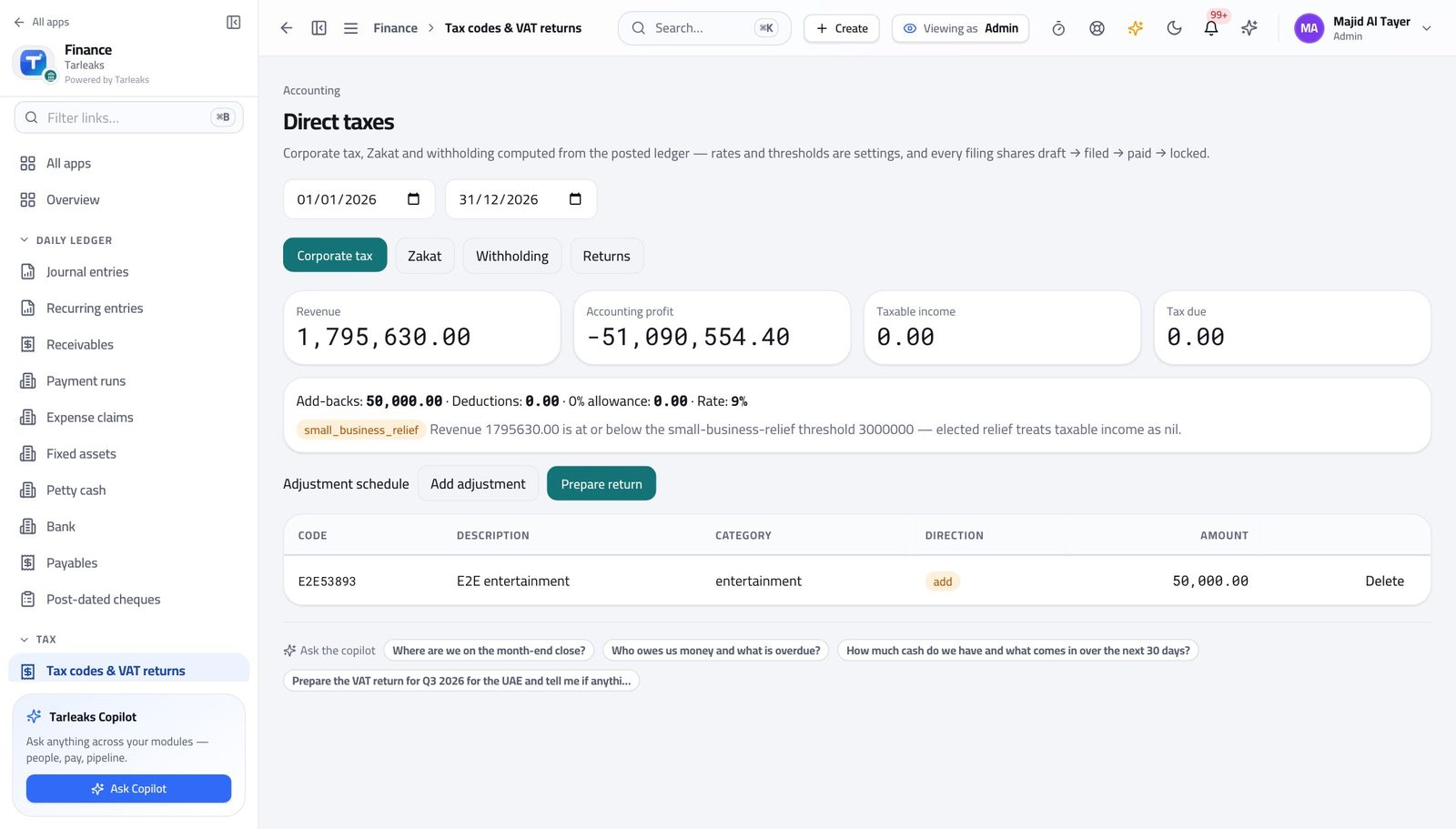
You should see The change applies to everything raised afterwards; entries already posted keep the rate they were posted with.
Watch out The change applies to everything raised afterwards. Entries already posted keep the rate they were posted with, which is what makes old returns reproducible.
Worth knowing If your business is in more than one country, check which rulebook the rate belongs to before you change it.
See the report layouts #
Where Finance » Report designer
- Open Report designer in the left menu.
- Open one of the standard layouts to see how it is built.
- Copy it before changing anything.
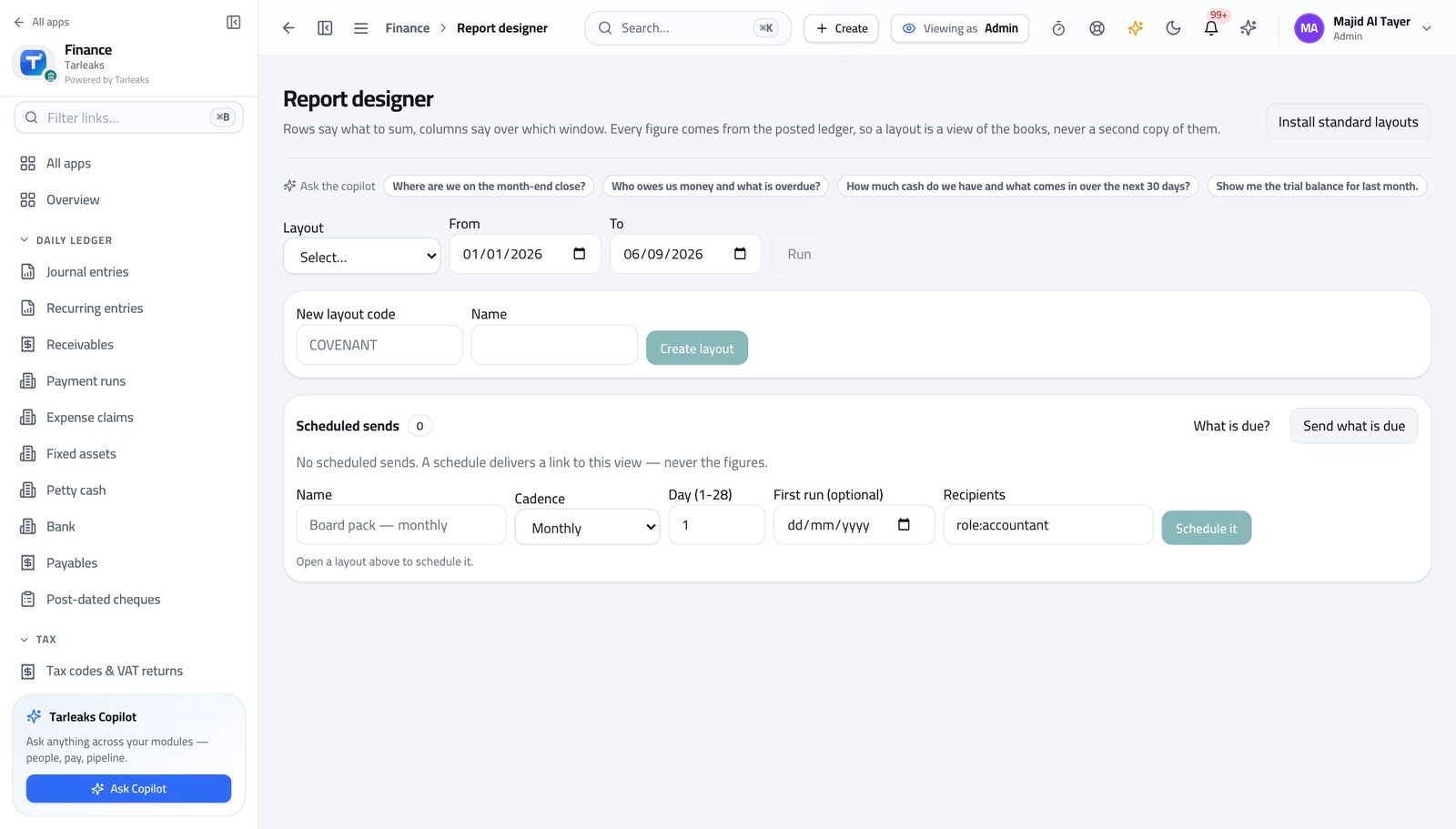
You should see A custom statement is a setting, not a development request.
Keep filing dates in view #
Where Finance » Compliance
- Open Compliance calendar.
- Read the dates for the country your business is registered in.
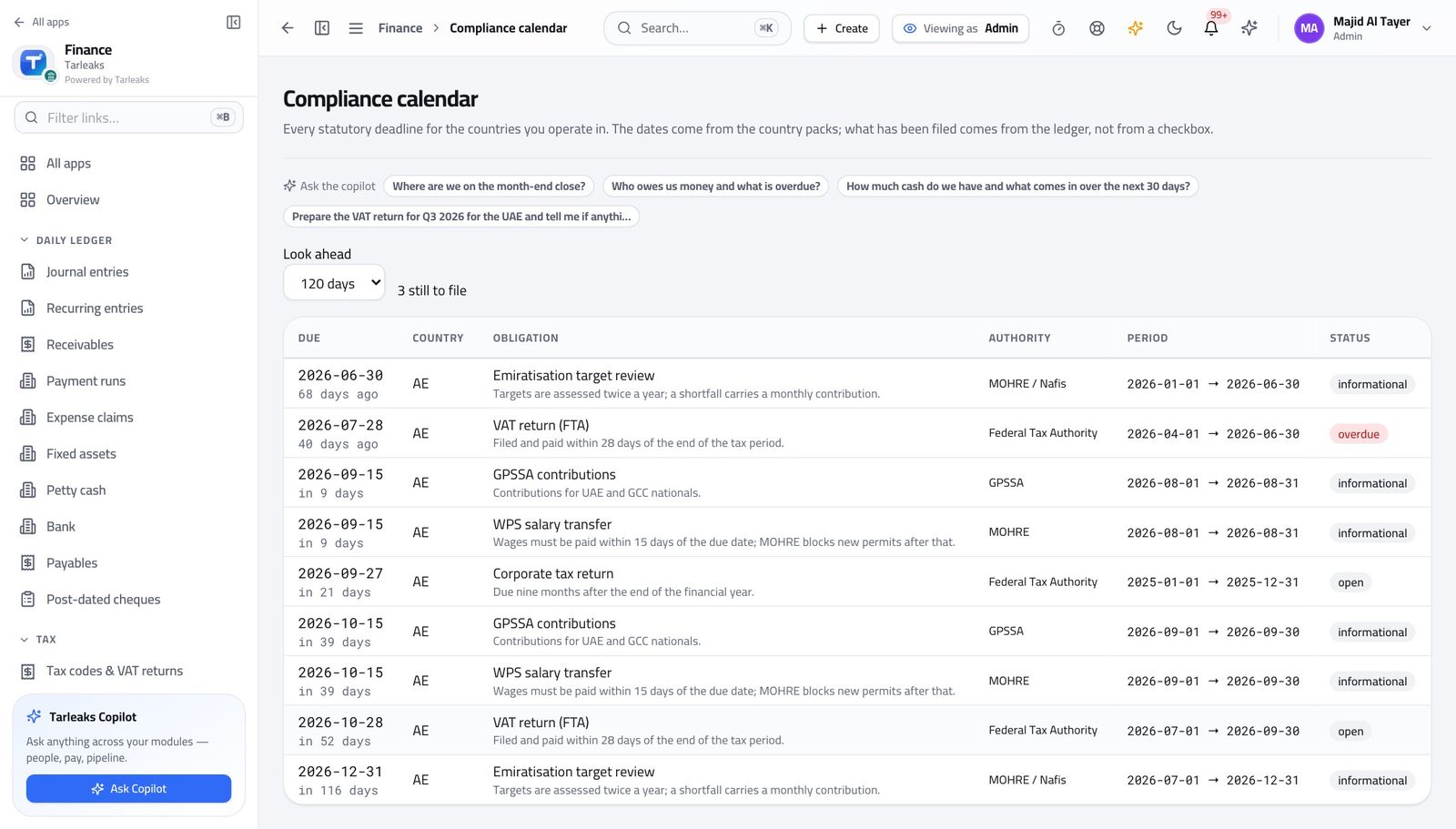
You should see The deadline arrives on the screen before it arrives in the post.
Use cases — the work, step by step
Each one is a sequence somebody actually performs, with the screen behind every step. Every screen here was opened in the product as this role before it was published.
yearlySet the module up for a new financial year #
Every January somebody cannot post because next year's periods were never created.
Open Settings → Finance and confirm the base currency and the posting rules.
Settings » Finance — verified: the page says “Finance” Check which country rulebook is installed, and its version.
Settings » Finance » Country pack — verified: the page says “pack” Read the compliance calendar for the coming year's filing dates.
Finance » Compliance — verified: the page says “Compliance”
urgentA tax rate changed by law #
The change applies to everything raised afterwards; entries already posted keep the rate they were posted with, which is what makes old returns reproducible.
Open the tax list and read the current rate and the group it reports in.
Finance » Tax codes & VAT returns — verified: 1 row(s) listed Edit the rate, set the group and the accounts it posts to, and save. Never edit a rate to fix a single wrong invoice — correct the invoice.
Finance » Tax codes & VAT returns — verified: 1 row(s) listed Tell the team the date it applies from, then check the next return renders as expected.
Finance » Compliance — verified: the page says “Compliance”
You set the rules everyone else works inside. Changing a tax rate or a rulebook version affects every number produced after it, so make the change deliberately.