the assistant role guides — what each role can do, step by step
How anybody at work asks a question and gets an answer from the company's own data — and how an administrator chooses the provider, holds the key and reads the bill. 7 steps across 2 roles, every one of them carried out in the product before it was published here.
Nothing matches that. Try a shorter word, or pick All roles to search every guide.
Go deeper
Anyone at work
Ask in your own words. Get an answer from your company's own data.
Ask a question in your own words and get an answer from your company's own data — inside whatever you can already see.
What you will be able to do
- Open the assistant from any page without losing your place
- Ask about what is on the screen in front of you
- Get an answer built from your data, not from the internet
- Have it do the small thing you were about to do by hand
What this role can and cannot do
| Can | Cannot |
|---|---|
|
|
3 steps, each one carried out in the product on .
Check that the assistant is yours to use #
Where Your name, top right » Profile
- Open your company's address in the browser — it looks like yourcompany.tarleaks.com.
- Type the e-mail address your administrator set up for you, then your password.
- You land on the app launcher: a grid of the apps your company uses.
- Click your name, top right.
- Choose Profile.
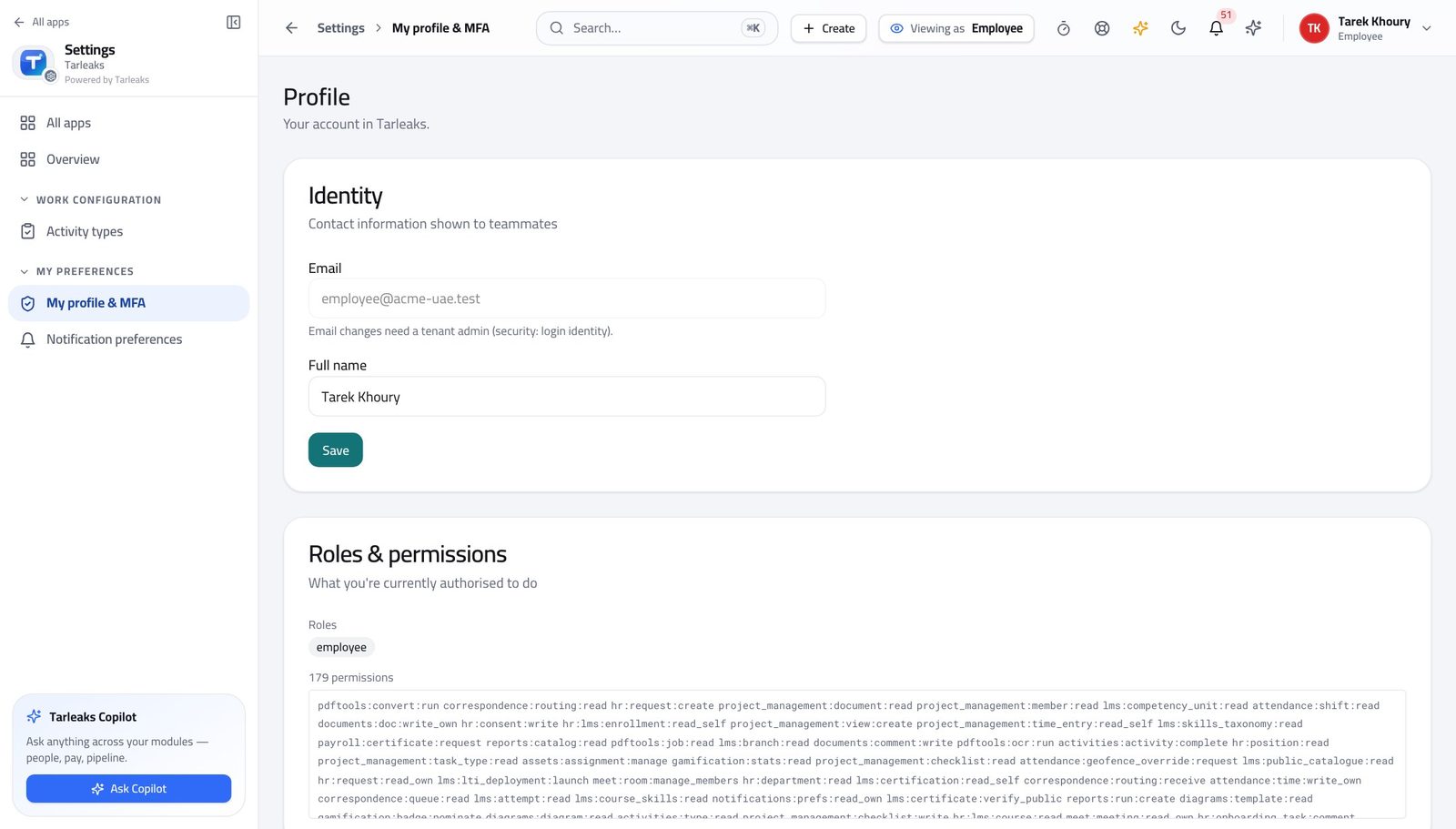
You should see No special role is needed. Everybody can ask; what comes back depends on what that person is allowed to see.
Watch out What comes back is limited to what YOU may see. Two people asking the same question can get different answers, and that is correct.
Open the assistant from wherever you are #
Where Any page » the assistant button, bottom right
- Open any page with a list on it.
- Click the round assistant button in the bottom-right corner, or press ⌘J.
- Type a question in your own words and press Enter.
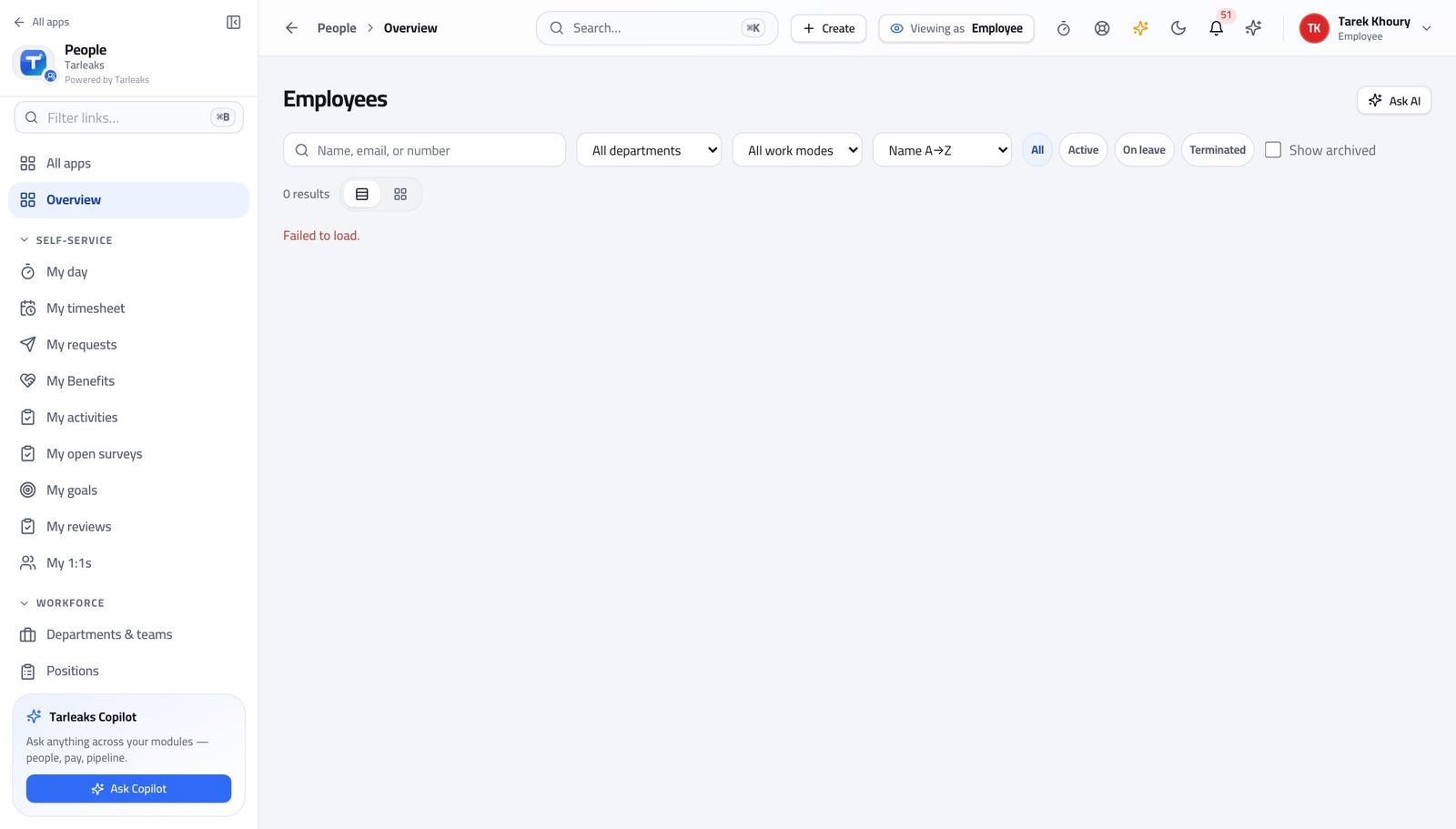
You should see It opens over the page you were on, so you do not lose your place — and it already knows which screen you were looking at.
Watch out Ask about what is in front of you. 'Who is on leave next week' works; 'what is our strategy' does not, because that is not in the data.
Worth knowing Ask about the screen you are on: 'who is on leave next week', 'which of these is overdue'. It reads that page's data.
Use the full assistant page for a longer session #
Where Assistant
- Open Assistant from the launcher.
- Ask a longer question, or one that needs a table or a chart.
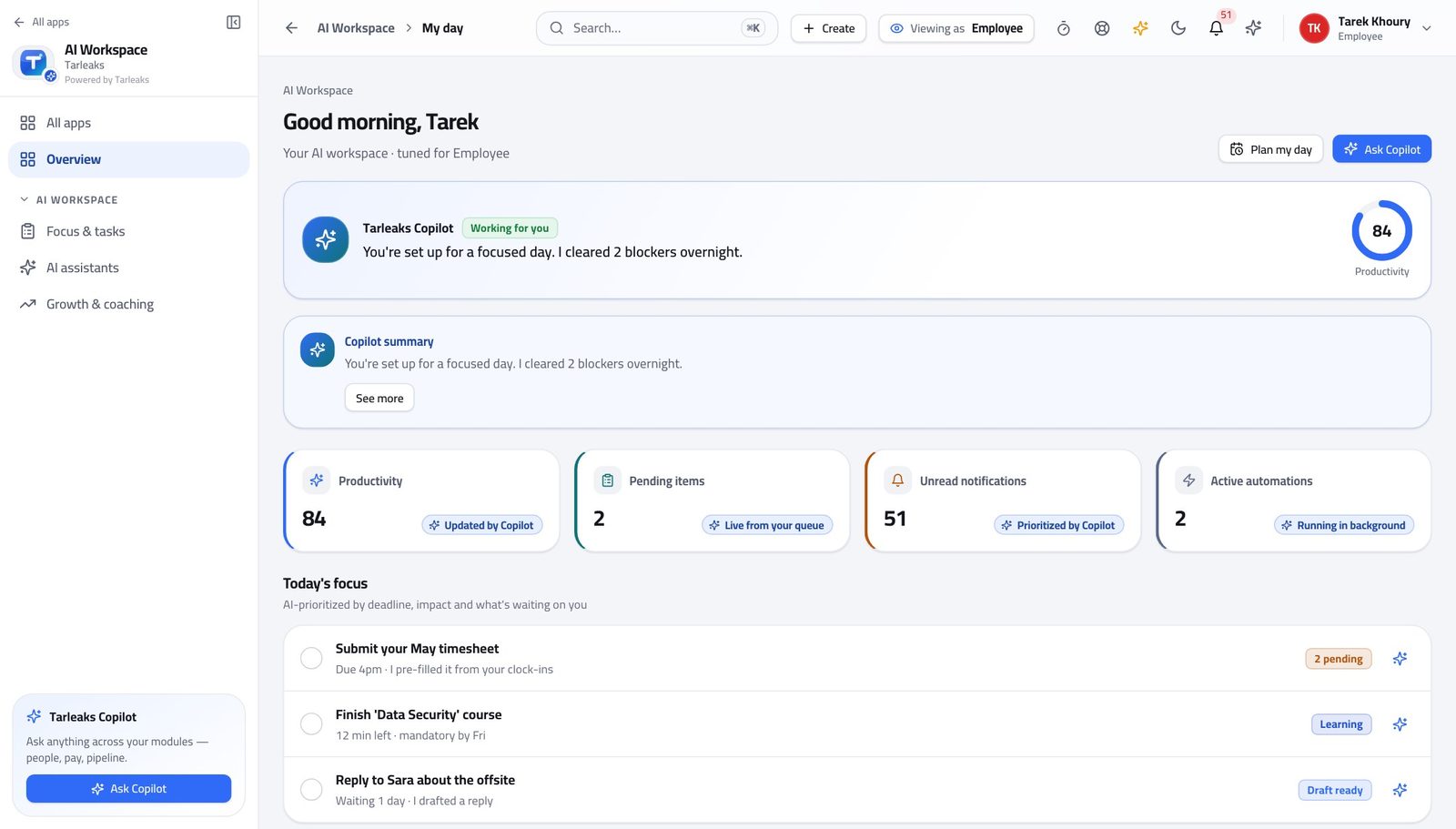
You should see The same assistant, with space to read a table or a chart it produced.
Use cases — the work, step by step
Each one is a sequence somebody actually performs, with the screen behind every step. Every screen here was opened in the product as this role before it was published.
dailyAsk about the screen in front of you #
The assistant already knows which page you are on, so the question can be as short as you would say it out loud.
Open a page with a list on it — the people directory, for example.
Any page » the assistant button, bottom right — verified: the page says “copilot” Press the assistant button (or ⌘J) and ask in your own words. The answer is built from the data you are allowed to see.
Any page » the assistant button, bottom right — verified: the page says “copilot” For a longer session, or when you want a table or a chart with room to read it, open the full assistant page.
Assistant — verified: the page says “Assistant”
It can only see and do what YOU can. Ask it about a colleague's salary and it will refuse in exactly the same way the product would.
Tenant Administrator
Your AI, your provider, your key — and a bill you can read.
Chooses the AI provider, holds the key, and decides which parts of the assistant the company uses.
What you will be able to do
- Choose the provider and the model the company uses
- Keep the key in your own settings rather than ours
- See what is being asked and what it costs
- Switch parts of it off when you want them off
What this role can and cannot do
| Can | Cannot |
|---|---|
|
|
4 steps, each one carried out in the product on .
Check what your sign-in can do #
Where Your name, top right » Profile
- Open your company's address in the browser — it looks like yourcompany.tarleaks.com.
- Type the e-mail address your administrator set up for you, then your password.
- You land on the app launcher: a grid of the apps your company uses.
- Click your name, top right.
- Choose Profile.
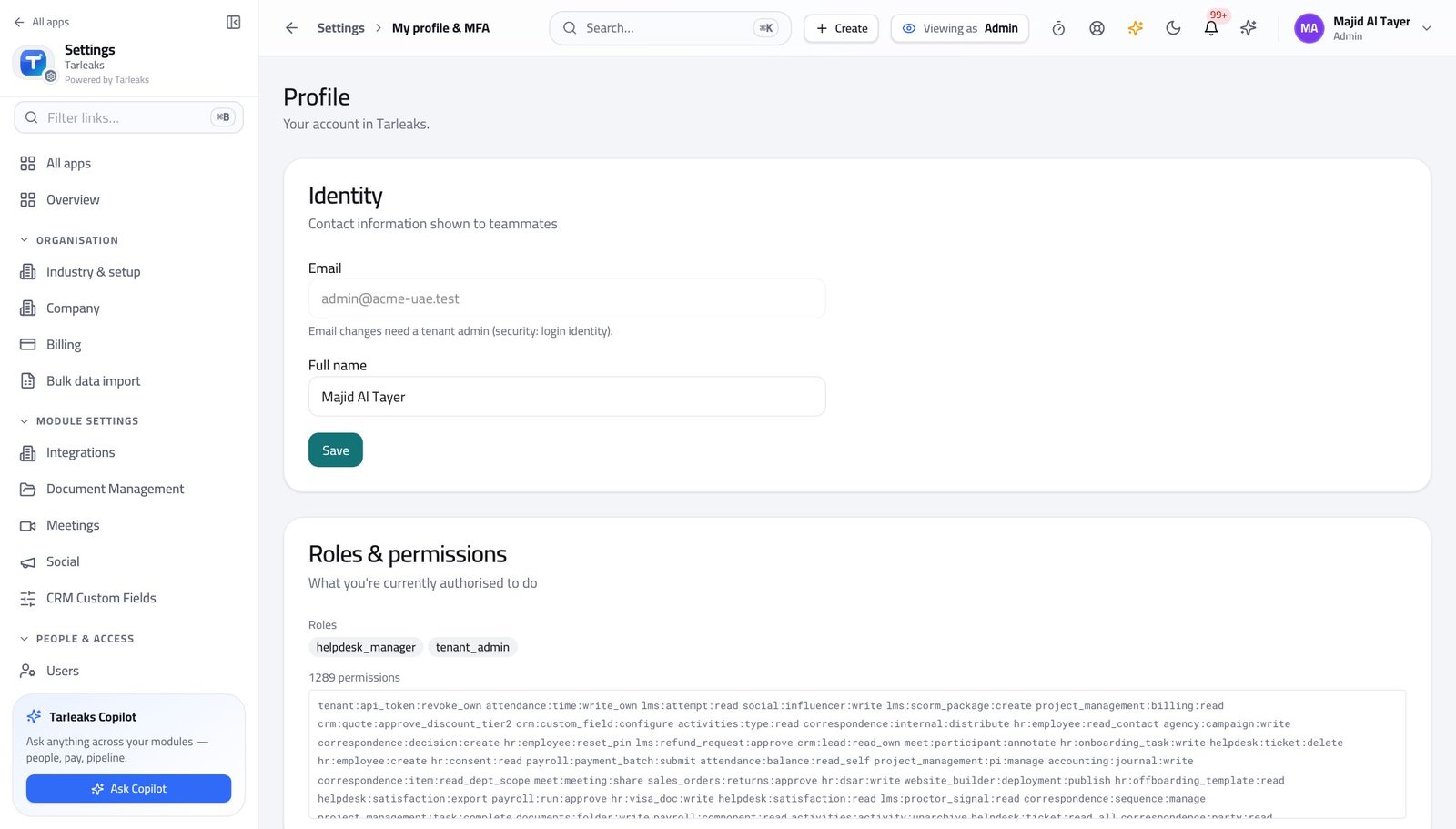
You should see The provider, the key and the switches are yours.
Choose the provider and the model #
Where Settings » AI
- Open Settings, then AI.
- Choose the provider, paste the key, pick the model.
- Save, then use the test button to prove it answers.
| Field | What to put in it |
|---|---|
| Provider | Who runs the model — your company's account with them is what is used. |
| API key | Your key. It is stored encrypted and shown masked afterwards; saving without retyping it keeps the existing one. |
| Chat model | The model used for questions. A bigger model costs more per question and is not always better at reading your own data. |
| Language | Arabic makes the assistant answer in Arabic — the prompts change, not just the interface. |
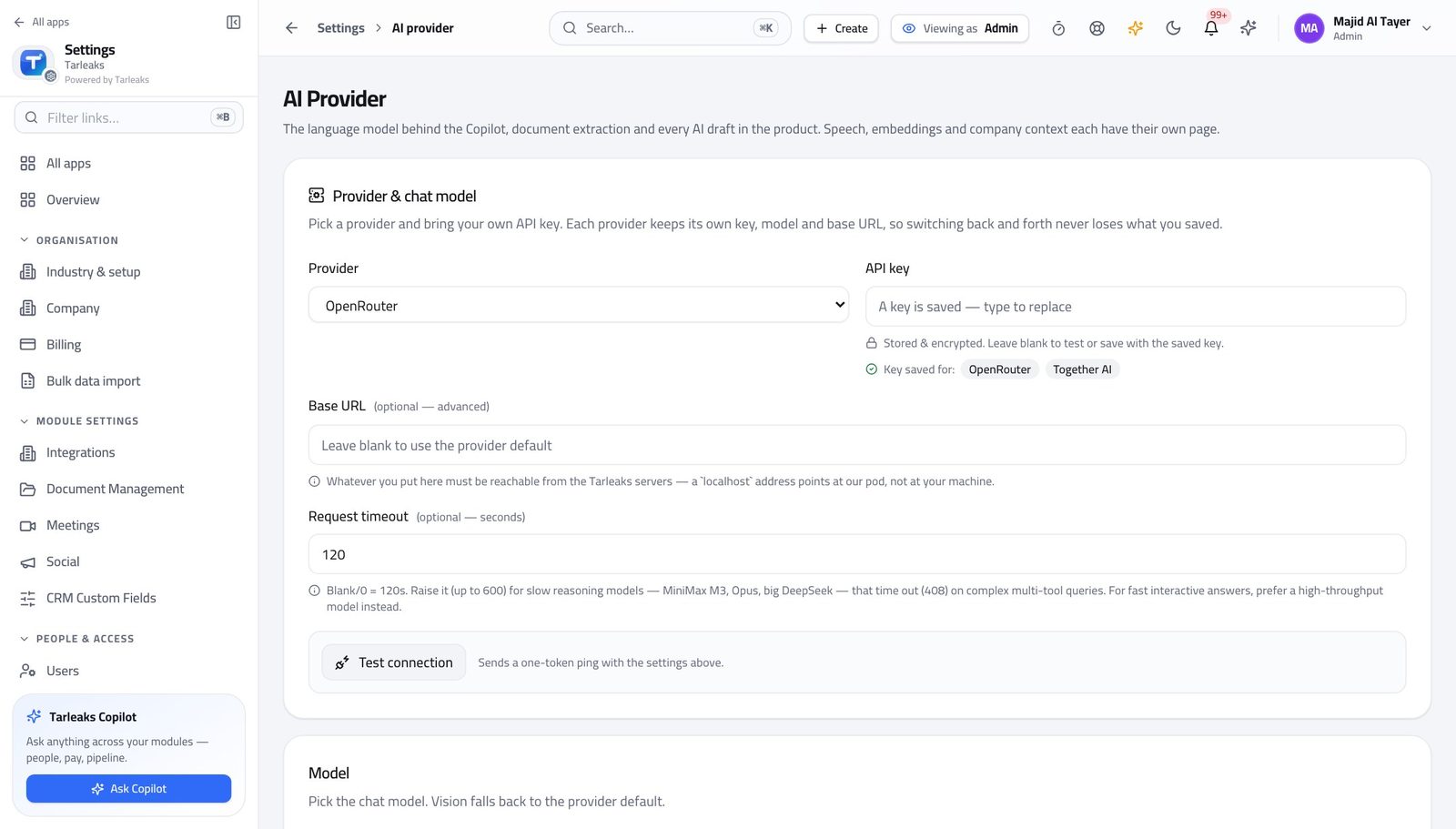
You should see The company's own account and key — the assistant runs on your contract, not on somebody else's quota.
Watch out Changing provider changes cost and tone. Test one question before telling the company it moved.
Worth knowing A saved key is shown masked afterwards, and saving without retyping it will not overwrite the real one.
Use the suggestions written for that screen #
Where Finance » any page » Ask the copilot
- Look above the list on a page — a row of suggested questions.
- Click one.
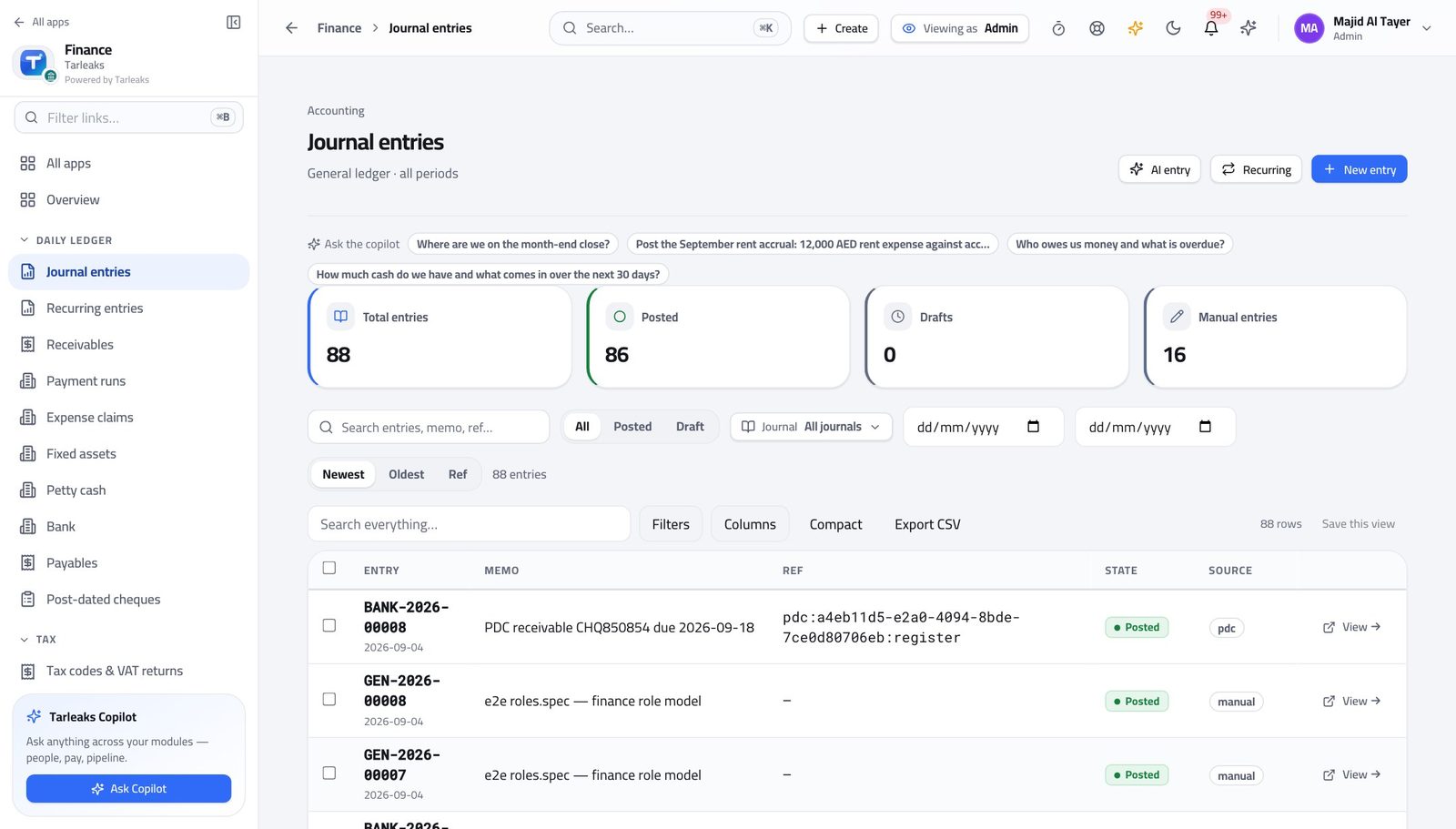
You should see The suggestions are written for that screen's data and filtered by what you may see, so a prompt you would not be allowed to run is never offered. Today they are written for the finance screens; other modules use the assistant button instead.
See what it is being used for #
Where Settings » AI usage
- Open AI usage.
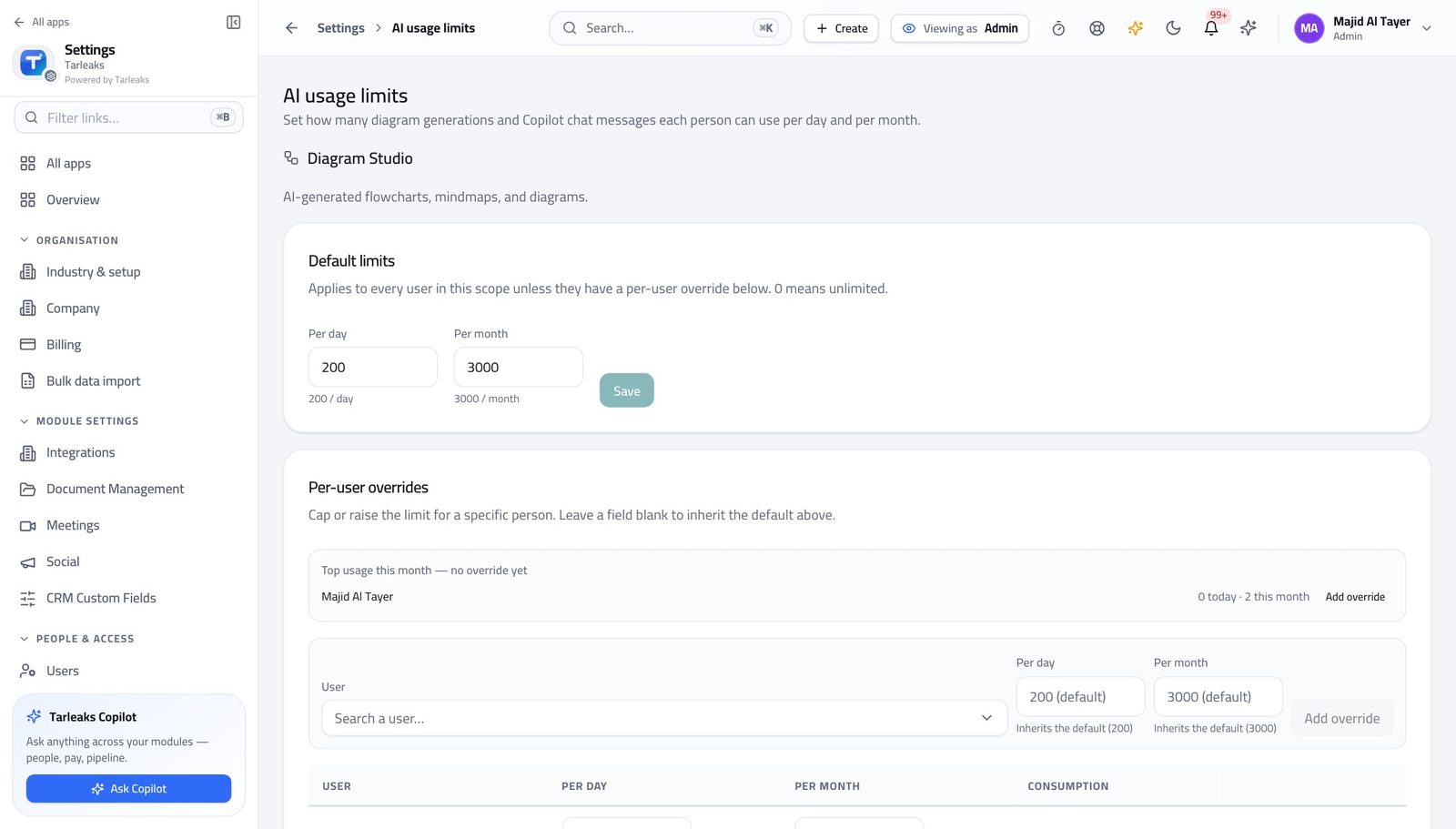
You should see You can answer 'what is this costing us' without opening a provider dashboard.
Watch out Usage climbing on one screen usually means the suggestions there are doing their job, not that somebody is abusing it.
Use cases — the work, step by step
Each one is a sequence somebody actually performs, with the screen behind every step. Every screen here was opened in the product as this role before it was published.
yearlyPoint the assistant at your own AI account #
The key is yours, the bill is yours, and the assistant answers inside each person's own permissions either way.
Open Settings, then AI, and choose the provider and model.
Settings » AI — verified: the page says “provider” Paste your key and save. It is stored encrypted and shown masked afterwards.
Settings » AI — verified: the page says “provider” Come back to AI usage after a week and read what it is being used for and what it costs.
Settings » AI usage — verified: the page says “usage”
monthlyShow a team the prompts written for their screens #
A blank box is intimidating; a row of questions somebody already wrote is how people start using it.
Open a finance page and read the suggestion strip above the list — the prompts are filtered by what the reader may see.
Finance » any page » Ask the copilot — verified: the page says “Ask the copilot” Check usage afterwards: a rise on one screen usually means the suggestions there are doing their job.
Settings » AI usage — verified: the page says “usage”
The assistant answers inside each person's own permissions, so switching it on does not widen anybody's access by a single record.