Correspondence Auditor — the register guide
Read everything, change nothing, and be able to prove what you read.
Reads everything and changes nothing — the access log, the turnaround, the overdue, and who handled what.
What you will be able to do
- See who opened, downloaded or was refused a classified record
- Measure how long the register takes, by type and by department
- List what is overdue and who is holding it
- Report on classified access without being able to touch a record
What this role can and cannot do
| Can | Cannot |
|---|---|
|
|
7 steps, each one carried out in the product on .
Who looked, and who was turned away #
Where Correspondence » Reports » Access
- Sidebar » Reports.
- Open the access trail.
- Filter by record, by person, or by result.
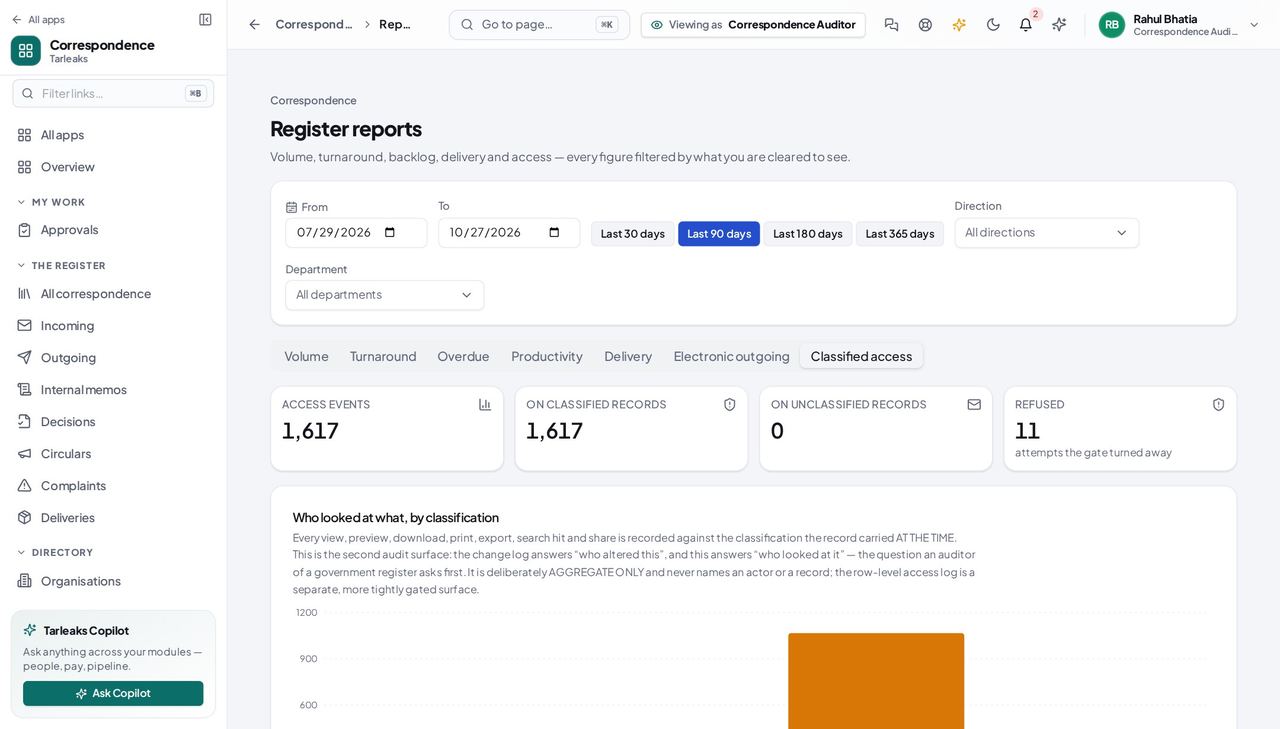
You should see 'Did anybody without clearance try to open this?' is the first question asked after a suspected leak, and this is where it is answered.
Watch out A refused count of zero covering a period before 12 September 2026 means 'not recorded'. Refusals were not written before that date.
Worth knowing A refused count of zero covering a period before 12 September 2026 means 'not recorded', not 'nobody tried'.
How long the register takes #
Where Reports » Turnaround
- Open the turnaround report.
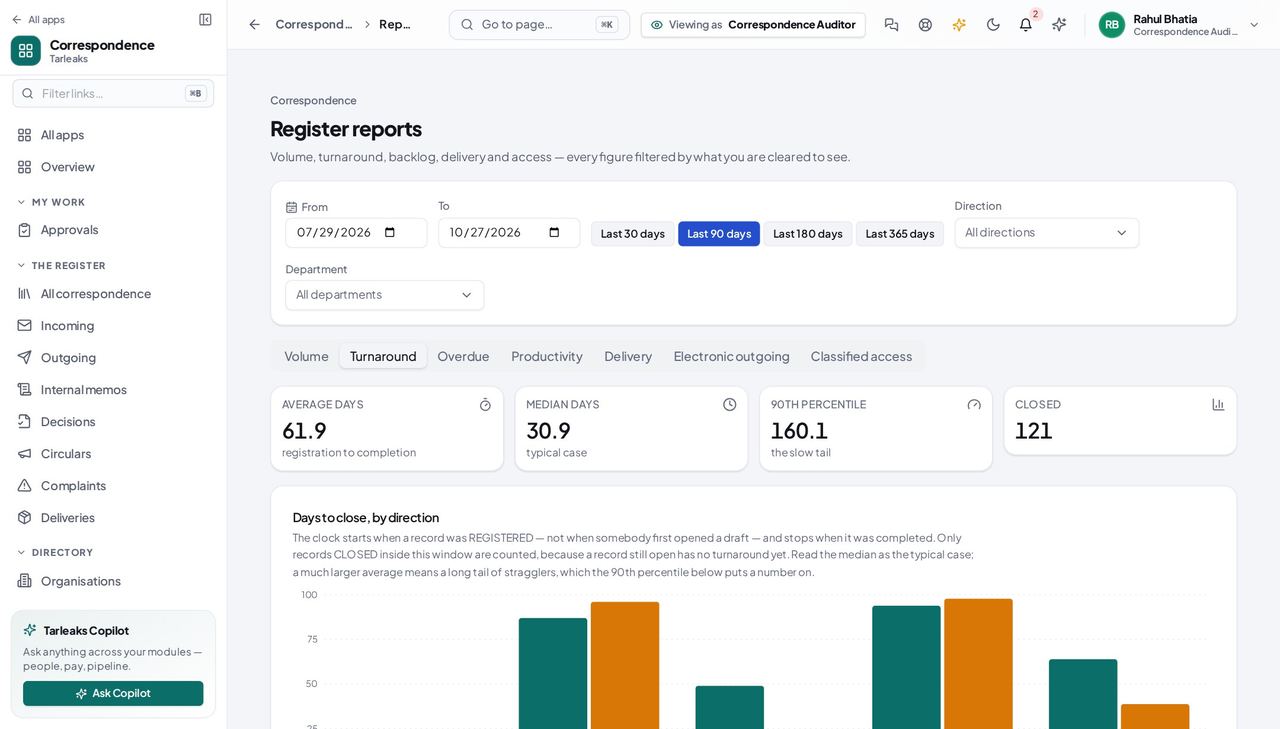
You should see Registered to closed, by type and by department — the number to quote when somebody asks whether the registry is keeping up.
What is late, and whose it is #
Where Reports » Overdue
- Open the overdue report.
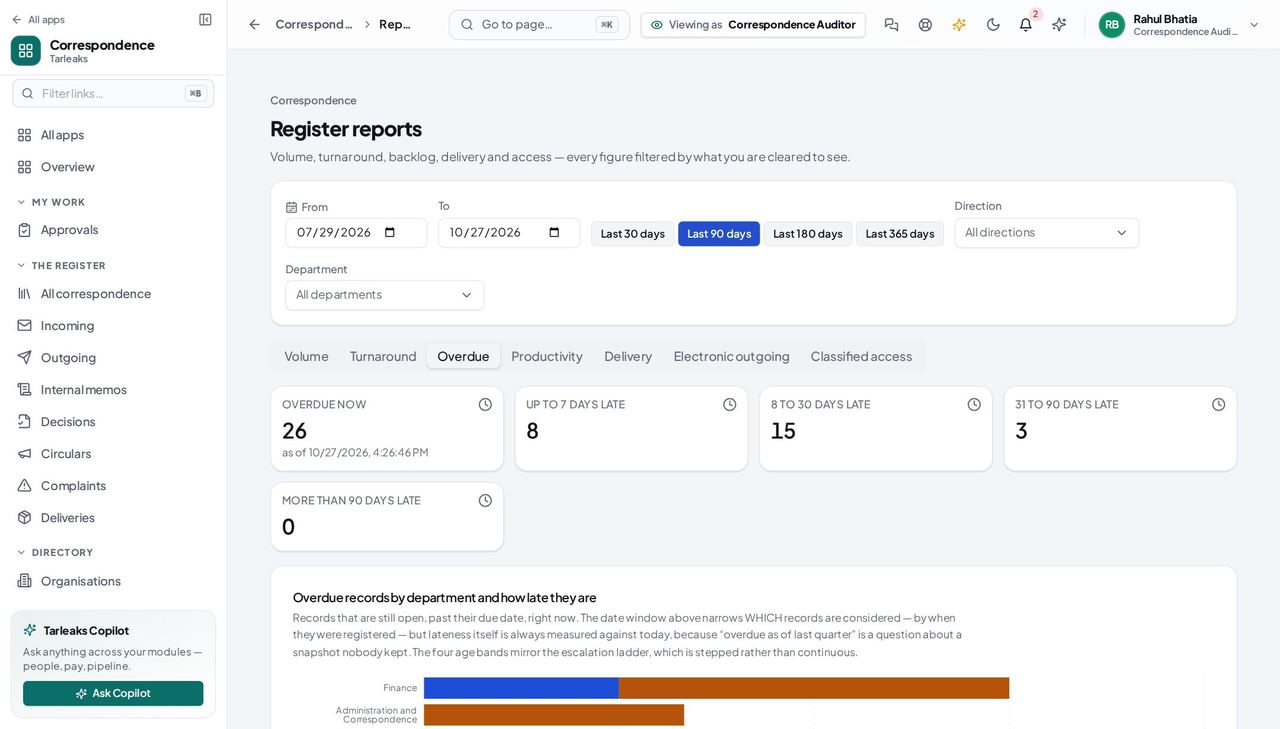
You should see Past its due date, with the person holding it named — not an id.
How much came in and went out #
Where Reports » Volume
- Open the volume report.
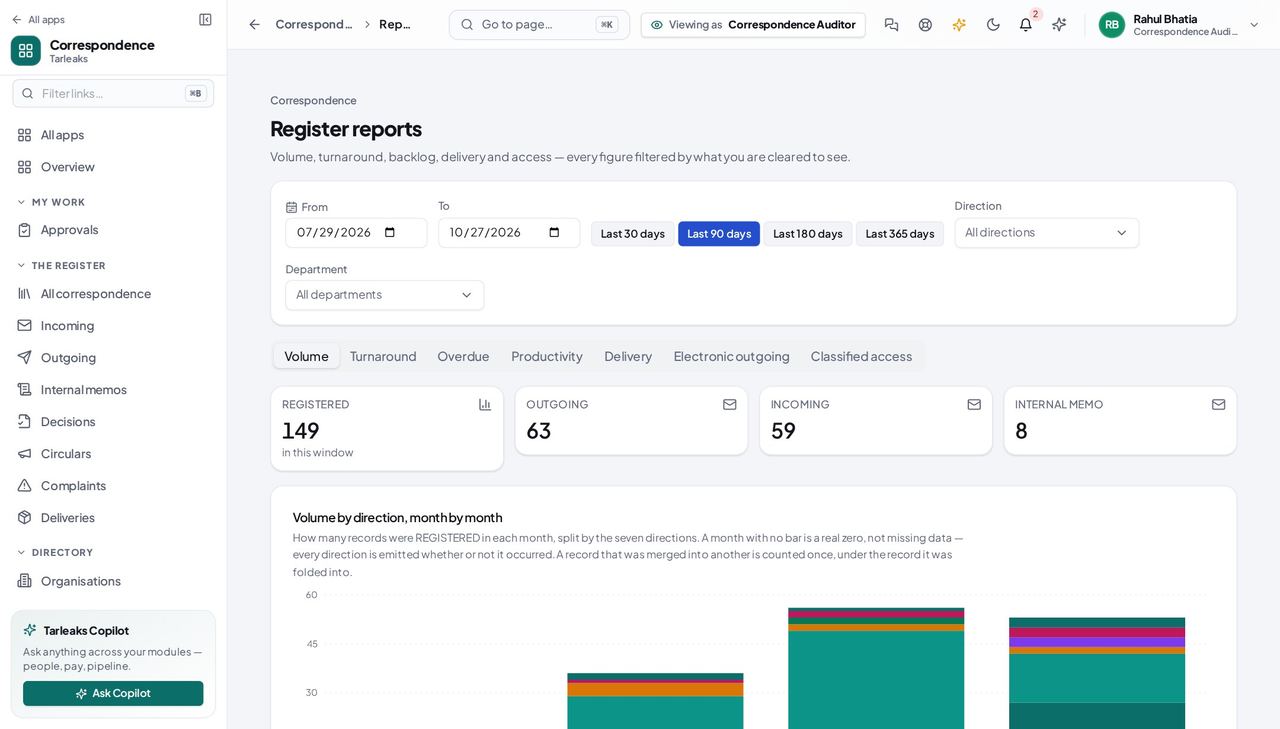
You should see By direction and by month, so a quiet quarter is visible as one.
Who has been reading the classified material #
Where Reports » Classification access
- Open the classification-access report.
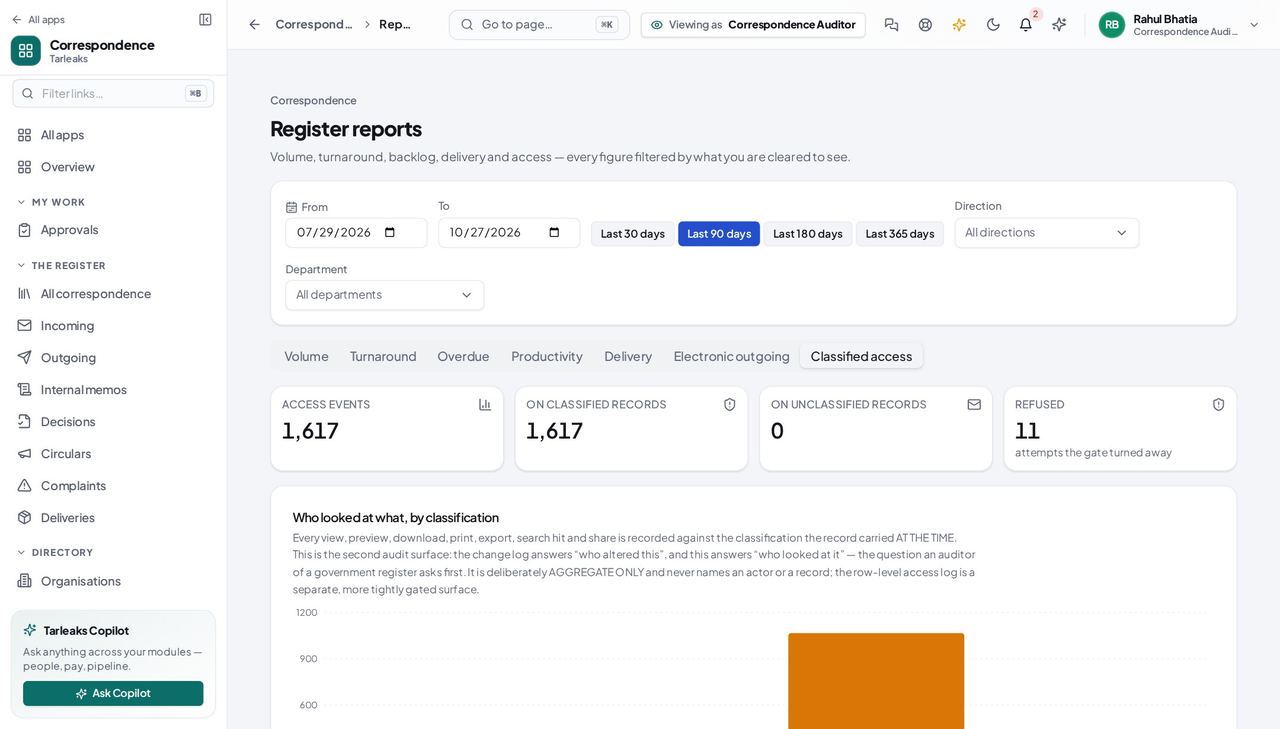
You should see Allowed and refused, by level — the report an information-governance review asks for by name.
Nothing here can be changed by you #
Where anywhere in the module
- Open the register, a record, the approvals and the archive in turn.
- Look for New, Edit, Approve, Dispose.
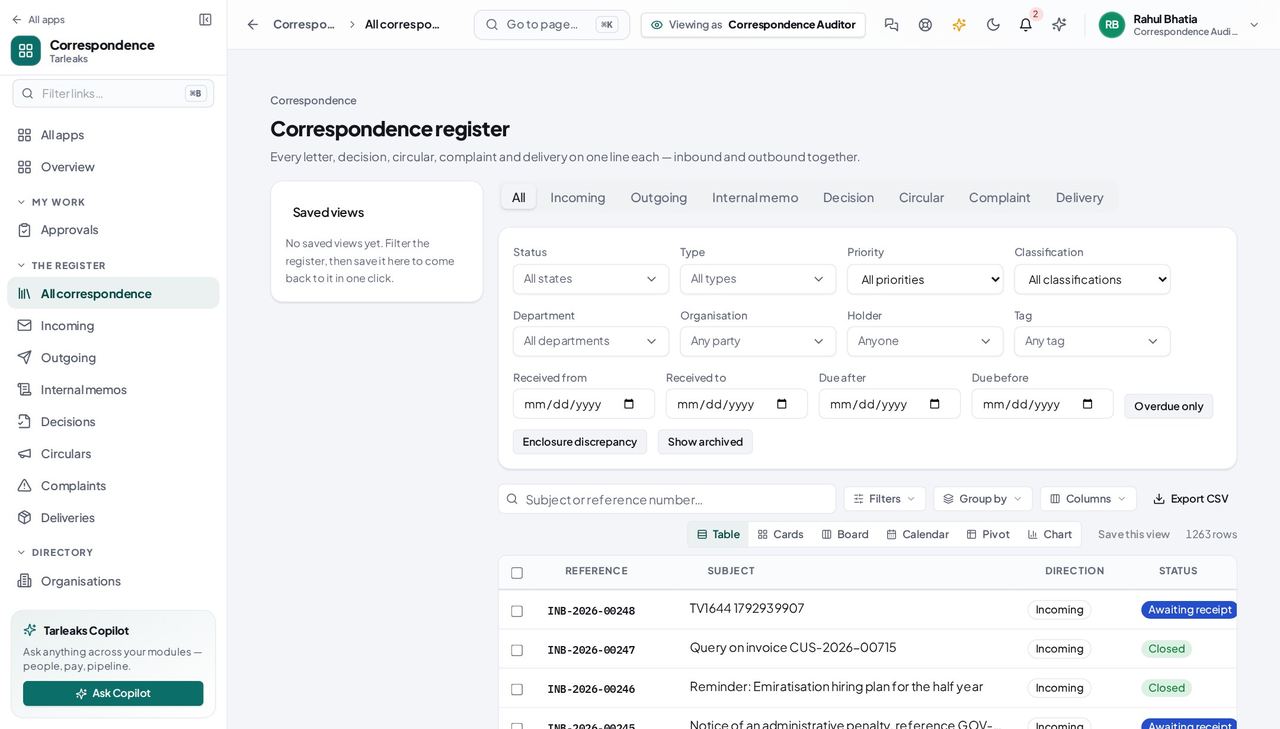
You should see None of them are there. Read-only is the role, not a setting somebody forgot to turn on.
Read the audit and compliance digest #
Where Correspondence » Audit and compliance
- Open Audit and compliance.
- Pick the window, then read the tiles: coming due for disposal, disposed, legal holds, access by classification, records with no rule.
- Open Who held it to see who held a record at a given moment, and Signatures to check a signature still matches its letter.
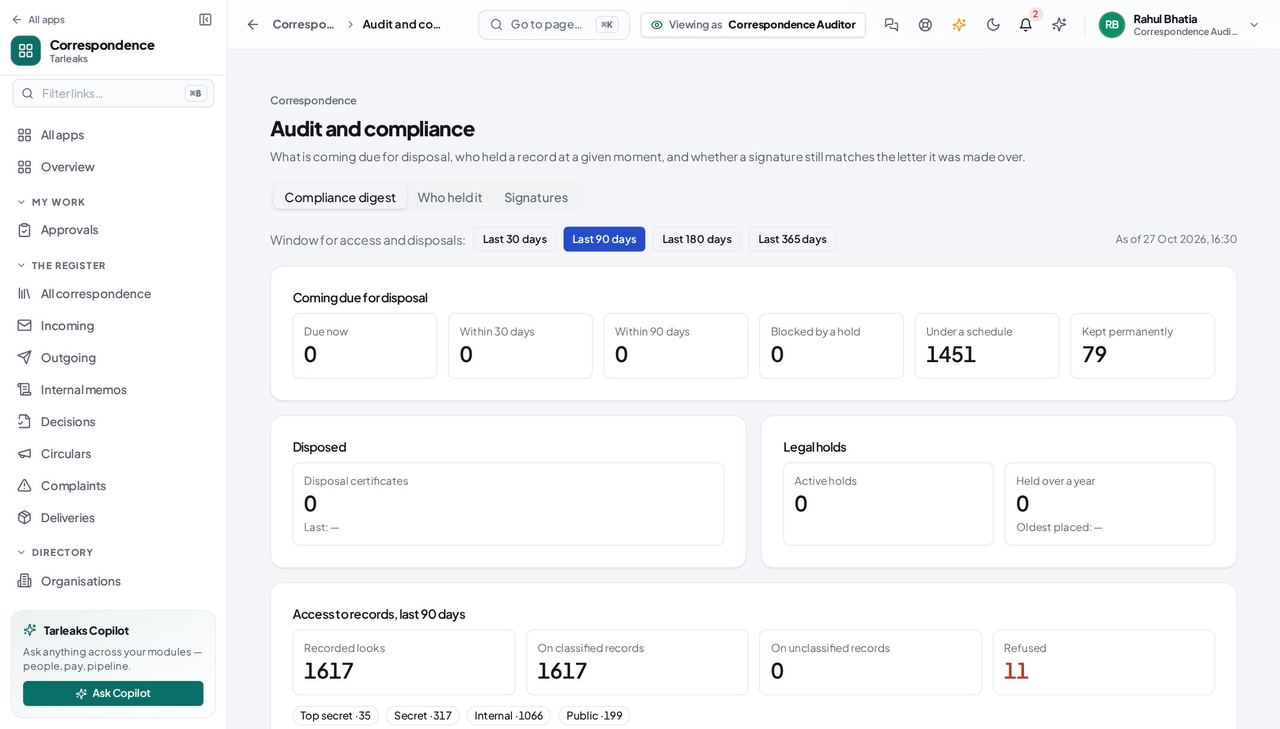
You should see One screen for the questions an inspection starts with.
Use cases — the work, step by step
Each one is a sequence somebody actually performs, with the screen behind every step. Every screen here was opened in the product as this role before it was published.
quarterlyReview who has been reading the classified material #
This is the review an information-governance inspection asks for by name, and it is one screen.
Open the classification-access report: allowed and refused, by level.
Reports » Classification access — verified: the page says “Reports” For anything that looks wrong, open the access trail filtered to that record.
Correspondence » Reports » Access — verified: the page says “Reports”
monthlyReport on whether the registry is keeping up #
Turnaround and overdue together answer 'are we slow, and where' without anybody having to count.
Read the turnaround report: registered to closed, by type and department.
Reports » Turnaround — verified: the page says “Reports” Read the overdue list: what is late, and who is holding it.
Reports » Overdue — verified: the page says “Reports” Read volume for context — a slow month with twice the post is a different conversation.
Reports » Volume — verified: the page says “Reports”
Read-only is the role, not a setting somebody forgot to turn on. There is no create, update, decide or dispose anywhere in your permission set.