the register role guides — what each role can do, step by step
Step-by-step guides for the official register — the clerk at the counter, the officer who writes what goes out, the person who decides, and the archivist who accounts for every destruction. 56 steps across 7 roles, every one of them carried out in the product before it was published here.
Last updated
Nothing matches that. Try a shorter word, or pick All roles to search every guide.
Go deeper
Records Manager
One register, and you can answer any question anybody asks of it.
Owns the register: the filing vocabulary, the numbering, the retention schedule, and every record at every classification.
What you will be able to do
- See every piece of correspondence, at every classification
- Set the filing vocabulary once, so the counter does not decide it letter by letter
- Know how long each kind of record is kept, and why
- Answer 'who has seen this?' with a list rather than a guess
What this role can and cannot do
| Can | Cannot |
|---|---|
|
|
13 steps, each one carried out in the product on .
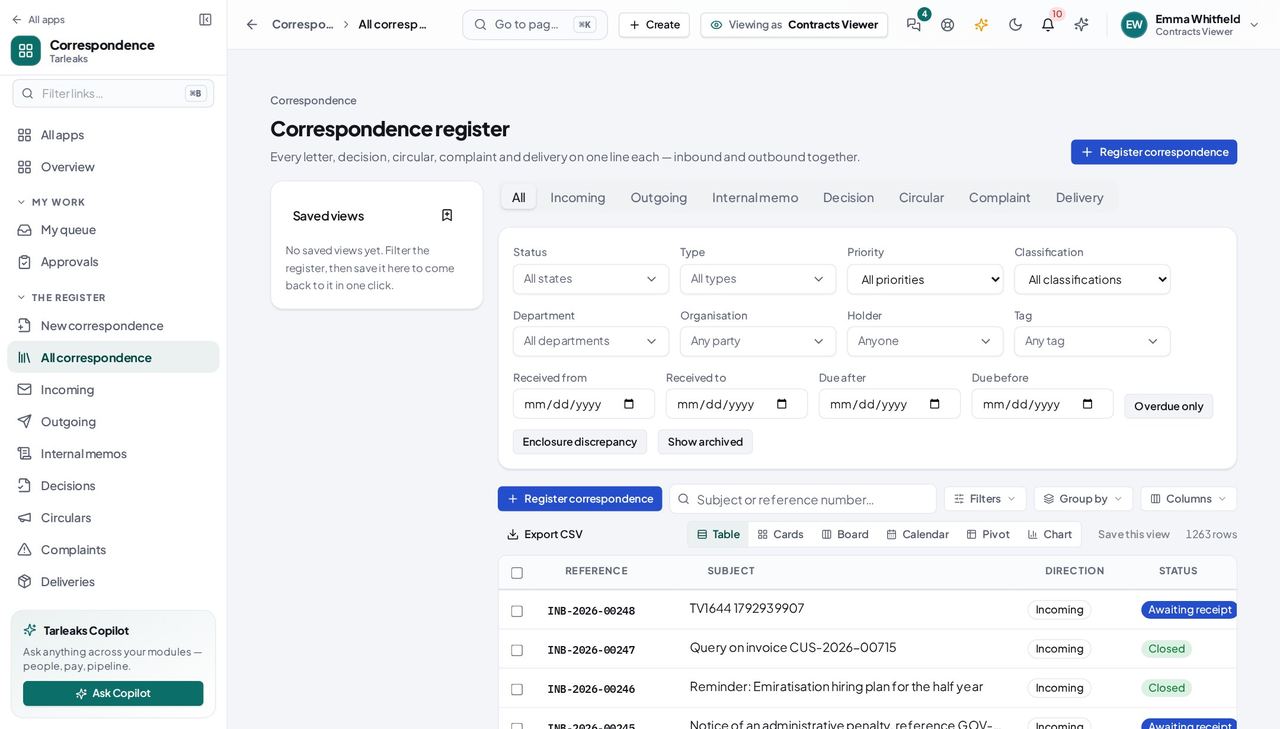
Open the register #
Where Correspondence » Register
- The register opens on its own when you enter Correspondence.
- Sort by any column header; search across subject and reference.
- Click a line to open the record.
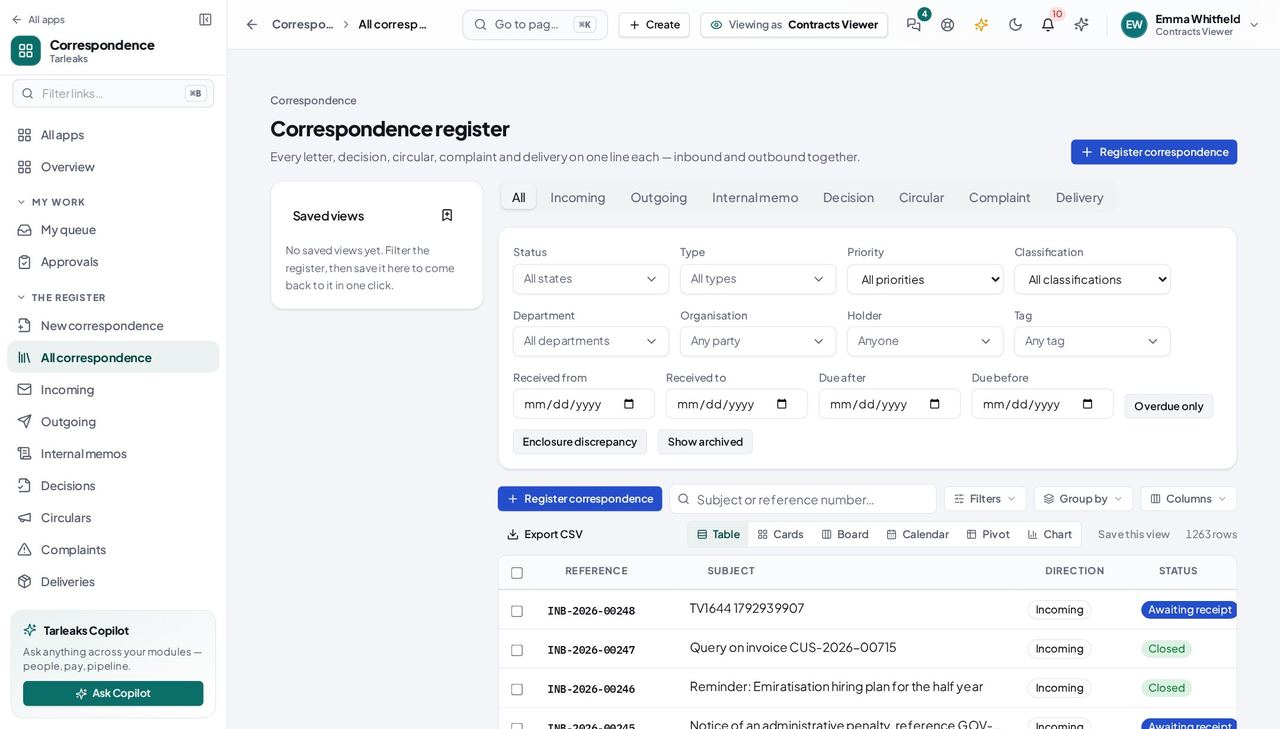
You should see Every piece of correspondence in the organisation, at every classification you are cleared for — which, for this role, is all of them.
Worth knowing Type in the search box to narrow it, or use the column headers to sort. The view you build is in the address bar, so you can send it to somebody.
See what the register is waiting on #
Where Correspondence » Overview
- Open Overview from the sidebar.
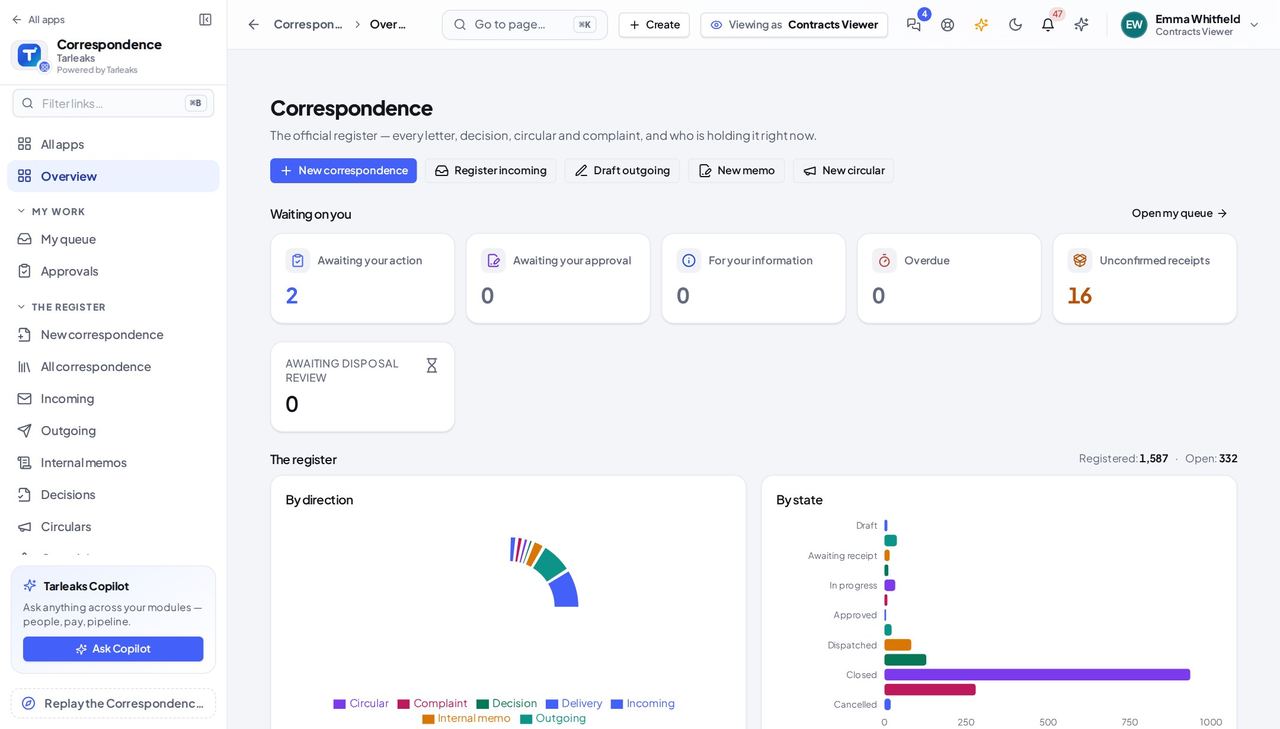
You should see What is waiting, what is overdue, and what nobody has picked up — counted, not listed, so you can see the shape of the day.
Worth knowing Every tile is a filter. Click one and the register opens showing exactly what the tile counted.
Set the filing vocabulary once #
Where Correspondence » Settings » Types
- Sidebar » Settings.
- Stay on the Types tab.
- Click a type to edit it.
| Field | What to put in it |
|---|---|
| Name (English) / (Arabic) | What a clerk picks at the counter, in both languages |
| Direction | Incoming, outgoing or internal |
| Response days | How long it has to be answered in, if it needs one |
| Default priority | What a letter of this kind starts as |
| Default classification | So the clerk does not decide sensitivity |
| Retention rule | How long this kind of record is kept |
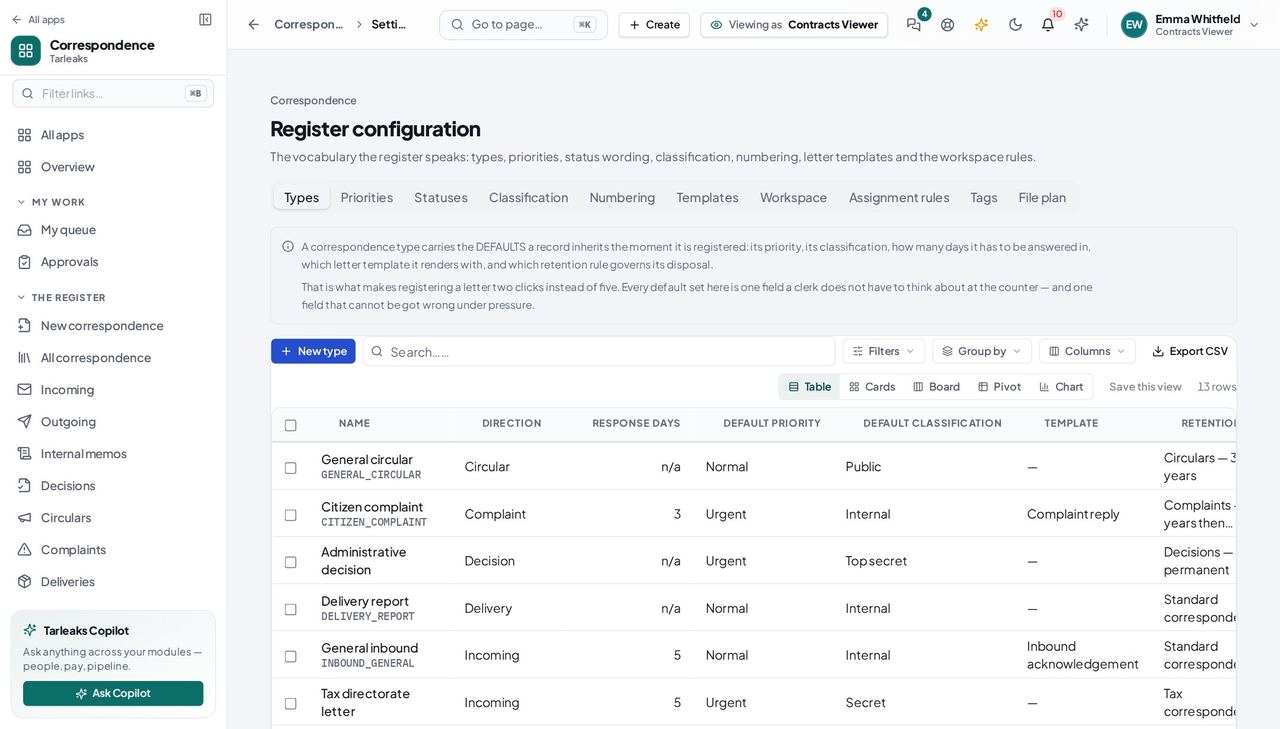
You should see This is what makes registering a letter two clicks instead of five — and one fewer field a clerk can get wrong at the counter.
Decide who may read what #
Where Settings » Classification
- Settings » Classification.
| Field | What to put in it |
|---|---|
| Level | 1 is the MOST restricted; 4 is public |
| Clearance permission | Who may read it — enforced, not decorative |
| Watermark | Stamped across a rendered letter at this level |
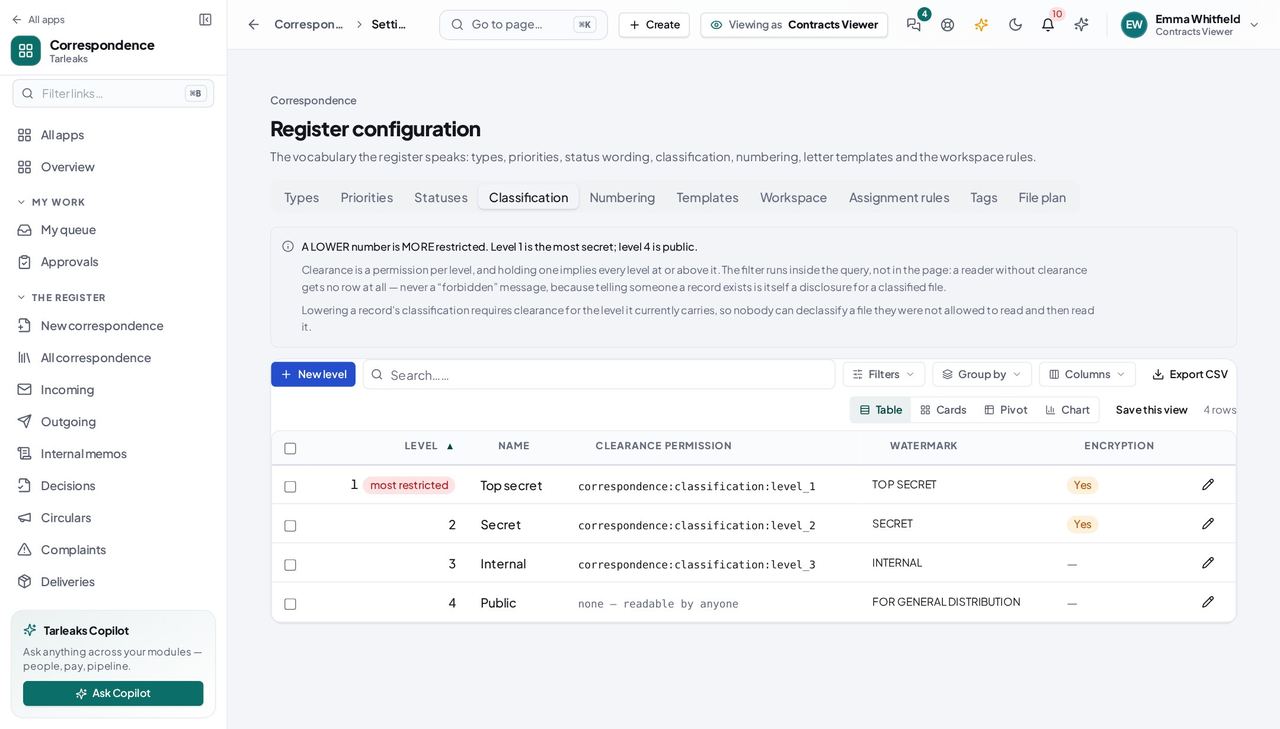
You should see Each level names the clearance a reader must hold — and that is now enforced, so a level you mark restricted really is.
Watch out Adding a level above 4 for a new restricted category: give it a clearance permission explicitly, because the number alone will read as 'less restricted than public'.
Worth knowing If you add a level above 4 for a new restricted category, give it a clearance permission explicitly. The number alone cannot express 'more restricted than public' once the standard four rungs are taken.
Numbering refuses rather than inventing #
Where Settings » Numbering
- Open the Numbering tab.
- Each direction has its own sequence, its own format and its own reset.
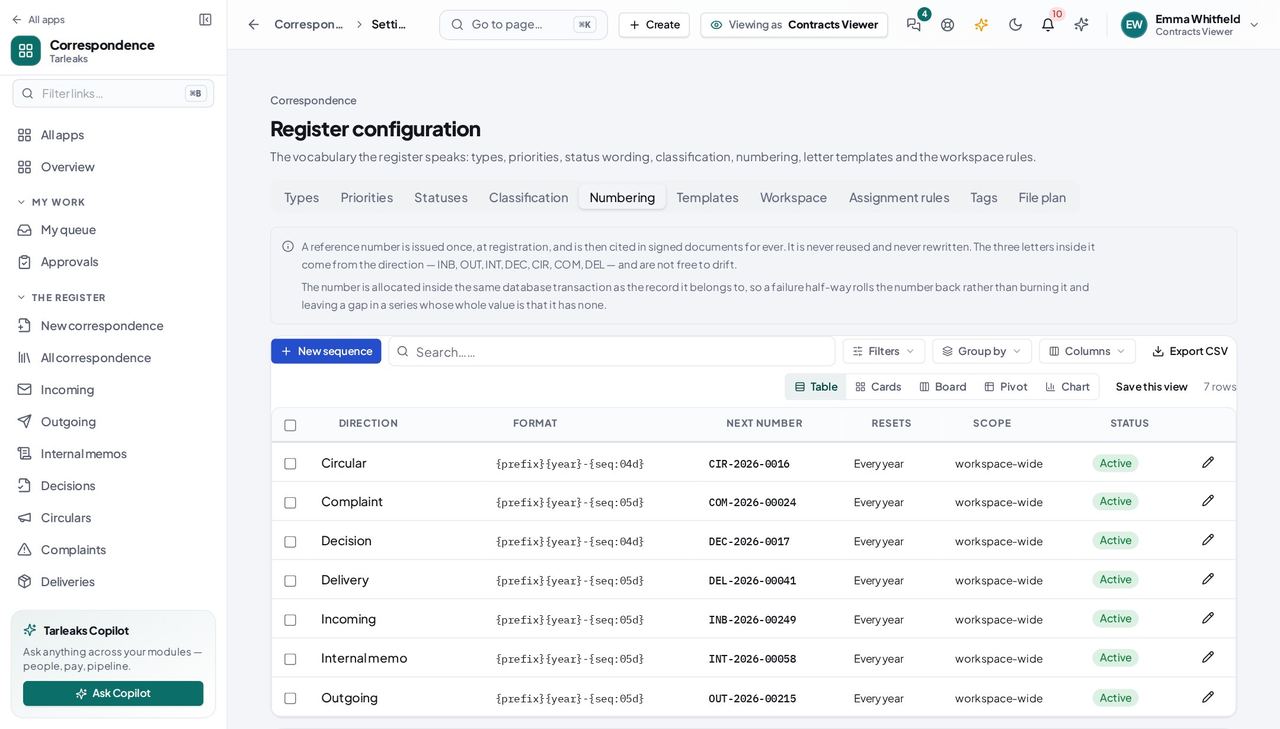
You should see Nothing is registered until its direction has a sequence — the register refuses rather than handing out a number it cannot account for.
Say how long each kind of record is kept #
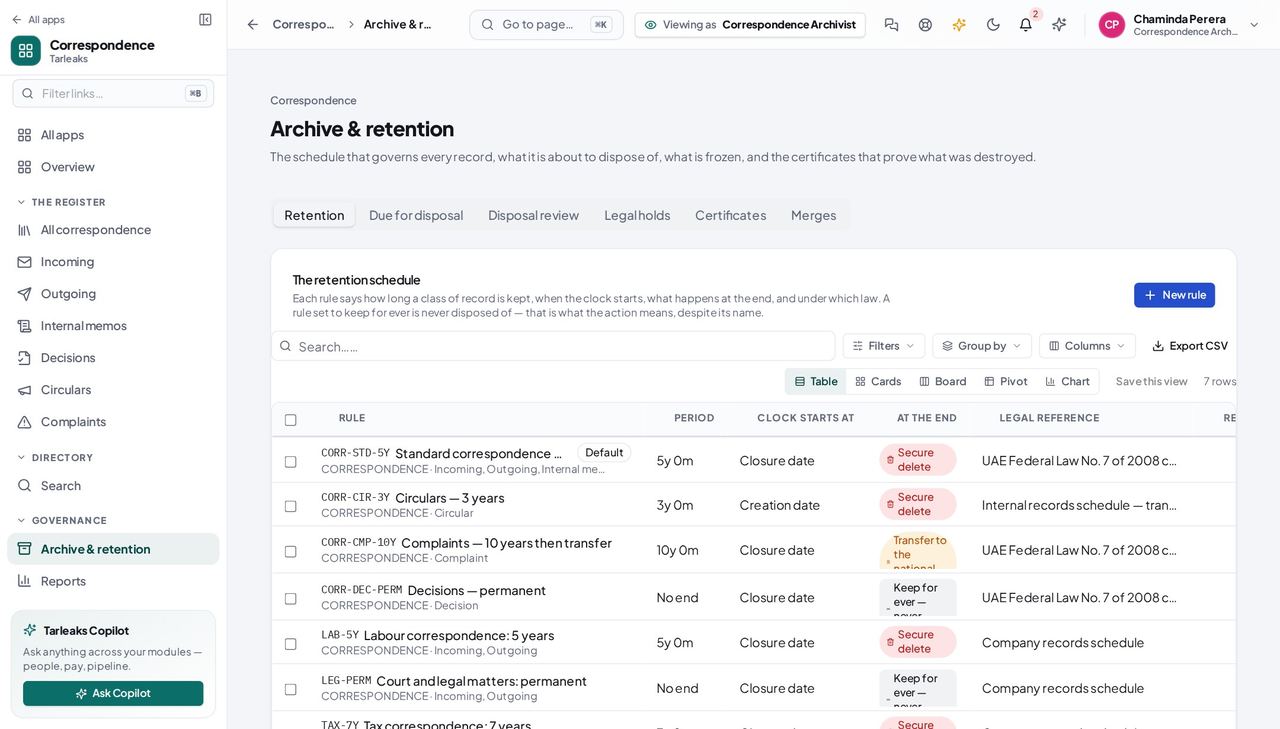
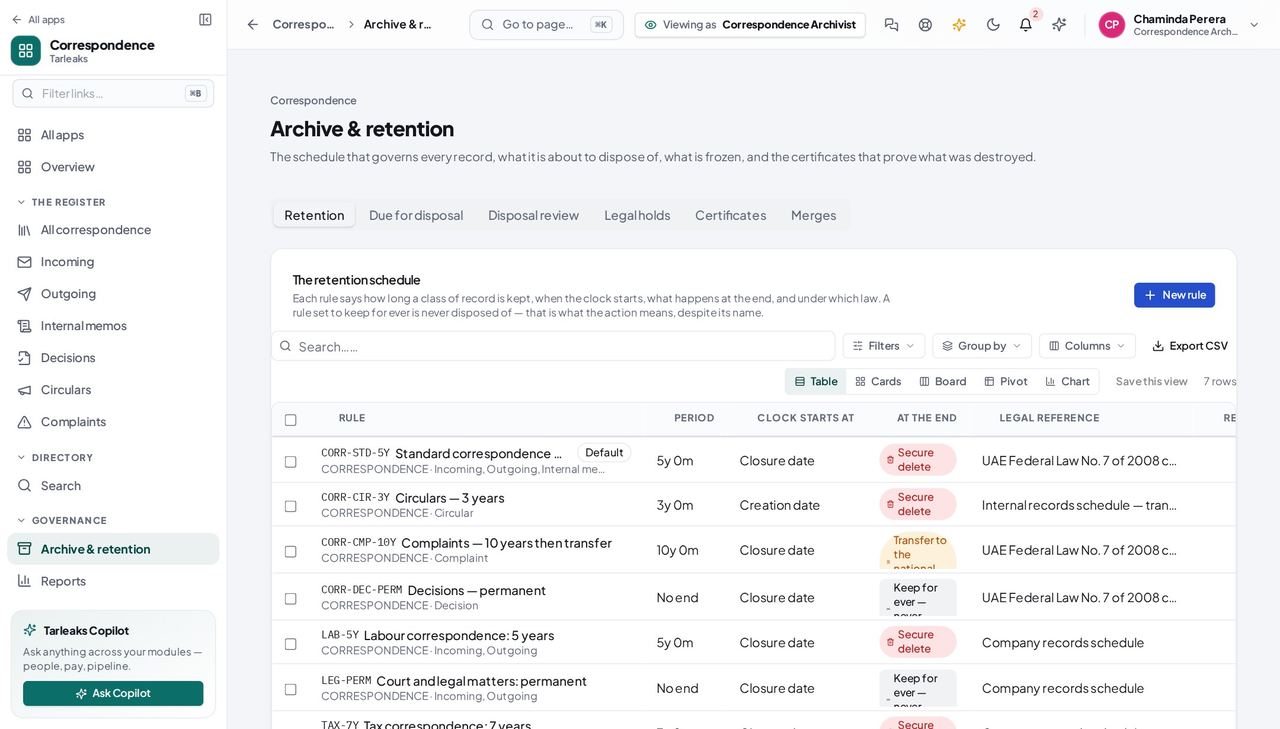
Where Correspondence » Archive » Retention
- Sidebar » Archive.
- Read the retention schedule.
| Field | What to put in it |
|---|---|
| Period | Years and months, or 'no end' for permanent retention |
| Clock starts at | Closure, dispatch, or the date received |
| At the end | Destroy securely, transfer to the national archive, or keep |
| Receiving authority | Required for a transfer — a certificate that does not say who took custody cannot tell a transfer from a loss |
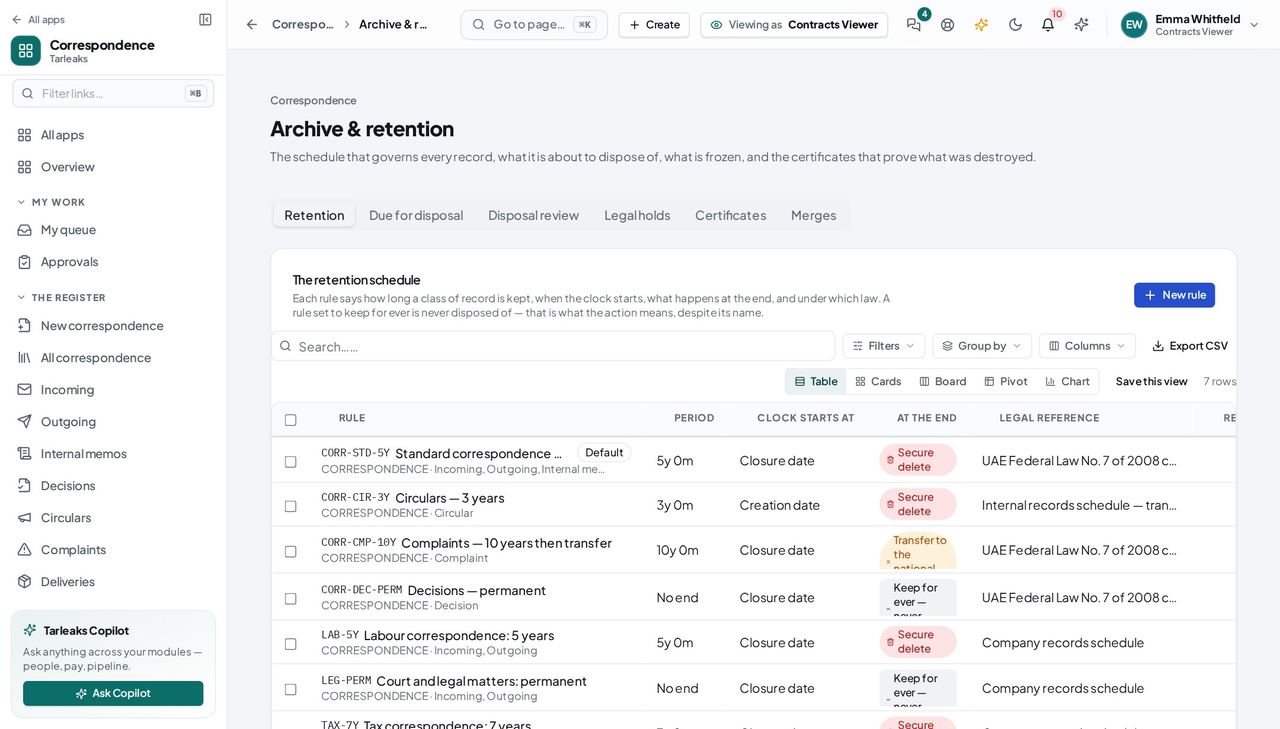
You should see Every record in the register is governed by one of these, and the rule is what a certificate of disposal cites.
Worth knowing A rule that ends in a transfer to the national archive must name the receiving authority, or the nightly sweep will refuse to act on it and tell you why.
See what falls due before it does #
Where Archive » Due for disposal
- Open the Due-for-disposal tab and widen the horizon.
- Each row says which rule brought it here and why.
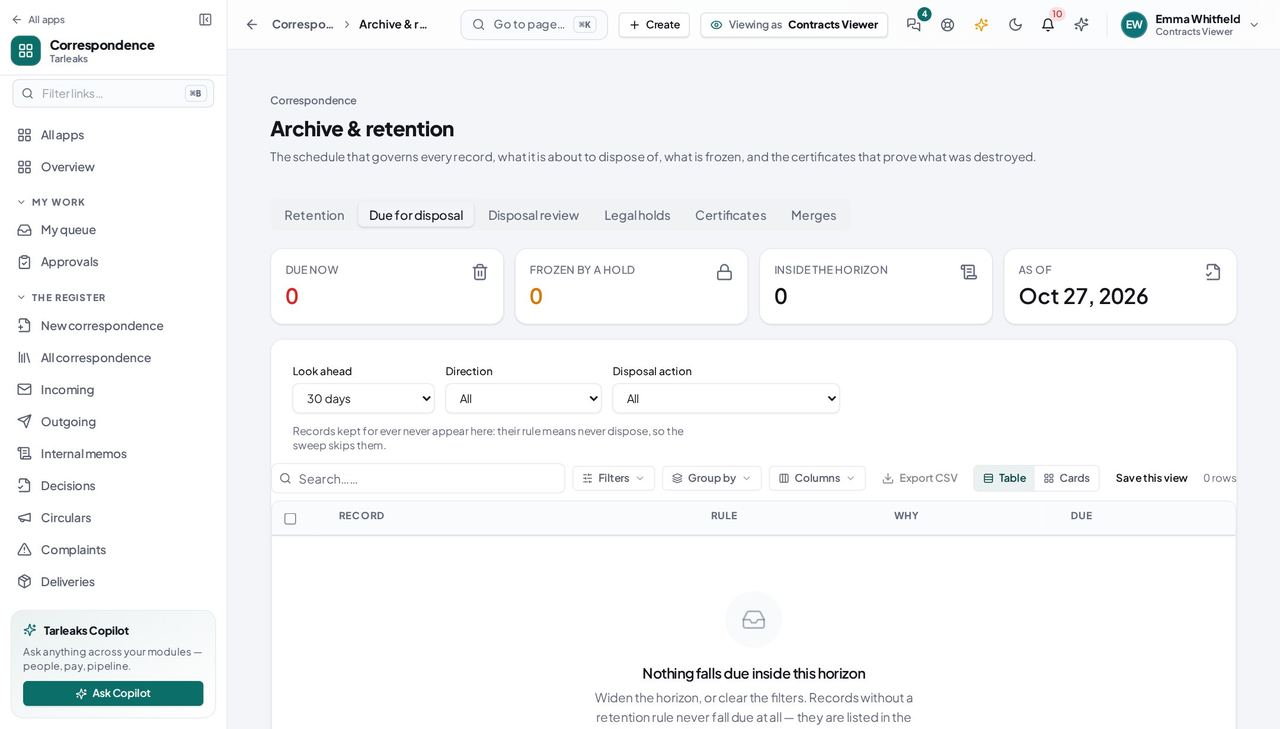
You should see Nothing is destroyed that nobody could have seen coming.
Name who you correspond with #
Where Correspondence » Parties
- Open Parties.
- Ministries, companies and people, in both languages.
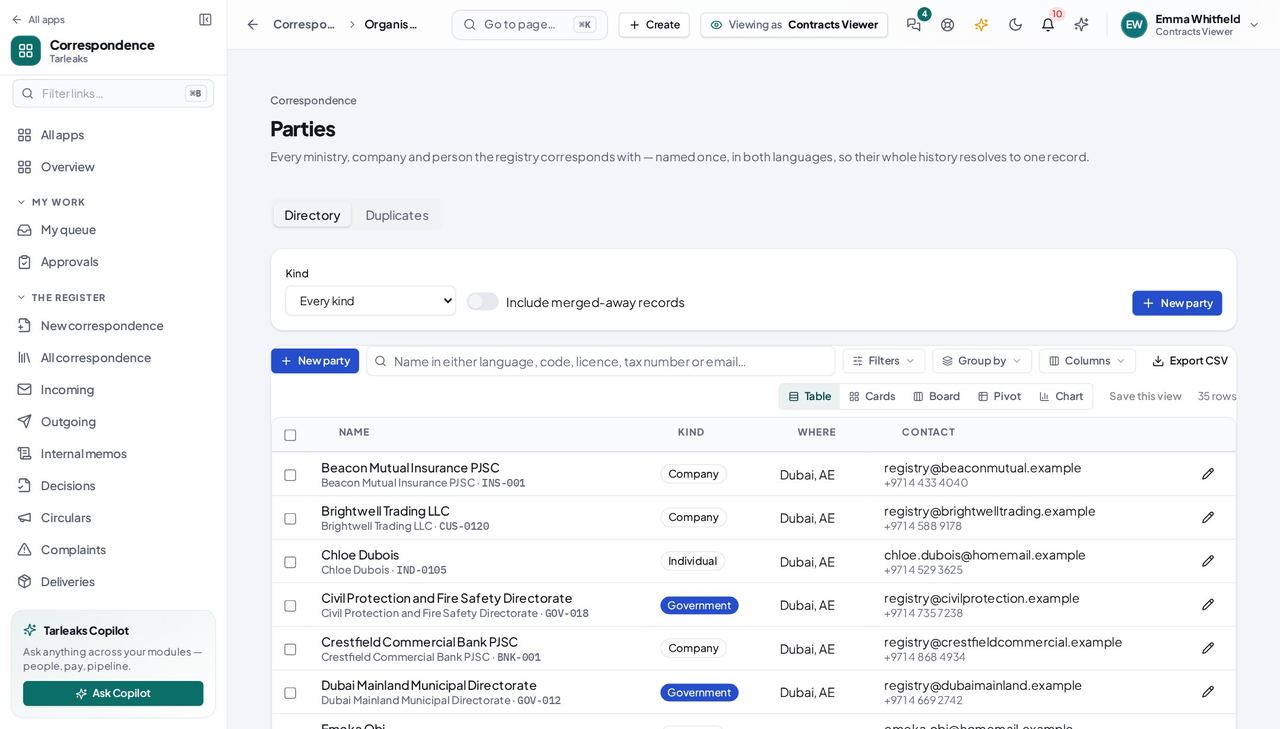
You should see A letter then resolves to a named body instead of a typed string, which is what makes 'everything from this ministry' a question with an answer.
Answer 'who has seen this?' #
Where Correspondence » Reports » Access
- Open Reports and read the access trail.
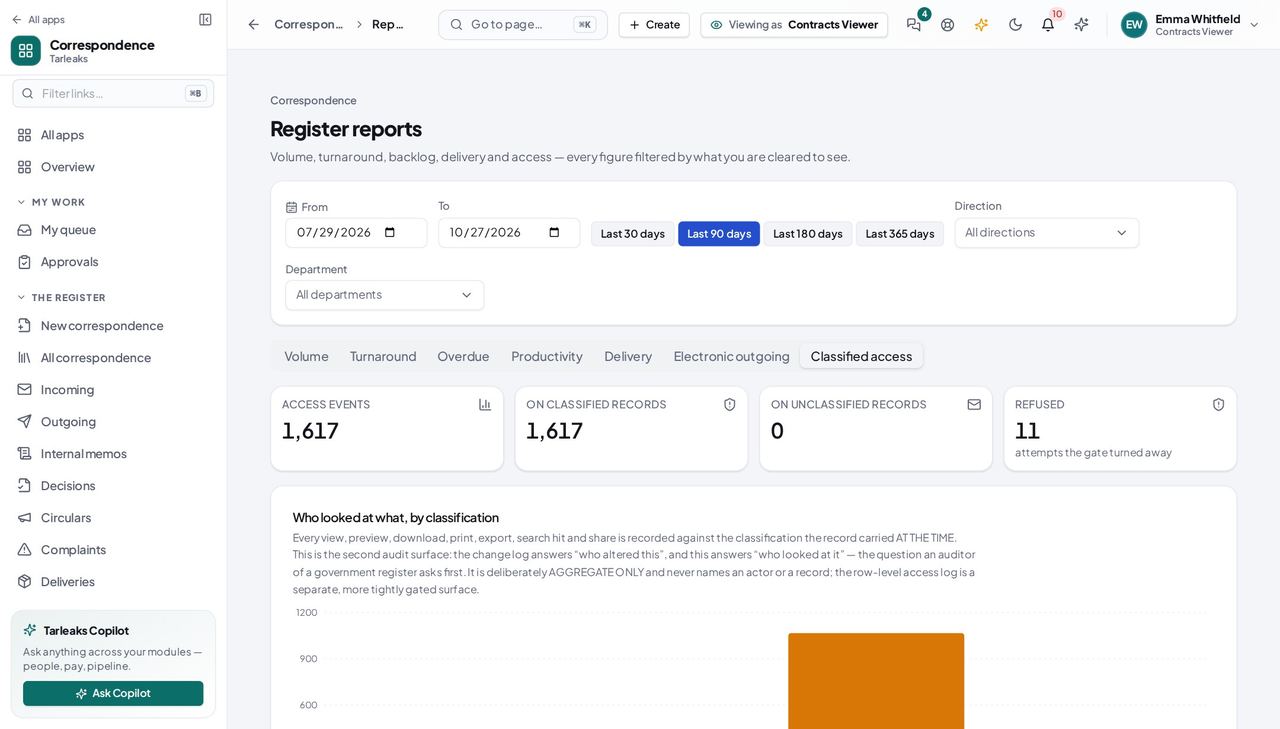
You should see Every view, download and refusal — each one gated at the record's own classification, so the log can never say more than the register would.
Every picker knows who works here #
Where a letter » Route to
- Open any Route-to, Forward-to or Signatory picker.
You should see Names, searchable. This list is what eleven screens in the module need to turn an id into a person.
You sign decisions, not letters #
Where Correspondence » Decisions
- Open a decision and look for Sign.
- Then open an outgoing letter and look for it there.
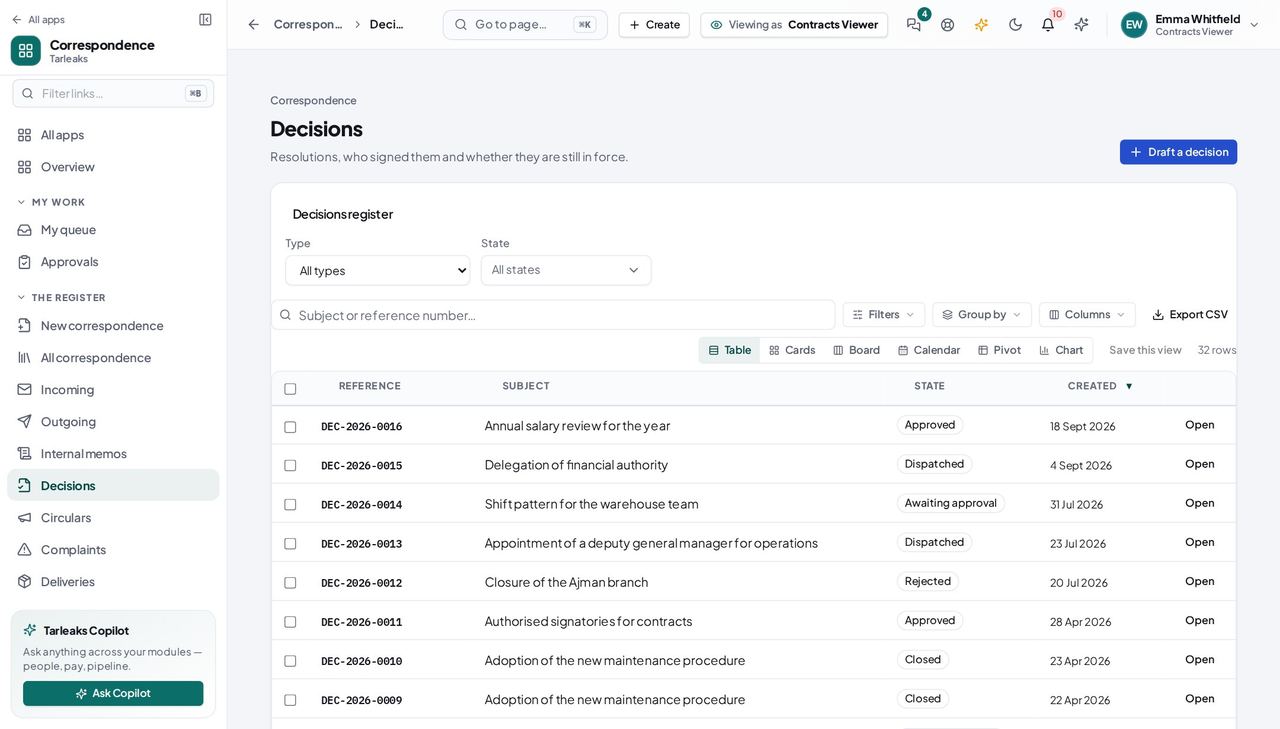
You should see A decision is the register's own instrument and signing it is part of owning the register. A letter is signed by the person whose name is on it, which is why that action is not yours.
Build the file plan #
Where Correspondence » Settings » File plan
- Open Settings and the File plan tab.
- Add a series, then files and sub-files under it — three levels at most.
- Give a node a retention policy and a default classification, or let it inherit its parent's; then say which node each type files under.
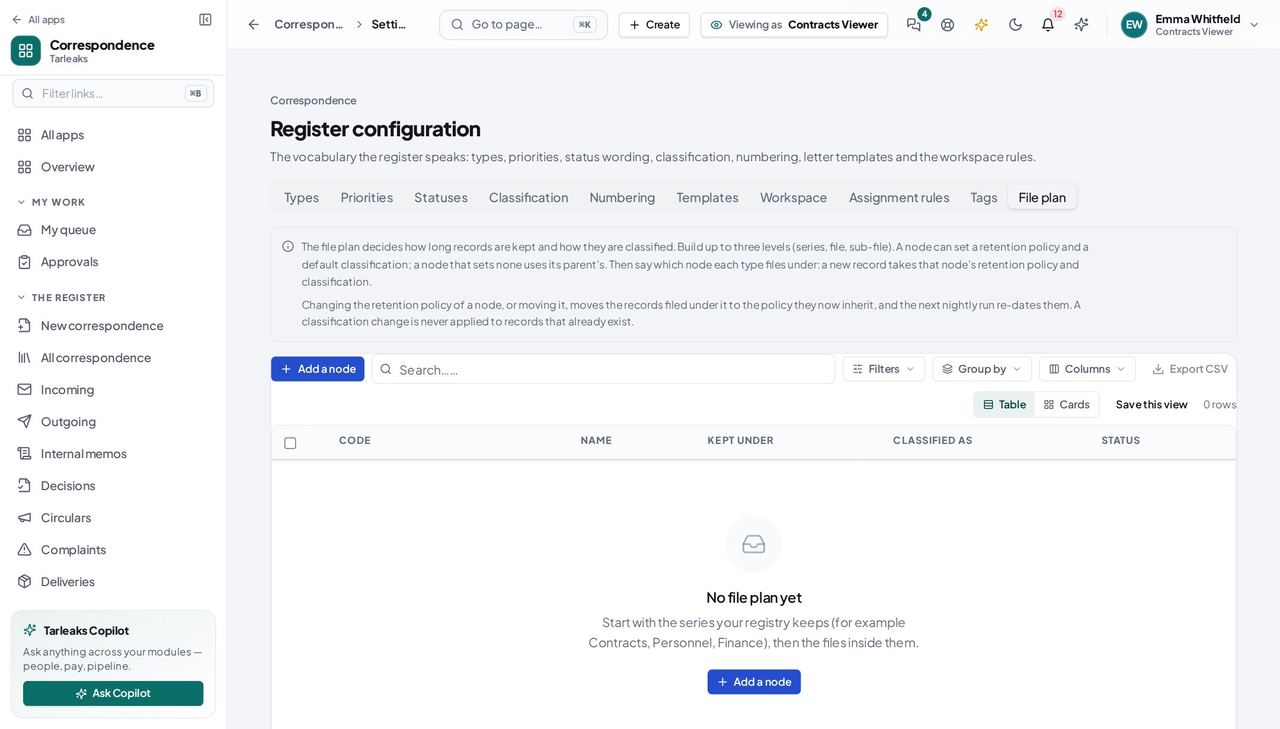
You should see A new record takes its node's retention and classification. Changing or moving a node moves its records to the policy they now inherit; a classification change never touches records that already exist.
Let incoming letters route themselves #
Where Correspondence » Settings » Assignment rules
- Open Settings and the Assignment rules tab.
- Add rules by type, sender, priority or how the letter arrived; they run from the top and the first match wins.
- Use Try a letter to see which rule a letter would meet and who would get it — nothing is routed.
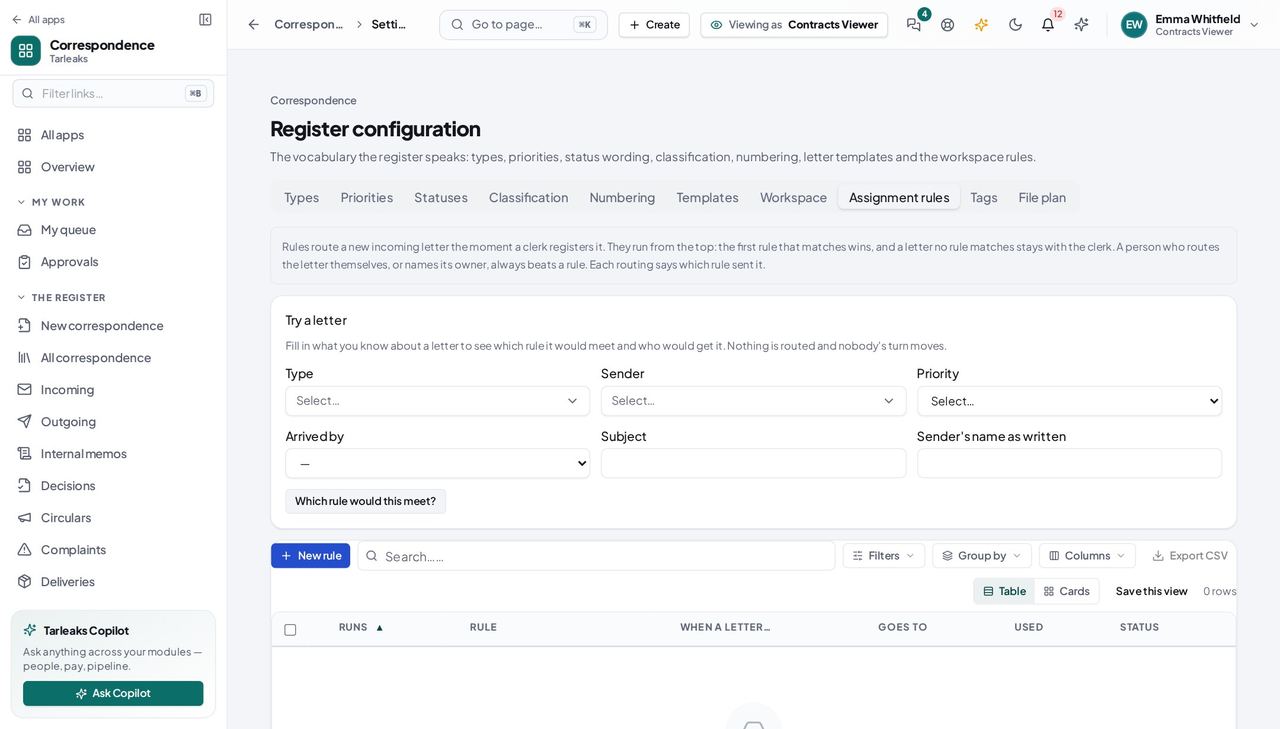
You should see A letter no rule matches stays with the clerk, and a person who routes it themselves always beats a rule.
Use cases — the work, step by step
Each one is a sequence somebody actually performs, with the screen behind every step. Every screen here was opened in the product as this role before it was published.
once, then rarelySet up the register so the counter does not have to think #
Every default you set here is a field a clerk does not have to get right under pressure at eight in the morning — and one fewer way a letter ends up filed as something it is not.
Open Settings and read the types. Each one carries the defaults a record inherits the moment it is registered.
Correspondence » Settings » Types — verified: the page says “Types” Check the classification ladder. A lower number is more restricted, and each level names the clearance a reader must hold.
Settings » Classification — verified: the page says “Classification” Check that every direction has a numbering sequence. Without one, nothing of that kind can be registered at all — the register refuses rather than inventing a number.
Settings » Numbering — verified: the page says “Numbering” Read the retention schedule last: it is what decides when each kind of record leaves the register, and how.
Correspondence » Archive » Retention — verified: the page says “Retention”
when somebody asks — and they willAnswer 'who has seen this file?' #
It is the first question after a suspected leak, and the register is the only place with an answer that is not somebody's memory.
Find the record in the register and open it.
Correspondence » Register — verified: the page says “Register”; 25 row(s) listed Read its access trail: every view, every download, and every refused attempt, with who and when.
Correspondence » Reports » Access — verified: the page says “Reports”
monthlyWork out what is about to be destroyed #
A record destroyed on schedule that a department still needed is a conversation you want to have BEFORE the sweep runs, not after.
Open Archive and widen the disposal horizon to a year.
Archive » Due for disposal — verified: the page says “disposal” For anything you are unsure about, check which rule brought it here and what that rule does at the end.
Correspondence » Archive » Retention — verified: the page says “Retention”
The register is a legal record. Nothing here is deleted — it is disposed of under a named rule, and the disposal leaves a certificate saying who did it and what it hashed to on the way out.
Mailroom Clerk
Every envelope that arrives is on the register within a minute, and on somebody's desk.
The counter. Registers incoming mail, routes it to the right desk, and records what was delivered where.
What you will be able to do
- Register incoming mail and get a reference number back
- Send it to a person, a department, or a post — whichever you actually know
- Record that it was delivered, and who signed
- Find last month's letter without remembering who had it
What this role can and cannot do
| Can | Cannot |
|---|---|
|
|
9 steps, each one carried out in the product on .
Register what arrived #
Where Correspondence » Incoming
- Sidebar » Incoming.
- Click Register mail.
- Fill in the subject and choose who it is from.
- Save.
| Field | What to put in it |
|---|---|
| Subject | What the letter is about, as written on it |
| From | The organisation or person who sent it — pick from the directory |
| Type | Which brings the priority, classification and retention with it |
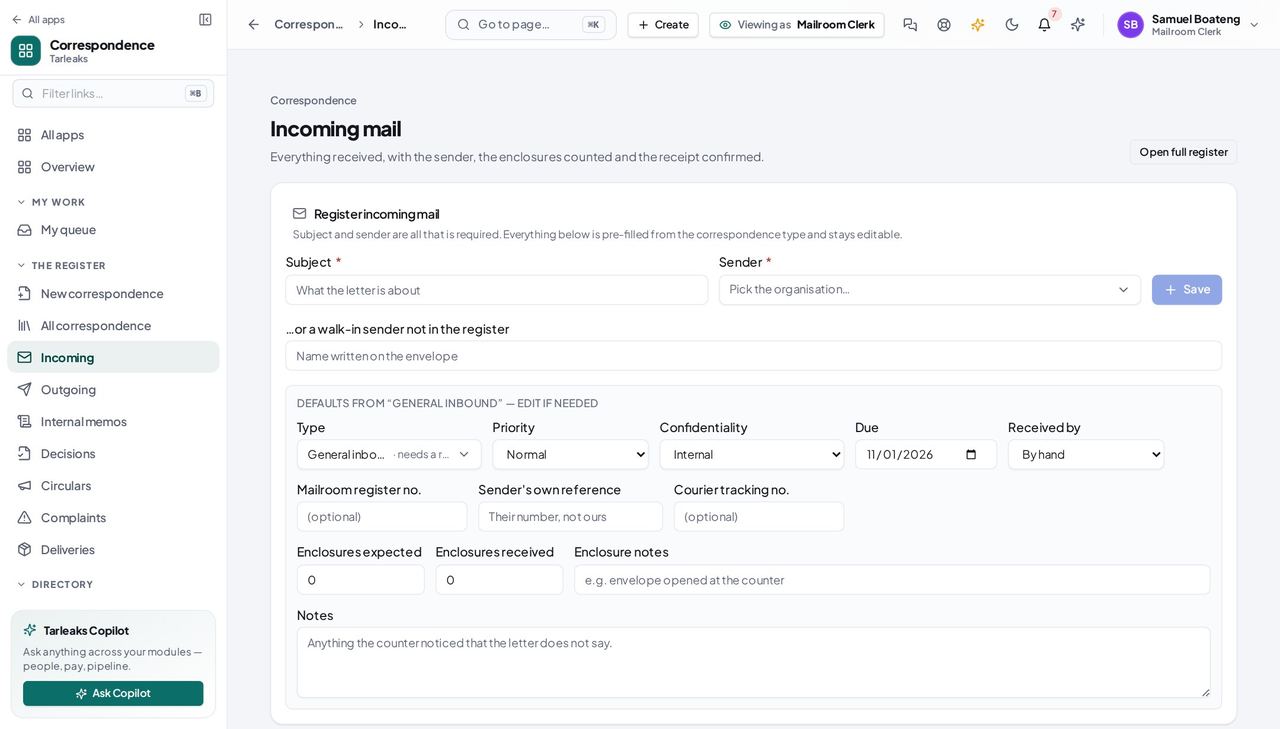
You should see The envelope is on the register before it leaves your desk.
Worth knowing Subject and sender are all it needs. Everything else — priority, classification, how long it is kept — comes from the type you pick.
Send it to the right desk #
Where a letter » Route
- Open the letter you registered.
- Choose Route.
- Pick a person, a department, or a post.
- Say what you want done: for action, for information, for review.
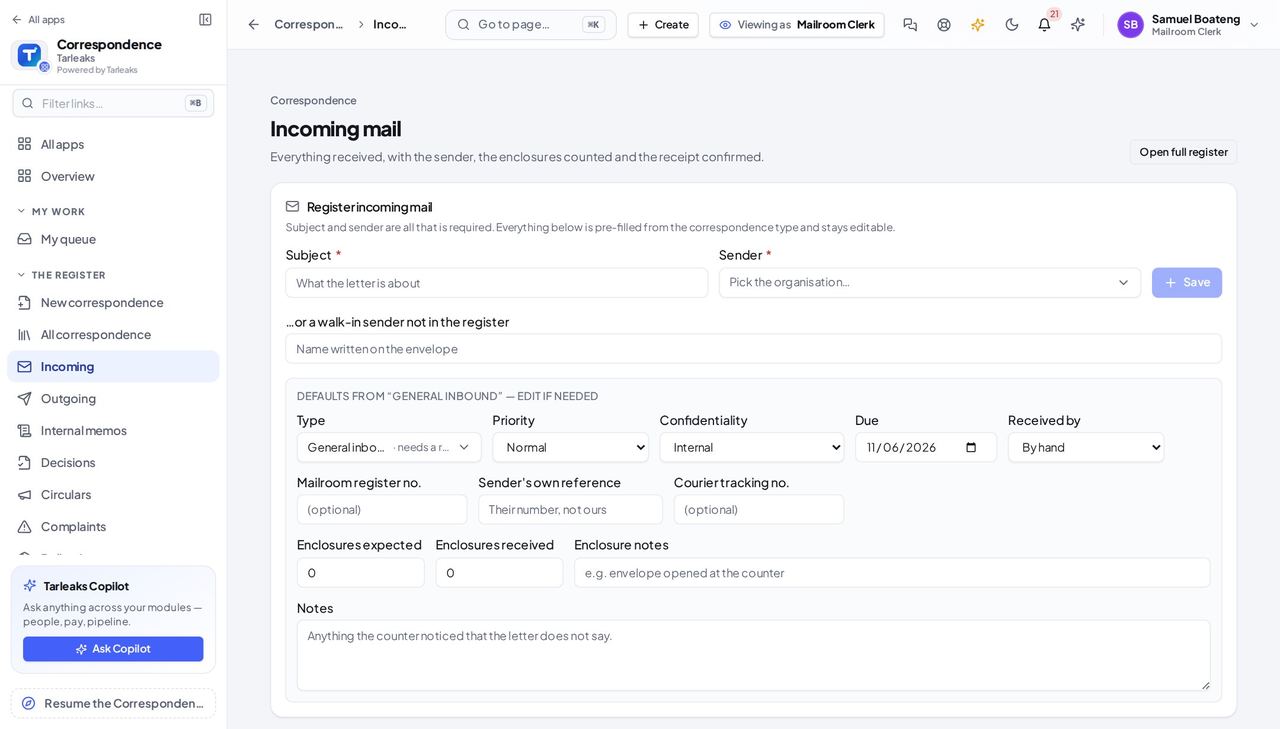
You should see All three reach somebody. Whichever you know is enough.
Watch out If you do not know who is in today, route to the POST — everybody holding that job will see it.
Worth knowing Routing to a post is the one to use when you do not know who is in today: everybody holding that job sees it.
Work down your own desk #
Where Correspondence » My queue
- Open My queue.
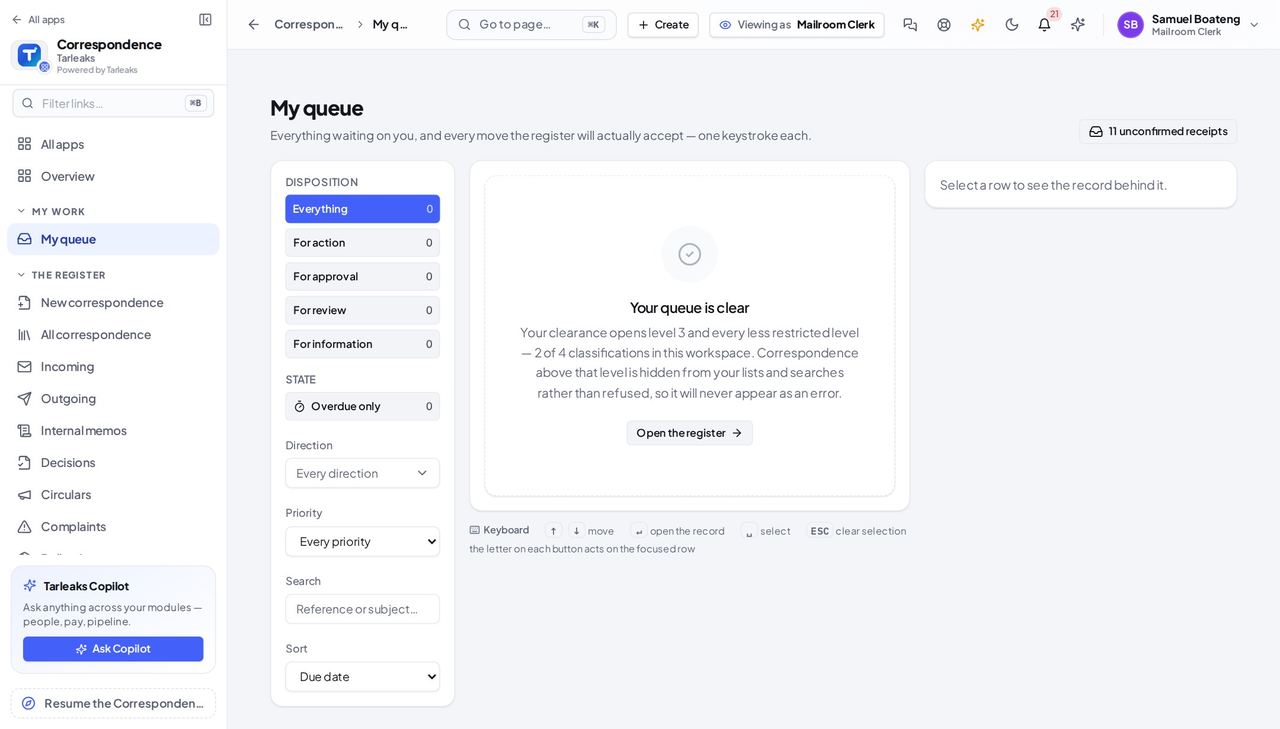
You should see What was routed to you, and what you owe somebody — with the tiles above counting exactly what the list below shows.
Record that it actually arrived #
Where Correspondence » Deliveries
- Sidebar » Deliveries.
- Add a leg for each recipient.
- Record the method and the tracking number.
| Field | What to put in it |
|---|---|
| Method | By hand, courier, registered post, e-mail |
| Tracking number | What the courier gave you |
| Delivered / Acknowledged | When it arrived, and when somebody signed |
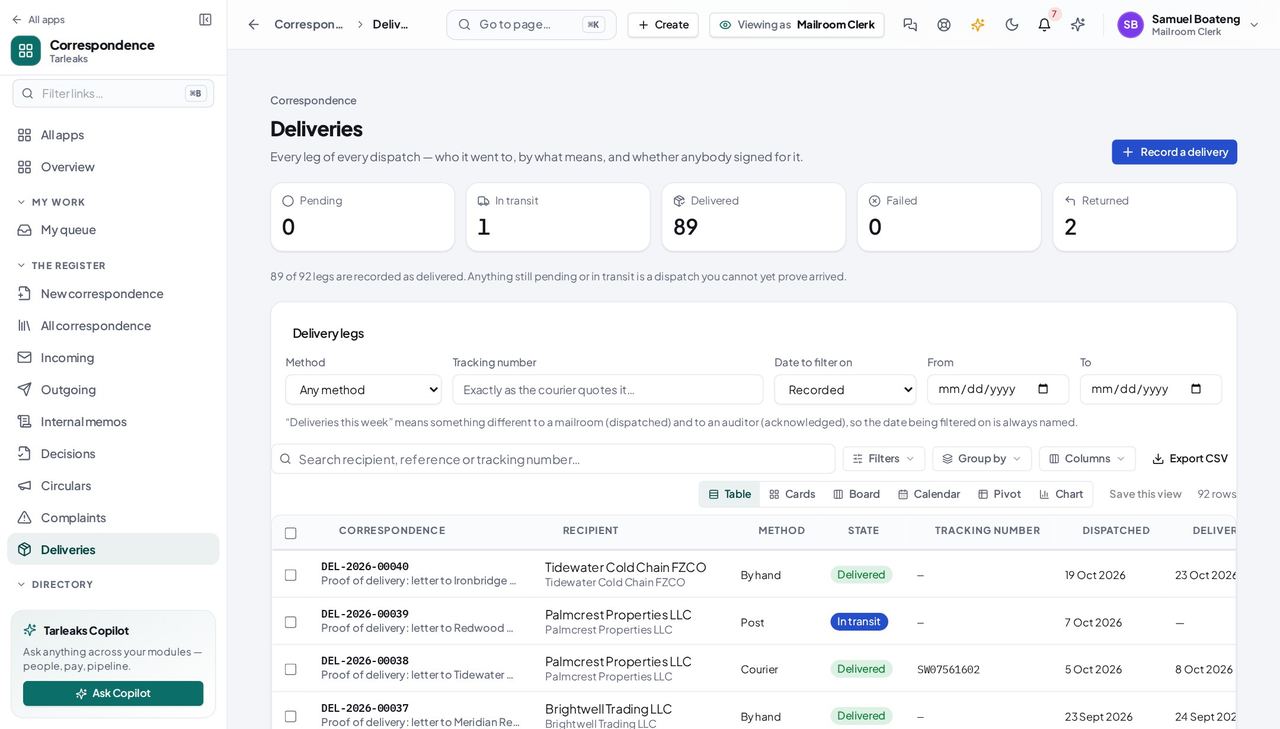
You should see This is what you show an auditor who asks whether the letter arrived.
Keep the directory correct #
Where Correspondence » Parties
- Open Parties and correct an address or add a body you have started receiving from.
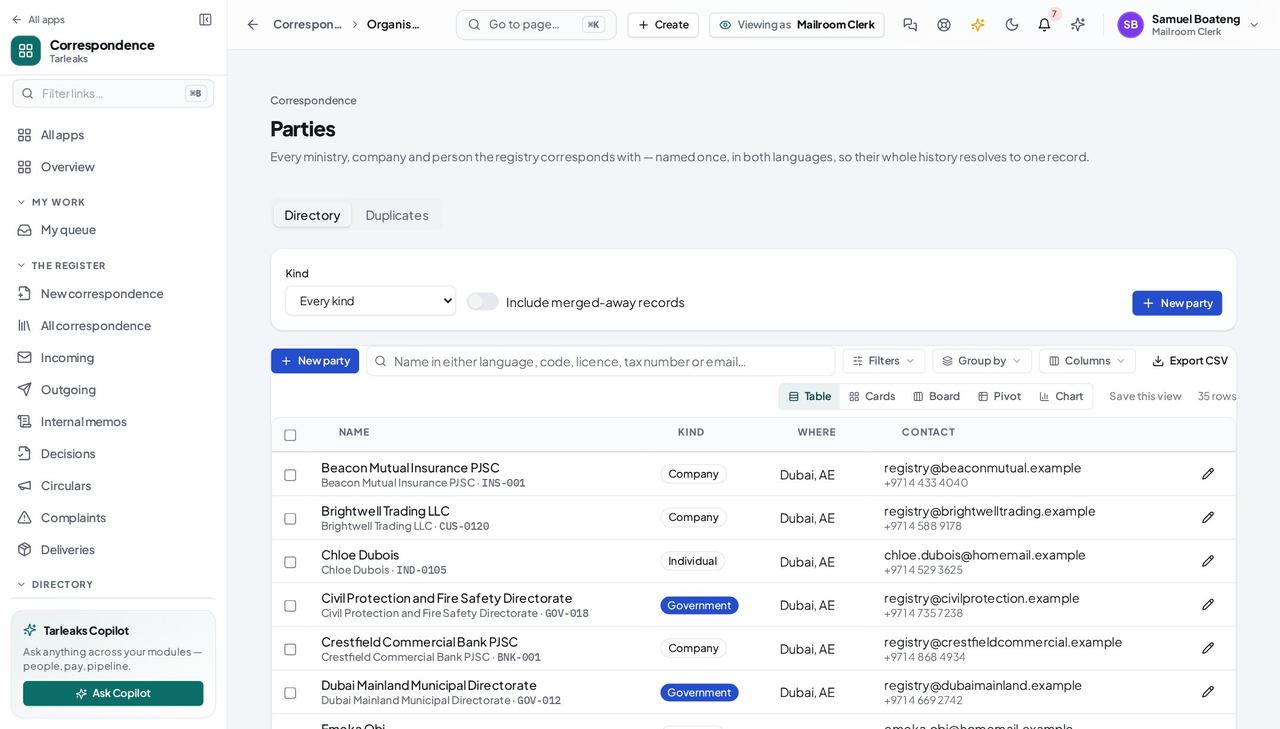
You should see You register mail from these organisations all day, so you are the person who notices when one has moved.
Retention is closed to you #
Where Correspondence » Archive
- Look for Archive or Retention in the sidebar.
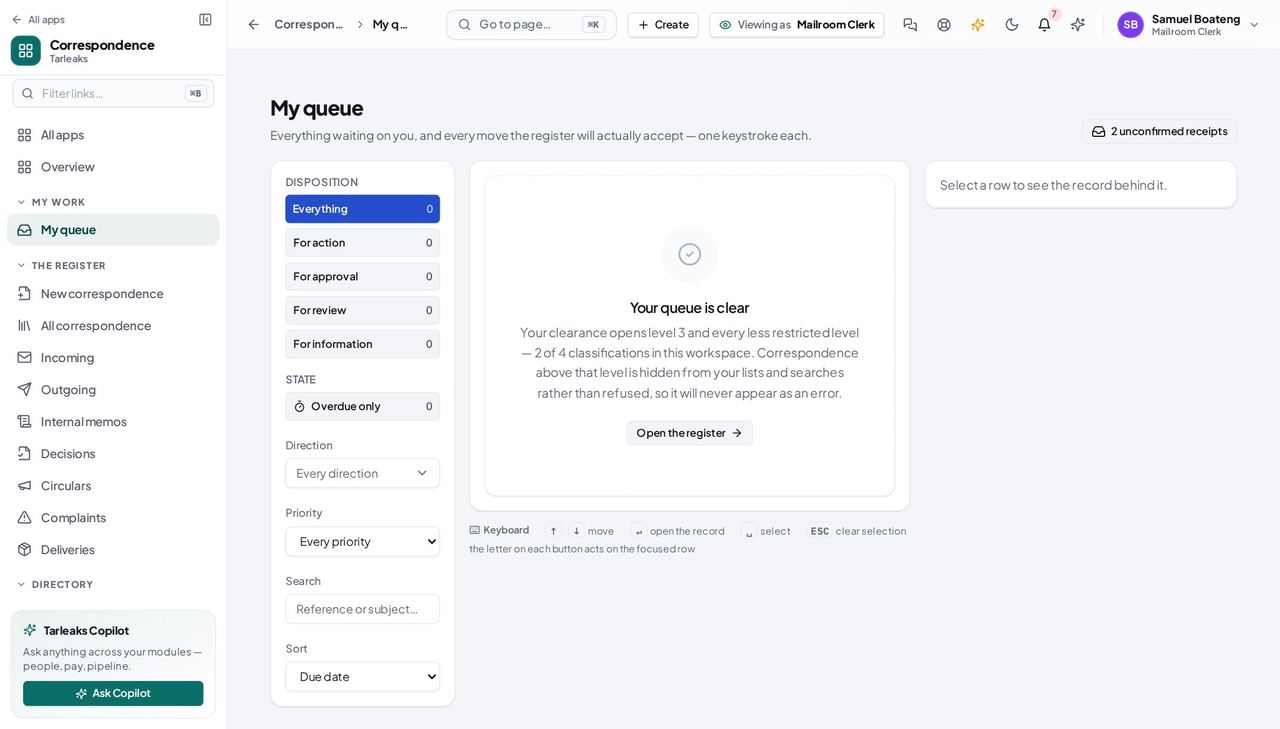
You should see You address envelopes. How long a record is kept, and when it is destroyed, is not a counter decision — so the screen is not there, rather than there and refusing.
So is the user list #
Where a Route-to picker
- Open a Route-to picker and read what it shows you.
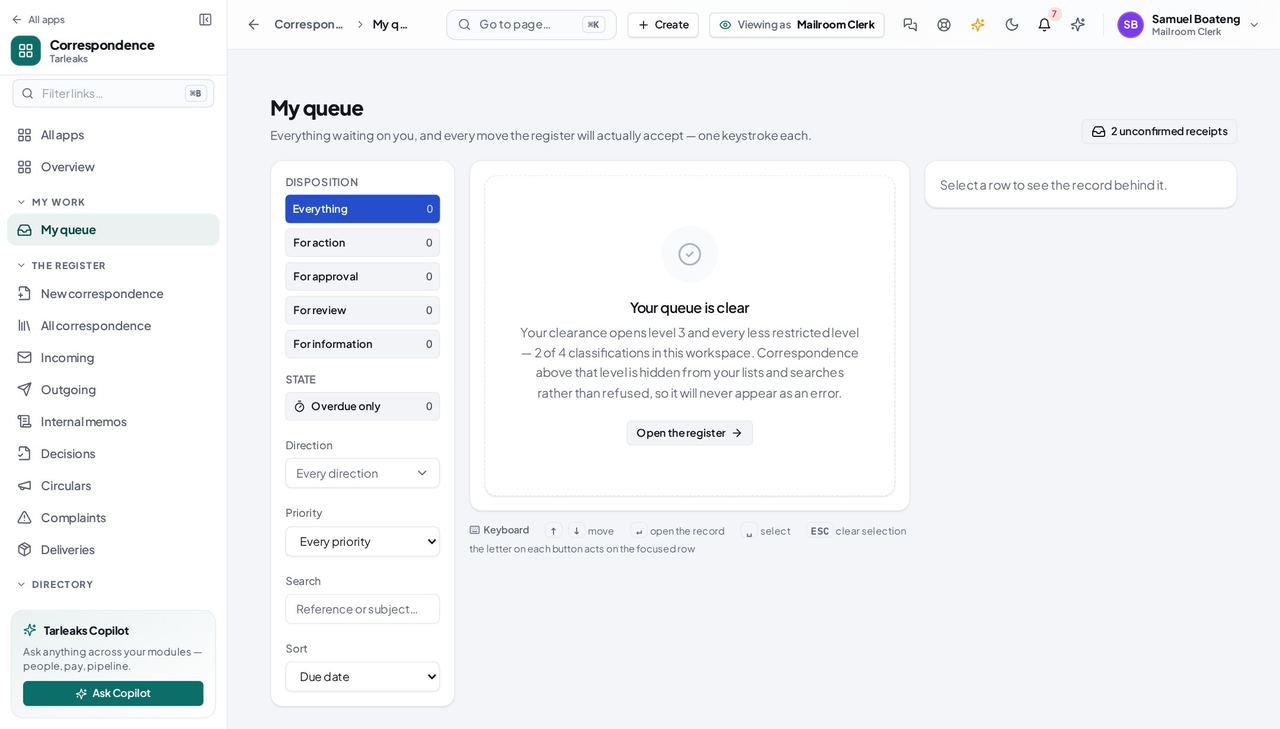
You should see Names and e-mail addresses — not who is locked out of their account and how many times they have failed to sign in. You need to address an envelope, not to audit a colleague.
Search finds what you are cleared for #
Where Correspondence » Search
- Search for a reference number you have not handled.
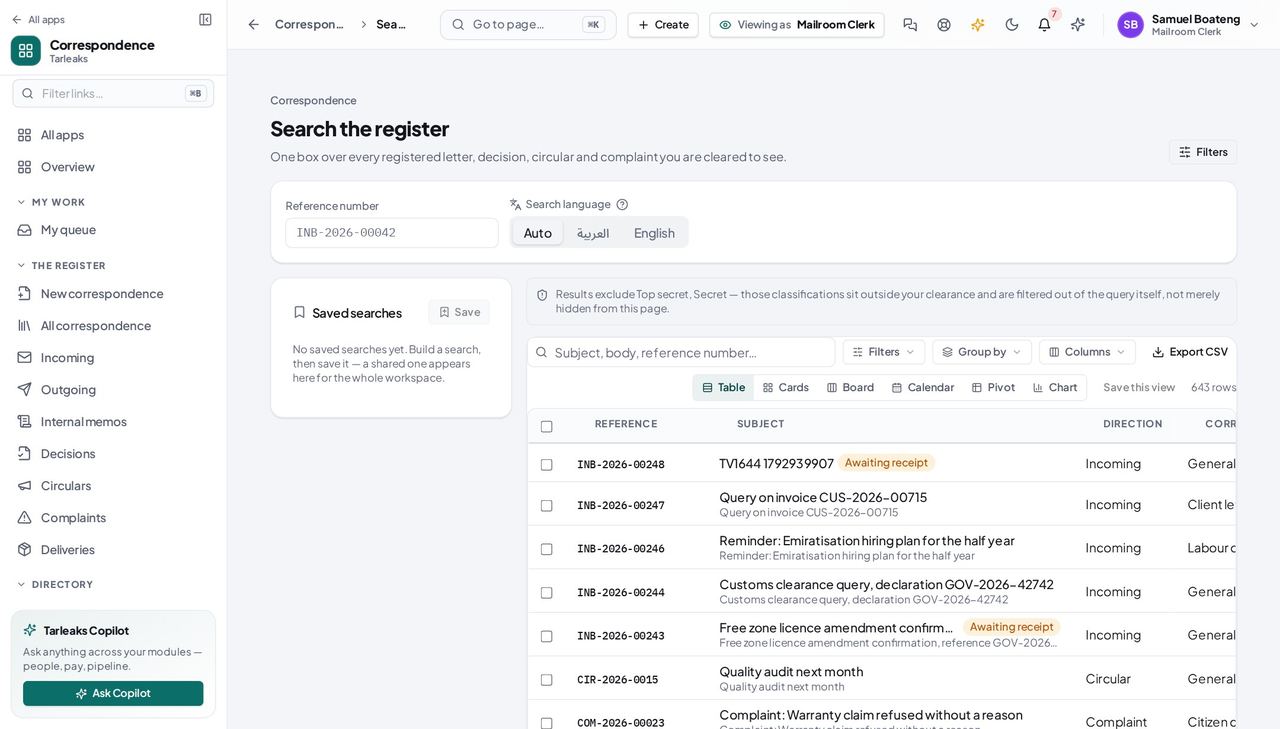
You should see Classified records you are not cleared for never appear — so a narrow search and a missing clearance look the same, and the page says so.
Letter templates belong to the people who write letters #
Where Correspondence » Settings » Templates
- Open Settings and click the Templates tab.
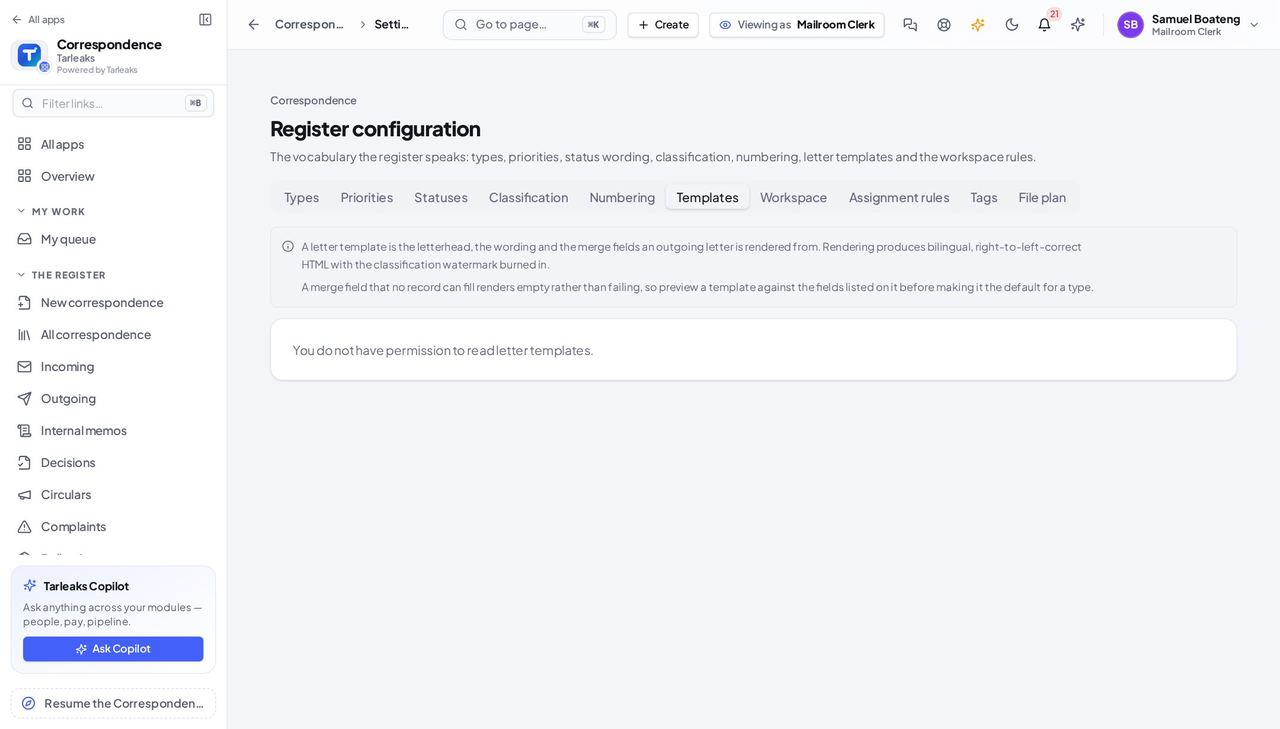
You should see The tab says you do not have permission to read letter templates — a plain answer instead of an empty list that looks as if the templates were lost.
Use cases — the work, step by step
Each one is a sequence somebody actually performs, with the screen behind every step. Every screen here was opened in the product as this role before it was published.
dailyPut the morning's post on the register #
A letter that is not on the register has no clock on it and nobody owns it. Registering it is what starts both.
Open Incoming and register the envelope: subject, who it is from, and the type. You get a reference number back.
Correspondence » Incoming — verified: the page says “Incoming” Send it to the right desk. If you know the person, name them; if you know the team, send it to the department; if you only know the job, send it to the post.
a letter » Route — verified: the page says “Incoming” Check your own queue afterwards — anything you kept is on it.
Correspondence » My queue — verified: the page says “queue”
whenever something goes out by hand or courierProve a letter arrived #
'We sent it' is not evidence. A delivery leg with a tracking number and a signature is.
Open Deliveries and add a leg for each recipient of the dispatch.
Correspondence » Deliveries — verified: the page says “Deliveries” Record the method and the tracking number while you still have the receipt in your hand.
Correspondence » Deliveries — verified: the page says “Deliveries”
as you noticeKeep the directory of senders correct #
You register mail from these bodies all day, so you are the first person to know when one has moved or been renamed — and every letter after that resolves to the right organisation.
Open Parties and correct the address, or add the body you have started receiving from.
Correspondence » Parties — verified: the page says “Parties”
You address envelopes. What is in them, how long it is kept and who may read it are somebody else's decisions — which is why those screens are closed to you rather than merely hidden.
Correspondence Officer
Write it, get it approved, send it — and have the register know all three happened.
Writes outgoing letters, memos, decisions and circulars — and sends them for approval before they leave the building.
What you will be able to do
- Draft an outgoing letter and register it for a number
- Name who must approve it, and see what they decided
- Dispatch it and record how it went out
- Write memos, decisions and circulars in the same register
What this role can and cannot do
| Can | Cannot |
|---|---|
|
|
6 steps, each one carried out in the product on .
Draft what is going out #
Where Correspondence » Outgoing
- Open Outgoing and start a new letter.
- Add the addressees; a draft has no number yet.
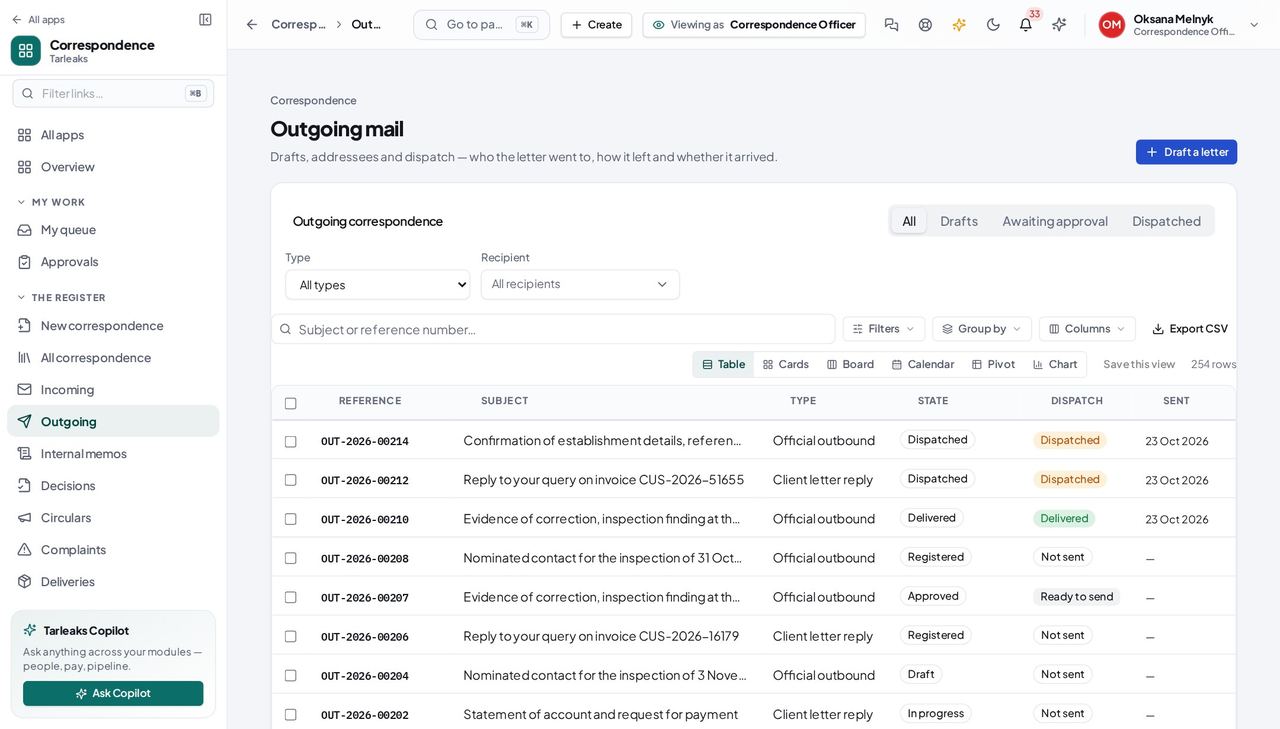
You should see Drafts, letters awaiting approval and dispatched letters, in one list.
Register it for a number #
Where a draft » Register
- Open your draft and choose Register.
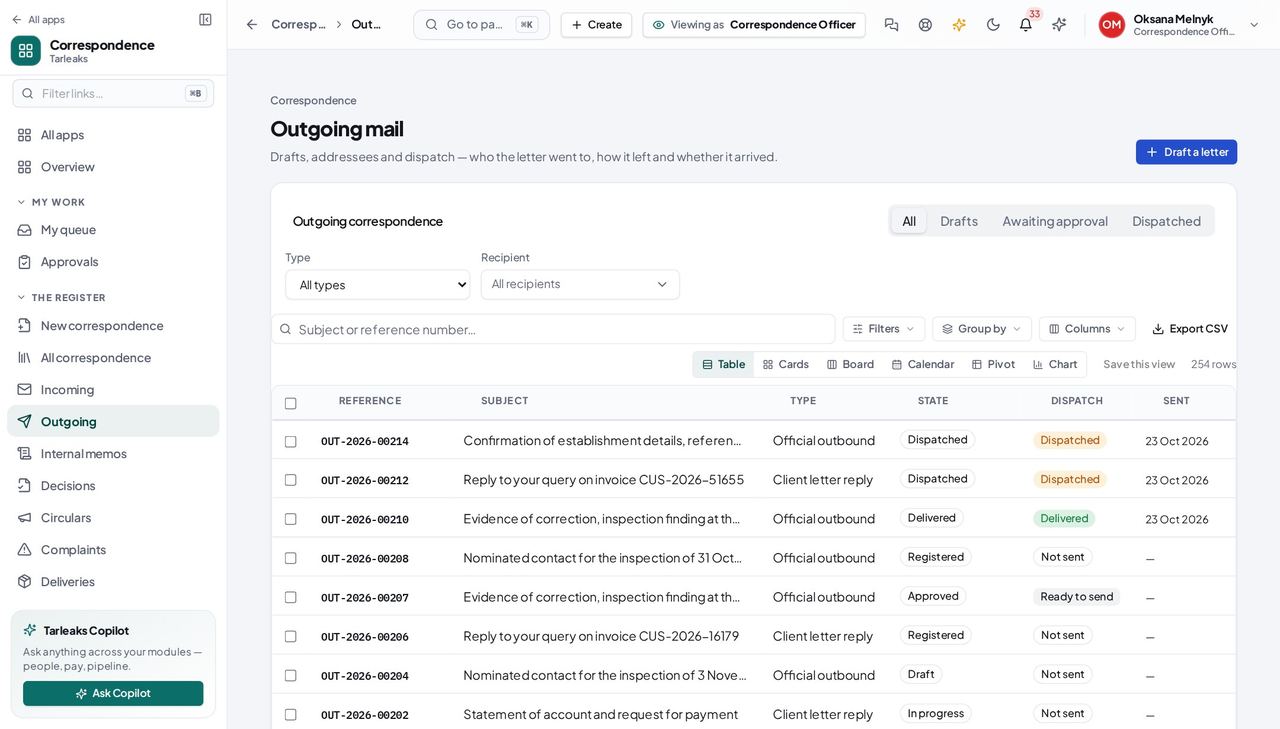
You should see OUT-2026-000NN — the number everybody quotes from here on, minted from the sequence for that direction.
Say who must approve it #
Where a letter » Request approval
- Open your registered letter.
- Choose Request approval.
- Search for the person who must decide and pick them.
- Add a note saying what you want them to look at.
- Send.
| Field | What to put in it |
|---|---|
| Approver | The person who decides — search by name |
| Note to the approver | What you want them to check |
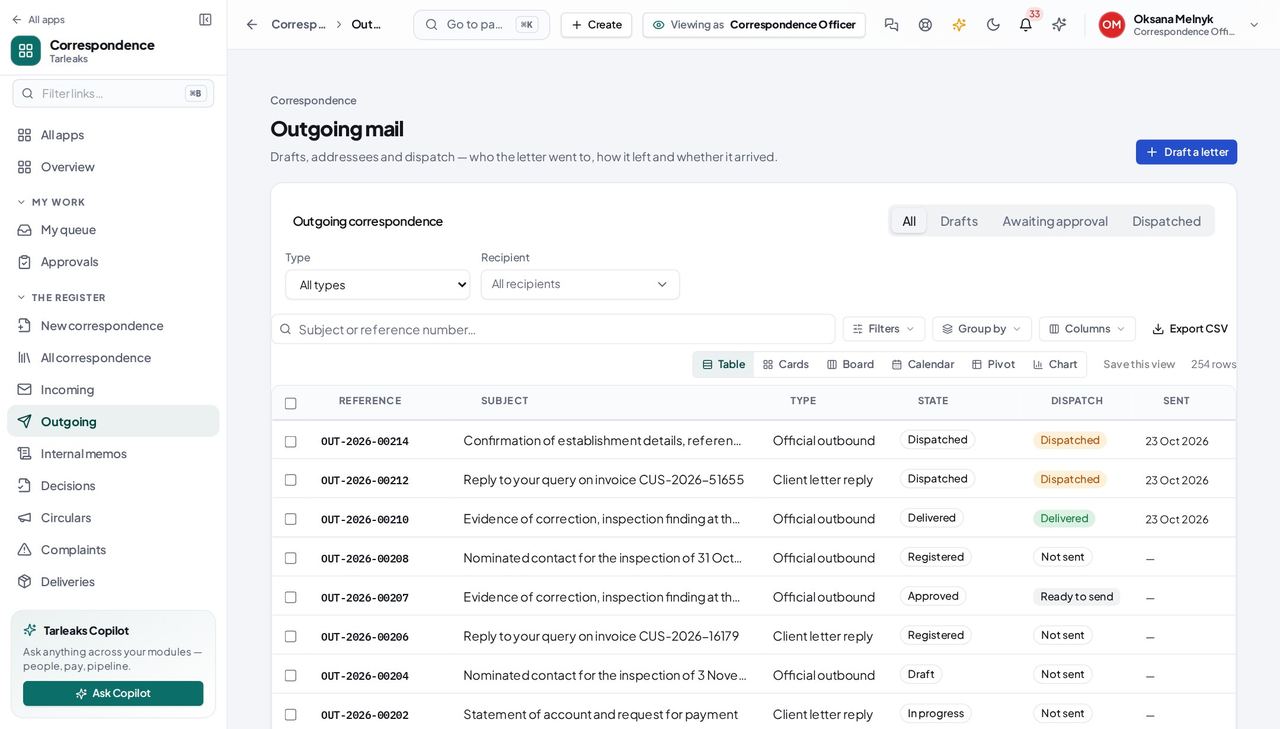
You should see Naming the approver is what makes the letter appear on their desk. Without it the letter would sit in 'awaiting approval' with nobody able to reach it.
Watch out Do not use the status menu to mark it approved. That door is closed on purpose: it would skip the person you named and the order they decide in.
Worth knowing If the dialog says the letter is already with somebody, look at Approvals — it has been raised once already.
See what they decided #
Where Correspondence » Approvals
- Open Approvals.
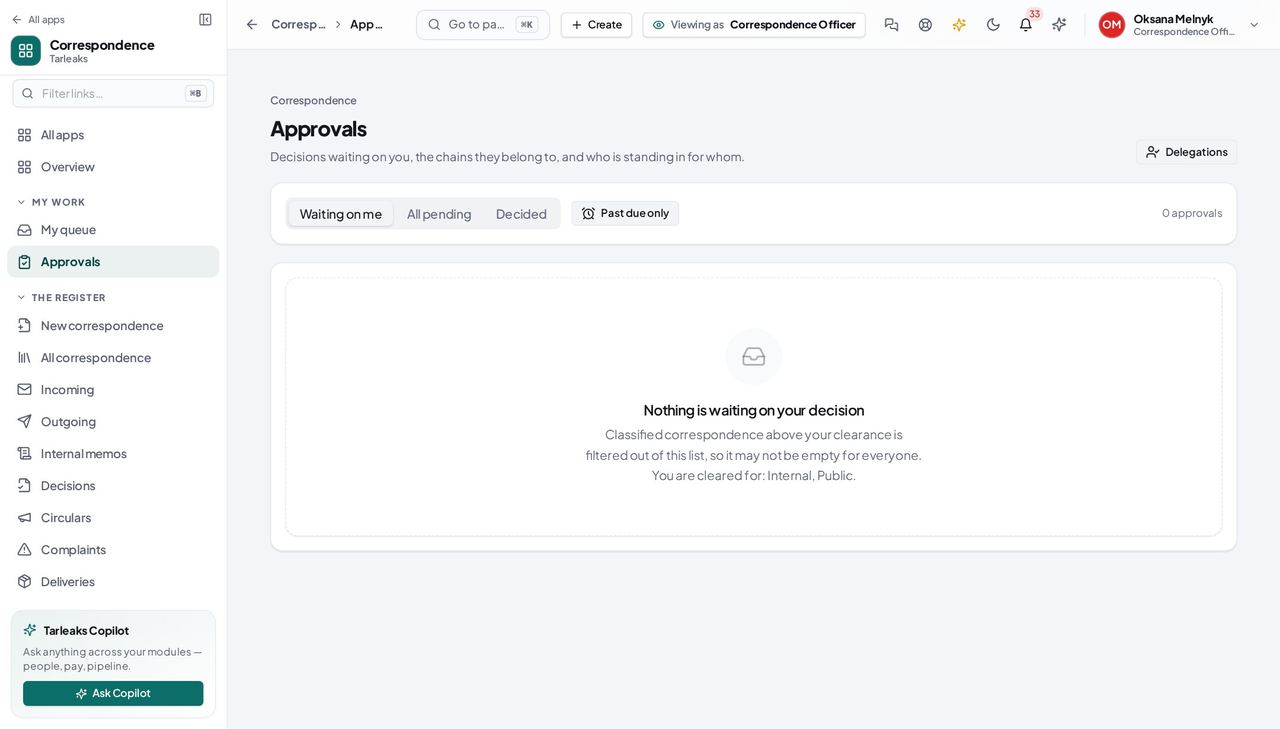
You should see Who has each letter, and what they said — including the reason behind a refusal, which is what tells you what to change.
Memos and decisions are the same register #
Where Correspondence » Memos
- Open Memos, or Decisions, or Circulars.
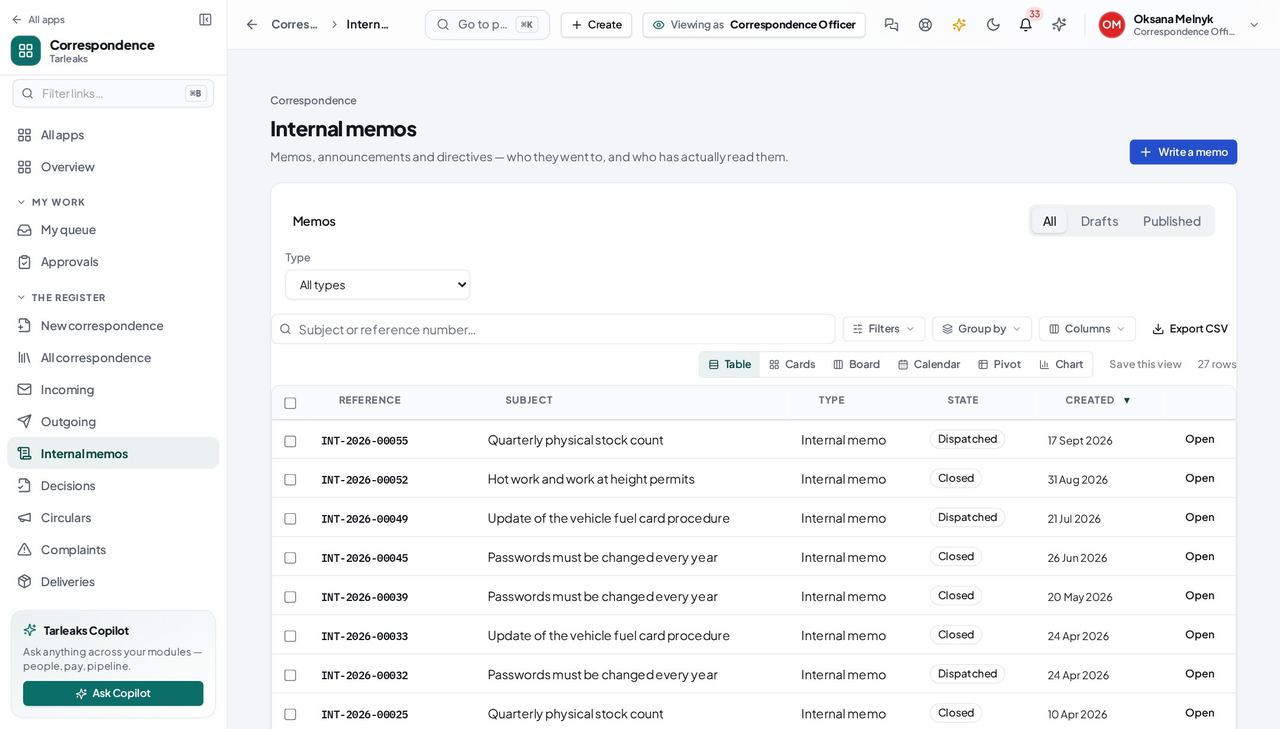
You should see An internal note is a registered record too: numbered, classified, retained and searchable like everything else.
You do not approve your own letter #
Where your own letter, awaiting approval
- Open a letter you sent for approval and look for Approve.
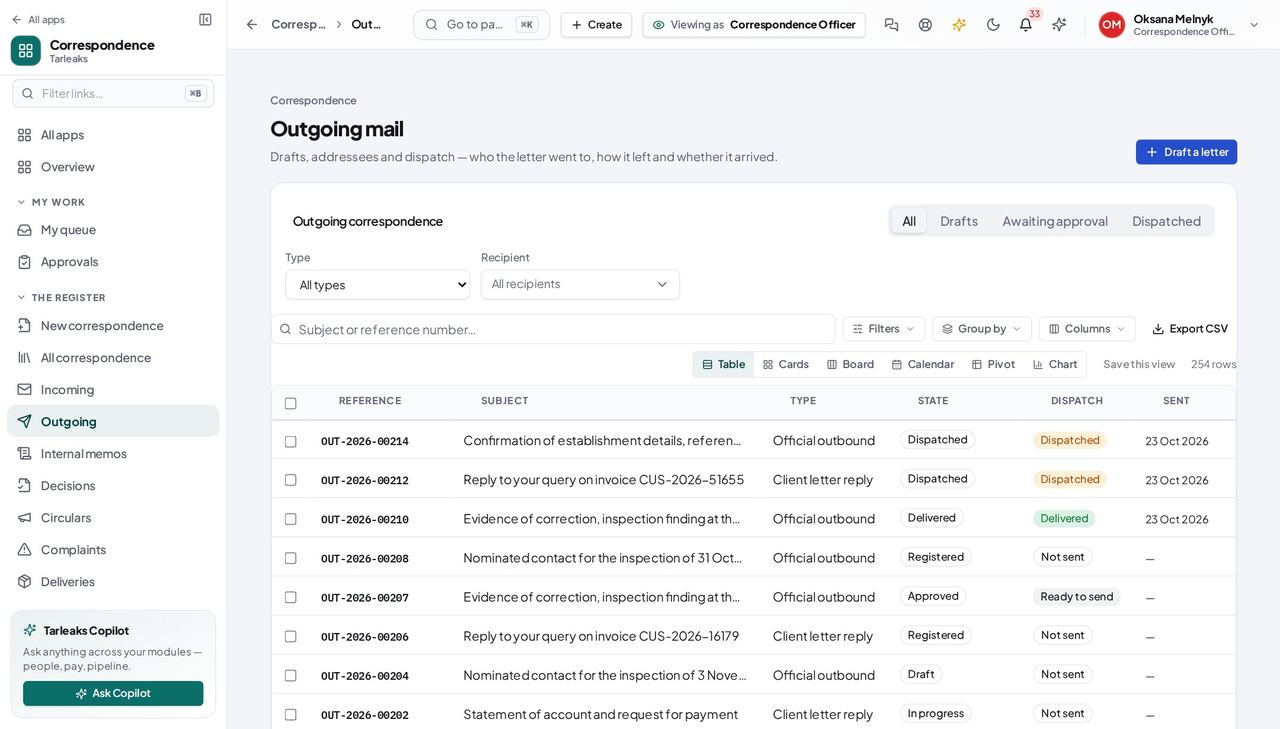
You should see The person who asks is not the person who decides. That is the whole point of the step, and the register records both sides of it.
Use cases — the work, step by step
Each one is a sequence somebody actually performs, with the screen behind every step. Every screen here was opened in the product as this role before it was published.
dailySend a letter out of the building #
This is the whole job, and every step of it is recorded — which is what makes the register worth keeping.
Draft it in Outgoing and add the addressees.
Correspondence » Outgoing — verified: the page says “Outgoing” Register it. That is when it gets its number — the one everybody will quote from here on.
a draft » Register — verified: the page says “Outgoing” Send it for approval, and NAME who must approve it. That is what puts it on their desk.
a letter » Request approval — verified: the page says “approval” Watch for the decision. If it comes back refused, the reason tells you what to change.
Correspondence » Approvals — verified: the page says “Approvals”
occasionallyIssue a circular to the whole organisation #
A circular is the one record whose entire purpose is to reach people who have nothing else to do with it — so its audience is the thing to get right.
Draft it in the same register as everything else.
Correspondence » Memos — verified: the page says “Memo” Build its audience from named people, departments and roles — or publish it to everyone.
Correspondence » Memos — verified: the page says “Memo”
You do not approve your own work. That is not a limitation of the screen — it is the separation the register exists to record.
Department Head
Your department's correspondence, and only your department's.
Reads the correspondence of the departments they actually manage, and decides on what is put in front of them.
What you will be able to do
- See what was routed to you or to a department you manage
- Confirm receipt of what lands on your desk
- Decide on what is put in front of you
- Pick up a complaint escalated to you, with the reason attached
What this role can and cannot do
| Can | Cannot |
|---|---|
|
|
5 steps, each one carried out in the product on .
Your department's work, on one screen #
Where Correspondence » My queue
- Sidebar » My queue.
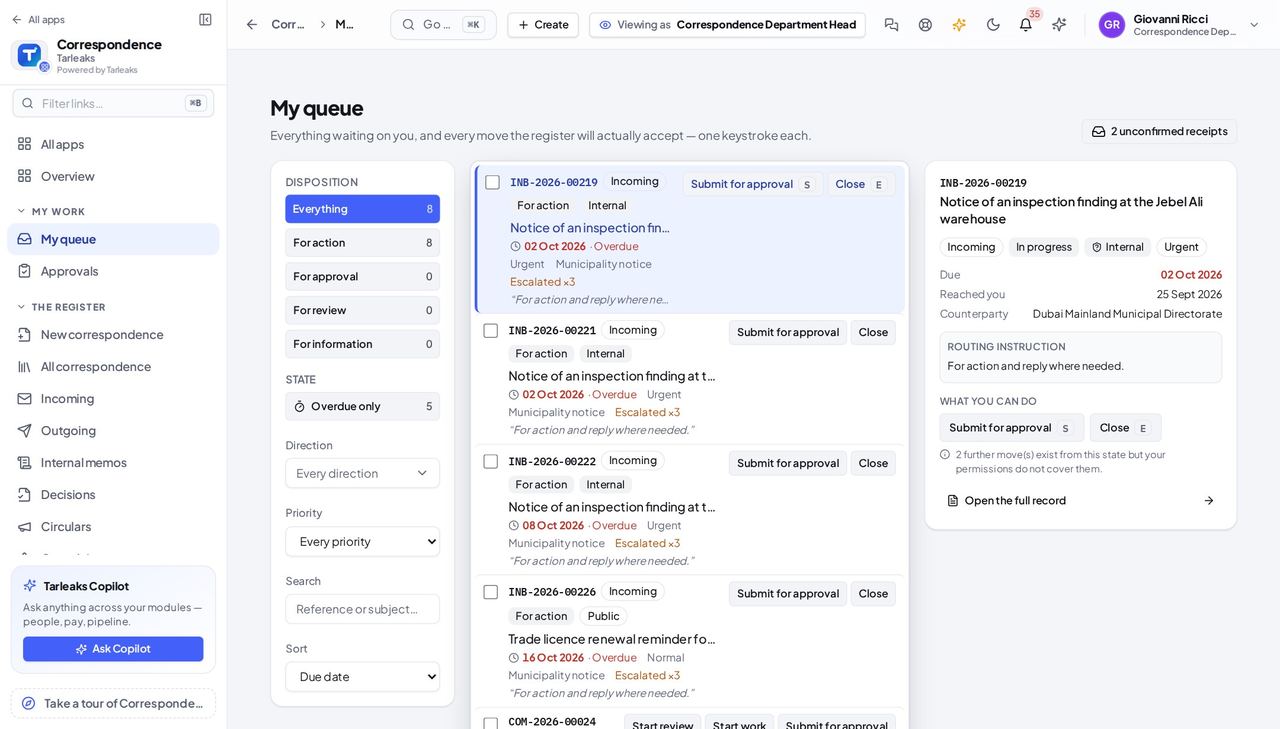
You should see Anything routed to you by name, and anything routed to a department you manage.
Watch out An empty queue with work you know exists usually means you are not recorded as the manager of a department. Ask an administrator to set that; it is what the register scopes your sight on.
Worth knowing If this is empty and you expect work, check that you are recorded as the manager of a department — that is what the register scopes on.
Confirm you received it #
Where My queue » a letter » Confirm receipt
- Open a letter from your queue and choose Confirm receipt.
- Say what actually arrived — 'two of two enclosures' is a useful note.
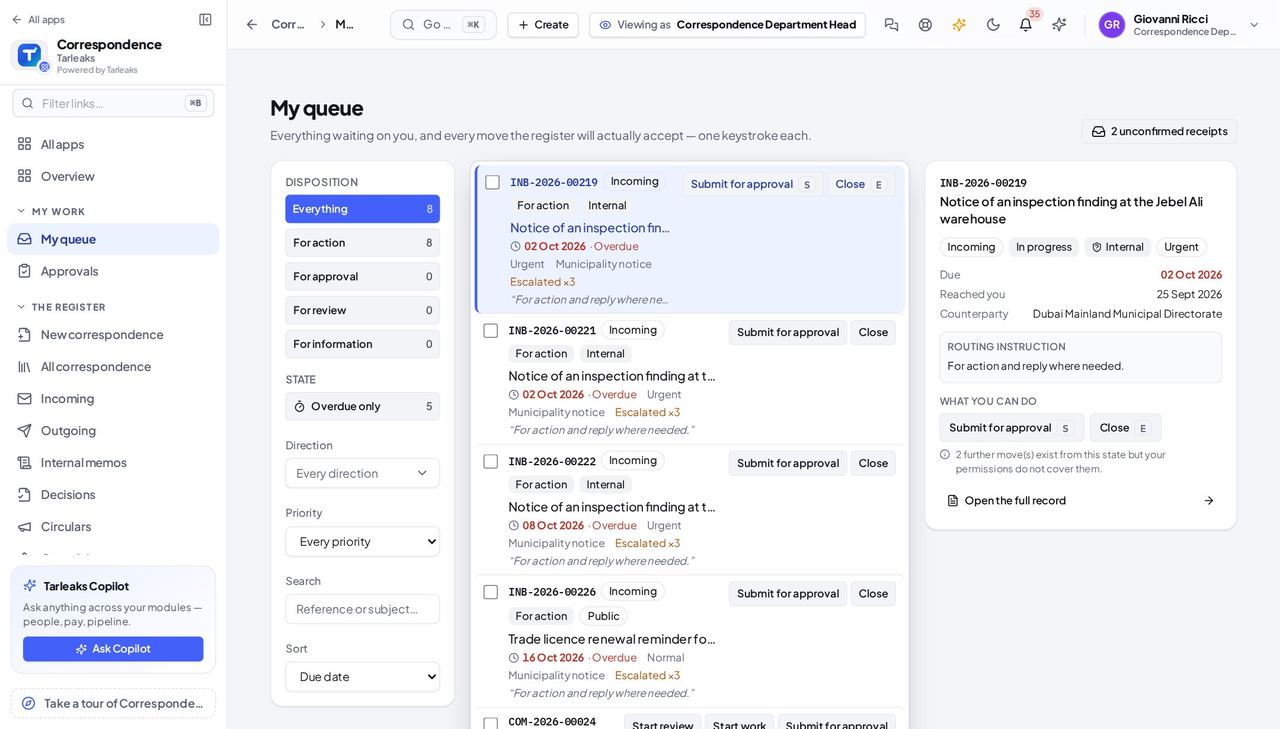
You should see An incoming letter is unread and unchangeable until the person it was sent to says it arrived. That person is you.
Your register, not everybody's #
Where Correspondence » Register
- Open the register.
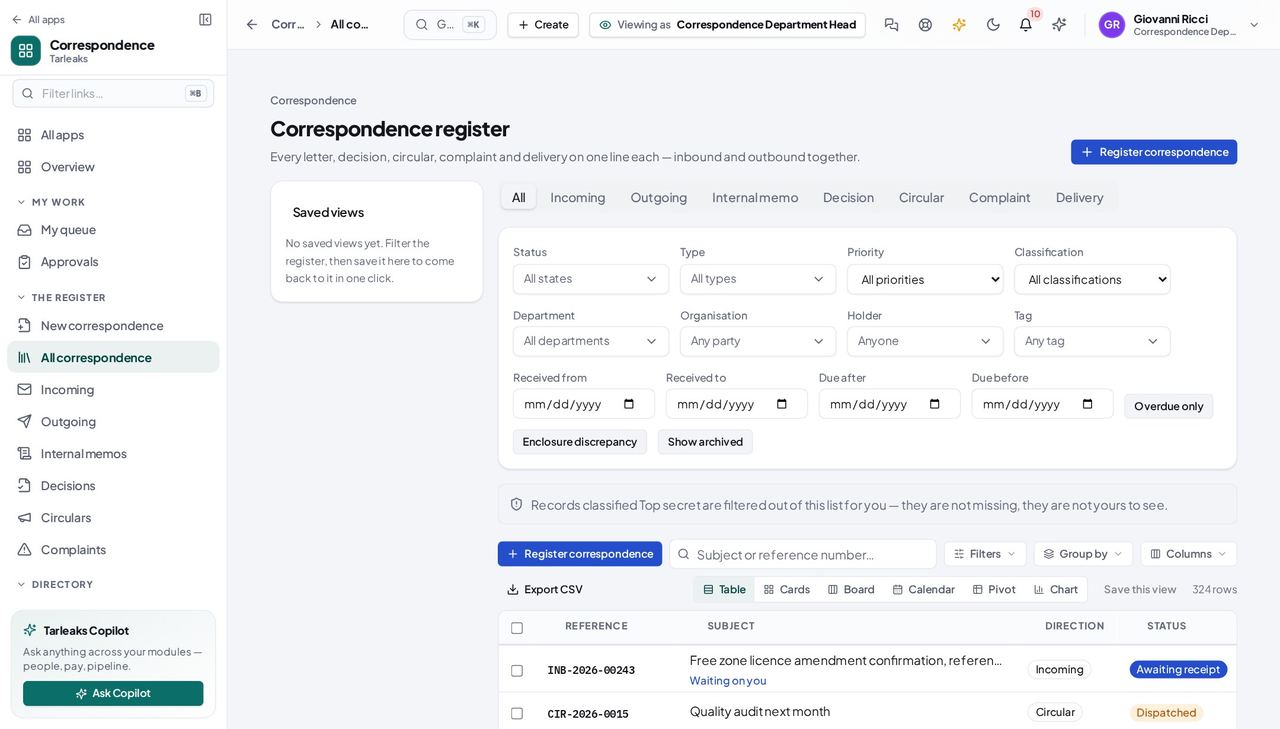
You should see Narrowed to the departments you manage. A letter belonging to another department is not hidden from you — it is not yours.
Pick up a complaint escalated to you #
Where Correspondence » Complaints
- Open Complaints.
- An escalated complaint arrives with the reason attached and its severity raised.
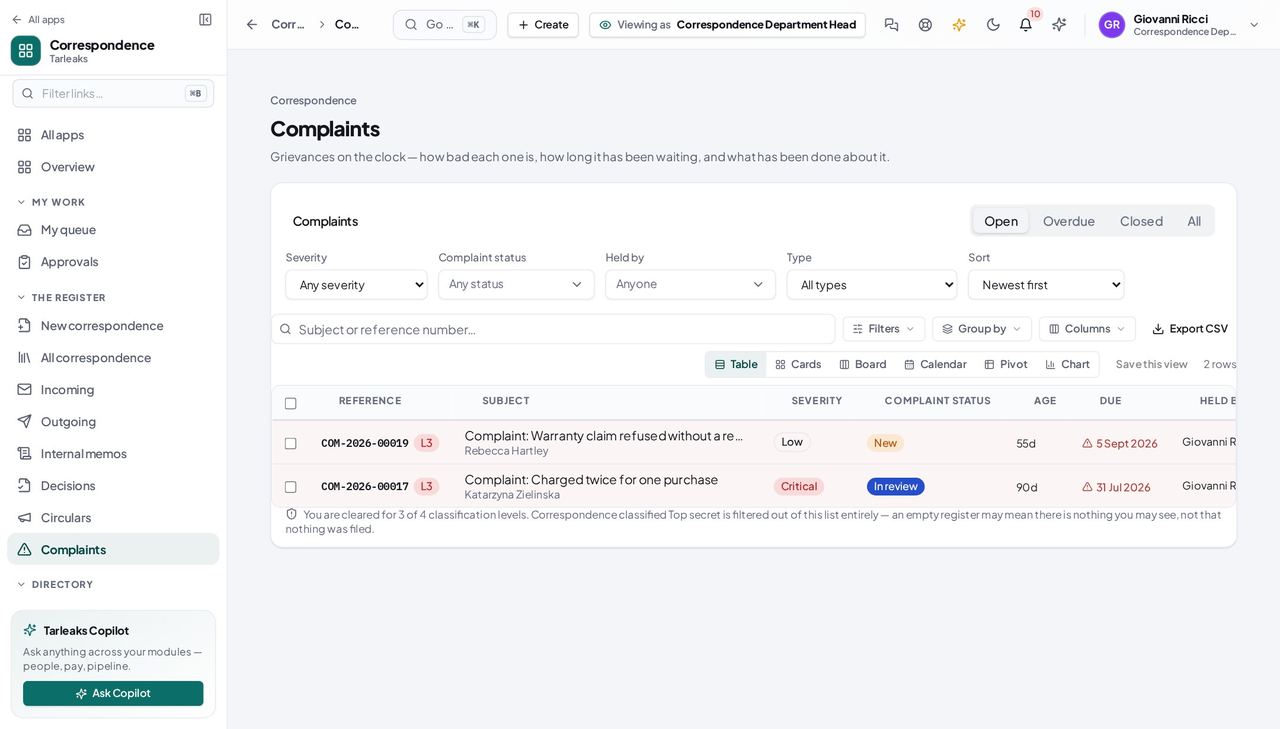
You should see Escalation puts the file on your desk, not just your name in a ledger.
Another department's letter is not yours #
Where Correspondence » Register
- Search the register for a reference belonging to a department you do not manage.
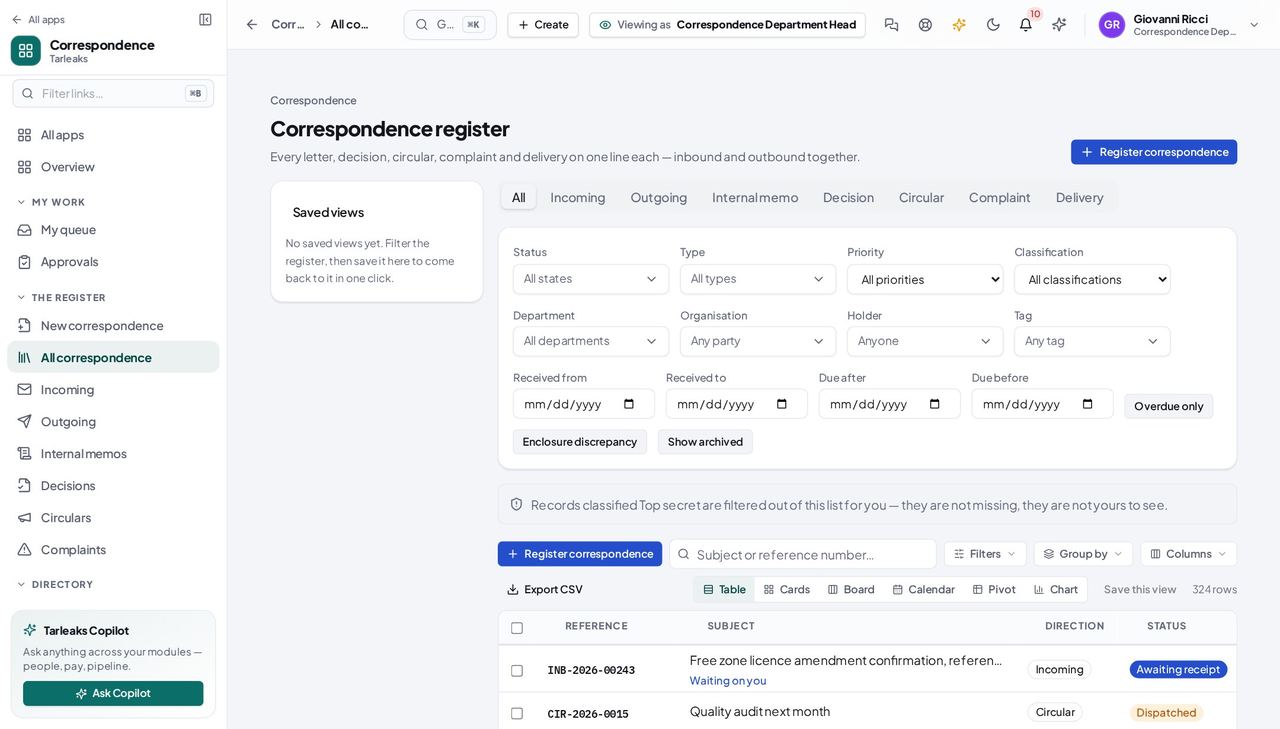
You should see Not hidden — not yours. The register narrows to what you are responsible for, and says so when a search comes back short.
Use cases — the work, step by step
Each one is a sequence somebody actually performs, with the screen behind every step. Every screen here was opened in the product as this role before it was published.
dailyClear your desk #
Your queue is the only screen that shows both what was sent to you personally and what was sent to your department.
Open My queue and read what is waiting.
Correspondence » My queue — verified: the page says “queue” Confirm receipt of anything that arrived — say what actually came, enclosures and all.
My queue » a letter » Confirm receipt — verified: the page says “queue” Open anything the queue offers you. If the queue shows it, you can open it.
Correspondence » Register — verified: the page says “Register”
when it happensTake on a complaint escalated to you #
An escalation is somebody saying this is now above their level. It arrives with the reason attached and its severity already raised.
Open Complaints; the escalated one is in your queue too.
Correspondence » Complaints — verified: the page says “Complaint” Read what has been done so far, then record what you do next.
Correspondence » Complaints — verified: the page says “Complaint”
This role is built on managing a department. If your queue and your register are both empty, the usual cause is that nobody has made you the manager of one — not that there is no work.
Approver
What is waiting on you, in one list, with enough to decide on.
Decides. Sees what is waiting on them, approves or refuses it with a reason, and hands it on when they are away.
What you will be able to do
- See every approval addressed to you — by name, by department or by post
- Approve, or refuse with a reason the author can act on
- Hand your decisions to somebody else while you are away, for a fixed period
What this role can and cannot do
| Can | Cannot |
|---|---|
|
|
5 steps, each one carried out in the product on .
Everything waiting on you #
Where Correspondence » My queue
- Open My queue.
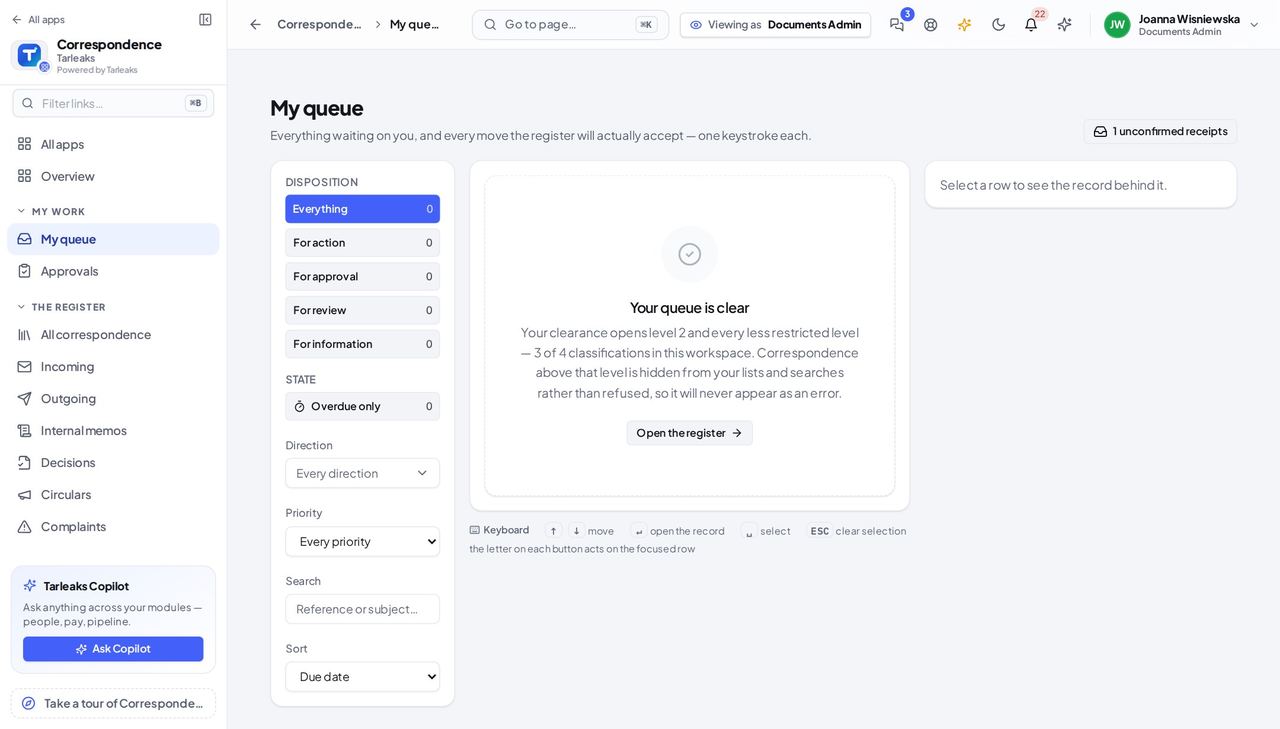
You should see Approvals addressed to you by name, to a department you manage, and to a post you hold — all three in one list.
Decide, with a reason #
Where Correspondence » Approvals
- Sidebar » Approvals.
- Open the letter.
- Read it, then Approve or Refuse.
- If you refuse, say what needs to change.
| Field | What to put in it |
|---|---|
| Decision | Approve, refuse, or send back for changes |
| Reason | Required on a refusal — it is what the author acts on |
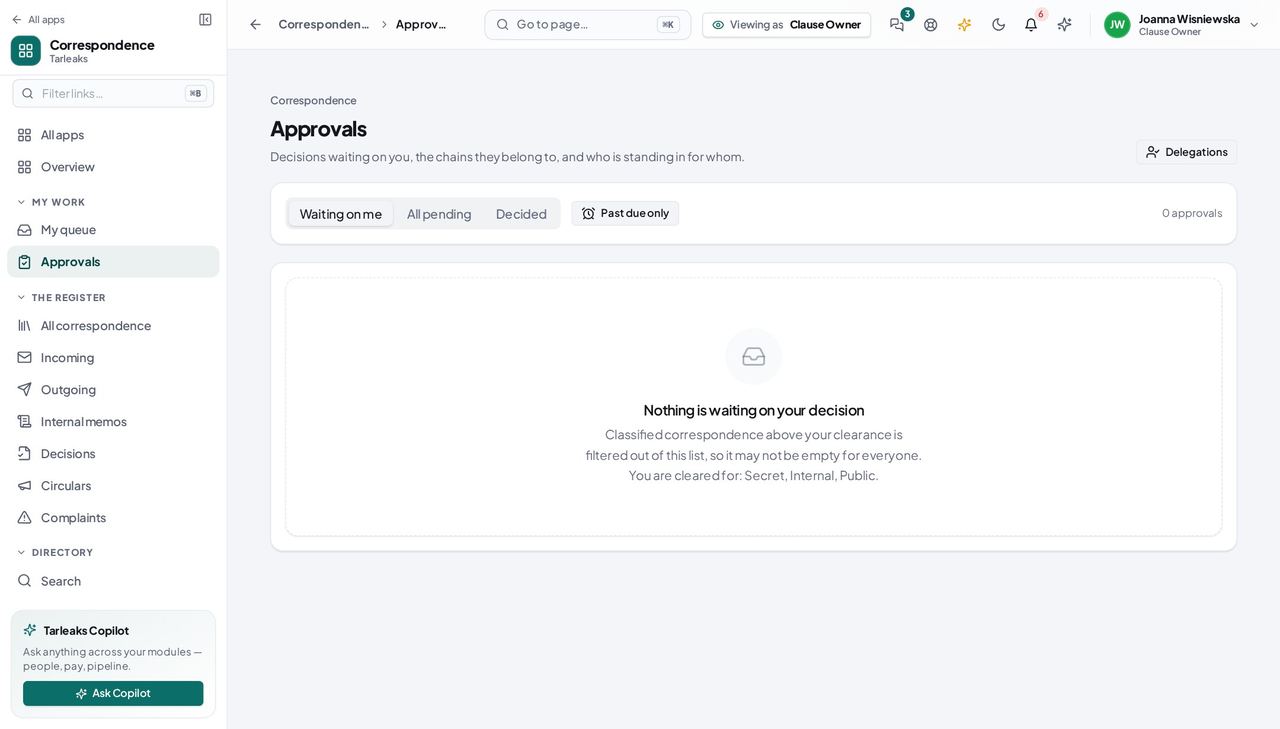
You should see A refusal without a reason is a dead end for whoever wrote the letter, so the register asks for one.
Worth knowing Decide here, not from the letter's own status menu — this is the door that records who decided, in what order, and why.
Hand your decisions on while you are away #
Where Correspondence » Approvals » Delegations
- Open Delegations and name who stands in for you, from when until when.
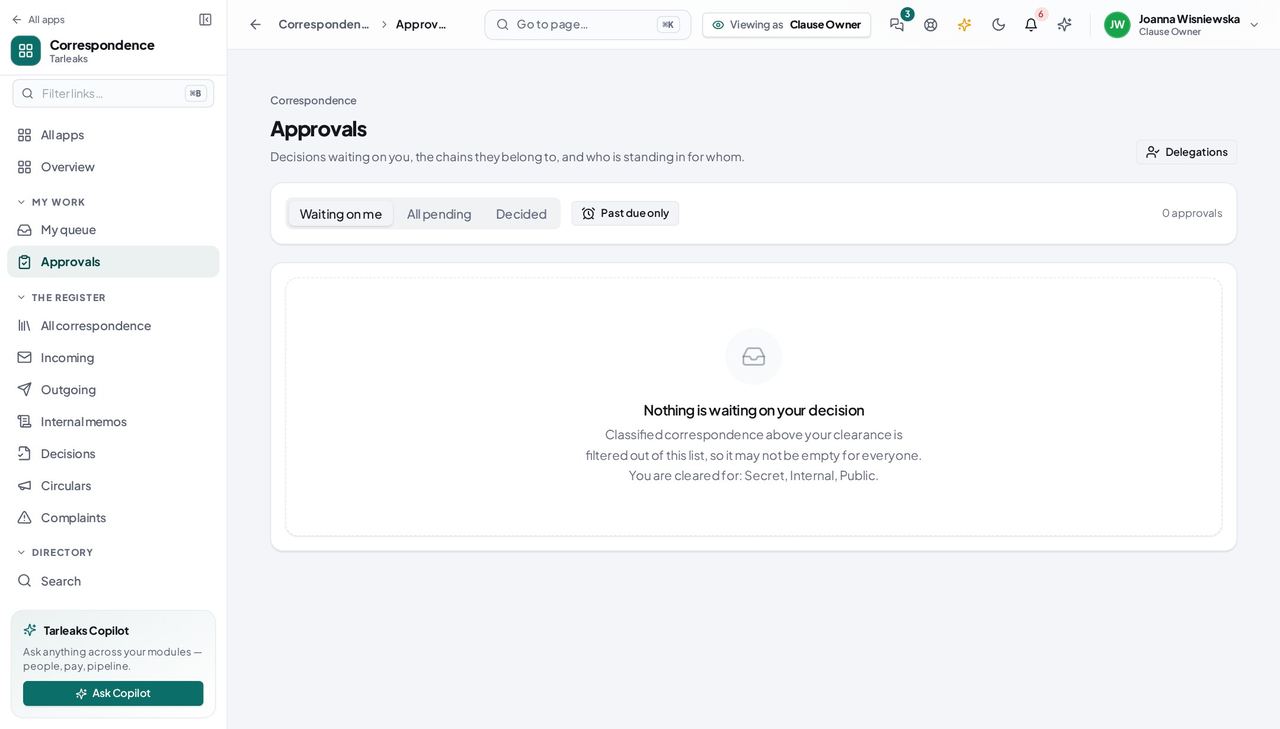
You should see Time-boxed and revocable: it ends on the date you set, and you can end it sooner.
You do not write what you decide on #
Where Correspondence » Outgoing
- Open Outgoing and look for a New letter button.
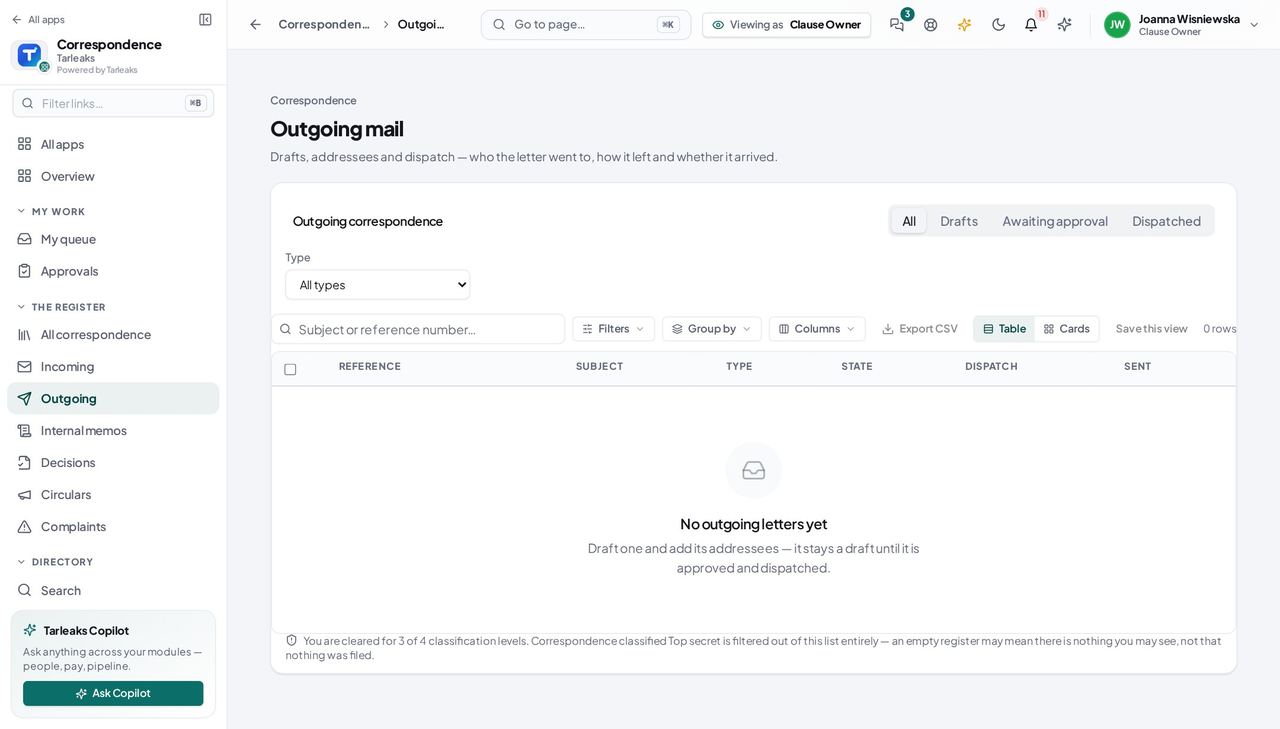
You should see Deciding and drafting are separate roles, so the button is absent rather than present and refusing.
Search with the filters you may use #
Where Correspondence » Search
- Open Search and click Filters.
- Narrow by direction, state, type, priority, classification, tags, owner or dates.
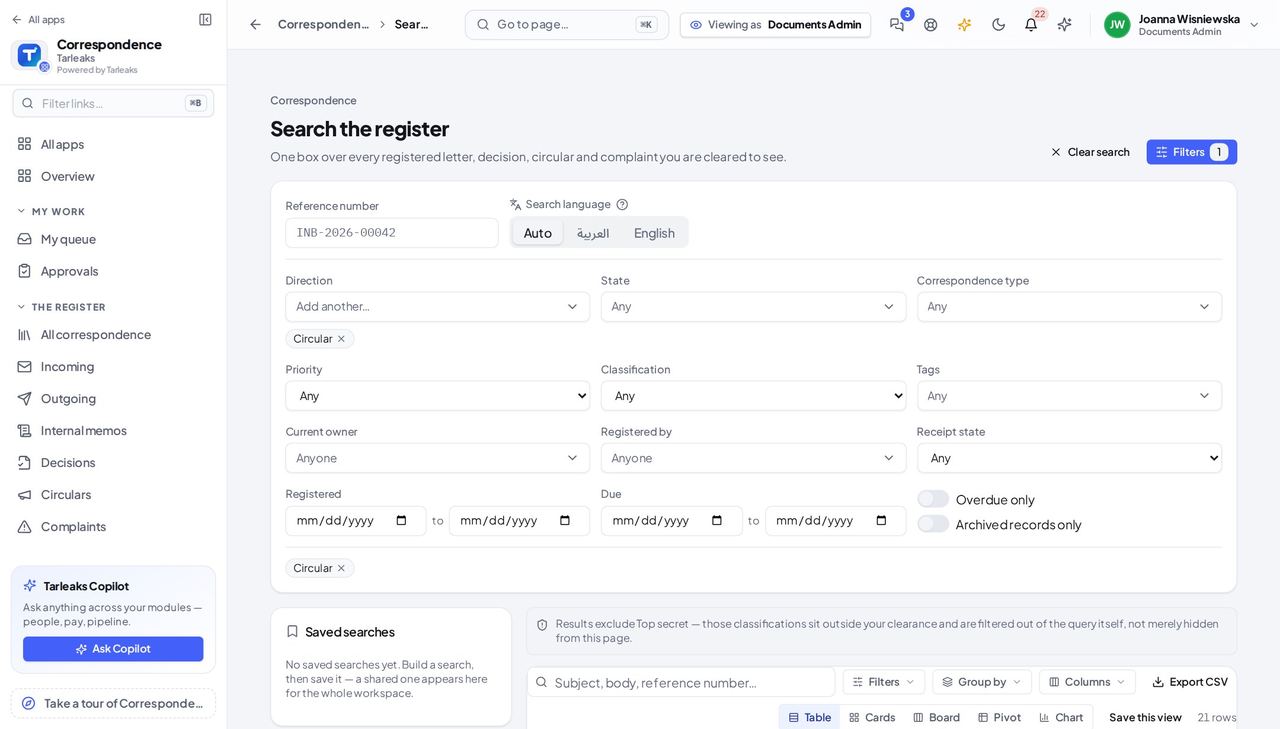
You should see There is no Party filter: listing the party register is not part of your role, so the panel neither shows the filter nor asks the server for a list it would refuse.
Use cases — the work, step by step
Each one is a sequence somebody actually performs, with the screen behind every step. Every screen here was opened in the product as this role before it was published.
dailyDecide what is waiting on you #
Everything in this list is somebody else's work, stopped until you look at it.
Open My queue: approvals addressed to you by name, to a department you manage, and to a post you hold.
Correspondence » My queue — verified: the page says “queue” Open one and decide. If you refuse, say what needs to change — that sentence is what the author acts on.
Correspondence » Approvals — verified: the page says “Approvals”
before any absenceGo on leave without stopping the register #
An approval with nobody able to decide it is a letter nobody can send.
Open Delegations and name who stands in for you, from when until when.
Correspondence » Approvals » Delegations — verified: the page says “Approvals” Check the queue once before you go: anything already assigned to you personally still needs deciding or delegating.
Correspondence » My queue — verified: the page says “queue”
A refusal without a reason is a dead end for the person who wrote the letter, so the register asks for one.
Records Archivist
Nothing is destroyed by surprise, and every destruction can be accounted for.
Custody and disposal: what is due, what is frozen under legal hold, and the certificate every destruction leaves behind.
What you will be able to do
- See what falls due for disposal before it does
- Freeze a record against disposal for a named matter
- Read the certificate of every destruction, with its checksum
- Know what the nightly sweep did, and to what
What this role can and cannot do
| Can | Cannot |
|---|---|
|
|
11 steps, each one carried out in the product on .
Read the schedule you execute #
Where Correspondence » Archive » Retention
- Open Archive and read the retention rules.
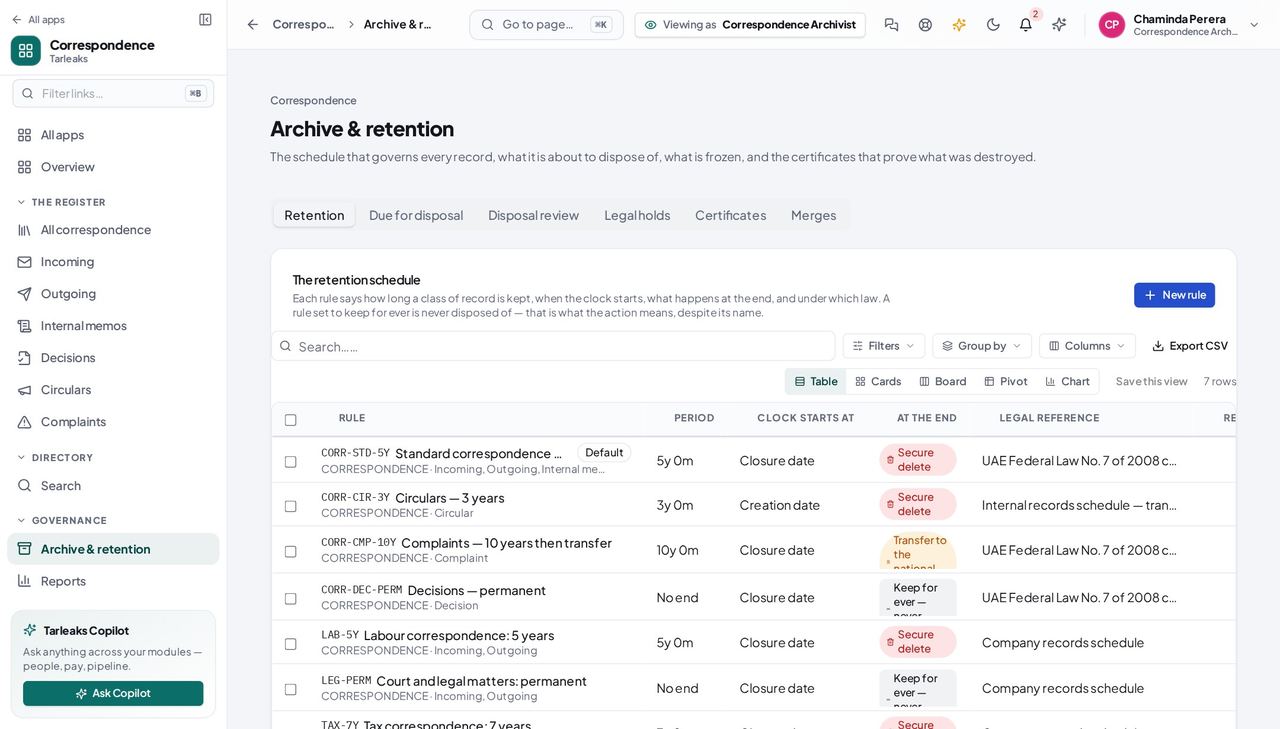
You should see How long, counting from when, and what happens at the end — destroy, or transfer to the national archive, or keep for ever.
See what falls due #
Where Archive » Due for disposal
- Open the Due-for-disposal tab.
- A record frozen under a legal hold shows as held, and is not destroyed.
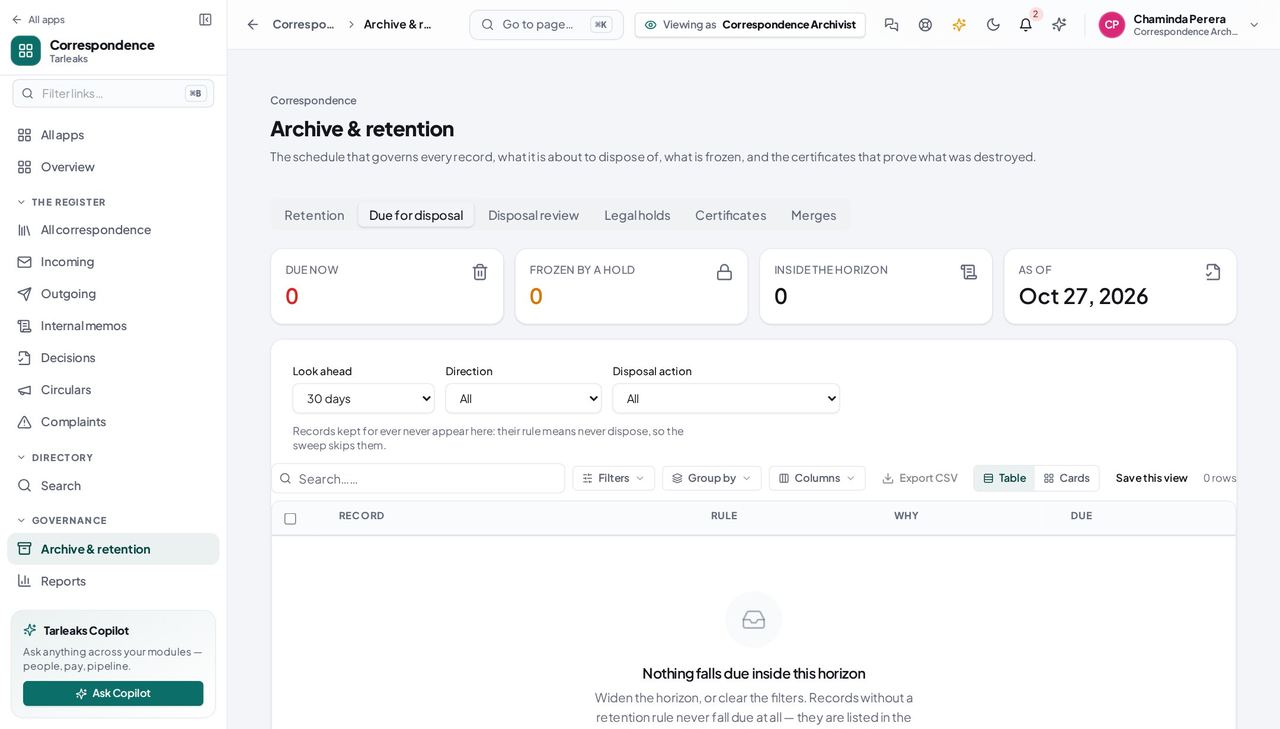
You should see A preview, not a surprise: the sweep destroys nothing that has not been listed here first.
Freeze a record against disposal #
Where Archive » Legal holds
- Sidebar » Archive » Legal holds.
- Place a hold.
- Name the matter it is held for.
| Field | What to put in it |
|---|---|
| Record | The one record this hold freezes |
| Reason | Why it is frozen |
| Matter | The case number, investigation or order it belongs to |
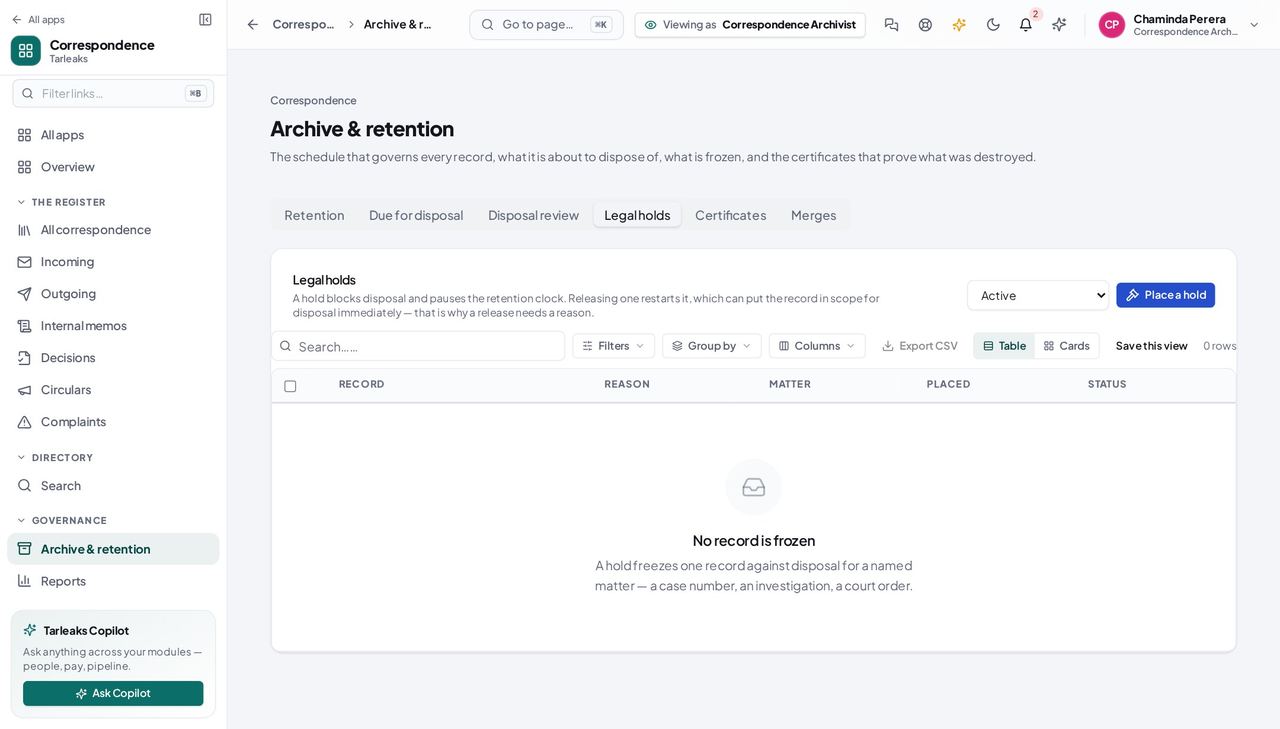
You should see The hold outranks the schedule. Nothing under one is destroyed, by you or by the nightly sweep.
Watch out A hold pauses disposal, not the clock. Release it and the record becomes due again — check the disposal date before you release.
Account for every destruction #
Where Archive » Certificates
- Open Certificates.
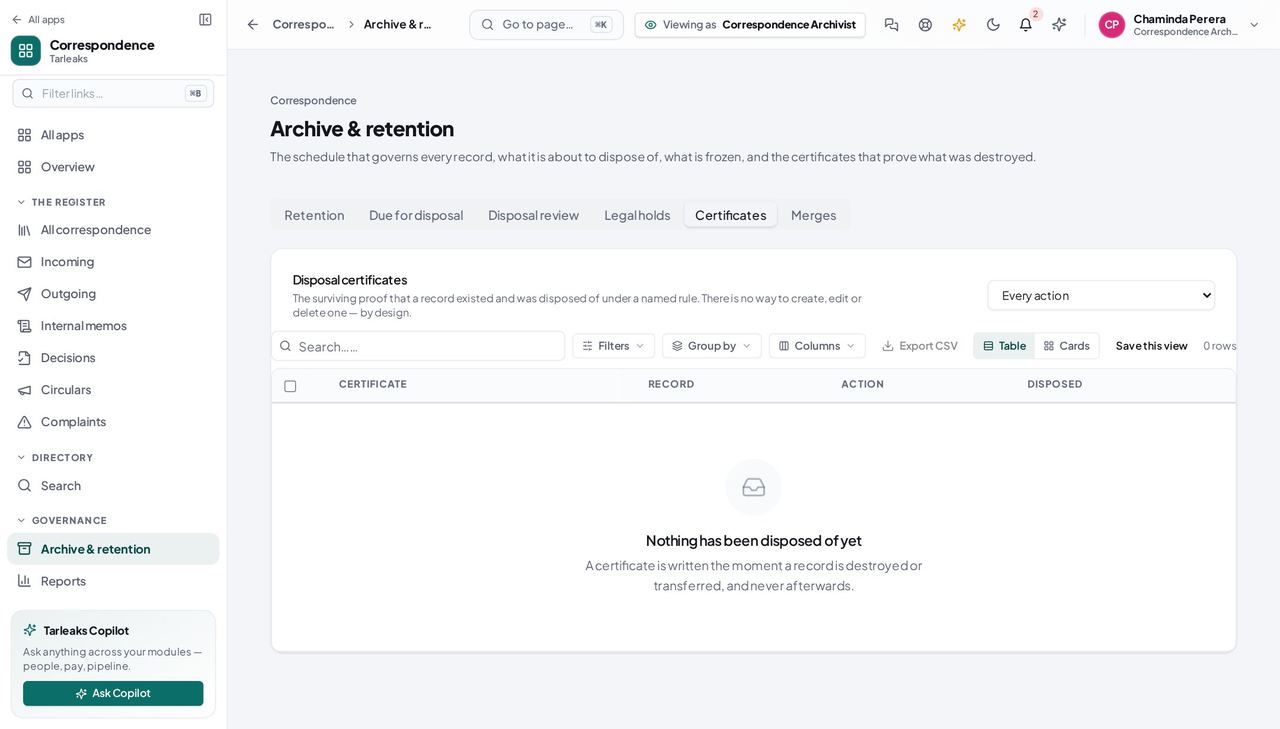
You should see What was destroyed, under which rule, by whom, and what it hashed to on the way out — so a later dispute about the contents has something to check against.
Worth knowing A certificate produced by the nightly sweep names 'Scheduled retention sweep' as the actor. That is the honest answer: nobody chose the moment, the schedule did.
The archive is the register's closed half #
Where Correspondence » Archive
- Open Archive.
You should see Closed and archived records, still readable and still searchable — an archive is not a deletion.
You keep records; you do not rewrite them #
Where an archived record
- Open an archived record and look for Edit.
You should see Custody is not authorship. And a record that has been disposed of refuses to be reopened at all — its certificate is permanent.
Send records to the national archive #
Where Correspondence » Archive » Transfers
- Open Archive and click Transfers.
- Ready for transfer lists the closed records whose rule ends in a transfer and whose time has come.
- Tick the ones going together and pack them into a batch; the batch keeps a manifest of what left.
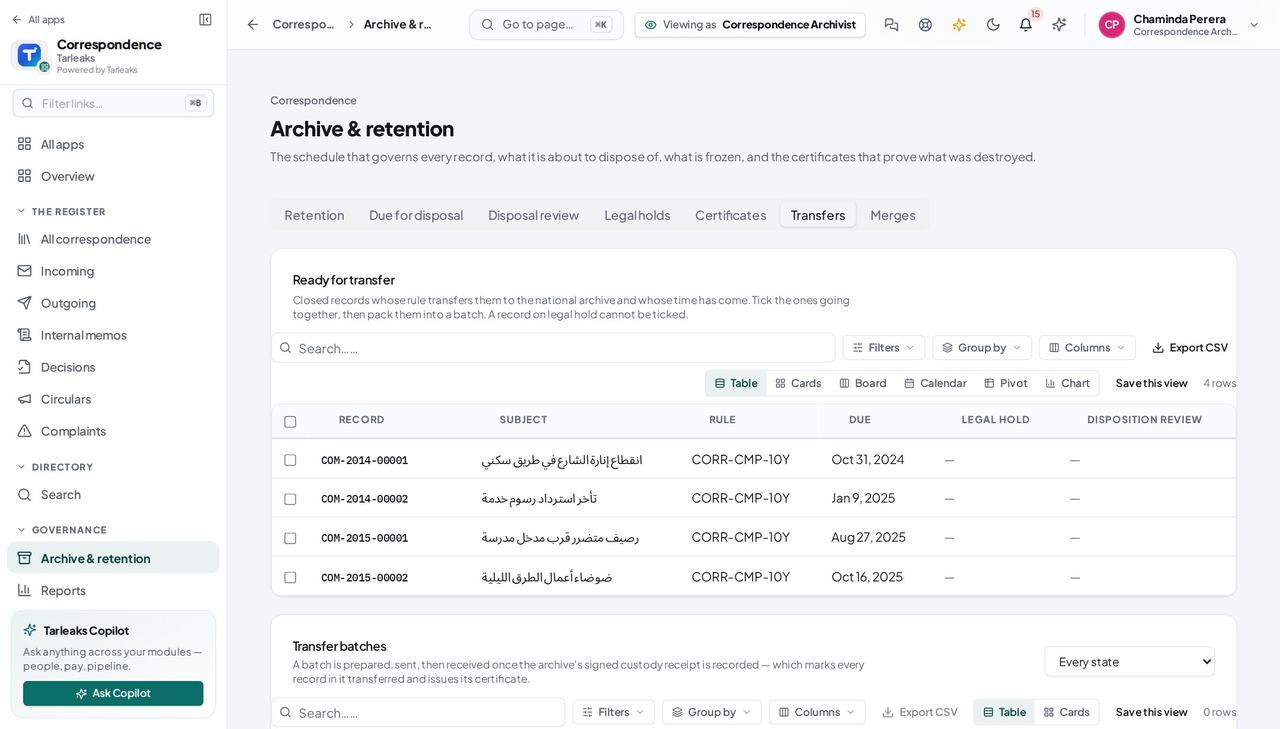
You should see The receiving authority comes from the retention rule (by default the national archive of your country pack), so the custody trail says who took the records — a transfer is never mistaken for a loss.
Worth knowing A record on legal hold cannot be ticked until the hold is lifted.
Start a transfer rule from the country pack #
Where Correspondence » Archive » Retention » New rule
- Sidebar » Archive.
- Click the Retention tab.
- Click New rule.
- Set At the end to Transfer to the national archive.
| Field | What to put in it |
|---|---|
| Years / Months | Filled in from the country pack; type over them once the National Archives confirm yours |
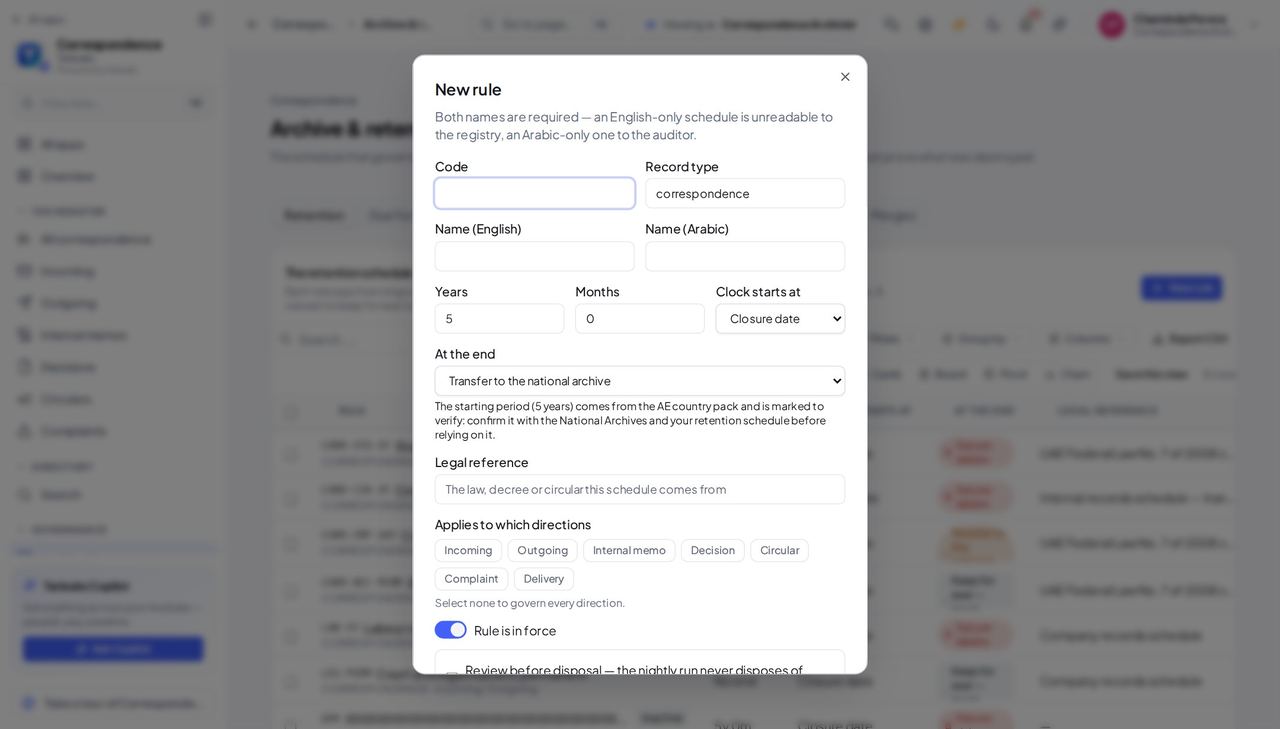
You should see The line under the action says the period comes from the country pack and is marked to verify: confirm it with the National Archives and your retention schedule before relying on it.
Watch out The pack value is marked to verify. Saving it is allowed, but confirm it with the National Archives first.
Worth knowing Editing an existing rule never changes its period by itself; only a new rule starts from the pack.
See which records wait for a disposition review #
Where Correspondence » Archive » Transfers
- Sidebar » Archive.
- Click the Transfers tab.
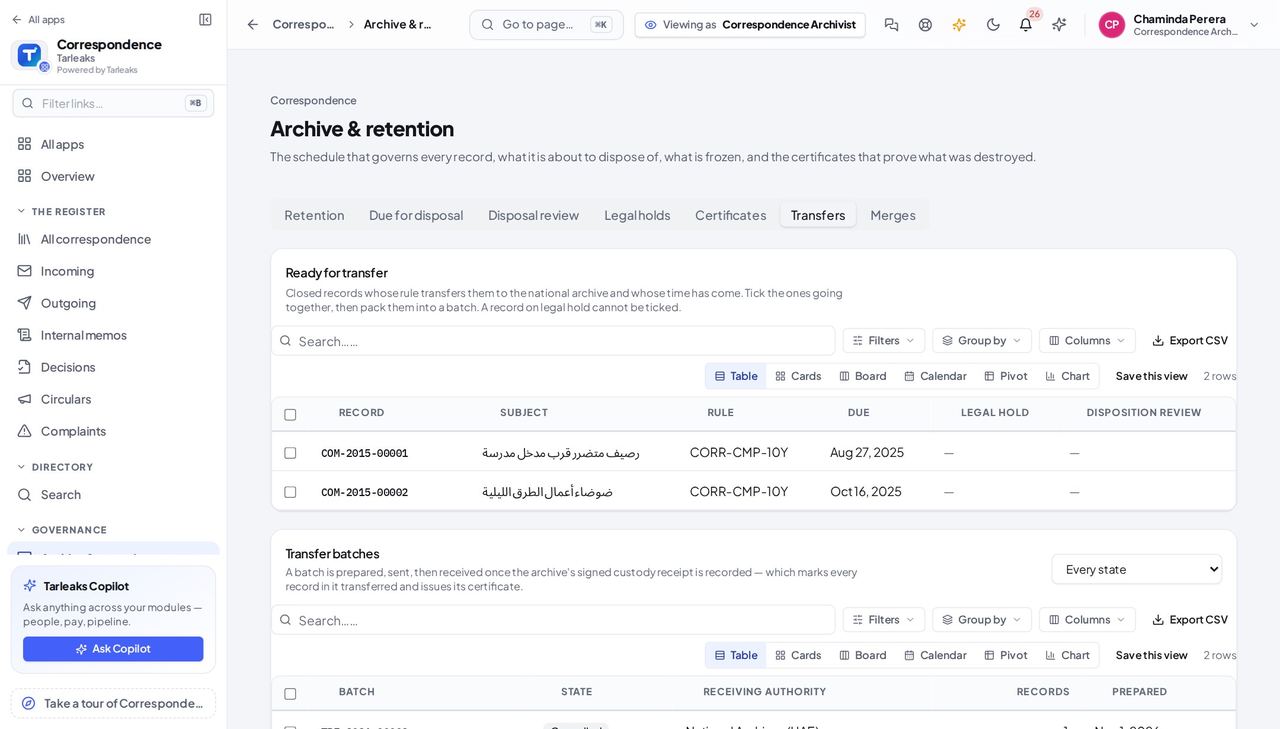
You should see A transfer is a disposal, so while disposition reviews are switched on, a record that needs one — its rule asks for a review before disposal, or its classification is at or above the company's review threshold — says Waiting for disposition review and cannot be ticked until a review approves it. One waiting record no longer gets a whole batch refused.
Worth knowing A dash in the column means the record is not waiting for a review: it needs none, or a review already approved it.
Print the transfer form, or make it as a PDF #
Where Correspondence » Archive » Transfers
- Sidebar » Archive.
- Click the Transfers tab.
- Click a batch number in Transfer batches.
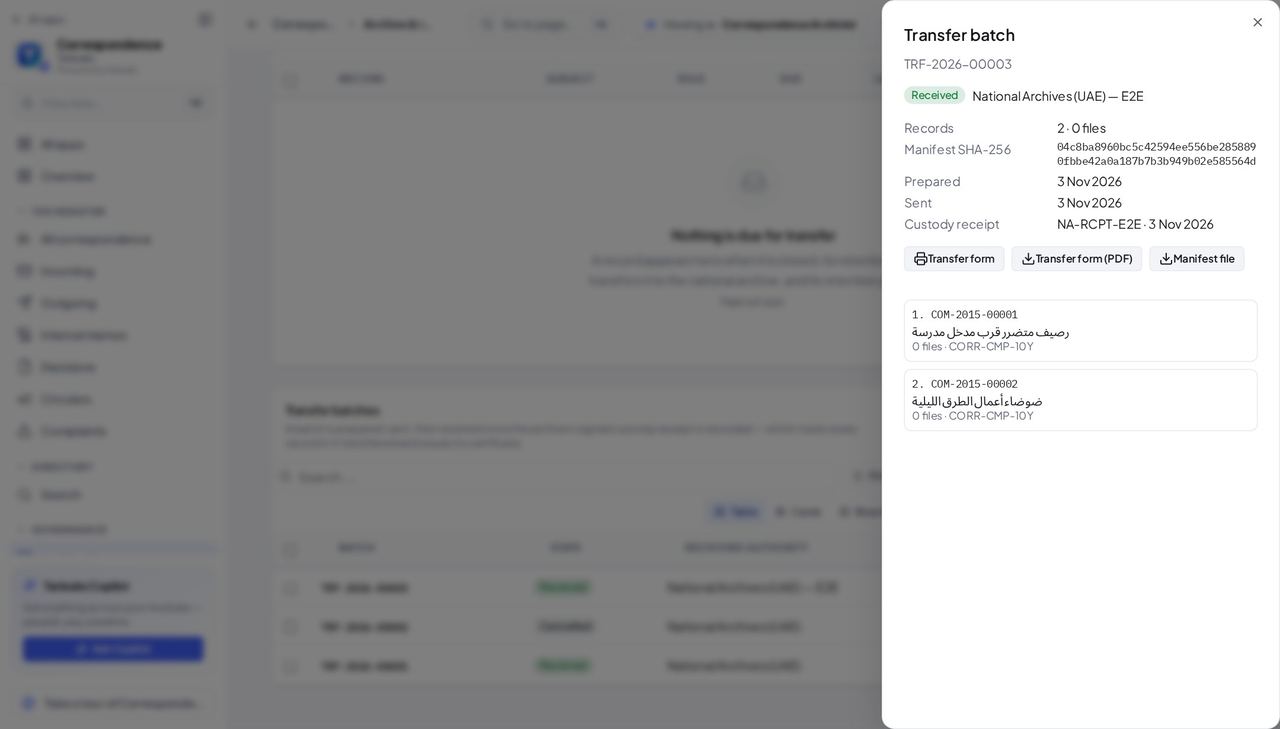
You should see The PDF is made by the server and also travels inside the package for the national archive, so what you print and what the archive receives are the same sheet.
Worth knowing If the PDF cannot be made the package is still made without it, and a message says why.
Read the date the retention counts were taken #
Where Correspondence » Archive » Due
- Sidebar » Archive.
- Click the Due tab.
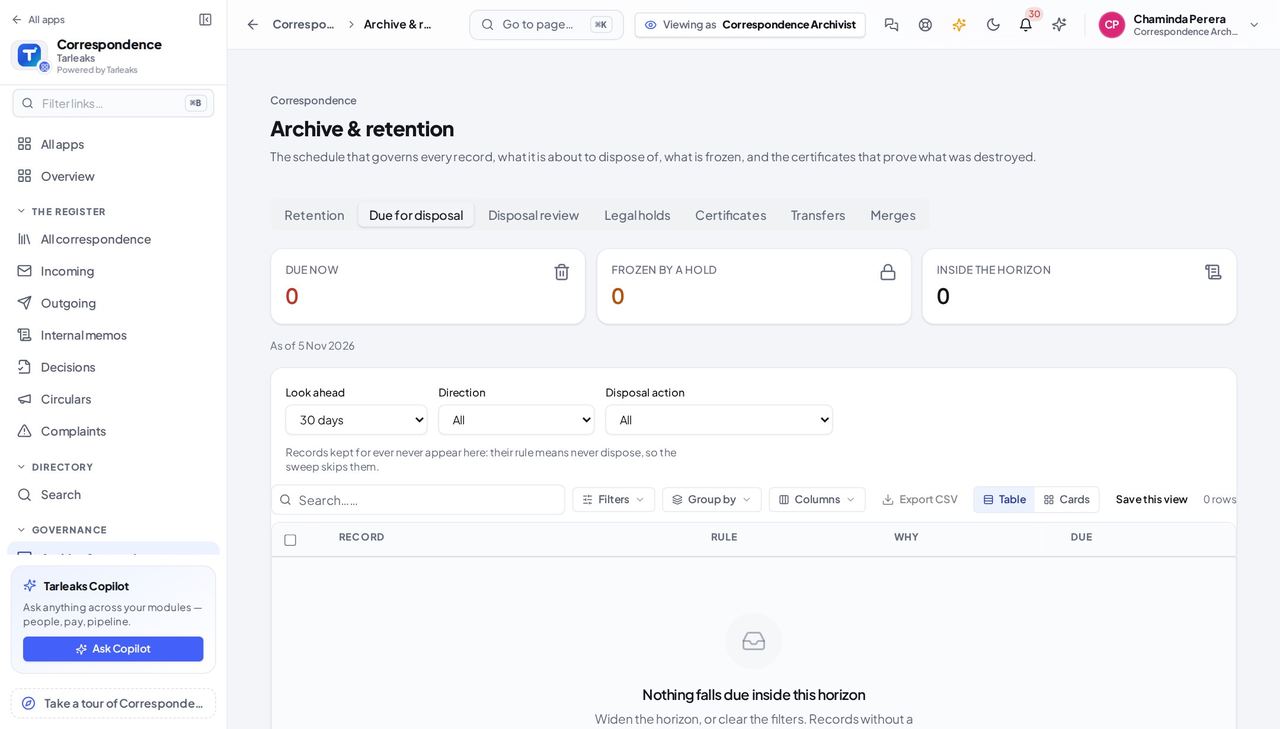
You should see The counts above it were taken on that date. It is a plain line, not a tile, because there is nothing behind it to open.
Use cases — the work, step by step
Each one is a sequence somebody actually performs, with the screen behind every step. Every screen here was opened in the product as this role before it was published.
monthly, before the sweepReview what is about to be destroyed #
The nightly sweep runs unattended. This screen is the only chance anybody has to look first.
Open Due for disposal and widen the horizon.
Archive » Due for disposal — verified: the page says “disposal” For anything contentious, place a legal hold and name the matter. A hold outranks the schedule.
Archive » Legal holds — verified: the page says “hold”
when auditedAccount for a destruction somebody asks about #
A certificate that names no actor and hashes nothing is not evidence. One that does is the answer to the question.
Open Certificates and find the record by its reference.
Archive » Certificates — verified: the page says “ertificate” Read what it says: the rule, the action, who did it, and the checksum of the content at the moment it was destroyed.
Archive » Certificates — verified: the page says “ertificate”
urgentFreeze a file because a matter has started #
A hold placed after the sweep has run is a hold placed too late.
Open Legal holds and place one on the record, naming the case or investigation it belongs to.
Archive » Legal holds — verified: the page says “hold” Check Due for disposal afterwards: the record now shows as held rather than due.
Archive » Due for disposal — verified: the page says “disposal”
A certificate that names no actor and hashes nothing is not evidence. Every disposal — yours or the schedule's — now names one and carries one.
Correspondence Auditor
Read everything, change nothing, and be able to prove what you read.
Reads everything and changes nothing — the access log, the turnaround, the overdue, and who handled what.
What you will be able to do
- See who opened, downloaded or was refused a classified record
- Measure how long the register takes, by type and by department
- List what is overdue and who is holding it
- Report on classified access without being able to touch a record
What this role can and cannot do
| Can | Cannot |
|---|---|
|
|
7 steps, each one carried out in the product on .
Who looked, and who was turned away #
Where Correspondence » Reports » Access
- Sidebar » Reports.
- Open the access trail.
- Filter by record, by person, or by result.
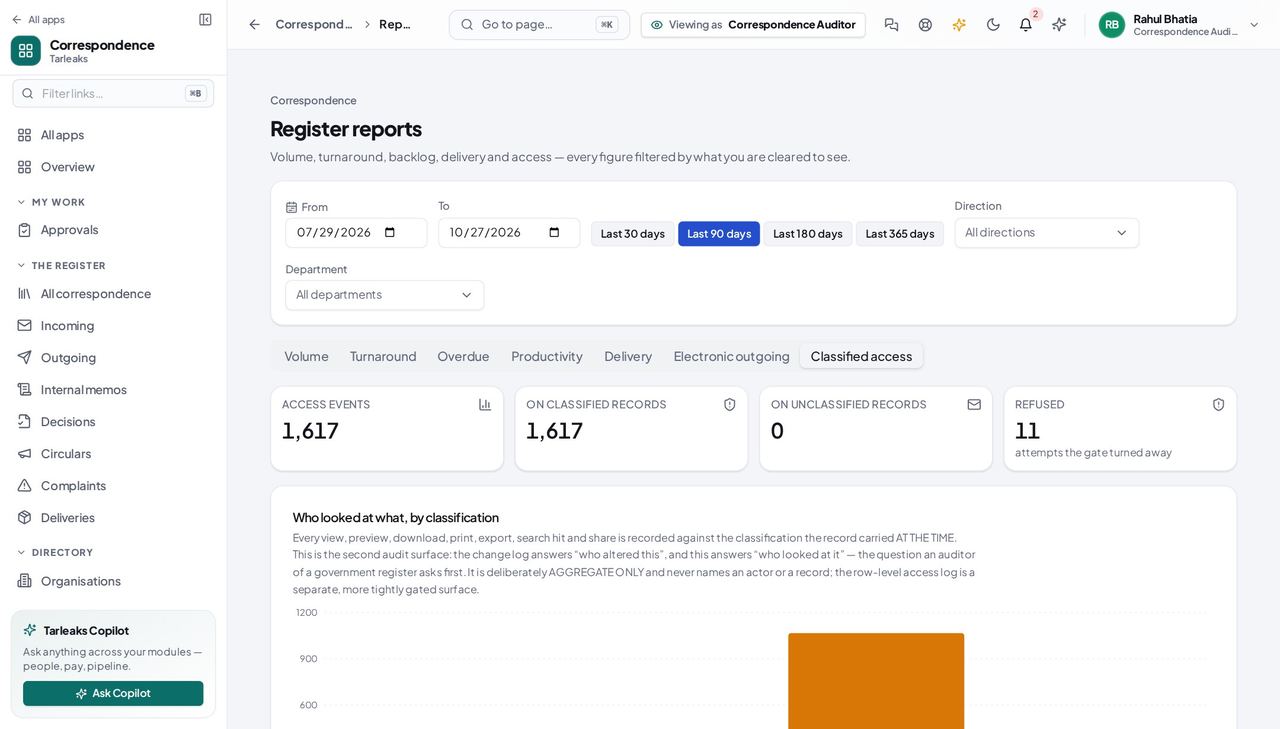
You should see 'Did anybody without clearance try to open this?' is the first question asked after a suspected leak, and this is where it is answered.
Watch out A refused count of zero covering a period before 12 September 2026 means 'not recorded'. Refusals were not written before that date.
Worth knowing A refused count of zero covering a period before 12 September 2026 means 'not recorded', not 'nobody tried'.
How long the register takes #
Where Reports » Turnaround
- Open the turnaround report.
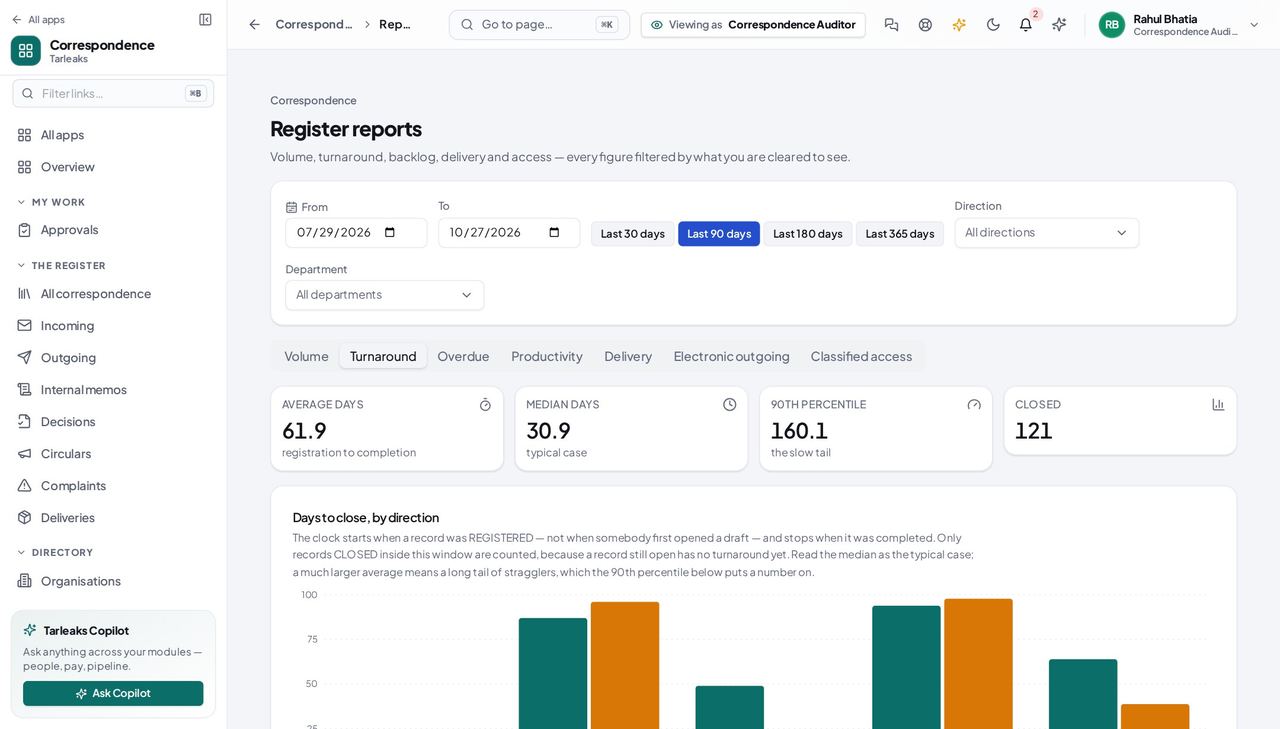
You should see Registered to closed, by type and by department — the number to quote when somebody asks whether the registry is keeping up.
What is late, and whose it is #
Where Reports » Overdue
- Open the overdue report.
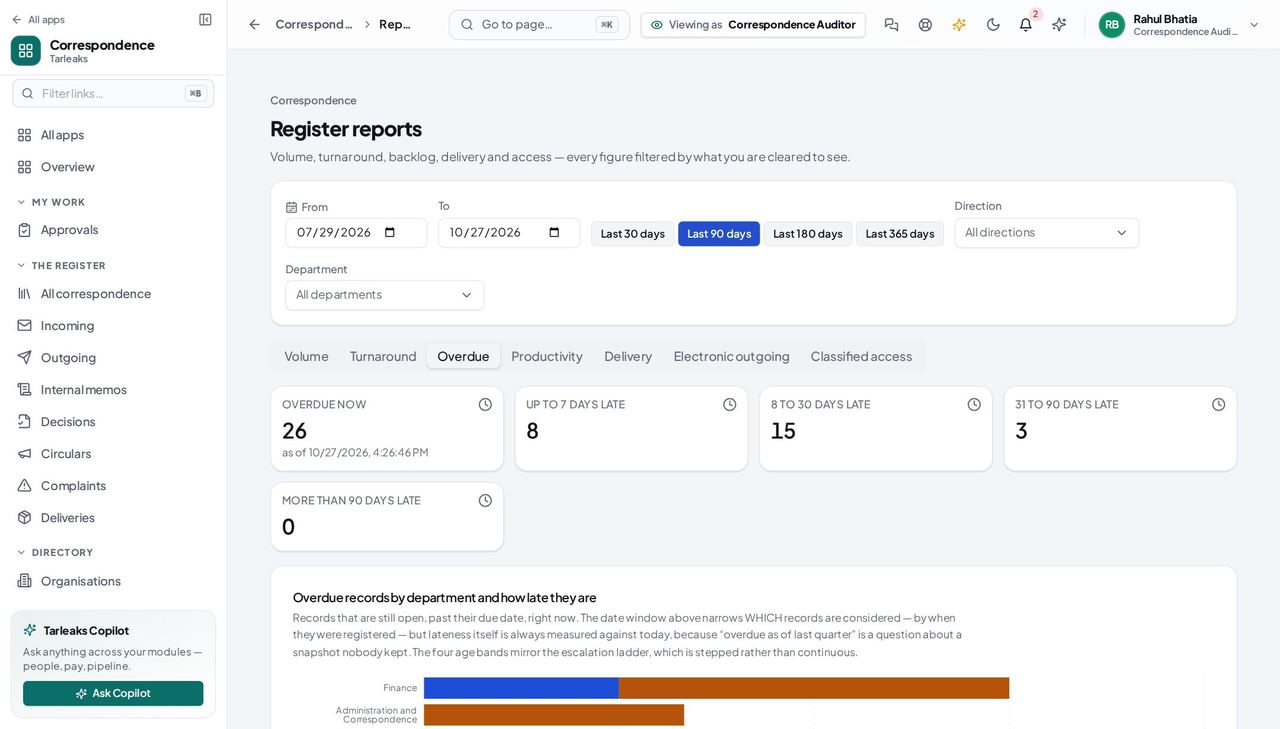
You should see Past its due date, with the person holding it named — not an id.
How much came in and went out #
Where Reports » Volume
- Open the volume report.
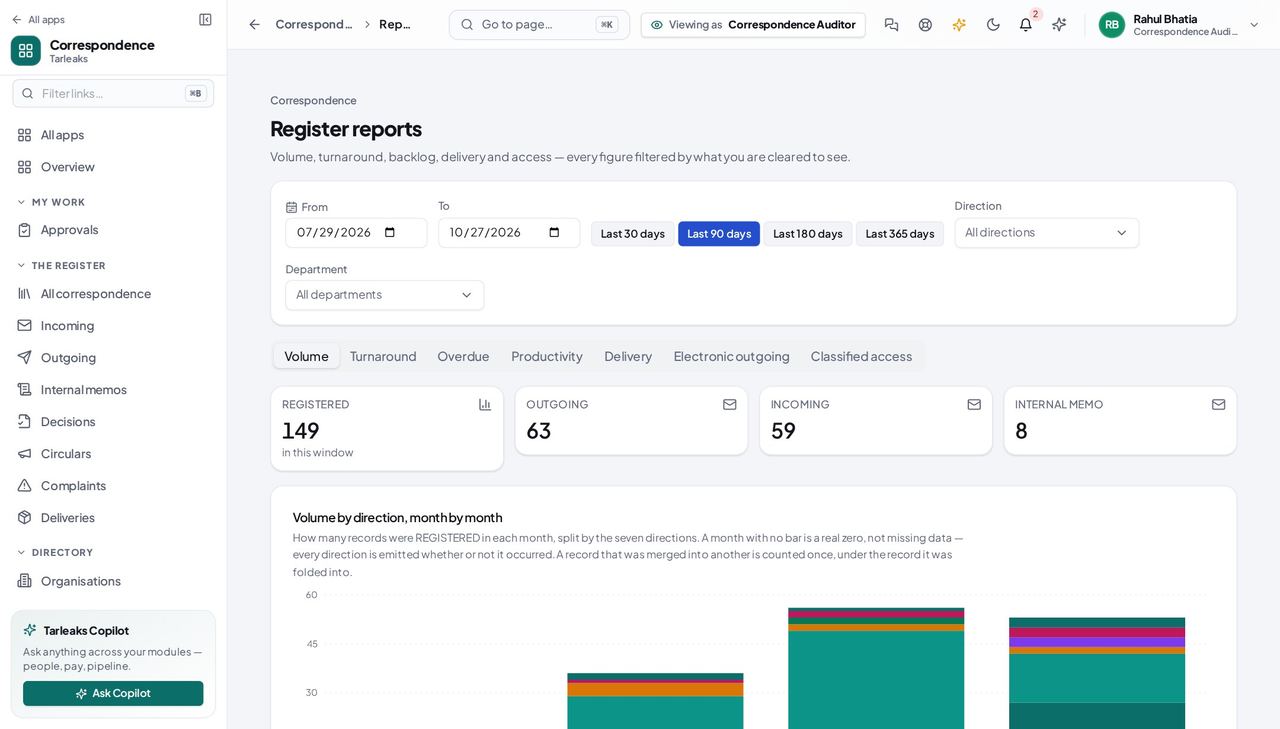
You should see By direction and by month, so a quiet quarter is visible as one.
Who has been reading the classified material #
Where Reports » Classification access
- Open the classification-access report.
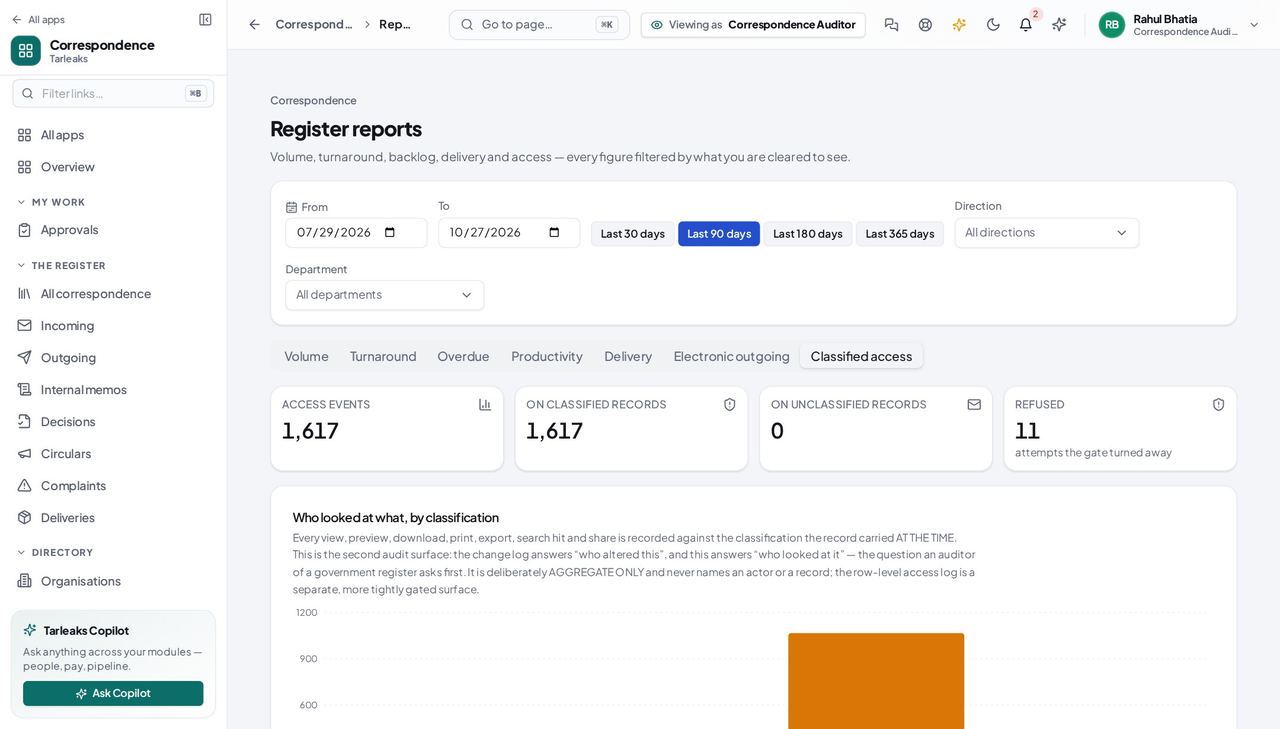
You should see Allowed and refused, by level — the report an information-governance review asks for by name.
Nothing here can be changed by you #
Where anywhere in the module
- Open the register, a record, the approvals and the archive in turn.
- Look for New, Edit, Approve, Dispose.
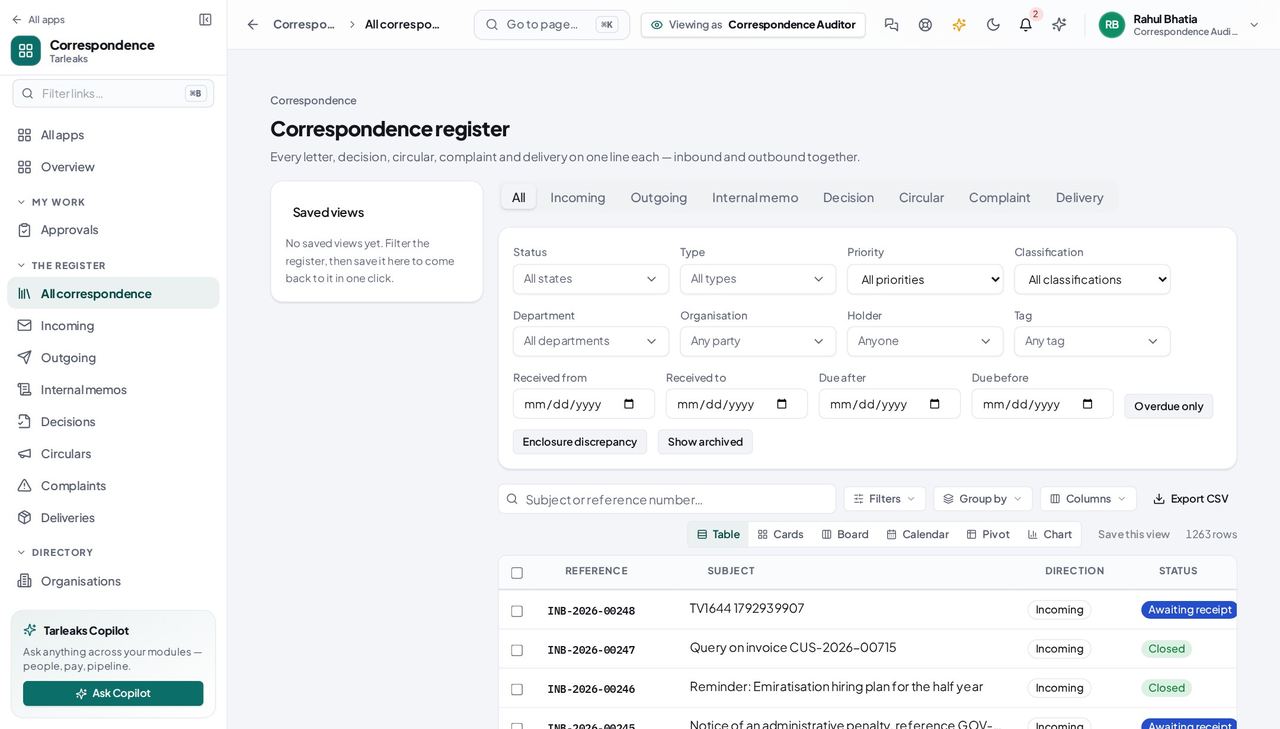
You should see None of them are there. Read-only is the role, not a setting somebody forgot to turn on.
Read the audit and compliance digest #
Where Correspondence » Audit and compliance
- Open Audit and compliance.
- Pick the window, then read the tiles: coming due for disposal, disposed, legal holds, access by classification, records with no rule.
- Open Who held it to see who held a record at a given moment, and Signatures to check a signature still matches its letter.
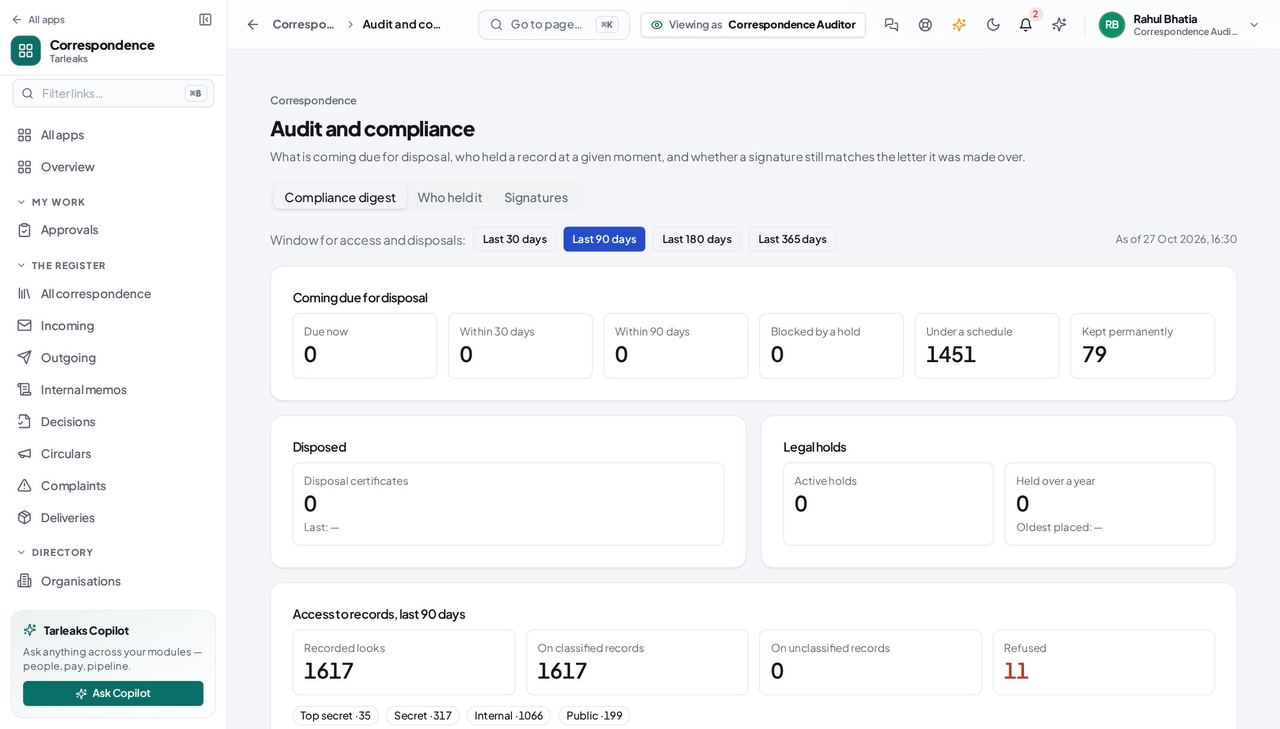
You should see One screen for the questions an inspection starts with.
Use cases — the work, step by step
Each one is a sequence somebody actually performs, with the screen behind every step. Every screen here was opened in the product as this role before it was published.
quarterlyReview who has been reading the classified material #
This is the review an information-governance inspection asks for by name, and it is one screen.
Open the classification-access report: allowed and refused, by level.
Reports » Classification access — verified: the page says “Reports” For anything that looks wrong, open the access trail filtered to that record.
Correspondence » Reports » Access — verified: the page says “Reports”
monthlyReport on whether the registry is keeping up #
Turnaround and overdue together answer 'are we slow, and where' without anybody having to count.
Read the turnaround report: registered to closed, by type and department.
Reports » Turnaround — verified: the page says “Reports” Read the overdue list: what is late, and who is holding it.
Reports » Overdue — verified: the page says “Reports” Read volume for context — a slow month with twice the post is a different conversation.
Reports » Volume — verified: the page says “Reports”
Read-only is the role, not a setting somebody forgot to turn on. There is no create, update, decide or dispose anywhere in your permission set.