Records Manager — the register guide
One register, and you can answer any question anybody asks of it.
Owns the register: the filing vocabulary, the numbering, the retention schedule, and every record at every classification.
What you will be able to do
- See every piece of correspondence, at every classification
- Set the filing vocabulary once, so the counter does not decide it letter by letter
- Know how long each kind of record is kept, and why
- Answer 'who has seen this?' with a list rather than a guess
What this role can and cannot do
| Can | Cannot |
|---|---|
|
|
13 steps, each one carried out in the product on .
Open the register #
Where Correspondence » Register
- The register opens on its own when you enter Correspondence.
- Sort by any column header; search across subject and reference.
- Click a line to open the record.
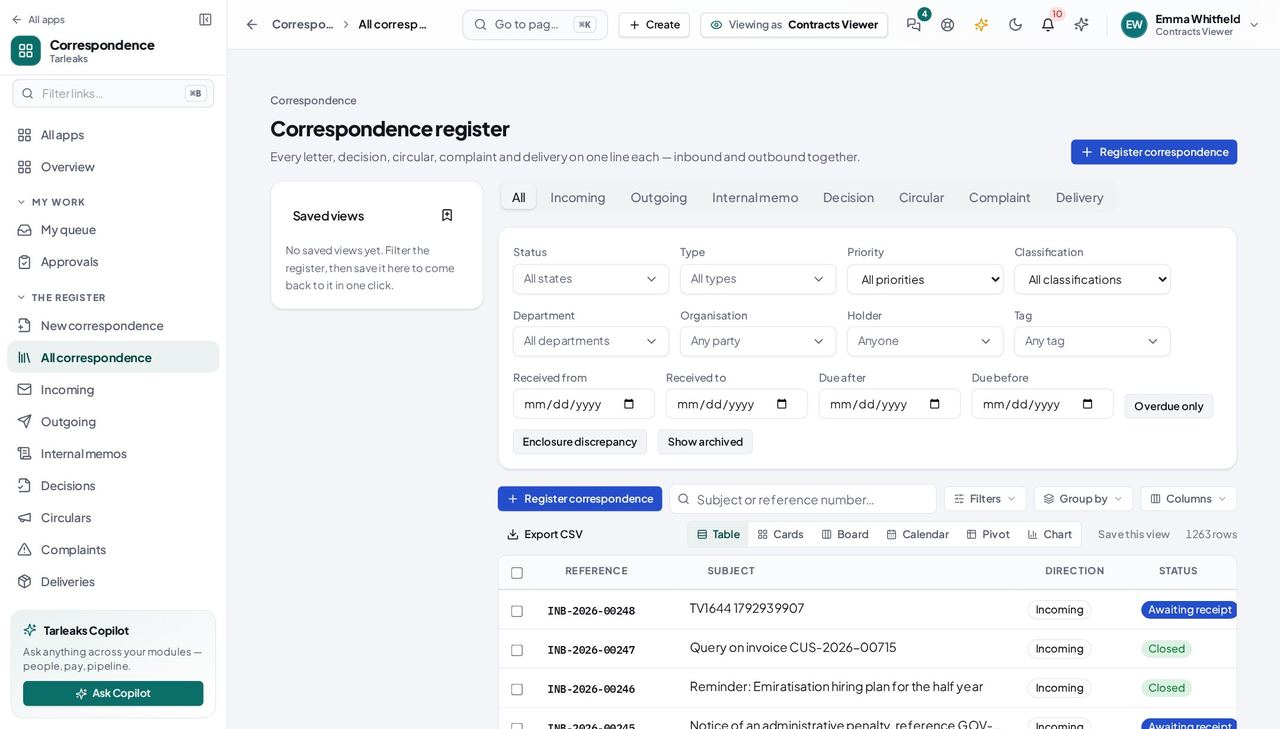
You should see Every piece of correspondence in the organisation, at every classification you are cleared for — which, for this role, is all of them.
Worth knowing Type in the search box to narrow it, or use the column headers to sort. The view you build is in the address bar, so you can send it to somebody.
See what the register is waiting on #
Where Correspondence » Overview
- Open Overview from the sidebar.
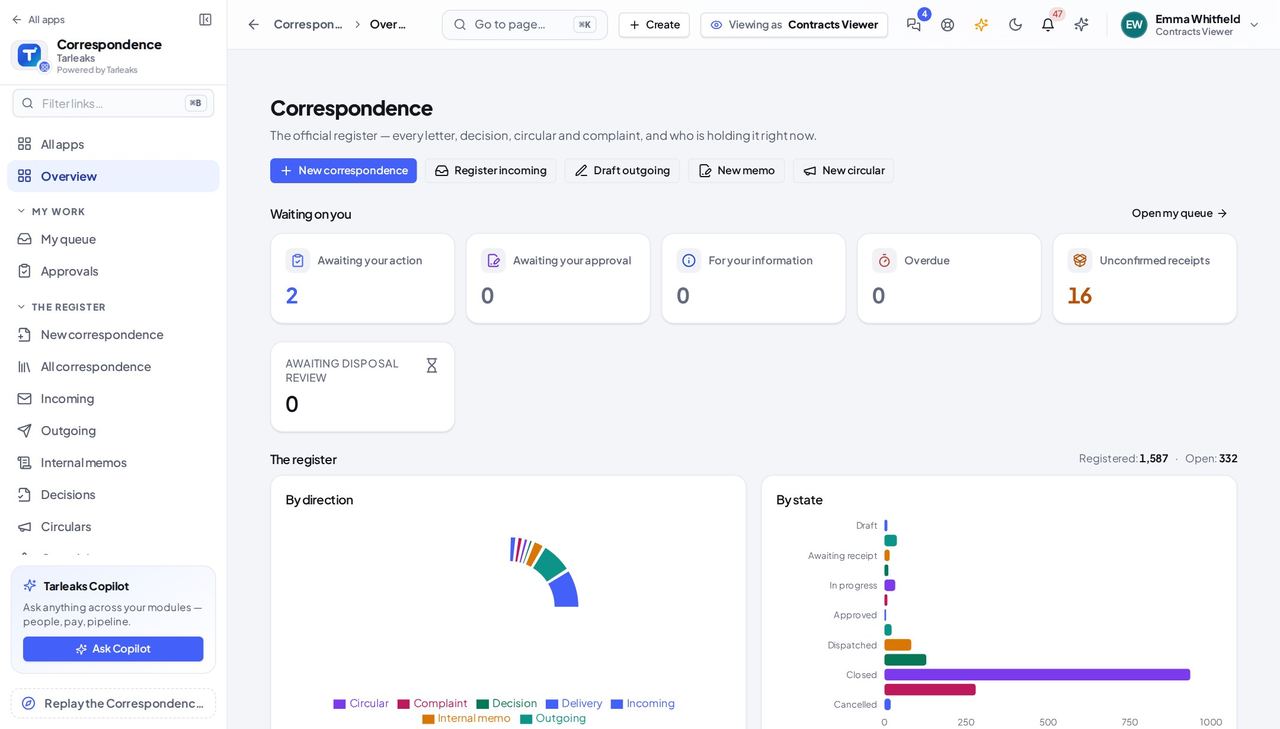
You should see What is waiting, what is overdue, and what nobody has picked up — counted, not listed, so you can see the shape of the day.
Worth knowing Every tile is a filter. Click one and the register opens showing exactly what the tile counted.
Set the filing vocabulary once #
Where Correspondence » Settings » Types
- Sidebar » Settings.
- Stay on the Types tab.
- Click a type to edit it.
| Field | What to put in it |
|---|---|
| Name (English) / (Arabic) | What a clerk picks at the counter, in both languages |
| Direction | Incoming, outgoing or internal |
| Response days | How long it has to be answered in, if it needs one |
| Default priority | What a letter of this kind starts as |
| Default classification | So the clerk does not decide sensitivity |
| Retention rule | How long this kind of record is kept |
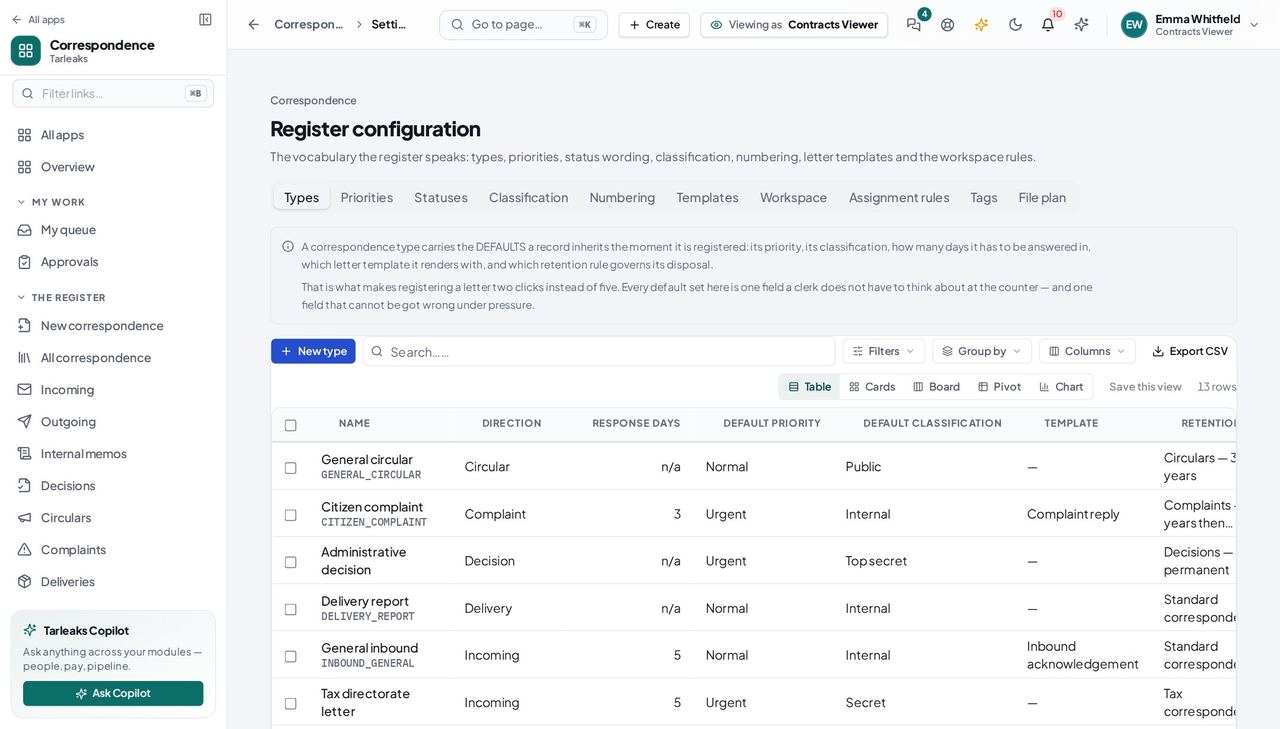
You should see This is what makes registering a letter two clicks instead of five — and one fewer field a clerk can get wrong at the counter.
Decide who may read what #
Where Settings » Classification
- Settings » Classification.
| Field | What to put in it |
|---|---|
| Level | 1 is the MOST restricted; 4 is public |
| Clearance permission | Who may read it — enforced, not decorative |
| Watermark | Stamped across a rendered letter at this level |
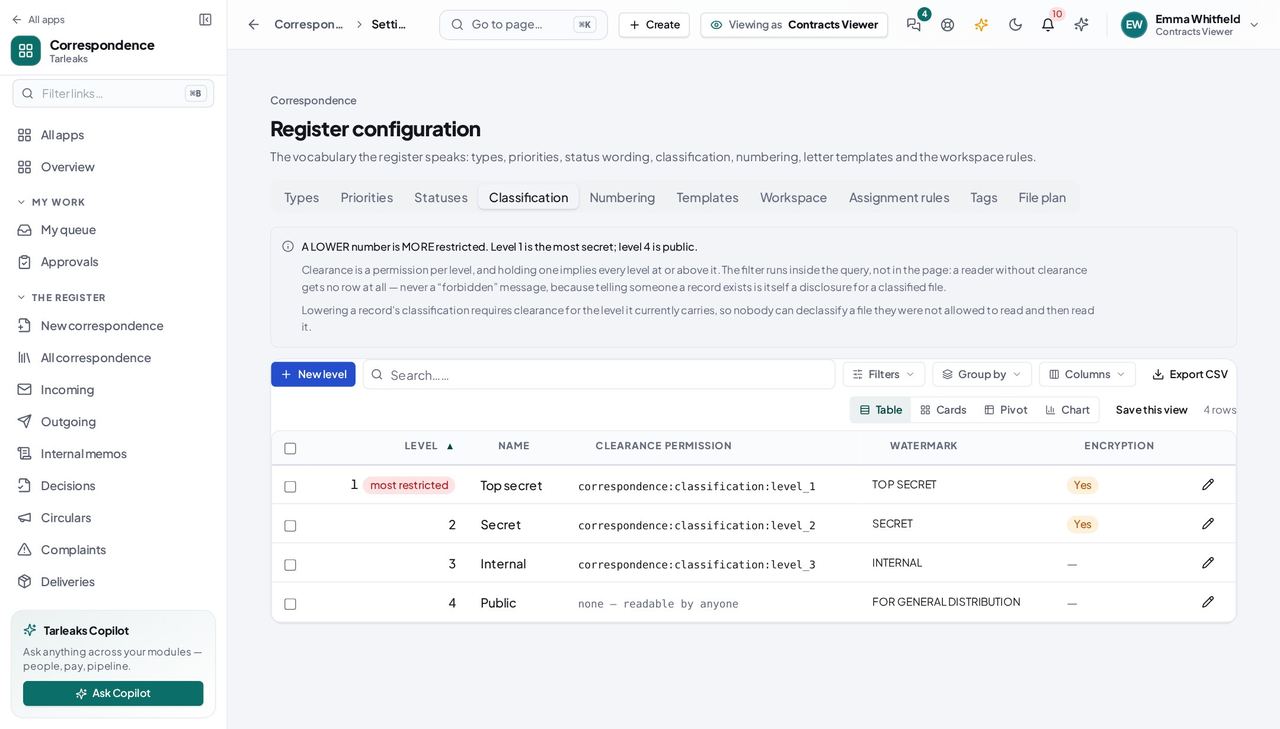
You should see Each level names the clearance a reader must hold — and that is now enforced, so a level you mark restricted really is.
Watch out Adding a level above 4 for a new restricted category: give it a clearance permission explicitly, because the number alone will read as 'less restricted than public'.
Worth knowing If you add a level above 4 for a new restricted category, give it a clearance permission explicitly. The number alone cannot express 'more restricted than public' once the standard four rungs are taken.
Numbering refuses rather than inventing #
Where Settings » Numbering
- Open the Numbering tab.
- Each direction has its own sequence, its own format and its own reset.
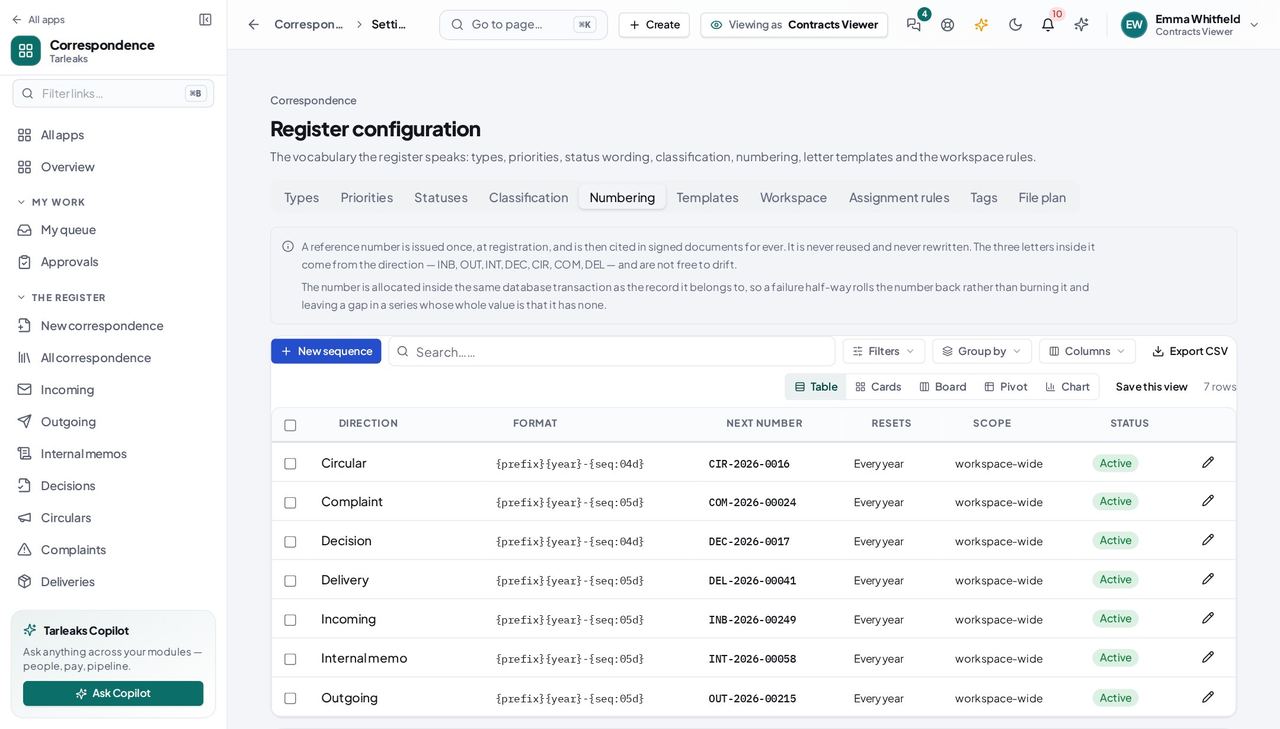
You should see Nothing is registered until its direction has a sequence — the register refuses rather than handing out a number it cannot account for.
Say how long each kind of record is kept #
Where Correspondence » Archive » Retention
- Sidebar » Archive.
- Read the retention schedule.
| Field | What to put in it |
|---|---|
| Period | Years and months, or 'no end' for permanent retention |
| Clock starts at | Closure, dispatch, or the date received |
| At the end | Destroy securely, transfer to the national archive, or keep |
| Receiving authority | Required for a transfer — a certificate that does not say who took custody cannot tell a transfer from a loss |
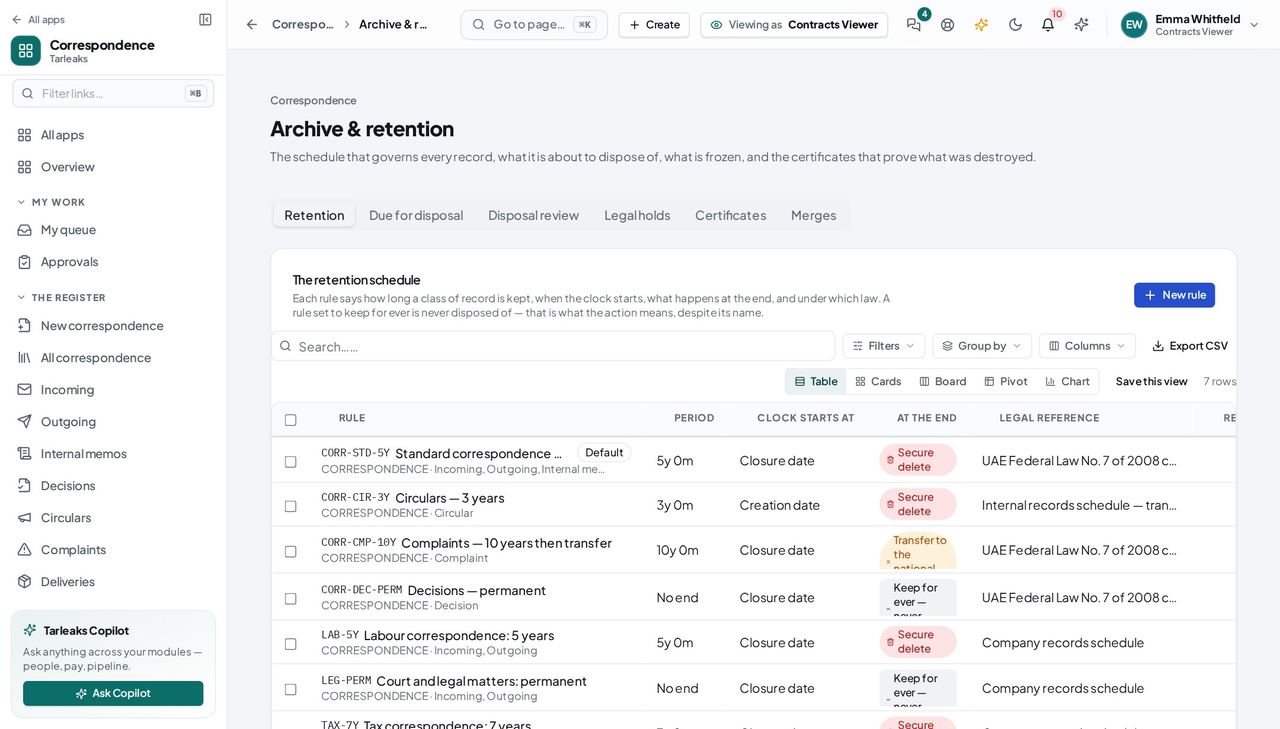
You should see Every record in the register is governed by one of these, and the rule is what a certificate of disposal cites.
Worth knowing A rule that ends in a transfer to the national archive must name the receiving authority, or the nightly sweep will refuse to act on it and tell you why.
See what falls due before it does #
Where Archive » Due for disposal
- Open the Due-for-disposal tab and widen the horizon.
- Each row says which rule brought it here and why.
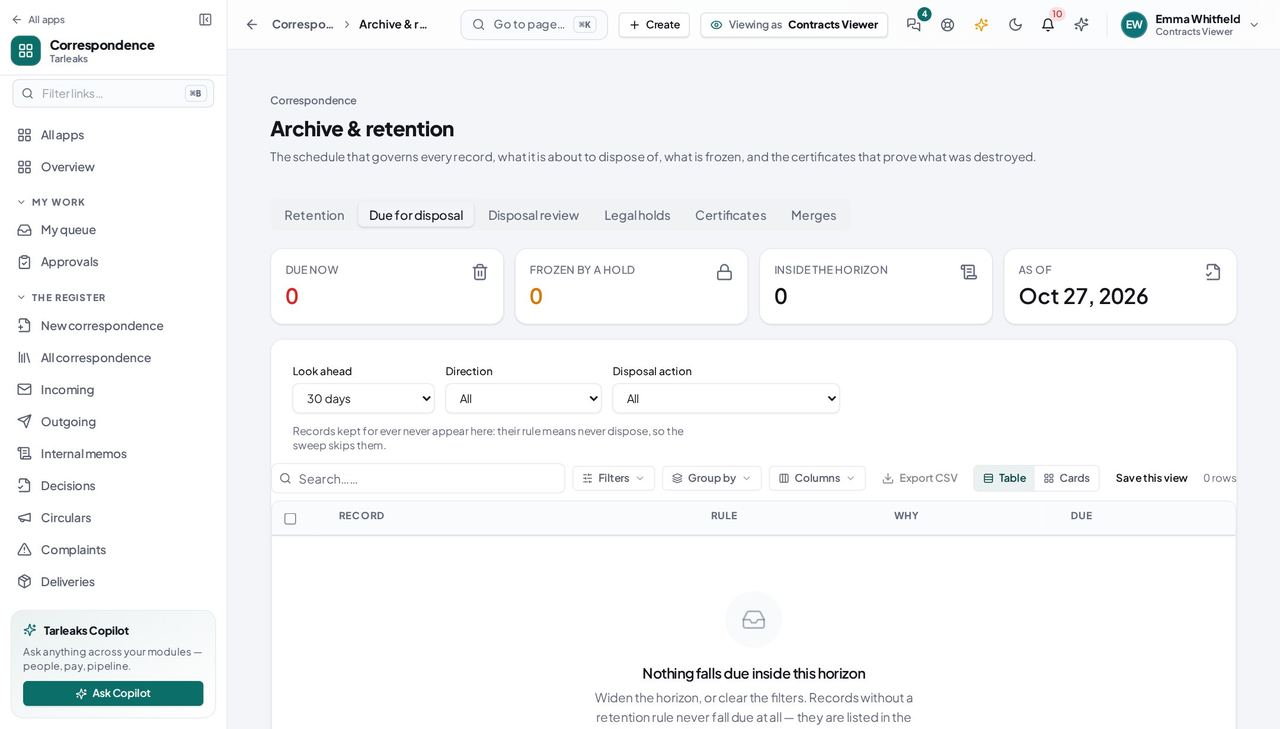
You should see Nothing is destroyed that nobody could have seen coming.
Name who you correspond with #
Where Correspondence » Parties
- Open Parties.
- Ministries, companies and people, in both languages.
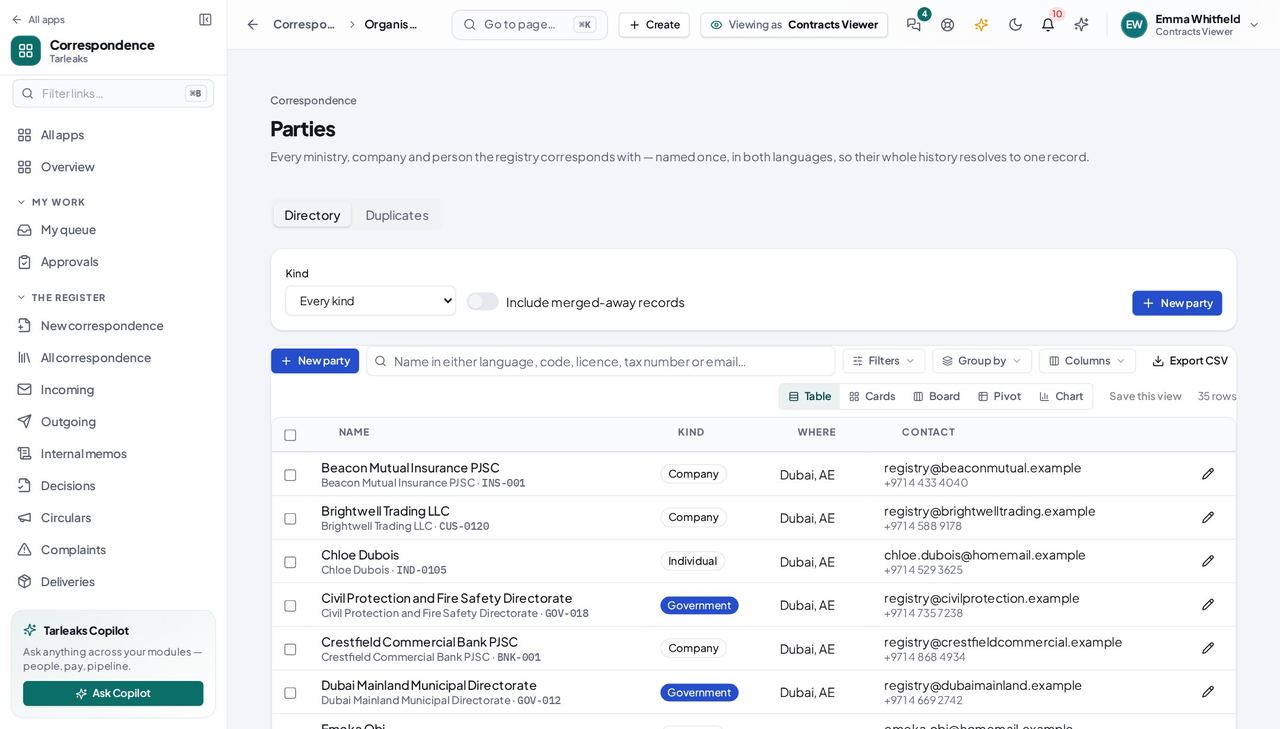
You should see A letter then resolves to a named body instead of a typed string, which is what makes 'everything from this ministry' a question with an answer.
Answer 'who has seen this?' #
Where Correspondence » Reports » Access
- Open Reports and read the access trail.
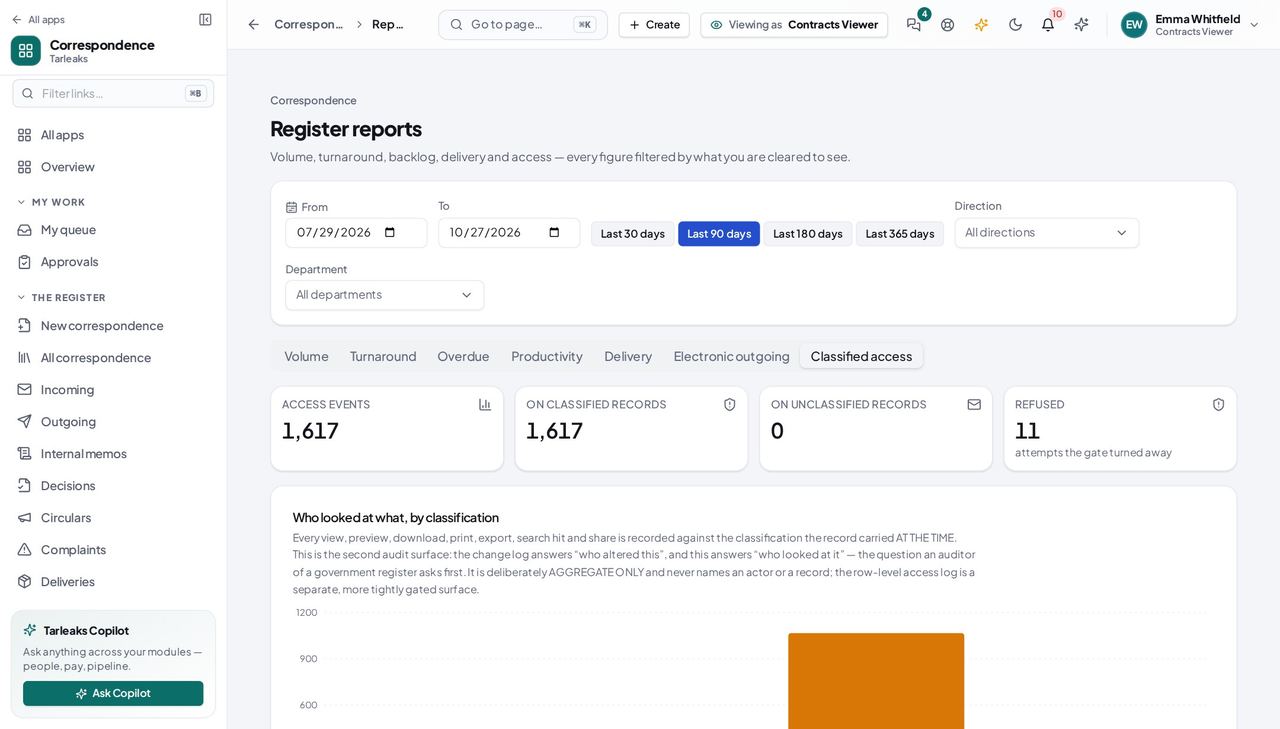
You should see Every view, download and refusal — each one gated at the record's own classification, so the log can never say more than the register would.
Every picker knows who works here #
Where a letter » Route to
- Open any Route-to, Forward-to or Signatory picker.
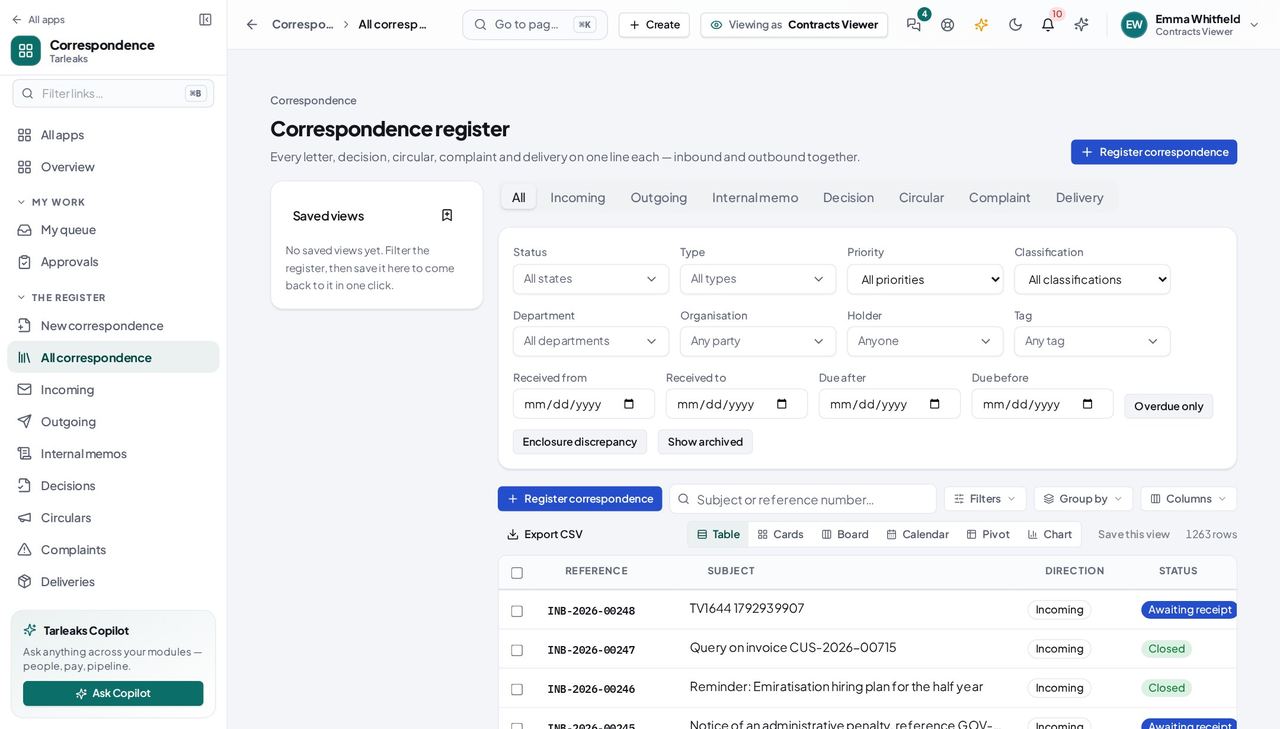
You should see Names, searchable. This list is what eleven screens in the module need to turn an id into a person.
You sign decisions, not letters #
Where Correspondence » Decisions
- Open a decision and look for Sign.
- Then open an outgoing letter and look for it there.
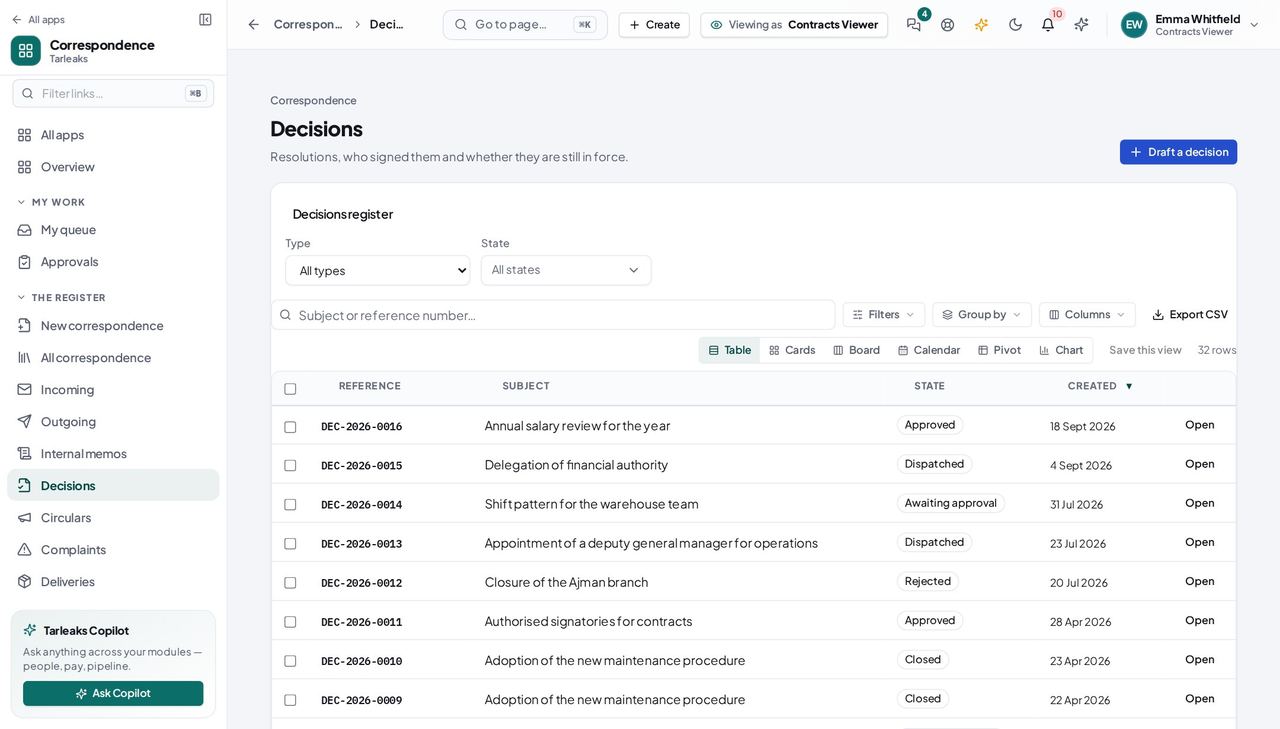
You should see A decision is the register's own instrument and signing it is part of owning the register. A letter is signed by the person whose name is on it, which is why that action is not yours.
Build the file plan #
Where Correspondence » Settings » File plan
- Open Settings and the File plan tab.
- Add a series, then files and sub-files under it — three levels at most.
- Give a node a retention policy and a default classification, or let it inherit its parent's; then say which node each type files under.
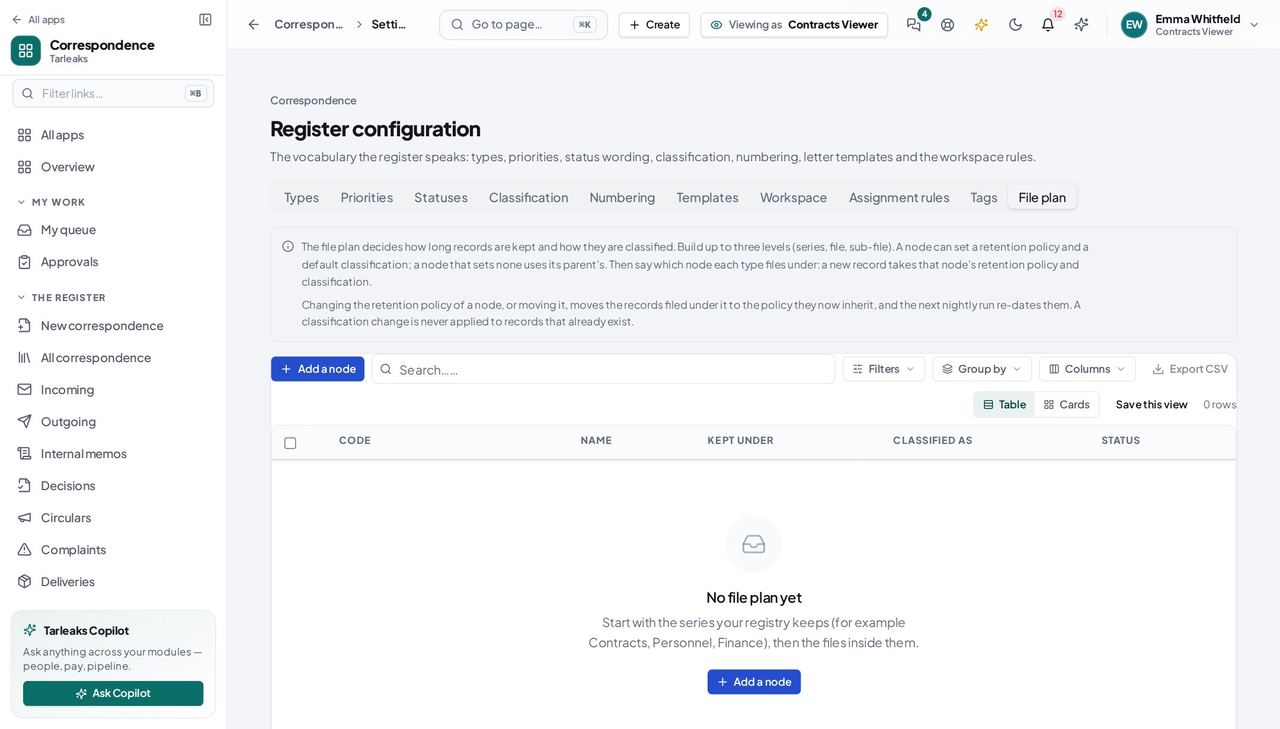
You should see A new record takes its node's retention and classification. Changing or moving a node moves its records to the policy they now inherit; a classification change never touches records that already exist.
Let incoming letters route themselves #
Where Correspondence » Settings » Assignment rules
- Open Settings and the Assignment rules tab.
- Add rules by type, sender, priority or how the letter arrived; they run from the top and the first match wins.
- Use Try a letter to see which rule a letter would meet and who would get it — nothing is routed.
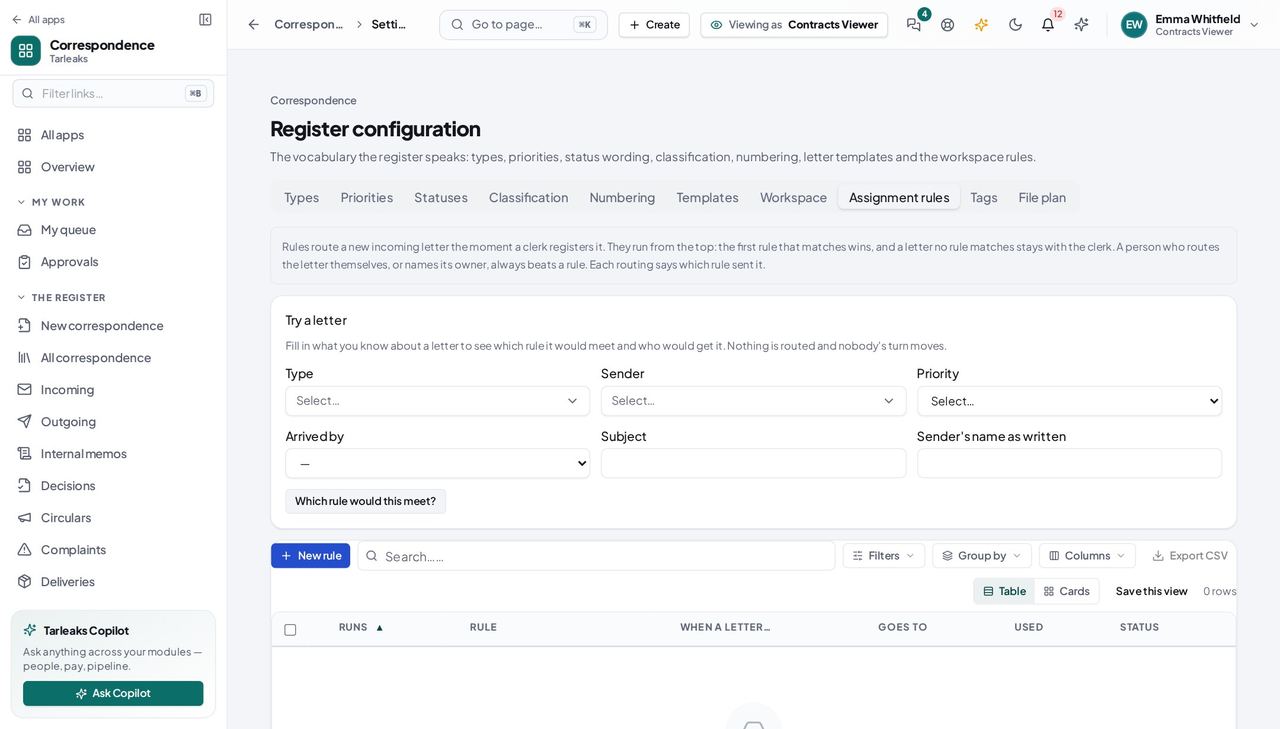
You should see A letter no rule matches stays with the clerk, and a person who routes it themselves always beats a rule.
Use cases — the work, step by step
Each one is a sequence somebody actually performs, with the screen behind every step. Every screen here was opened in the product as this role before it was published.
once, then rarelySet up the register so the counter does not have to think #
Every default you set here is a field a clerk does not have to get right under pressure at eight in the morning — and one fewer way a letter ends up filed as something it is not.
Open Settings and read the types. Each one carries the defaults a record inherits the moment it is registered.
Correspondence » Settings » Types — verified: the page says “Types” Check the classification ladder. A lower number is more restricted, and each level names the clearance a reader must hold.
Settings » Classification — verified: the page says “Classification” Check that every direction has a numbering sequence. Without one, nothing of that kind can be registered at all — the register refuses rather than inventing a number.
Settings » Numbering — verified: the page says “Numbering” Read the retention schedule last: it is what decides when each kind of record leaves the register, and how.
Correspondence » Archive » Retention — verified: the page says “Retention”
when somebody asks — and they willAnswer 'who has seen this file?' #
It is the first question after a suspected leak, and the register is the only place with an answer that is not somebody's memory.
Find the record in the register and open it.
Correspondence » Register — verified: the page says “Register”; 25 row(s) listed Read its access trail: every view, every download, and every refused attempt, with who and when.
Correspondence » Reports » Access — verified: the page says “Reports”
monthlyWork out what is about to be destroyed #
A record destroyed on schedule that a department still needed is a conversation you want to have BEFORE the sweep runs, not after.
Open Archive and widen the disposal horizon to a year.
Archive » Due for disposal — verified: the page says “disposal” For anything you are unsure about, check which rule brought it here and what that rule does at the end.
Correspondence » Archive » Retention — verified: the page says “Retention”
The register is a legal record. Nothing here is deleted — it is disposed of under a named rule, and the disposal leaves a certificate saying who did it and what it hashed to on the way out.