Account Executive — CRM guide
Own your deals from first meeting to signed quote.
Owns deals end to end: works the board, builds the quote, asks for the discount and sends it. Sees their own book — not the team's — and hands a signed quote to the order desk.
What you will be able to do
- Work your own board without wading through the team's
- Build a quote from the catalogue and send it
- Ask for a discount and see where the request got to
- Hand a signed quote to the order desk
What this role can and cannot do
| Can | Cannot |
|---|---|
|
|
17 steps, each one carried out in the product on .
Check what your sign-in can do #
Where Your name, top right » Profile
- Open your company's address in the browser — it looks like yourcompany.tarleaks.com.
- Type the e-mail address your administrator set up for you, then your password.
- You land on the app launcher: a grid of the apps your company uses.
- Click the CRM tile.
- Click your name in the top-right corner and choose Profile.
- Read the roles panel.
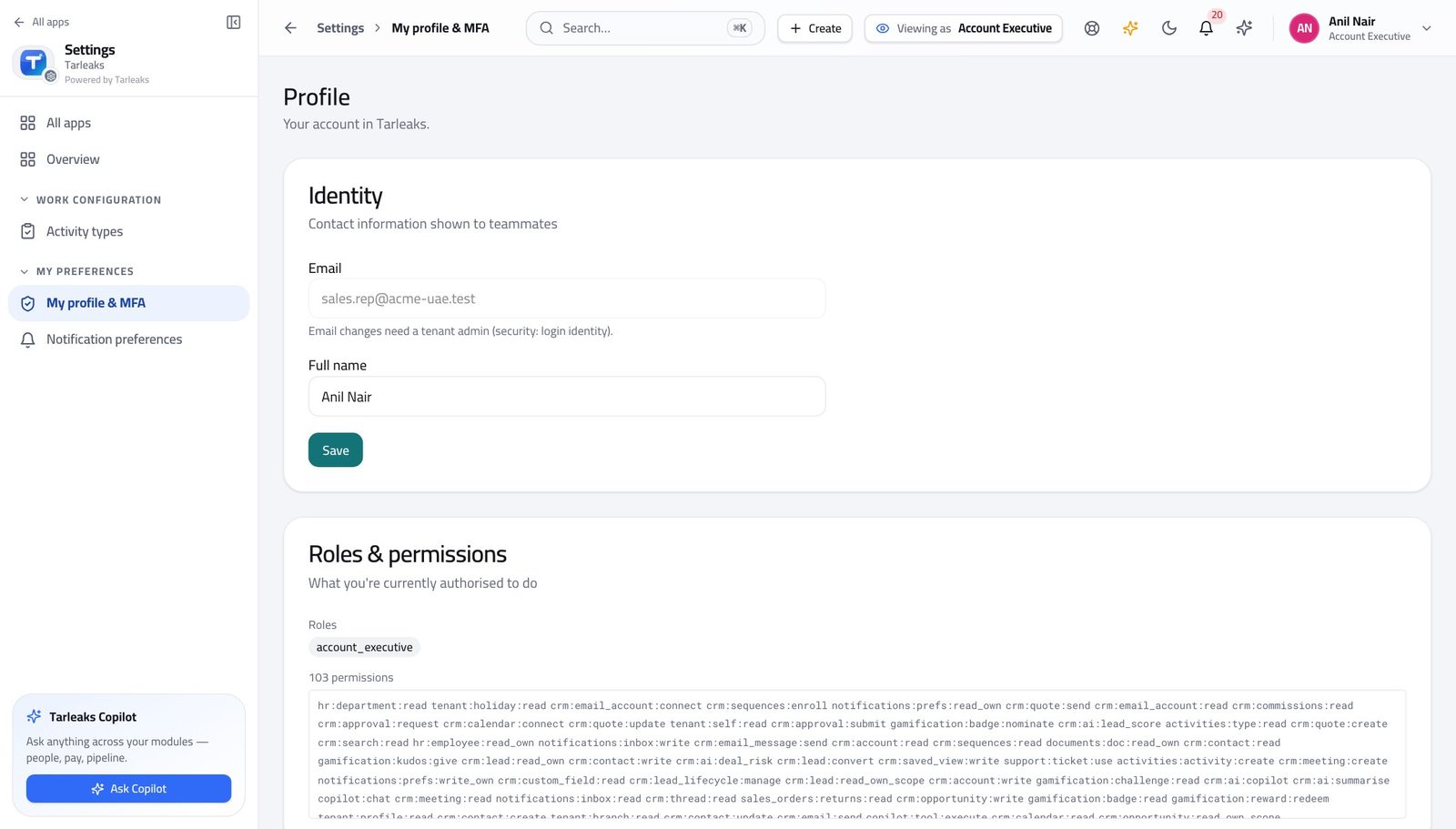
You should see It says Account Executive. Building the deal, building the quote, asking for the discount and sending the quote are yours.
Watch out If a colleague can see a screen you cannot, it is almost always this chip rather than a fault.
Worth knowing Approving your own discount and declaring a deal won are not. Everything else in this guide follows from those two.
Open your own book of deals #
Where CRM » Opportunities
- In the left menu under CRM, click Opportunities.
- Read the count in the line under the title.
- Use the boxes across the top to narrow to open, won or lost.
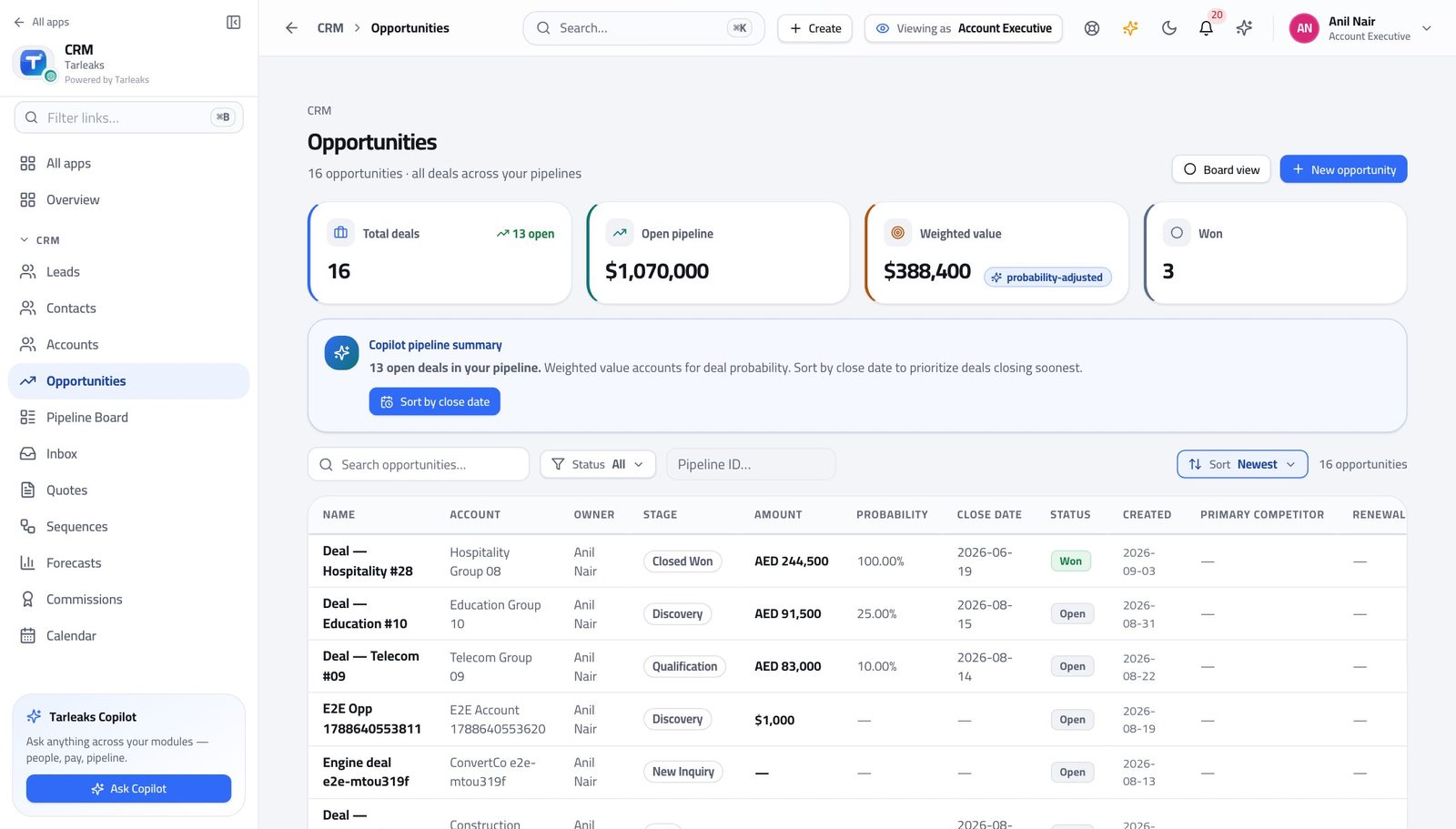
You should see The list is already only yours. Nothing is being filtered out of a bigger list on the screen — you are simply sent your own deals.
Watch out A deal you expected and cannot find is usually owned by somebody else. Ask your manager to move it — reassignment is their action.
Worth knowing If a colleague's deal should be yours, ask your manager to move it. Reassigning is their action, not yours.
Leads work the same way #
Where CRM » Leads
- In the left menu, click Leads.
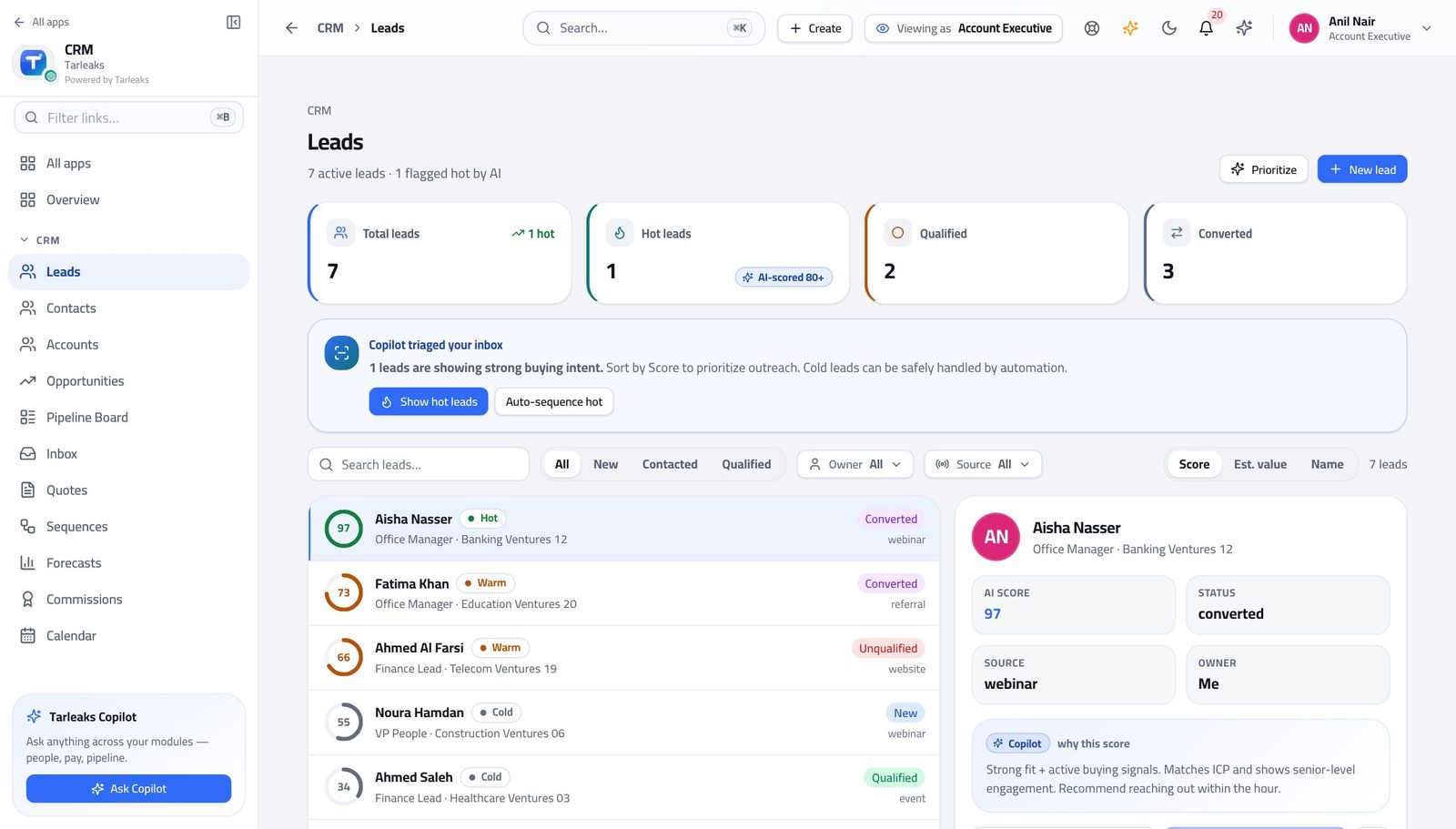
You should see Ownership is one rule applied in the same way everywhere, so you never have to wonder whose records are on the screen.
Watch out A lead sitting unworked for a week still counts against you. Work the queue, or disqualify with a reason.
Work the board #
Where CRM » Pipeline Board
- In the left menu, click Pipeline Board.
- Drag a card from one column to the next when the deal really moves.
- Open a card to read the deal, its quotes and its history.
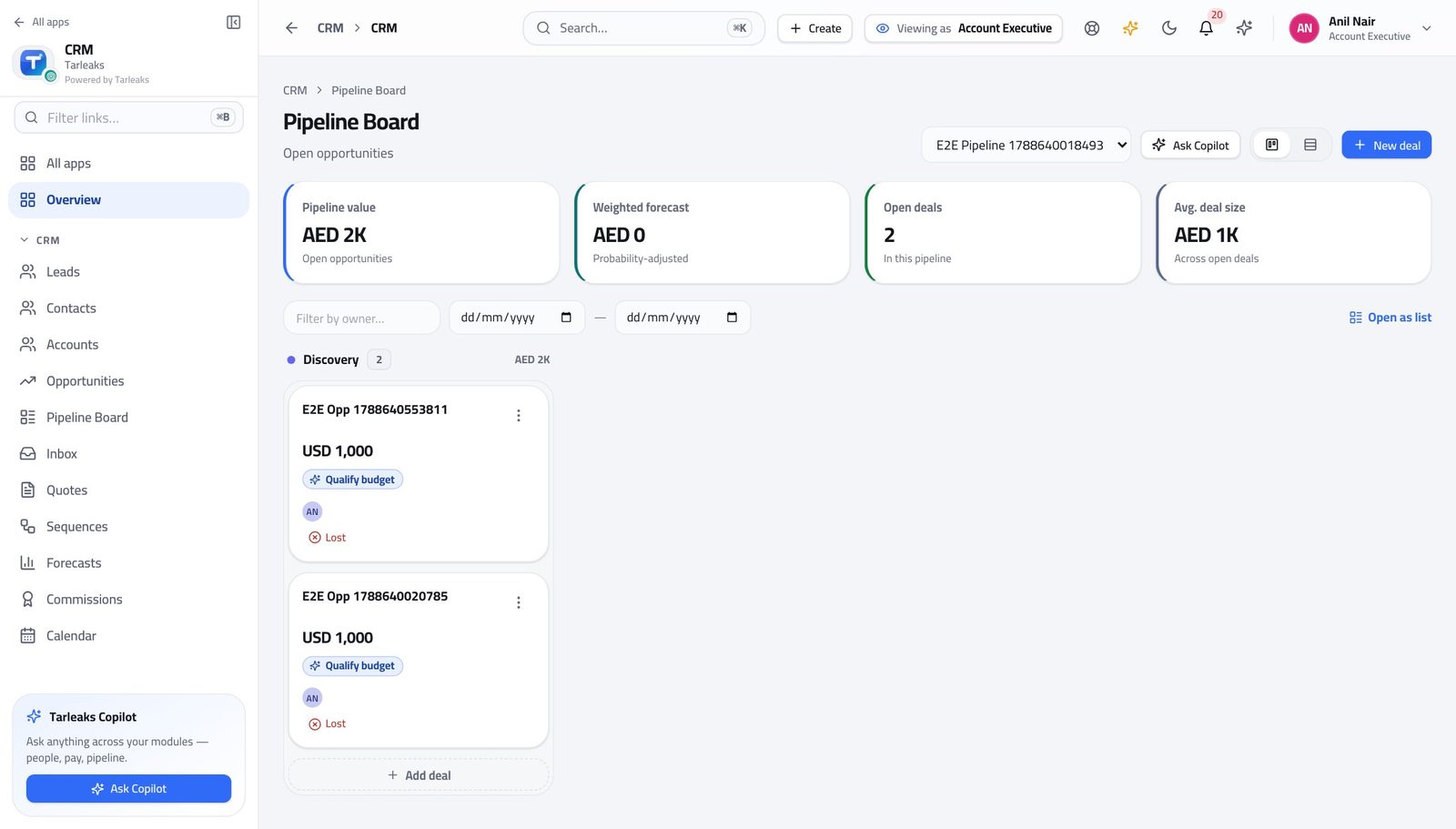
You should see Dragging the card IS the stage change. There is no second form to fill in afterwards, which is why the board stays honest.
Watch out Move the card when the deal moves, not when you are updating the board on a Friday. A stage that is a week stale makes your forecast wrong and it is your number it makes wrong.
Open your quotes #
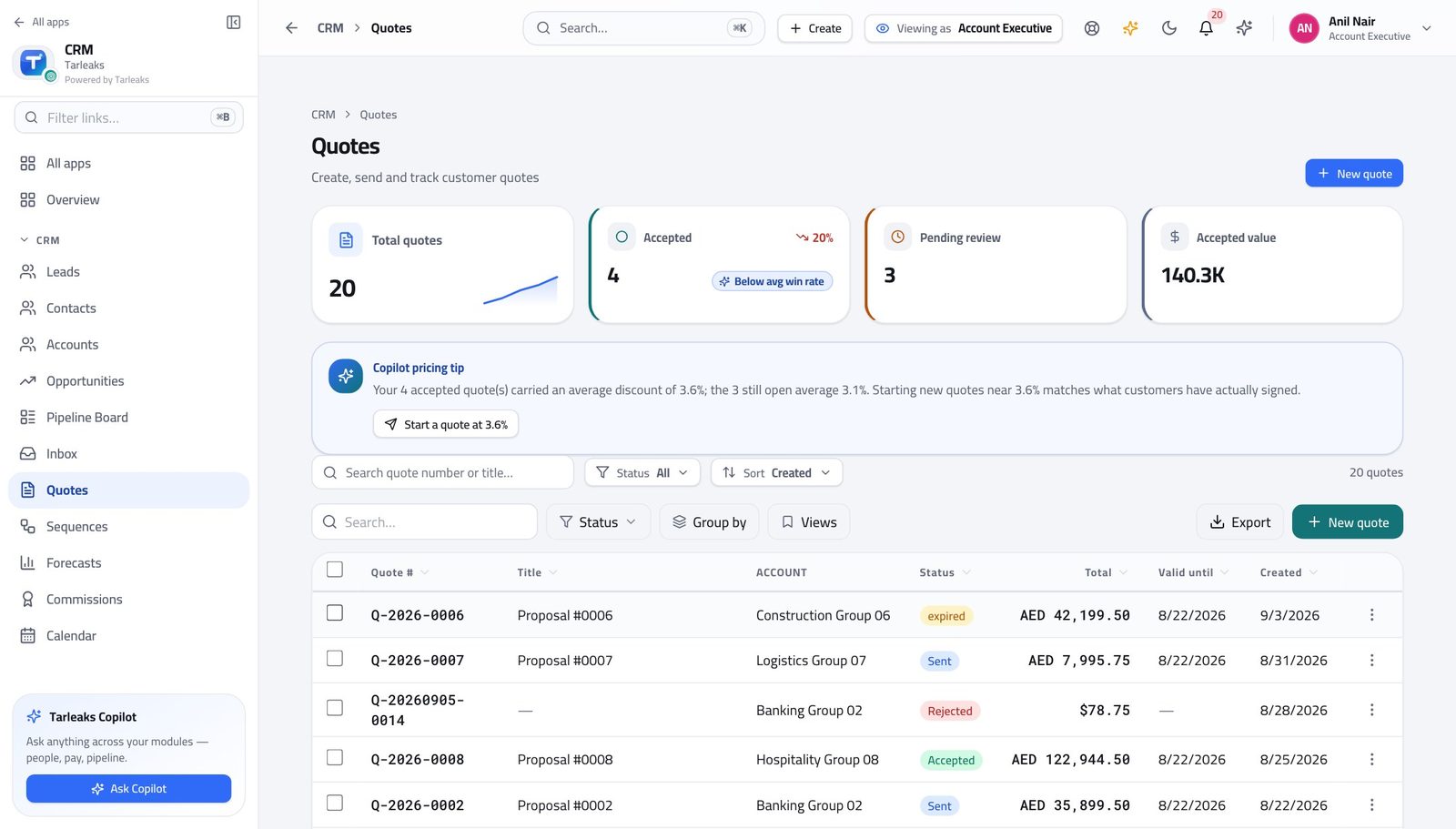
Where CRM » Quotes
- In the left menu, click Quotes.
- Read the number, the total and the state on each row.
- Open a quote for its lines, terms, approvals and files.
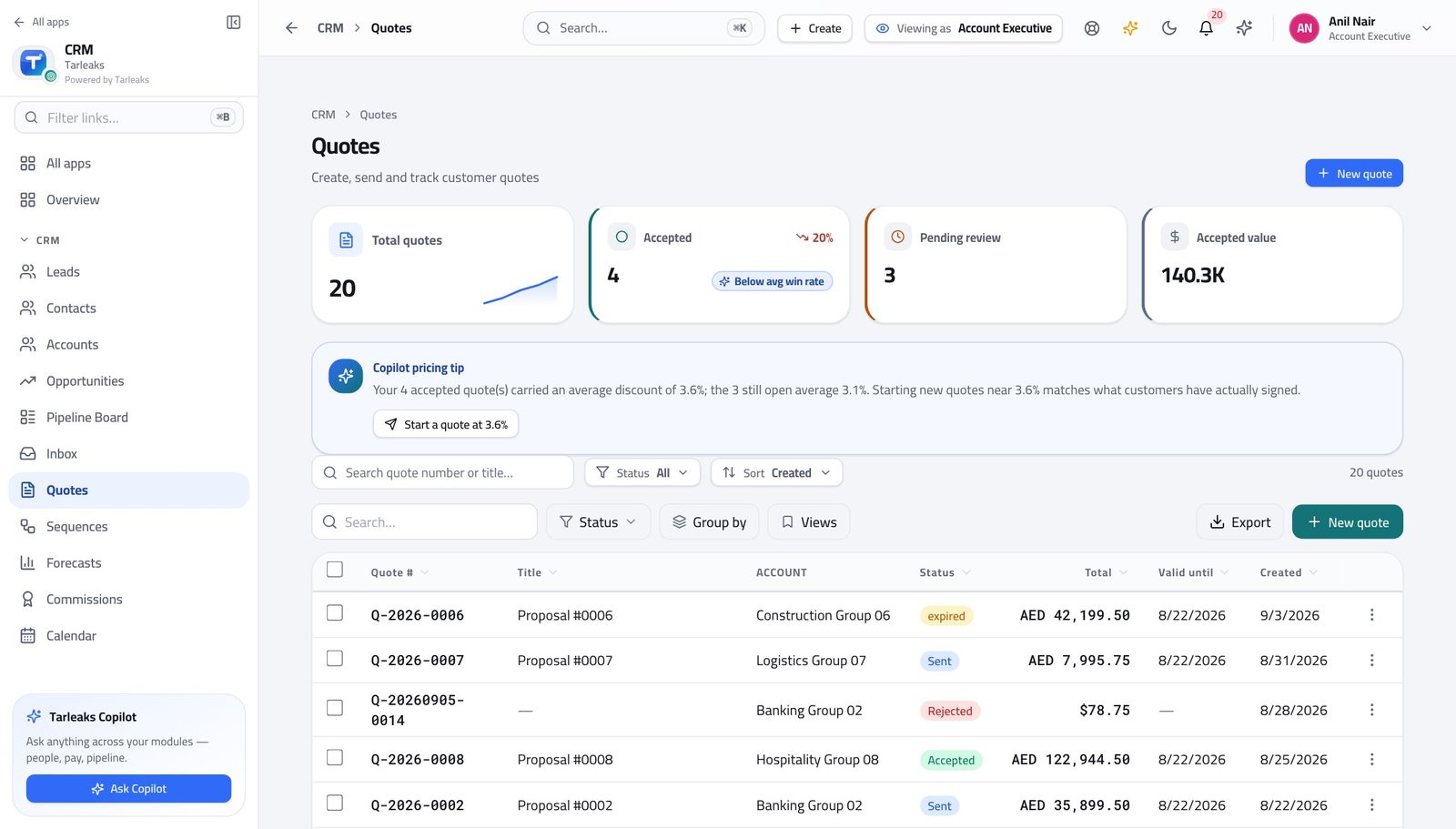
You should see A quote is a record with a life of its own — draft, sent, accepted — not an attachment stuck on the deal.
Watch out A quote in draft has not reached the customer, however finished it looks.
Build a quote #
Where CRM » Quotes » New quote
- Click New quote.
- Fill the context section: title, account, contact, price book, currency.
- Add a line for each thing you are selling, then set quantity and discount.
- Create the quote, then send it from the quote's own screen.
| Field | What to put in it |
|---|---|
| Title | What the customer will see at the top — 'Fleet renewal 2027', not 'Quote 3'. |
| Account | The company being quoted. Choose the existing record; do not create a second one. |
| Contact | The person who will actually read it. |
| Price book | Which prices apply. Choose this BEFORE adding lines. |
| Currency | What the customer pays in. |
| Product | Pick from the catalogue — the price comes with it. |
| Qty | How many. |
| Disc % | The discount on this line. Watch the total: past your company's threshold the quote will need approving before it can be sent. |
| Tax % | Filled from the product and the customer's treatment; change it only if you know why. |
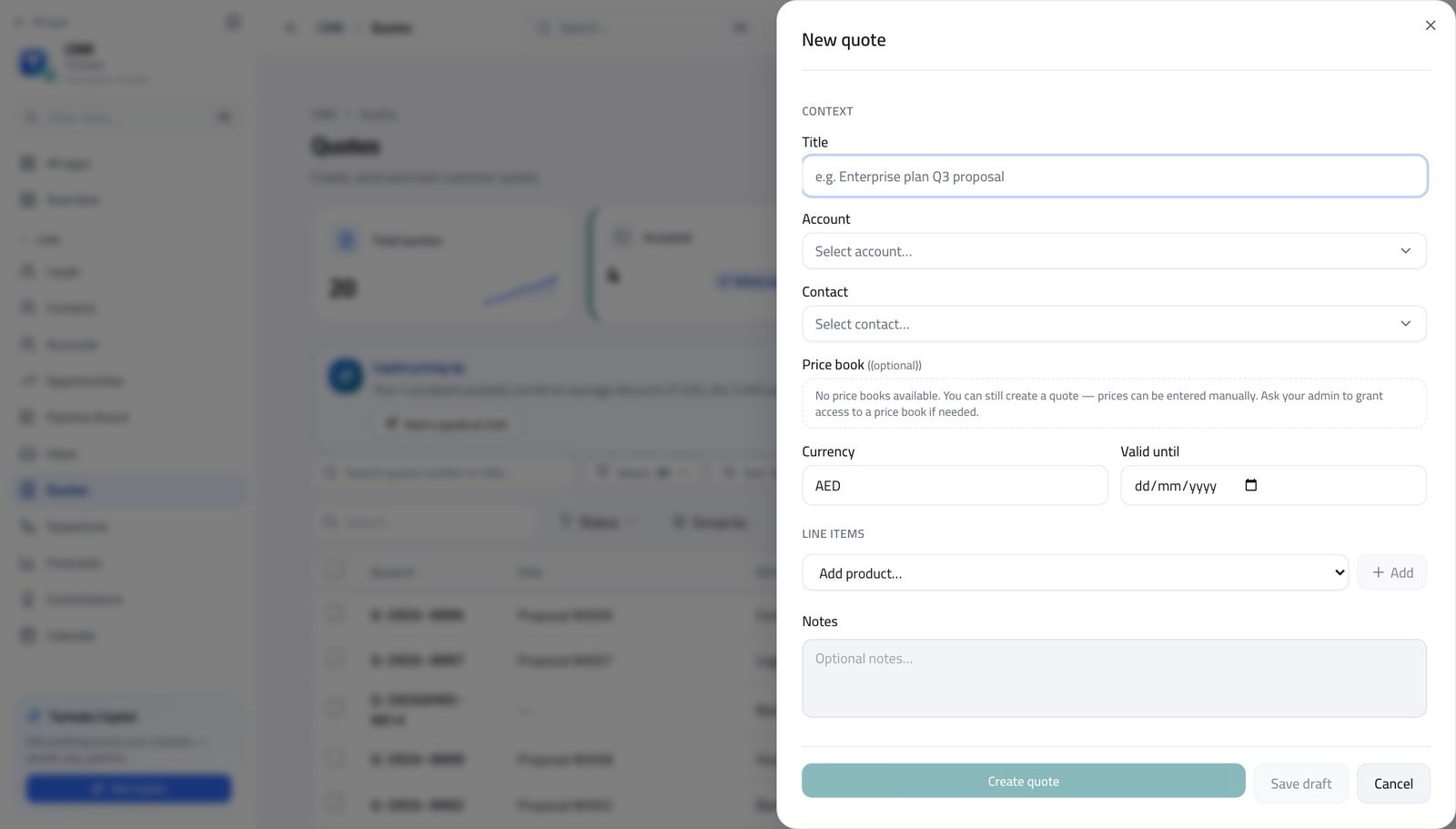
You should see The price comes from the book you chose, and the total, the discount and the tax are worked out per line as you add them.
Watch out Choose the price book first. Changing it after you have added lines means re-pricing every one of them.
Worth knowing Choose the price book before you add lines. Changing it afterwards means re-pricing everything you already added.
Open the company and the people at it #
Where CRM » Accounts, and CRM » Contacts
- In the left menu, click Accounts.
- Search for the company.
- Open it for the contacts, deals, quotes and history in one place.
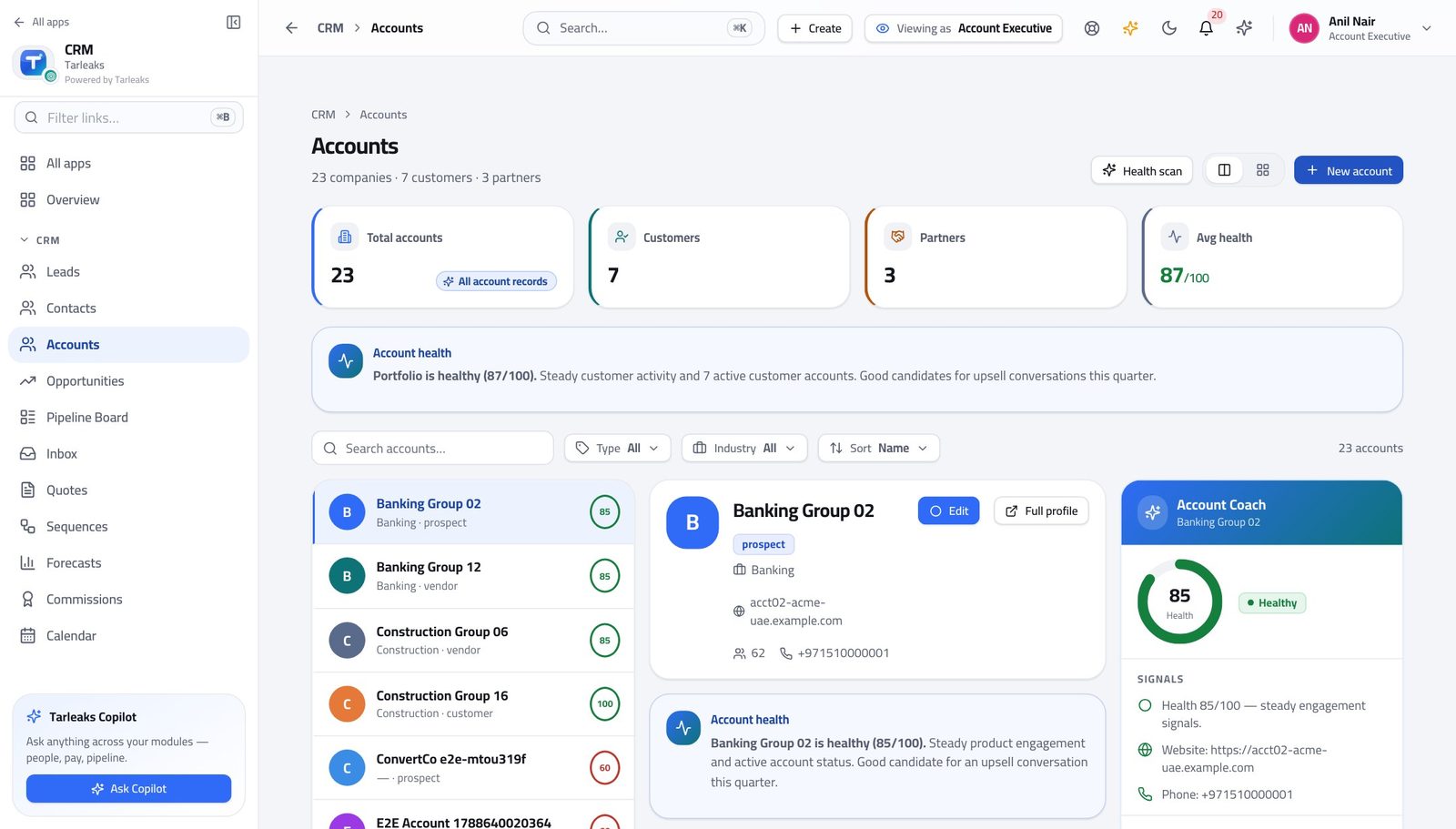
You should see Accounts and contacts are shared. Everyone selling into a company works from the same record, so nobody is surprised by a colleague's conversation.
Watch out Search before you create. The same company entered twice splits its history in half and both halves look thin.
Add a company you are selling to #
Where CRM » Accounts » New account
- Click New account.
- Fill the name, the type and the industry, then save.
| Field | What to put in it |
|---|---|
| Name | The legal name as it will appear on a quote or an invoice. |
| Account type | Customer, prospect, partner — whatever your company uses. |
| Industry | Used for reporting and for the templates you are offered. |
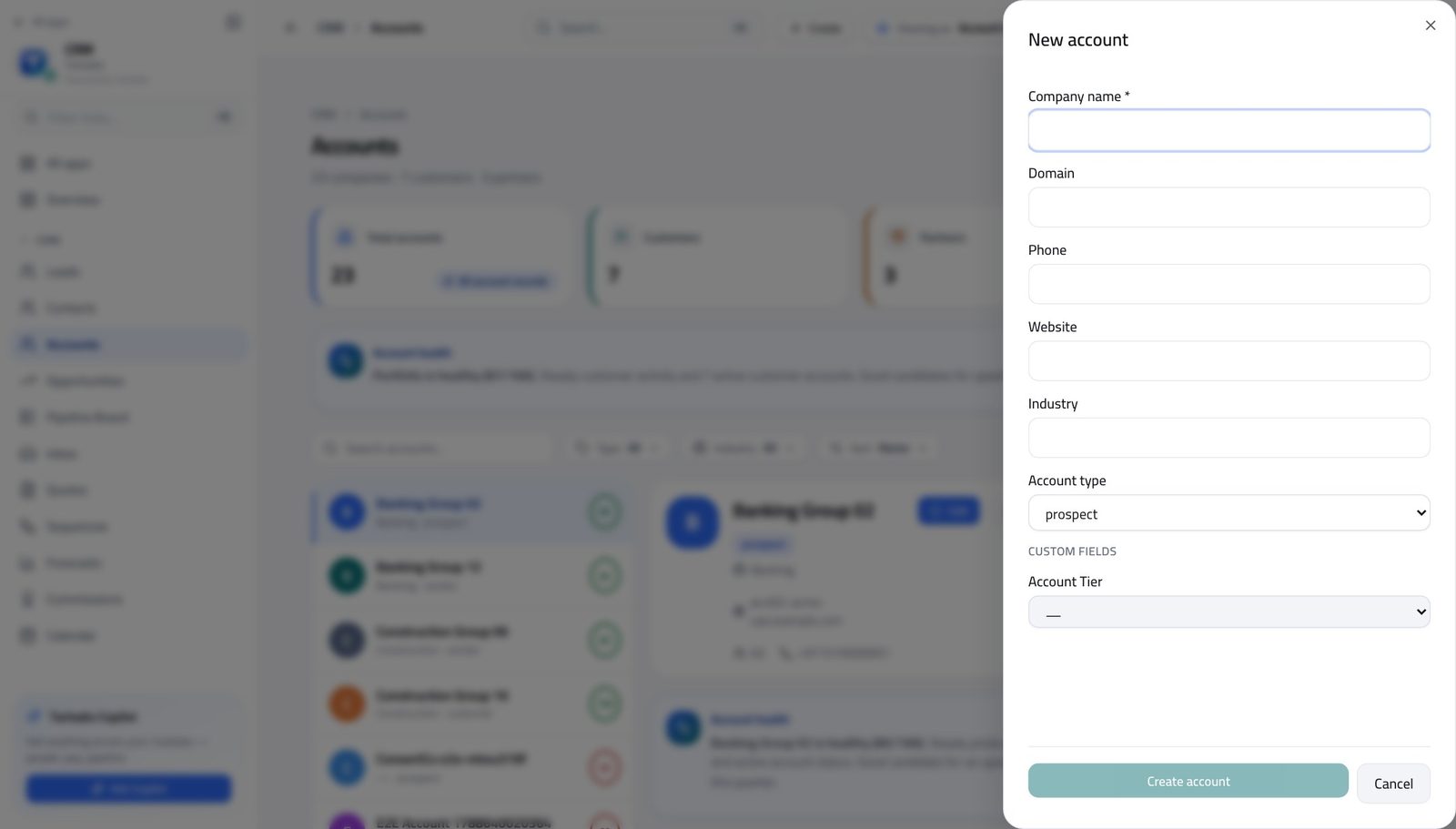
You should see One record per company. If they are already there — even under a slightly different name — use the one that exists rather than making a second.
Watch out Search for the company first. Creating a duplicate is easy and untangling one later is not.
See what is booked with customers this week #
Where CRM » Calendar
- In the left menu, click Calendar.
- Read the week.
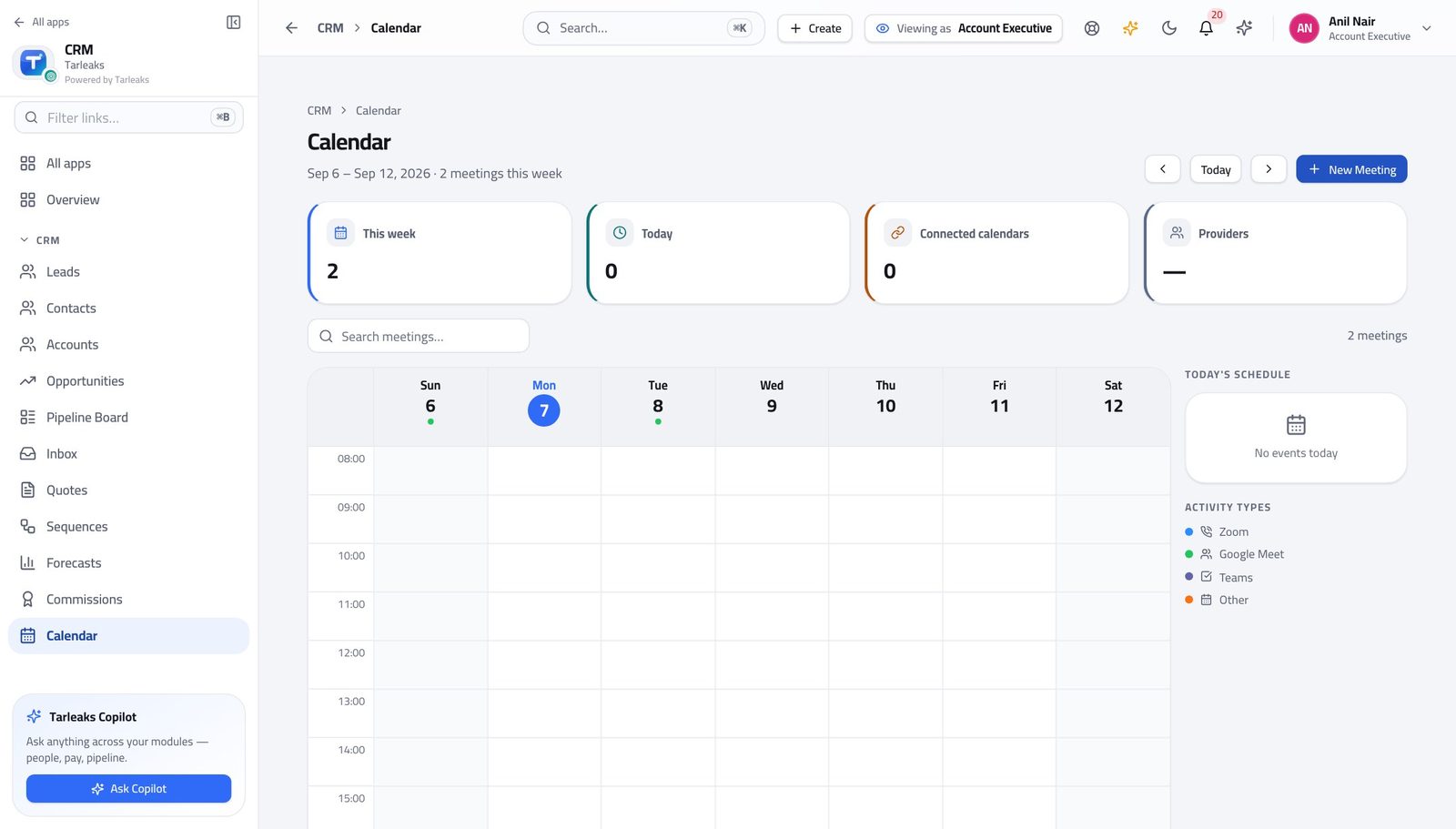
You should see A meeting that lives only in your own diary is a meeting nobody else can pick up if you are away.
Watch out A meeting that lives only in your own diary cannot be picked up by anyone if you are away. Book it here.
See where your discount request got to #
Where CRM » Quotes » a quote » Approvals, or the Approvals list
- Open the quote and switch to its Approvals tab.
- Read the tier, the decision and who decided.
- The Approvals list shows every request you raised, in one place.
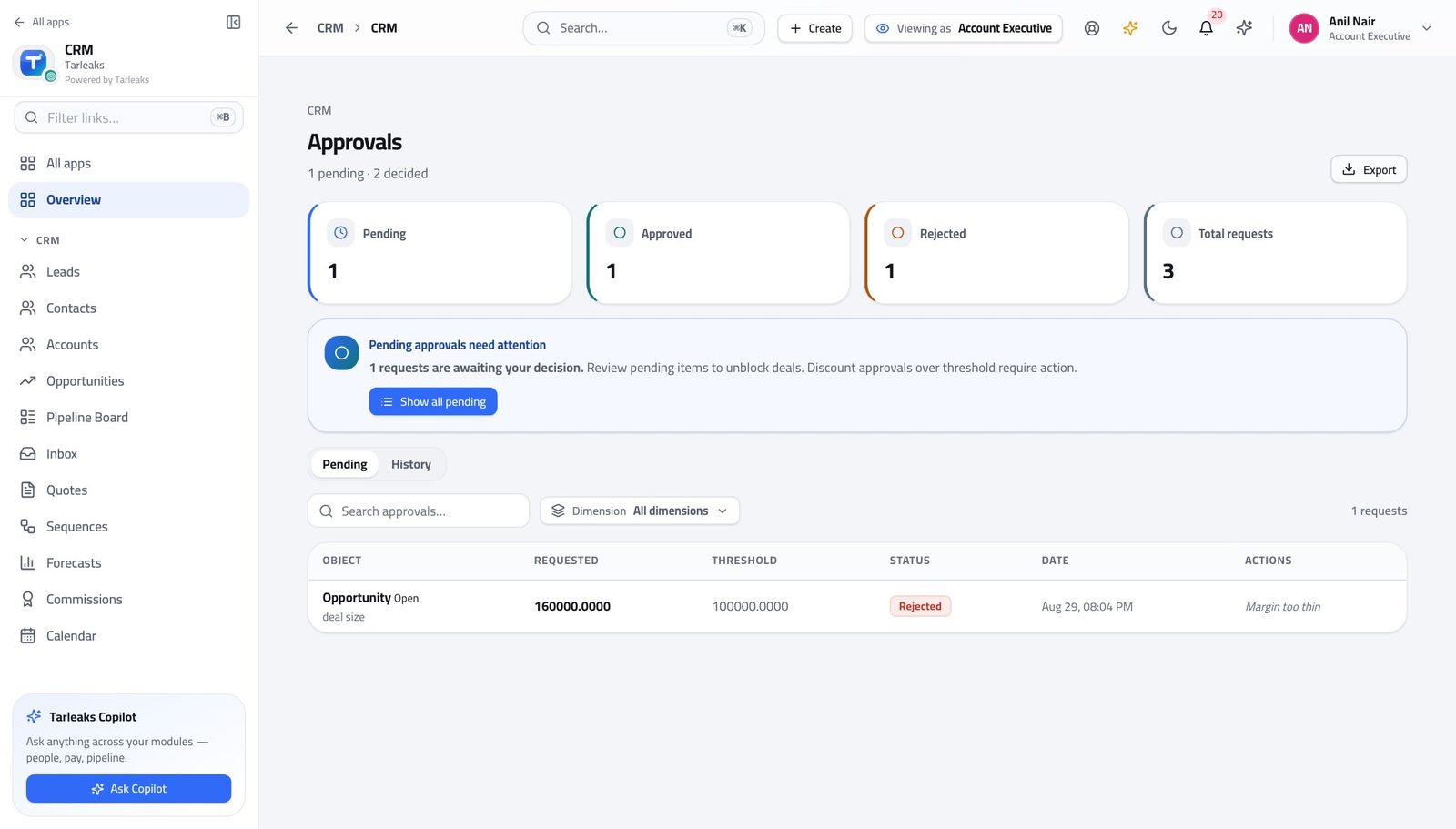
You should see You see the requests you raised. Your manager sees everybody's. Same screen, two different lists, decided by the sign-in.
Watch out A quote whose discount is above the threshold cannot be sent until it is approved — the send action refuses and says so. That refusal is the prompt to get the approval, not a fault.
Check what you are owed #
Where CRM » Commissions
- In the left menu, click Commissions.
- Read your payouts.
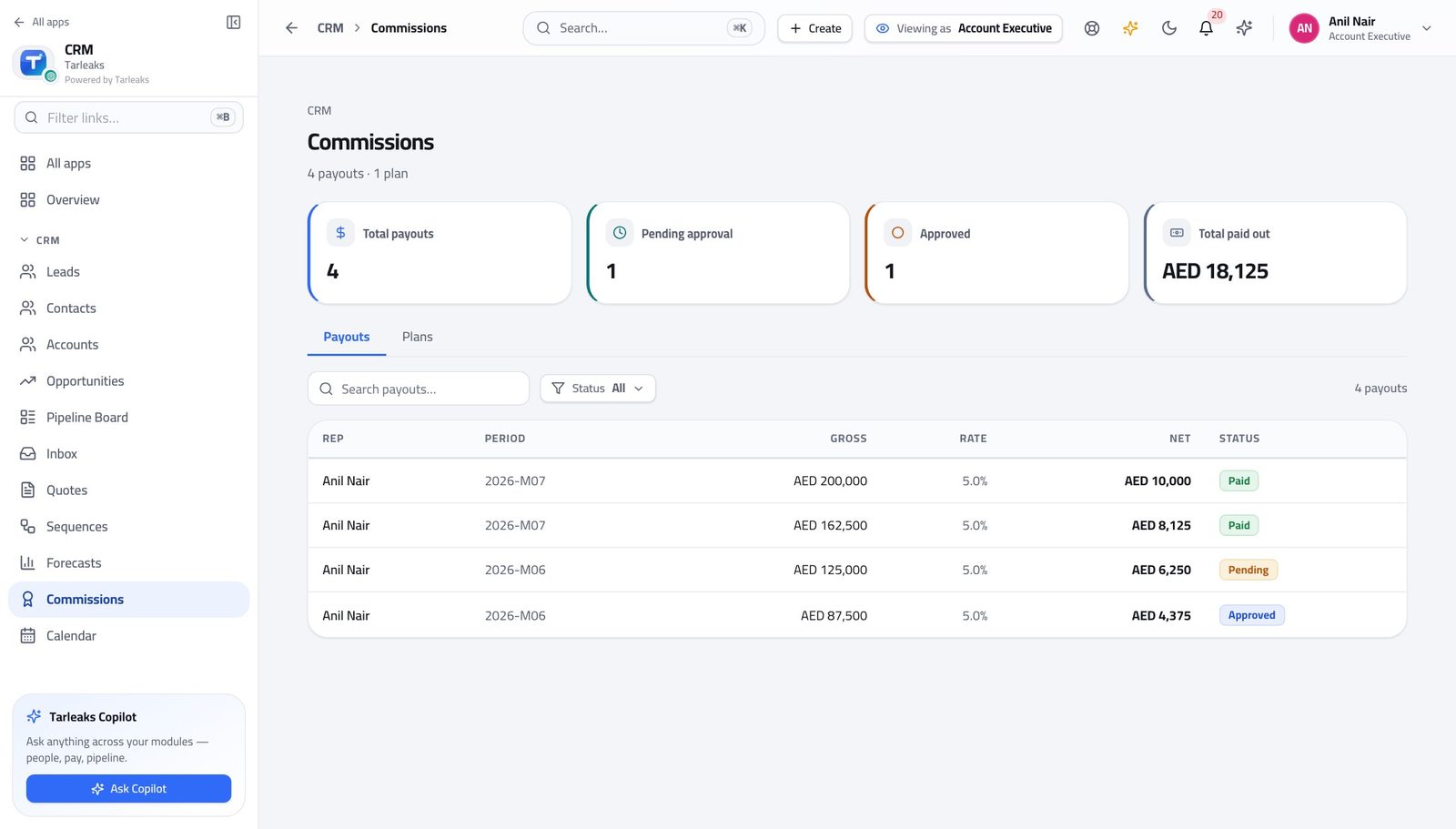
You should see You can check your own money without being able to see anybody else's.
Watch out A figure that looks wrong is worth raising early. After the payout is released it is a correction rather than a fix.
Read the number you are measured on #
Where CRM » Forecasts
- In the left menu, click Forecasts.
- Read the period and the quota line.
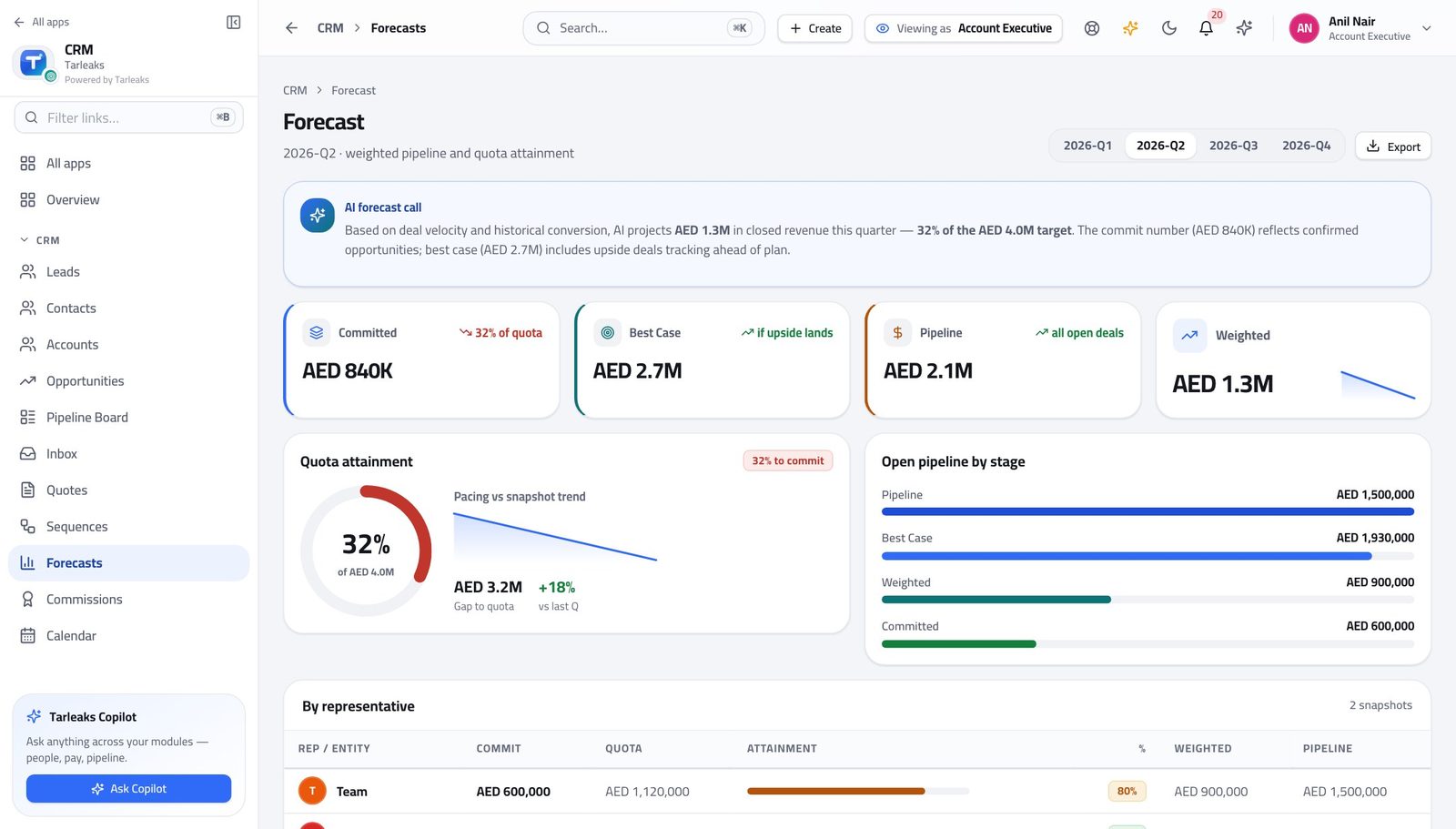
You should see You see the forecast and the quota before the conversation about them, which is the only useful time to see them.
Watch out Your own close dates and stages produce this. If it looks wrong, the fix is usually on your board rather than on this screen.
Tidy a batch of quotes #
Where CRM » Quotes
- Open Quotes.
- Tick the quotes you are tidying.
- Use the bar at the bottom.
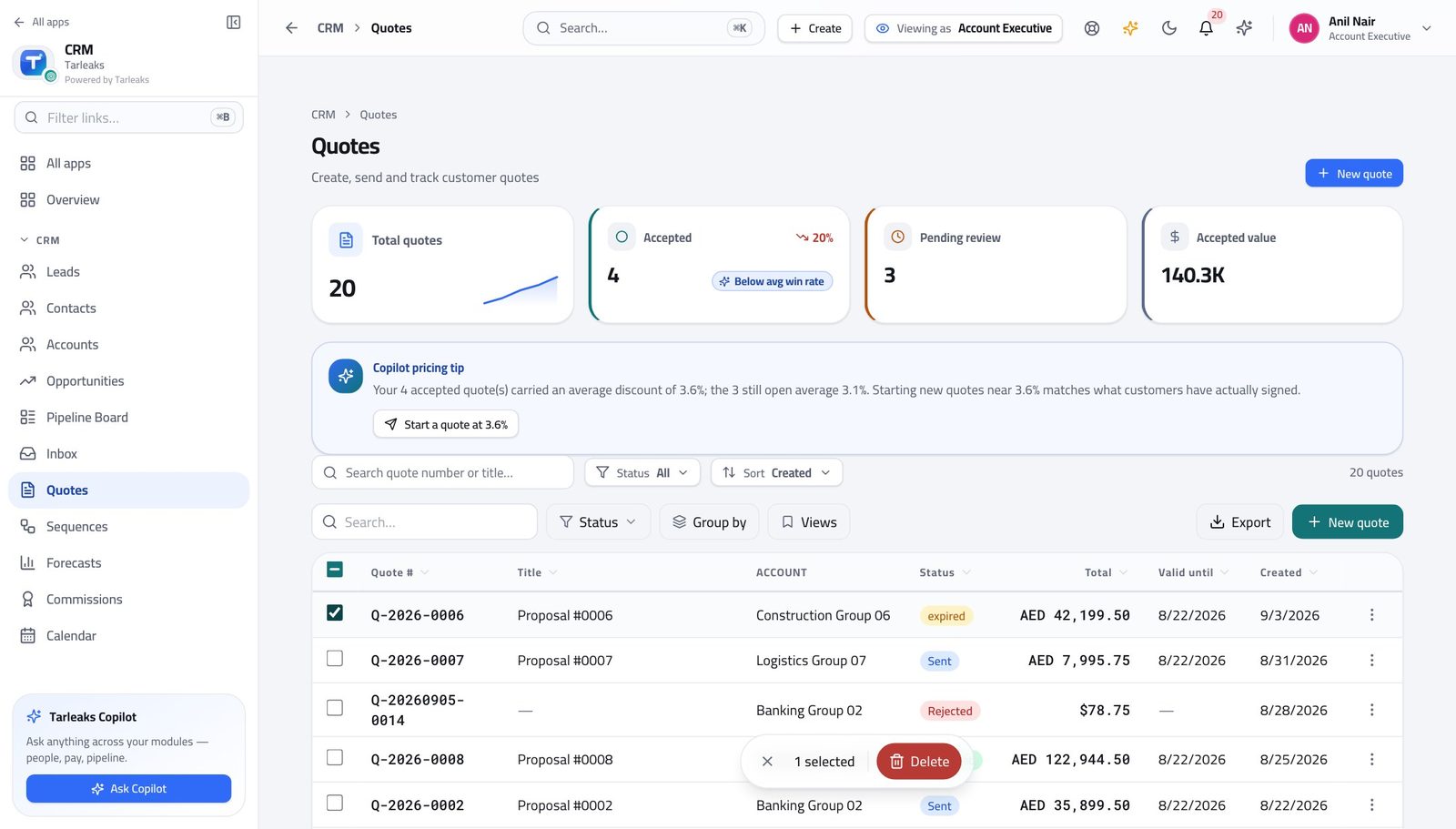
You should see Quote housekeeping is part of owning the deal, so the batch is offered to you here — and each quote is still checked on its own.
Watch out A quote already sent to a customer has left the building. Tidy drafts, not the record of what somebody was told.
Approving your own discount is not yours #
Where CRM » Approvals
- Look down the CRM menu: the Approvals queue is not offered to you.
- Open a request you raised from the quote instead — there is no approve or reject action on it.
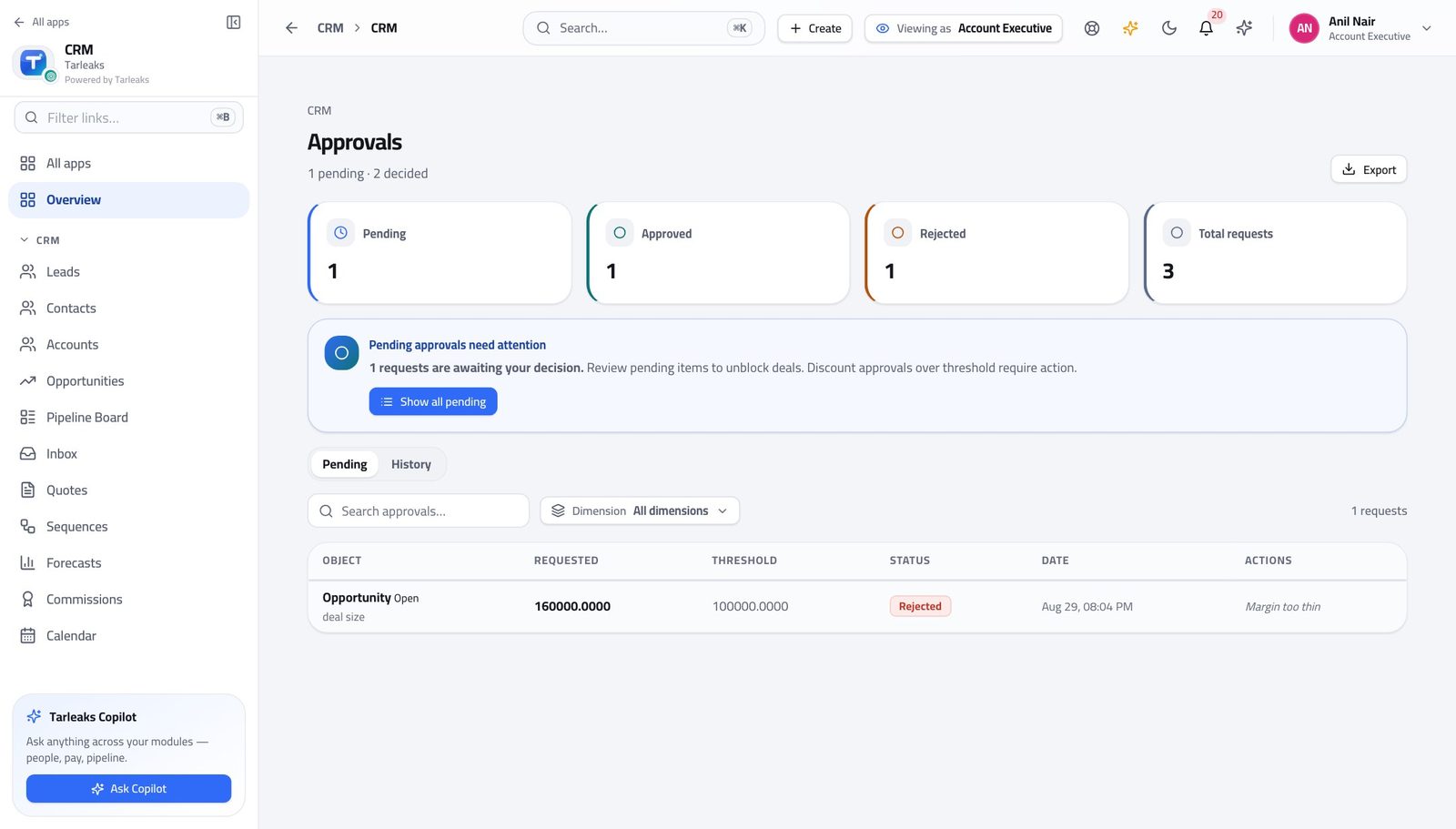
You should see You ask; somebody else decides. If you could do both, the request would be a formality rather than a control.
Watch out Chasing is fine and normal. If a request has sat for a day, say so — the product does not nag on your behalf.
Declaring a deal won is not yours #
Where CRM » Pipeline Board
- Open a deal on the board.
- Mark lost is yours: choose it and pick a reason.
- Declaring the deal won is your manager's — tell them the day it happens.
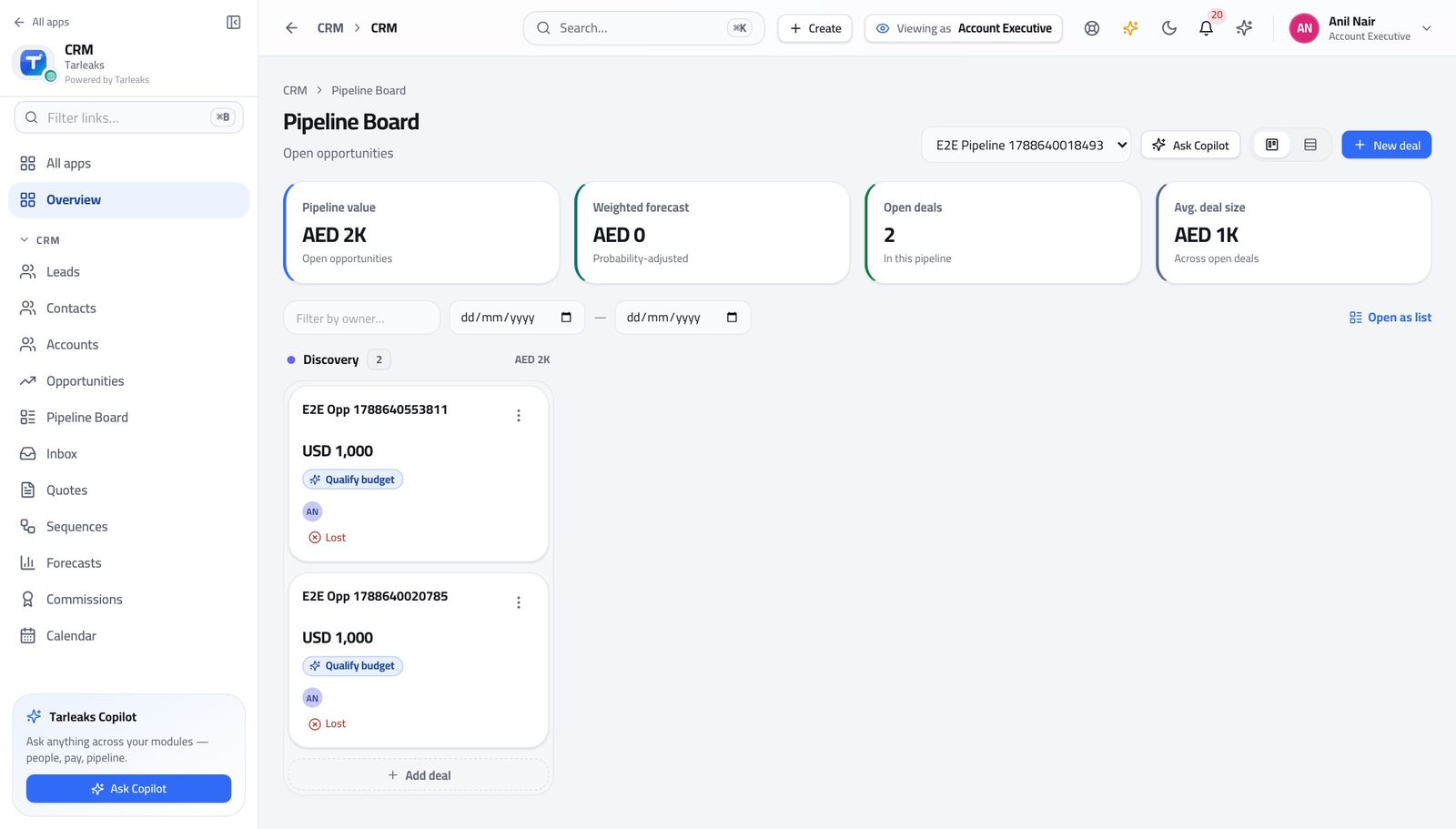
You should see Losing a deal is your call — you were there. Declaring one won moves the number your manager answers for, so it is theirs.
Watch out A won deal that sits un-closed makes the forecast wrong in the direction nobody wants. Tell your manager on the day, not at month end.
Territories are not yours #
Where The left menu, under CRM
- Look down the CRM menu.
- Territories is not there.
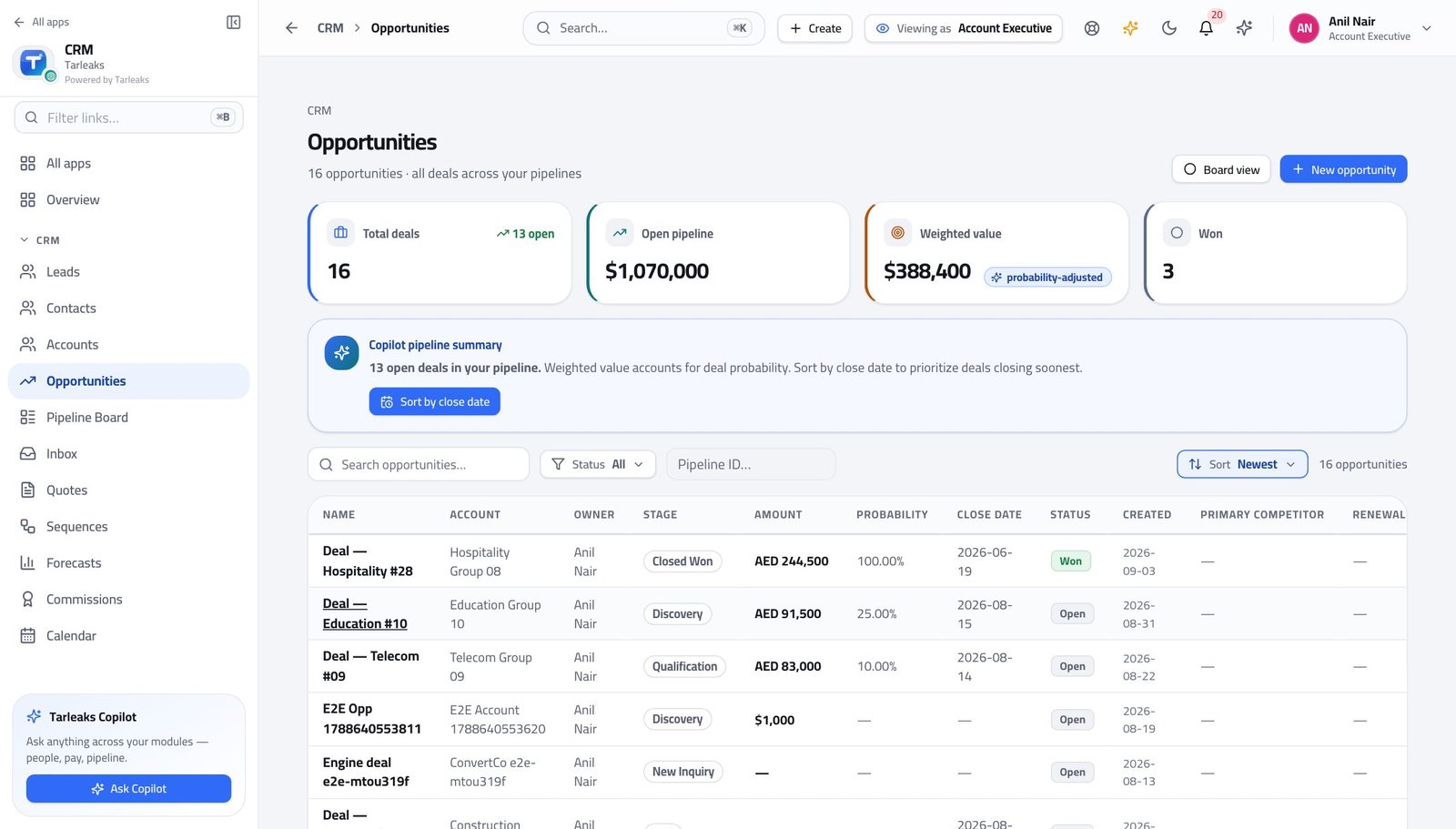
You should see Who owns which patch is a management decision. You work the patch you were given.
Watch out If you keep receiving records that are not yours to work, that is a territory conversation with your manager.
The catalogue is read through the quote, not edited #
Where The left menu, under CRM
- Look down the CRM menu: Products is not there.
- Open a quote instead and add a line — the whole catalogue is in the picker.
You should see You sell what the company sells, at the price the company set. Adding a product or moving a price is somebody else's decision.
Watch out A product missing from the picker is a request to your administrator, not a reason to type the price in by hand.
Use cases — the work, step by step
Each one is a sequence somebody actually performs, with the screen behind every step. Every screen here was opened in the product as this role before it was published.
dailyTurn a handed-over deal into a sent quote #
The order matters: understand the account, build the quote against the right price book, and only then discover whether the discount needs approving.
Open Opportunities and find the deal the development rep handed you. Read what they wrote before you call anybody.
CRM » Opportunities — verified: the page says “Opportunities”; 16 row(s) listed Open the account. Whether the company already buys from you, and who else talks to them, changes the conversation completely.
CRM » Accounts, and CRM » Contacts — verified: the page says “Accounts”; 23 row(s) listed Build the quote. Set the account, the contact and the price book FIRST, then add a line for each thing you are selling.
CRM » Quotes » New quote — verified: the control is offered Send it from the quote's own screen. If your discount is above your company's threshold the product refuses and tells you the quote needs approving — that refusal is the prompt, not a fault.
CRM » Quotes — verified: the page says “Quotes”; 20 row(s) listed Watch the approval on the quote's own Approvals tab until it is decided, then send.
CRM » Quotes » a quote » Approvals, or the Approvals list — verified: the page says “Approvals”
urgentThe customer wants a bigger discount than you can give #
There is a right way to ask and it takes ten minutes. Rebuilding the quote at a number nobody approved wastes a week.
Open the quote and look at the discount across the lines. It is the discount as a share of the subtotal that is measured, not the worst single line.
CRM » Quotes — verified: the page says “Quotes”; 20 row(s) listed Try to send. The product refuses with the reason, which is your evidence that this genuinely needs a decision rather than a conversation.
CRM » Quotes — verified: the page says “Quotes”; 20 row(s) listed Watch the request on the quote's Approvals tab. You cannot decide it yourself — there is no approve action on a request you raised.
CRM » Approvals — verified: “Approvals” is not in this role's menu If it is refused, read the note, change the quote and ask again. Refusal sends it back to you; it does not kill the deal.
CRM » Quotes » a quote » Approvals, or the Approvals list — verified: the page says “Approvals”
weeklyKeep the board honest before the week closes #
Your forecast is built from your own stages and close dates. Twenty minutes on Friday is the difference between a number your manager can commit and one they have to discount by feel.
Open the board and move every card that actually moved this week. Dragging the card IS the stage change.
CRM » Pipeline Board — verified: the page says “Pipeline Board” Fix the close dates. A date that has already passed, or one that is 'end of quarter' on nine deals, makes the whole forecast a guess.
CRM » Opportunities — verified: the page says “Opportunities”; 16 row(s) listed Mark the lost ones lost, with a reason. Then tell your manager about the won ones — declaring a deal won is their action, not yours.
CRM » Pipeline Board — verified: no “Mark won” anywhere on the page Read the forecast last and see whether it matches what you would say out loud. If it does not, the board is wrong, not the report.
CRM » Forecasts — verified: the page says “Forecast”
edgeThe customer accepted — hand it to the order desk #
CRM stops at the accepted quote. Delivering the thing, invoicing it and collecting the money happen in the sales-order module, and the handover is deliberate rather than automatic.
Mark the quote accepted on its own screen. That is the record that the customer said yes to this exact set of lines and prices.
CRM » Quotes — verified: the page says “Quotes”; 20 row(s) listed Tell your manager the deal is won so they can close it. The forecast will not correct itself.
CRM » Pipeline Board — verified: no “Mark won” anywhere on the page Follow the order through to fulfilment in Sales Orders. Once it is there, delivery and invoicing are that team's, and the quote stops being the live document.
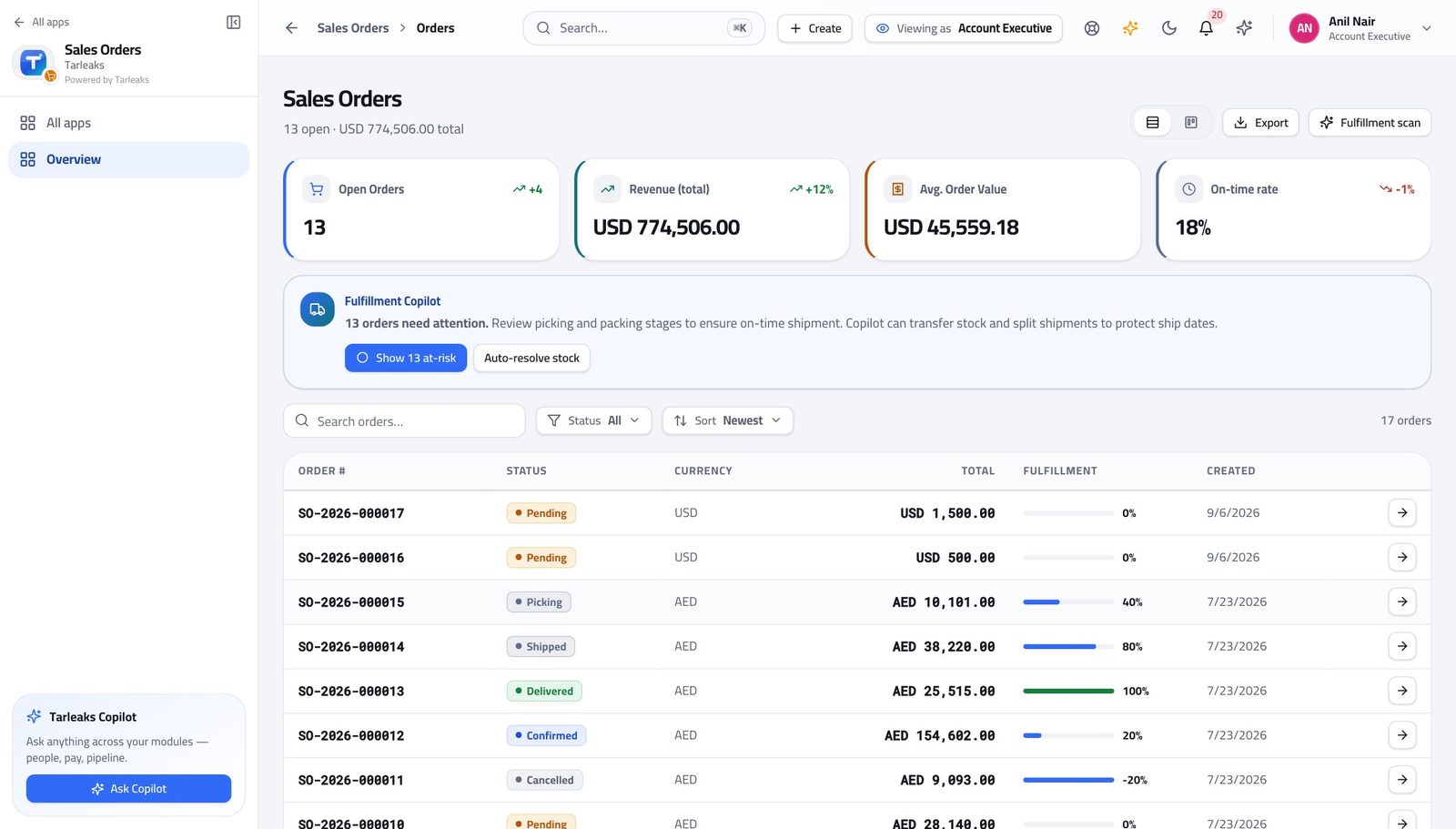
In the product — verified: the page says “Sales Orders”
Your lists are already only yours — nothing is being hidden from you by the screen. And the two things you cannot do, approve your own discount and declare a deal won, are the two that protect the number everyone else is working from.