CRM role guides — what each role can do, step by step
Step-by-step guides for the sales floor — the rep who owns their own book, the manager who reads the team's forecast, the qualifier working new leads, and the administrator who sets the pipeline. 65 steps across 4 roles, every one of them carried out in the product before it was published here.
Nothing matches that. Try a shorter word, or pick All roles to search every guide.
Go deeper
CRM Administrator
Set the selling rules once, so nobody has to remember them.
Sets the rules everyone else sells inside: the pipeline and its stages, the fields on a record, where a new lead lands and what it scores, which discounts need signing off, and who is on which team and territory.
What you will be able to do
- Shape the pipeline and what each stage means
- Decide where a new lead lands and what it is worth
- Set the discount that needs a signature
- Keep teams, territories and the catalogue in order
What this role can and cannot do
| Can | Cannot |
|---|---|
|
|
17 steps, each one carried out in the product on .
Check what your sign-in can do #
Where Your name, top right » Profile
- Open your company's address in the browser — it looks like yourcompany.tarleaks.com.
- Type the e-mail address your administrator set up for you, then your password.
- You land on the app launcher: a grid of the apps your company uses.
- Click the CRM tile.
- Click your name in the very top-right corner of the screen.
- Choose Profile from the menu that drops down.
- Scroll to the roles and access section.
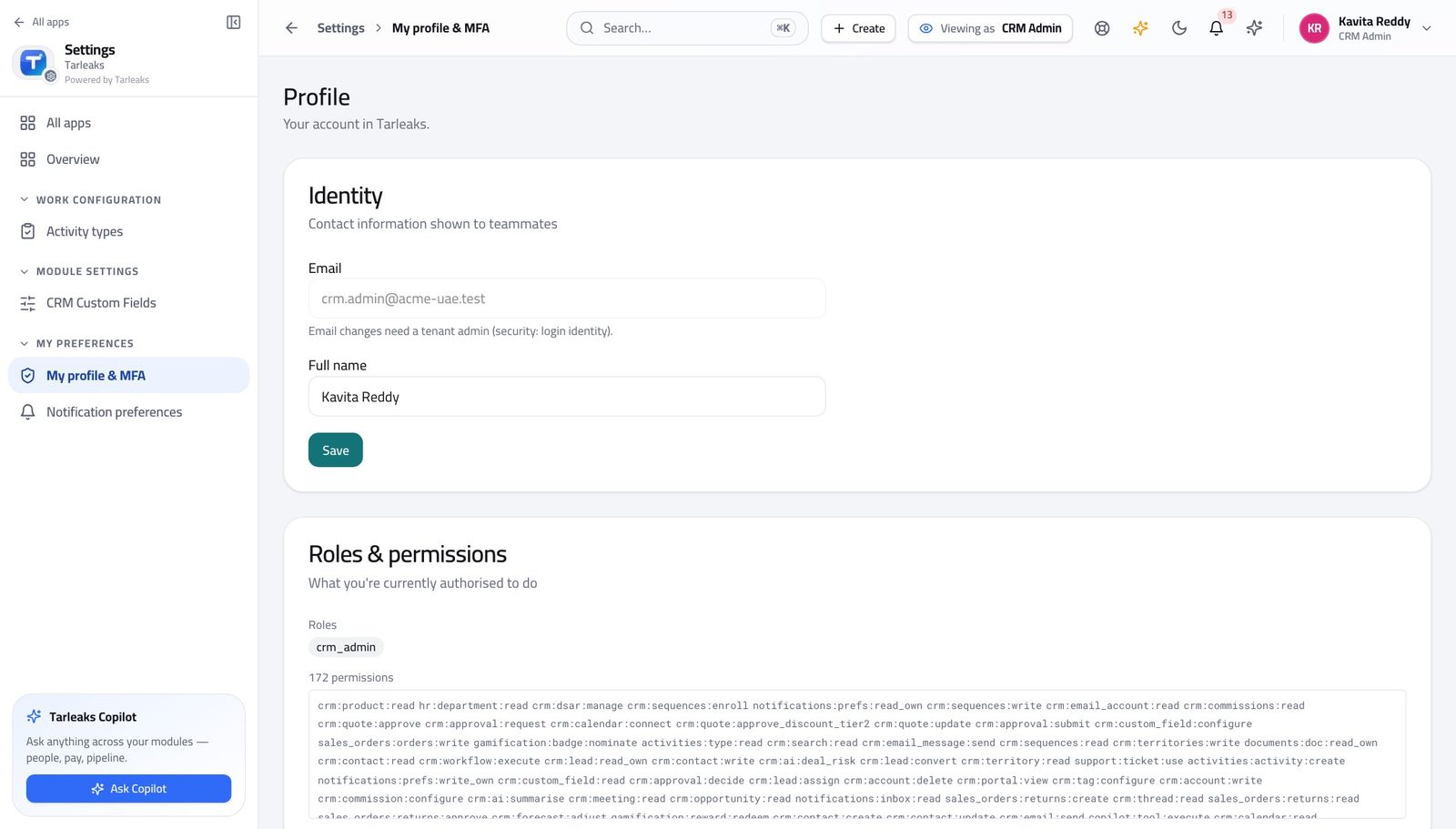
You should see It says CRM Administrator. You shape the process: stages, fields, routing, scoring, approval thresholds, teams and territories.
Watch out Two people can have the same job title and different roles here. If the chip is not what you expected, sort that out before you start changing how the team sells.
Worth knowing You are not on the approval list for deals. That is deliberate — the person who sets the threshold should not be the person who waives it.
Shape the pipeline and its stages #
Where CRM Admin » Pipelines
- Open the pipelines configuration screen.
- Click the arrow at the left of a pipeline to open its stages.
- Use the up and down arrows on a stage to move it.
- Click Edit on a stage to change what it means.
| Field | What to put in it |
|---|---|
| Name | What a rep would call this step out loud — Demo, Proposal, Negotiation. Short. |
| Win probability (%) | How often a deal at this stage actually closes. Be honest: this number IS the weighted forecast. |
| SLA hours | How long a deal may sit here before it is stale. Leave it blank if you are not measuring that yet. |
| Closed Won | Tick for the one stage that means the deal is won. |
| Closed Lost | Tick for the one stage that means it is lost. |
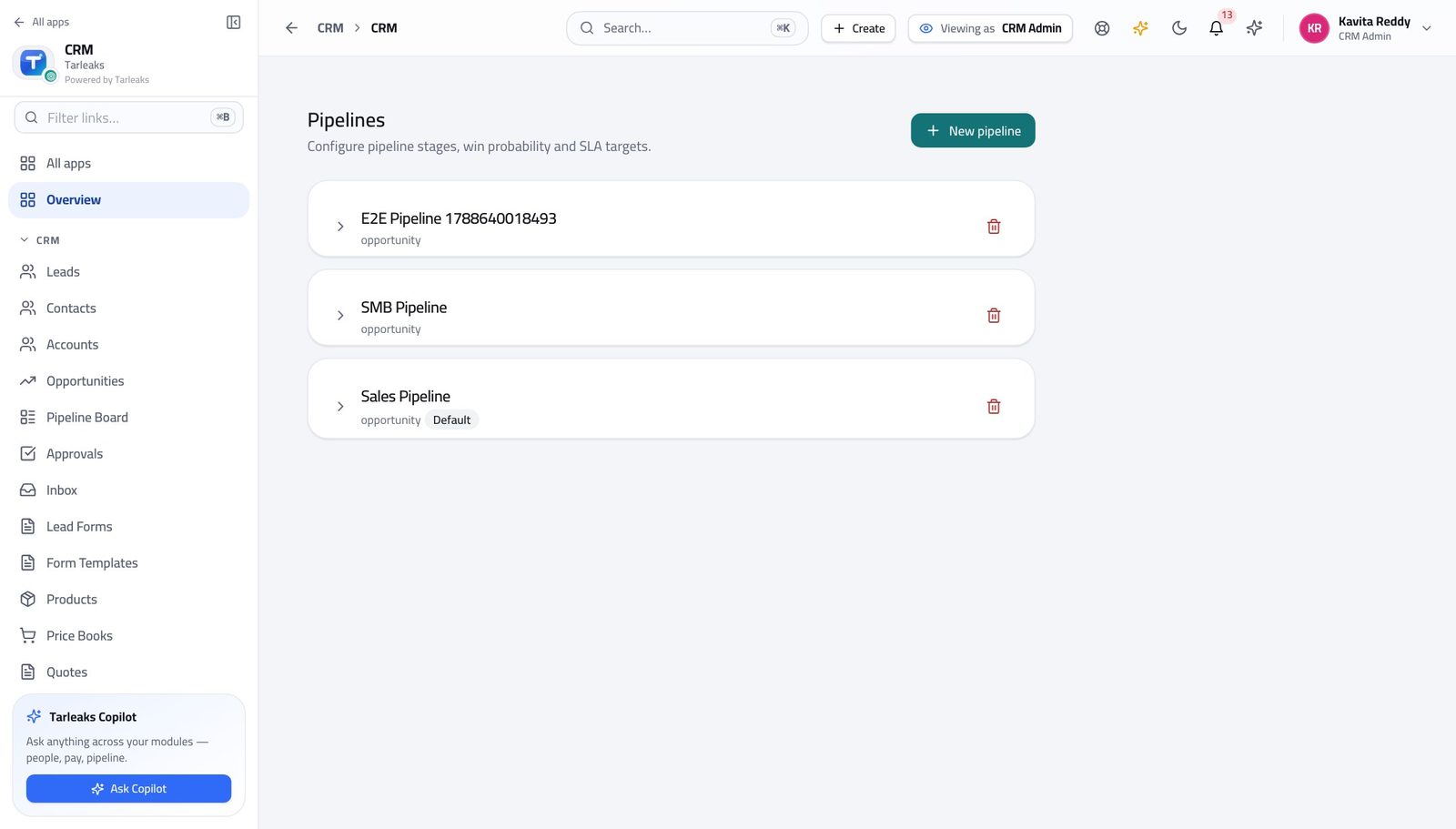
You should see Each stage carries a name, a win probability and whether it counts as won or lost — which is what makes the forecast add up.
Watch out Changing a stage's win probability changes every forecast that includes a deal sitting in it — including the one your board saw last week. Make the change at the start of a period, not the middle. The six configuration screens are not in the left menu. Reach them from the address bar, or press the search key and start typing the name.
Worth knowing This screen is not in the left menu. Type its address, or use the search box at the top and start typing the name.
Add the fields your business actually needs #
Where CRM Admin » Custom fields
- Open the custom-fields screen.
- Choose the record type at the top: Lead, Contact, Account, Opportunity.
- Read the existing fields before adding one — the thing you want may be there already.
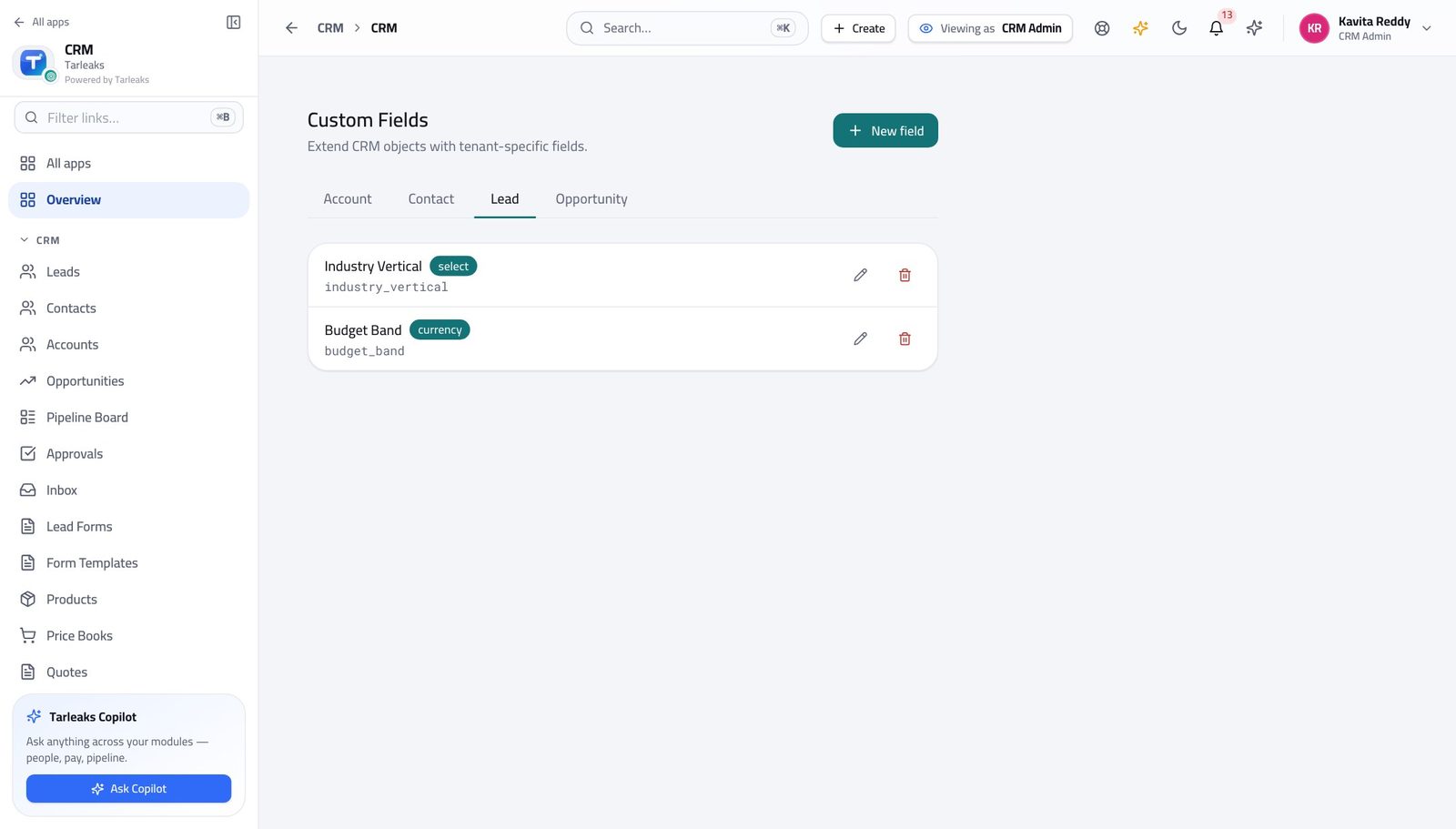
You should see Anything the product did not ship with — a licence number, a fleet size, a regulator reference — lives here rather than in the description box.
Watch out A field on Lead is not a field on Opportunity. If you want the answer to survive a conversion, add it to both.
Add a field to a record type #
Where CRM Admin » Custom fields » New field
- Choose the record type first.
- Click New field.
- Fill the key and the label, then save.
| Field | What to put in it |
|---|---|
| Field key | lower case, words joined by underscores, no spaces — trade_licence_no. This never changes. |
| Label | What people see on the form. Change this whenever the wording needs improving. |
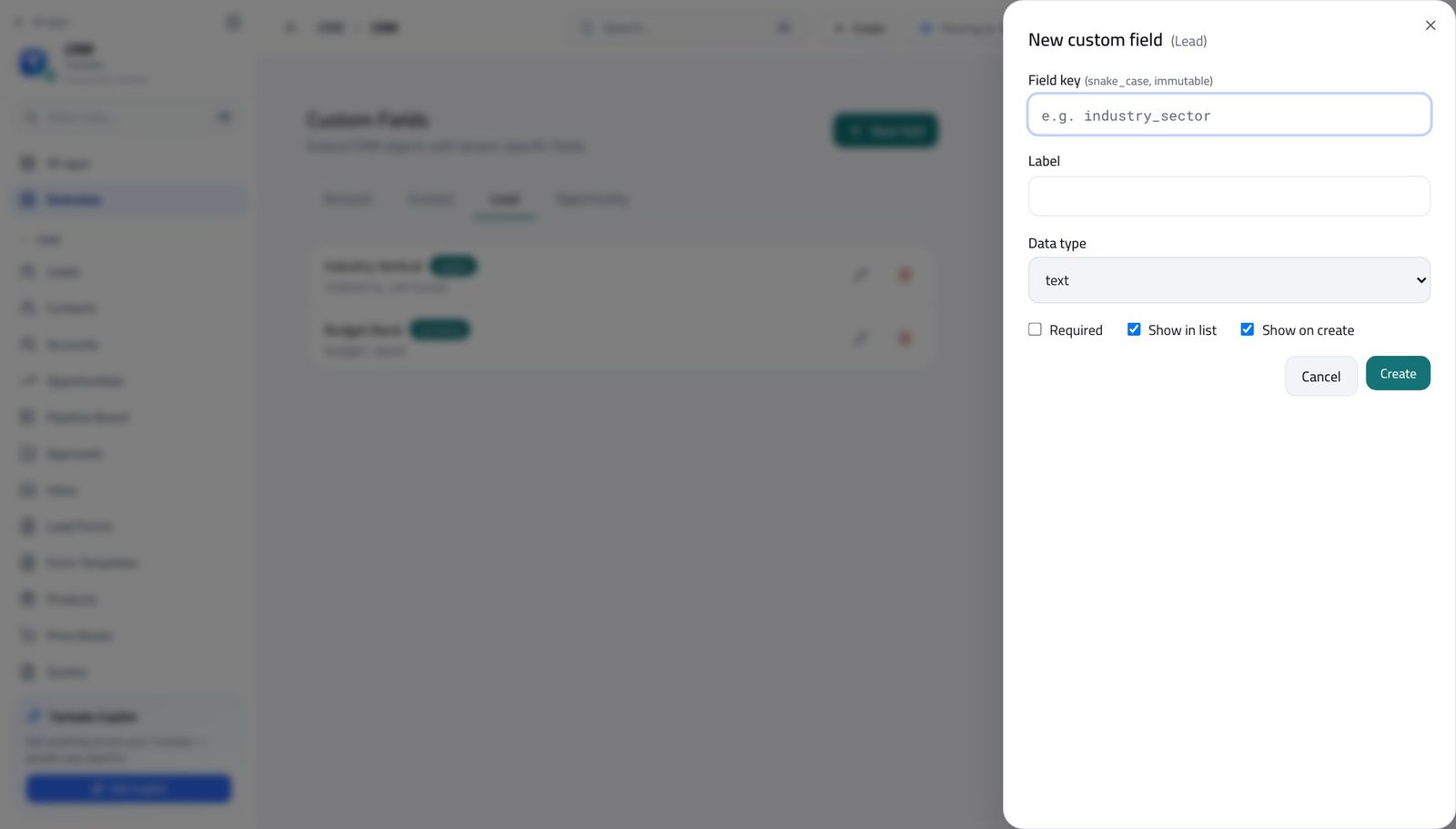
You should see The key never changes once the field exists, so a report written against it keeps working. The label can be reworded whenever you like.
Watch out Pick the key carefully. Everything written against it later — reports, imports, integrations — uses the key, not the label.
Worth knowing Write the key in lower case with underscores — trade_licence_no, not 'Trade Licence No'. It is the name the machine uses, not the one people read.
Decide where a new lead lands #
Where CRM Admin » Lead routing
- Open the lead-routing screen.
- Read the rules from the top down.
- Use the arrows to move a rule up or down.
- Switch a rule off rather than deleting it while you are testing.
| Field | What to put in it |
|---|---|
| Name | What the rule does, in words — 'UAE enterprise to the Dubai team'. |
| Strategy | How the lead is handed out once the rule matches — evenly round the team, or to one named owner. |
| Priority | Higher runs first. Leave gaps between numbers so you can insert a rule later without renumbering everything. |
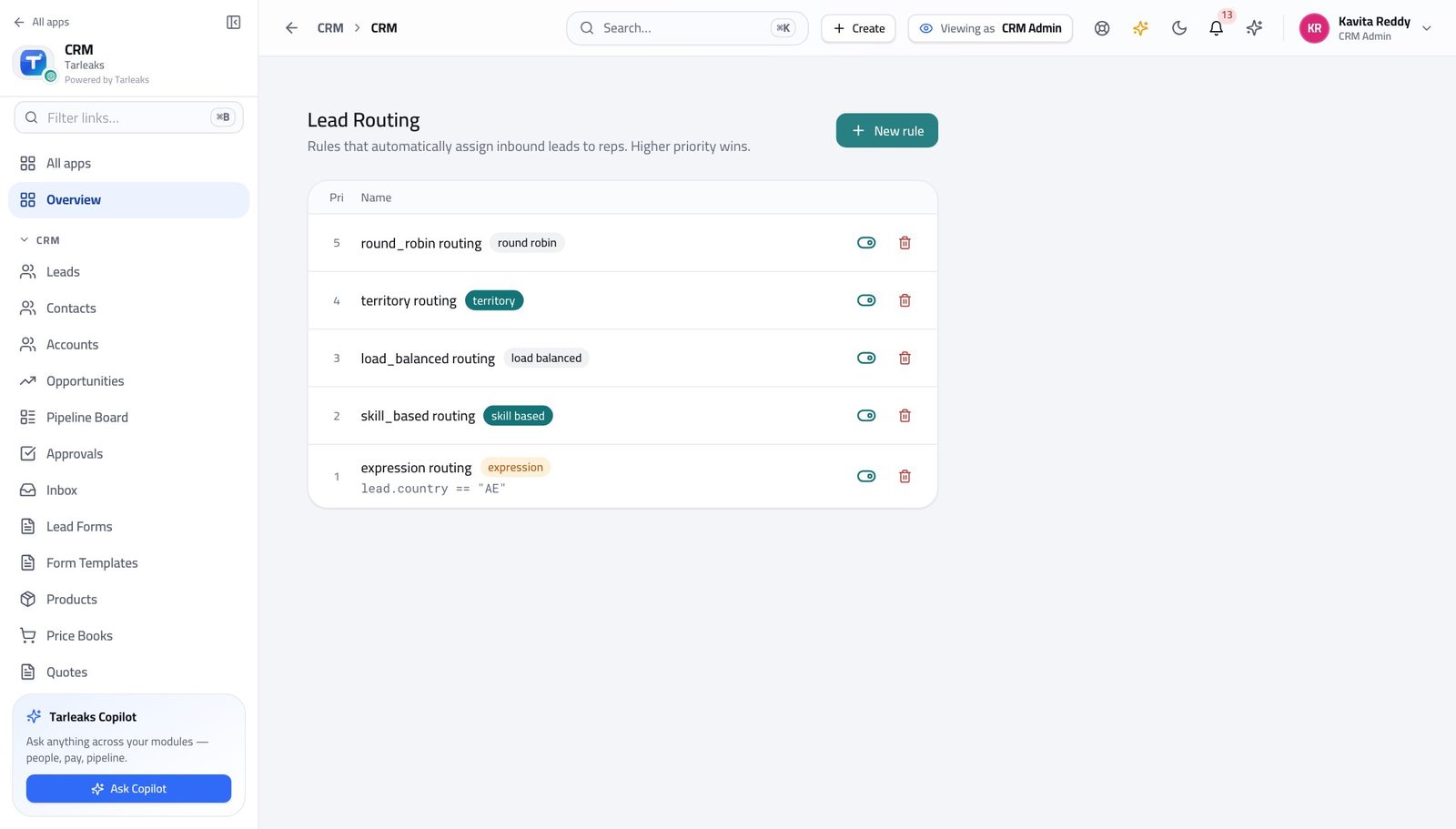
You should see A lead is assigned by rule, not by whoever notices it first — so nobody has to police the queue.
Watch out A rule that matches everything must be last. Put it anywhere else and every rule beneath it is dead — and nothing warns you, because nothing is broken.
Worth knowing Order is the policy. A broad rule sitting above a specific one will swallow every lead the specific one was written for.
Decide what a lead is worth #
Where CRM Admin » Lead scoring
- Open the lead-scoring screen.
- Read each rule's points.
- Use Deactivate to try the model without a rule before deleting it.
| Field | What to put in it |
|---|---|
| Name | The signal, in words — 'Opened three e-mails', 'Company over 500 people'. |
| Score delta | Points added, or a negative number to take points away. |
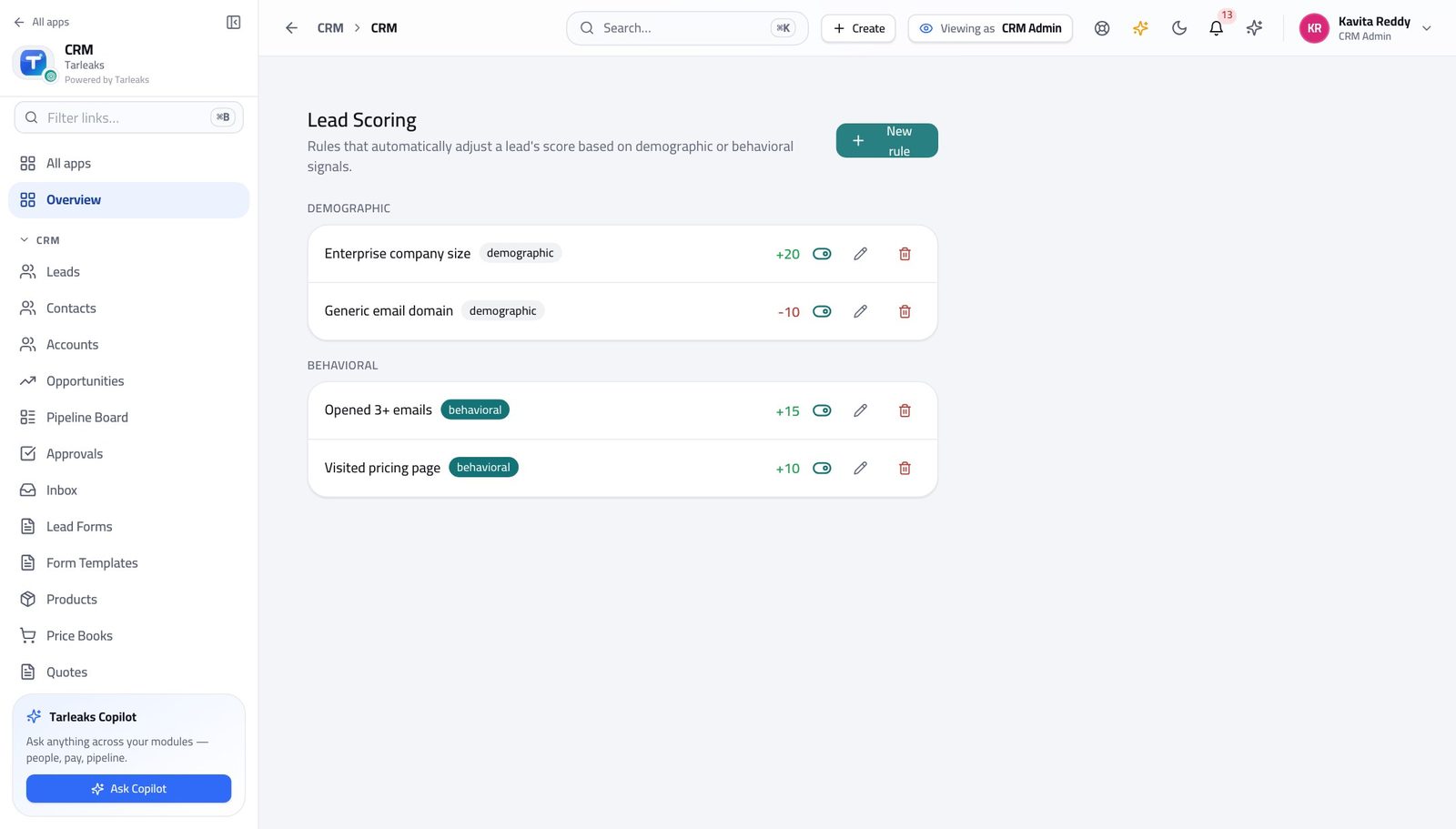
You should see The score a rep sees on a lead is the sum of these rules. There is no hidden part to it.
Watch out Scores only mean something relative to each other. Adding a rule worth 200 points makes every other rule irrelevant.
Set the discount that needs a signature #
Where CRM Admin » Approval matrix
- Open the approval-matrix screen.
- Read each row as one sentence.
- Click Add threshold to add a tier.
| Field | What to put in it |
|---|---|
| Dimension | What is being measured — the discount percentage, most often. |
| Threshold value | The number above which approval is required. At or below it, the quote goes out on its own. |
| Approver role | Who has to decide. Choose the role, not a person — people go on holiday. |
| Pipeline (optional) | Leave blank for a rule that covers every pipeline. |
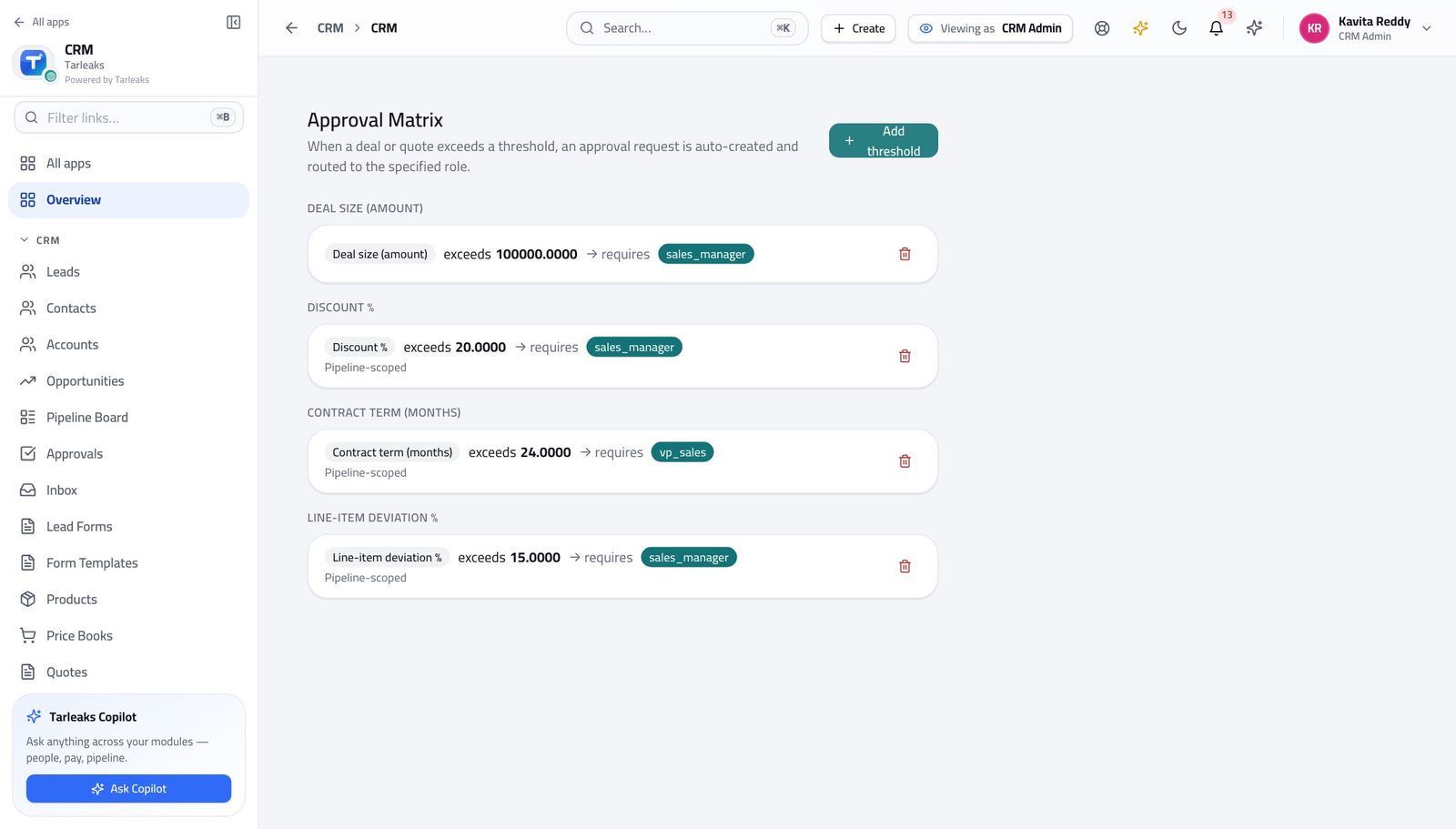
You should see A quote whose discount goes past the lowest threshold here cannot be sent until somebody with the named role has decided on it.
Watch out The LOWEST discount threshold you set here is the gate. A quote above it cannot be sent until it has been approved, and the send button says so.
Worth knowing Lower the threshold and more quotes stop for a signature; raise it and fewer do. It takes effect on the next quote, not on ones already sent.
Fix the list of reasons a deal is lost #
Where CRM Admin » Lost reasons
- Open the lost-reasons screen.
- Add the reasons your business really loses on.
- Deactivate anything nobody is choosing.
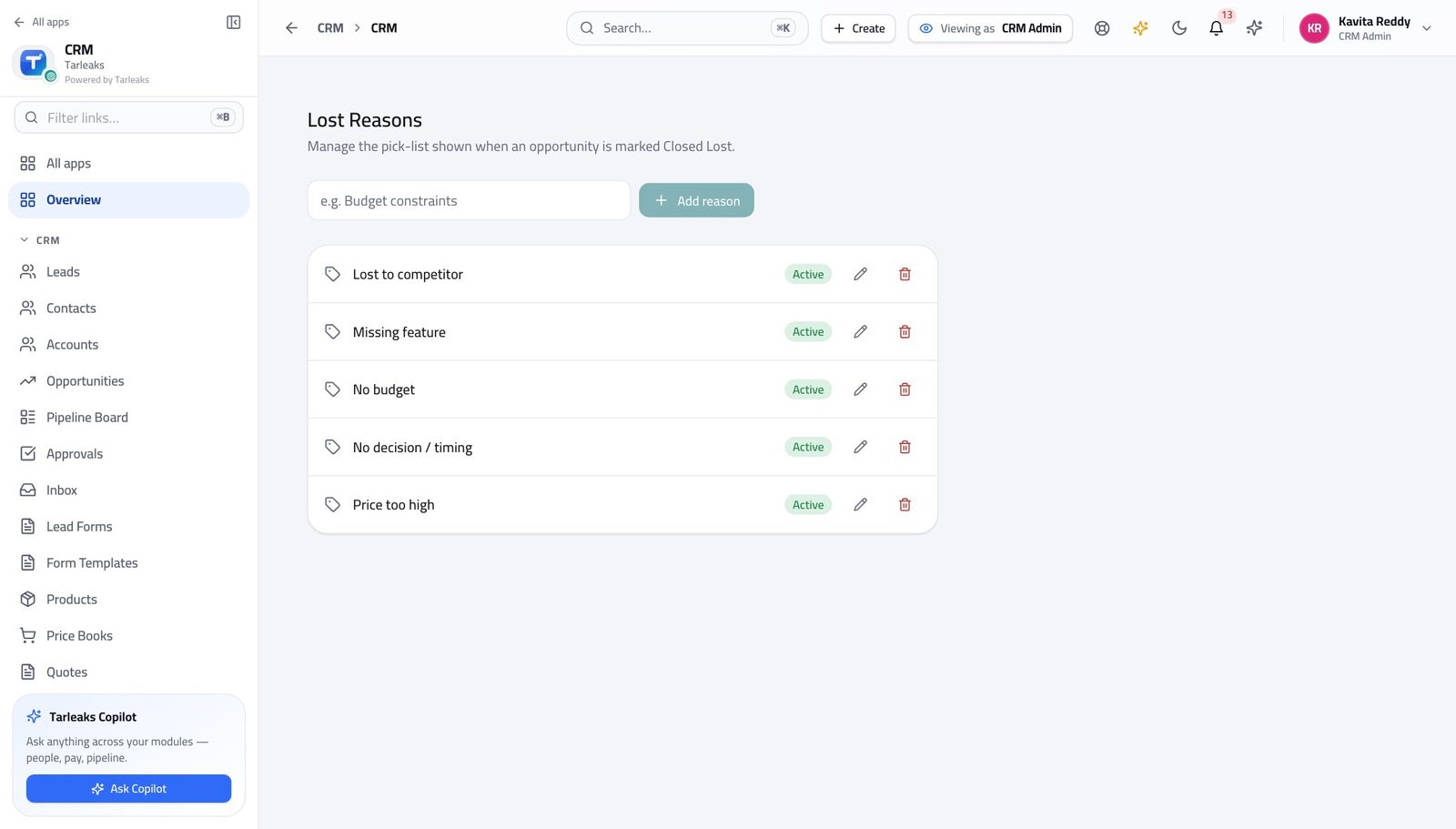
You should see A short fixed list is what makes 'why we lose' a number at the end of the quarter instead of forty different sentences.
Watch out Do not include 'Other'. Everything ends up in it, and then you know nothing.
Add a reason a deal can be lost #
Where CRM Admin » Lost reasons » Add reason
- Click Add reason.
- Type it and save.
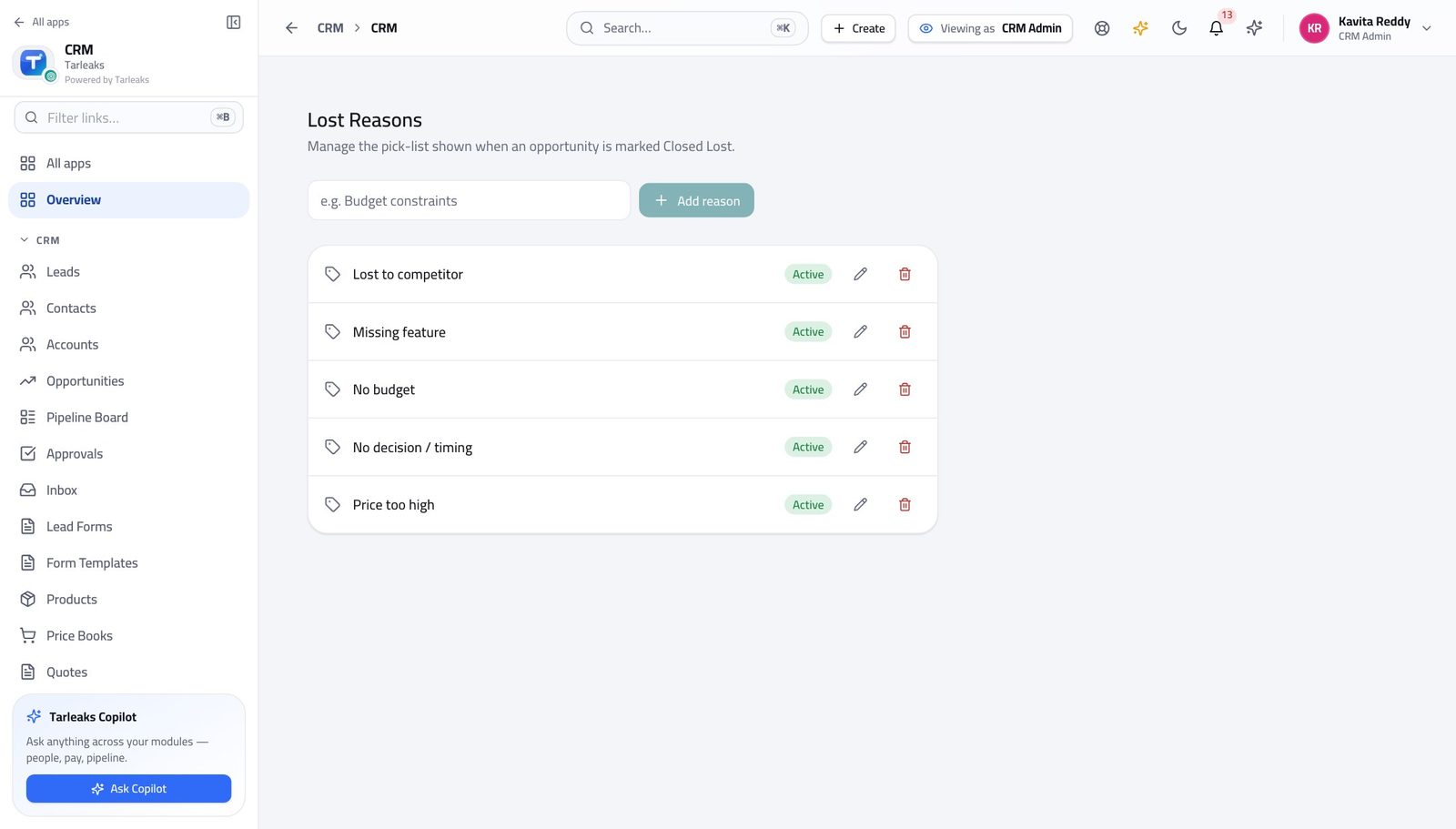
You should see Short and few. A list of twenty reasons is a list nobody reads to the bottom of, so everything ends up under the first plausible one.
Watch out Write it as a rep would say it out loud — 'Price', 'Went with incumbent', 'No budget this year'. Not a category name.
Keep teams and territories straight #
Where CRM » Teams, and CRM » Territories
- Open Sales teams and expand a team to see its members.
- Then open Territories and read the priority beside each one.
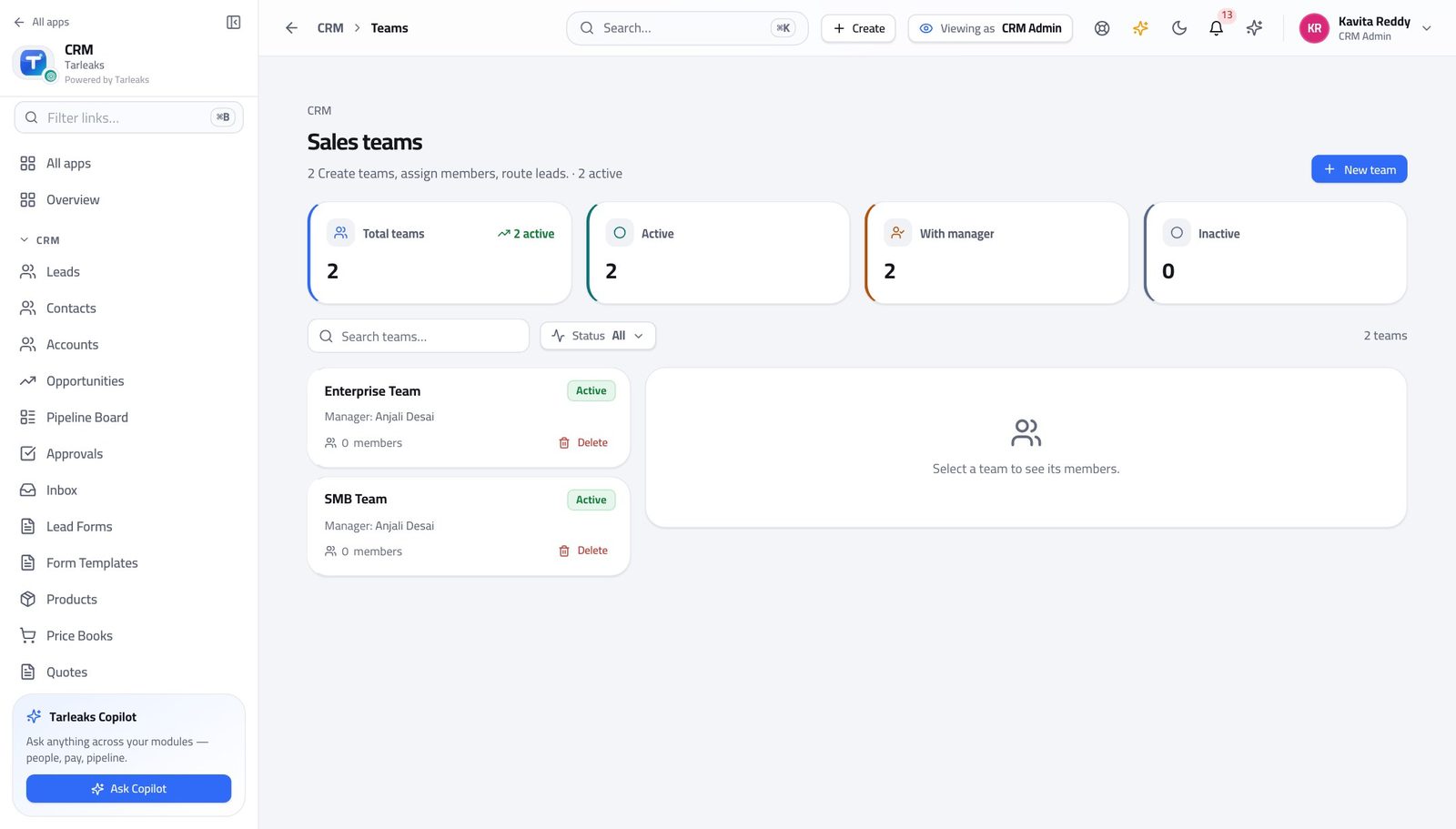
You should see Team decides whose deals a manager can see. Territory decides where a new record is sent. They answer different questions — do not use one for the other.
Watch out Adding somebody to a team changes what their manager can see. Adding a territory changes where new records go. Doing one and forgetting the other is the usual cause of 'I cannot see my own rep's deals'.
Check the territory rules before a real record hits them #
Where CRM » Territories
- Open Territories.
- Click Audit expressions to check every rule at once.
- Read the report: rules that cannot be understood, and rules that can never match because something above them always does.
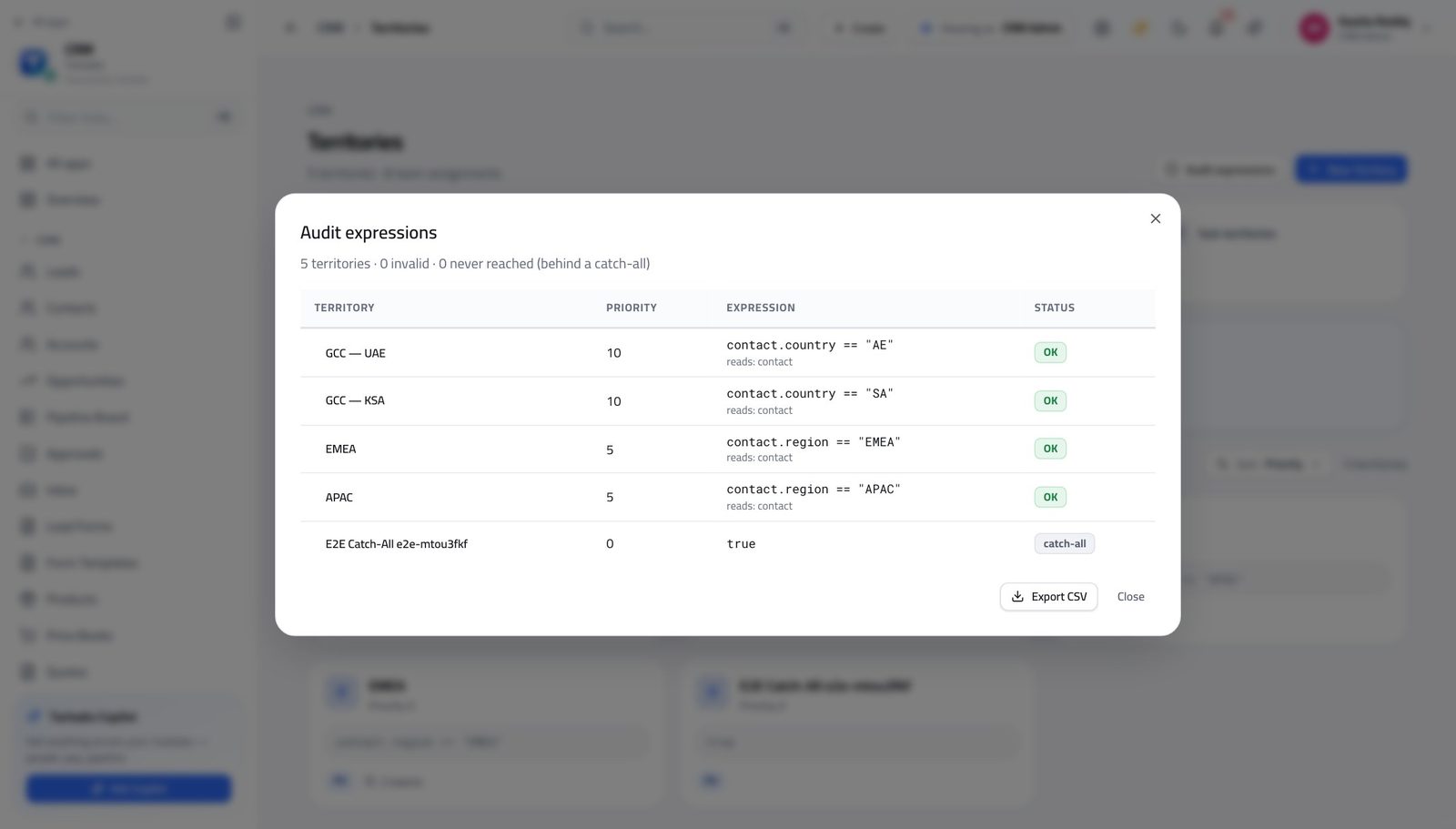
You should see A rule that cannot be understood, or one sitting underneath a catch-all that will always match first, is named — before a lead disappears into it.
Watch out A shadowed rule is not an error — nothing is broken and nothing warns you. It simply never fires, and the leads it was written for go somewhere else.
Worth knowing A rule of just 'true' matches everything. Anything below it is dead, and the check is what tells you.
Build the forms that bring leads in #
Where CRM » Lead Forms
- In the left menu, click Lead Forms.
- Open a form to see the fields it asks for.
- Use the embed option and give the code to whoever looks after the website.
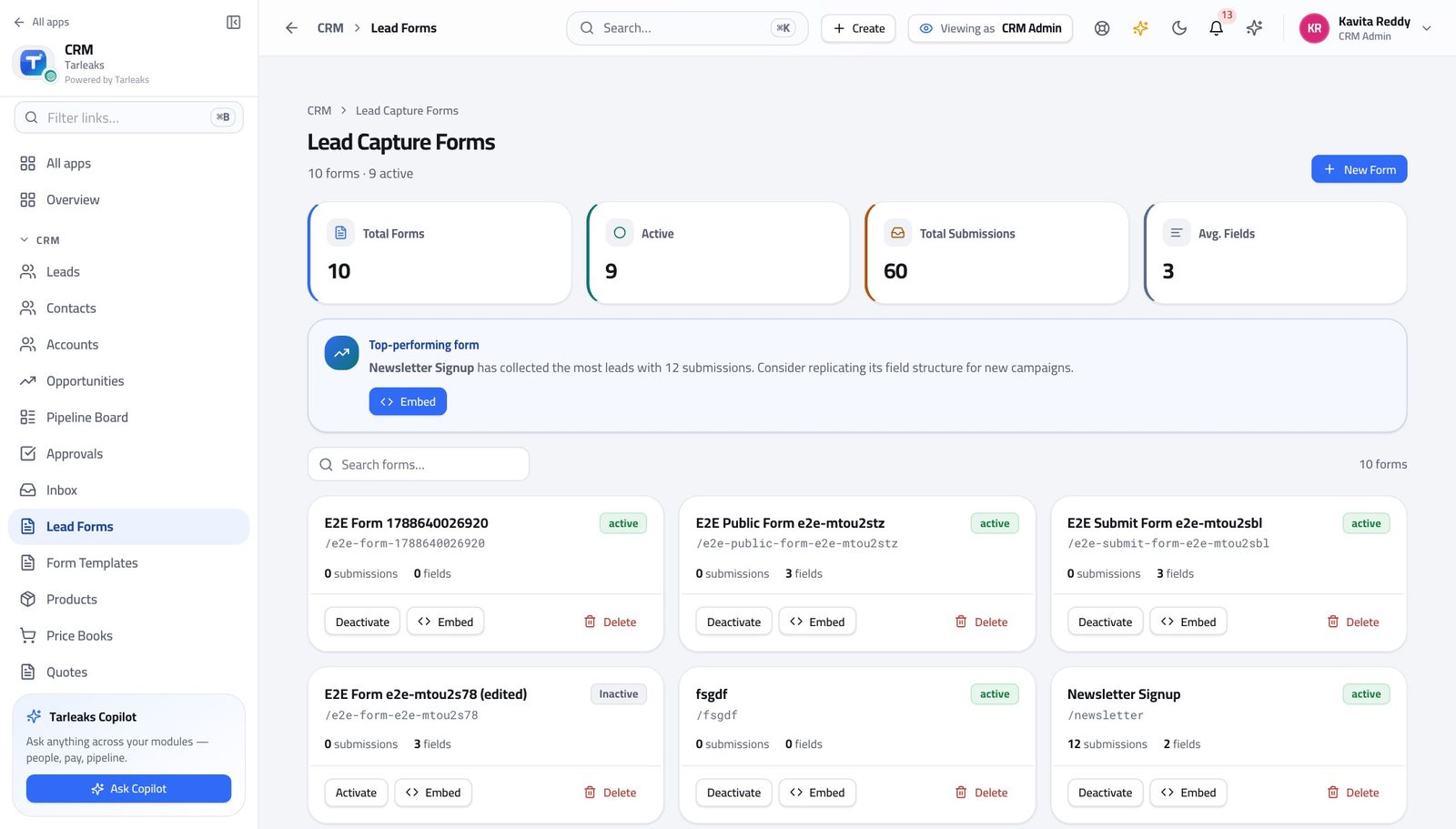
You should see A lead that arrives from a form is complete and goes straight to the routing rules — nobody re-types an enquiry out of an inbox.
Watch out Every extra box on a form costs you leads. Ask for the two or three things you cannot start without, and get the rest on the first call.
Worth knowing Ask for as few fields as you can live with. Every extra box costs you leads, and most of what you want can be asked on the first call.
Keep the catalogue and its prices in order #
Where CRM » Products, and CRM » Price Books
- Open Products and read the categories.
- Then open Price Books.
- Open a book to see its entries: one price per product, per currency.
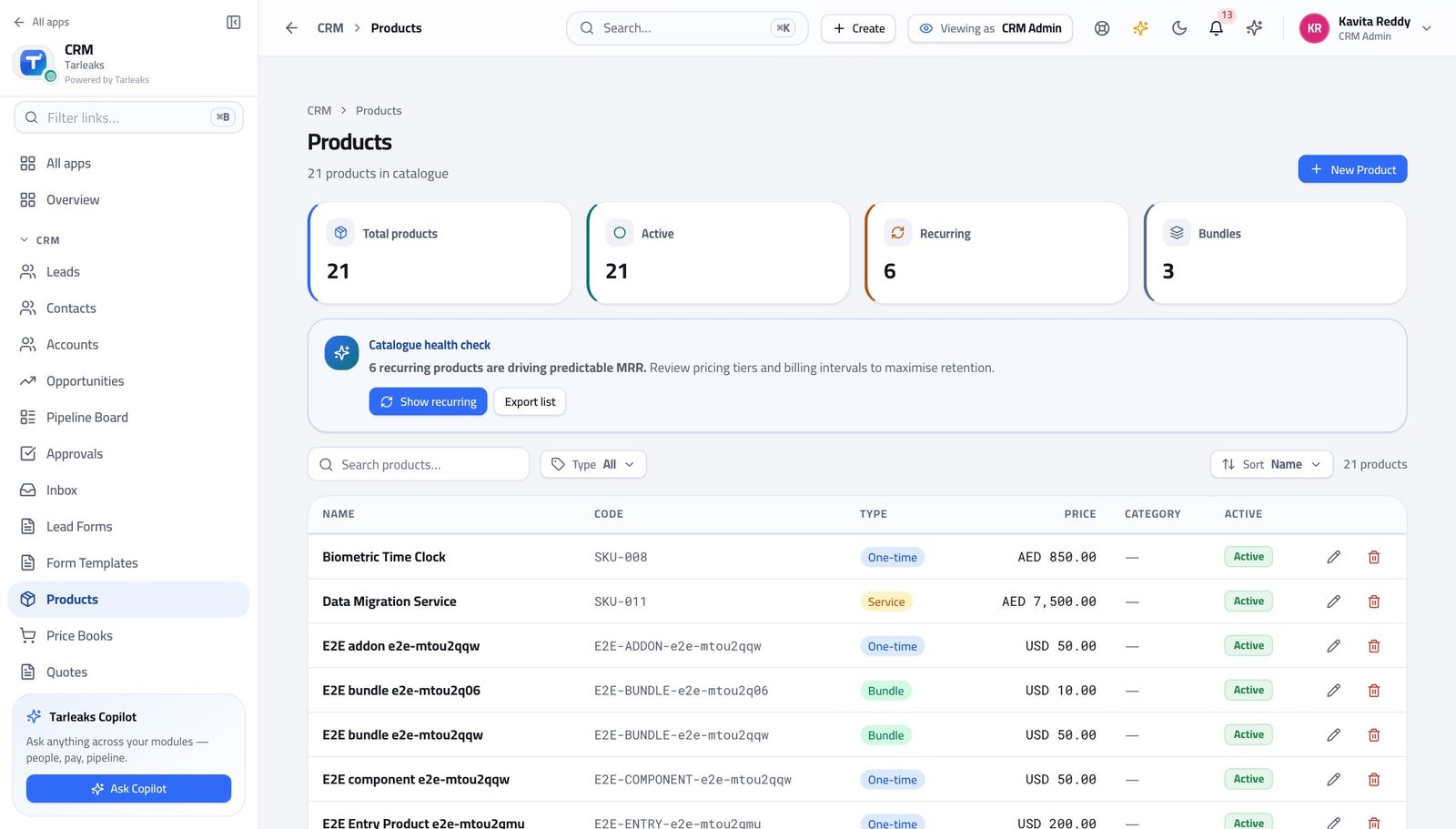
You should see A rep puts a product on a quote and the price comes from the book. Nobody types a price from memory.
Watch out Archive a product rather than deleting it. Deals and quotes that already reference it must keep working.
Let customers book their own time #
Where CRM » Booking Pages
- In the left menu, click Booking Pages.
- Open a page to see its title, who it books with, and the slot length.
- Copy its link and put it in the team's e-mail signature.
| Field | What to put in it |
|---|---|
| Page title | What the customer reads at the top — 'Book a 30-minute demo'. Not the internal name. |
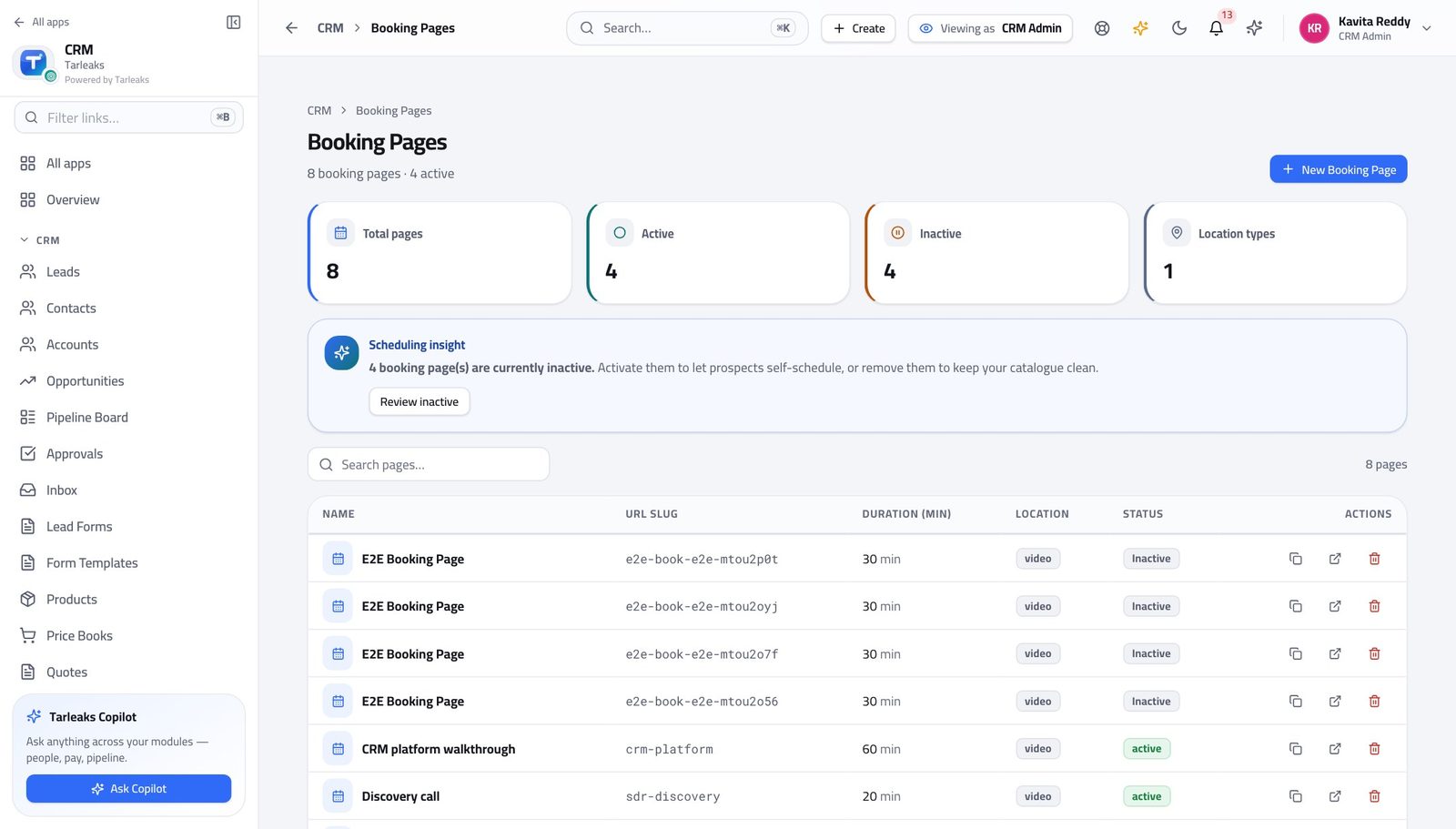
You should see A slot somebody books becomes a meeting on the right record. The back-and-forth about times never reaches anybody's inbox.
Watch out A booking page pointing at somebody who has left keeps taking bookings. Deactivate it the day they go, not the day somebody notices.
Tidy a batch of records at once #
Where CRM » Leads
- Open Leads.
- Tick the rows you want to deal with — or tick the header box to take everything currently on screen.
- Use the bar that appears at the bottom.
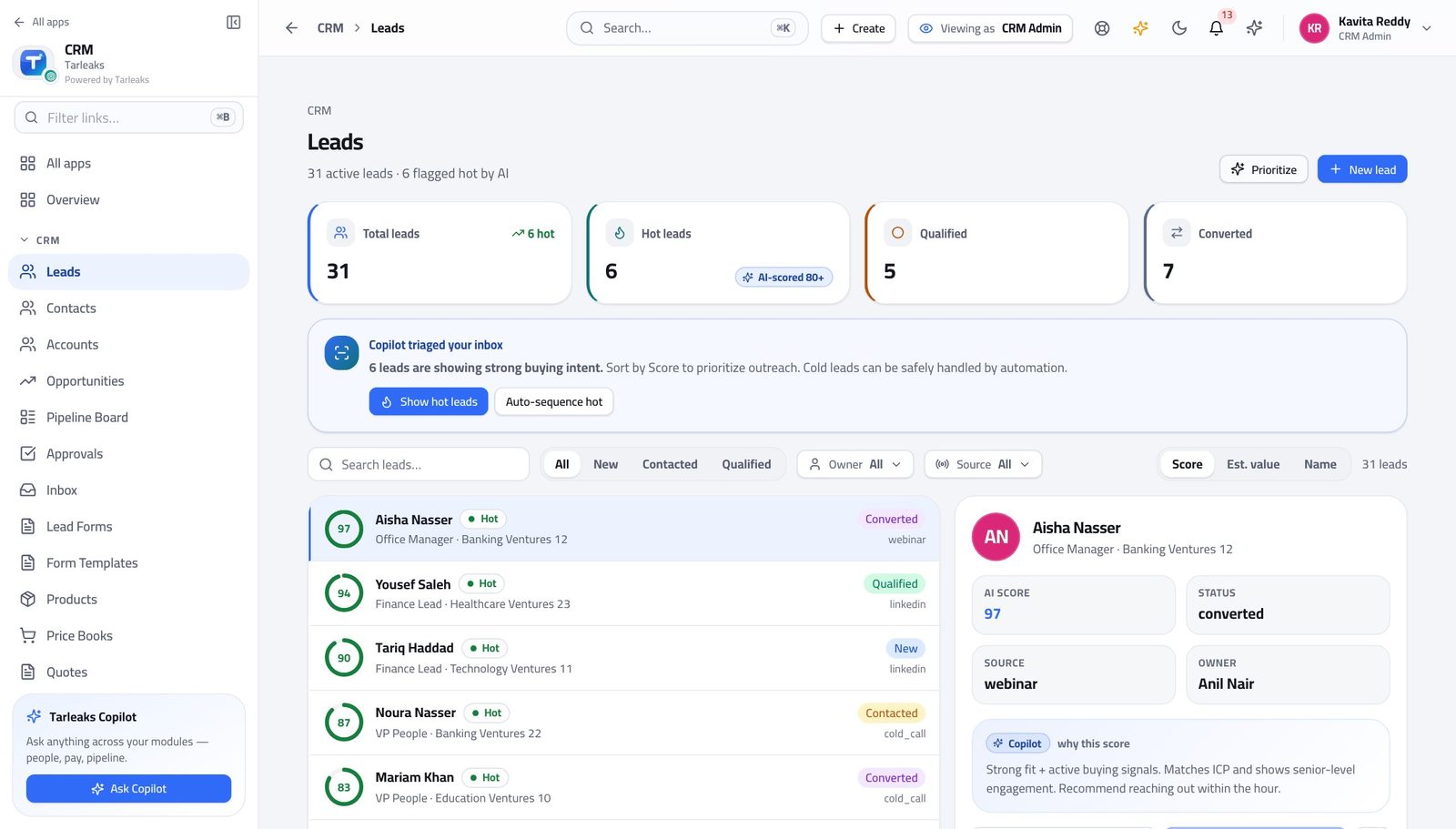
You should see Removing records in a batch is offered to this role and to nobody who sells — which is what stops a bad afternoon becoming a lost quarter.
Watch out Filter FIRST, then tick the header box. It selects the rows you are looking at, and the rows you are looking at are whatever the filter left.
See the whole company's book #
Where CRM » Leads, and CRM » Opportunities
- Open Leads and read the count in the line under the title.
- Open Opportunities and read the same line.
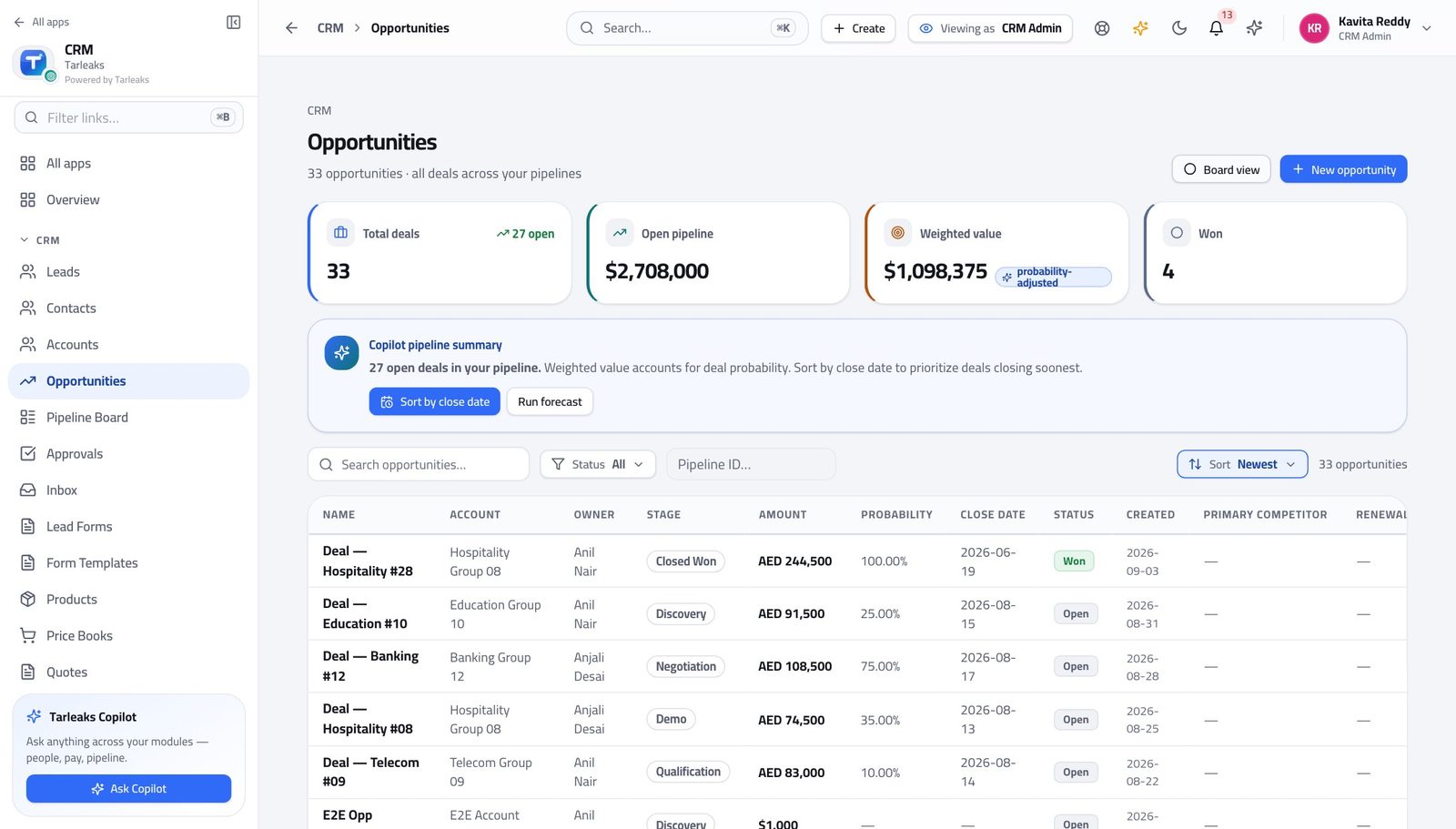
You should see You are not scoped to an owner. These two numbers are the whole company's, which is why a rep's shorter list is proof that ownership is working rather than proof that something is missing.
Watch out These two numbers are the yardstick. When a rep tells you records are missing, compare their count with yours before assuming anything is broken — a smaller list is the system working.
Salaries are not yours to see #
Where The left menu
- Open the launcher and read the tiles.
- Payroll is not among them for this sign-in.
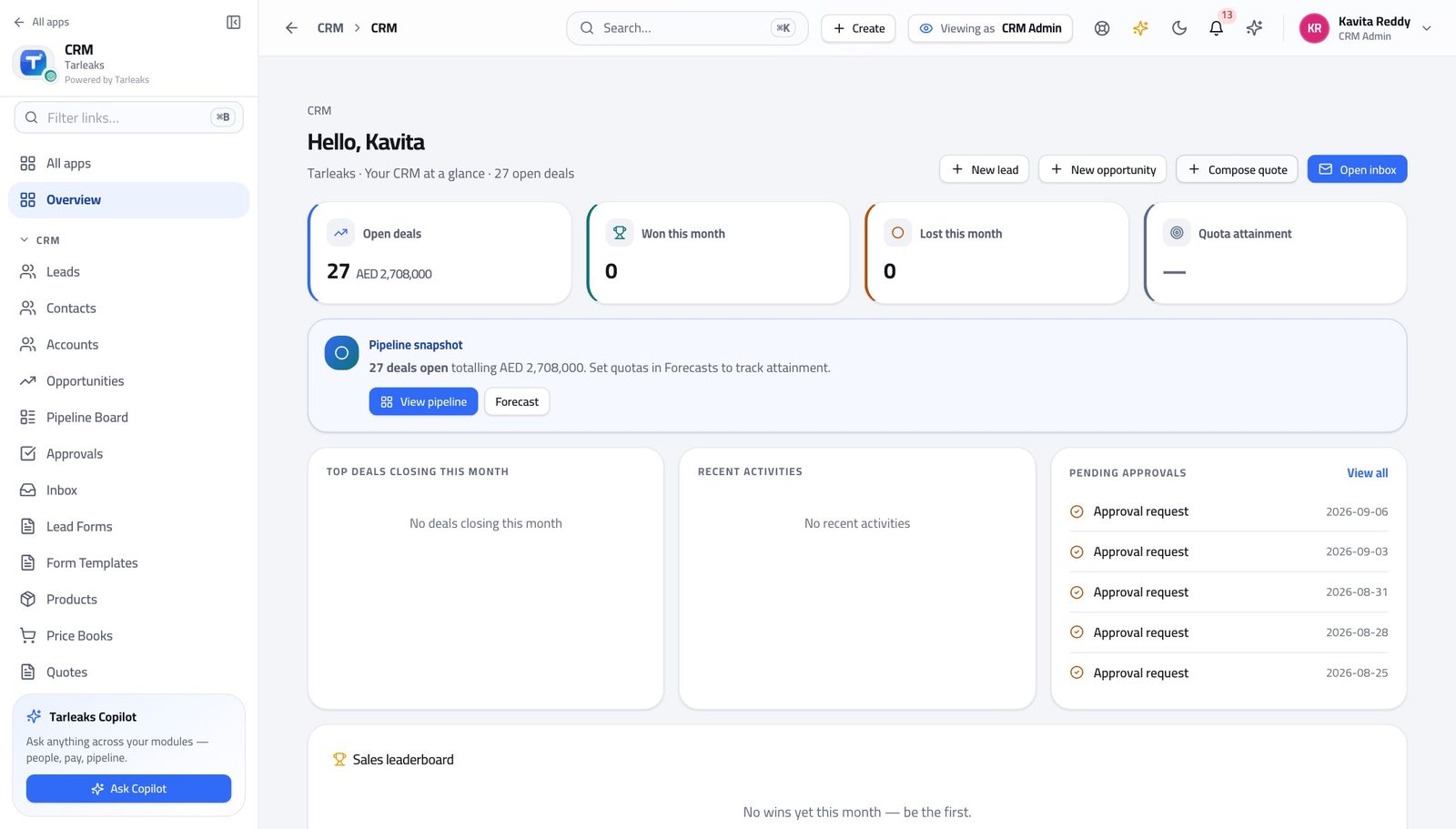
You should see Setting up how the company sells is not a reason to see what anybody is paid, so the whole area is closed rather than merely hidden.
Watch out This is a refusal, not a hidden menu. Typing the address gets the same answer.
Use cases — the work, step by step
Each one is a sequence somebody actually performs, with the screen behind every step. Every screen here was opened in the product as this role before it was published.
edgeStand up a sales process before the team touches it #
Stages, reasons and thresholds are cheap to change on day one and expensive on day ninety — every deal already in flight carries whatever you chose.
Build the pipeline and its stages first. Be honest about the win probabilities: that number IS the weighted forecast everybody will later argue about.
CRM Admin » Pipelines — verified: the page says “Pipeline” Set the lost reasons. Short, specific, and no 'Other' — everything ends up in Other and then you know nothing.
CRM Admin » Lost reasons — verified: the page says “Lost Reasons” Set the discount thresholds. The lowest one you configure is the gate: a quote above it cannot be sent until somebody decides.
CRM Admin » Approval matrix — verified: the page says “Approval Matrix” Add the fields your business actually asks about, per record type. A field on Lead is not a field on Opportunity — add it to both if the answer must survive a conversion.
CRM Admin » Custom fields — verified: the page says “Custom Fields”
monthlyA new region opens: staff it, route to it, score for it #
Team and territory answer different questions. Doing one and forgetting the other is the usual cause of 'I cannot see my own rep's deals'.
Create the team and put the people in it. Team membership is what makes a manager's team-wide pipeline mean the right set of deals.
CRM » Teams, and CRM » Territories — verified: the page says “Sales teams” Add the territory and give it a priority. Priority decides which territory claims a record when more than one could.
CRM » Teams, and CRM » Territories — verified: the page says “Sales teams” Run the audit over every territory rule. A rule sitting under an earlier catch-all never fires, nothing is broken, and nothing warns you — the audit is what tells you.
CRM » Territories — verified: the control is offered Add the routing rule that sends the region's leads to the new team, and put it above the general one. Order is the policy.
CRM Admin » Lead routing — verified: the page says “Lead Routing” Adjust the scoring if the new market qualifies differently. Deactivate a rule to try the model without it before deleting it.
CRM Admin » Lead scoring — verified: the page says “Lead Scoring”
urgentReps say their leads are going to the wrong people #
It is almost always the rule ORDER rather than a broken rule, and nothing errors when the order is wrong.
Open Lead Routing and read from the top. The first rule that matches assigns the lead and nothing below it is even looked at.
CRM Admin » Lead routing — verified: the page says “Lead Routing” Look for a broad rule sitting above a specific one. That is the fault nine times in ten, and it is invisible until somebody complains.
CRM Admin » Lead routing — verified: the page says “Lead Routing” Run the territory audit as well — a shadowed territory produces exactly the same symptom from the other direction.
CRM » Territories — verified: the control is offered Check the team membership last. A rep who was never added to the team gets the leads and their manager still cannot see them.
CRM » Teams, and CRM » Territories — verified: the page says “Sales teams”
weeklyMarketing wants a form on the website by Friday #
A form that captures leads nobody is routed is a form that produces an unworked queue. Build the form and the route in the same sitting.
Build the form. Ask for the fewest fields you can live with — every extra box costs leads, and the rest can be asked on the first call.
CRM » Lead Forms — verified: the page says “Lead Capture Forms” Make sure a routing rule covers what the form will produce, before the code goes on the website rather than after.
CRM Admin » Lead routing — verified: the page says “Lead Routing” Publish a booking page alongside it where a demo is the obvious next step. A booked slot becomes a meeting on the right record with no e-mails about times.
CRM » Booking Pages — verified: the page says “Booking Pages” Watch the leads land on the list for a day before you tell marketing it is live.
CRM » Leads, and CRM » Opportunities — verified: the page says “Opportunities”; 33 row(s) listed
You do not sell, and you do not approve deals. What you do is decide the shape of the process — which is why a change you make here changes what every other person in this guide sees.
Sales Manager
See the whole team's number, and decide the calls only you can make.
Answers for the team's number. Sees the whole team's pipeline, commits the forecast, decides the discount approvals the reps ask for, and moves a deal to somebody else when it needs moving.
What you will be able to do
- Read the team's pipeline and the forecast that comes out of it
- Approve or refuse the discounts your reps ask for
- Move a deal to somebody else when it needs moving
- Check what the team is owed before they ask
What this role can and cannot do
| Can | Cannot |
|---|---|
|
|
15 steps, each one carried out in the product on .
Check what your sign-in can do #
Where Your name, top right » Profile
- Open your company's address in the browser — it looks like yourcompany.tarleaks.com.
- Type the e-mail address your administrator set up for you, then your password.
- You land on the app launcher: a grid of the apps your company uses.
- Click the CRM tile.
- Click your name in the top-right corner and choose Profile.
- Read the roles panel.
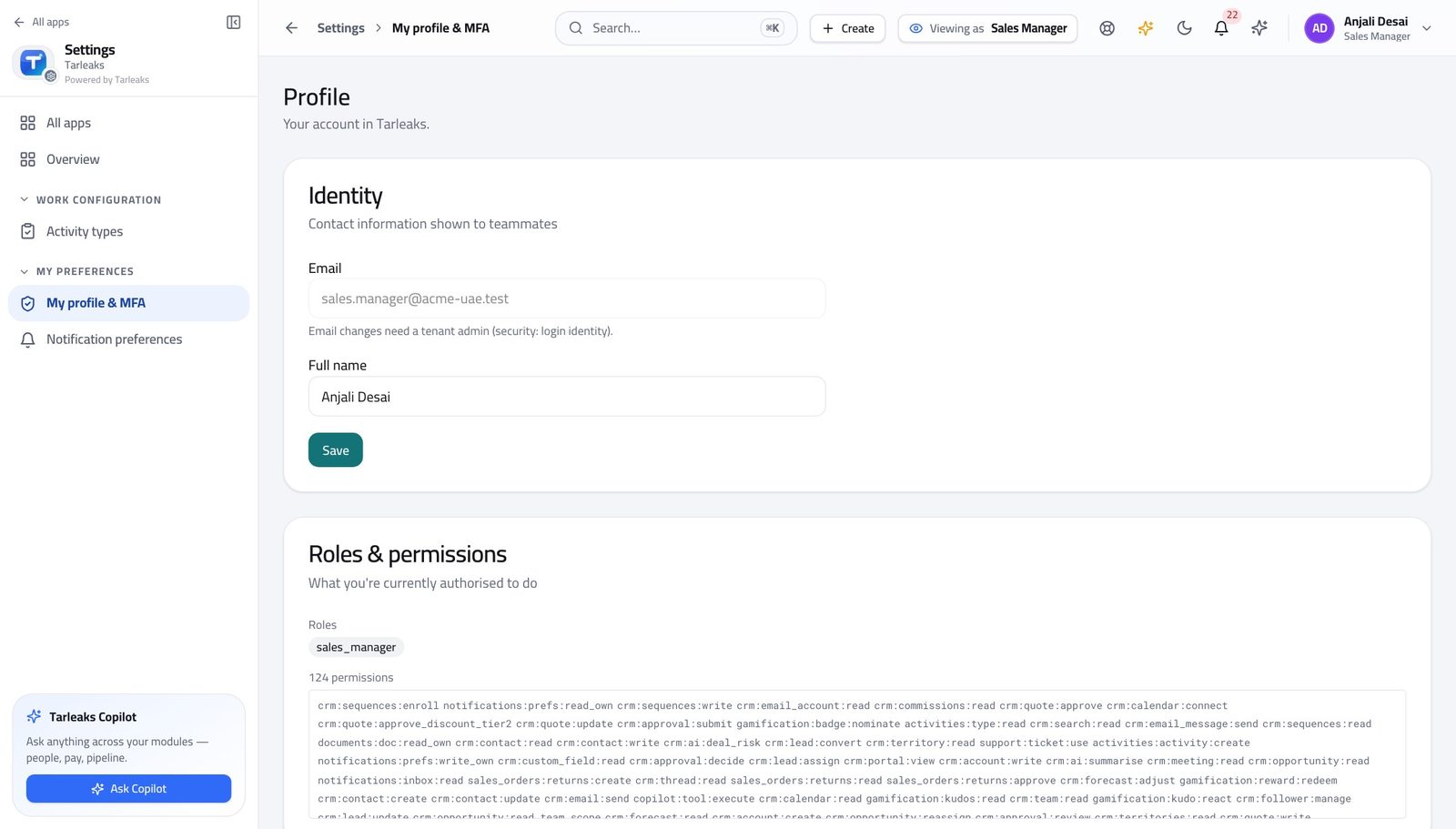
You should see It says Sales Manager. The team's pipeline, the forecast, discount approvals and moving a deal to somebody else are yours.
Watch out If you were expecting to change a threshold or release a payout and cannot, that is the design rather than a missing setting.
Worth knowing Two things are deliberately not yours: changing the threshold that made a discount need approving, and releasing commission money. Both would let you decide your own team's outcome.
Open the team's whole pipeline #
Where CRM » Opportunities
- In the left menu under CRM, click Opportunities.
- Read the four boxes across the top.
- Click a box — Won, for example — to narrow the list to it.
- Click it again to clear the filter.
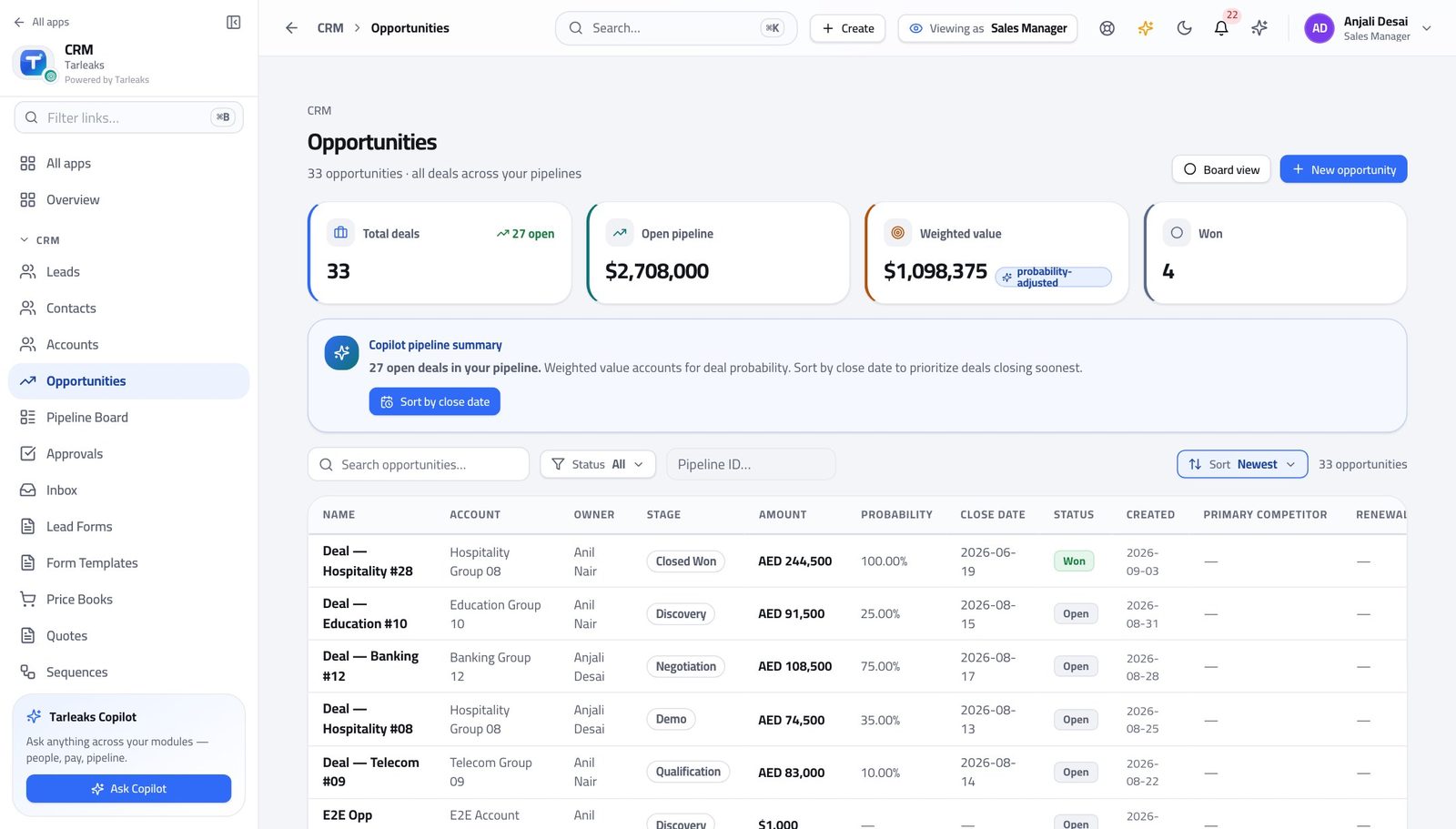
You should see Every deal your team owns is here — not only your own. That is the difference between this sign-in and a rep's.
Watch out The filter you click is written into the web address. Copy the address and a colleague opens exactly your view, not the default one.
Worth knowing The box you click is written into the web address, so you can send a colleague the exact filtered list you are looking at.
See the same deals as a board #
Where CRM » Pipeline Board
- In the left menu, click Pipeline Board.
- Read the totals in each column header.
- Open a card to read the deal.
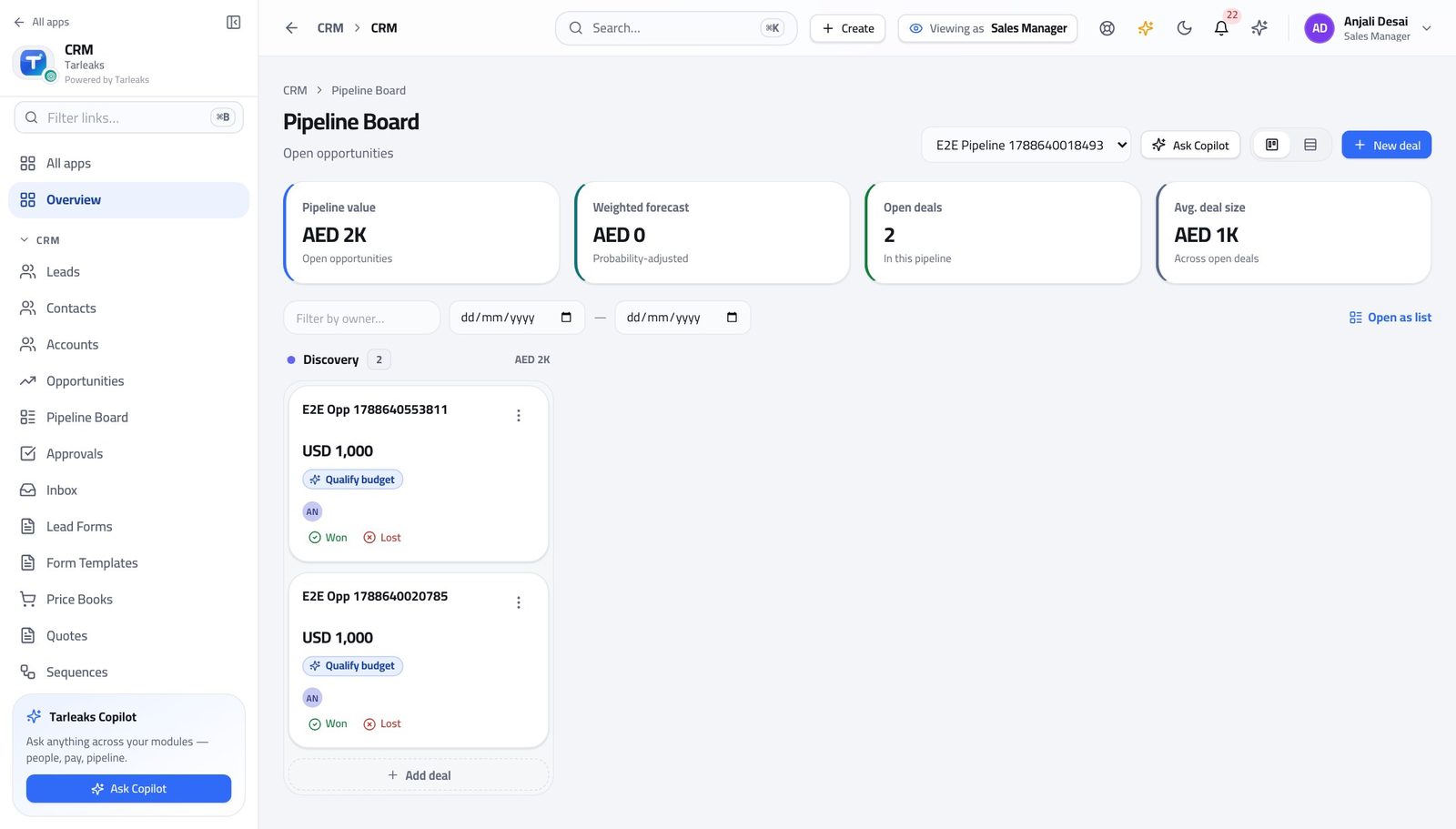
You should see Where the money is stuck becomes a shape you can see, instead of a report you have to read.
Watch out The board shows one pipeline at a time. If your team sells through two, check both before deciding the quarter is fine.
Read the forecast the deals produce #
Where CRM » Forecasts
- In the left menu, click Forecasts.
- Choose the period.
- Read the weighted pipeline, then the attainment against quota.
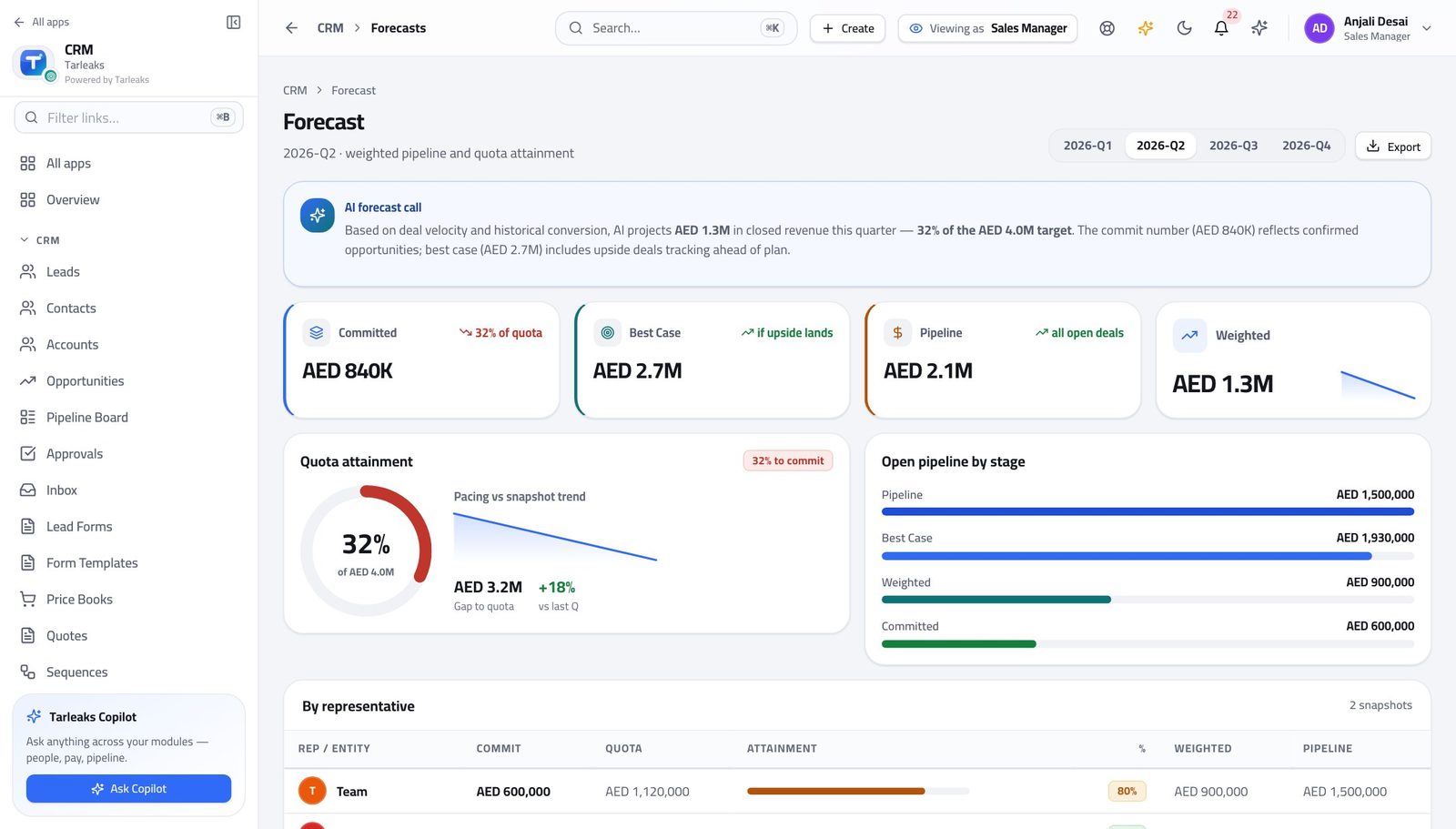
You should see Nothing here is typed in. It comes from the same deals on the board, so the forecast and the board can never tell two different stories.
Watch out The forecast is only as good as the close dates. A pile of deals whose close date is 'end of quarter' is a forecast nobody should sign.
Read the quota the forecast is measured against #
Where CRM » Forecasts
- Stay on Forecasts.
- Read the quota line for the period and for each person.
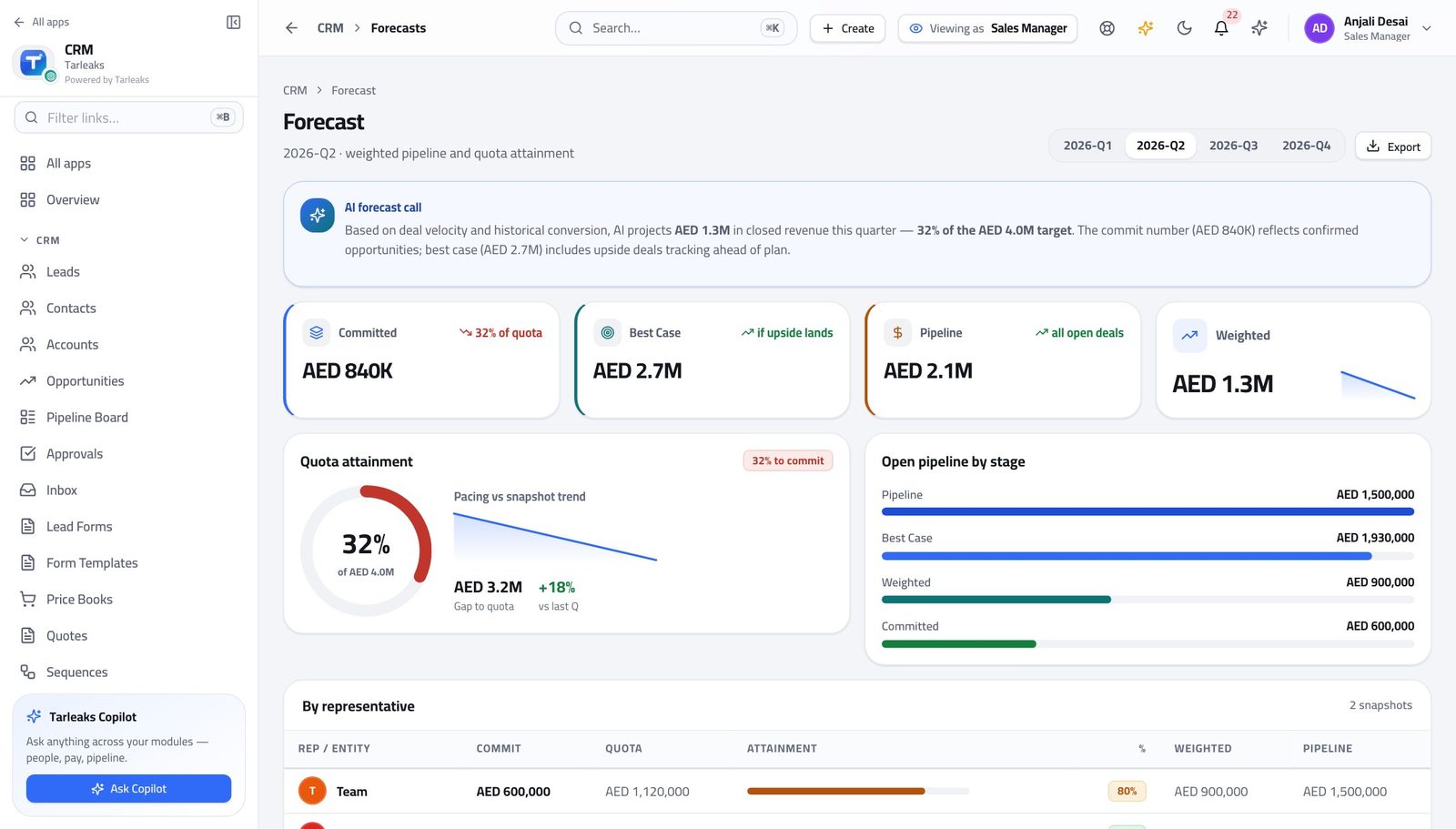
You should see Attainment on its own is a number without a meaning. The quota is what gives it one.
Watch out A quota that was never set reads as zero, which makes attainment look infinite. Check the quota exists before you celebrate.
Work the approvals queue #
Where CRM » Approvals
- In the left menu, click Approvals.
- Click the Pending box to narrow the list.
- Use Approve or Reject on a row.
- Write the note — it stays on the record.
| Field | What to put in it |
|---|---|
| Note (optional) | Why you decided. Write it even when the answer is yes: 'matched competitor, one-off' is worth a great deal three months later. |
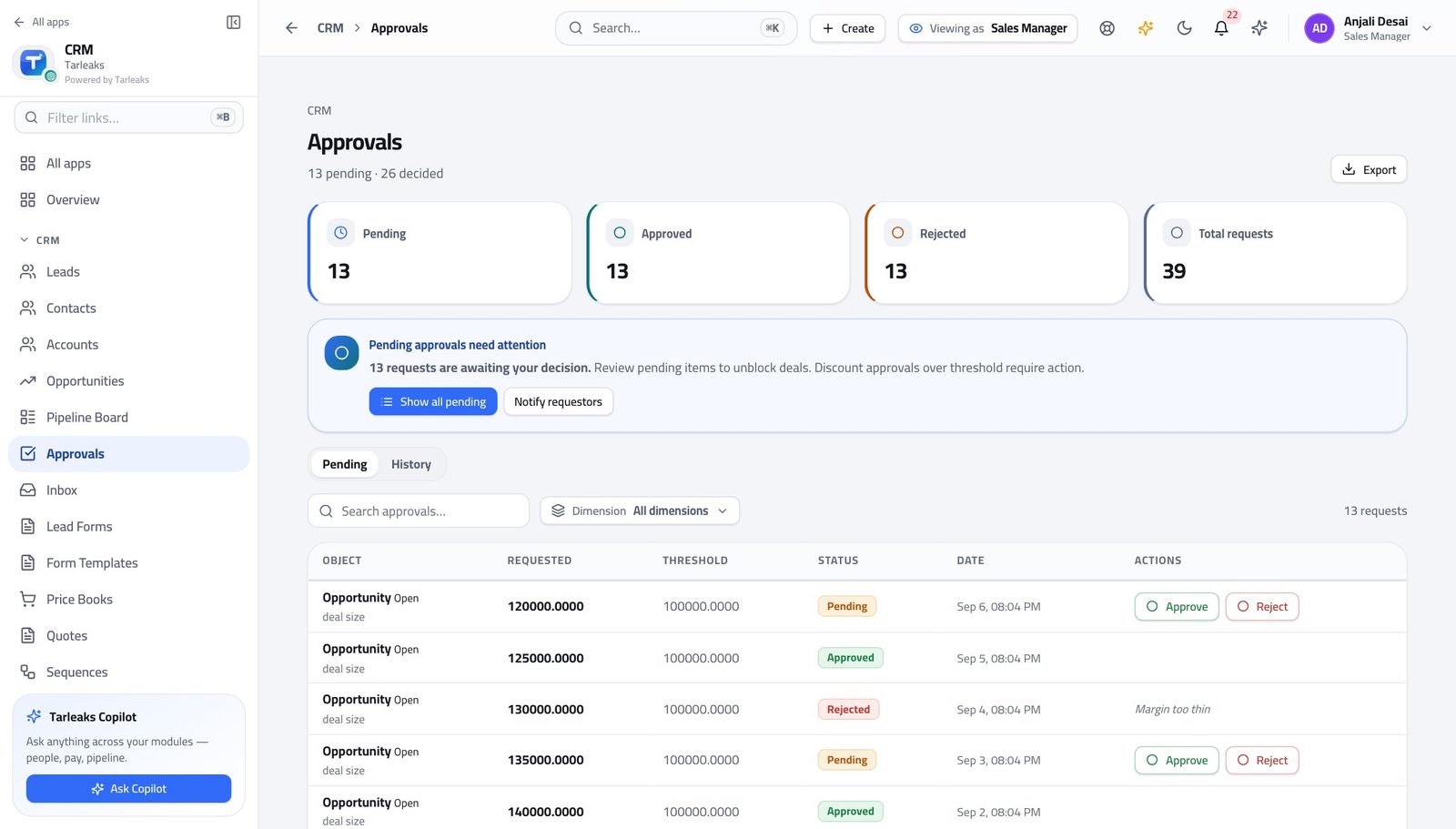
You should see As a reviewer you see everybody's requests, not only your own. The note you write stays on the record.
Watch out Rejecting sends the rep back to edit the quote and ask again. It does not kill the deal, so say what would make it a yes.
Read what was actually asked for #
Where CRM » Approvals » a pending row
- Open a pending request.
- Read the dimension, the requested value, and the threshold.
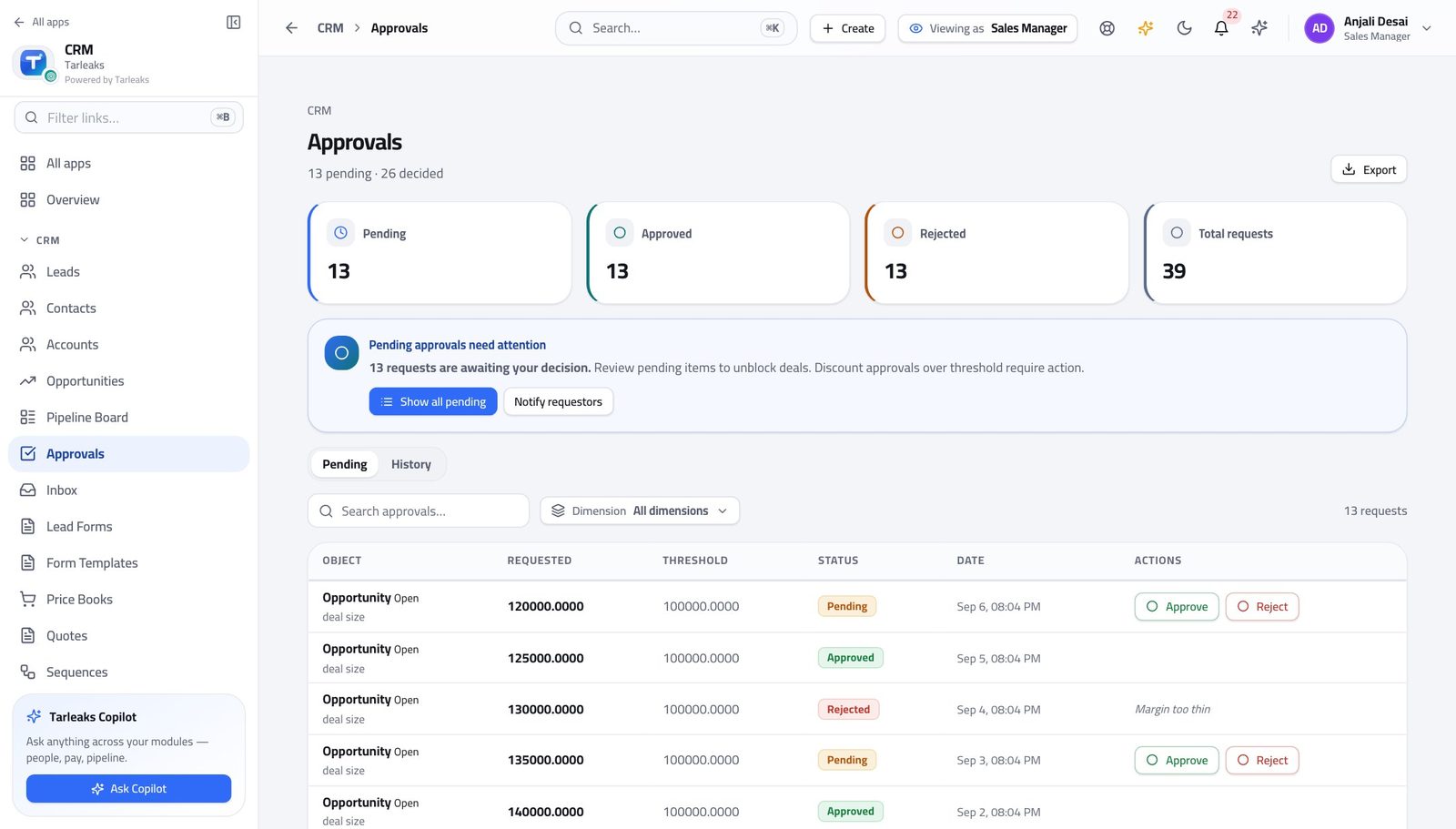
You should see You are approving a number against a rule someone else set, which is what makes the decision defensible a quarter later.
Watch out The threshold was set by your administrator, not by the rep. If it is consistently wrong for your market, that is a conversation with them — not a reason to approve everything.
Check what the team is owed #
Where CRM » Commissions
- In the left menu, click Commissions.
- Read the plans, then the payouts waiting to be approved.
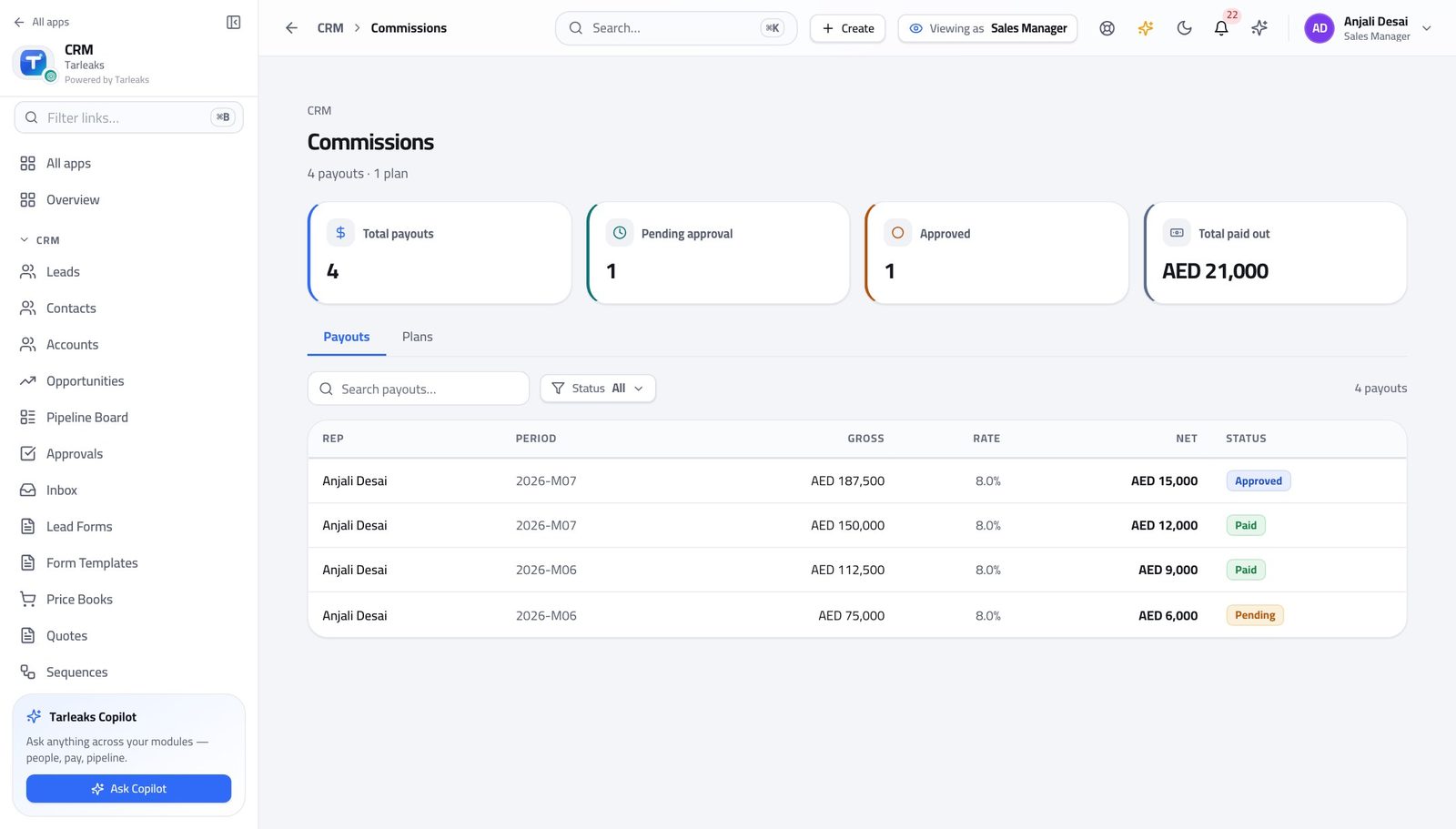
You should see You can answer 'what am I getting' before it is asked, and spot a payout that looks wrong before it is paid.
Watch out You can read these and check them. Releasing the money is somebody else's action, so raise a wrong figure rather than trying to fix it here.
Keep the team list right #
Where CRM » Teams
- In the left menu, click Teams.
- Expand a team to see its members and the date each joined.
- Use Add member to bring somebody in, and the remove icon to take them out.
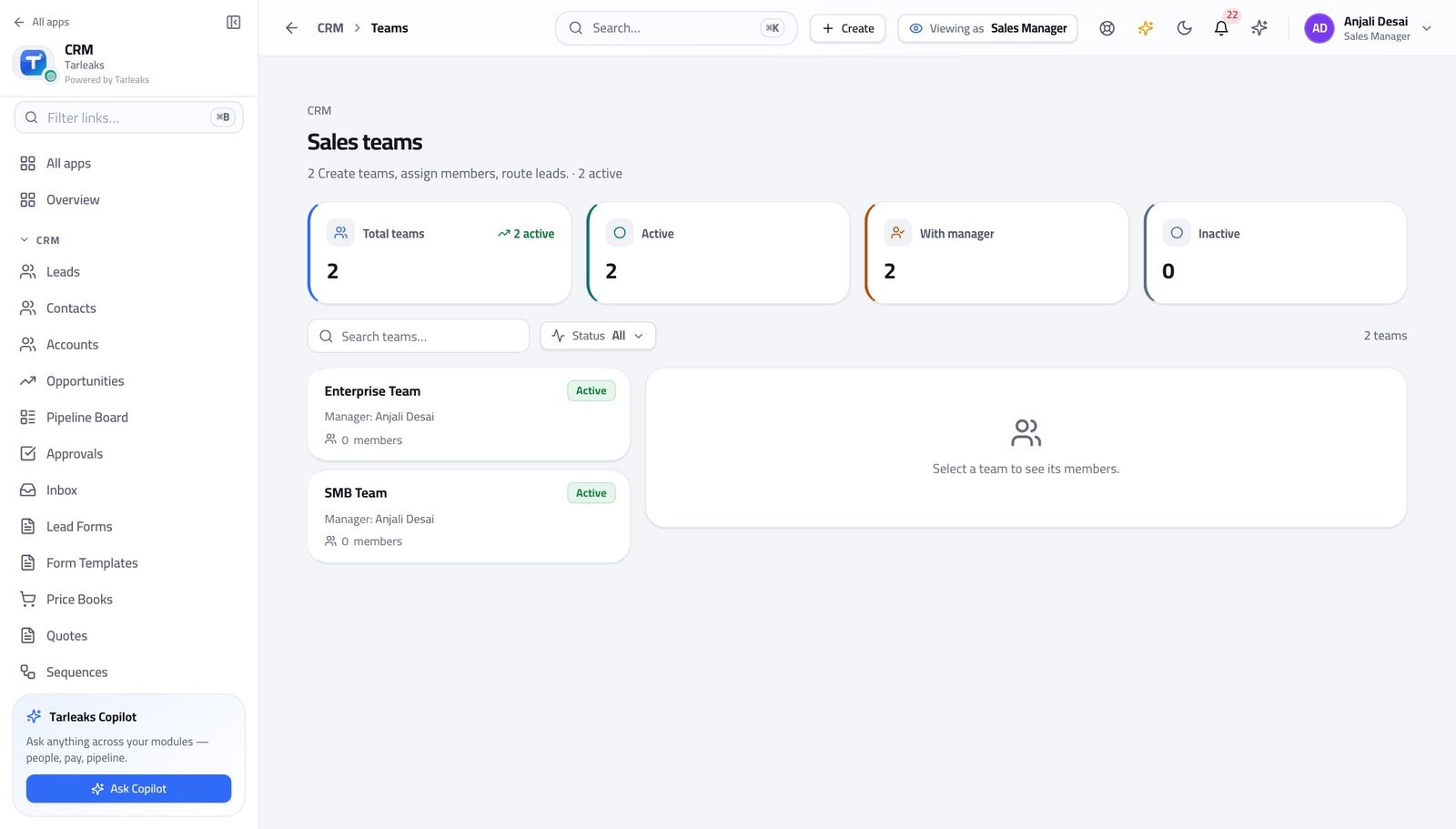
You should see The team-wide pipeline you rely on is only as right as this list. A rep who was never added does not appear in your numbers.
Watch out Removing somebody from the team removes their deals from your team view. The deals are not deleted — they are simply no longer yours to see.
See why a record landed where it did #
Where CRM » Territories
- In the left menu, click Territories.
- Read the priority beside each territory and the rule underneath it.
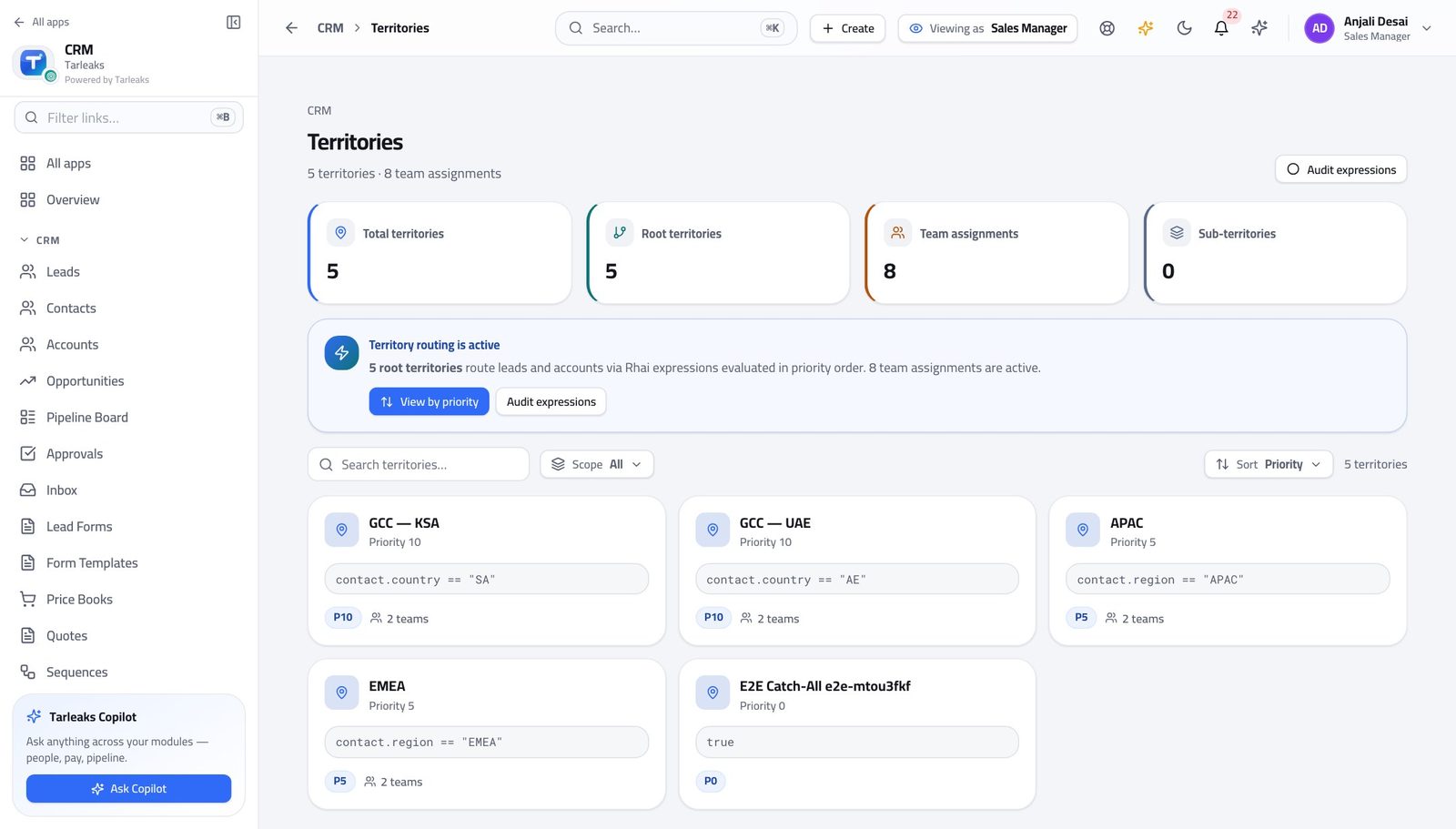
You should see You can answer 'why did that lead go to Dubai' without opening a ticket with your administrator.
Watch out You can read these. Changing them is your administrator's — which is why 'why did that lead go there' is a question you can answer yourself but not act on alone.
Move a batch of deals in one action #
Where CRM » Opportunities
- Open Opportunities.
- Filter to the set you are moving — one owner, one stage, one close month.
- Tick the header box to take everything the filter left.
- Use the bar at the bottom.
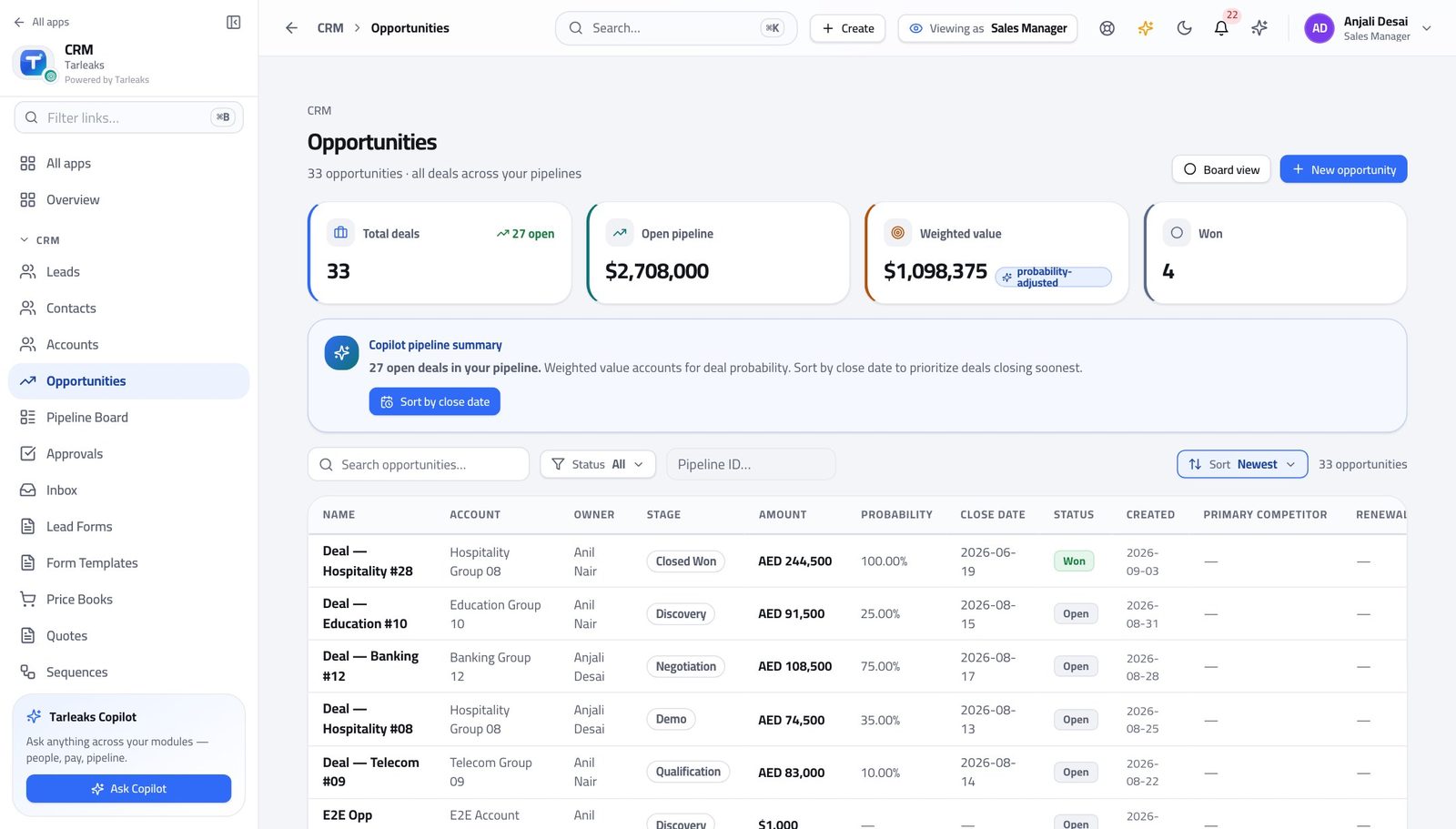
You should see A rep leaves, a territory changes, a stage is renamed — the whole affected batch moves at once, and each deal is still checked on its own.
Watch out Filter first. Ticking the header box on an unfiltered list selects far more than you meant, and the bar's count is the only warning you get.
Releasing commission money is not yours #
Where CRM » Commissions
- Open Commissions.
- Look at a payout waiting for approval: there is no action on it for you.
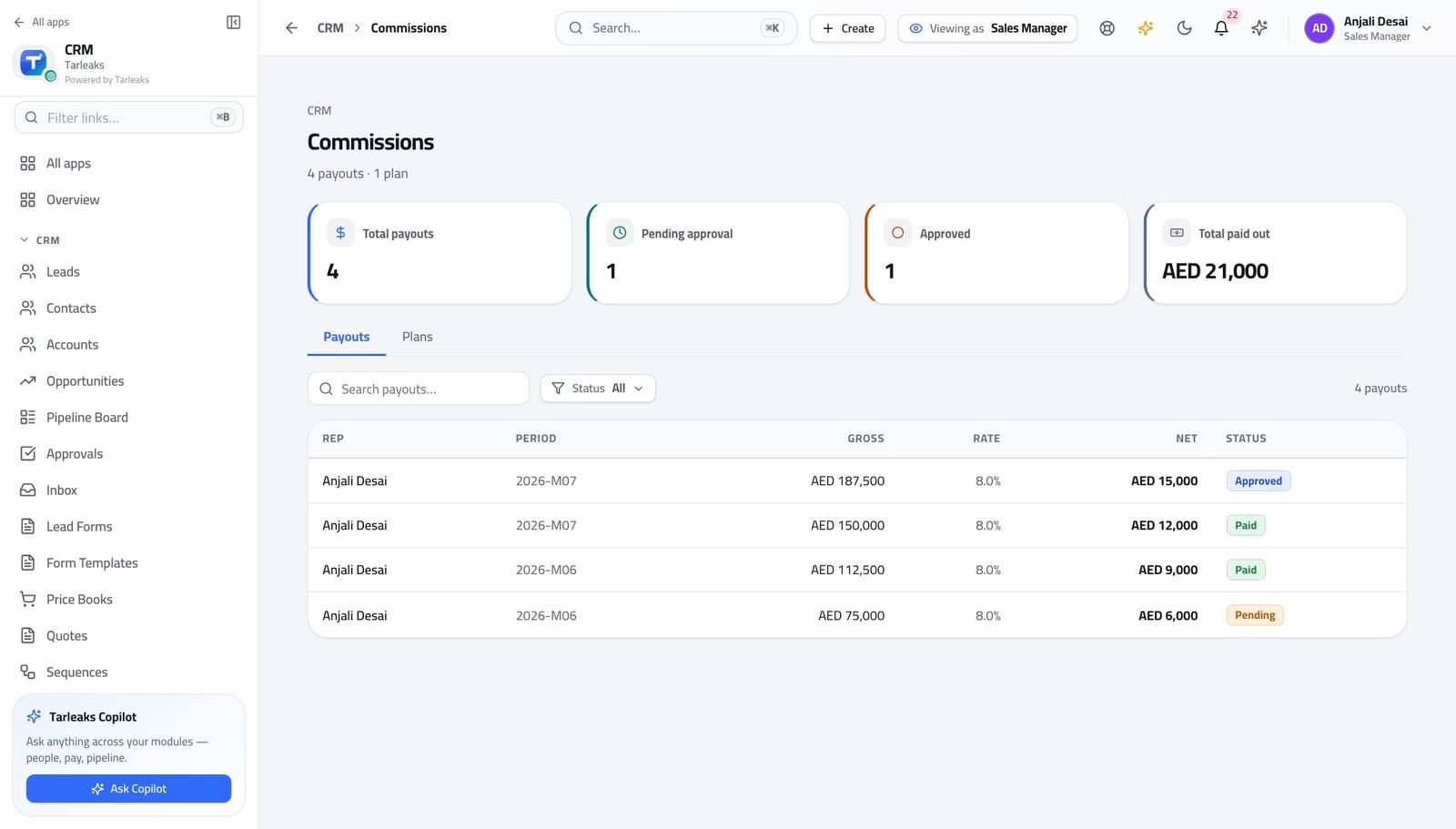
You should see Seeing what your team earned and releasing the money are deliberately different authorities — otherwise your own team's payout would be your decision.
Watch out This is the control that stops a manager signing off their own team's — and often their own — money.
Changing the approval thresholds is not yours #
Where CRM Admin » Approval matrix
- Try to open the approval matrix.
- The product answers with a card saying this sign-in does not have access.
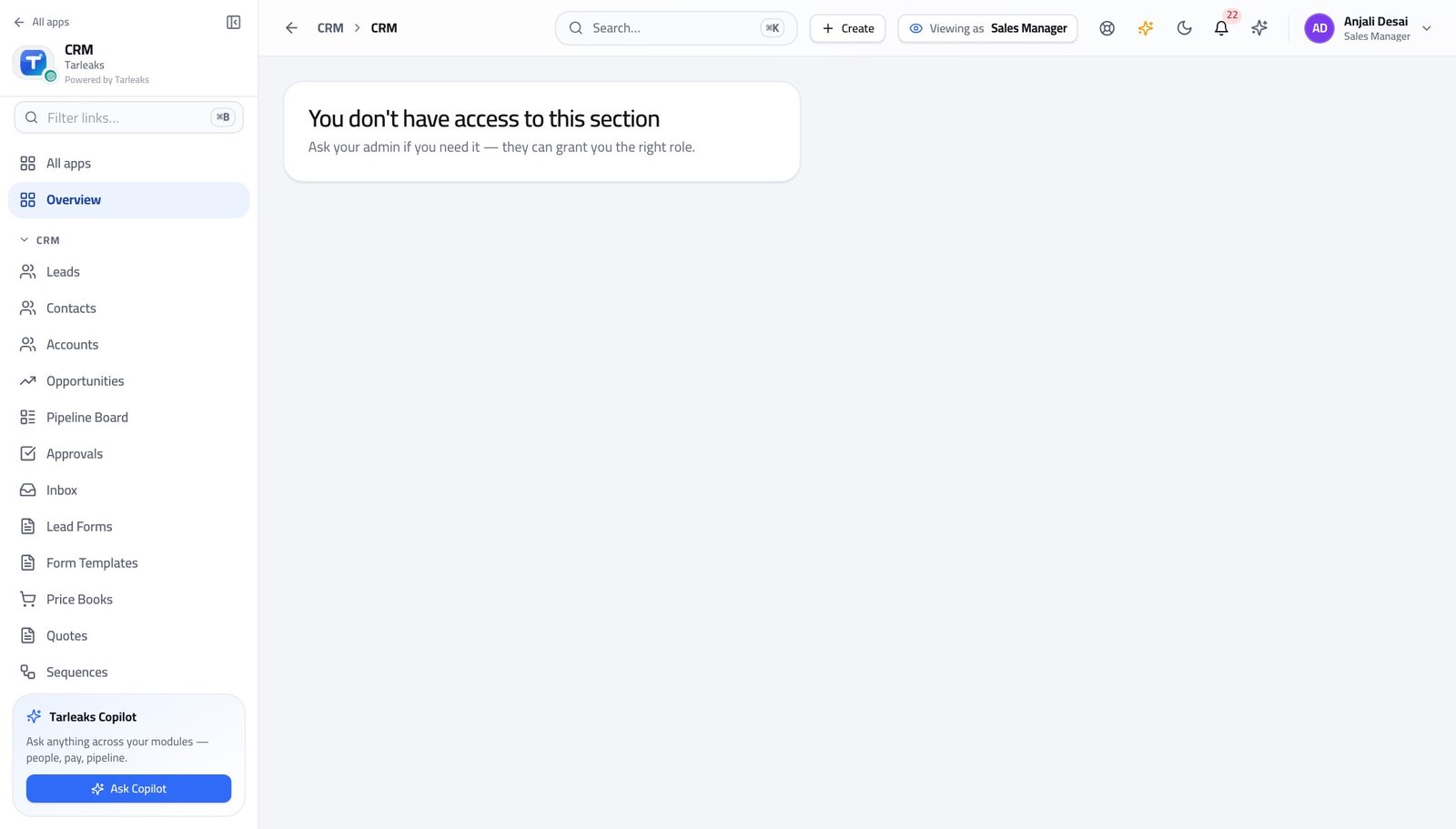
You should see A manager who could raise the threshold could waive their own approval. Then it would not be an approval.
Watch out If a threshold is genuinely wrong for your market, ask your administrator and say why. The answer is a policy change, not a workaround.
Changing what a lead scores is not yours #
Where CRM Admin » Lead scoring
- Try to open lead scoring.
- The same card appears.
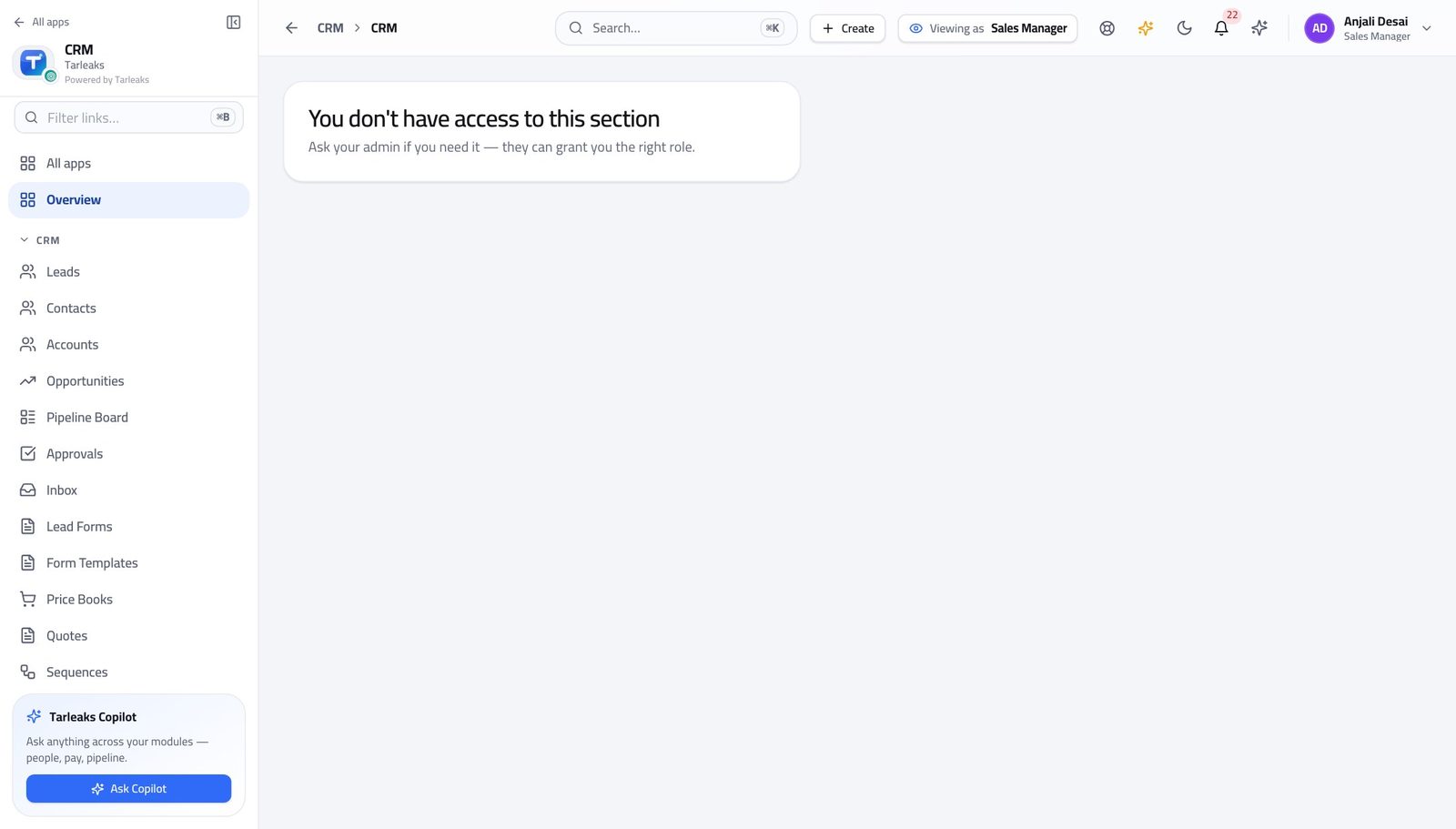
You should see Scoring decides which leads reach your team. The person measured on the result does not get to set the rule.
Watch out You can see the score on every lead. You just cannot change what produces it — which is what makes the score comparable across the team.
Publishing a booking page is not yours #
Where CRM » Booking Pages
- Try to open Booking Pages.
- The same card appears: this sign-in does not have access.
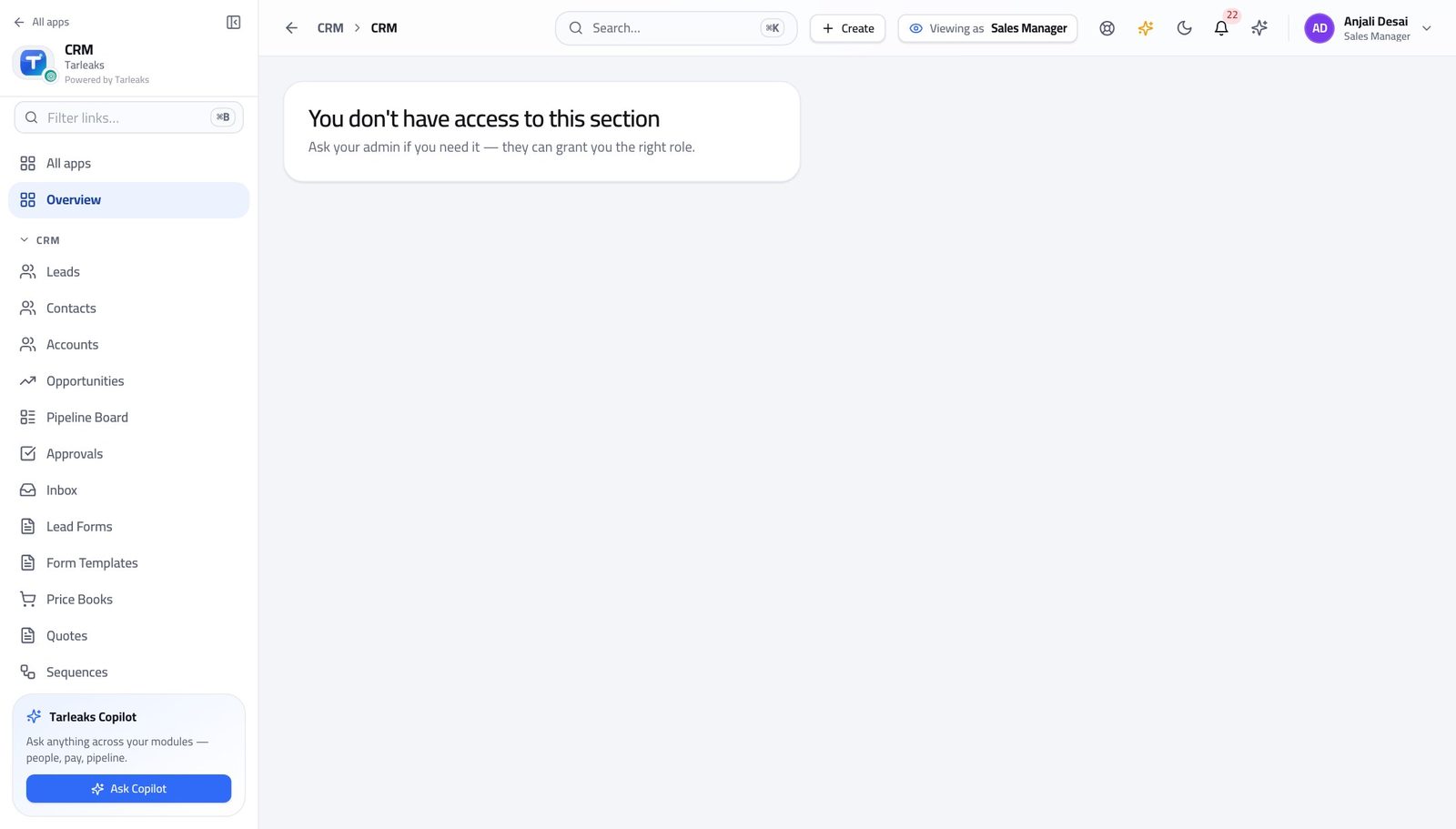
You should see What a customer is shown in your company's name is set once, by the administrator — not differently by every manager.
Watch out If your team needs a booking page of their own, ask your administrator for one. What a customer sees in the company's name is set in one place on purpose.
Use cases — the work, step by step
Each one is a sequence somebody actually performs, with the screen behind every step. Every screen here was opened in the product as this role before it was published.
weeklyMonday: read the number, then clear the queue #
Approvals are what block other people's work. Do them before anything that only blocks yours.
Open Opportunities and read the four boxes. Weighted value is the number worth repeating; total pipeline is the optimistic one.
CRM » Opportunities — verified: the page says “Weighted value”; 33 row(s) listed Open the board and look at the shape. A column fatter than the ones either side is where your team is stuck, and that is the coaching conversation for the week.
CRM » Pipeline Board — verified: the page says “Pipeline Board” Clear the approvals queue. Each request names the measure, what was asked for, and the threshold it crossed.
CRM » Approvals — verified: the page says “Approvals”; 13 row(s) listed Write the note on every decision, including the ones you approve. 'Matched competitor, one-off' is worth a great deal in three months.
CRM » Approvals » a pending row — verified: the page says “Threshold”
monthlyCommit the forecast for the period #
The forecast is arithmetic over your team's own stages and close dates. Fix those first and the number fixes itself.
Open Opportunities filtered to the period and look for the two things that always distort it: close dates in the past, and a cluster of deals all dated the last day of the quarter.
CRM » Opportunities — verified: the page says “Weighted value”; 33 row(s) listed Open Forecasts. Weighted pipeline is every open deal closing in the period, each one multiplied by its stage probability.
CRM » Forecasts — verified: the page says “Forecast” Read it against the quota. Attainment on its own is a number without a meaning.
CRM » Forecasts — verified: the page says “quota” Commit the number you would defend, not the one the report produced. If the two differ, the gap is on the board and you have just found this week's work.
CRM » Forecasts — verified: the page says “Forecast”
urgentA rep resigns on a Friday afternoon #
Their deals become invisible to everybody the moment they lose access. Moving them takes ten minutes now and a fortnight later.
Open Opportunities and filter to their deals. Read the list before you move anything — some of it should go to different people.
CRM » Opportunities — verified: the page says “Weighted value”; 33 row(s) listed Move the batch. Filter first, then take everything the filter left; the bar counts your selection before you commit.
CRM » Opportunities — verified: the page says “Opportunities”; 33 row(s) listed Take them out of the team so your team view stops including them — and add whoever is covering.
CRM » Teams — verified: the page says “Sales teams” Check the forecast again. The number will have moved, and it is better that you find that out than that somebody else does.
CRM » Forecasts — verified: the page says “Forecast”
urgentA discount request you are not comfortable with #
The threshold was set by somebody else, on purpose. Your job is to decide this request against it, not to move the line.
Open the request and read the three numbers: the measure, the value asked for, and the threshold it crossed.
CRM » Approvals » a pending row — verified: the page says “Threshold” Decide, and write why. Rejecting sends the rep back to edit the quote and ask again — so say what would make it a yes.
CRM » Approvals — verified: the page says “Approvals”; 13 row(s) listed If the threshold is consistently wrong for your market, that is a conversation with your administrator. You cannot move it yourself and you should not want to.
CRM Admin » Approval matrix — verified: the page says “have access to this section”
You can approve a discount and you can declare a deal won. You cannot change the threshold that decided the discount needed approving, and you cannot release the commission money. Both of those are somebody else's — which is what makes your approval worth something.
Account Executive
Own your deals from first meeting to signed quote.
Owns deals end to end: works the board, builds the quote, asks for the discount and sends it. Sees their own book — not the team's — and hands a signed quote to the order desk.
What you will be able to do
- Work your own board without wading through the team's
- Build a quote from the catalogue and send it
- Ask for a discount and see where the request got to
- Hand a signed quote to the order desk
What this role can and cannot do
| Can | Cannot |
|---|---|
|
|
17 steps, each one carried out in the product on .
Check what your sign-in can do #
Where Your name, top right » Profile
- Open your company's address in the browser — it looks like yourcompany.tarleaks.com.
- Type the e-mail address your administrator set up for you, then your password.
- You land on the app launcher: a grid of the apps your company uses.
- Click the CRM tile.
- Click your name in the top-right corner and choose Profile.
- Read the roles panel.
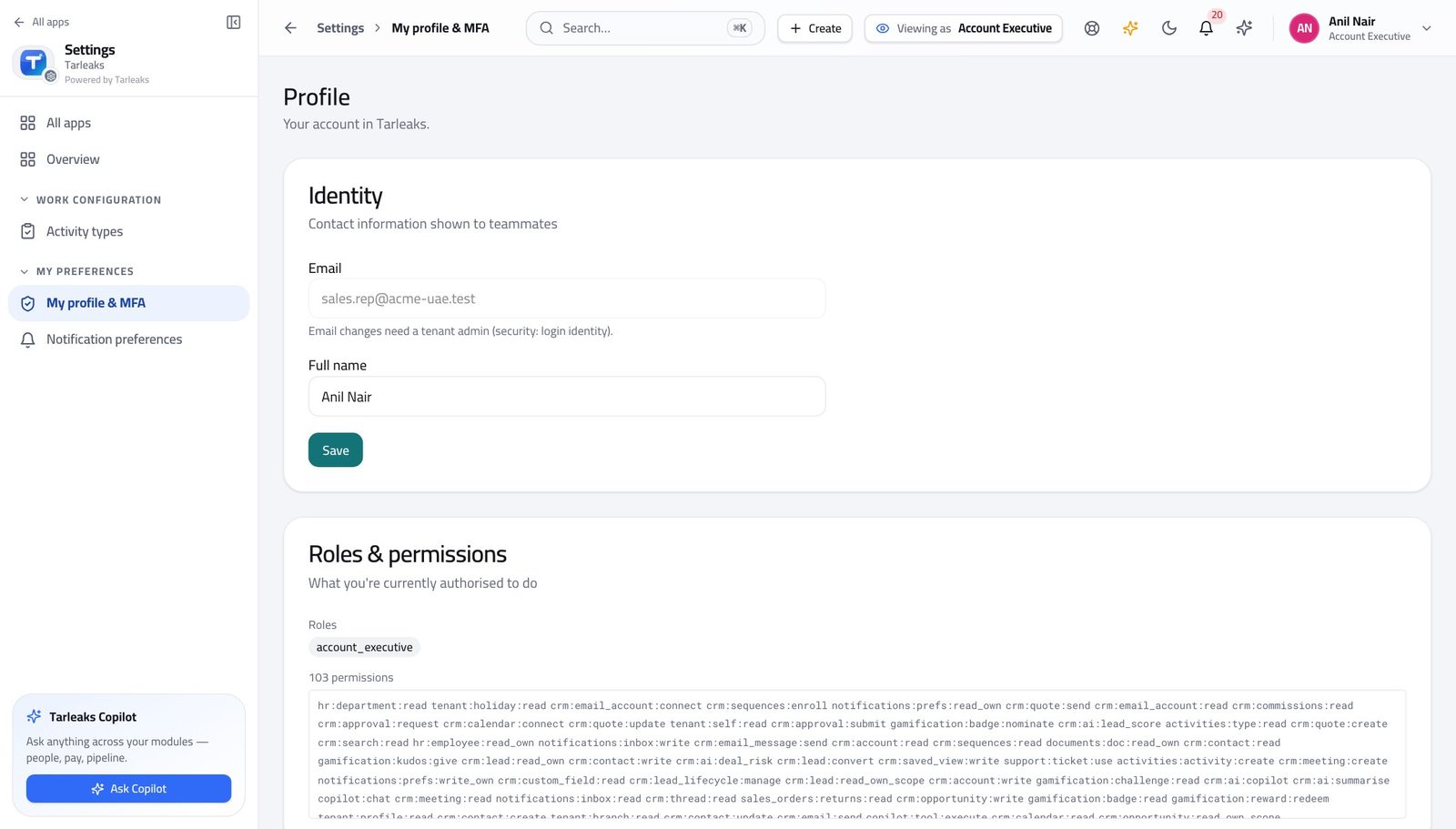
You should see It says Account Executive. Building the deal, building the quote, asking for the discount and sending the quote are yours.
Watch out If a colleague can see a screen you cannot, it is almost always this chip rather than a fault.
Worth knowing Approving your own discount and declaring a deal won are not. Everything else in this guide follows from those two.
Open your own book of deals #
Where CRM » Opportunities
- In the left menu under CRM, click Opportunities.
- Read the count in the line under the title.
- Use the boxes across the top to narrow to open, won or lost.
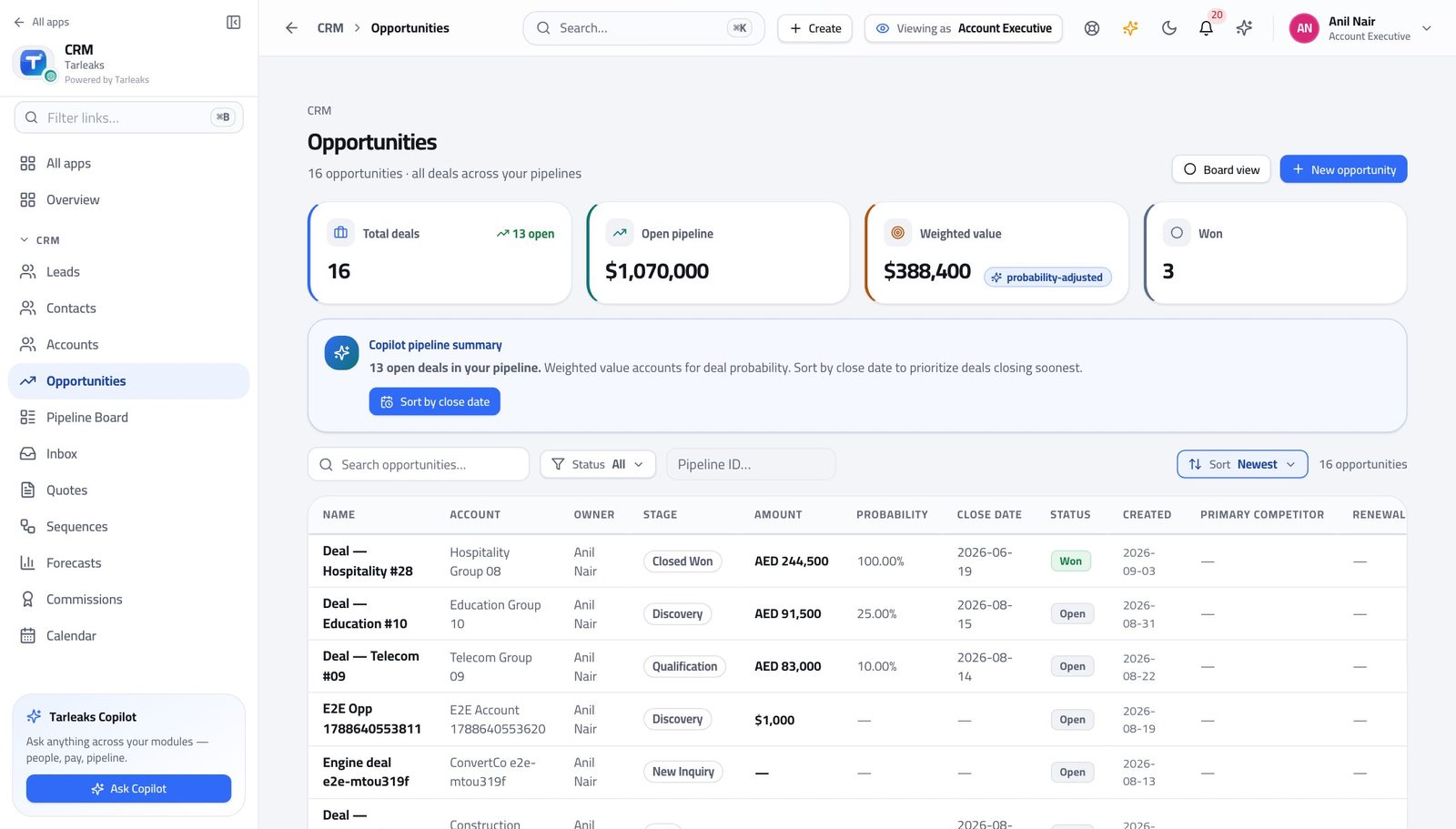
You should see The list is already only yours. Nothing is being filtered out of a bigger list on the screen — you are simply sent your own deals.
Watch out A deal you expected and cannot find is usually owned by somebody else. Ask your manager to move it — reassignment is their action.
Worth knowing If a colleague's deal should be yours, ask your manager to move it. Reassigning is their action, not yours.
Leads work the same way #
Where CRM » Leads
- In the left menu, click Leads.
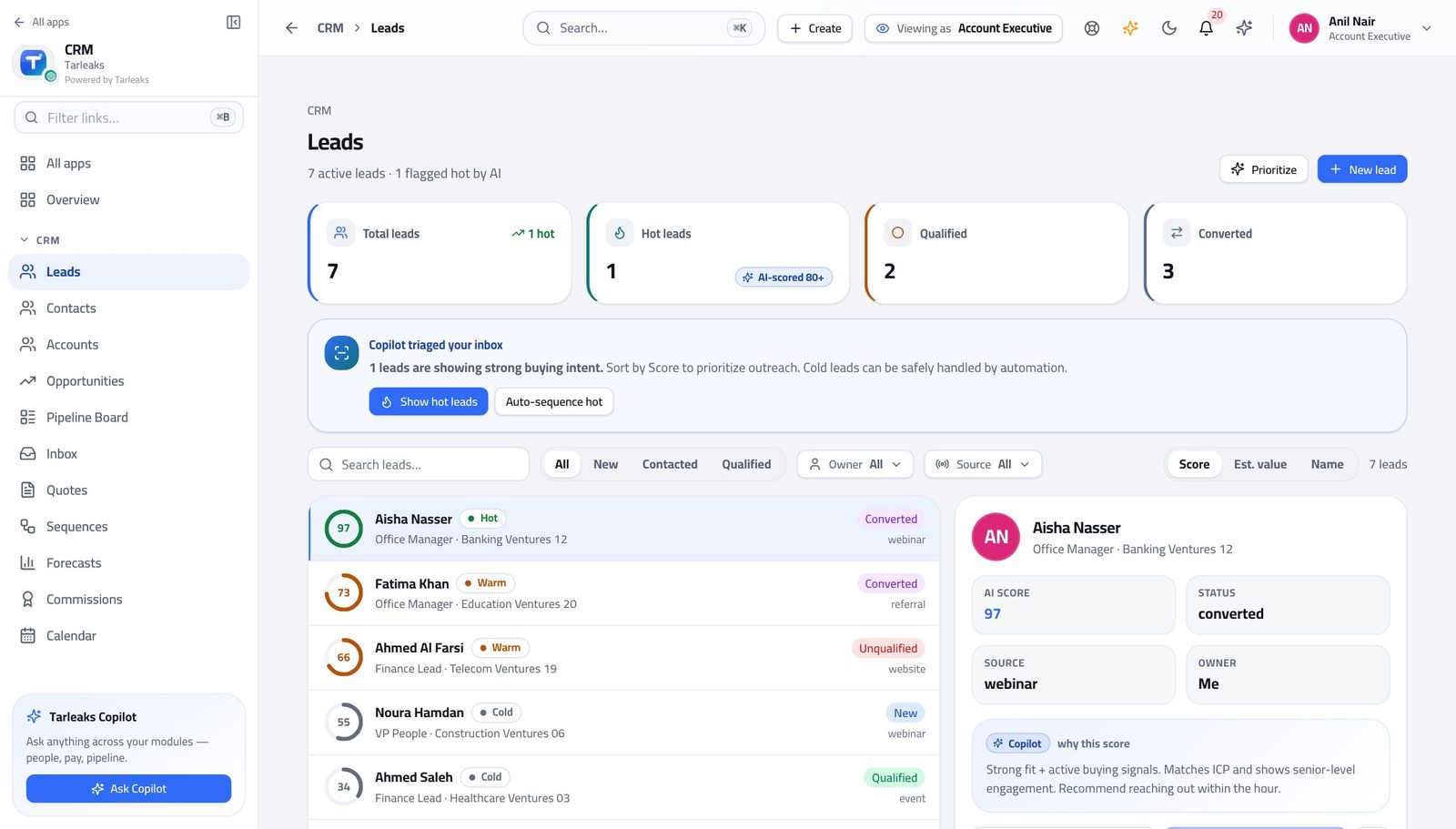
You should see Ownership is one rule applied in the same way everywhere, so you never have to wonder whose records are on the screen.
Watch out A lead sitting unworked for a week still counts against you. Work the queue, or disqualify with a reason.
Work the board #
Where CRM » Pipeline Board
- In the left menu, click Pipeline Board.
- Drag a card from one column to the next when the deal really moves.
- Open a card to read the deal, its quotes and its history.
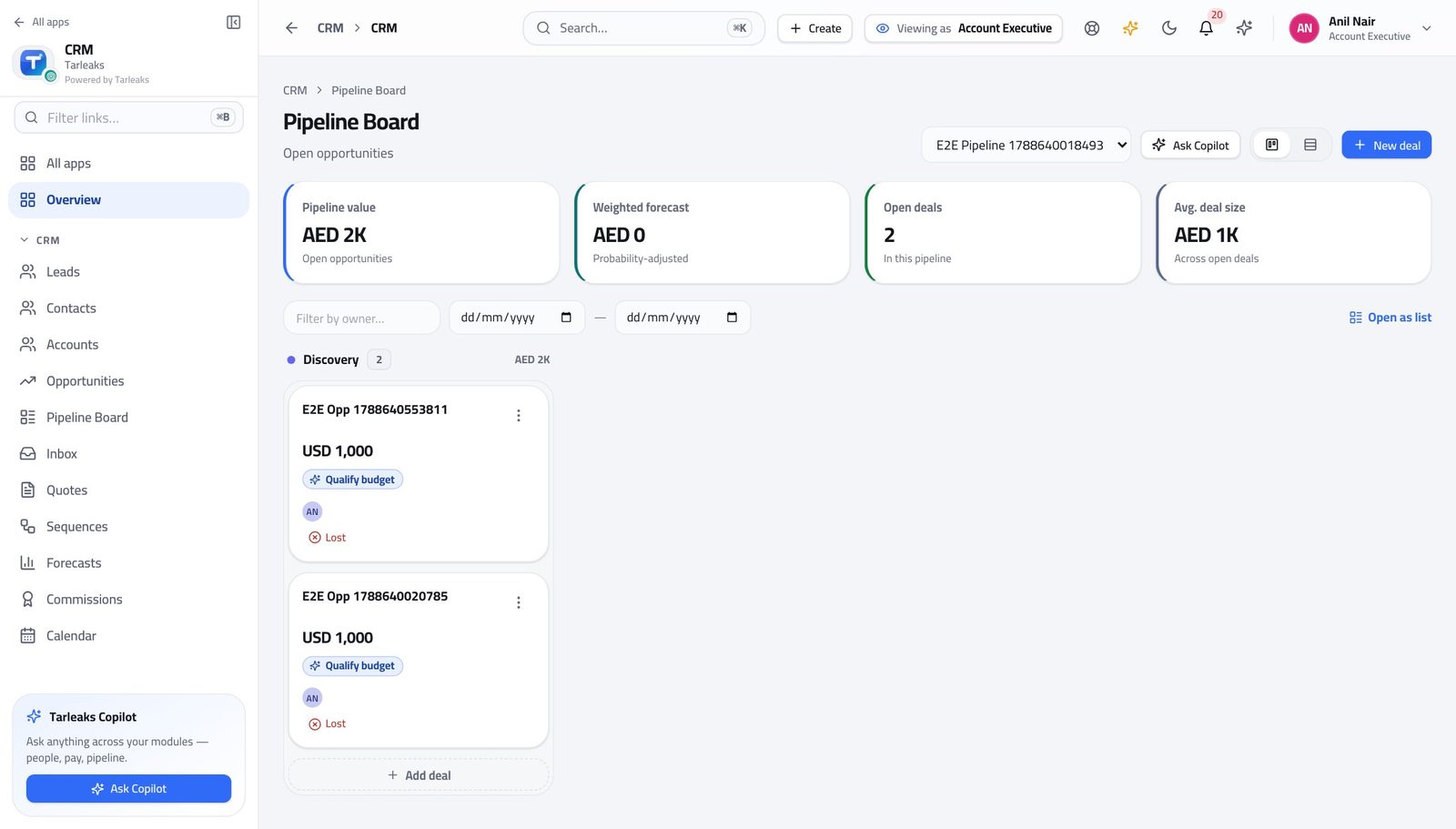
You should see Dragging the card IS the stage change. There is no second form to fill in afterwards, which is why the board stays honest.
Watch out Move the card when the deal moves, not when you are updating the board on a Friday. A stage that is a week stale makes your forecast wrong and it is your number it makes wrong.
Open your quotes #
Where CRM » Quotes
- In the left menu, click Quotes.
- Read the number, the total and the state on each row.
- Open a quote for its lines, terms, approvals and files.
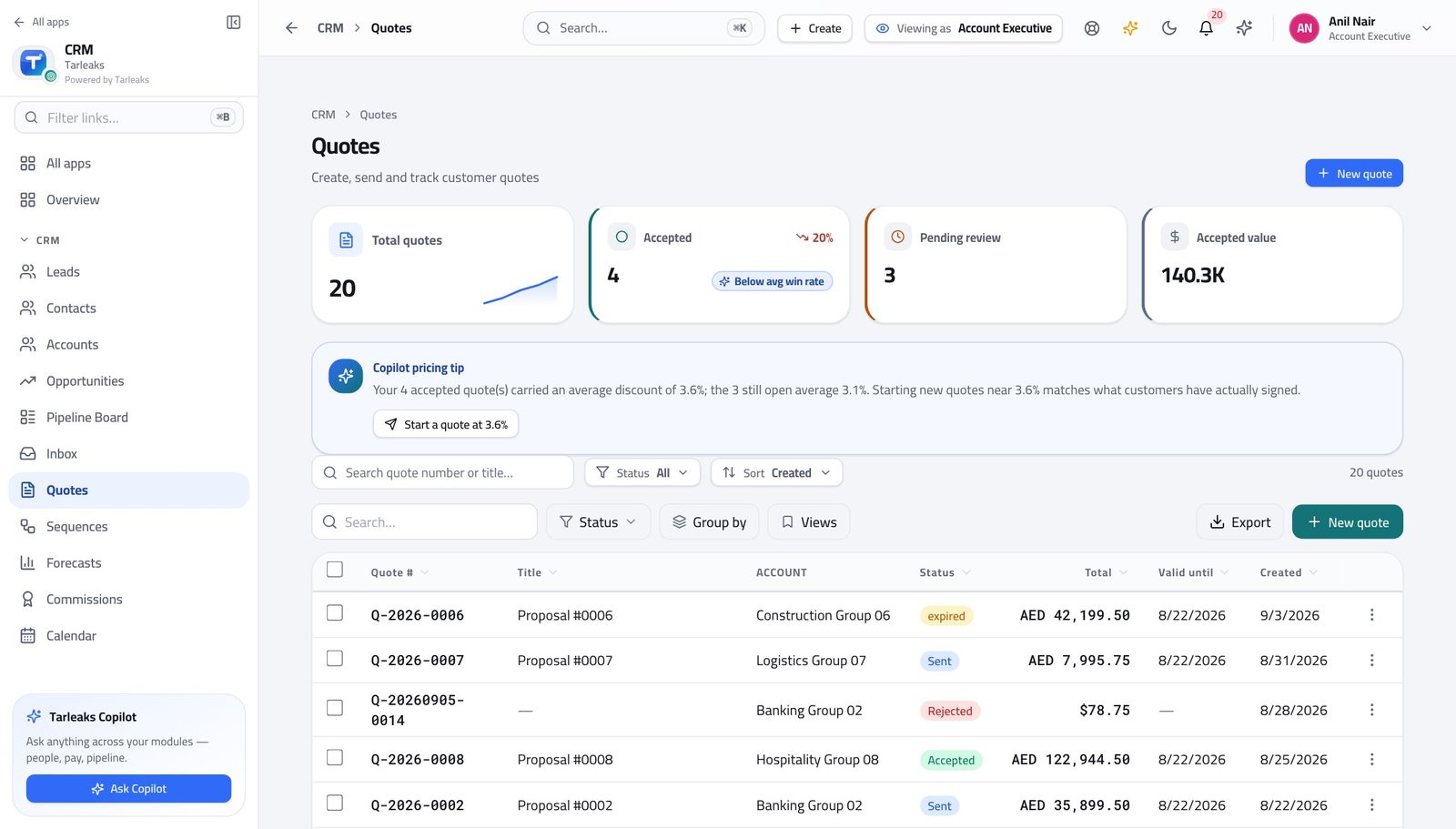
You should see A quote is a record with a life of its own — draft, sent, accepted — not an attachment stuck on the deal.
Watch out A quote in draft has not reached the customer, however finished it looks.
Build a quote #
Where CRM » Quotes » New quote
- Click New quote.
- Fill the context section: title, account, contact, price book, currency.
- Add a line for each thing you are selling, then set quantity and discount.
- Create the quote, then send it from the quote's own screen.
| Field | What to put in it |
|---|---|
| Title | What the customer will see at the top — 'Fleet renewal 2027', not 'Quote 3'. |
| Account | The company being quoted. Choose the existing record; do not create a second one. |
| Contact | The person who will actually read it. |
| Price book | Which prices apply. Choose this BEFORE adding lines. |
| Currency | What the customer pays in. |
| Product | Pick from the catalogue — the price comes with it. |
| Qty | How many. |
| Disc % | The discount on this line. Watch the total: past your company's threshold the quote will need approving before it can be sent. |
| Tax % | Filled from the product and the customer's treatment; change it only if you know why. |
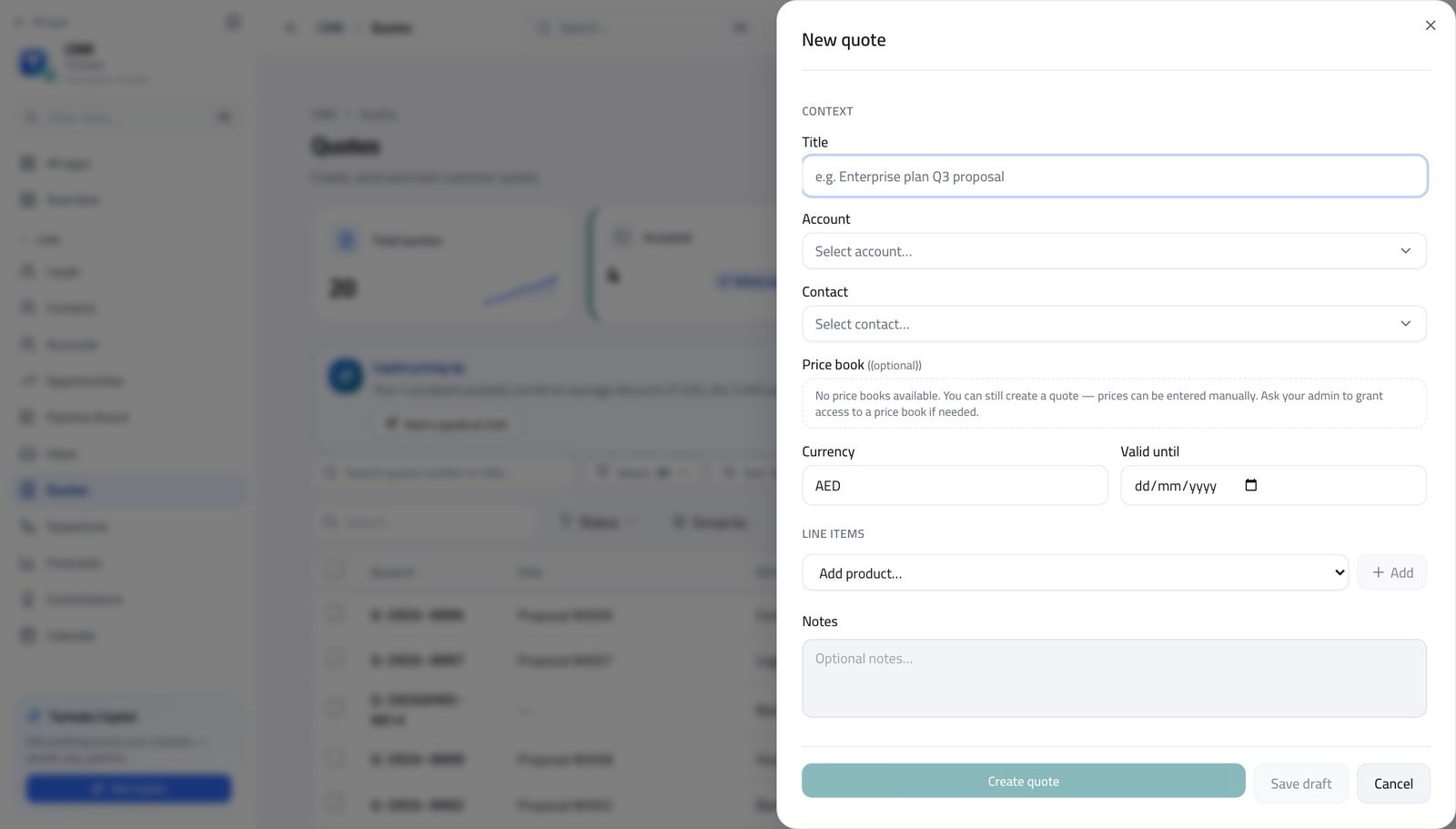
You should see The price comes from the book you chose, and the total, the discount and the tax are worked out per line as you add them.
Watch out Choose the price book first. Changing it after you have added lines means re-pricing every one of them.
Worth knowing Choose the price book before you add lines. Changing it afterwards means re-pricing everything you already added.
Open the company and the people at it #
Where CRM » Accounts, and CRM » Contacts
- In the left menu, click Accounts.
- Search for the company.
- Open it for the contacts, deals, quotes and history in one place.
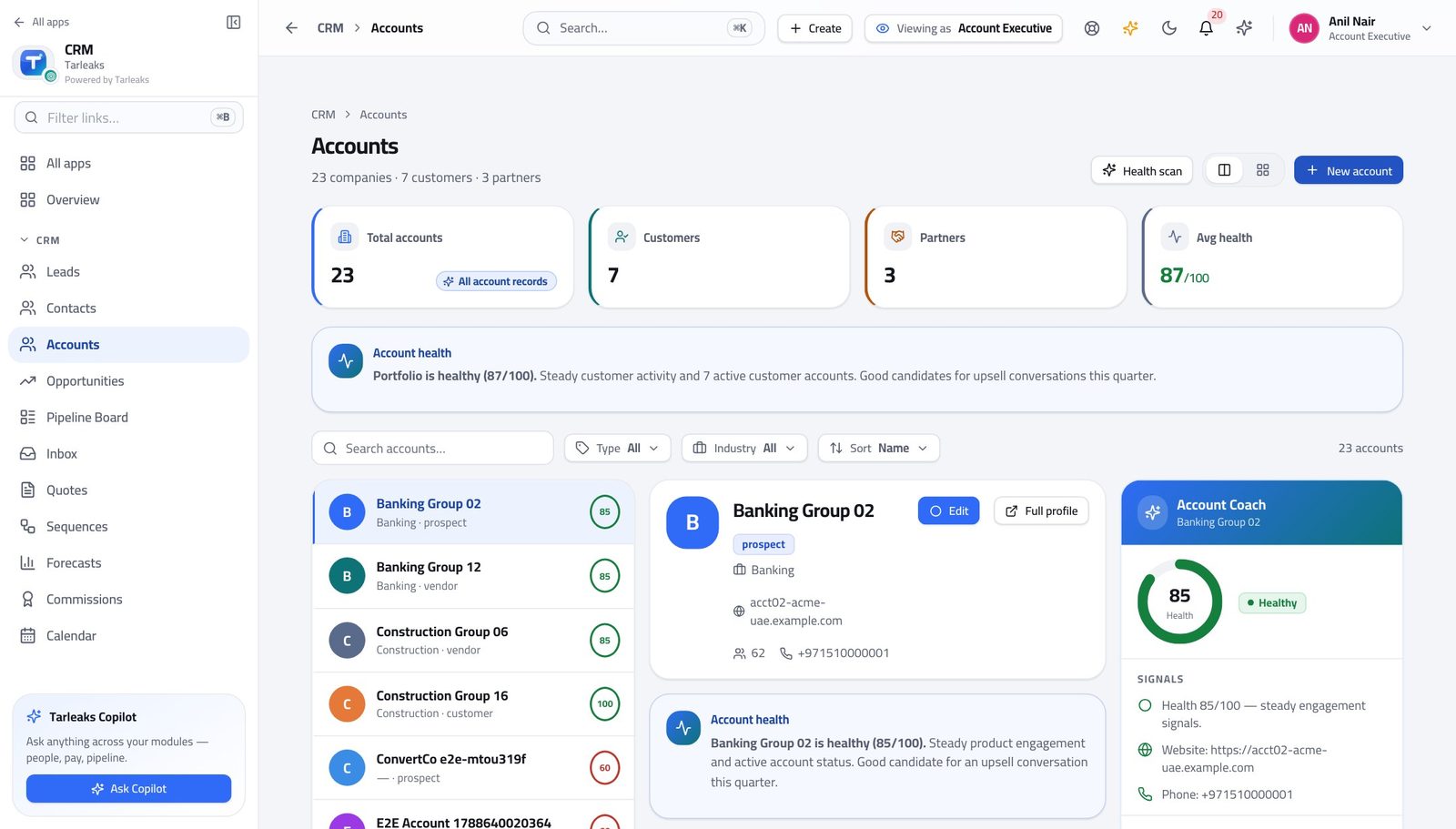
You should see Accounts and contacts are shared. Everyone selling into a company works from the same record, so nobody is surprised by a colleague's conversation.
Watch out Search before you create. The same company entered twice splits its history in half and both halves look thin.
Add a company you are selling to #
Where CRM » Accounts » New account
- Click New account.
- Fill the name, the type and the industry, then save.
| Field | What to put in it |
|---|---|
| Name | The legal name as it will appear on a quote or an invoice. |
| Account type | Customer, prospect, partner — whatever your company uses. |
| Industry | Used for reporting and for the templates you are offered. |
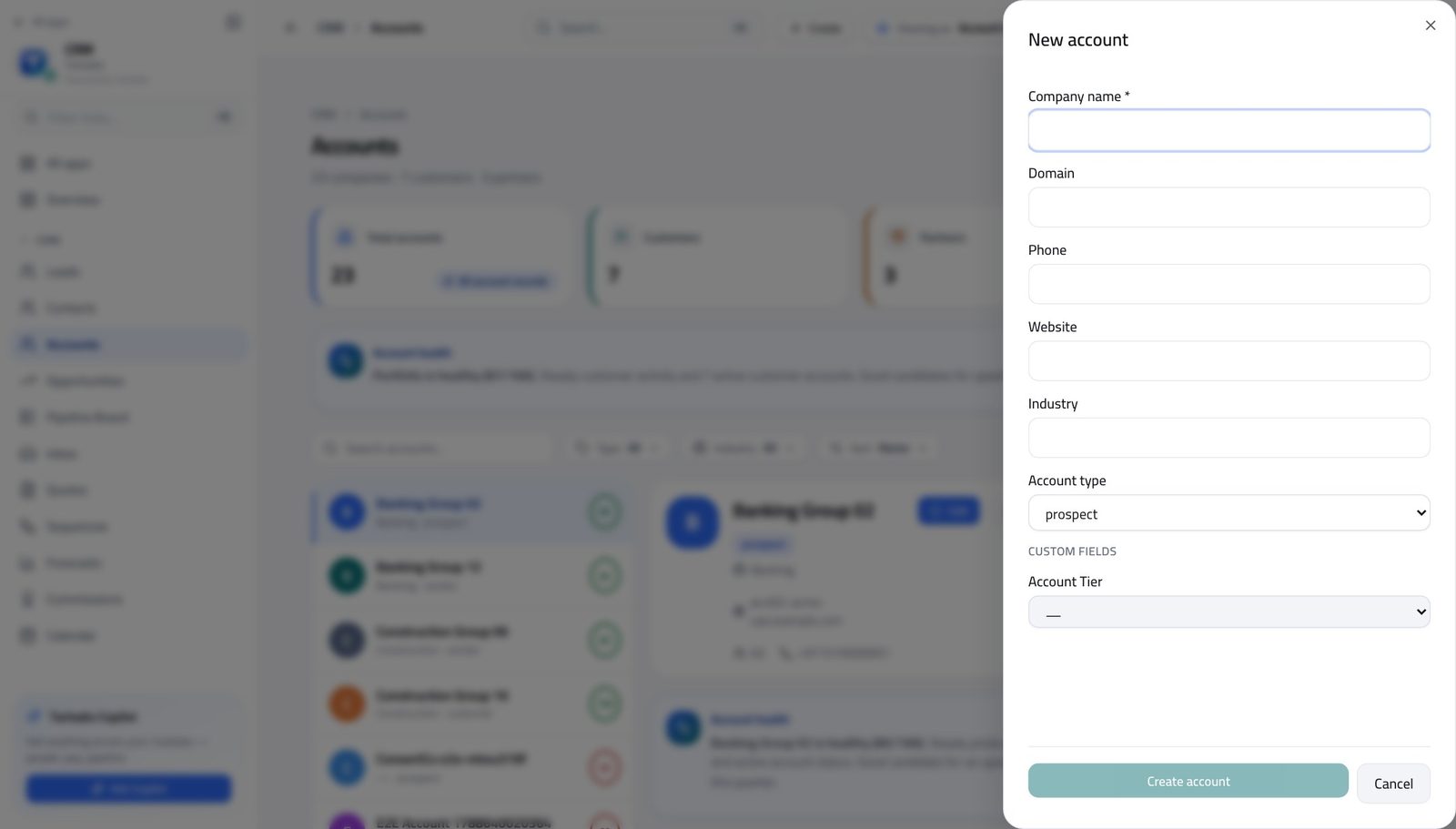
You should see One record per company. If they are already there — even under a slightly different name — use the one that exists rather than making a second.
Watch out Search for the company first. Creating a duplicate is easy and untangling one later is not.
See what is booked with customers this week #
Where CRM » Calendar
- In the left menu, click Calendar.
- Read the week.
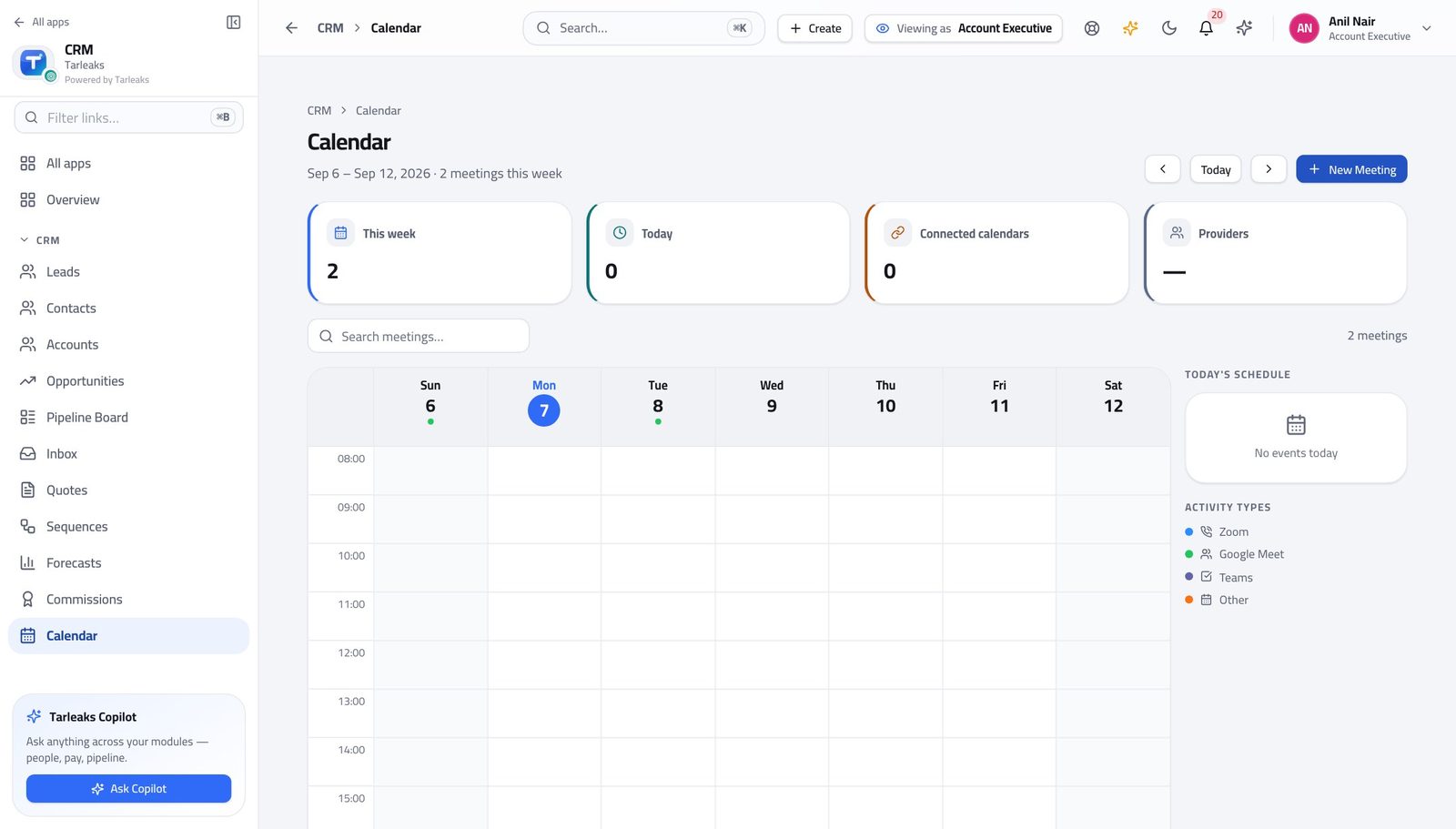
You should see A meeting that lives only in your own diary is a meeting nobody else can pick up if you are away.
Watch out A meeting that lives only in your own diary cannot be picked up by anyone if you are away. Book it here.
See where your discount request got to #
Where CRM » Quotes » a quote » Approvals, or the Approvals list
- Open the quote and switch to its Approvals tab.
- Read the tier, the decision and who decided.
- The Approvals list shows every request you raised, in one place.
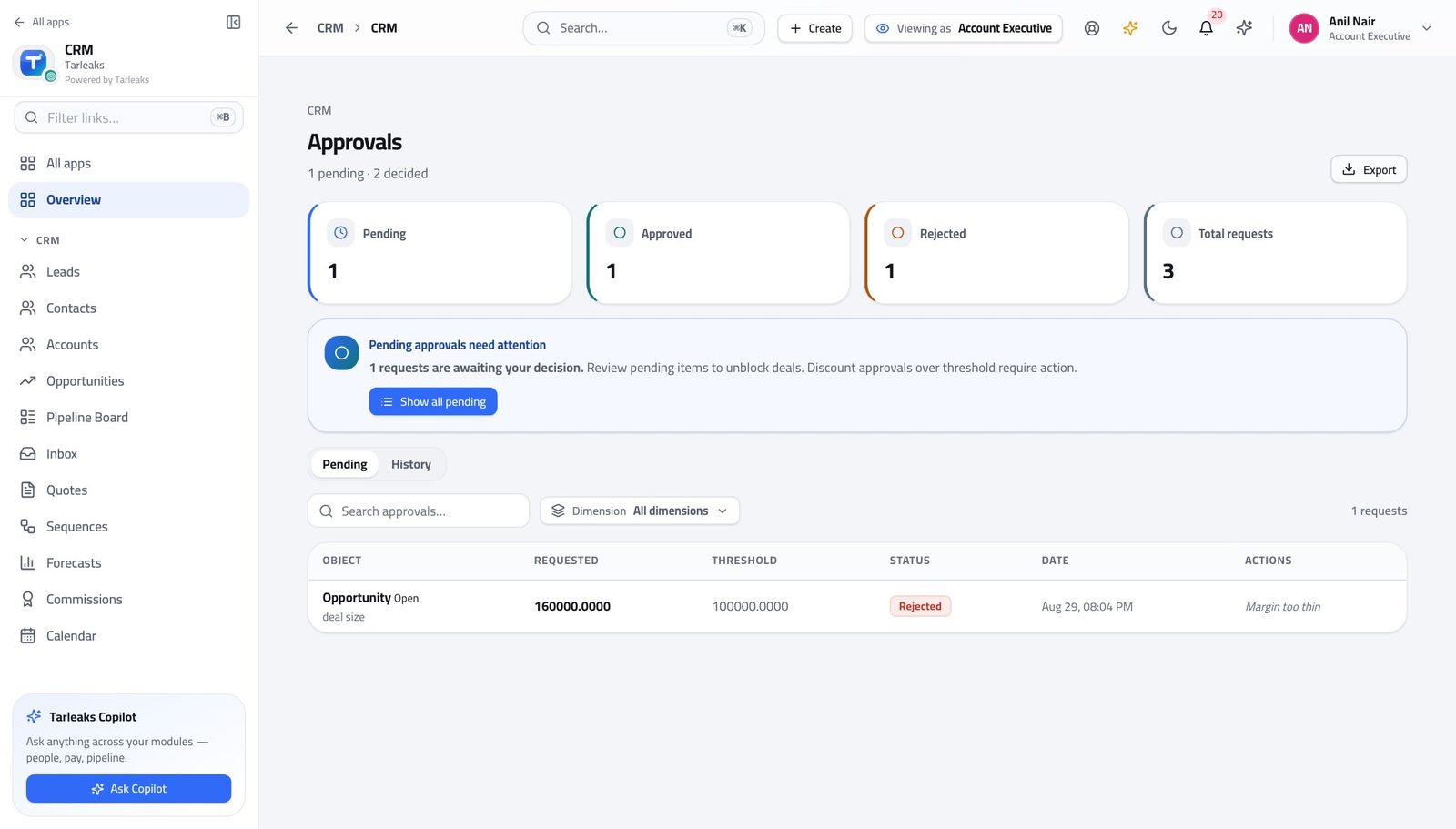
You should see You see the requests you raised. Your manager sees everybody's. Same screen, two different lists, decided by the sign-in.
Watch out A quote whose discount is above the threshold cannot be sent until it is approved — the send action refuses and says so. That refusal is the prompt to get the approval, not a fault.
Check what you are owed #
Where CRM » Commissions
- In the left menu, click Commissions.
- Read your payouts.
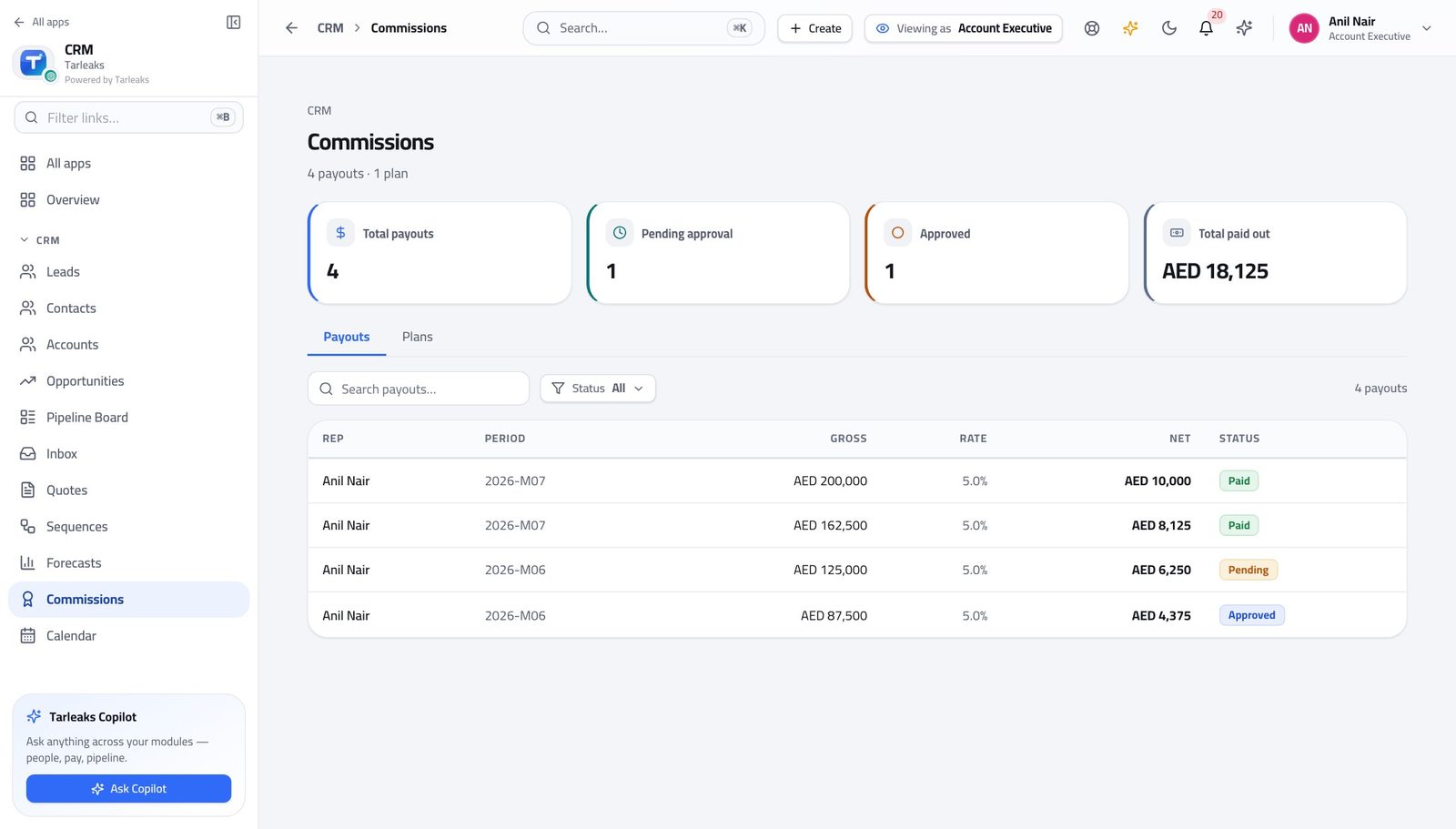
You should see You can check your own money without being able to see anybody else's.
Watch out A figure that looks wrong is worth raising early. After the payout is released it is a correction rather than a fix.
Read the number you are measured on #
Where CRM » Forecasts
- In the left menu, click Forecasts.
- Read the period and the quota line.
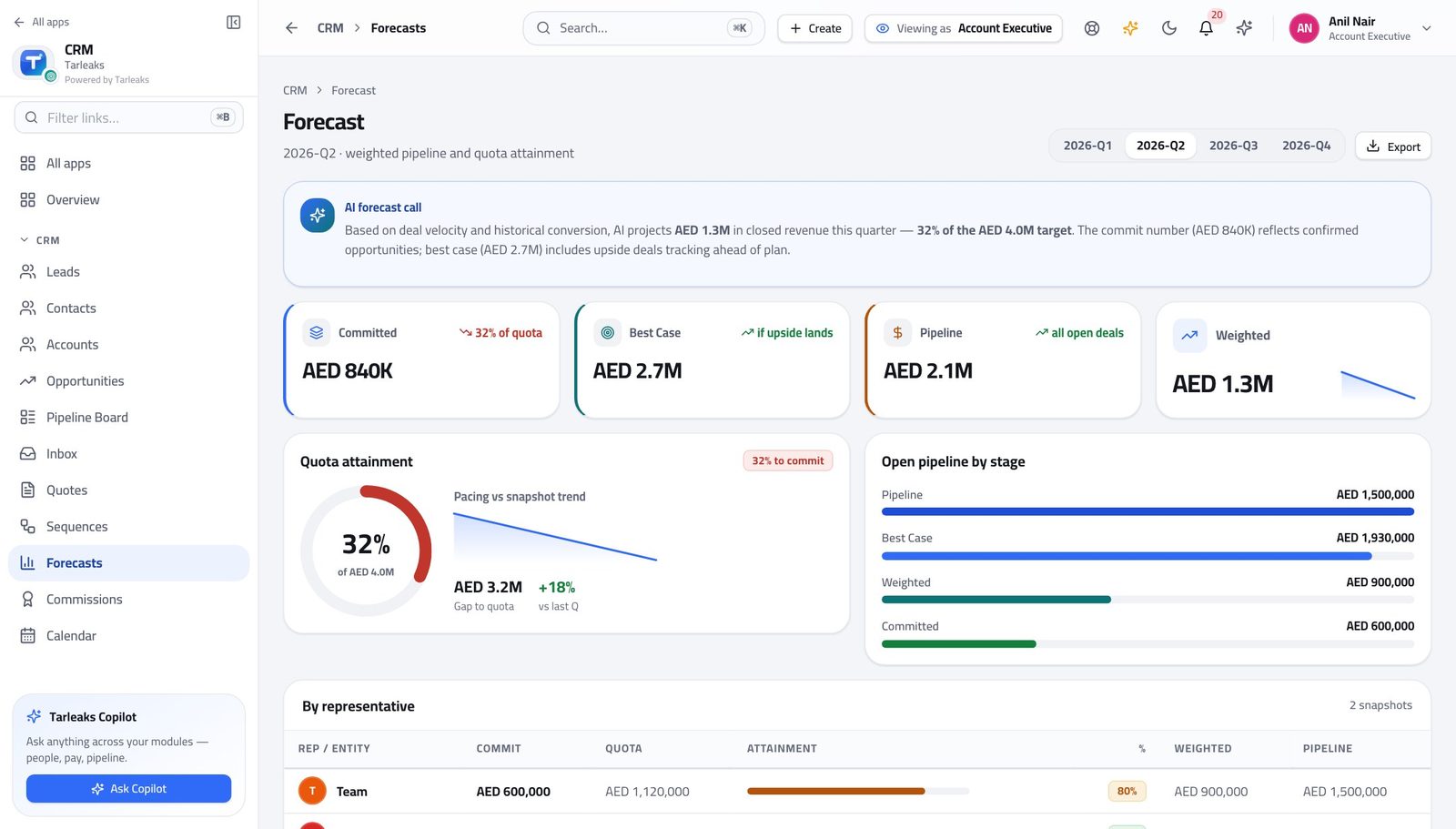
You should see You see the forecast and the quota before the conversation about them, which is the only useful time to see them.
Watch out Your own close dates and stages produce this. If it looks wrong, the fix is usually on your board rather than on this screen.
Tidy a batch of quotes #
Where CRM » Quotes
- Open Quotes.
- Tick the quotes you are tidying.
- Use the bar at the bottom.
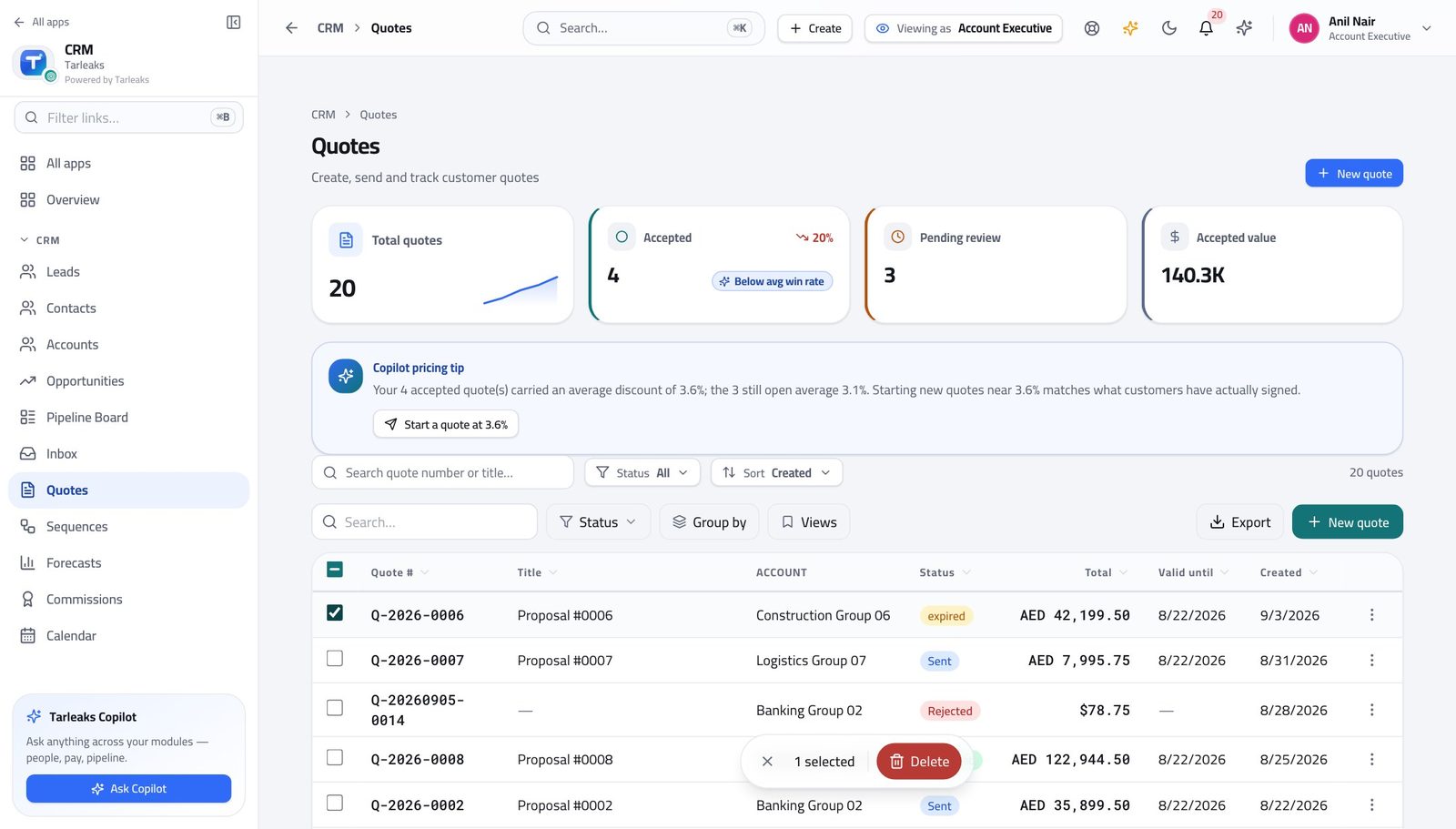
You should see Quote housekeeping is part of owning the deal, so the batch is offered to you here — and each quote is still checked on its own.
Watch out A quote already sent to a customer has left the building. Tidy drafts, not the record of what somebody was told.
Approving your own discount is not yours #
Where CRM » Approvals
- Look down the CRM menu: the Approvals queue is not offered to you.
- Open a request you raised from the quote instead — there is no approve or reject action on it.
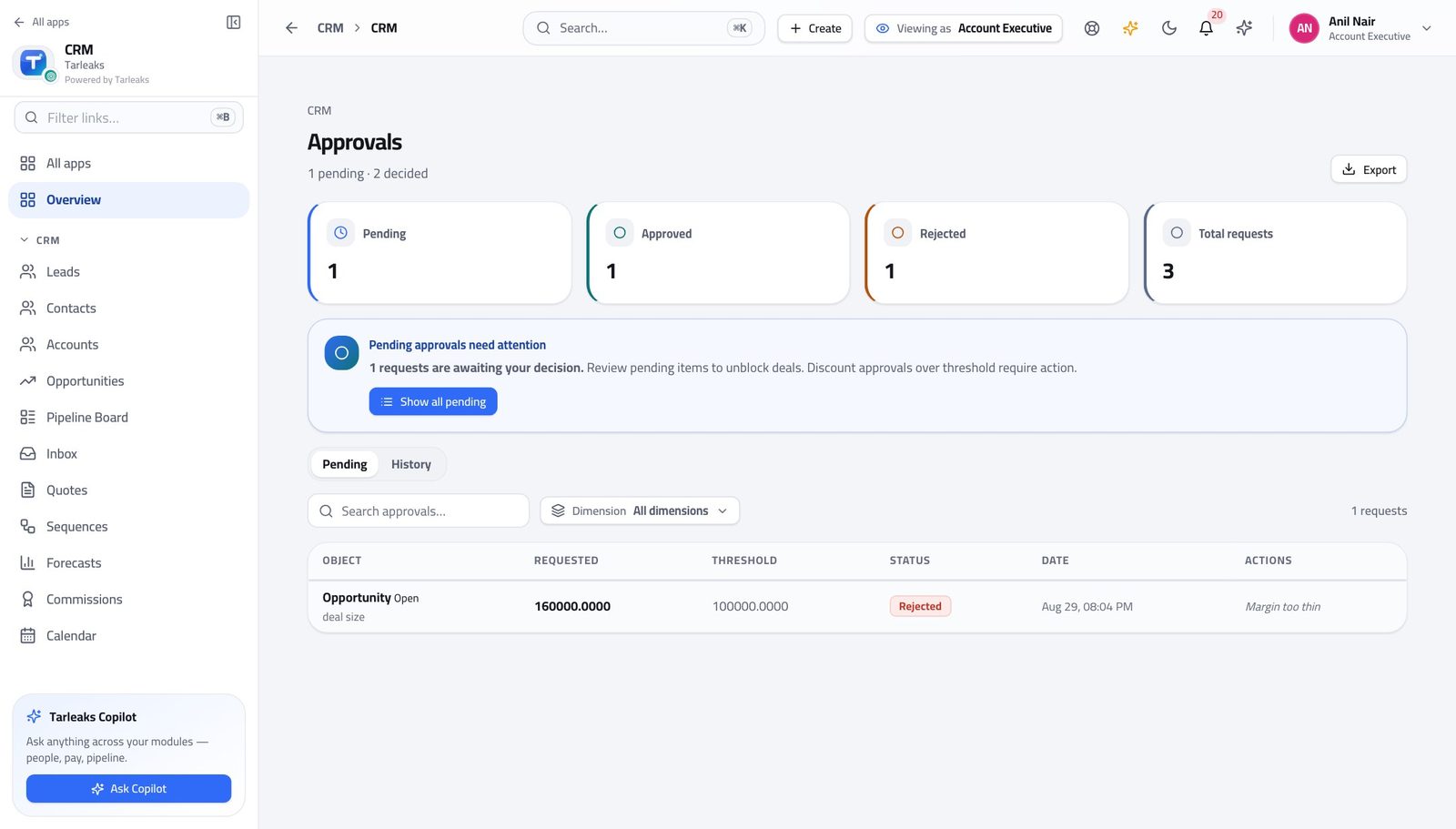
You should see You ask; somebody else decides. If you could do both, the request would be a formality rather than a control.
Watch out Chasing is fine and normal. If a request has sat for a day, say so — the product does not nag on your behalf.
Declaring a deal won is not yours #
Where CRM » Pipeline Board
- Open a deal on the board.
- Mark lost is yours: choose it and pick a reason.
- Declaring the deal won is your manager's — tell them the day it happens.
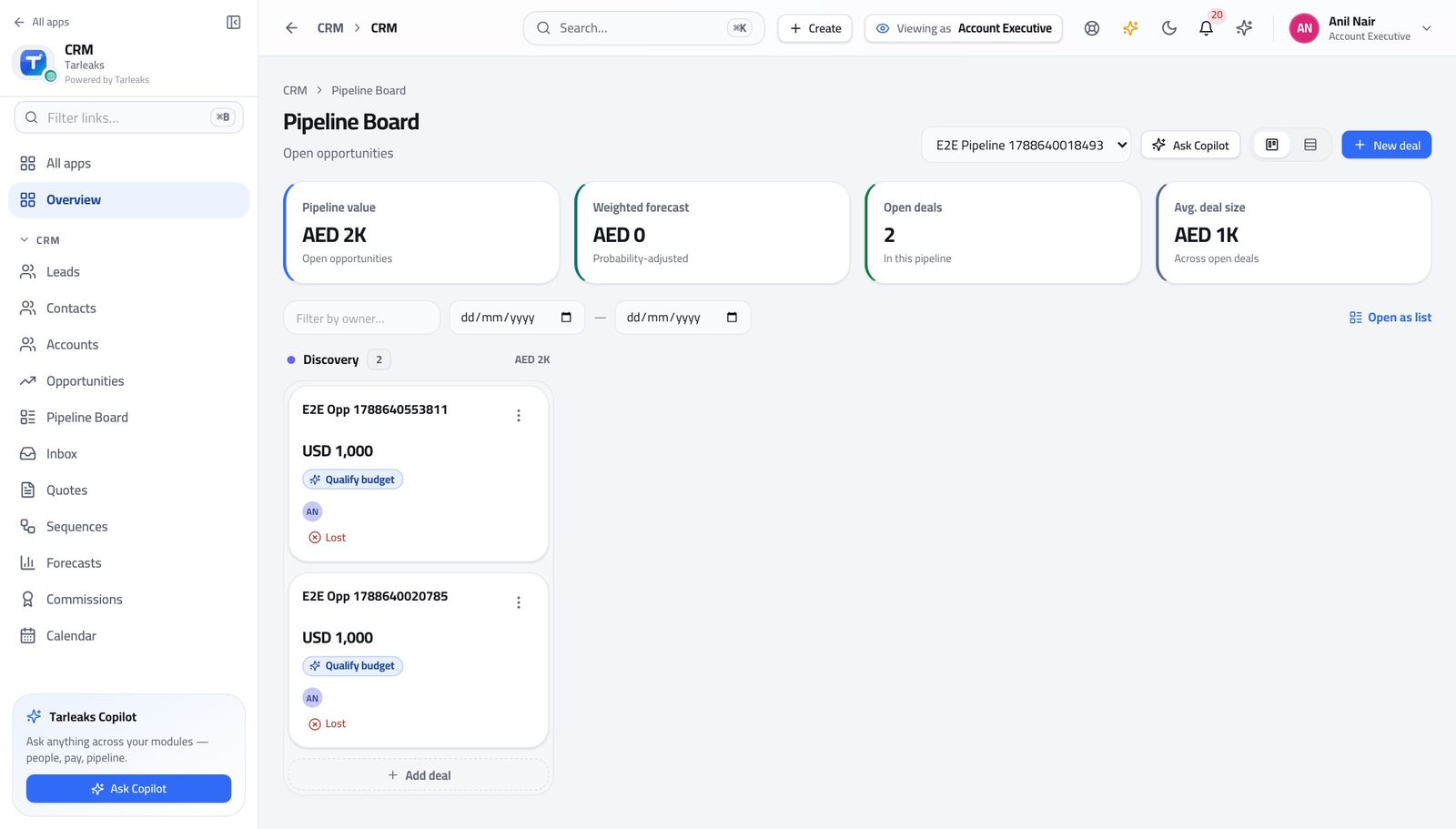
You should see Losing a deal is your call — you were there. Declaring one won moves the number your manager answers for, so it is theirs.
Watch out A won deal that sits un-closed makes the forecast wrong in the direction nobody wants. Tell your manager on the day, not at month end.
Territories are not yours #
Where The left menu, under CRM
- Look down the CRM menu.
- Territories is not there.
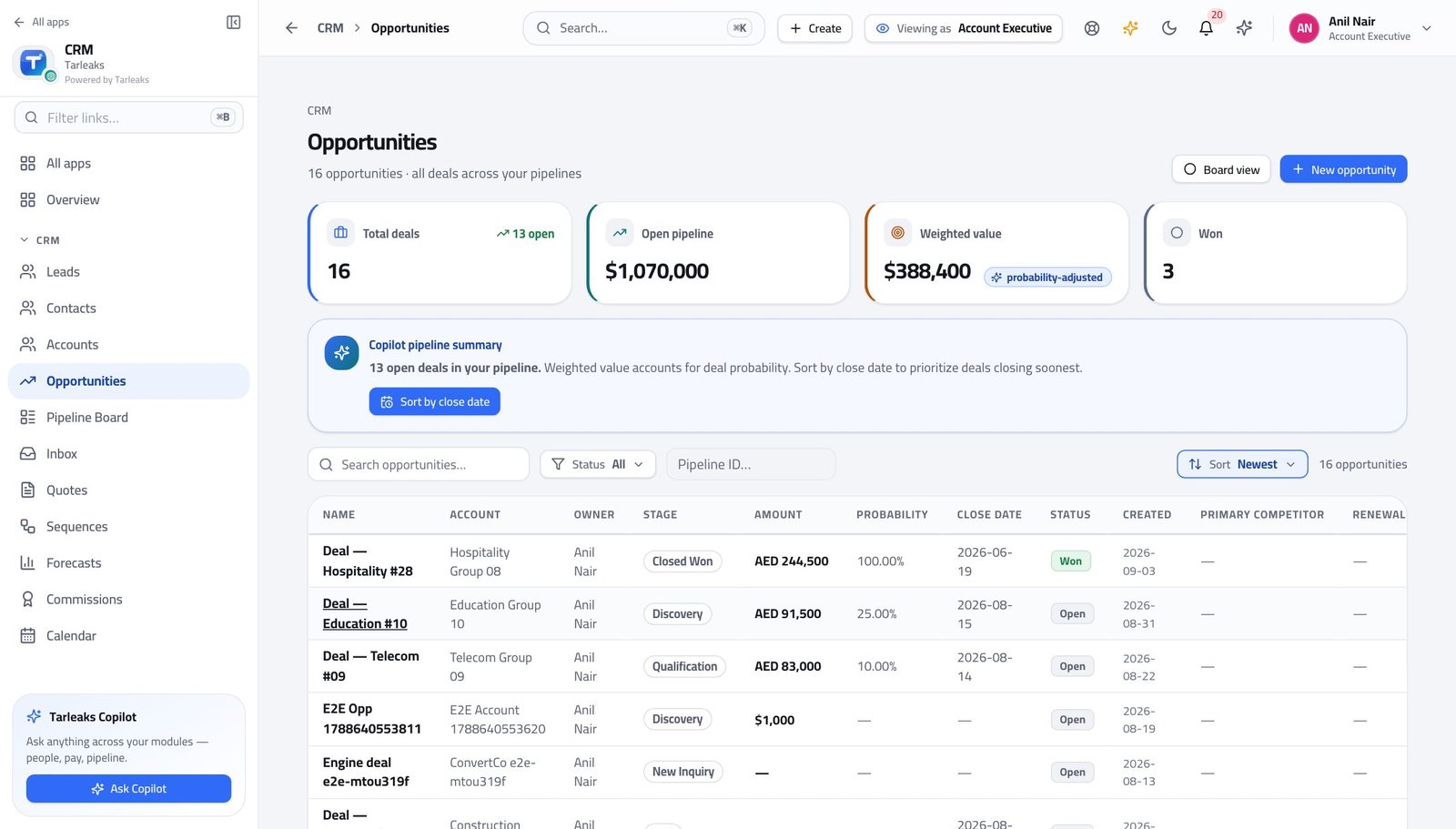
You should see Who owns which patch is a management decision. You work the patch you were given.
Watch out If you keep receiving records that are not yours to work, that is a territory conversation with your manager.
The catalogue is read through the quote, not edited #
Where The left menu, under CRM
- Look down the CRM menu: Products is not there.
- Open a quote instead and add a line — the whole catalogue is in the picker.
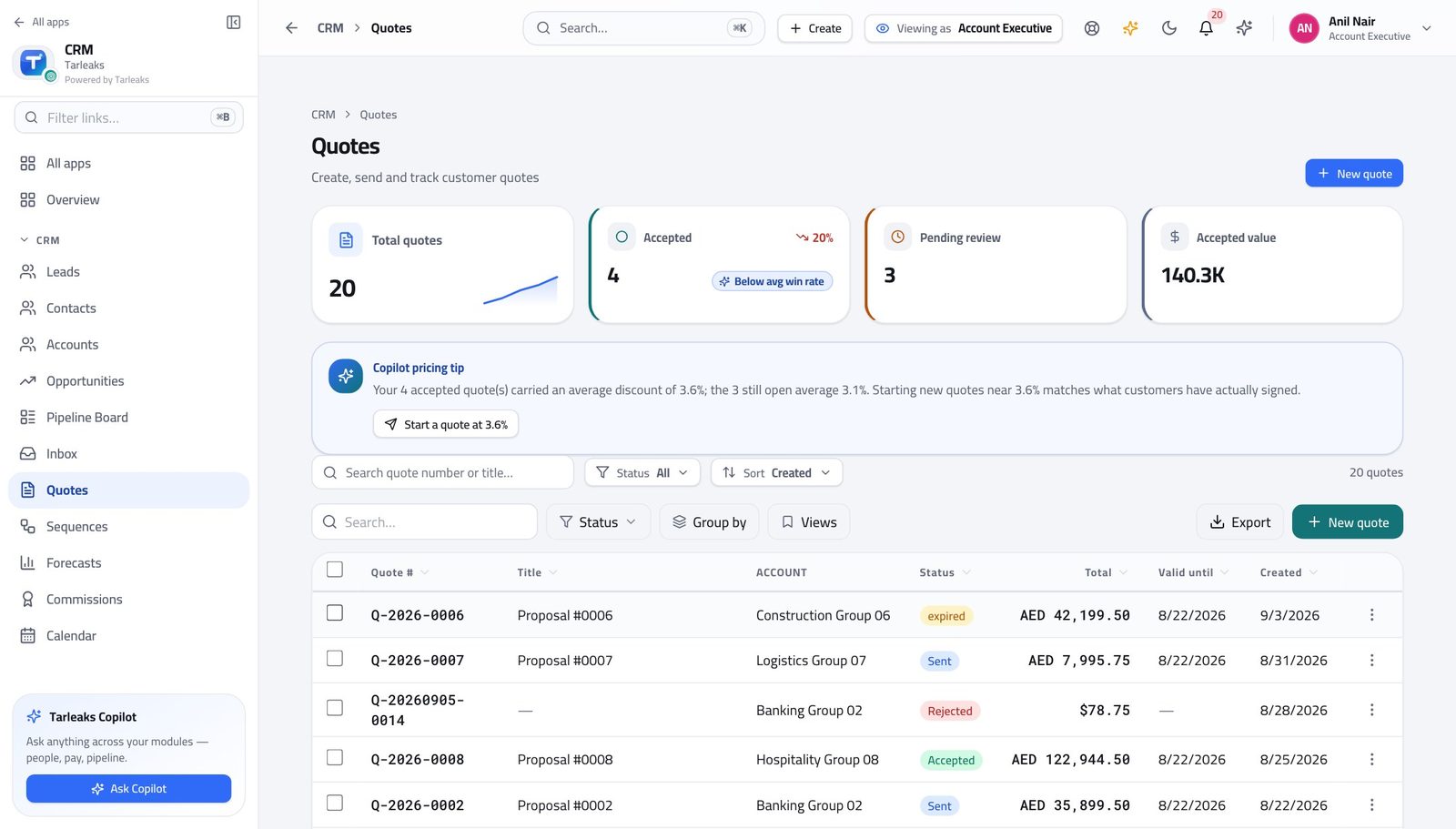
You should see You sell what the company sells, at the price the company set. Adding a product or moving a price is somebody else's decision.
Watch out A product missing from the picker is a request to your administrator, not a reason to type the price in by hand.
Use cases — the work, step by step
Each one is a sequence somebody actually performs, with the screen behind every step. Every screen here was opened in the product as this role before it was published.
dailyTurn a handed-over deal into a sent quote #
The order matters: understand the account, build the quote against the right price book, and only then discover whether the discount needs approving.
Open Opportunities and find the deal the development rep handed you. Read what they wrote before you call anybody.
CRM » Opportunities — verified: the page says “Opportunities”; 16 row(s) listed Open the account. Whether the company already buys from you, and who else talks to them, changes the conversation completely.
CRM » Accounts, and CRM » Contacts — verified: the page says “Accounts”; 23 row(s) listed Build the quote. Set the account, the contact and the price book FIRST, then add a line for each thing you are selling.
CRM » Quotes » New quote — verified: the control is offered Send it from the quote's own screen. If your discount is above your company's threshold the product refuses and tells you the quote needs approving — that refusal is the prompt, not a fault.
CRM » Quotes — verified: the page says “Quotes”; 20 row(s) listed Watch the approval on the quote's own Approvals tab until it is decided, then send.
CRM » Quotes » a quote » Approvals, or the Approvals list — verified: the page says “Approvals”
urgentThe customer wants a bigger discount than you can give #
There is a right way to ask and it takes ten minutes. Rebuilding the quote at a number nobody approved wastes a week.
Open the quote and look at the discount across the lines. It is the discount as a share of the subtotal that is measured, not the worst single line.
CRM » Quotes — verified: the page says “Quotes”; 20 row(s) listed Try to send. The product refuses with the reason, which is your evidence that this genuinely needs a decision rather than a conversation.
CRM » Quotes — verified: the page says “Quotes”; 20 row(s) listed Watch the request on the quote's Approvals tab. You cannot decide it yourself — there is no approve action on a request you raised.
CRM » Approvals — verified: “Approvals” is not in this role's menu If it is refused, read the note, change the quote and ask again. Refusal sends it back to you; it does not kill the deal.
CRM » Quotes » a quote » Approvals, or the Approvals list — verified: the page says “Approvals”
weeklyKeep the board honest before the week closes #
Your forecast is built from your own stages and close dates. Twenty minutes on Friday is the difference between a number your manager can commit and one they have to discount by feel.
Open the board and move every card that actually moved this week. Dragging the card IS the stage change.
CRM » Pipeline Board — verified: the page says “Pipeline Board” Fix the close dates. A date that has already passed, or one that is 'end of quarter' on nine deals, makes the whole forecast a guess.
CRM » Opportunities — verified: the page says “Opportunities”; 16 row(s) listed Mark the lost ones lost, with a reason. Then tell your manager about the won ones — declaring a deal won is their action, not yours.
CRM » Pipeline Board — verified: no “Mark won” anywhere on the page Read the forecast last and see whether it matches what you would say out loud. If it does not, the board is wrong, not the report.
CRM » Forecasts — verified: the page says “Forecast”
edgeThe customer accepted — hand it to the order desk #
CRM stops at the accepted quote. Delivering the thing, invoicing it and collecting the money happen in the sales-order module, and the handover is deliberate rather than automatic.
Mark the quote accepted on its own screen. That is the record that the customer said yes to this exact set of lines and prices.
CRM » Quotes — verified: the page says “Quotes”; 20 row(s) listed Tell your manager the deal is won so they can close it. The forecast will not correct itself.
CRM » Pipeline Board — verified: no “Mark won” anywhere on the page Follow the order through to fulfilment in Sales Orders. Once it is there, delivery and invoicing are that team's, and the quote stops being the live document.
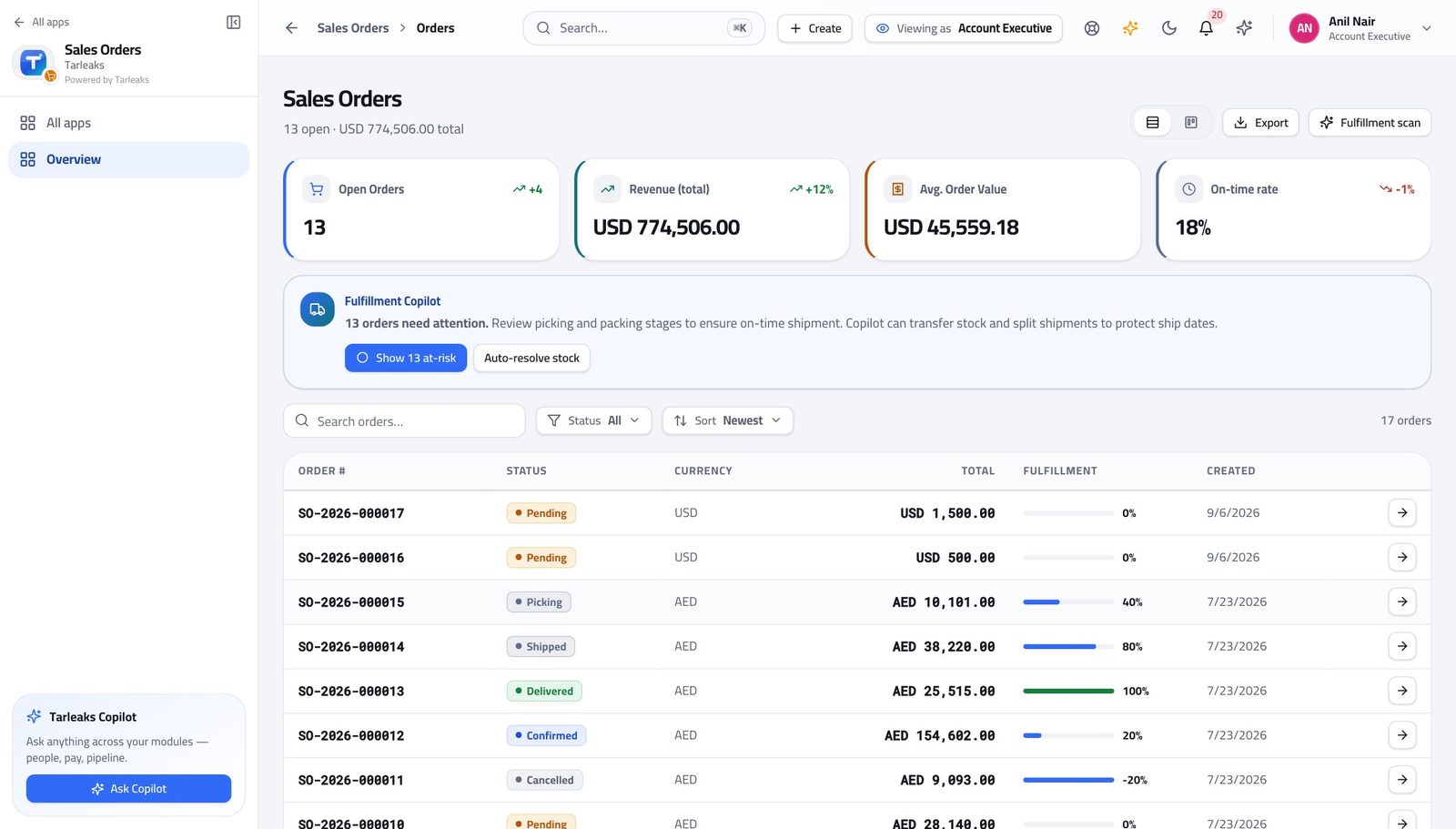
In the product — verified: the page says “Sales Orders”
Your lists are already only yours — nothing is being hidden from you by the screen. And the two things you cannot do, approve your own discount and declare a deal won, are the two that protect the number everyone else is working from.
Sales Development Representative
Work the top of the funnel, and hand over something worth having.
Works the top of the funnel: calls and e-mails new leads, qualifies them, and converts the good ones. The deal desk — opportunities, quotes, pricing, forecast — is closed to this role by design.
What you will be able to do
- Work your own lead queue, not the company's
- Put a lead into a sequence and follow up on time
- Book the meeting that starts the deal
- Convert a good lead into a contact, an account and a deal
What this role can and cannot do
| Can | Cannot |
|---|---|
|
|
16 steps, each one carried out in the product on .
Check what your sign-in can do #
Where Your name, top right » Profile
- Open your company's address in the browser — it looks like yourcompany.tarleaks.com.
- Type the e-mail address your administrator set up for you, then your password.
- You land on the app launcher: a grid of the apps your company uses.
- Click the CRM tile.
- Click your name in the top-right corner and choose Profile.
- Read the roles panel.
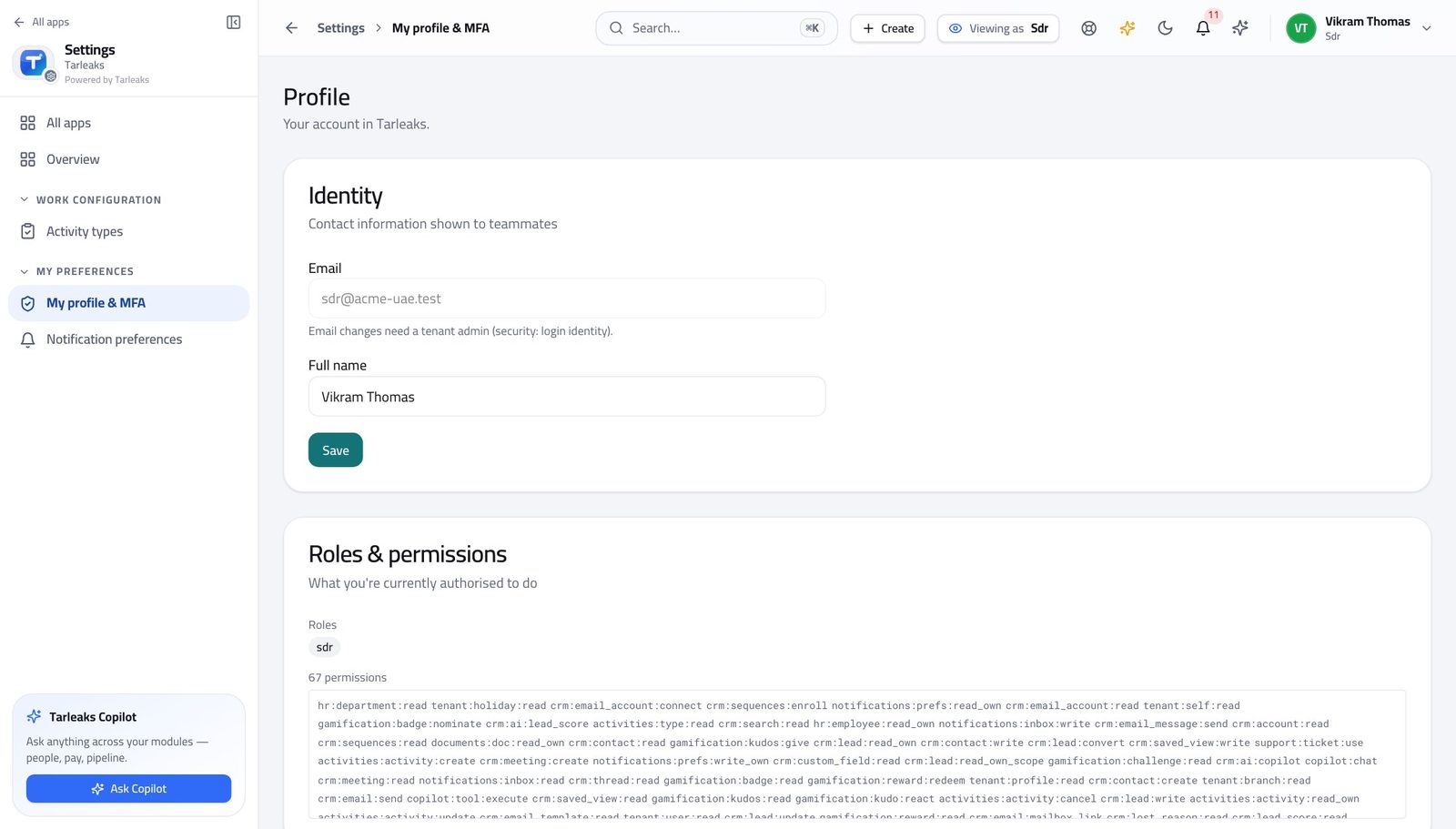
You should see It says SDR. Leads, contacts, sequences, e-mail and meetings are yours.
Watch out Your menu is genuinely shorter than a colleague's. That is the job, not a setup that somebody forgot to finish.
Worth knowing Opportunities, quotes, pricing and the forecast are not on your menu at all. That is the shape of the job, not something somebody forgot to switch on for you.
Open your own lead queue #
Where CRM » Leads
- In the left menu under CRM, click Leads.
- Read the count under the title.
- Use the boxes across the top to narrow — new, working, qualified, converted.
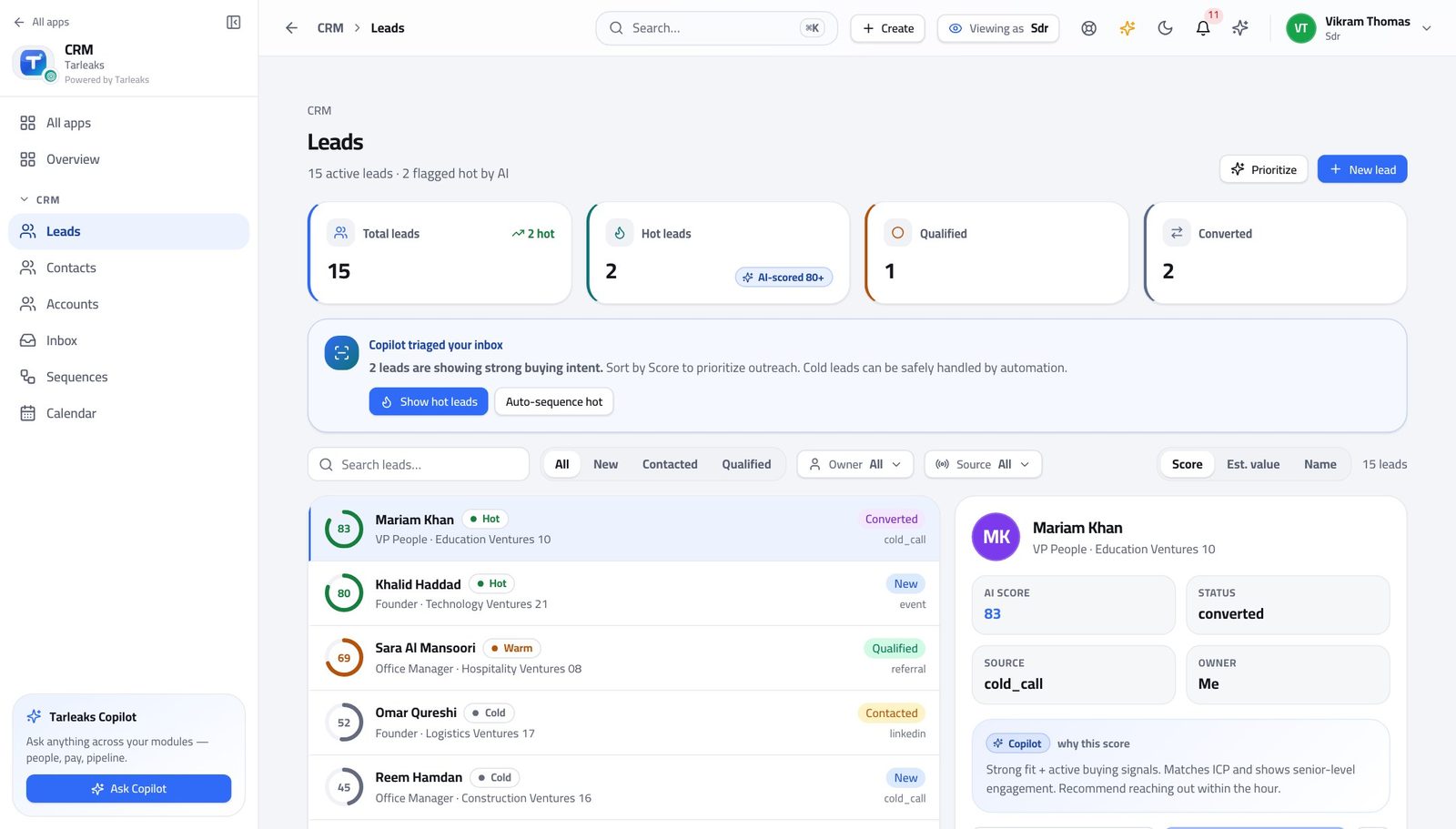
You should see You are given your own queue rather than the company's list, which is what makes it workable on a Monday morning.
Watch out The filter is written into the address, so 'my new leads today' can be a bookmark rather than four clicks every morning.
Add a lead by hand #
Where CRM » Leads » New lead
- Click New lead.
- Fill the name, e-mail, company and source.
- Leave the owner alone unless you know better — the routing rules decide.
| Field | What to put in it |
|---|---|
| First name | As they introduced themselves. |
| Last name | Their family name. |
| The address you will actually write to. | |
| Phone | With the country code — you will call from your mobile. |
| Company | The company's name, not the group's. |
| Job title | As they say it, not as the org chart says it. |
| Source | Where they came from — event, referral, website. Your marketing team will ask about this. |
| Status | Leave at new unless you have already spoken to them. |
| Owner | Leave blank to let the routing rules assign it. |
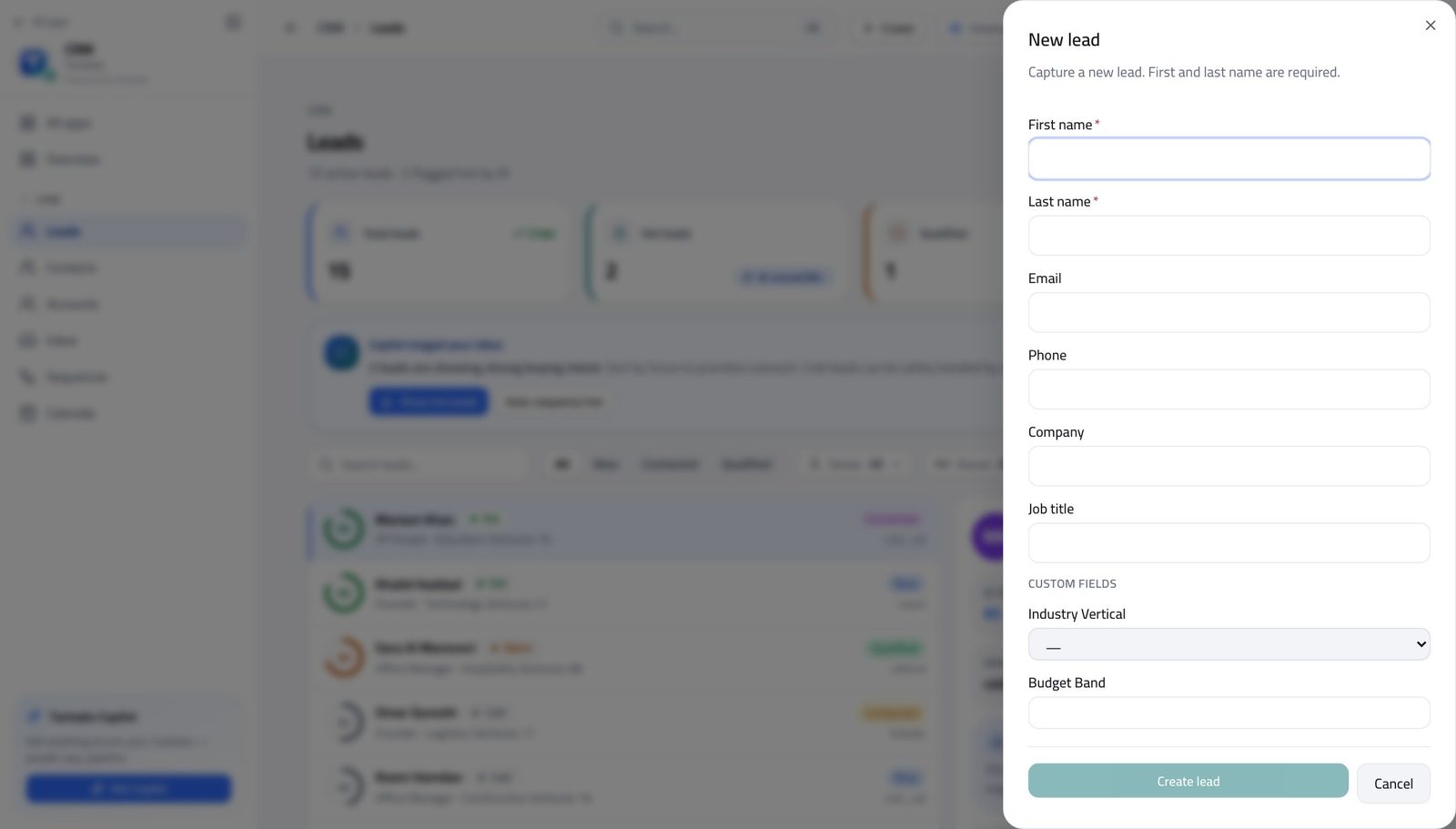
You should see Most leads arrive from a form or an import. This is for the one you met at a conference, and it should look identical to the ones that arrive on their own.
Watch out Fill in Source even when it feels obvious today. In three months nobody will remember which conference this was.
Worth knowing Source is the field your marketing team will ask about later. Fill it in even when it feels obvious to you today.
Read the whole lead, including your company's own questions #
Where CRM » Leads » any lead
- Open a lead from the list.
- Read Contact, then Qualification, then the custom-fields section.
- Use the arrows at the top of the record to walk to the next lead without going back to the list.
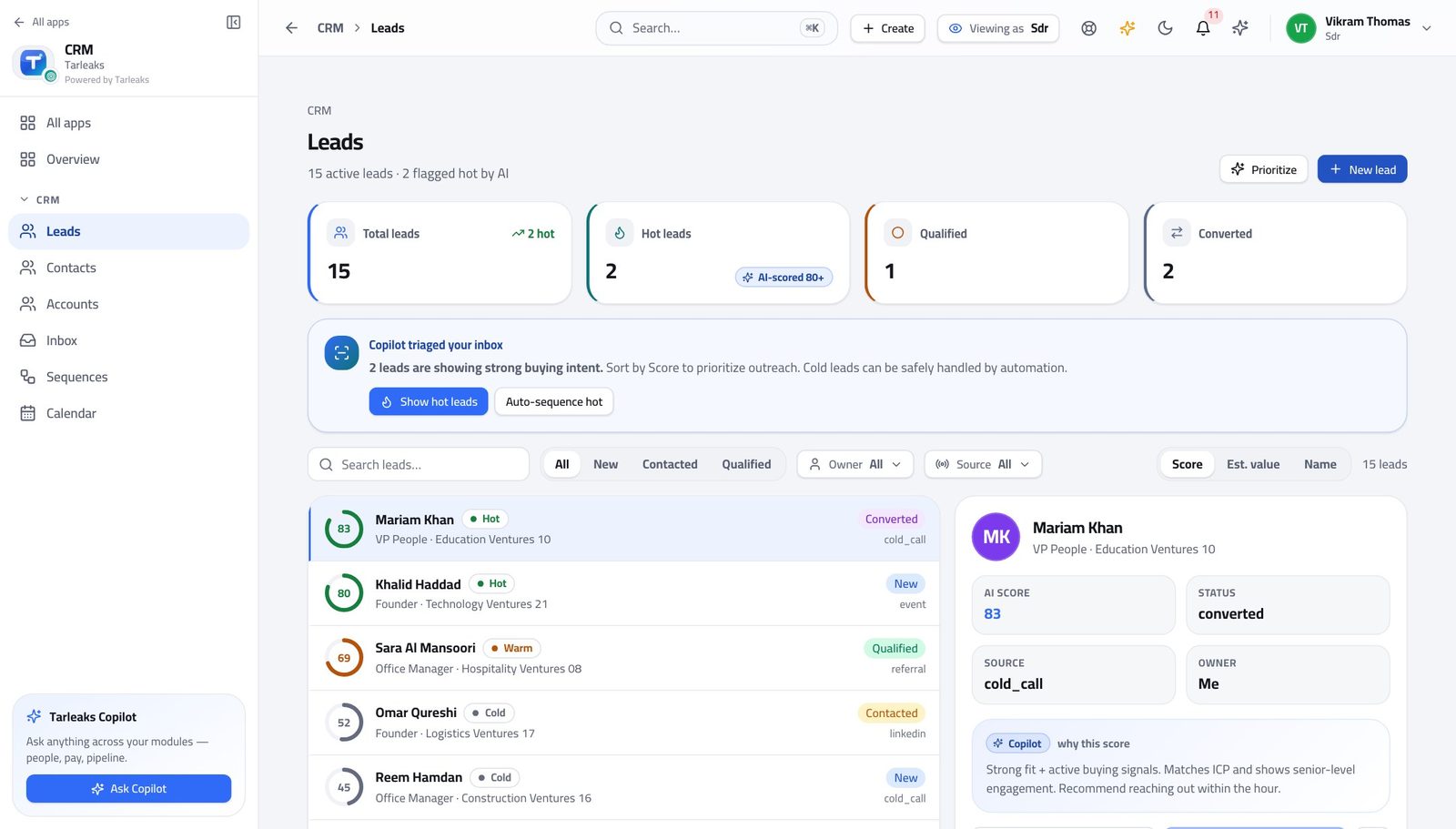
You should see What your business needs to know before a lead is worth a demo is on the record itself, not buried in a note somebody wrote.
Watch out Fill the qualification fields as you learn the answers, not at the end. A lead handed over with empty fields is handed over twice.
Convert a good lead — and hand it over #
Where CRM » Leads » Convert
- Open the lead and choose Convert.
- Tick Create contact, Create account and Create opportunity.
- Fill in the opportunity details.
- Choose the owner — the person who will run the deal.
- Convert.
| Field | What to put in it |
|---|---|
| Create contact | Almost always yes — the person becomes a contact. |
| Create account | Yes, unless the company is already in the system. |
| Create opportunity | Yes when there is a real deal to hand over. |
| Pipeline | Which sales process this deal belongs in. |
| Stage | The first real stage, not the last one you hope for. |
| Amount | Your best honest estimate. It can be changed. |
| Close date | When the customer says they will decide, not when you would like them to. |
| Owner | The account executive taking this on. This is the handover. |
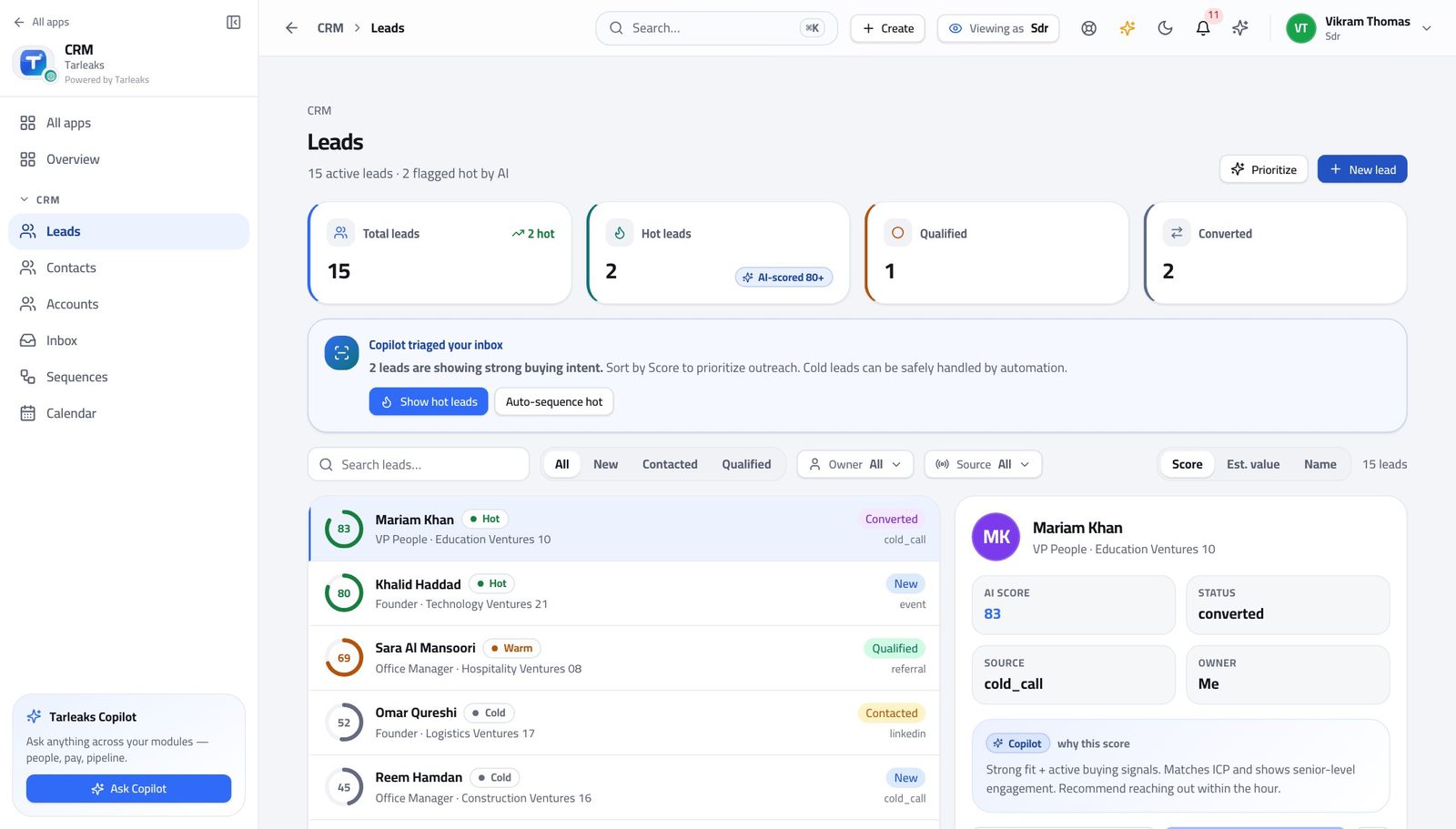
You should see One action produces a contact, a company and a deal, all linked back to the lead. The deal then belongs to the person you named — it does not stay with you, because opportunities are closed to this sign-in.
Watch out Choose the owner deliberately. Get it wrong and the deal sits with somebody who does not know it exists — and you cannot fix it afterwards, because deals are not yours to open.
Worth knowing Choosing the owner is the handover. Get it right here and nobody has to chase who owns the new deal.
Give up on a lead properly #
Where CRM » Leads » Disqualify
- Open a lead you are giving up on.
- Choose Disqualify.
- Pick a reason from the list.
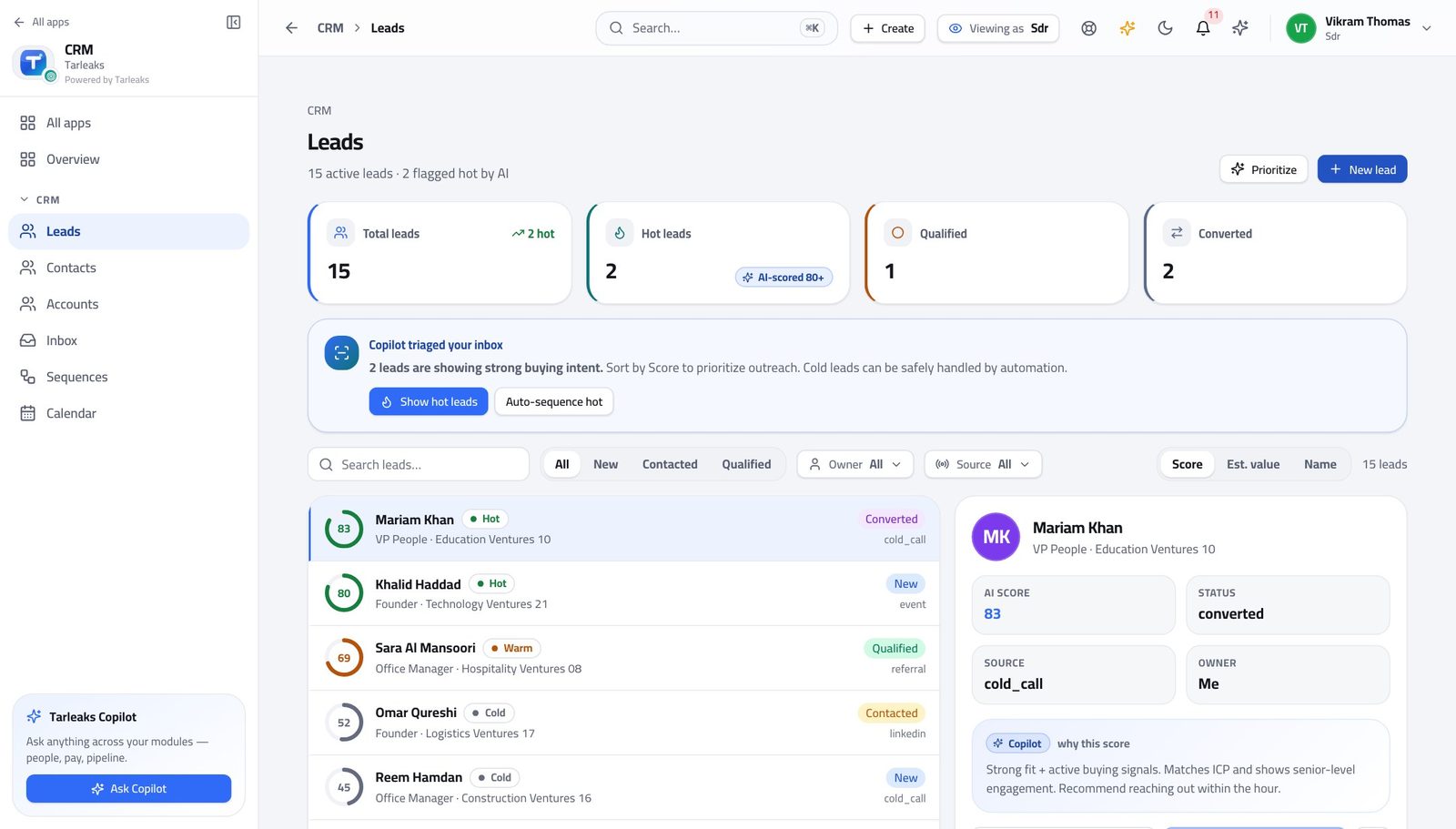
You should see 'Not a fit' typed forty different ways cannot be counted. A fixed list can, and that is what tells your company where the leads are going wrong.
Watch out Disqualify properly rather than leaving the lead to rot in 'working'. The reason is what tells your company where the leads are going wrong.
Put a lead into a sequence #
Where CRM » Sequences
- In the left menu, click Sequences.
- Open one and read its steps: what goes out, and how long after the step before.
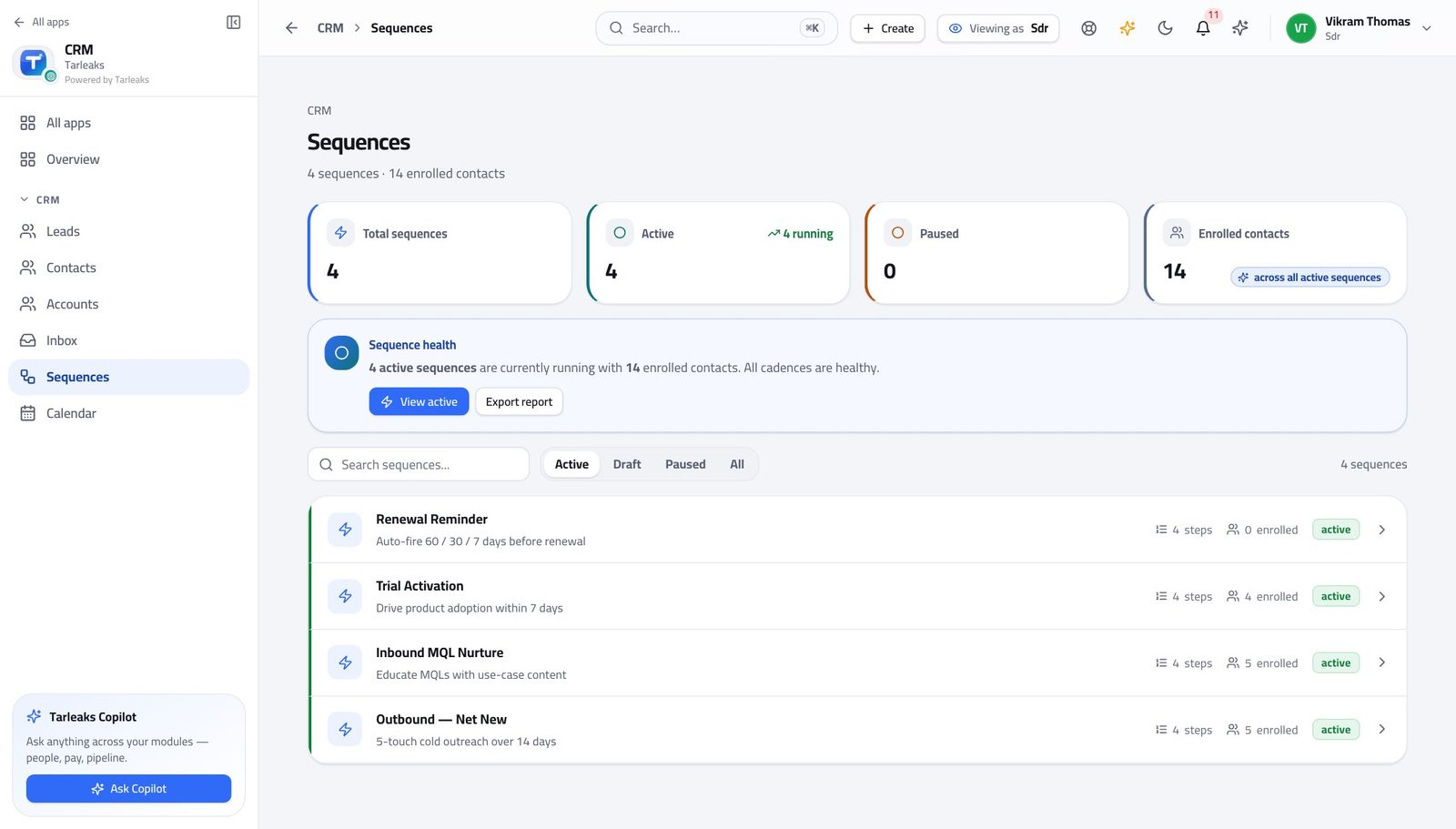
You should see Following up becomes a sequence you enrol somebody into, rather than forty reminders you keep in your head.
Watch out Read the whole sequence before enrolling anybody. You are signing your name to every message in it.
See who is in a sequence and where they are #
Where CRM » Sequences » a sequence
- Open a sequence.
- Read who is enrolled and which step they are on.
- Pause, resume or take somebody out.
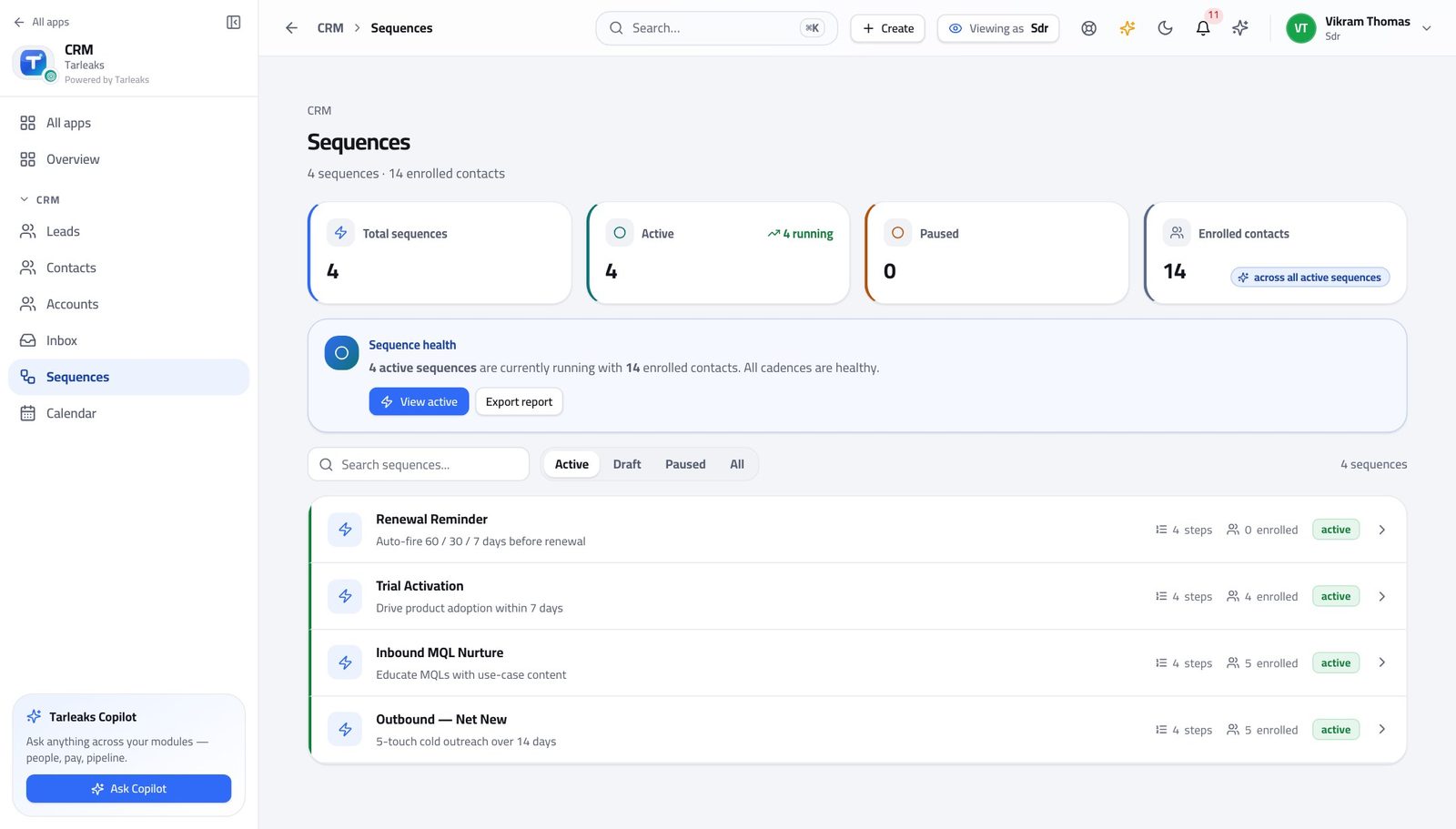
You should see The moment somebody replies you take them out, so a real conversation is never interrupted by an automatic follow-up.
Watch out Take somebody out the moment they reply — before you write your answer. An automatic follow-up landing after a real conversation is the fastest way to lose one.
Worth knowing Taking somebody out of a sequence is the first thing to do after a reply — before you answer, not after.
Work the shared mailbox #
Where CRM » Inbox
- In the left menu, click Inbox.
- Pick a thread on the left; the conversation opens on the right.
- Reply from here, using a template where one fits.
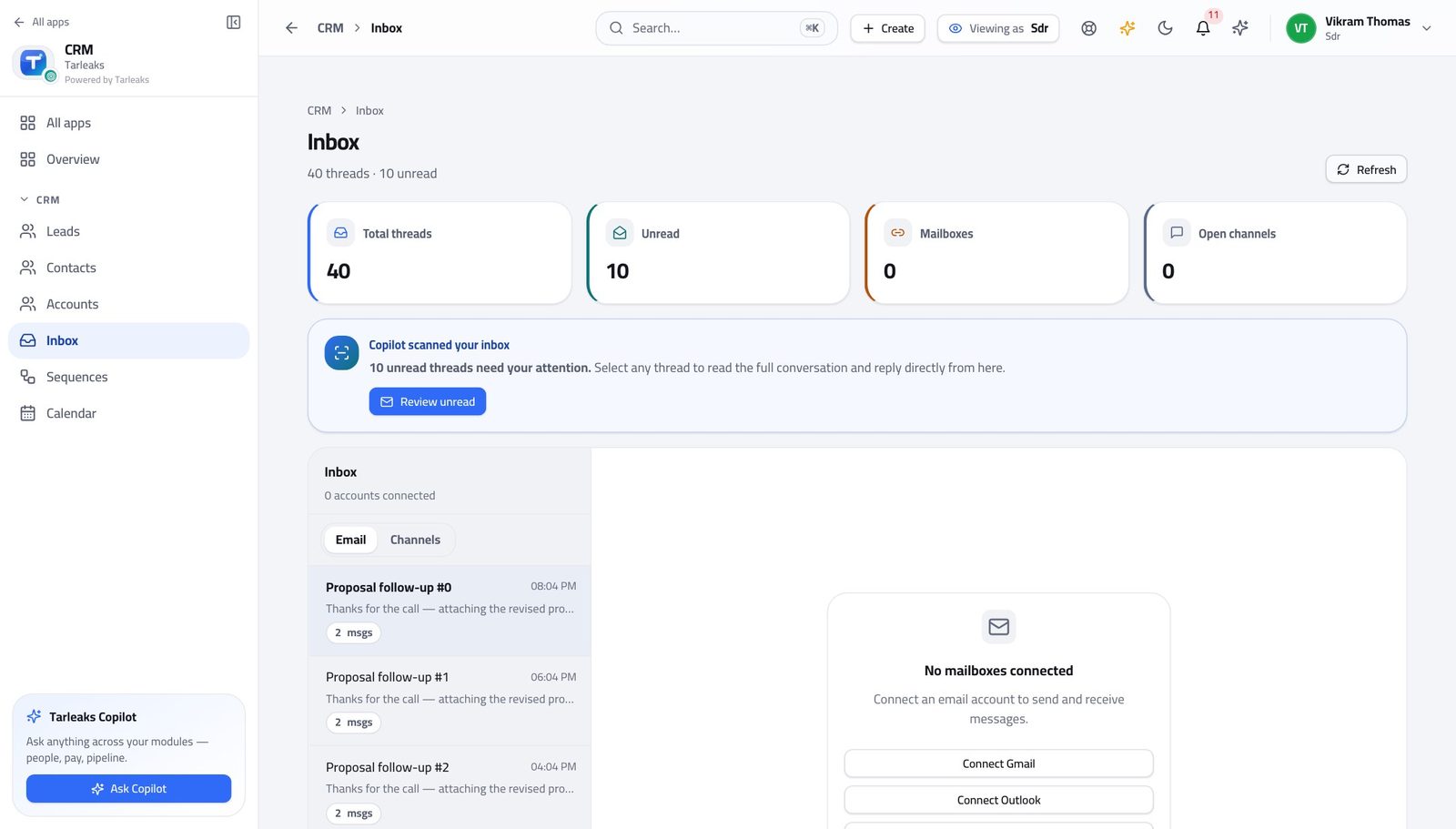
You should see A reply that lands here is already attached to the lead or contact it came from, so the next person to open that record can read the whole exchange.
Watch out Reply here rather than in your own mail client. A reply sent from outside is invisible to whoever picks the record up next.
Book the meeting that starts the deal #
Where CRM » Calendar
- In the left menu, click Calendar.
- Read the week: what is booked, with whom.
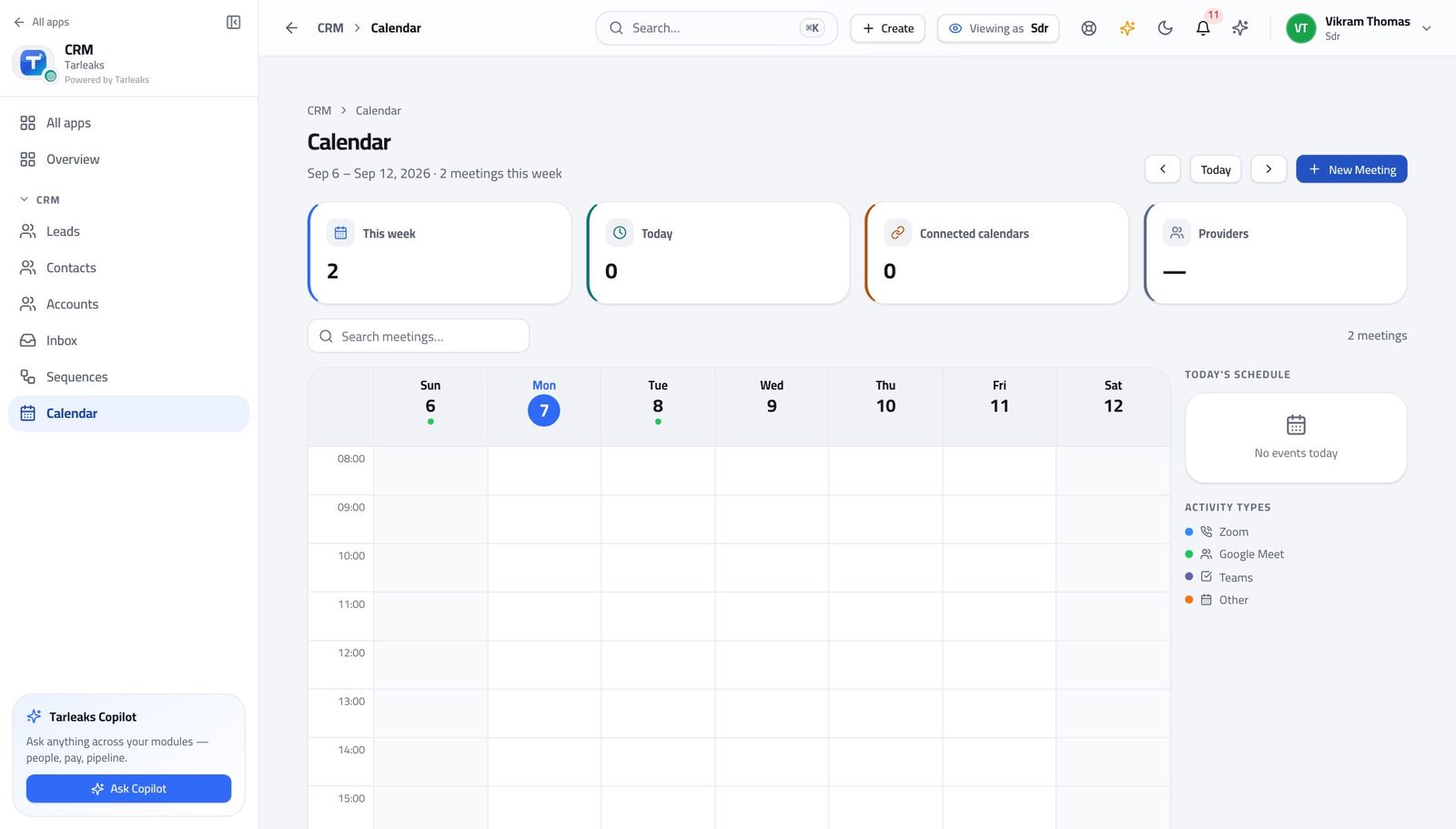
You should see Booking the meeting IS the handover. The account executive picks it up from here with the whole history attached.
Watch out Booking the meeting is the handover. Put what you learned on the lead before the meeting happens, not after.
Check whether they are already a customer #
Where CRM » Accounts, and CRM » Contacts
- In the left menu, click Accounts.
- Search for the company before you call.
- Open the account to see who already talks to them.
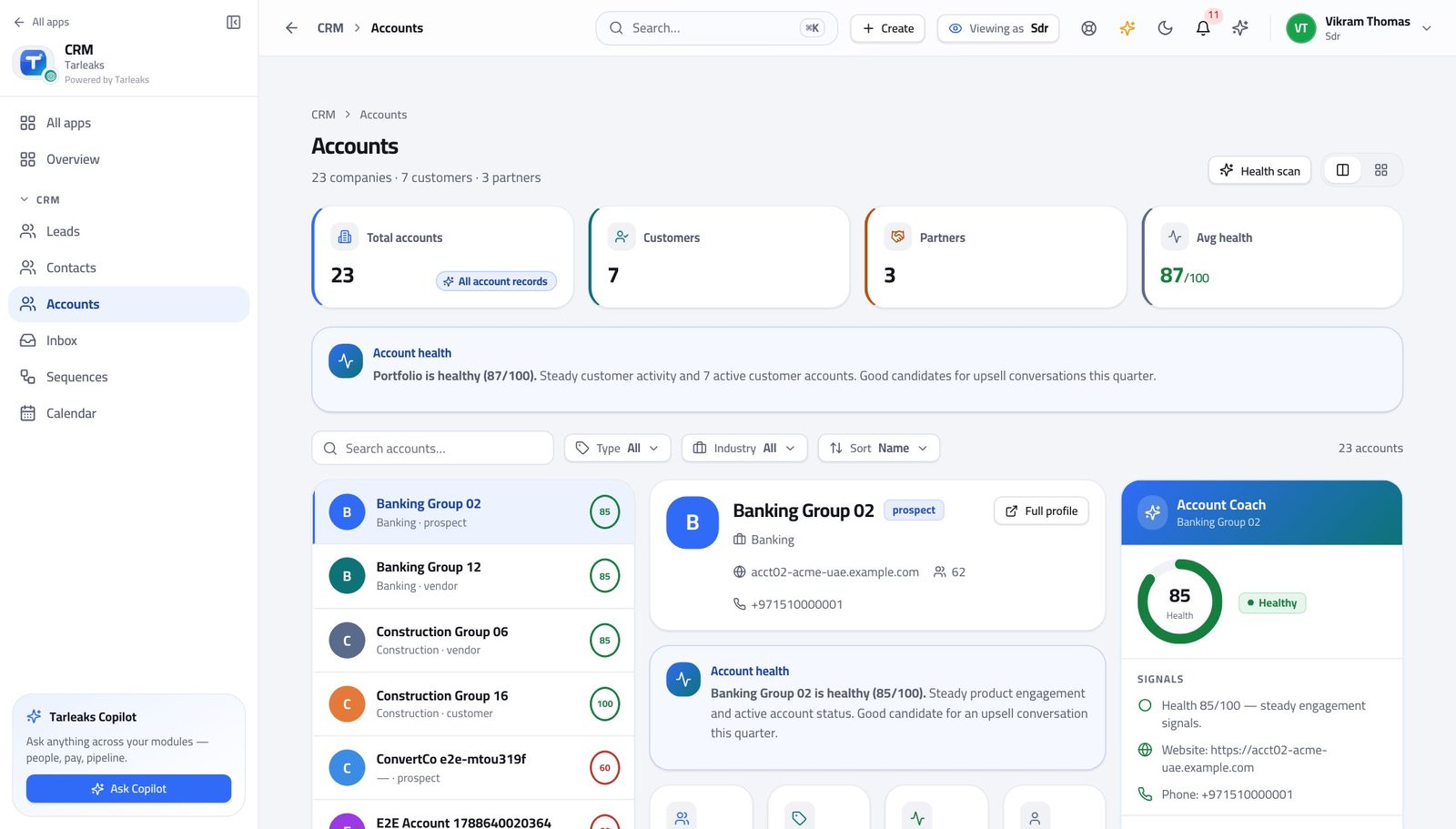
You should see Calling an existing customer as though they were a stranger is the one call you cannot take back. Thirty seconds here prevents it.
Watch out Calling an existing customer as though they were a stranger is the one call you cannot take back. Thirty seconds here prevents it.
Deals are not yours #
Where The left menu, under CRM
- Look down the CRM menu.
- Opportunities is not there.
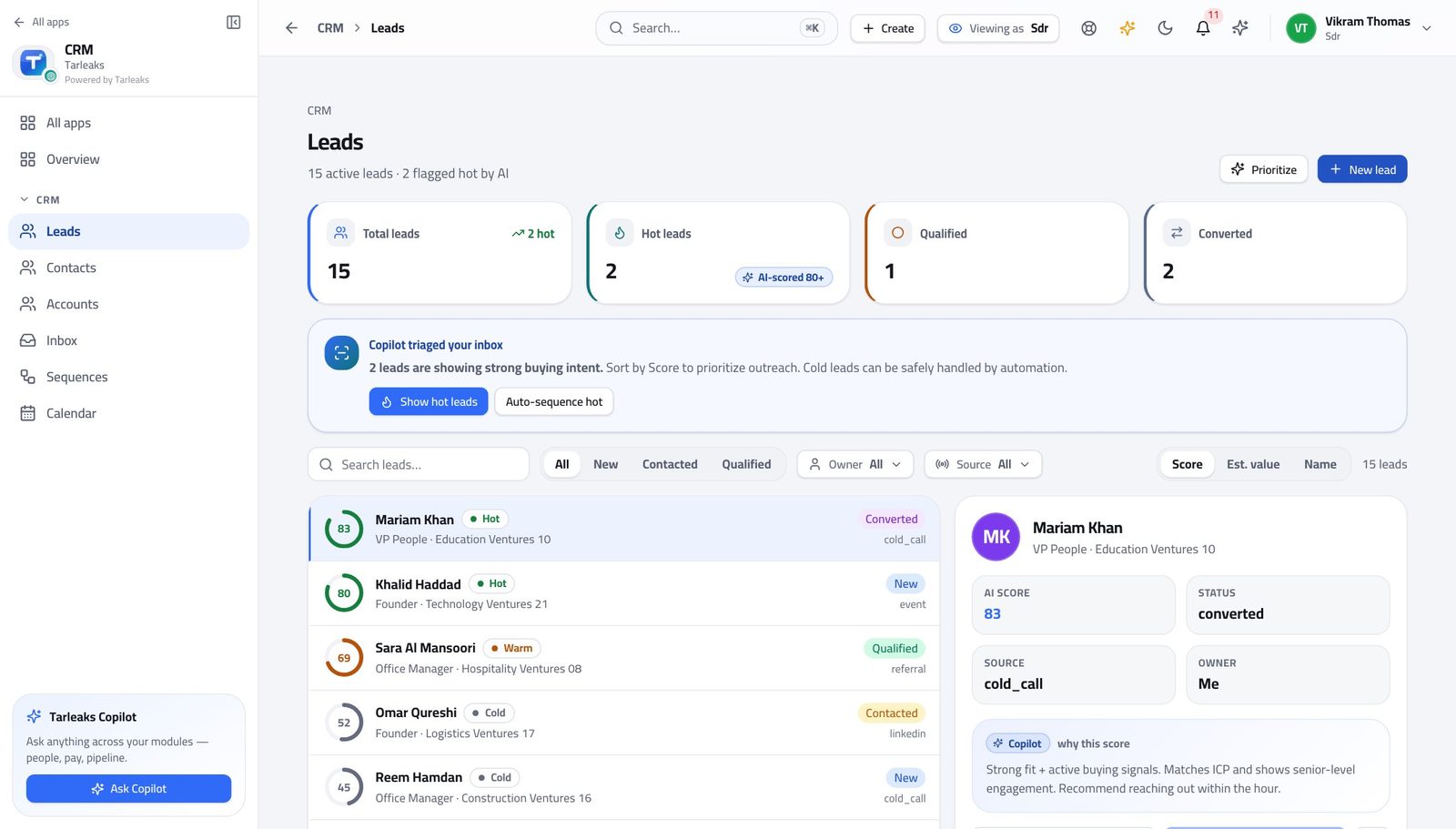
You should see A lead becomes a deal when you convert it, and the deal belongs to the person who will close it. Your part is finished at that point.
Watch out You create deals by converting leads. You just do not keep them afterwards.
Quotes are not yours #
Where The left menu, under CRM
- Look down the CRM menu.
- Quotes is not there.
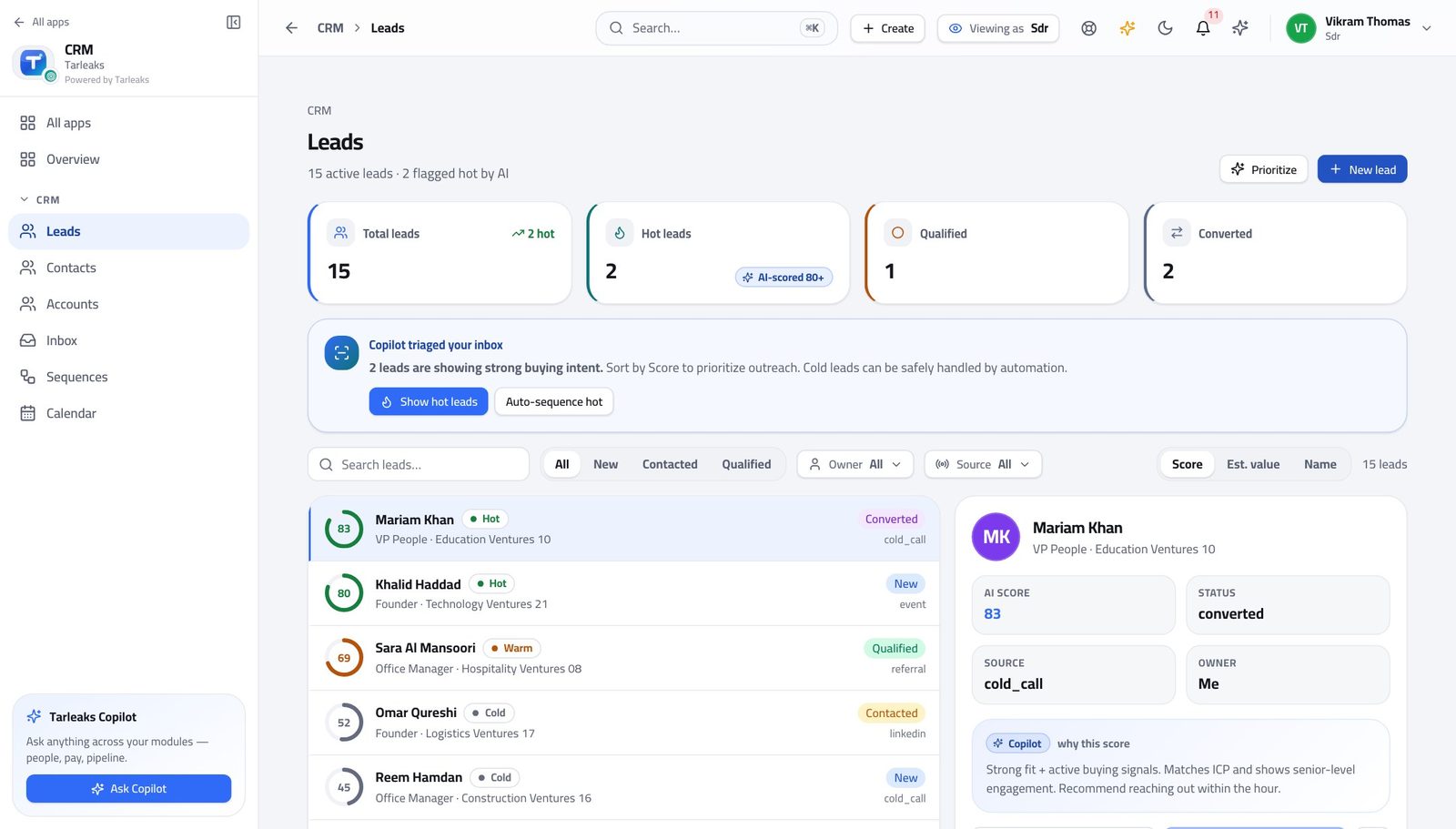
You should see Pricing a deal is the deal desk's job and it starts after your handover. If a prospect asks for a price, pass them to the owner rather than guessing.
Watch out If a prospect asks for a price, hand them to the deal's owner. Guessing a number is worse than saying you will find out.
The forecast is not yours #
Where The left menu, under CRM
- Look down the CRM menu.
- Forecasts is not there.
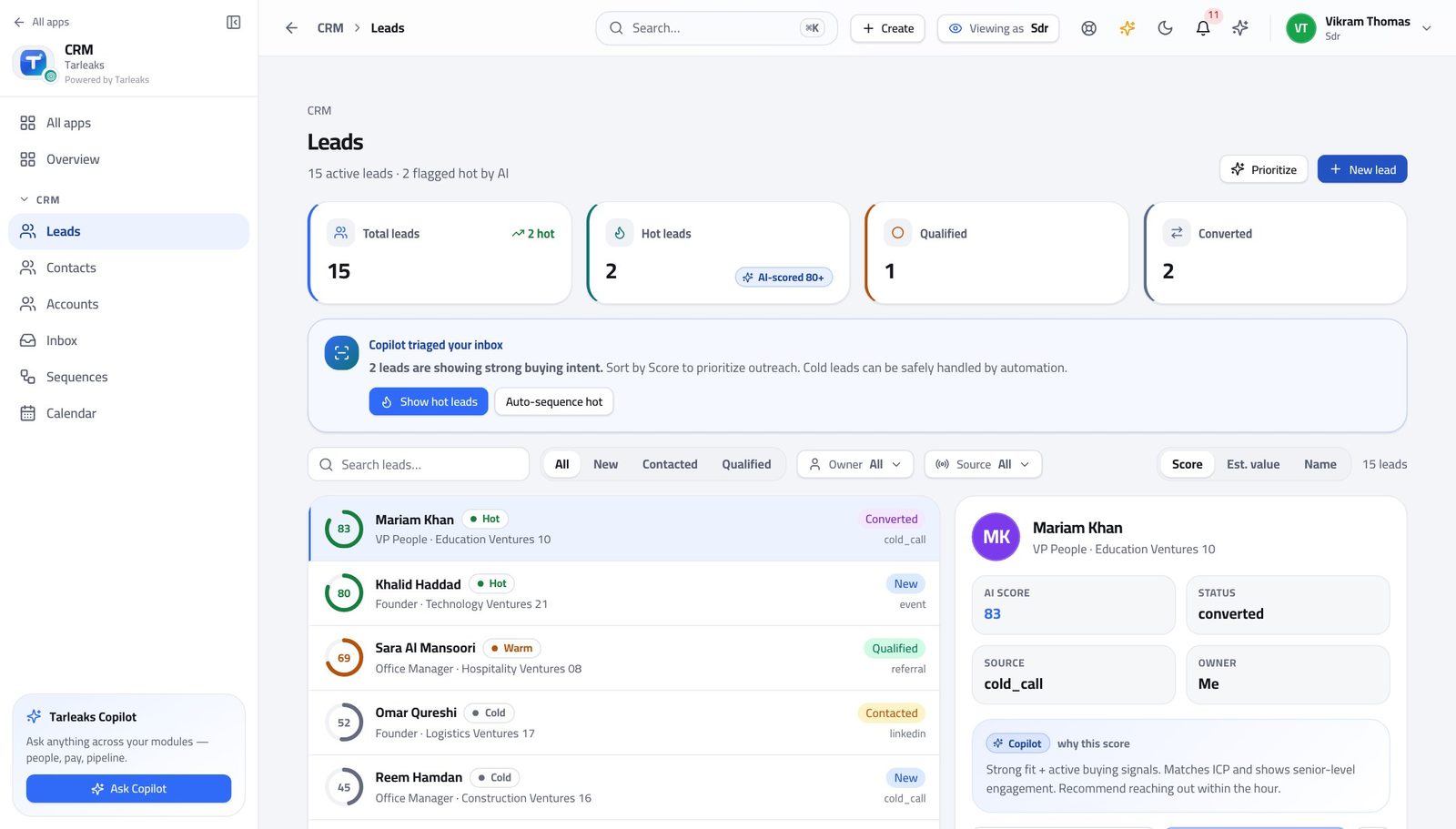
You should see You are measured on qualified leads and meetings booked, not on a pipeline number you do not own.
Watch out Your numbers are qualified leads and meetings booked. Ask your manager where you can see those if they are not obvious.
Editing deals in a batch is refused too #
Where There is no deal list to select from.
- There is no deal list, so there is nothing to select.
- The batch action refuses on its own as well.
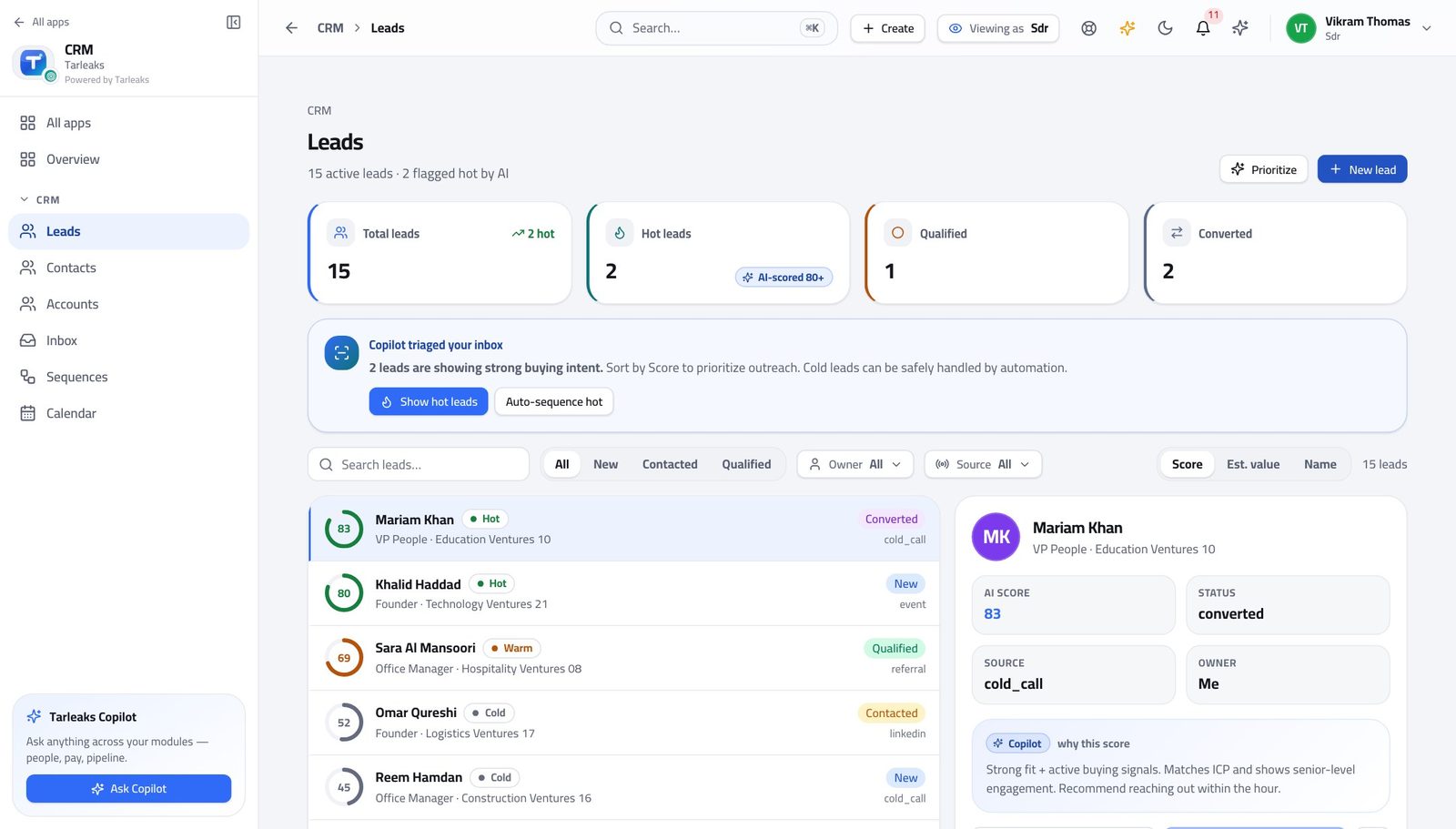
You should see The refusal is at the request, not only at the screen — so a bookmark, a shared link or a saved view cannot get round it either.
Watch out A link a colleague sends you gets the same answer as the menu does. Nothing gets round it, which is the point.
Sending a quote for approval is refused #
Where There is no quote to send it from.
- There is no quote to send for approval.
- The request refuses.
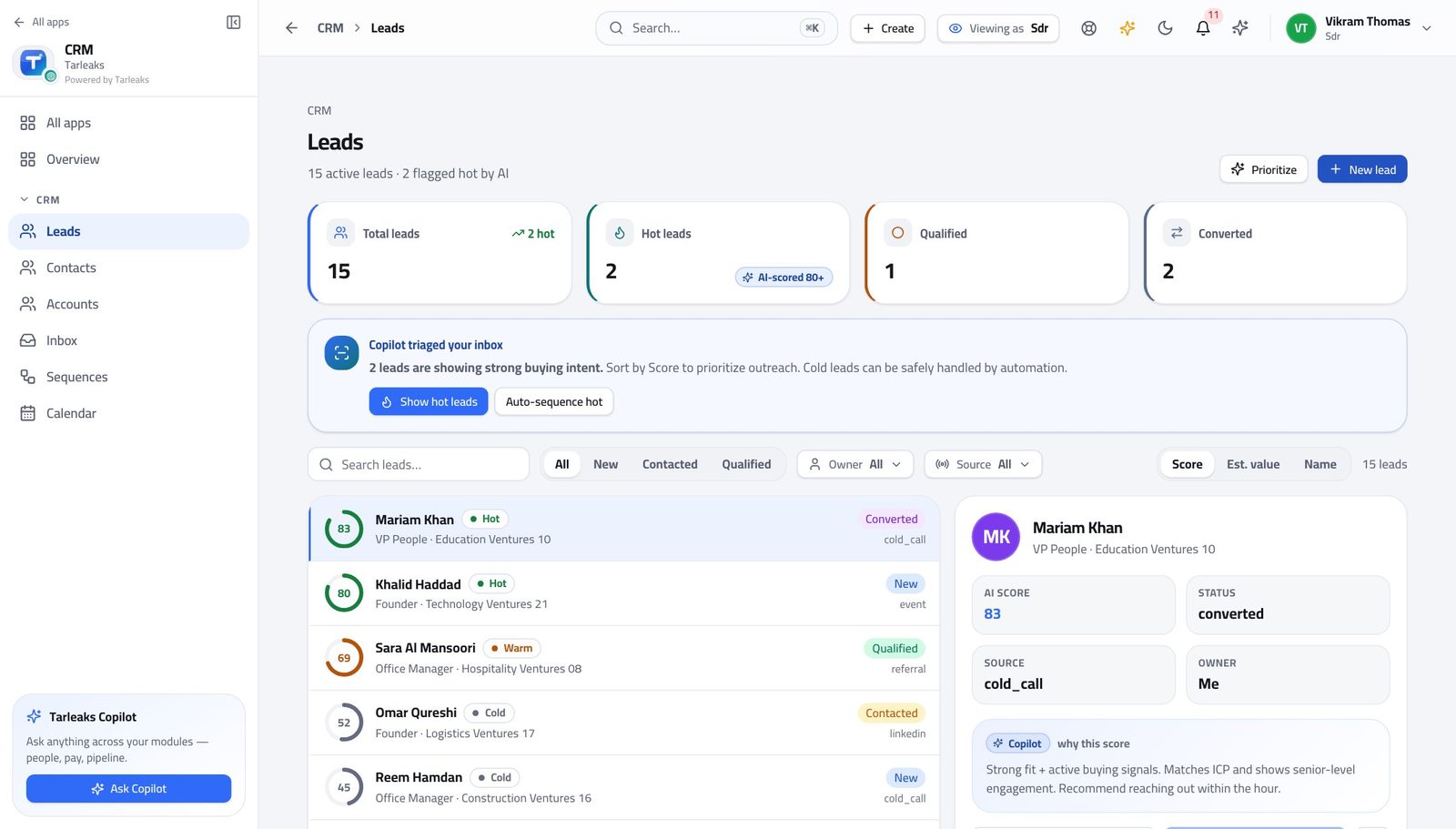
You should see The discount conversation happens between the account executive and their manager, after your handover. You are not in it, and you do not need to be.
Watch out The discount conversation is between the deal's owner and their manager. Passing on what the customer said about price is useful; asking for the discount yourself is not yours to do.
Use cases — the work, step by step
Each one is a sequence somebody actually performs, with the screen behind every step. Every screen here was opened in the product as this role before it was published.
dailyA morning on the queue, in about forty minutes #
Highest score first, sequences before manual follow-ups, and replies answered before anything automatic goes out on top of them.
Open Leads and read the count. Narrow to new and working, then sort by score — the highest-scoring leads are the ones your company's own rules say are worth the first call.
CRM » Leads — verified: the page says “Leads”; 15 row(s) listed Open the top lead. Read Qualification before you dial: what is already known saves you asking it again, and what is missing is your call plan.
CRM » Leads » any lead — verified: the page says “Leads”; 15 row(s) listed Check the sequence enrolments before you write anything by hand. Somebody already in a sequence does not need a second e-mail from you today.
CRM » Sequences » a sequence — verified: the page says “Sequences” Work the inbox last. Every reply is attached to the record it came from, so answer from here rather than from your own mail client — and take the person out of their sequence first.
CRM » Inbox — verified: the page says “Inbox”
dailyQualify a good lead and hand it over cleanly #
The handover is the whole job. A deal that arrives with an owner, a date and an honest amount gets worked; one that arrives as a name gets ignored.
Fill in the qualification fields on the lead as you learn the answers, not at the end. Budget, authority, timing, and whatever your own company added.
CRM » Leads » any lead — verified: the page says “Leads”; 15 row(s) listed Book the meeting. That is the moment the deal becomes real, and the calendar entry carries the record with it.
CRM » Calendar — verified: the page says “Calendar” Convert: create the contact, the account and the opportunity in one action, and name the account executive who will run it.
CRM » Leads » Convert — verified: the page says “Convert” Check the lead now reads converted. The deal has left you — opportunities are not on your menu — which is exactly right.
CRM » Leads — verified: the page says “Leads”; 15 row(s) listed
urgentThey replied and want a price #
The wrong answer here costs the deal. Guessing a number you cannot stand behind is worse than saying you will find out today.
Answer in the inbox thread so the whole exchange stays on the record. Say you will get them a proper number, and give a time.
CRM » Inbox — verified: the page says “Inbox” Do not go looking for the price list. Quotes and pricing are not on your menu, and that is deliberate — the deal desk owns what a customer is told a thing costs.
The left menu, under CRM — verified: “Quotes” is not in this role's menu Convert the lead and name the owner, then tell them directly. A priced conversation is the account executive's from that moment.
CRM » Leads » Convert — verified: the page says “Convert”
edgeThis one is not going anywhere #
A dead lead left in 'working' is worse than a disqualified one: it counts against you and it teaches your company nothing.
Open the lead and read what you actually learned. Write it down even though you are about to give up — the next person to meet this company will want it.
CRM » Leads » any lead — verified: the page says “Leads”; 15 row(s) listed Disqualify with a reason from the list. The list is short on purpose; pick the closest, do not invent a new one in the notes.
CRM » Leads » Disqualify — verified: the page says “Leads” Check they are not still enrolled in a sequence. A disqualified lead receiving another automatic e-mail is the worst of both.
CRM » Sequences » a sequence — verified: the page says “Sequences”
The deal desk — opportunities, quotes, pricing, the forecast — is not hidden from you, it is closed to you. Your part finishes at the handover, and the handover is the conversion.