Sales Manager — CRM guide
See the whole team's number, and decide the calls only you can make.
Answers for the team's number. Sees the whole team's pipeline, commits the forecast, decides the discount approvals the reps ask for, and moves a deal to somebody else when it needs moving.
What you will be able to do
- Read the team's pipeline and the forecast that comes out of it
- Approve or refuse the discounts your reps ask for
- Move a deal to somebody else when it needs moving
- Check what the team is owed before they ask
What this role can and cannot do
| Can | Cannot |
|---|---|
|
|
15 steps, each one carried out in the product on .
Check what your sign-in can do #
Where Your name, top right » Profile
- Open your company's address in the browser — it looks like yourcompany.tarleaks.com.
- Type the e-mail address your administrator set up for you, then your password.
- You land on the app launcher: a grid of the apps your company uses.
- Click the CRM tile.
- Click your name in the top-right corner and choose Profile.
- Read the roles panel.
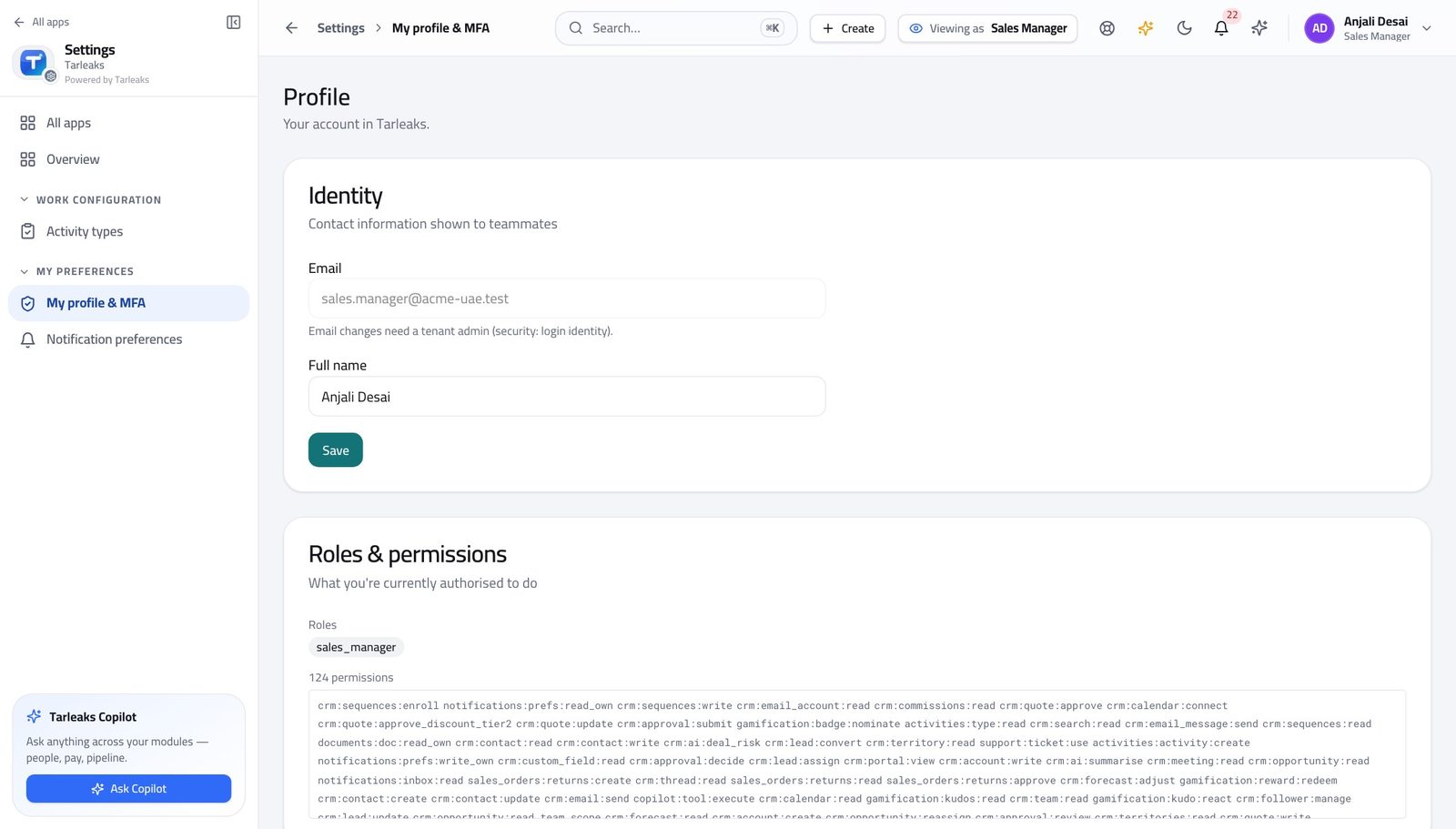
You should see It says Sales Manager. The team's pipeline, the forecast, discount approvals and moving a deal to somebody else are yours.
Watch out If you were expecting to change a threshold or release a payout and cannot, that is the design rather than a missing setting.
Worth knowing Two things are deliberately not yours: changing the threshold that made a discount need approving, and releasing commission money. Both would let you decide your own team's outcome.
Open the team's whole pipeline #
Where CRM » Opportunities
- In the left menu under CRM, click Opportunities.
- Read the four boxes across the top.
- Click a box — Won, for example — to narrow the list to it.
- Click it again to clear the filter.
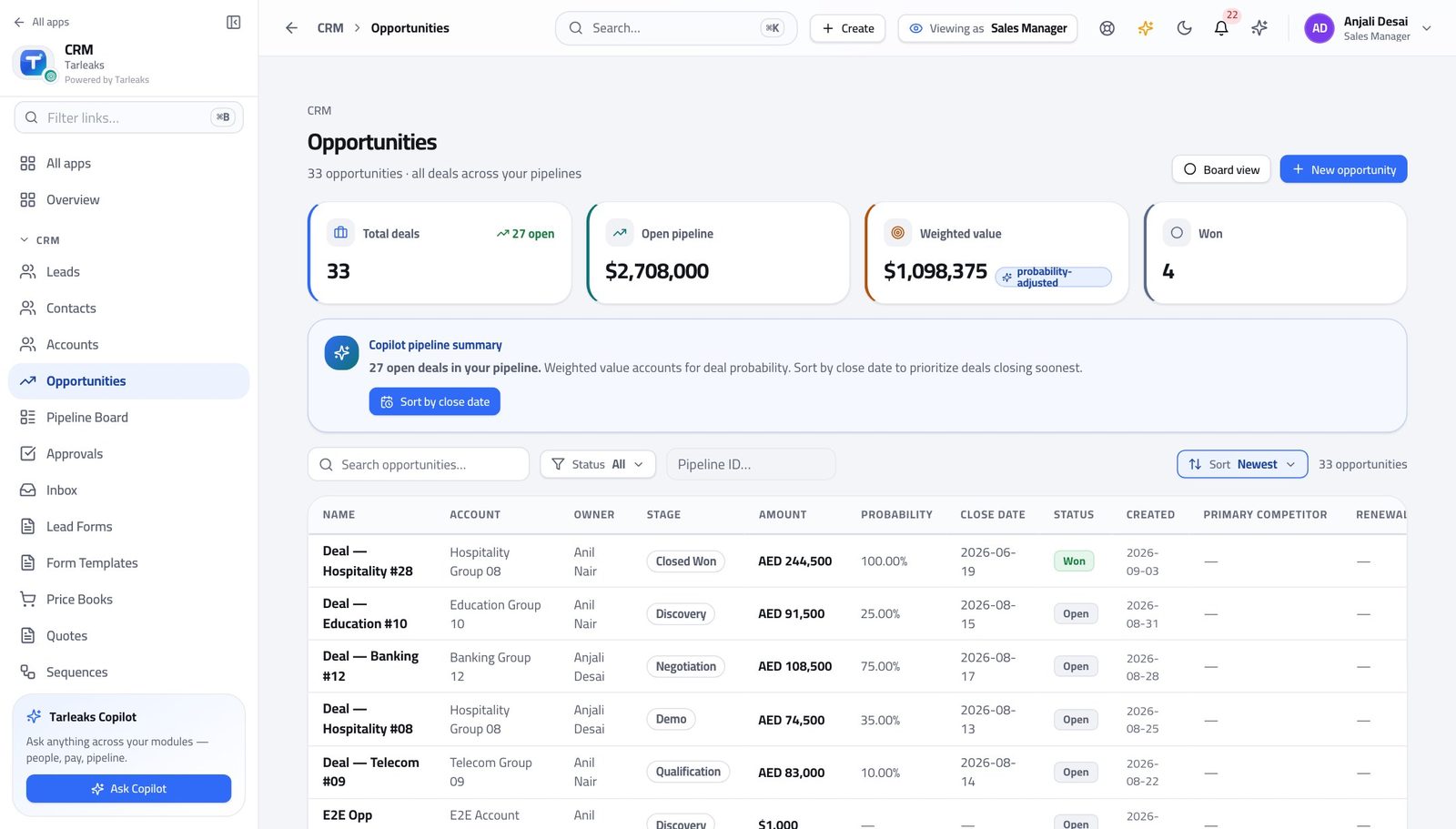
You should see Every deal your team owns is here — not only your own. That is the difference between this sign-in and a rep's.
Watch out The filter you click is written into the web address. Copy the address and a colleague opens exactly your view, not the default one.
Worth knowing The box you click is written into the web address, so you can send a colleague the exact filtered list you are looking at.
See the same deals as a board #
Where CRM » Pipeline Board
- In the left menu, click Pipeline Board.
- Read the totals in each column header.
- Open a card to read the deal.
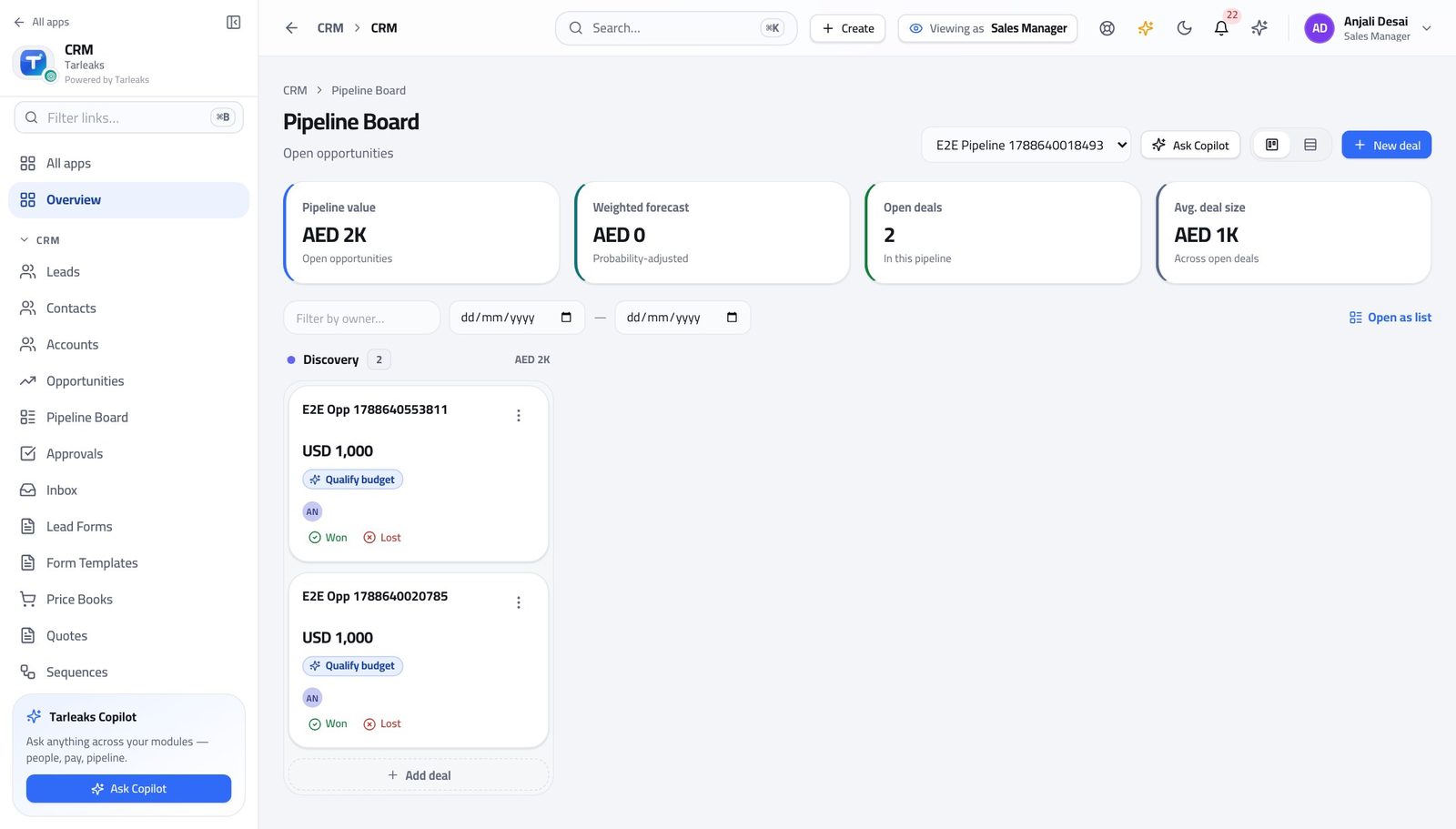
You should see Where the money is stuck becomes a shape you can see, instead of a report you have to read.
Watch out The board shows one pipeline at a time. If your team sells through two, check both before deciding the quarter is fine.
Read the forecast the deals produce #
Where CRM » Forecasts
- In the left menu, click Forecasts.
- Choose the period.
- Read the weighted pipeline, then the attainment against quota.
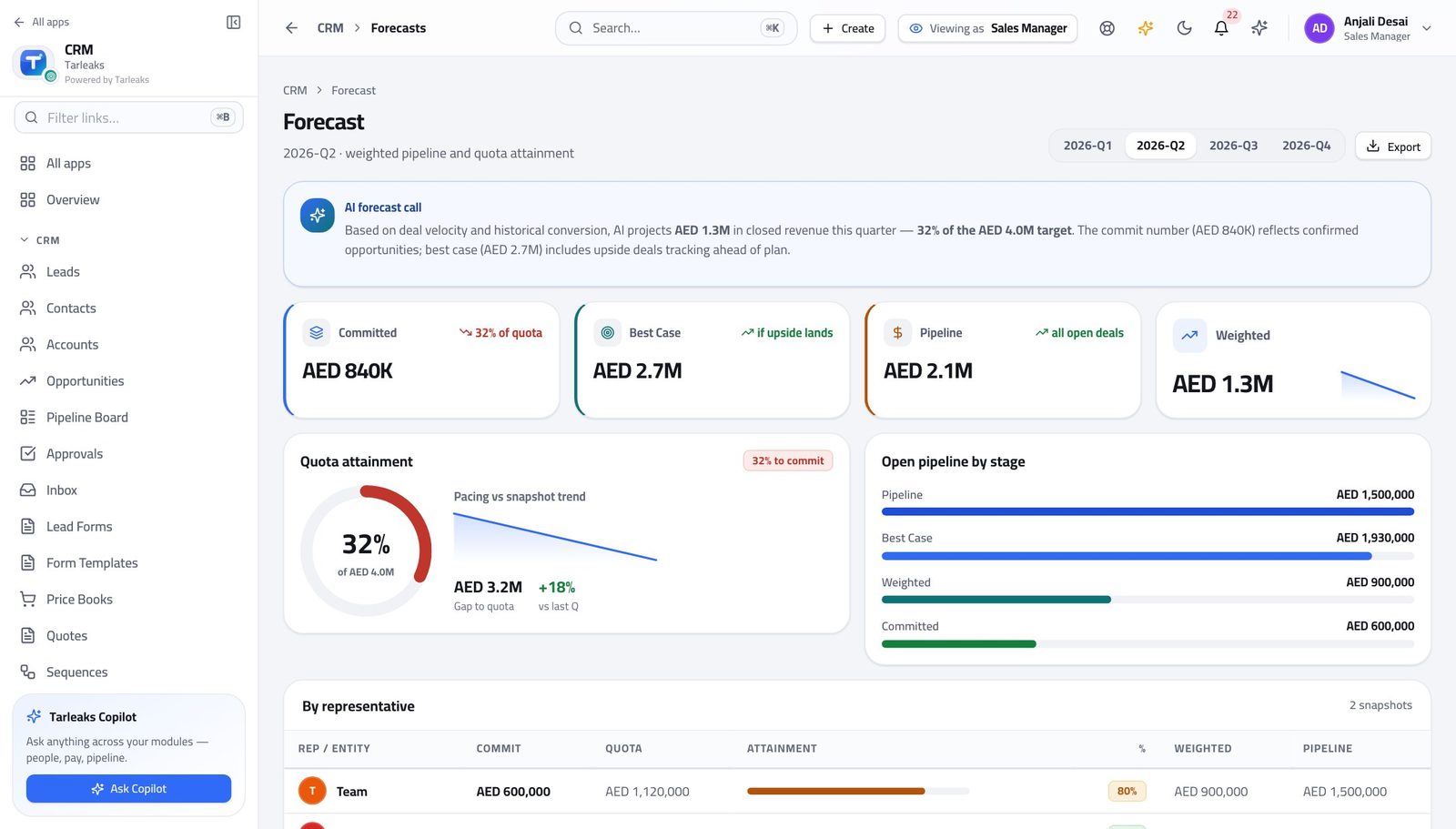
You should see Nothing here is typed in. It comes from the same deals on the board, so the forecast and the board can never tell two different stories.
Watch out The forecast is only as good as the close dates. A pile of deals whose close date is 'end of quarter' is a forecast nobody should sign.
Read the quota the forecast is measured against #
Where CRM » Forecasts
- Stay on Forecasts.
- Read the quota line for the period and for each person.
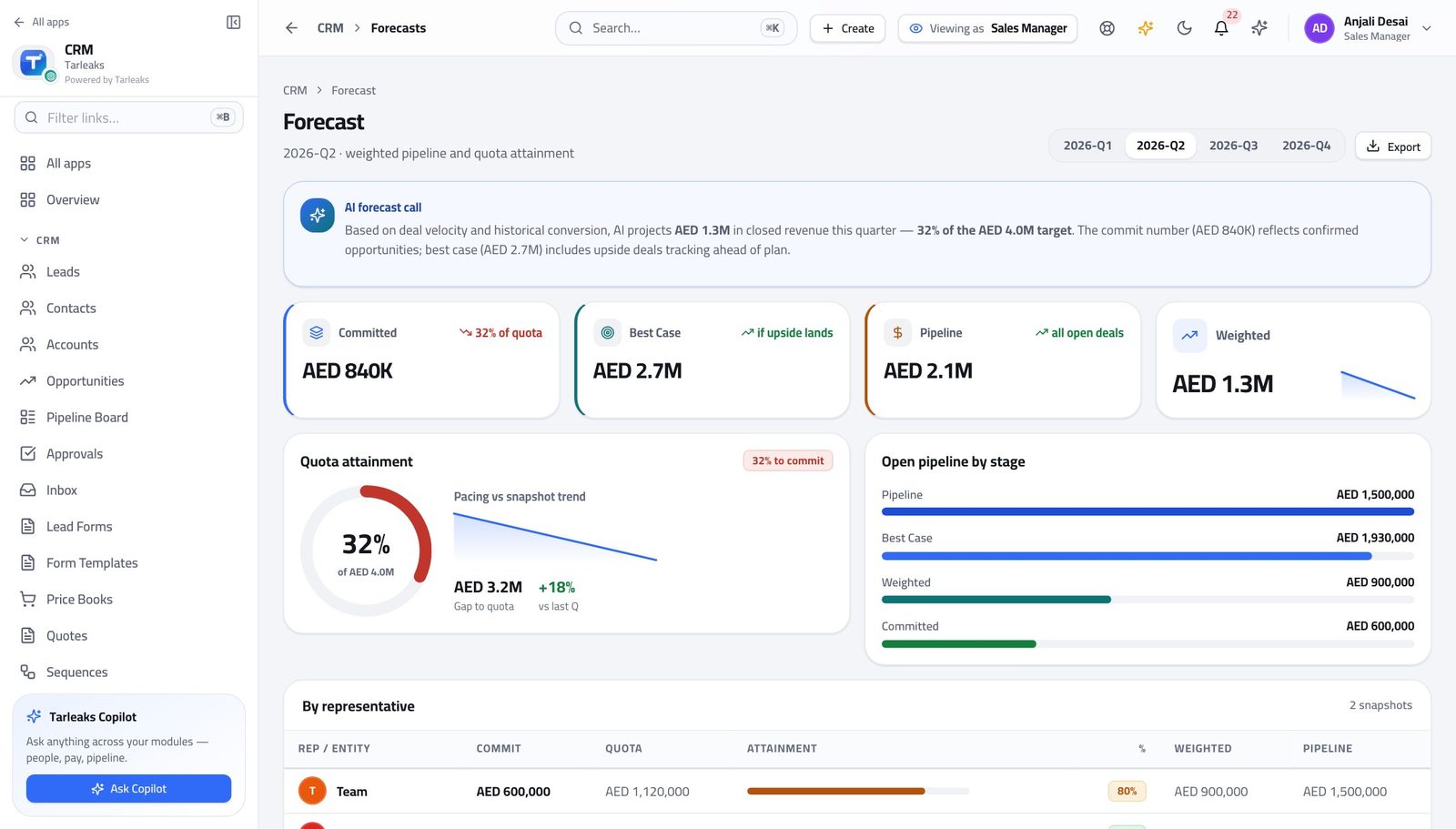
You should see Attainment on its own is a number without a meaning. The quota is what gives it one.
Watch out A quota that was never set reads as zero, which makes attainment look infinite. Check the quota exists before you celebrate.
Work the approvals queue #
Where CRM » Approvals
- In the left menu, click Approvals.
- Click the Pending box to narrow the list.
- Use Approve or Reject on a row.
- Write the note — it stays on the record.
| Field | What to put in it |
|---|---|
| Note (optional) | Why you decided. Write it even when the answer is yes: 'matched competitor, one-off' is worth a great deal three months later. |
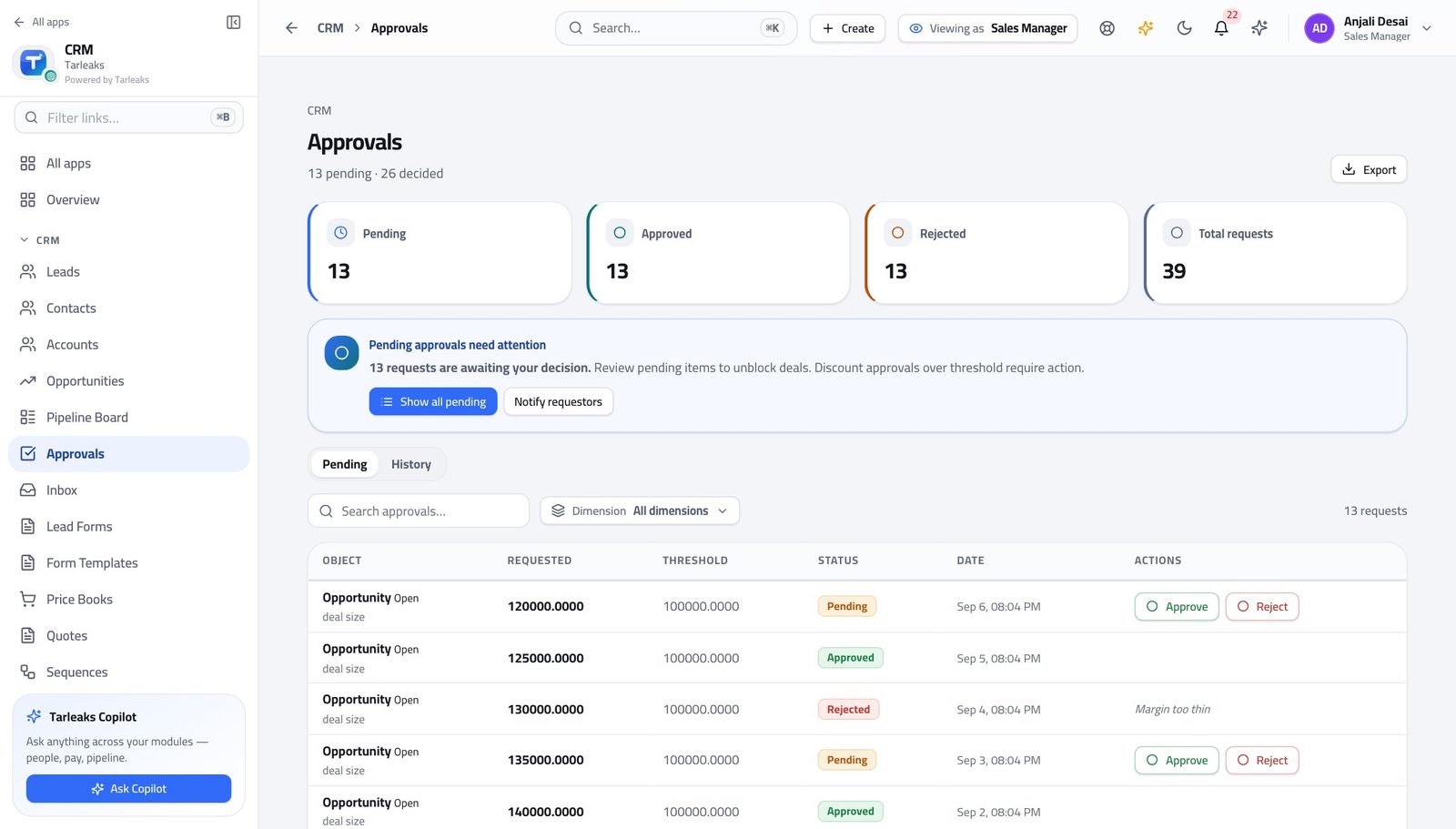
You should see As a reviewer you see everybody's requests, not only your own. The note you write stays on the record.
Watch out Rejecting sends the rep back to edit the quote and ask again. It does not kill the deal, so say what would make it a yes.
Read what was actually asked for #
Where CRM » Approvals » a pending row
- Open a pending request.
- Read the dimension, the requested value, and the threshold.
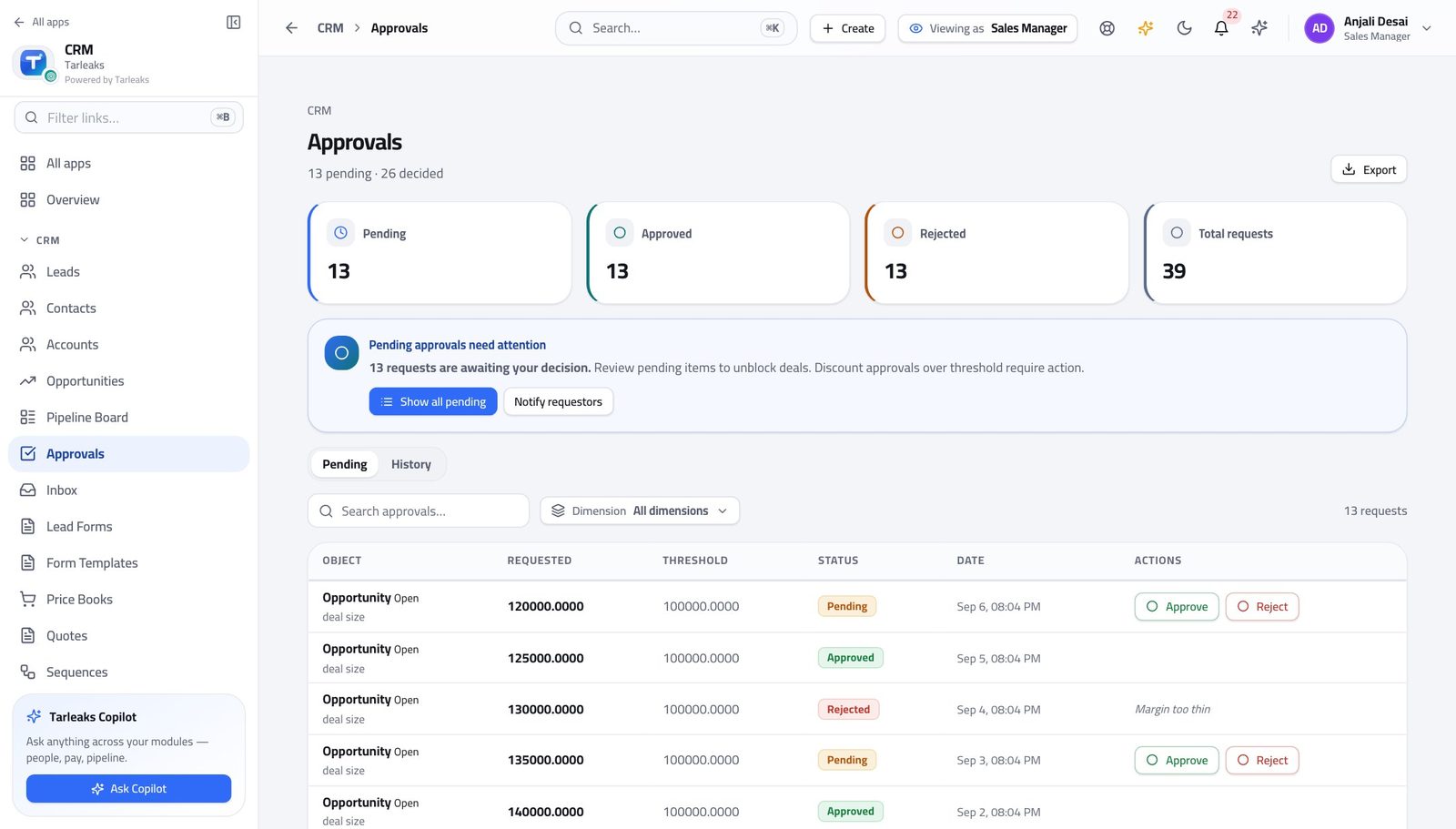
You should see You are approving a number against a rule someone else set, which is what makes the decision defensible a quarter later.
Watch out The threshold was set by your administrator, not by the rep. If it is consistently wrong for your market, that is a conversation with them — not a reason to approve everything.
Check what the team is owed #
Where CRM » Commissions
- In the left menu, click Commissions.
- Read the plans, then the payouts waiting to be approved.
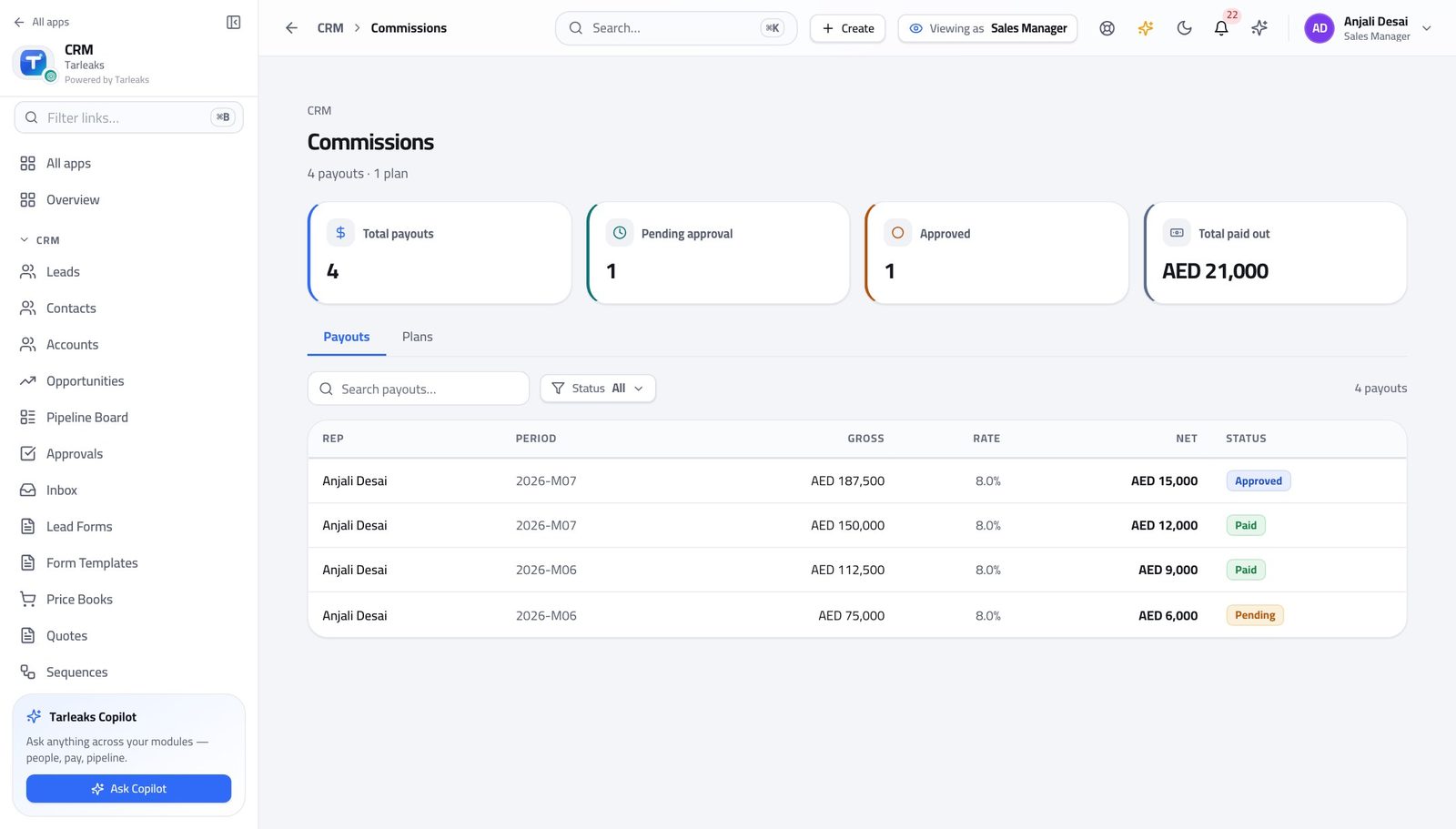
You should see You can answer 'what am I getting' before it is asked, and spot a payout that looks wrong before it is paid.
Watch out You can read these and check them. Releasing the money is somebody else's action, so raise a wrong figure rather than trying to fix it here.
Keep the team list right #
Where CRM » Teams
- In the left menu, click Teams.
- Expand a team to see its members and the date each joined.
- Use Add member to bring somebody in, and the remove icon to take them out.
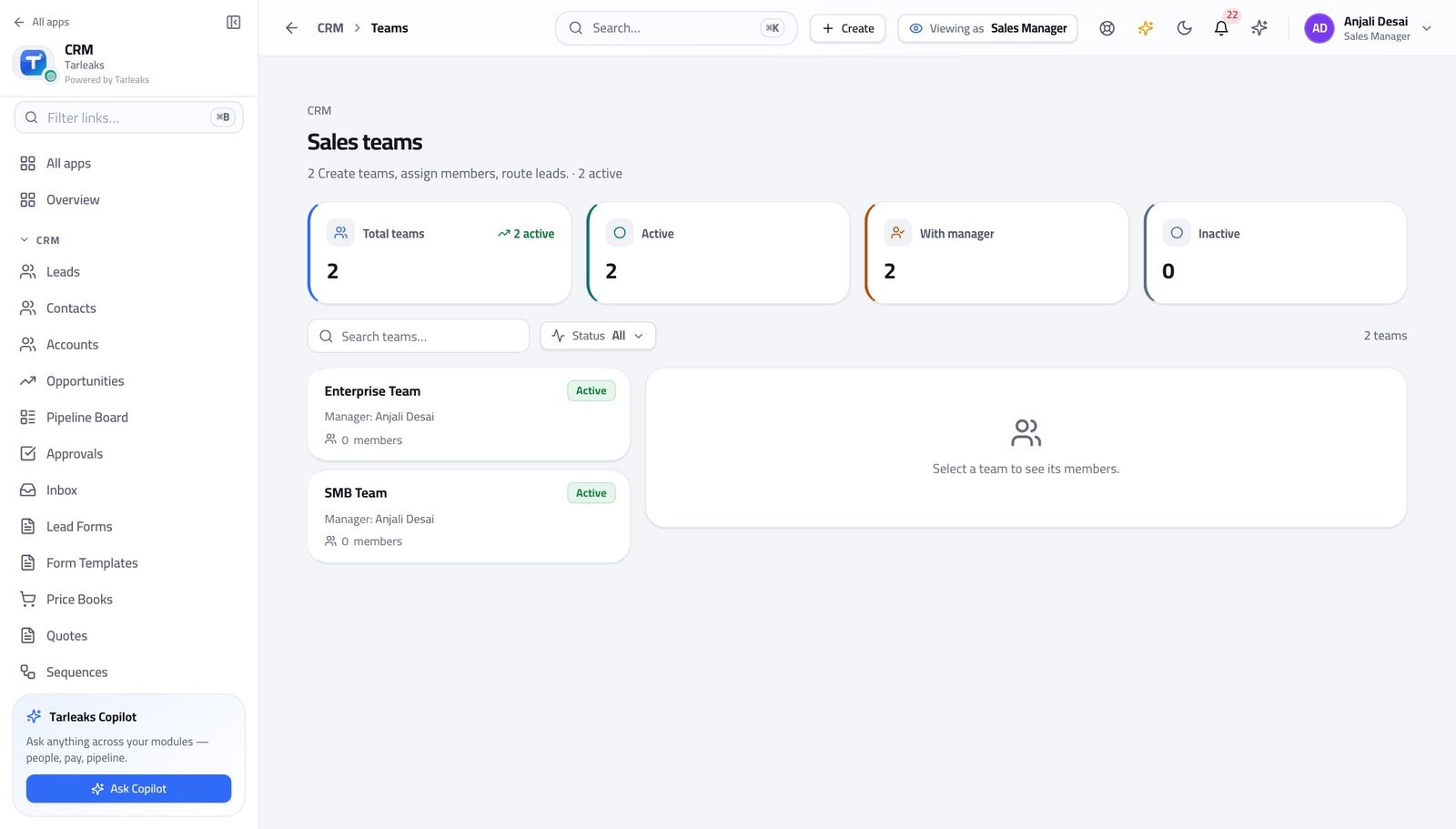
You should see The team-wide pipeline you rely on is only as right as this list. A rep who was never added does not appear in your numbers.
Watch out Removing somebody from the team removes their deals from your team view. The deals are not deleted — they are simply no longer yours to see.
See why a record landed where it did #
Where CRM » Territories
- In the left menu, click Territories.
- Read the priority beside each territory and the rule underneath it.
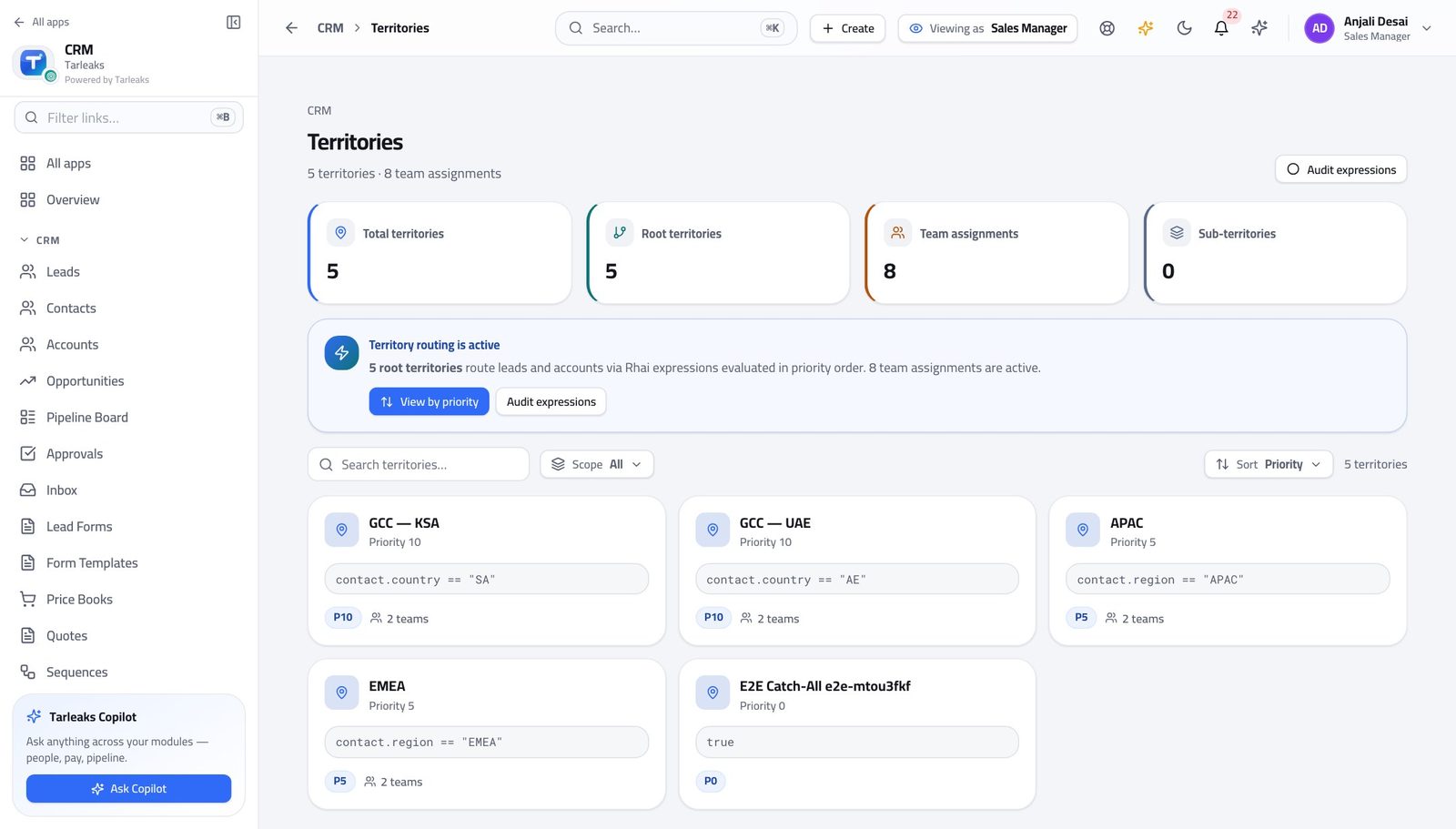
You should see You can answer 'why did that lead go to Dubai' without opening a ticket with your administrator.
Watch out You can read these. Changing them is your administrator's — which is why 'why did that lead go there' is a question you can answer yourself but not act on alone.
Move a batch of deals in one action #
Where CRM » Opportunities
- Open Opportunities.
- Filter to the set you are moving — one owner, one stage, one close month.
- Tick the header box to take everything the filter left.
- Use the bar at the bottom.
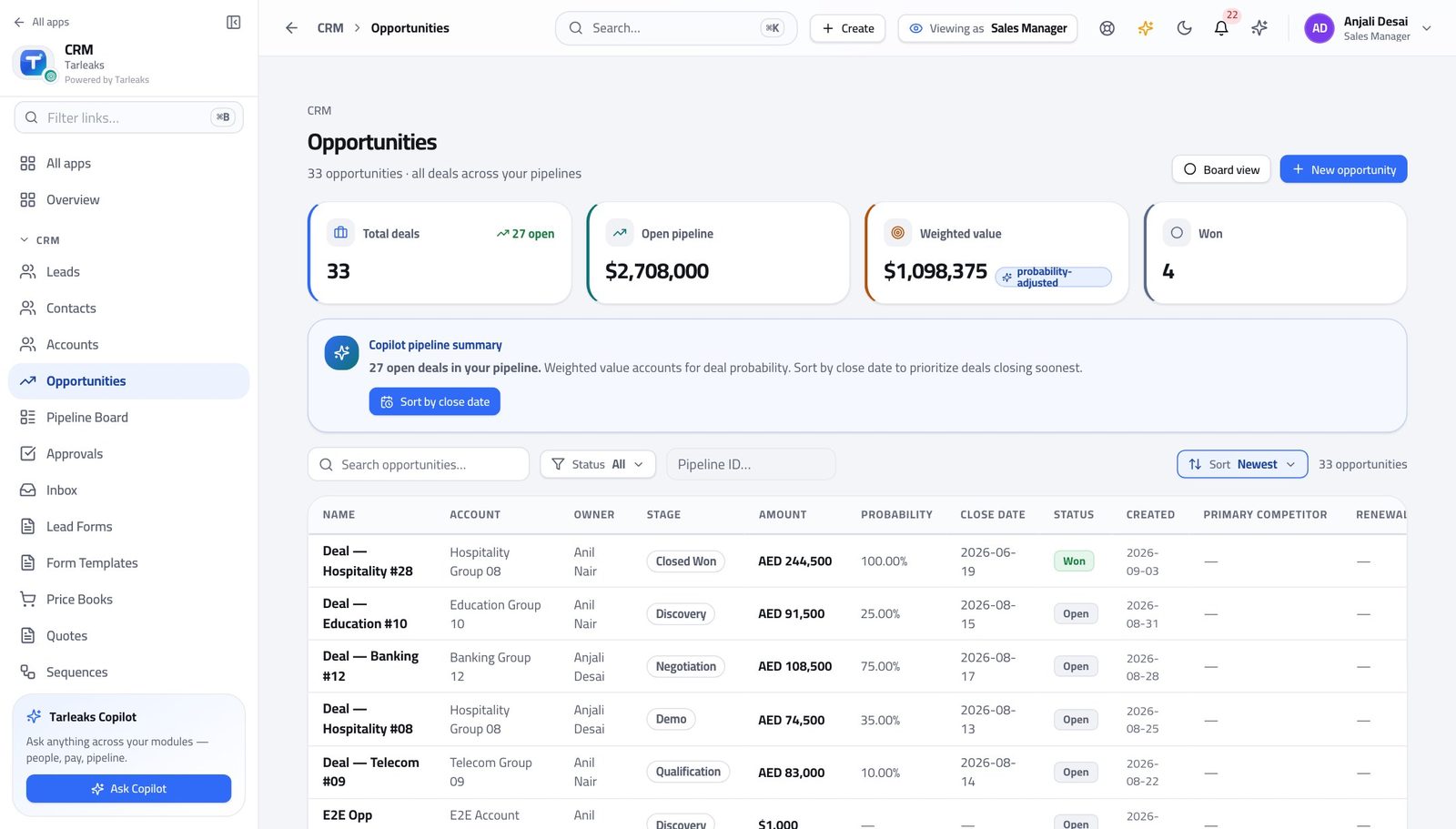
You should see A rep leaves, a territory changes, a stage is renamed — the whole affected batch moves at once, and each deal is still checked on its own.
Watch out Filter first. Ticking the header box on an unfiltered list selects far more than you meant, and the bar's count is the only warning you get.
Releasing commission money is not yours #
Where CRM » Commissions
- Open Commissions.
- Look at a payout waiting for approval: there is no action on it for you.
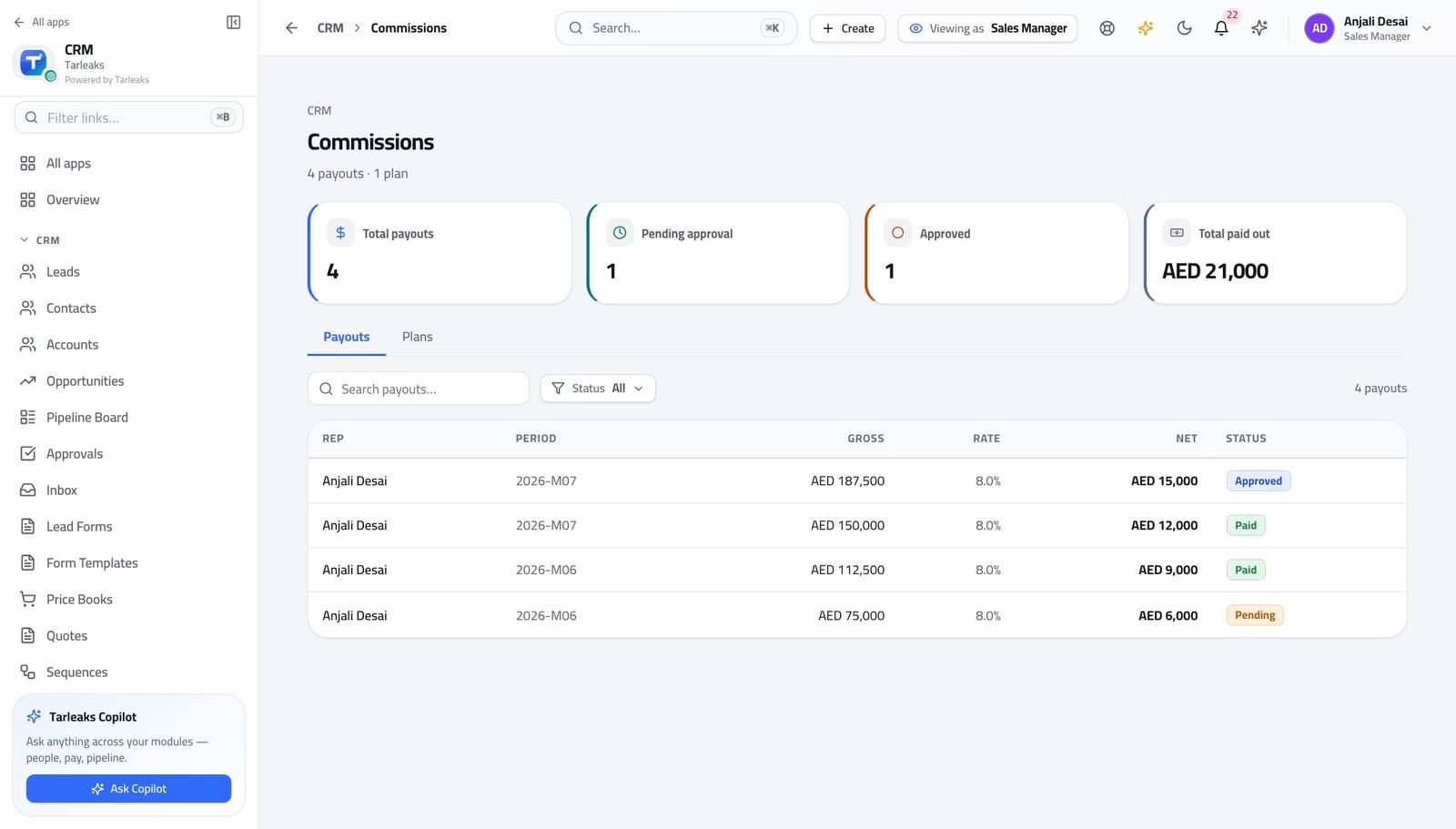
You should see Seeing what your team earned and releasing the money are deliberately different authorities — otherwise your own team's payout would be your decision.
Watch out This is the control that stops a manager signing off their own team's — and often their own — money.
Changing the approval thresholds is not yours #
Where CRM Admin » Approval matrix
- Try to open the approval matrix.
- The product answers with a card saying this sign-in does not have access.
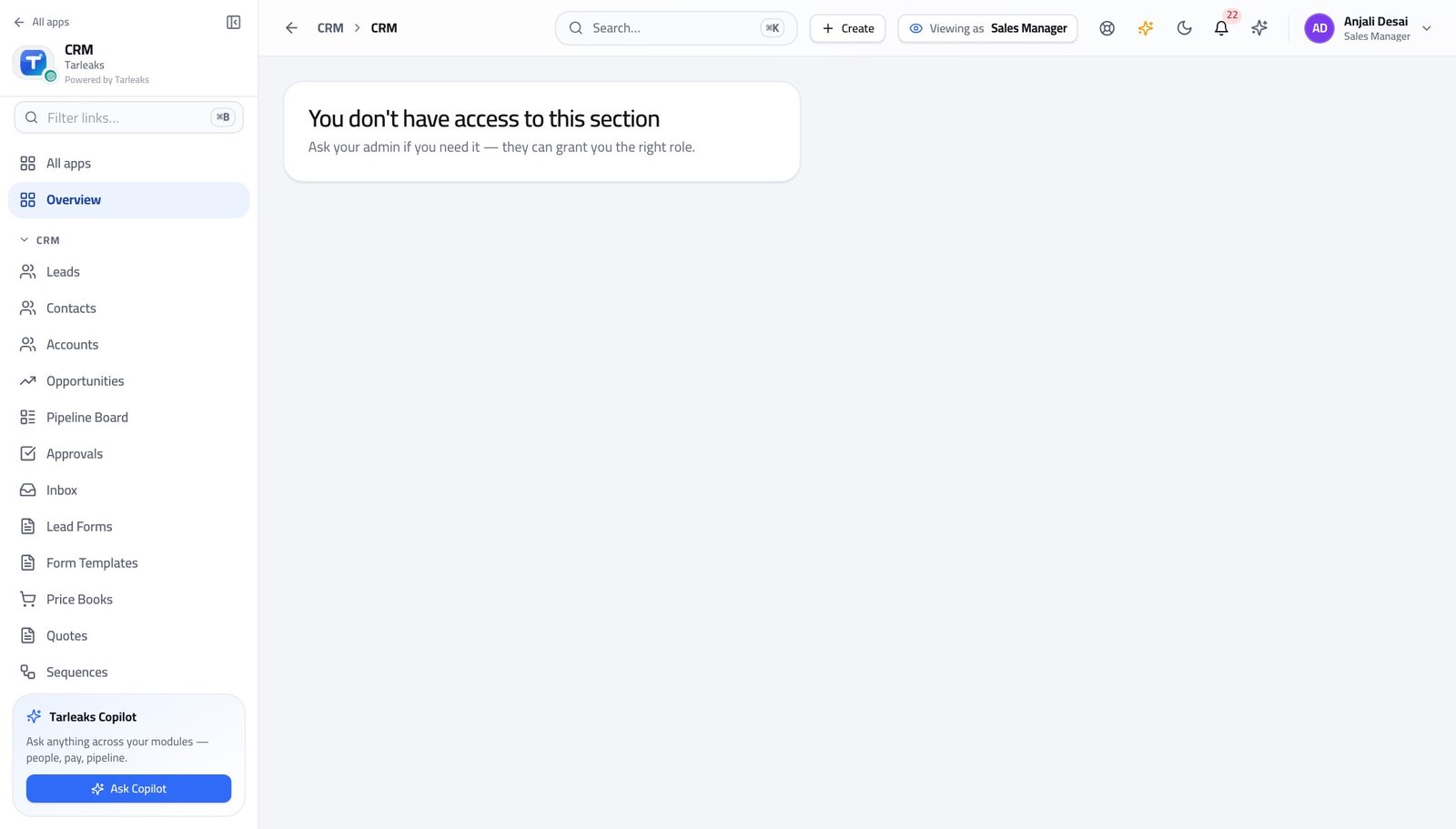
You should see A manager who could raise the threshold could waive their own approval. Then it would not be an approval.
Watch out If a threshold is genuinely wrong for your market, ask your administrator and say why. The answer is a policy change, not a workaround.
Changing what a lead scores is not yours #
Where CRM Admin » Lead scoring
- Try to open lead scoring.
- The same card appears.
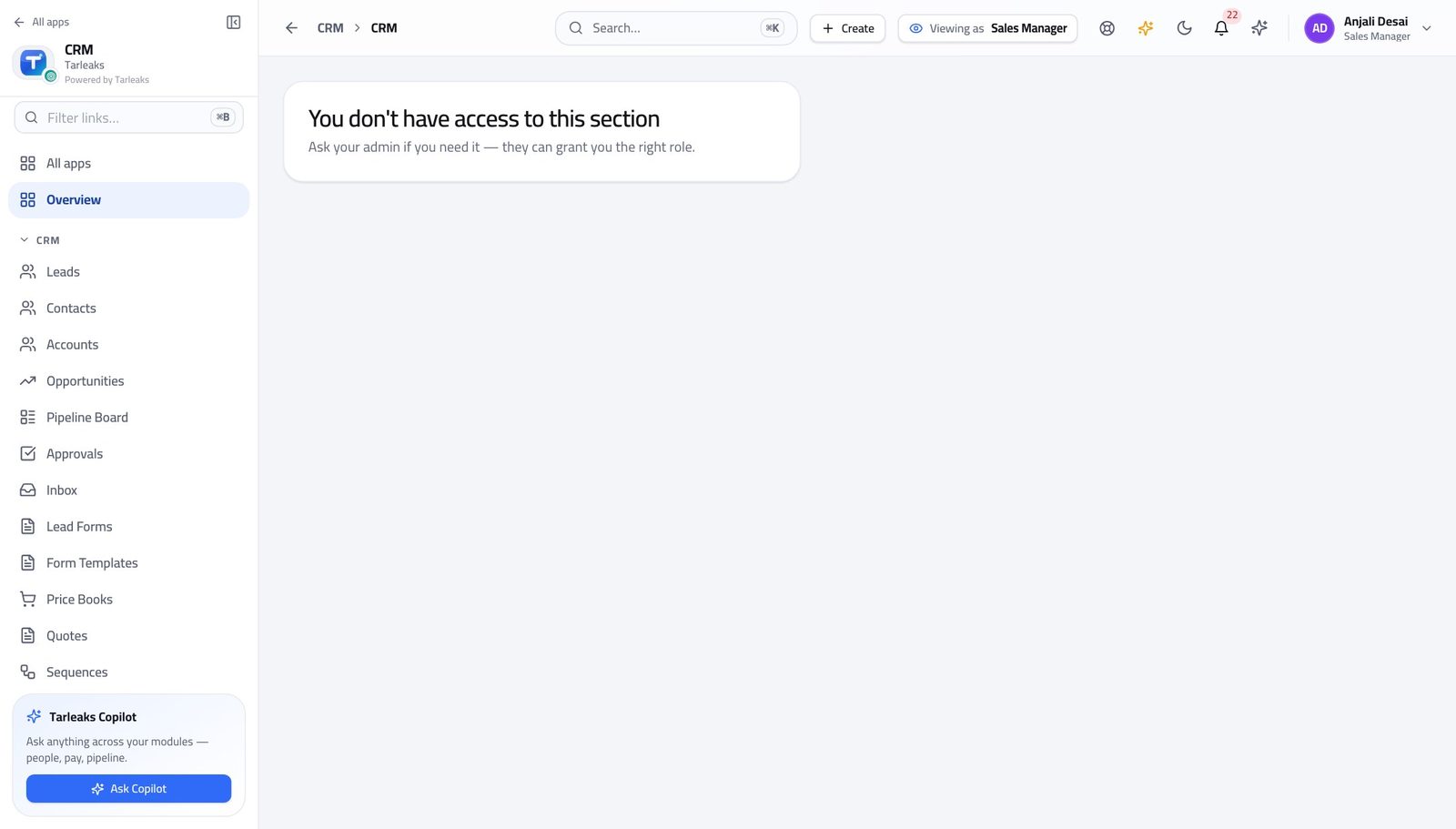
You should see Scoring decides which leads reach your team. The person measured on the result does not get to set the rule.
Watch out You can see the score on every lead. You just cannot change what produces it — which is what makes the score comparable across the team.
Publishing a booking page is not yours #
Where CRM » Booking Pages
- Try to open Booking Pages.
- The same card appears: this sign-in does not have access.
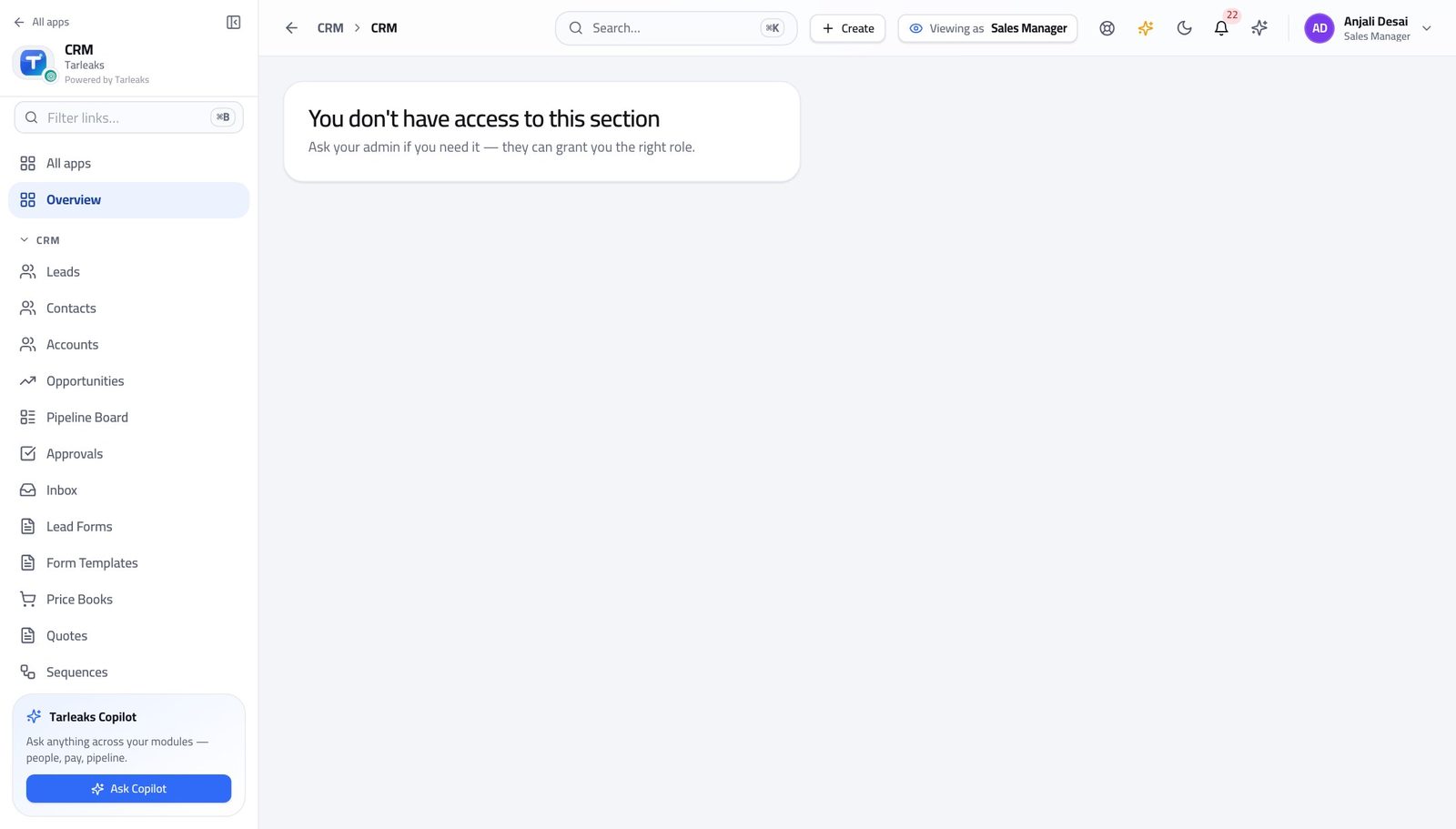
You should see What a customer is shown in your company's name is set once, by the administrator — not differently by every manager.
Watch out If your team needs a booking page of their own, ask your administrator for one. What a customer sees in the company's name is set in one place on purpose.
Use cases — the work, step by step
Each one is a sequence somebody actually performs, with the screen behind every step. Every screen here was opened in the product as this role before it was published.
weeklyMonday: read the number, then clear the queue #
Approvals are what block other people's work. Do them before anything that only blocks yours.
Open Opportunities and read the four boxes. Weighted value is the number worth repeating; total pipeline is the optimistic one.
CRM » Opportunities — verified: the page says “Weighted value”; 33 row(s) listed Open the board and look at the shape. A column fatter than the ones either side is where your team is stuck, and that is the coaching conversation for the week.
CRM » Pipeline Board — verified: the page says “Pipeline Board” Clear the approvals queue. Each request names the measure, what was asked for, and the threshold it crossed.
CRM » Approvals — verified: the page says “Approvals”; 13 row(s) listed Write the note on every decision, including the ones you approve. 'Matched competitor, one-off' is worth a great deal in three months.
CRM » Approvals » a pending row — verified: the page says “Threshold”
monthlyCommit the forecast for the period #
The forecast is arithmetic over your team's own stages and close dates. Fix those first and the number fixes itself.
Open Opportunities filtered to the period and look for the two things that always distort it: close dates in the past, and a cluster of deals all dated the last day of the quarter.
CRM » Opportunities — verified: the page says “Weighted value”; 33 row(s) listed Open Forecasts. Weighted pipeline is every open deal closing in the period, each one multiplied by its stage probability.
CRM » Forecasts — verified: the page says “Forecast” Read it against the quota. Attainment on its own is a number without a meaning.
CRM » Forecasts — verified: the page says “quota” Commit the number you would defend, not the one the report produced. If the two differ, the gap is on the board and you have just found this week's work.
CRM » Forecasts — verified: the page says “Forecast”
urgentA rep resigns on a Friday afternoon #
Their deals become invisible to everybody the moment they lose access. Moving them takes ten minutes now and a fortnight later.
Open Opportunities and filter to their deals. Read the list before you move anything — some of it should go to different people.
CRM » Opportunities — verified: the page says “Weighted value”; 33 row(s) listed Move the batch. Filter first, then take everything the filter left; the bar counts your selection before you commit.
CRM » Opportunities — verified: the page says “Opportunities”; 33 row(s) listed Take them out of the team so your team view stops including them — and add whoever is covering.
CRM » Teams — verified: the page says “Sales teams” Check the forecast again. The number will have moved, and it is better that you find that out than that somebody else does.
CRM » Forecasts — verified: the page says “Forecast”
urgentA discount request you are not comfortable with #
The threshold was set by somebody else, on purpose. Your job is to decide this request against it, not to move the line.
Open the request and read the three numbers: the measure, the value asked for, and the threshold it crossed.
CRM » Approvals » a pending row — verified: the page says “Threshold” Decide, and write why. Rejecting sends the rep back to edit the quote and ask again — so say what would make it a yes.
CRM » Approvals — verified: the page says “Approvals”; 13 row(s) listed If the threshold is consistently wrong for your market, that is a conversation with your administrator. You cannot move it yourself and you should not want to.
CRM Admin » Approval matrix — verified: the page says “have access to this section”
You can approve a discount and you can declare a deal won. You cannot change the threshold that decided the discount needed approving, and you cannot release the commission money. Both of those are somebody else's — which is what makes your approval worth something.