Records Manager — Documents guide
Every document findable, and every one of them kept exactly as long as it should be.
Curates the vault: what is filed, how long it is kept, what is on legal hold, and who may see any of it.
What you will be able to do
- File into the right workspace, with retention applied for you
- Find a document by a word inside it, not by remembering the folder
- See what changed recently without hunting
- Know who can see what, before somebody asks
What this role can and cannot do
| Can | Cannot |
|---|---|
|
|
5 steps, each one carried out in the product on .
Check what your sign-in can do #
Where Your name, top right » Profile
- Open your company's address in the browser — it looks like yourcompany.tarleaks.com.
- Type the e-mail address your administrator set up for you, then your password.
- You land on the app launcher: a grid of the apps your company uses.
- Click your name, top right.
- Choose Profile.
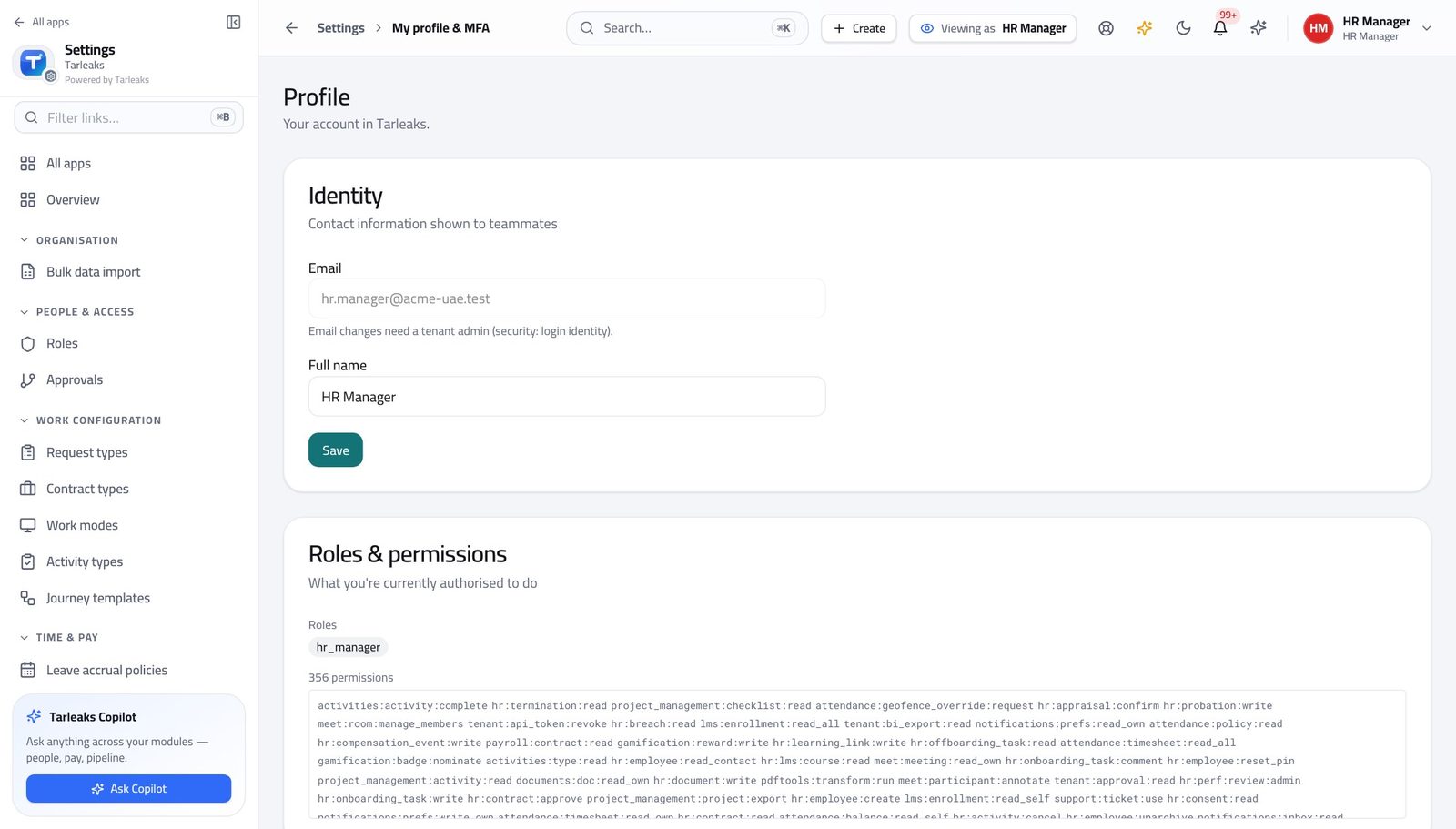
You should see Filing, retention and legal holds sit with this role.
Open the vault #
Where Documents » Home
- From the launcher, click the Documents tile.
- Read the workspaces: each is a separate area with its own access.
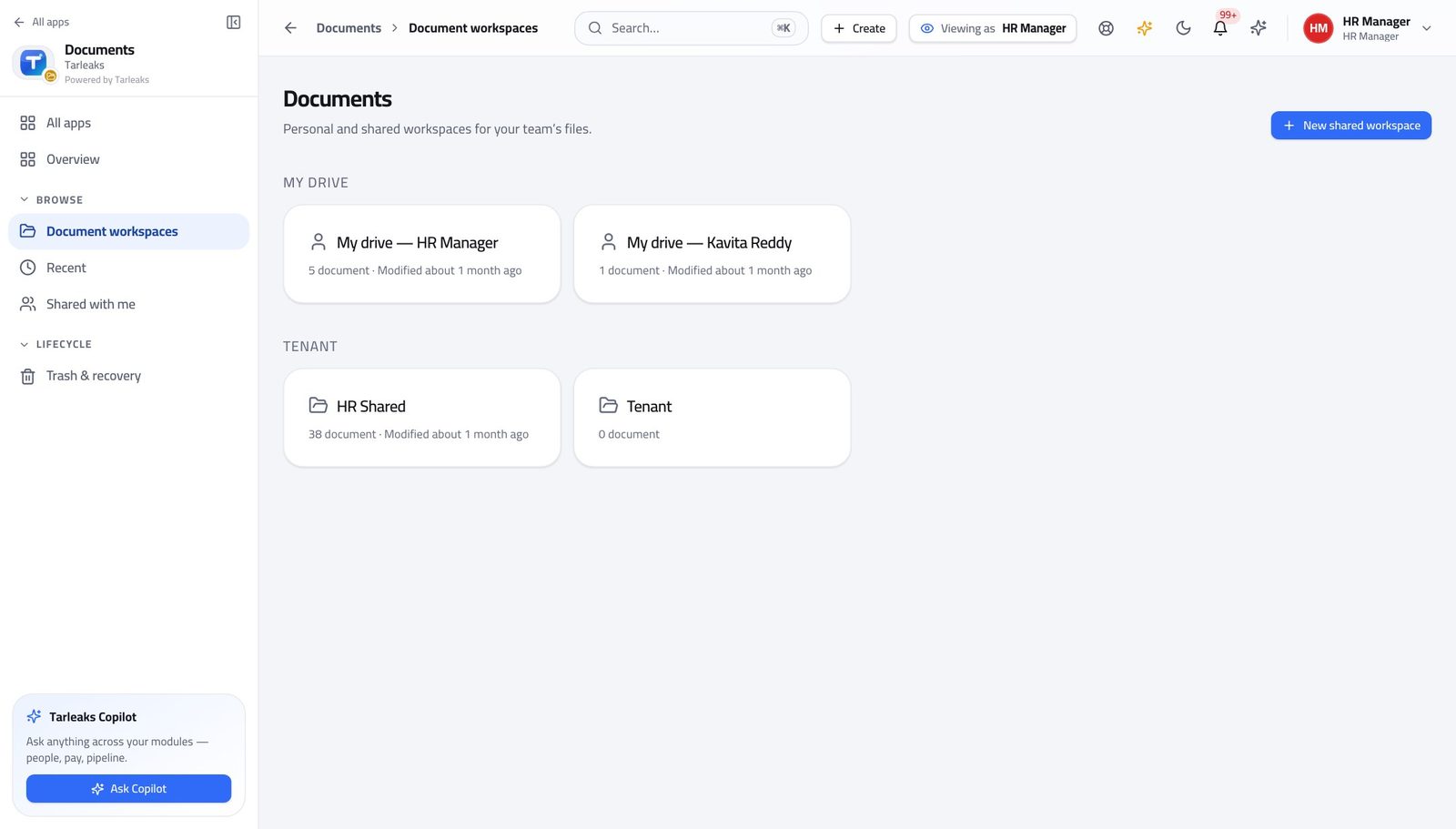
You should see A workspace is the unit of access: people are given a workspace, not forty individual files.
Work inside a workspace #
Where Documents » a workspace
- Open a workspace.
- Use the folder tree on the left and the file list on the right.
- Open a file to see its versions and its history.
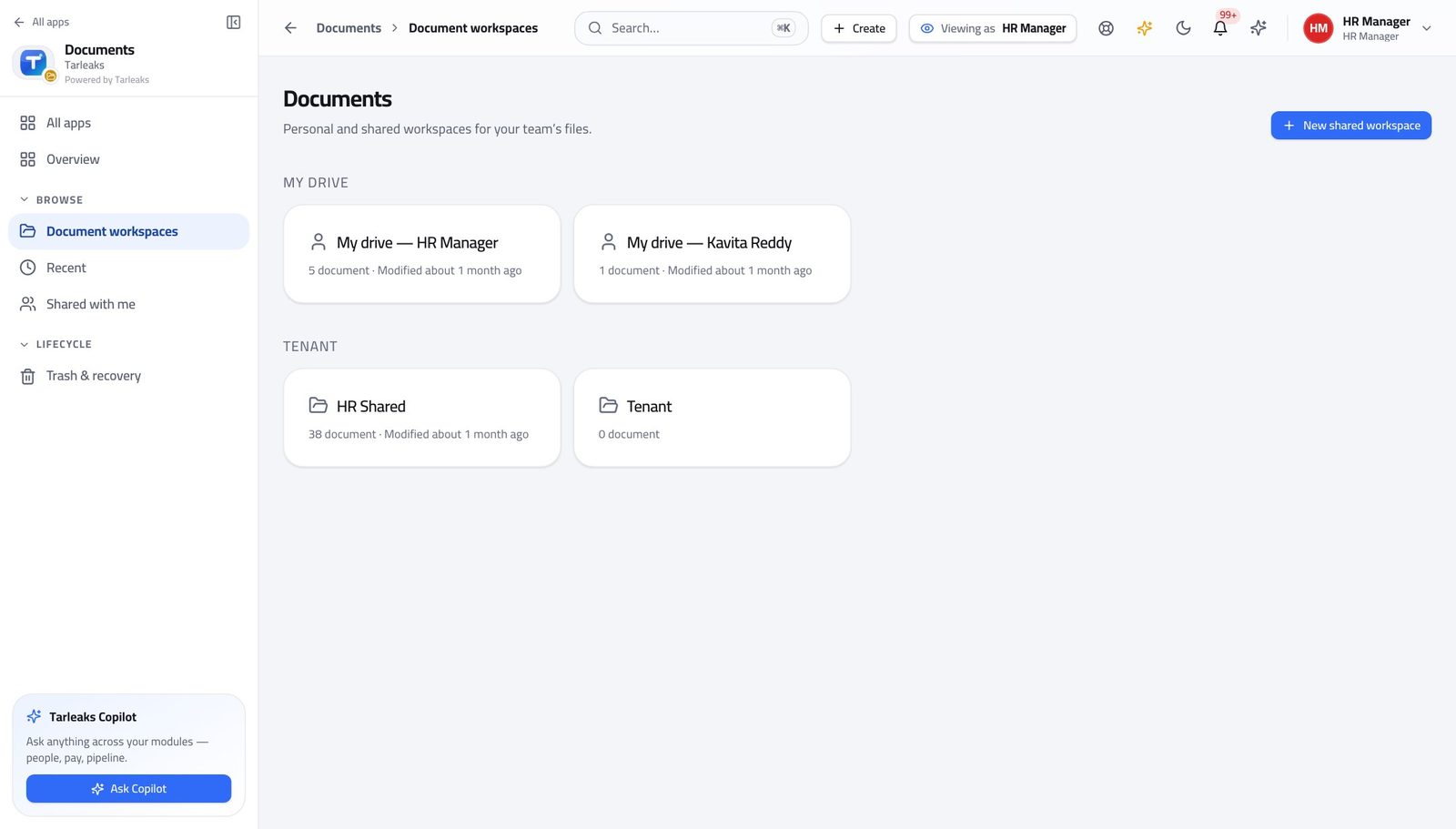
You should see Everything about a file — versions, who opened it, what was extracted from it — hangs off the file itself.
Watch out A new version never overwrites the old one; both stay, which is what makes 'we sent the wrong version' recoverable.
Find a document by what is inside it #
Where Documents » Search
- Open Search.
- Type a word from inside the document — an invoice number, a name, a clause.
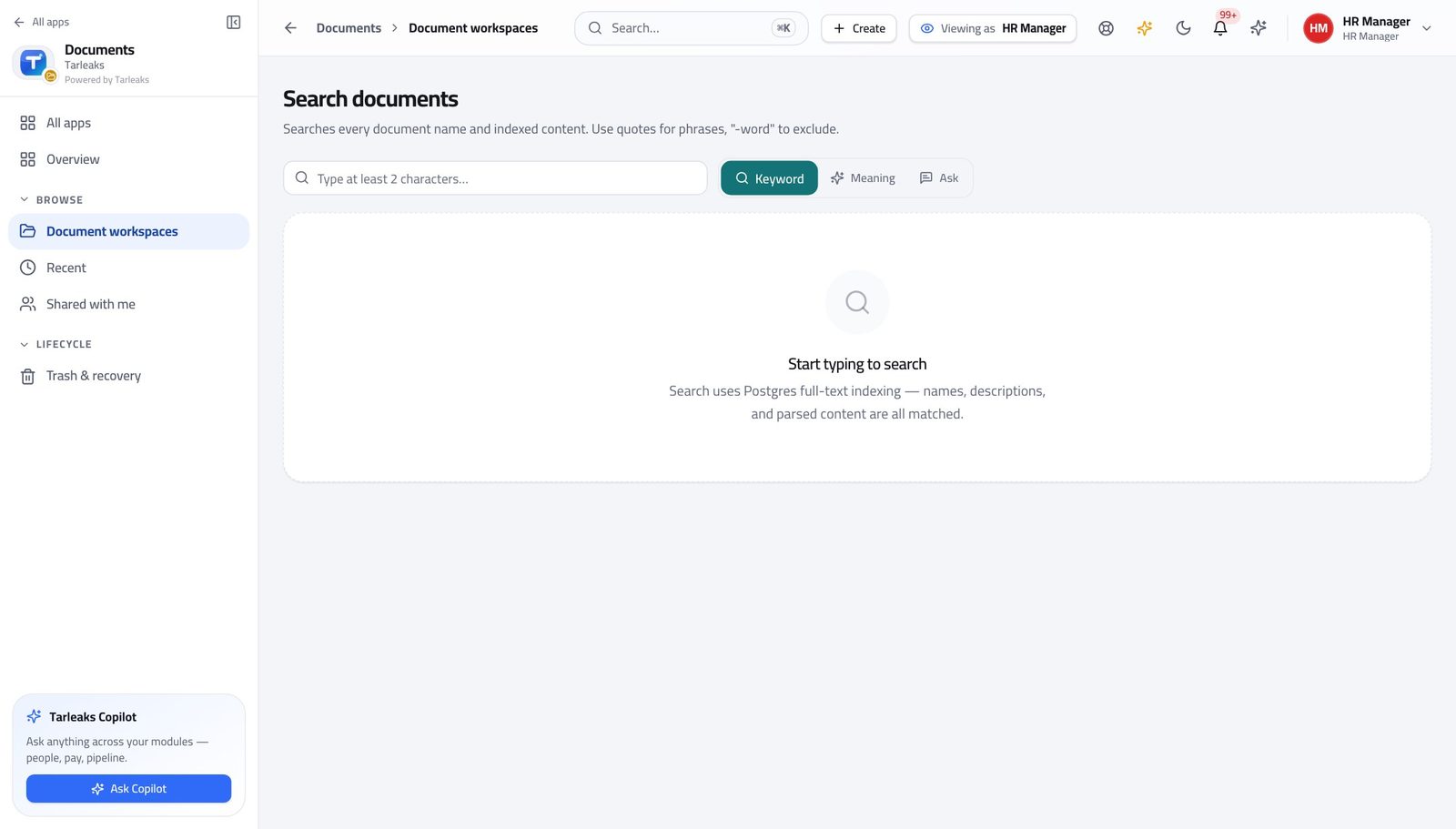
You should see Text inside uploaded files is indexed, so you can find the invoice by its number rather than by where somebody filed it.
Watch out Scans uploaded before text extraction was switched on are not searchable until they are re-extracted.
Worth knowing If a scan does not come back, it was uploaded before text extraction was enabled — re-extract it from the document itself.
See what changed lately #
Where Documents » Recent
- Open Recent.
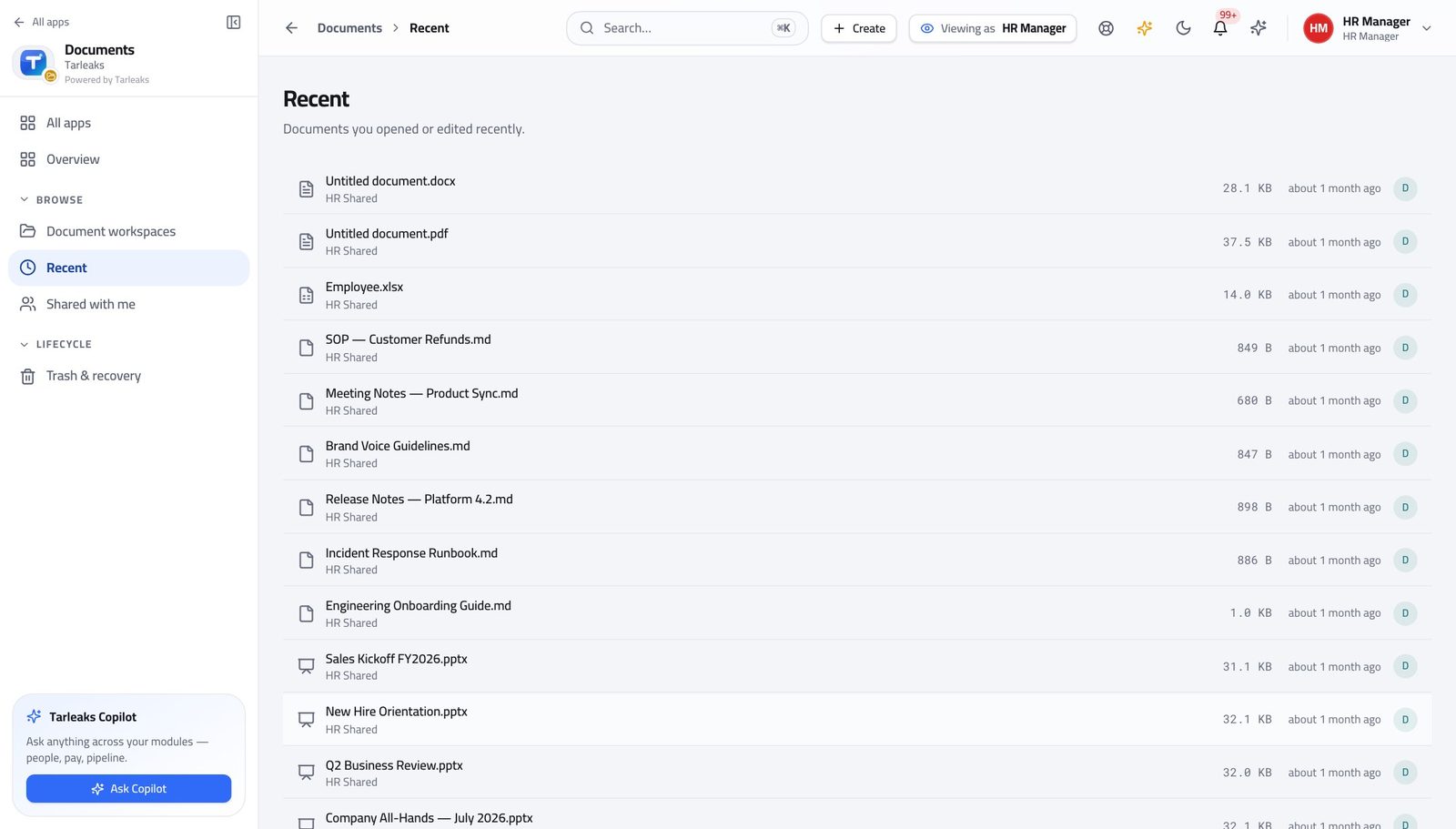
You should see The fastest way back to the thing you were working on yesterday.
Use cases — the work, step by step
Each one is a sequence somebody actually performs, with the screen behind every step. Every screen here was opened in the product as this role before it was published.
dailyFile something so it can be found again #
A document nobody can find is the same as a document nobody kept — and the type you choose decides how long it is kept for.
Open Documents and pick the workspace the file belongs to. The workspace is the access decision.
Documents » Home — verified: the page says “Document” Open the workspace and file it into the right folder; the file keeps its versions and its history.
Documents » a workspace — verified: the page says “Document” Prove it is findable: search for a word from inside it rather than its name.
Documents » Search — verified: the page says “Search”
weeklyFind what changed while you were away #
Recent is faster than remembering which folder somebody used.
Open Recent and read what was added or changed, newest first.
Documents » Recent — verified: the page says “Recent” Open anything unfamiliar and check who touched it last.
Documents » a workspace — verified: the page says “Document”
Nothing is hard-deleted here. Destruction happens through retention, and a legal hold stops it — which is the difference between an archive and a shared drive.