Dispatcher — Fleet guide
Every vehicle in somebody's hands, and you know whose.
Decides who drives what today. Hands a vehicle over, takes it back, and keeps the roster of people who can be handed one.
What you will be able to do
- See who is holding what, right now
- Hand a vehicle over, with the odometer, a note and the signed sheet taken at the handover
- End a handover when the vehicle comes back
- Add a driver on the spot, without leaving the form you are filling
What this role can and cannot do
| Can | Cannot |
|---|---|
|
|
8 steps, each one carried out in the product on .
What your sign-in can do #
Where Your name, top right » Profile
- Open your organisation's address in the browser — it looks like yourorganisation.tarleaks.com.
- Type the e-mail address your administrator set up for you, then your password.
- You land on the app launcher: a grid of the apps your organisation uses.
- Click the Fleet tile.
- Click your name, top right.
- Choose Profile.
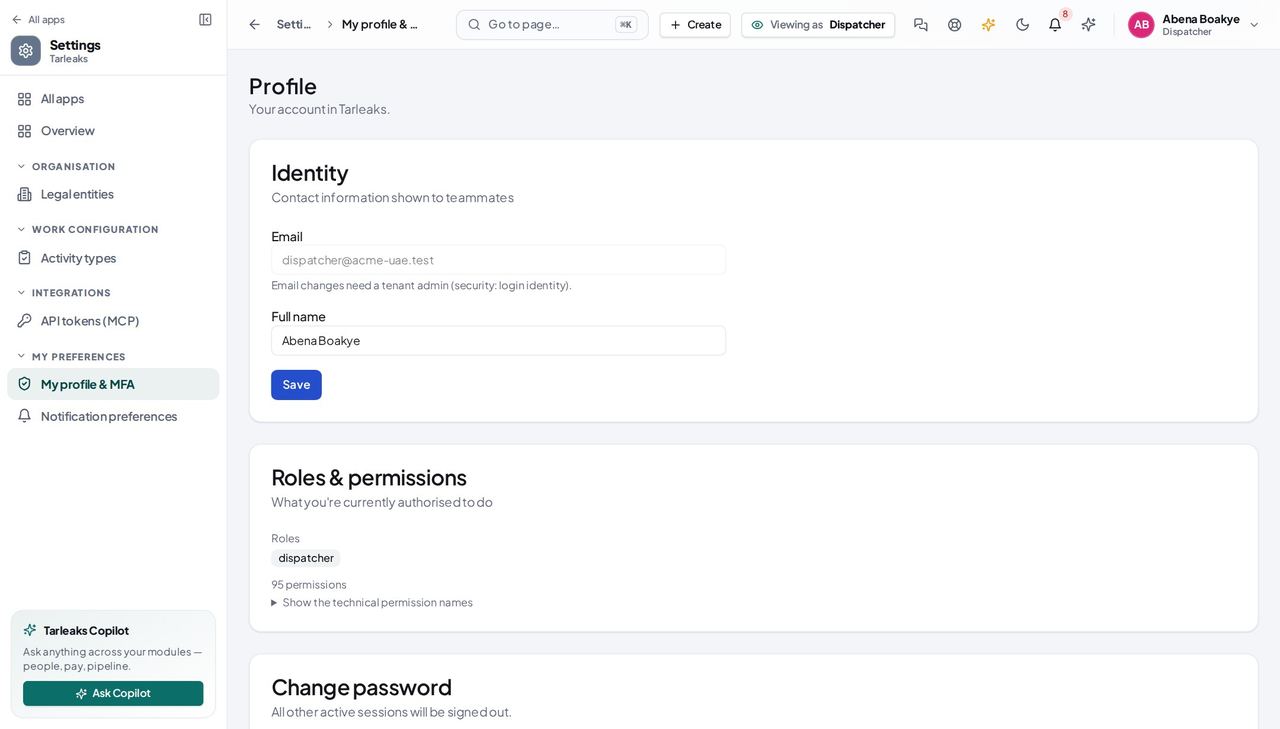
You should see Vehicles, drivers and the handovers between them — including adding a vehicle and adding a driver. The paperwork, the archive and the settings belong to the fleet manager, so those screens are not in your menu at all.
The hub as a dispatcher #
Where Fleet » Overview
- Fleet opens on Overview.
- Click 'Nobody driving' to open exactly those vehicles.
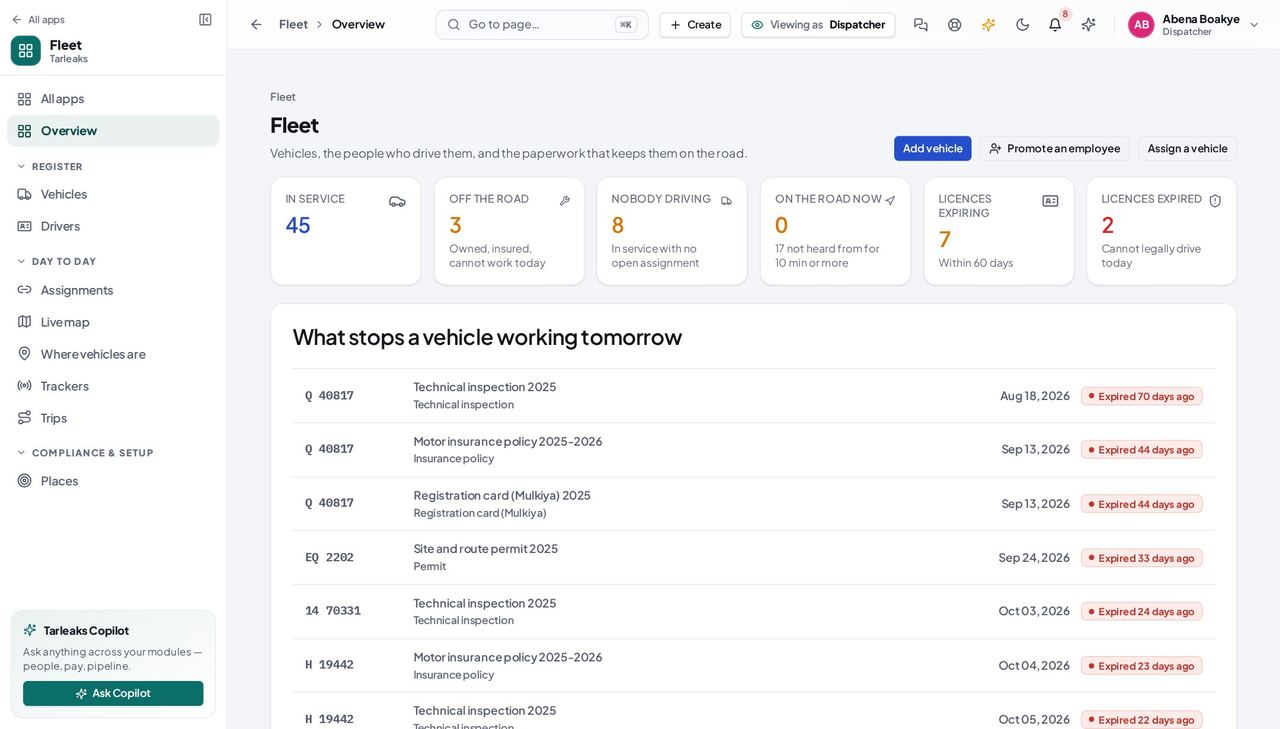
You should see Your number on this page is 'Nobody driving' — a vehicle in service with no open handover is either idle capacity or somebody driving without a record. The two paperwork tiles are absent because keeping documents in date is not your job; the tile would have opened a screen you cannot read, and a door painted on a wall is worse than no door.
Watch out No paperwork tiles here, and no Compliance in your menu. If a vehicle's registration or insurance is the problem, the fleet manager is the person who can see and fix it.
Who is driving what #
Where Fleet » Assignments
- Sidebar » Assignments.
- Click 'Held right now' or 'Handed back'.
- Search by plate, driver or handover note.
- Click a plate to open the vehicle's own handover history.
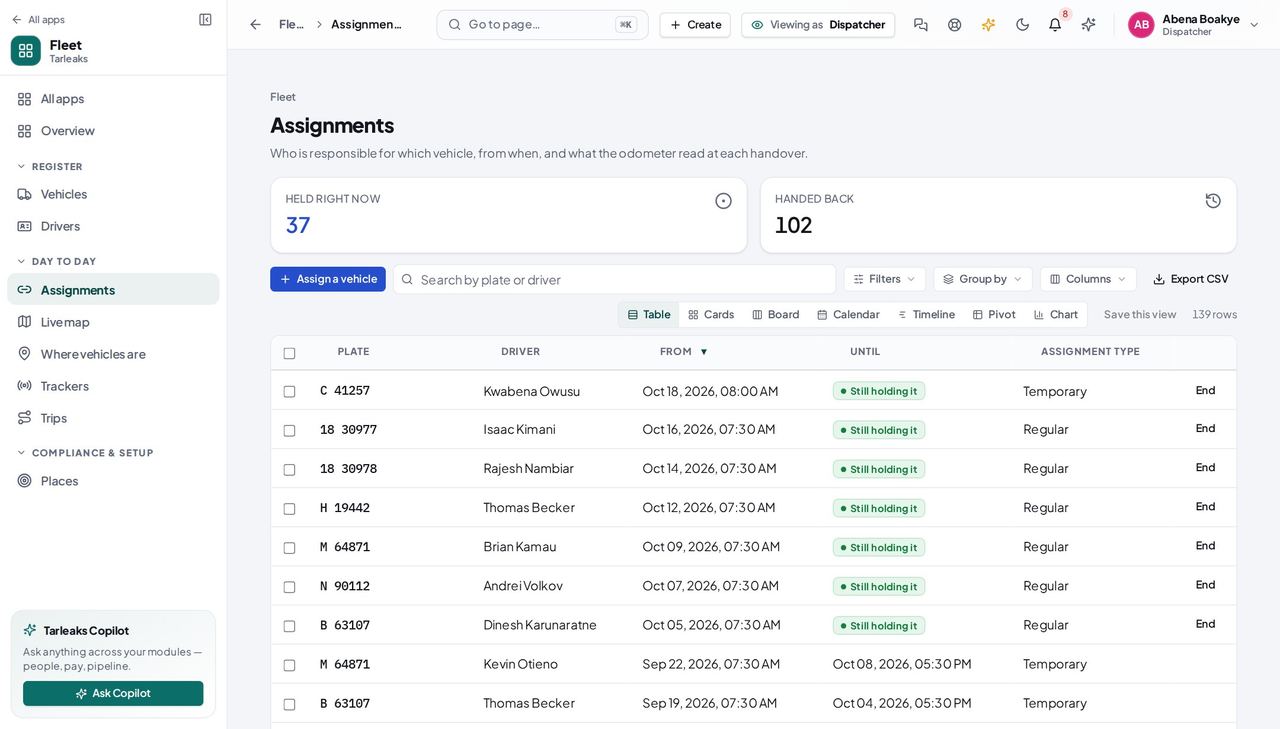
You should see The handover register: plate, driver, from when, until when, and the odometer at each end. Both tiles are answered by the register itself rather than by narrowing the page in front of you, so 'held right now' is the whole fleet's answer and not this page's.
Watch out Turn on 'Odometer out' and 'Odometer in' from the Columns menu when you are working out how far a vehicle went with somebody.
Worth knowing Search reaches the plate, the driver's name and the handover note — which is how you find 'the van somebody mentioned had a cracked windscreen'.
Hand a vehicle over #
Where Fleet » Assignments » Assign a vehicle
- Sidebar » Assignments.
- Click Assign a vehicle.
- Pick the vehicle, then the driver.
- Record the odometer and write the handover note.
- Click Attach from Documents and pick the signed sheet — or Upload a scan first.
- Click Hand over.
| Field | What to put in it |
|---|---|
| Vehicle | Only vehicles in service that nobody holds |
| Driver | The licence class and how many vehicles they hold, beside each name |
| Handed over | Now, unless you are catching up on something earlier |
| Odometer at handover (km) | As it reads when you hand the keys over |
| Assignment type | Regular, Temporary or Pool — only Regular counts toward the limit |
| Handover note | Condition, fuel level, and what went with it |
| Signed handover sheet | The sheet the driver signed and any photos — they stay in Documents |
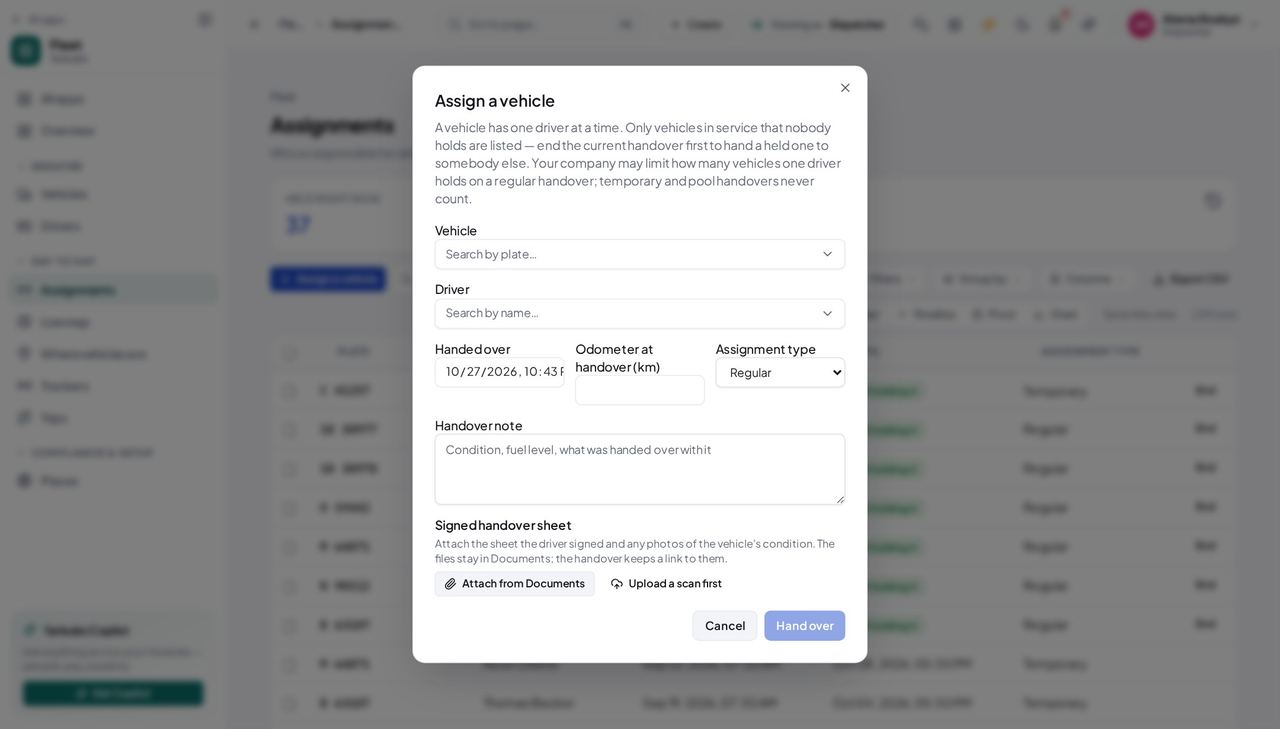
You should see Only vehicles in service that nobody holds are offered — a vehicle somebody already has cannot be handed to a second person, and offering it would be a choice the save refuses. Beside each driver's name is their licence class and how many vehicles they already hold. When a regular handover would take them past your company's limit, the dialog says so before you click — naming what they hold — and offers to hand this one over as Temporary, which never counts. A licence that does not cover the vehicle's category is refused, with both named in the message.
Watch out If the dialog warns that the driver already holds as many vehicles as allowed, the save will be refused: end one of theirs, press 'Hand it over as Temporary', or ask your fleet manager to raise the limit. A licence that does not cover the vehicle's category is refused too — check the driver's class rather than picking a different vehicle type.
Worth knowing The handover note and the signed sheet are the record of the vehicle's condition, its fuel level and 'two keys and a fuel card'. They are what you will be asked about when it comes back damaged. The message after saving says whether the driver was sent a notice — if it says they have no sign-in, tell them yourself.
End a handover #
Where Fleet » Assignments » Held right now » End
- Sidebar » Assignments.
- Click 'Held right now'.
- Click End on the row.
- Record the odometer as it reads now and say why it ended.
- Click End handover.
| Field | What to put in it |
|---|---|
| Handed back | Now, unless the vehicle came back earlier |
| Odometer at hand-back (km) | As it reads on return — this is the number everything after is measured from |
| Why it ended | Left the company, moved depot, vehicle sold… |
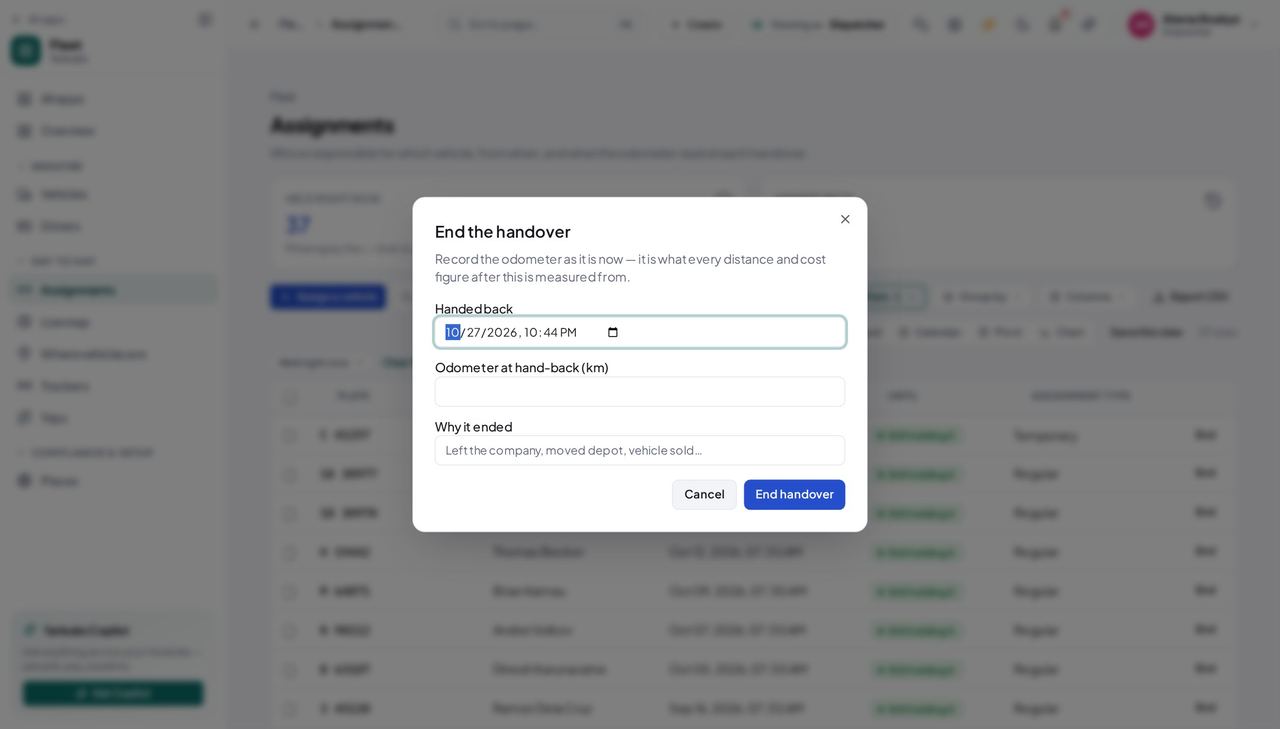
You should see The vehicle comes back to the pool and can be handed to somebody else. The odometer at hand-back is asked for every time because it is what every distance, cost and service interval after this handover is measured from — a blank there is a gap nothing later can fill in.
Watch out The hand-back date cannot be before the handover started. If the refusal mentions the date, check the time as well as the day.
The drivers you can hand to #
Where Fleet » Drivers
- Sidebar » Drivers.
- Read the Licence class and Licence expires columns.
- Click Promote an employee to add somebody.
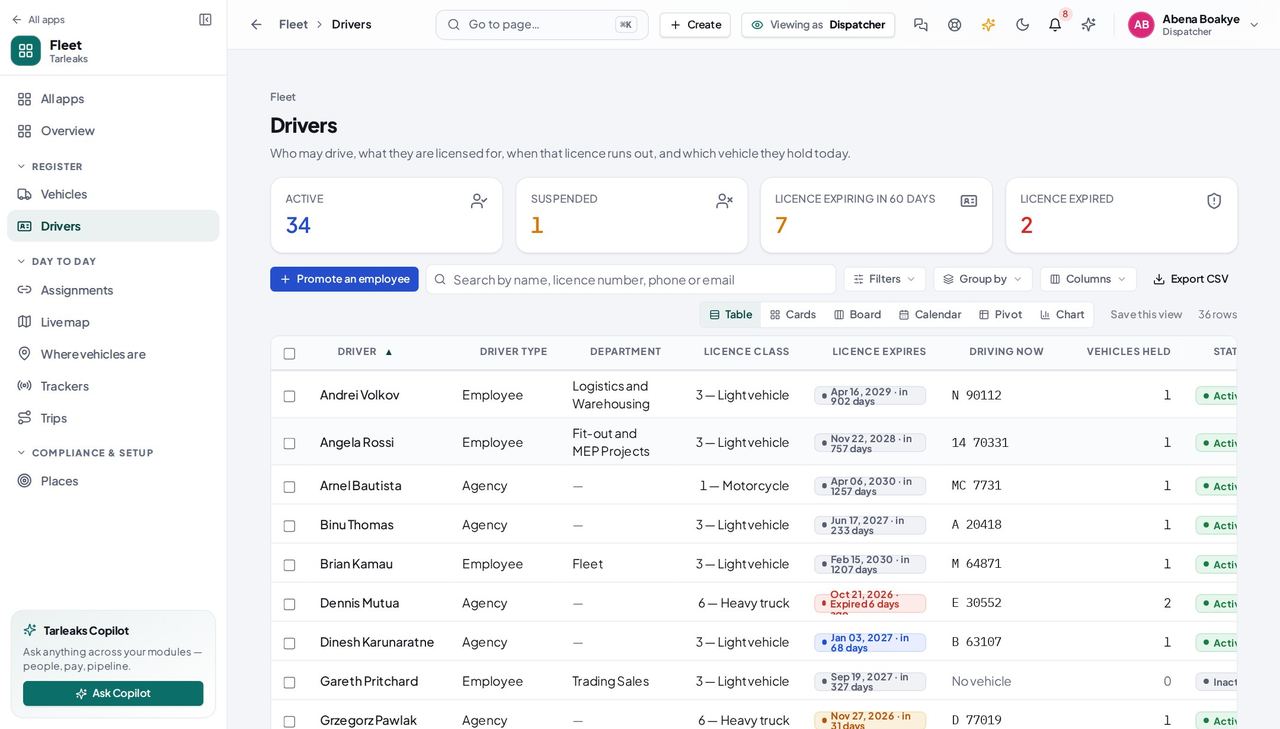
You should see Who may drive, what they are licensed for, when that licence lapses, the plate they are holding today and how many vehicles they hold — '2 (1 regular)' when one of them is temporary or pool, which does not count toward the limit. You can add a driver here, and from inside the handover form — but a driver with no licence class on file cannot be given a vehicle, so it is worth filling in while you have the licence in your hand.
Watch out A blank Licence class means that driver cannot be handed a vehicle. Add it on their record, or ask them for the card.
Where every vehicle was last heard from #
Where Fleet » Live map
- Sidebar » Live map.
- Click a tile — Moving, Stopped, Not heard from — to narrow the list.
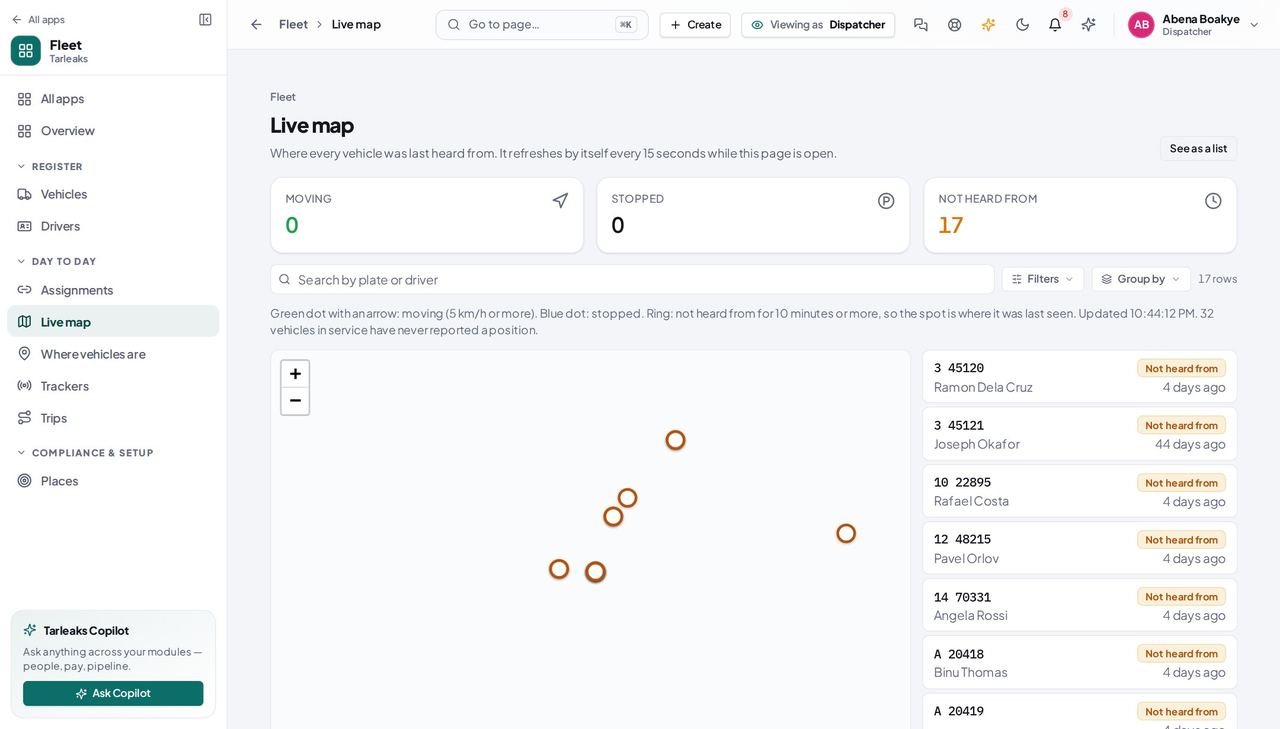
You should see A green dot with an arrow is moving, a blue dot is stopped, a ring has not been heard from for ten minutes or more. The page refreshes itself every 15 seconds.
Watch out A vehicle that has never reported is not on the map; the line under the tiles says how many there are.
Worth knowing 'No map background' means your fleet manager has not set a map server yet: the dots are still in the right place relative to each other, on a plain background.
What a dispatcher cannot do #
Where Fleet » Vehicles » a plate
- Sidebar » Vehicles.
- Open any vehicle.
- Look along the buttons at the top, and at the row of tabs.
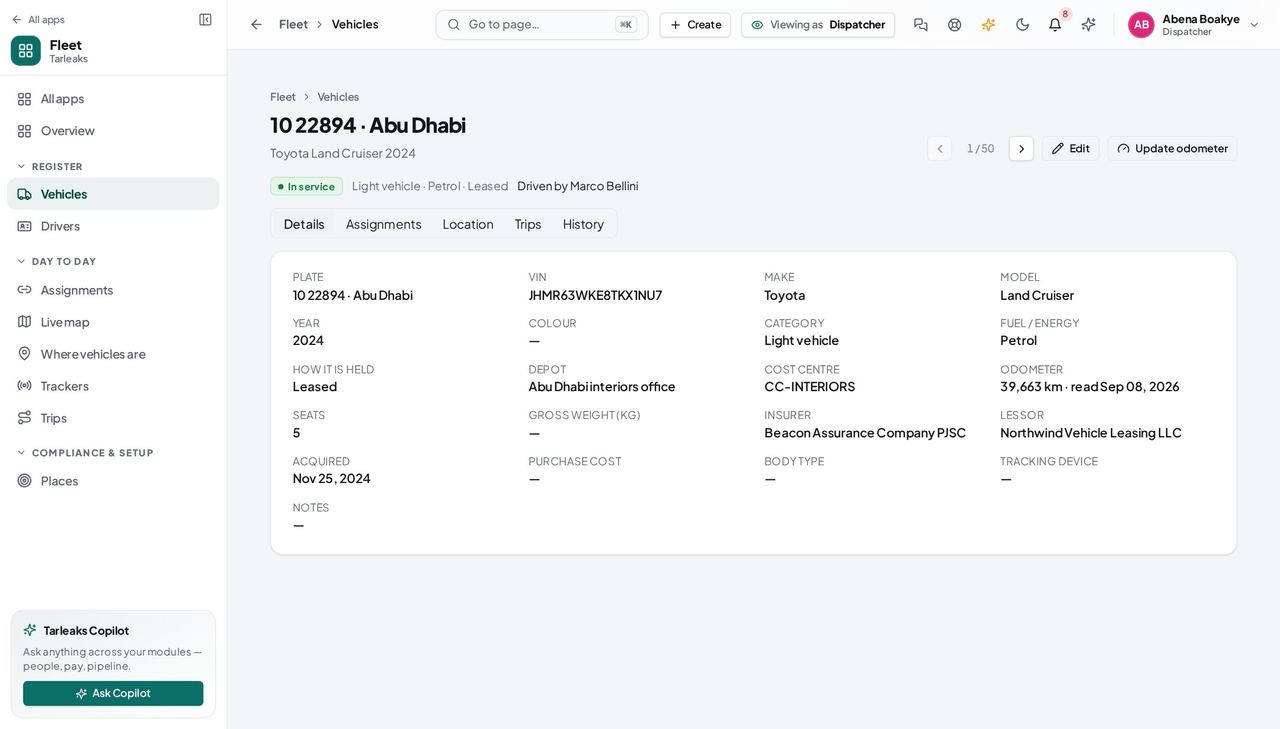
You should see None of them are there. You can edit a vehicle and update its odometer; you cannot decide that it is off the road, that it has left the fleet, or what paperwork it carries — and there is no Fleet settings in your menu. Those are absent rather than present-and-refusing, so you never find out by being turned away after filling a form.
Watch out You CAN edit a vehicle and update its odometer. Use both — an odometer recorded at every handover is what makes the cost figures usable later.
Worth knowing If a vehicle needs to come off the road, the fleet manager is the person — and the fastest thing you can do is end its handover so nobody takes it out in the meantime.
Use cases — the work, step by step
Each one is a sequence somebody actually performs, with the screen behind every step. Every screen here was opened in the product as this role before it was published.
dailyWho is driving what, this morning #
The only question a dispatcher is asked all day. Two screens answer it: who is holding a vehicle right now, and which vehicles nobody is responsible for.
Start on the hub. It counts what is in service, what is off the road, and how many vehicles in service nobody is driving — the last one is the number you can do something about.
Fleet » Overview — verified: the page says “Nobody driving”; no “Expired paperwork” anywhere on the page; no “Expiring in 30 days” anywhere on the page Open Assignments and read who is holding what. One vehicle has one driver at a time; one driver may hold several vehicles.
Fleet » Assignments — verified: 25 row(s) listed; the page says “Held right now”; the page says “Assignment type” Filter to what is held right now. The filter is written into the address bar, so this exact view survives a refresh and can be sent to somebody else as a link.
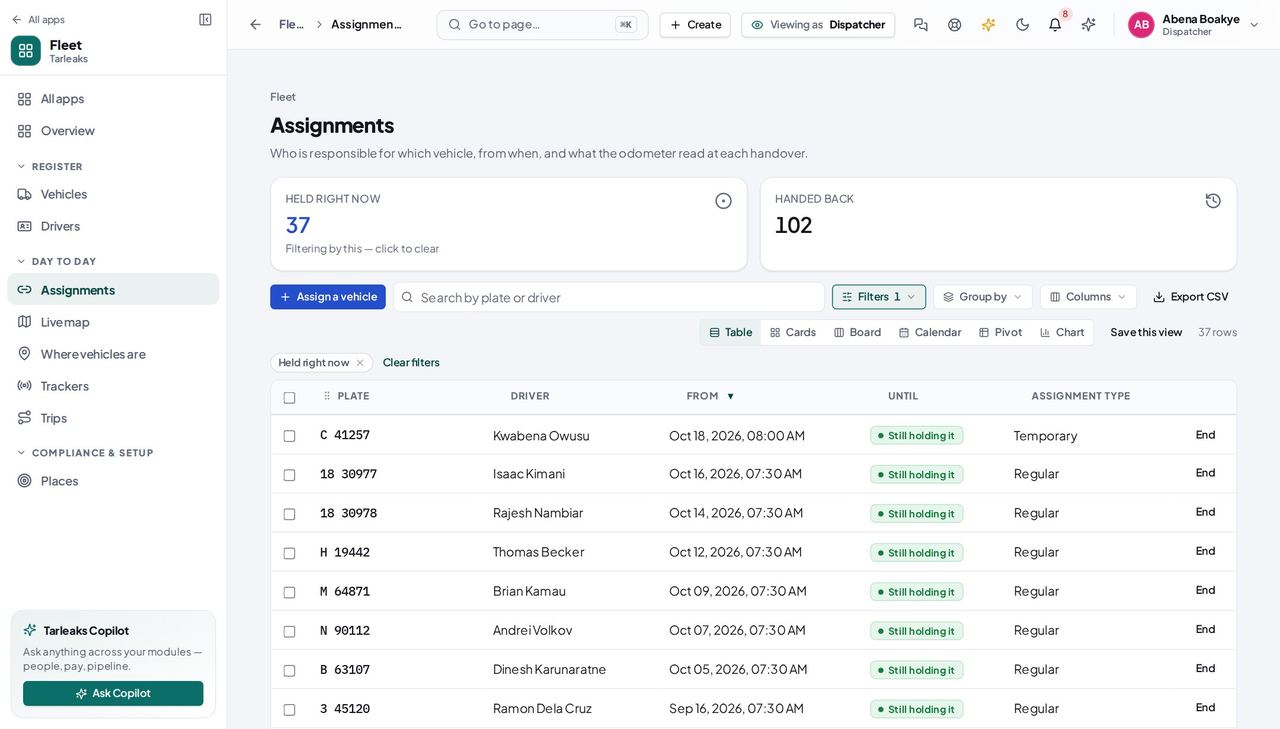
Fleet » Assignments » Held right now — verified: the page says “Held right now”; 25 row(s) listed
dailyHand a vehicle over to a driver #
A handover is the moment responsibility moves. Everything afterwards — who had the vehicle on a date, what the odometer read, who answers for a toll when tolls arrive — is read off this one record.
Check the driver first: what licence class they hold and when it expires. An expired licence is a hard stop, not a warning, and no setting turns that off.
Fleet » Drivers — verified: 25 row(s) listed; the page says “Licence class”; the page says “Vehicles held”; the control is offered Open the handover form. Pick the vehicle, pick the driver, write the handover note — fuel level, existing damage, what was in the cab — and attach the signed sheet. If the dialog warns that the driver already holds as many regular vehicles as allowed, hand this one over as Temporary or end one of theirs first.
Fleet » Assignments » Assign a vehicle — verified: the page says “A vehicle has one driver at a time”; the page says “temporary and pool handovers never count”; the page says “Signed handover sheet”; the control is offered; the control is offered Check it landed on the register. The row shows the driver, the date it was handed over, the opening odometer and “Still holding it” where the hand-back date will go.
Fleet » Assignments — verified: 25 row(s) listed; the page says “Held right now”; the page says “Assignment type”
monthlySomebody is leaving — take the keys back #
An open handover on a person who no longer works here is the one record that quietly ruins everything downstream: the vehicle cannot be given to anybody else, and it still points at them.
Find their open handover on the register. Search by their name — the search reads the driver and the plate, not only what the table happens to be showing.
Fleet » Assignments — verified: 25 row(s) listed; the page says “Held right now”; the page says “Assignment type” End it, and record the odometer as it reads on the dashboard right now. It refuses a closing reading lower than the opening one, and it refuses a hand-back dated before the hand-over.
Fleet » Assignments » Held right now » End — verified: the page says “End the handover”; the page says “Odometer at hand-back” Check it moved to Handed back. The closed row keeps both dates and both readings — which is exactly what will attribute a toll or a fine to the right person once those arrive. They are not in this release, so today a fine that lands next month is matched by hand against these dates.
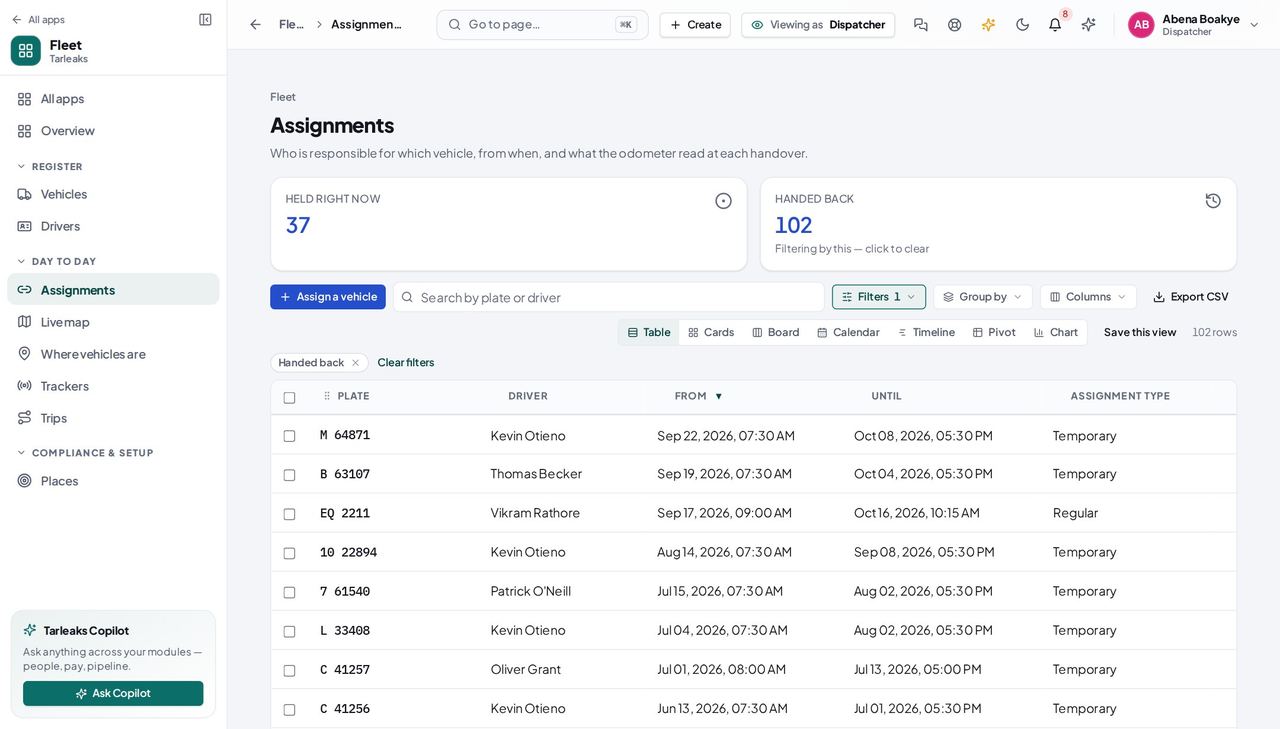
Fleet » Assignments » Handed back — verified: the page says “Handed back”; 25 row(s) listed Then ask the fleet manager to take them off the roster. You can add a driver and correct their details, but archiving one is not yours — and neither is the vehicle's paperwork or the module's settings.
Fleet » Vehicles » a plate — verified: the action is not offered to this role; the action is not offered to this role; the action is not offered to this role; no “Record disposal” anywhere on the page; no “Fleet settings” anywhere on the page
You decide who drives what. Whether a vehicle is legal to drive, how long its paperwork is kept, and how the module behaves are the fleet manager's decisions — which is why those screens are not in your menu rather than in it and refusing.