Workshop Manager — Fleet guide
See which vehicles cannot work, and which are about to stop.
Reads the fleet and what is off the road. The workshop's own screens — jobs, servicing, inspections, tyres — are not built yet.
What you will be able to do
- Read the fleet at a glance: in service, off the road, nobody driving
- See what expires in the next 90 days, vehicle by vehicle
- Look up any vehicle — plate, make, model, VIN, odometer, depot
What this role can and cannot do
| Can | Cannot |
|---|---|
|
|
3 steps, each one carried out in the product on .
What your sign-in can do #
Where Your name, top right » Profile
- Open your organisation's address in the browser — it looks like yourorganisation.tarleaks.com.
- Type the e-mail address your administrator set up for you, then your password.
- You land on the app launcher: a grid of the apps your organisation uses.
- Click the Fleet tile.
- Click your name, top right.
- Choose Profile.
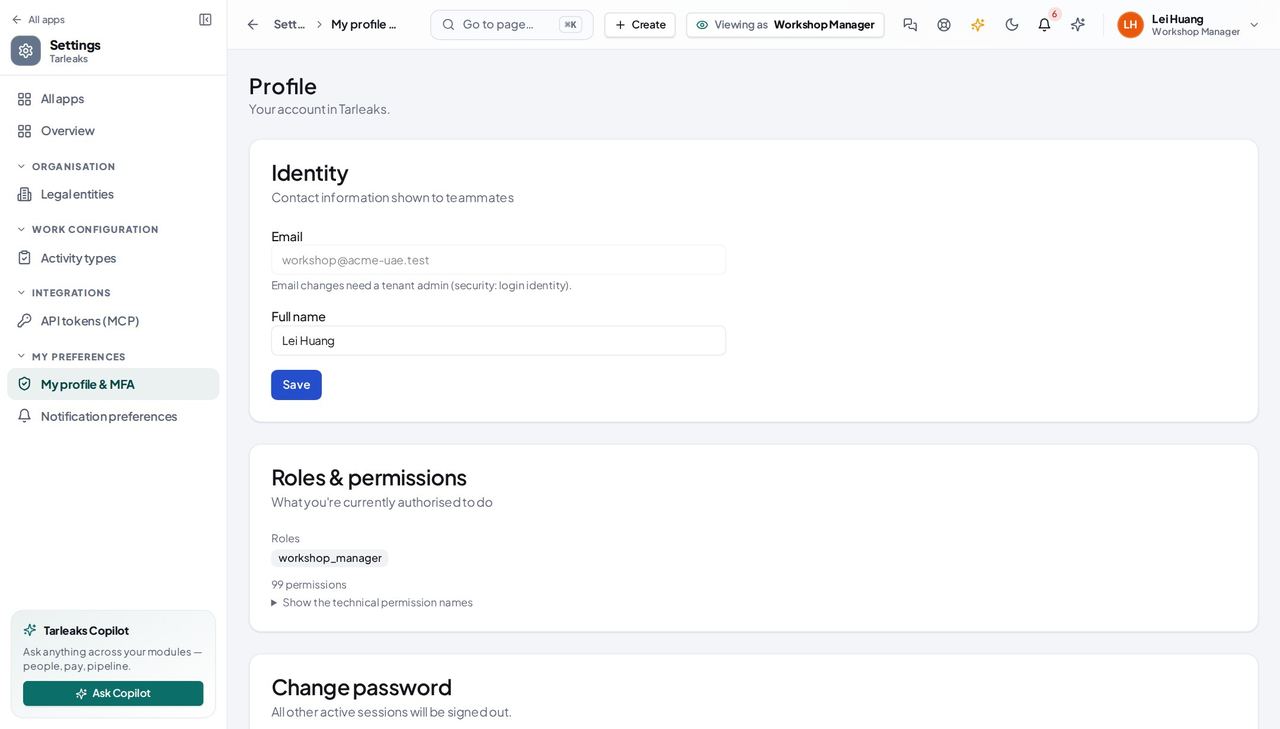
You should see Today: the fleet at a glance and the vehicle register, read-only. Your sign-in also allows work orders, service schedules, inspections, defects and tyres — those screens are a later release and are not built yet, so this guide covers only what actually answers.
What stops a vehicle working tomorrow #
Where Fleet » Overview
- Fleet opens on Overview.
- Click 'Off the road' to see the vehicles that cannot be worked.
- Click a line in 'What stops a vehicle working tomorrow' to open that vehicle.
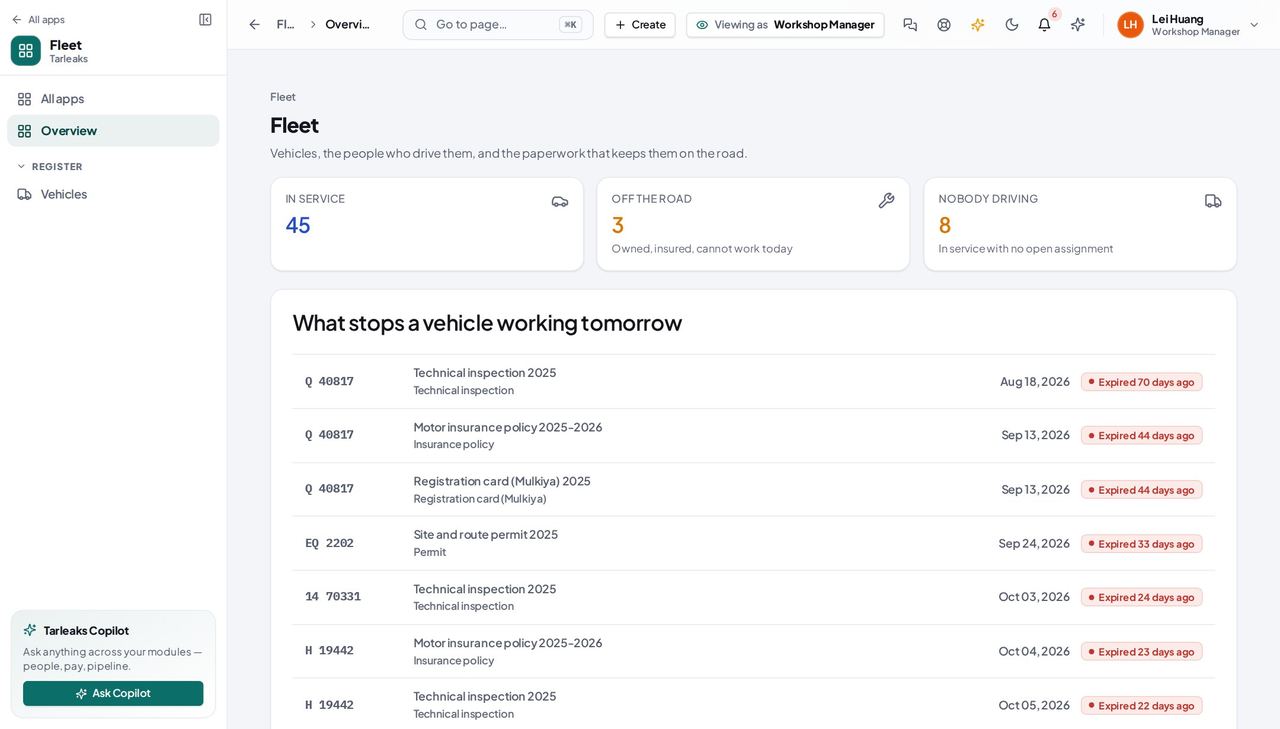
You should see 'Off the road' is your number: those vehicles are owned, insured and costing money while they cannot be worked. The list below it is the other reason a vehicle stops — paper, not parts — so you can see a van whose inspection lapses on Thursday before somebody plans a job around it.
Watch out 'Licences expiring' and 'Licences expired' count DRIVERS. The roster behind them is not open to this role, so read the numbers and tell the fleet manager rather than clicking through to a screen you cannot open.
Worth knowing There are no licence tiles here on purpose: they count drivers, and the driver roster is not open to the workshop. If a driver's licence is the reason a vehicle cannot go out, your fleet manager sees it on their own overview.
The vehicles, and what the workshop cannot yet do here #
Where Fleet » Vehicles
- Sidebar » Vehicles.
- Search by plate, make, model or VIN.
- Sort by Odometer, or group by Depot.
- Columns turns VIN and 'Expired papers' on.
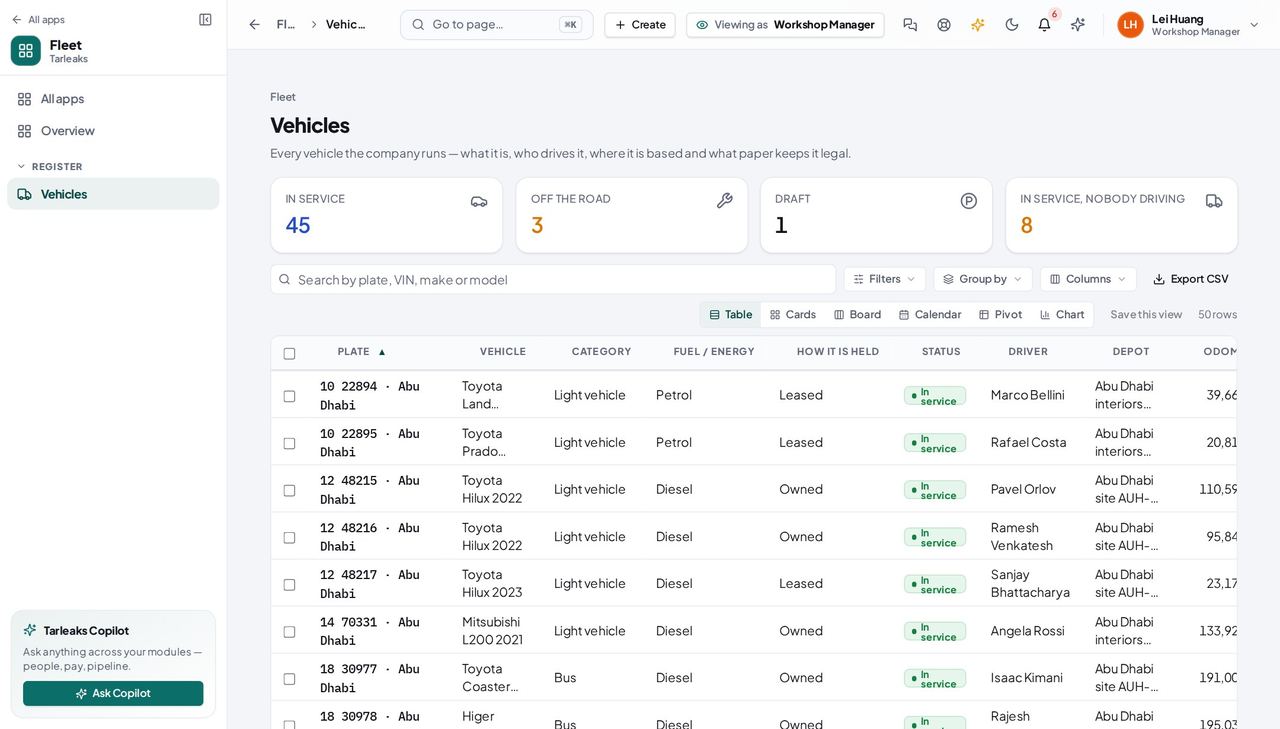
You should see You can find and read any vehicle in the fleet — its category, fuel, odometer, depot, insurer and how it is held. You cannot add, edit or archive one, and there is no way to record a job, a service, an inspection or a defect against it: those are a later release, not a permission somebody forgot. Until they ship, this screen's honest use is confirming which vehicle you have, and its odometer.
Watch out Nothing on this screen records what you did. Keep using your own job sheets until work orders are released; there is no hidden place in the product for them.
Worth knowing Two columns are off by default and worth turning on from the Columns menu: VIN, and 'Expired papers'.
Use cases — the work, step by step
Each one is a sequence somebody actually performs, with the screen behind every step. Every screen here was opened in the product as this role before it was published.
dailyThe morning list: what is standing still #
A workshop plans around two facts — which vehicles cannot work today, and which will stop next because a certificate runs out. The module gives you both; it does not yet give you anywhere to record the work itself.
Open the hub. “Off the road” is the bay list, and “What stops a vehicle working tomorrow” is the technical inspections and permits closest to expiry — the jobs to book before somebody is stopped at a checkpoint.
Fleet » Overview — verified: the page says “What stops a vehicle working tomorrow”; the page says “Off the road”; no “Licences expired” anywhere on the page; no “Licences expiring” anywhere on the page; no “Expired paperwork” anywhere on the page Open the register and filter to Off the road. Each row gives you the plate, make, model, depot and odometer — what you need before a vehicle arrives in the bay. Job cards, parts, labour hours, service schedules, defects and tyres are not in this release, so your own job sheet is still the record of the work; and taking a vehicle off the road is the fleet manager's to do, not yours.
Fleet » Vehicles — verified: 25 row(s) listed; no “Add vehicle” anywhere on the page; no “Import from a spreadsheet” anywhere on the page
dailyLook a vehicle up before it comes into the bay #
Reading the plate, the model year and the odometer off the register before you open the bonnet is faster than asking the driver, and it is the same number the fleet manager is looking at.
Check what your sign-in can reach, so you know what to ask somebody else for. Today it is the fleet summary and the vehicle register, read-only.
Your name, top right » Profile — verified: the page says “Roles & permissions” Search the register by plate, VIN, make or model. Open the vehicle for its full details: category, fuel or energy type, how it is held, its depot, its cost centre and the last odometer reading with the date it was taken.
Fleet » Vehicles — verified: 25 row(s) listed; no “Add vehicle” anywhere on the page; no “Import from a spreadsheet” anywhere on the page
This is the short guide on purpose. The workshop's own screens — service schedules, work orders, inspections, defects and the tyre register — are a later release and are not built, so nothing below pretends they are. What you have today is the register and the compliance picture: enough to know which vehicle to pull in, not yet enough to record what you did to it. The gap inventory that ships with these guides lists each of those by name and by release.