Safety Officer — Fleet guide
See the whole fleet and every licence behind it, and change nothing.
Reads the whole fleet and every driver's licence. Accidents, claims and driver scoring are a later phase.
What you will be able to do
- Read the fleet at a glance, including what cannot work today
- See every driver, what they are licensed for, and when that lapses
- Know which licences run out inside 60 days
What this role can and cannot do
| Can | Cannot |
|---|---|
|
|
3 steps, each one carried out in the product on .
What your sign-in can do #
Where Your name, top right » Profile
- Open your organisation's address in the browser — it looks like yourorganisation.tarleaks.com.
- Type the e-mail address your administrator set up for you, then your password.
- You land on the app launcher: a grid of the apps your organisation uses.
- Click the Fleet tile.
- Click your name, top right.
- Choose Profile.
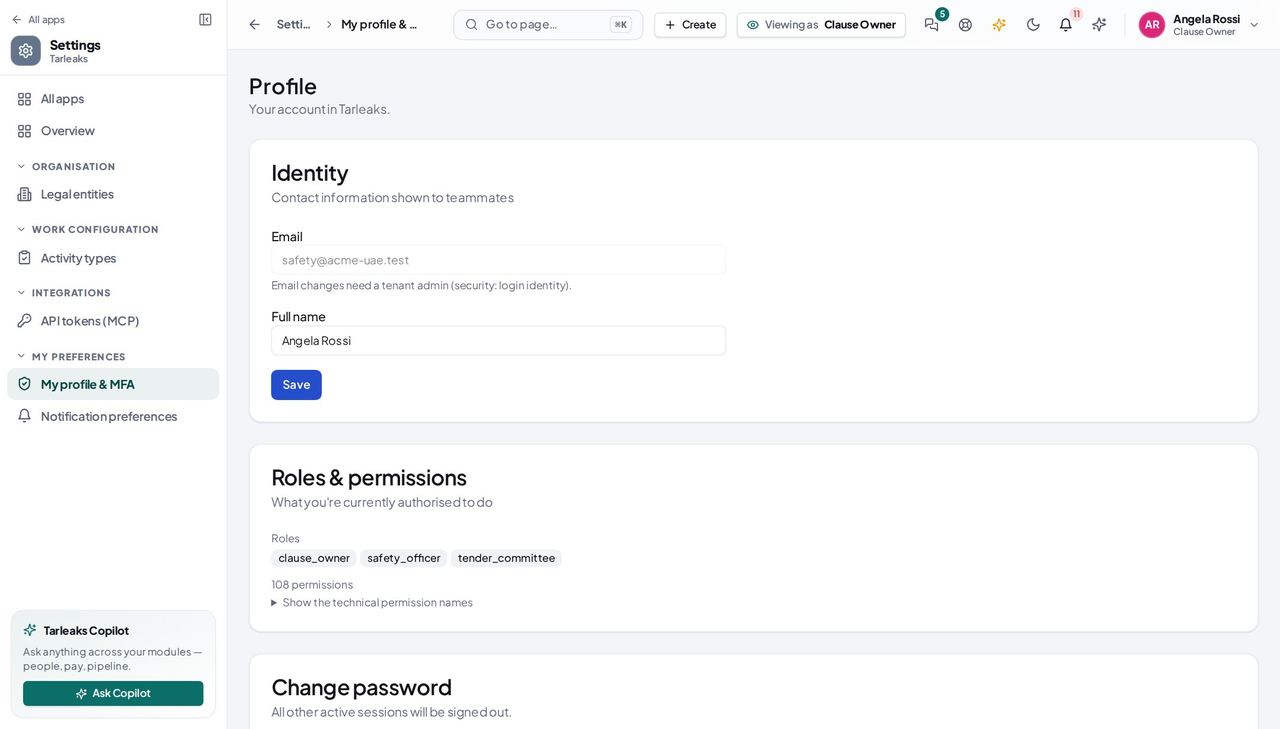
You should see Read the fleet and read the roster — and change neither. Incidents, claims and driver scoring are allowed by your sign-in and are a later release, so what follows is only what answers today.
The fleet at a glance #
Where Fleet » Overview
- Fleet opens on Overview.
- Click 'Off the road', 'Nobody driving', 'Licences expiring' and 'Licences expired' in turn.
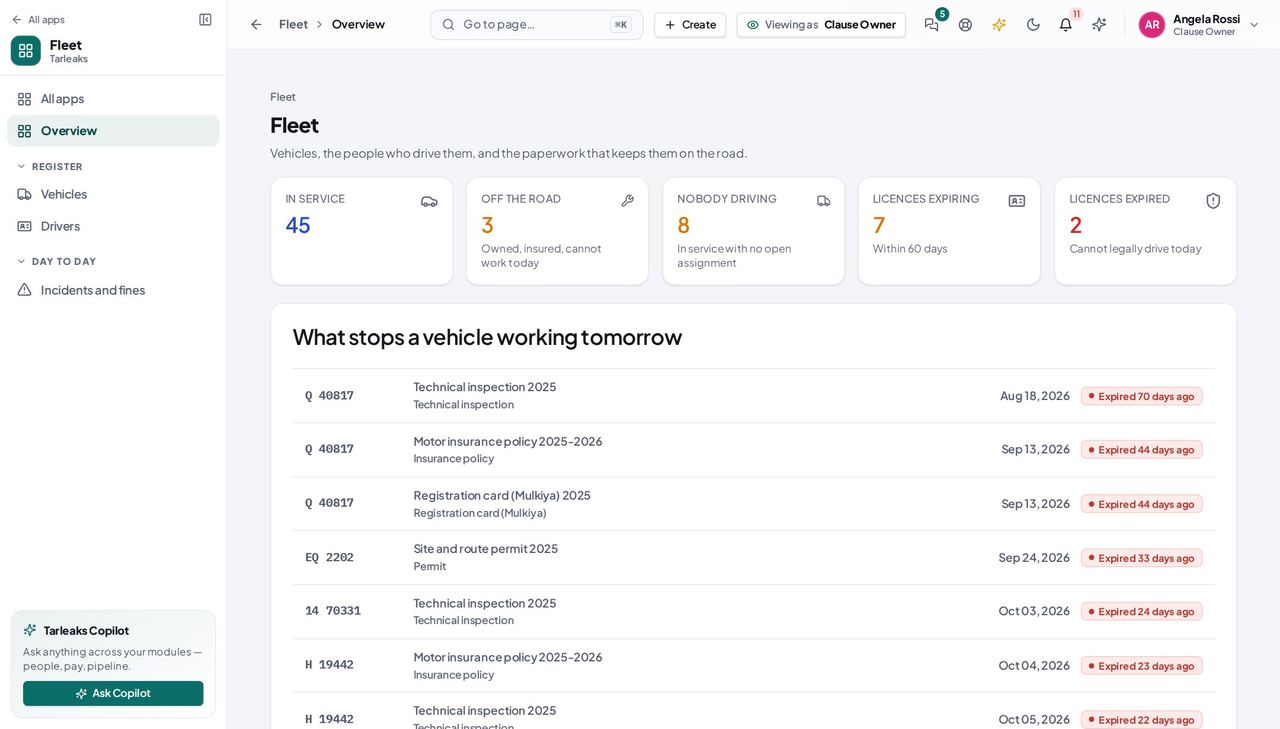
You should see Four of these numbers are safety questions wearing fleet clothes: a vehicle that cannot work, a vehicle nobody is accountable for, a driver whose licence is about to lapse, and a driver who cannot legally drive today. The paperwork tiles are not yours — keeping documents in date belongs to the fleet manager — so they are absent rather than shown and unclickable.
Watch out No paperwork tiles: an expired insurance policy is the fleet manager's to chase. Read what you need from the vehicle's own record instead.
The drivers and their licences #
Where Fleet » Drivers
- Sidebar » Drivers.
- Click 'Licence expiring in 60 days', then 'Licence expired'.
- Columns » Medical expires.
- Click a name to read the driver's record.
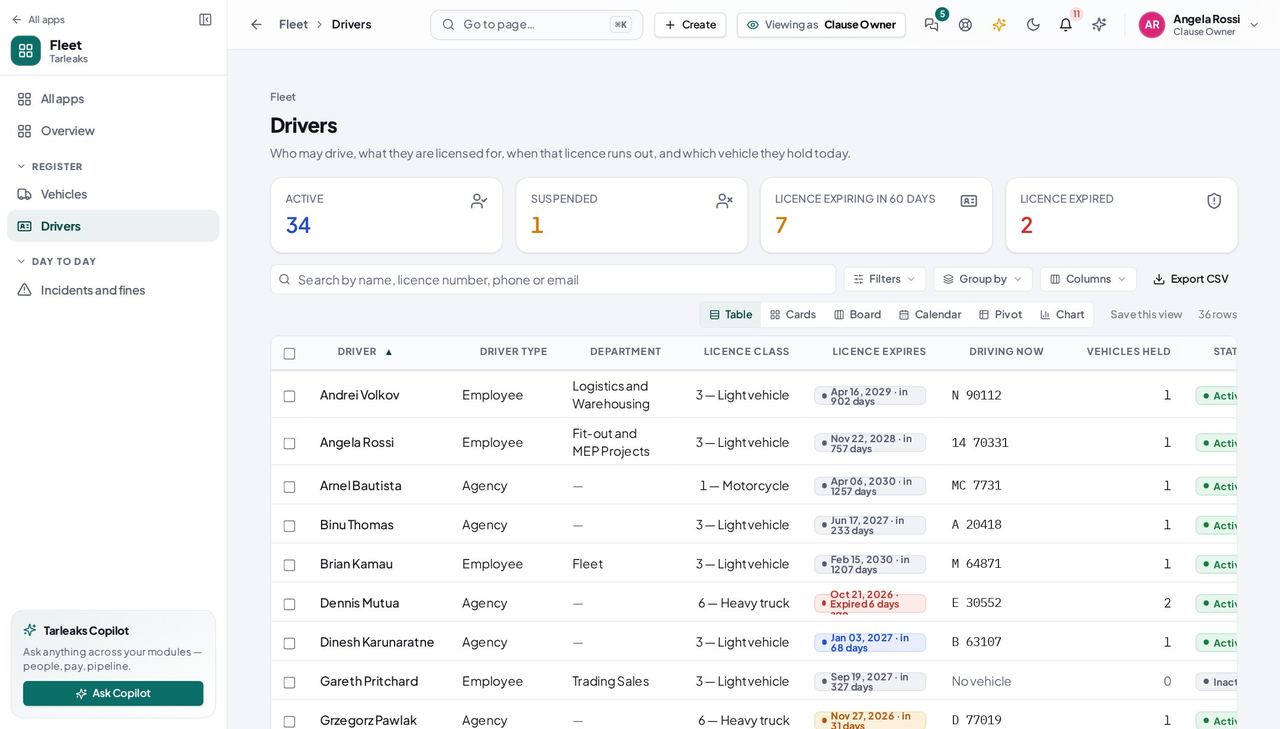
You should see Every driver, what they are licensed for, when it lapses, and which vehicle they are holding. Expired and expiring are two separate tiles on purpose: a lapsed licence is a person who must not be driving today, while a 60-day window is a reminder to chase. You can read all of it and change none of it — there is no Promote an employee button in this role.
Watch out A driver in that list who still shows a plate under 'Driving now' is exactly the case to raise: the handover is open and the licence is not valid. The expiry check sends a notice about it to the people who hand vehicles over — you are not one of them, so raise it with the fleet manager.
Worth knowing The list you build is in the address bar, so 'the eleven drivers whose licence lapses inside 60 days' can be sent to somebody as a link rather than a screenshot.
Use cases — the work, step by step
Each one is a sequence somebody actually performs, with the screen behind every step. Every screen here was opened in the product as this role before it was published.
monthlyThe monthly licence review #
A driver with a lapsed licence is the single cheapest safety finding to prevent and the most expensive one to be caught with. It is one screen and it takes five minutes.
Start on the hub: “Licences expiring” counts the drivers whose licence runs out inside 60 days. Click it and it opens the roster narrowed to exactly those people — the tile and the list are the same query.
Fleet » Overview — verified: the page says “In service”; the page says “Licences expiring”; the page says “Licences expired”; no “Expired paperwork” anywhere on the page Read the roster. Each driver shows their licence class, what that class covers, when it expires, when their medical expires and which vehicle they are driving today.
Fleet » Drivers — verified: 25 row(s) listed; the page says “Licence expires”; no “Promote an employee” anywhere on the page Name the ones who need chasing to the fleet manager. You read the roster; you do not change a licence date or suspend a driver, and that separation is what makes your review independent of the record you are reviewing.
Your name, top right » Profile — verified: the page says “Roles & permissions”
quarterlyBefore an inspection: is every vehicle on the road roadworthy? #
An inspector asks two questions — are the vehicles legal, and are the people driving them licensed for what they are driving. Today you can answer both from the register; you cannot yet show them an incident file, because that part is not built.
Read the fleet at a glance: how many vehicles are in service, how many are off the road, and how many are in service with nobody driving them. The technical inspections closest to expiry are listed underneath.
Fleet » Overview — verified: the page says “In service”; the page says “Licences expiring”; the page says “Licences expired”; no “Expired paperwork” anywhere on the page Open the register and read what each vehicle is: category, fuel or energy type, depot and status. A vehicle showing “Off the road” is not a finding — it is one that has been taken out of service deliberately, which is the outcome you want.
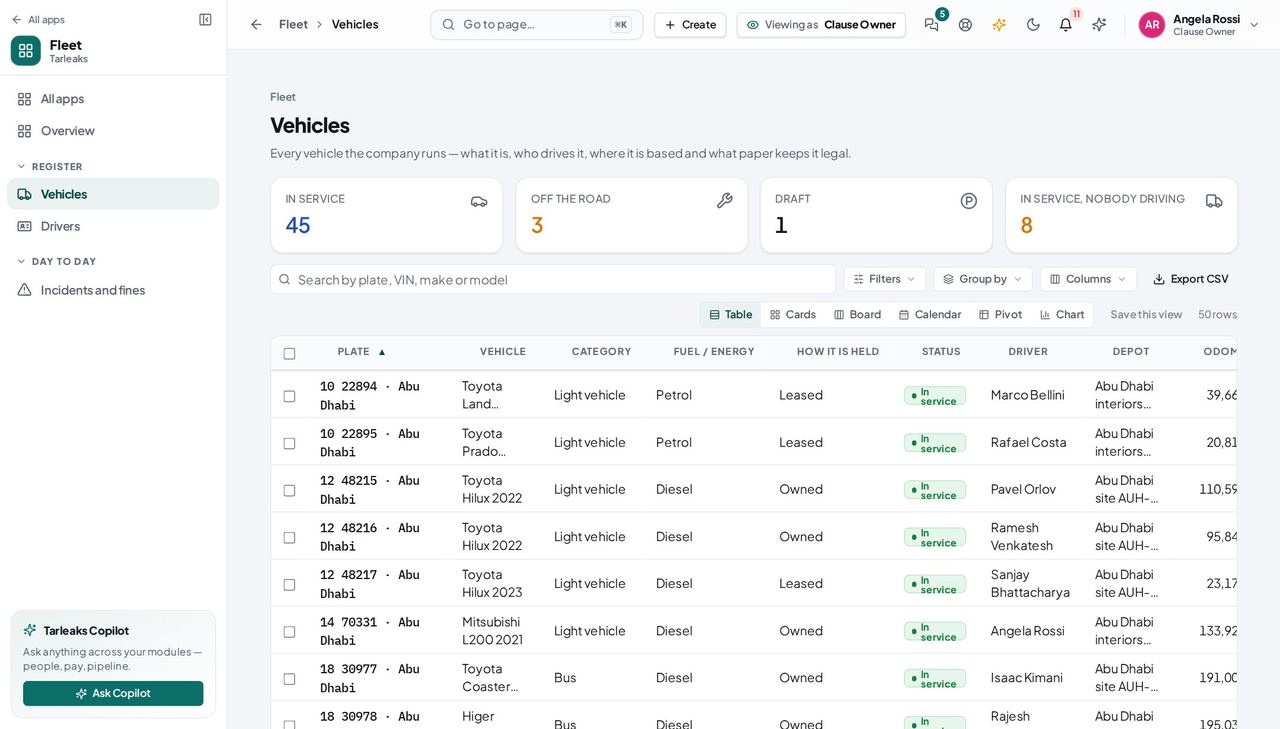
Fleet » Vehicles — verified: the page says “Plate”; 25 row(s) listed Cross-check the drivers against the categories they hold. Where you would want an incident record, a claim or a driver score, there is nothing to show yet — those are a later release, so keep recording them the way you do now.
Fleet » Drivers — verified: 25 row(s) listed; the page says “Licence expires”; no “Promote an employee” anywhere on the page
You can read the fleet and the roster; you cannot hand a vehicle over, change a vehicle or open the settings. Incidents, claims and driver scoring — the heart of this role — are a later release: the permissions are already yours and the screens are not built, so this guide covers only what really answers today.