Driver — Fleet guide
Know the vehicle you are responsible for is legal to drive.
Self-service, scoped to one person: the vehicle handed to them, its paperwork, and when their own licence runs out.
What you will be able to do
- See every vehicle handed to you, and since when
- See when your own licence and medical run out
- See the registration, insurance and permits of the vehicle you hold
What this role can and cannot do
| Can | Cannot |
|---|---|
|
|
5 steps, each one carried out in the product on .
What your sign-in can do #
Where Your name, top right » Profile
- Open your organisation's address in the browser — it looks like yourorganisation.tarleaks.com.
- Type the e-mail address your administrator set up for you, then your password.
- You land on the app launcher: a grid of the apps your organisation uses.
- Click the Fleet tile.
- Click your name, top right.
- Choose Profile.
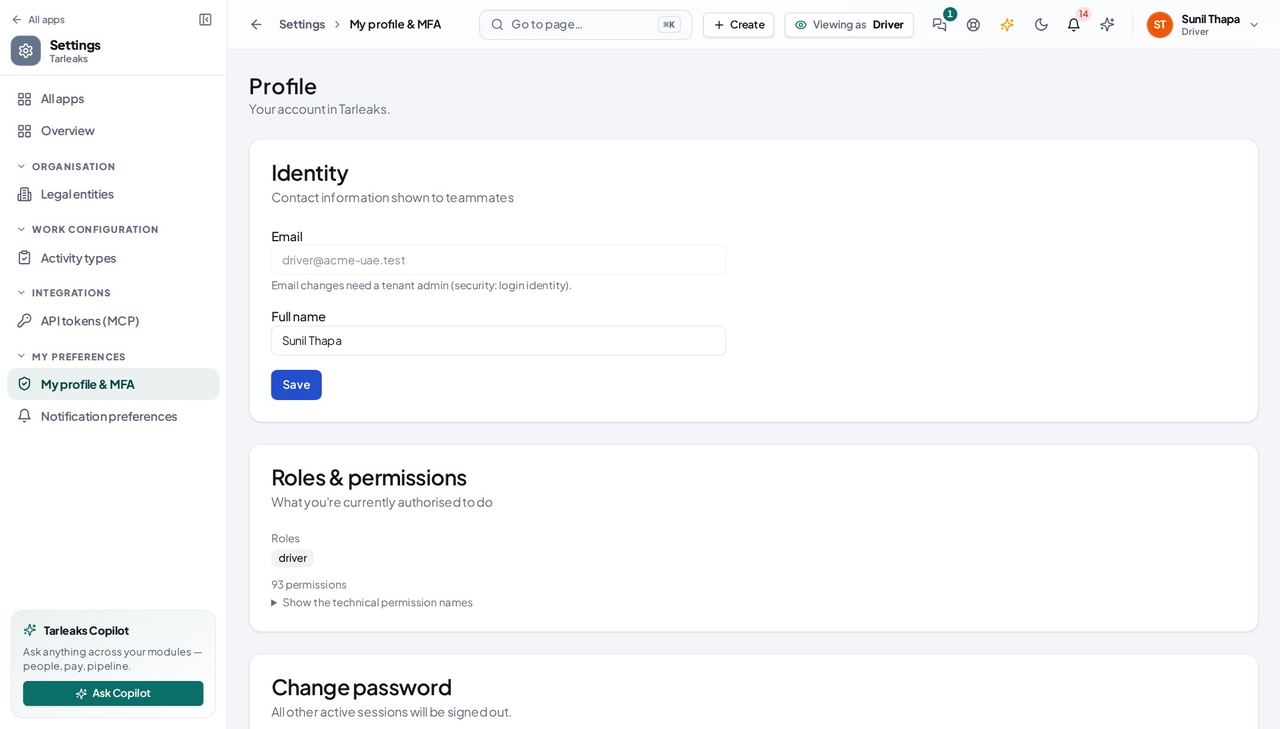
You should see Your own vehicle, your own licence, and the paperwork of the vehicle you hold. Nothing about the rest of the fleet and nothing about other drivers — that is the design of the role, not a screen that failed to load.
My vehicle #
Where Fleet » My vehicle
- Open Fleet — you land on My vehicle.
- Read the plate, the make and model, and when it was handed to you.
- Open the signed handover sheet from the card, if one is attached.
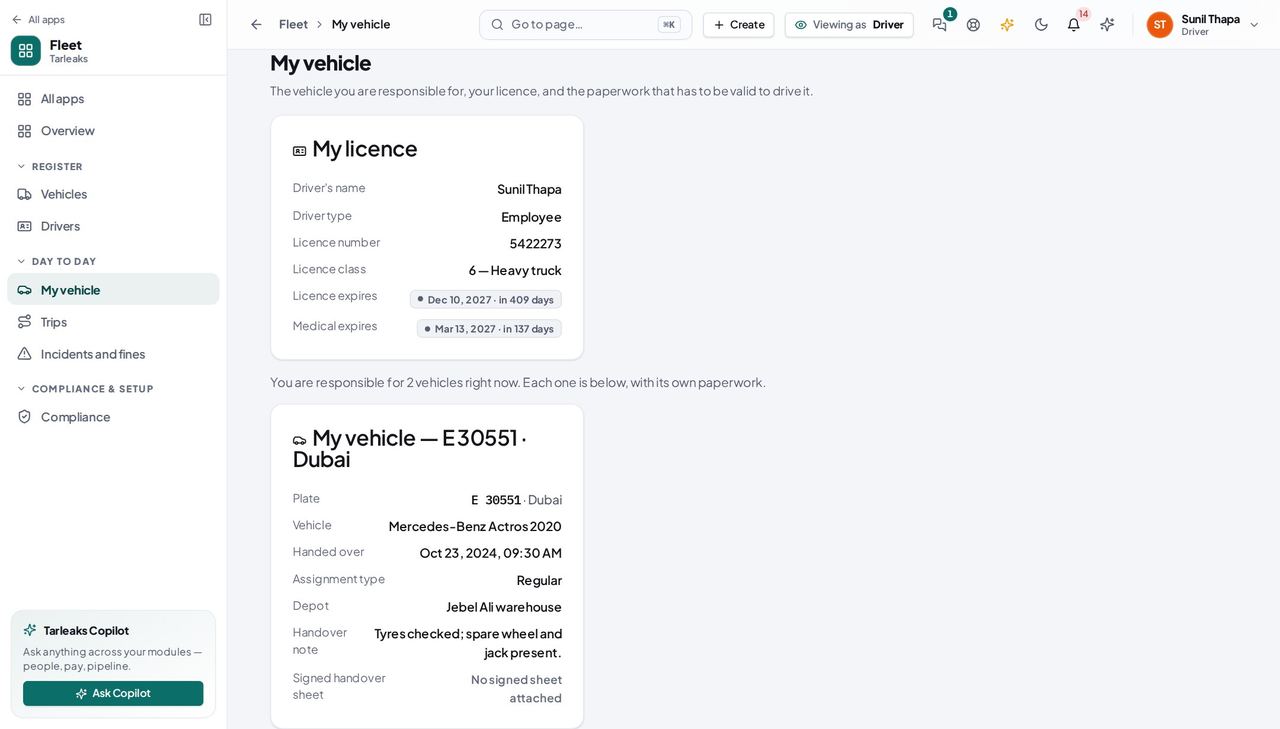
You should see The vehicles you are responsible for, and since when. If you are holding two — your own van and a vehicle you are covering on a temporary handover — the page says how many and each gets its own card, titled by its plate, with its own paperwork underneath. When a vehicle is handed to you or taken back, you are sent a notice that opens this page.
Watch out If the page says you are not set up as a driver, nothing is broken and nothing you can do will fix it. Ask your fleet manager to add you under Fleet, Drivers.
Worth knowing If this page says you are not set up as a driver, your login has not been linked to a driver record. Ask your fleet manager to add you under Fleet, Drivers — it is one step for them, and this page fills in straight away.
My licence and when it expires #
Where Fleet » My vehicle » My licence
- Open My vehicle.
- Read the My licence card at the top.
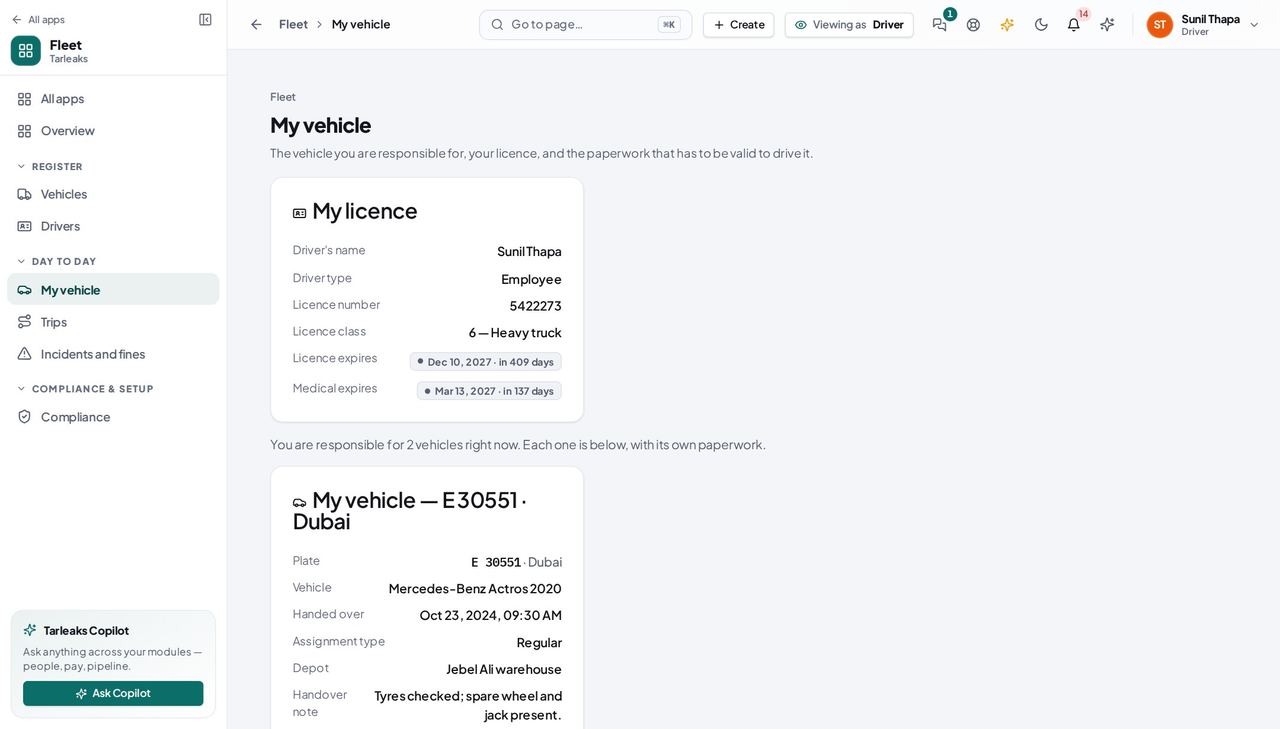
You should see Your licence number, what class it is, and the two dates that decide whether you may drive at all. The badge is colour-coded on purpose: inside 30 days is urgent, because the day a licence lapses the system stops letting anyone hand you a vehicle.
Watch out A lapsed licence stops anybody handing you a vehicle, so send the renewal to your fleet manager before the date, not after.
Worth knowing You cannot change these yourself. Send the renewed licence to your fleet manager and they update the record — which is also what keeps you off the 'expiring' list they work from.
The paperwork for the vehicle I drive #
Where Fleet » Compliance
- Sidebar » Compliance.
- Read the top line first — it is the paper closest to expiring.
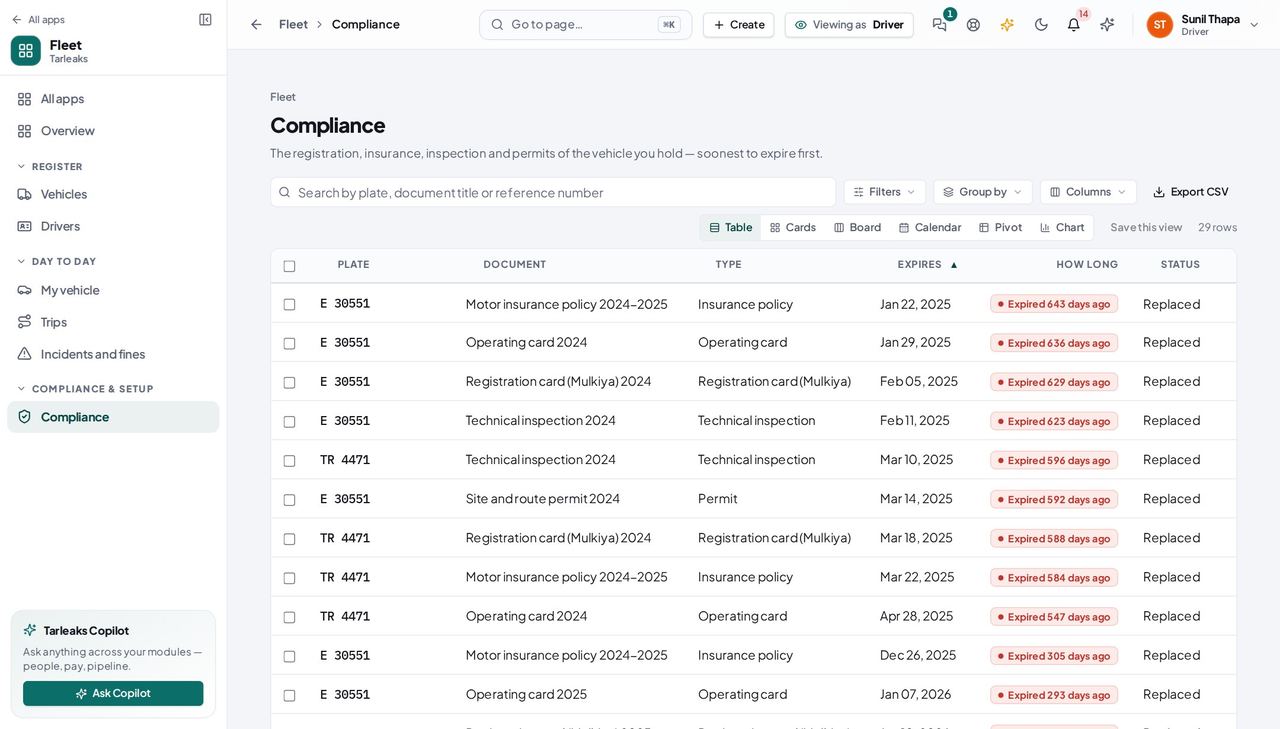
You should see The registration, insurance, inspection and permits of the vehicle you hold — and only that vehicle. Soonest to expire first, so the top line is the one that matters. This is the screen to check before a long trip or a border crossing.
Watch out An empty list is not proof the vehicle is legal — it can also mean nothing has been filed for it. Either way, tell your fleet manager.
Worth knowing The same list, per vehicle, is on the My-vehicle page under 'Documents for …'. If a document is missing or has expired, tell your fleet manager and do not assume the vehicle is in order.
What a driver cannot see #
Where Fleet » Vehicles
- Sidebar » Vehicles.
- Look at how many rows there are, and at what is missing from the top of the page.
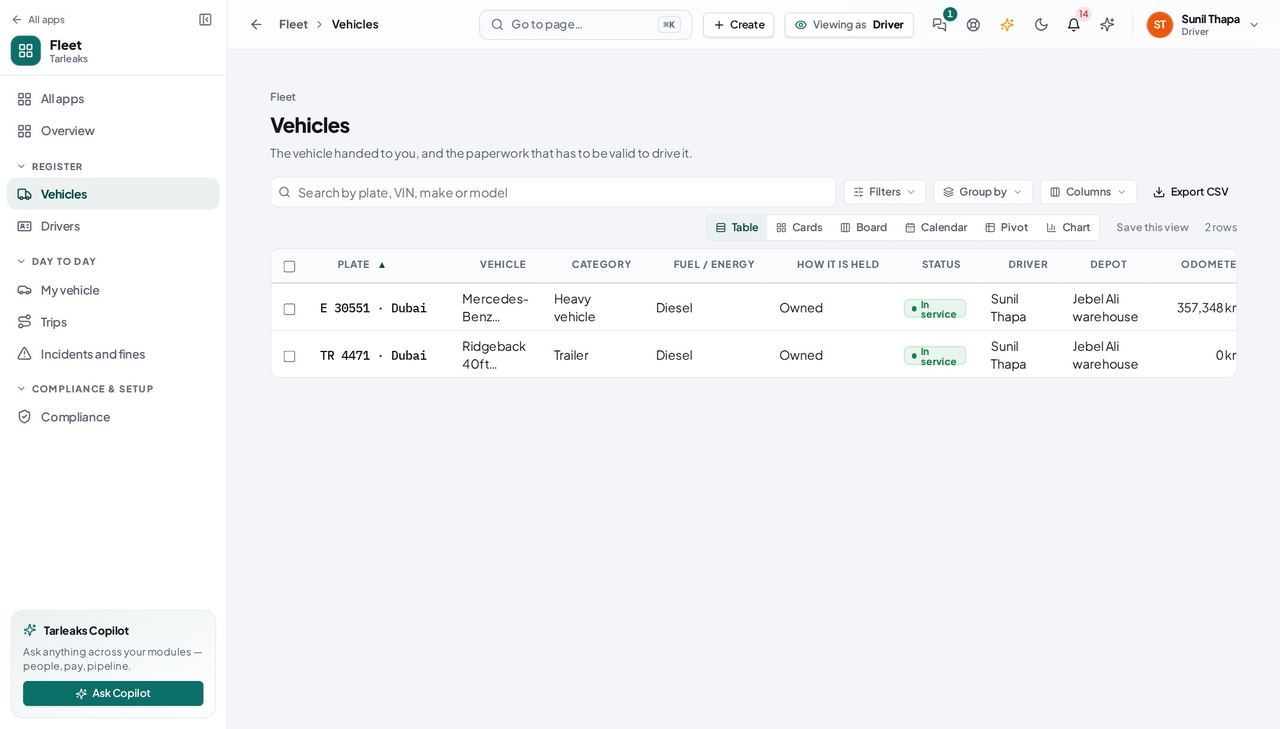
You should see The register shows you ONE vehicle — yours — and none of those controls are on the screen. You are not being refused: the page is built for what a driver needs, which is to know the vehicle handed to you is legal to drive. Other drivers, other vehicles and the settings are not hidden behind a locked button; they are simply not part of this screen.
Watch out A colleague's screen showing dozens of vehicles is not a fault on yours — they hold a role that looks after the whole fleet.
Use cases — the work, step by step
Each one is a sequence somebody actually performs, with the screen behind every step. Every screen here was opened in the product as this role before it was published.
dailyCheck your vehicle before you take it out #
Two minutes here is the difference between a normal day and being stopped with an expired registration card in a vehicle that is, on paper, your responsibility.
Open My vehicle. It names the plate you are holding, when it was handed to you, which depot it belongs to and the handover note written when you took it.
Fleet » My vehicle — verified: the page says “My vehicle”; the page says “Handed over”; the page says “Signed handover sheet”; the page says “vehicles right now” Read the paperwork for that vehicle. The badge beside each document says how long is left — a red one means it has already expired, and the vehicle should not move until the fleet office has renewed it.
Fleet » Compliance — verified: 25 row(s) listed; the page says “of the vehicle you hold” If something is wrong, report it the way your depot does today — by radio, phone or in person — with the plate and the odometer reading in front of you. The module cannot take a defect report, a fuel receipt or an inspection from you yet.
Fleet » Vehicles — verified: the page says “The vehicle handed to you”; no “Add vehicle” anywhere on the page; no “Import from a spreadsheet” anywhere on the page; no “Fleet settings” anywhere on the page
yearlyMy licence is about to run out #
An expired licence stops you being handed any vehicle at all — it is a hard refusal, not a warning — so the weeks before the date are the only time to deal with it quietly.
Open My licence and read the expiry date and the badge beside it. Your medical expiry is on the same card, and it runs out on its own schedule.
Fleet » My vehicle » My licence — verified: the page says “My licence”; the page says “Licence expires” Renew it, then take the new licence to the fleet office. You cannot change the date yourself — only somebody who keeps the roster can, which is what makes the date on your record worth trusting.
Fleet » Vehicles — verified: the page says “The vehicle handed to you”; no “Add vehicle” anywhere on the page; no “Import from a spreadsheet” anywhere on the page; no “Fleet settings” anywhere on the page
edgeWhy can I not see the rest of the fleet? #
Because you are not meant to. A driver sees their own record, their own vehicle and its paperwork — and that boundary is the reason the fleet office can put a whole depot's data in one system.
Read what your sign-in can do. It is short on purpose: your own driver record, the vehicle handed to you, and that vehicle's documents.
Your name, top right » Profile — verified: the page says “Roles & permissions” The whole-fleet summary, the register of every vehicle, the roster of other drivers, everybody else's handovers and the module's settings are not in your menu at all. Follow a link to one and the page says plainly that it is not for you — it does not fail, and it does not show you a blank screen either.
Fleet » Vehicles — verified: the page says “The vehicle handed to you”; no “Add vehicle” anywhere on the page; no “Import from a spreadsheet” anywhere on the page; no “Fleet settings” anywhere on the page
You see your own vehicles and your own licence, and nothing else — not the rest of the fleet, not other drivers, not the settings. That is the design, not a gap. When a vehicle is handed to you, or taken back, you are sent a notice. What IS a gap: submitting an inspection, reporting a defect, seeing your fuel, your trips or a fine to dispute are all later releases. If the paperwork here looks wrong or missing, tell your fleet manager — do not assume the vehicle is in order.