Technician — Fleet guide
Look up the vehicle you were sent to, and read it back to yourself.
The bay. Looks up the vehicle they were sent to and nothing else; the job card itself is a later phase.
What you will be able to do
- Find a vehicle by plate, make, model or VIN
- Read what it is: category, fuel, odometer, depot, insurer
What this role can and cannot do
| Can | Cannot |
|---|---|
|
|
2 steps, each one carried out in the product on .
What your sign-in can do #
Where Your name, top right » Profile
- Open your organisation's address in the browser — it looks like yourorganisation.tarleaks.com.
- Type the e-mail address your administrator set up for you, then your password.
- You land on the app launcher: a grid of the apps your organisation uses.
- Click the Fleet tile.
- Click your name, top right.
- Choose Profile.
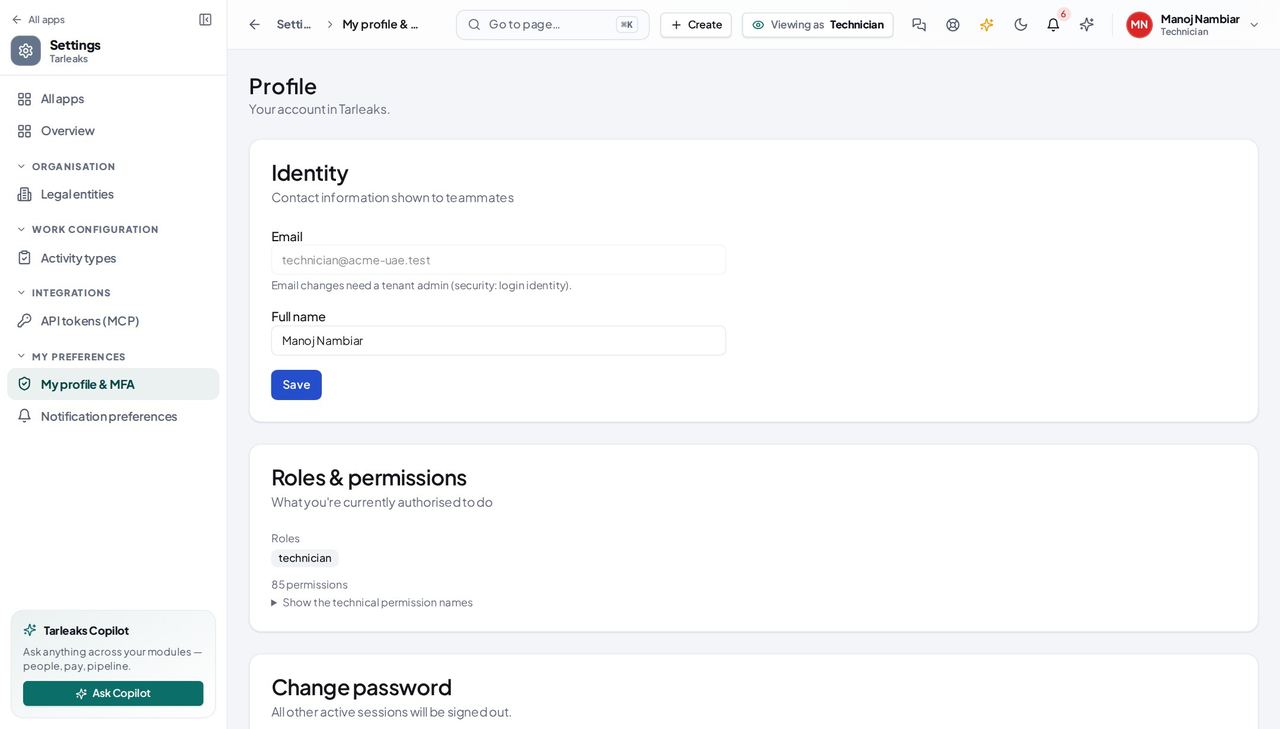
You should see One thing, today: look up a vehicle. Your sign-in already allows work orders, inspections, defects and tyre fitments — none of those screens exist yet, which is why this guide is two steps long instead of pretending otherwise.
The vehicle you were sent to #
Where Fleet » Vehicles » a plate
- Sidebar » Vehicles.
- Type the plate — or the VIN from the windscreen — into the search box.
- Click the plate.
- Read the Details tab.
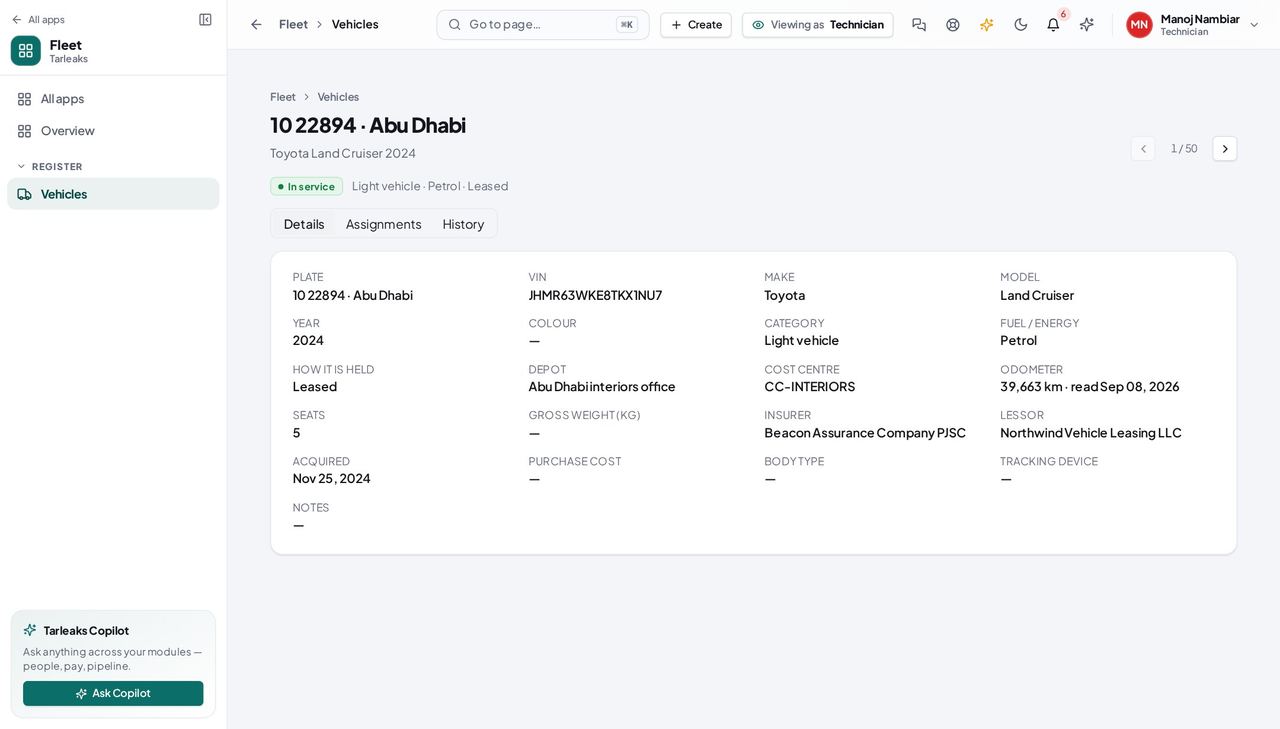
You should see Enough to be sure you are working on the right vehicle: plate and region, VIN, make, model, year, colour, category, fuel, odometer, depot and who insures it. Everything here is read-only for you — there is no Edit, no Update odometer and no Documents tab — because recording what you DID is the workshop release that has not shipped.
Watch out Everything is read-only. If something here is wrong — the odometer, the colour, the depot — tell the fleet manager; there is no Edit for you, and that is on purpose rather than a fault.
Worth knowing The VIN is not shown in the list by default, but searching for it works — type it into the search box and the vehicle comes back.
Use cases — the work, step by step
Each one is a sequence somebody actually performs, with the screen behind every step. Every screen here was opened in the product as this role before it was published.
dailyIdentify the vehicle you were sent to #
A technician needs to be certain which vehicle is in front of them — two white Hiluxes in one yard is how the wrong one gets serviced. The register answers that from the plate or the VIN.
Check what your sign-in reaches, so you know what to ask somebody else for. Today it is the vehicle register: the fleet-wide summary, the roster of drivers, the handovers and the paperwork are not yours, and the screens where the work itself would be recorded are not built for anybody yet.
Your name, top right » Profile — verified: the page says “Roles & permissions” Find the vehicle by plate or VIN and read it: make, model, year, colour, fuel or energy type, depot and the last odometer reading. Where the job itself gets recorded — the work order, the parts, the hours, the tyre fitment, the defect you found — is not built yet, so it stays on your own job sheet and goes to the workshop manager.
Fleet » Vehicles » a plate — verified: the page says “VIN”; the page says “Odometer”; no “Update odometer” anywhere on the page; the action is not offered to this role
Two steps, because two steps is honestly all there is for you today. Work orders, the jobs assigned to you, inspection forms, defect reports and tyre fitments are a later release: your sign-in already allows them, and the screens do not exist yet. Until they do, record what you did the way your workshop does now, and use this to check you are looking at the right vehicle. The gap inventory that ships with these guides lists each missing screen and the release it belongs to.