Employee — Helpdesk guide
Ask IT, HR or facilities for help and always know where your request is.
Asks IT, HR or facilities for help and follows their own requests: raises a ticket, reads the answer, rates it. Sees only their own tickets.
What you will be able to do
- Raise a ticket to the right desk
- Follow every request you raised
- Read the answer and rate it
What this role can and cannot do
| Can | Cannot |
|---|---|
|
|
5 steps, each one carried out in the product on .
See everything you asked for #
Where Helpdesk » My tickets
- Click the Helpdesk tile: you land on My tickets.
- Read each row: the ticket number, what it is about, its status and the date of the last update.
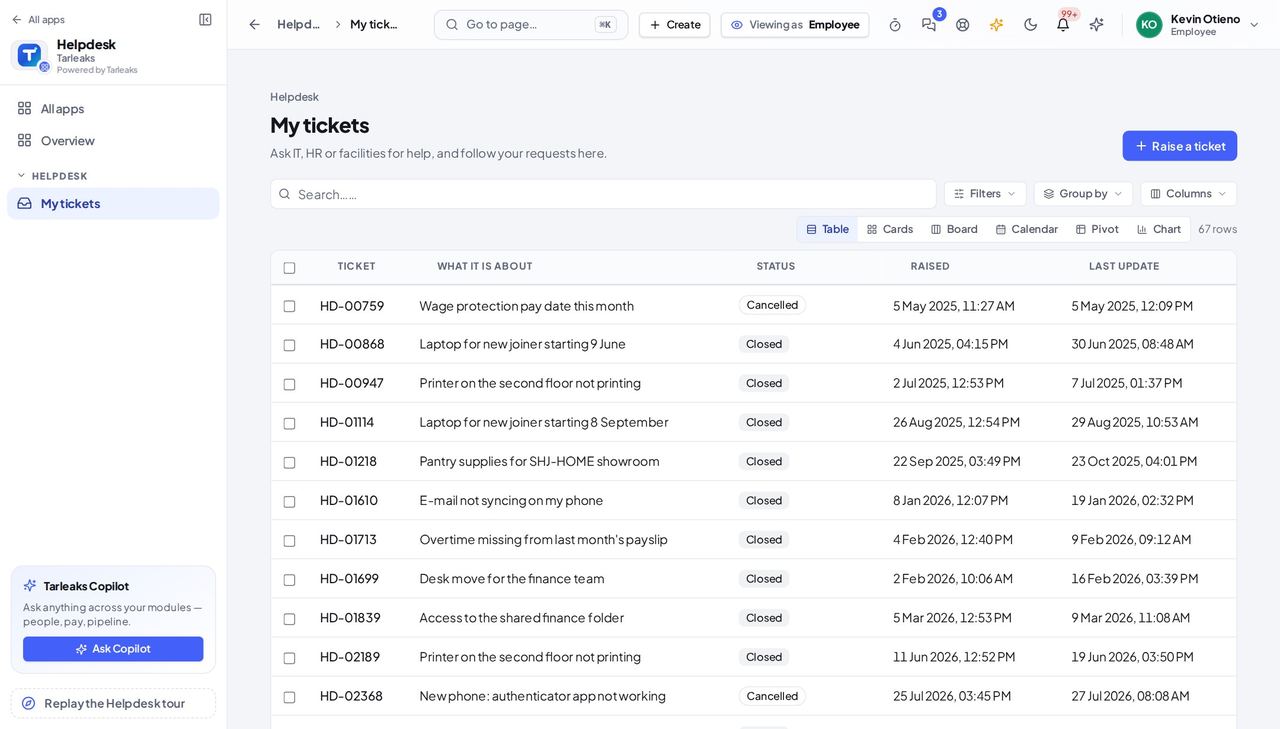
You should see Only your own tickets, newest first; a closed ticket says Closed.
Raise a ticket #
Where Helpdesk » My tickets » Raise a ticket
- Open your company's address in the browser — it looks like yourcompany.tarleaks.com.
- Type the e-mail address your administrator set up for you, then your password.
- You land on the app launcher: a grid of the apps your company uses.
- Click the Helpdesk tile.
- My tickets → Raise a ticket.
- Choose the team → write what it is about and the details → set the urgency → Send ticket.
| Field | What to put in it |
|---|---|
| Who should help? | IT, HR or facilities — the one that can help |
| What it is about | one line |
| Details | what happened, and what you need |
| How urgent is it? | Normal unless it blocks your work |
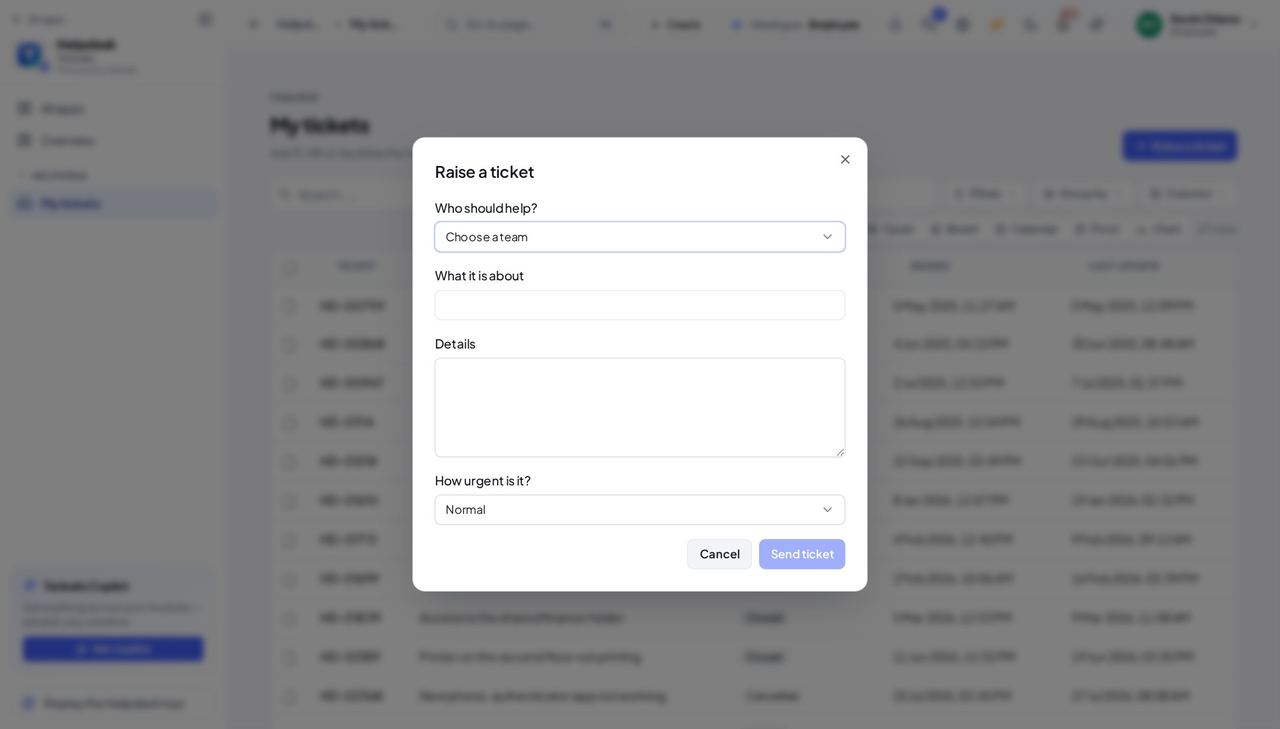
You should see A form with the team, the subject, the details and the urgency.
Watch out You will be told by notification when the desk answers.
Worth knowing If your company has only one desk, it is already chosen for you.
The desk's escalation is not shown to you #
Where Helpdesk » My tickets » a ticket
- Open a ticket that has run late.
- Read the replies: you see what the desk wrote to you, and nothing that says Escalated.
- When a ticket runs late the desk may pass it to its lead or a manager, but that happens inside the desk.
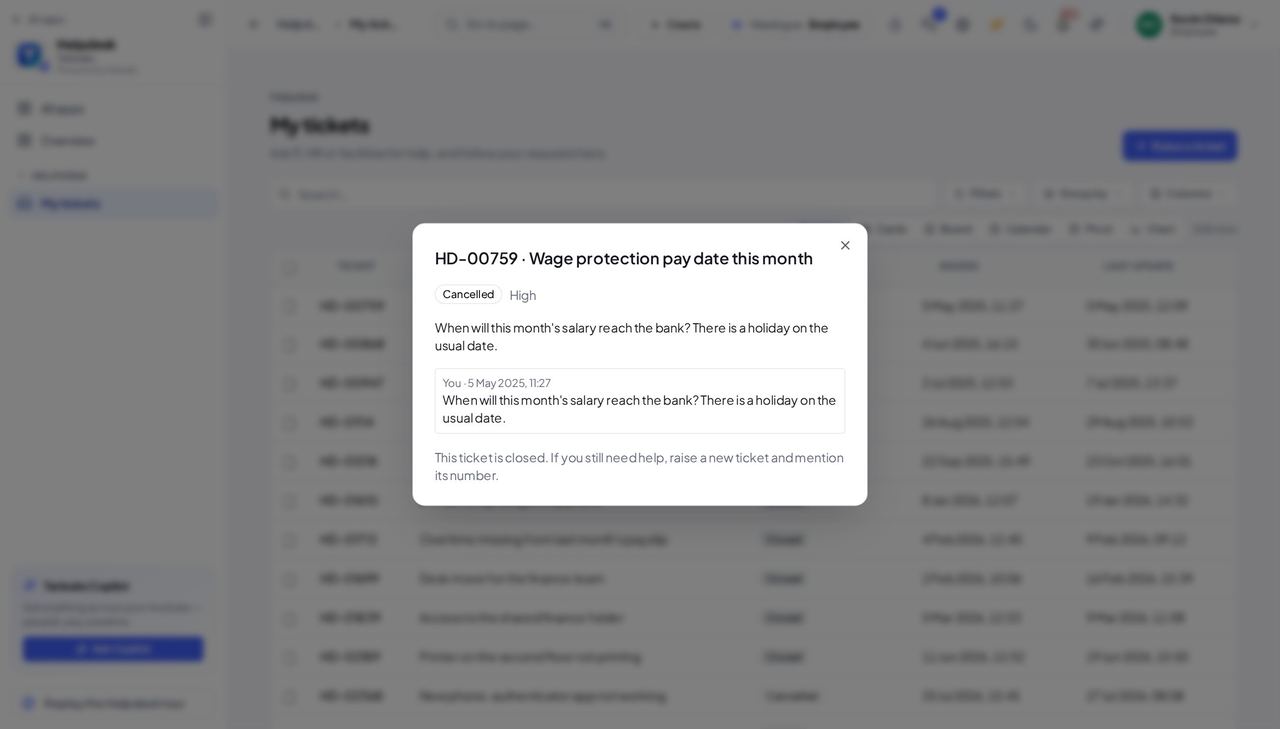
You should see Your ticket, with nothing that says Escalated.
Worth knowing You are still told when the desk answers; only the desk's own handling stays private.
Your list shows no escalation flag #
Where Helpdesk » My tickets
- Read the list: the number, the subject, the status, the date raised and the date of the last update.
- No row carries an Escalated flag, however late the ticket is.
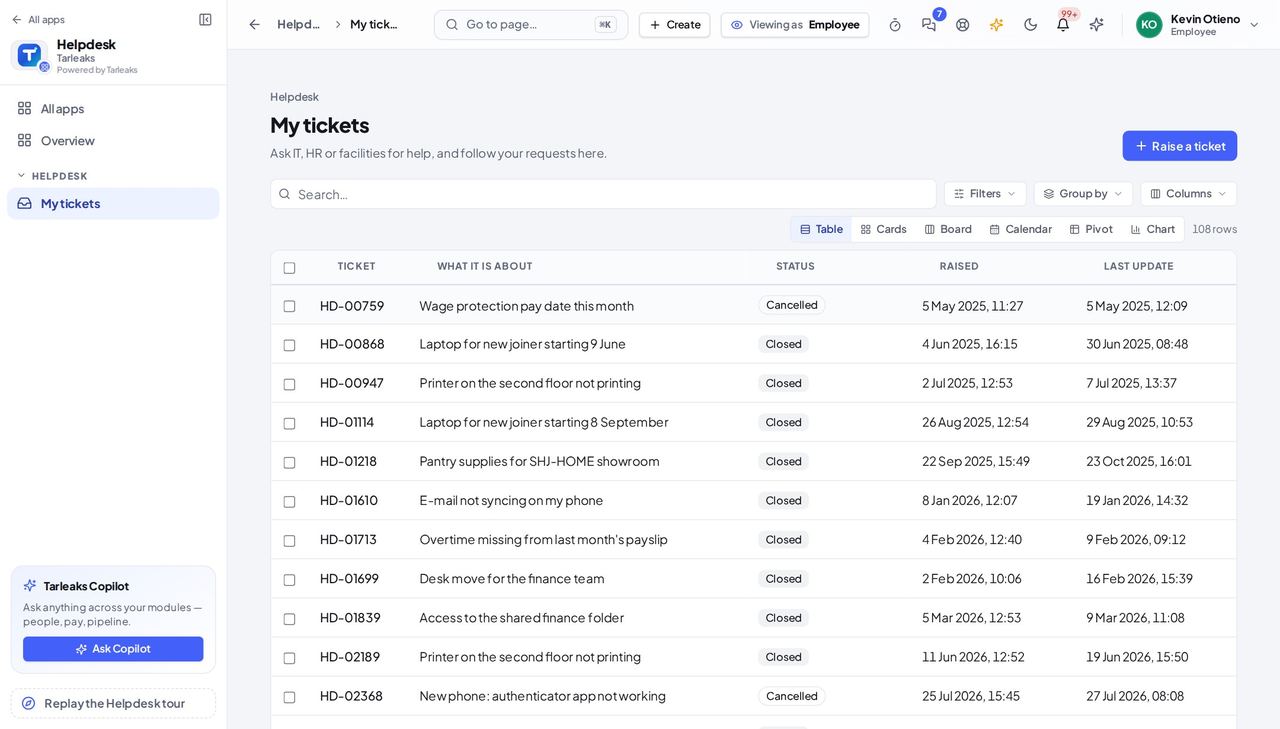
You should see The list of your own tickets, without any escalation marker.
See what is not yours #
Where Helpdesk (the menu)
- Look at the Helpdesk menu: only My tickets is there.
- The queue, canned replies and the desk settings belong to the agents and the administrator.
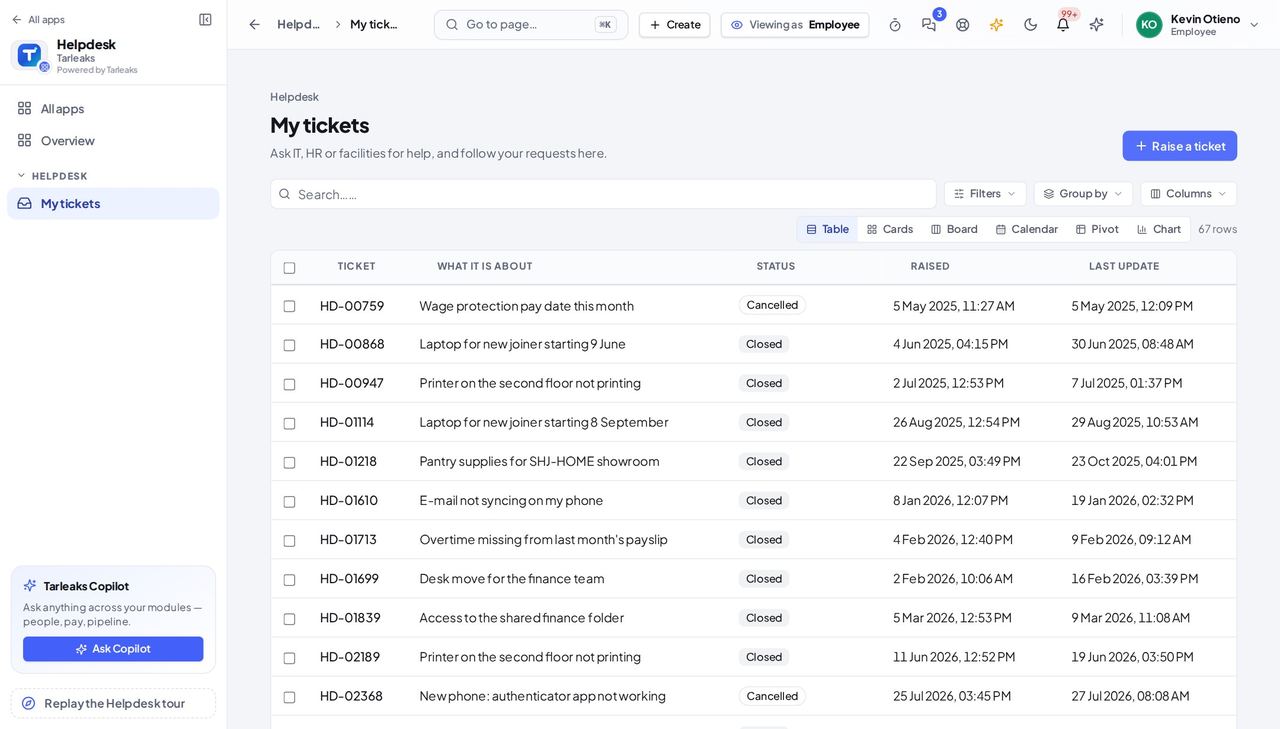
You should see A menu with one entry.
Use cases — the work, step by step
Each one is a sequence somebody actually performs, with the screen behind every step. Every screen here was opened in the product as this role before it was published.
occasionallyMy printer stopped working #
One ticket to the right desk, and you can follow it without asking anyone.
My tickets → Raise a ticket: choose IT, write one line and the details.
Helpdesk » My tickets » Raise a ticket — verified: the page says “Who should help?”; the page says “Send ticket” Come back to My tickets: the status changes as the desk works on it.
Helpdesk » My tickets — verified: the page says “My tickets”; the page says “Raise a ticket”; 25 row(s) listed
The agents' queue and the desk settings are not yours — only your own tickets are listed.