Helpdesk Agent — Helpdesk guide
Answer every request on your desks before its clock runs out.
Works the queue of the desks they are rostered on: reads what is due, replies to the requester, keeps internal notes, moves a ticket through its states, uses canned replies and the knowledge base. Does not create desks or SLA policies.
What you will be able to do
- Read the queue with the SLA clock on every ticket
- Reply to the requester or keep an internal note
- Answer repeated questions with a canned reply
- Find the answer in the knowledge base
- Read your desks' numbers in Reports
What this role can and cannot do
| Can | Cannot |
|---|---|
|
|
7 steps, each one carried out in the product on .
Read your queue #
Where Helpdesk » Tickets
- Click the Helpdesk tile in the launcher, then Tickets.
- Read the tiles on top: your tickets, how many have breached their SLA, and the count in each state.
- Read the SLA column: it shows the clock, or Breached in red.
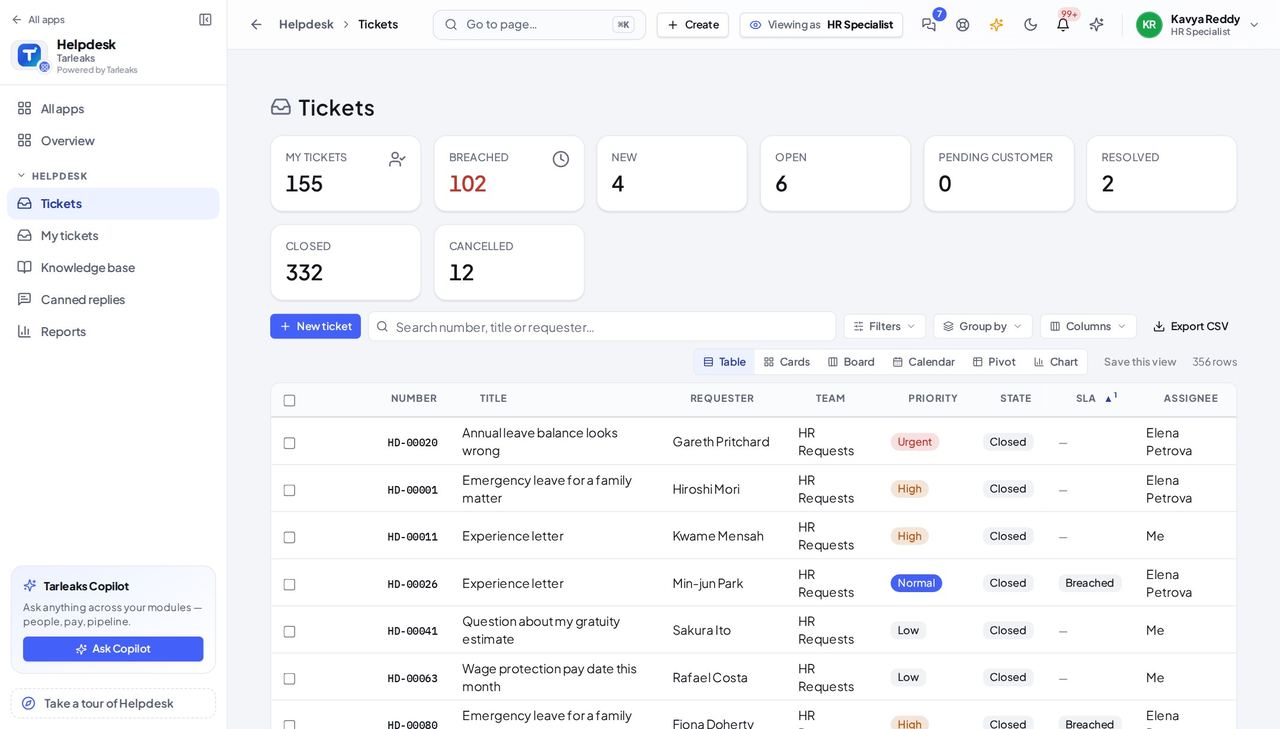
You should see Every row has a number, the requester by name, the desk, the priority and the state; the tiles add up to the number of rows.
Worth knowing Use Filters and Group by above the table to narrow the queue to your own work.
Open a ticket and read the thread #
Where Helpdesk » Tickets » a ticket
- Open your company's address in the browser — it looks like yourcompany.tarleaks.com.
- Type the e-mail address your administrator set up for you, then your password.
- You land on the app launcher: a grid of the apps your company uses.
- Click the Helpdesk tile.
- Tickets → click the ticket.
- Type your answer → Send reply.
| Field | What to put in it |
|---|---|
| Reply | what the requester should read |
| Internal note | only your colleagues see it |
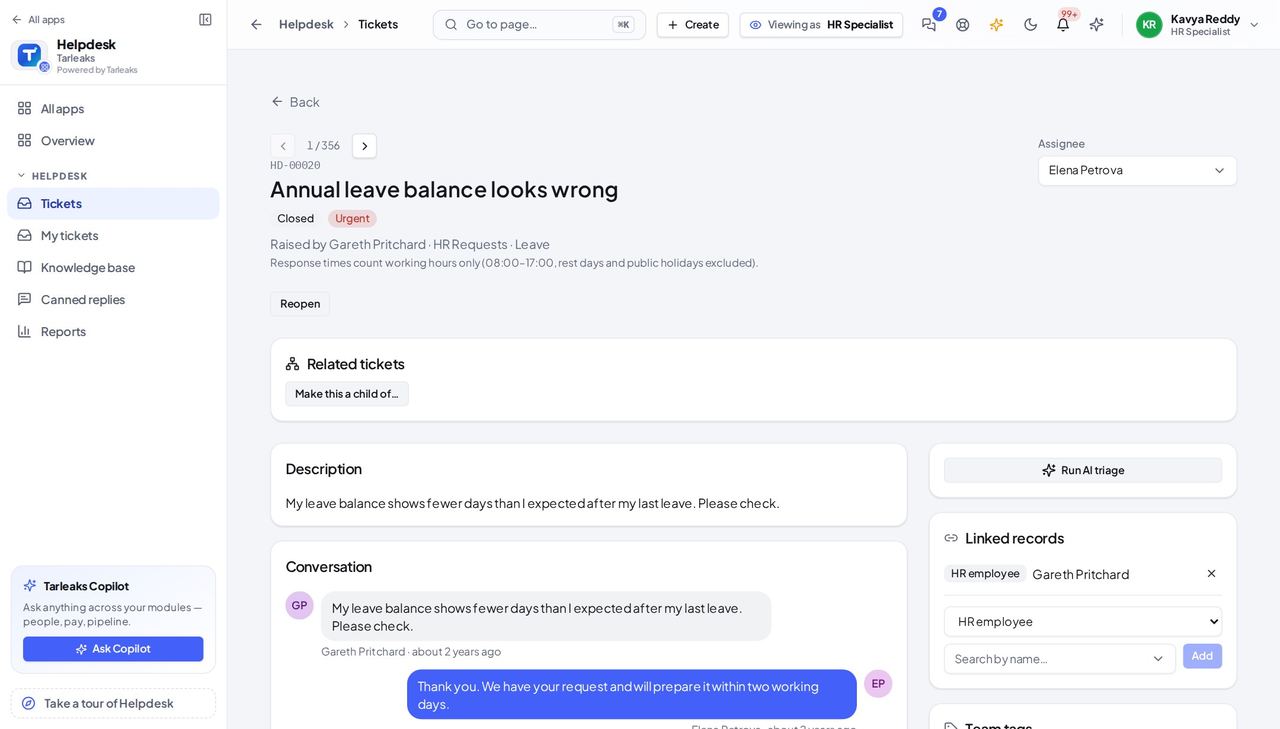
You should see The ticket's own page: state, priority, assignee, related tickets, the description and the conversation.
Watch out A public reply tells the requester; an internal note never does.
Answer with a canned reply #
Where Helpdesk » Canned replies
- Open Canned replies to read the replies your desks share, and your own.
- In a ticket's reply box, type / and pick one: its text is put in the box for you to adjust before sending.
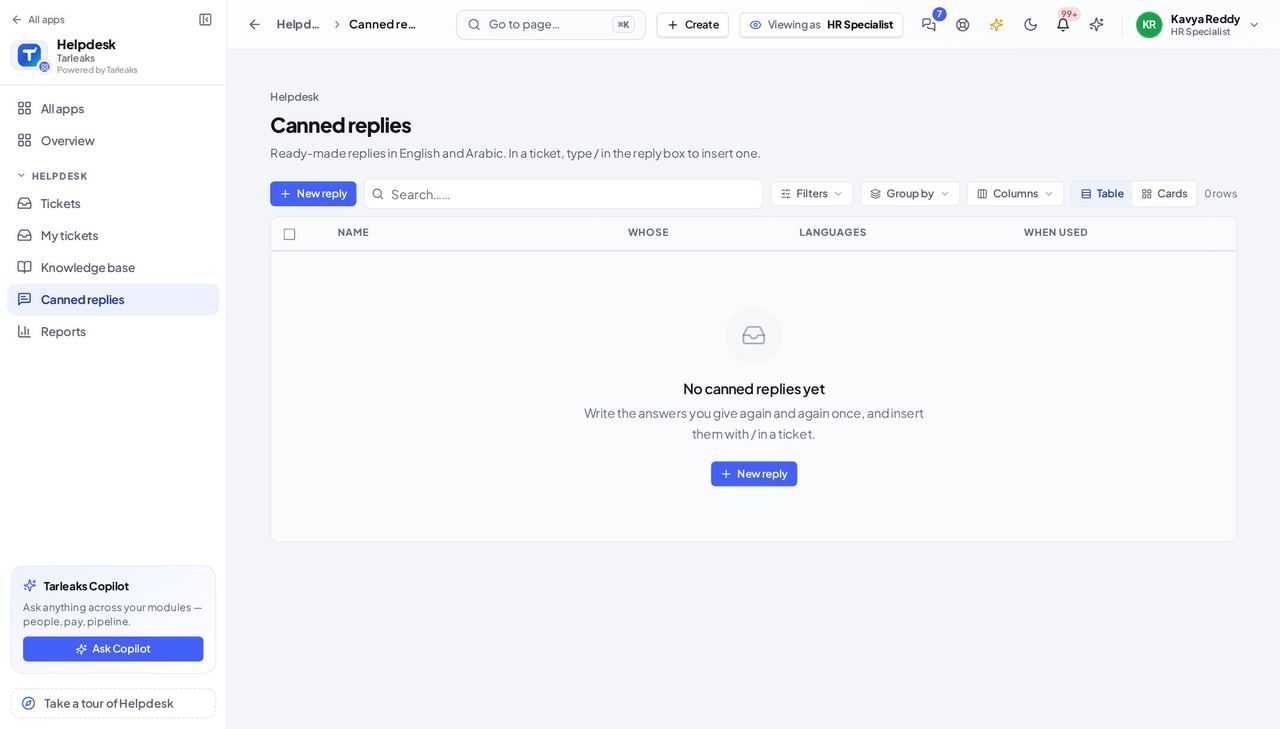
You should see A list of named replies you can insert into any ticket.
Search the knowledge base #
Where Helpdesk » Knowledge base
- Open Knowledge base and type a word in the search box.
- Click an article to read it; an agent who may edit articles gets the editor.
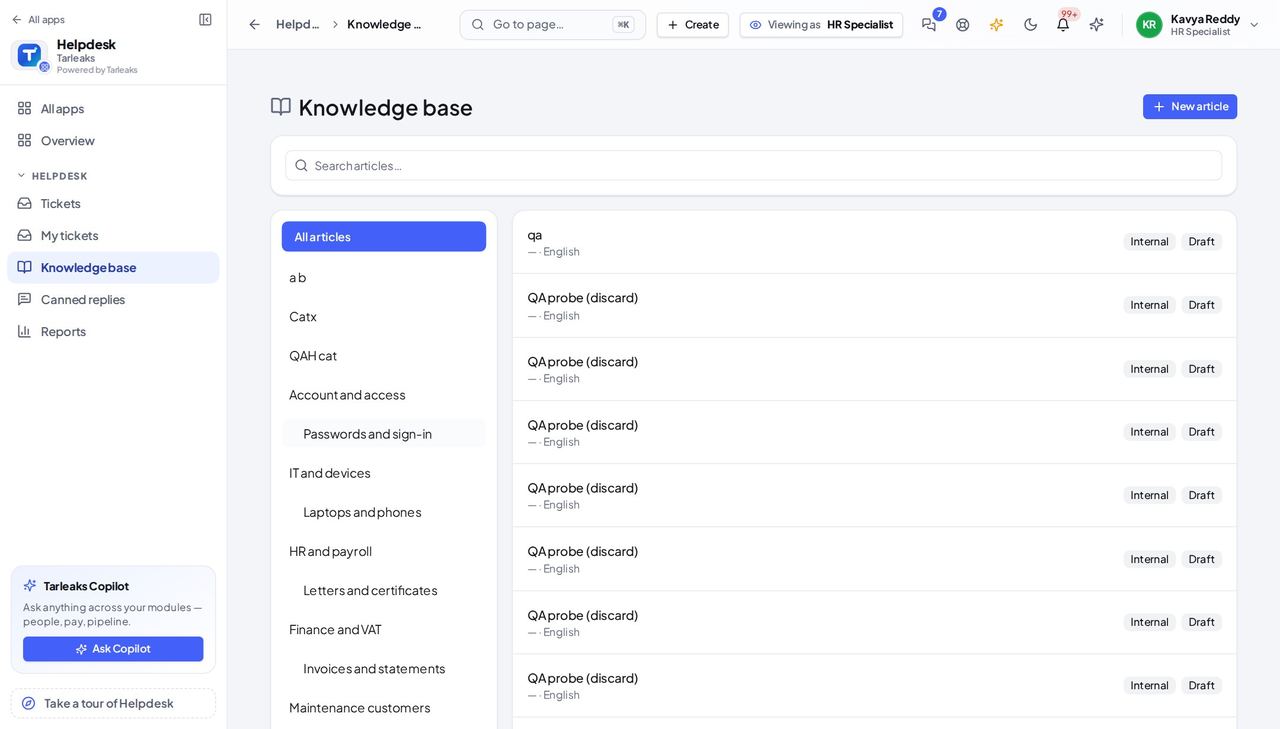
You should see Published articles that match the word, by title.
Read your desks' numbers #
Where Helpdesk » Reports
- Open Reports.
- Choose the period at the top; the satisfaction trend and the breakdown follow it.
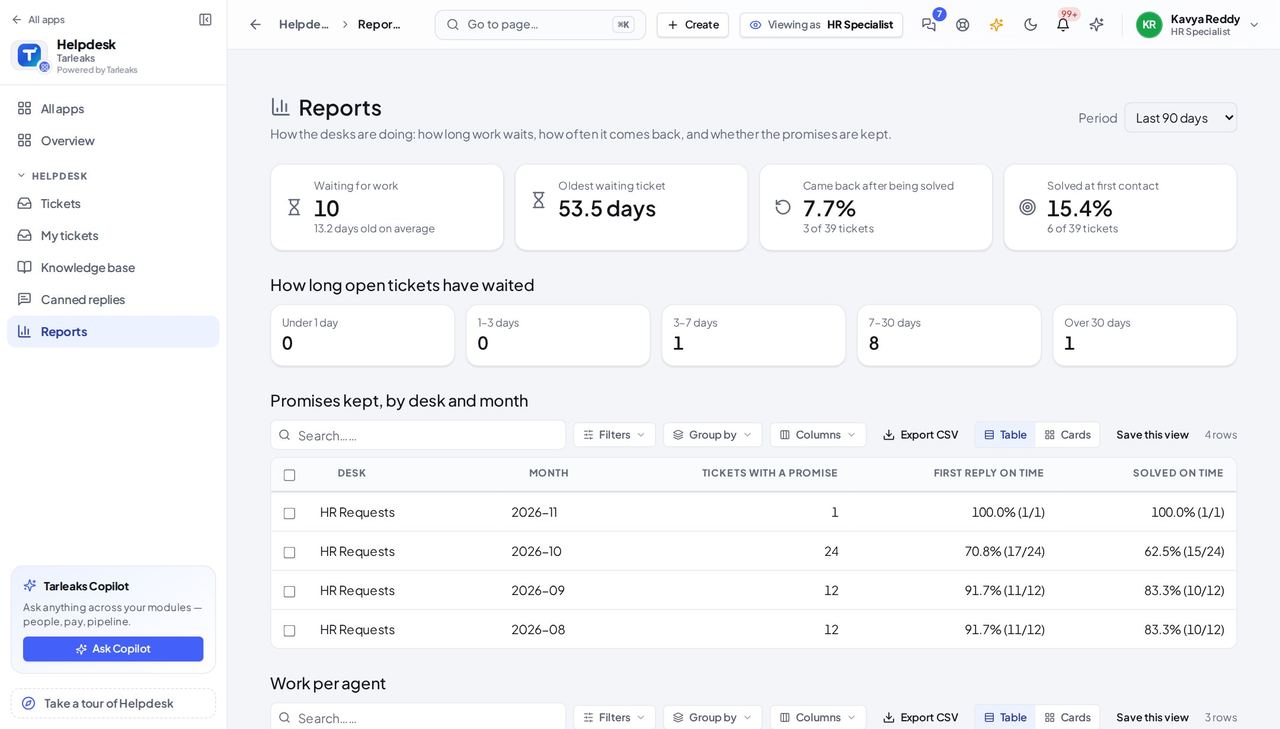
You should see Numbers for the desks you sit on, for the period you chose.
Raise a ticket for someone #
Where Helpdesk » Tickets » New ticket
- Press New ticket.
- Choose the Team (the desk), then write the Title and the Description and set the Priority.
- Leave Requester as it is to raise it for yourself, or pick another person.
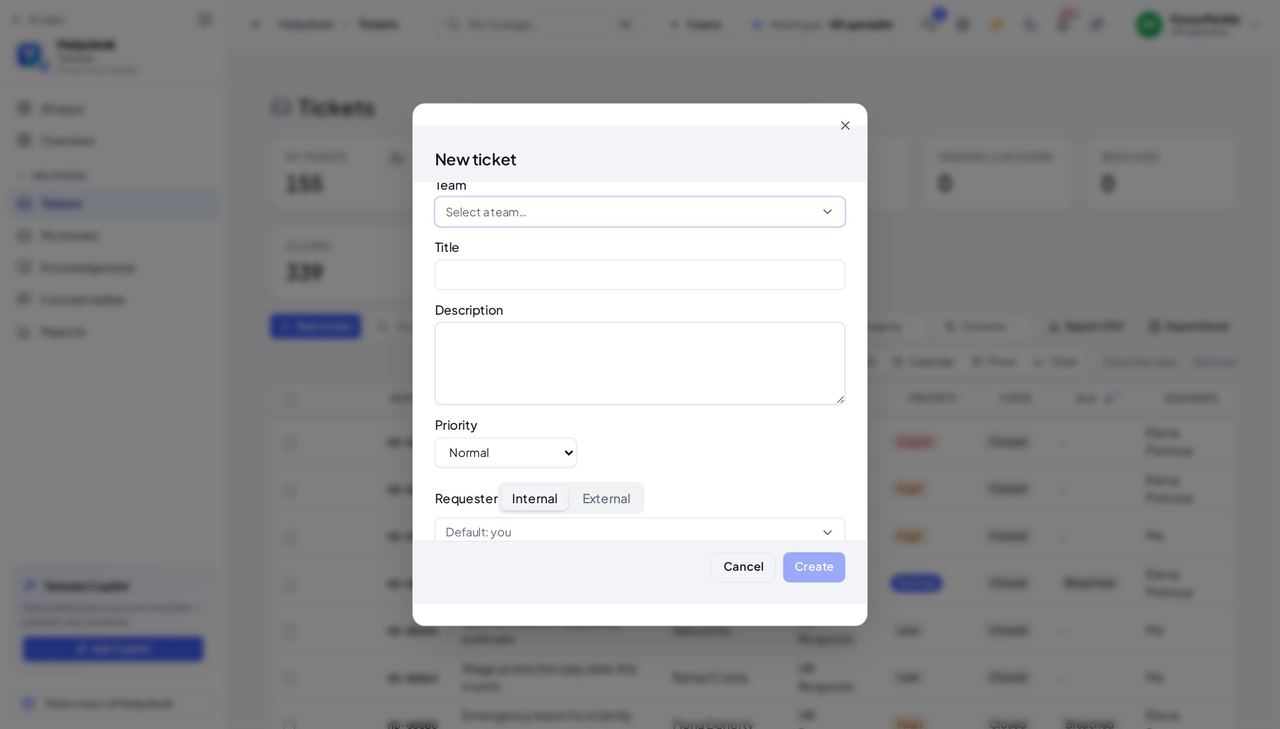
You should see A form with Team, Title, Description, Priority and Requester.
Worth knowing If your workspace has only one desk (a new workspace starts with the Support desk), Team is already chosen for you.
See what is not yours #
Where Helpdesk (the menu)
- Look at the Helpdesk menu: Tickets, My tickets, Knowledge base, Canned replies and Reports are there.
- Desks & SLAs is not — creating a desk or an SLA policy belongs to the administrator.
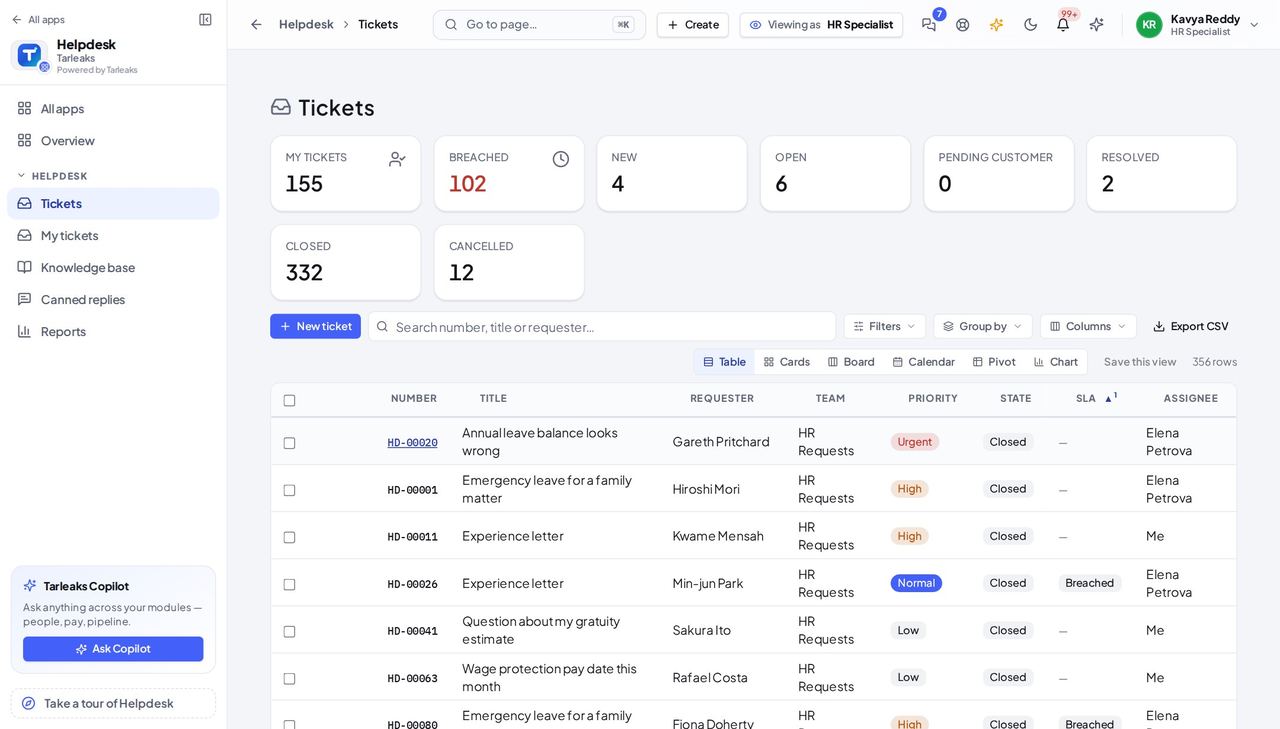
You should see No Desks & SLAs entry in the menu.
Use cases — the work, step by step
Each one is a sequence somebody actually performs, with the screen behind every step. Every screen here was opened in the product as this role before it was published.
all dayA new request arrives #
Answer inside the clock: the first public reply starts the ticket, and the SLA tells you how long you have left.
Tickets → sort by the SLA column: the ticket closest to its deadline is at the top.
Helpdesk » Tickets — verified: the page says “Breached”; the page says “New ticket”; 25 row(s) listed Open it, read the thread, and answer — with a canned reply when the question is a common one.
Helpdesk » Tickets » a ticket — verified: the page says “Conversation”; the page says “Description”
dailyA question the knowledge base already answers #
The knowledge base holds the agreed answer; use it so every requester gets the same one.
Knowledge base → search the word the requester used.
Helpdesk » Knowledge base — verified: the page says “Knowledge base” Read the article, then answer the requester in the ticket in your own words.
Helpdesk » Tickets » a ticket — verified: the page says “Conversation”; the page says “Description”
Creating desks, SLA policies and tags is the administrator's job; those pages are not in your menu.