Tenant Admin — Helpdesk guide
Set the desks up once, so every request lands with the right people on the right clock.
Sets the desks up: who sits on which desk, which SLA each desk promises, the tags, and the data requests from people who ask what the company holds on them.
What you will be able to do
- Create desks and choose who sits on them
- Give each desk its SLA policy
- Keep the tags tidy
What this role can and cannot do
| Can | Cannot |
|---|---|
|
|
5 steps, each one carried out in the product on .
Read your desks #
Where Helpdesk » Desks & SLAs » Desks
- Open your company's address in the browser — it looks like yourcompany.tarleaks.com.
- Type the e-mail address your administrator set up for you, then your password.
- You land on the app launcher: a grid of the apps your company uses.
- Click the Helpdesk tile.
- Desks & SLAs → Desks.
- New desk → name, kind, SLA policy → Save.
| Field | What to put in it |
|---|---|
| Name | what people see when they raise a ticket |
| SLA policy | the promise the desk makes |
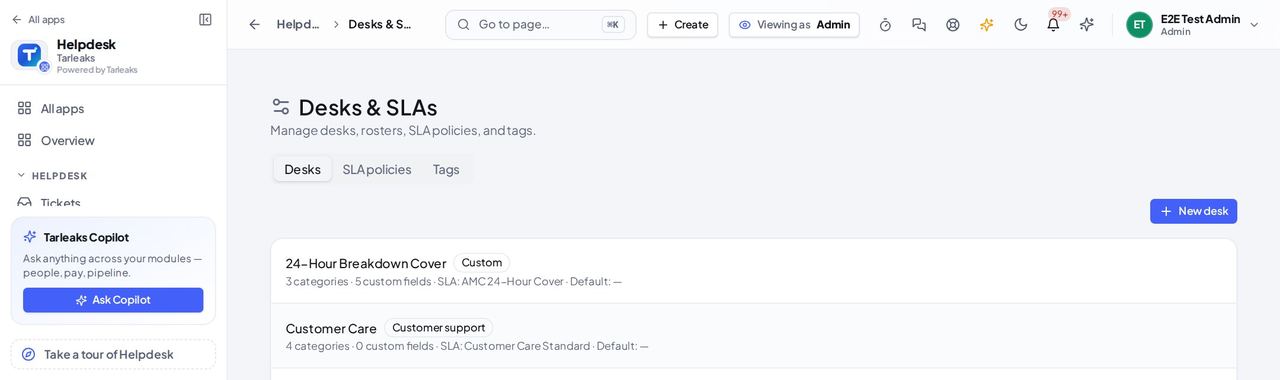
You should see One row per desk; a confidential desk carries a Confidential badge.
Watch out A confidential desk is seen only by the people rostered on it.
Read the SLA policies #
Where Helpdesk » Desks & SLAs » SLA policies
- Open the SLA policies tab.
- Each policy is a promise: how fast the first answer comes and how fast the ticket is resolved, per priority.
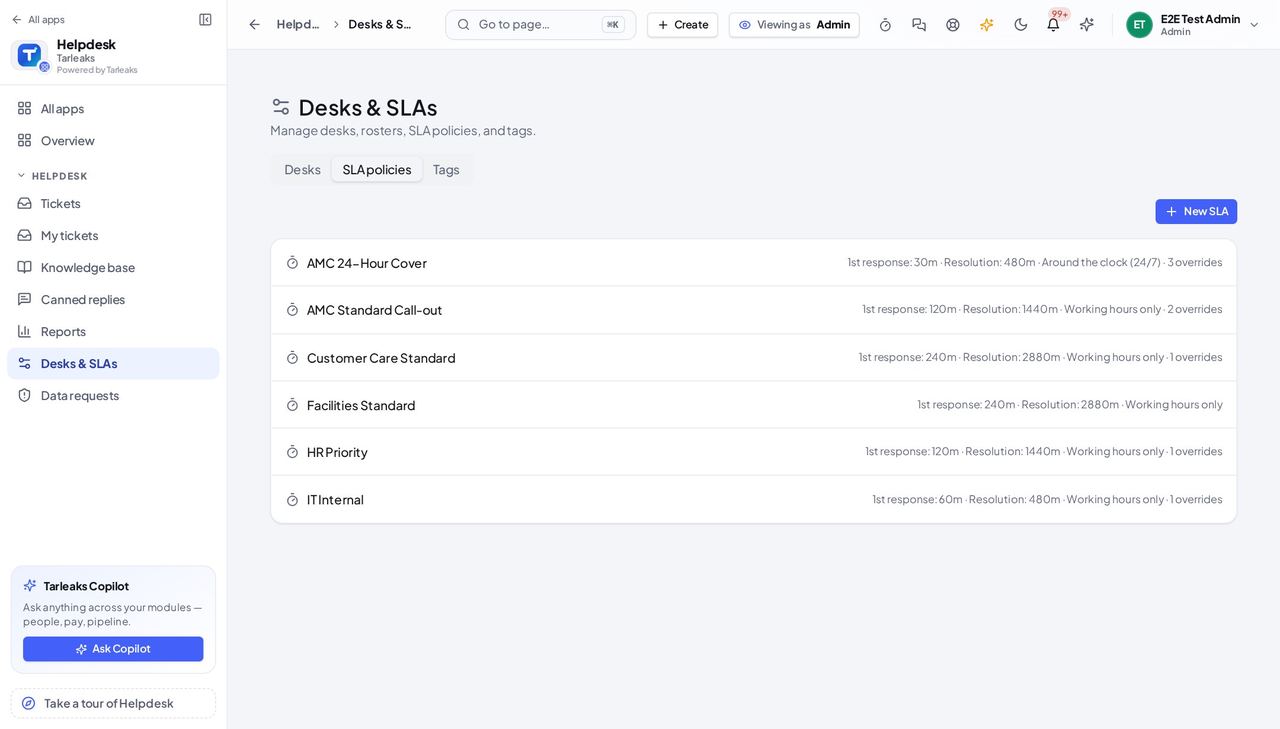
You should see The policies that desks point to.
Keep the tags tidy #
Where Helpdesk » Desks & SLAs » Tags
- Open the Tags tab.
- Add a tag or remove one that is no longer used; agents apply the tags to tickets.
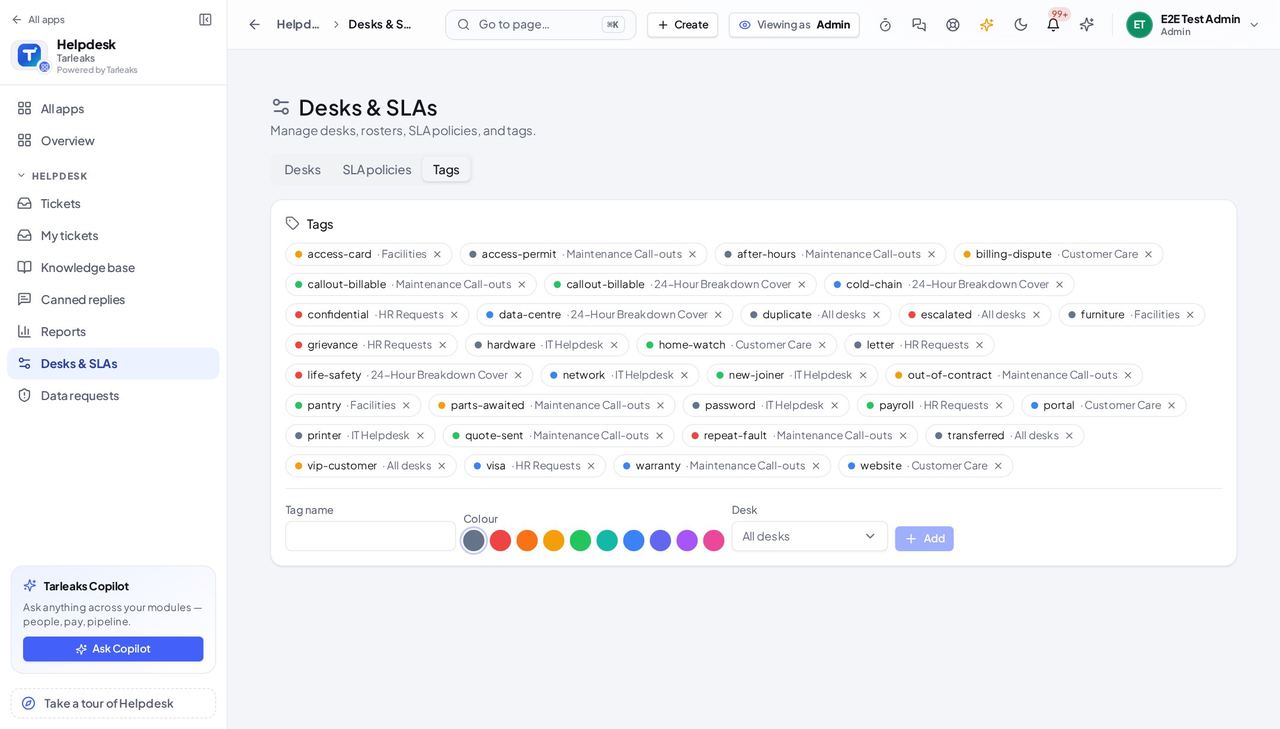
You should see The company's tags, one per row.
Let a desk read its own mailbox #
Where Helpdesk » Desks & SLAs » Desks » a desk » E-mail
- Open Desks & SLAs and click a desk: its settings open.
- Scroll to E-mail. Switch on This desk files tickets from e-mail, type the address customers write to and press Save e-mail settings (the switch and the address are saved only by that button). If the screen says e-mail intake is switched off for the company, turn it on in Settings > Features first.
- If the desk has its own mailbox, fill Mail server, Folder, Sign-in name and Password, press Check the sign-in, then Save mailbox.
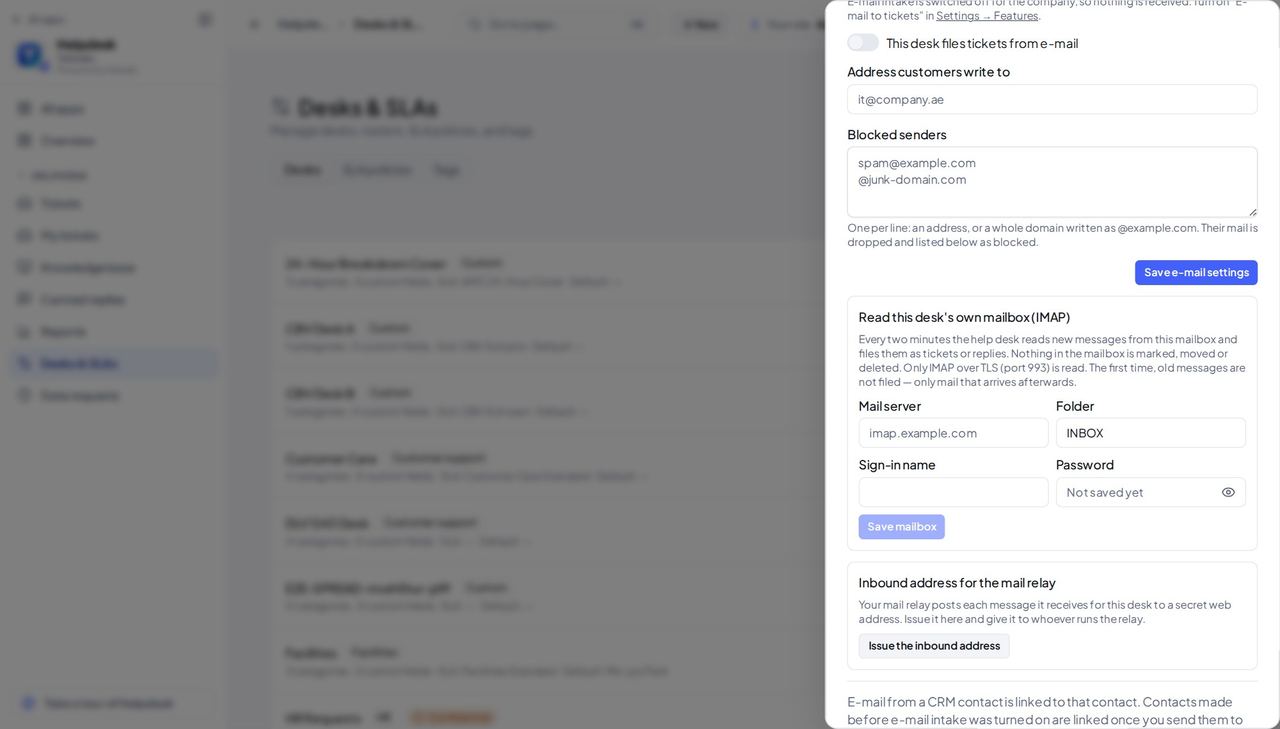
You should see The E-mail section of the desk, with the switch and the address; after saving the mailbox, Not read yet until its next check, then the time it was last read.
Worth knowing The saved password is never shown again; when it is longer than 8 characters a line names only its last four. Leave the box empty to keep it, or type a new one to replace it. There is no Remove: the mailbox cannot be read without the password. Check the sign-in always uses the saved password and says so.
Decide how long finished tickets are kept #
Where Helpdesk » Desks & SLAs » Desks
- On the Desks tab, scroll to How long finished tickets are kept.
- Type the number of months for a desk and press Save; a desk left empty keeps its tickets.
- On a ticket, Place a legal hold stops its removal until you release the hold.
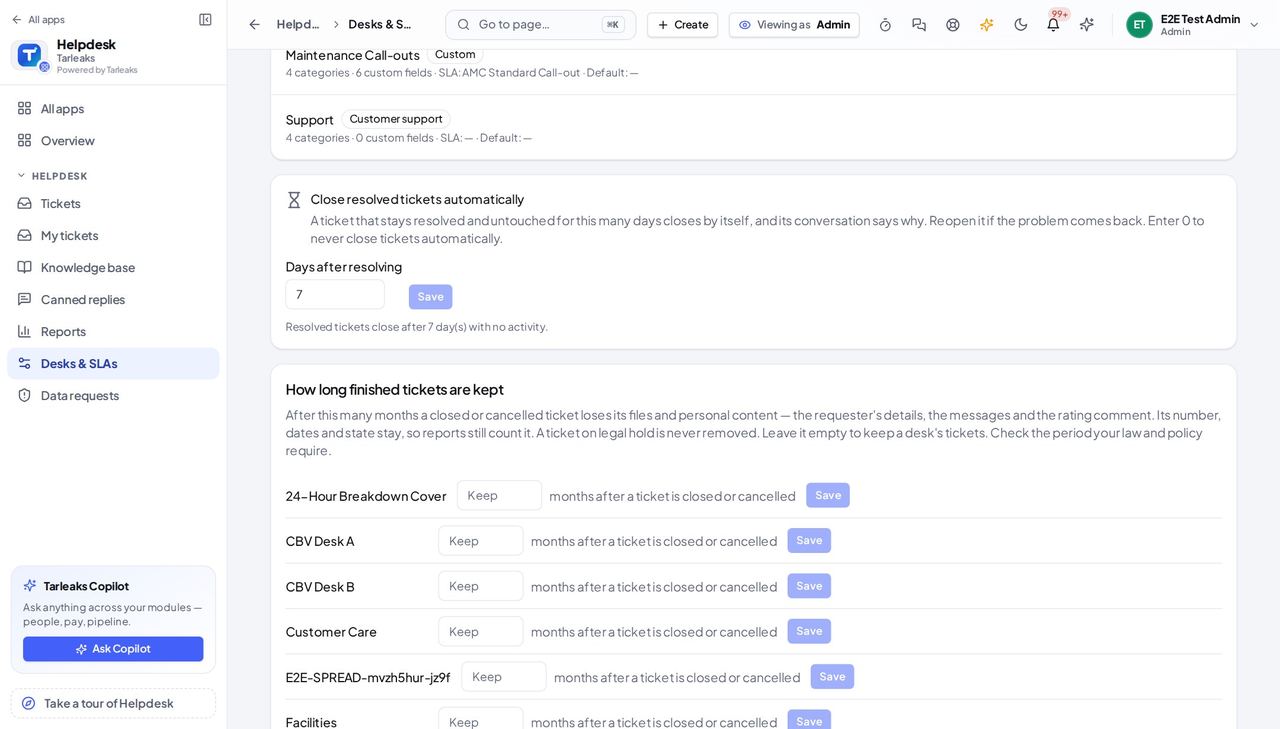
You should see One row per desk with its months and a Save button.
Use cases — the work, step by step
Each one is a sequence somebody actually performs, with the screen behind every step. Every screen here was opened in the product as this role before it was published.
when the company adds a serviceA new desk opens #
People can raise tickets to it only once it has a name, an SLA and a roster.
Desks & SLAs → SLA policies: check the promise the desk will make exists.
Helpdesk » Desks & SLAs » SLA policies — verified: the page says “New SLA”; the page says “Resolution”; no “New desk” anywhere on the page Desks → New desk: name, kind, SLA policy, and who sits on it.
Helpdesk » Desks & SLAs » Desks — verified: the page says “New desk”; the page says “Confidential”
Working the tickets is the agents' job; you set the stage.