Line Manager — HR guide
See your own team clearly, and decide what they are waiting on.
Sees their own departments only — approves what their people ask for, and answers for their team's numbers.
What you will be able to do
- See every person who reports to you, and their status today
- Approve or refuse leave without leaving the page
- Read the org chart around your team
- Follow your team's goals and reviews
What this role can and cannot do
| Can | Cannot |
|---|---|
|
|
5 steps, each one carried out in the product on .
Check what your sign-in can do #
Where Your name, top right » Profile
- Open your company's address in the browser — it looks like yourcompany.tarleaks.com.
- Type the e-mail address your administrator set up for you, then your password.
- You land on the app launcher: a grid of the apps your company uses.
- Click your name, top right.
- Choose Profile.
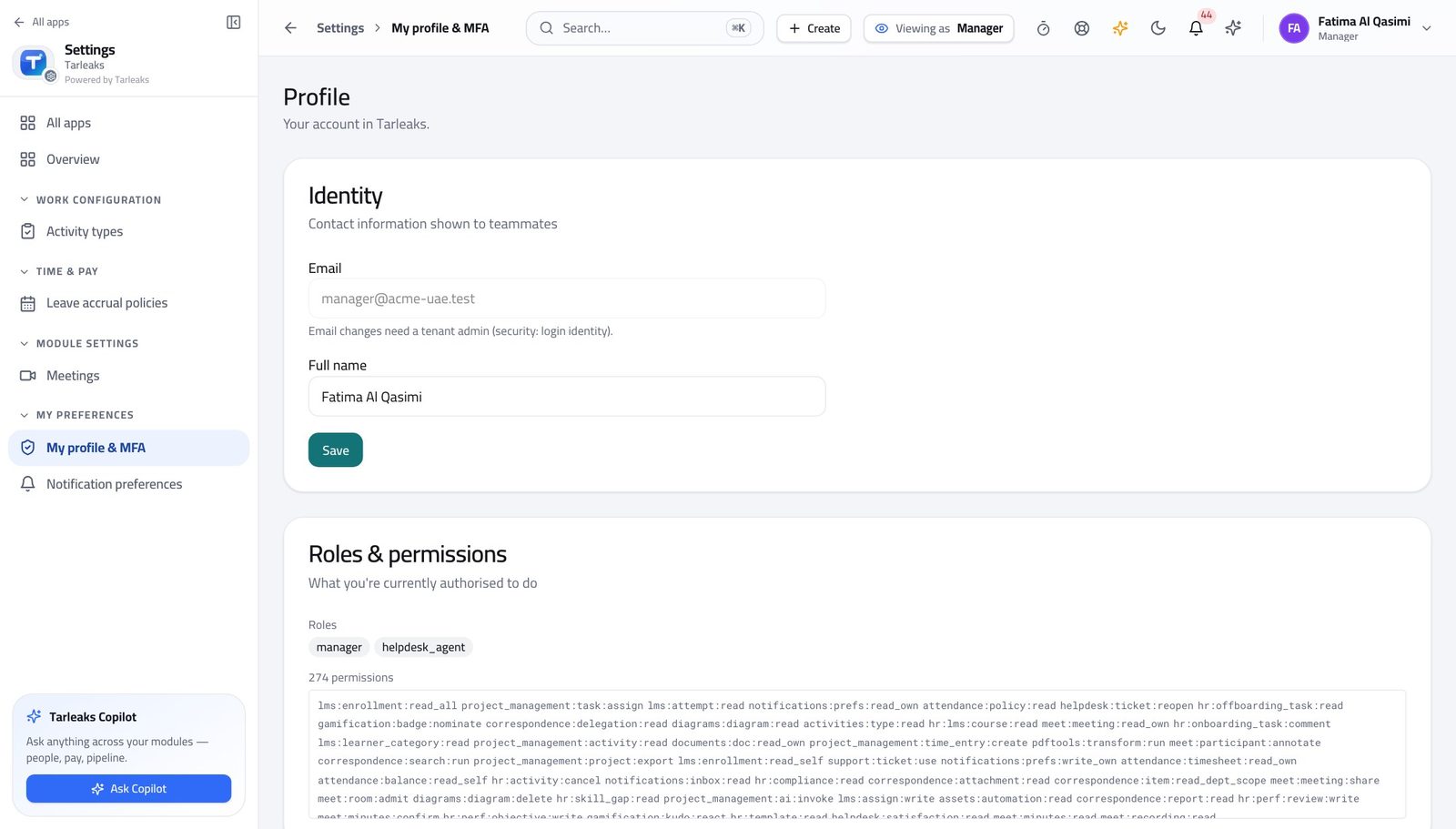
You should see It says Manager. You see the departments you manage — not the company.
See your team #
Where HR » My team
- Open My team.
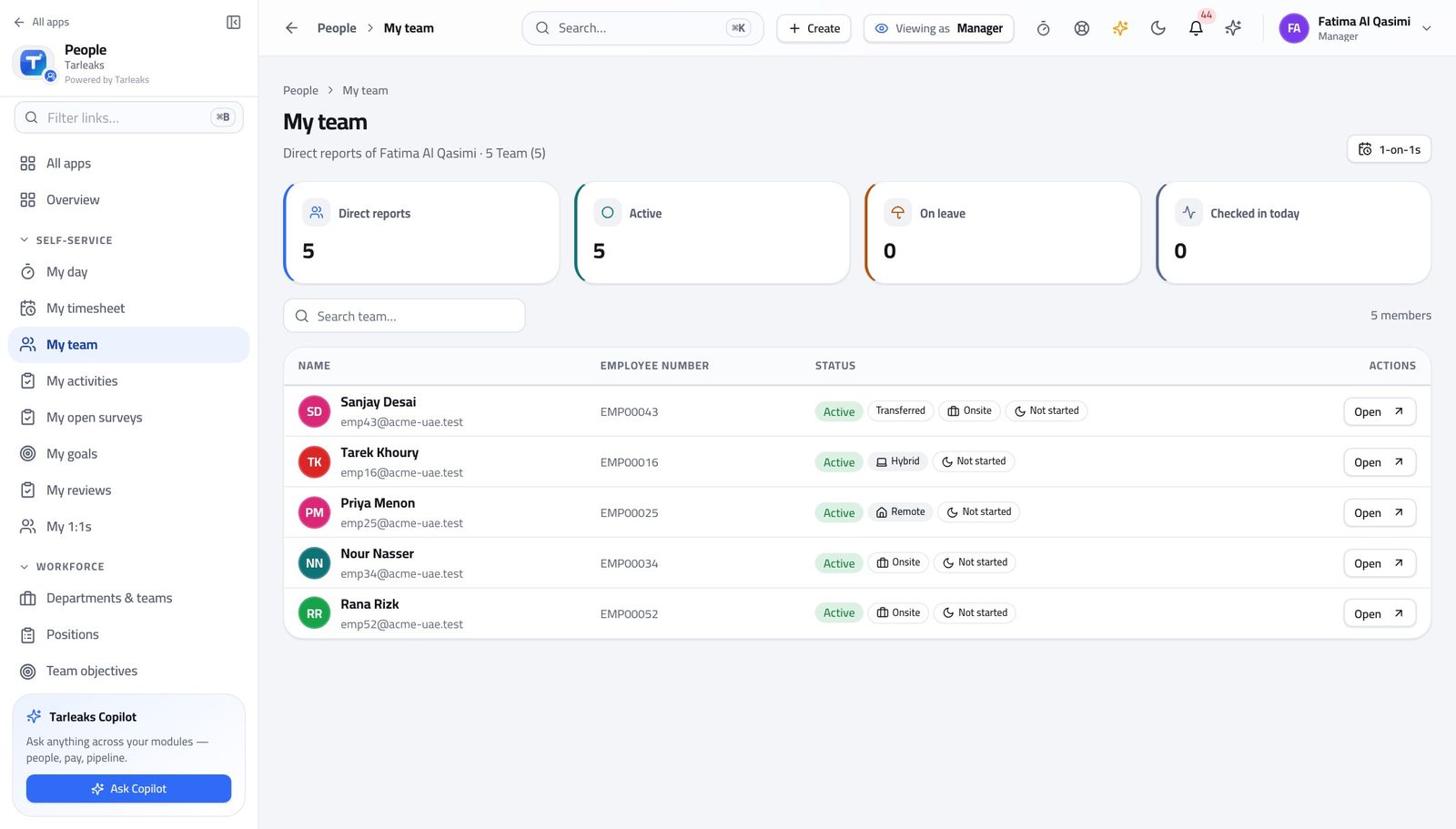
You should see This is the list the system builds from the reporting lines, not one you maintain.
Watch out Somebody missing here almost always means their record is not linked to a login yet.
Worth knowing If somebody is missing, their record is not linked to a login yet — ask HR to link it rather than re-creating the person.
Decide your team's requests #
Where HR » Requests
- Open Requests.
- Open one.
- Approve or refuse with a reason.
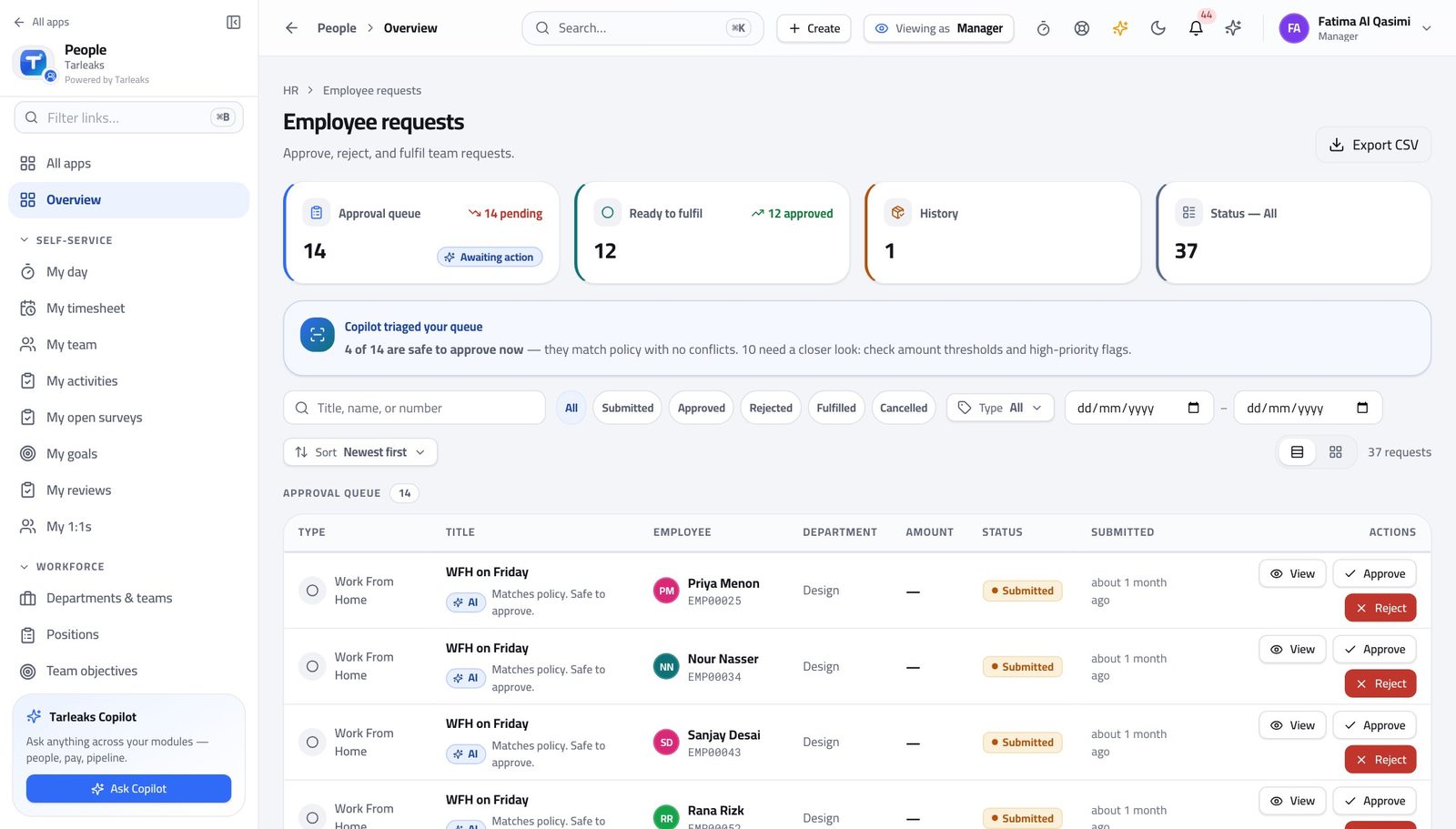
You should see A refusal with a reason is a decision. A refusal without one is a conversation you will have twice.
See where your team sits #
Where HR » Org chart
- Open the org chart.
- Find your own name and follow the line.
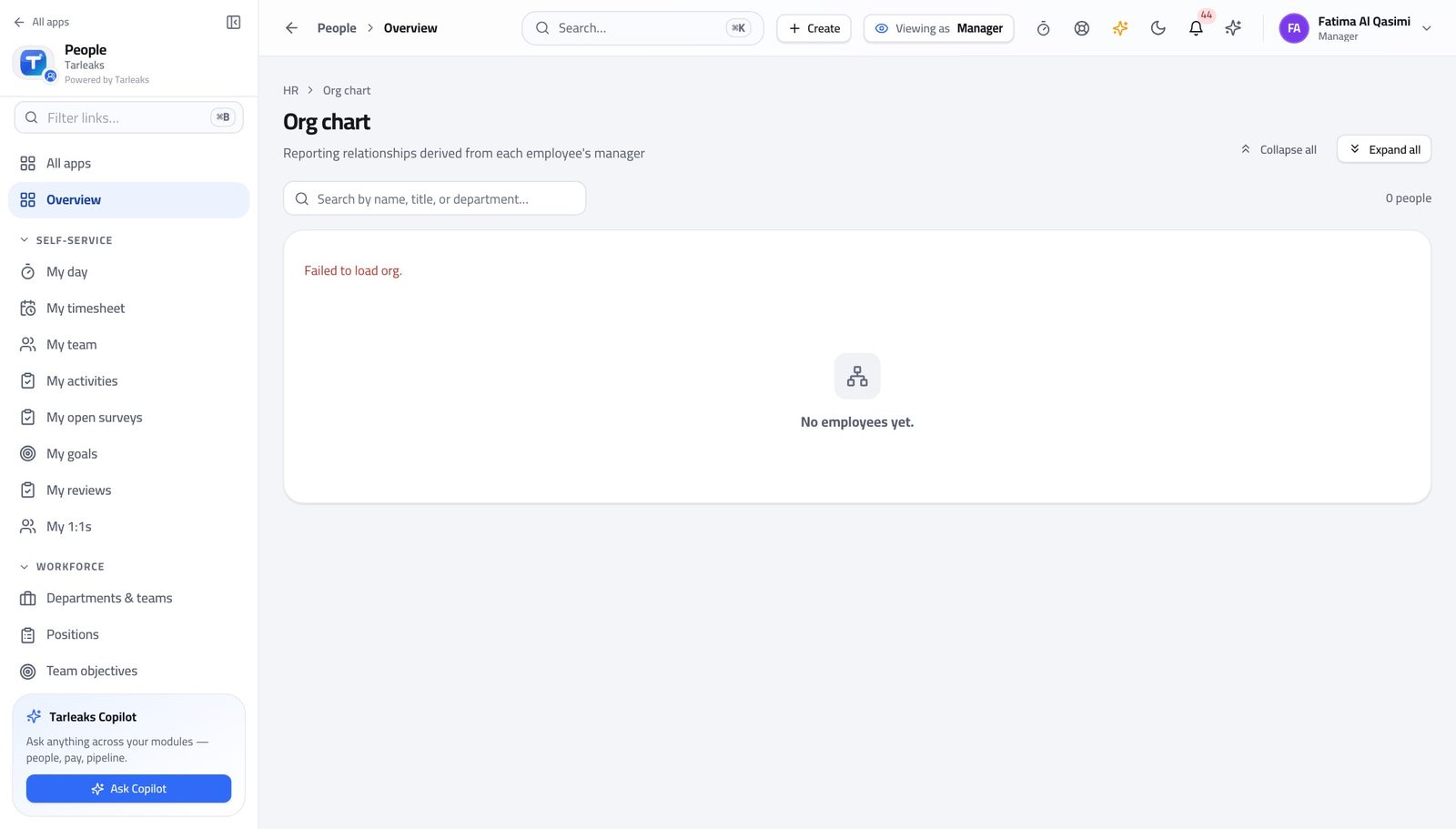
You should see Reporting lines are drawn from the records, so the chart cannot drift from who actually reports to whom.
Follow your team's goals and reviews #
Where HR » Performance
- Open Performance.
- Read your team's goals and reviews.
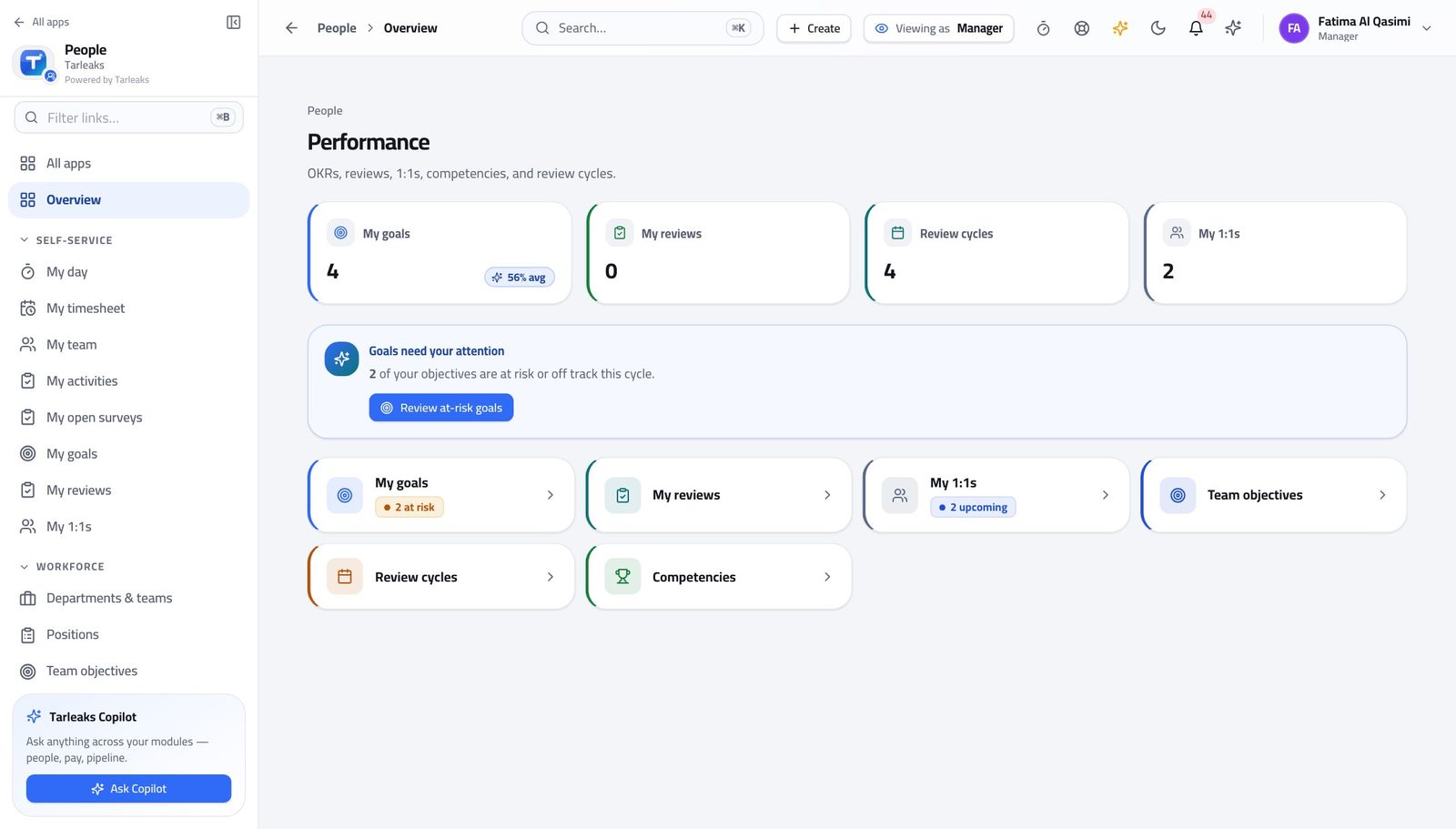
You should see You can see the work your people signed up to without asking them for a status update.
Use cases — the work, step by step
Each one is a sequence somebody actually performs, with the screen behind every step. Every screen here was opened in the product as this role before it was published.
dailyDecide your team's leave without leaving the page #
Your people are waiting on you, and their balance is checked before the request ever reaches you.
Open My team to see who is in, who is out and what is pending.
HR » My team — verified: the page says “team” Open Requests, read what was asked, and approve or refuse with a reason.
HR » Requests — verified: the page says “Requests”
weeklyPrepare for a one-to-one in five minutes #
Everything you need is already recorded — you are reading, not collecting.
Open Performance and read the person's goals and where the review cycle has got to.
HR » Performance — verified: the page says “Performance” Open the org chart if the conversation is about scope or a move.
HR » Org chart — verified: the page says “chart”
You see your departments, not the company. That is the scope the system gives a line manager — and it is why you can be given access at all.